Exercise 2 - Engage
Scenario
Mia has now registered online for the upcoming Open Day at Altura University. We know that she's looking to study engineering and is interested in sports. She receives a personalised email upon registration and receives reminder messages via mobile push or SMS in the lead up to the day.
During the day she checks in to the sessions she attends using the QR codes provided throughout the campus. Unfortunately, she get's distracted touring the sports facilities and misses the engineering session.
The next day she receives an email thanking her for attending. Later that week she receives a call from the head of engineering faculty to check in on her experience and whether she had any questions since she missed the group session.
Objective
In this exercise you will experience as a future student:
- Checking in to sessions throughout the room
You will learn as a marketer:
- How to create a dynamic segment
- How to build a personalised post event journey
Experience It
Check in to sessions
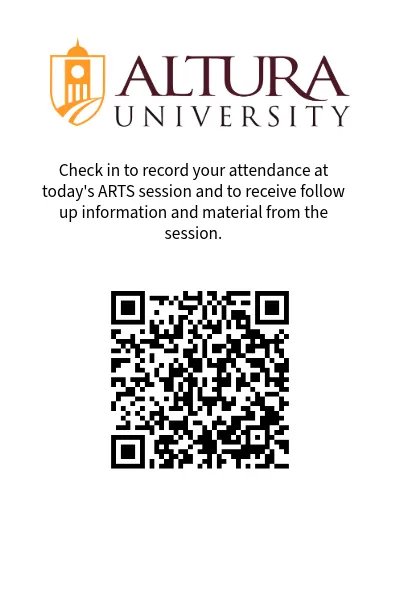
There are QR codes placed around the room, each represents a different session on Open Day, using your phone scan the QR to register your attendance at a few.
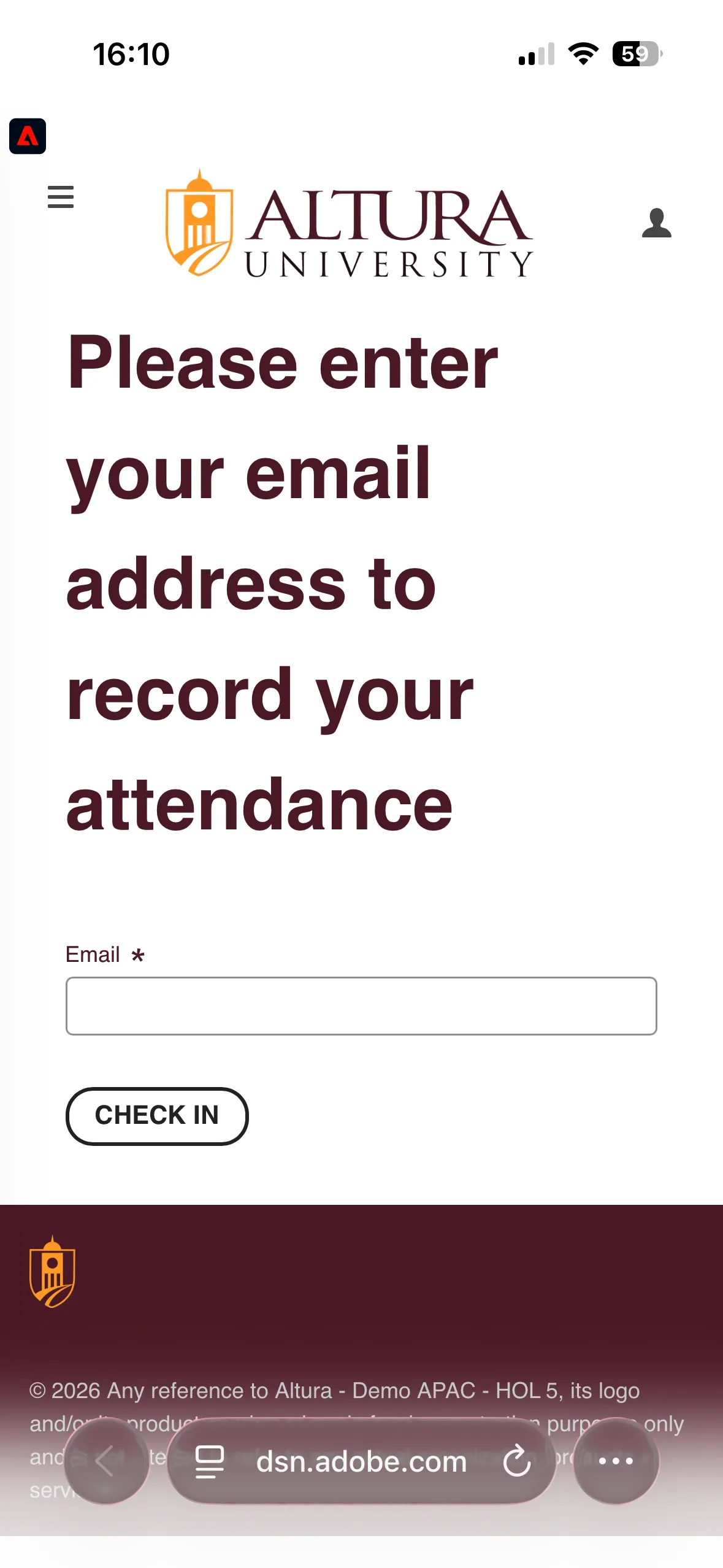
With a mobile app installed there would be no need to provide an email address as part of this checkin, using just your mobile browser you'll need to provide the same email address you used to register for open day in exercise 1 to insure the check-in event is stitched to your known profile. Even with this web only approach the email will be remembered for 24 hours so students can check in to multiple sessions providing their email address only the first time.
Your phone will prompt you to identify yourself the first time, enter the email you used to register in exercise 1 and click to Checkin.
Repeat the same for a few sessions around the room, you'll only need to enter your email address once.
Make it
Now you've experienced it from the student perspective, let's take a look behind the scenes. We've broken this exercise up into two parts.
Part 1 - Building the journey
Inspect events
Return to the tab with your profile open - or find it again following the Find your profile exercise.
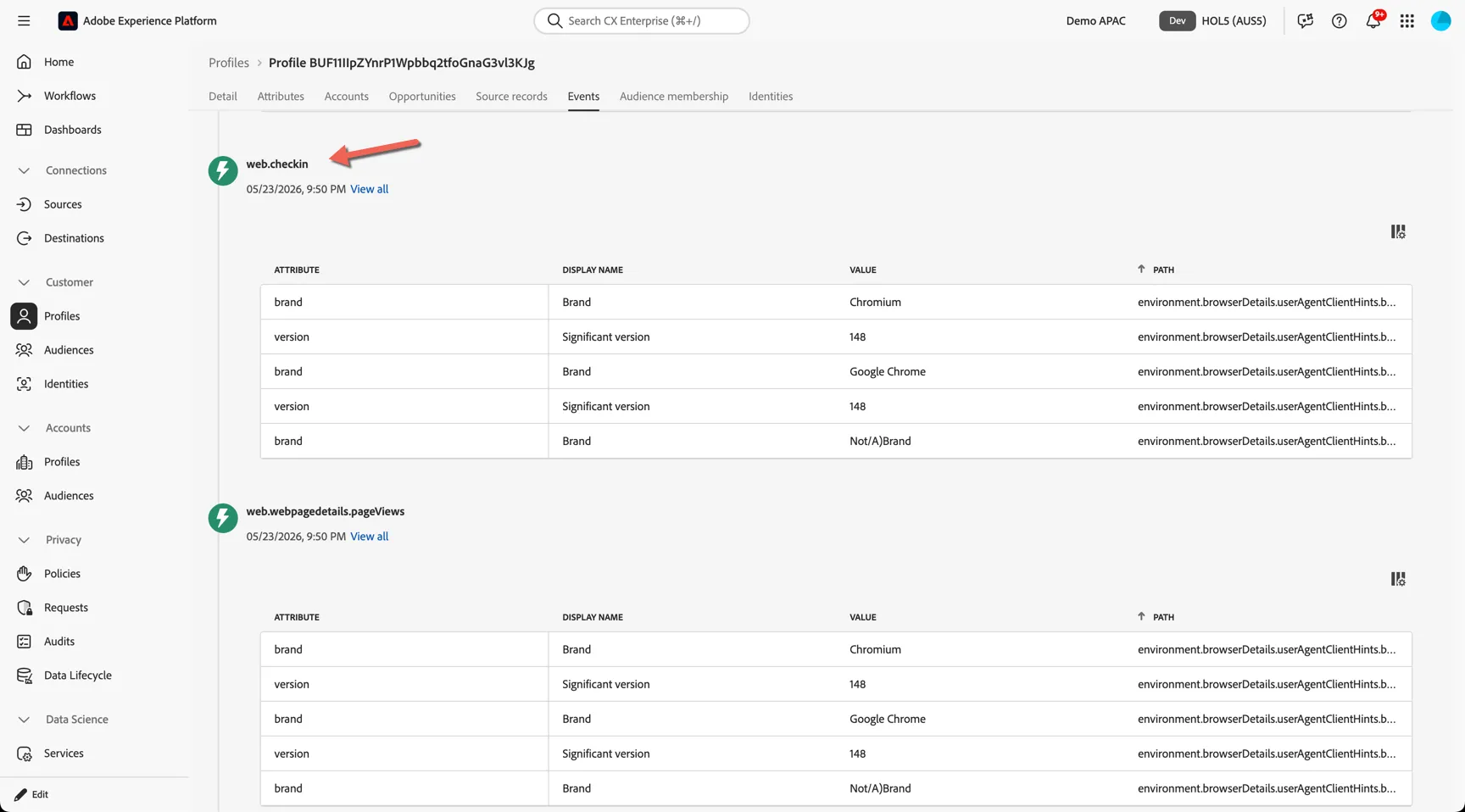
Switch to the Events tab where you will see the check in events.
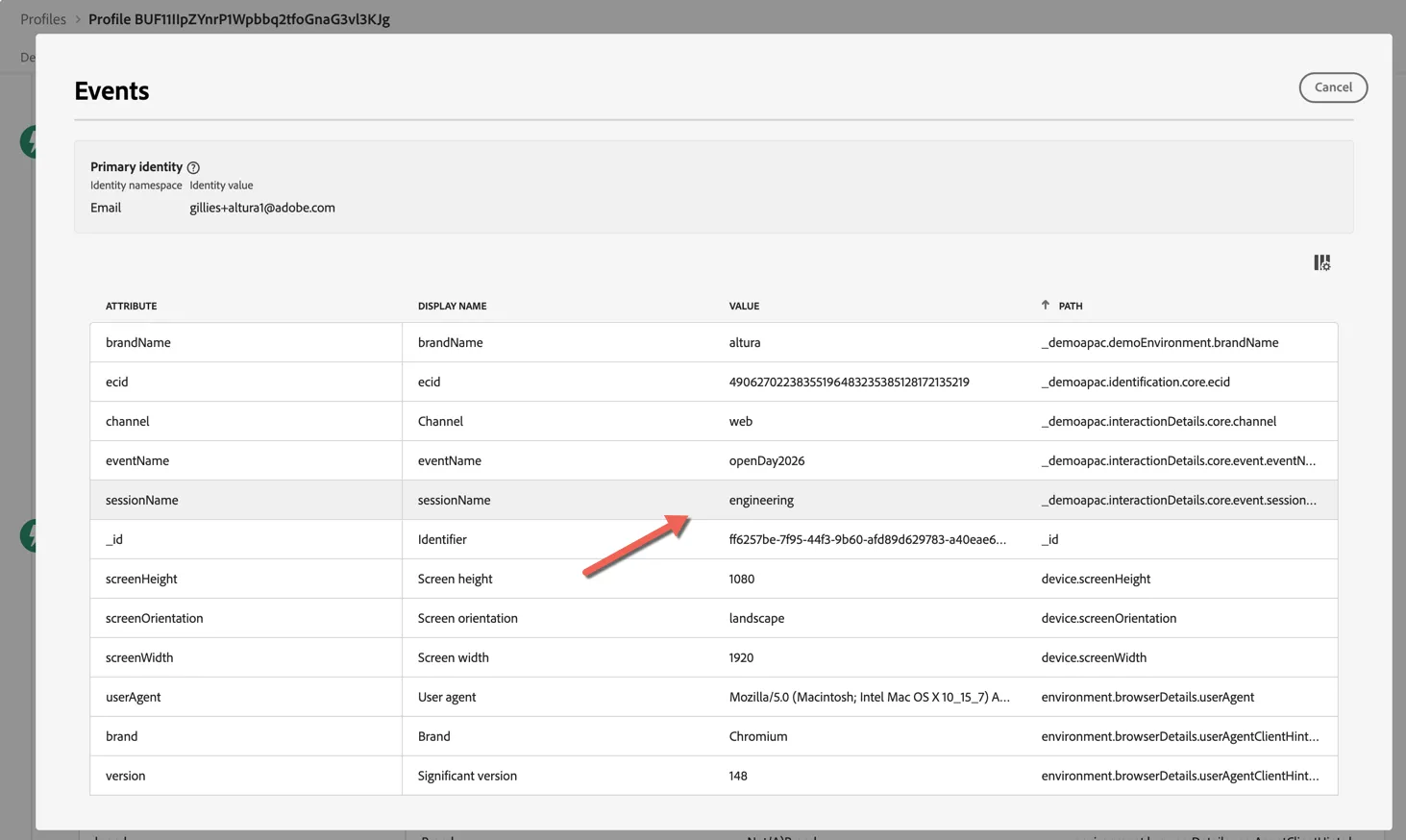
Click to View all to see the details of the event including the session name.
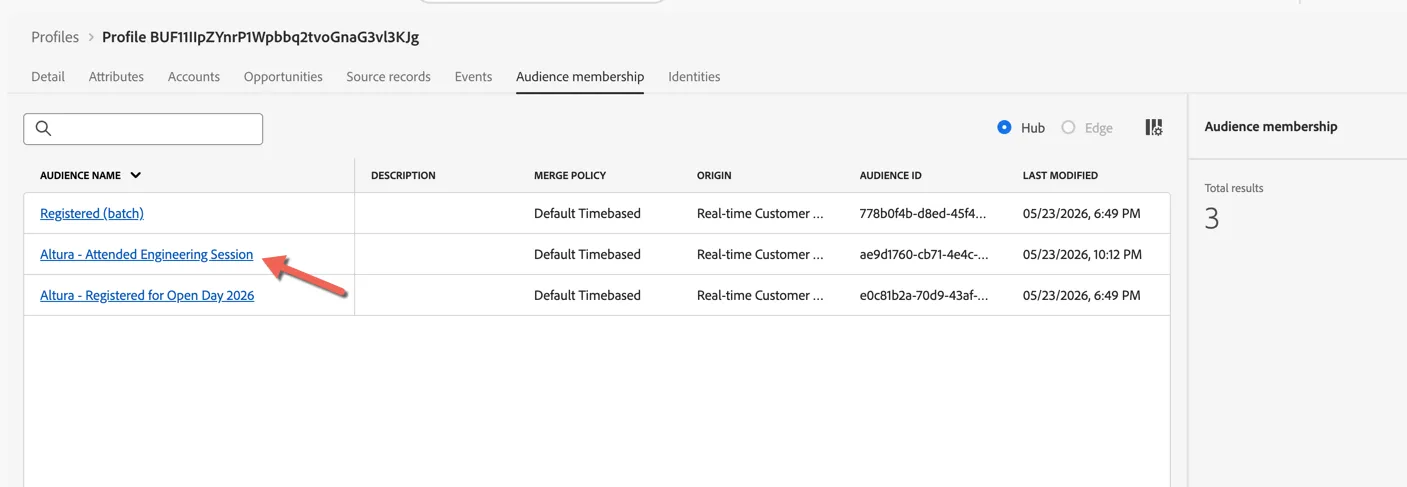
Switch to the Audience Membership tab and you can see their attendance is now available as an audience also.
Configure Audience
Altura want to personalise the post event followups to ensure that high value prospects such as STEM focused school leavers are given priority. If attendees didn't make it to the session for their primary interest area they should be added to an outbound call list for the faculty head to reach out. Having detailed check in information and adobe's ability to create dynamic audience rules makes identifying these profiles easy.
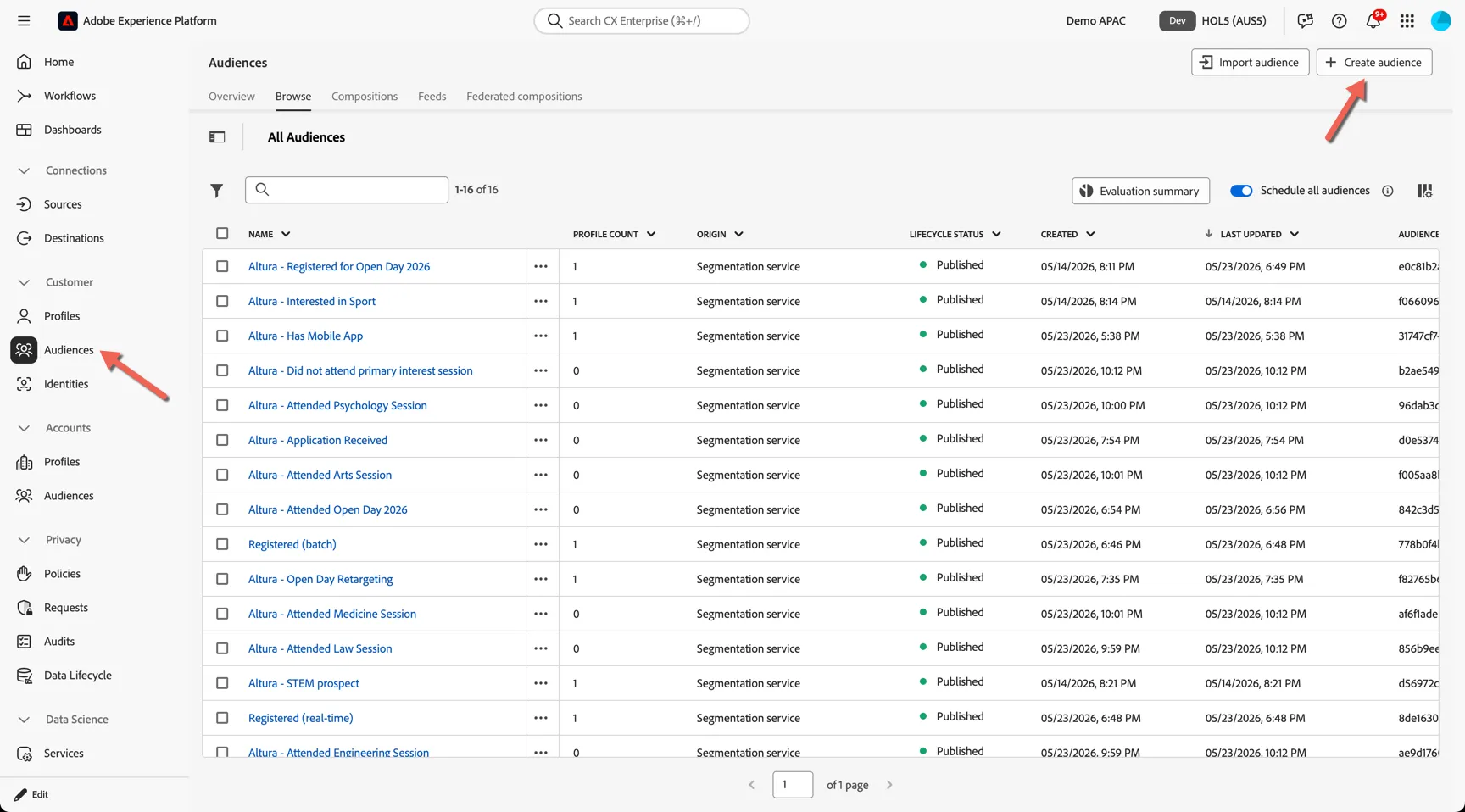
Return to Customers -> Audiences and click to Create Audience.
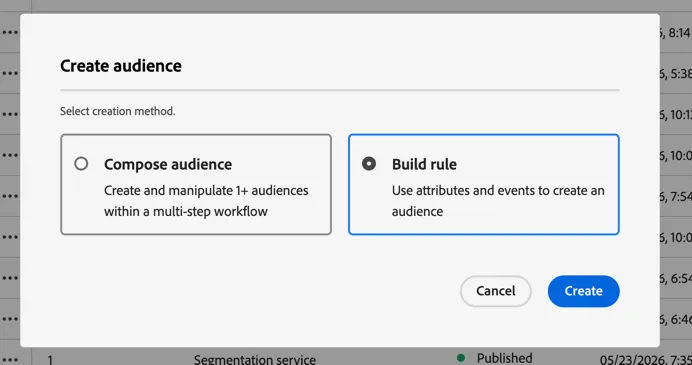
Select to build a rule based audience:
In the audience builder you have access to all of the profile attributes and events and audiences.
- Change to the Audiences tab to add a pre-existing audience into our conditions.
- Drag the Altura - Attended Open Day 2026 audience in to the canvas.
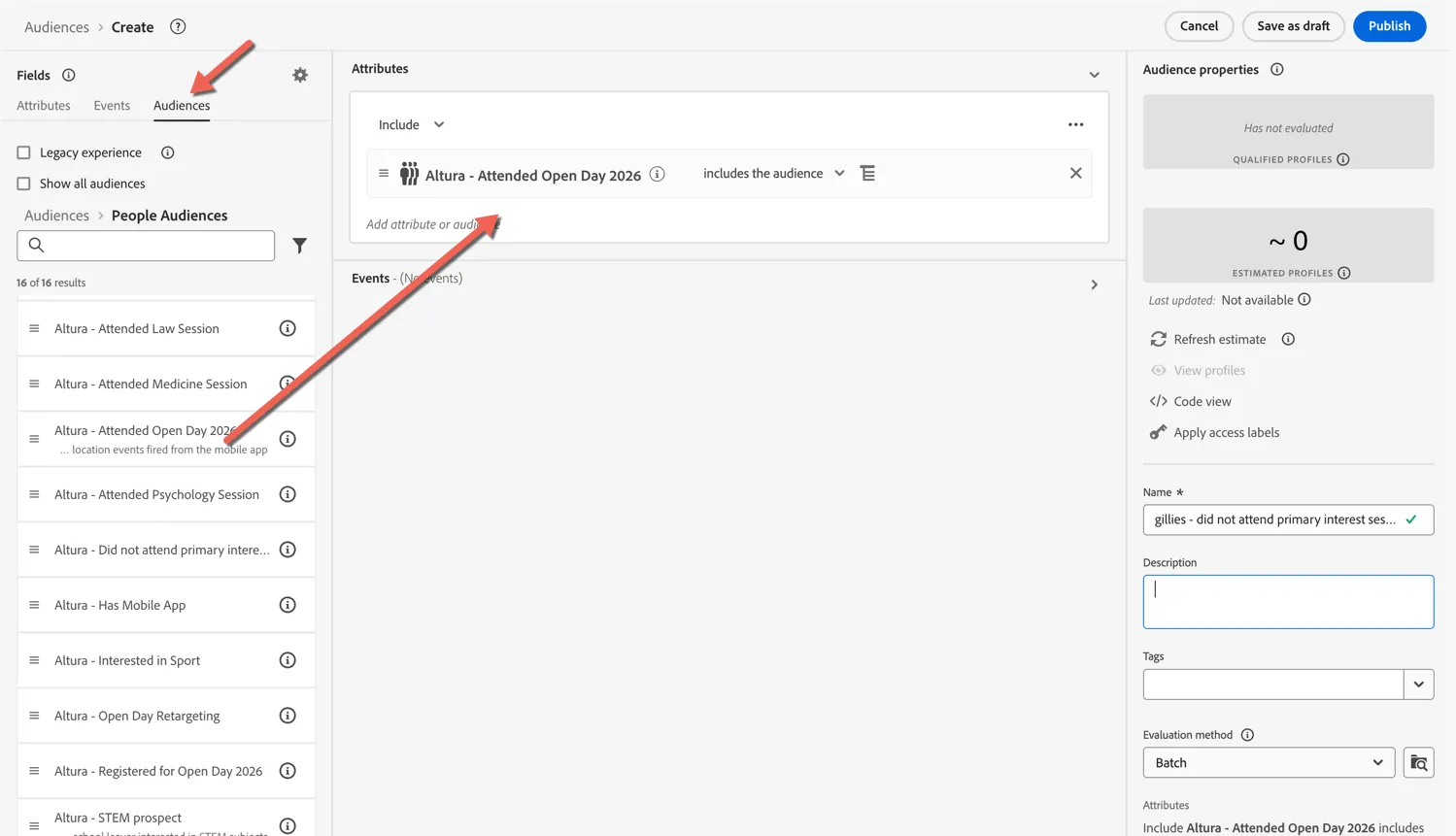
Only customers who have qualified for that audience will be able to qualify for this one. Next we'll add a condition based on their individual check in events.
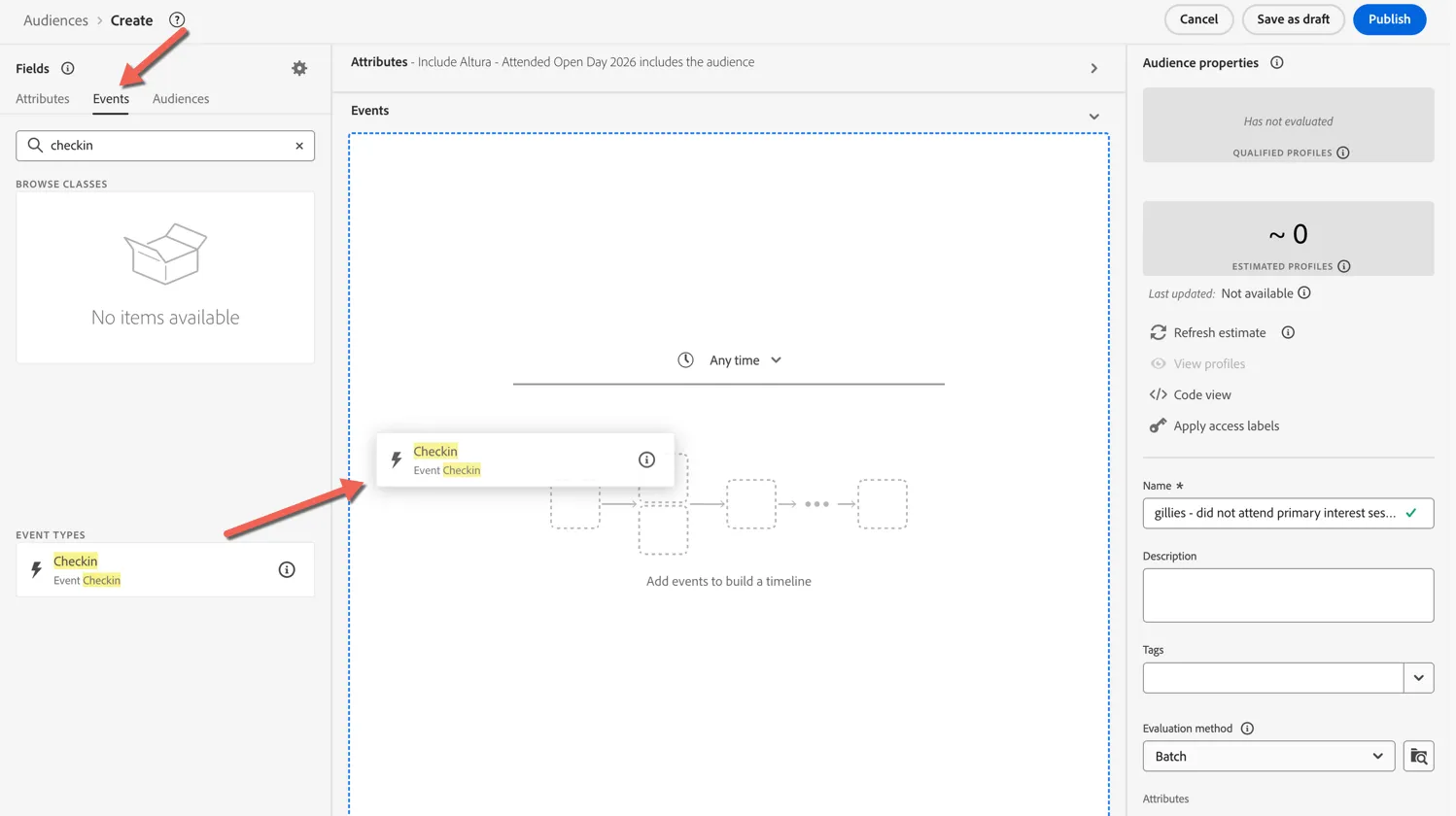
- Change to the Events tab and search for checkin.
- Drag the Event Checkin event type into the canvas
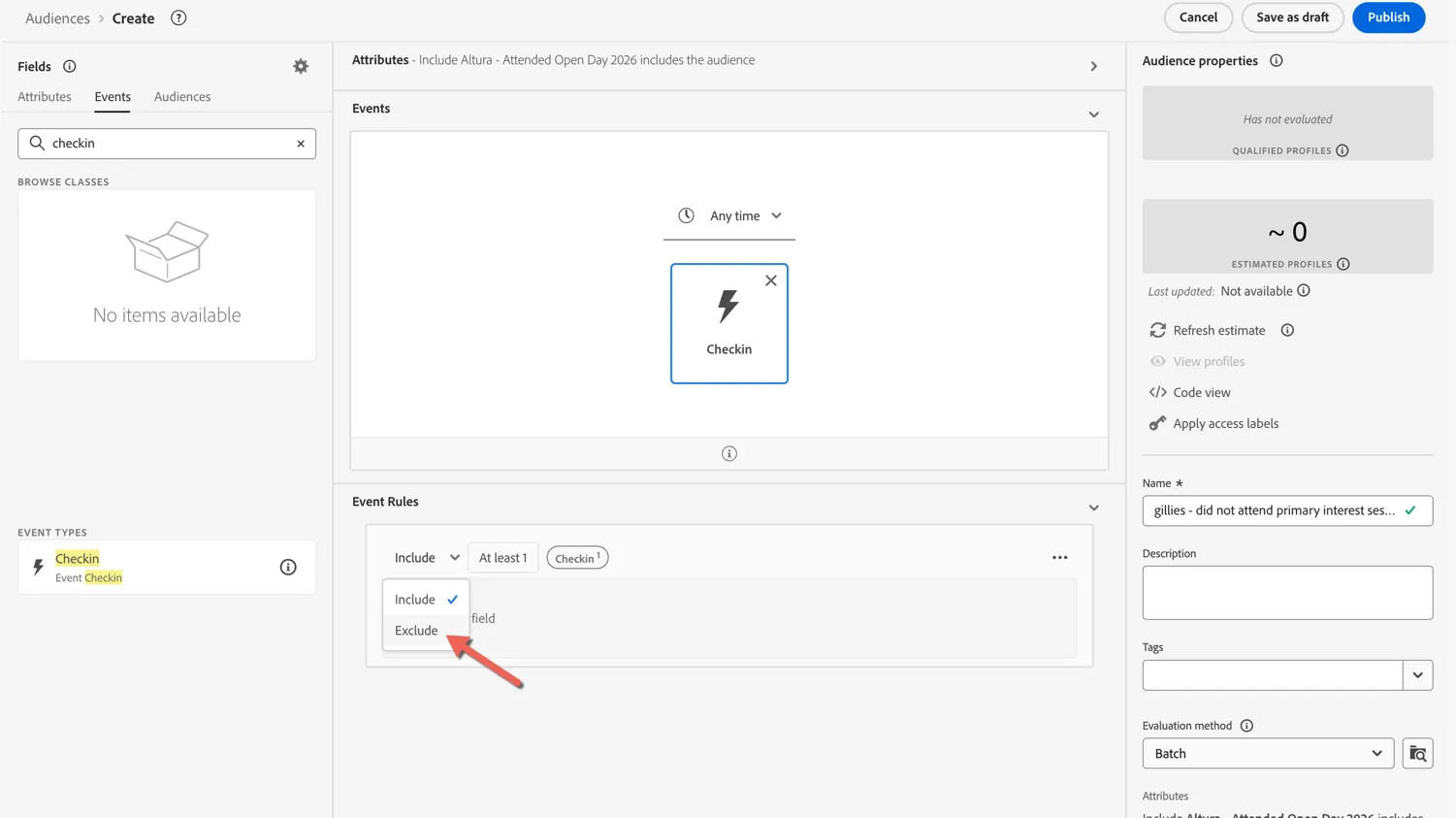
- Change the Event Rules from the default of Include to Exclude. We want to find people came to open day but DID NOT attend a particular session.
- Find the sessionName event field and drag it into the event rules.
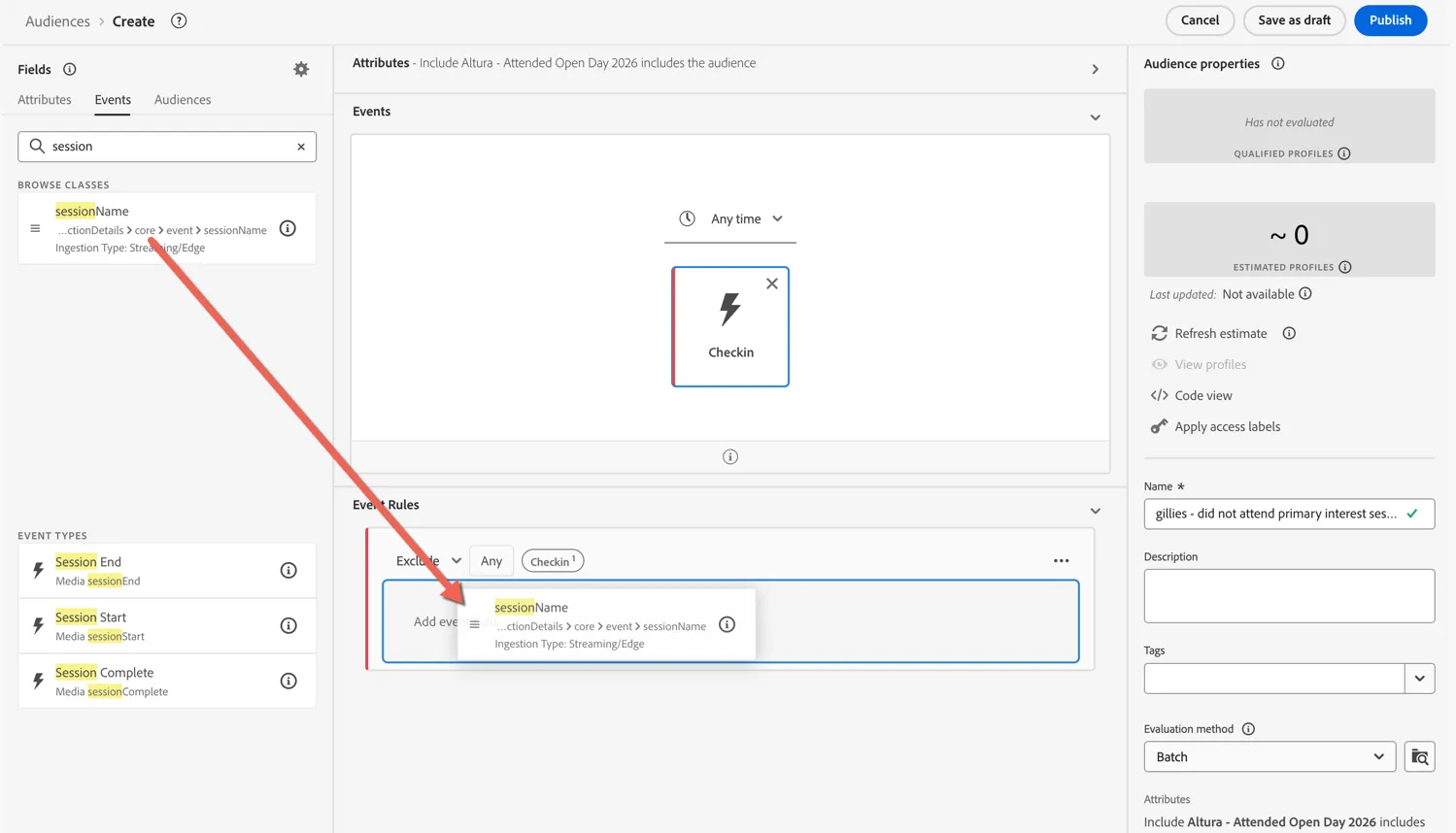
Now we're going to compare the session name from the event with the primary interest subject the student recorded when registering for Open Day. This selection was placed onto the profile as an attribute as part of that registration.
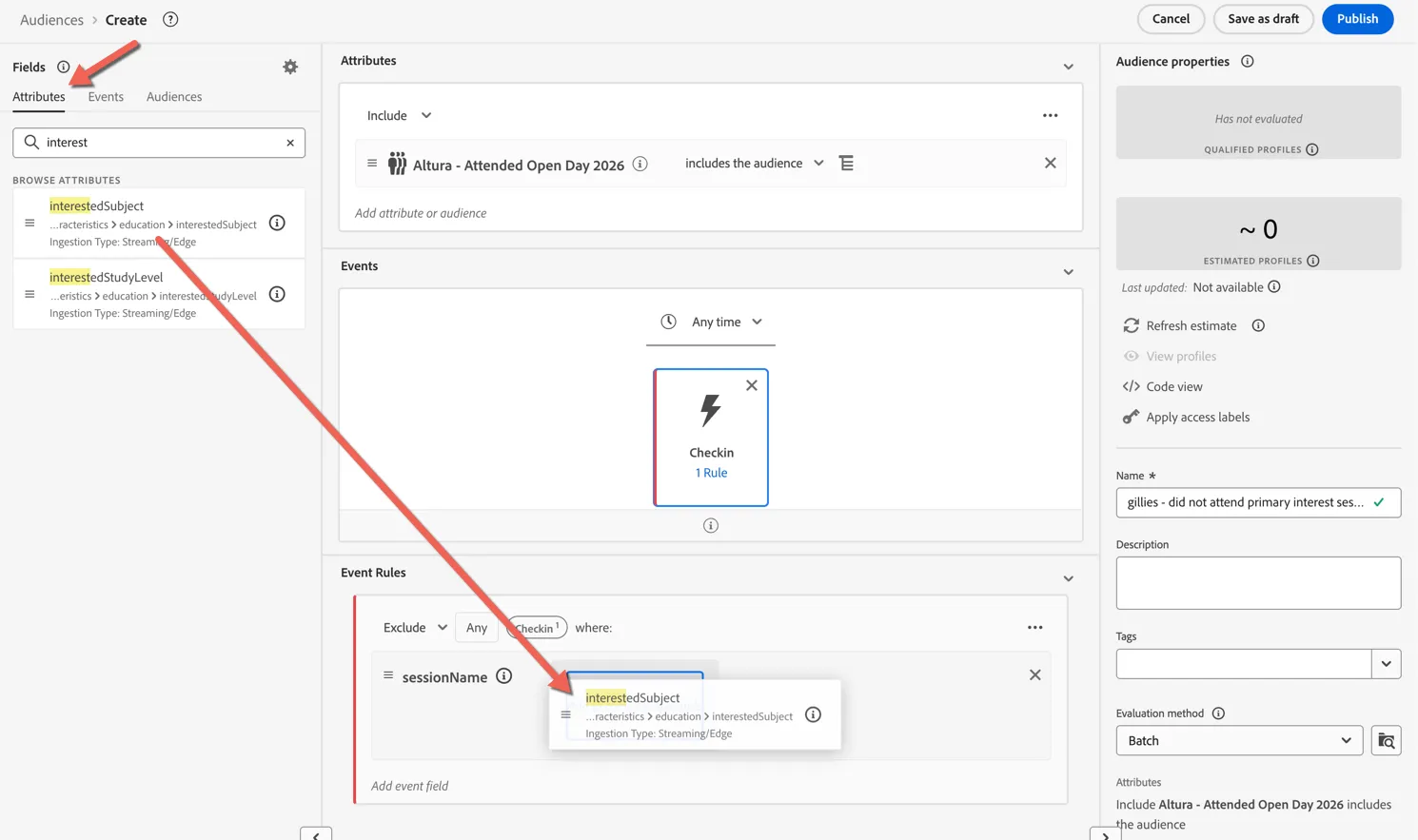
- Switch to the Attributes tab
- Find the interestedSubject field and drag it into the event rule as the Compare operand.
Give your audience a name, something unique you will remember and click to Publish.
You now have a dynamic audience that will qualify anyone who attended open day but did not check in to the session aligned with their primary interest, regardless of which subject that is. Dynamic segmentation is a powerful way to create simple segments to cover a range of combinations, imagine how many audiences would be needed if we had to build one for each subject! We'll use this audience
Build the Journey
The post event journey used to contact attendees after Open Day will be a once off journey scheduled to execute the day after the event. Unlike the registration journey which was always on allowing each profile to enter at a different time, triggered by their registration form submission.
Both types of journeys are supported and have access to the same set of actions and orchestration activities.
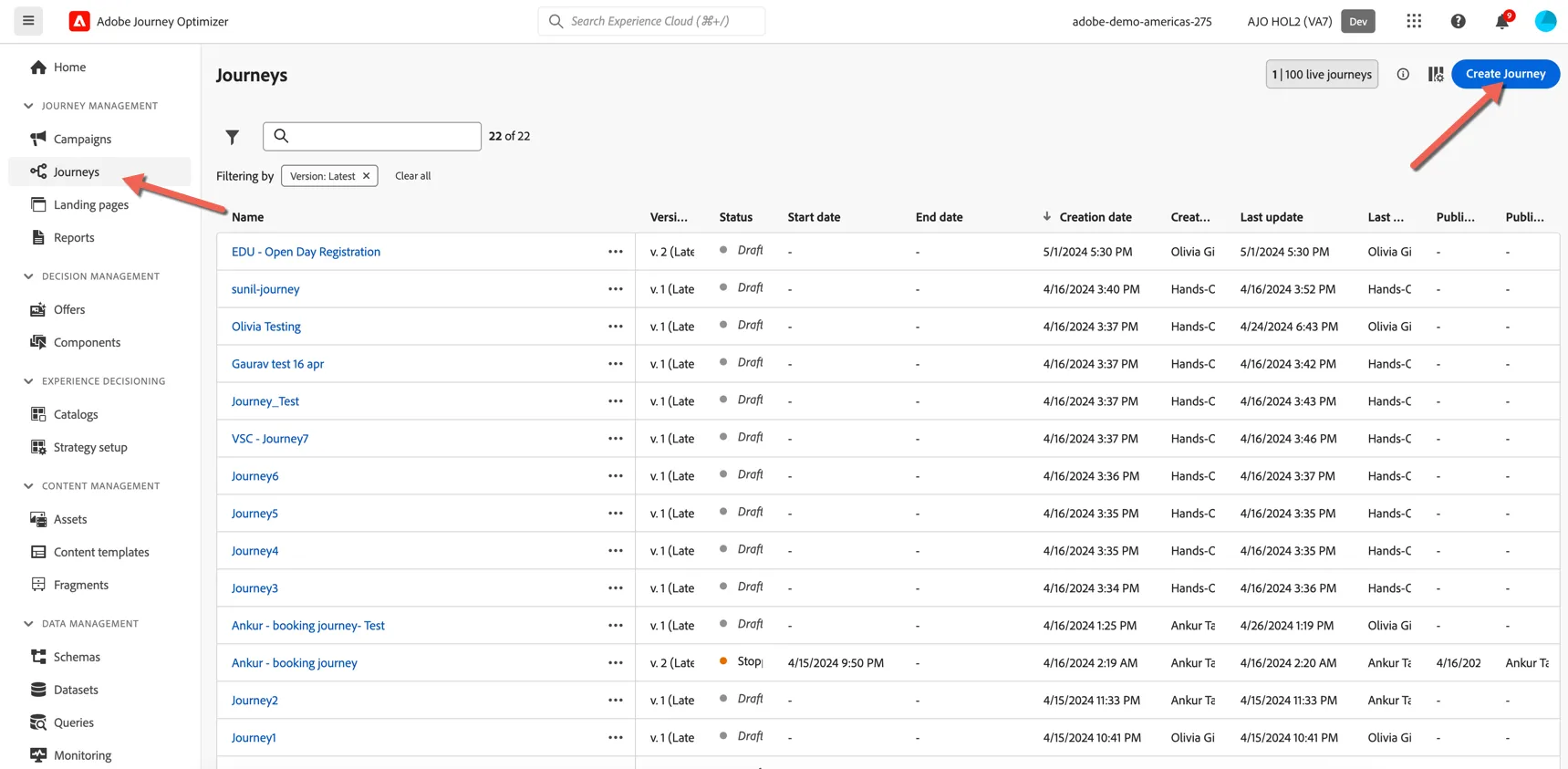
To create Altura's post event journey, click on Journeys in the left hand navigation under Journey Management. Click the Create Journey button on the right hand side.
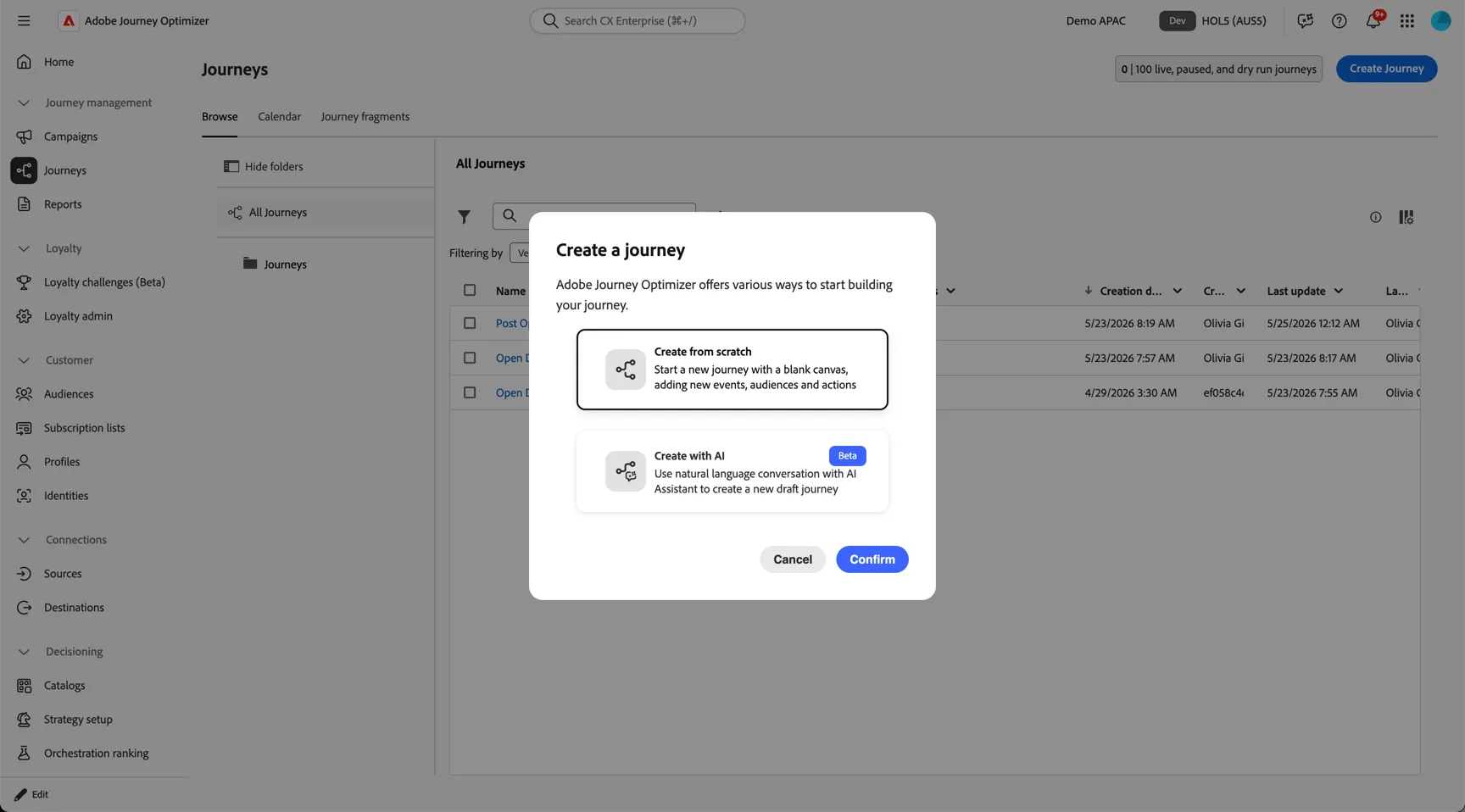
We can now select to create our journey from scratch or using our natural language AI Assistant. Let's start manually as it's important to understand the basics before we progress to using AI.
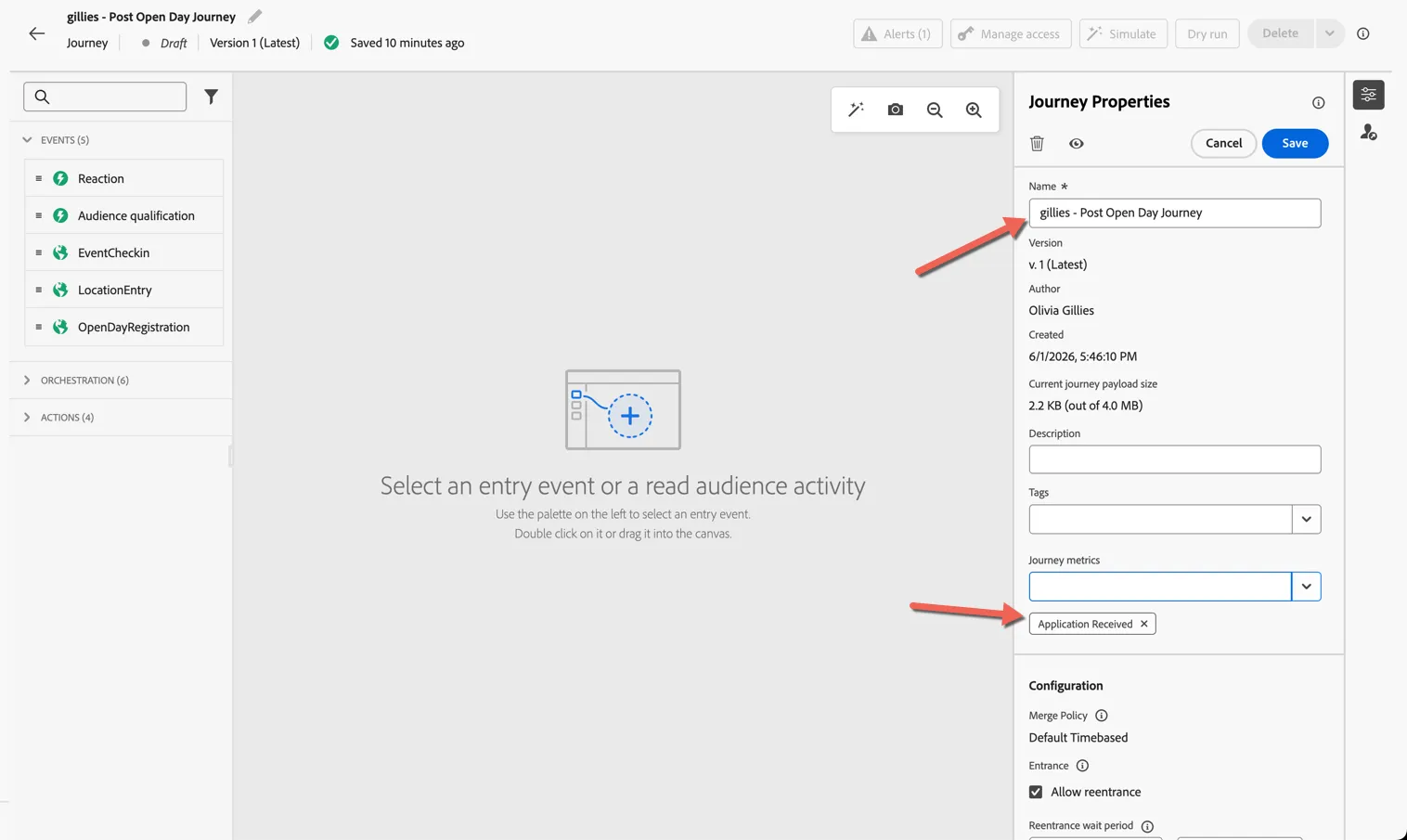
Give your journey a name - something unique so you can distinguish it from your colleagues in the class. You can also define here what the success criteria is that you'd like to report on for this journey. In our case we are encouraging future students to submit their application, so we can set the Journey Metrics to Application Received.
There are three ways to start a journey:
- Inbound Events - always on journeys triggered by inbound events like our Open Day Registration event or the Session Check in events
- Audience Qualifications - always on journeys triggered when entering or exiting an audience
- Read Audience - Scheduled recurring or once off journeys using a pre-defined audience
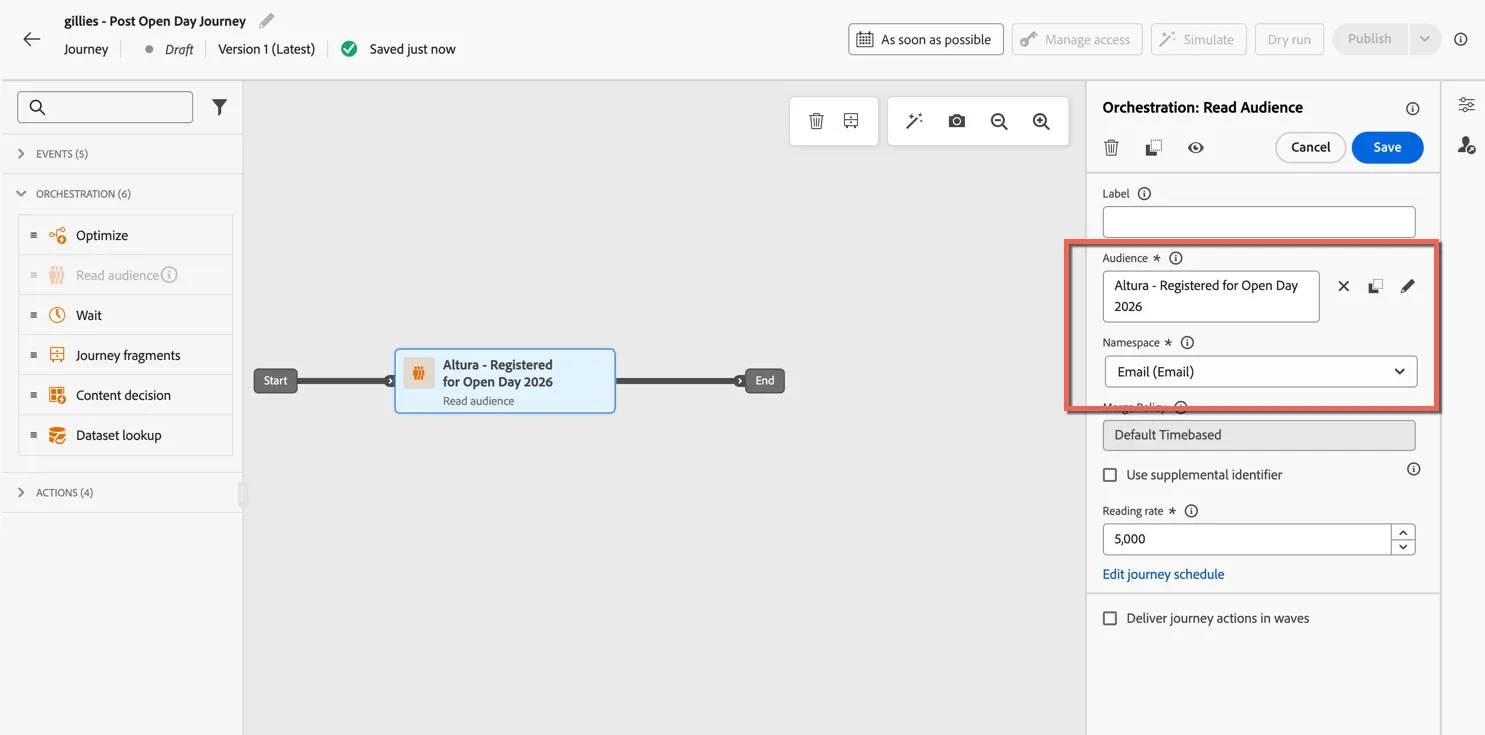
Our post event journey is designed to fire once only after the open day. Open the Orchestration panel and drag a Read Audience activity in the canvas.
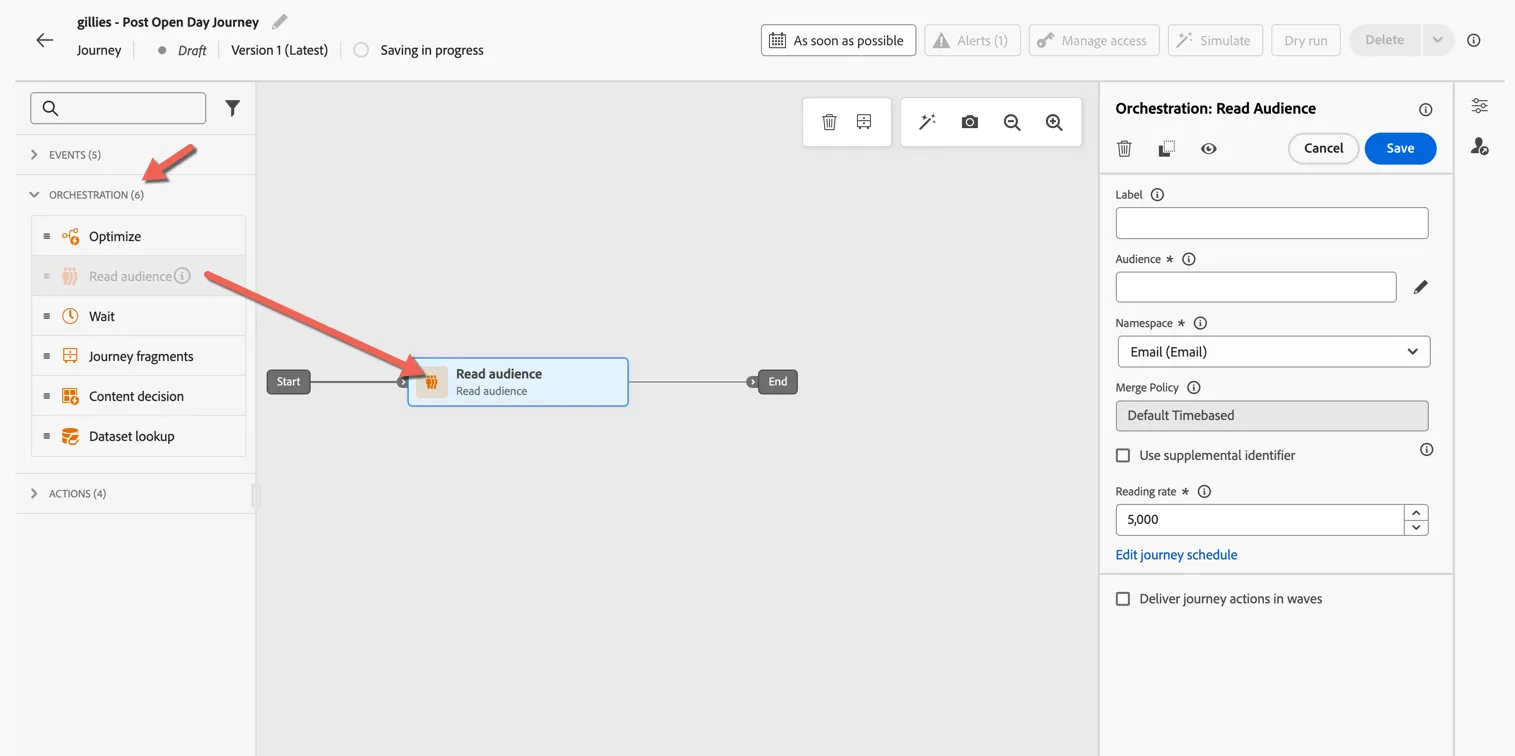
Select the Altura - Registered for Open Day 2026 audience. Ensure the identity namespace is Email we are only targeting known profiles in this journey.
We'll send a different message to prospects who attended the session vs those who did not.
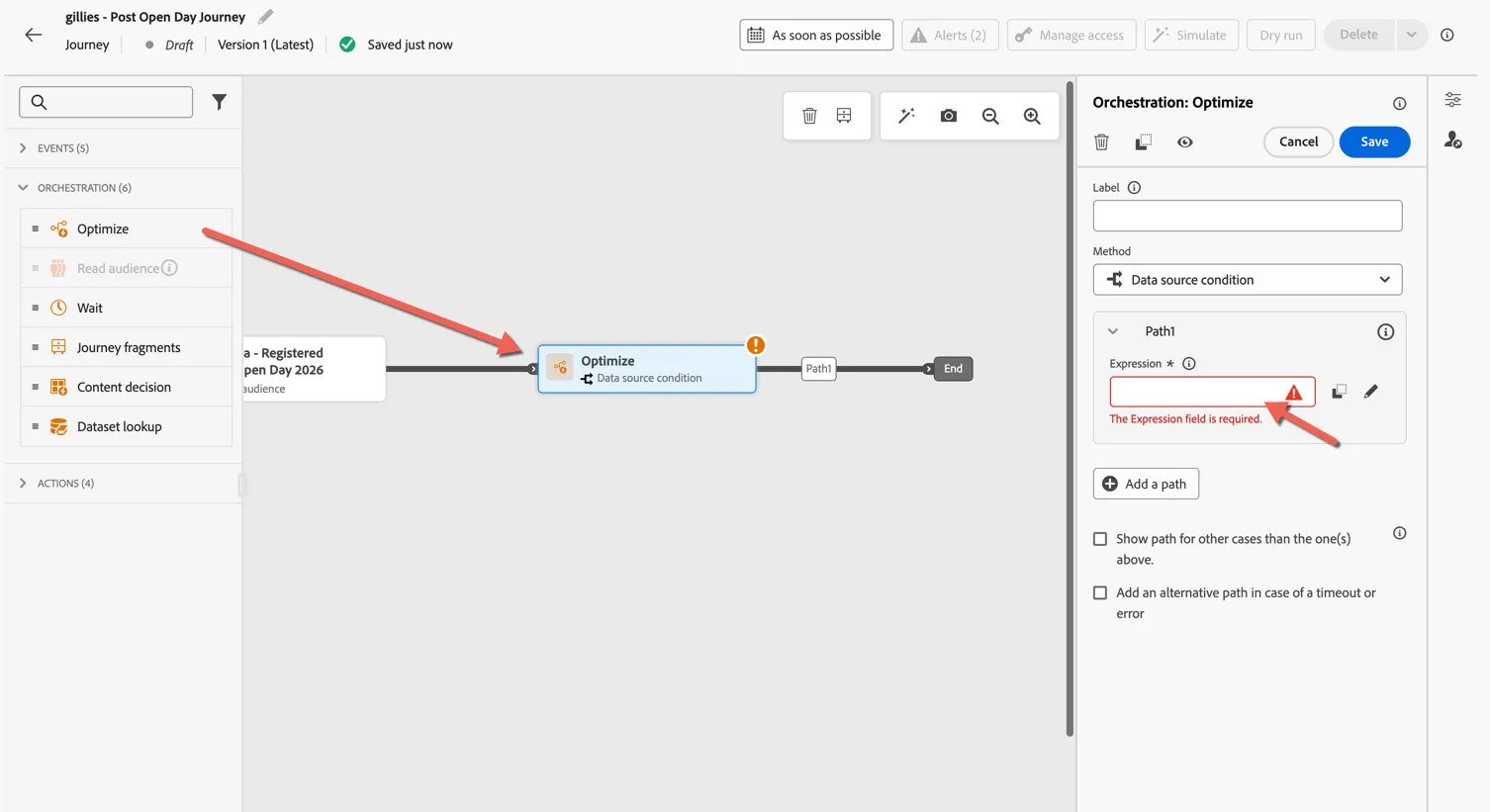
- Drag an Optimize activity into the canvas and append it to the end of the journey.
- Click to open the Expression editor for the default path
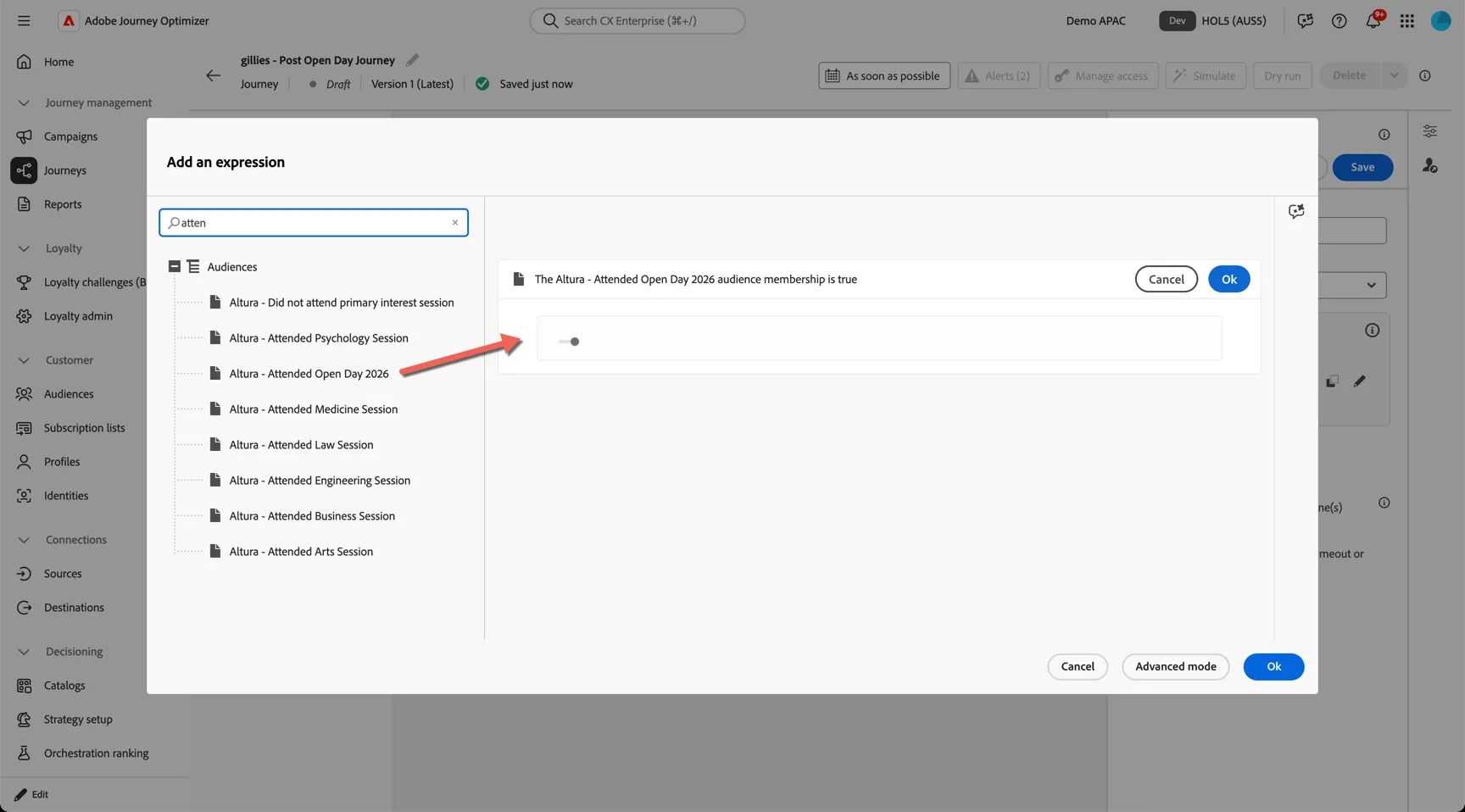
- Search for the attended audience
- Drag it into the editor
- Click Ok to store the condition
- Click Ok to close the editor
Now we have our path condition defined we need to configure the rest of the activity to push profiles who are not part of the audience to a different experience.
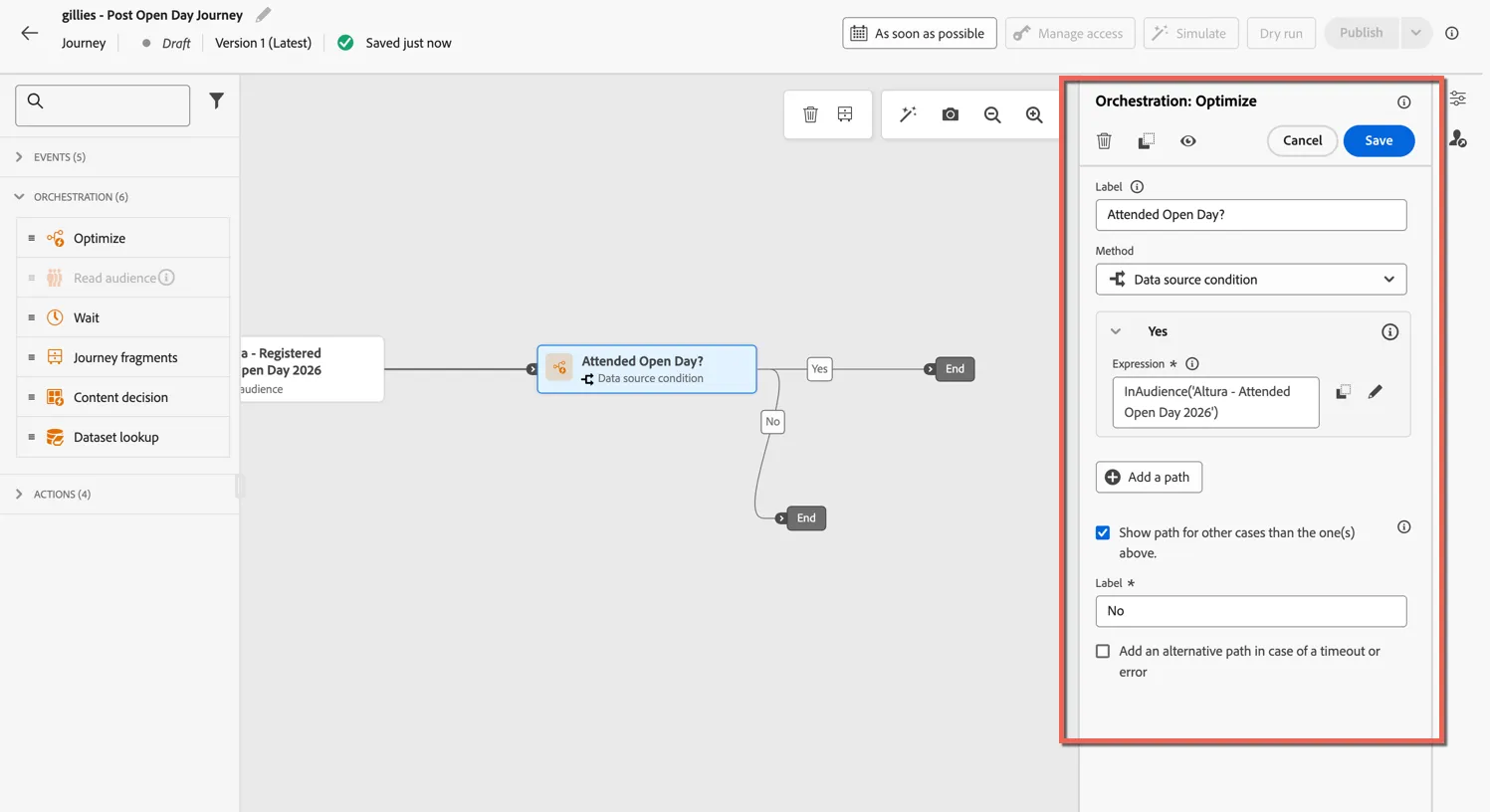
- Update the activity Label to Attended Open Day?
- Change the configured path name to Yes
- Tick the checkbox to Show path for other cases than the ones above
- Update the label for the other path to No
- Click to Save the optimize activity
The Action activity is used to add messages across any of the natively supported channels.
- Drag an Action activity and append it to the end of the No path.
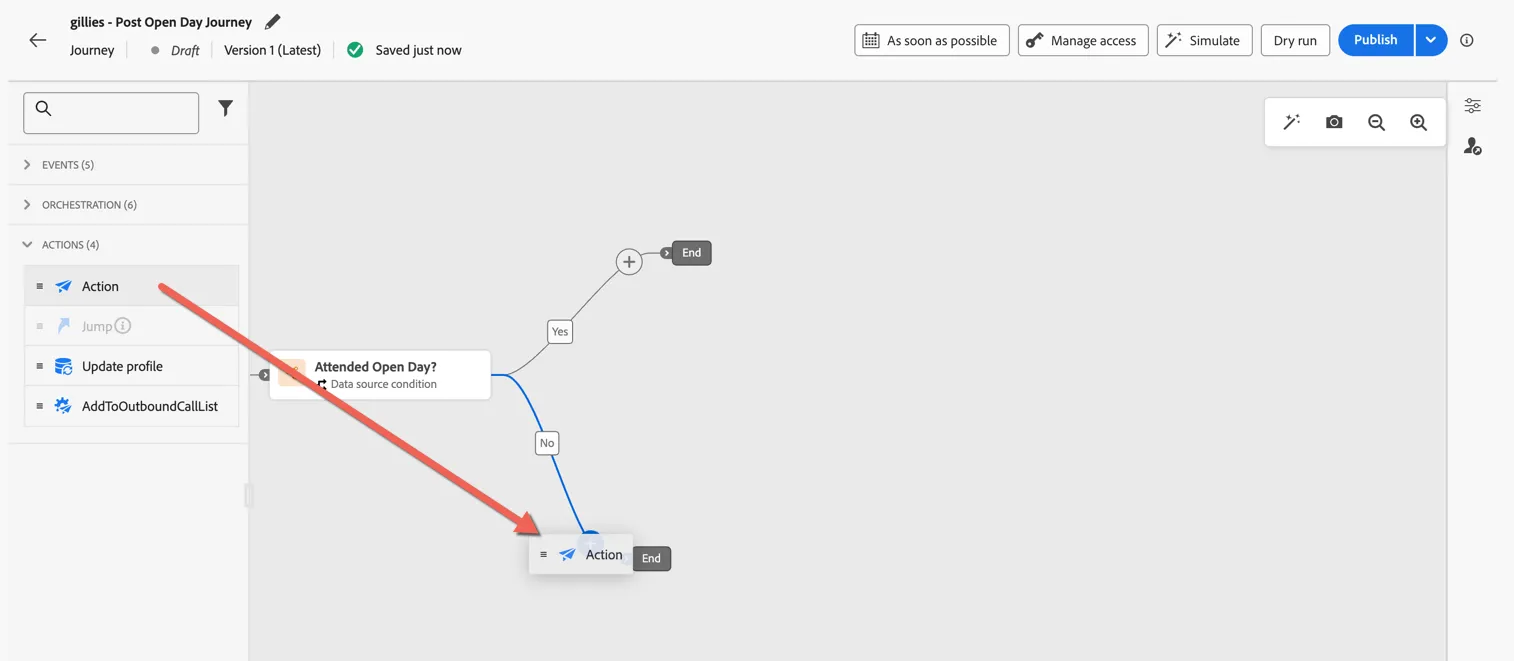
- Select the Email channel and click to Add the action.
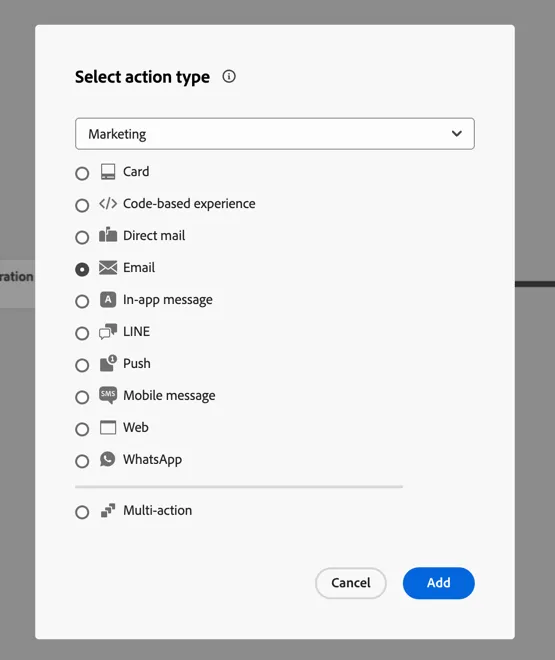
The category controls whether optin for email channel is required or not. Marketing messages require optin while transactional messages can be sent in reaction to a customer initiated action.
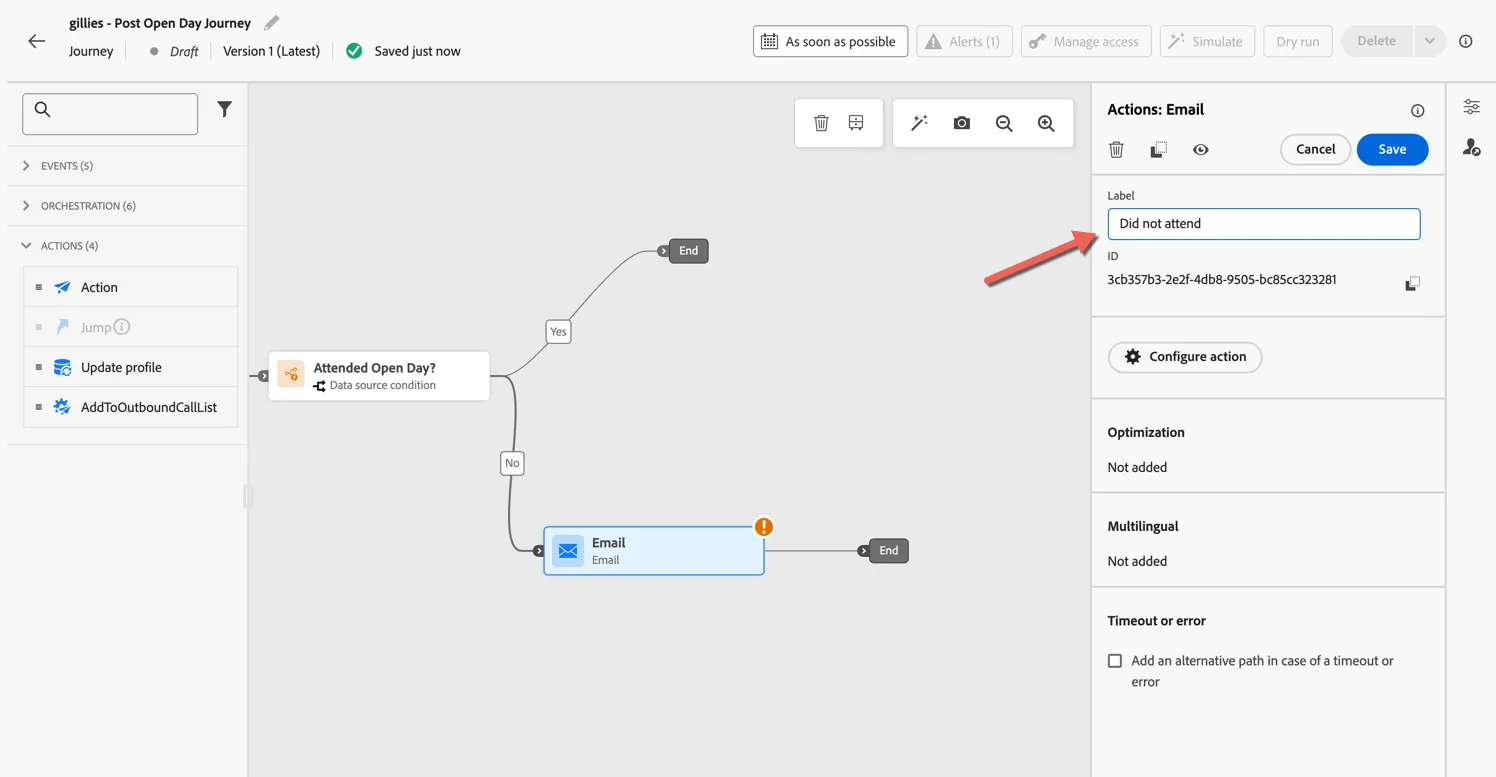
- Label your email activity Did not attend OpenDay and click Save.
Repeat the same steps to add an email action to the Yes path.
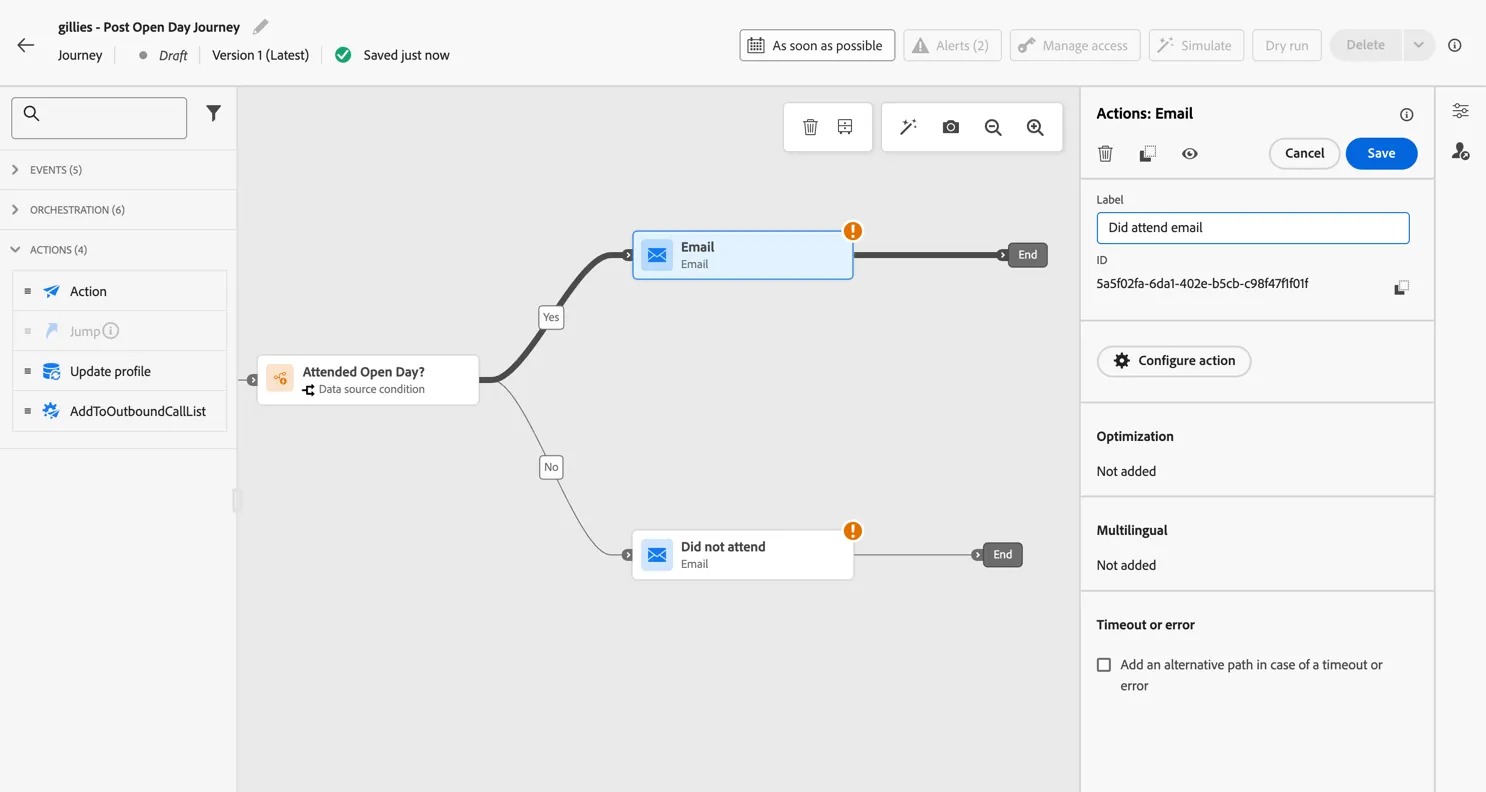
We'll come back to add the content for these emails later, for now let's continue the journey logic.
Altura want to ensure that high value prospects who missed their primary choice session are actively pursued.
- Drag an Optimize activity into the canvas
- Update the action label to Pursue follow up?
- Update the path label to Yes
- Tick the box to show a path for others and update the label to No
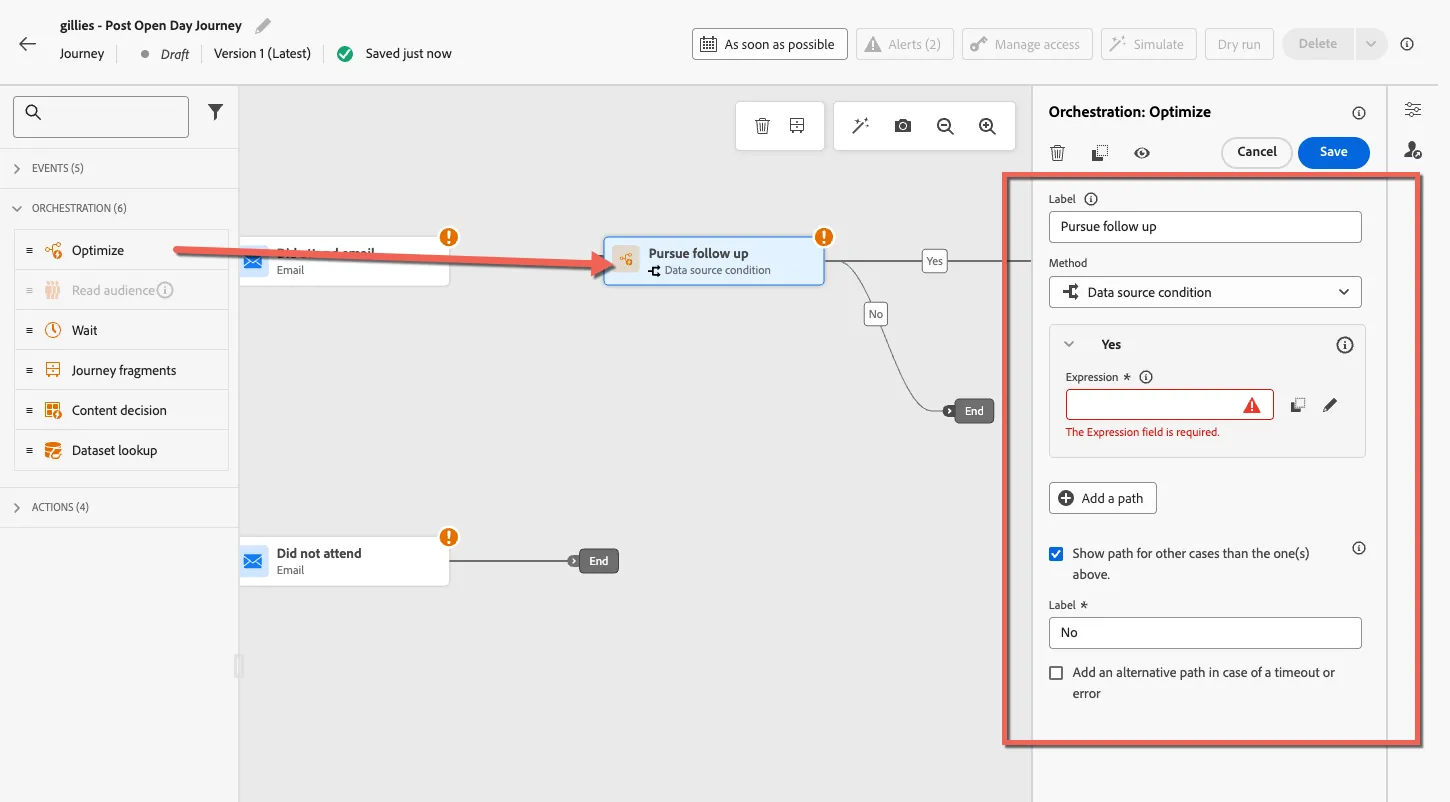
- Click to open the Expression editor
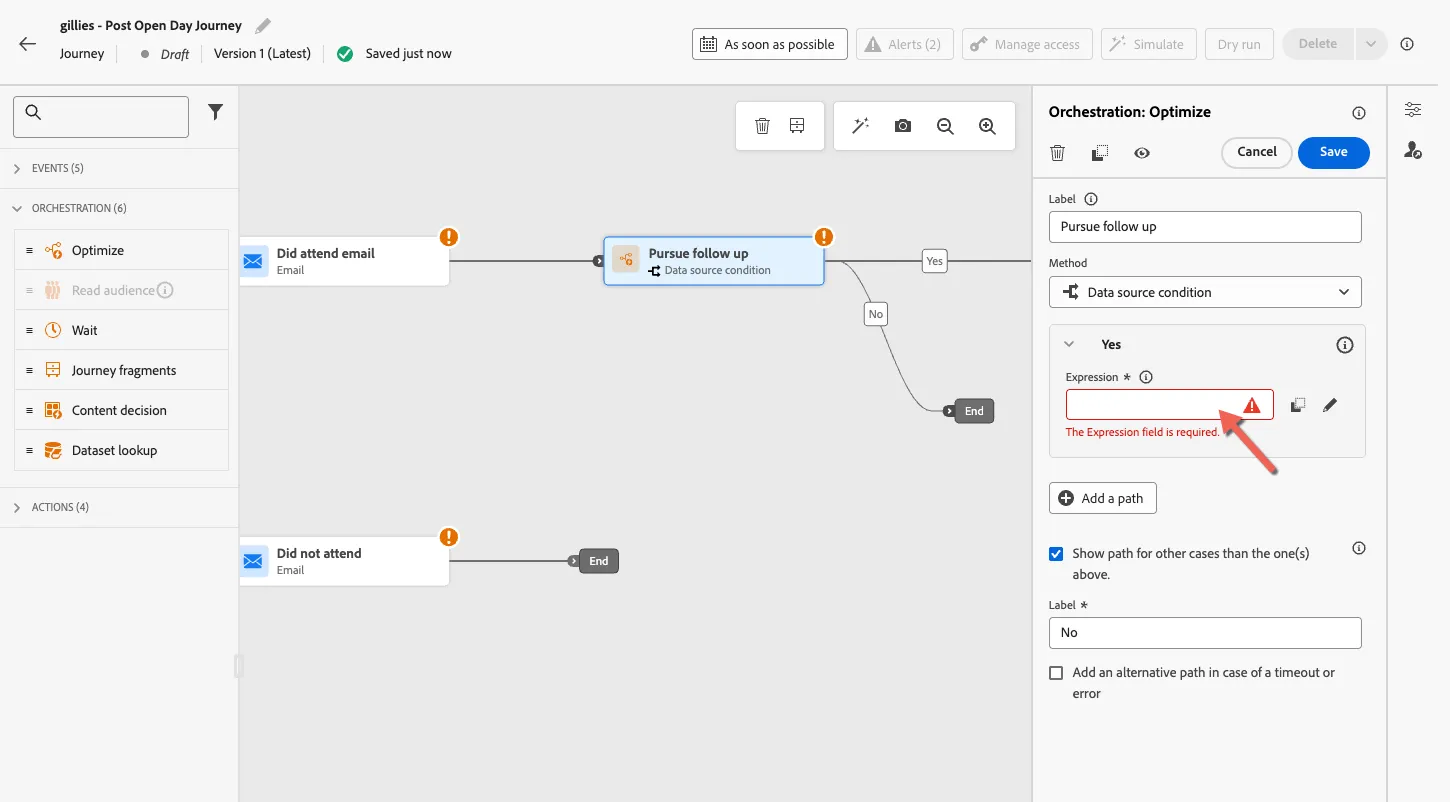
Altura consider all STEM prospects to be high value and we'll use the dynamic audience we created in the previous step to understand whether the prospect attended their priority session or not.
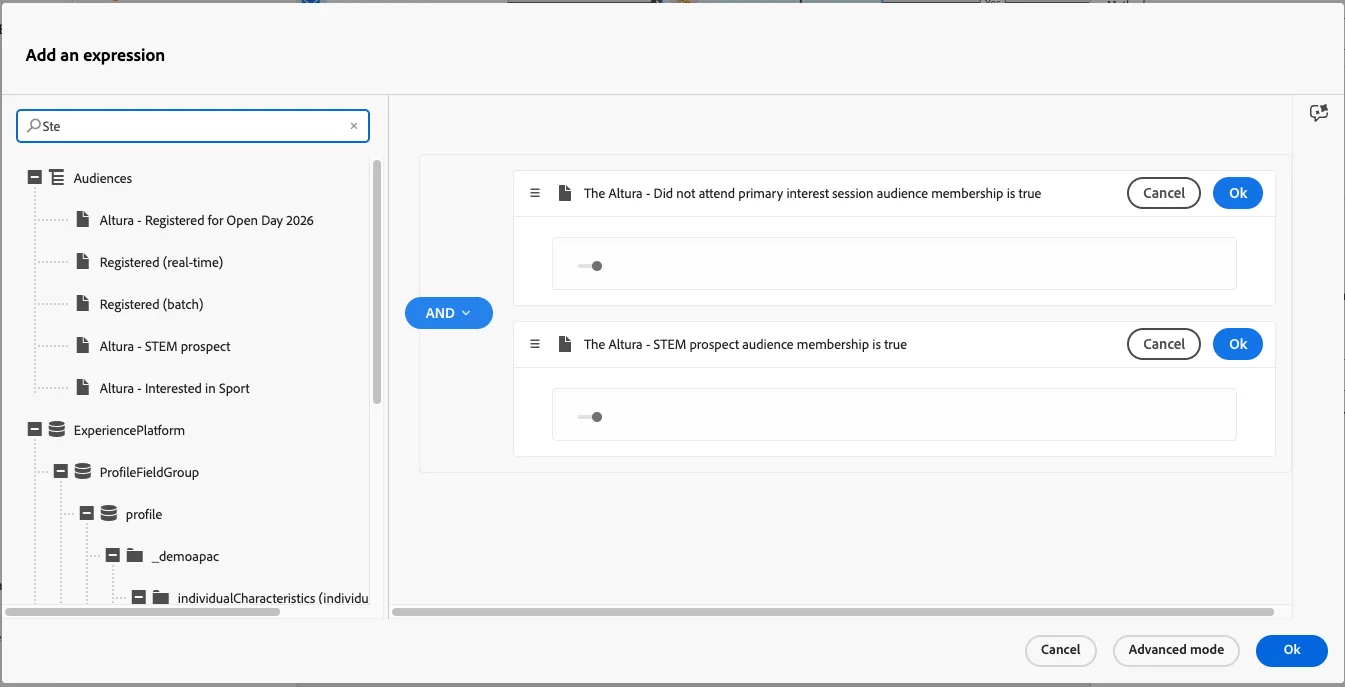
- Drag the Altura - Did not attend primary interest session audience into the editor
- Drag the Altura - STEM prospect audience into the editor.
- Leave the condition as AND - only prospects who are in both audiences will proceed through this path
- Click Ok to save the condition
- Click Ok to return to the journey
- Click to save the activity
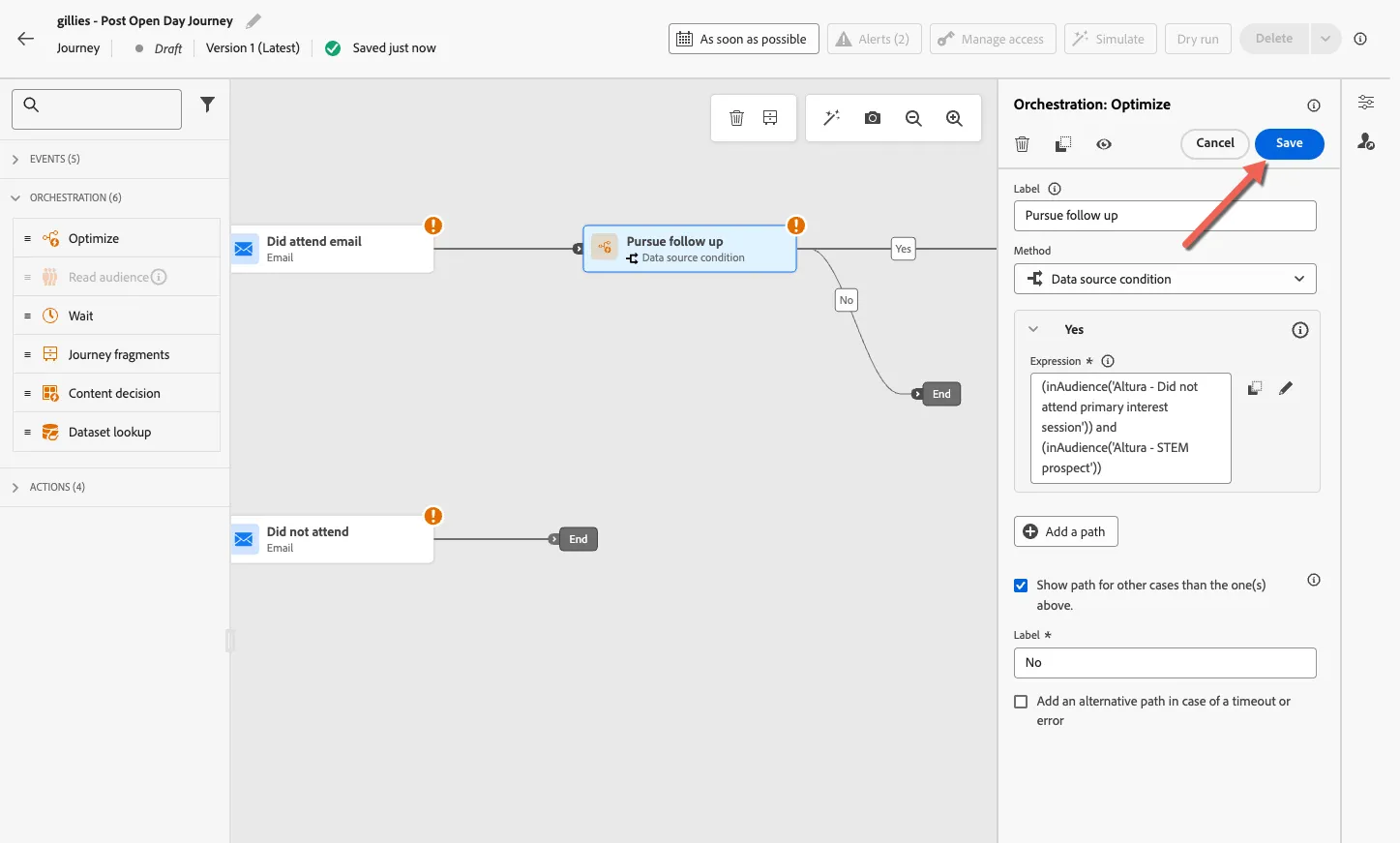
Lastly we'll use a custom action to send the qualified profiles to an external call list.
Custom Actions are API based integrations to external solutions - for the purpose of this exercise we're using a generic webhook, in the real world it might be adding tasks to Salesforce CRM for example.
These actions are configured directly through the UI by technical admins for marketers to use when needed across their journeys.
From the Actions panel, drag the AddToOutboundCallList action and append it to the Yes path
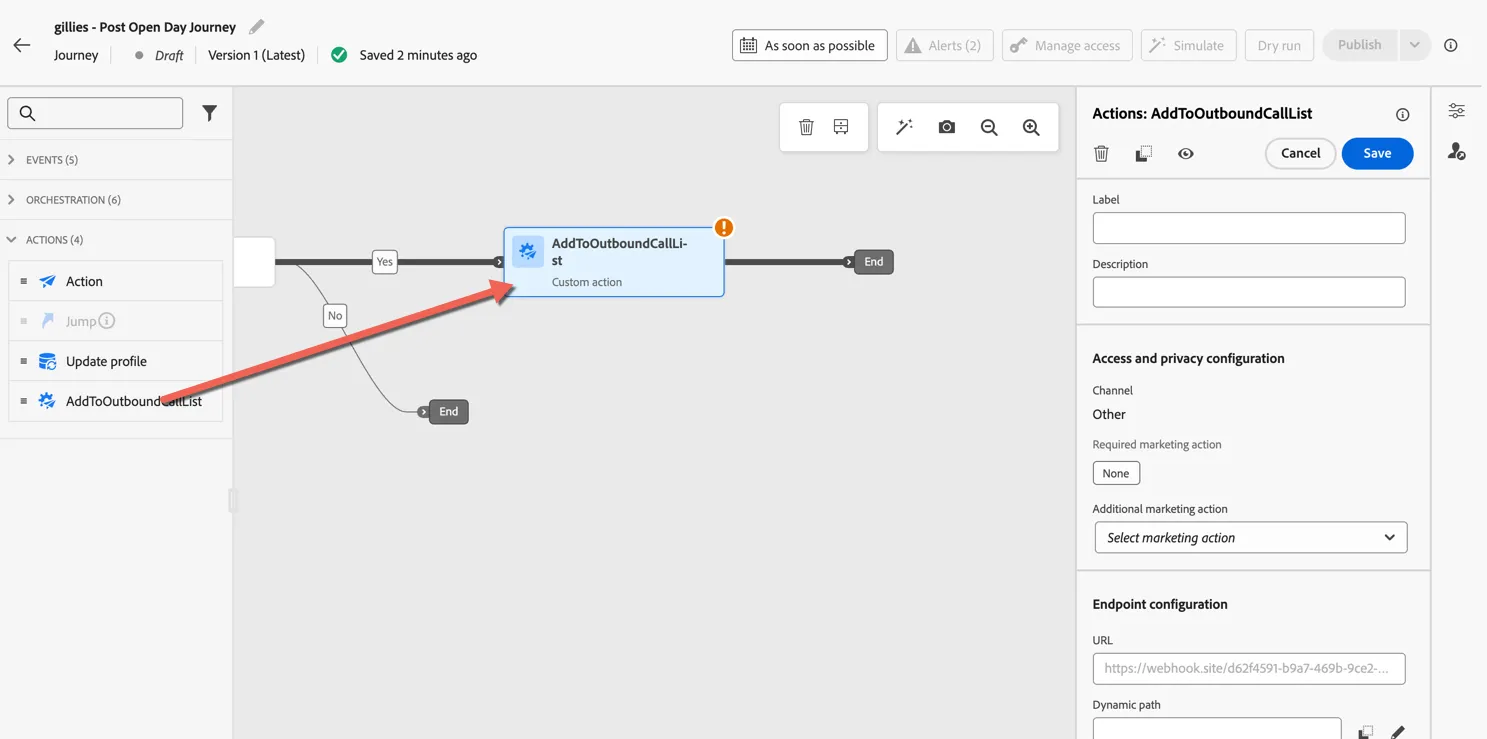
Now we need to define what we want to send to the endpoint, in this case we want to share the prospect name and phone number as well as the subject or faculty they registered interest in.
Click into the Name request parameter
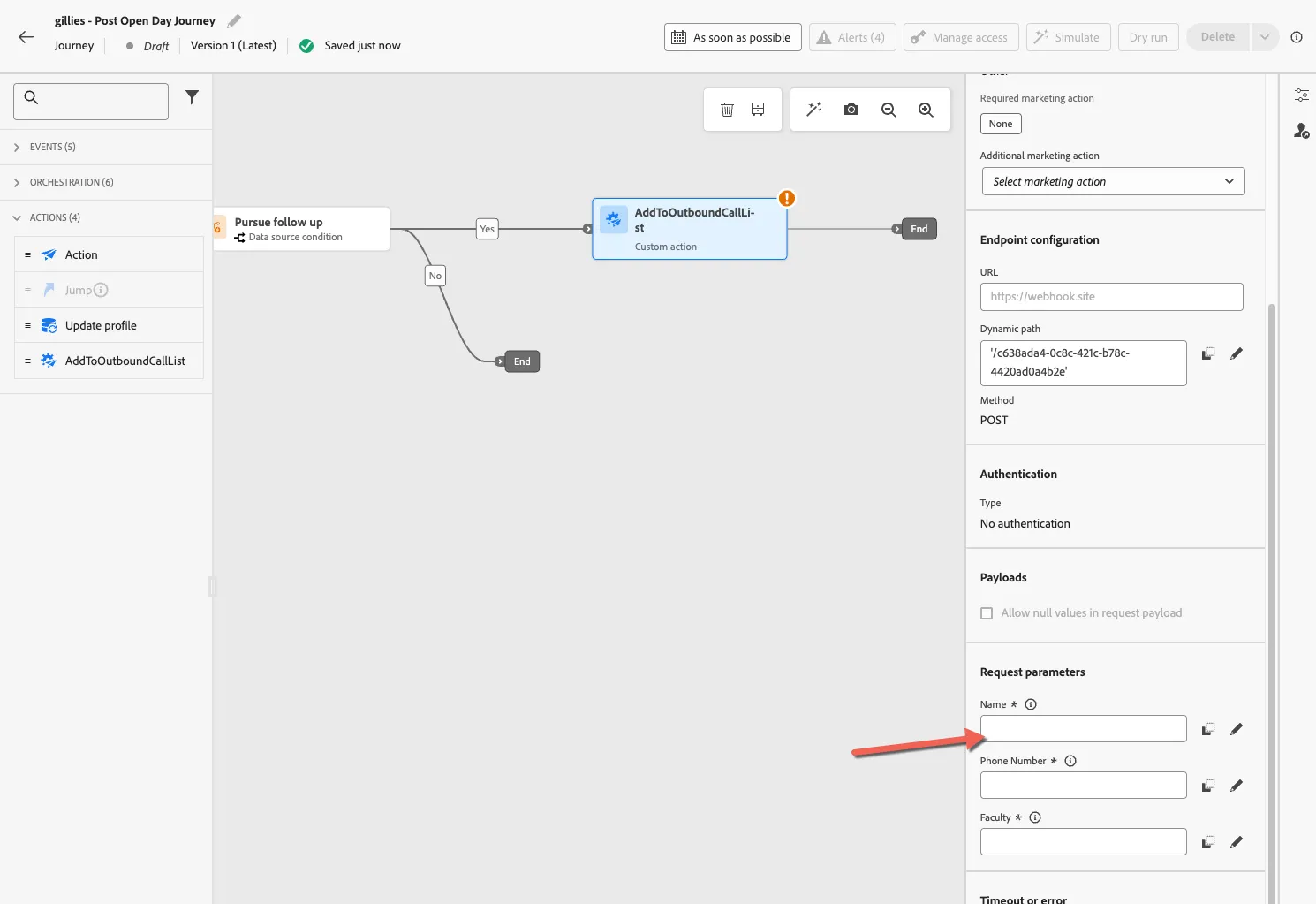
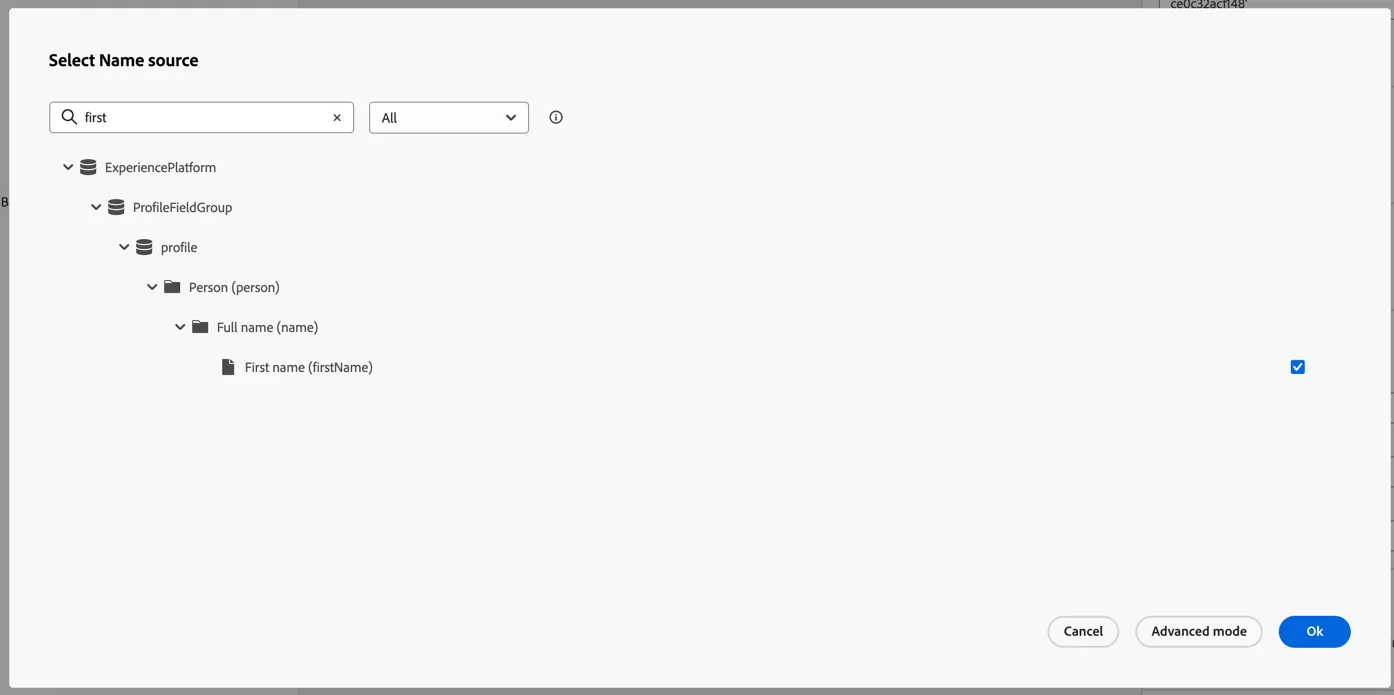
Search for First Name and tick the checkbox to insert it.
Click Ok to return to the journey
Repeat the same to add Mobile phone and interestedSubject as personalised parameters in our action
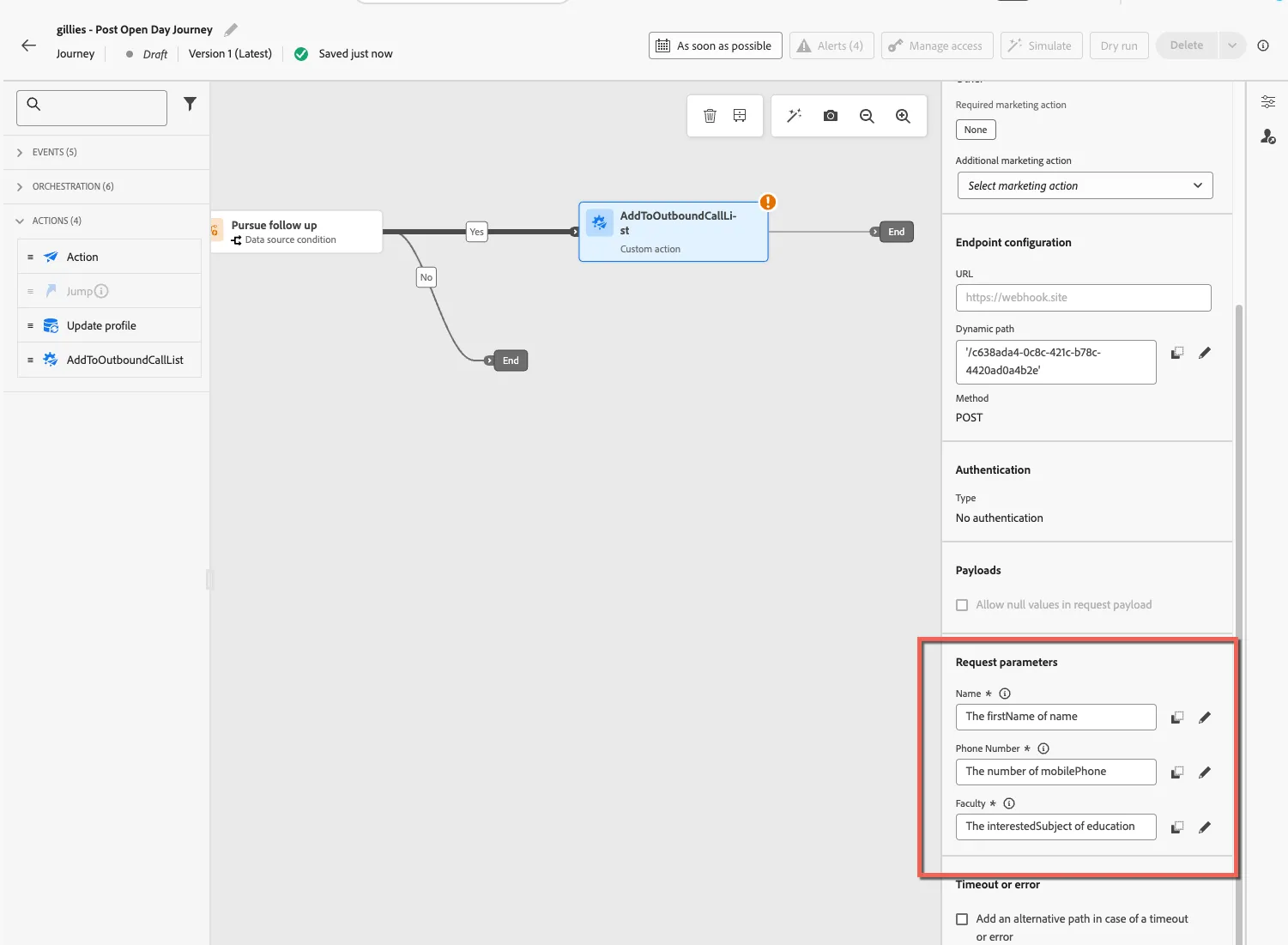
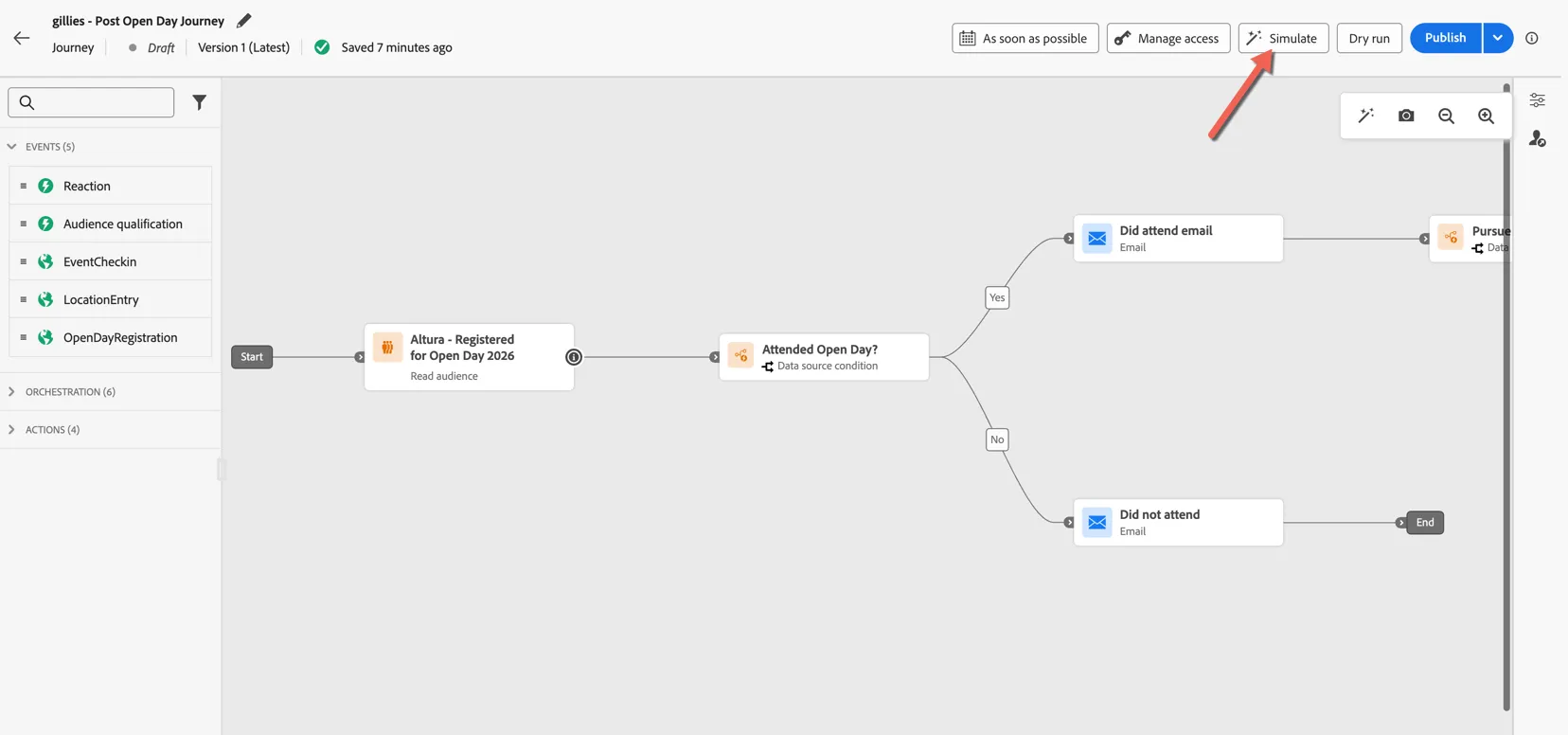
Click to save the action. Our journey logic is now complete, your journey should look like:
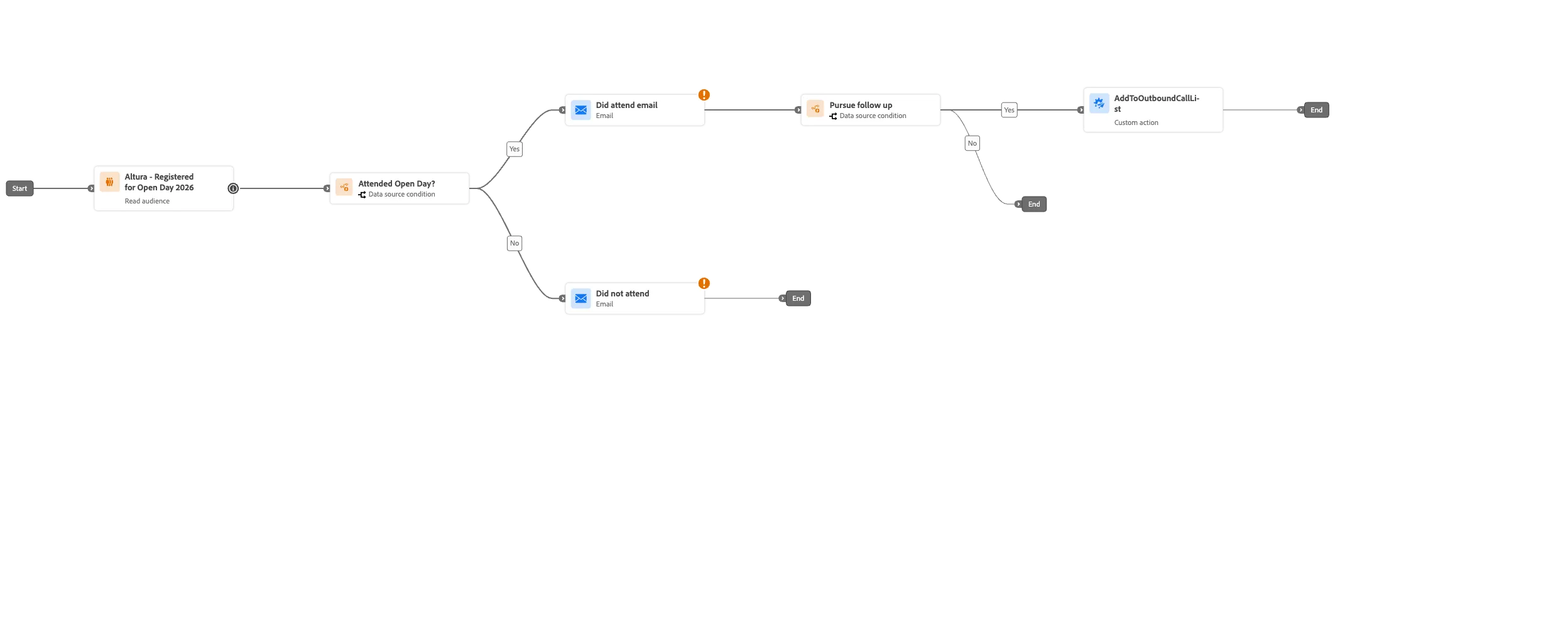
With this logic now complete we can proceed to configure the message content.
Part 2 - Optimization and Testing
Add the Content
In some cases different users will be managing content from those who are building journeys. In that case, often content managers will work directly in templates making it easy for journey builders to simply add the content from the template once it's ready. We'll do this for our Did not attend Open Day email.
Select the did not attend email, and click to configure the action.
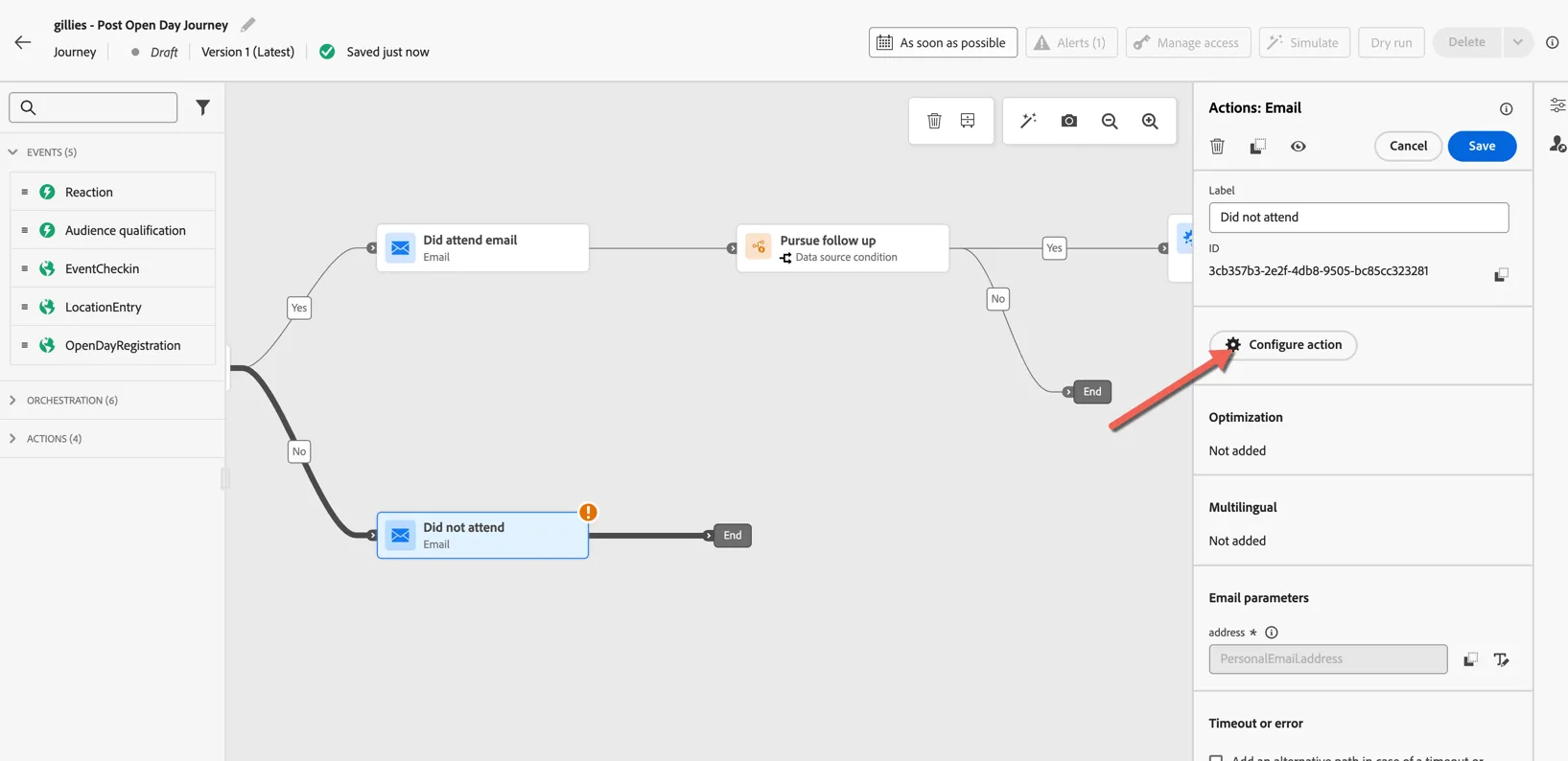
Select email-marketing as the channel configuration, then click to Edit content.
The Email channel configuration controls the email headers such as the from address, sending IP and additional configurations such as seed addresses to be included in the delivery.
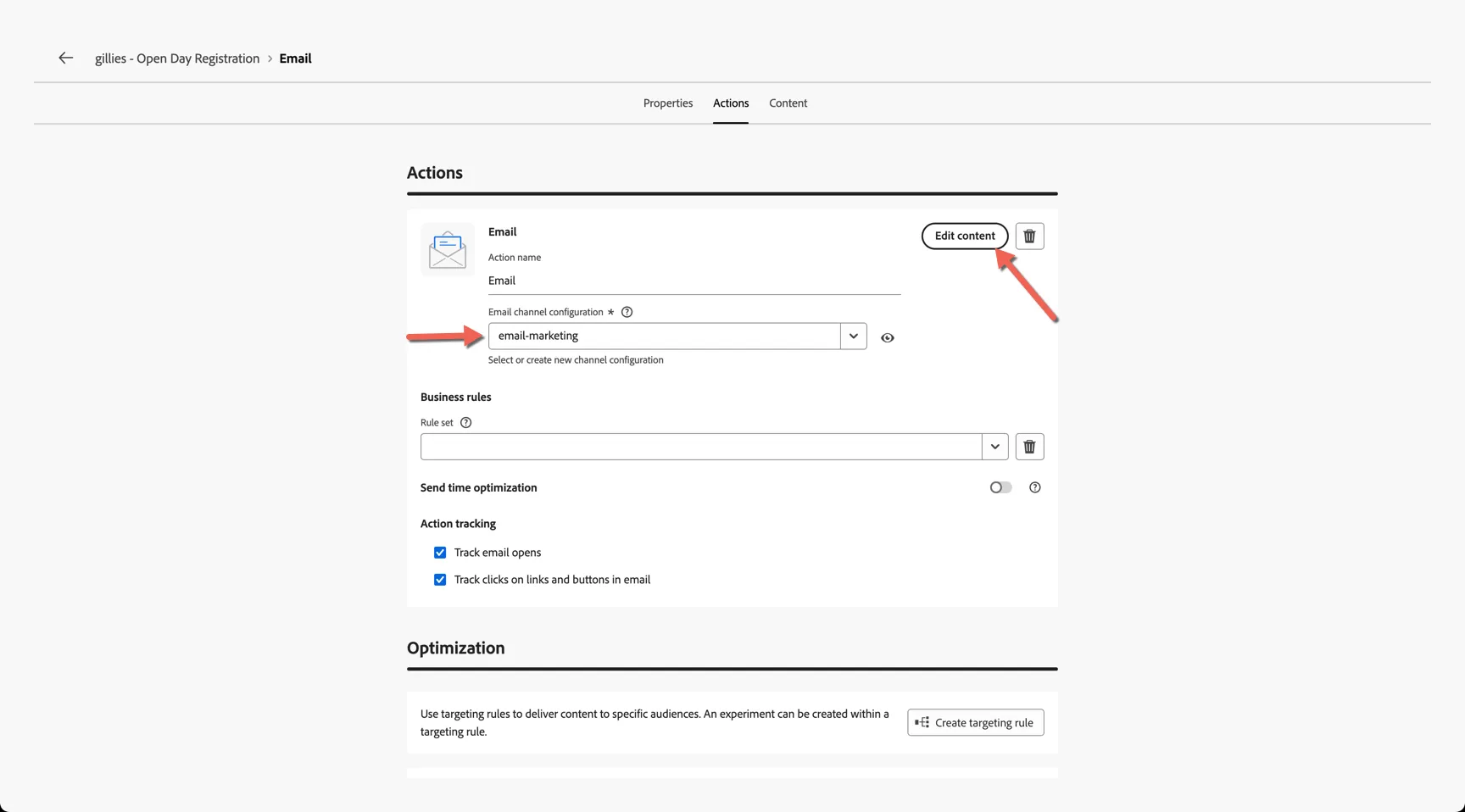
From the content tab click to Apply content template
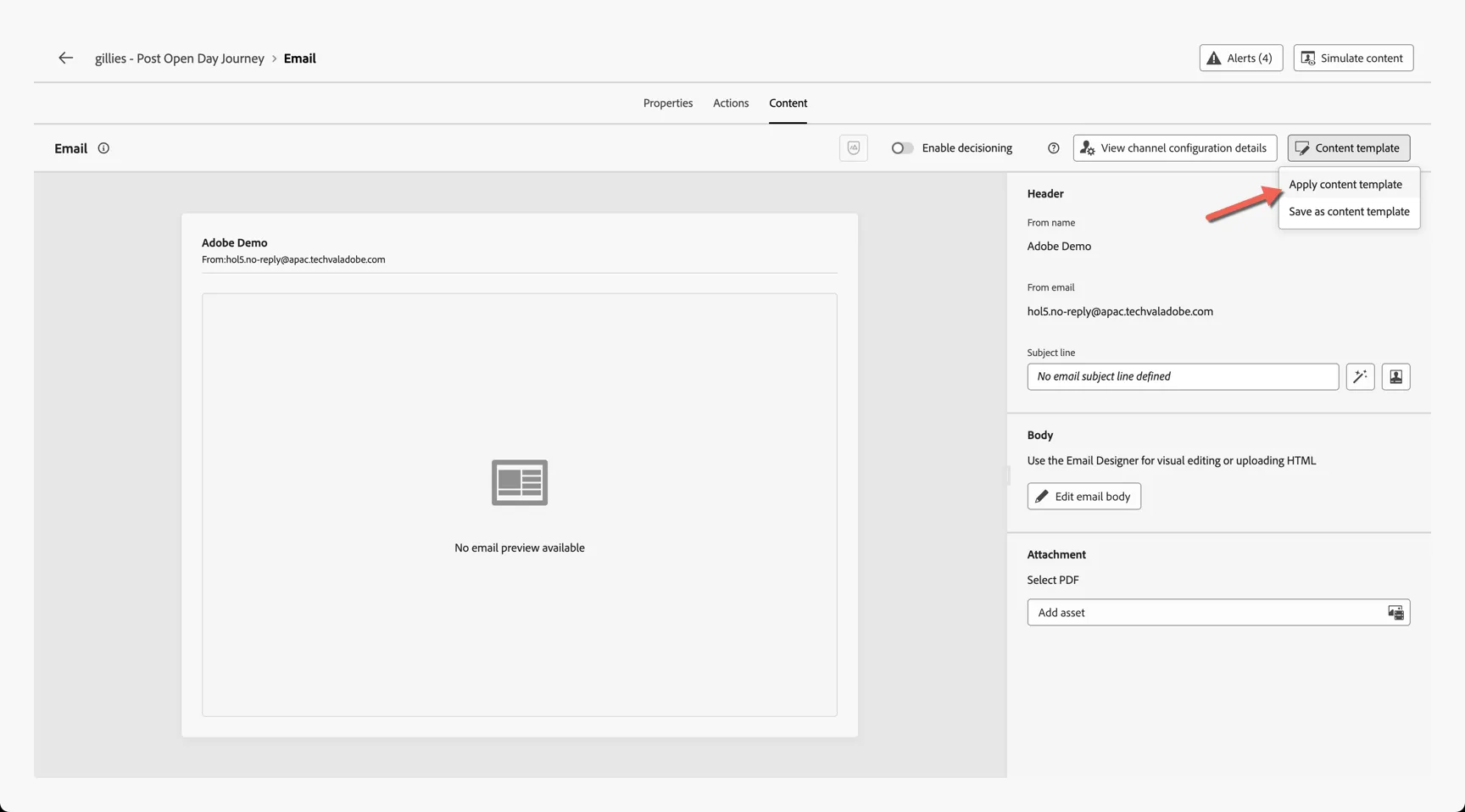
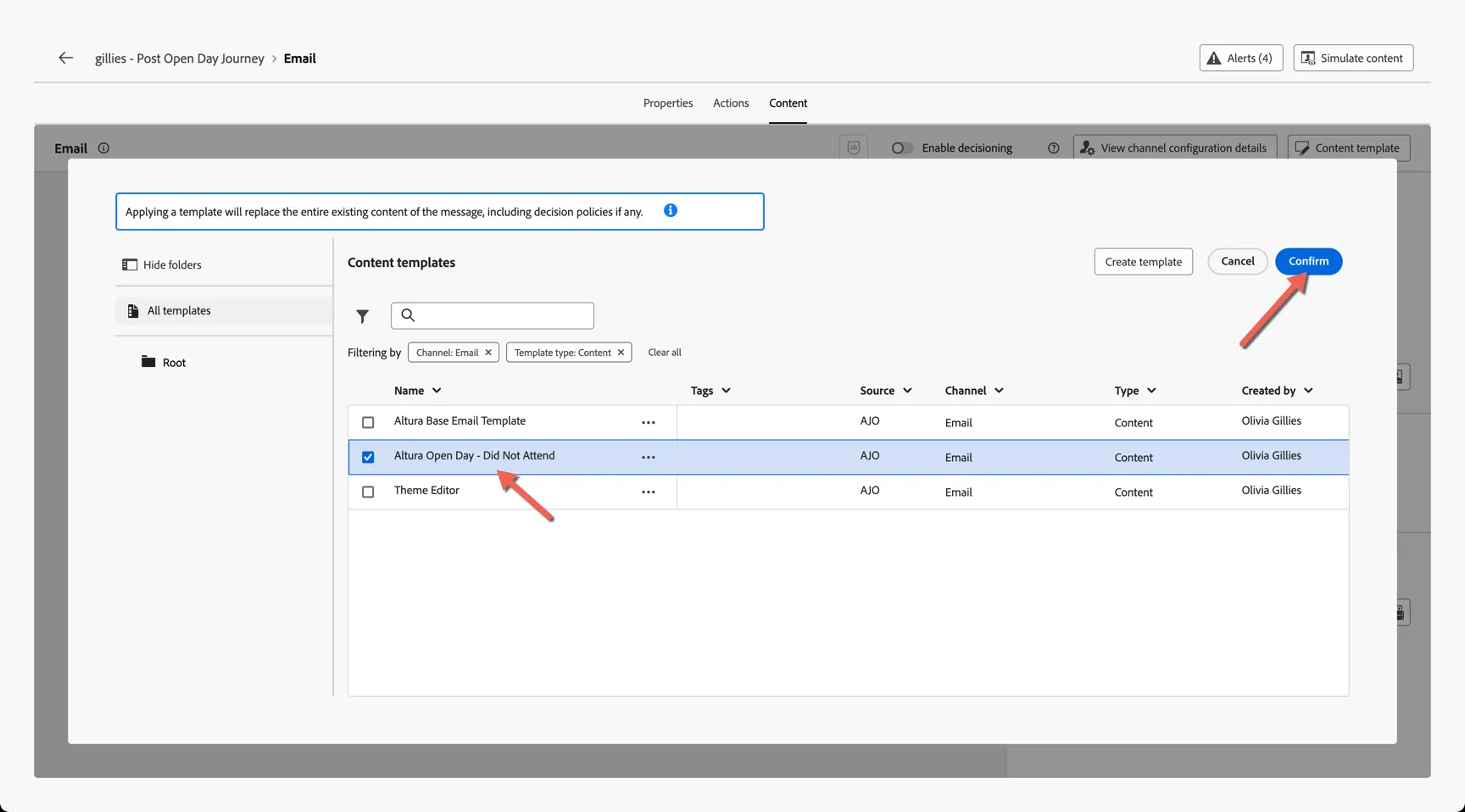
Select the Altura Open Day - Did not attend template and click to Confirm
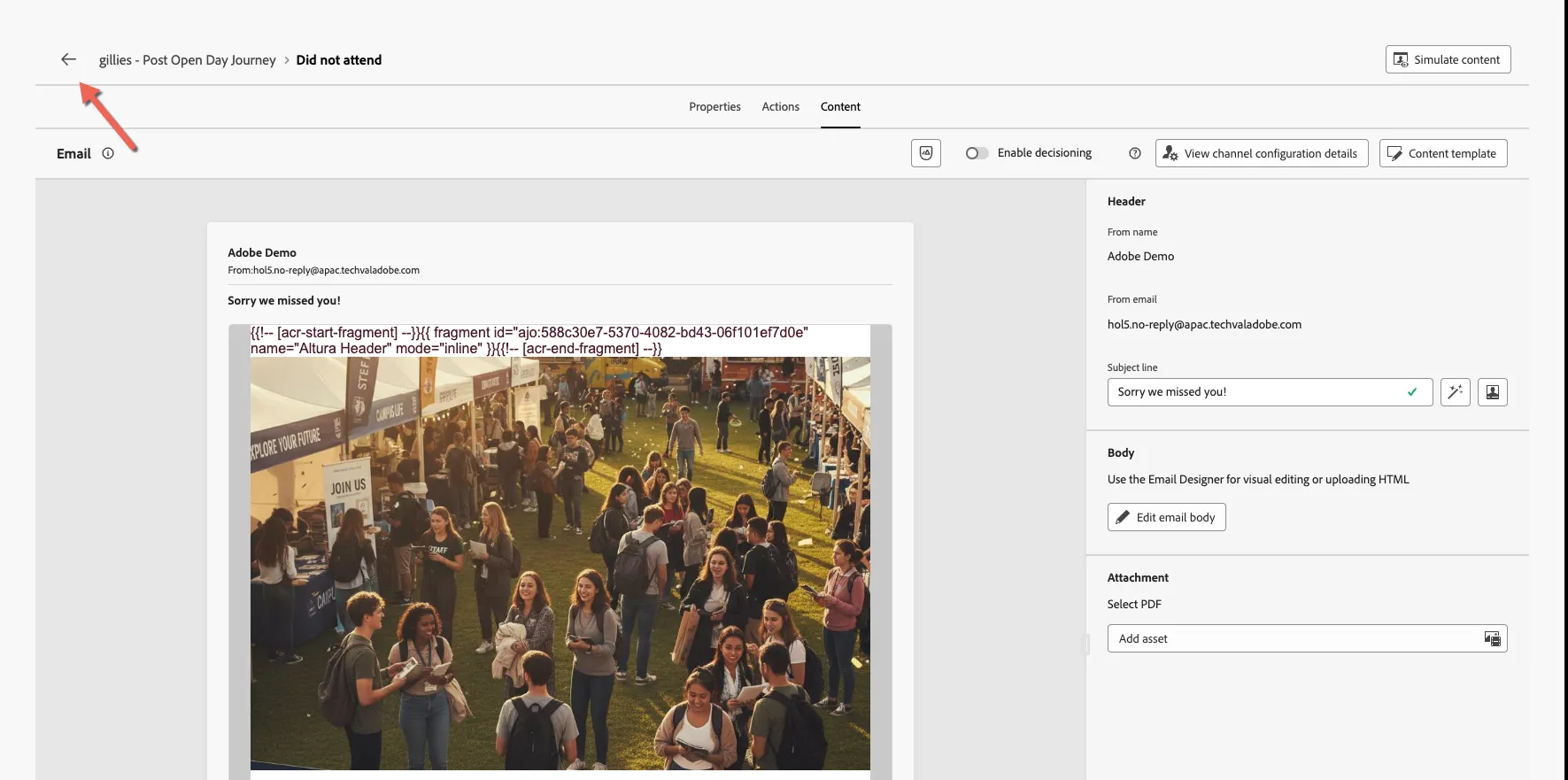
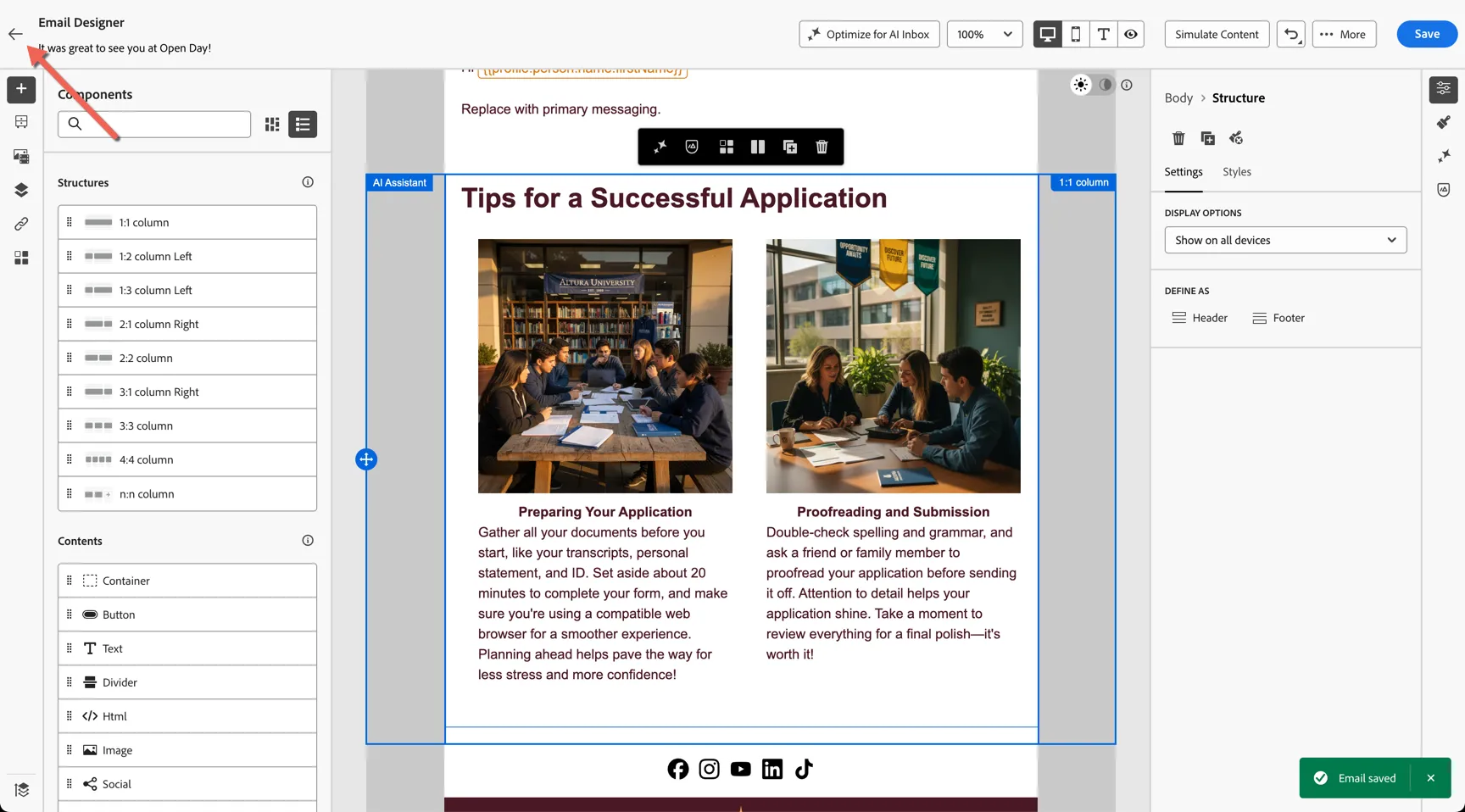
The content is now added, you can return to the journey using the arrow in the top left corner.
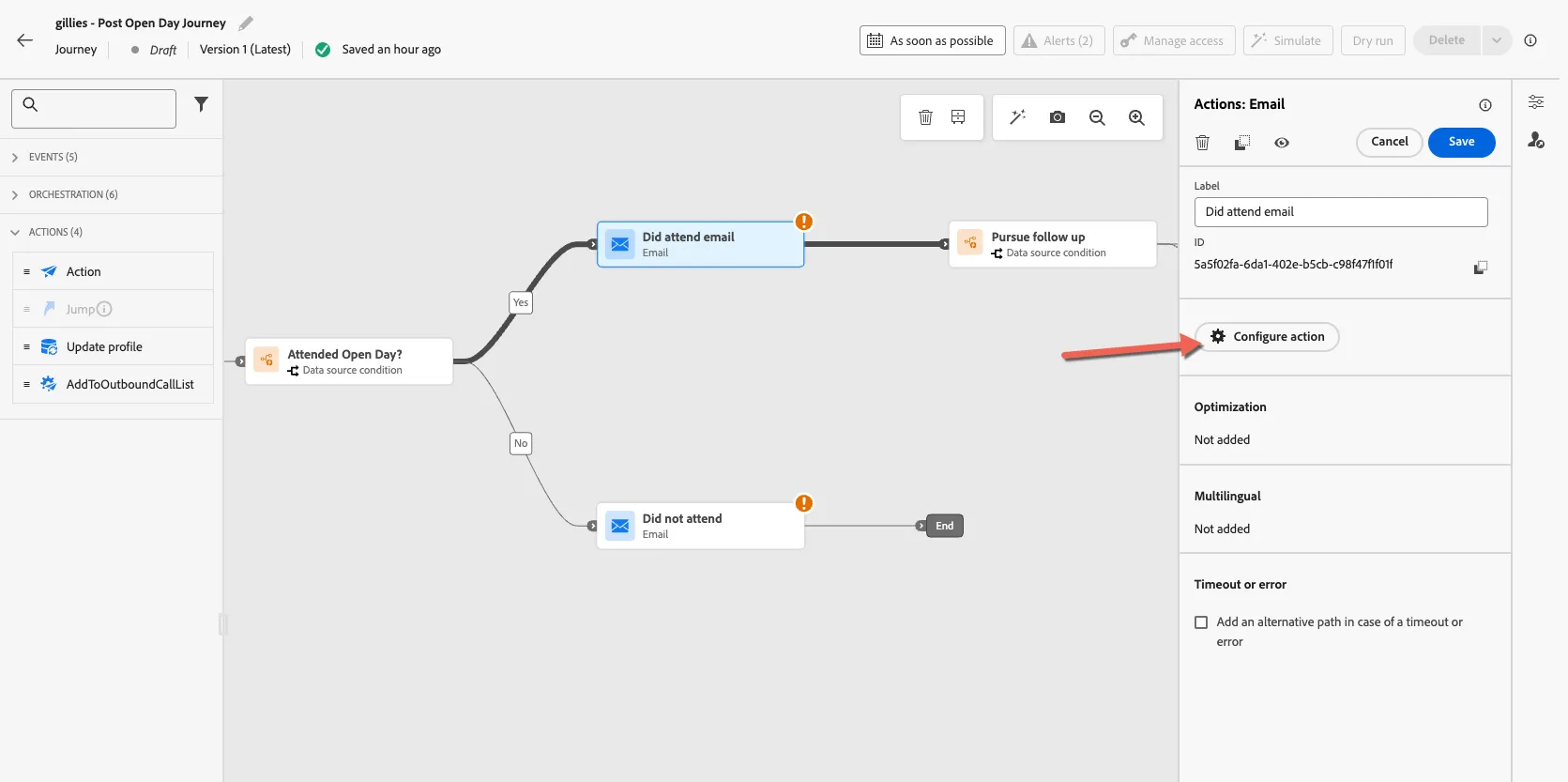
Next we'll take a look at the email editor and adding some content directly to the message in our journey. Select to the Attend Open Day email activity and repeat the same steps to Configure Action.
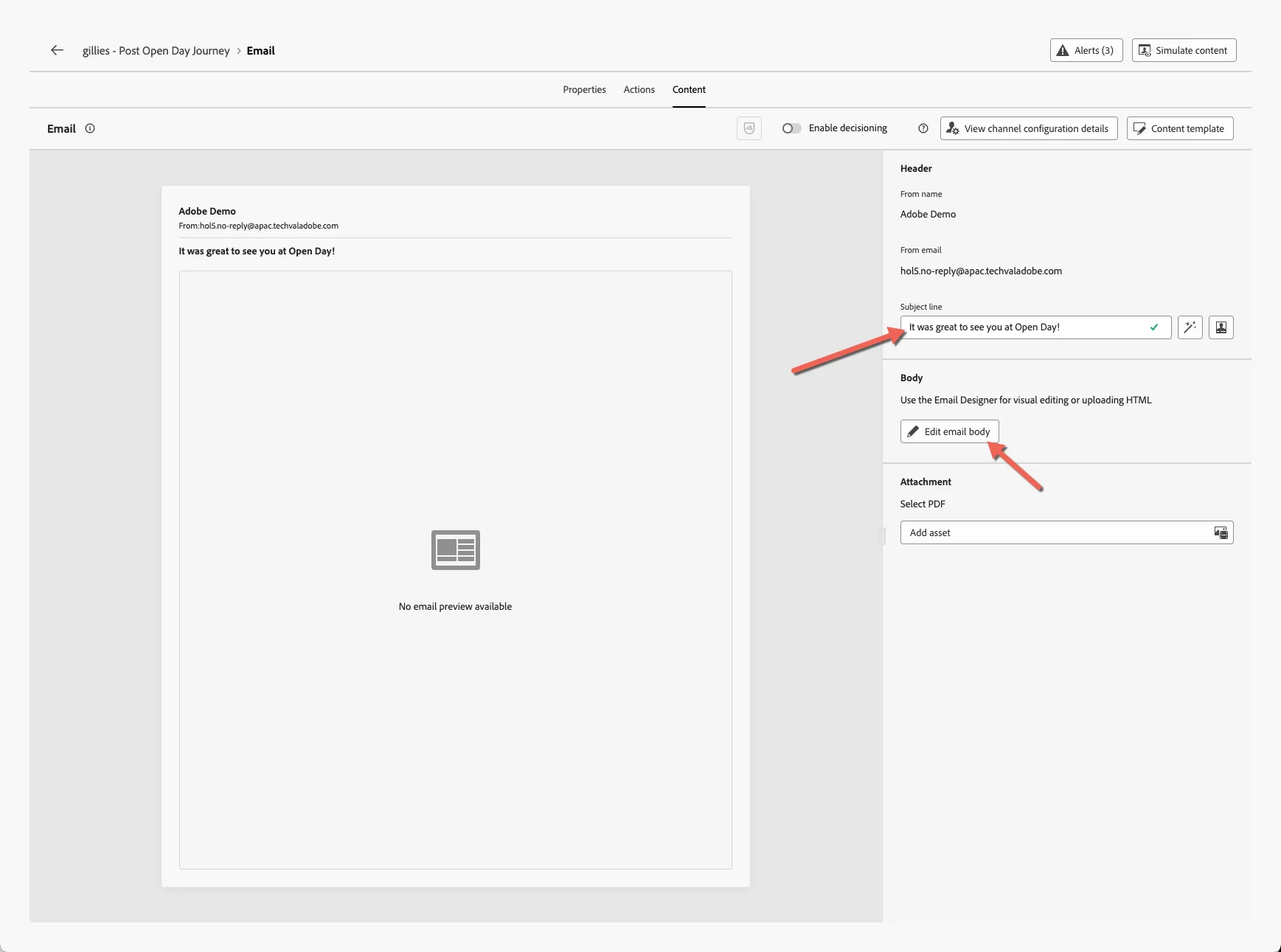
Select email-marketing as the channel configuration, then click to Edit content.
Add a subject line and click Edit email body to configure the body of the email.
Choose to start from the Altura Base Email Template.
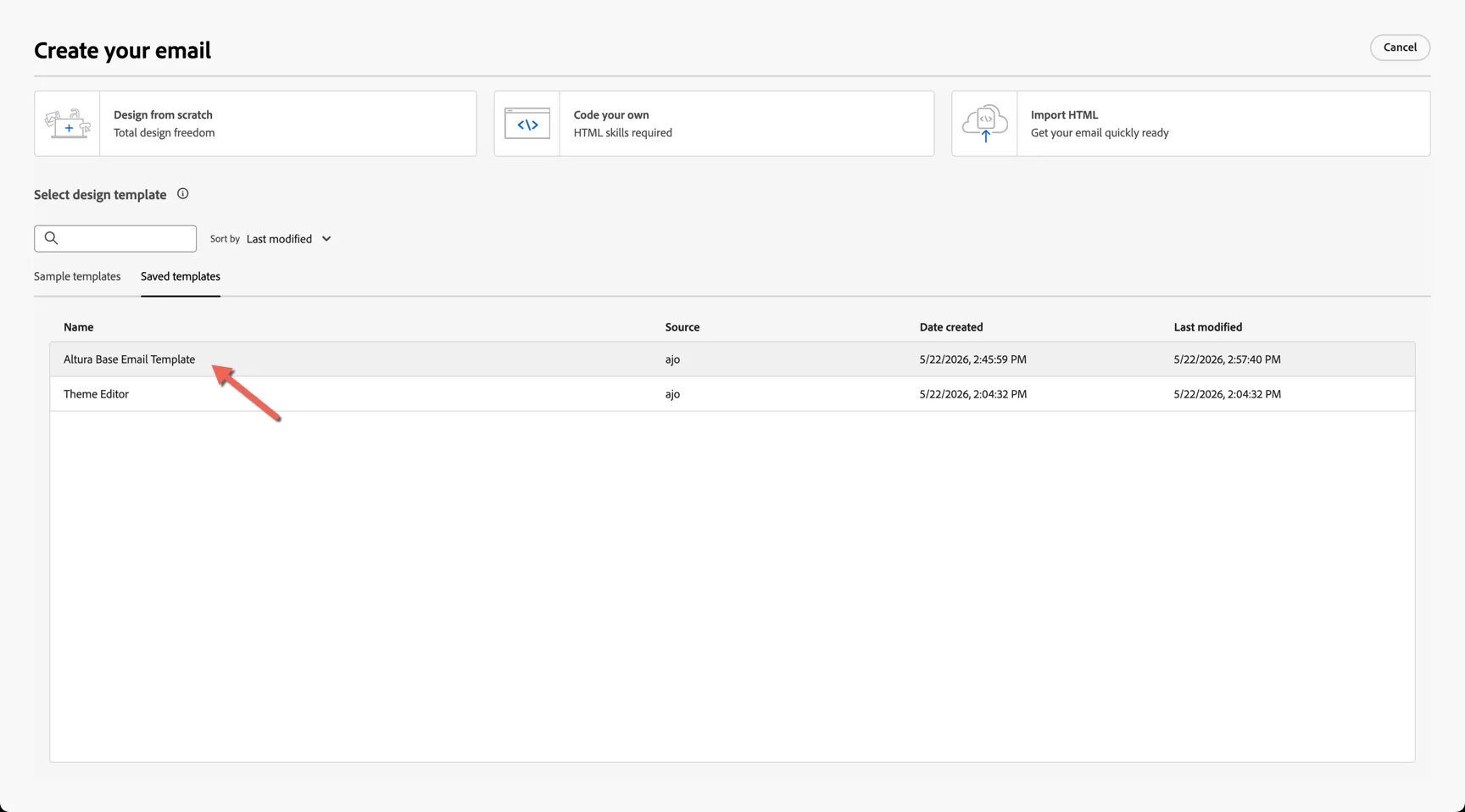
Once the preview has loaded. Select to Use this template.
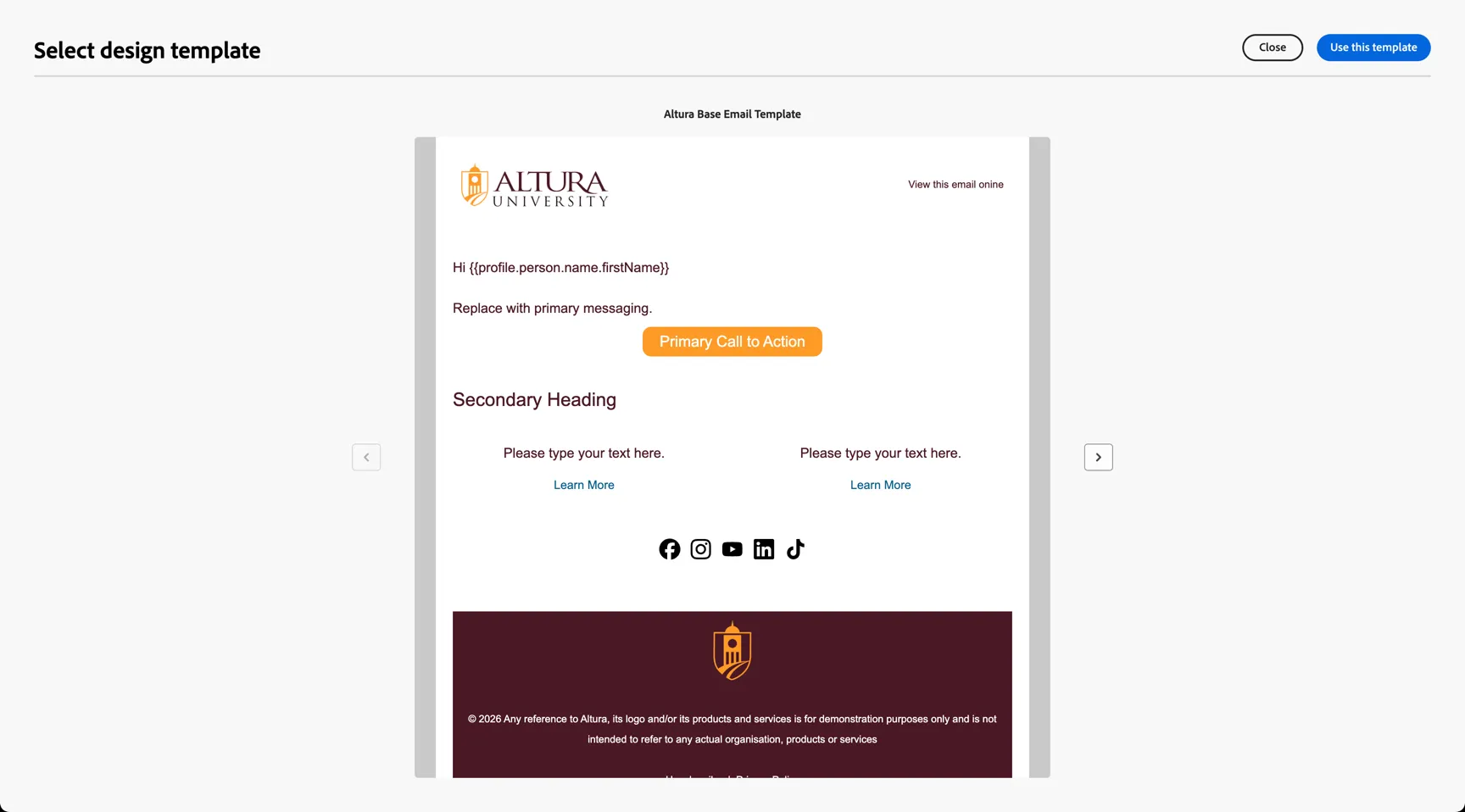
The template will now open in our marketer friendly Email Designer. The email is divided into structure components which each contain content components. Highlight each component to view the properties on the right hand side.
Content fragments are used to manage shared content blocks like the header and footer. Updates to the fragment can be managed centrally and will apply globally across all messages using the block.
For the image banner component, you can choose to add an existing asset from the Asset Repository or we can use Adobe's Generative AI to create an image based on text prompts the same way you did in the web campaign in exercise 1.
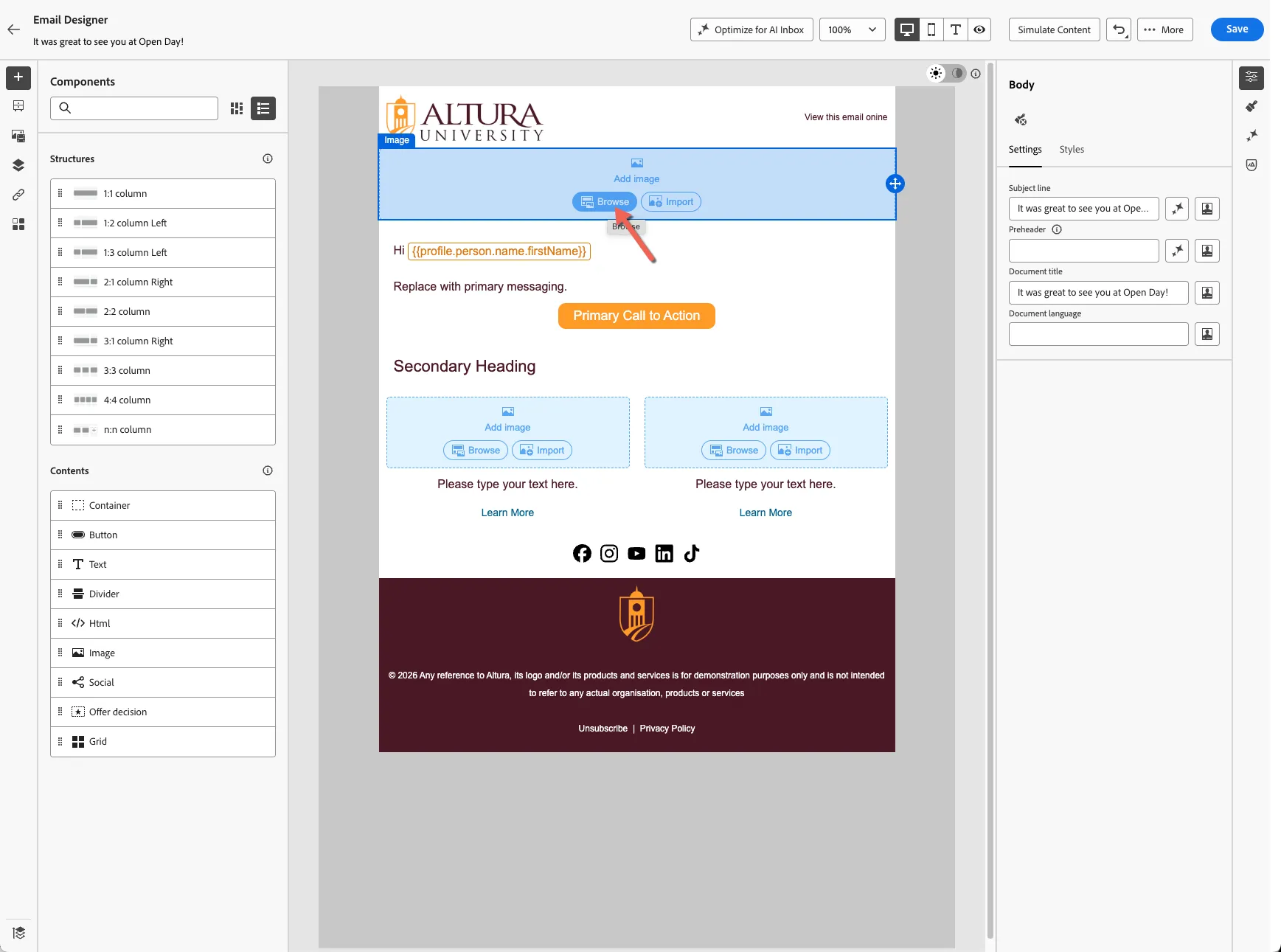
The email template is already personalised with the attendee's first name.
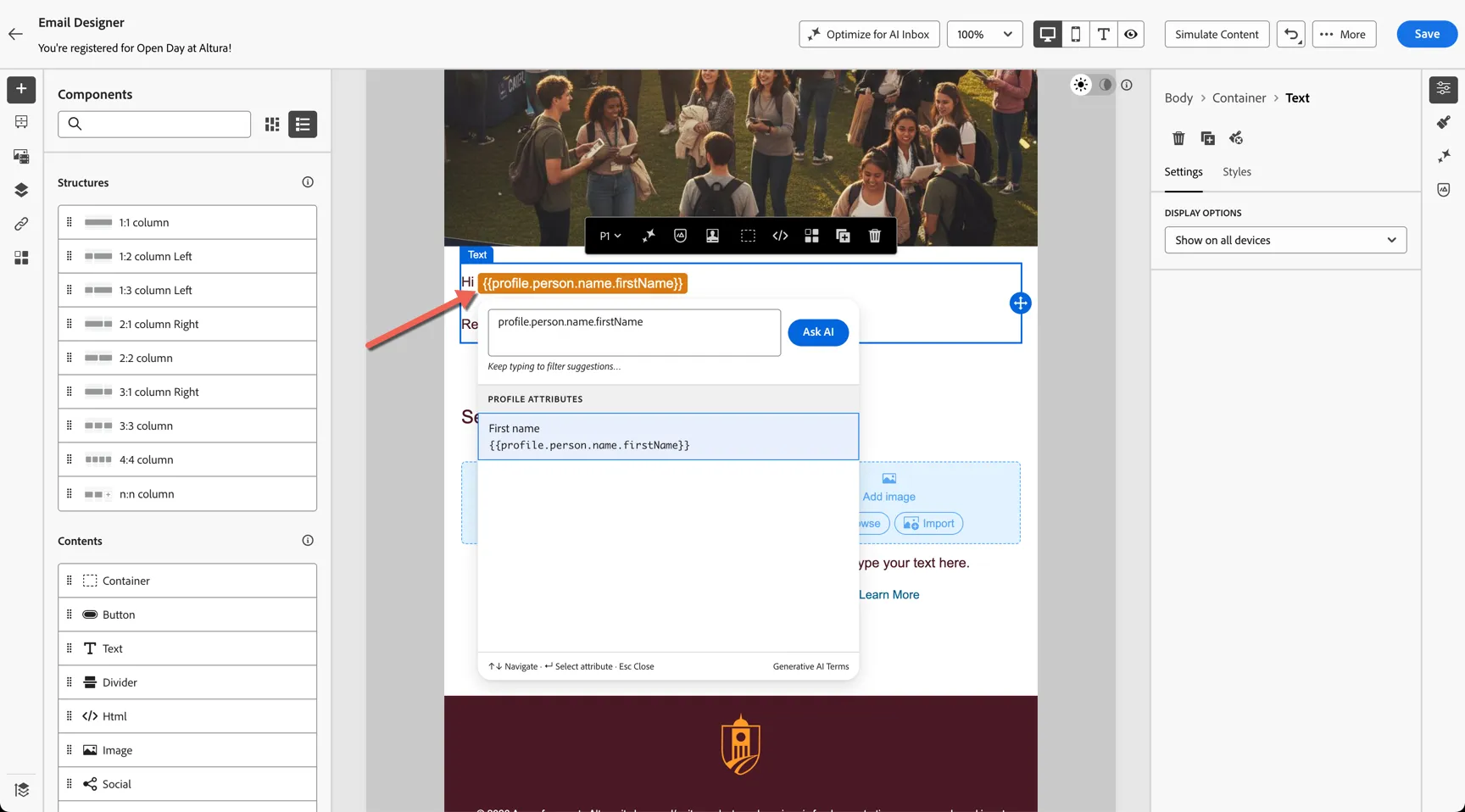
Add a paragraph to thank them for attending the open day, such as:
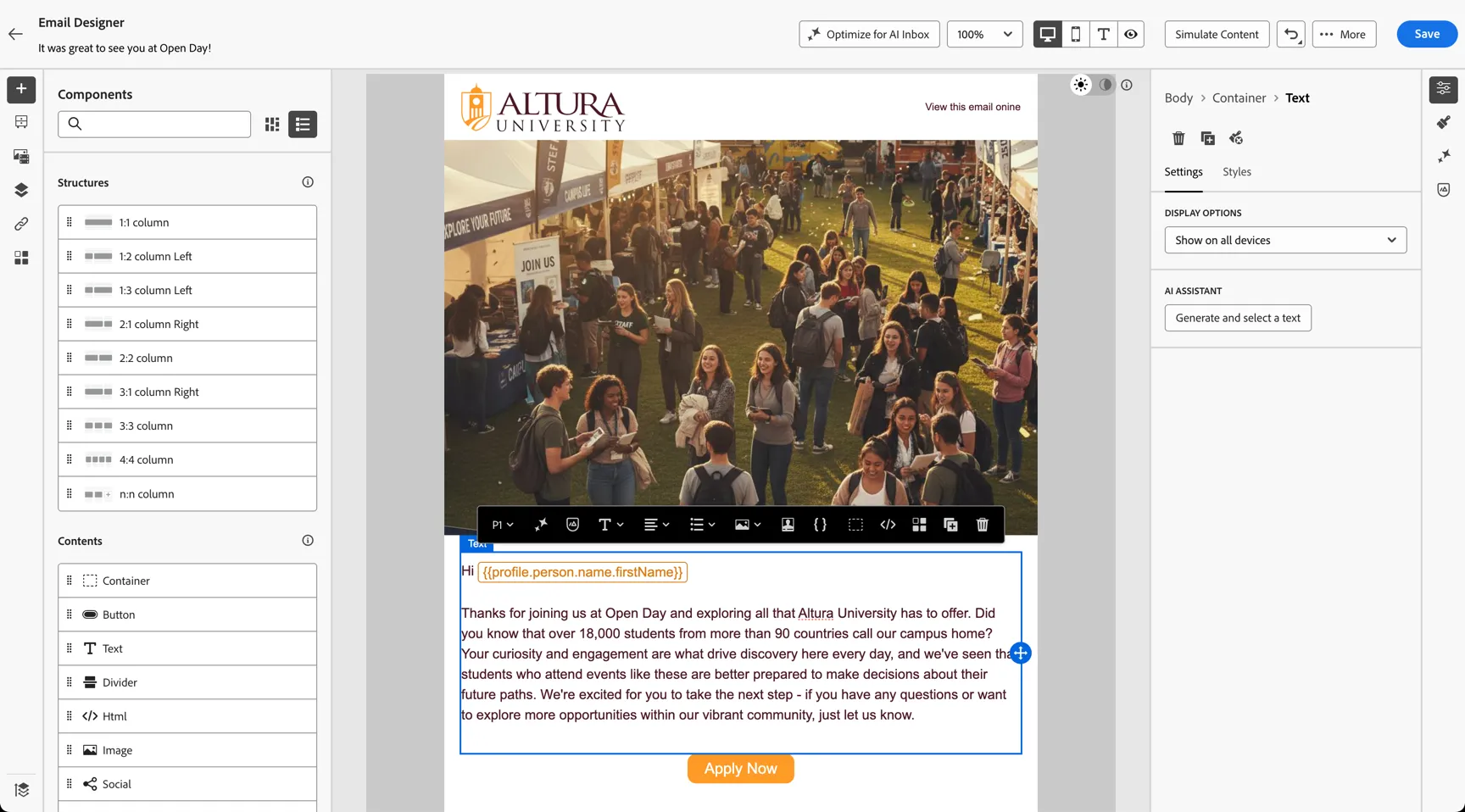
Select the call to action button, update the button properties to:
Label: Apply Now
Url: https://qtac.edu.au
Target: Blank
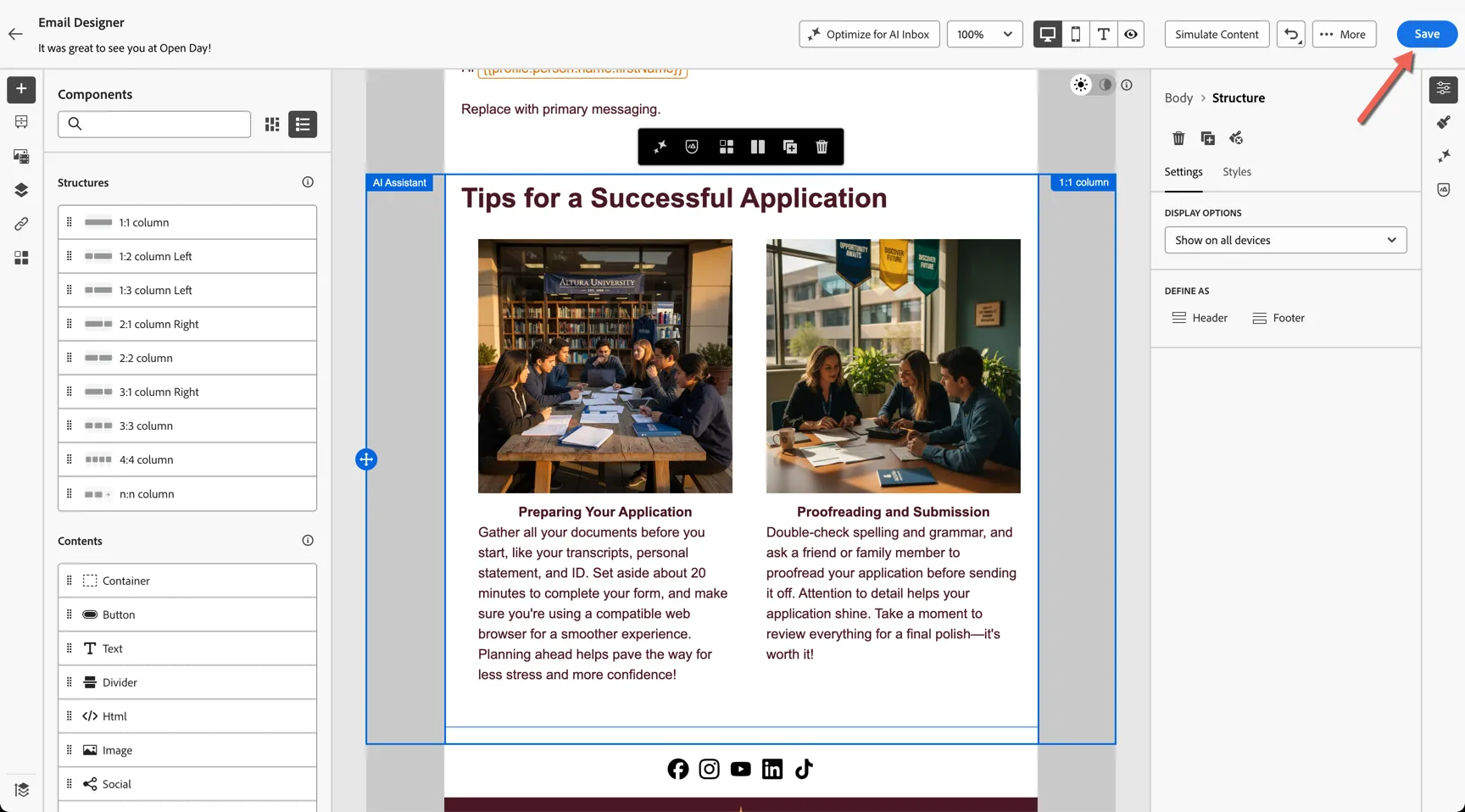
Next we'll update the secondary block using Adobe's AI Assistant - in this case we'll use some reference content to help the AI create relevant content using information that's already published and approved.
- Select the block and open the AI Assistant panel on the right.
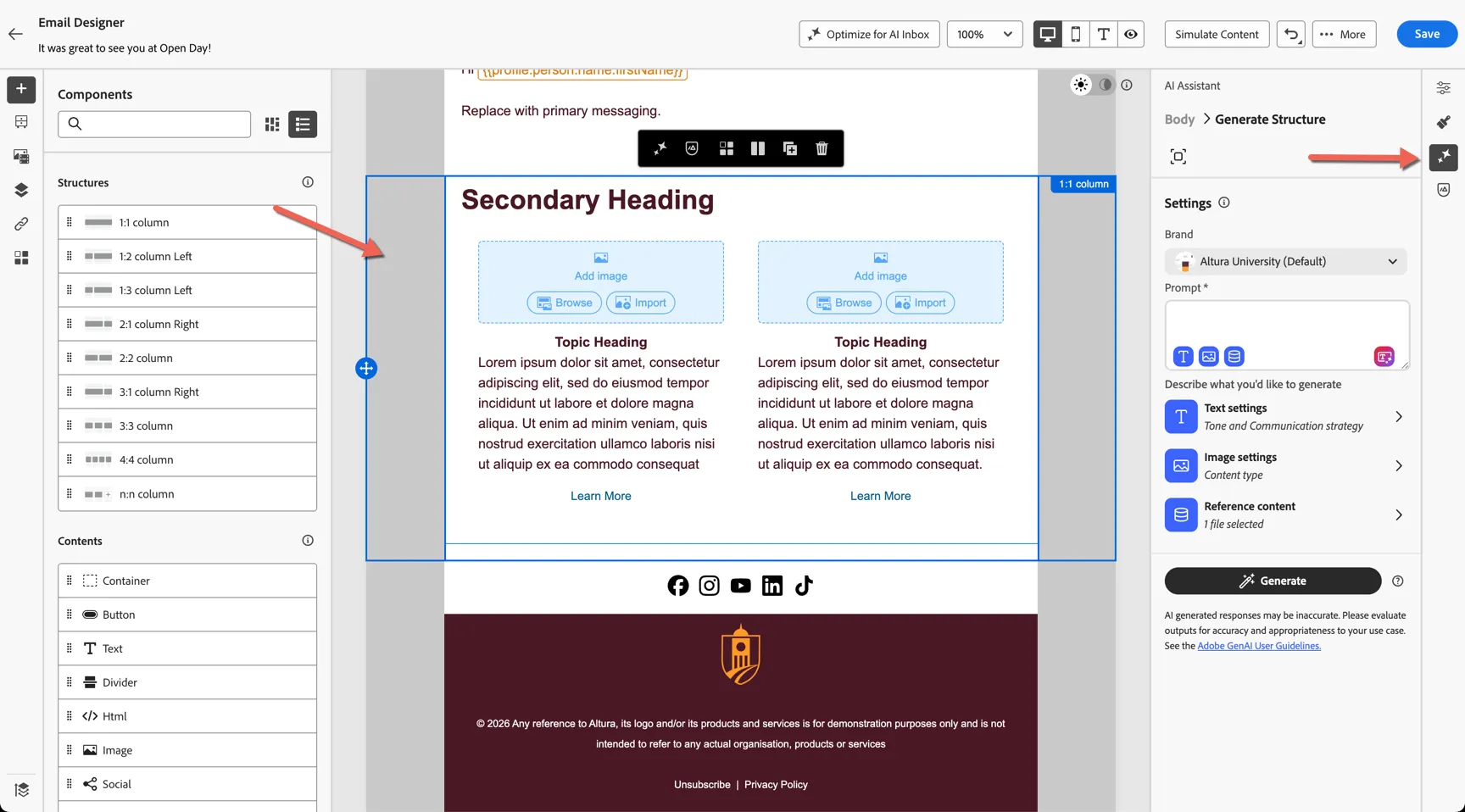
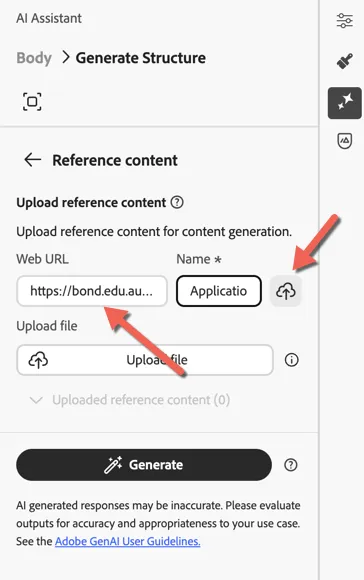
- Add reference content. You can enter a page from your own website or use this example from Bond University:https://bond.edu.au/entry-to-bond/how-to-apply/application-tips
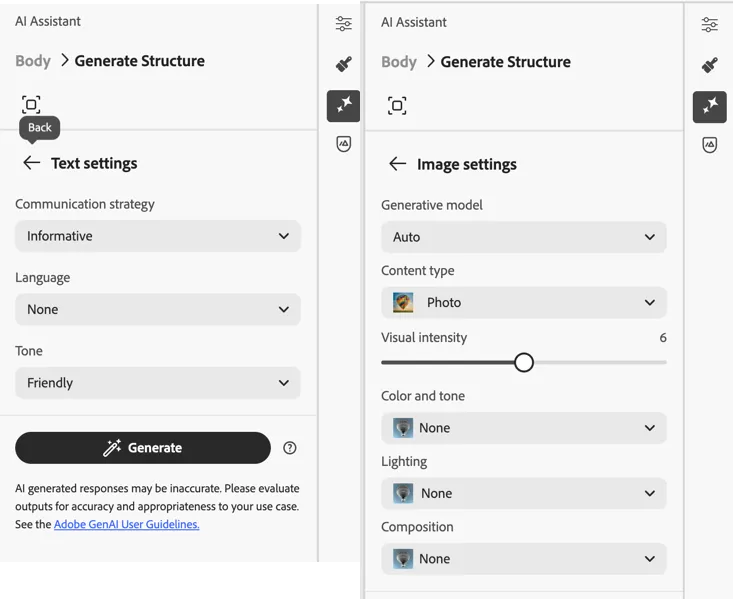
- Update the text and image settings to control the tone and look of your messaging
- Add a prompt such as
- Click to Generate
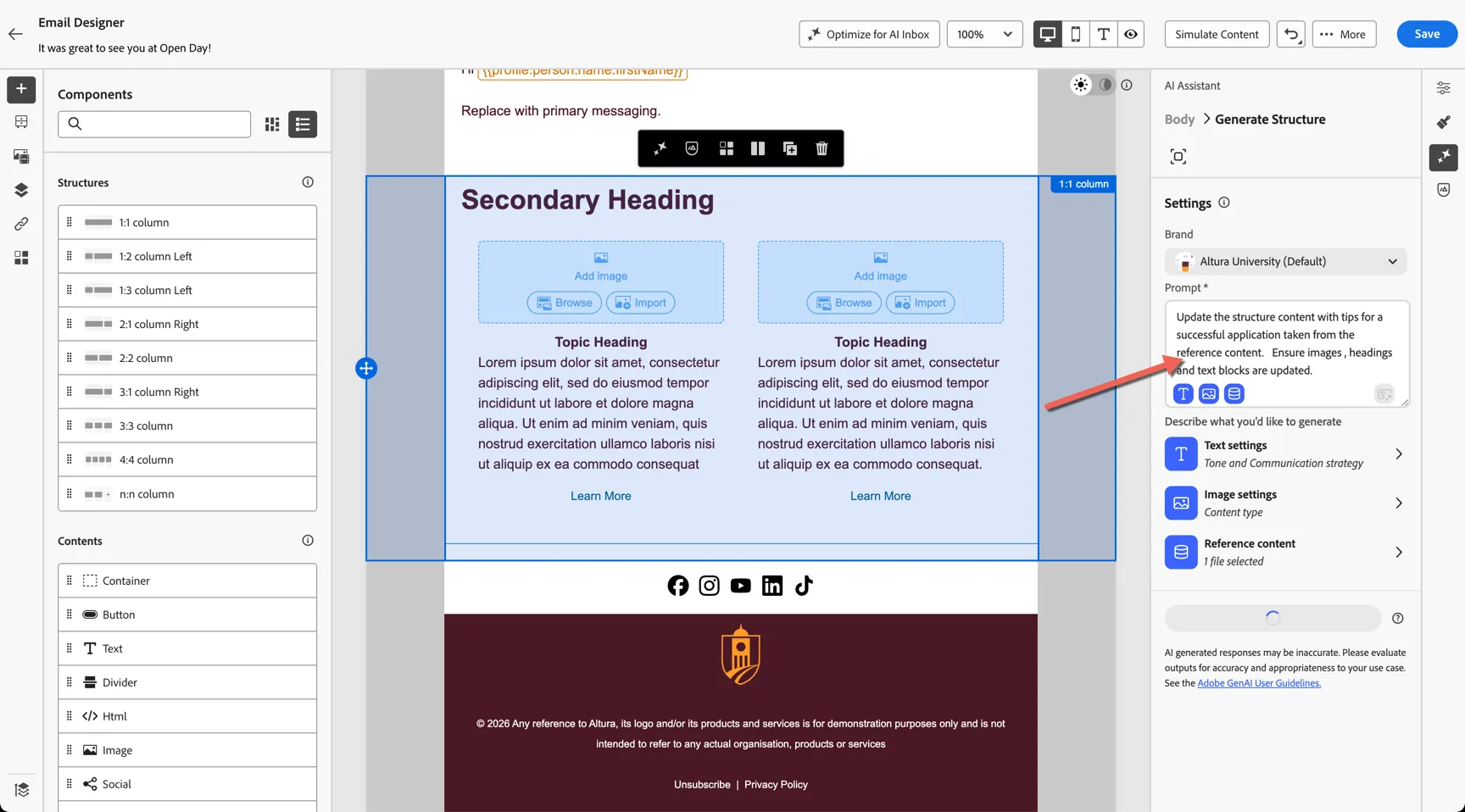
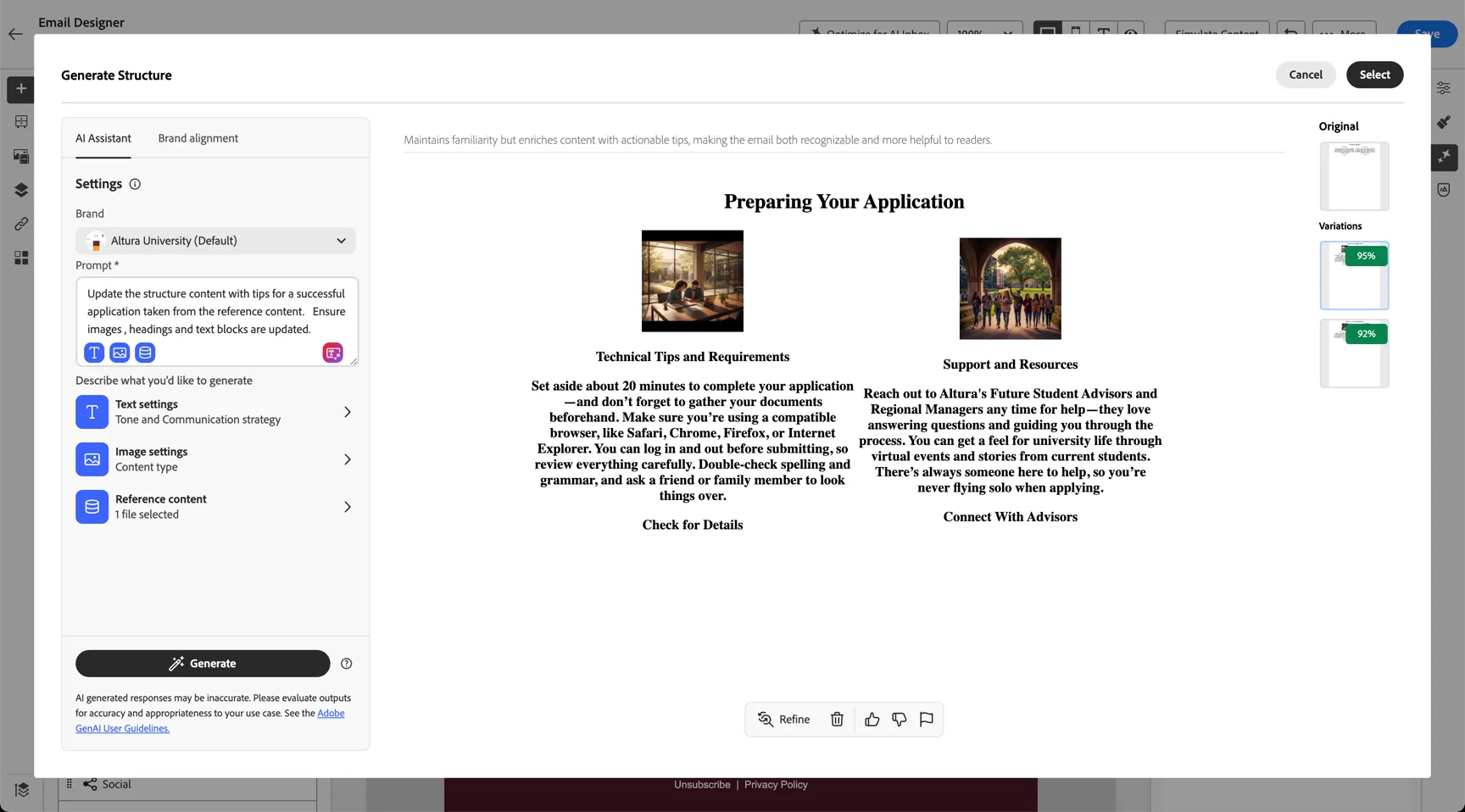
It will take a minute or so for the variations to appear. Click Preview to take a closer look at what was generated.
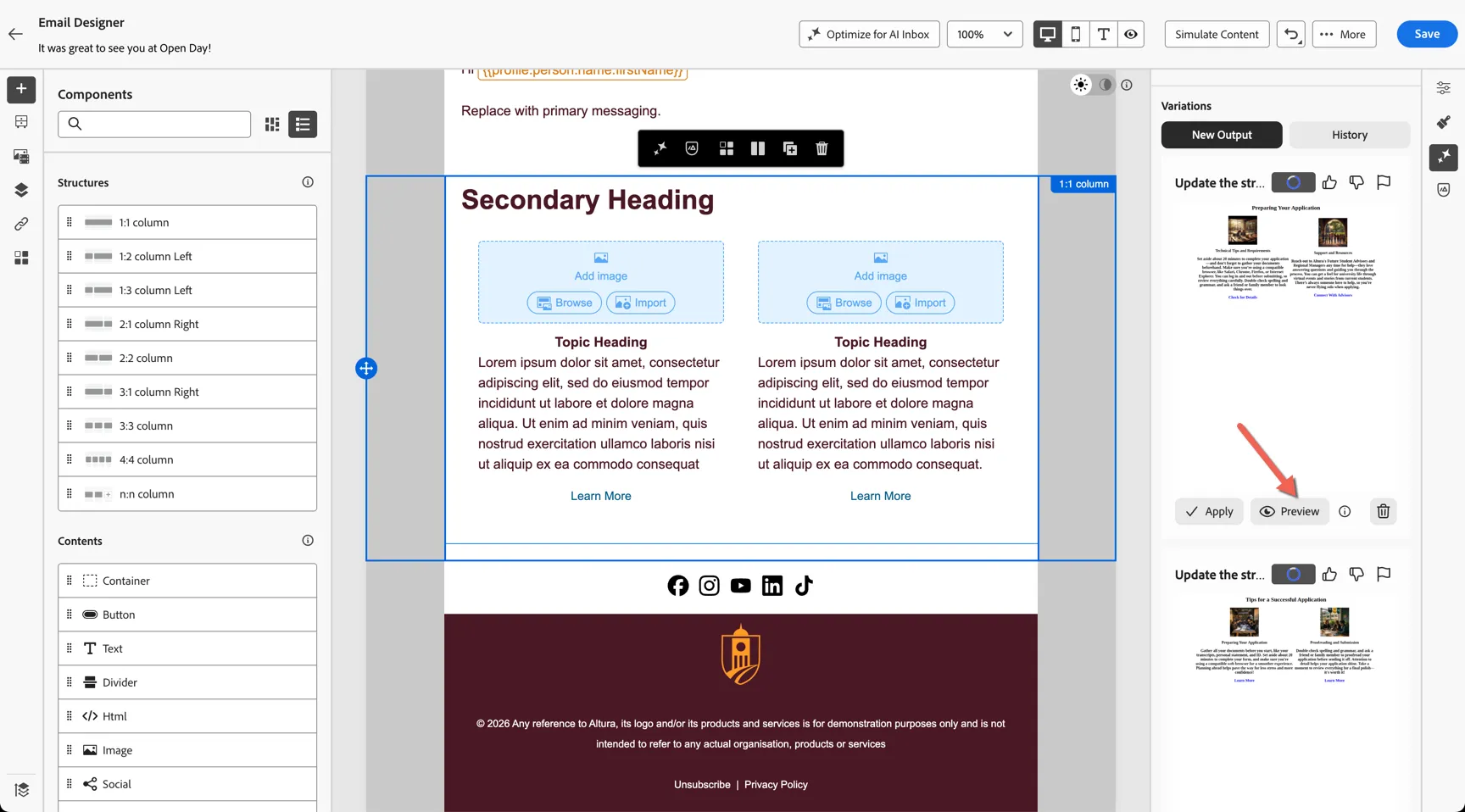
Decide which variation you prefer and select to insert it into the message.
You'll be prompted to save the generated images into the image repository. Click Next and upload the images to the Altura folder.
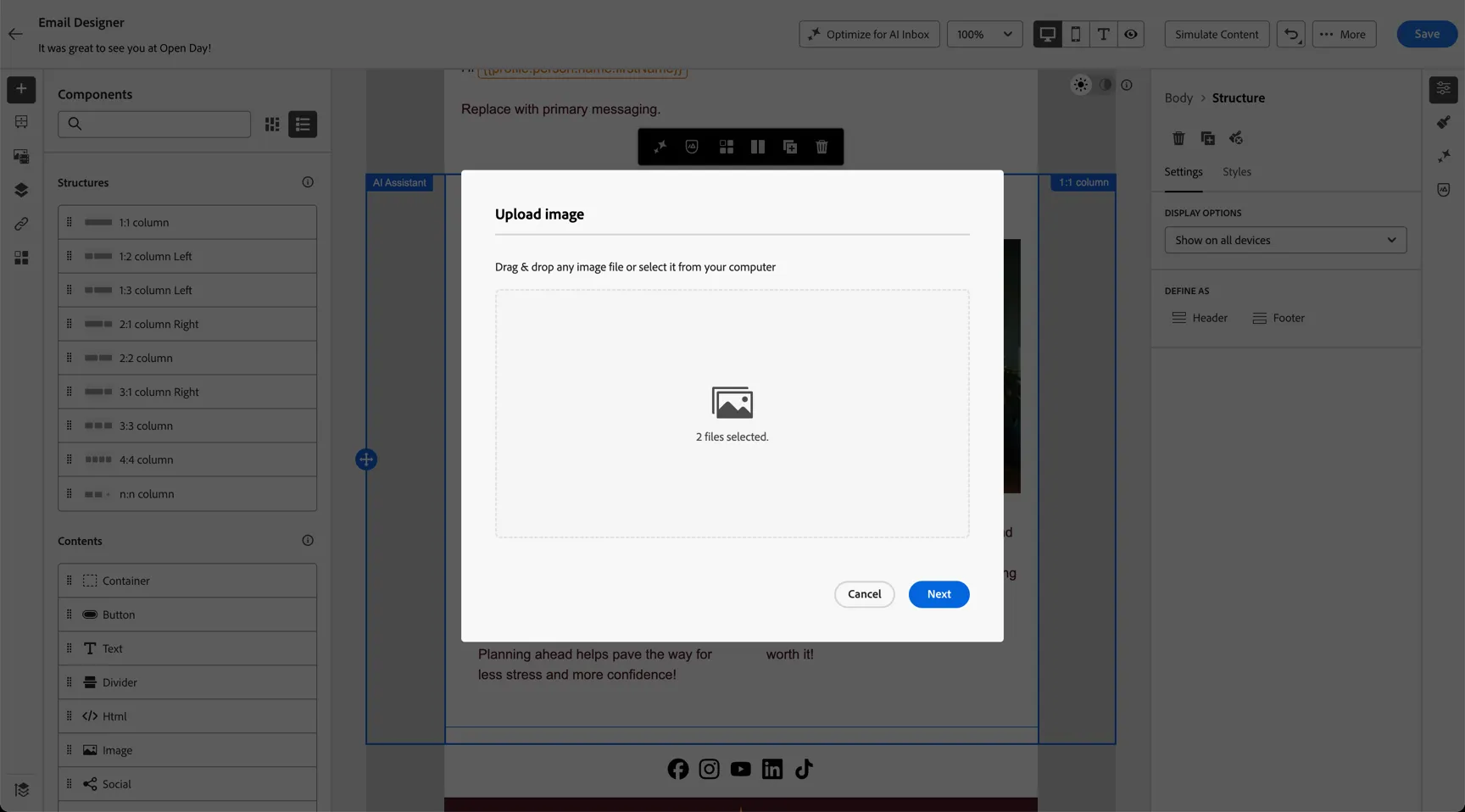
Click to Save.
Optimise the content
Now the content is ready, we can optimise it. The first way we'll do this is by checking the content against Altura's brand guidelines.
Click to open the Brand Review panel from the right rail and click to Evaluate Score/
Click to Evaluate Score.
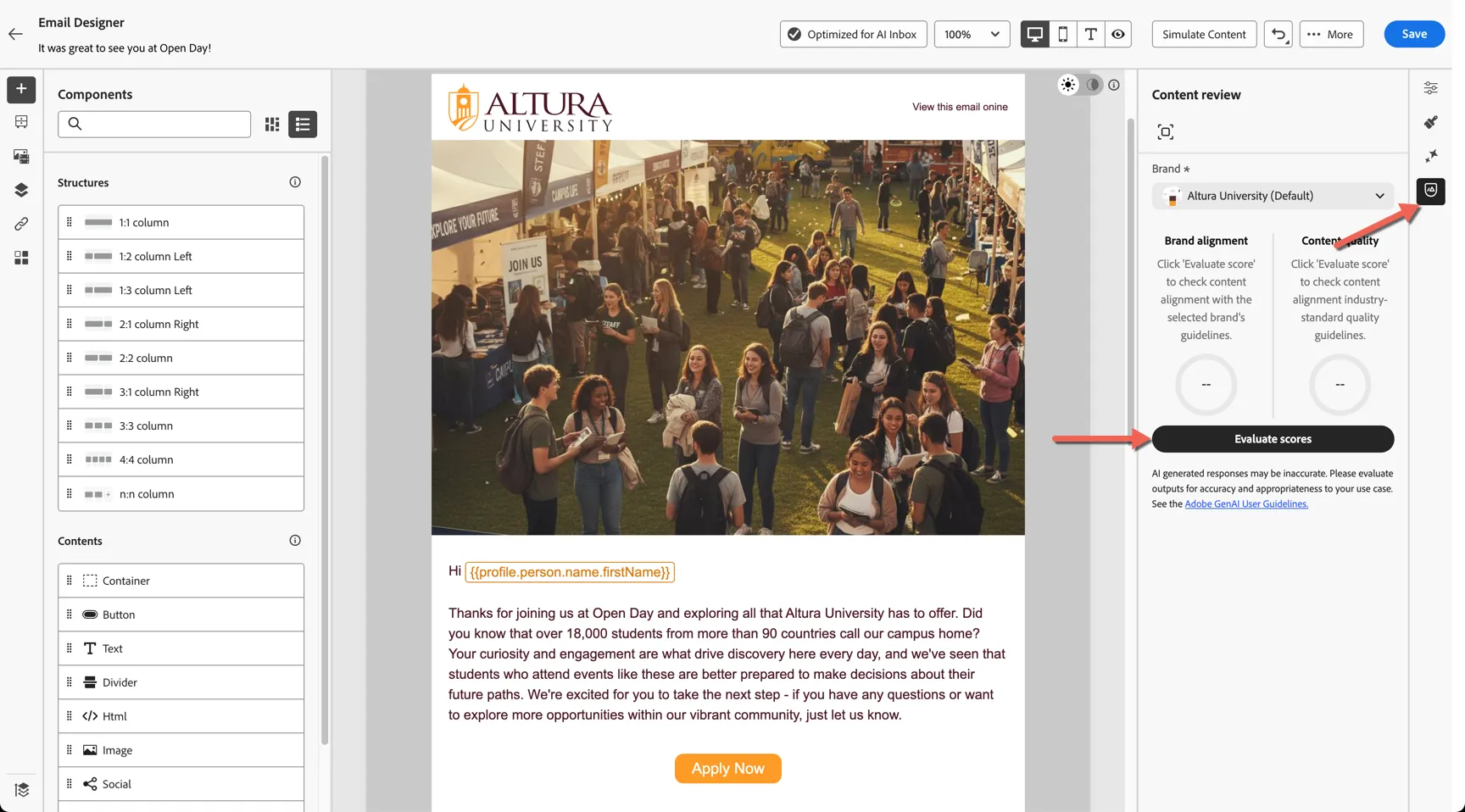
The content of the email will be verified against the preconfigured brand guidelines and given a score for brand alignment and content quality.
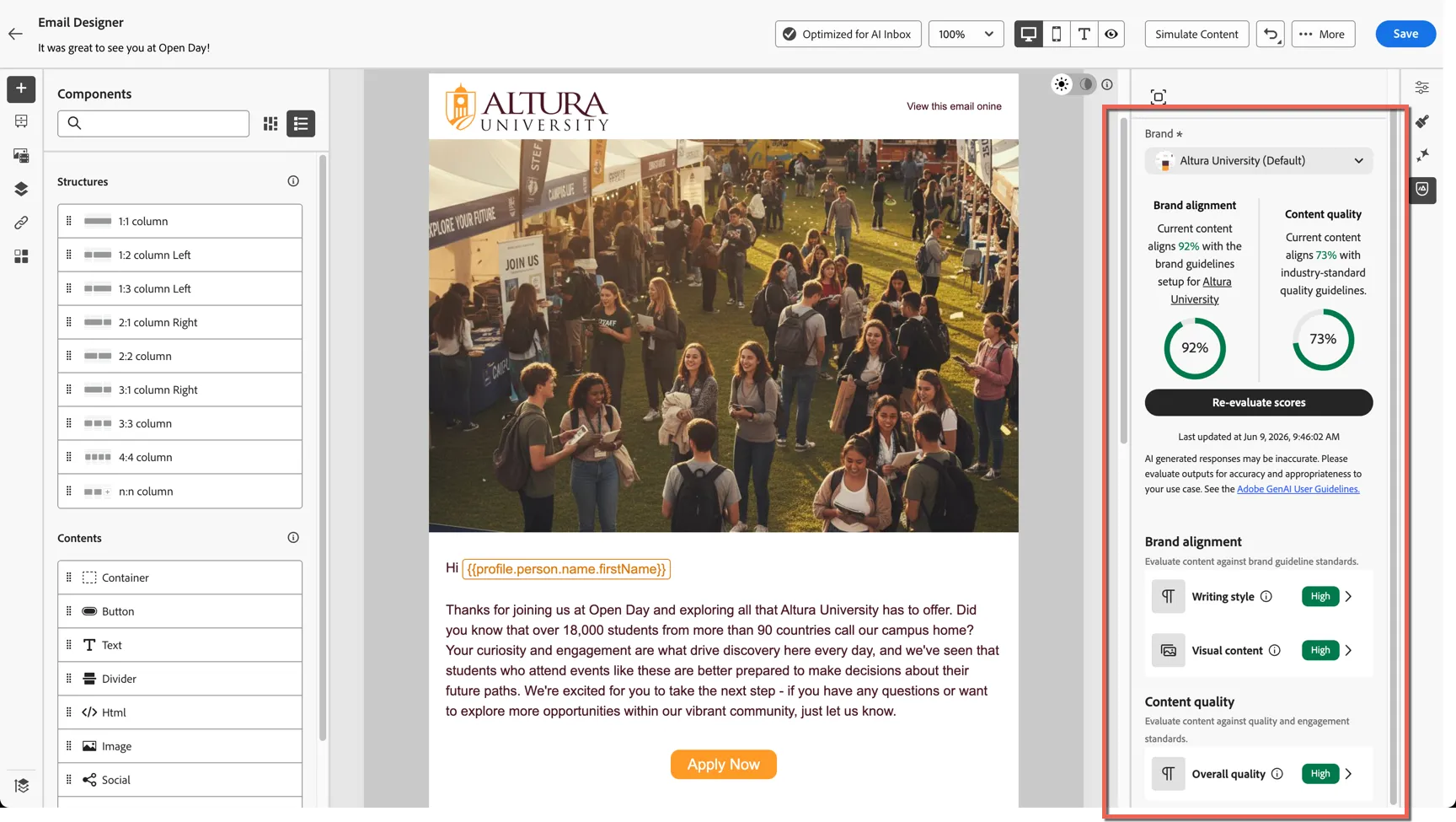
From here you can drill into specific recommendations within each category and make updates if needed.
The other optimisation we can make is to Optimize for AI Inbox. With email providers now offering AI Summaries it's important that your emails are easily read by AI tools to ensure they are summarised accurately and don't get lost.
Click the Optimize for AI Inbox button
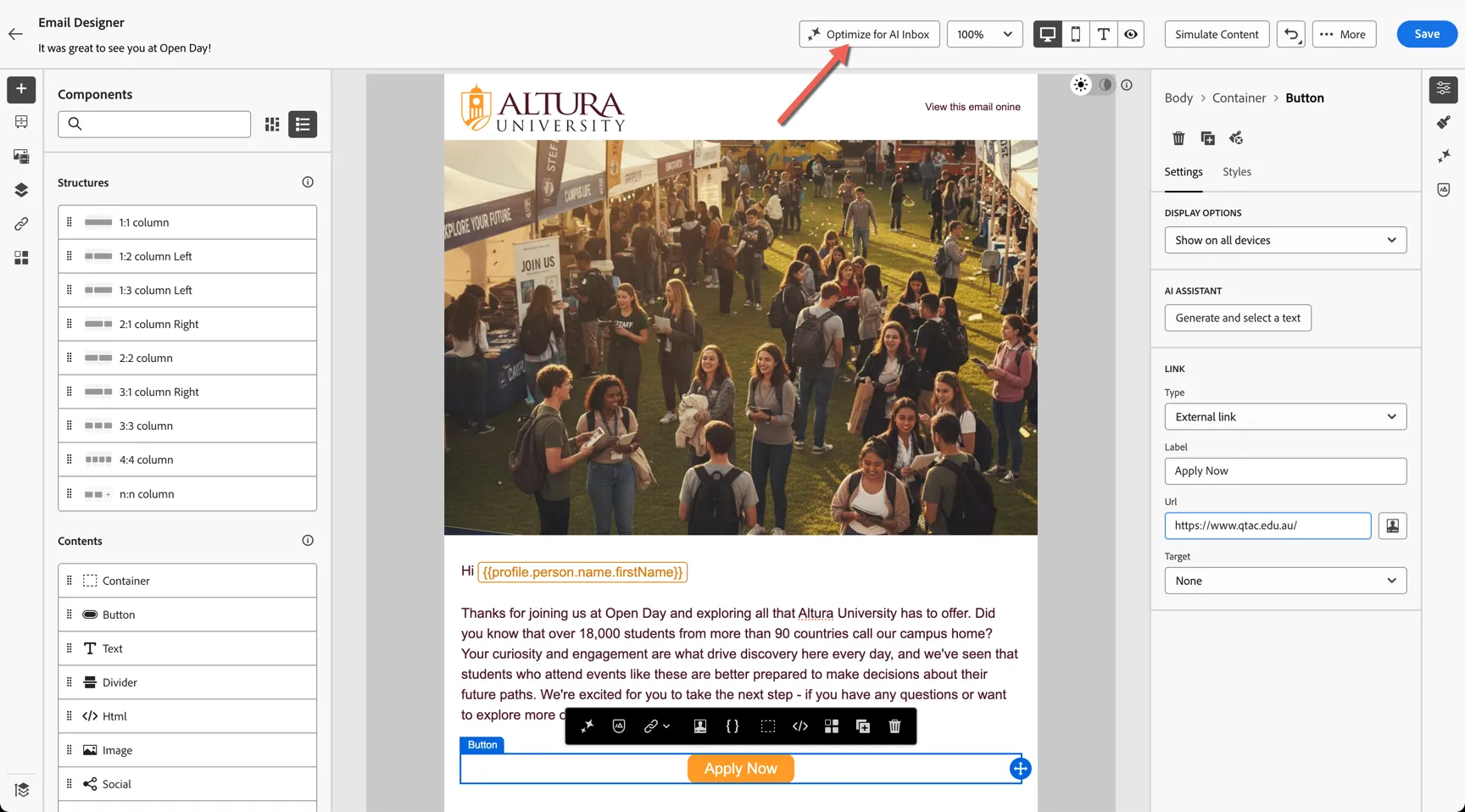
Review the summary version and click to Optimize Email
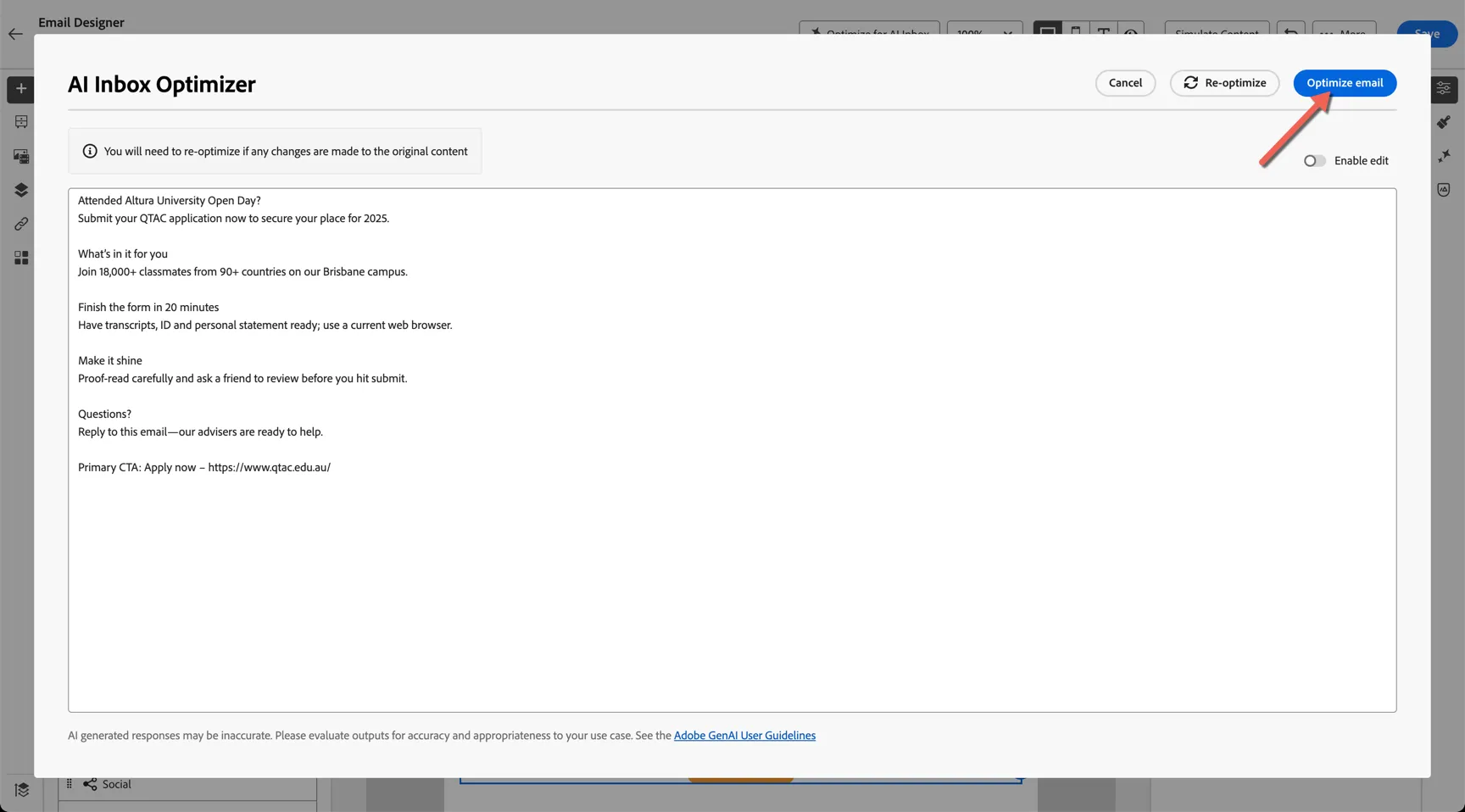
The content of the email has now been updated to ensure AI crawlers can quickly retrieve the key messaging and calls to action.
With the content now complete, return to the journey using the Arrows on the top left.
Test your journey
Before setting your journey live you need to test it, this is often the part that takes the most time! Traditionally the more personalised and complex your journeys, the harder they become to test and ensure that all variants and paths are properly validated.
Click on the Simulate button.
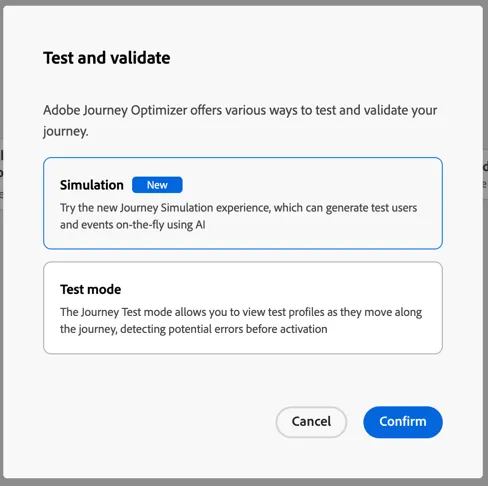
Select the new Simulation mode and click Confirm
Once in Simulation mode, click to run a Manual Simulation.
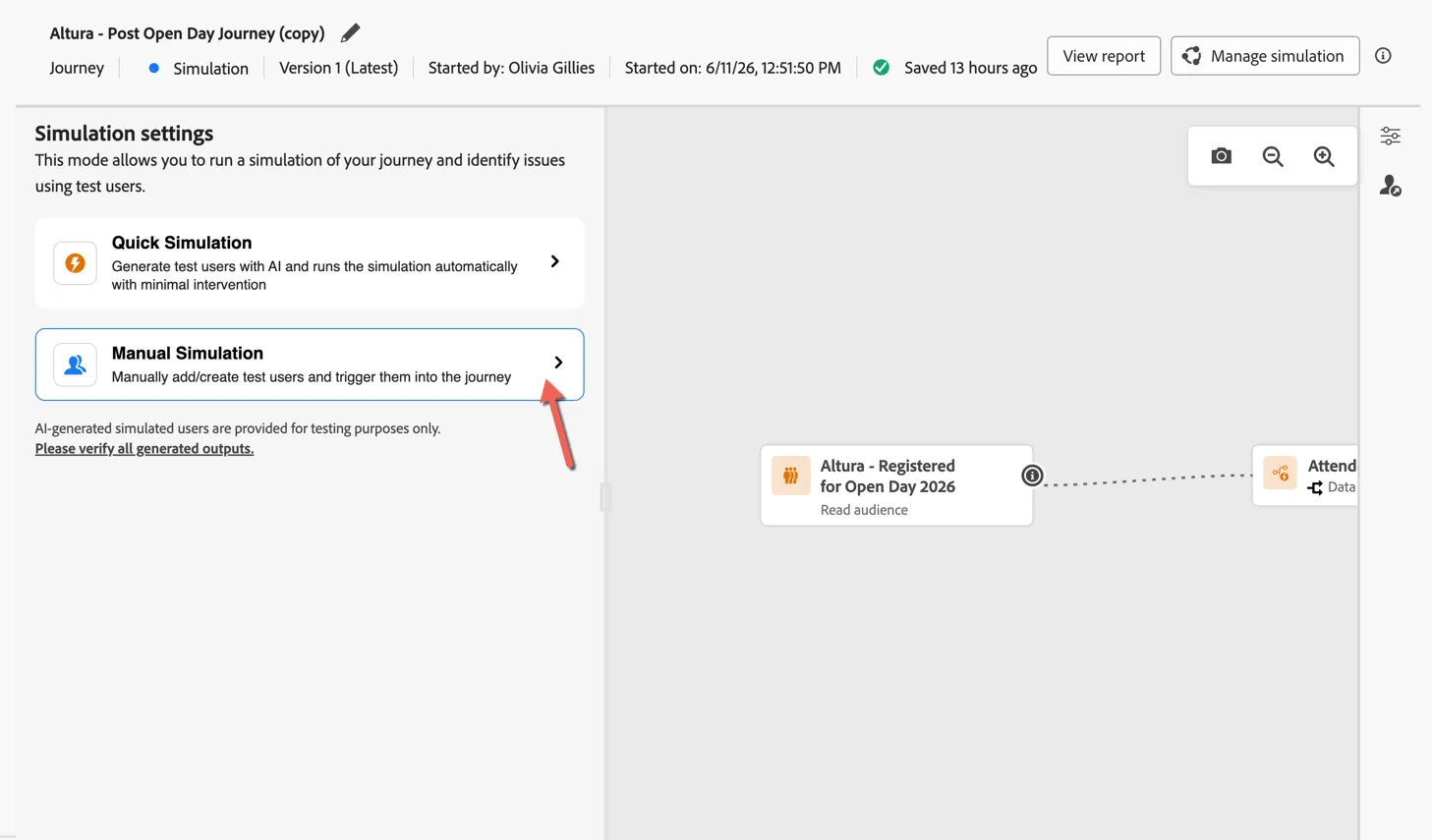
Quick simulation will generate users and execute the simulation in one easy step but this will use leverage the email address of the logged in user, for this exercise we'll run each step separately so you can send proof messages to your own email address.
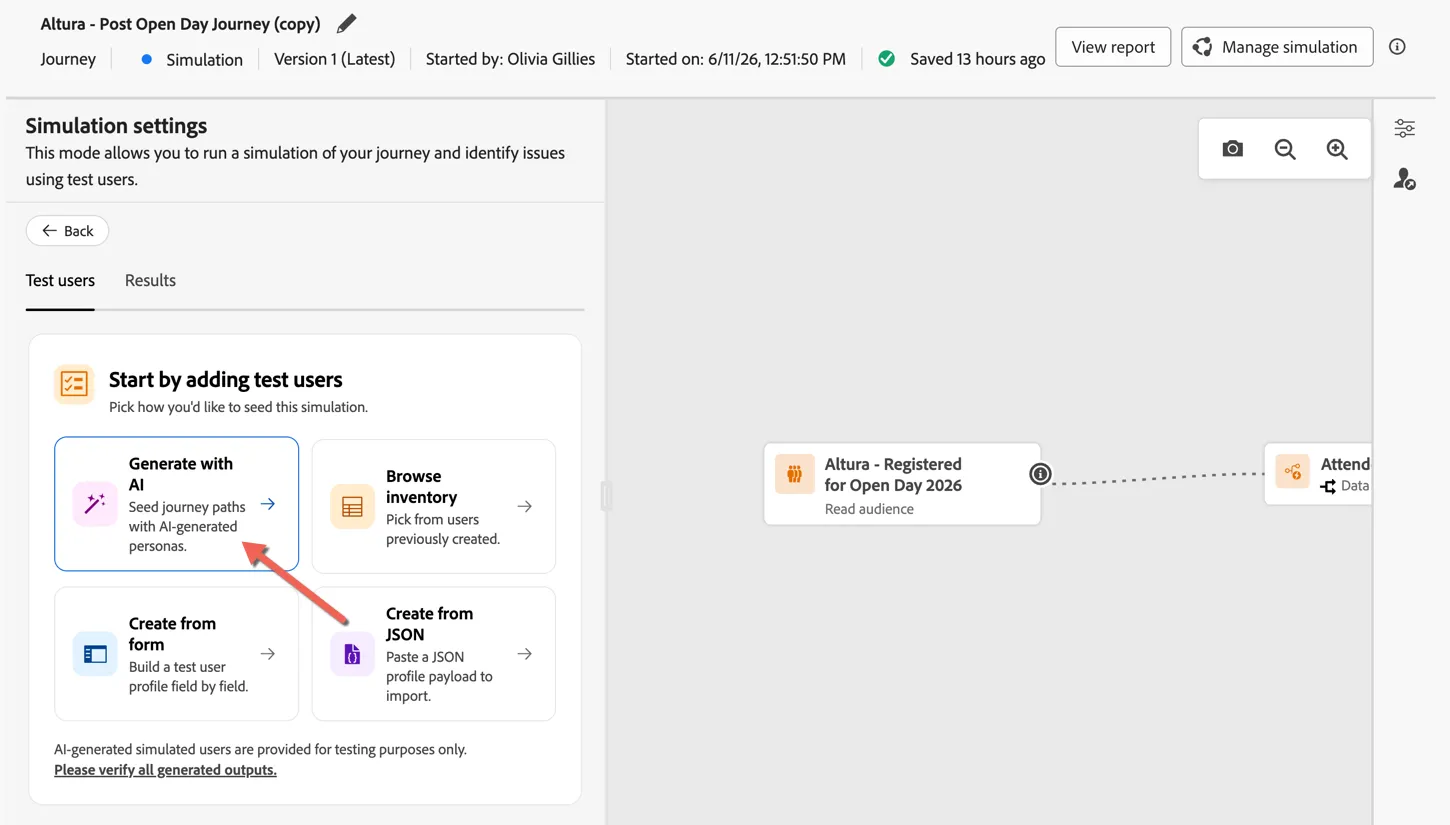
There are multiple ways to create or leverage simulated users for this exercise we'll use Generative AI to create some new users for us.
Click to Generate with AI
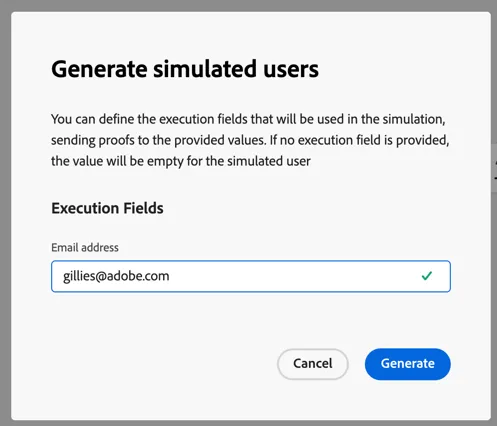
It will ask what email address you want to use as the execution address for the simulation. Enter your email address and click to Generate
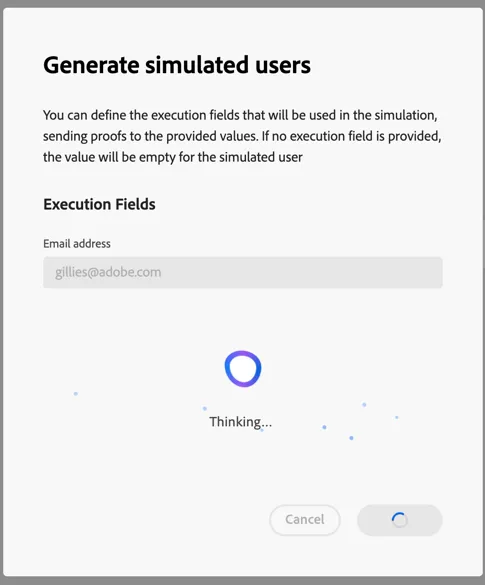
The AI will review the journey structure and generate appropriate test users including any personalisation fields that are required.
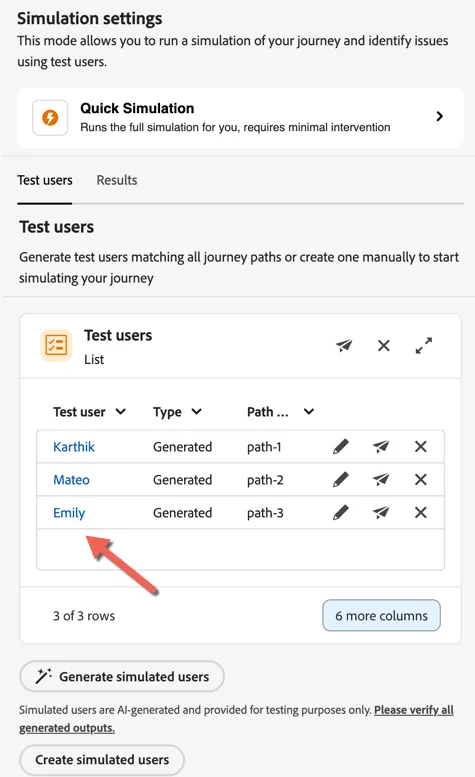
A set of users are fake profiles are created to test each path of the journey, you can see their attributes by clicking on the name.
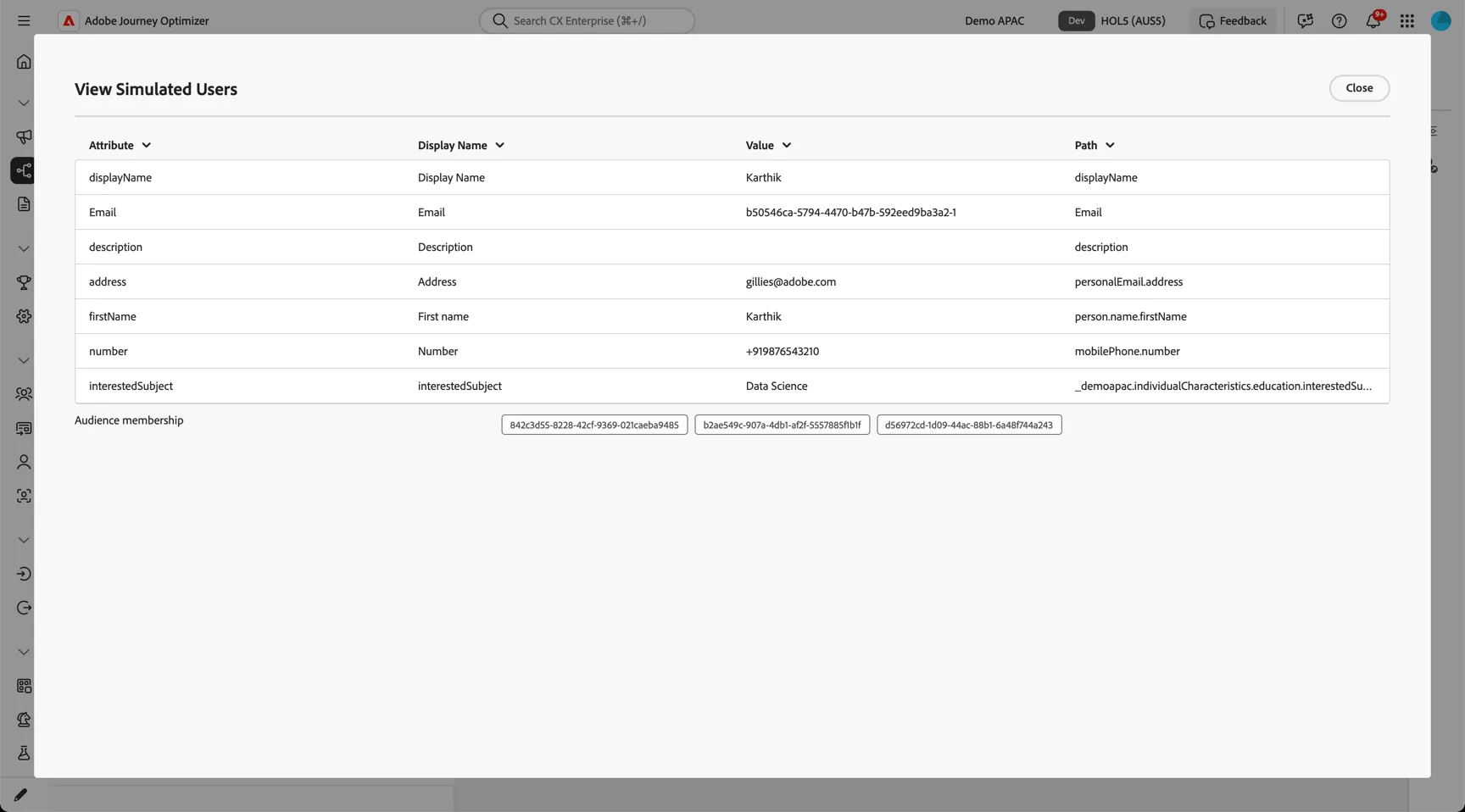
Audience memberships and personalisation fields used in the journey are all populated with fake data for the simulation.
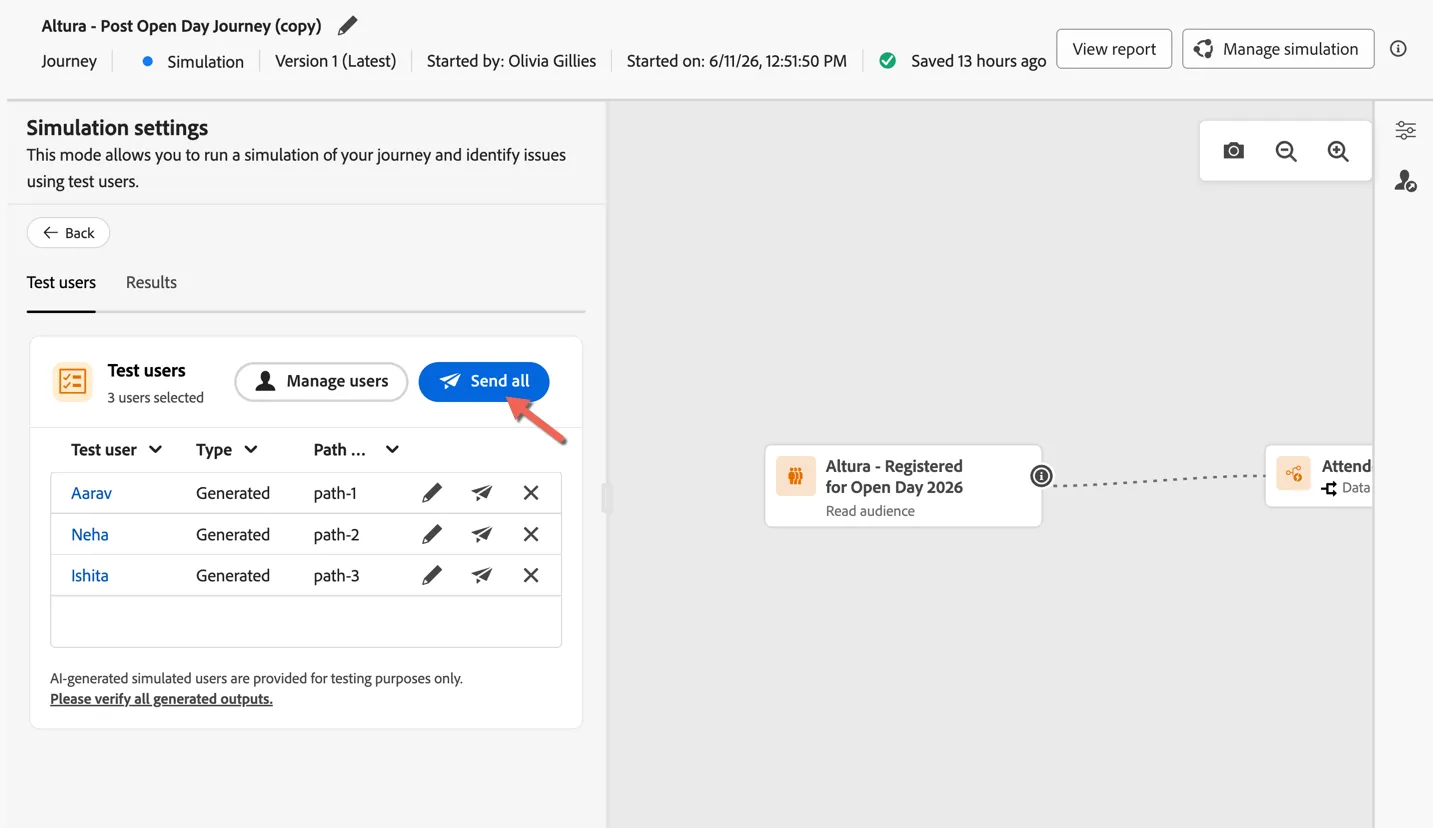
Click Send all to run the simulation.
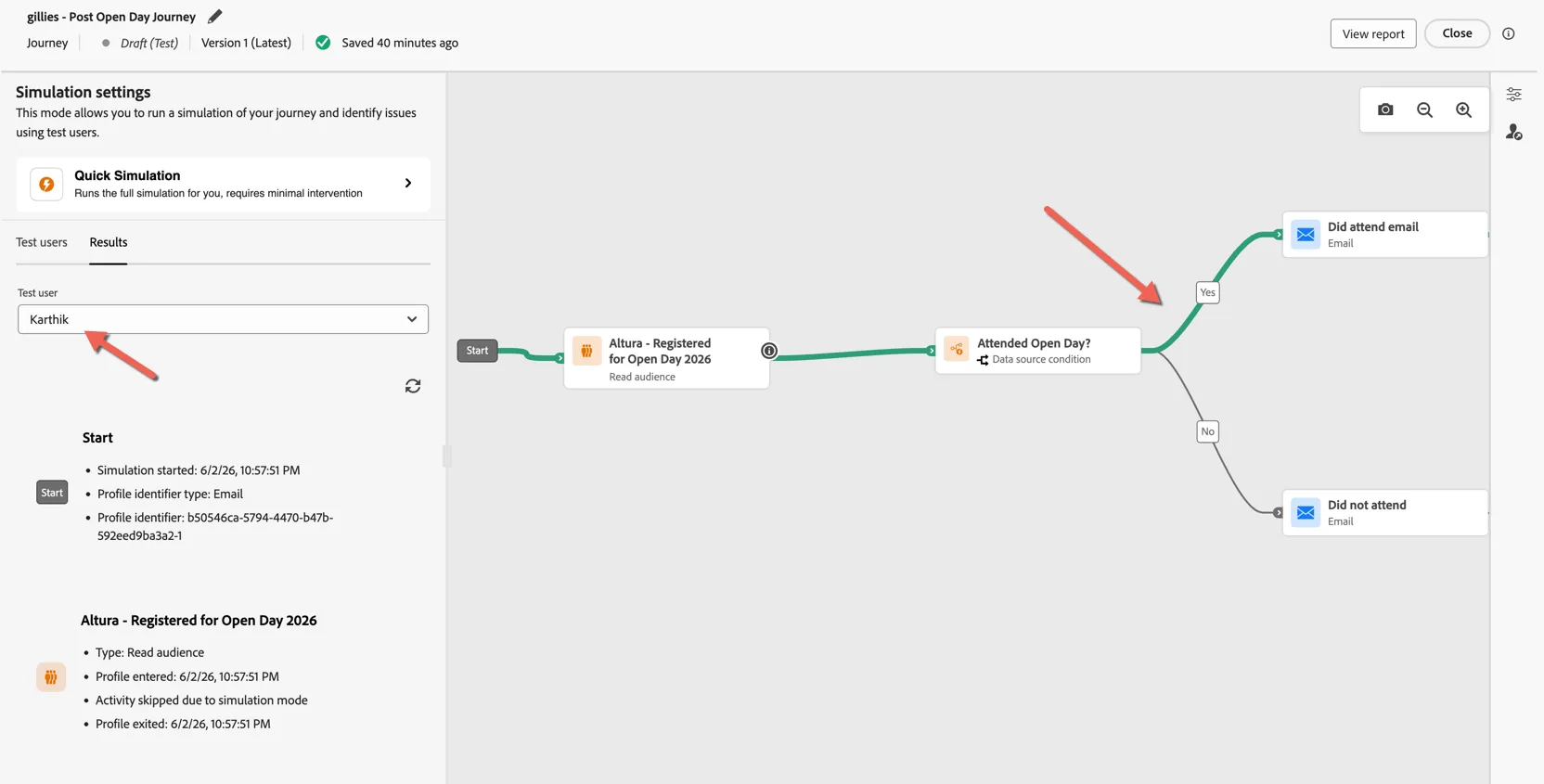
Click on the Results tab to see the results of the simulation.
It might take a minute or so for the results to appear.
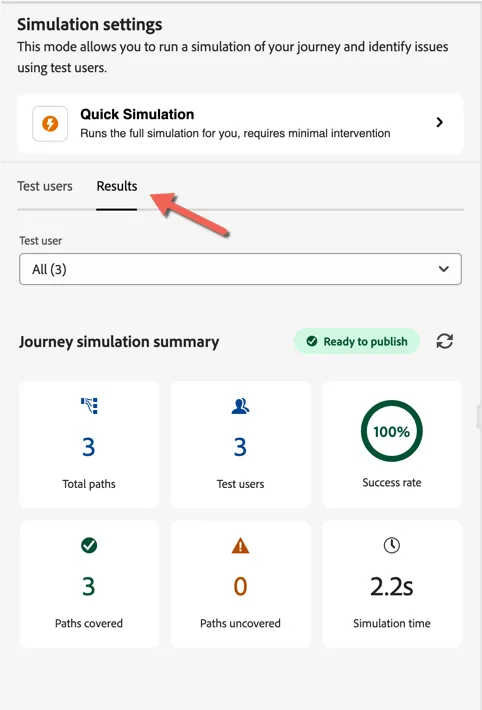
Switch to one of the individual test users to see the path they took through the journey during the simulation.
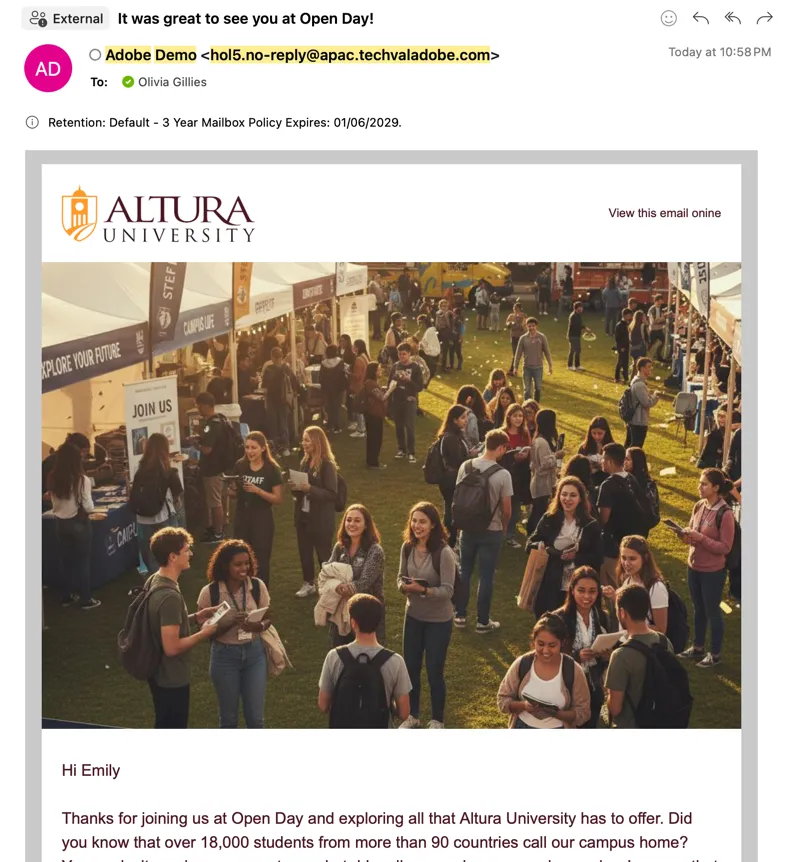
Check your email to see the test messages that will have sent from the simulation.
Simulated users chosen for follow up calls will be displayed by the facilitator.
Congratulations you've built and tested your first journey
Take Away
The ability to automate personalised, multi-step journeys based on real customer behaviour is one of the most powerful tools available to modern marketers. With access to Adobe's Unified Real-time Profile, Journey Optimizer is able to understand what each individual has actually done - whether they attended a session, missed it, or fall into a high-value segment - and respond accordingly, at scale, without manual effort for each interaction.
The combination of dynamic audience segmentation and flexible journey types (event-triggered, audience-based, or scheduled) means you can handle everything from a real-time registration response to a carefully timed post-event follow-up in one place. Critically, the AI-powered journey testing removes one of the most time-consuming barriers to getting campaigns live, making it faster and easier to validate complex, personalised flows before they reach real people.