Complex Journey
13 min
Starting a Journey
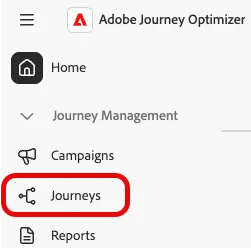
- Navigate to Journeys
- Create a Journey
- Name your journey "Credit Line Increase - ###", replacing ### with your initials
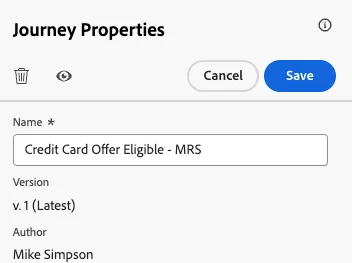
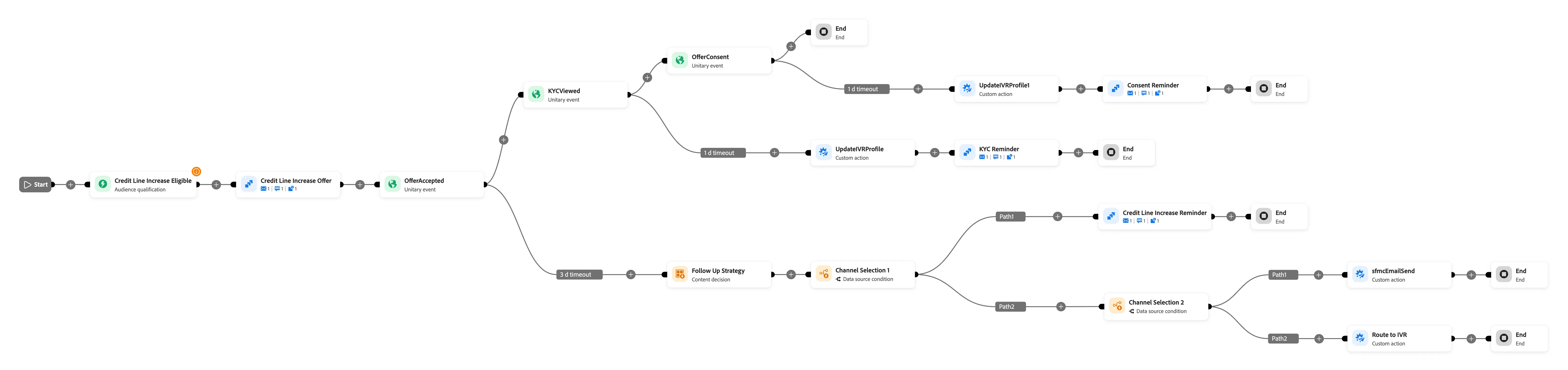
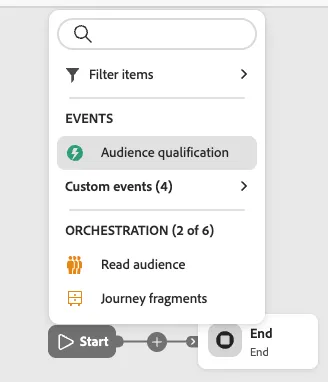
- Click the first node and add an Audience Qualification orchestration action
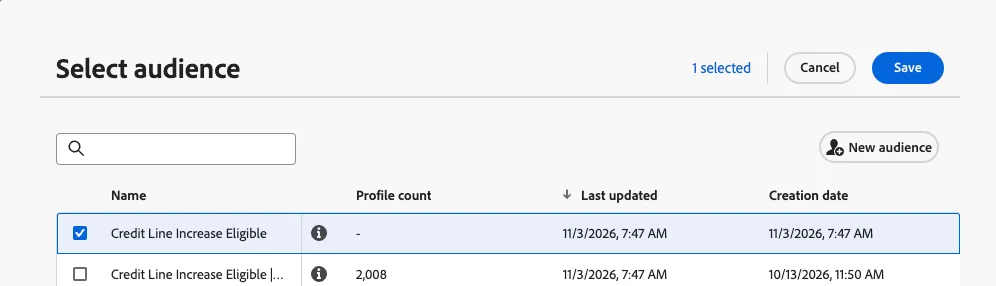
- Select the Credit Line Increase Eligible audience
Adding Message Actions
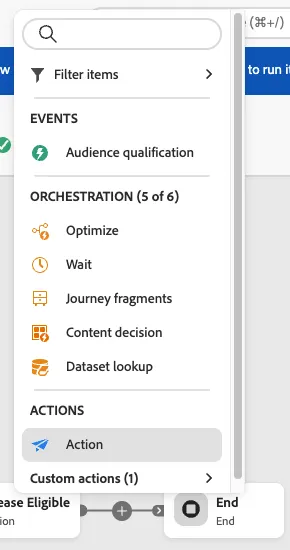
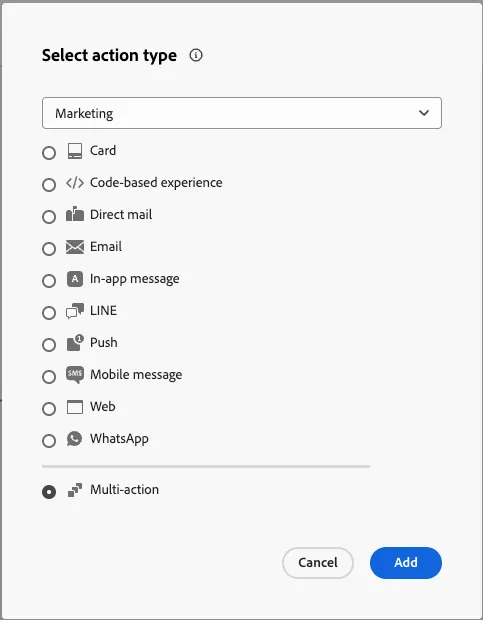
- Click the next node and add an Action step; select the Multi-action type
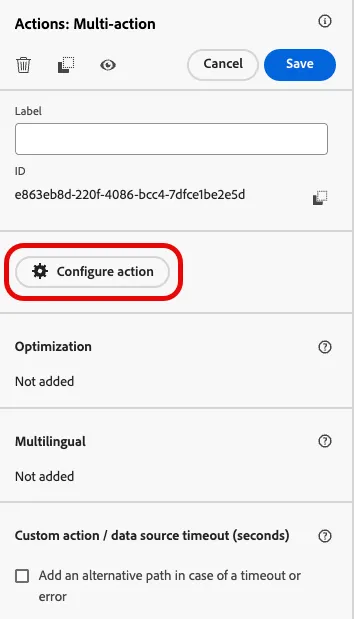
- Click the Configure action button and then click the + Add action button
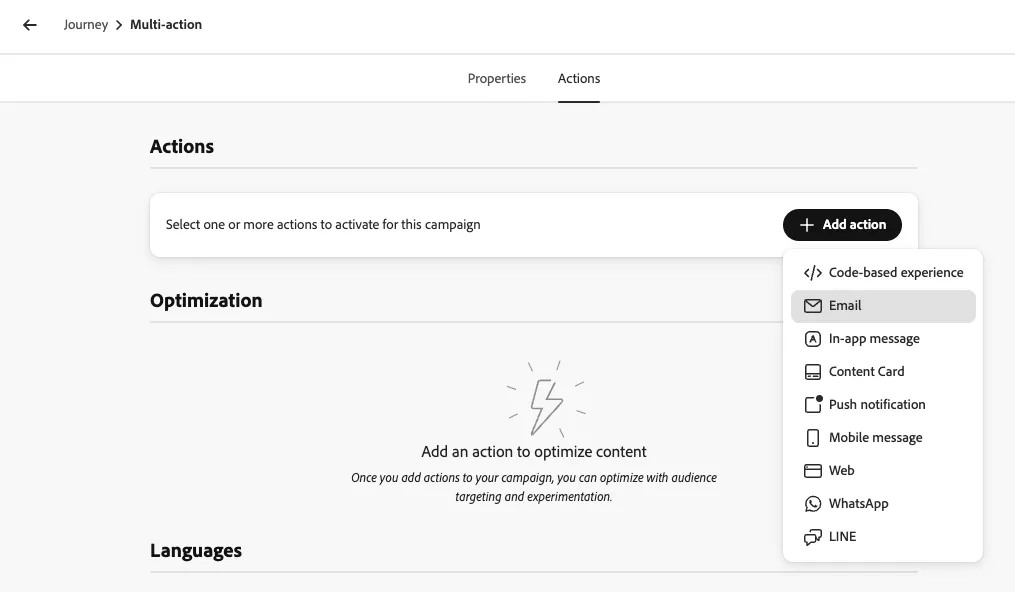
- Add the Email action and then repeat for Mobile message and Push notification. Optionally, name each message action
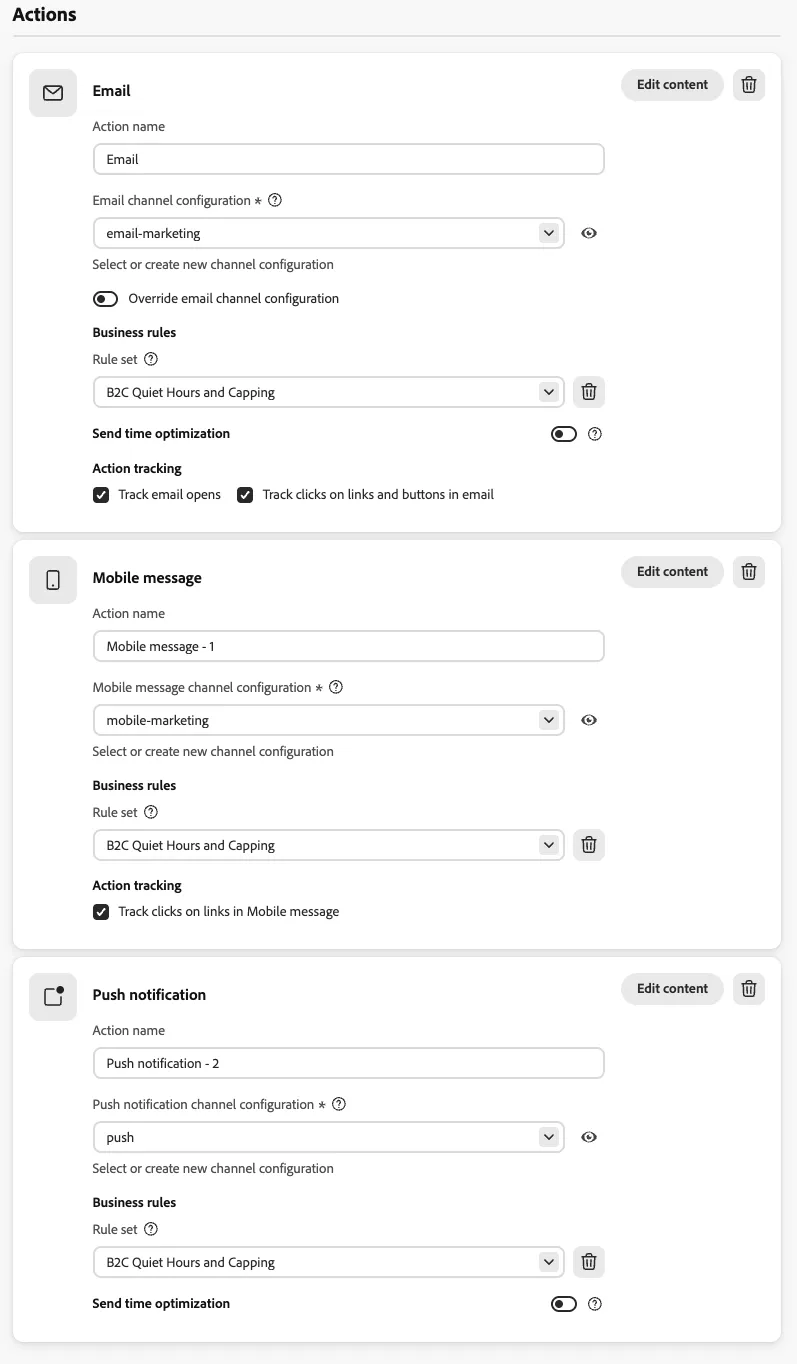
- For each message action add a channel configuration from the dropdown and a Business rule set. You may optionally set send time optimization for email messages as well here.
- Under Channel Optimization, select the Customer profile attribute radio button. Here, you can also add fallback prioritization for channels by dragging the enumerated channels.
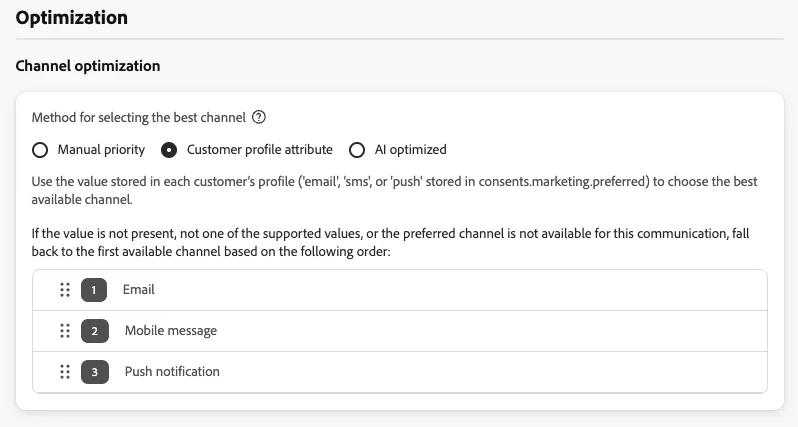
Listening for Events
- Click the next node and add a Custom event - Offer Accepted
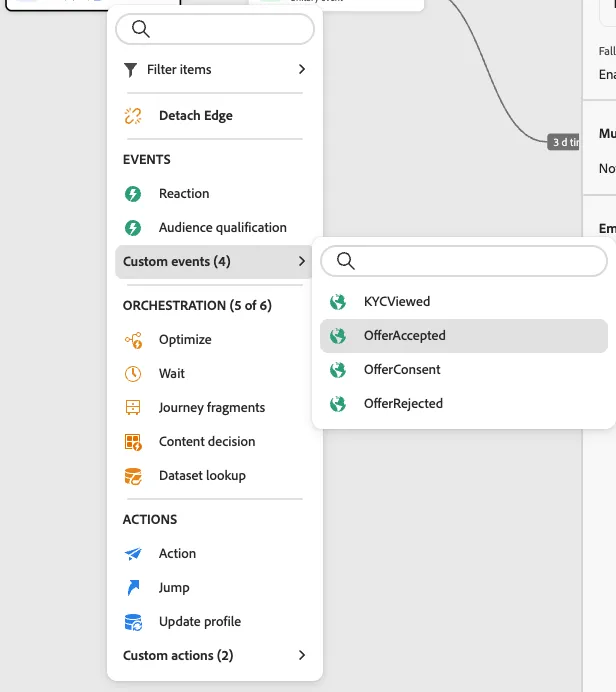
- Check the Define the event timeout box and the Set a timeout path
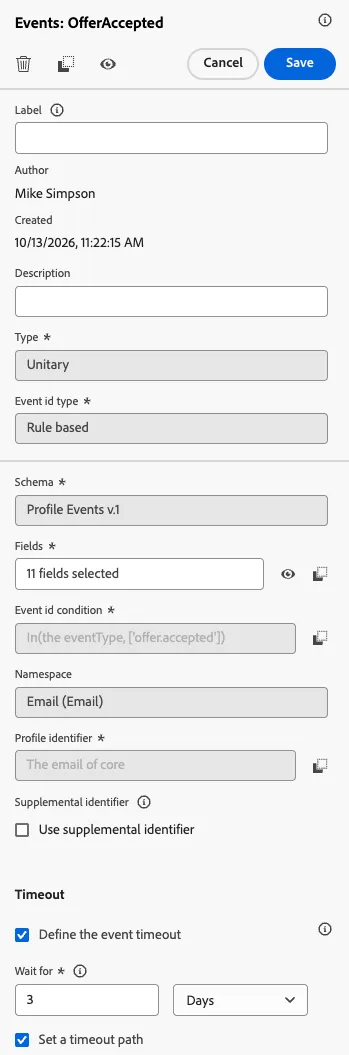
- You may, optionally, define a specific timeout length here
Making Content Decisions
- Following the timeout path, add a Content decision action
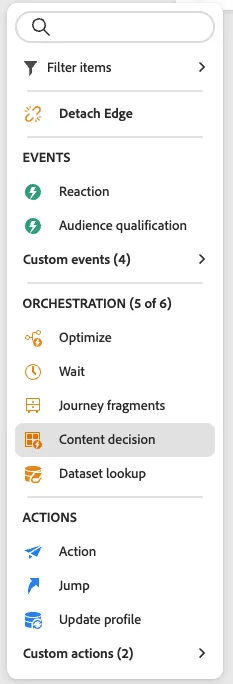
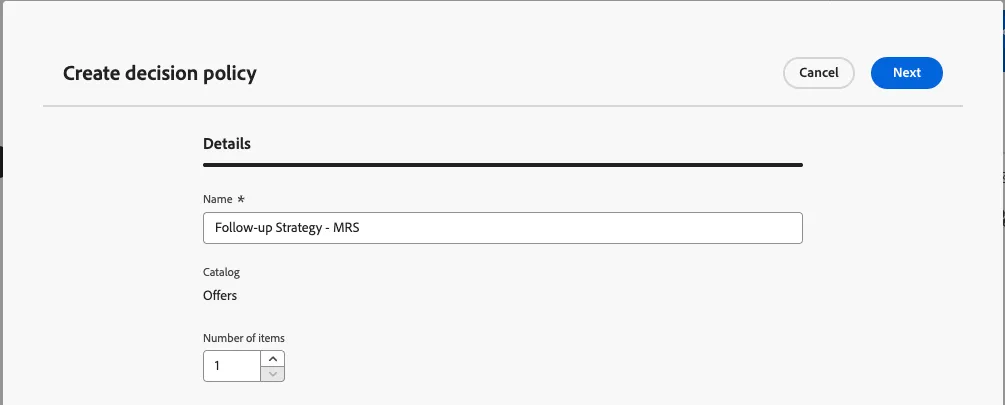
- Click the Add decision policy button and name your decision policy "Follow-up Strategy - ###" and click the Next button
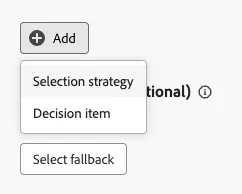
- Click the + Add button and select the Selection Strategy option
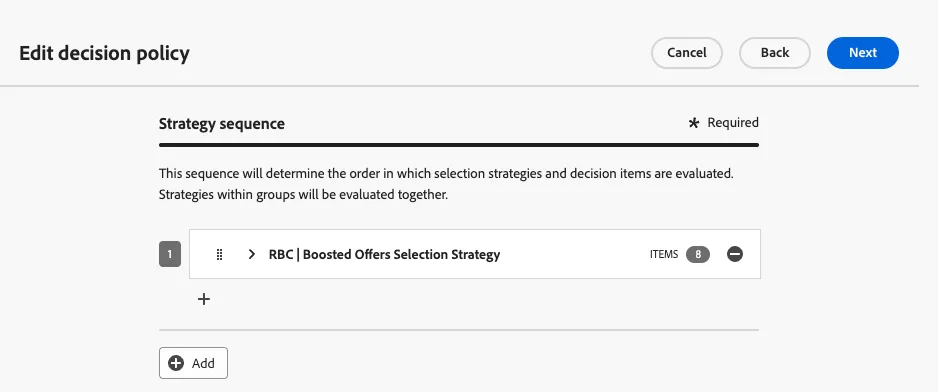
- Select the RBC | Boosted Offers Selection Strategy item and click save
Using Context to Guide
- Add an Optimize action and add an additional path to the action, name it "Channel Selection 1"
- For the first path, edit the expression, select Advanced mode, and paste the following expression:
@decision{ContentdecisionFollowUpStrategy.items.at(0)._adobedemoamericas275.offerMetadata.EligibleChannels}!="EM" or @decision{ContentdecisionFollowUpStrategy.items.at(0)._adobedemoamericas275.offerMetadata.EligibleChannels}!="IV"- For the second path, edit the expression, select the Advanced mode, and pste the following expression:
@decision{ContentdecisionFollowUpStrategy.items.at(0)._adobedemoamericas275.offerMetadata.EligibleChannels}=="EM" or @decision{ContentdecisionFollowUpStrategy.items.at(0)._adobedemoamericas275.offerMetadata.EligibleChannels}=="IV"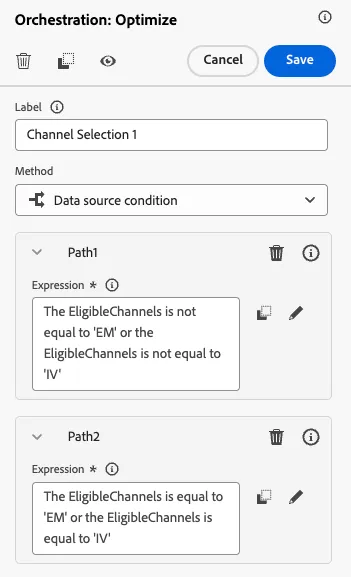
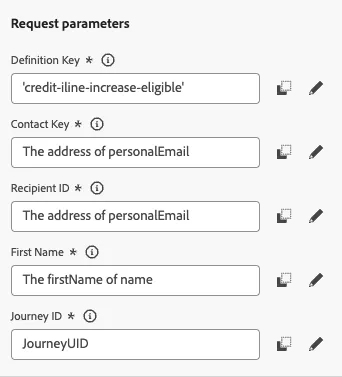
- For Path 1, add a Custom action, select the sfmcEmailSend custom action
- The following items are optional, but used to illustrate the process of configuring a Custom action in the scope of a journey:
- Enter the following for Definition Key:
"credit-iline-increase-eligible"- For Contact Key, search for Personal Email and select Address
- For Recipient ID, search for Personal Email and select Address
- For First Name, search for First name and select it
- For Journey ID, search for JourneyUID and select it
- For Path 2, add a custom action and select Route to IVR
- The following items are optional, but used to illustrate the process of configuring a Custom action in the scope of a journey:
- For Customer ID, search for CRM ID and select it
- For Offer Accepted, search for offerAccepted and select it
- For KYC Accepted, select Advanced mode and enter the following:
false- For Consent Provided, select Advanced mode and enter the following:
false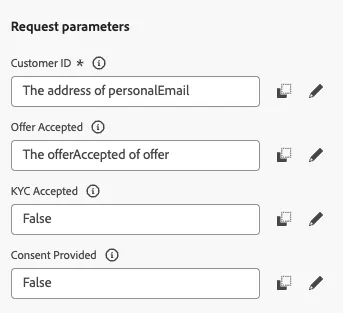
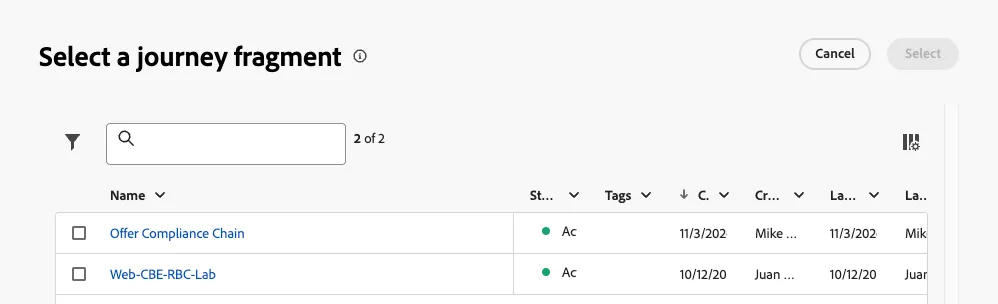
- Returning to OfferAccepted event action, add a journey fragment to the top path. Select the Offer Compliance Chain fragment.