Data Ingestion
7 min
Ingesting Data From Snowflake
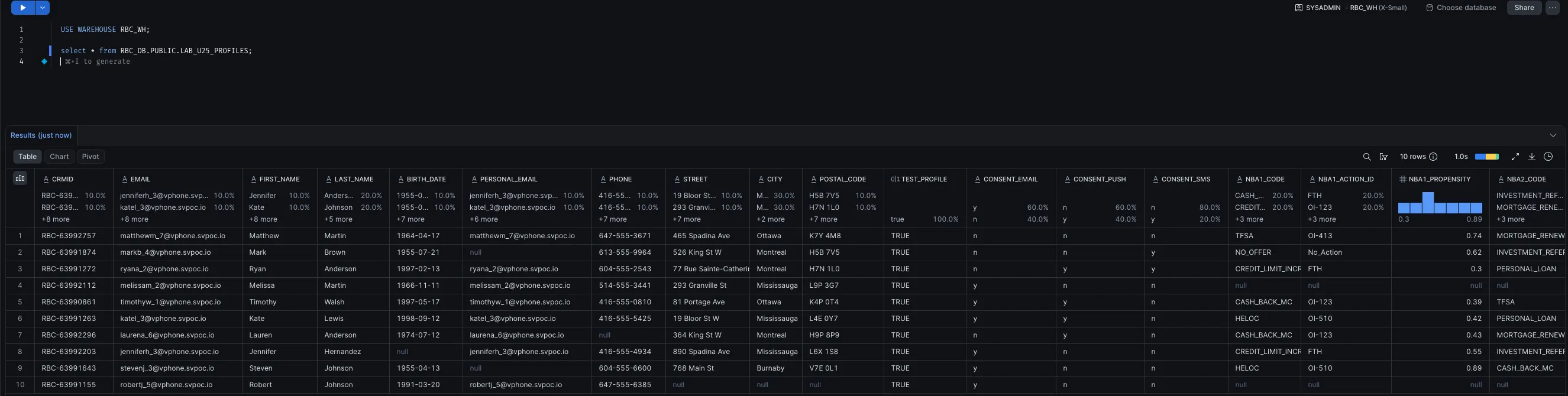
Sources
- Navigate to the Sources from the Connections in the navigation panel.
- On the catalog, search for snowflake.
- Click Add Data button.
Accounts
- Select the RBC_DEMO account and click Next.
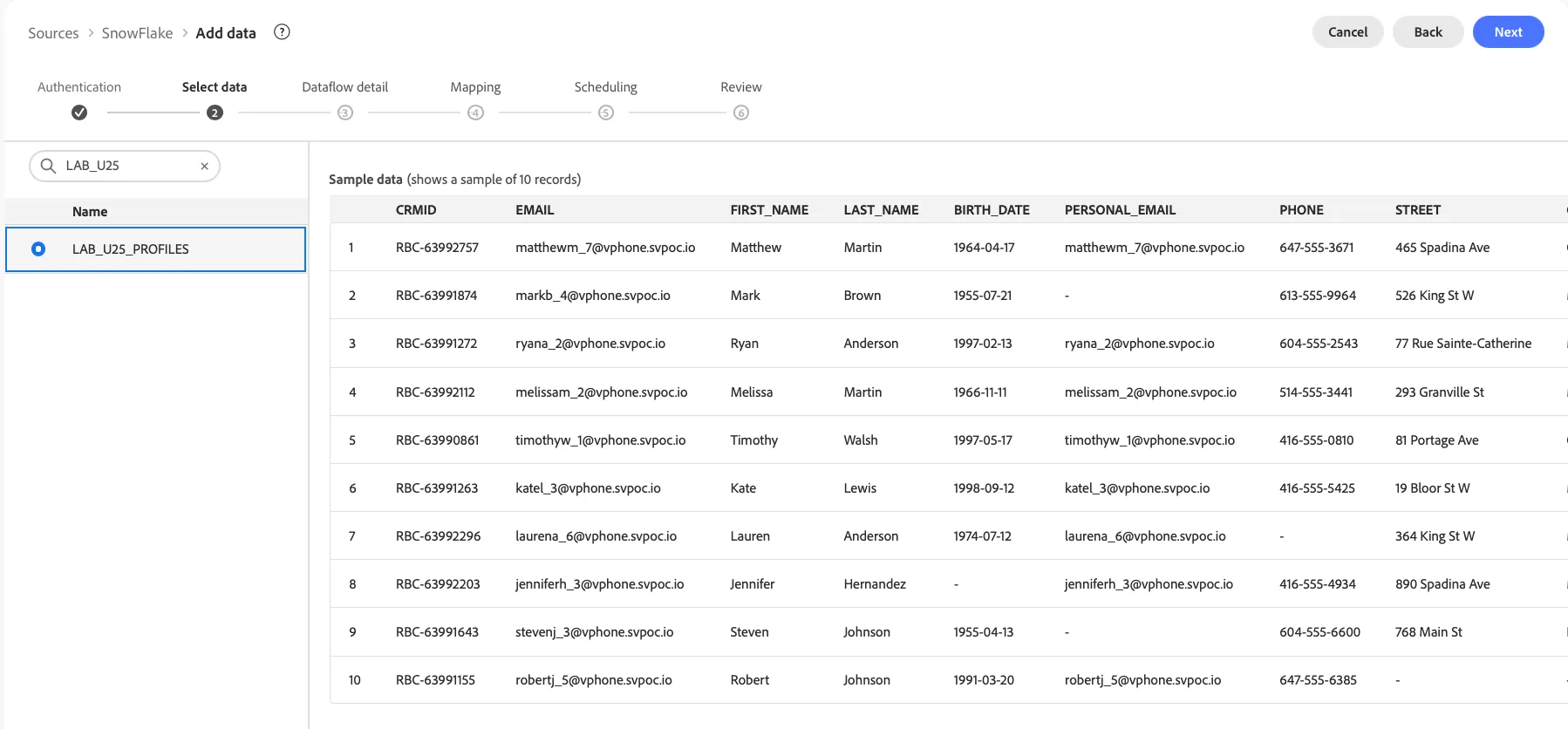
- Search for your "Lab User Number" table. Type: LAB_U## in the search box
- Select the Table
- Click Next
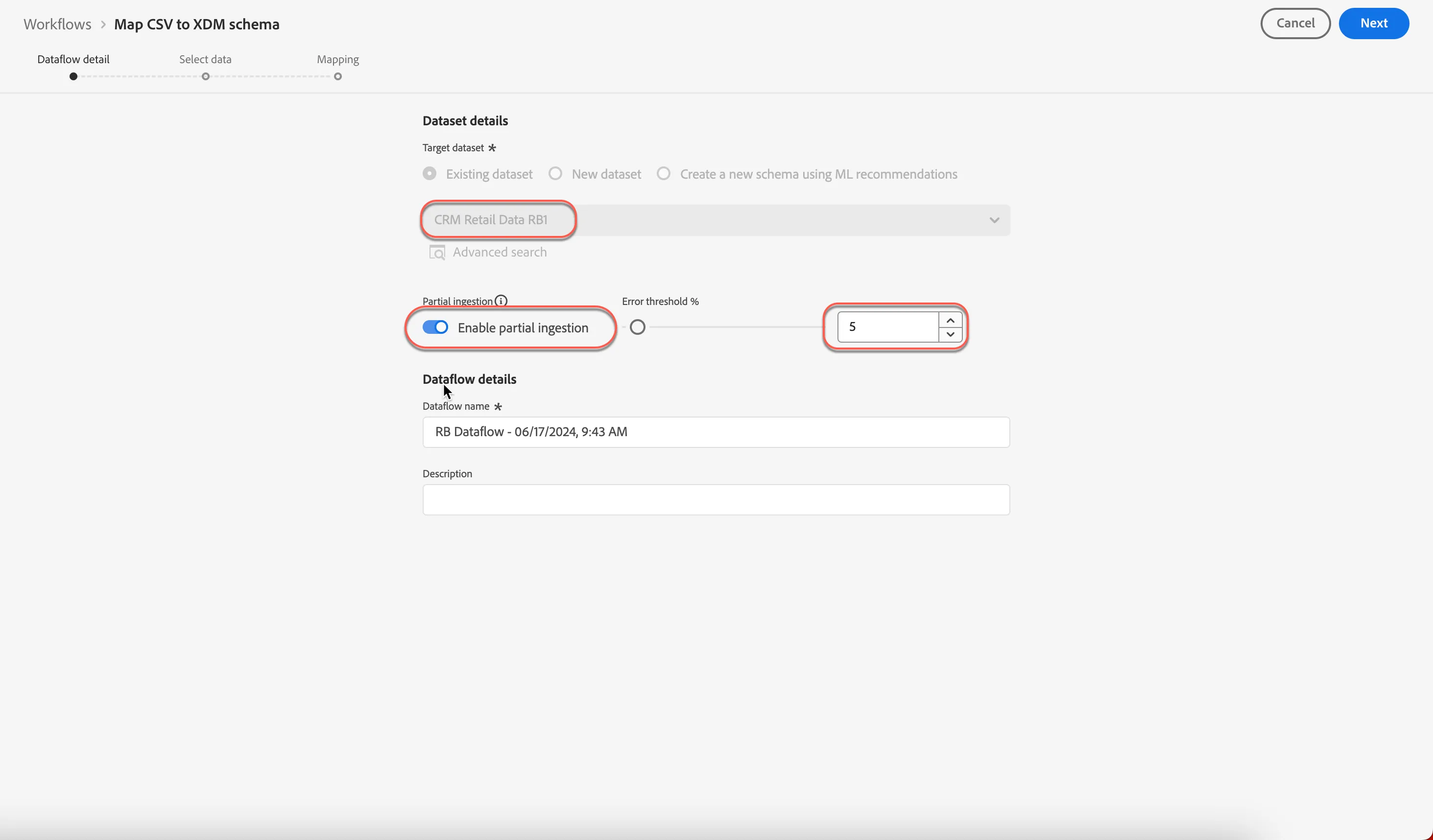
Dataflow Detail
- Select the Existing Dataset option
- Search and select your dataset by name from the dropdown
- Enable Partial Ingestion. Set threshold to the default 5%
- Click Next
Mapping source columns to XDM schema fields
You might get a lot of errors. This is intentional. This is a mapping exercise. We are required to map the source table columns to the XDM schema fields we defined. There are other faster alternatives than manually doing this, so we will explore that now.
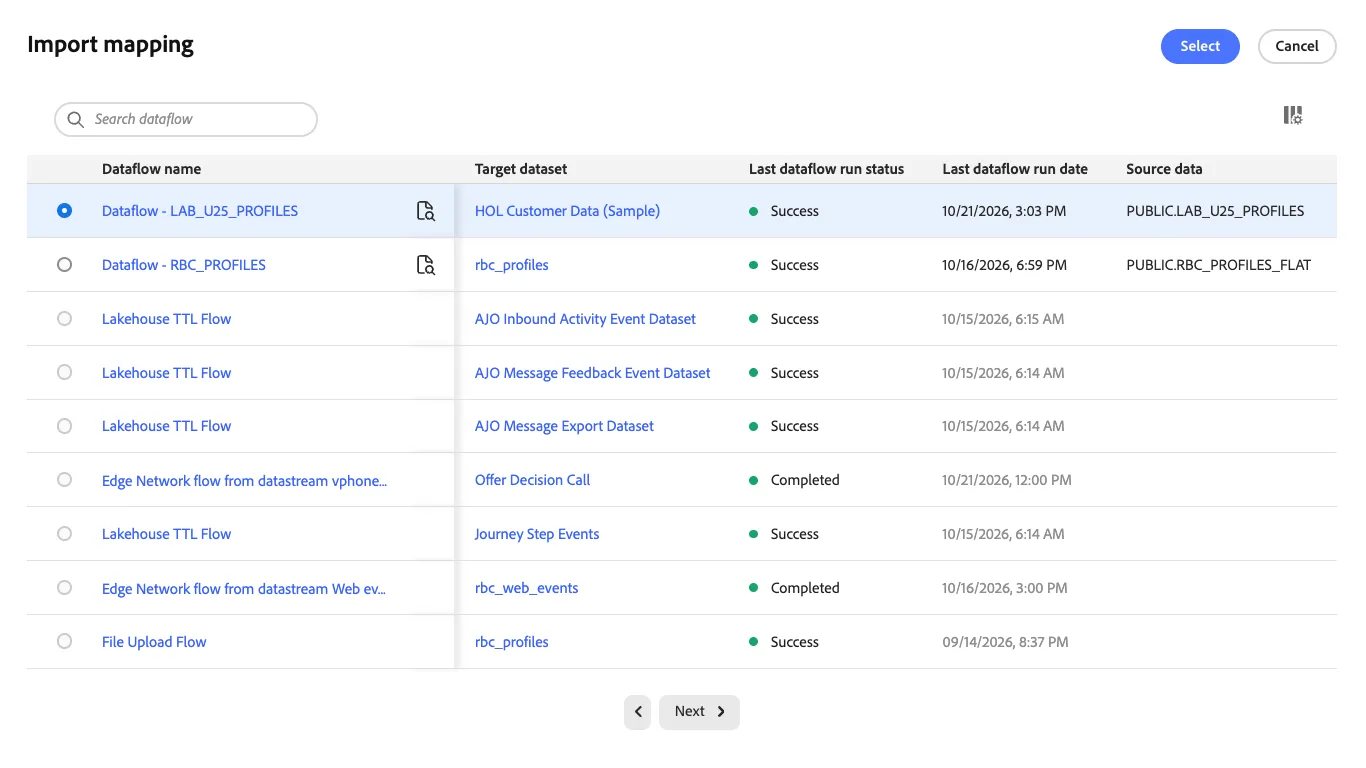
Import Mapping
- Click on the Import Mapping button
- Select Import mapping from flow
- Select the dataflow name: Dataflow - LAB_U25_PROFILES
- Click Select
Scheduling
- Frequency: Once
- Click Next
- Click Finish
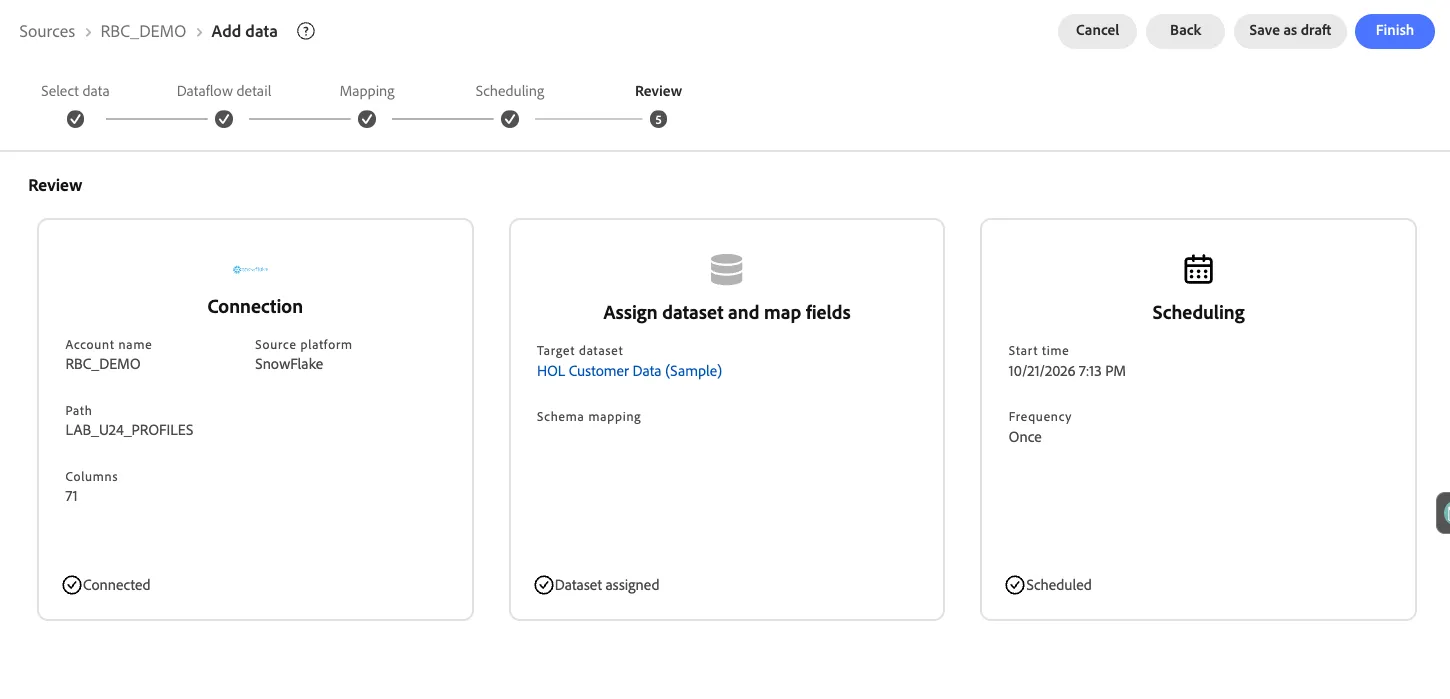
Monitoring Dataflows
- Navigate to Datasets
- Search and select your newly created dataset (By Initials)
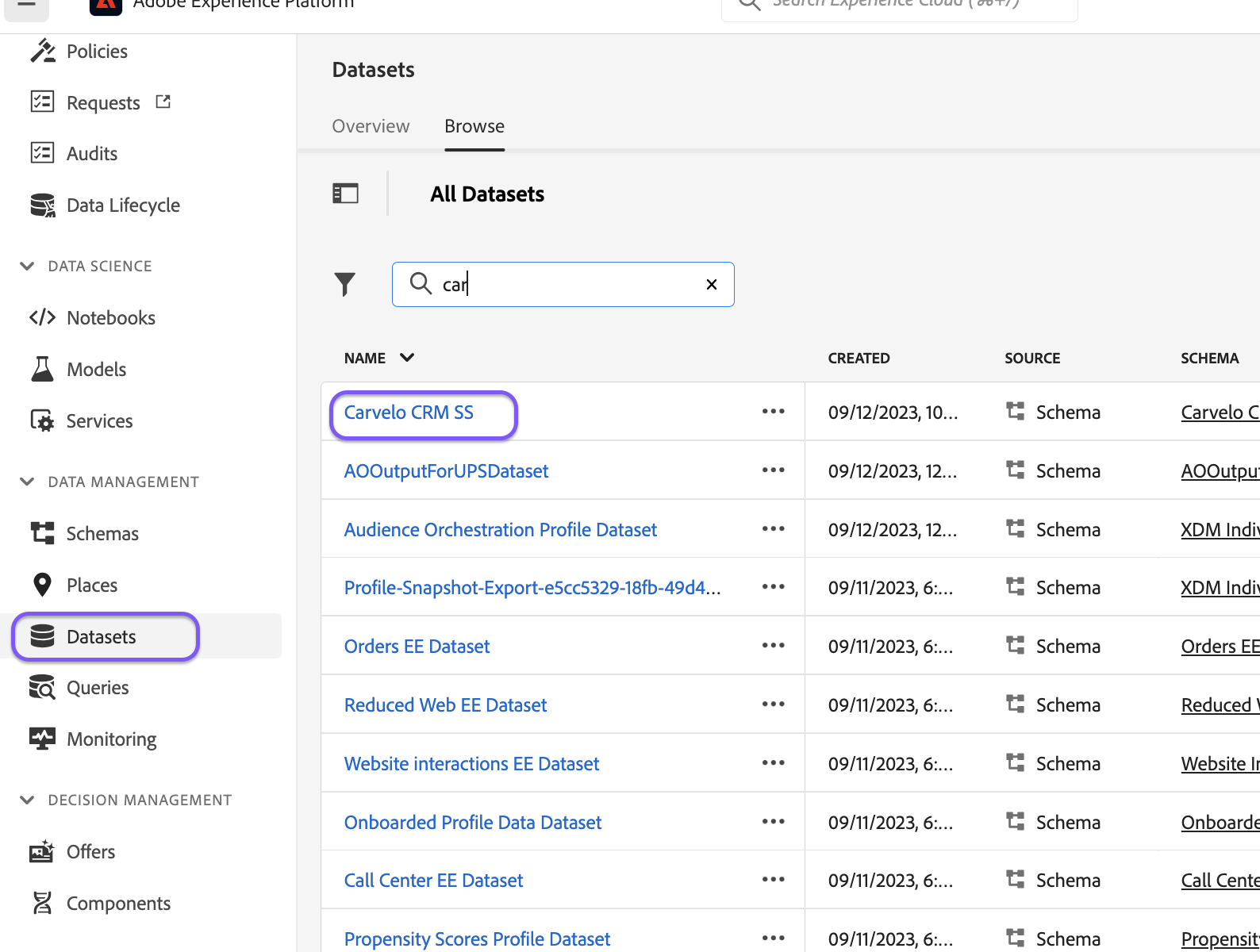
- Notice a batch is created as a result of the ingestion workflow that was triggered
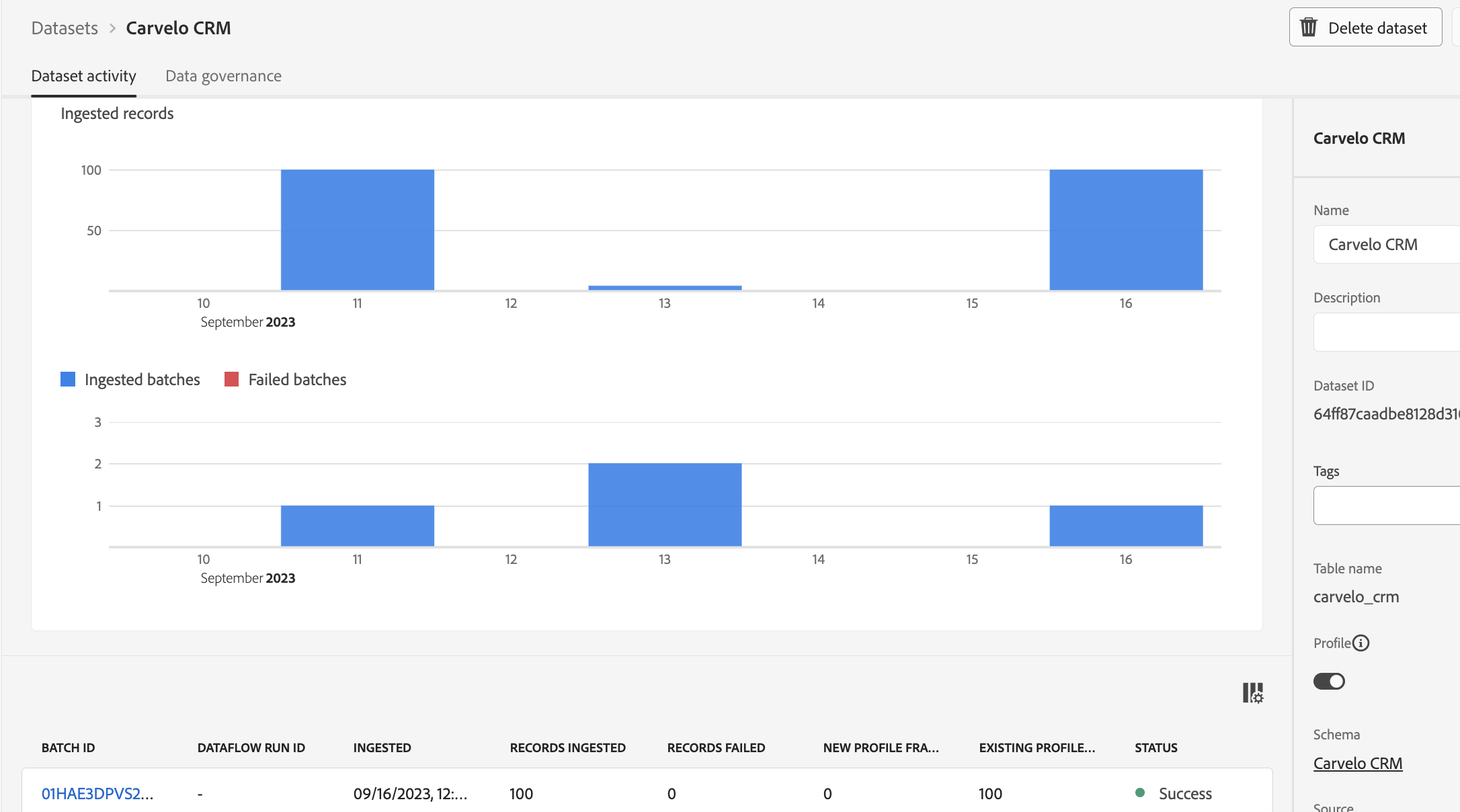
- Once the status for the batch says "Success", click on the Preview Dataset button on the top right of your screen. This allows for validation of source columns to XDM schemas with the corresponding values.