Profile Lookup
4 min
Exploring an existing profile in Adobe Experience Platform
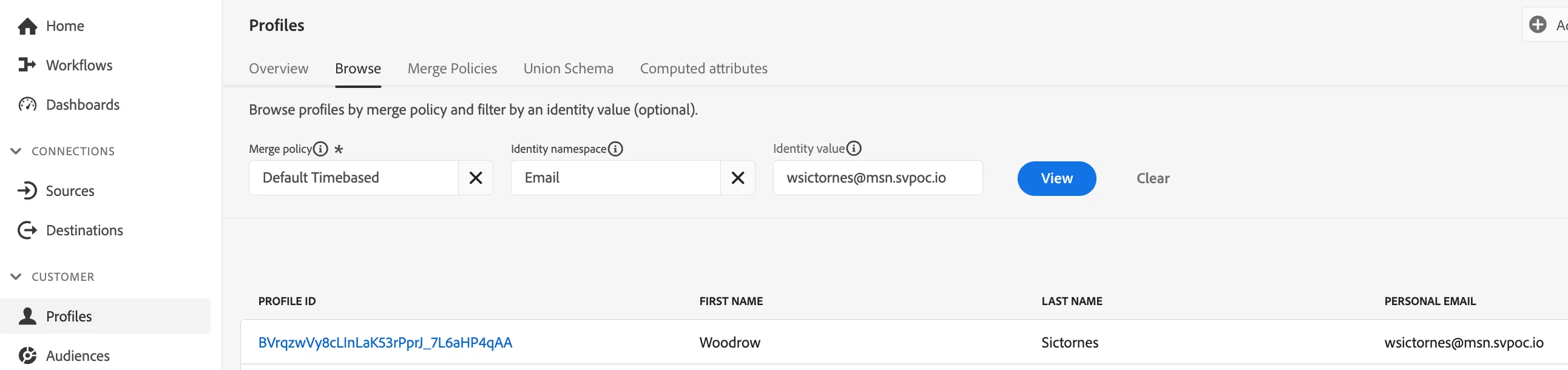
- Navigate to Profiles from the left-hand navigation bar.
- Click on the Browse tab.
- Search for 'Email' under namespaces.
Profile Look Up
- As the Identity Value copy the email address that corresponds to your attendee number (this is the same user you used on the mobile app):
Attendee # | Profile |
|---|---|
1 | |
2 | |
3 | |
4 | |
5 | |
6 | |
7 | |
8 | |
9 | |
10 | |
11 | |
12 | |
13 | |
14 | |
15 | |
16 | |
17 | |
18 | |
19 | |
20 |
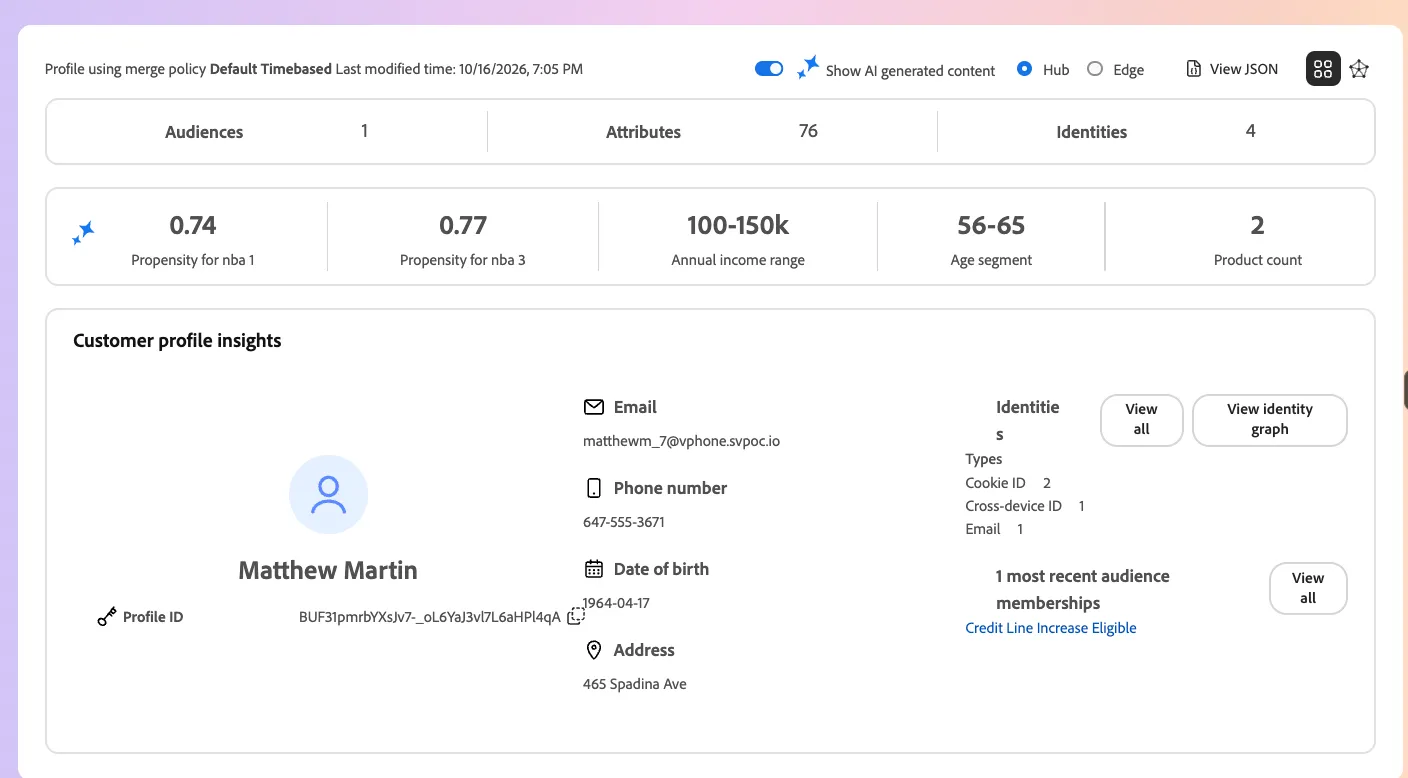
7. Review the profile for
- Basic Attributes
- NBA Profile Attributes
- Channel Preferences
- This attributes came from the snowflake connection
Identity Graph
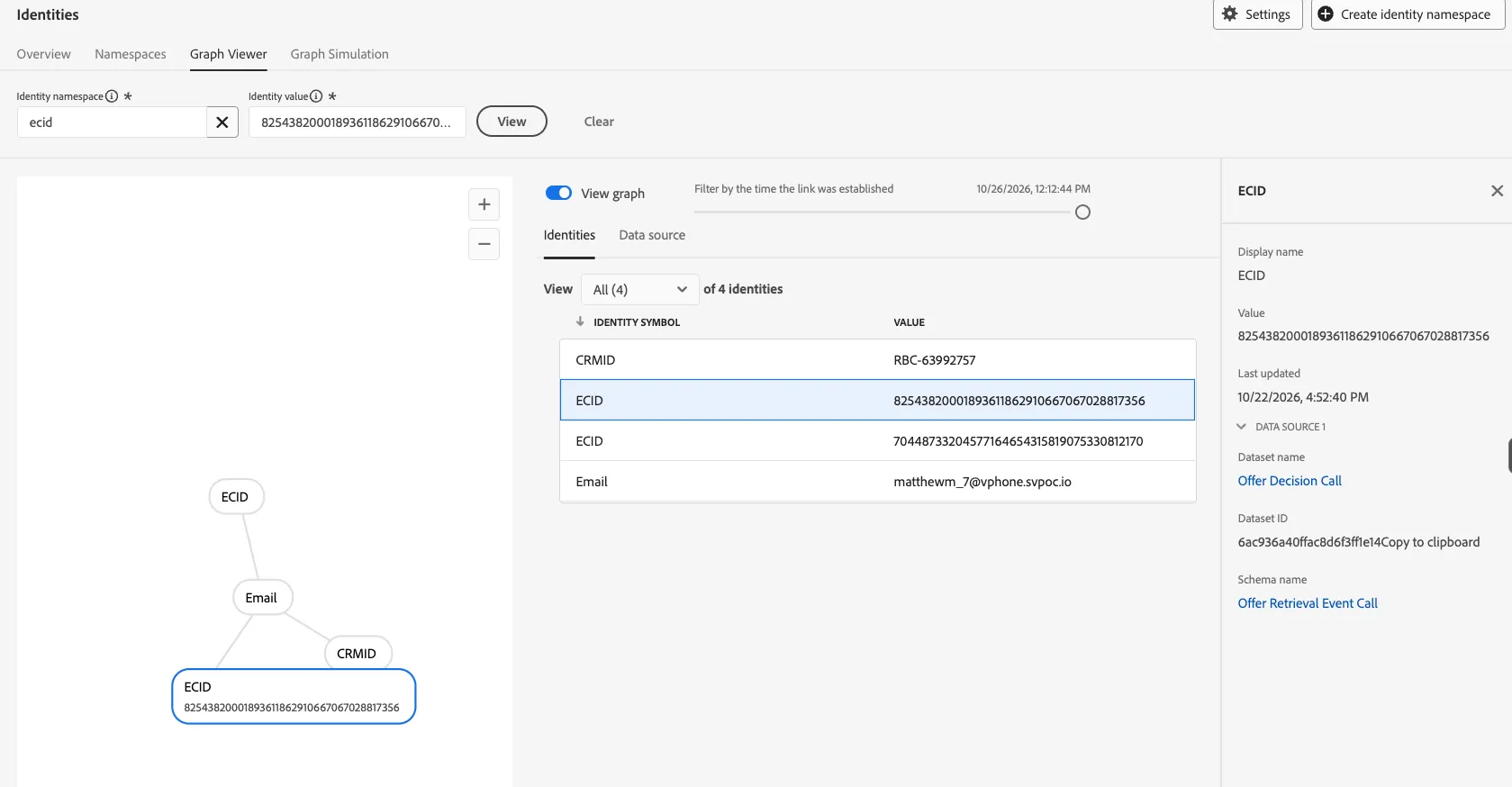
- Click the button View Identity Graph
- Use the slider to see the different identities through time
- Check the sources that brought in the identity
- Close the tab when you are done
Experience Events
Once you are back on the profile tab:
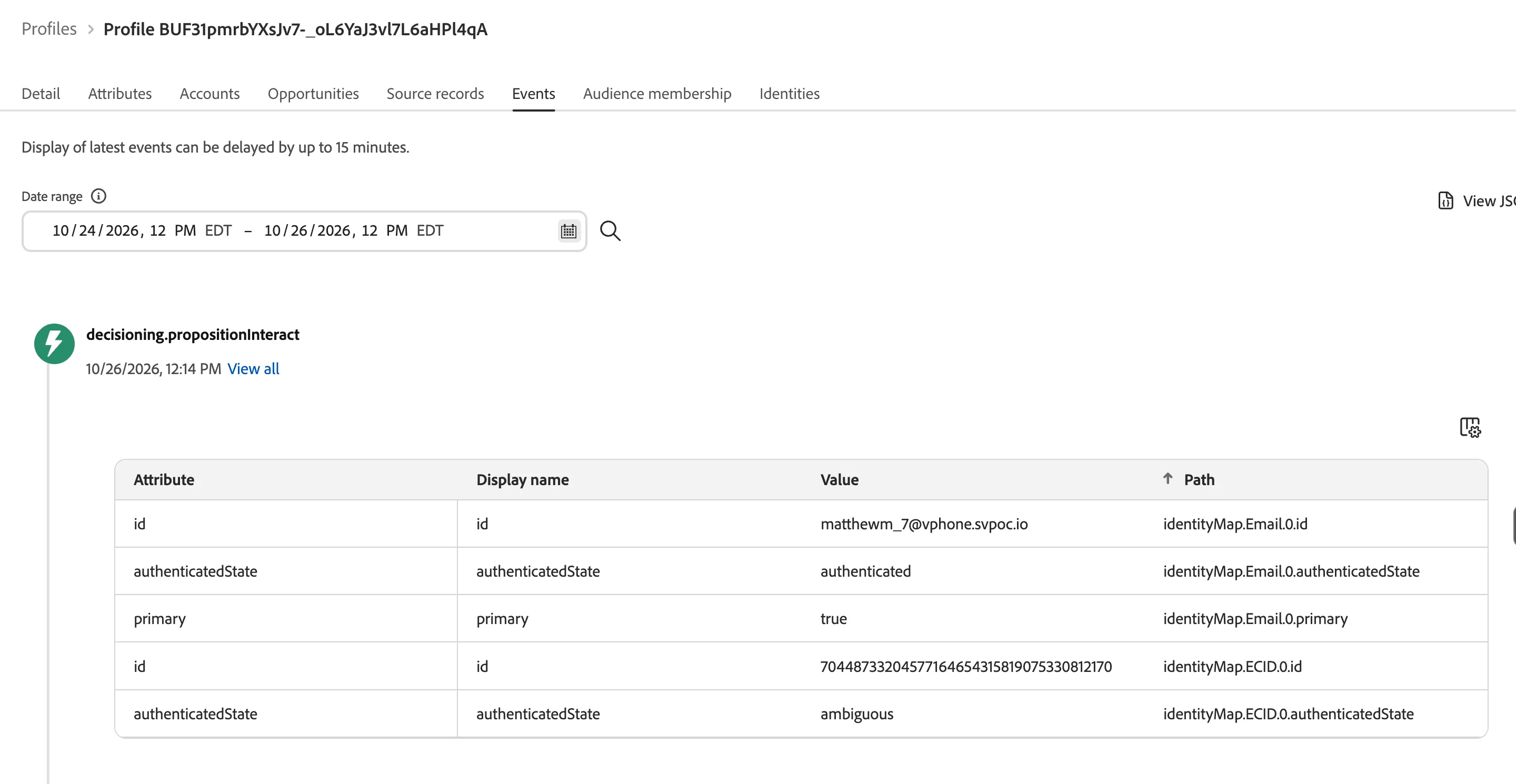
- Click the Events Tab
- Click on the calendar button
- Expand the timeline to include the last 10 days
- Click the Magnifying glass icon
- Review one of the Decisioning Events:
- decisioning.propositionInteract (Clicks)
- decisioning.propositionDisplay (Impression)
- decisioning.propositionFetch (Decision Request)
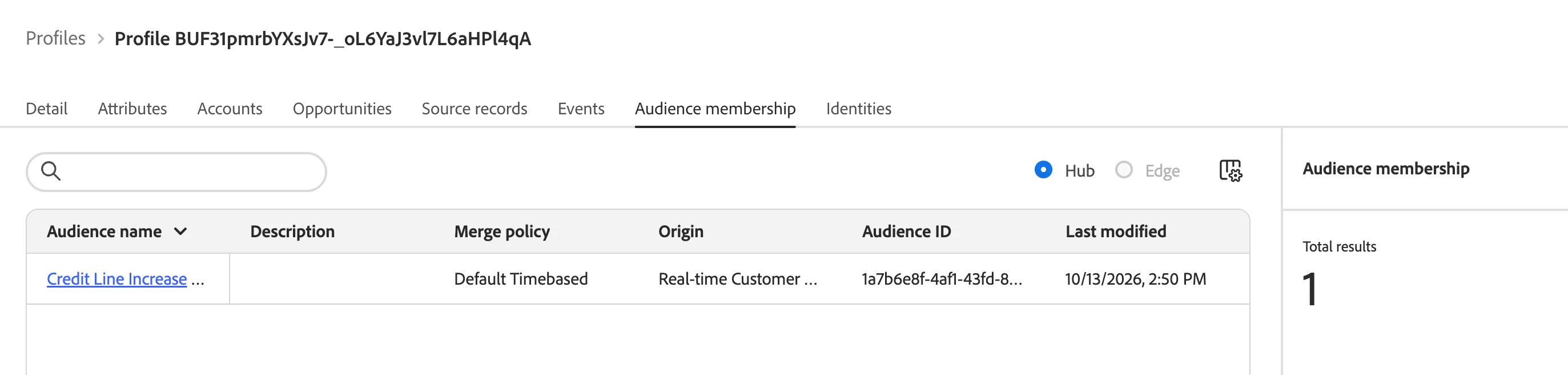
Audience Membership
Once you are done reviewing events:
- Click the Audience Membership Tab