Regional Creation
Description
Alex faces a common challenge creating localized social media content quickly while maintaining brand consistency. Previously, Alex's workflow required extensive collaboration with central creative teams, lengthy approval cycles, and often resulted in delays that impacted campaign performance and market responsiveness. When urgent localization needs required adapting global campaigns for local holidays, translating content for different markets, or creating culturally relevant variations Alex struggled with limited access to approved brand assets and lacked the technical design skills needed to create professional-quality content independently.
Alex now leverages Adobe Express brand-controlled templates to transform his content creation process from days to minutes. Using pre-approved templates with locked brand elements created by the WKND creative team, Alex can independently produce on-brand social media assets while maintaining strict brand compliance across different regions. The workflow integrates AI-powered tools through Adobe Firefly for enhanced creativity, and includes streamlined approval processes enabling Alex to reduce content creation time while improving quality, brand consistency, and campaign responsiveness across all his regional markets.
Open Template
Adobe Express templates support diverse content types including email banners, display advertisements, social media posts, e-books, presentations, event collateral, and employee communications. This versatility allows organizations to create comprehensive marketing kits with templates spanning their entire content spectrum.
- Navigate to Adobe Express.
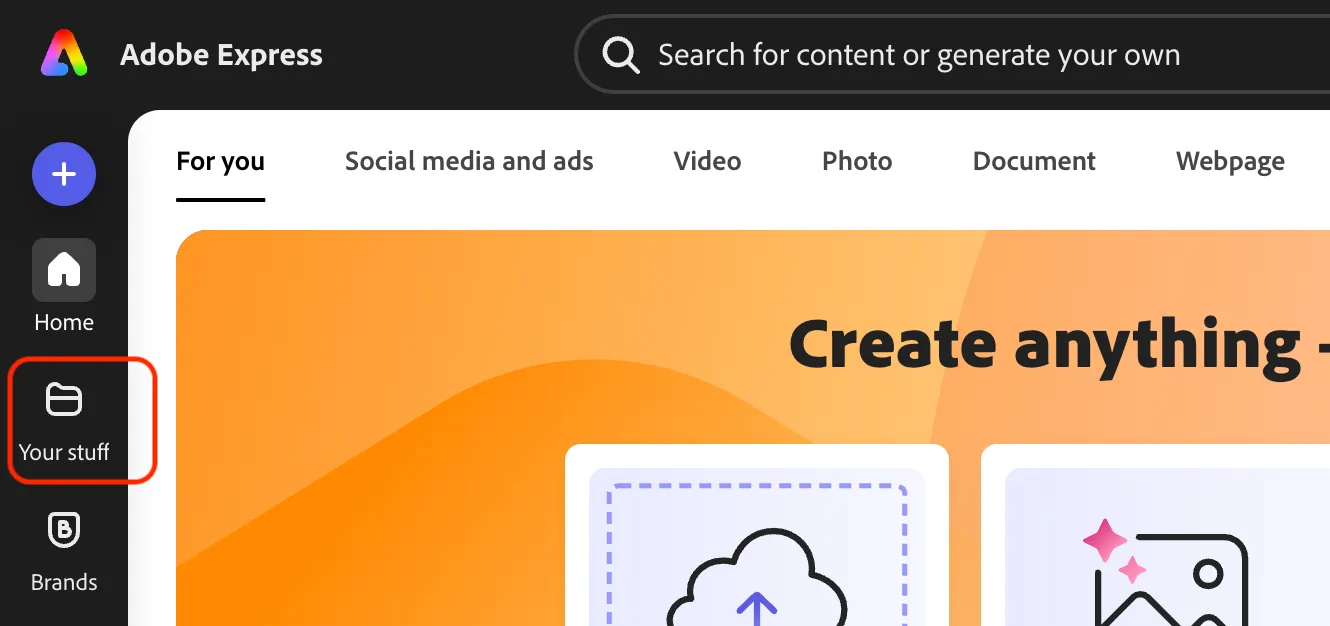
- Click on Your stuff in the left sidebar.
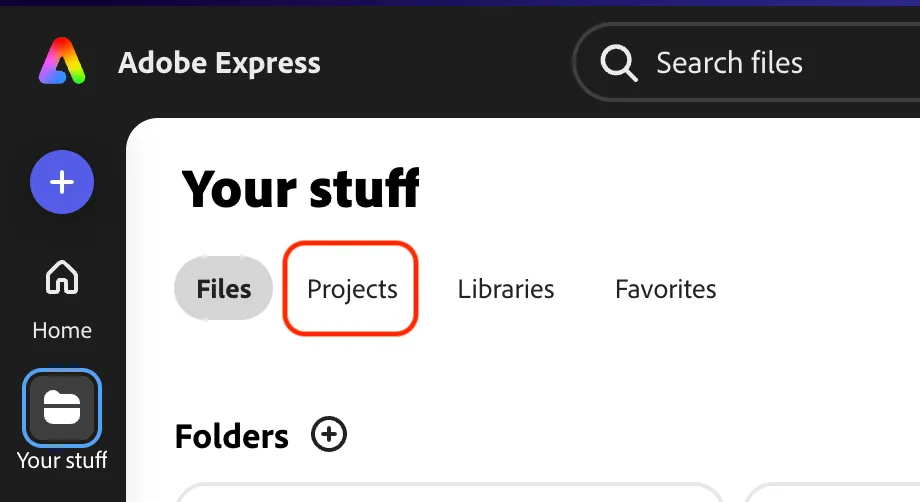
- Click on Projects under Your stuff.
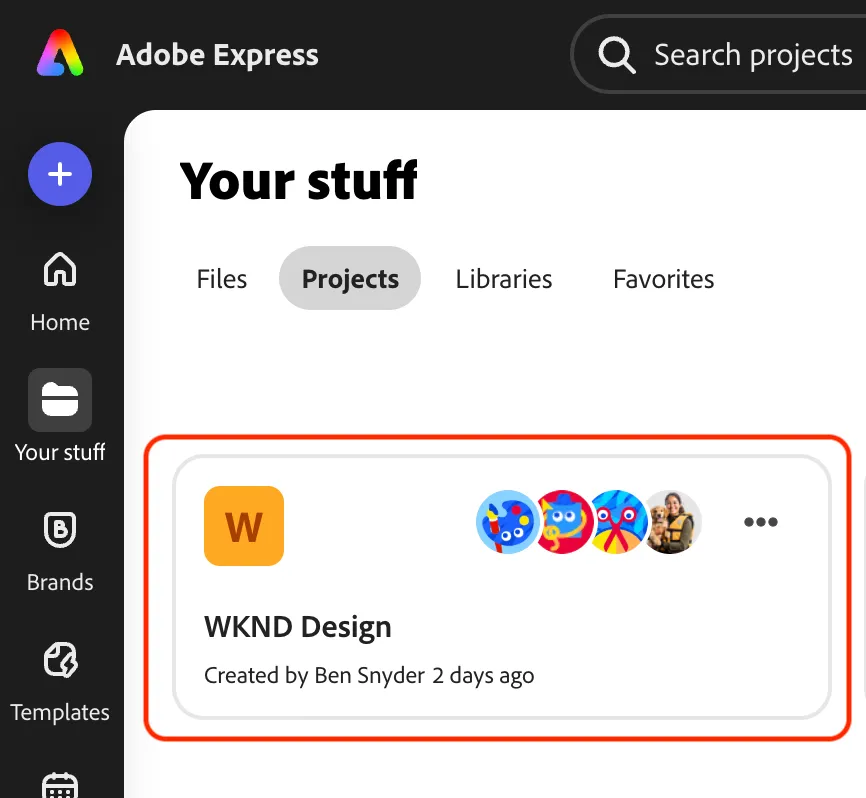
- Click on the WKND Design project.
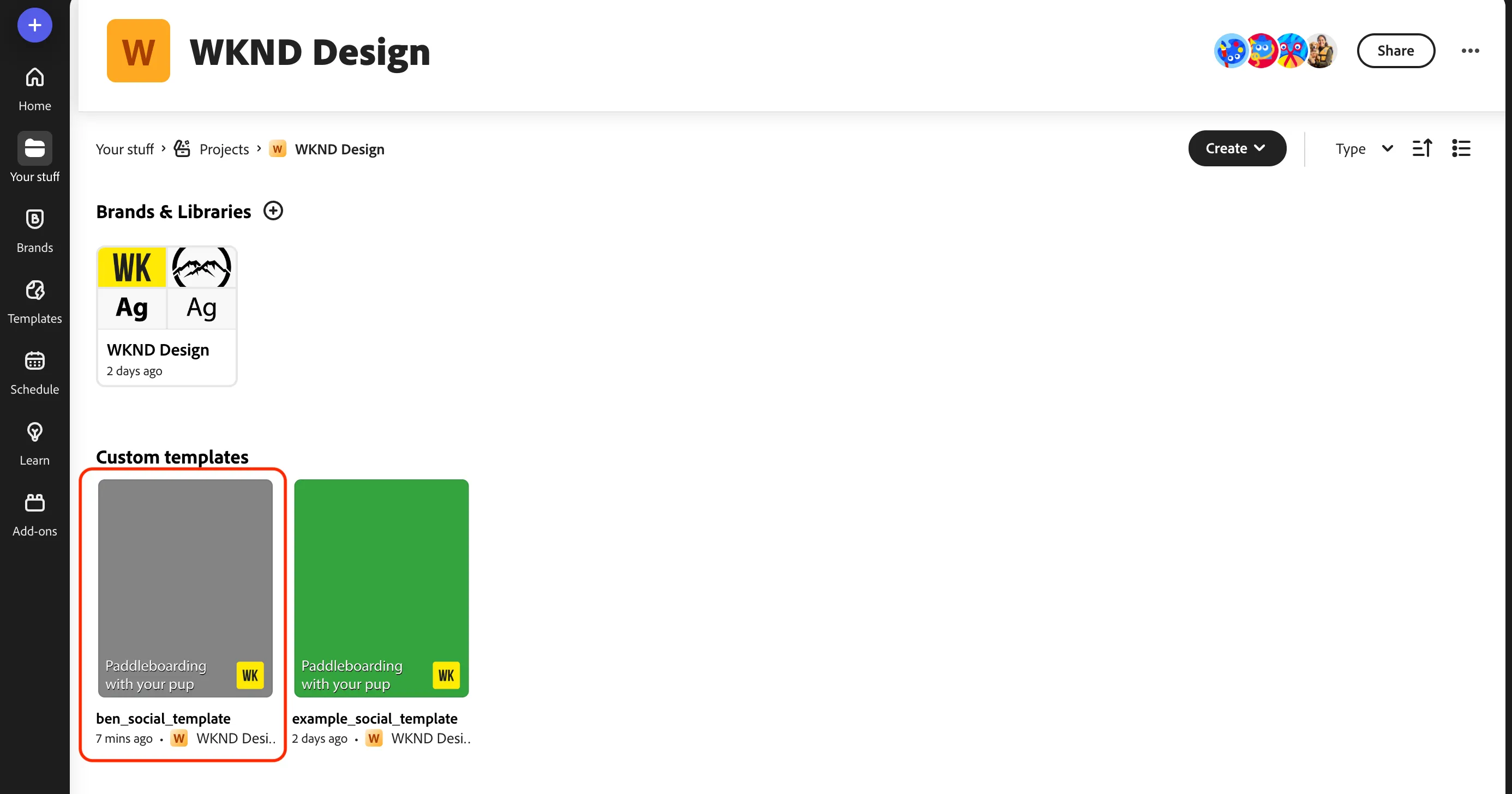
- Click on the firstname_wknd_social template to open a new project with it.
- Review the description for the template and then click the Use template button.
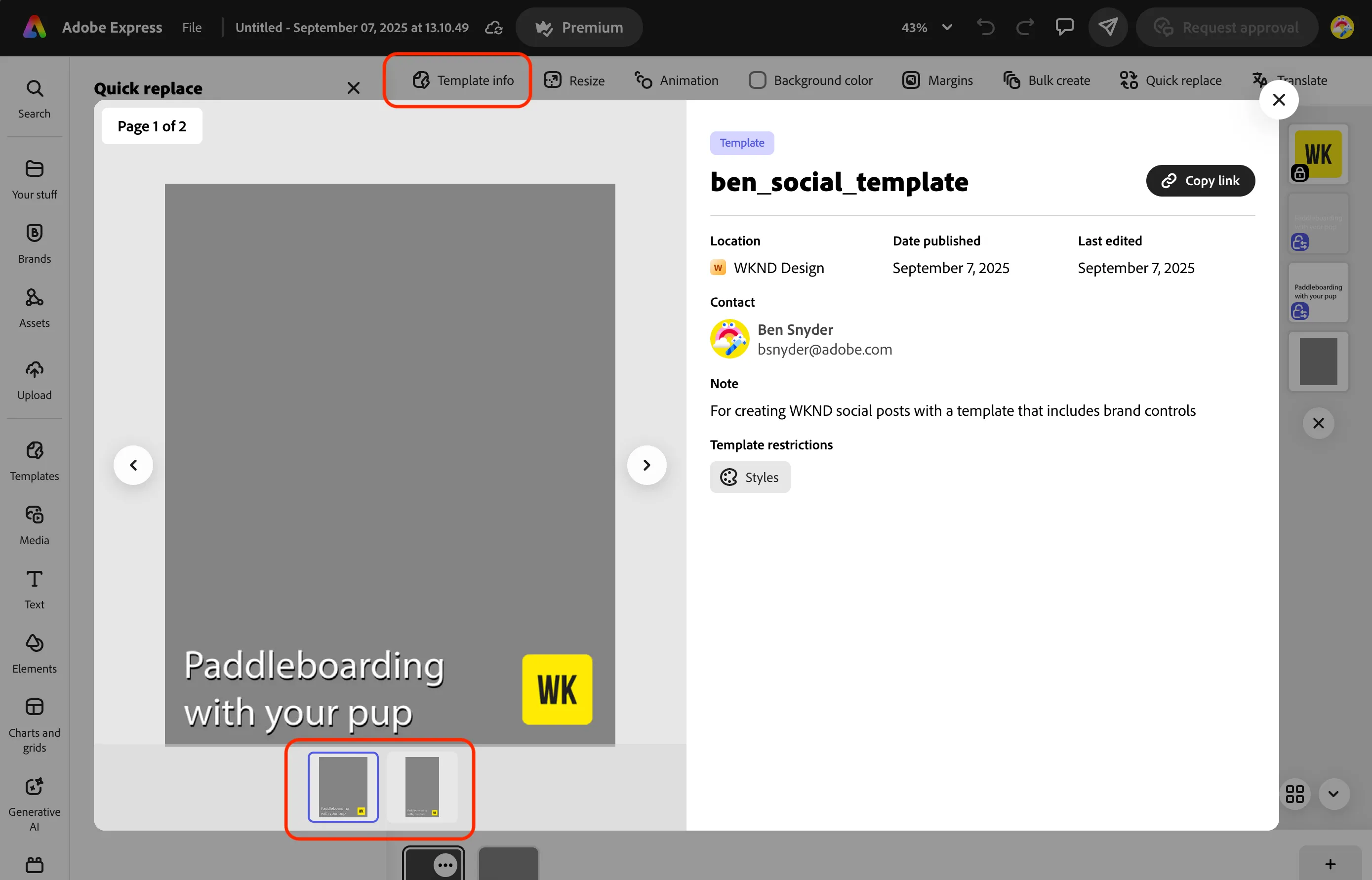
- Click on the Template info button to review the restrictions that have been applied to this newly created file.
- Click on the two pages to see the different sized layouts.
Update Copy
Adobe Express provides comprehensive text editing capabilities designed for both creative flexibility and brand compliance. Users can easily update copy within templates and designs, enabling quick personalization of campaign content for different target personas, products, and market segments. The platform supports automated translations for global content localization, allowing teams to efficiently create region-specific variations while maintaining brand consistency.
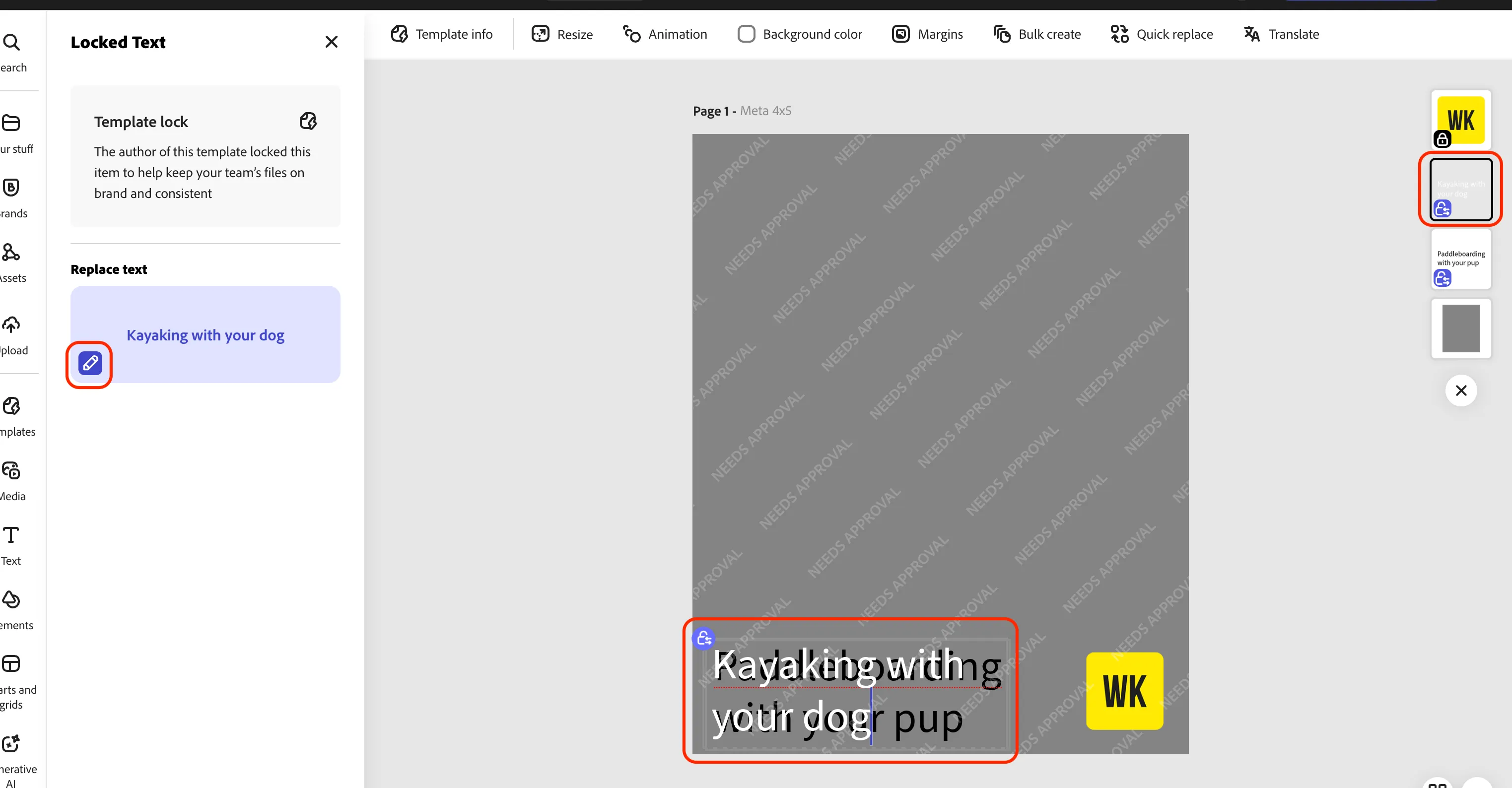
- Click on the first text layer to make changes to the copy.
- Click on the pencil icon to then copy in the updated text.
- Kayaking with your dog
- Fireside with your cat
- Hiking with your horse
- Follow these steps for the text layers in both pages.
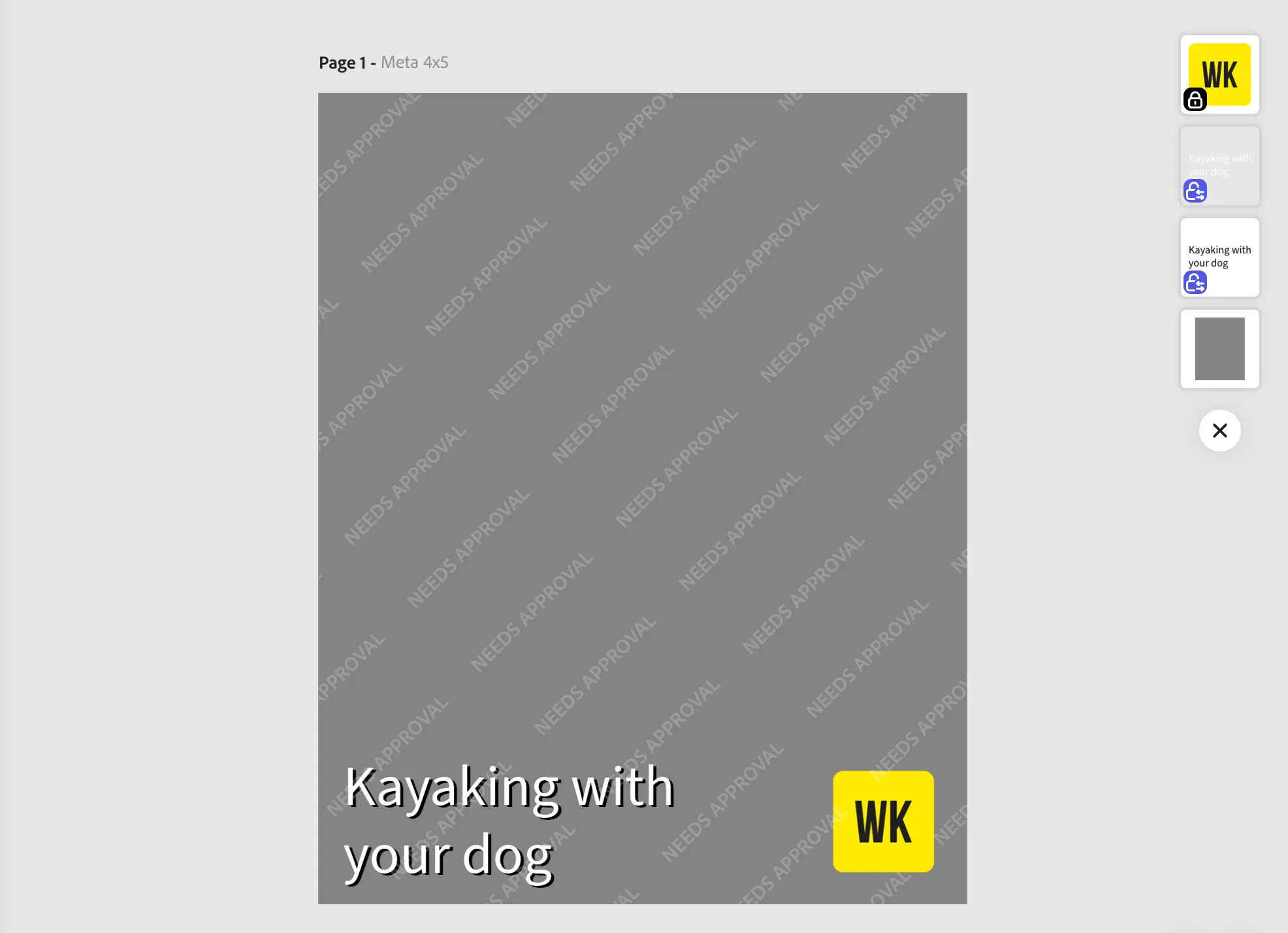
Image Placement
The AEM Assets integration with Adobe Express provides direct access to brand-approved imagery and content through a seamless workflow, enabling marketers to discover, activate, and remix trusted assets without downloads or uploads while maintaining brand governance and accelerating content creation workflows.
- Click on Assets in the left sidebar of Express.
- In the Assets side panel search for dog to locate your image from AEM Assets.
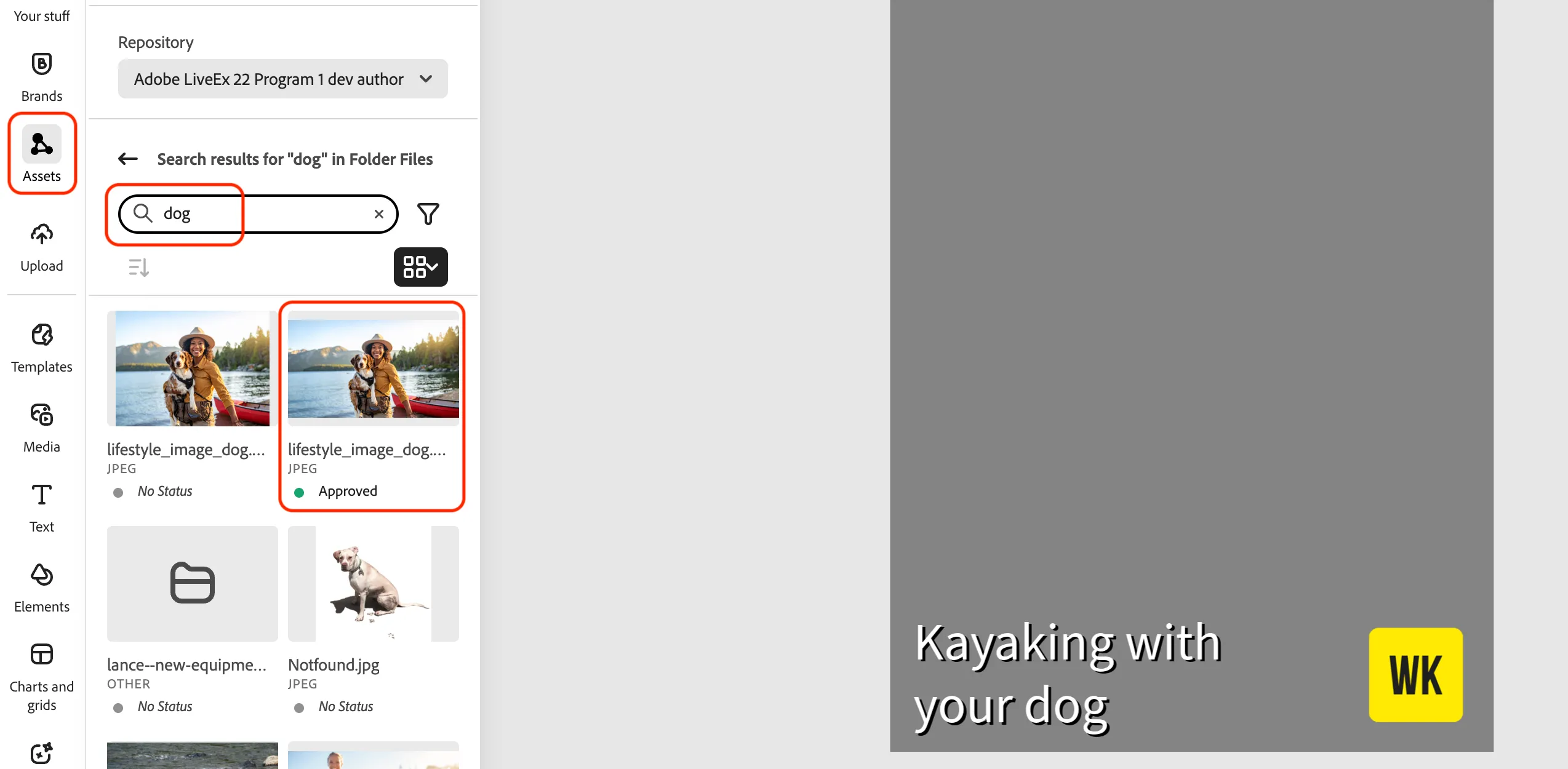
- Drag the image onto your first page.
- Find the image layer and place it below the text layers on your page.
- Use the adjustment handles to size the image to fit onto your page.
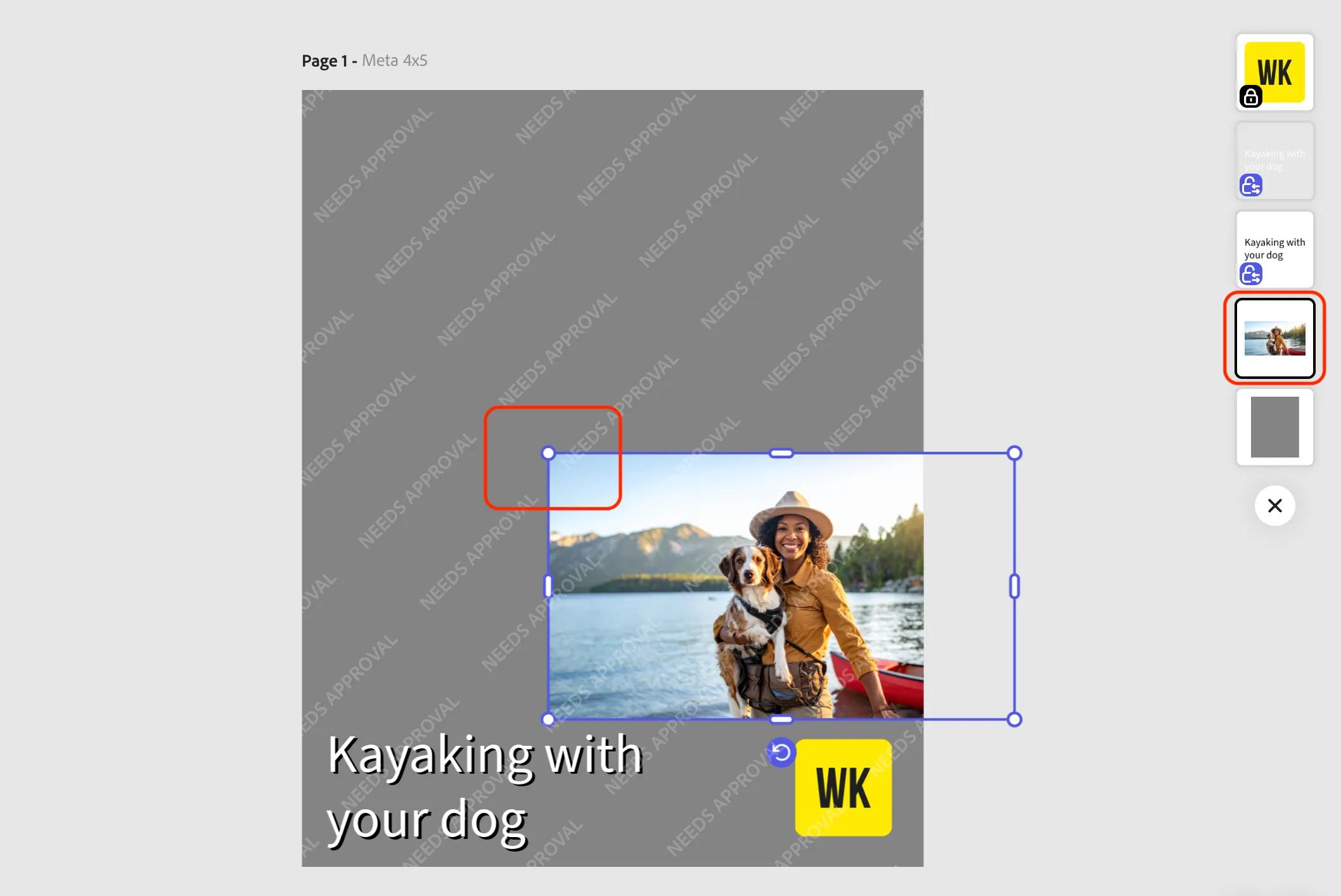
- Change to the second page and do the same steps.
- Change back to the first page.
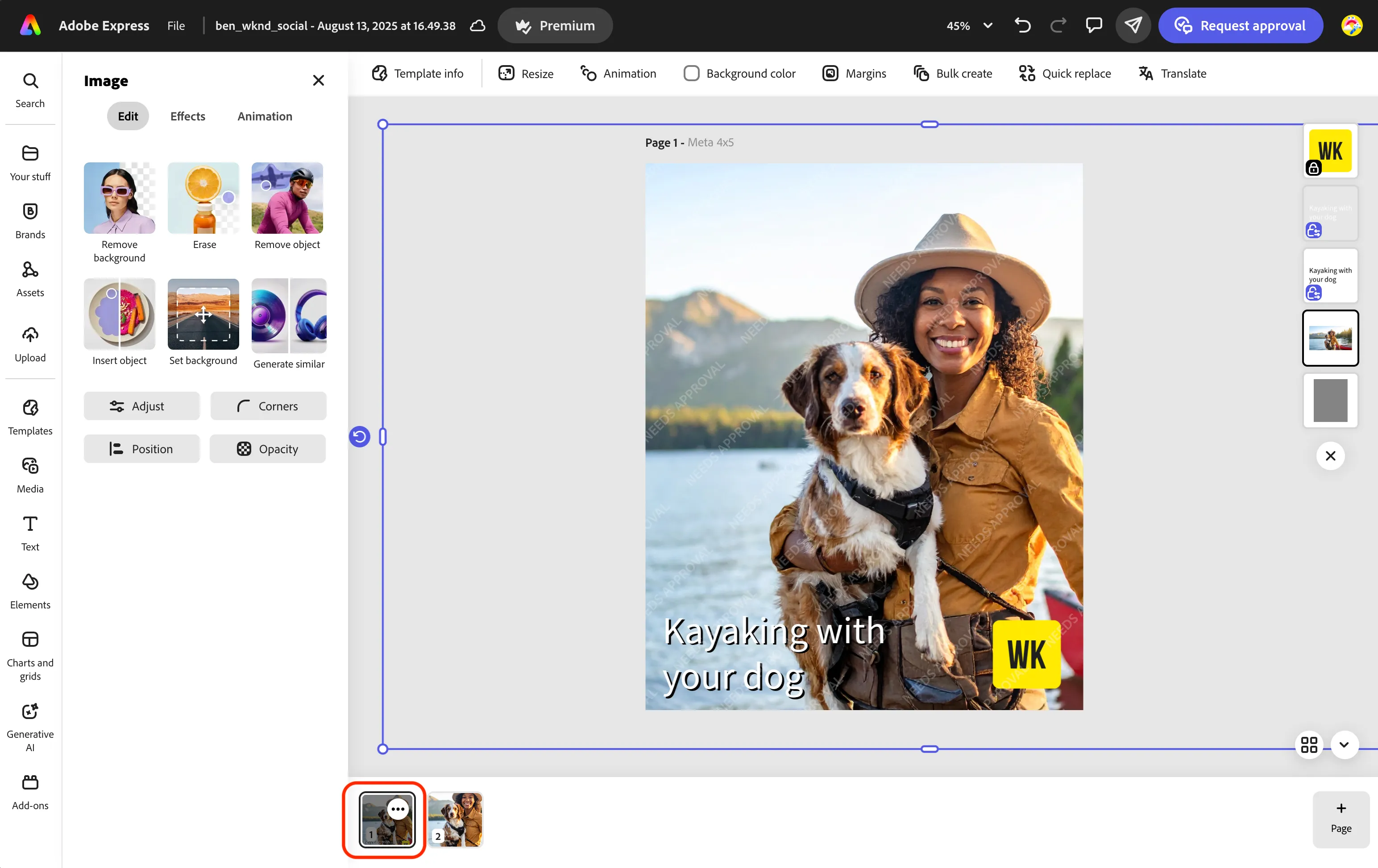
Firefly Editing
Adobe Express enables seamless object insertion into images through embedded Firefly generative AI capabilities, including generative fill and object composite features that allow users to add, modify, or harmonize products and objects into generated scenes while maintaining brand safety and commercial viability.
- With your image selected click on the Insert object option in the left side panel.
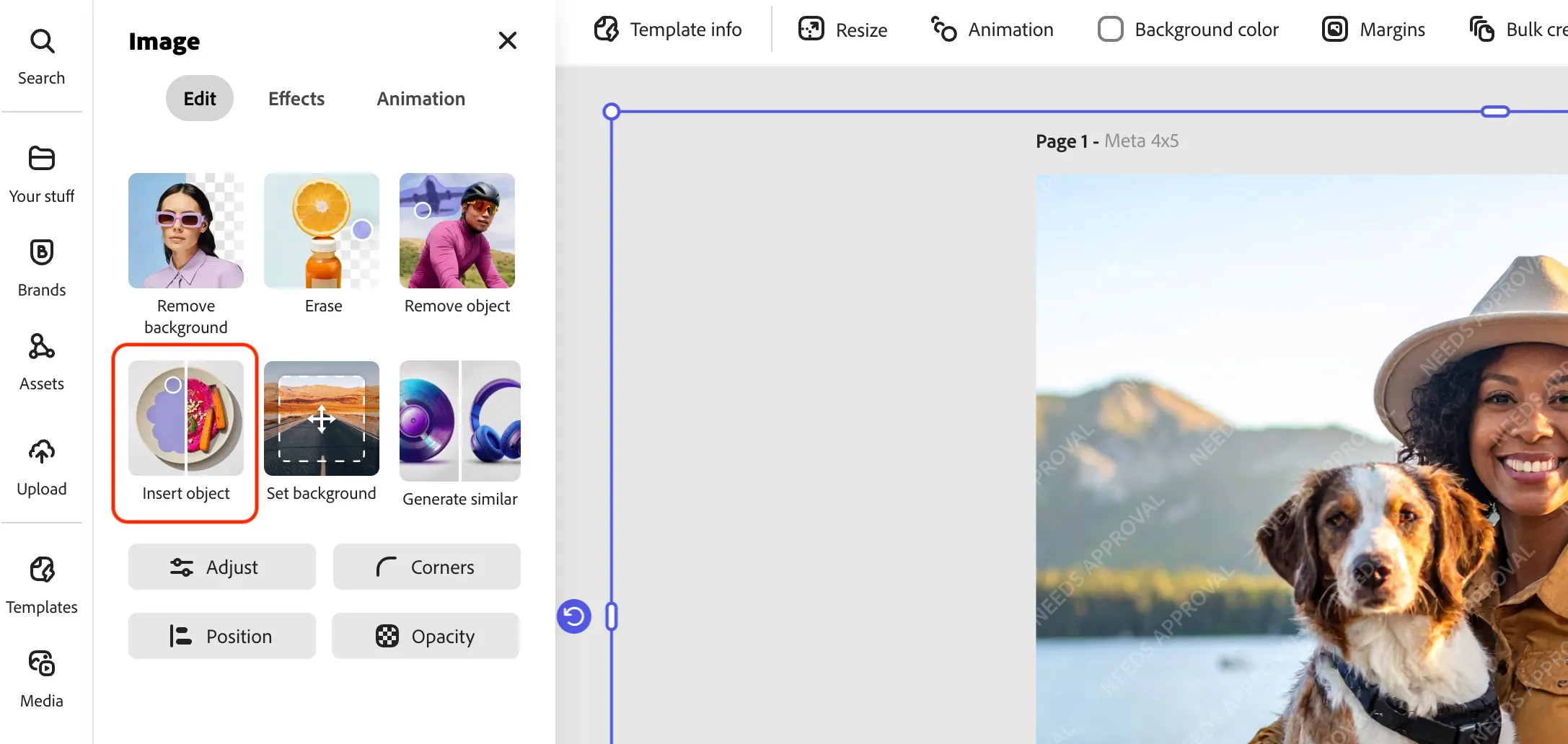
- Enter a text description using one of the examples below.
- Change the Brush size to 140.
- Paint in an area you would like to add the object via Firefly.
- Click the Insert button to process the generation.
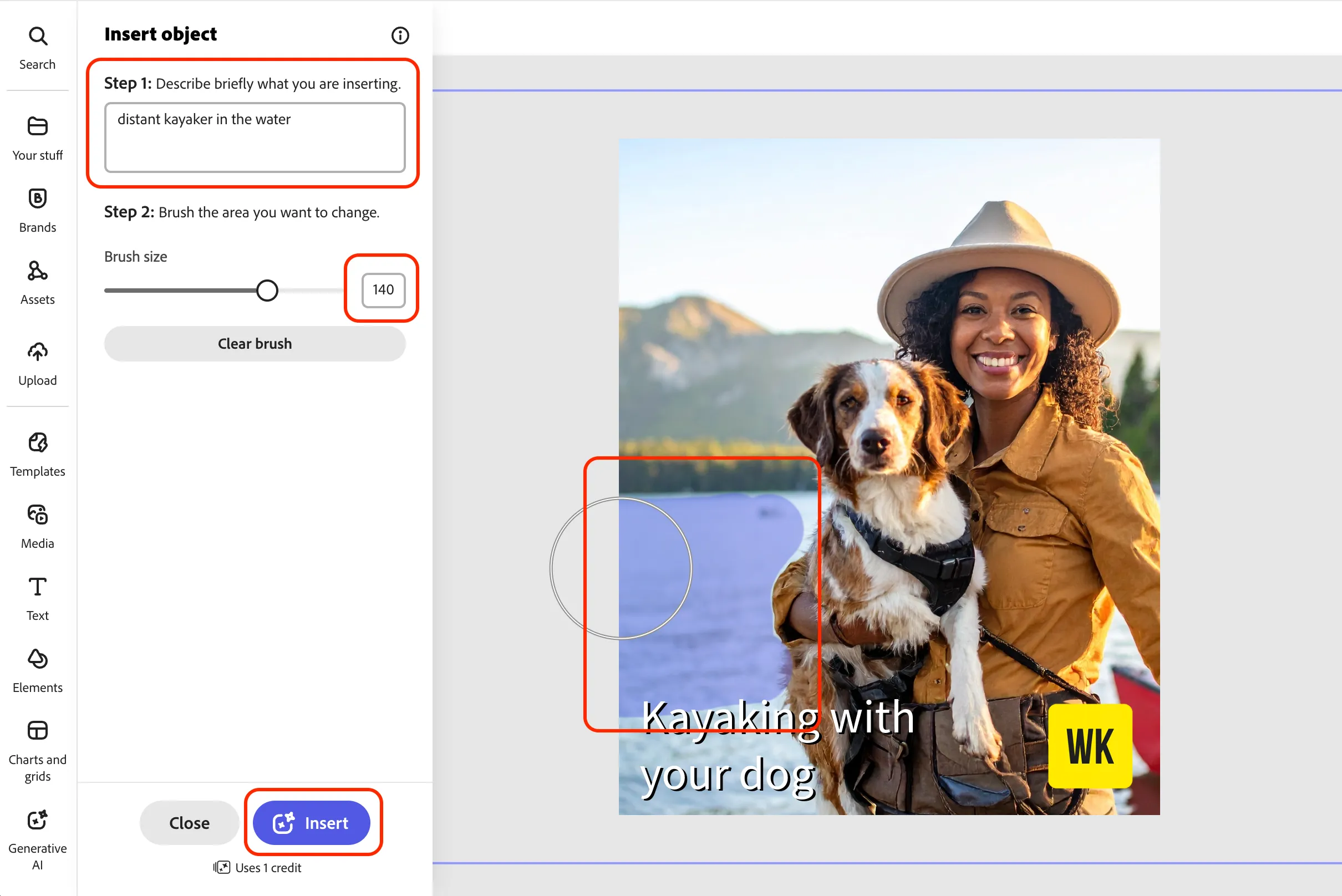
- Select one of the three variations that have been created.
- Click the Keep button.
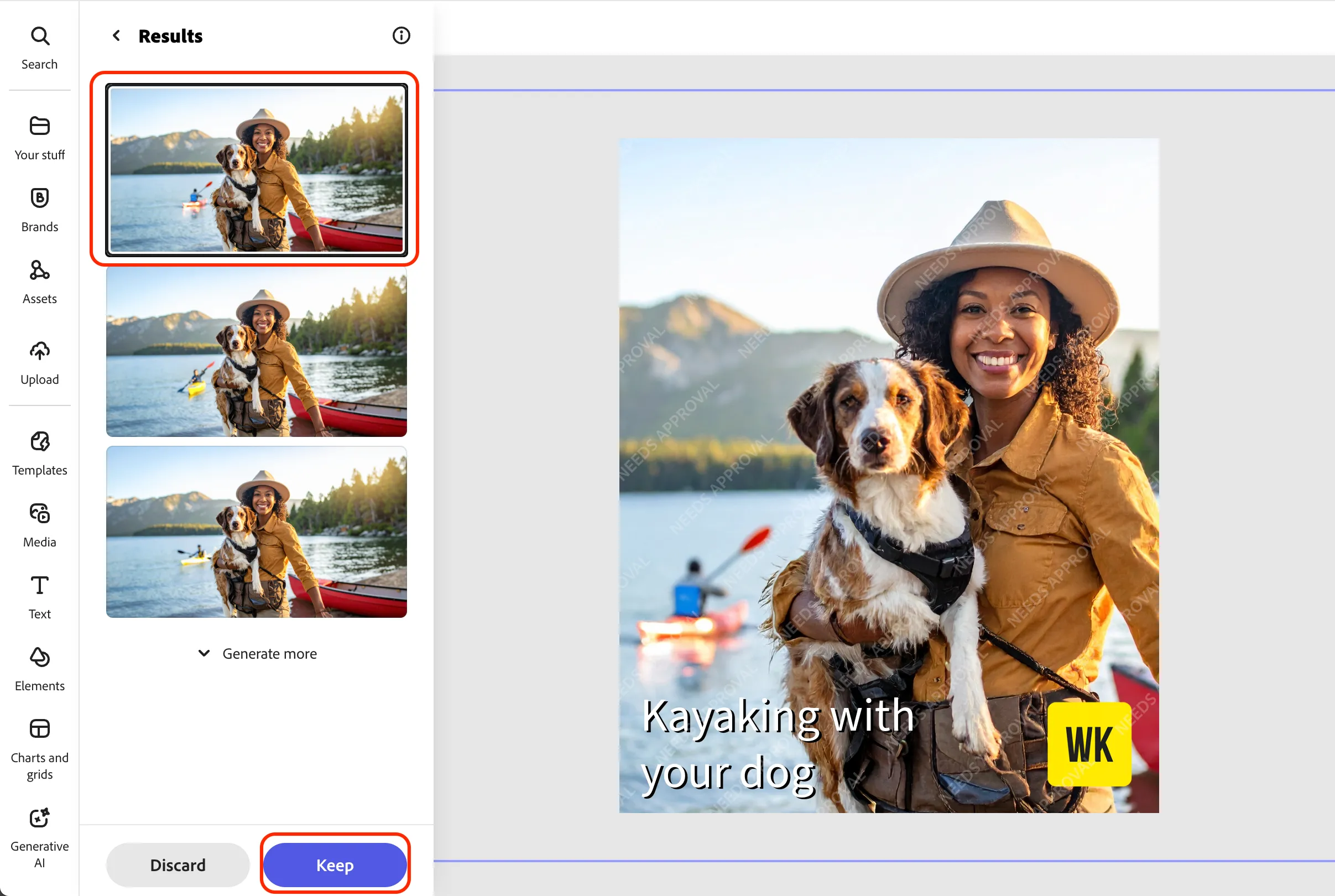
- Click the Close button to exit the Insert object panel.
Proof Approval
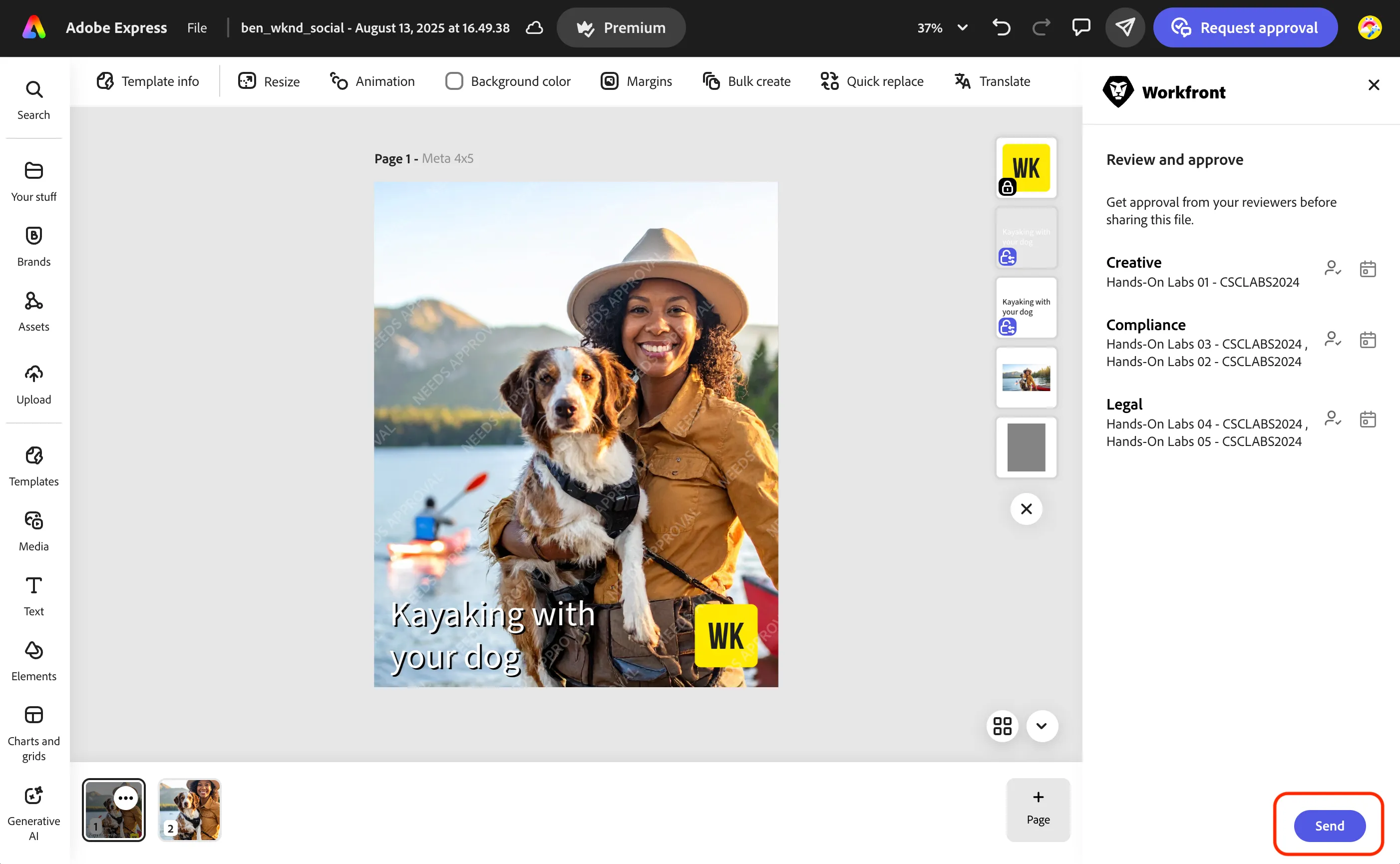
The Express to Workfront Proof integration streamlines design approvals by enabling users to send assets directly from Adobe Express to Workfront Proof for real-time stakeholder review, supporting configurable single-stage to multi-stage approval workflows while maintaining brand governance and compliance without leaving the Express environment.
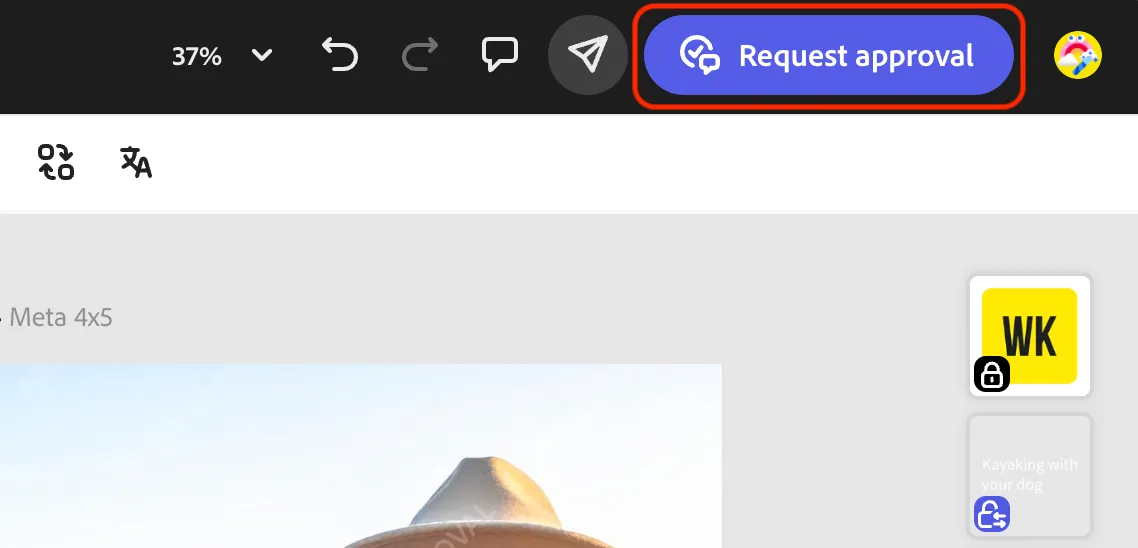
- Click the Request approval button to begin the proofing process.
- Click the Send button.
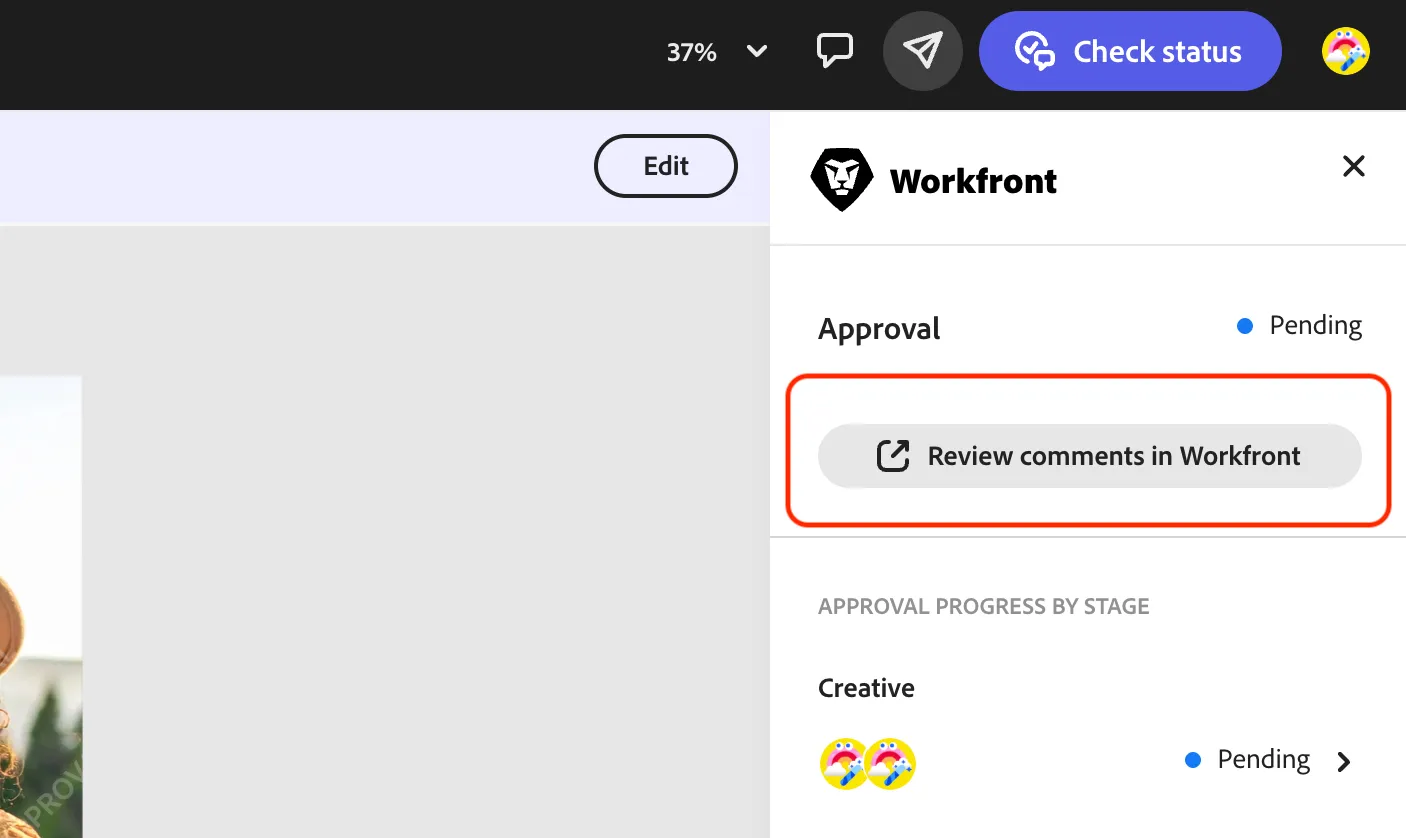
- Click the Review comments in Workfront button.
- Click on the Make decision button for the proof in Workfront.
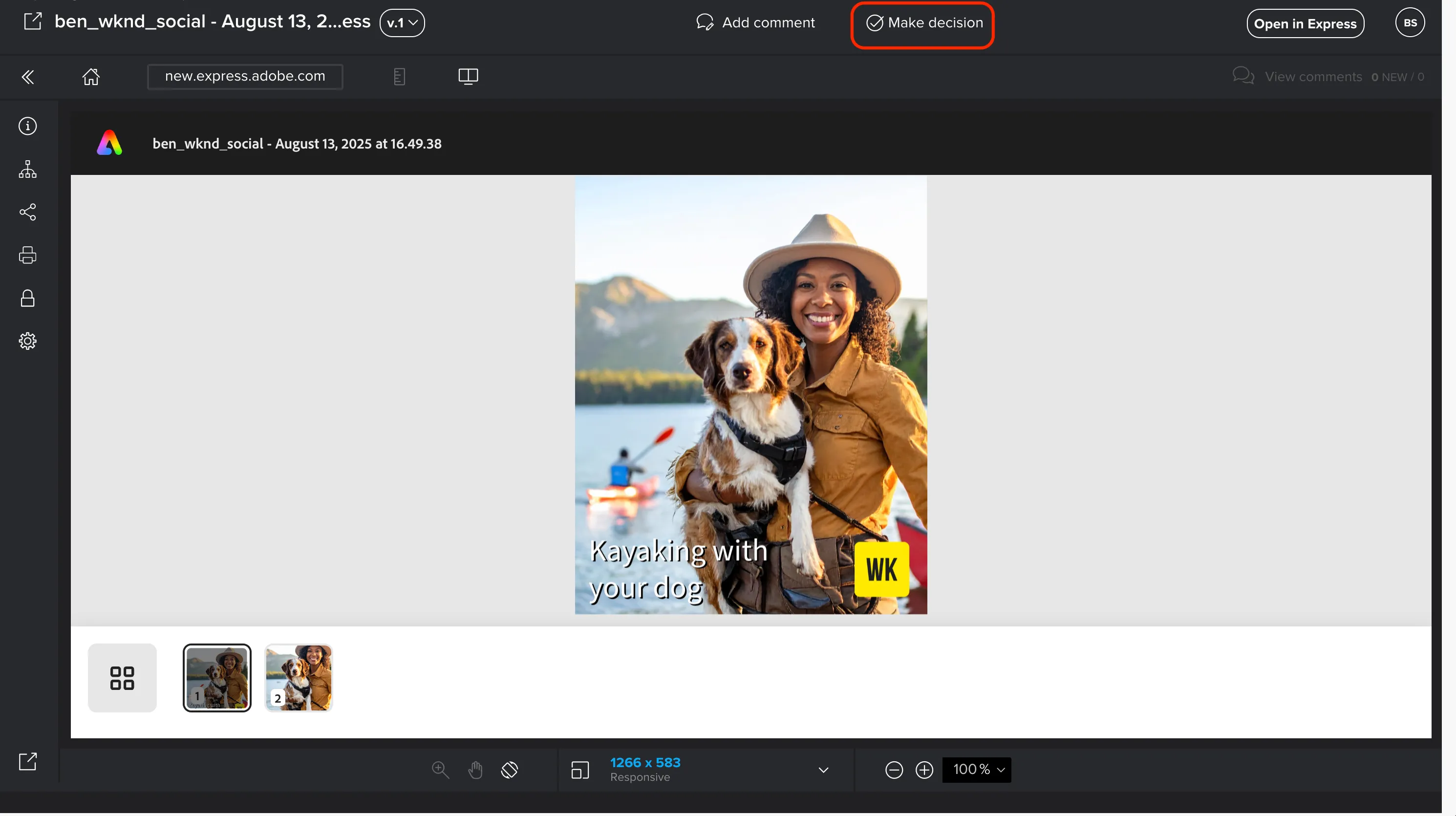
- Click on the Approved button and then the Make decision button.
- Close the Workfront browser tab.
- Refresh the Express browser tab and review the updated Approved status for the Creative stage of the workflow.
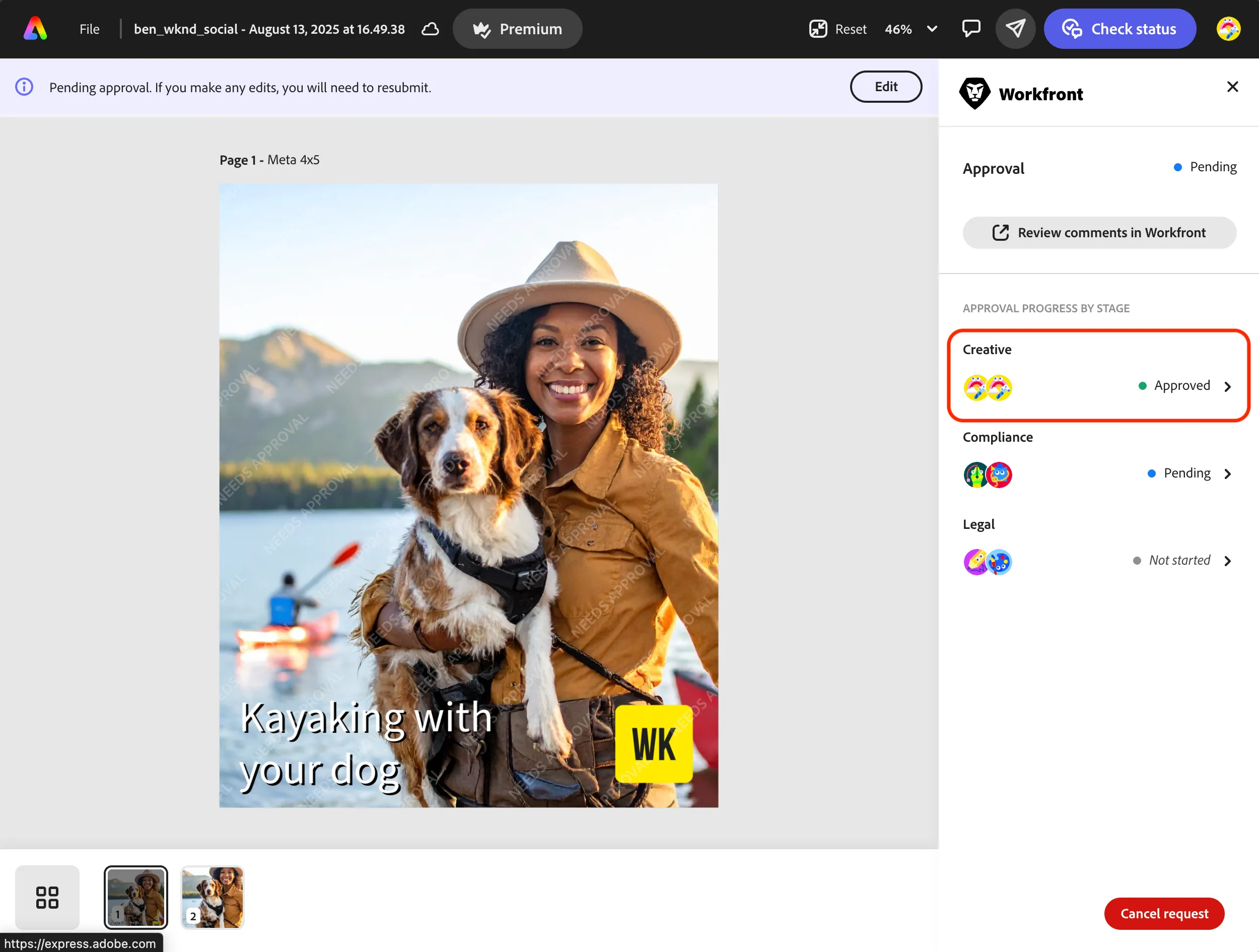
- Close the Express browser tab to exit.