Double Optin Journey
9 min
This section describes how to design a process that manages the subscription of a profile to a newsletter. This process triggers as soon as an event is collected in Adobe Real Time CDP.
Generation of a Newsletter Subscription Event
- Go to the home page of the demo web site
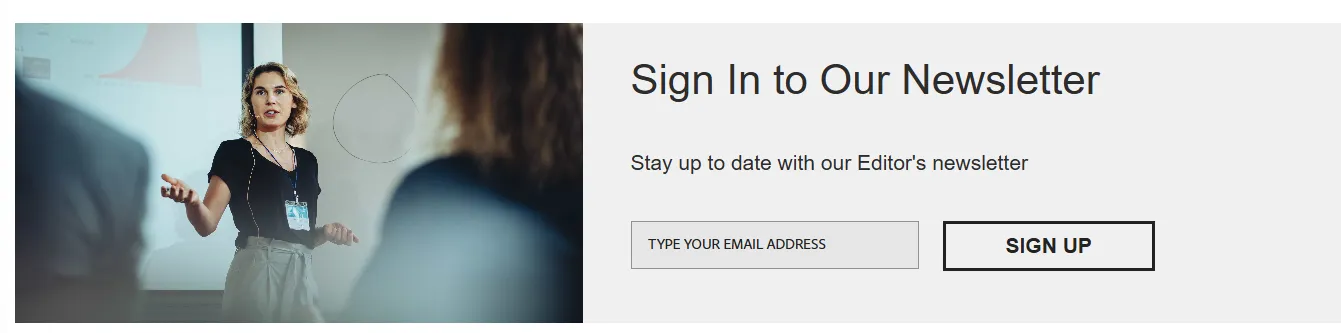
- Fill in the Newsletter Subscription form with an email address and click on the Sign Up button
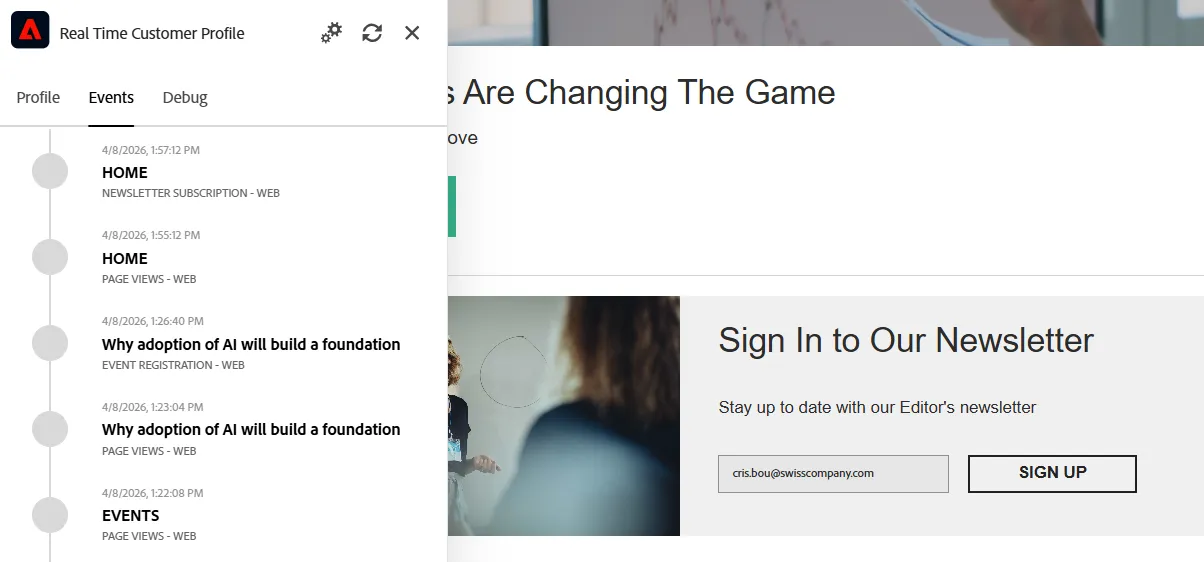
- Expand the Adobe Real Time Customer Profile applet
- Go to the Events tab
- Check that an event named NEWSLETTER SUBCRIPTION has been collected
Orchestration of the profile journey to collect the double opt in
The goal is to design a process that:
- Triggers as soon as a newsletter subscription event is collected
- Sends an email to notify the subscription and ask a second time for the consent
- Wait for the 2nd consent event to send a welcome message and update the field in RealTime-CDP
- Wait until a timeout period to trigger a reminder process, in case the recipient doesn't confirm the consent
The diagram below shows one possible structure of the flow:
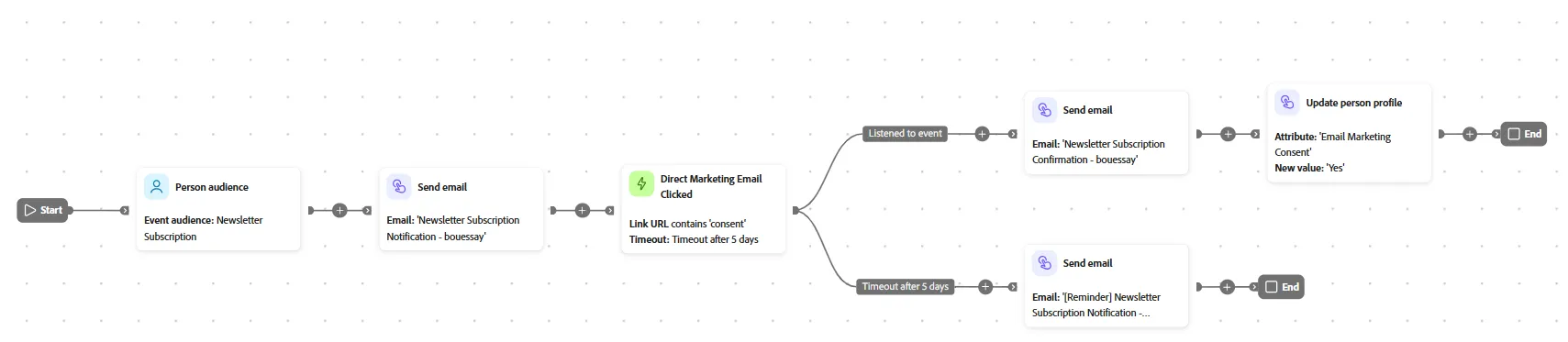
Double Opt In journey
Follow these steps to build this flow:
- In Adobe Experience Platform, launch the Adobe Journey Optimizer B2B Edition application
- Go to the menu Journey Management > Person journeys (beta)
- Click on the Create Journey button
- Set the name Newsletter Subscription - <your initials>
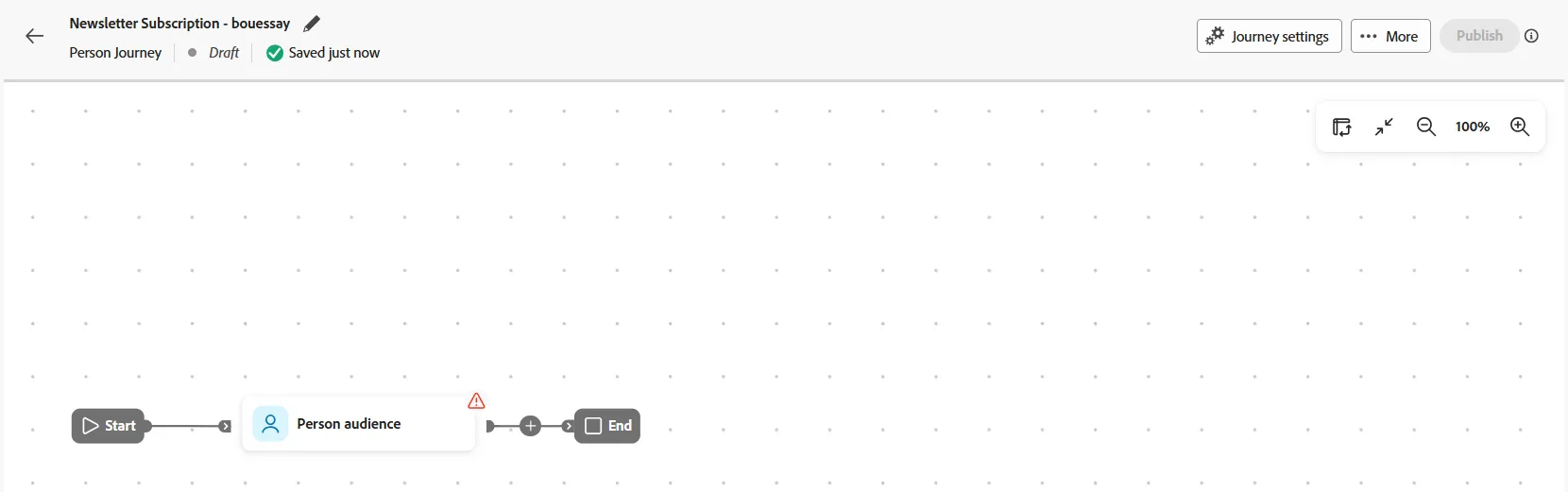
- Click on the Person audience card
- Select Event audience
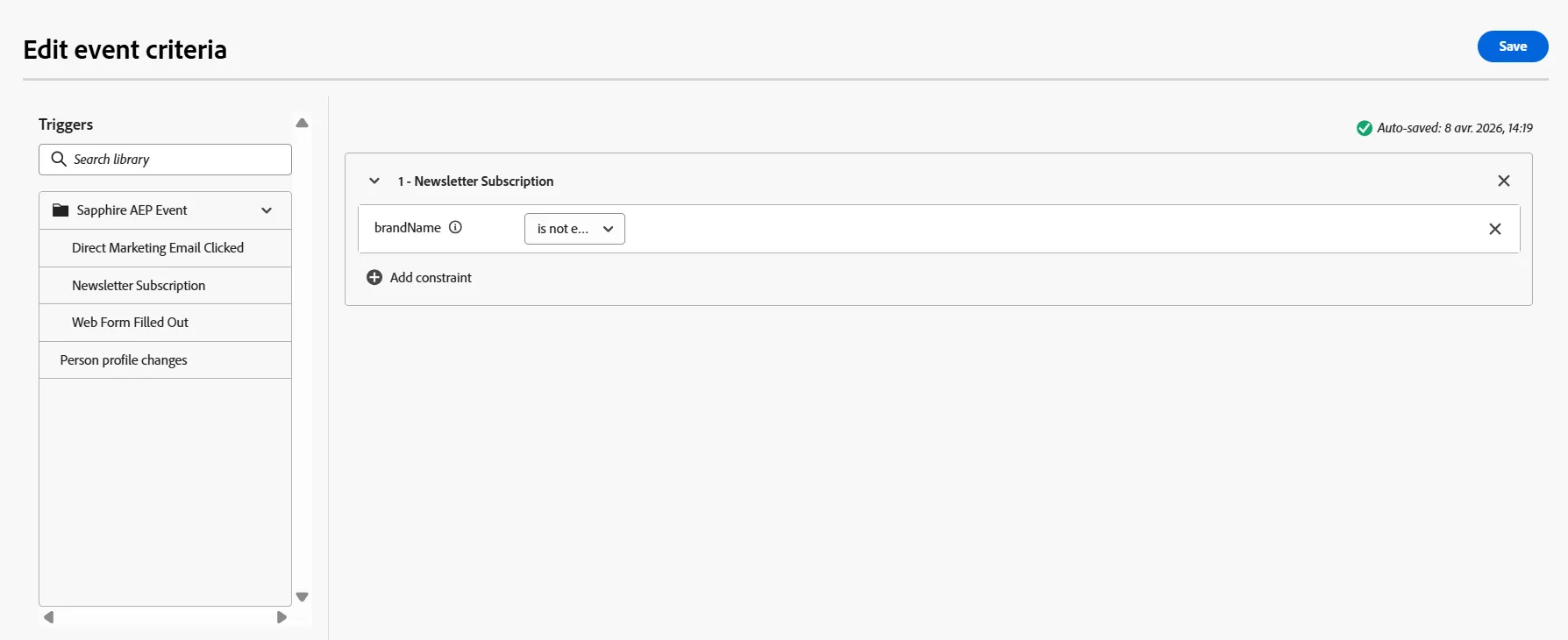
- Click on Add event criteria button
- Drag & Drop the Newsletter Subscription event and set a constraint brandName is not empty.
- Click on Save
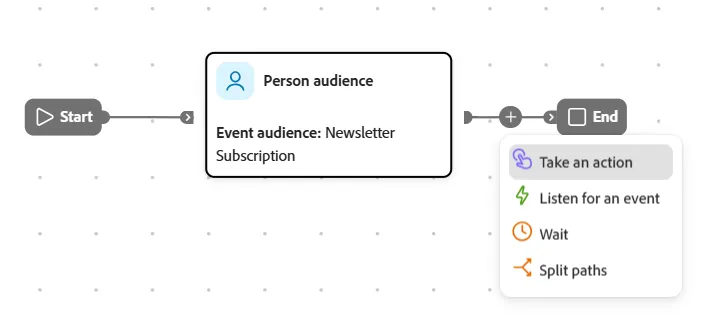
- Add an action after the Person audience activity
- Click on the + button
- Select the command Take an action
- Select the action Send email
- Click on Create email button
- Select New email
- Set the name to Newsletter Subscription Notification - <your initials>
- Set the Subject line to "Please confirm the subscription"
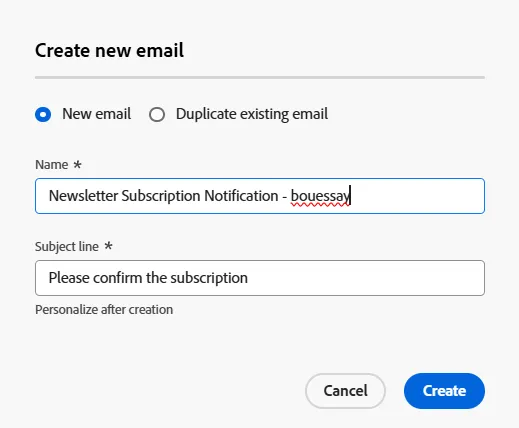
- Click on Create
- Click on Edit email content
- Select the Bodea - Newsletter template
- Click on Use this template
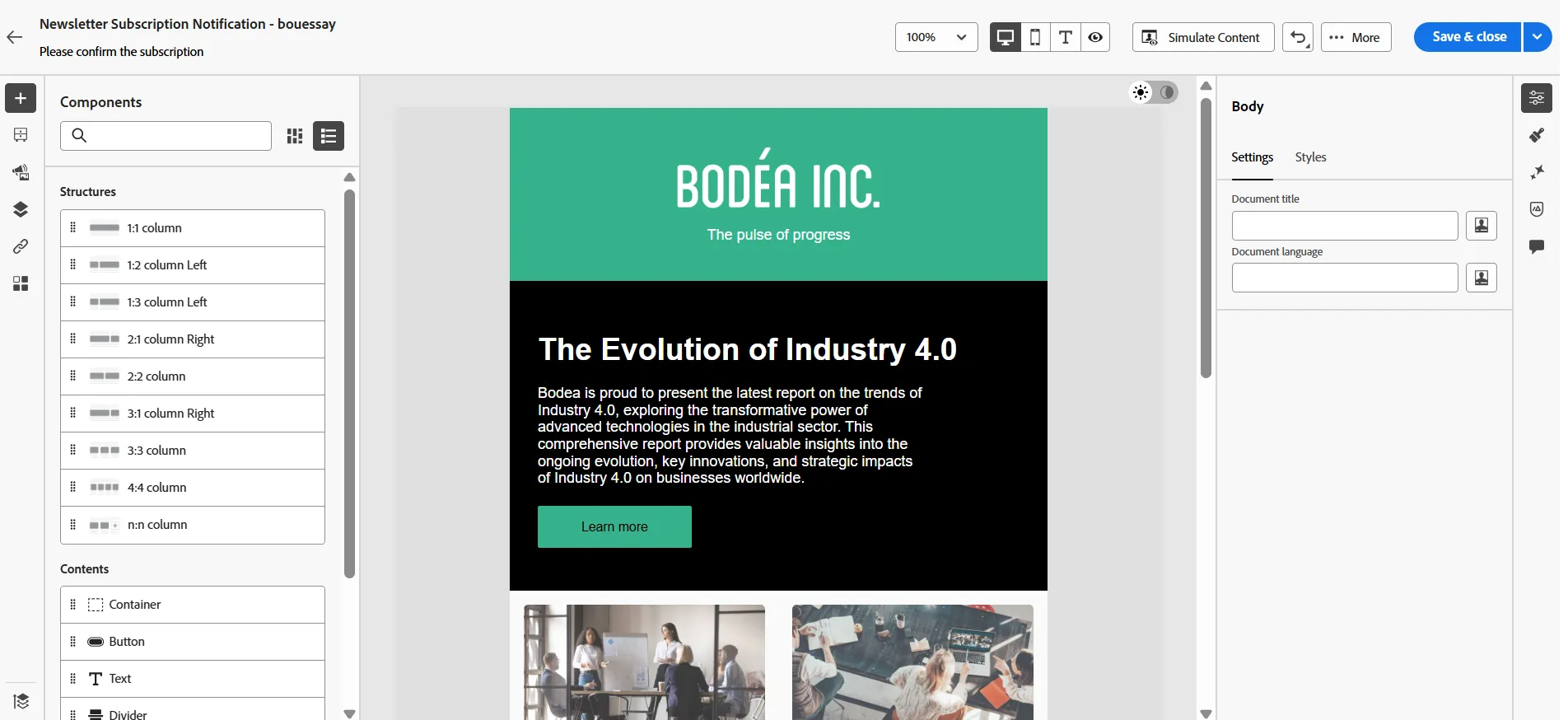
- Drag & Drop a Text component
- Click on this Text component in the template
- From the right hand menu, select the AI Assistant icon (3rd down)
- In the Prompt, request the AI to
- "Generate text to collect marketing consent"
- In Text Settings,
- Set Buying group to Influencer style,
- Set Communication strategy set to informative
- Select one of the best proposition generated by the AI
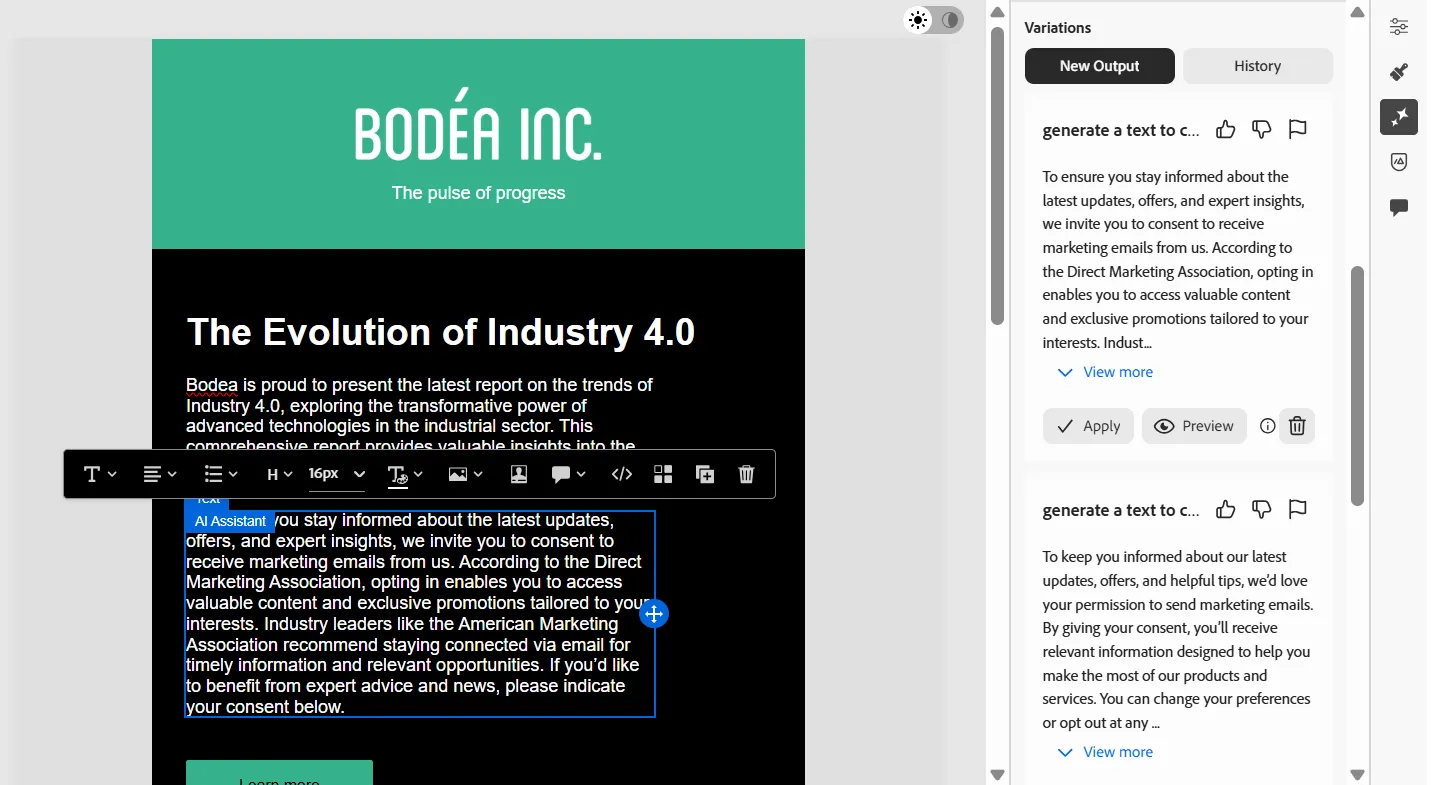
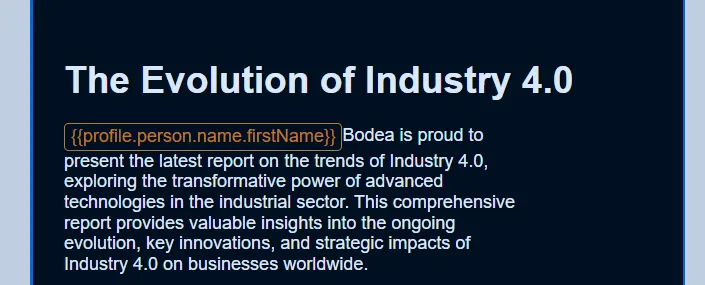
Now we will personalize the email text with the contacts first name, to do this
- Click on the first text box, ensure your cursor is positioned before "Bodea is"
- Click the Add personalization icon from the text menu
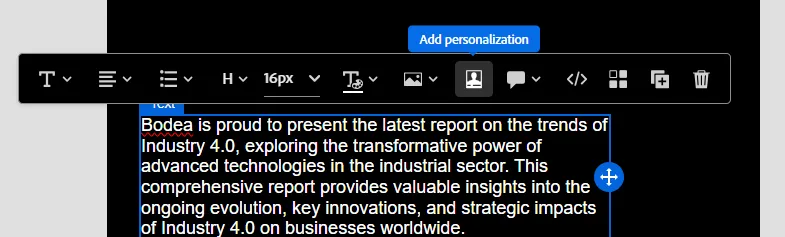
- This will open the Expression editor.
- Filter the fields to find the First name
- Click + to add this token to the expression.
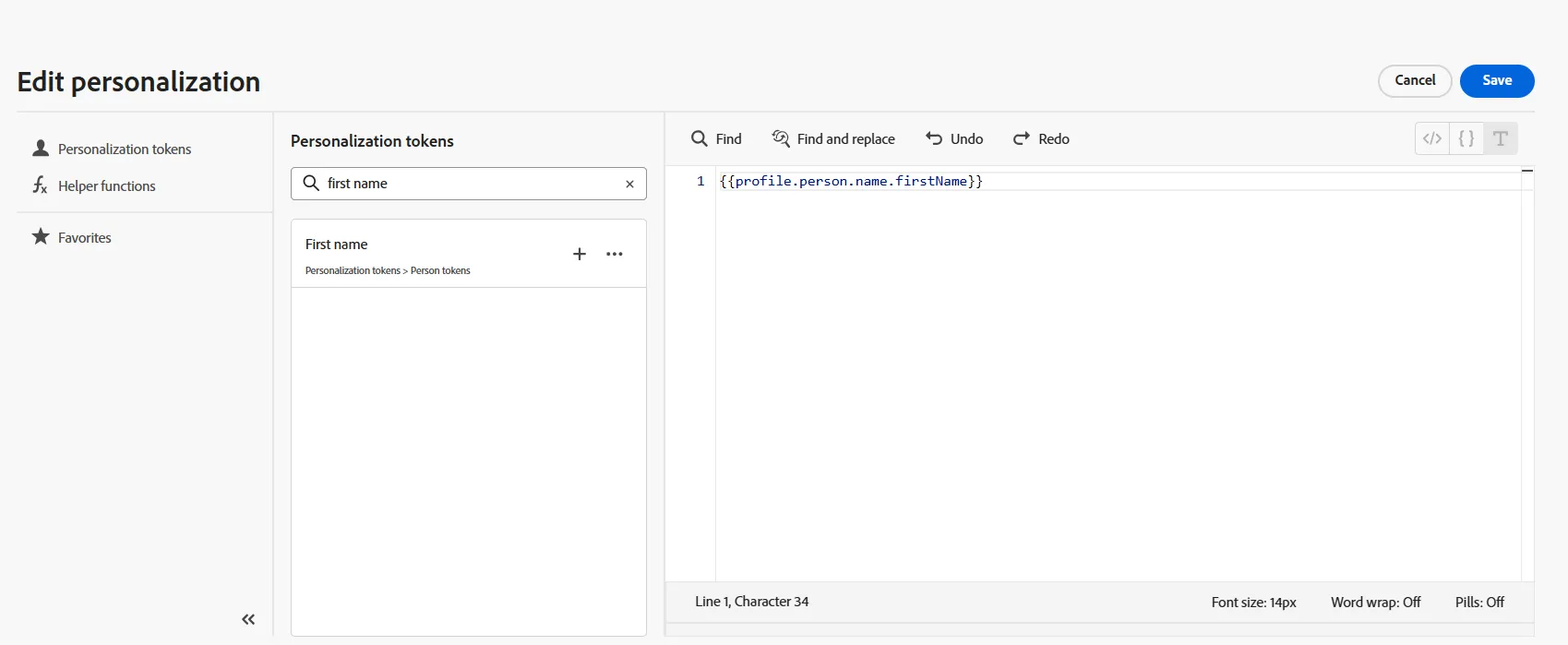
- Click on Save
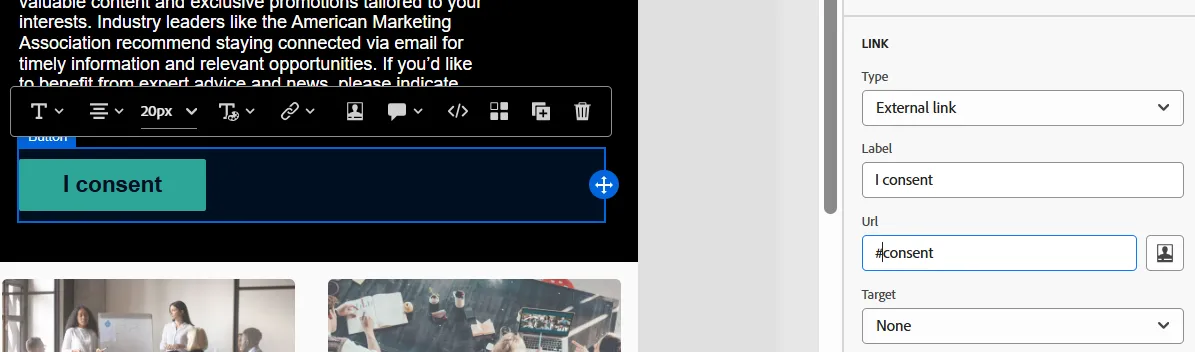
- Click on the Button component below the text you added.
- Rename the button to I consent

- In the right hand component settings, set the link in such a way that the URL contains the word consent
- Click on Save & close
- Go back to the process flow by clicking the arrow in the top left.
- Add an action after the Send email
- Select the command Listen for an event
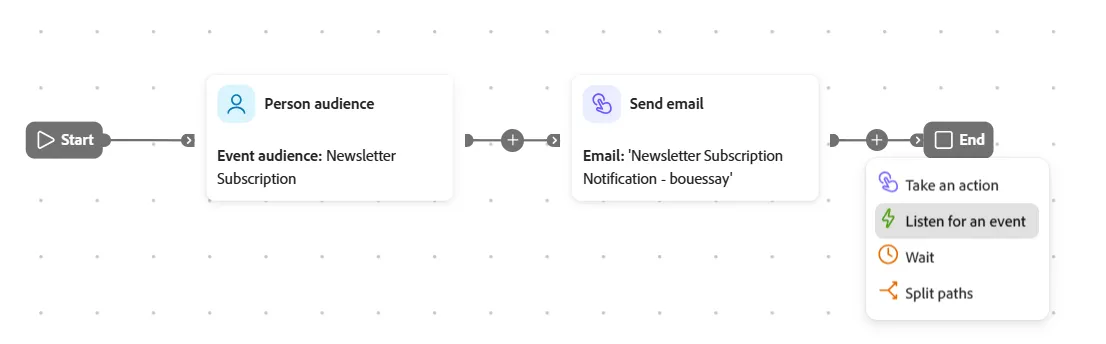
- Select Direct Marketing Email Clicked
- Click on Edit event
- Add the constraint: Link URL contains consent
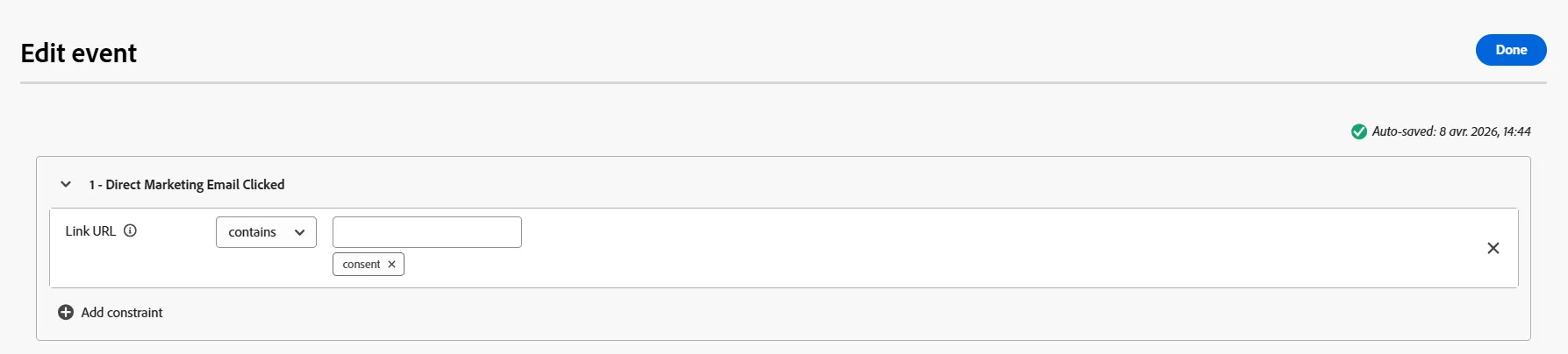
- Click on Done
- Enable the Timeout radio button. Leave the default setting of "Timeout after 5 days"
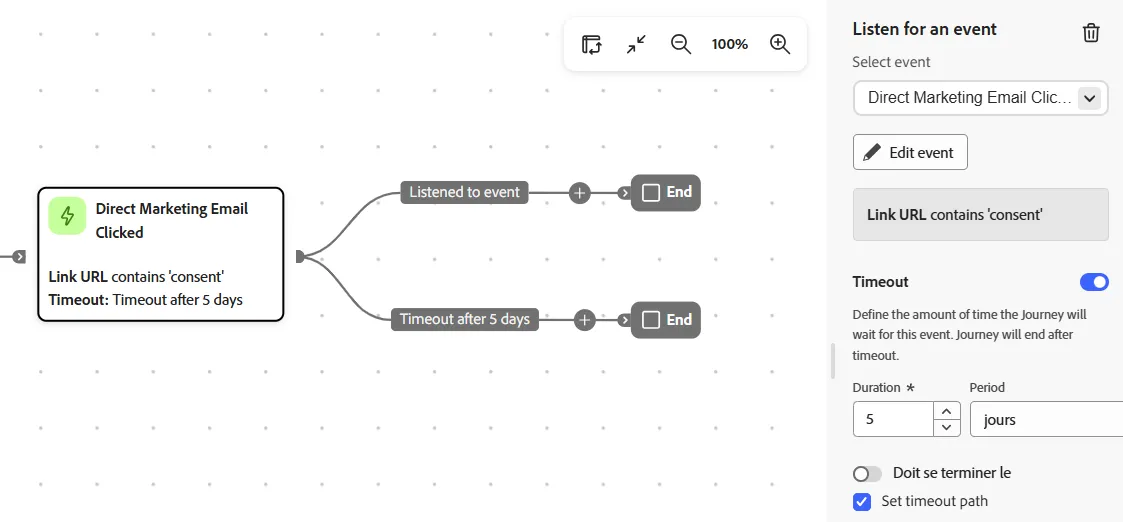
Timeout usage
- Continue the Listened to event path by adding
- a Send Email
- Click on Create Email
- Select Duplicate existing email
- Select the email created at the beginning of the flow
- Set the name to Newsletter Subscription Confirmation - < your initials>
- Set the Subject line to Thank you!
- Click on Create
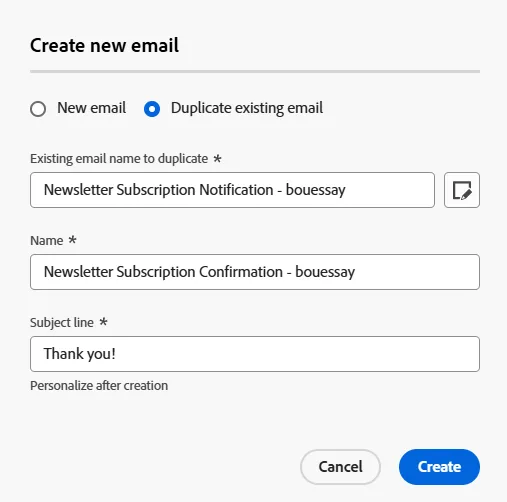
We're not going to change the content of this email, since we learned how to do this in the previous email creation exercise. Instead, click out of the email designer via the top left arrow to return to the Journey canvas.
- After the "send email" node you just added. Add a new action
- Click Take an action and select Update person profile
- Select the Email Marketing Consent attribute from the drop down.
- Set the value to "Yes"
- This will update the Email Marketing Consent to "Yes"
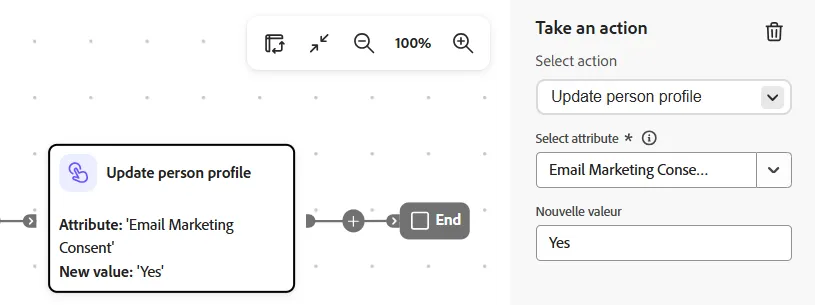
Update person profile with email marketing consent
- Continue the Timeout after 5 days path by adding a Send Email in order to deliver a reminder and follow the same procedure to duplicate a previous email and customize a new one
The end of the flow will look like this diagram:
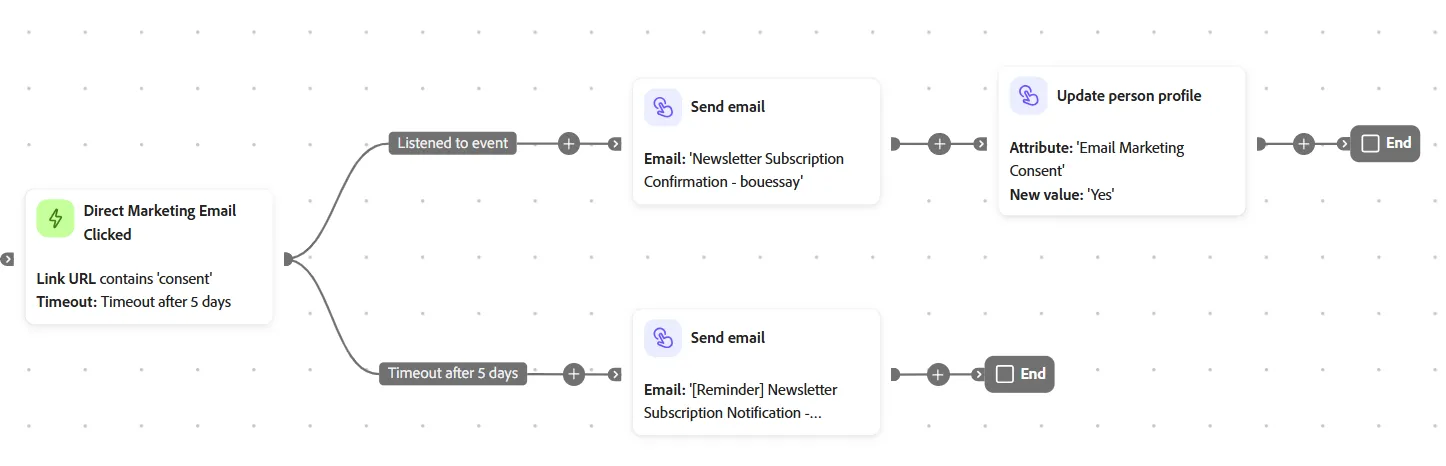
End of the double optin journey