Landing Page
6 min
The focus is on the usage of Brand Guidelines and AI Assistant features to improve the creation flow of landing pages.
Manage Multiple Subscription Lists in a Landing Page
In Adobe Journey Optimizer, a Landing Page has been created to manage Newsletter Subscription Lists.
- From the product drop down in the top right, select Journey Optimizer.
This basic Landing Page is not finished and the goal is to add another newsletter subscription item in the list:
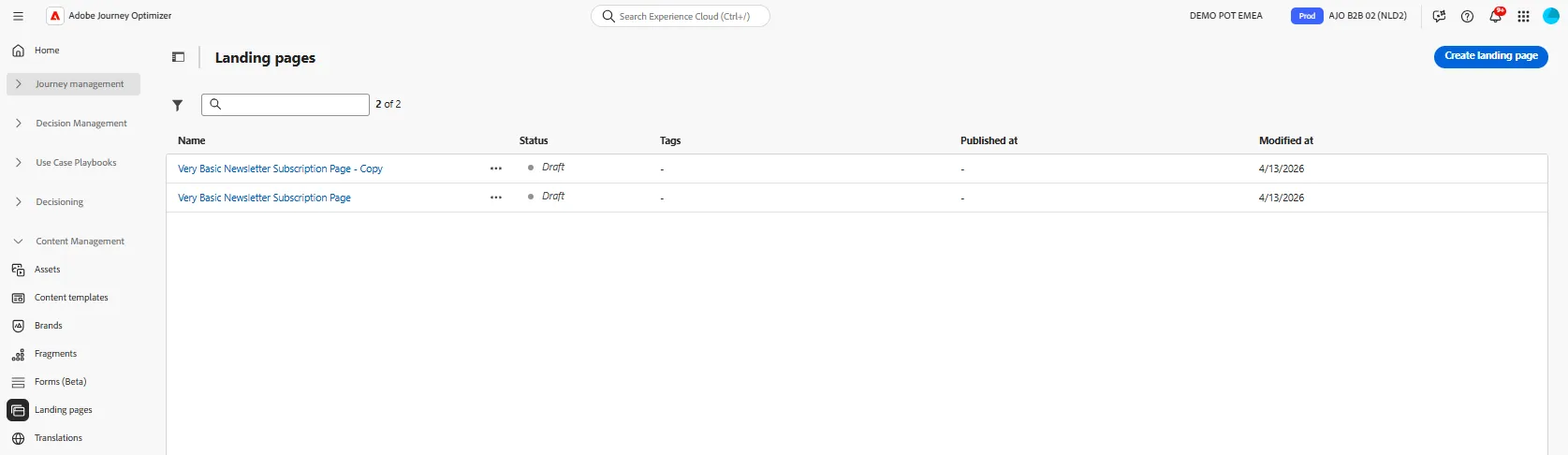
- From the left hand menu, under Content Management, select Landing Pages
- Duplicate the landing page named Very Basic Newsletter Subscription Page
- Rename the copy to Very Basic Newsletter Subscription Page - <Your Initials>
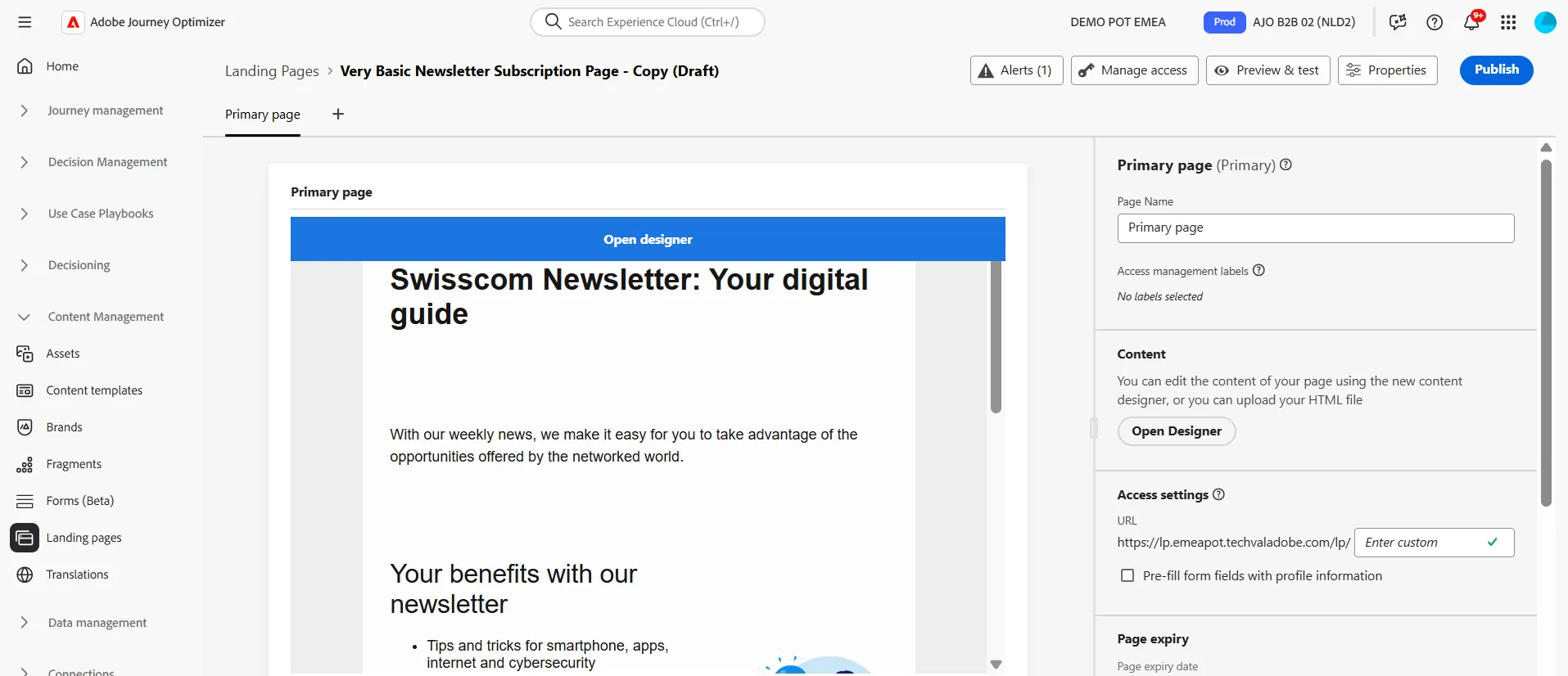
- Click on the Landing Page
- Click on Open Designer button
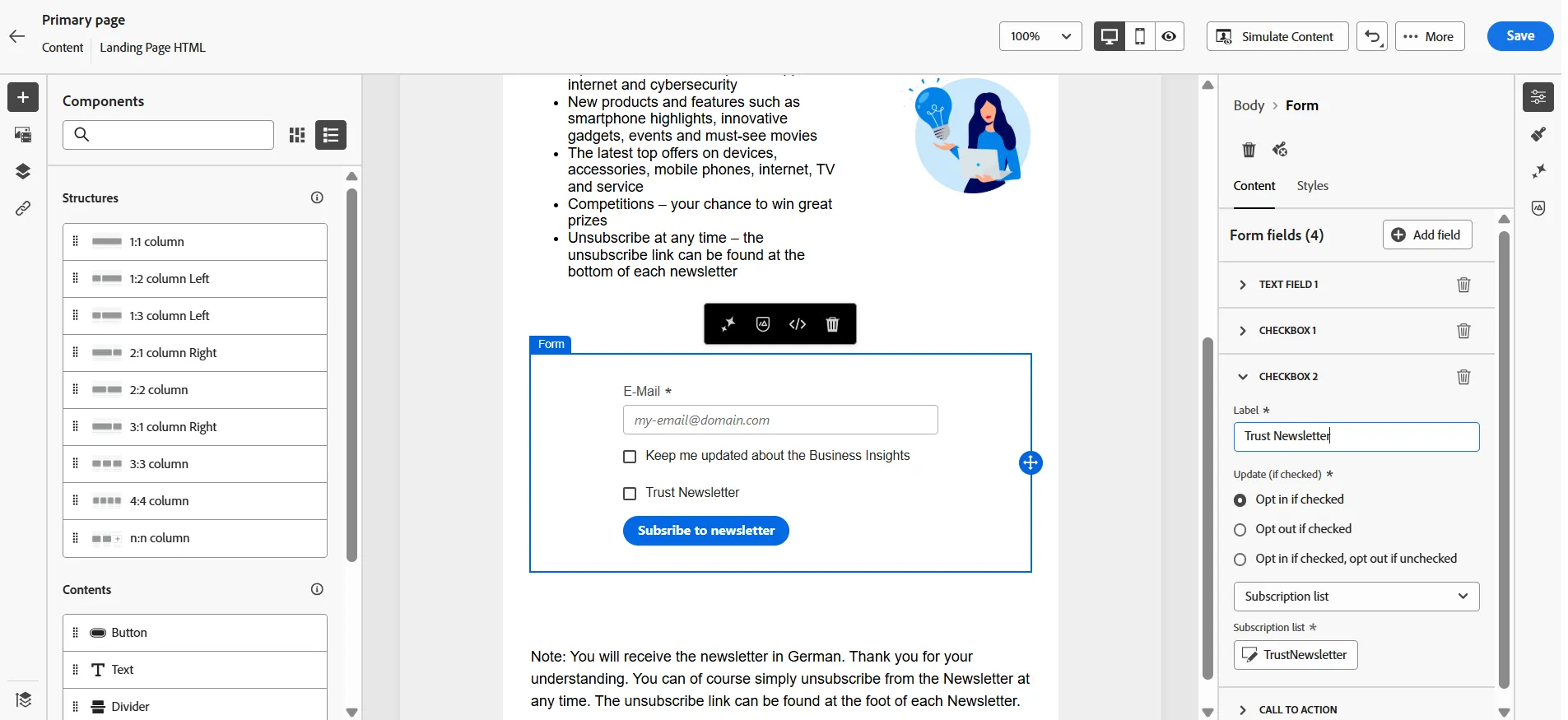
- Select the Form container
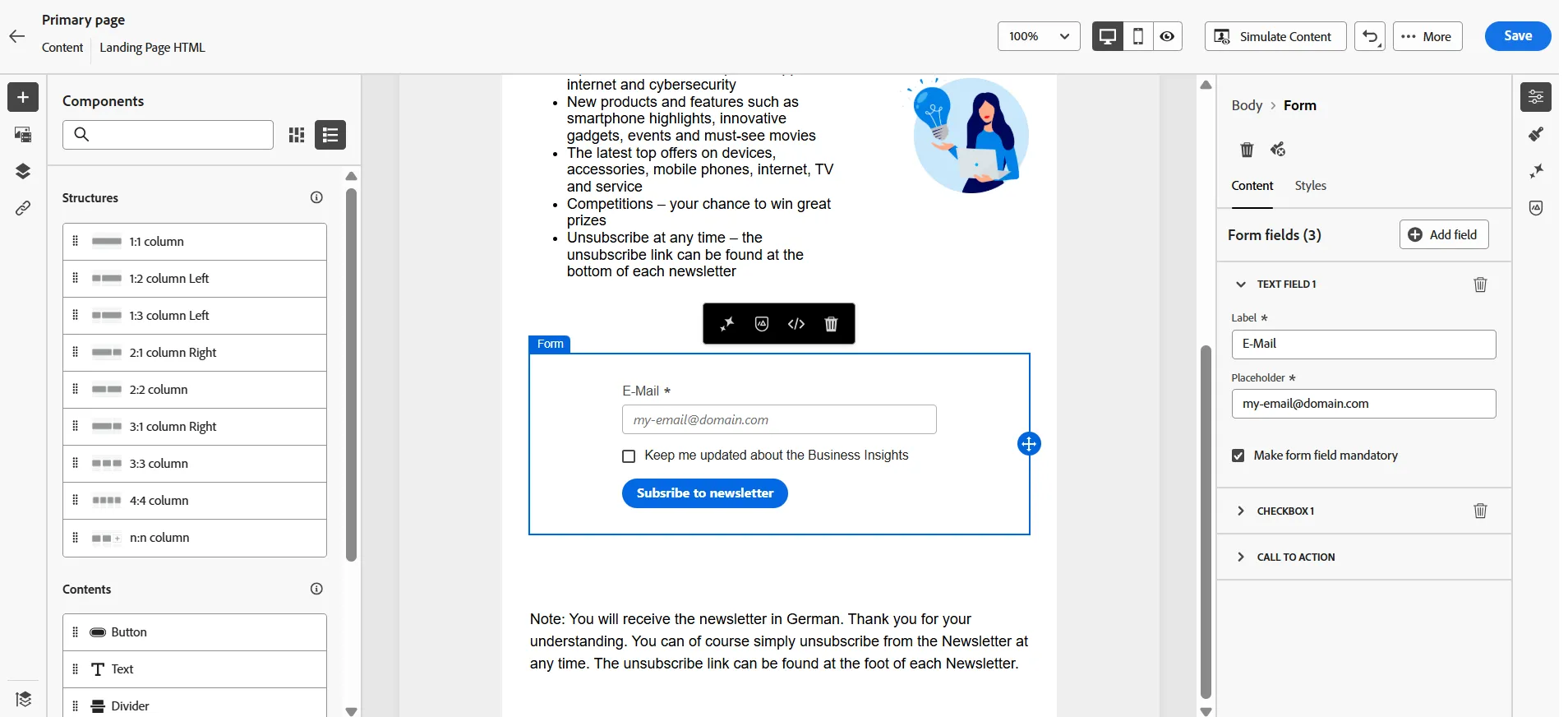
- In the right panel, click on the Add field button, then select Checkbox
- Click on Select subscription list button
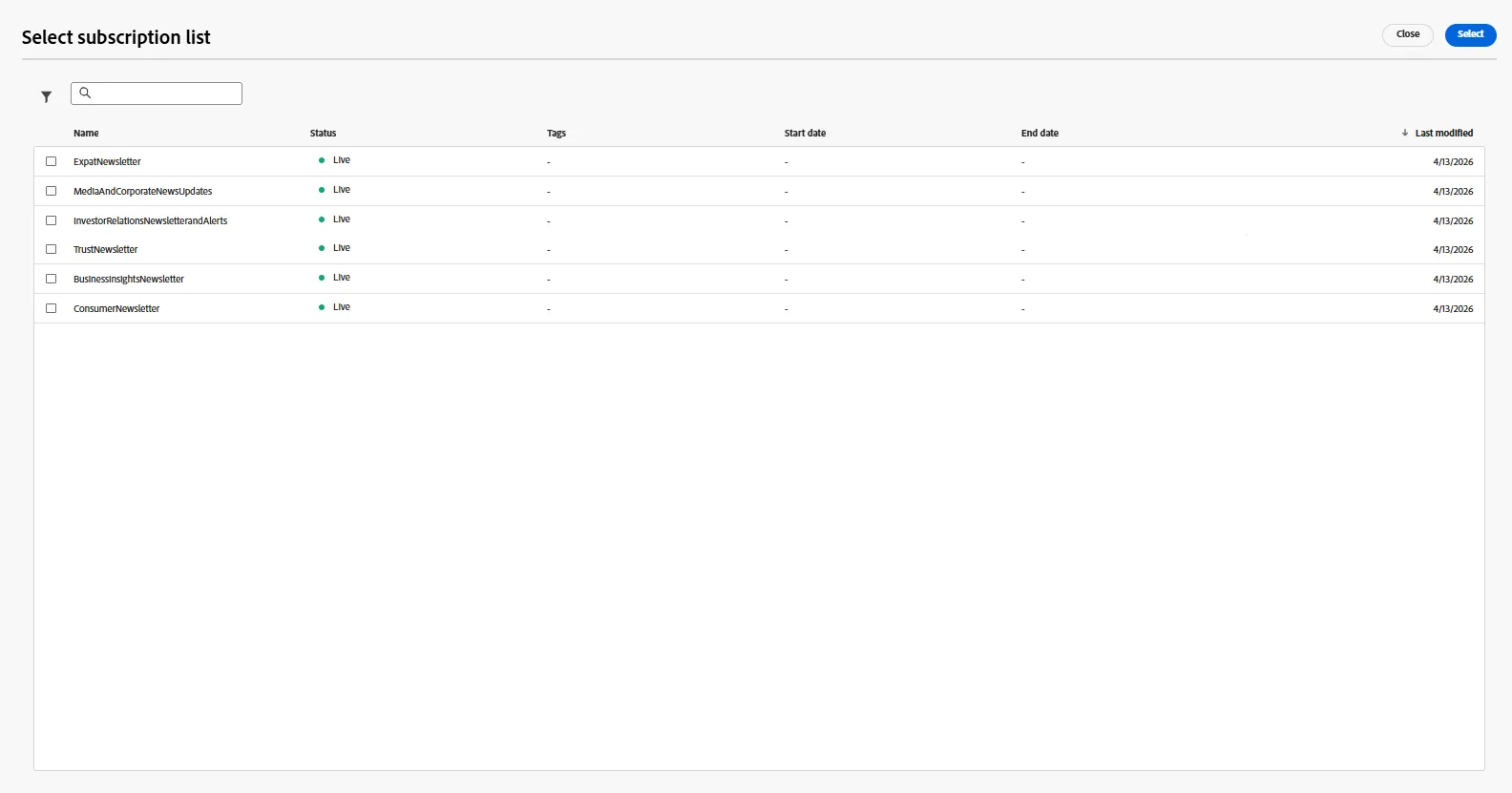
- Select TrustNewsletter subscription list and click on Select button
- Rename the label of the checkbox to Trust Newsletter
Audit the content quality with the Brand Alignment tool
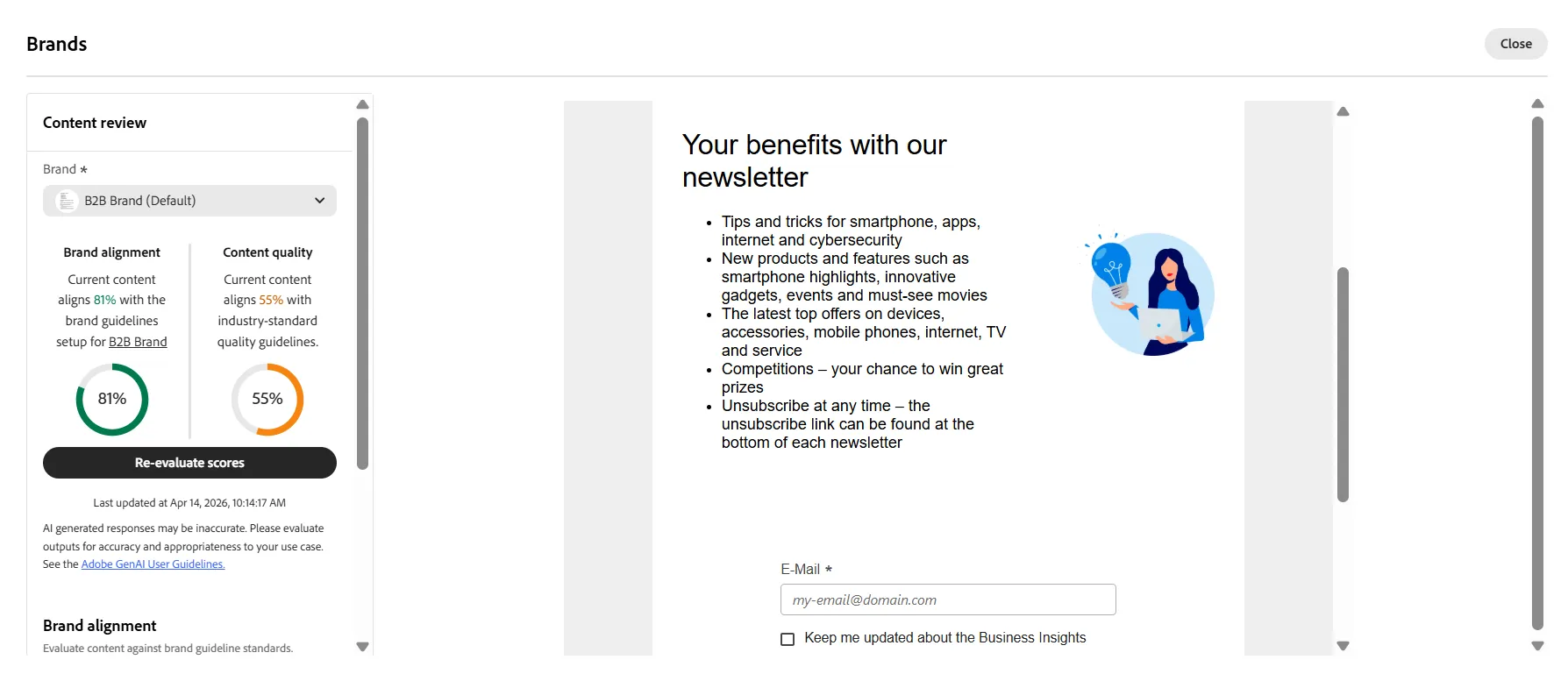
It's possible to check the content quality of the landing page by using the Brand Alignment AI tool:
- In the right panel, click on the Brand Alignment icon (4th down)
- Click on the Fullscreen icon to maximize the window
- Click on the Evaluate scores button
- Once evaluated, and you've read the guidelines that need reviewing, you can close the window.
Improve the content with Gen AI variations
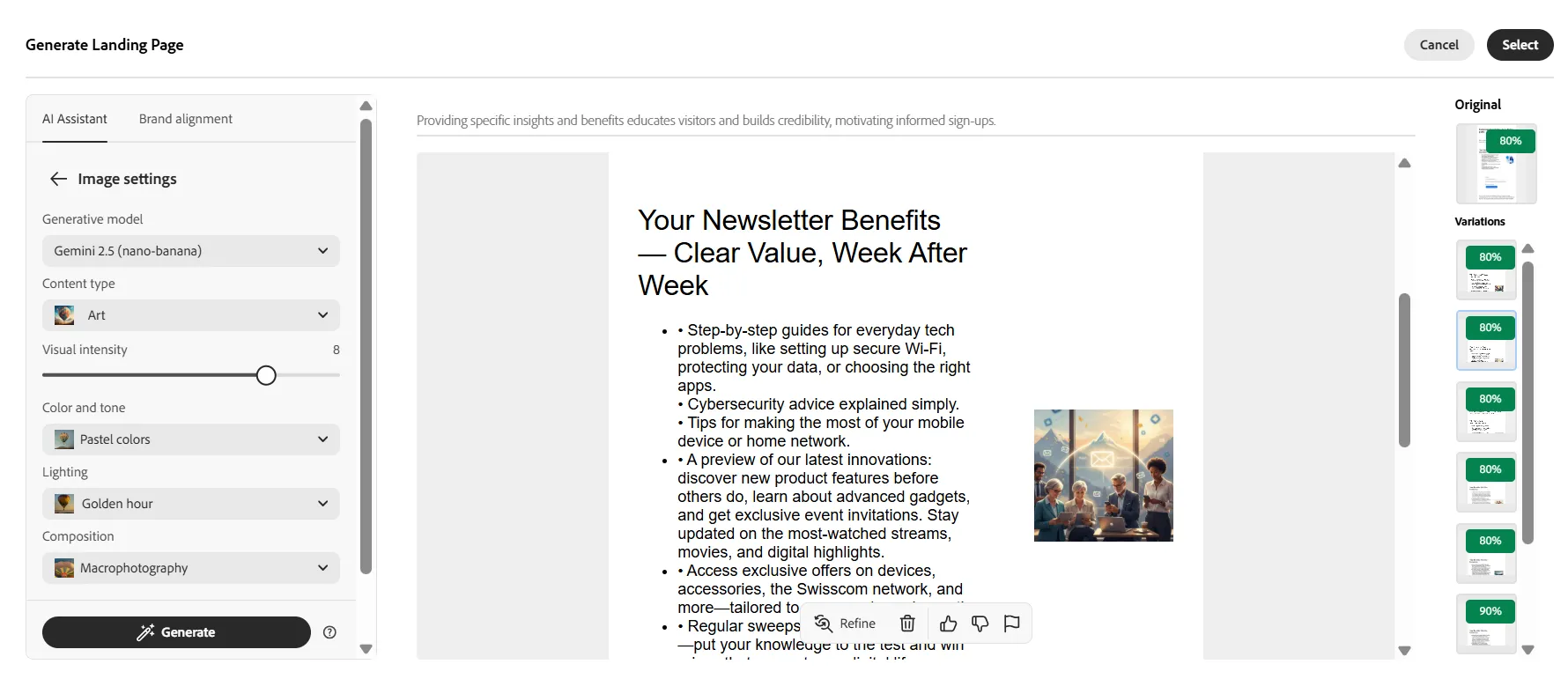
Ask the AI Assistant for improvements:
- In the right panel, click on the AI Assistant icon (3rd down)
- Note: Make sure you haven't got a component selected, you can navigate back to the email Body node in the Navigation tree in the right panel.
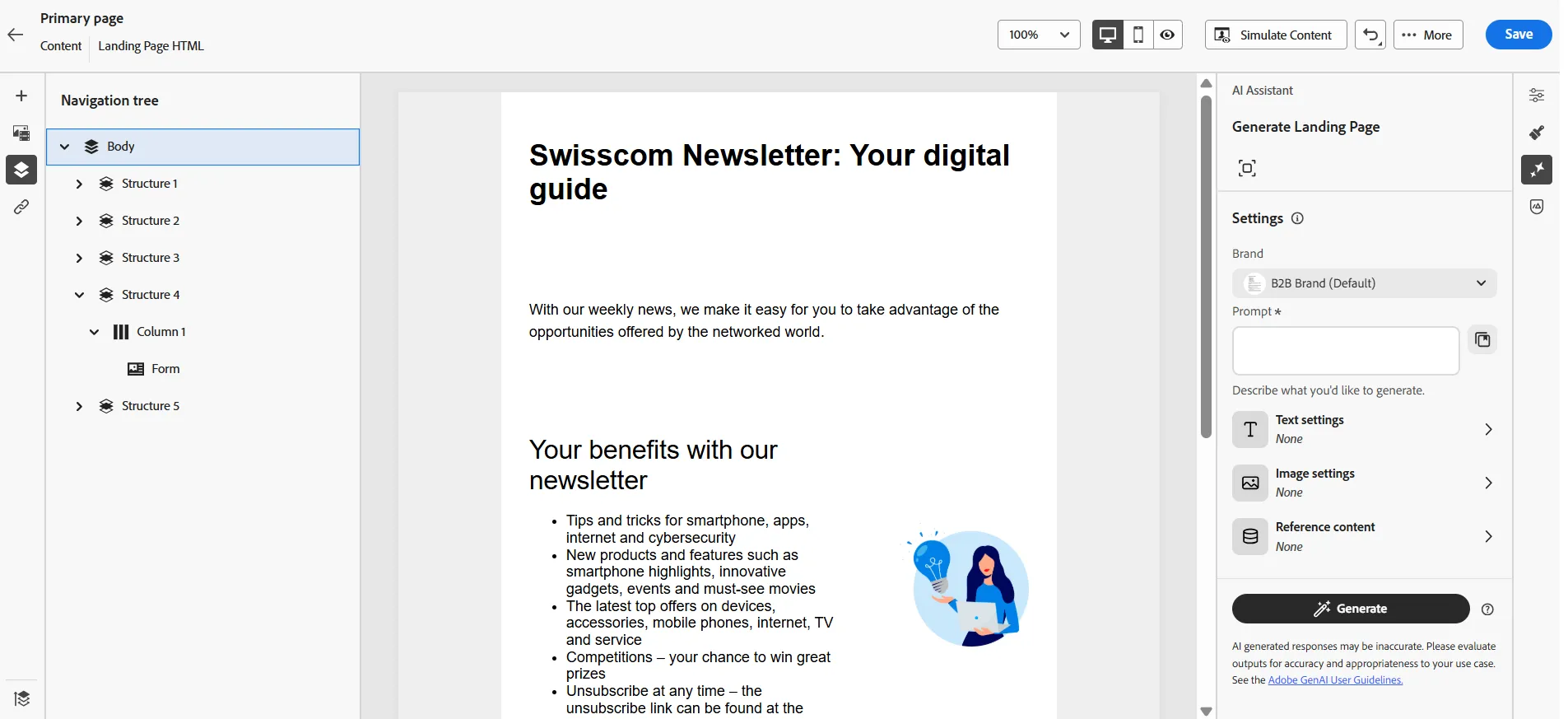
- Click on the Fullscreen icon to maximize the window
- Go to the Prompt Library and select a Lead Generation template
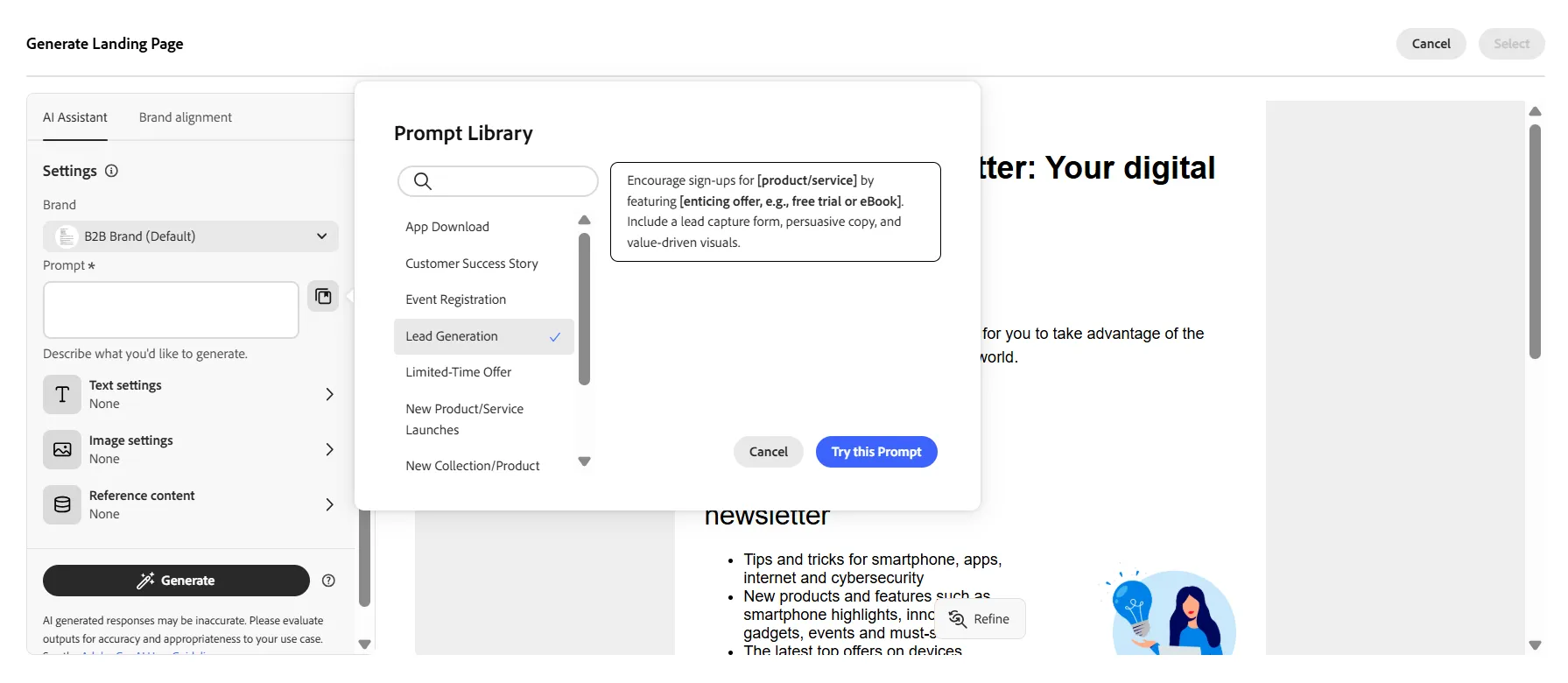
- Try this prompt
Encourage sign-ups for digital guide by featuring newsletter subscription. Include a lead capture form, persuasive copy, and value-driven visuals.
- Set Text settings to
- Communication strategy: Education & Insights
- Language: English
- Tone: Professional
- Set Image settings to
- Color and tone: Vibrant colors
- Composition: Wide angle
- Click on Generate button
- Look at the variations, select the best one or make a feedback to refine
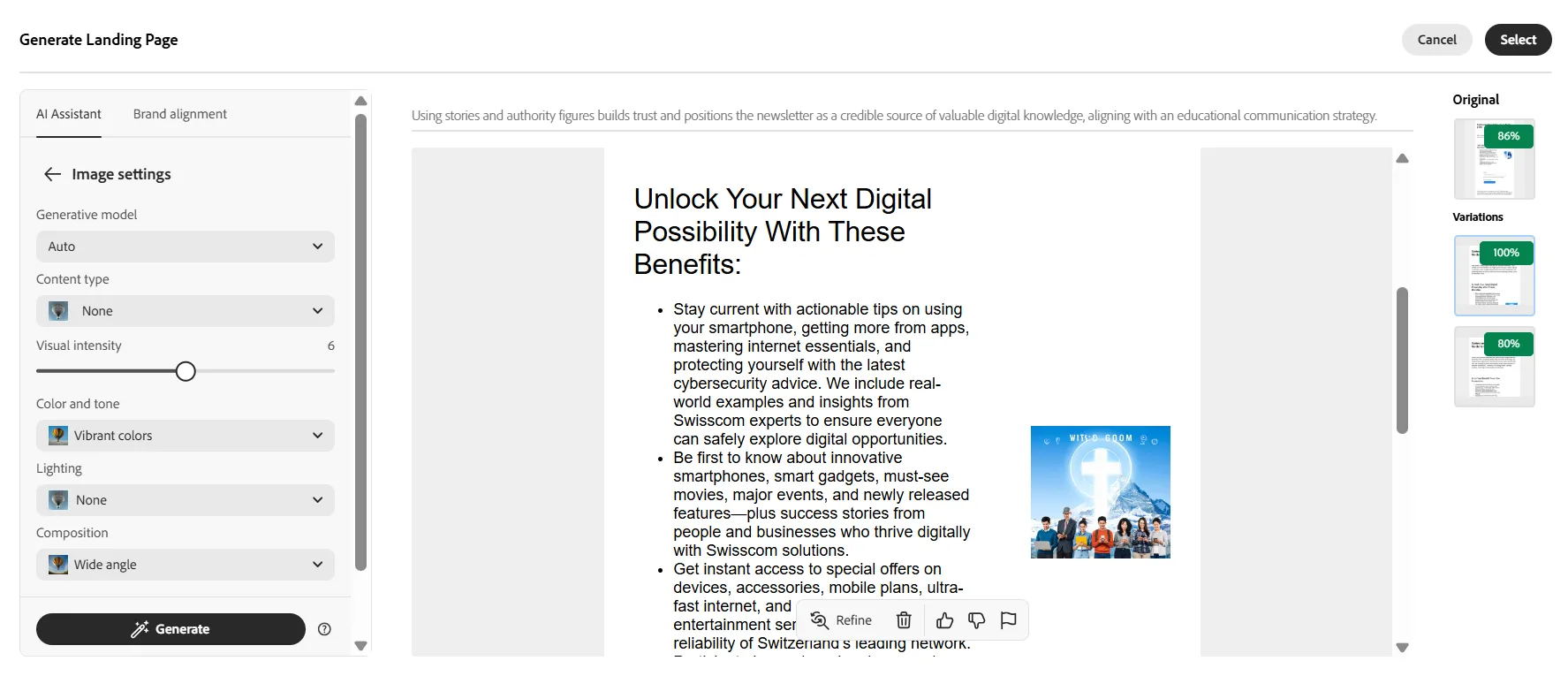
- In Image Settings, try another Generative model
- Gemini 2.5 (nano-banana)
- Generate new variations