Target Lab Resources - CVS
Lab required browser extensions
To participate fully in the lab you will want the following Chrome browser extensions installed on your machine.
- The Adobe Experience Platform Debugger browser extension for Chrome
- We use this to monitor requests to the Adobe solutions
- We also use it to deploy a custom Tags property to your site for the lab
- The Adobe Experience Cloud Visual Editing Helper browser extension for Chrome
- This allows us to load your site pages within the Visual Experience Composer of Target
If your device is not allowed to install extensions we recommend you seek approval from your IT or switch to a personal device; otherwise, you will mostly be limited to watching the lab rather than doing hands-on exercises.
Sites used in the lab
- Adobe Data Collection UI (Tags, Datastreams and Event Forwarding all located here)
Login details
Lab # | Person | Login Email |
|---|---|---|
01 | Andrew | |
02 | Amit | |
03 | Tejas | |
04 | Rohith | |
05 | Laxman | |
06 | Shanthi | |
07 | Carly | |
08 | Rekha | |
09 | | |
10 | | |
11 | | |
12 | |
Usernames and passwords
Your username uses your lab # above in place of the "##":
username | password |
|---|---|
trg.u##@pot5.aephandsonlabs.com | cvsTarLab_0725 |
Target Deployment via AEP Debugger
To deploy Target for the lab we'll use an existing Tags property and the Adobe Experience Platform Debugger to inject our Tags deployment onto the site (for the lab users only).
Tags script to add
<script src="https://assets.adobedtm.com/d488cb72429b/745a813907dc/launch-8f16ad720def-development.min.js" async></script>
Deployment steps
- In a new browser tab, navigate to your sites
- Open the Adobe Experience Platform Debugger
- If you don't have it installed, please install for Chrome.
- With the debugger open, reload the website and click the Lock button in the bottom right corner of the debugger. The debugger will detect the Adobe tags currently on the page.
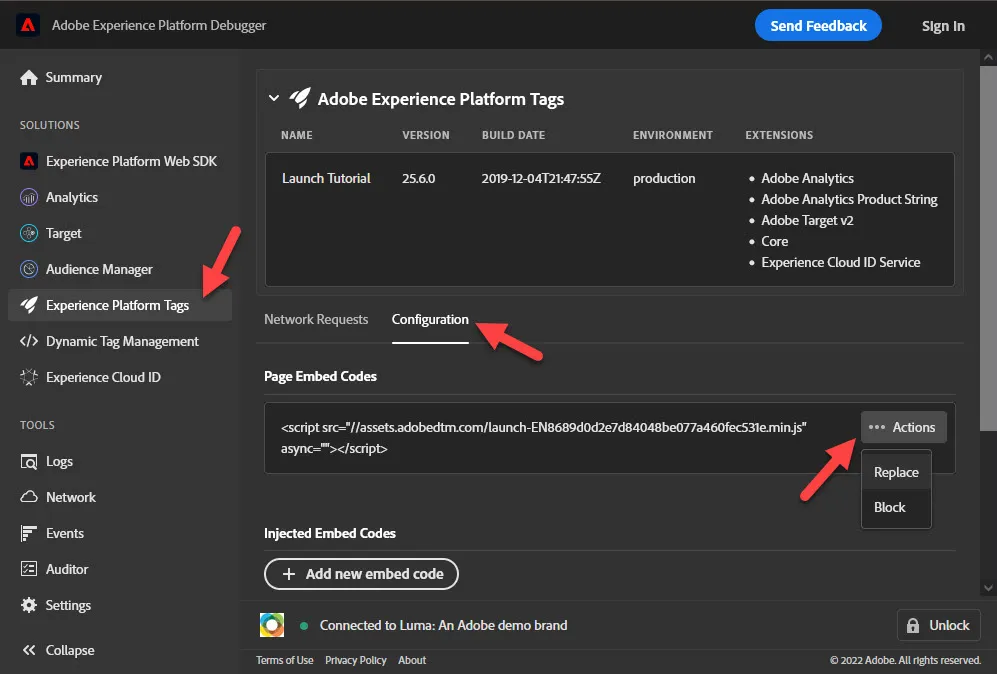
- In the debugger, click Experience Platform Tags in the left nav and select the Configuration tab.
- Part way down the window you should see Page Embed Codes
- If you see one listed here with a 3-dot Actions label to the right of it. Click the action and choose Replace.
- Paste the Development implementation code previously copied to the clipboard and click Apply.
- If you do not see any Page Embed Codes listed then
- Click the Add New Embed Code button under the Injected Embed Codes section
- Paste the Development implementation code previously copied to the clipboard and click Apply.