Website
We've created a Tesco Demo website for use in these Labs. To fully enjoy the Hands-on Lab experience, we recommend you open it in a separate tab in your in your browser.
Tesco Demo Website
You'll need to use a fresh, incognito browser window to load the Demo website if you want to create a new profile aside from the one that's been created for you in the lab.
If you are prompted to allow cookies, please do so.
Open the Tesco Demo Website in a new tab.
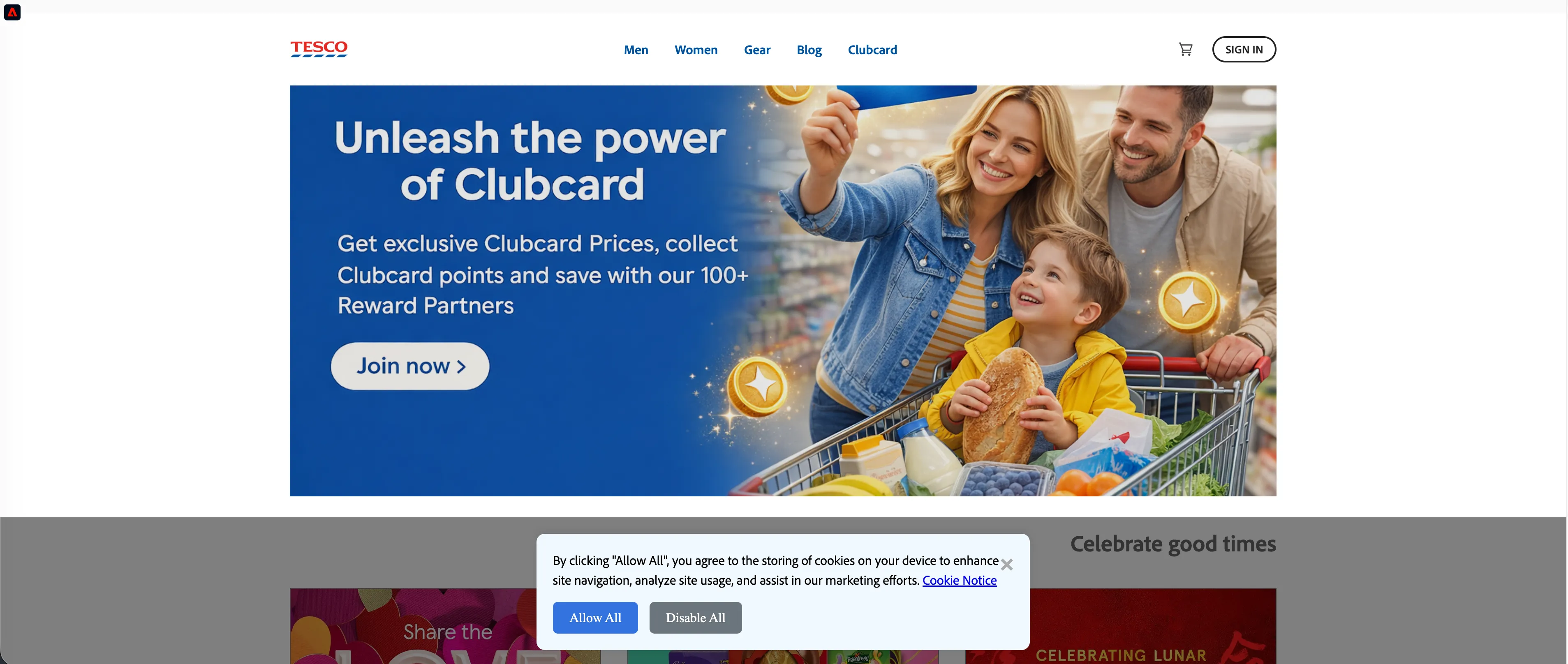
Showing the Real-time Customer Profile
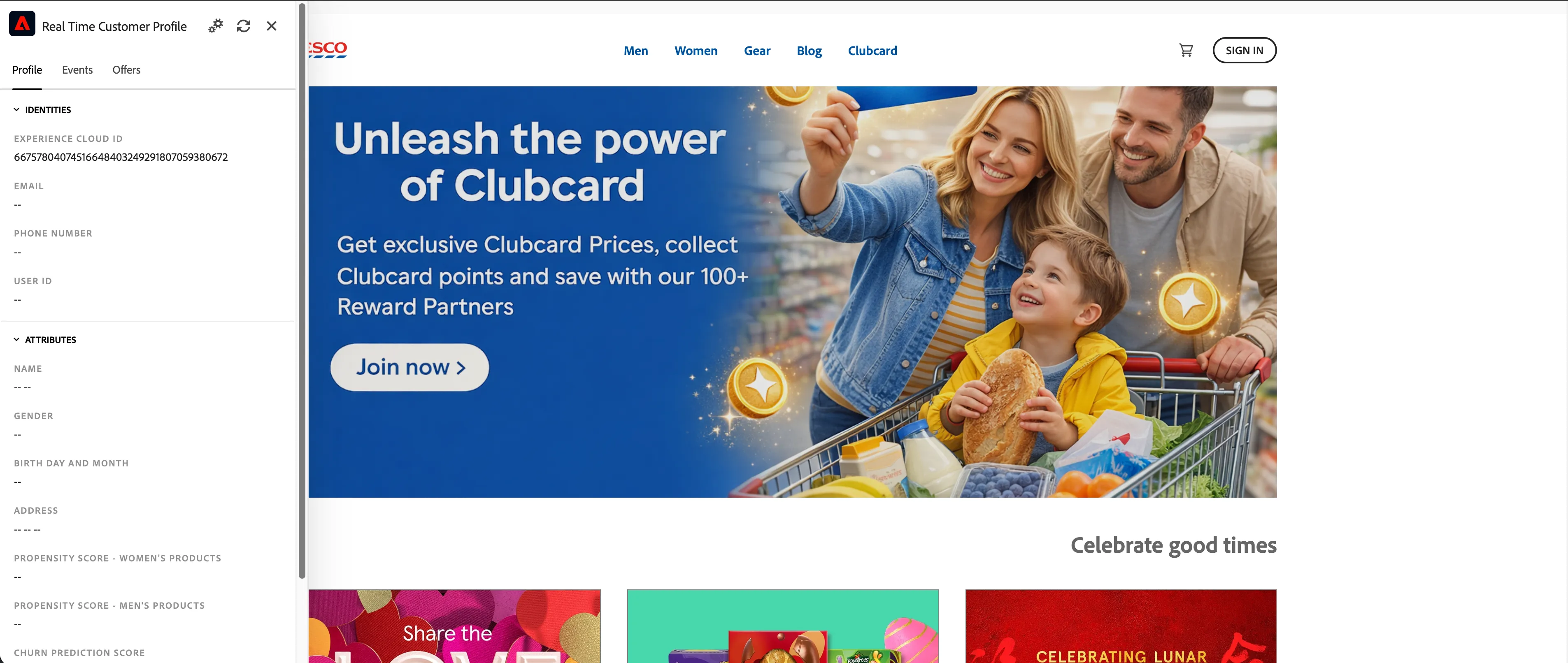
The demo website has been extended to include a view inside Adobe Experience Platform. This allows you to look at the Real-time Customer Profile and see what data is being gathered live!
- Click on Adobe logo in the top left of the screen.
This will open a panel with several tabs, we'll be using the first 2 tabs only during today's session.
Profile: this tab shows all the identities and attributes we know for this profile as well as audiences this profile qualifies for. Additionally this tab offers some utilities like a direct link to view the profile in Adobe Experience Platform.
Events: this tab shows all events for the profile. These update in real-time and will show any action the profile takes on the website. Go ahead and try to click through the website and see how your profile events are being gathered.
Login to the website (optional)
You can continue to browse and see the events are recorded on each interaction.
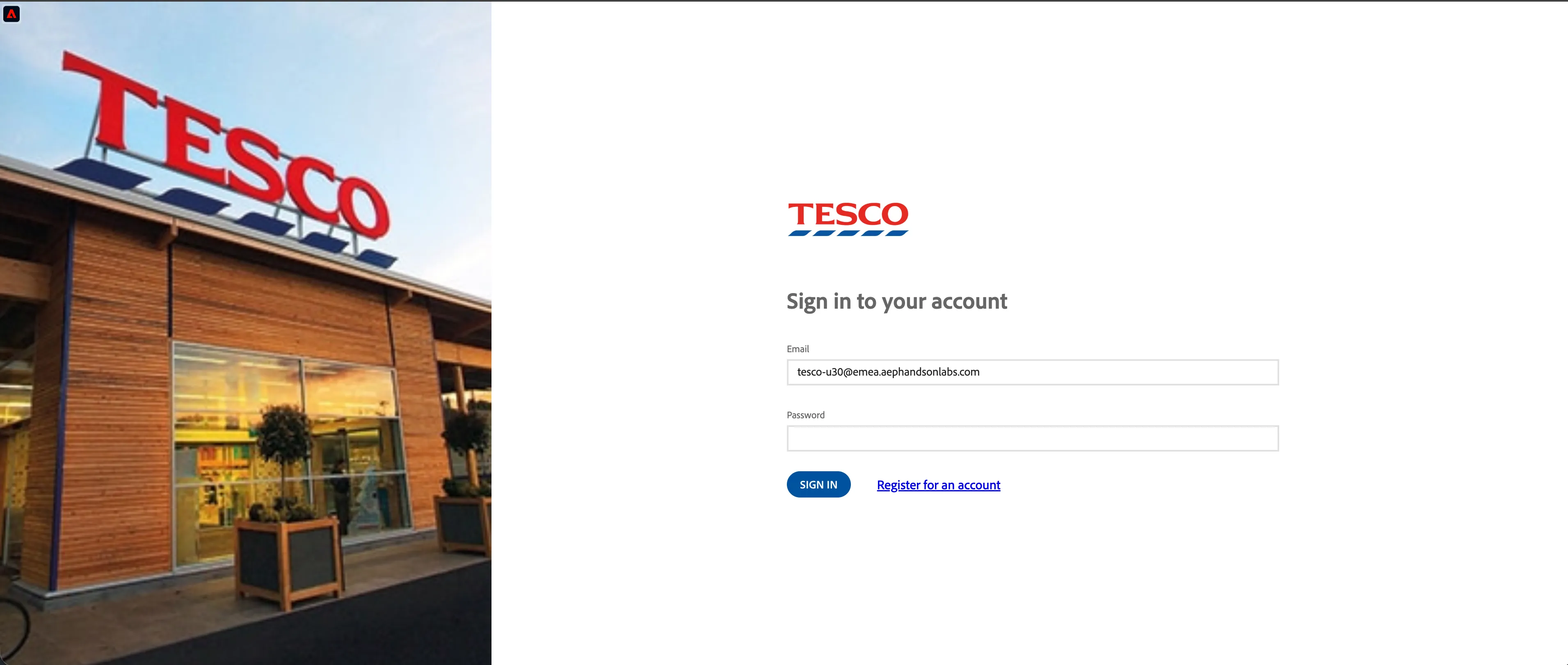
Click on Sign In button.
Login to the website using the same email you logged in to Adobe experience platform eg. [email protected] with XX as your assigned ID number. You dont need any password.
Click Sign in.
This will take a minute but this will stitch all your anonymous browsing data on to your profile. Once stitched, profile viewer will show the profile details as well.
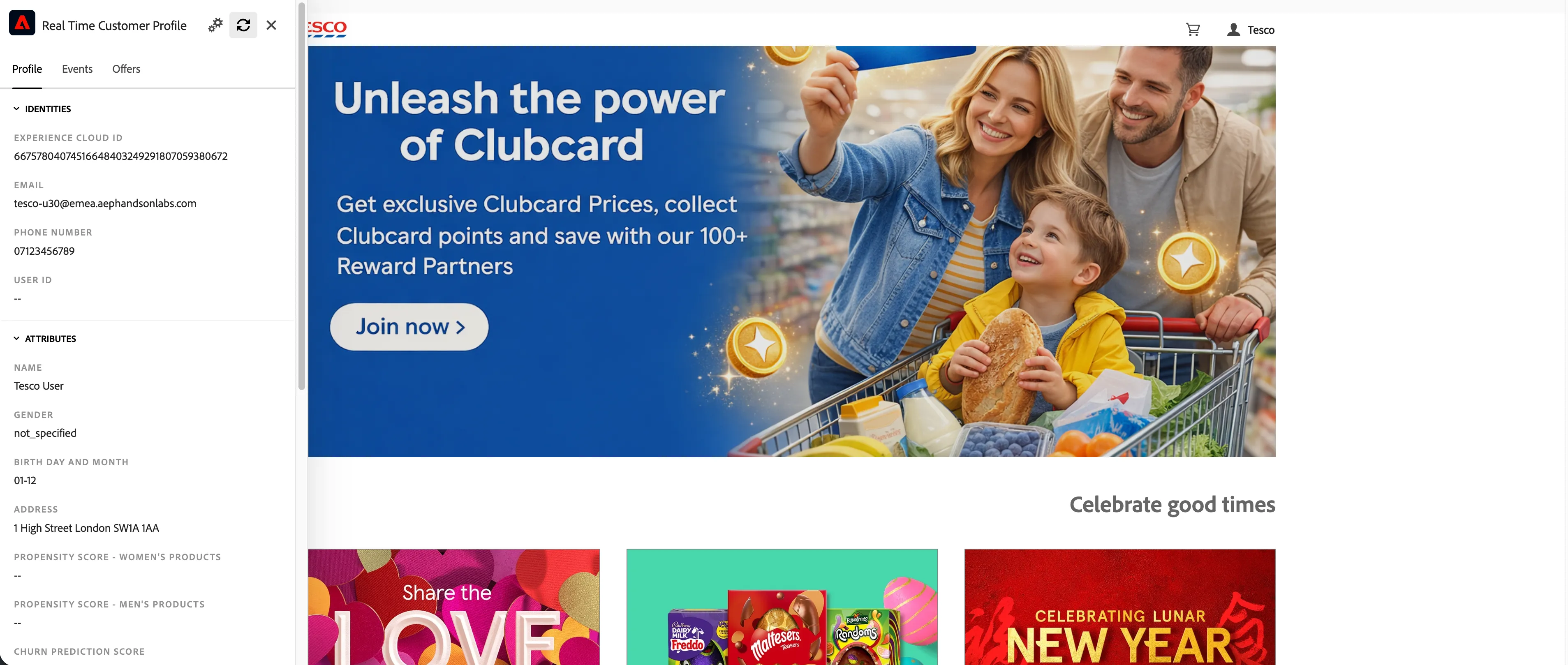
If changes to the profile attributes and/or events are not reflecting instantly, try clicking the refresh icon in the panel or refreshing the page.
If you want to try with a fresh new profile, open the demo website in an incognito window. This will generate a new Experience Cloud ID (ECID) so you can start with an empty (unknown) customer.