Current content authoring process
Introduction
In this exercise, you'll manually add and configure a teaser block on your homepage using the Universal Editor — Adobe CX Enterprise's WYSIWYG authoring interface for content authors.
Open your page in Universal Editor
- Open Adobe Experience Manager Sites in a new tab.
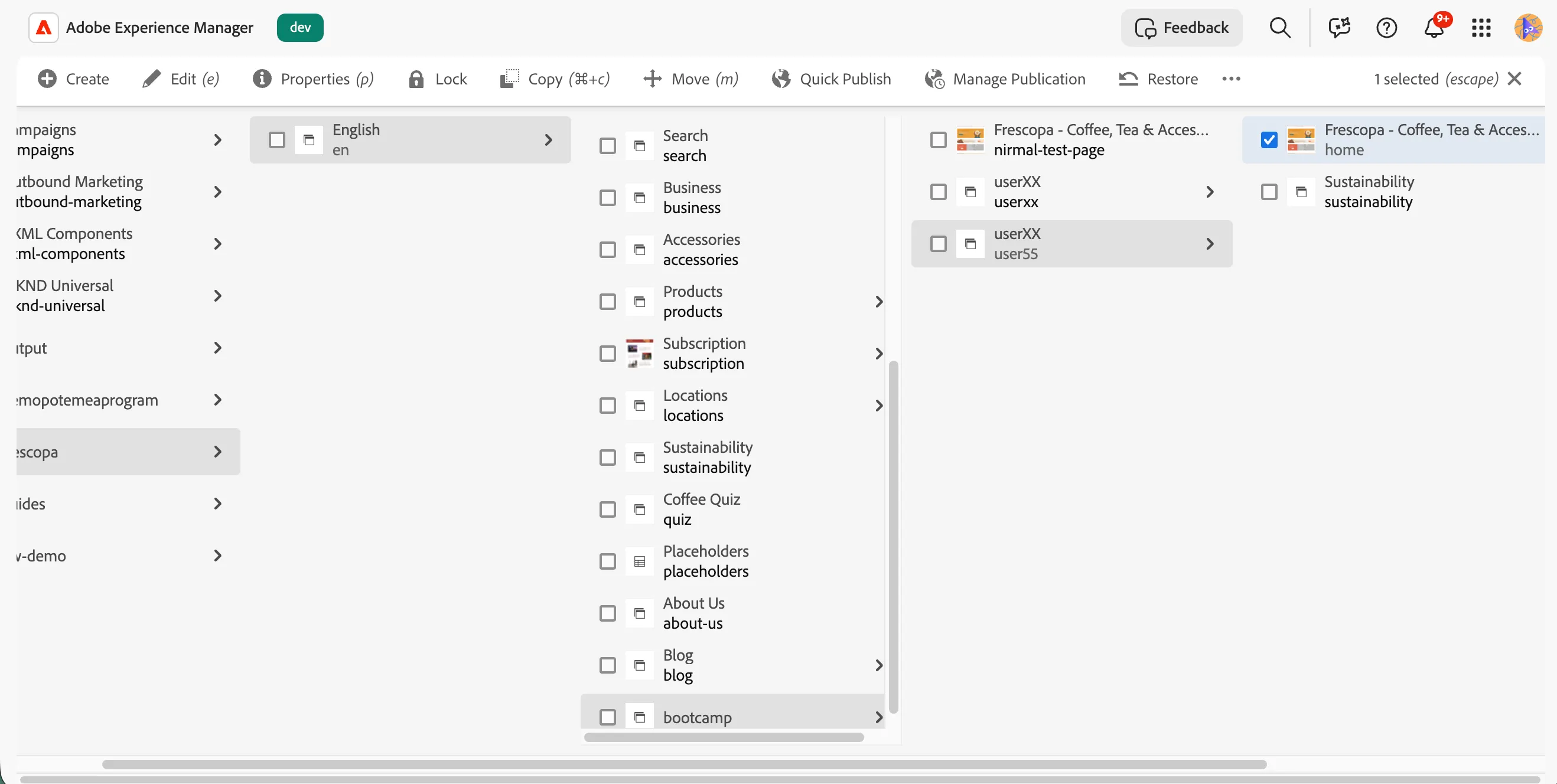
- Navigate to Frescopa > English > bootcamp > User XX, replacing XX with your user number from the log in email.
- Select the Home page by checking its checkbox.
- Click Edit in the top menu. This will open your homepage in the Universal Editor.
Add a teaser block
Now lets add a teaser block at the bottom of the page.
- Scroll down to the bottom of the page.
- Click on Content Tree icon on the right side menu.
- Select Main Content section from the content tree.
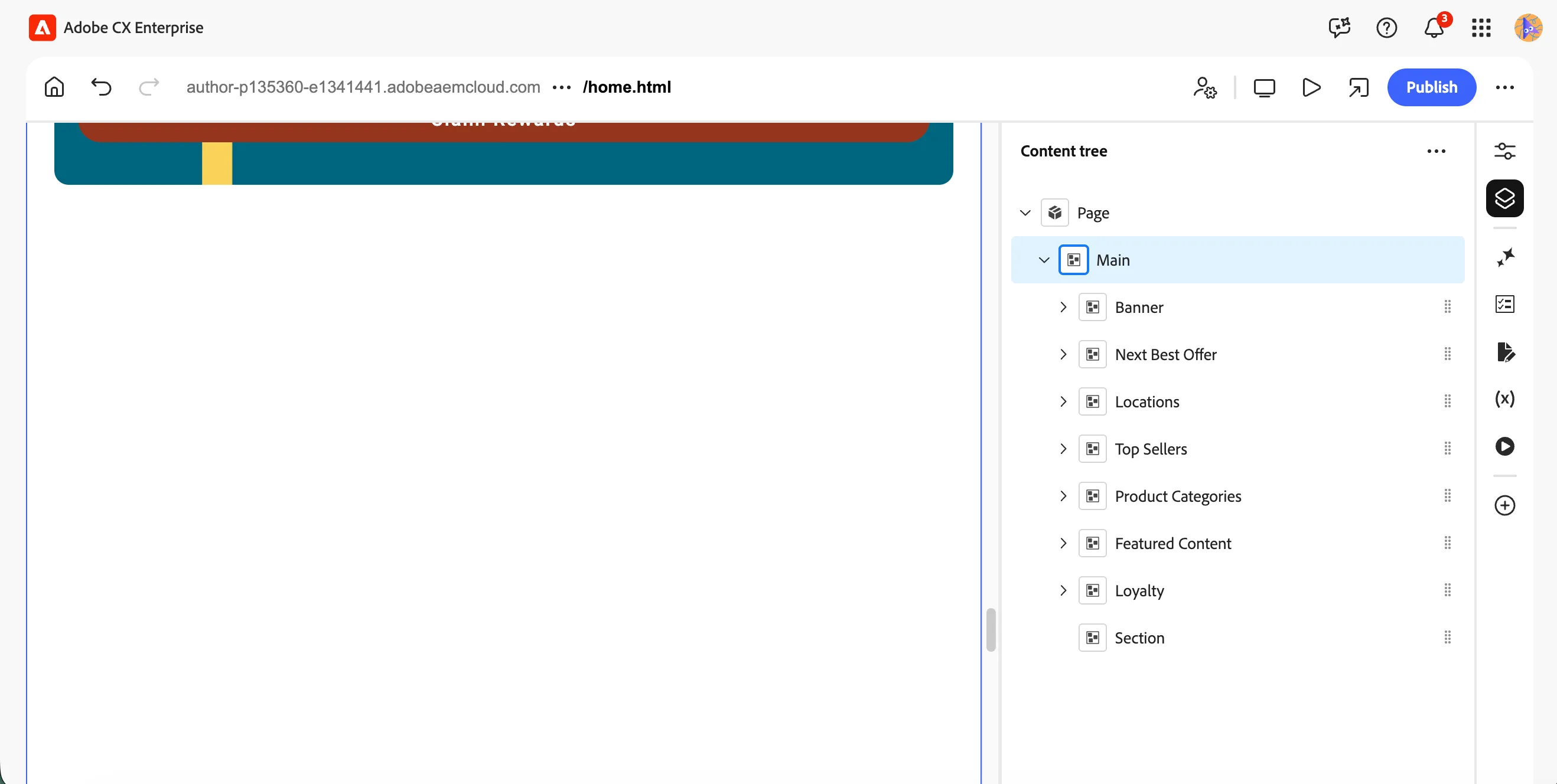
- Click the + icon inside the main block to add a new section at the bottom.
- Click on the section block in the content tree to show options for the section. You will see it highlighted with a blue outline and a Section label at the top.
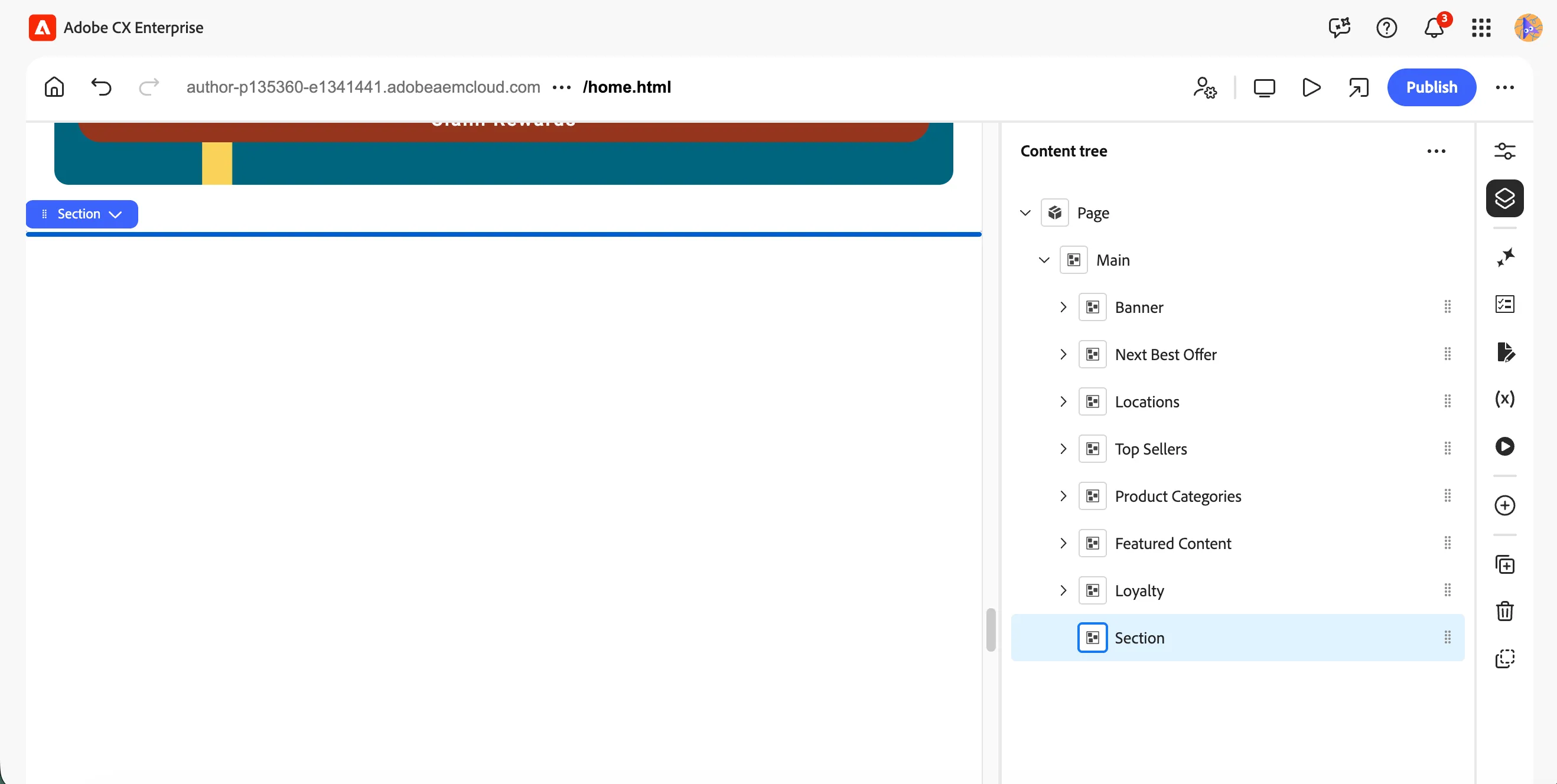
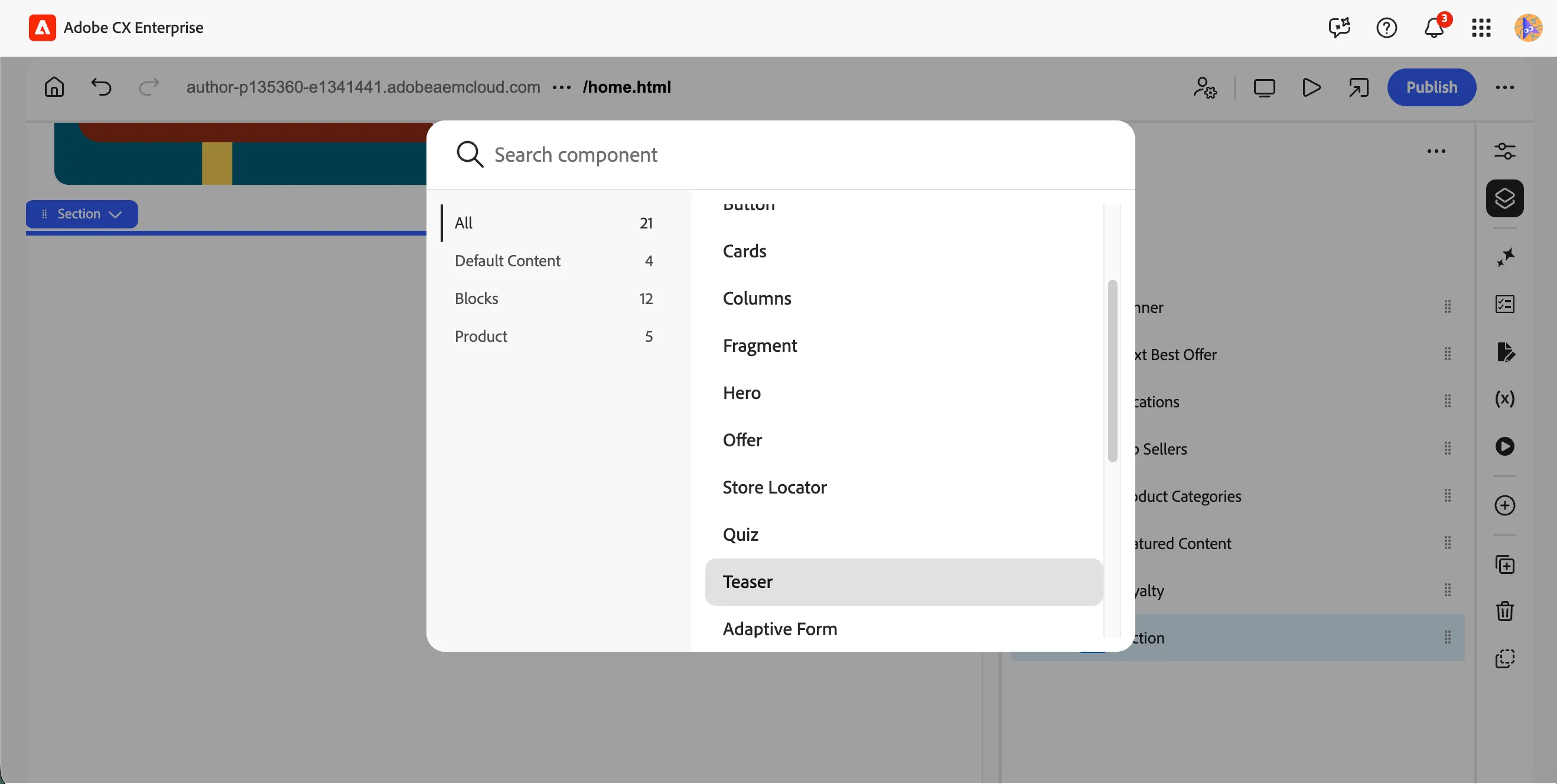
- Click the + icon inside the section to add a new component. This will open the component picker.
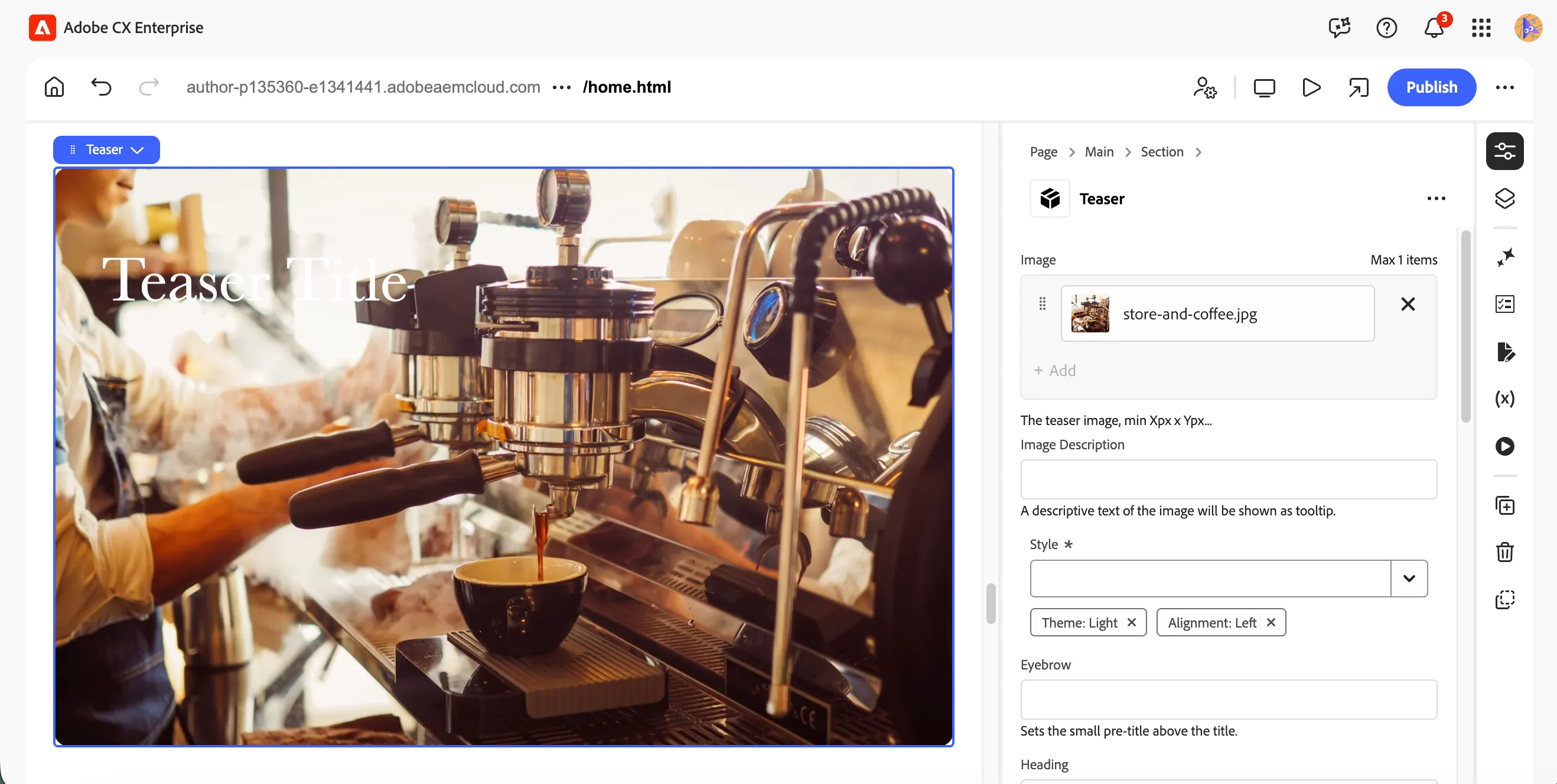
- Select Teaser from the component list. A new teaser block will be added to the section with default placeholder content — Teaser Title — visible on the canvas.
Configure the teaser block
Now lets configure content inside the teaser block.
- Expand and select Teaser block in the content tree.
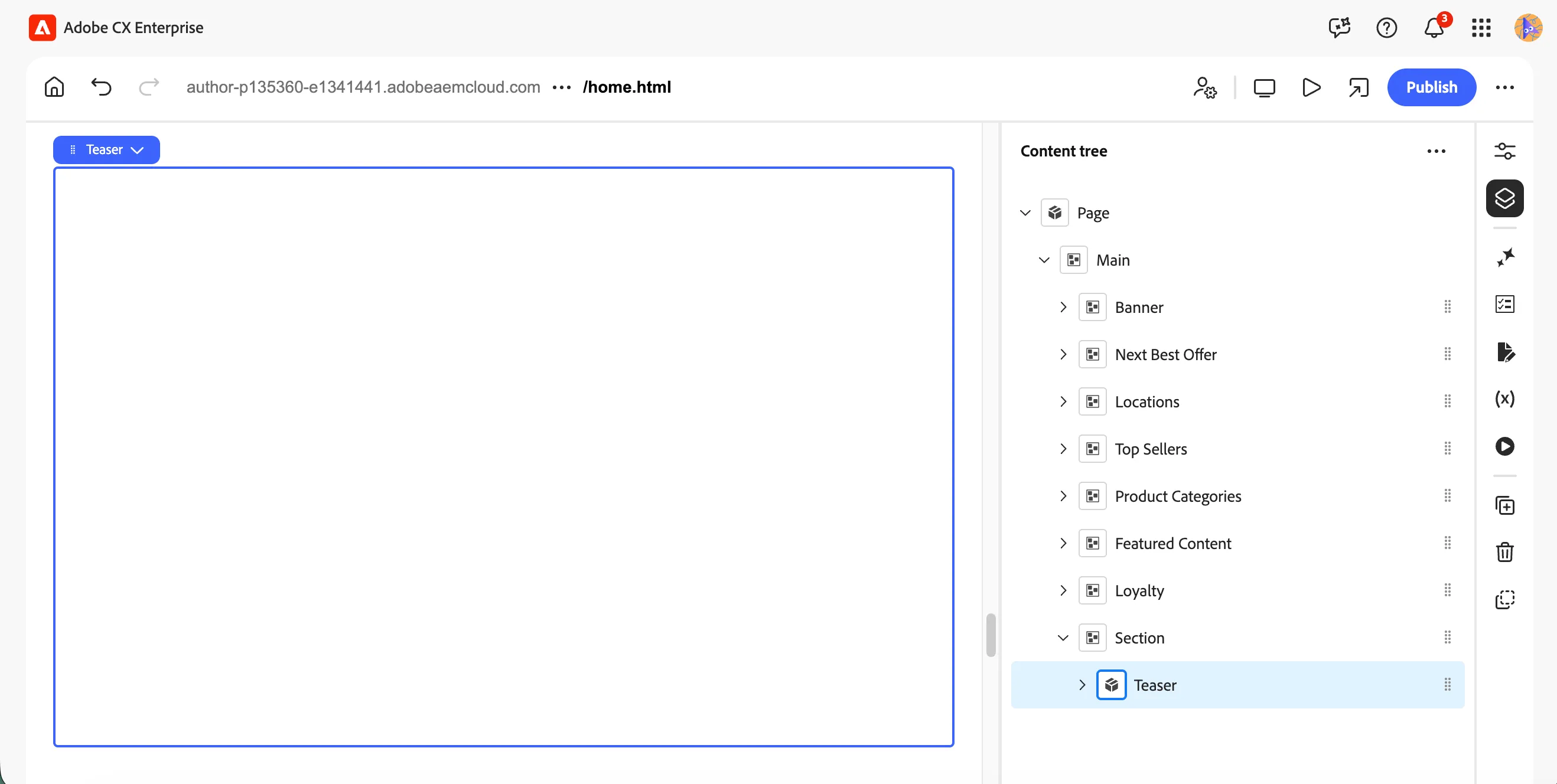
- Switch to properties view by clicking on properties icon on the right side menu.
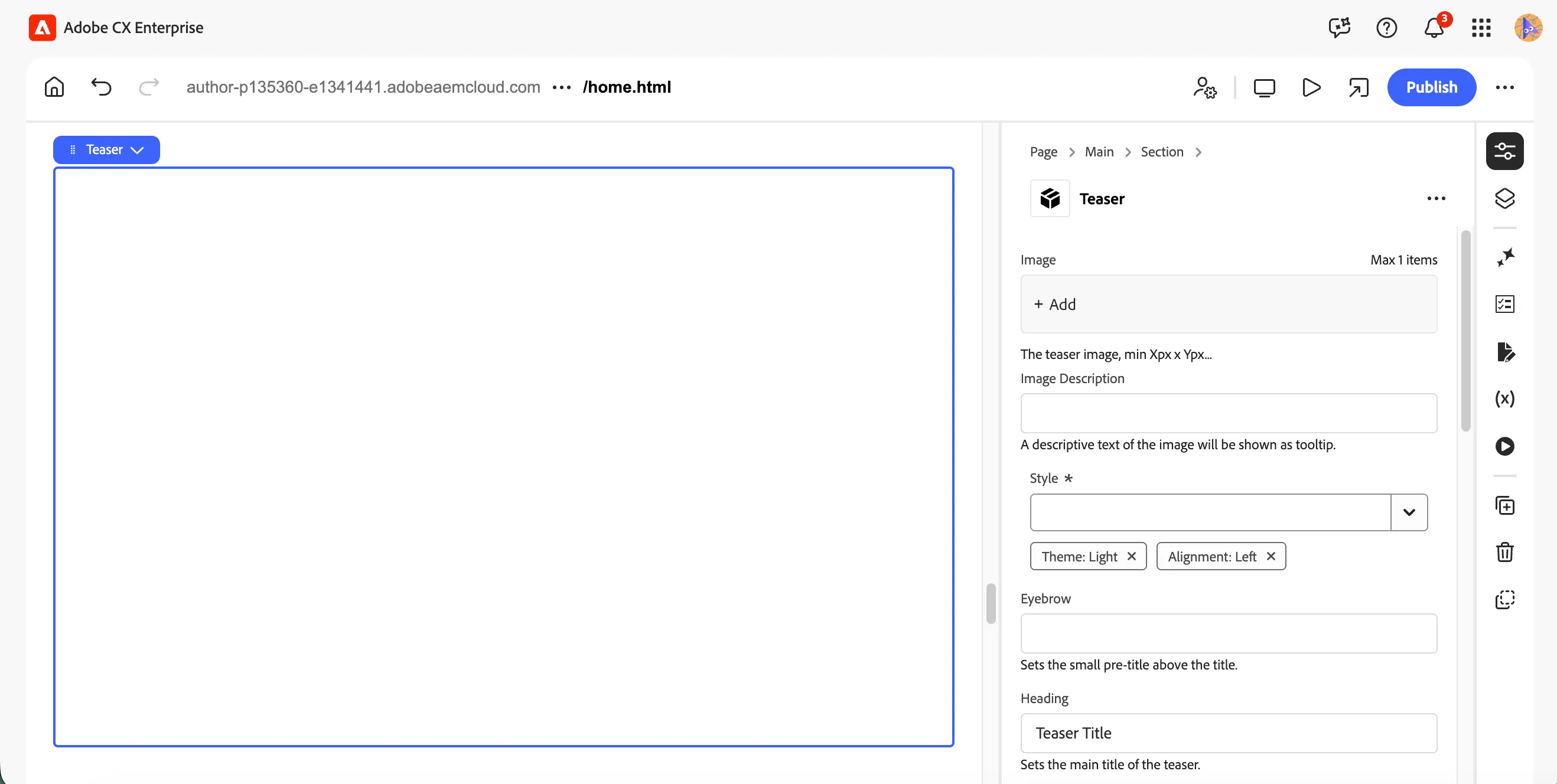
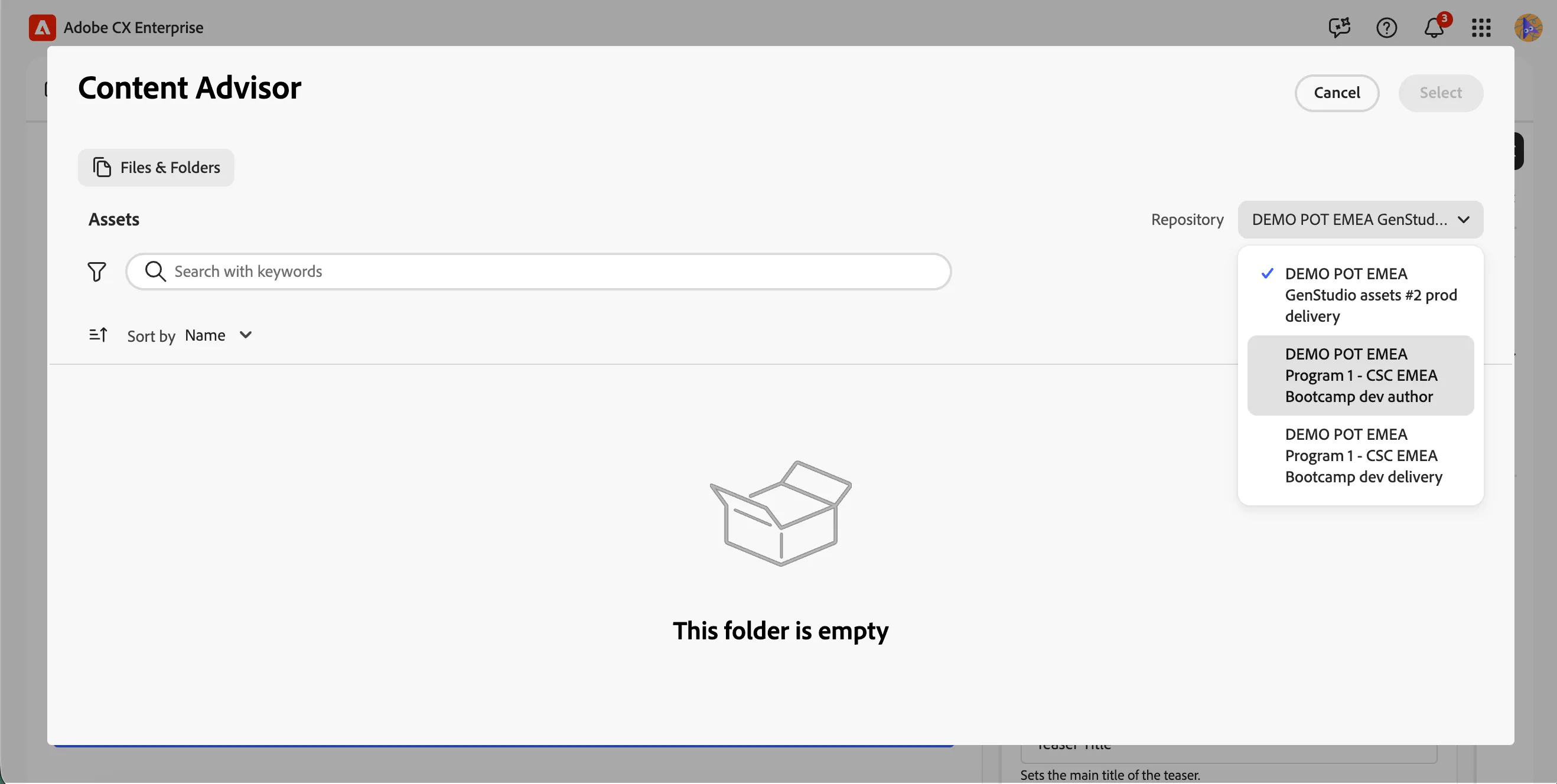
- Click the +Add in the image field at the top of the Teaser properties panel. This will open the Content Advisor asset picker.
- Ensure you select DEMO POT EMEA Program 1 - CSC EMEA Bootcamp dev author repository
- In the left panel, navigate to frescopa > en to browse the Frescopa asset folder. Search for coffee
- Select your desired image asset and click Select. This image will update immediately on the canvas.
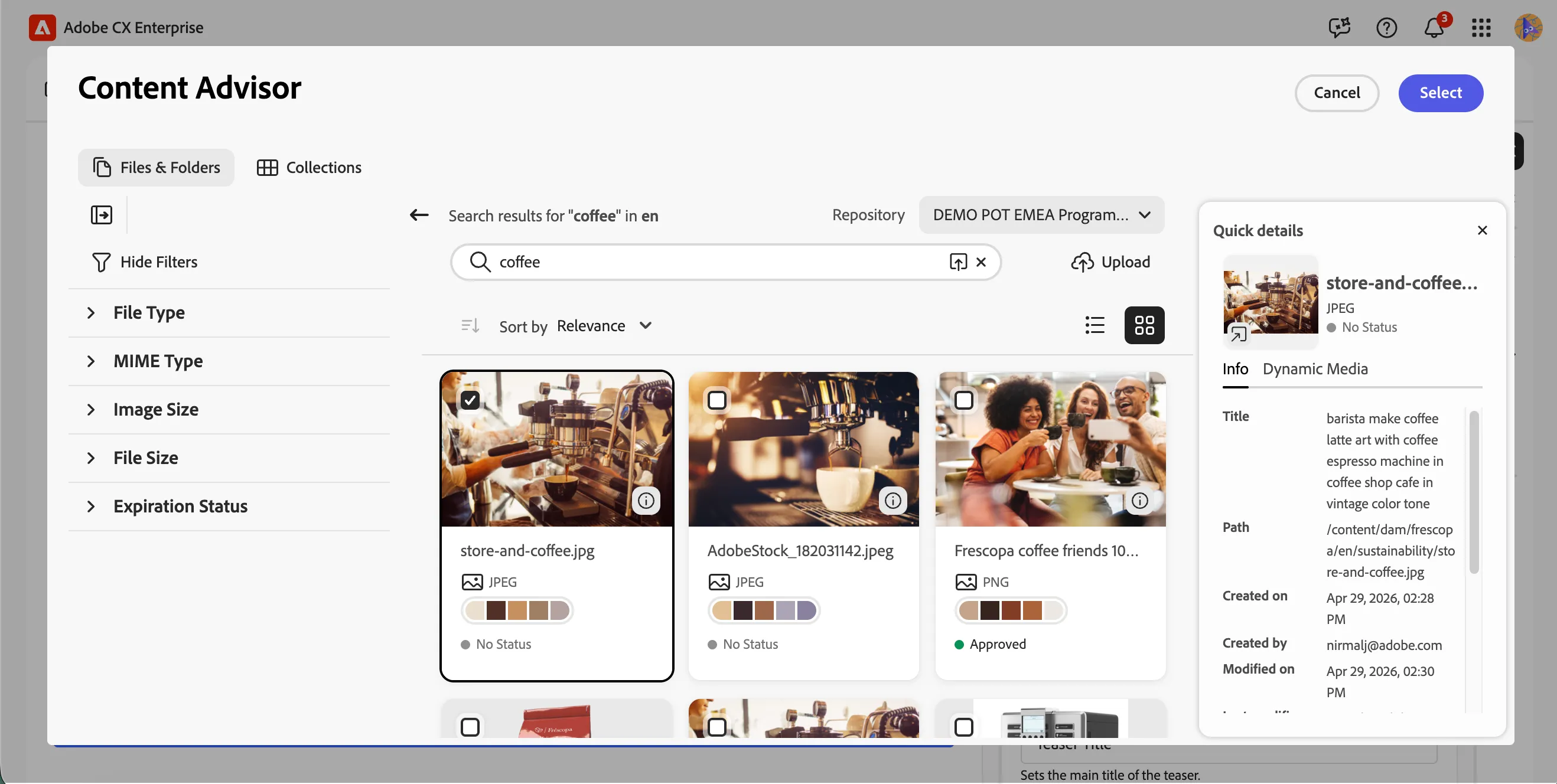
The image will update immediately on the canvas.
Configure the teaser content
Now fill in the teaser text fields in the properties panel on the right.
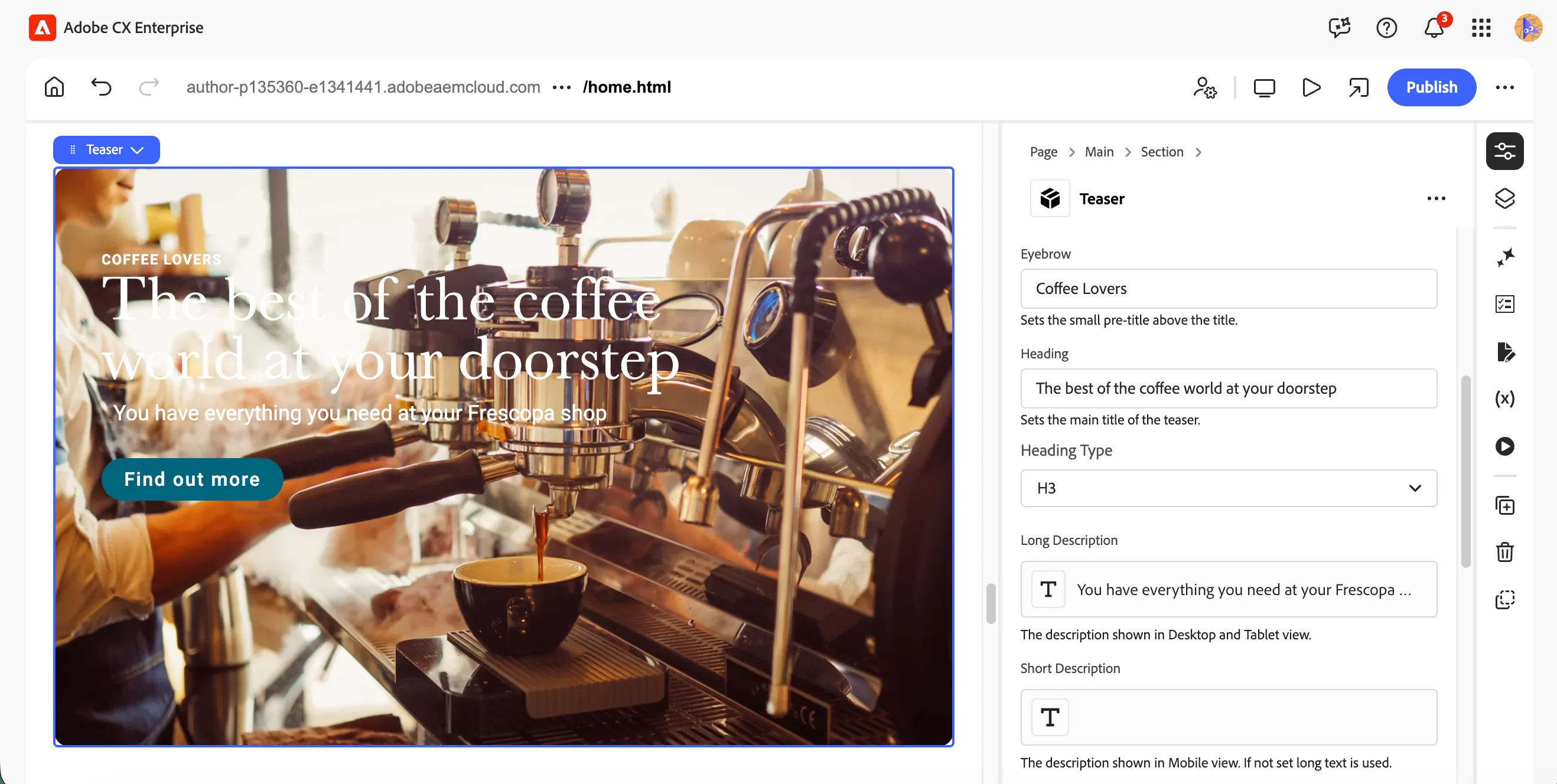
- Enter the Eyebrow text. This is the small pre-title displayed above the heading. For example: Coffee Lovers
- Enter the Heading text. This is the main title of the teaser. For example: The best of the coffee world at your doorstep
- Click the Long Description field to open the rich text editor. Enter your description text and click Done when finished. For example: You have everything you need at your Frescopa shop
Your teaser should now display the eyebrow, heading, and description live on the canvas.
Configure the CTA
Scroll down in the properties panel to configure the call-to-action button.
- Set the First CTA Type to Primary. This renders the button as a filled button style.
- Enter the First CTA Text. This is the label shown inside the button. For example: Find out more
- Enter the First CTA Link. This is the URL the button will link to. For example: /coffee
The teaser block on the canvas will update in real time as you fill in each field.
Publish the page
Once you are happy with the teaser content and layout, publish your changes to make them live.
- Click the Publish button at the top right of the Universal Editor.
- Select Live and click Publish. This will publish your changes to the live website URL.
You have successfully added and configured a teaser block in the Universal Editor. The teaser is now live on your homepage with a hero image, eyebrow, heading, description, and CTA button.