Creation of asset
Introduction
We now have the Creative Layout task assigned to you and now lets do it. The ask is to create a hero banner for the welcome email in the honeymoon journey.
In the real world, it may be any of our enterprise creative software such as Adobe Photoshop or Adobe illustrator which has a native workfront integration. In these software, creative team will get their tasks from workfront readily available in the tool of their choice.
For this exercise, we will be using Adobe Express as our asset creation tool for this lab. Open Adobe express
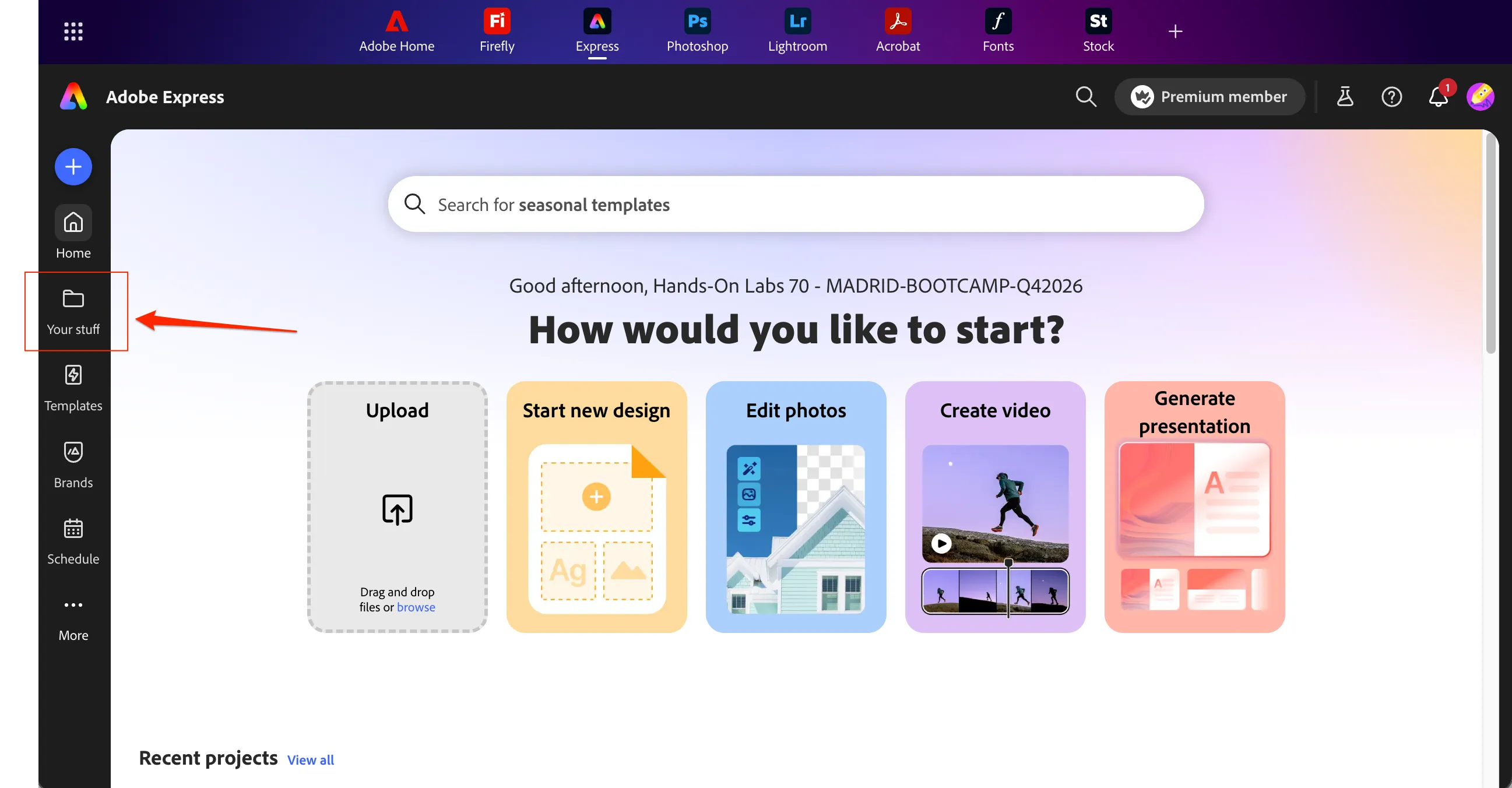
Once logged in, you should land on the Adobe Express Homepage as below.
Starting from brand templates
- Click on Your stuff in the left hand menu.
- Go to Projects tab and
- Select Frescopa project.
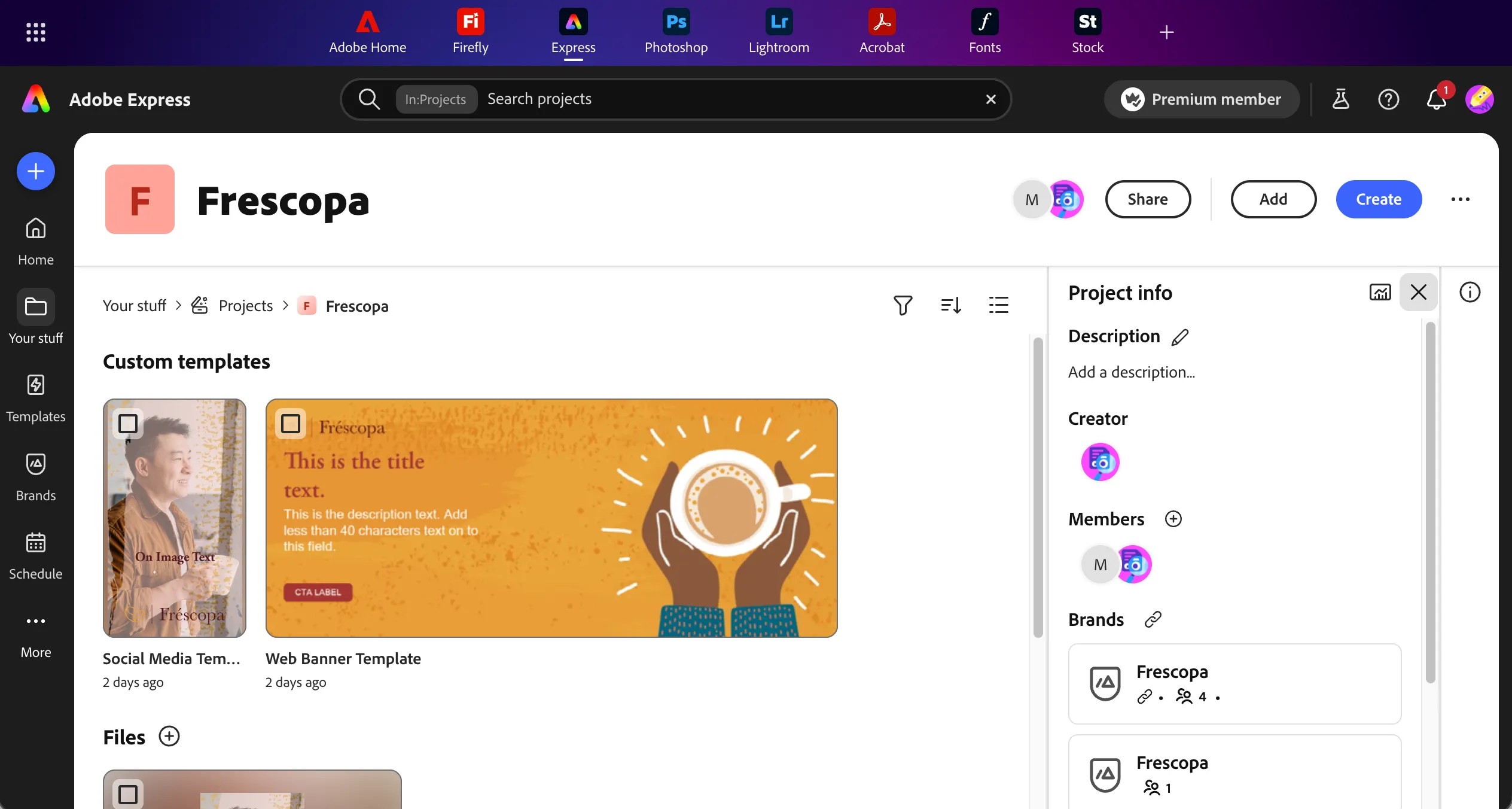
- Click on Web Banner Template to start from this template. Templates allows us to quick create brand adhered assets.
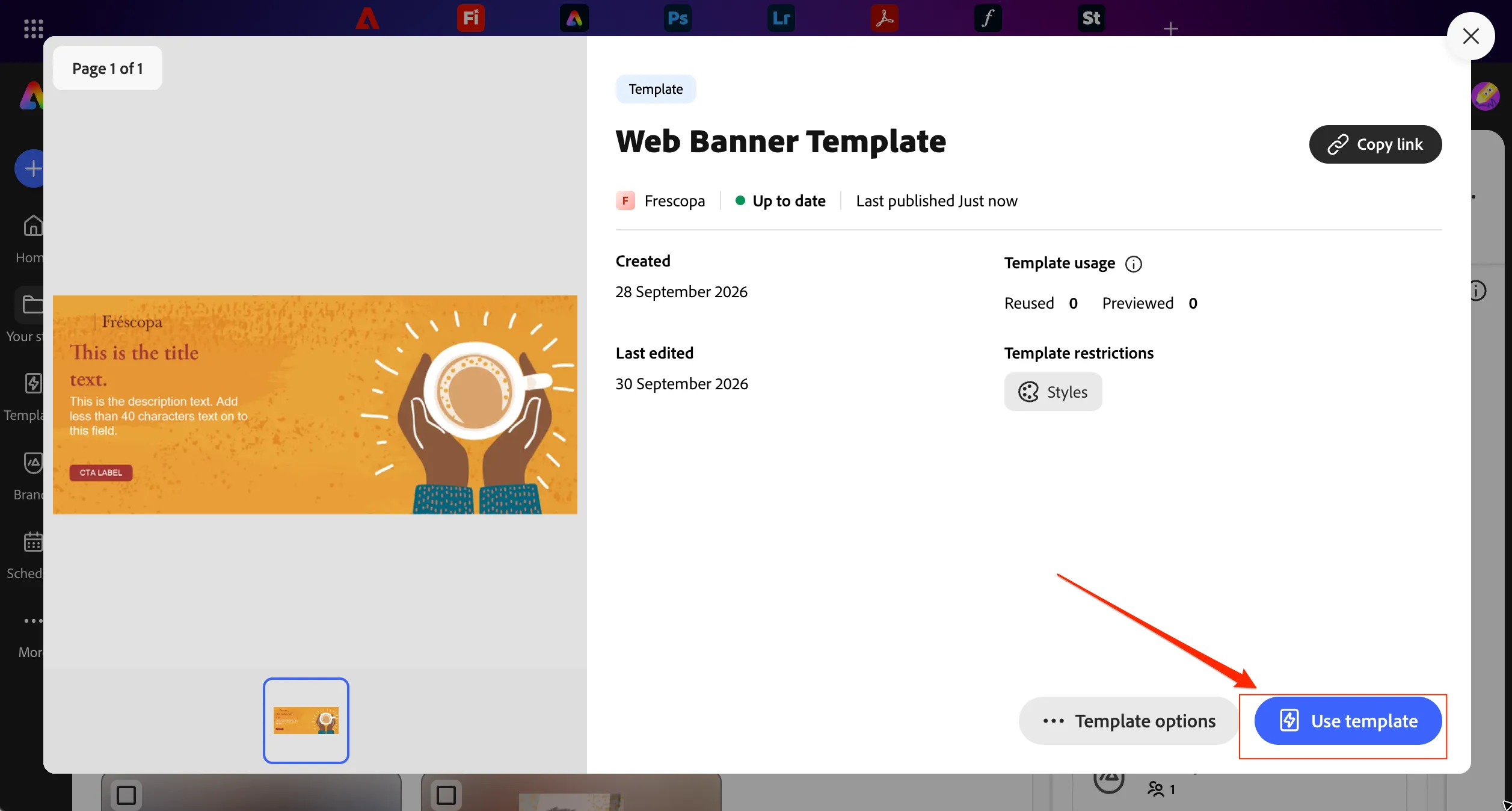
- Click on Use template to create a new file using this template.
Creating travelbrew banner
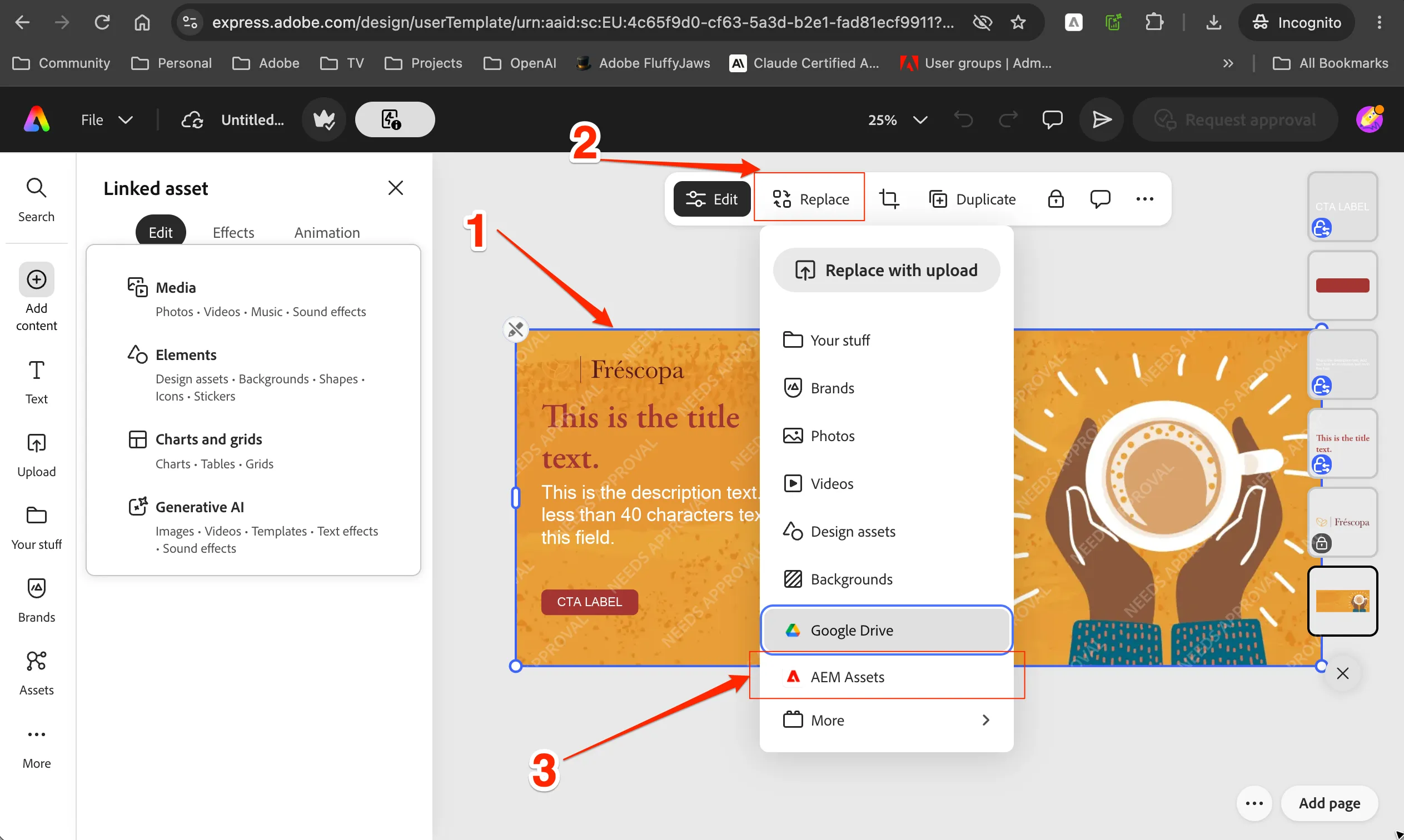
- Click on the background image to select the background image layer. This will height the layer in blue border and a options menu will show up.
- Click on Replace button on the top menu.
- Select AEM Assets from the list of options.
- Ensure Repository is DEMO POT EMEA Program 1 - CSC EMEA Bootcamp dev author
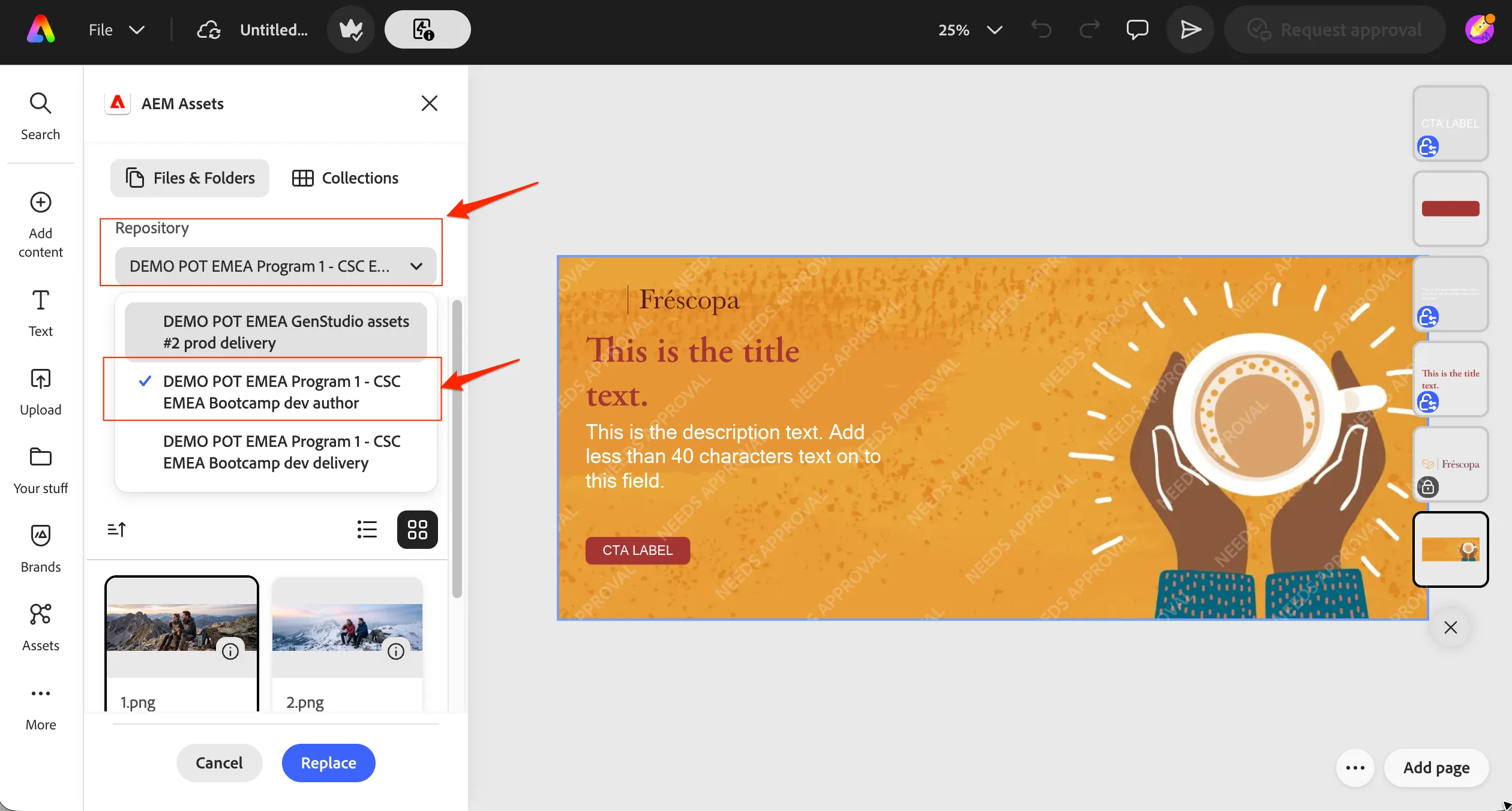
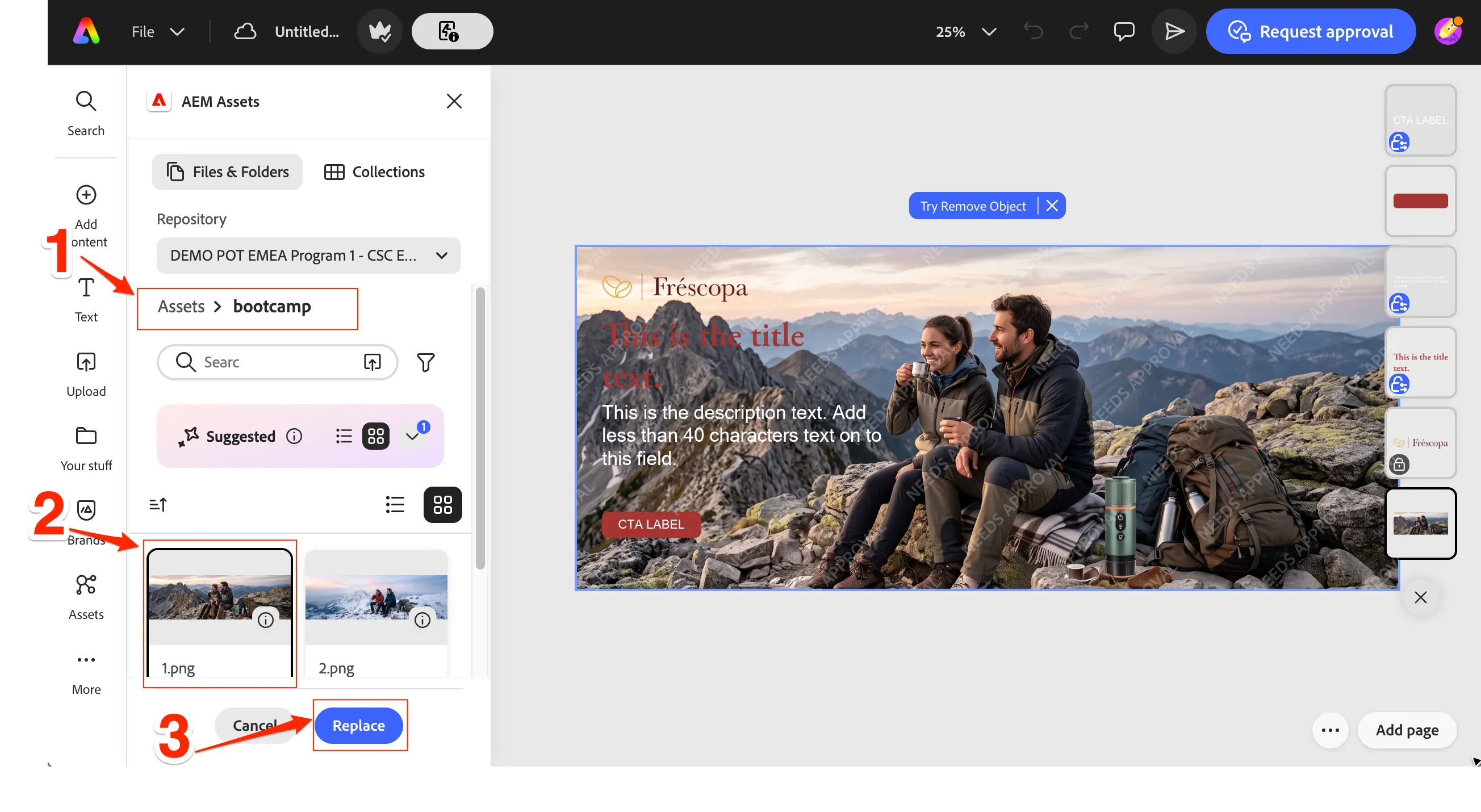
- Go into bootcamp folder
- Click on 1.png
- Click on Replace button.
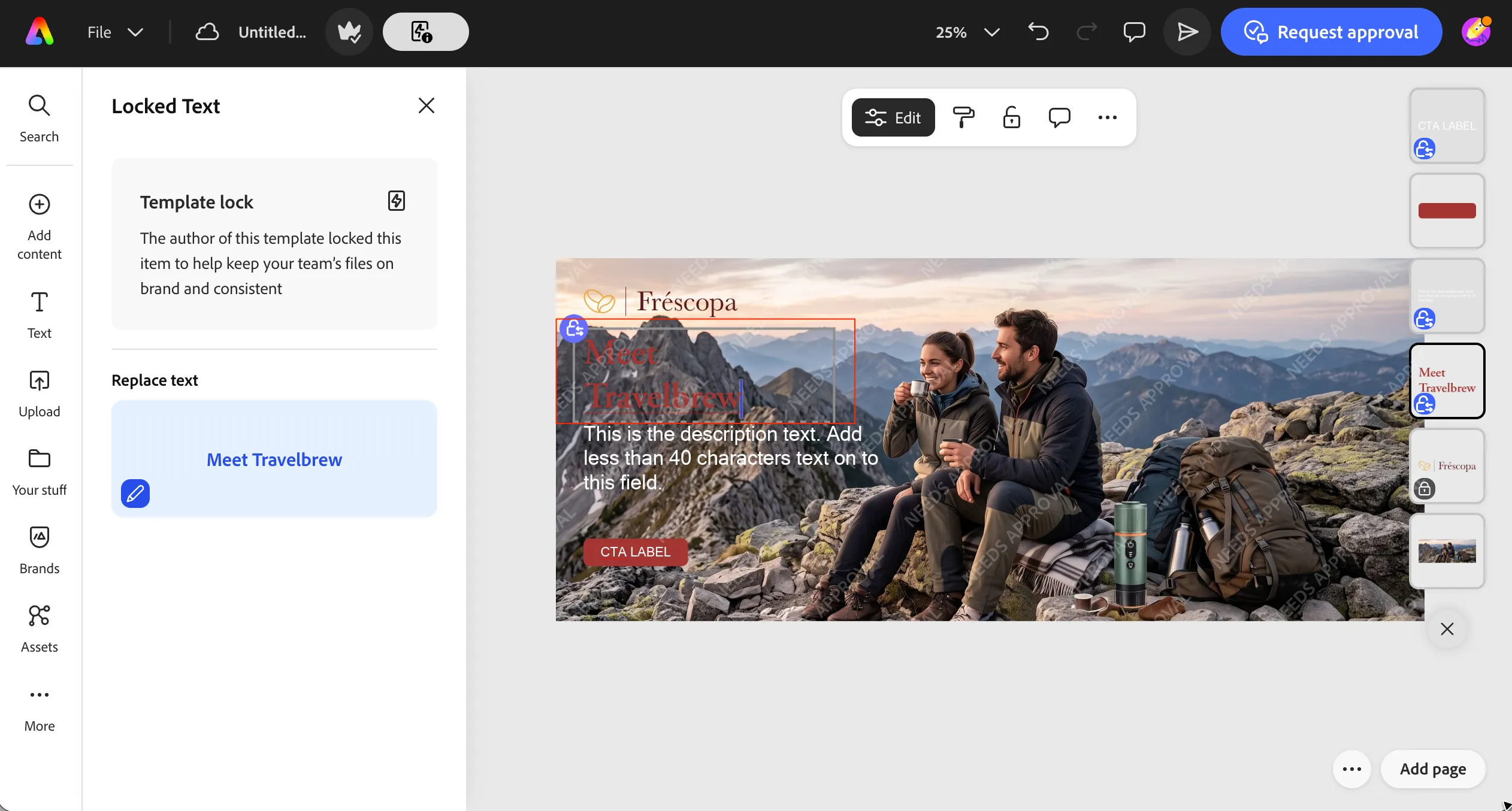
- Click on the Title element block in the Locked text menu. Update the title as Meet Travelbrew
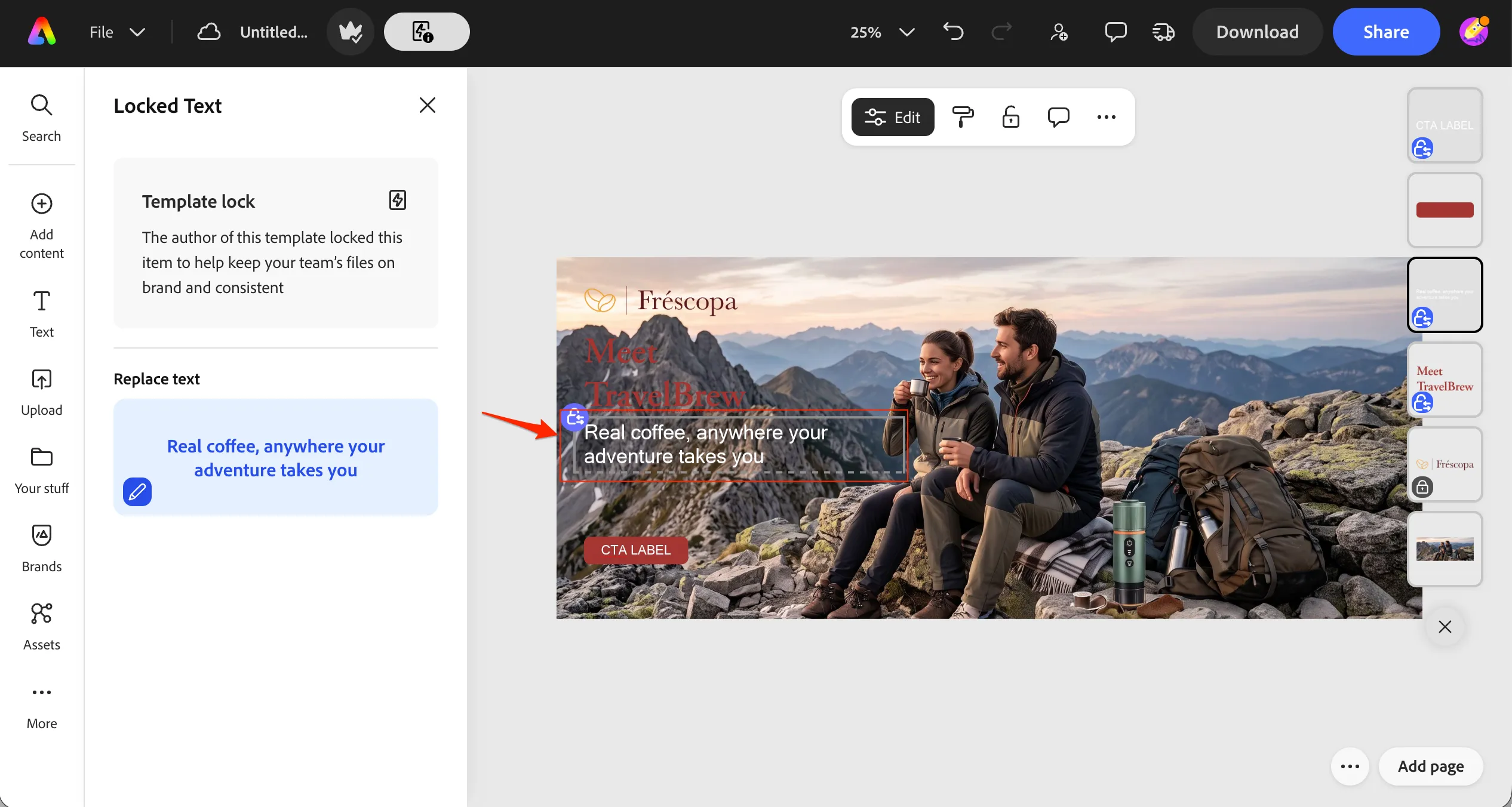
- Double Click on Description Text block and replace the content with Real coffee, anywhere your adventure takes you
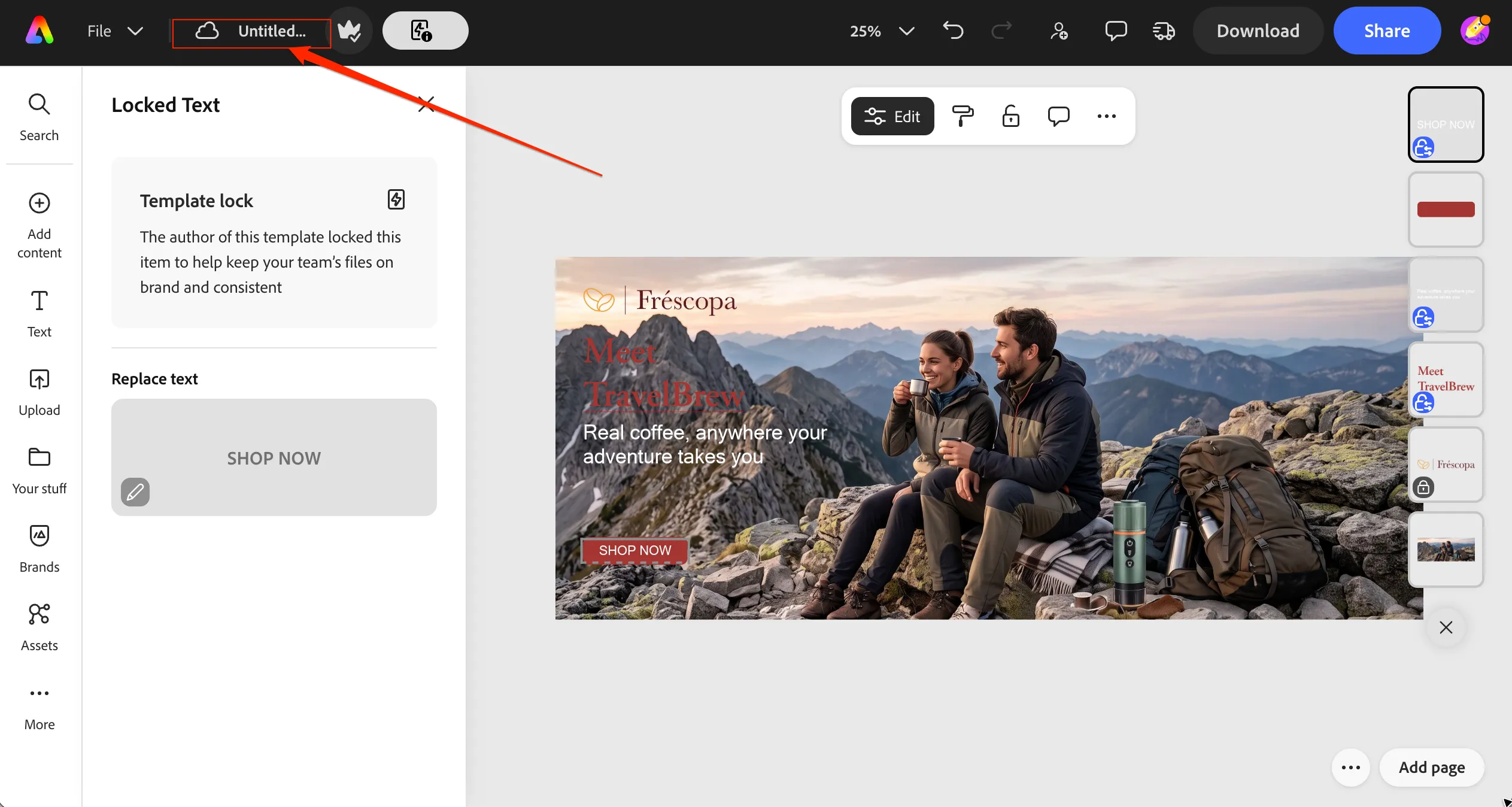
- Click on the Name of the file to open a save dialog.
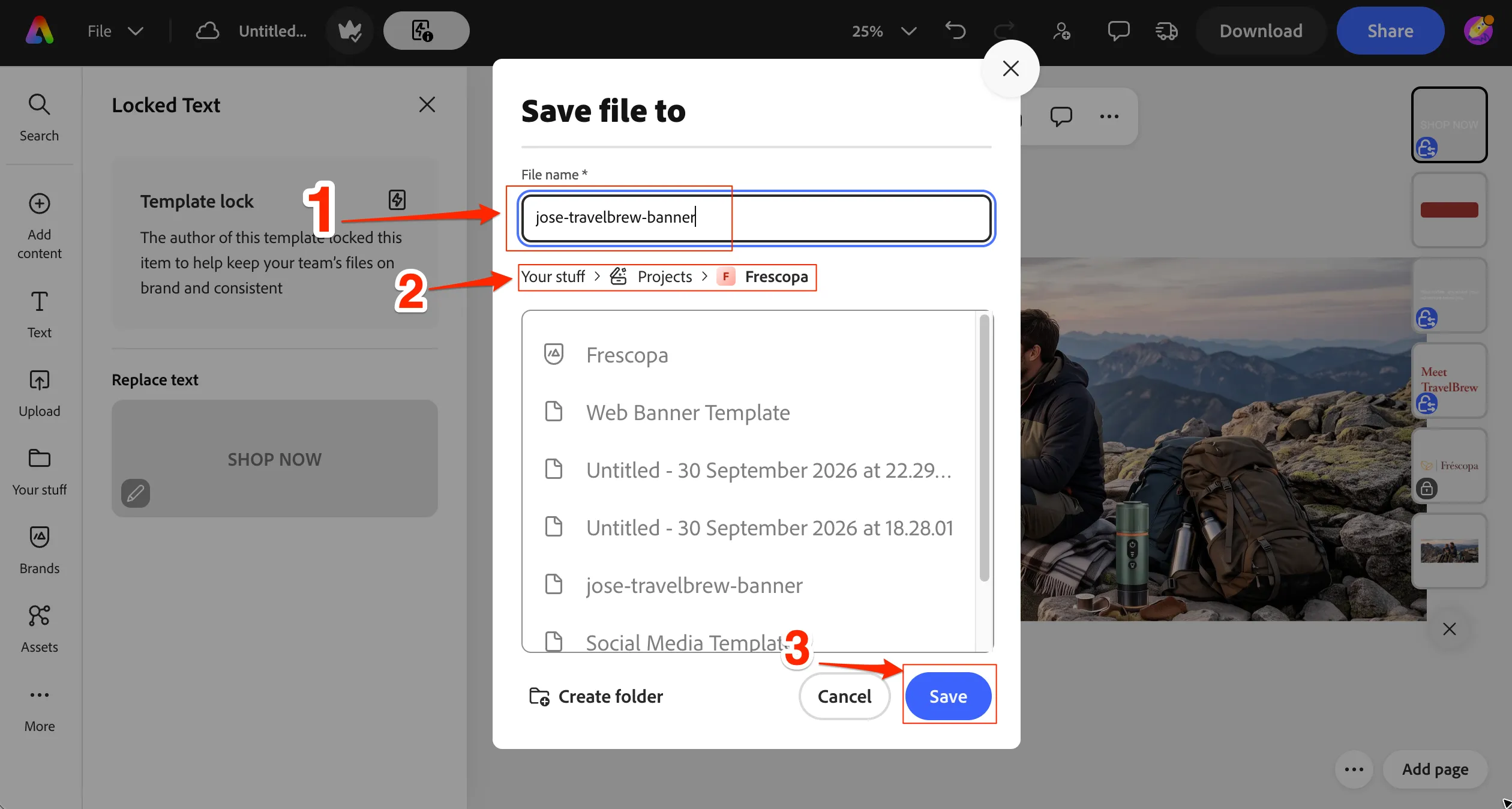
11. Replace the file name with your name-prefixed title as {{LASTNAME}-travelbrew-banner . eg. jose-travelbrew-banner. Ensure you are in Your Projects > Frescopa path. Click Save
Generating image enhancements using AI
Click on the Image in the banner to select it. They should show image options menu on the left rail.
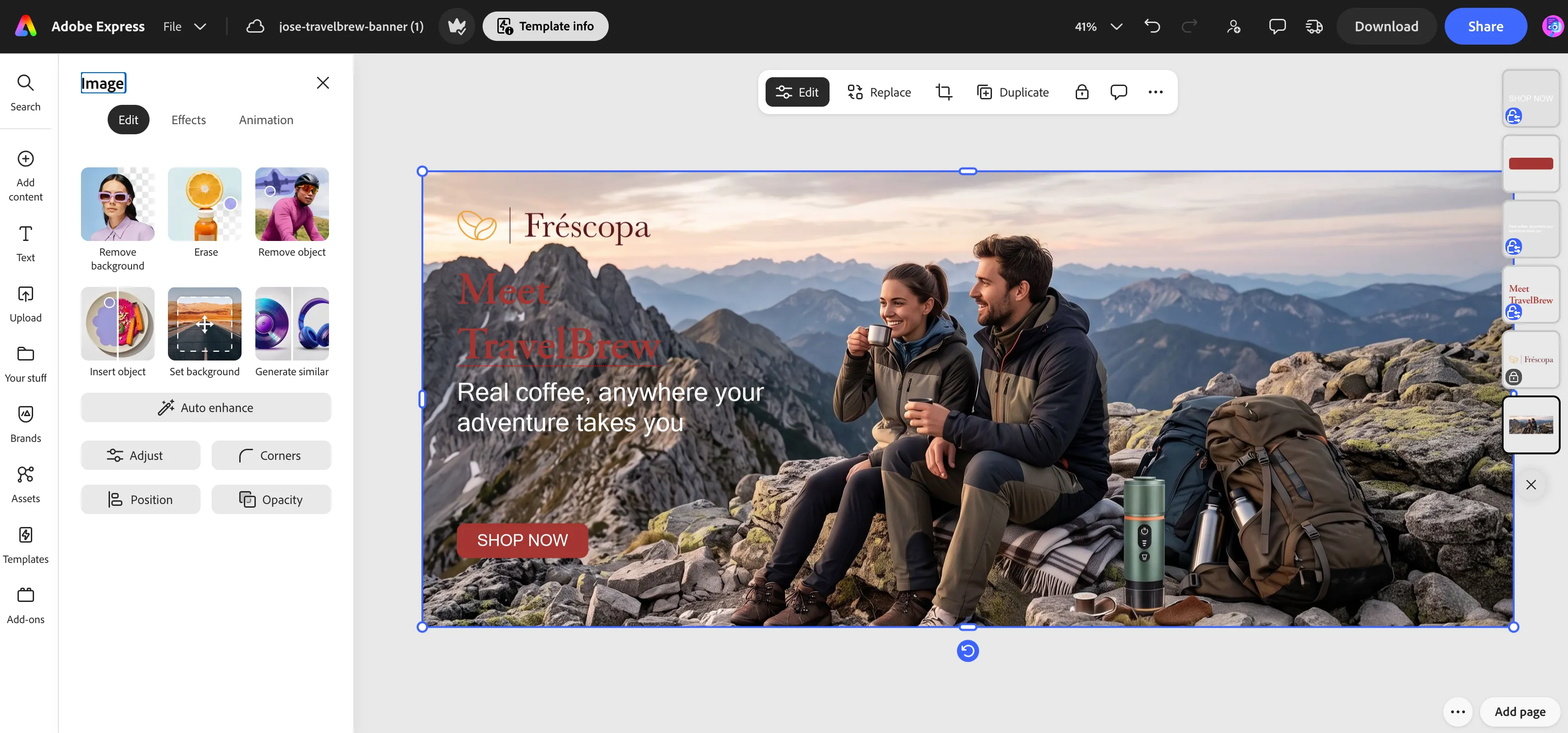
Click on Insert object
This gives you a brush where you can select an area and a text field where you want to enter the prompt.
After selecting any area with the brush, please describe what you want to generate in the prompt field.
As an example, select the sky area and enter the prompt as hot air balloons flying
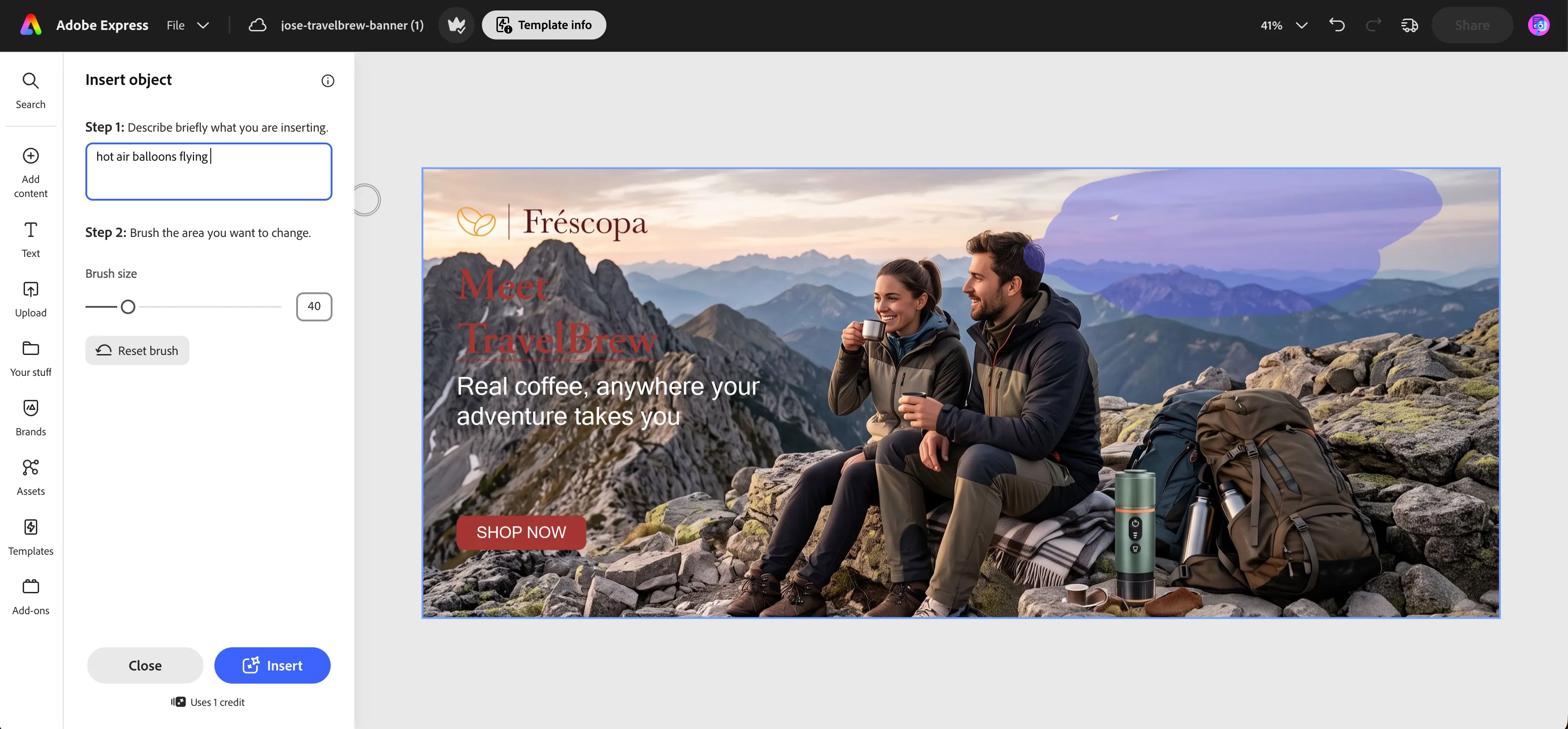
Click on Insert.
This will generate three different variations and you can select the best suitable one and click Keep
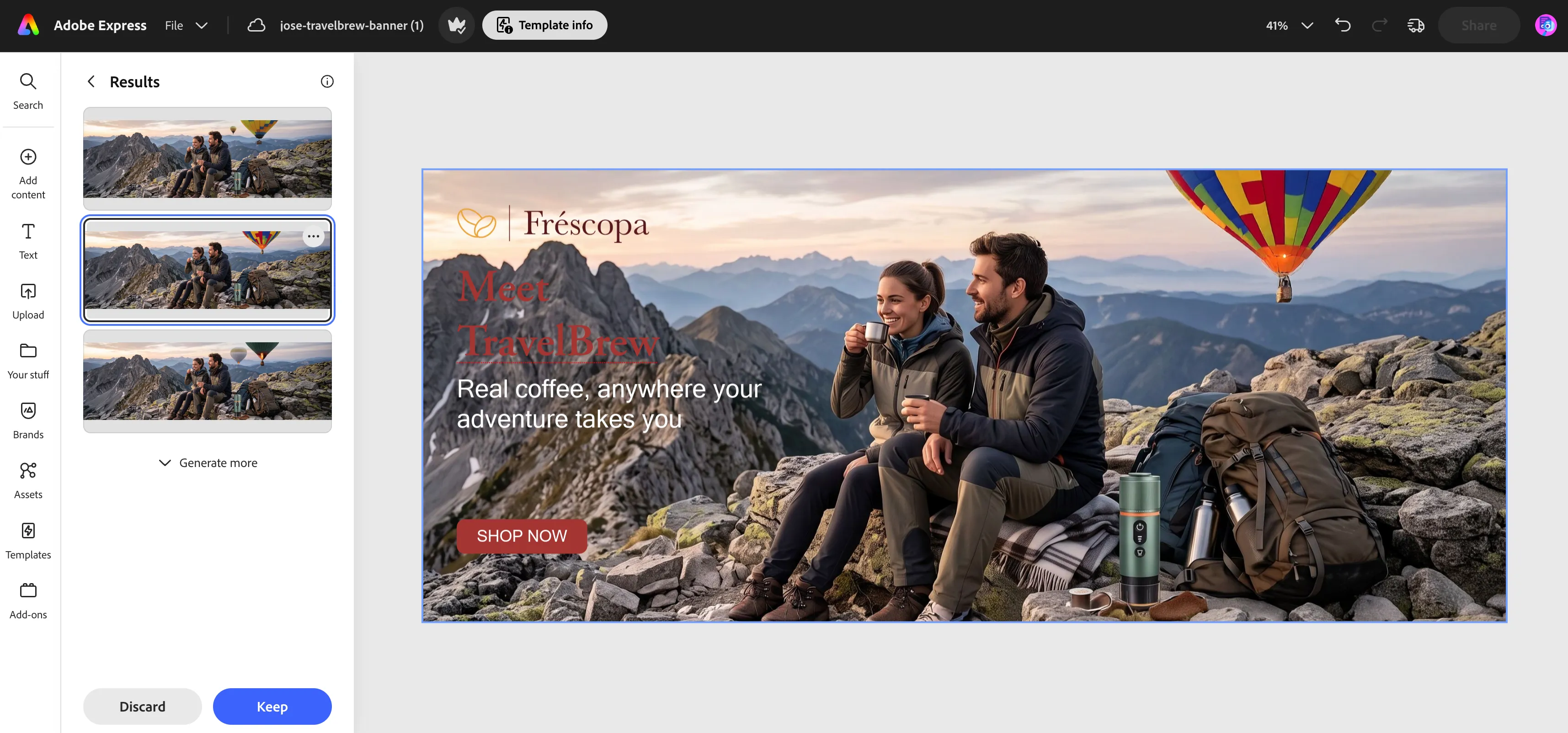
Feel free to use your own prompts to create your own custom banner.
Download the banner
Once the banner is ready, to download the image
- Click on Download from the top ribbon menu.
- Select File format as PNG.
- Click Download button to download the image to your local machine storage.
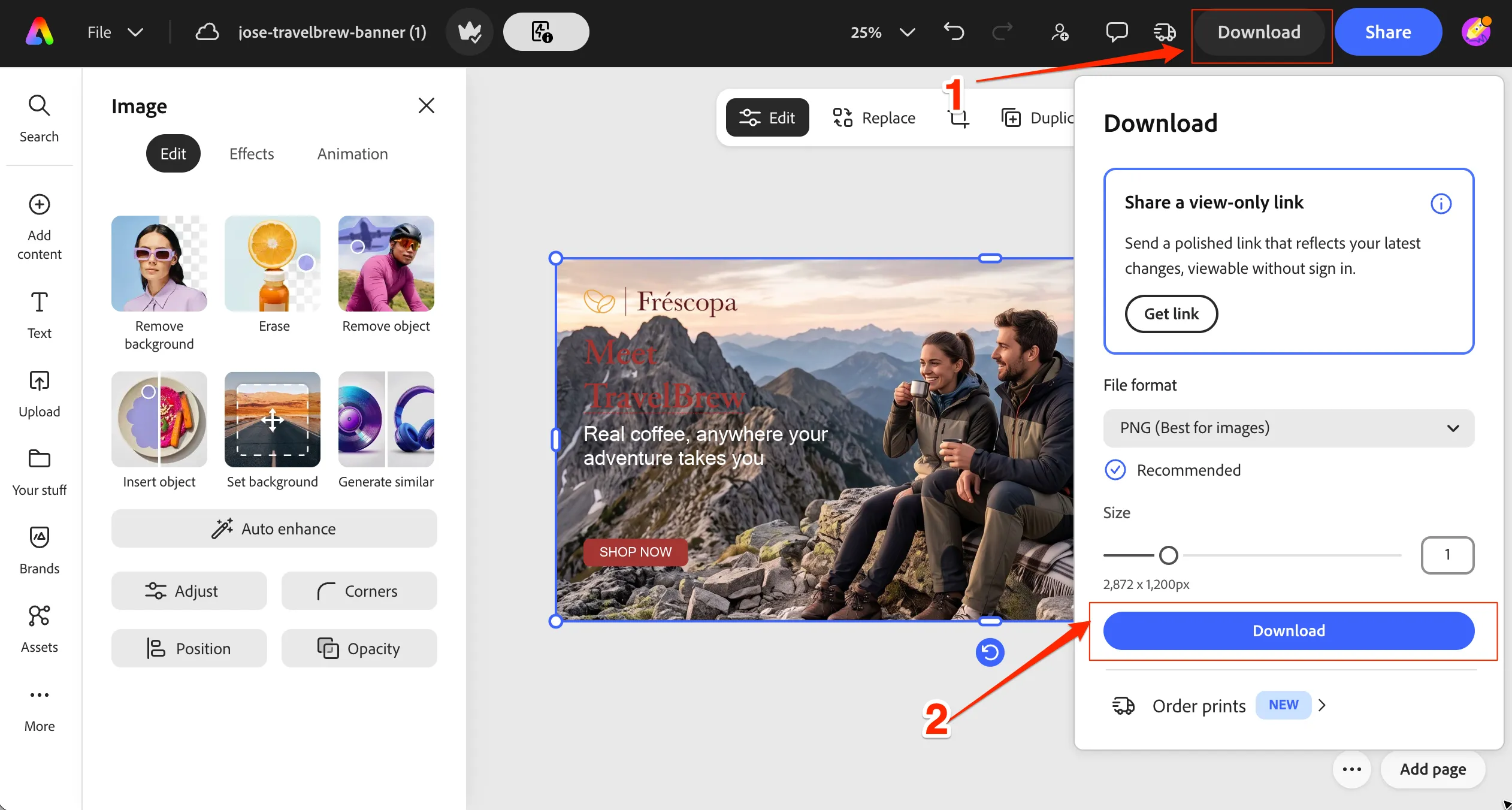
In a production instance, there is direct integration where you can send the assets directly to workfront for review & approval for Adobe Express. You can read more about it in documentation.
You have now successfully created a welcome banner in Adobe express.