Project tasks and allocation
Introduction
Project tasks and timeline planning
- Click on Tasks on the left side menu to see the various tasks that needs to be done by various teams. This is based of a template configured for campaign delivery and you can create your own template for your organisations.
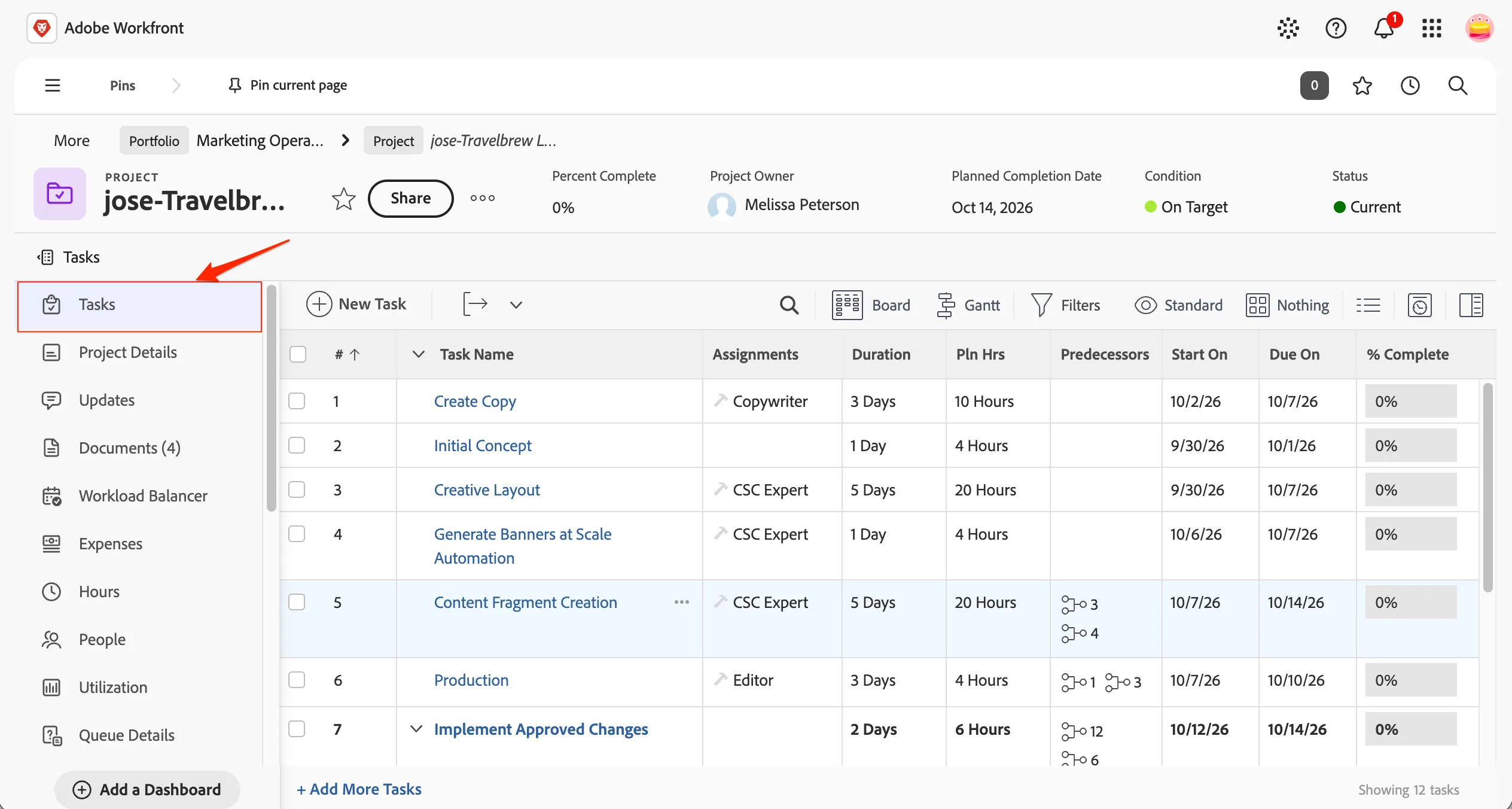
- We can view the tasks in different views based on the team requirements and needs.
- Clicking on Gantt shows the timeline relationships between tasks and associations
- Clicking on Board changes to a kanban delivery board for the tasks in the project.
- You can select different views and grouping based on project attributes as well.
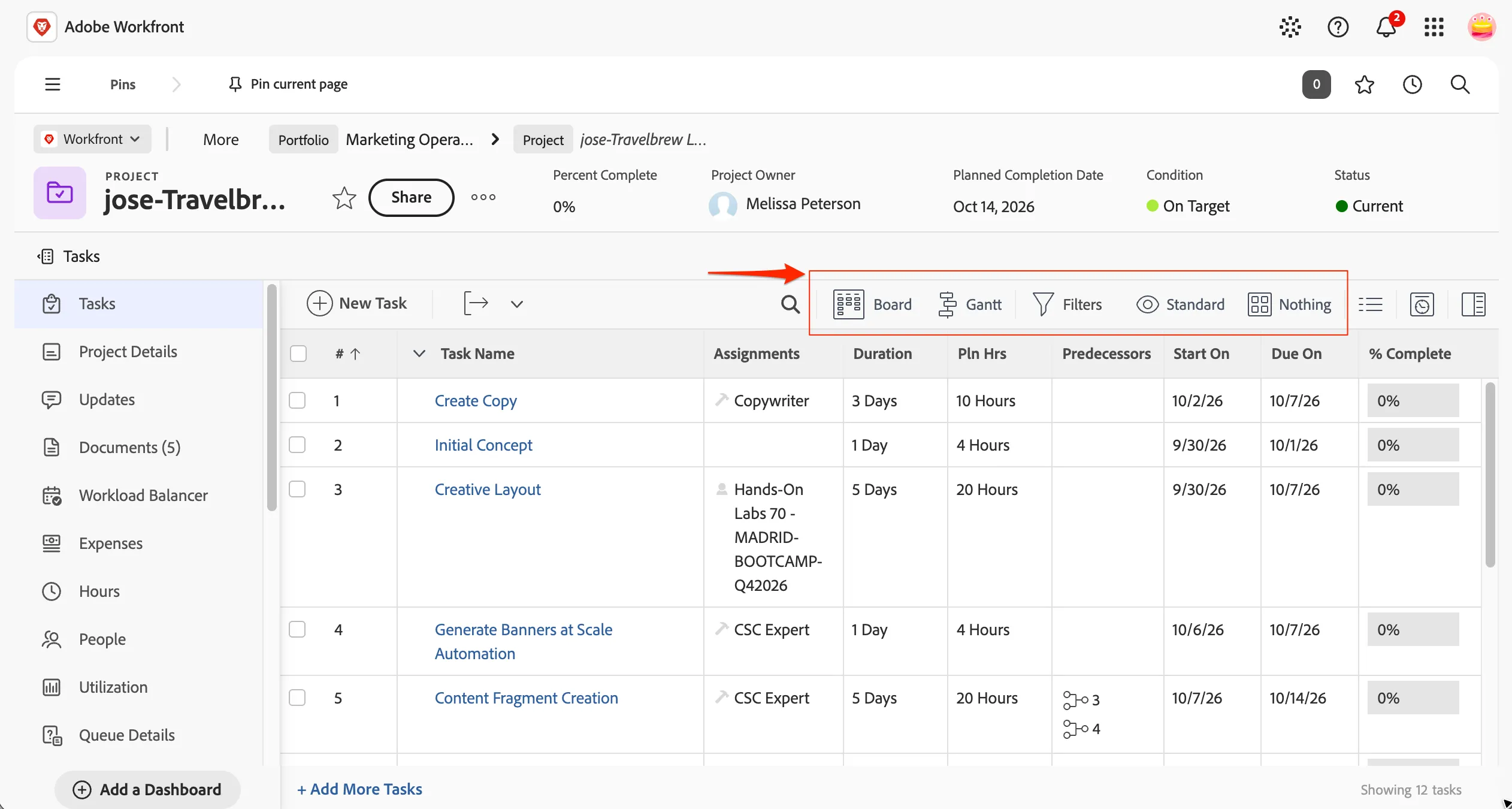
- Come back to List view and standard view for the next task.
Assigning a task
We can define the default assignments for the tasks of the project. This is by default assigned to CSC Expert which includes everyone attending the labs today.
We are now going to assign two tasks to yourselves.
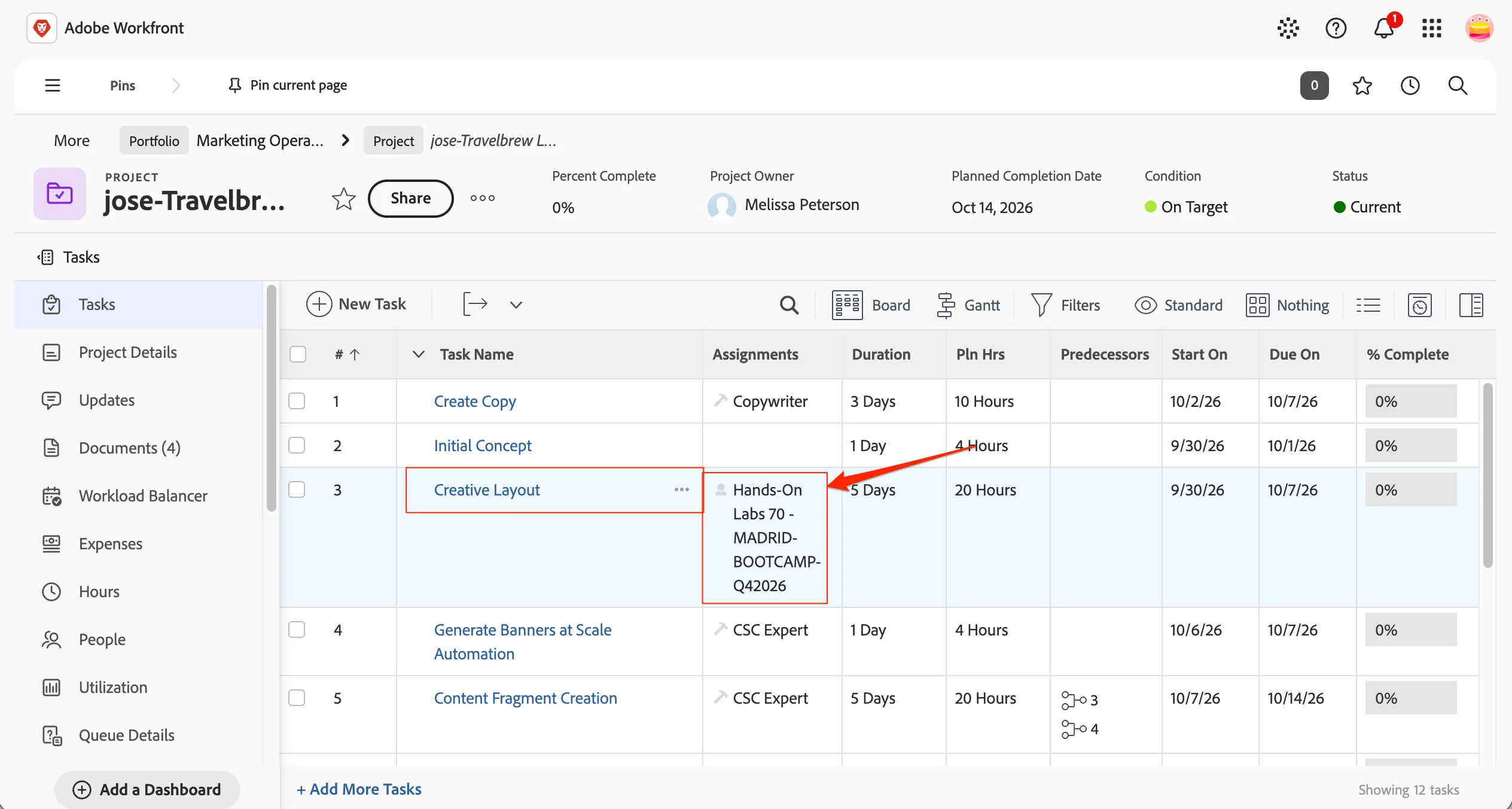
- Click in the assignments cell for the Creative Layout task to make it editable.
- Click on (x) on CSC Expert group to remove the teams assignment
- Search for your assigned user name and select it to assign the task to yourself.
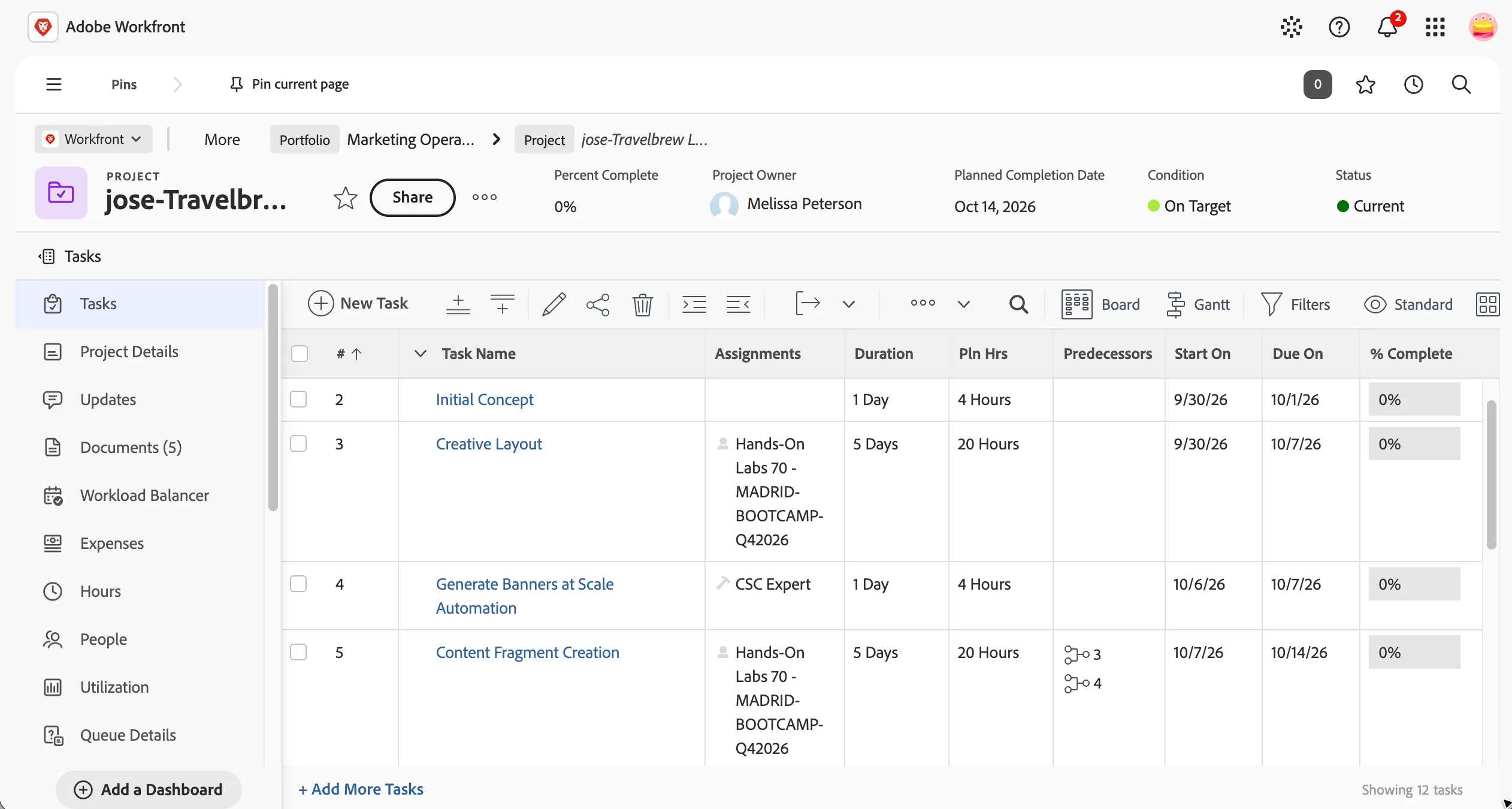
- Do the same for the Content Fragment Creation & Deploy Website tasks and assign them to yourselves.
Workload balancer for team view
The Workload Balancer in Adobe Workfront is a powerful tool designed to help project managers and team leads efficiently manage and distribute work across their teams. It provides a real-time, visual overview of team members’ workload, making it easy to identify over- or under-utilization and adjust assignments accordingly.
With the Workload Balancer, you can:
- View workload distribution – See how work is allocated across team members and adjust to prevent burnout or inefficiencies.
- Reassign tasks easily – Drag and drop tasks to balance workloads in real time.
- Set capacity limits – Define individual and team capacity to ensure workloads stay manageable.
- Improve efficiency – Optimize resource allocation to meet deadlines without overloading team members.
By using the Workload Balancer, you can ensure that work is distributed fairly and efficiently, helping teams stay productive and focused.
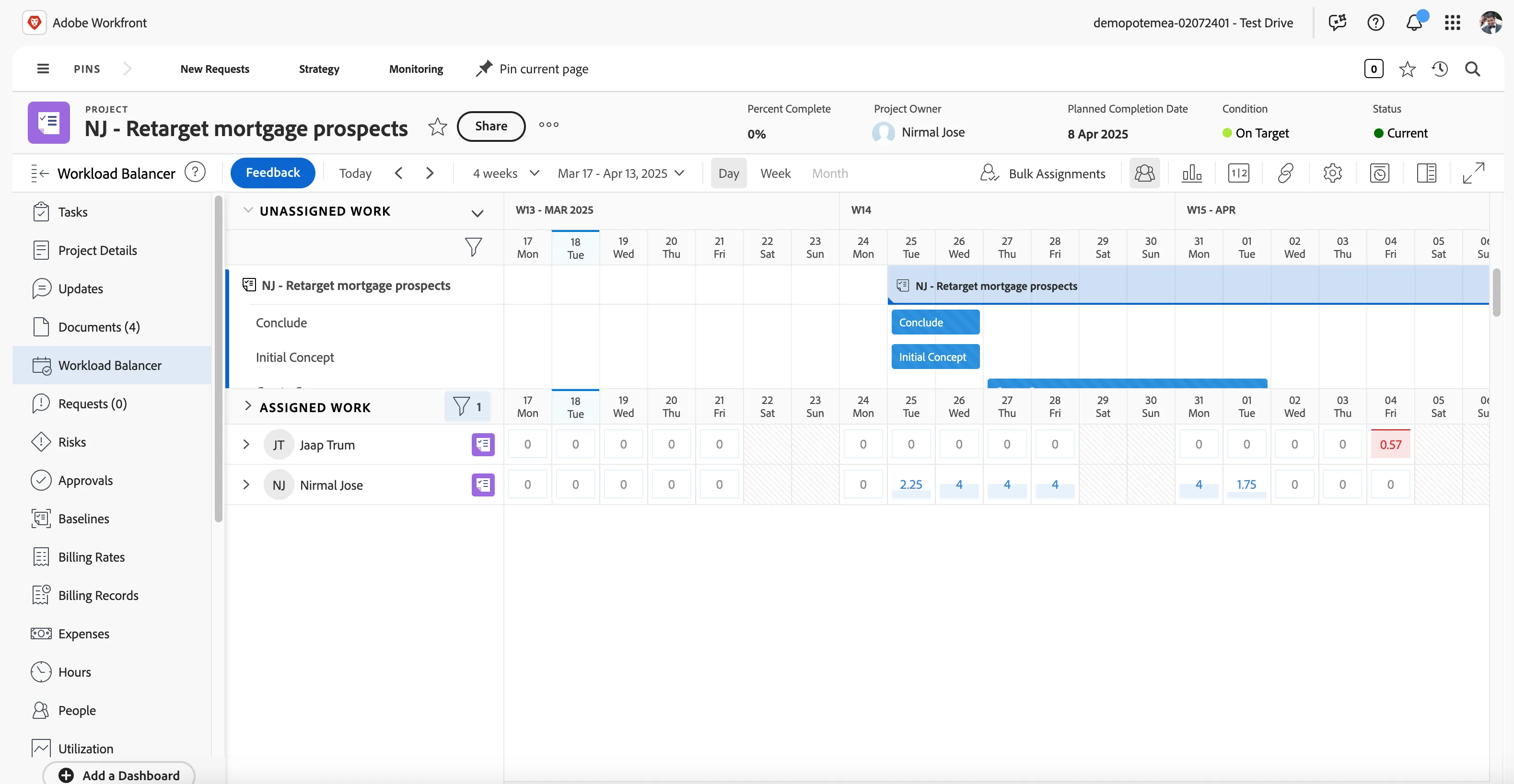
- Click on Workfront Balancer from the left pane menu.
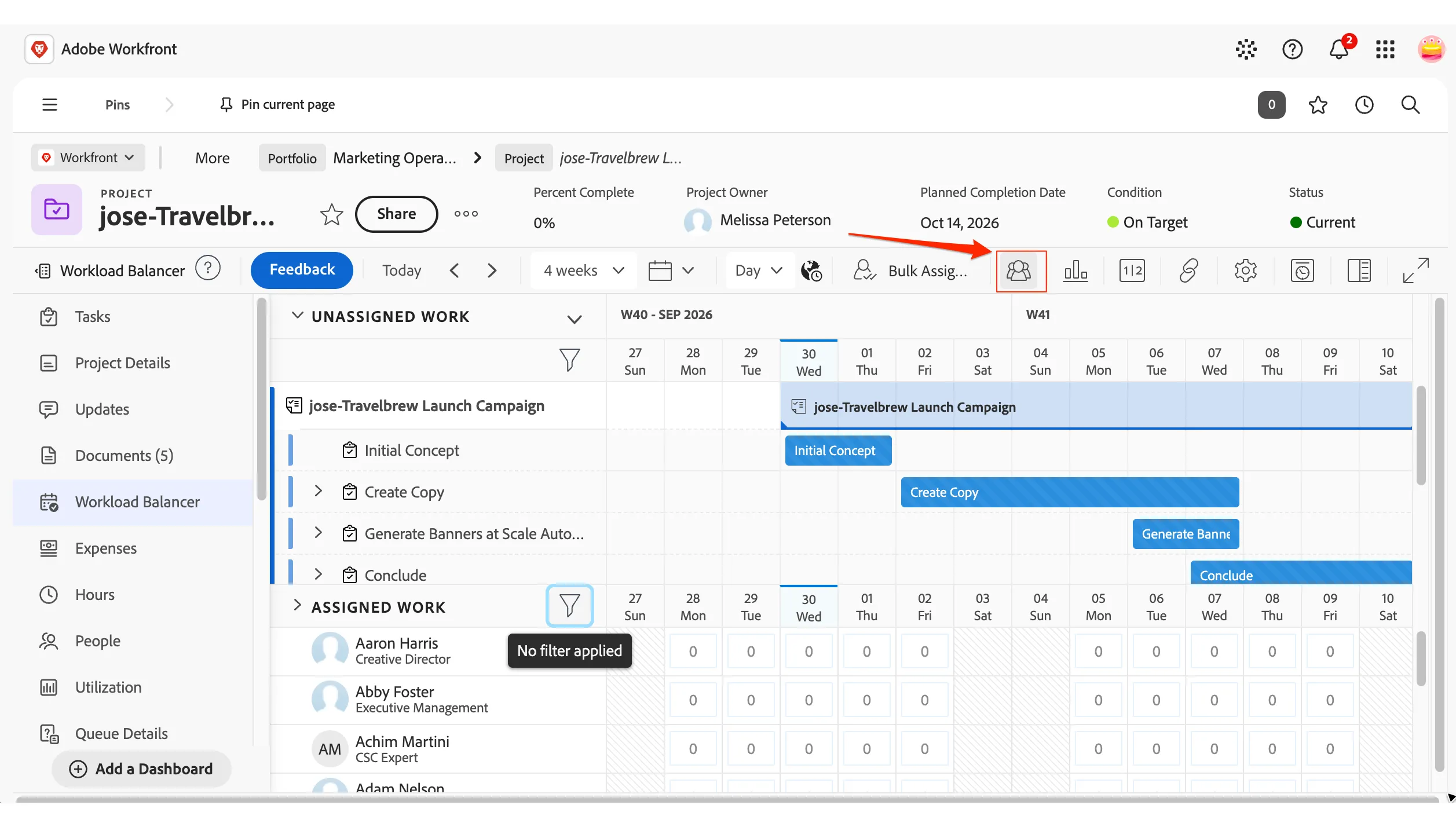
- Click on show all users icon to see the workload of your team.
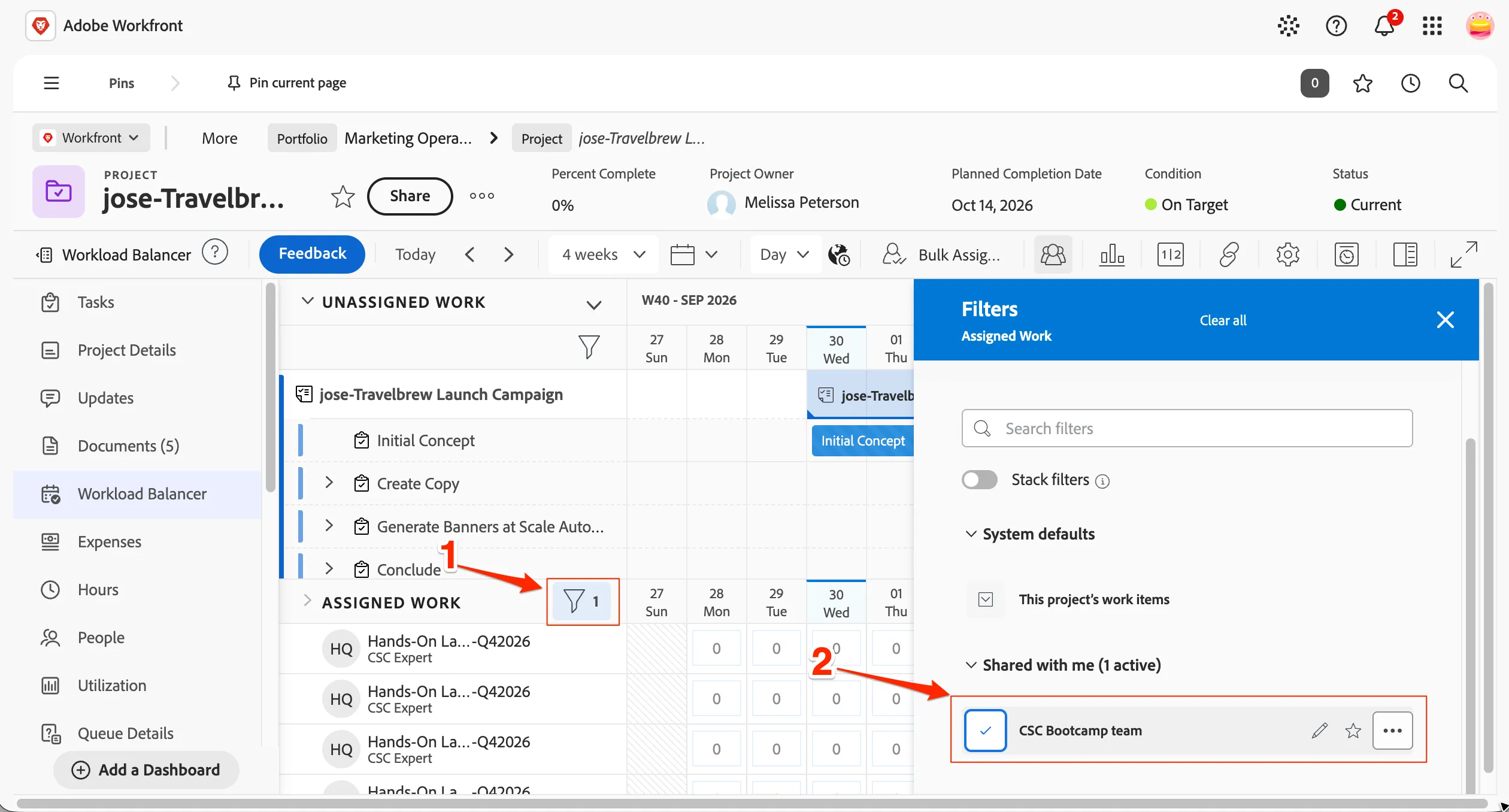
- Click on Filters in the assigned work row to filter for team members alone in the list. In the filters view, expand the Shared with me section and select CSC Bootcamp team.
Checkpoint
You have now successfully created a campaign project in workfront and have assigned tasks to the relevant team.