Submitting a brief
Introduction
Raising a campaign request
Now that we found an opportunity lets submit a request for buliding it.
Workfront request is the centralised placed to submit all types of requests in for the organisation.
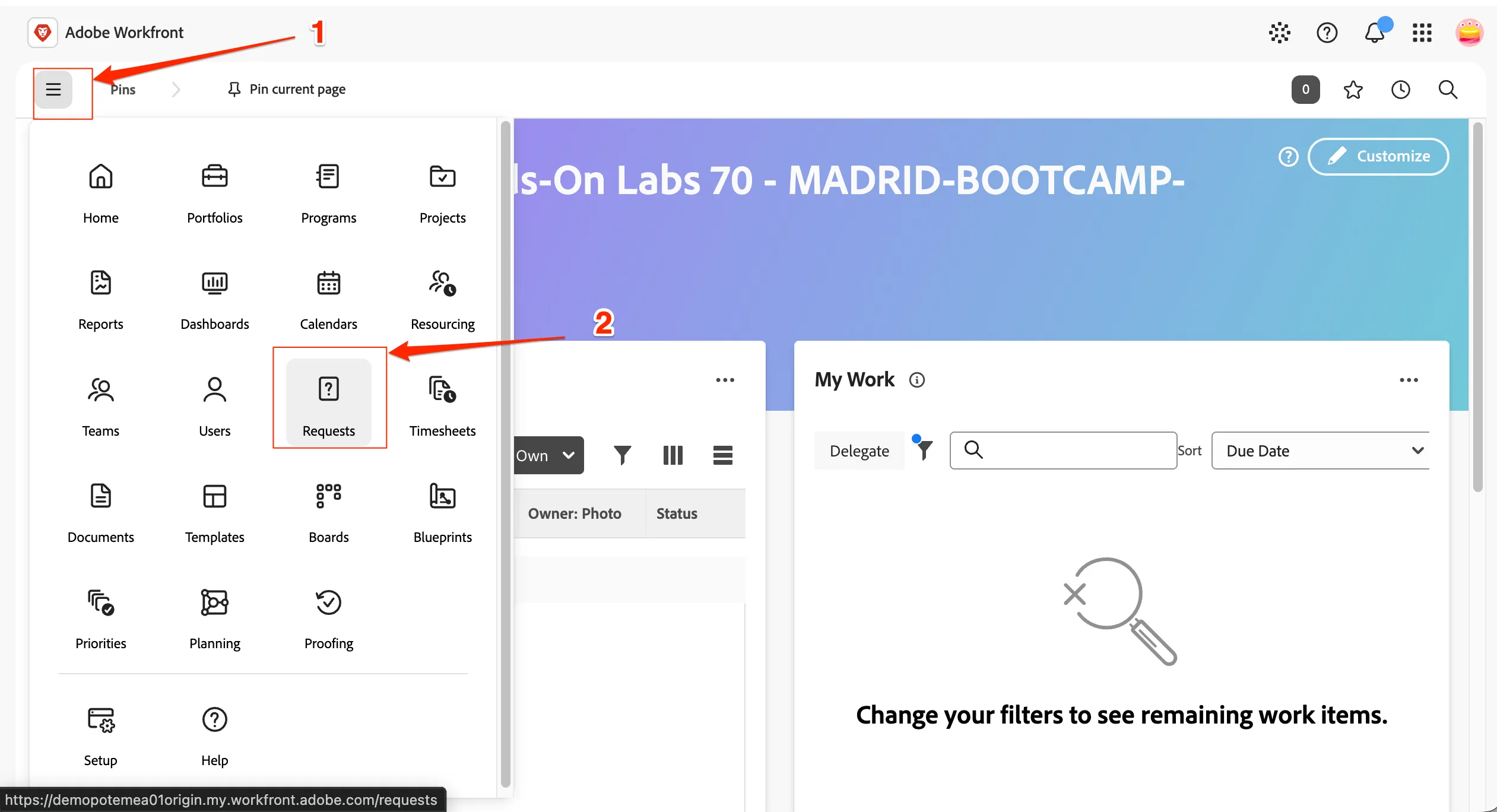
- We will be starting from workfront Home. You can navigate to workfront home by following Environment & Access > Navigating to workfront section.
- Click on the burger menu (three lines) to see the workfront menu.
- Click on Requests to open the Requests overview page.
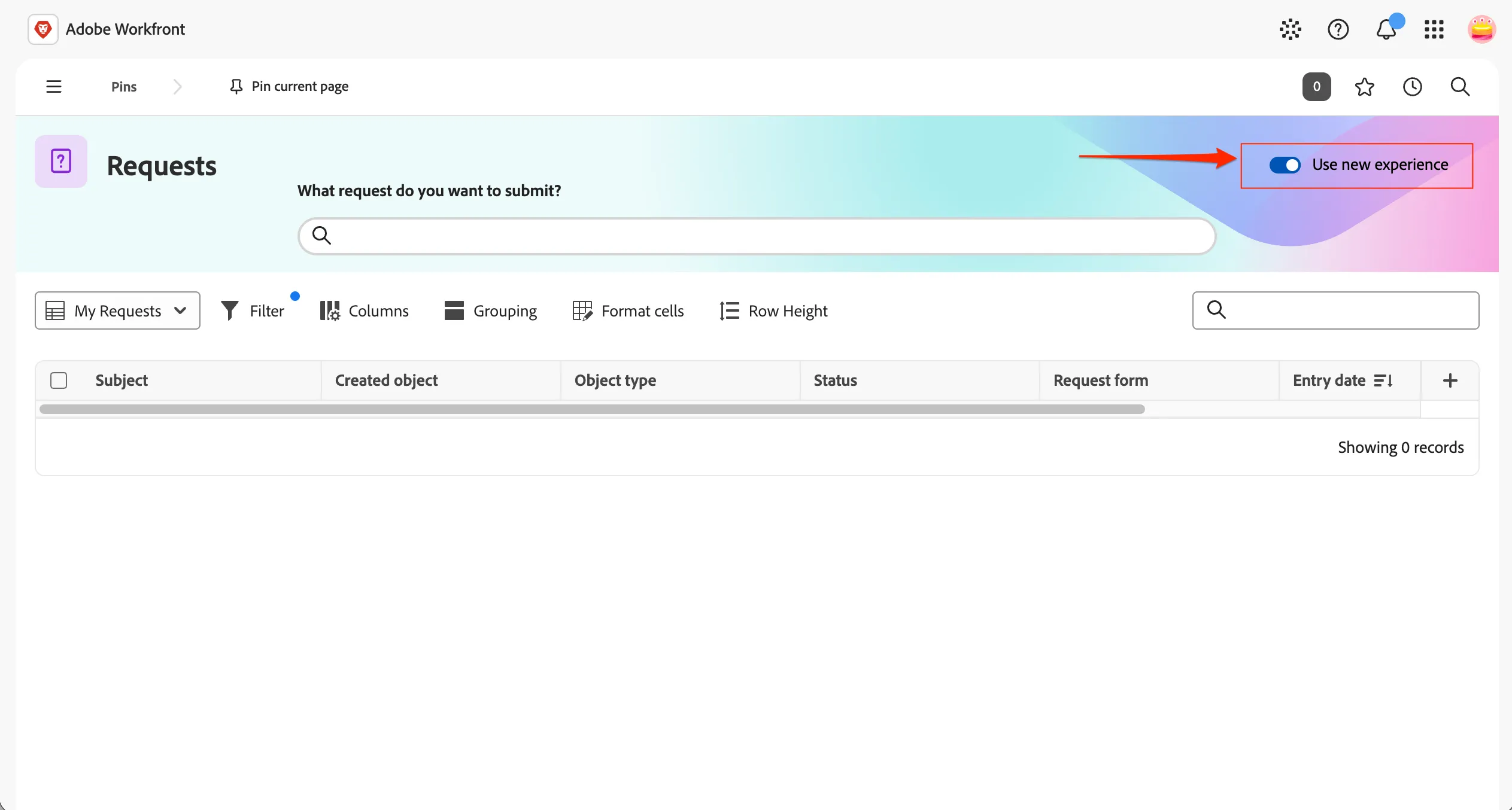
- Please ensure you are on new experience. Validate it by checking the toggle Use new experience is ON. If not click on the toggle button to enable the toggle.
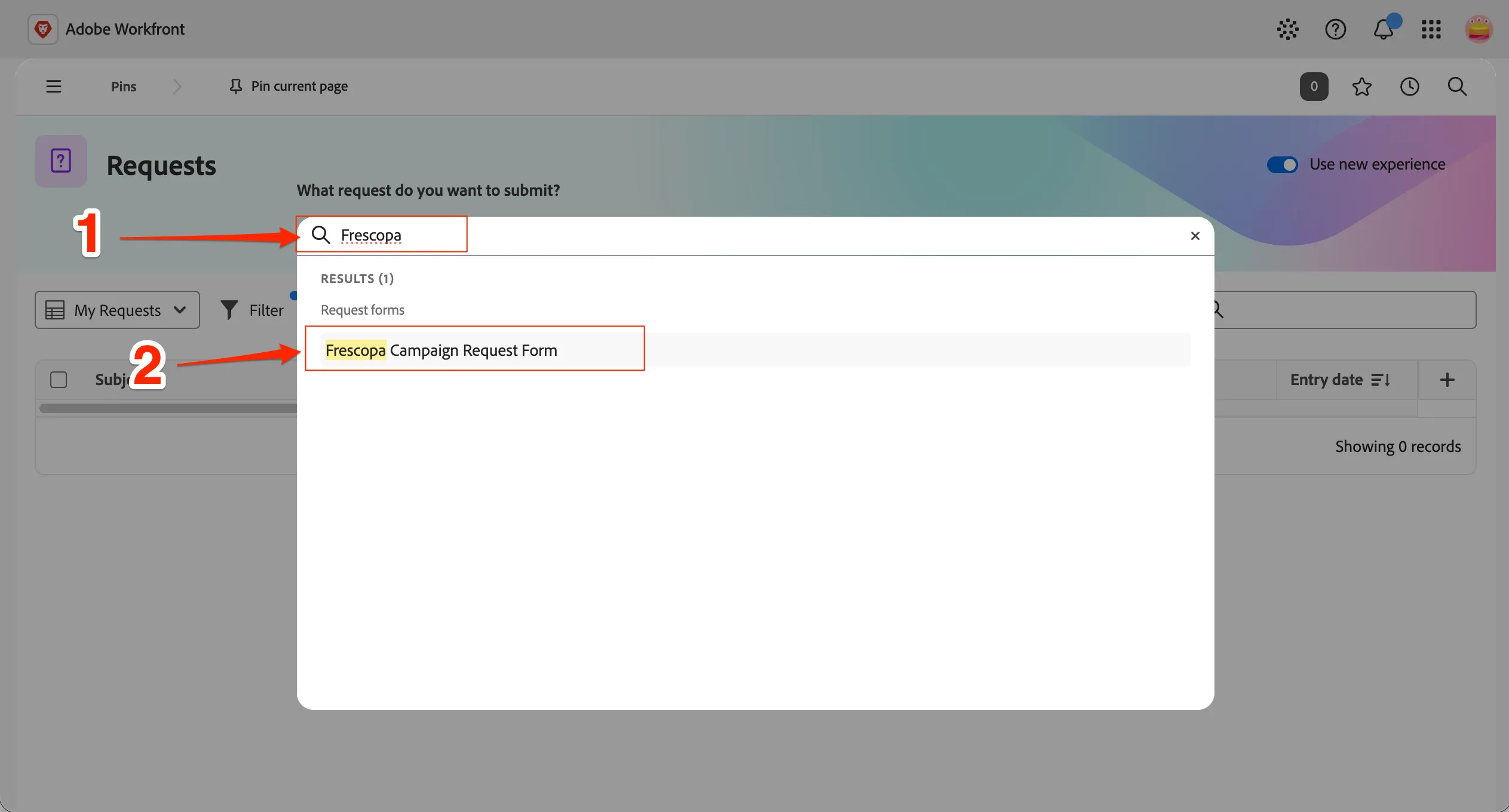
- Type in Frescopa in the search bar at the top.
- Select Frescopa Campaign request form to open the request dialog.
Update and submit the campaign request with AI
Let AI help you to fill in the request form. This form and how to fill is fully customisable.
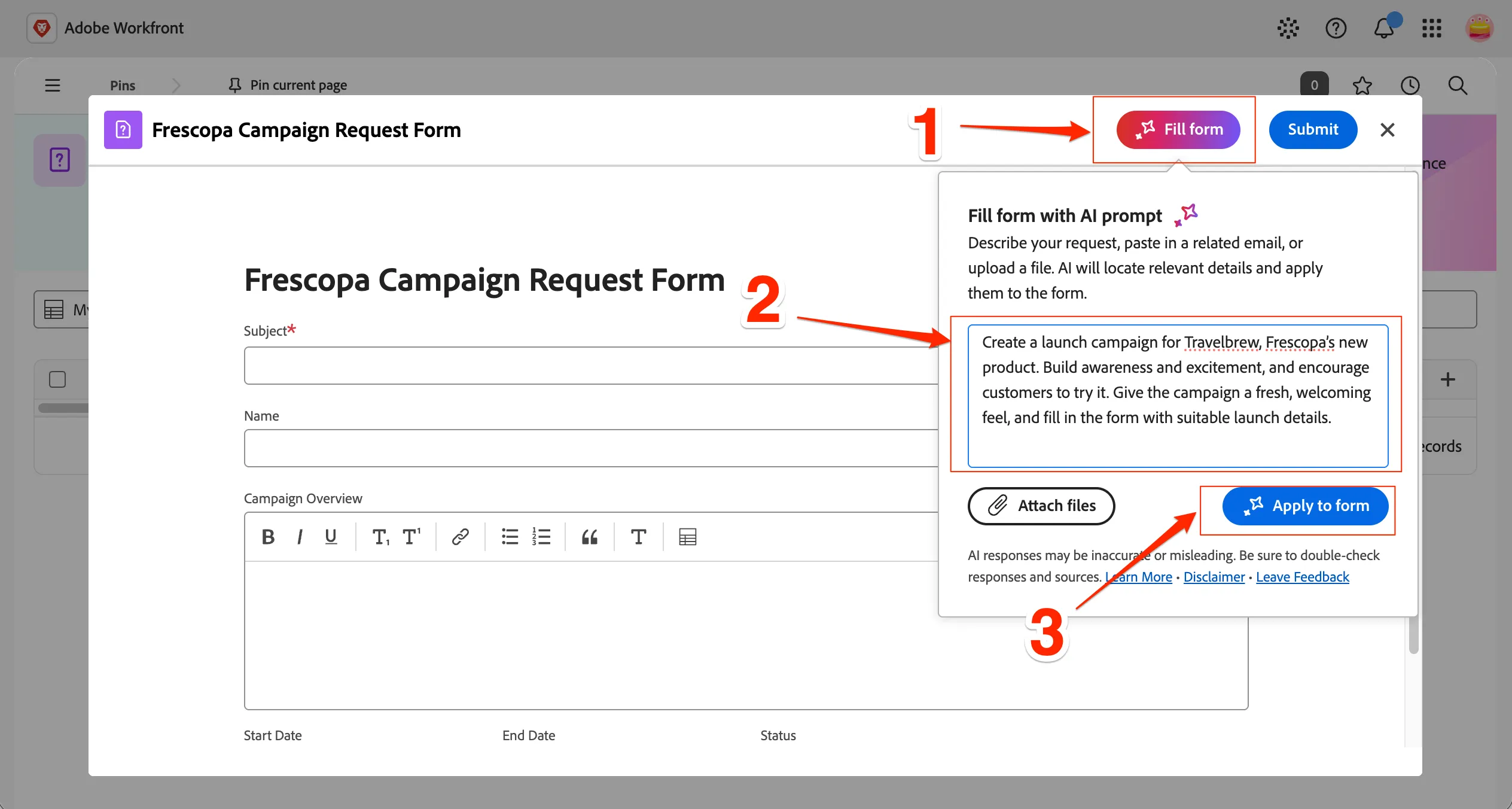
- Click on Fill form button at the top.
- Insert the below prompt in the input field. Create a launch campaign for Travelbrew, Frescopa’s new product. Build awareness and excitement, and encourage customers to try it. Give the campaign a fresh, welcoming feel, and fill in the form with suitable launch details.
- Click on Apply to Form button.
AI fills the form for you. It can also be done by uploading a campaign brief document in any format.
- Click on the AI button to minimise the dialog.
- Click on Accept All button to apply the AI generated content to the form.
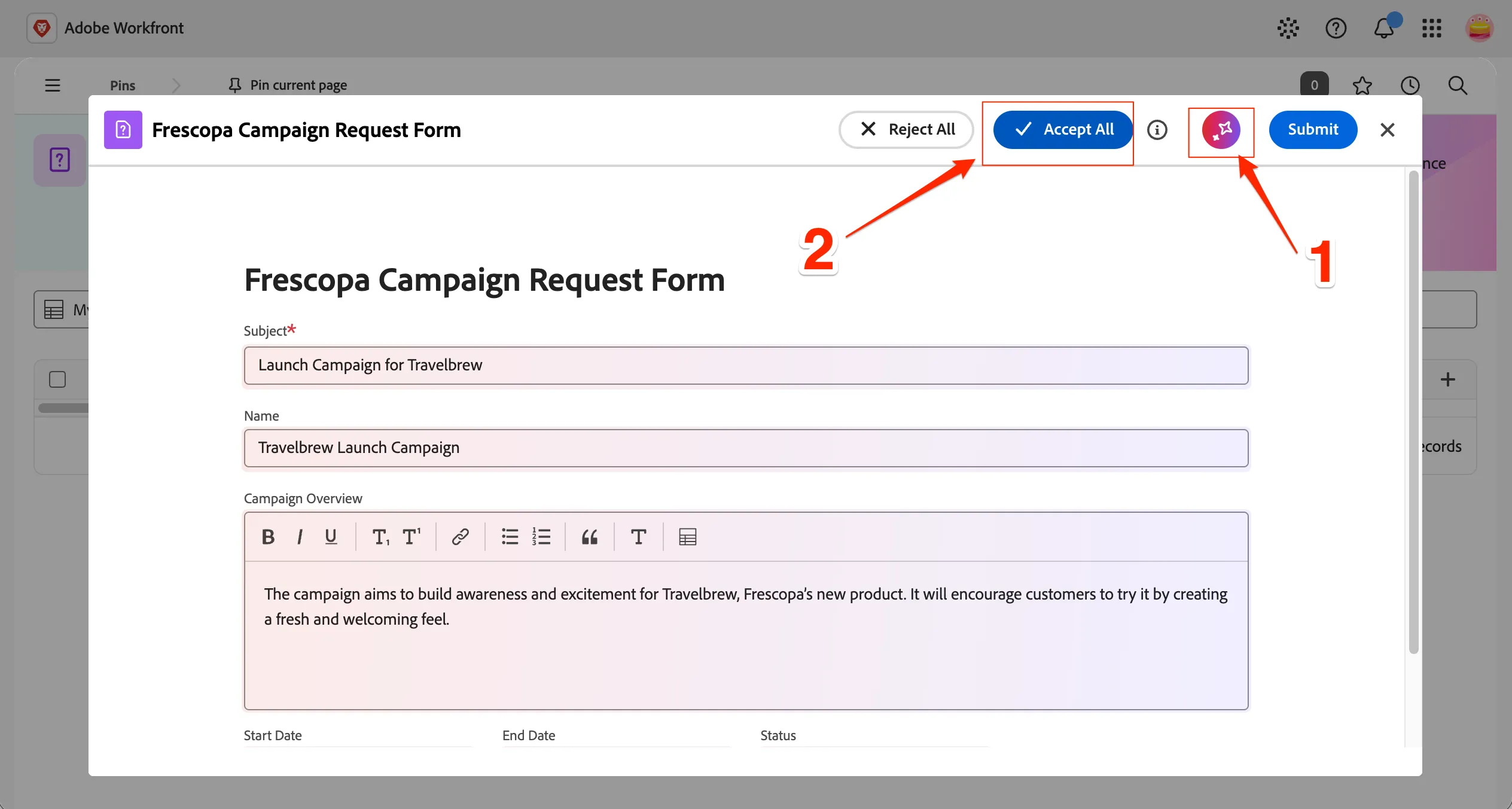
- Rename the name of the campaign with your name prefixed. This will help you to identify your request later on in the exercise. Replace the current name with {{LASTNAME}}-Travelbrew Launch campaign eg. jose-Travelbrew Launch campaign.
- Click on Submit to confirm the request.
We can create routing rules or approval process for requests based on request types allowing different areas in organisation to manage its on request queues.
Checkpoint
You have successfully created a TravelBrew landing page in Document Authoring. You used a template to get the initial structure, updated default block content and added new blocks. You also previewed the page and validated its content, structure, and presentation.