Content Management
Before we create our retargeting journey for the campaign let's take a look at some of Adobe Journey Optimizers content management capabilities.
Assets
Adobe Journey Optimizer provides native integration with Adobe Experience Manager Cloud Service Assets. If you don't have an AEM Assets license already, a limited access repository is provided out of the box with Journey Optimizer.
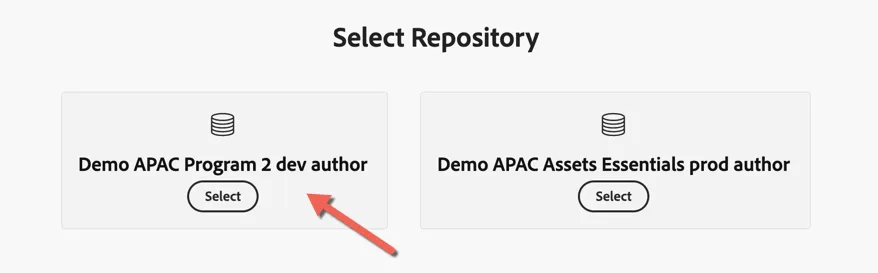
If you have access to multiple AEM Asset repositories, you can access all of them from Journey Optimizer, you simply need to select which one you want to use each time. We will use Demo APAC Program 2 dev author for this lab.
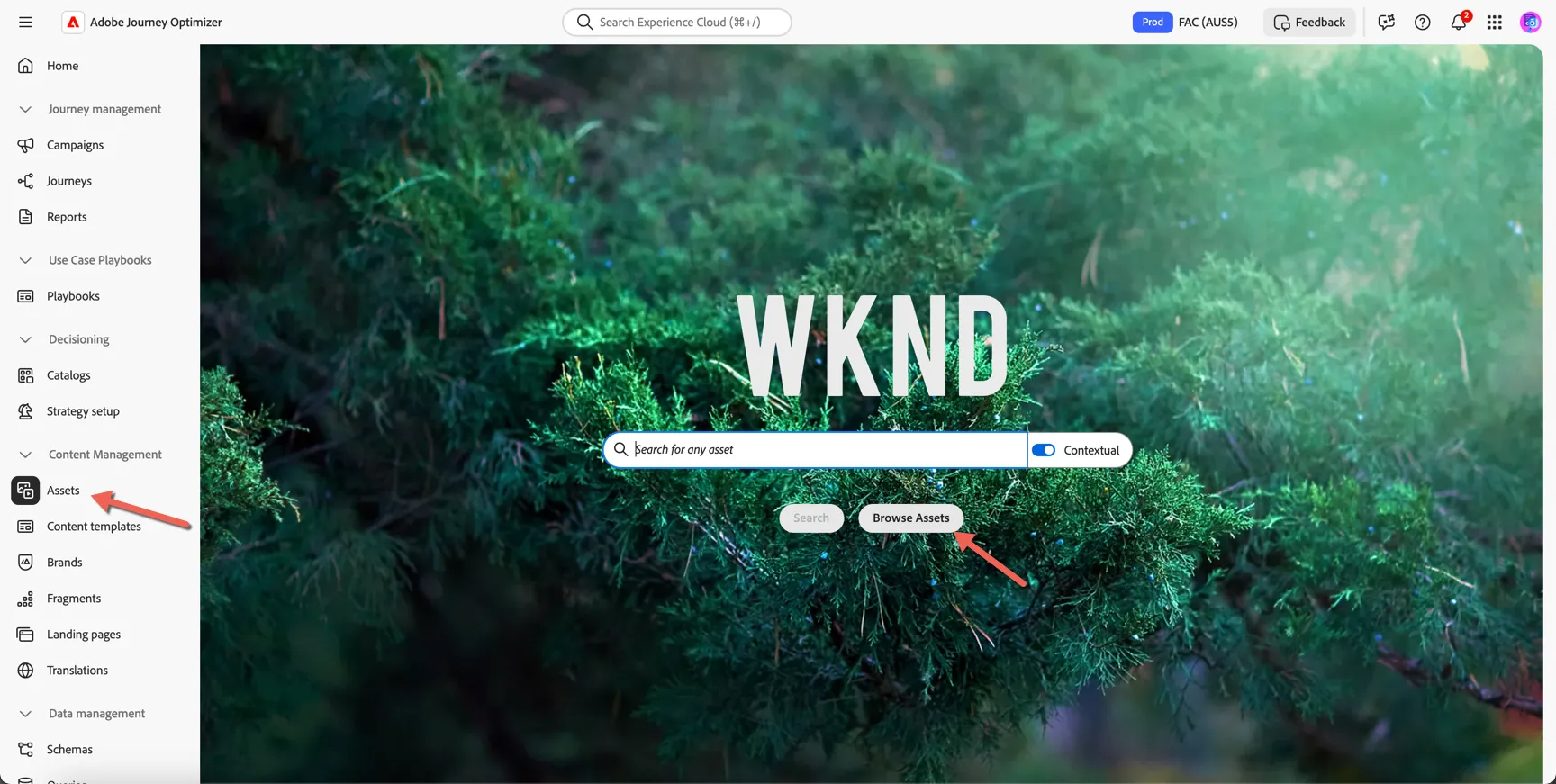
For our lab we will leverage the AEM repository from the Frescopa site running on AEM Cloud Service. Click to open Assets under Content Management in the left hand navigation. From the landing page you can search for specific assets or click to Browse Assets.
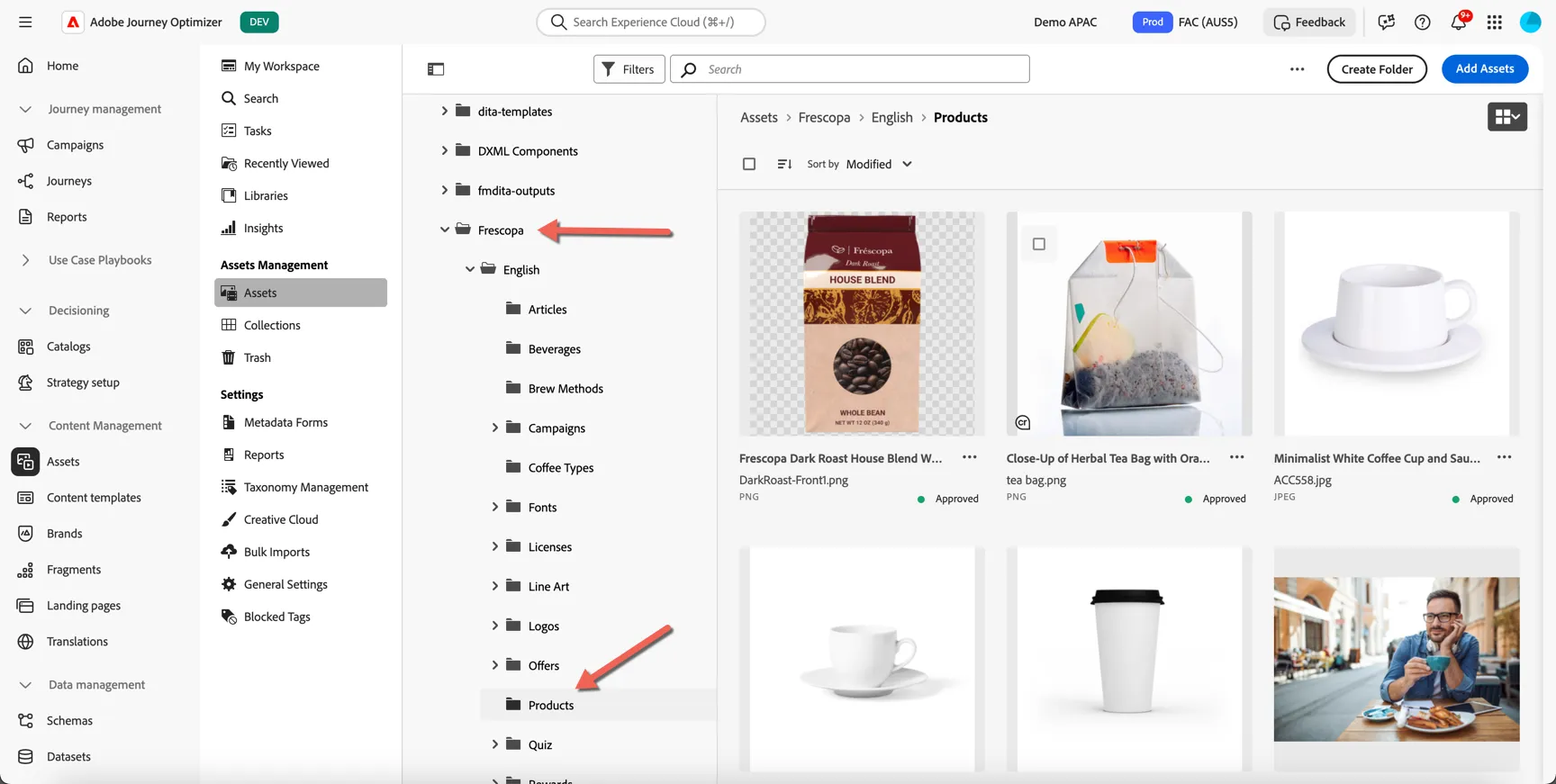
Click into the Frescopa folder and down to English / Products.
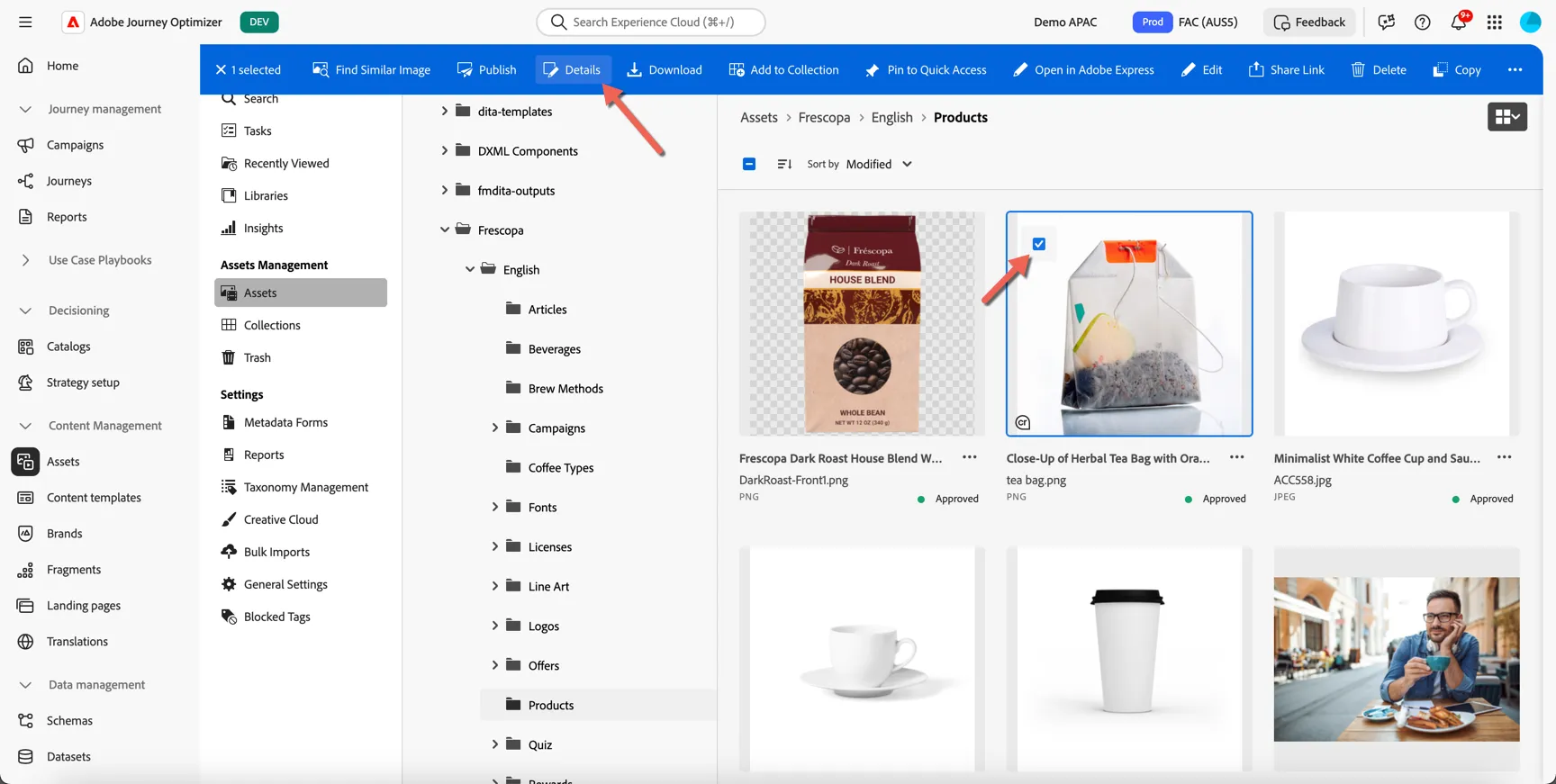
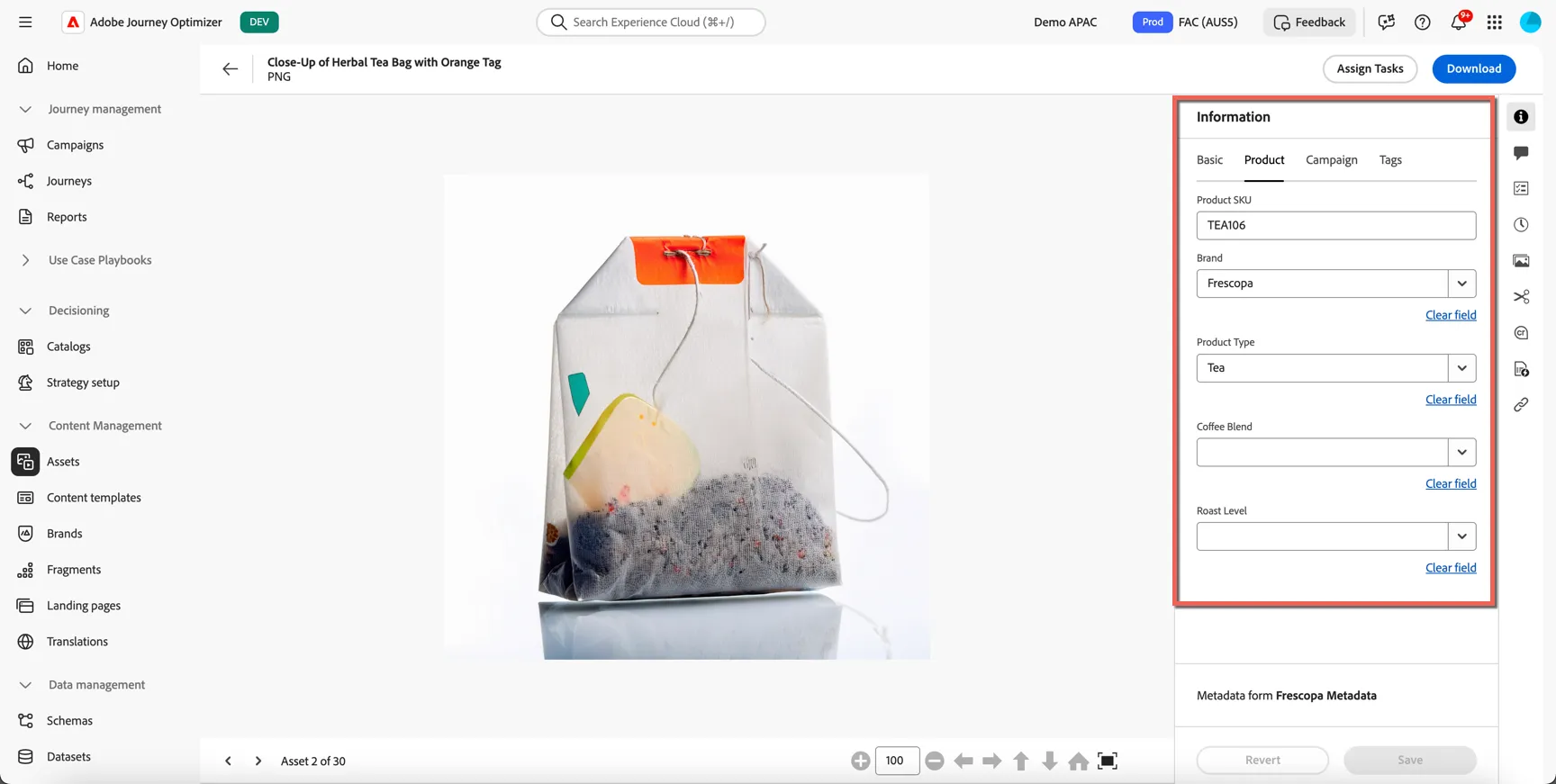
Select the image of the teabag and click on the details.
All of the custom meta data is available.
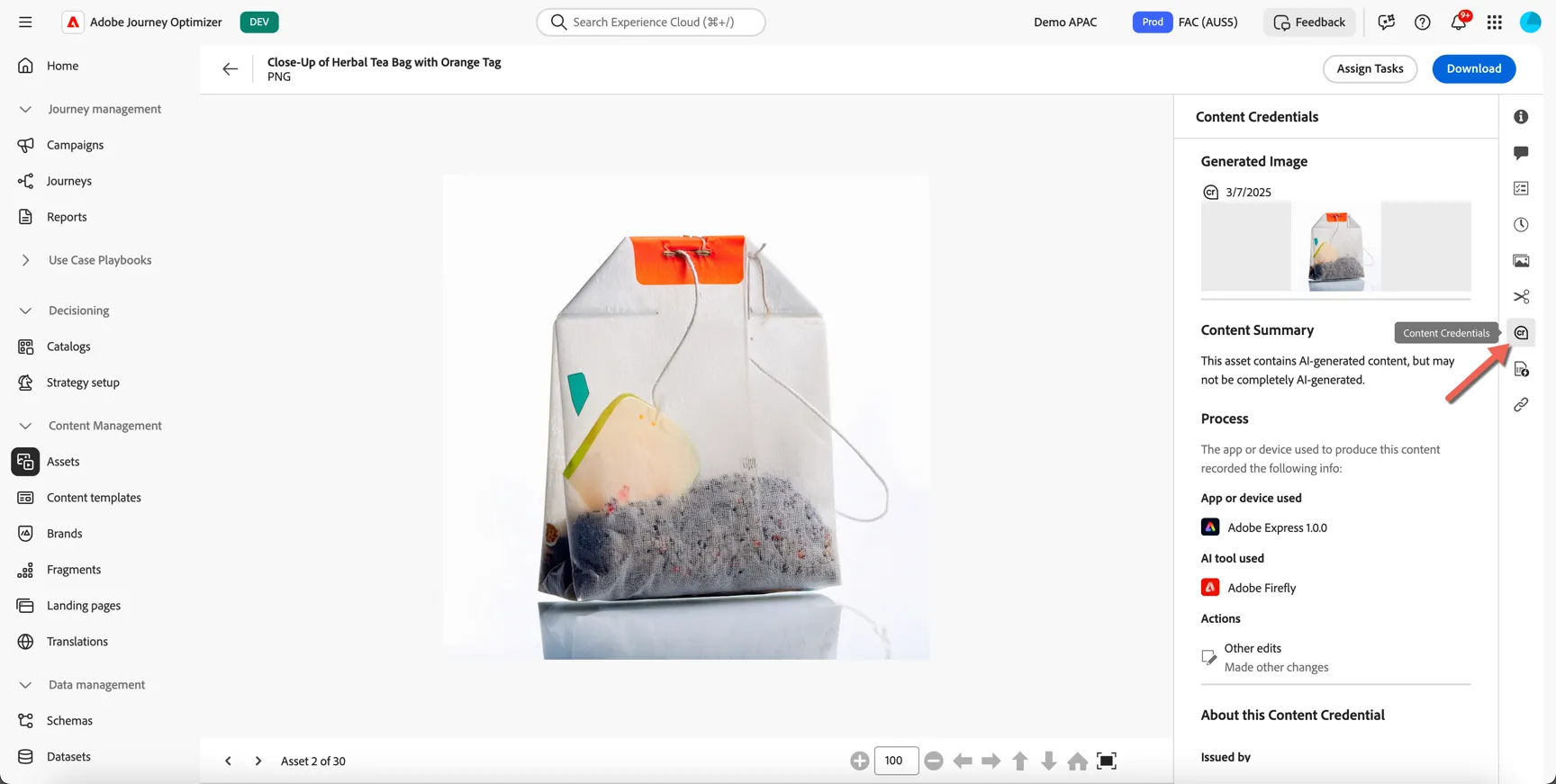
Since this is an AI Generated image, this includes Content Credentials, as part of Adobe's support for ethics and transparency in generative AI, Content Credentials are applied automatically to content generated on Adobe Firefly and APIs.
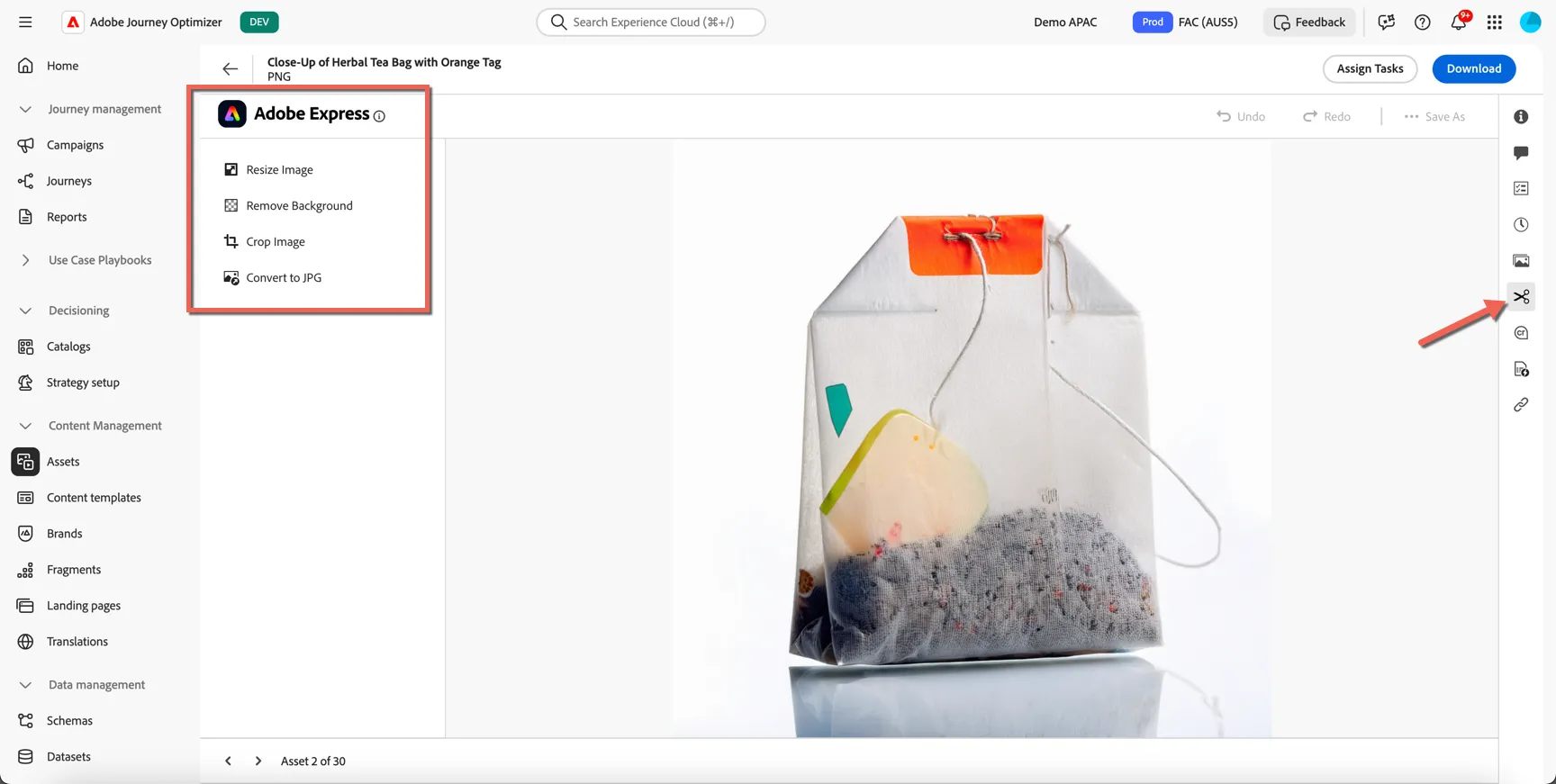
You can even make small edits to the image from here. Click on the scissor icon to open the image editor powered by Adobe Express.
Brand Guidelines
Brand guidelines are a detailed set of rules and standards that establish a brand’s visual and verbal identity. They act as a reference to maintain consistent brand representation across all marketing and communication platforms.
In Journey Optimizer, you now have the option to manually input and organize your brand details or upload brand guideline documents for automatic information extraction.
Click on Brands and click to View the Frescopa guidelines.
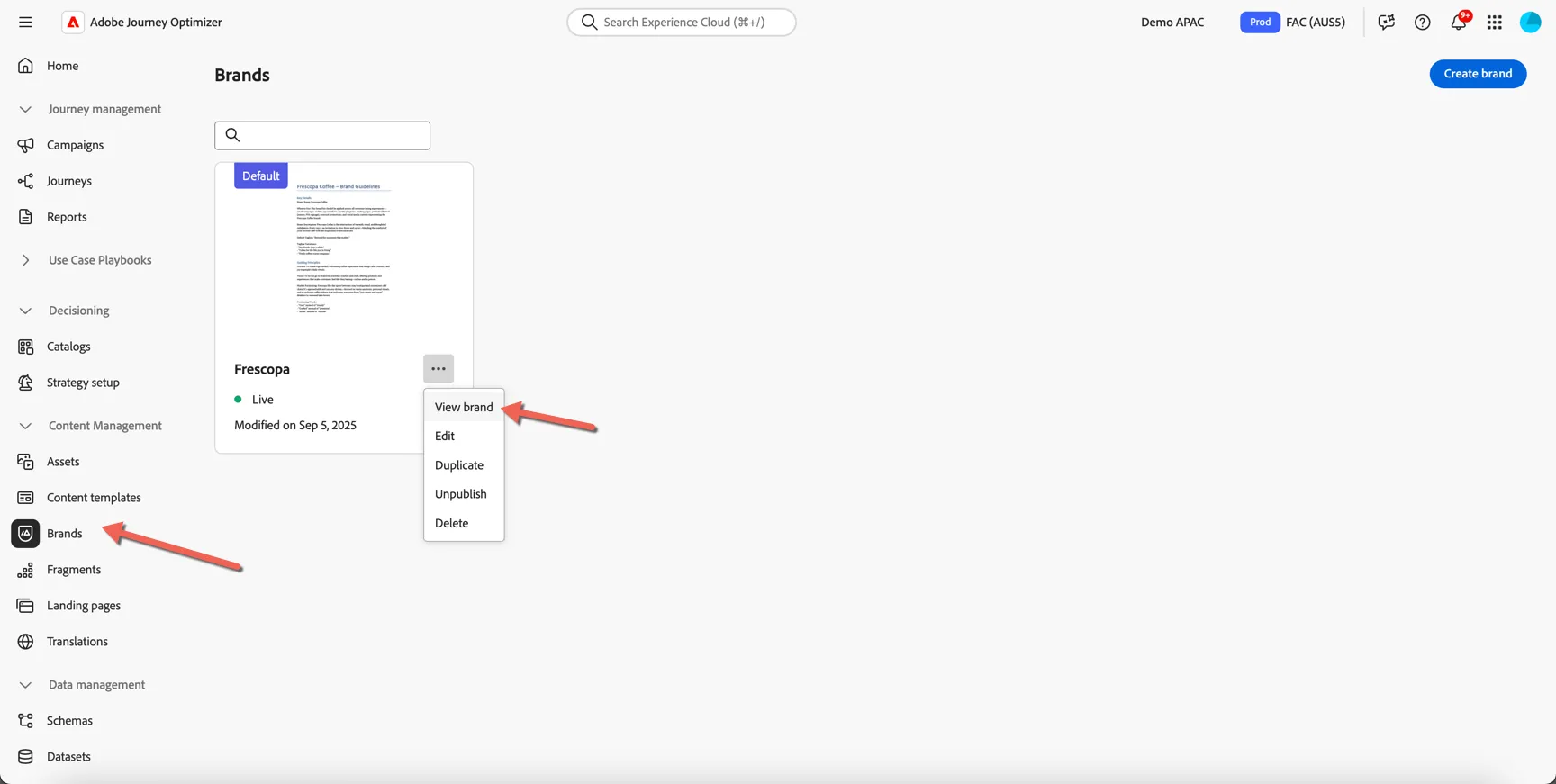
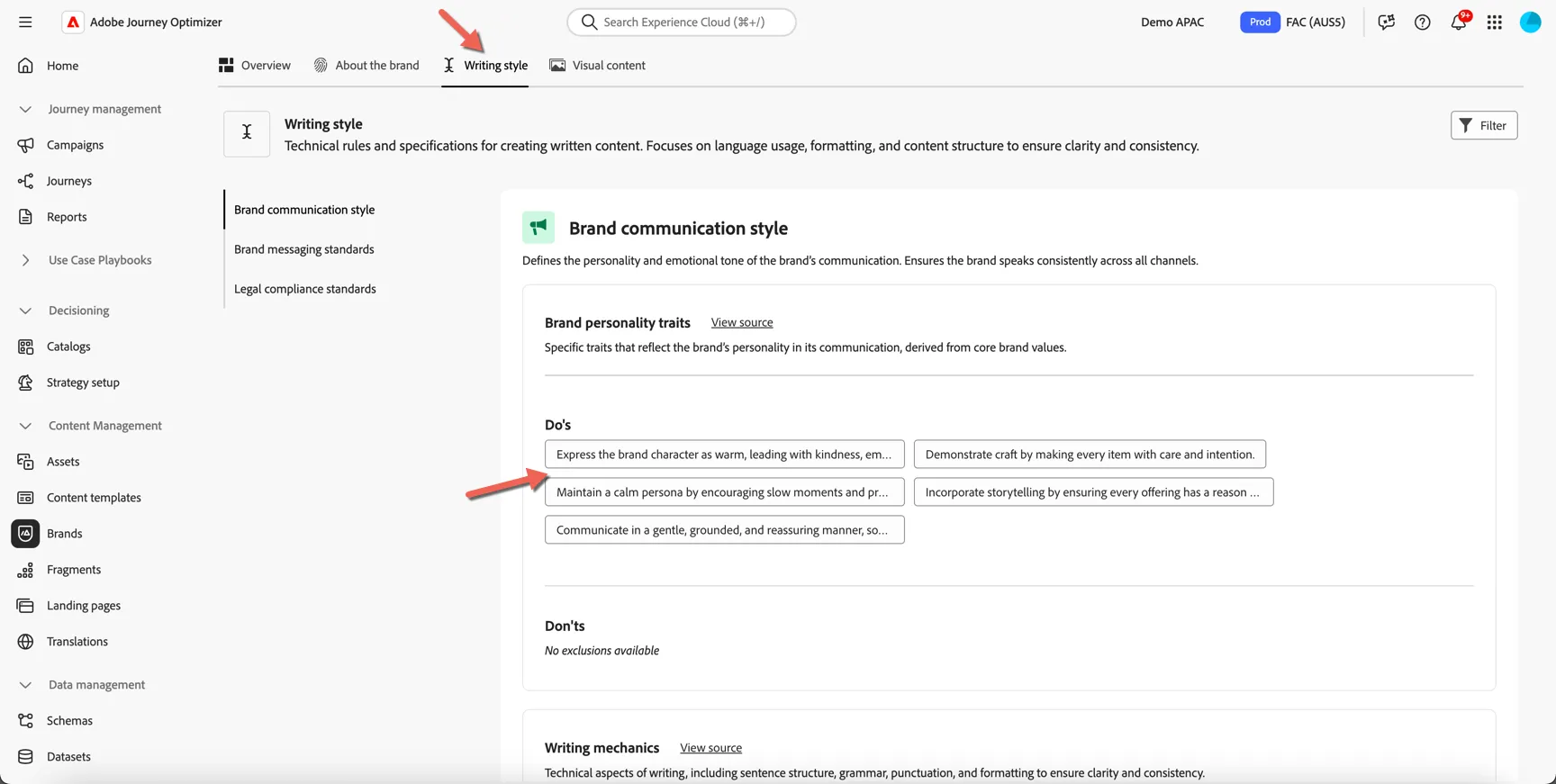
Here you can find all of the do's and dont's defined to ensure all content sent from Journey Optimizer aligns to Frescopa's brand. Click on Writing style to see the guidelines that will be applied to text content.
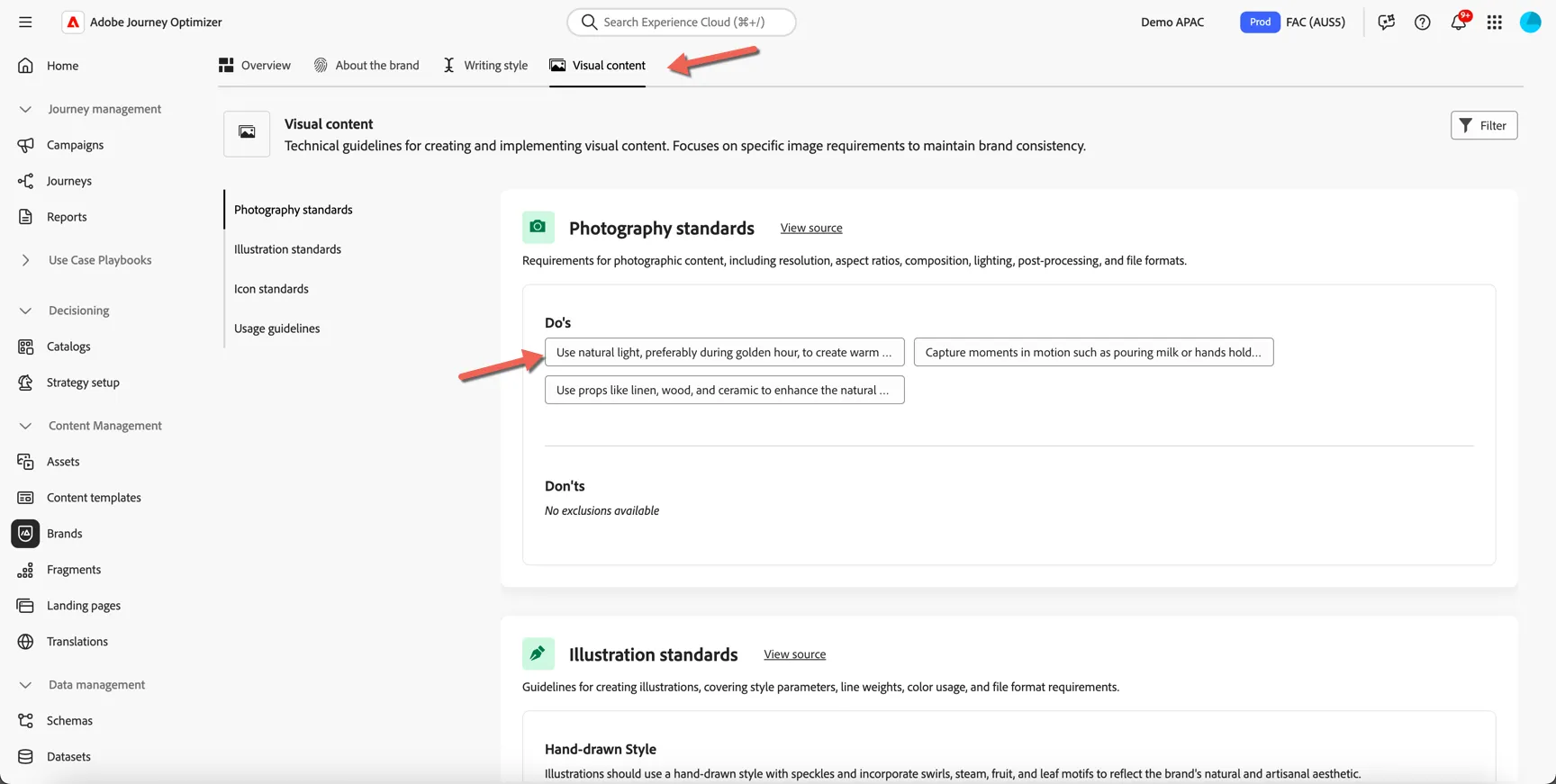
Click on the Visual Content to see the guidelines that will be applied to imagery.
Content Templates (optional)
Content templates are pre-defined pieces of content. Templates can be created for multiple channels and are used as starting points for messages in campaigns and journeys.
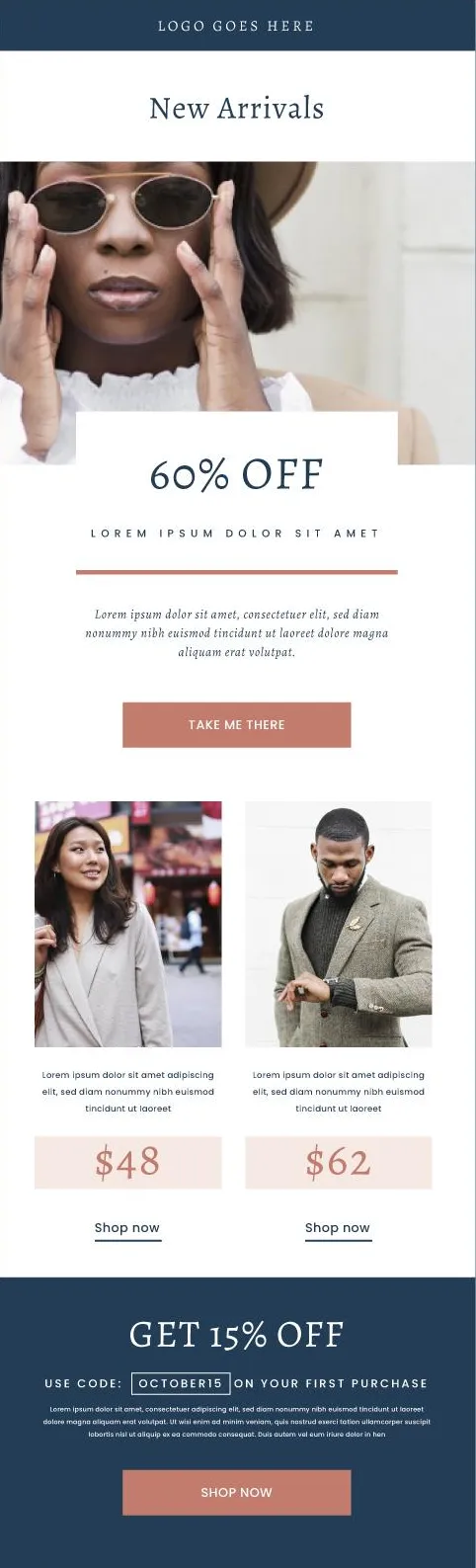
Importing your email templates into a new solution is usually a time-consuming task during implementations. With Adobe Journey Optimizer we can generate an email editor compatible template directly from an image, saving potentially days of effort.
Right click and Save As the image below onto your hard drive.
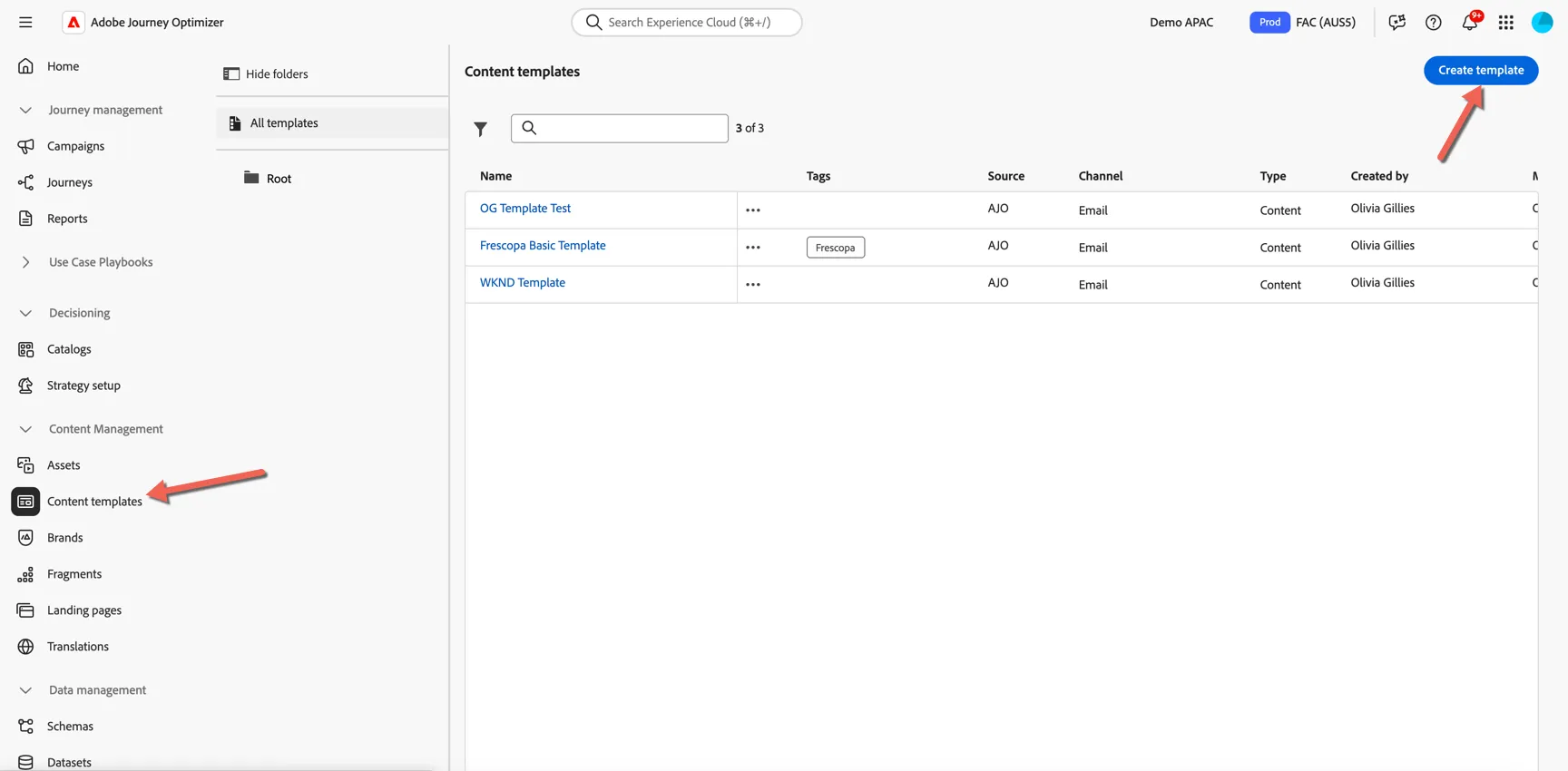
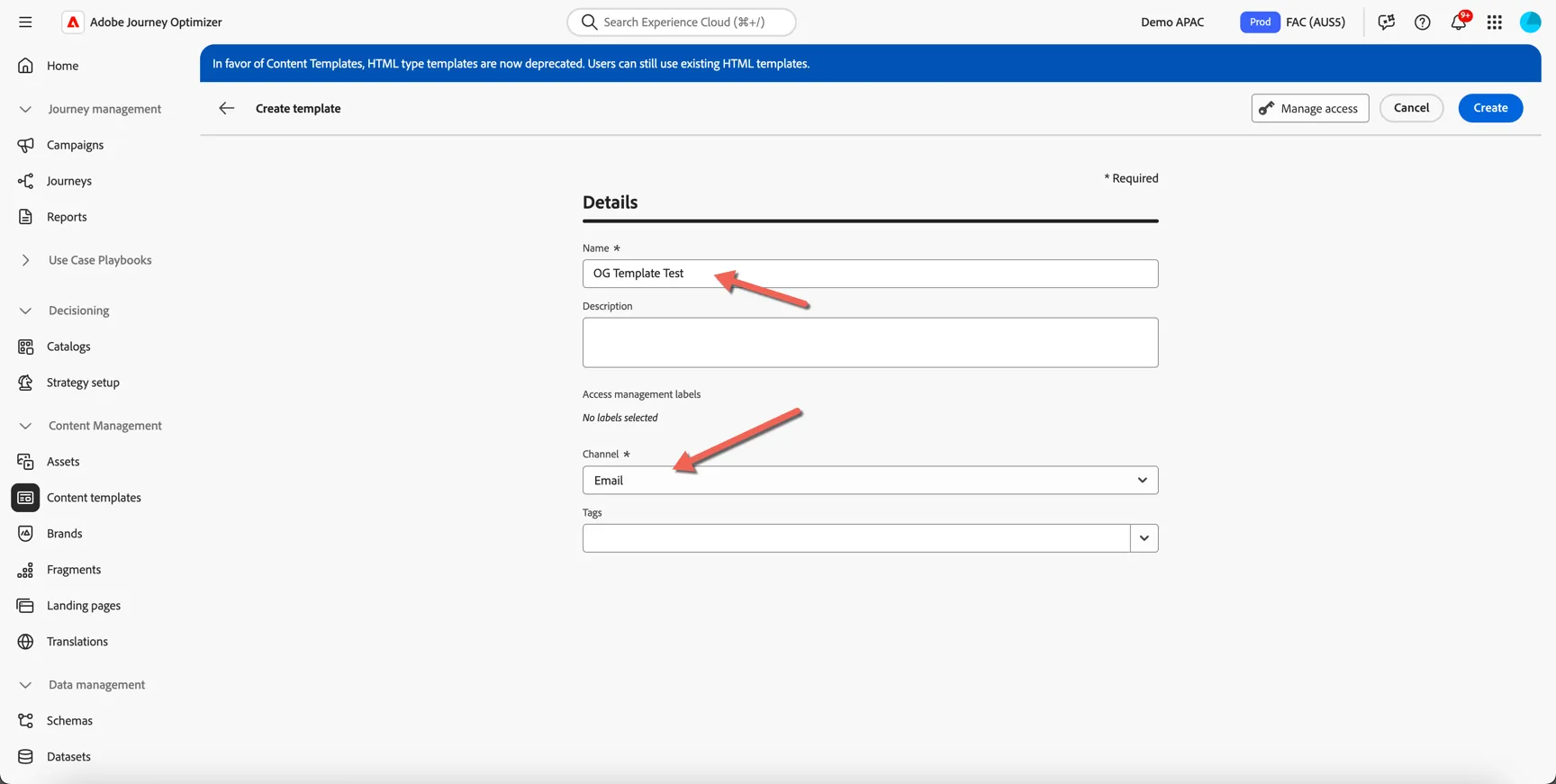
Navigate to Content Templates and click to Create template.
Give your template a name - something unique so you can recognise it.
Now upload the image you downloaded from above (or one of your own email images if you have one handy!)
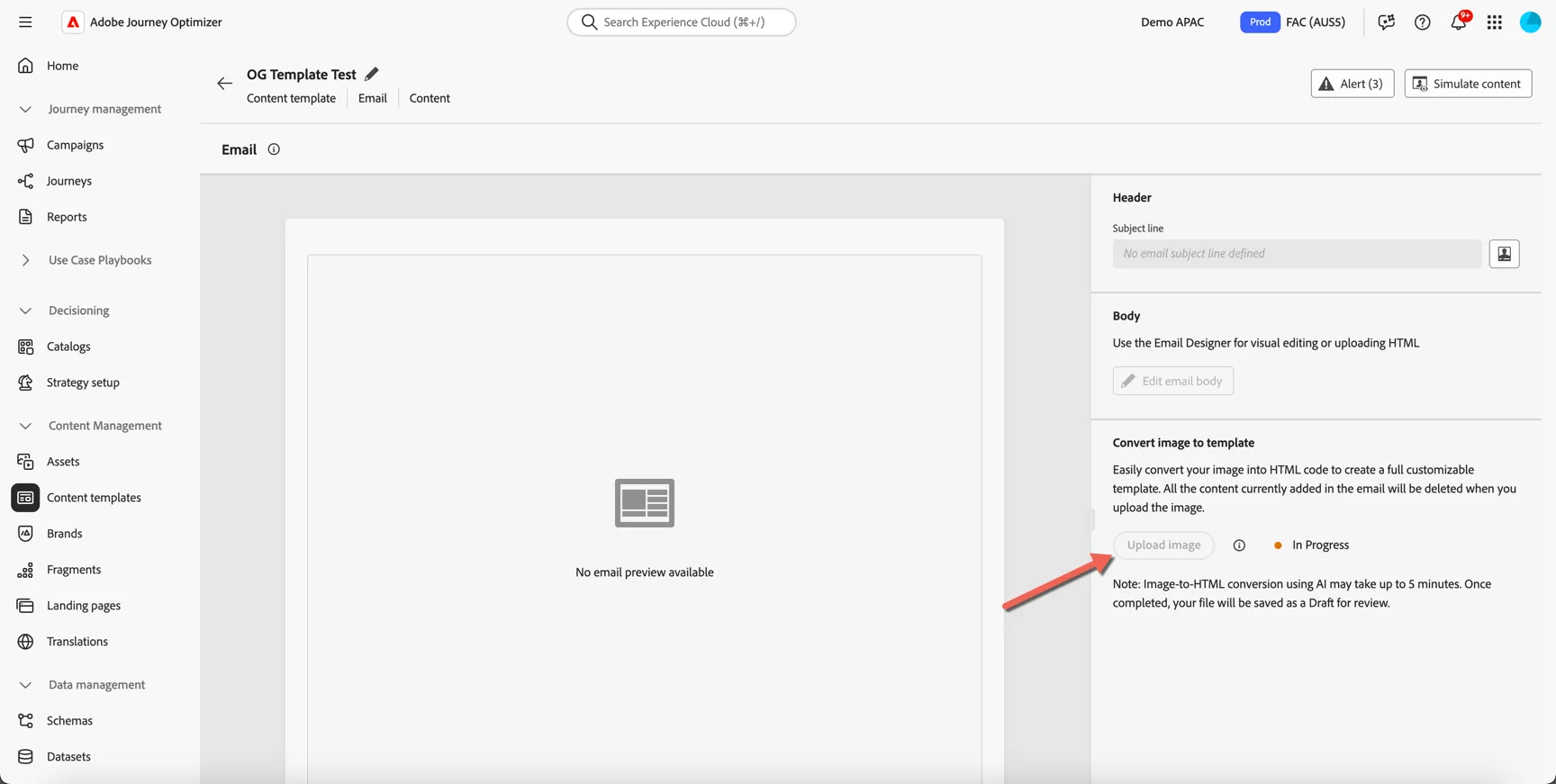
The generation will take a few minutes. Move on to the next exercise and you can come back later to see how it went.