Prepare message
We now need to set up the content for each of those messages.
Configure the Email
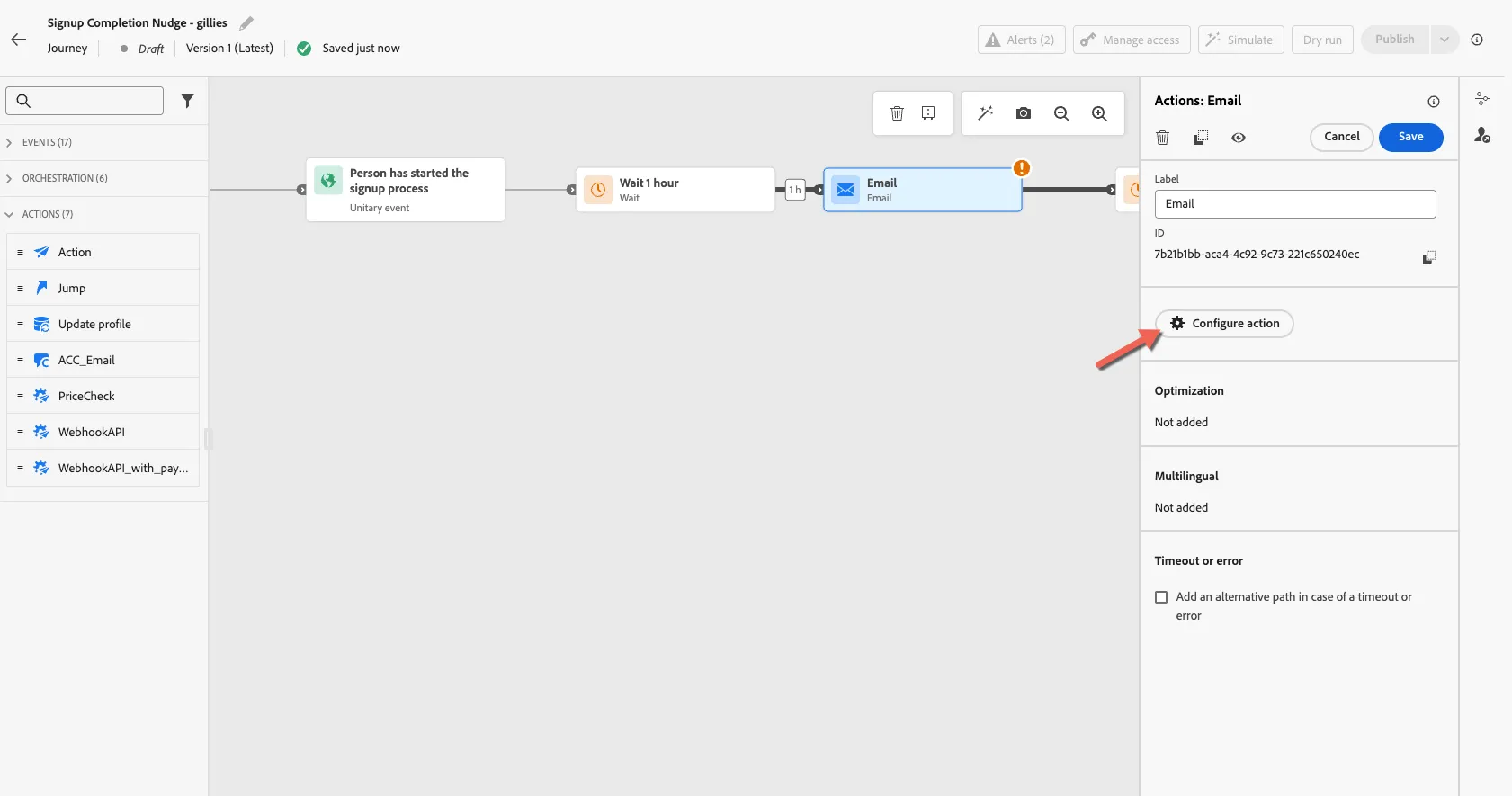
For this exercise we'll start with a pre-defined content template. In your journey, select the email activity and click to Configure action
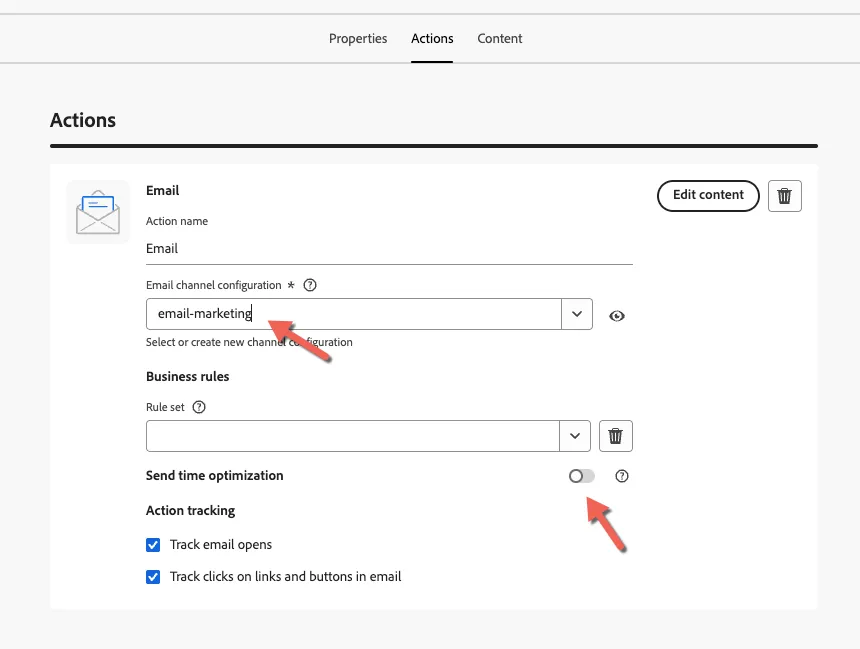
Set the Email Configuration to email-marketing, if you want you can also enable send time optimisation to let AI decide the best time of day to deliver the message for each customer.
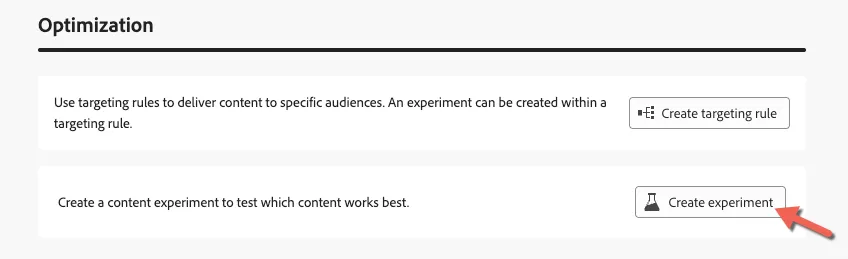
Before we start editing the content, let's enable experimentation. Scroll down to Optimization and click to Create Experiment.
You can control what success metric you want to use, by default it will look for clicks on the email but you can configure it to look for downstream conversion events as well.
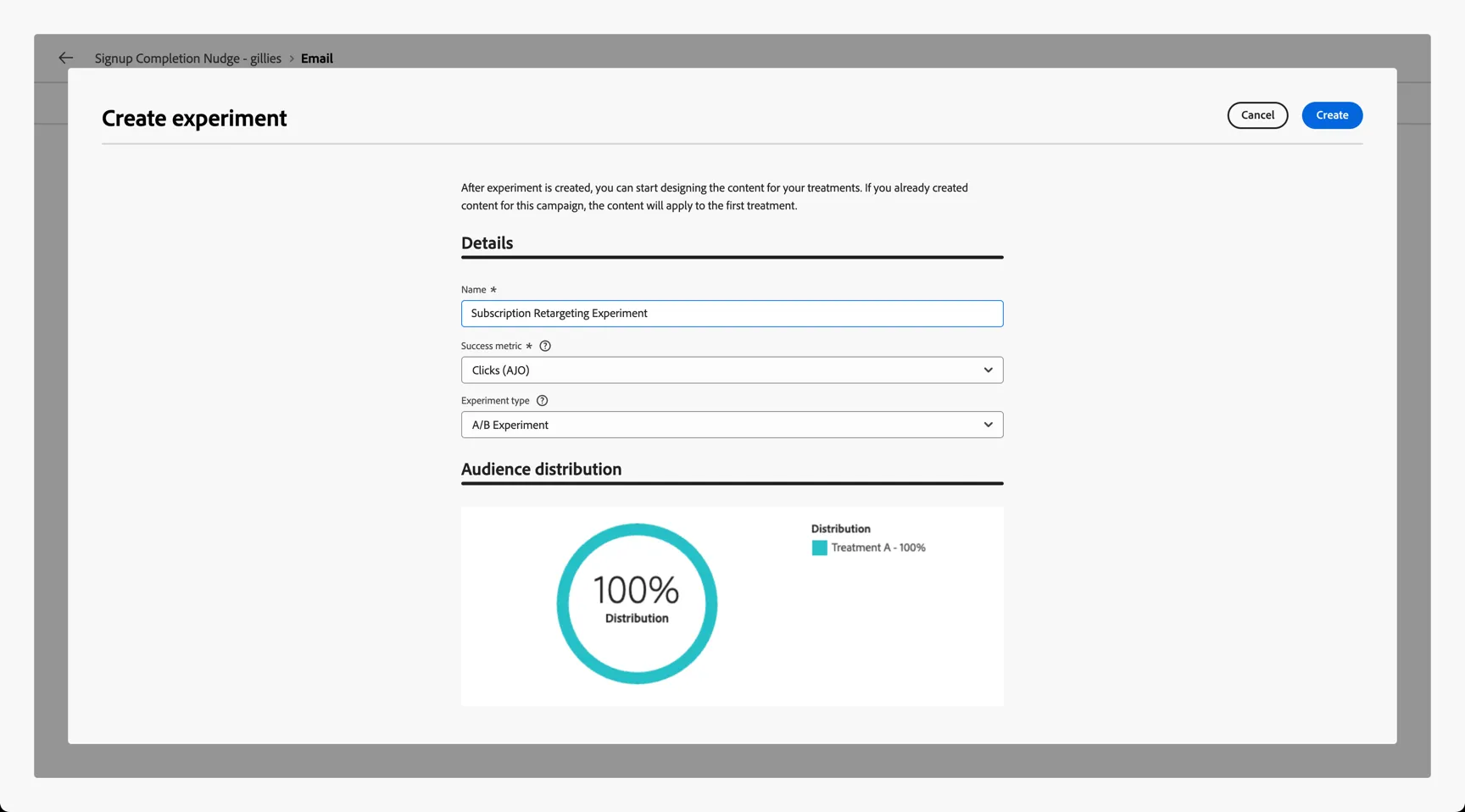
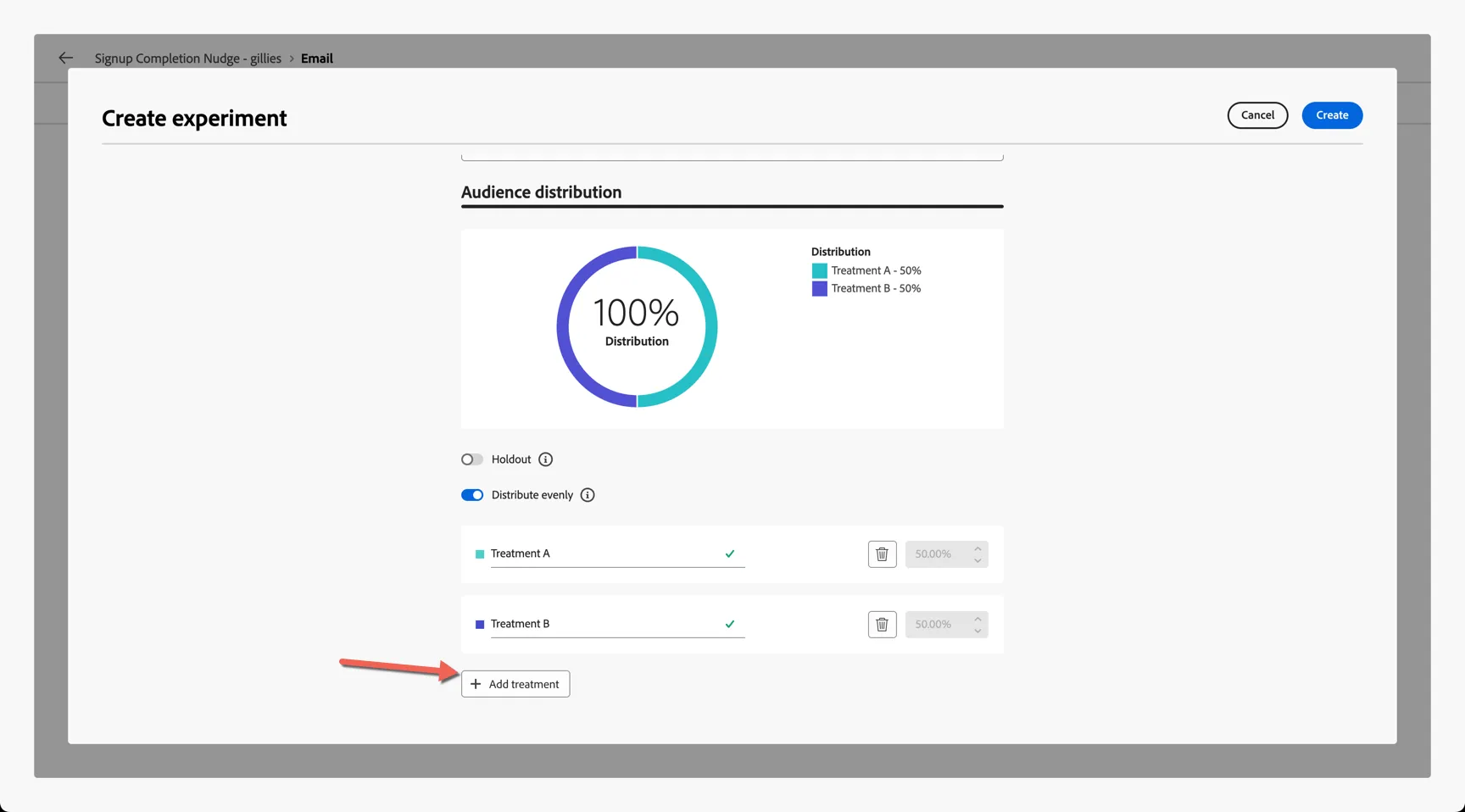
Scroll down to Audience Distribution and click to +Add treatment. You should now have 2 treatments that we'll use for the experiment, Treatment A and Treatment B.
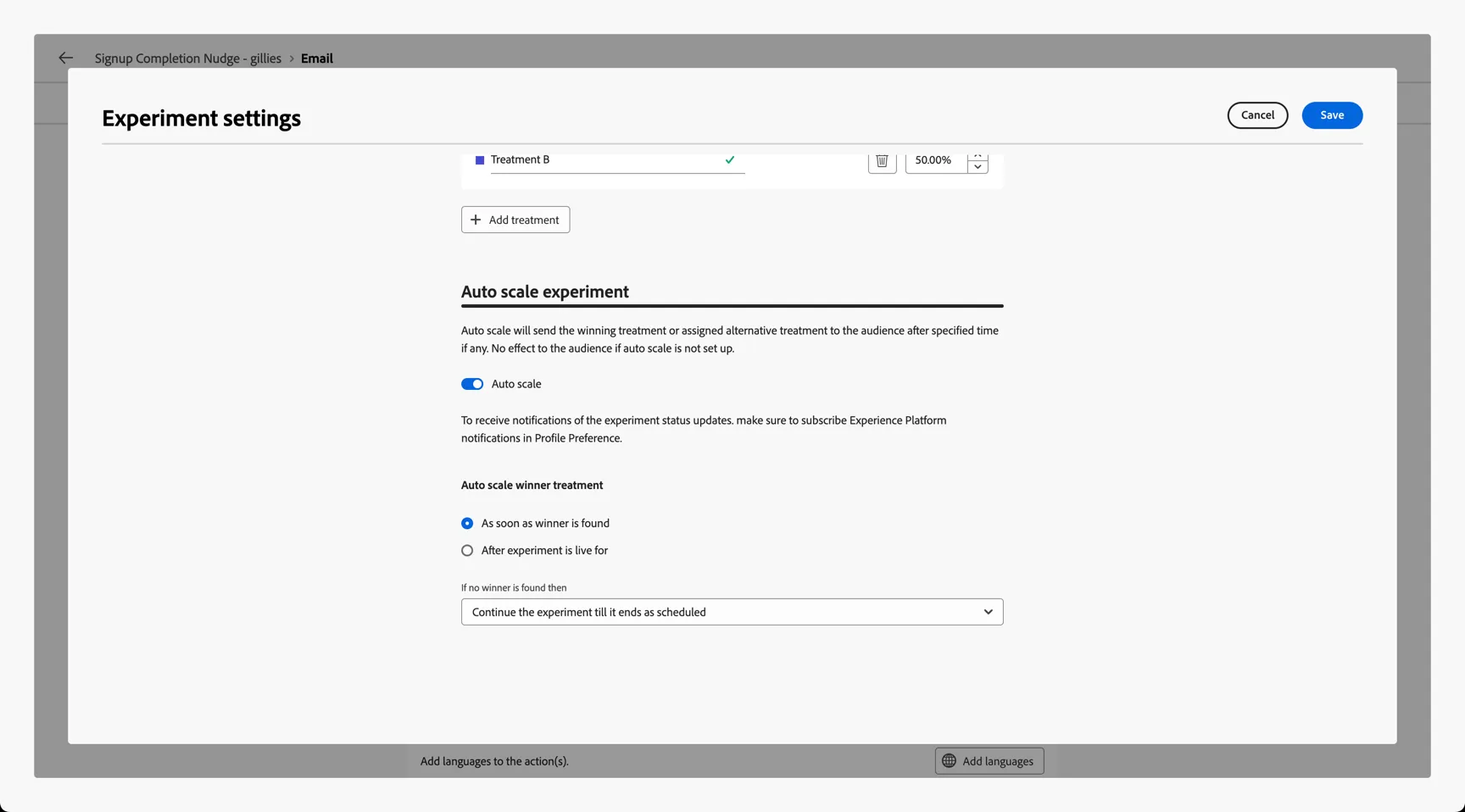
Lastly you can choose whether or not you want the experiment to auto scale - this will send the winning treatment to the audience after a specific time or as soon as a statistically significant winner has been found. Click to Save the experiment settings.
Apply templates
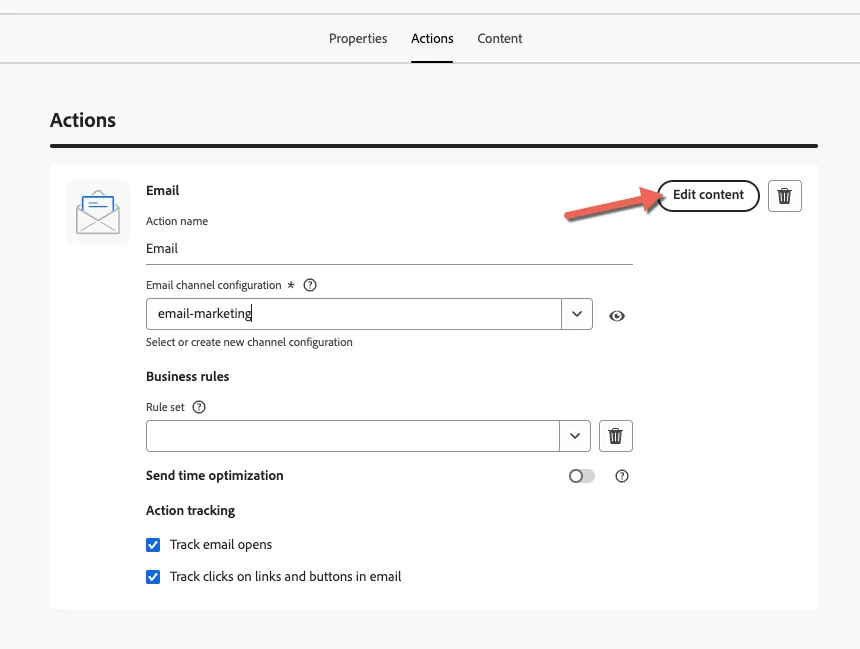
Click to Edit Content.
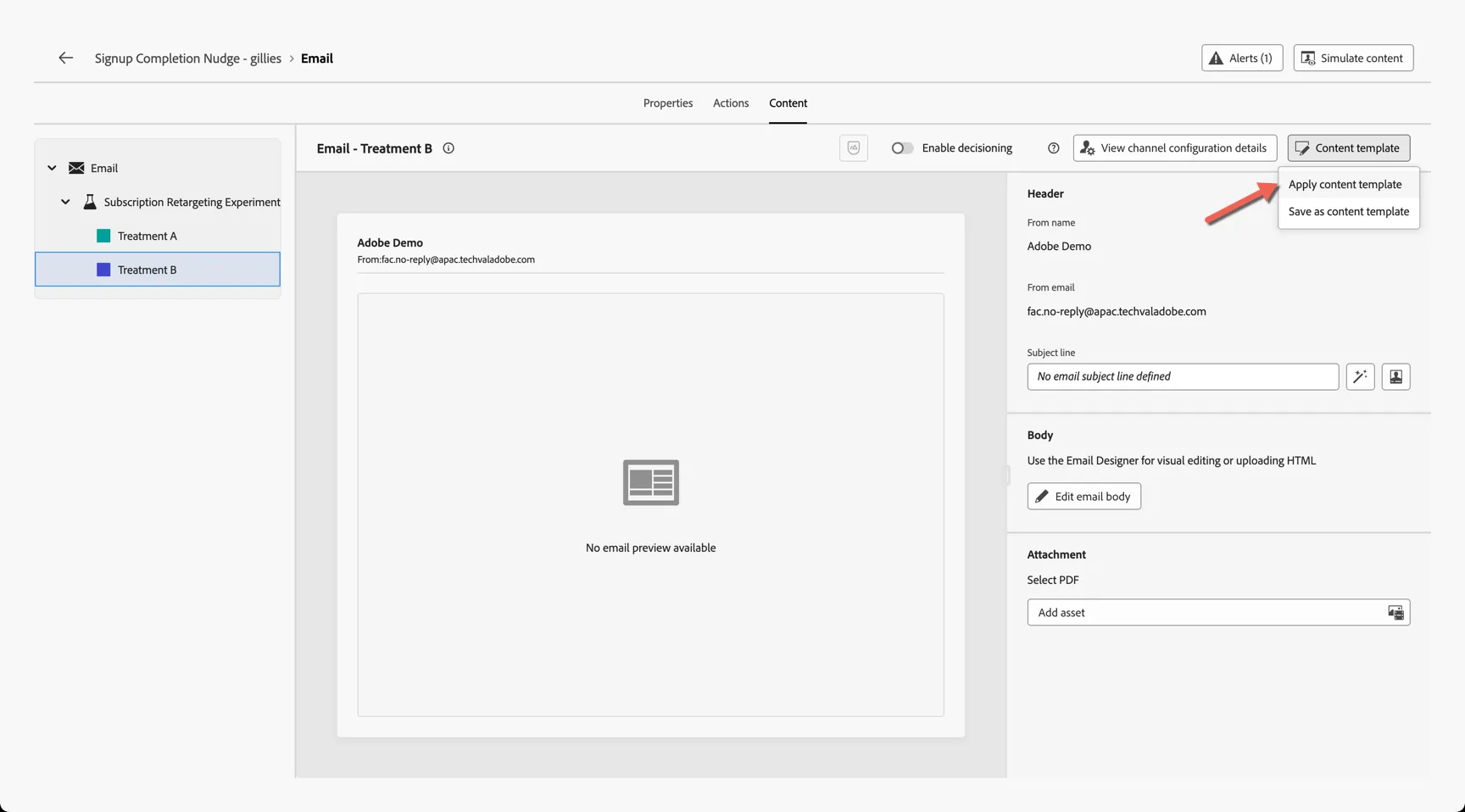
You can access each of the treatments on the left hand side. Rather than starting from scratch building our email we'll start from a template. Click on Content Template and select Apply content template.
Select the Frescopa Basic Template and click Confirm.
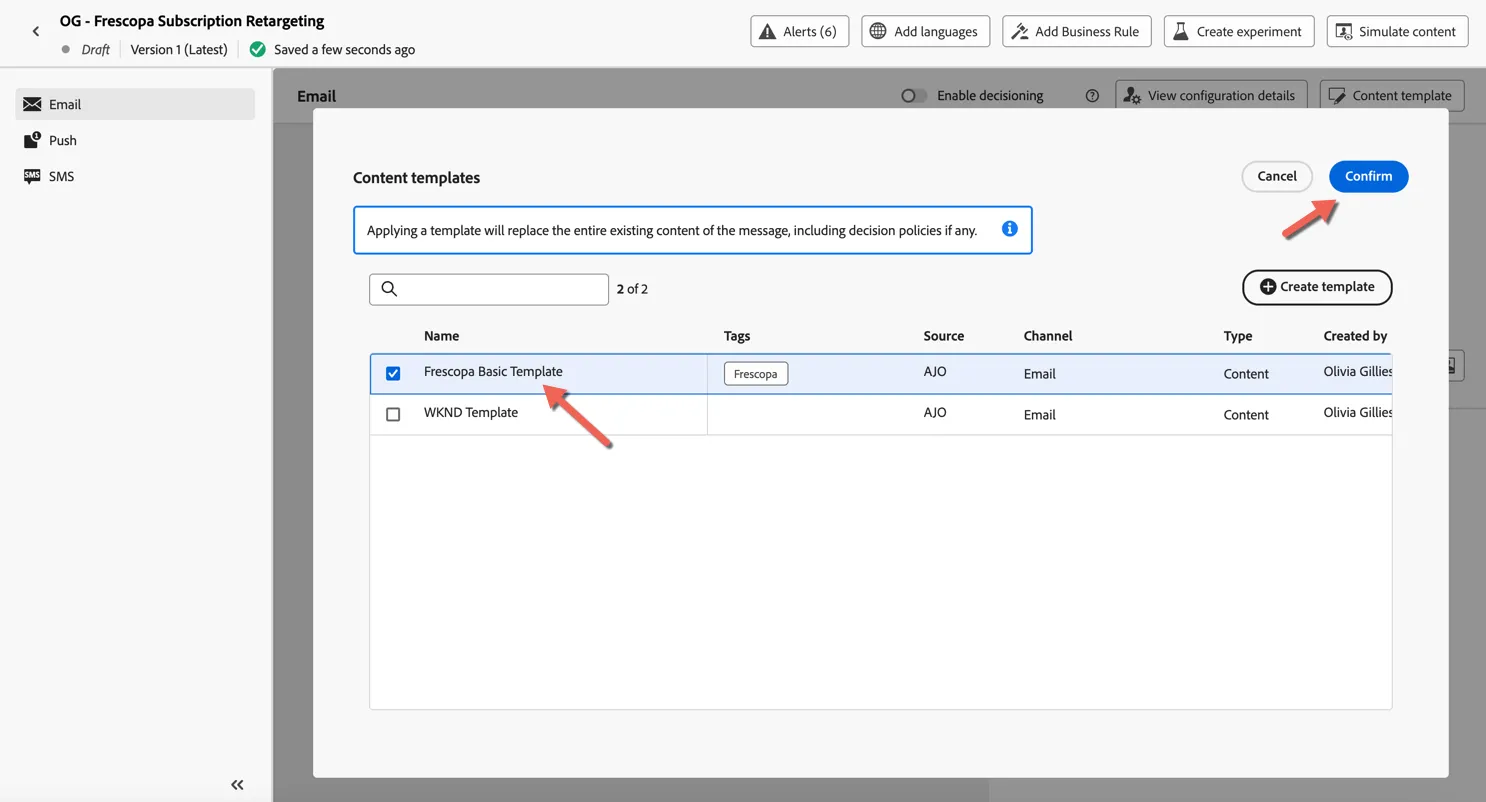
Repeat the same for Treatment B.
Edit Content
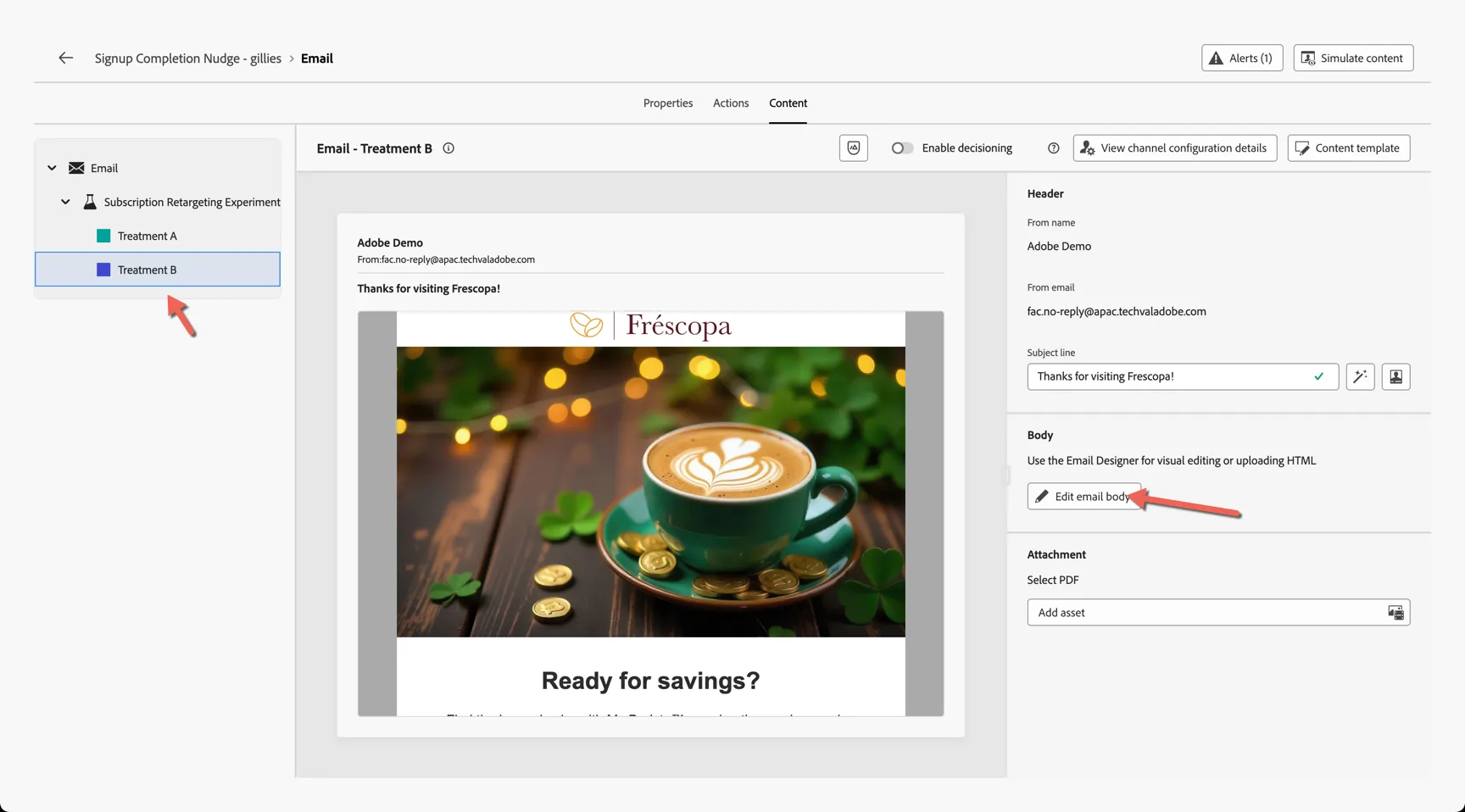
We'll leave the content template as is for Treatment A but we'll update Treatment B for our experiment.
Select Treatment B then click to Edit the email body.
Generate Content
Now we'll use AI Assistant to help us generate content. AI Assistant can be used to generate individual images or text components but in this case we're going to generate new variations of the full email.
Select the body block by clicking on the grey area outside the email content then click to open the AI Assistant on the right side.
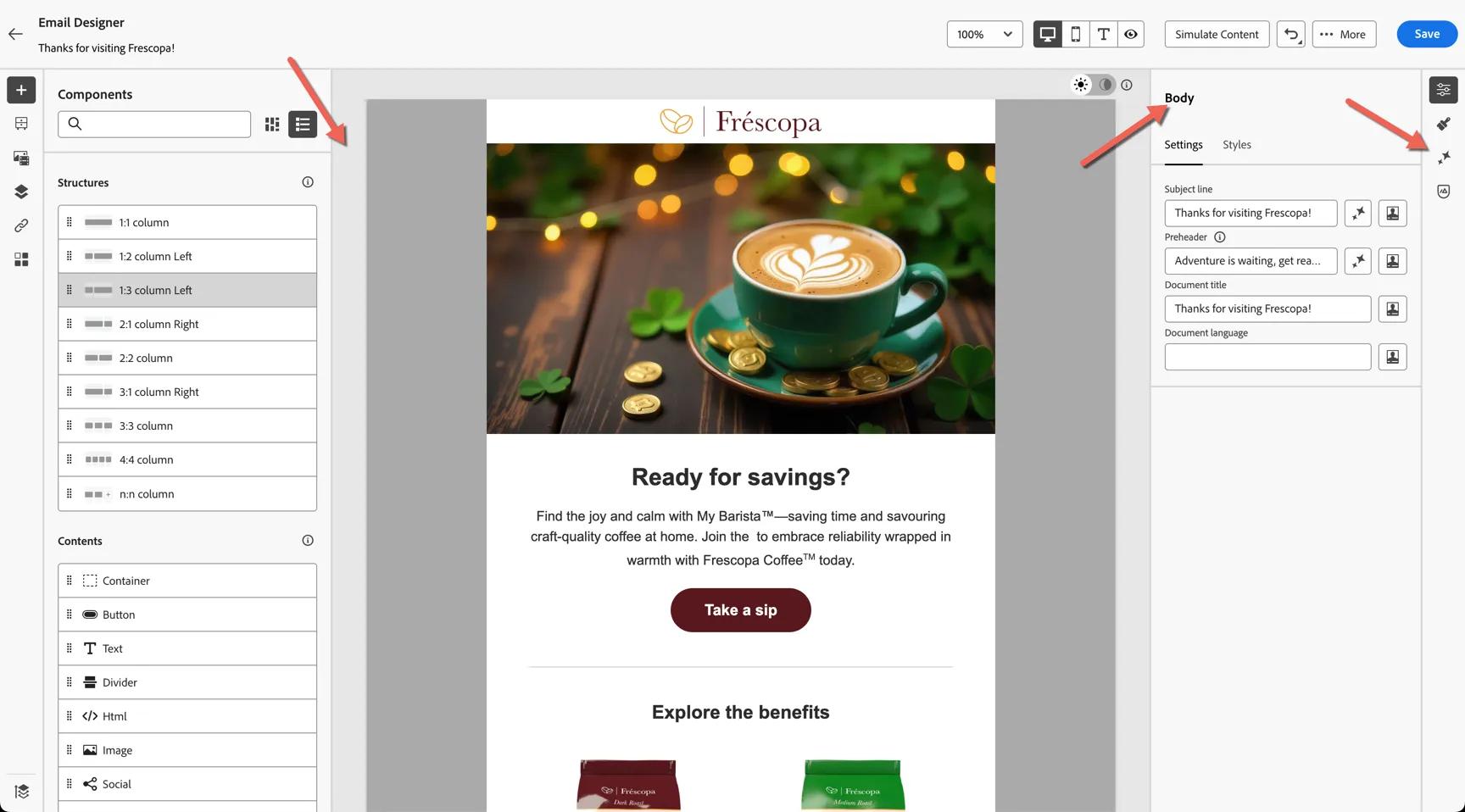
Add a text prompt for the message you want to convey - in this case, encouraging a My Barista subscription, for example:
Select to generate the Subject line as well.
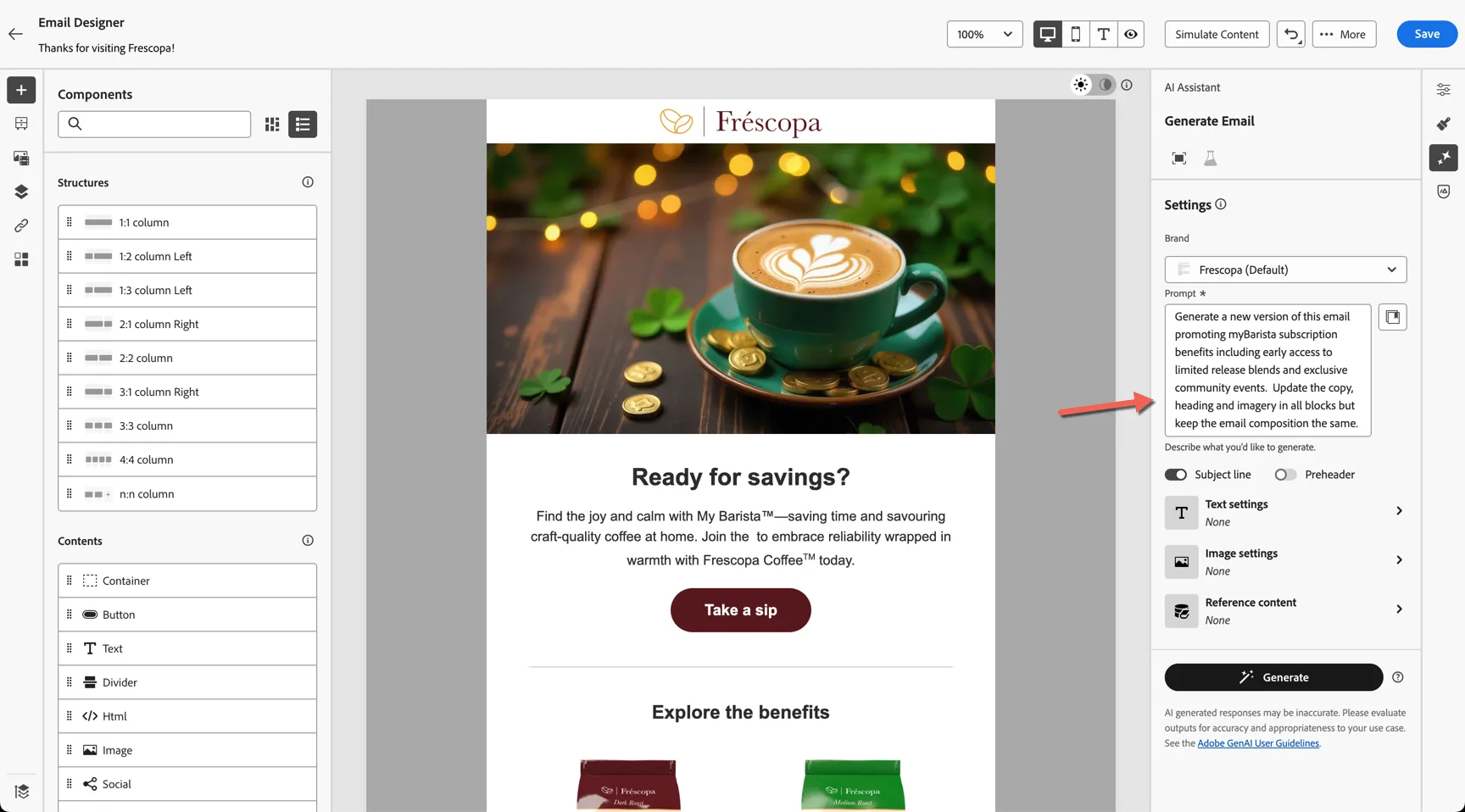
Update the text and image generation settings to what you like:
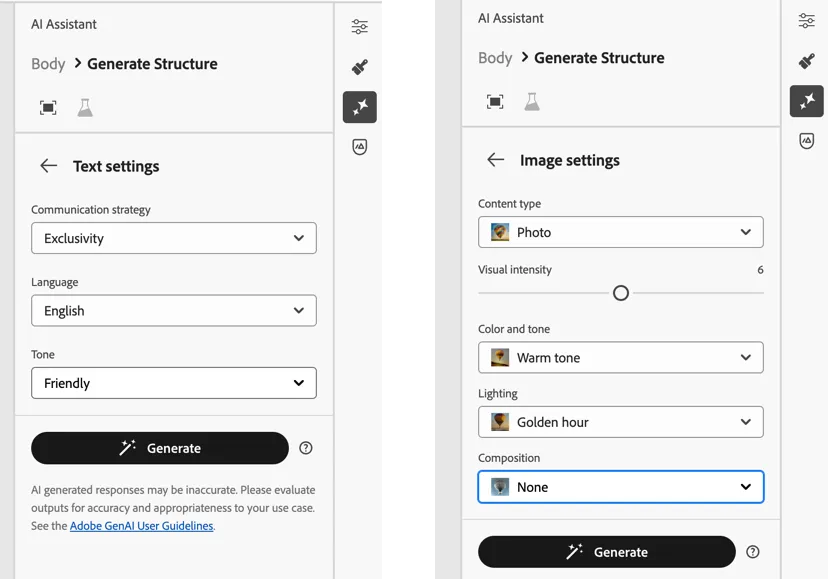
Click on Generate. After a short while, two new variations are generated. Each variation has been automatically scored against the brand guidelines.
What you see generated and the scores applied will be different from the screenshots below. You can follow the process as it applies to your generated content.
Click on the Preview button to take a closer look.
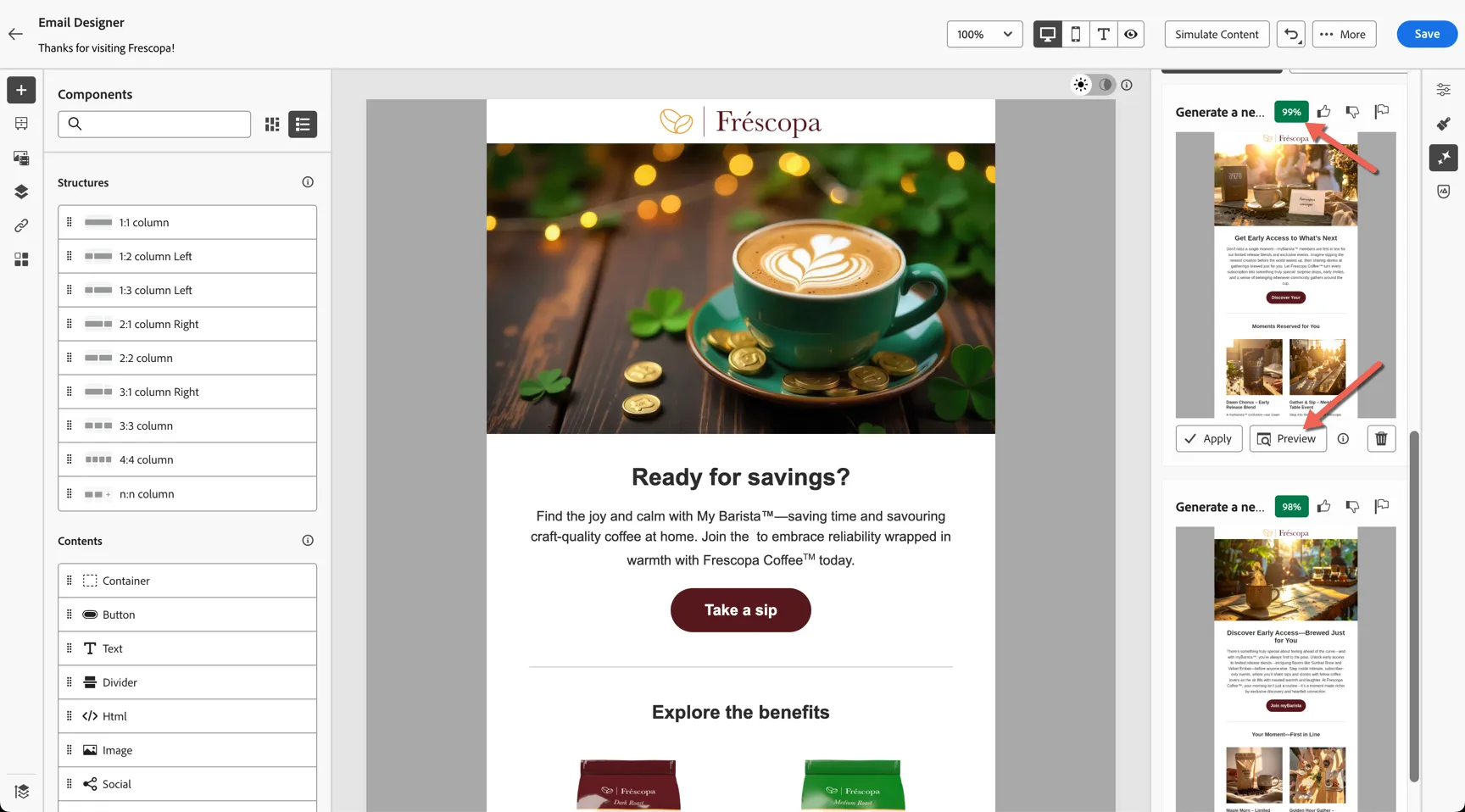
You can switch between each variation on the right, and use the brand alignment tab on the left to review the reasons if you have low scores.
You can also ask it to refine specific pieces of the content and provide positive and negative feedback through the panel at the bottom.
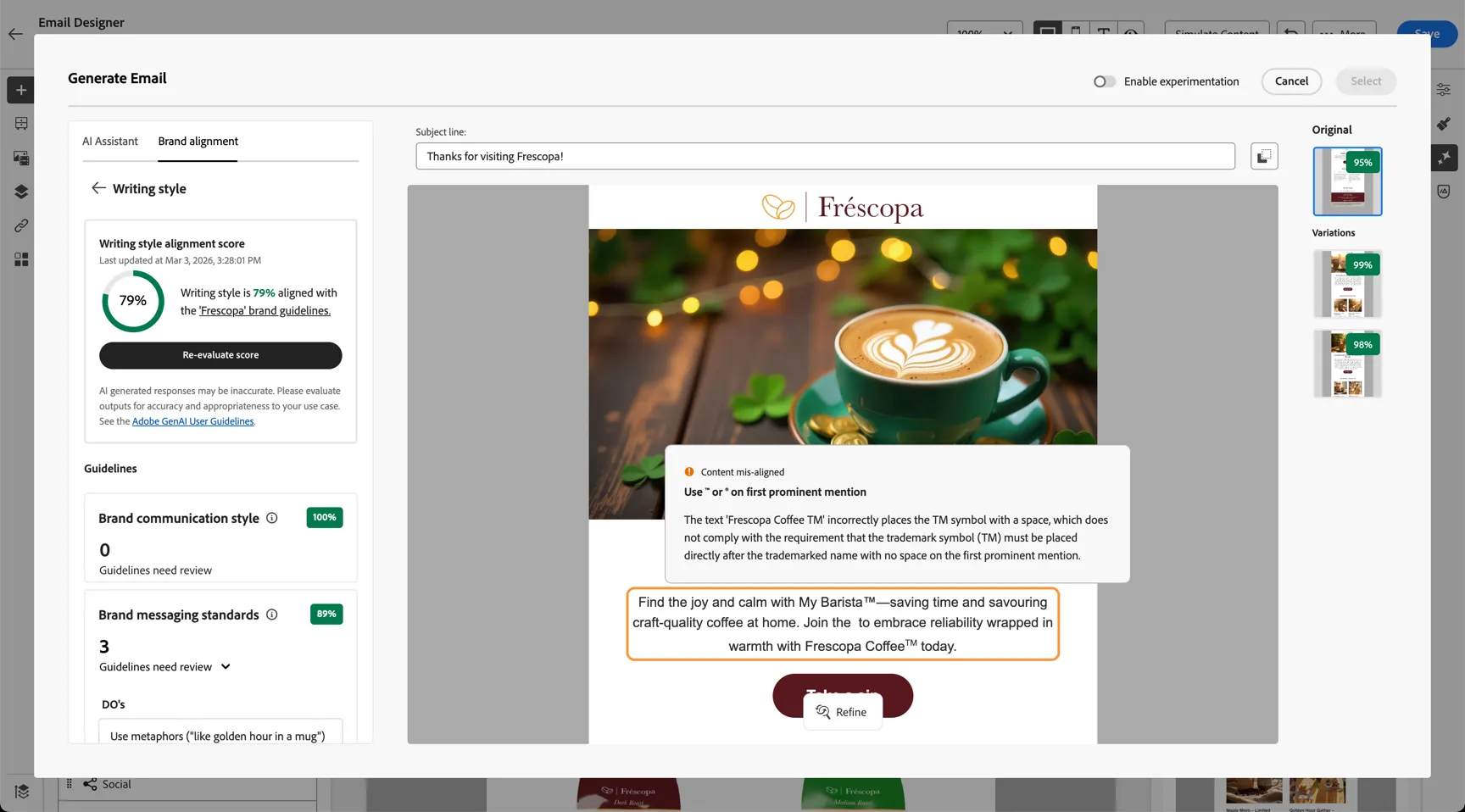
Pick your favourite and click Select.
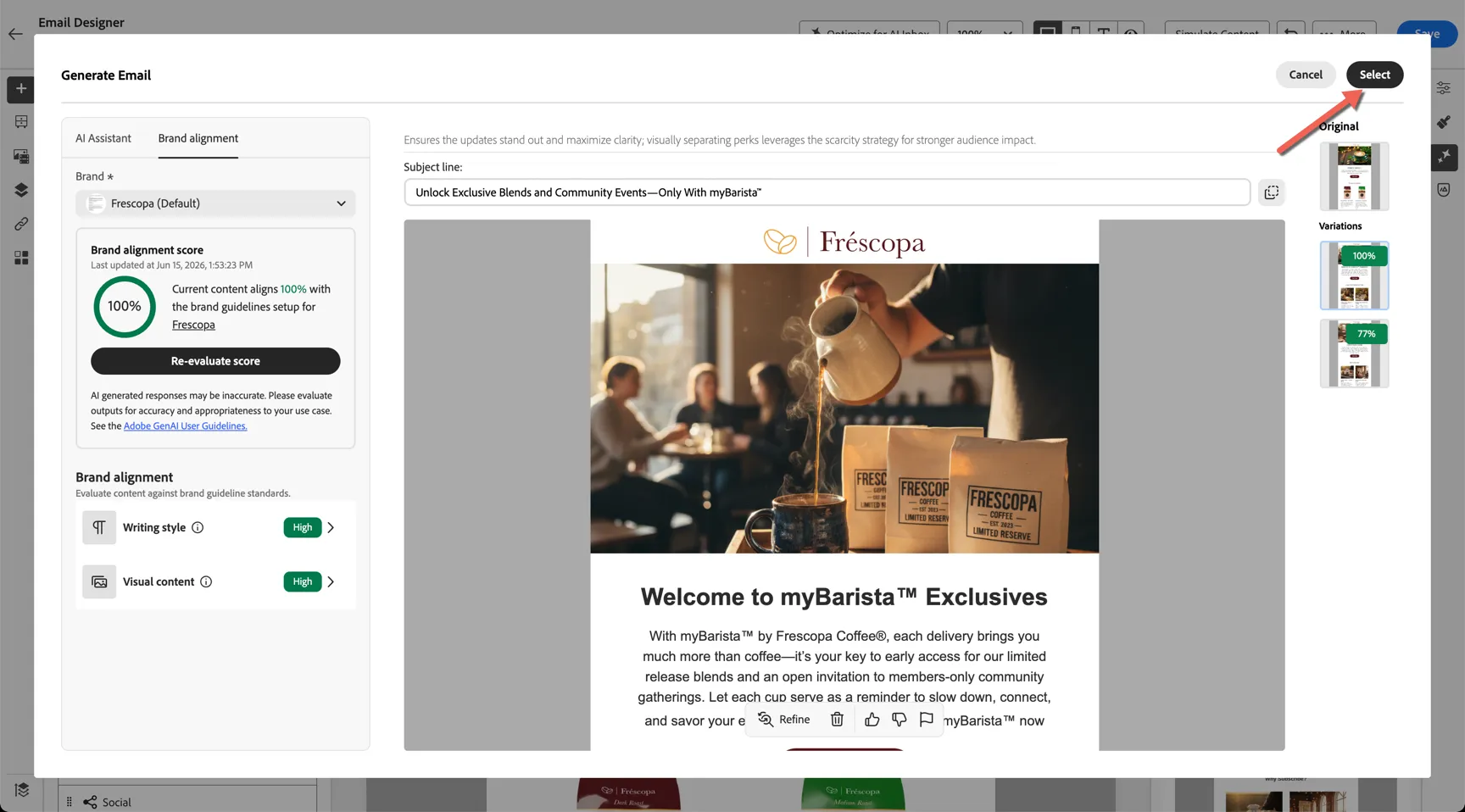
Your email is now updated with the new content! Click to Save.
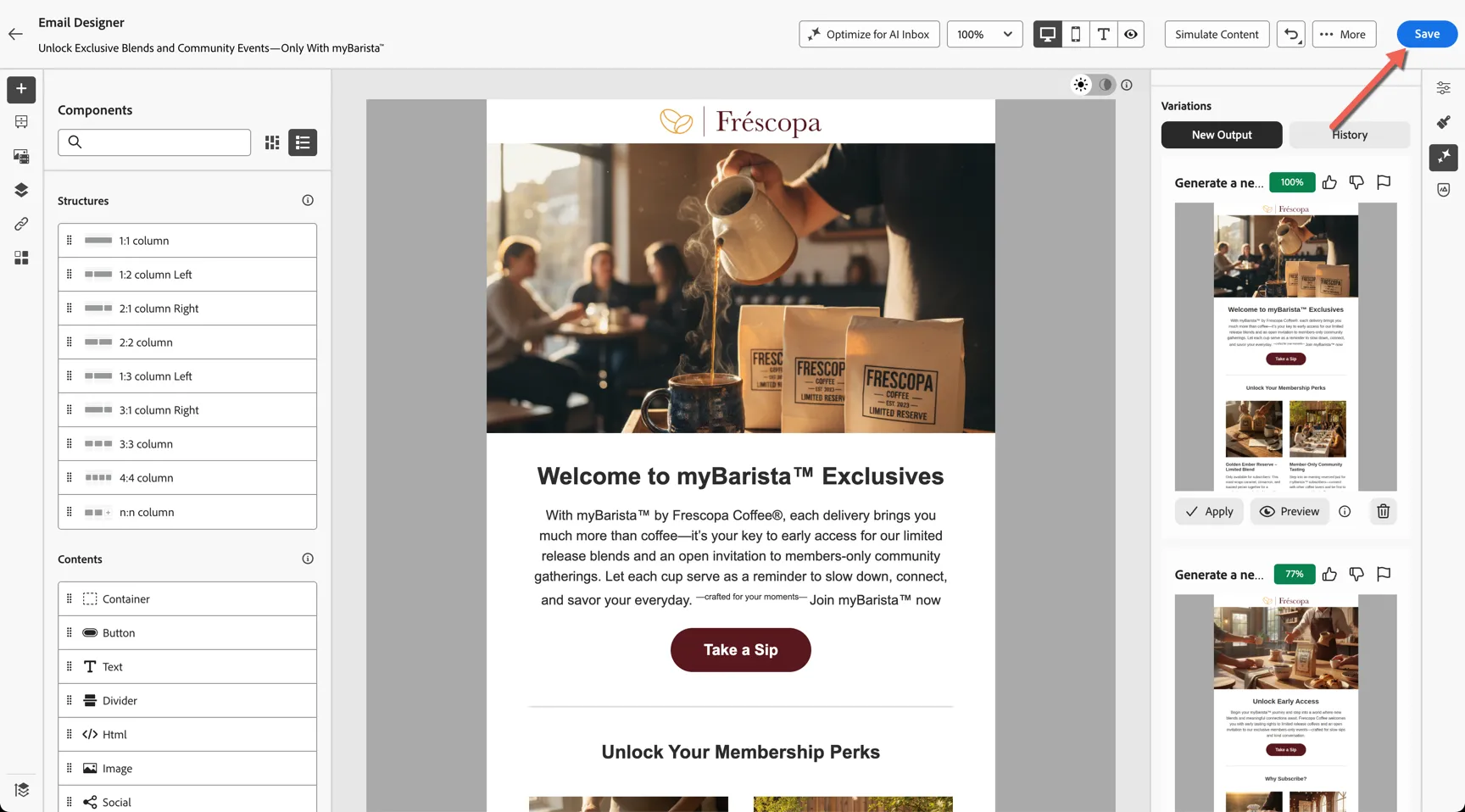
Because the generated content includes imagery we need to tell AJO where in the asset repository to put the new images. Click Next to choose the folder.
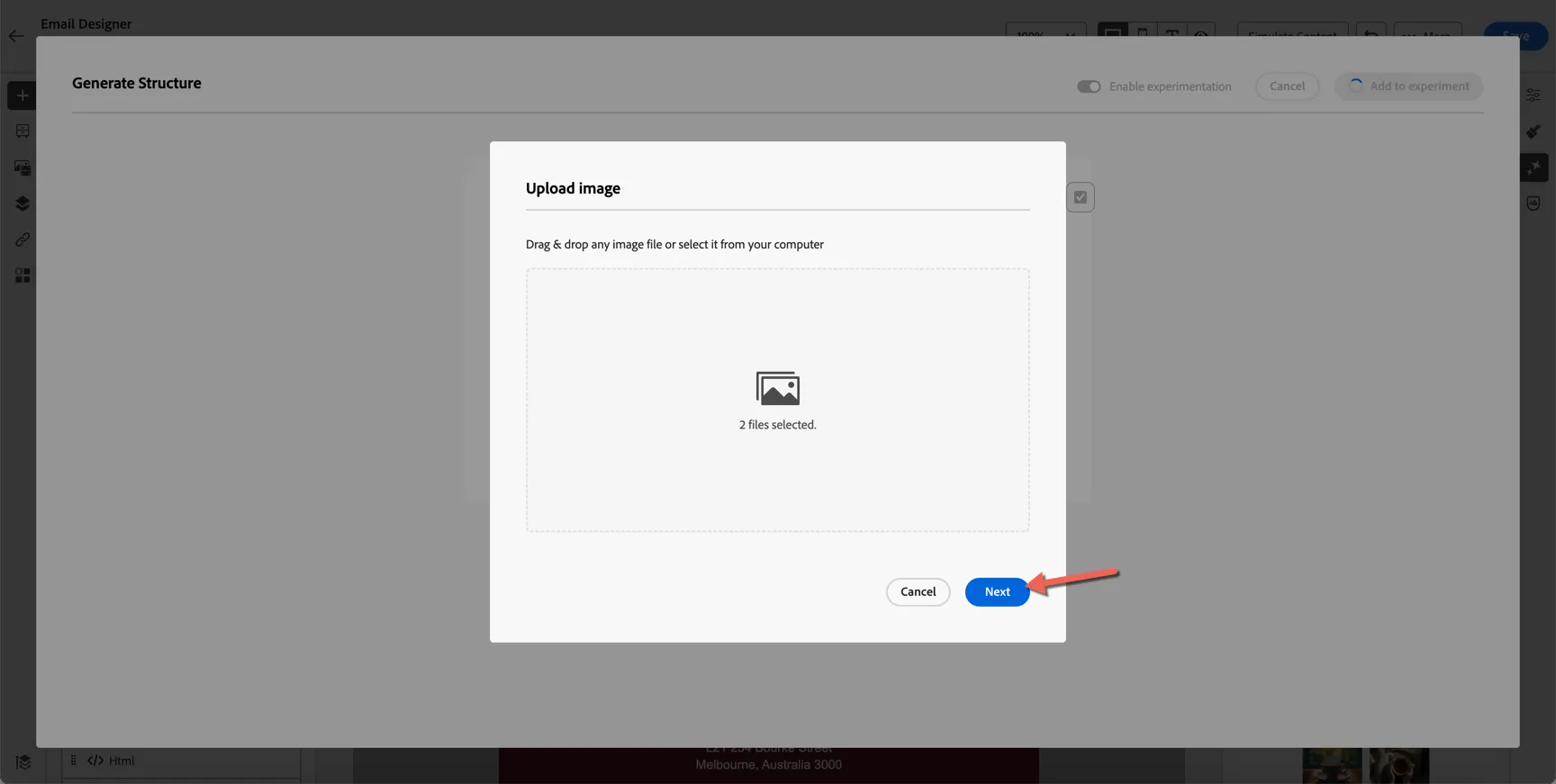
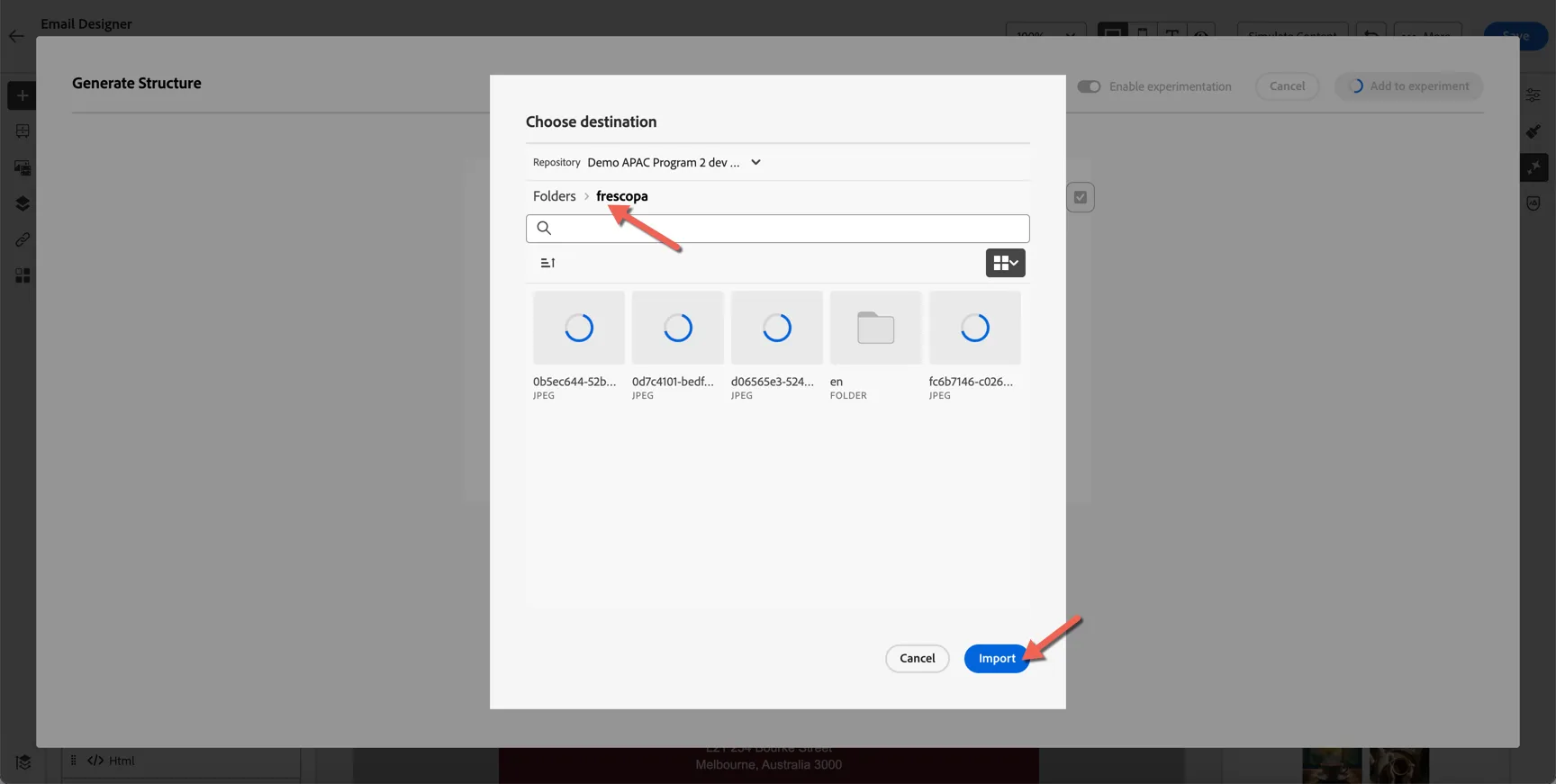
Select the Frescopa folder and click to Import.
Add Dynamic Content
Return to editing your Let's assume we learnt from Customer Journey Analytics that men prefer black coffee, while female prefer latte's. We want to replace this banner image only for men.
Click on the hero image, and click to enable conditional content
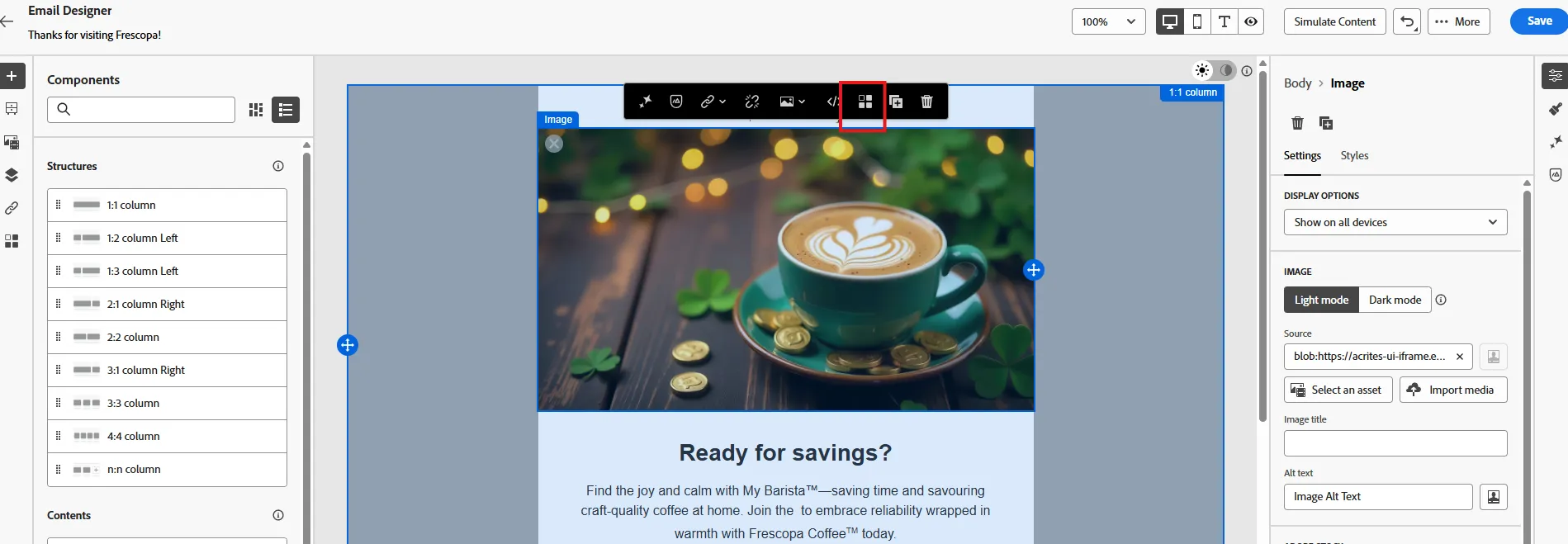
That will create 2 variant of this block. Let's keep the default content with latte coffee, and change the variant for male. You can rename your variant by clicking on the 3 dots then rename, then click on select condition
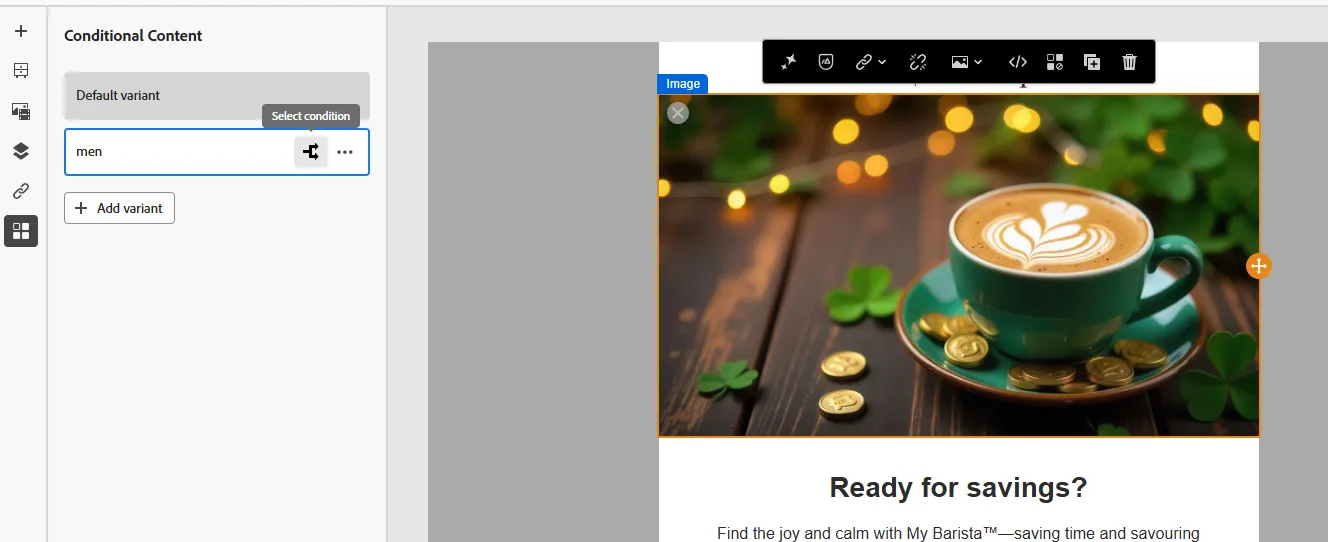
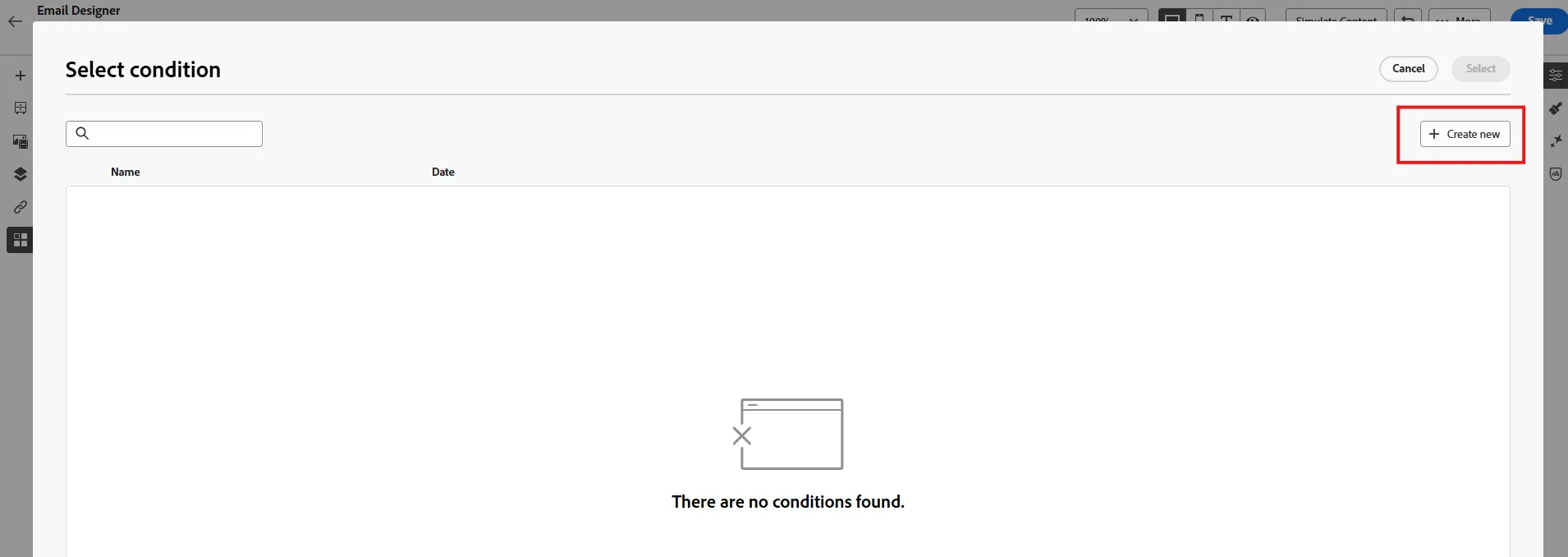
You should see one for men, you can just select it. If there is no pre-existing condition with the criteria you want, you can click on create new (optional)
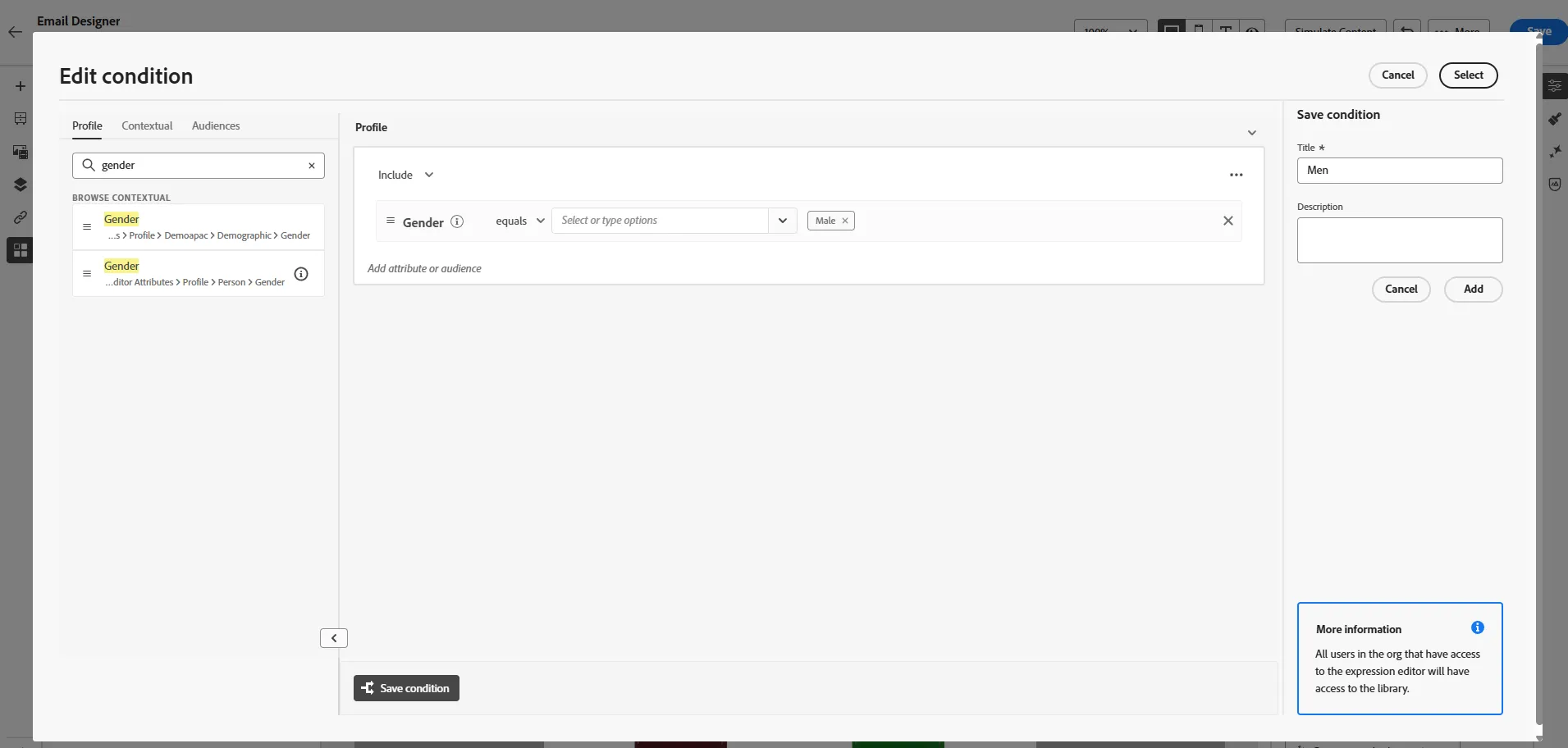
You will arrive in the same UI than for audiences. Search for gender, (profile.person.gender) drag and drop it, select male, then click on select.
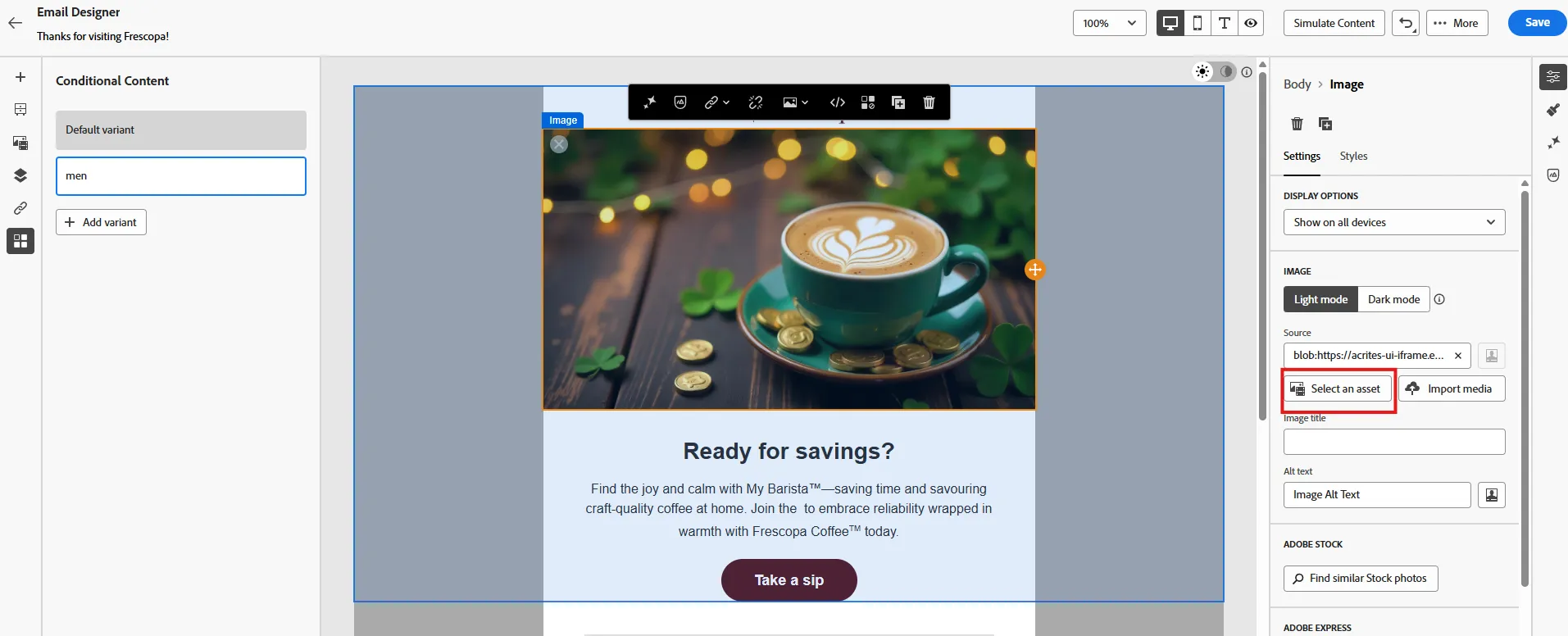
Now we can personalize image for men. Click to Select an asset.
Make sure you're in the right repository, then search for coffee - this is leveraging the smart asset tags to find relevant images. An essential time saver when working with a large repository.
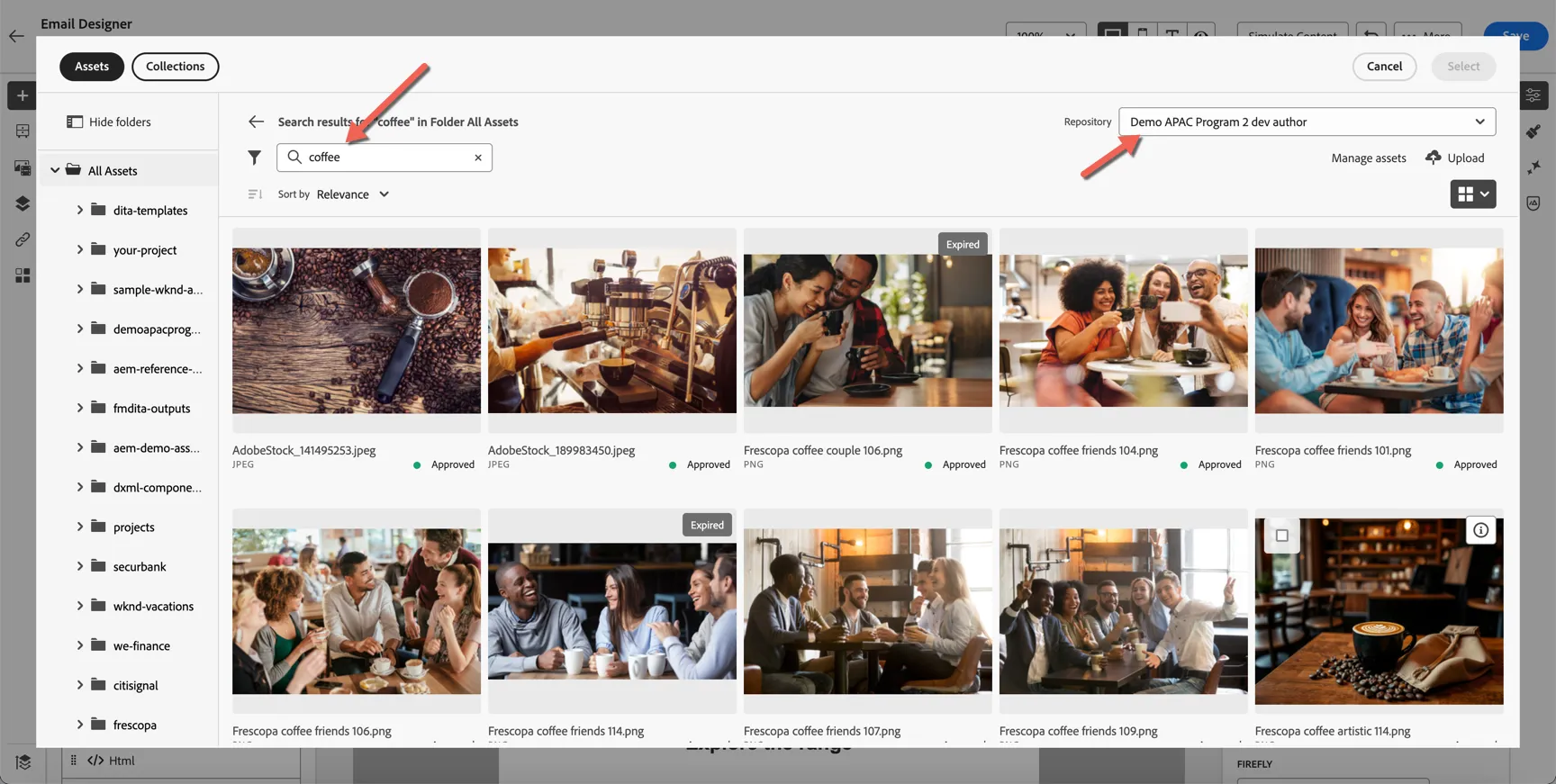
Choose an image and click select to add it to the email.
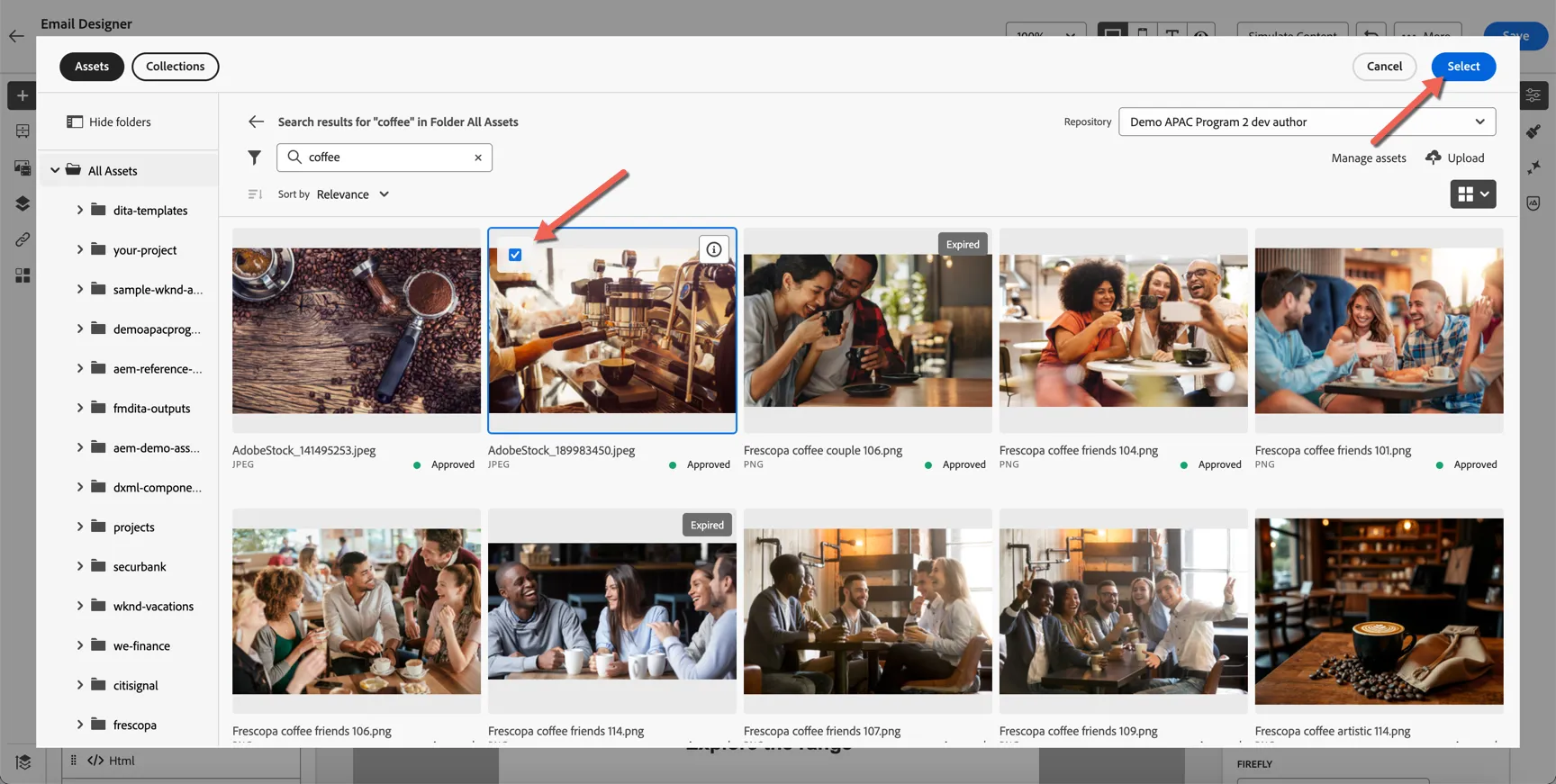
Now that our dynamic content is defined, we can simulate how the email will look for each type of customers. Click to Simulate content variations.
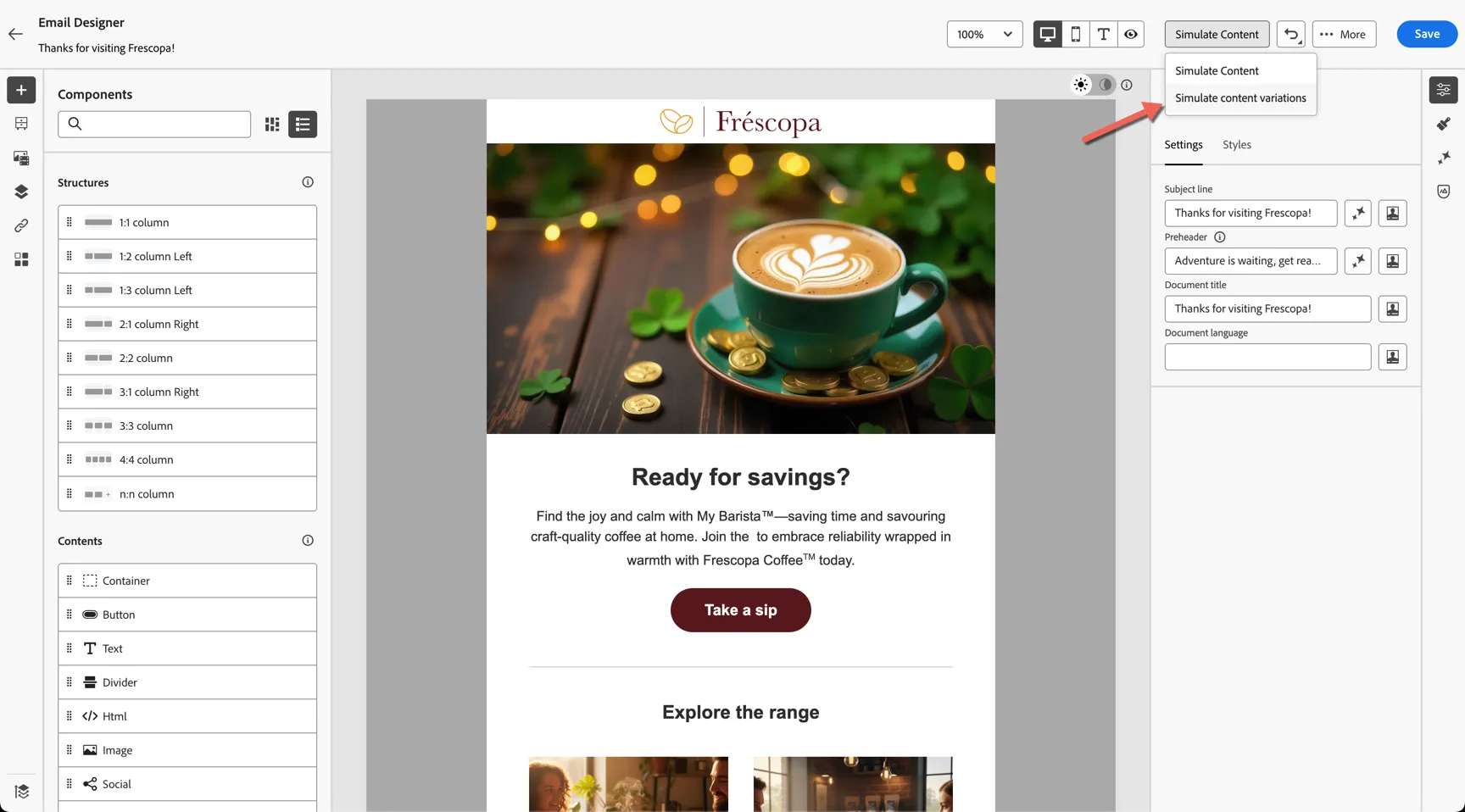
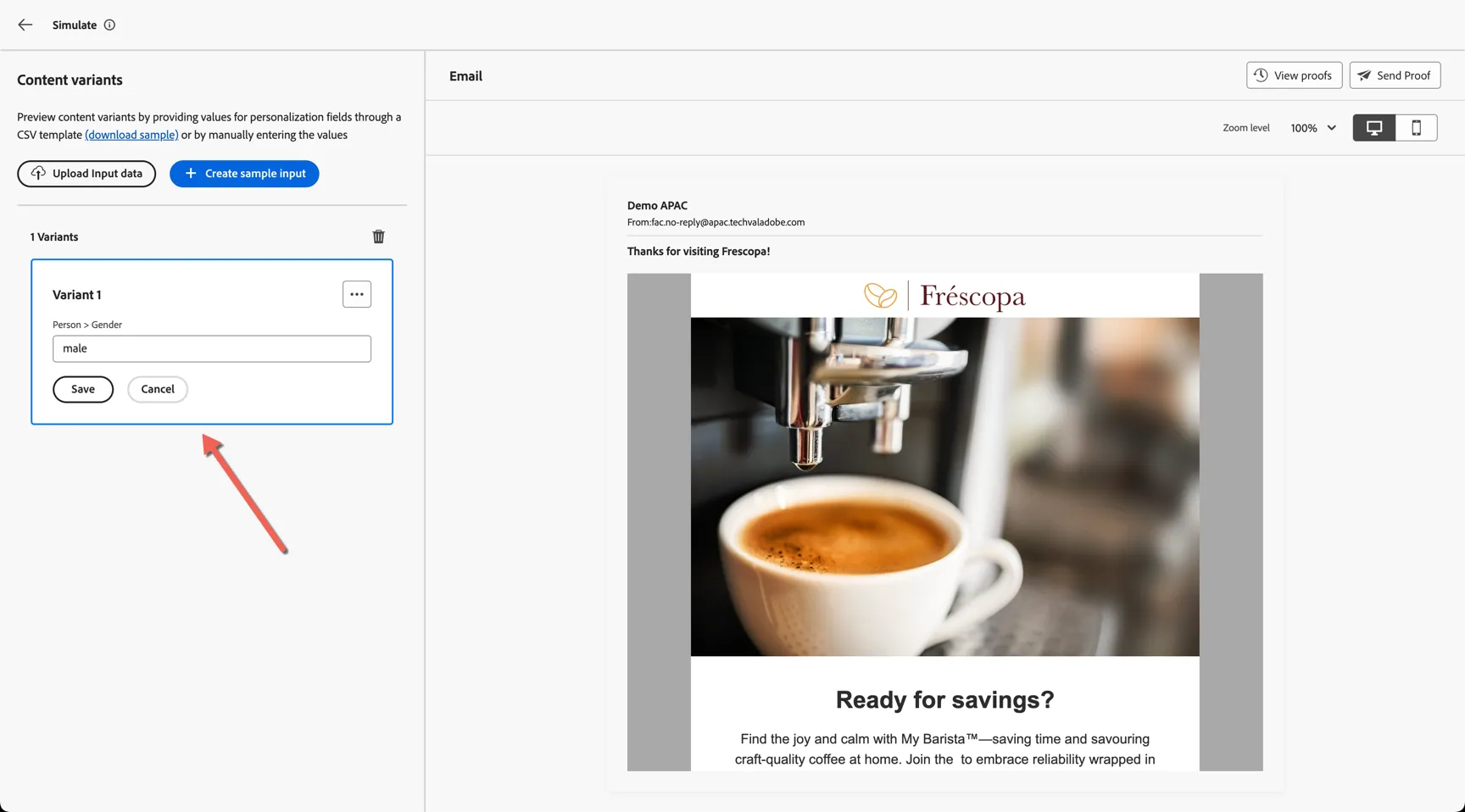
The simulator is able to scan the email content for personalisation fields. Click to create some sample input.
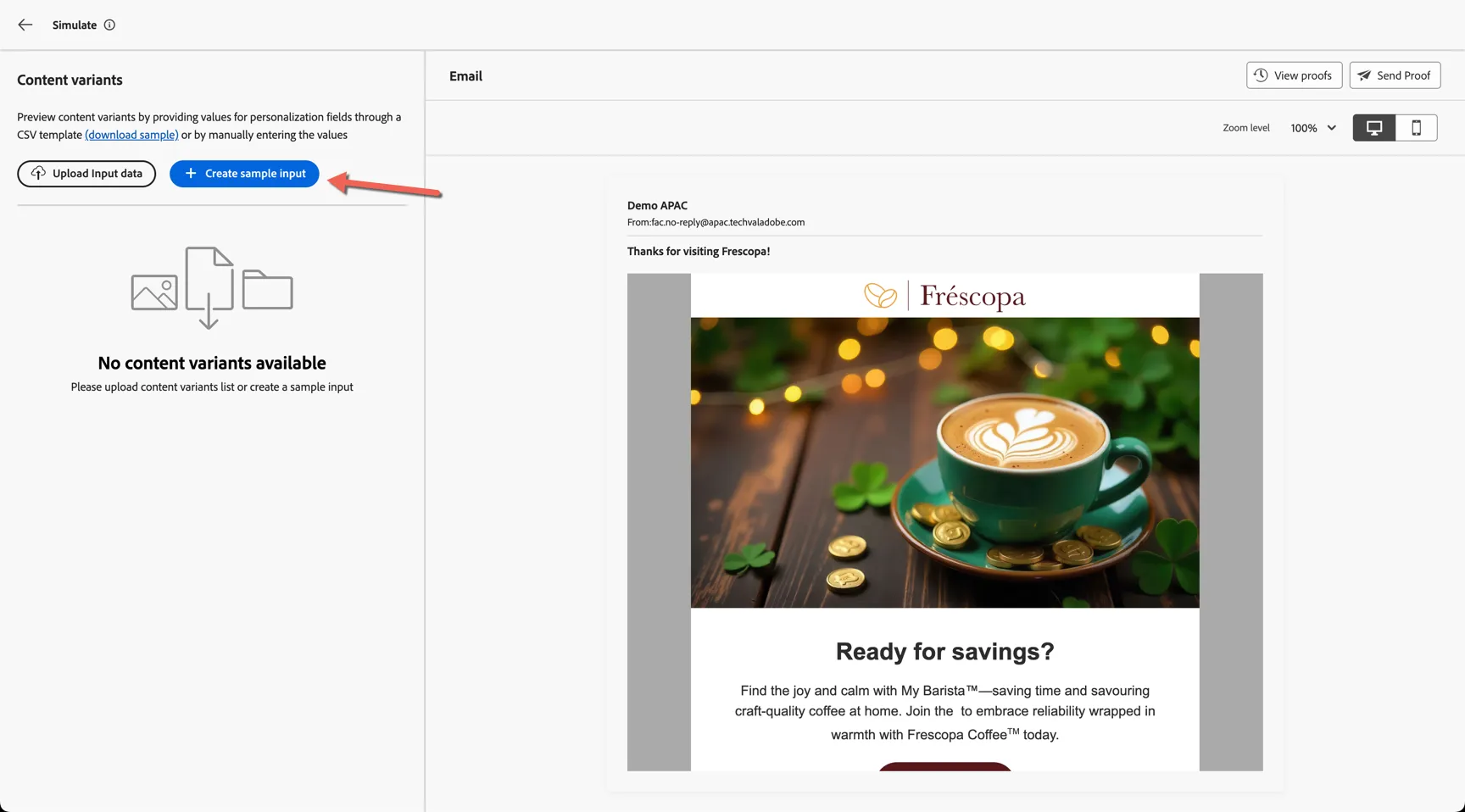
It has automatically identified that gender was used in the content. Configure the first variant to be for gender = male.
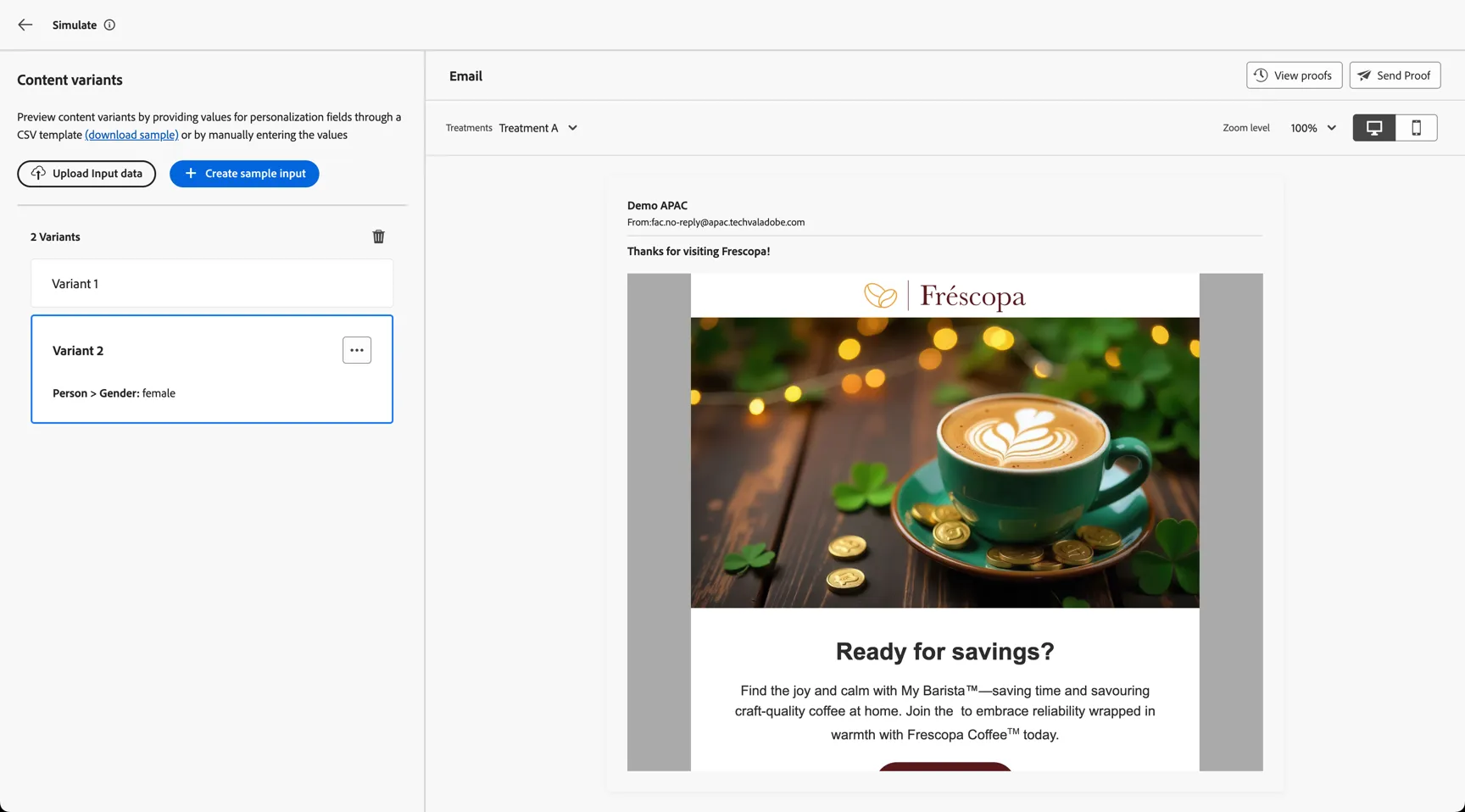
Configure a second variant for gender = female. You can now simulate the email content across both variants.
Content Fragments from AEM
Images are the only type of content we can source from Adobe Experience Manager. With Content Fragment integration you can ensure that consistent messaging is delivered between your website and emails.
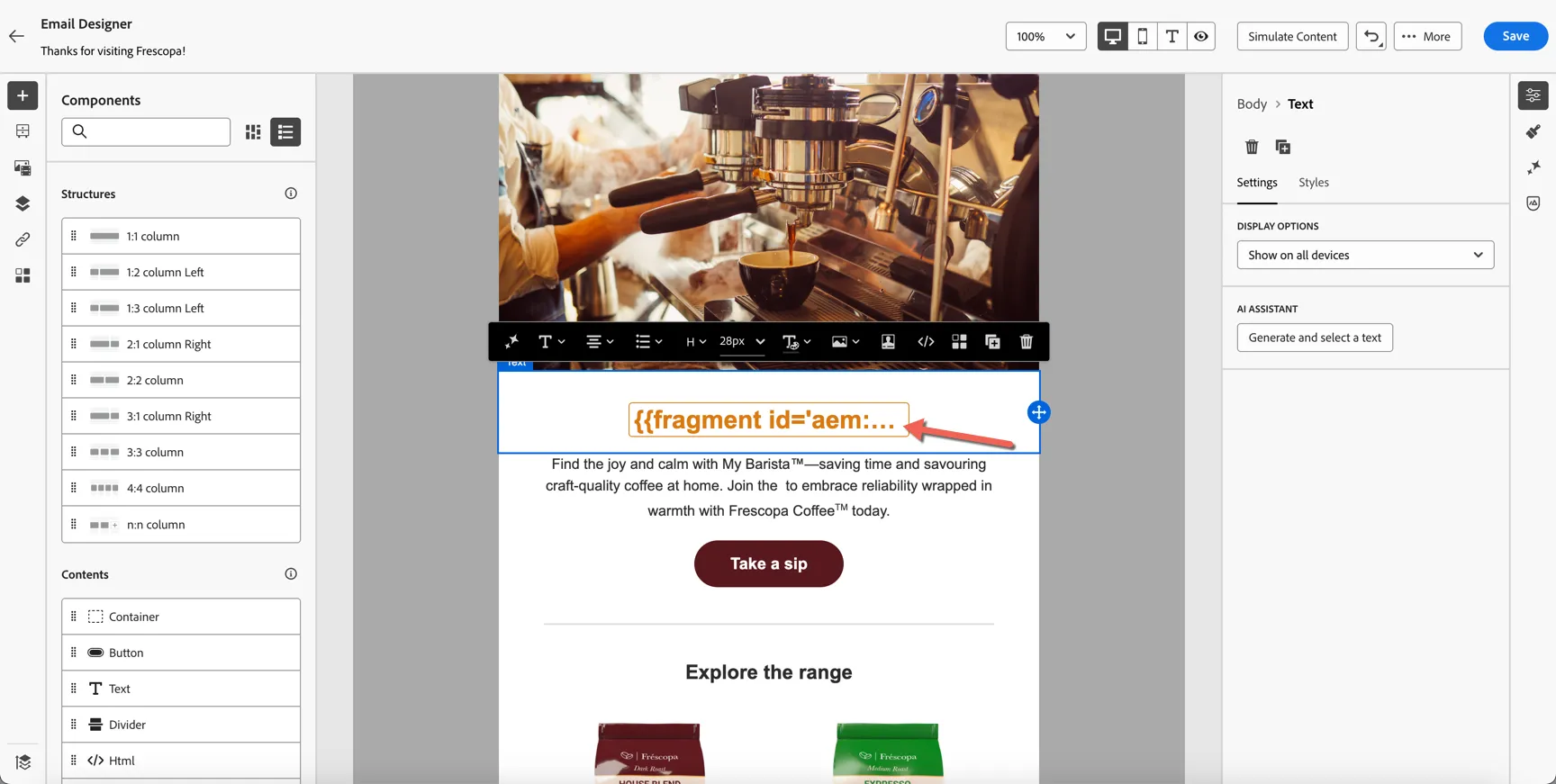
Select the main heading and click on the component toolbar to Add Personalisation.
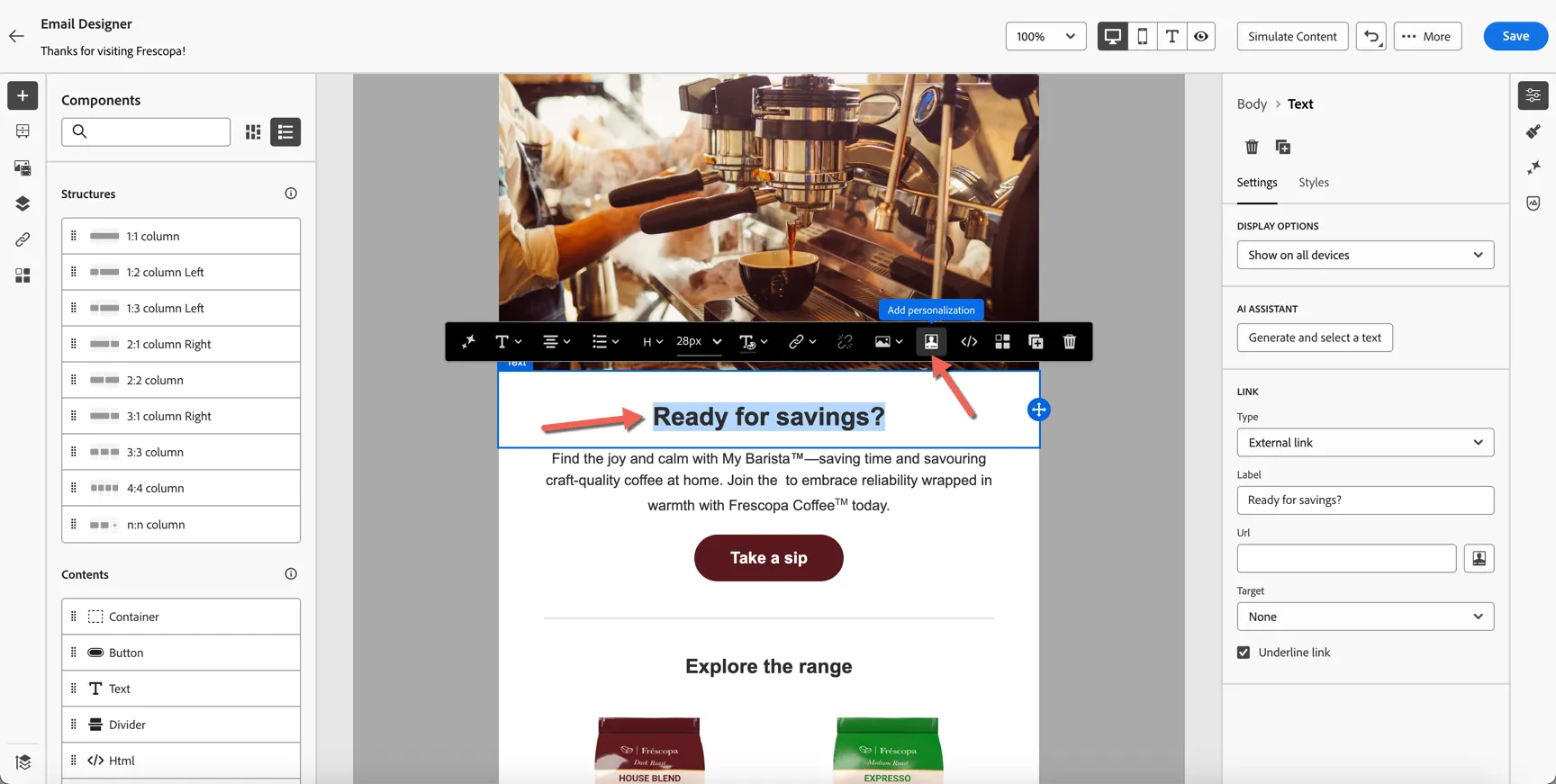
The personalisation editor allows you to insert personalisation fields from multiple sources, you could insert the customer first name via the profile attributes option or details from the event that triggered the journey using the Contextual attributes option. For this exercise though we're going to bring content in from Adobe Experience Manager. Click on the AEM content fragment option on the left. Then click to Open AEM CF selector.
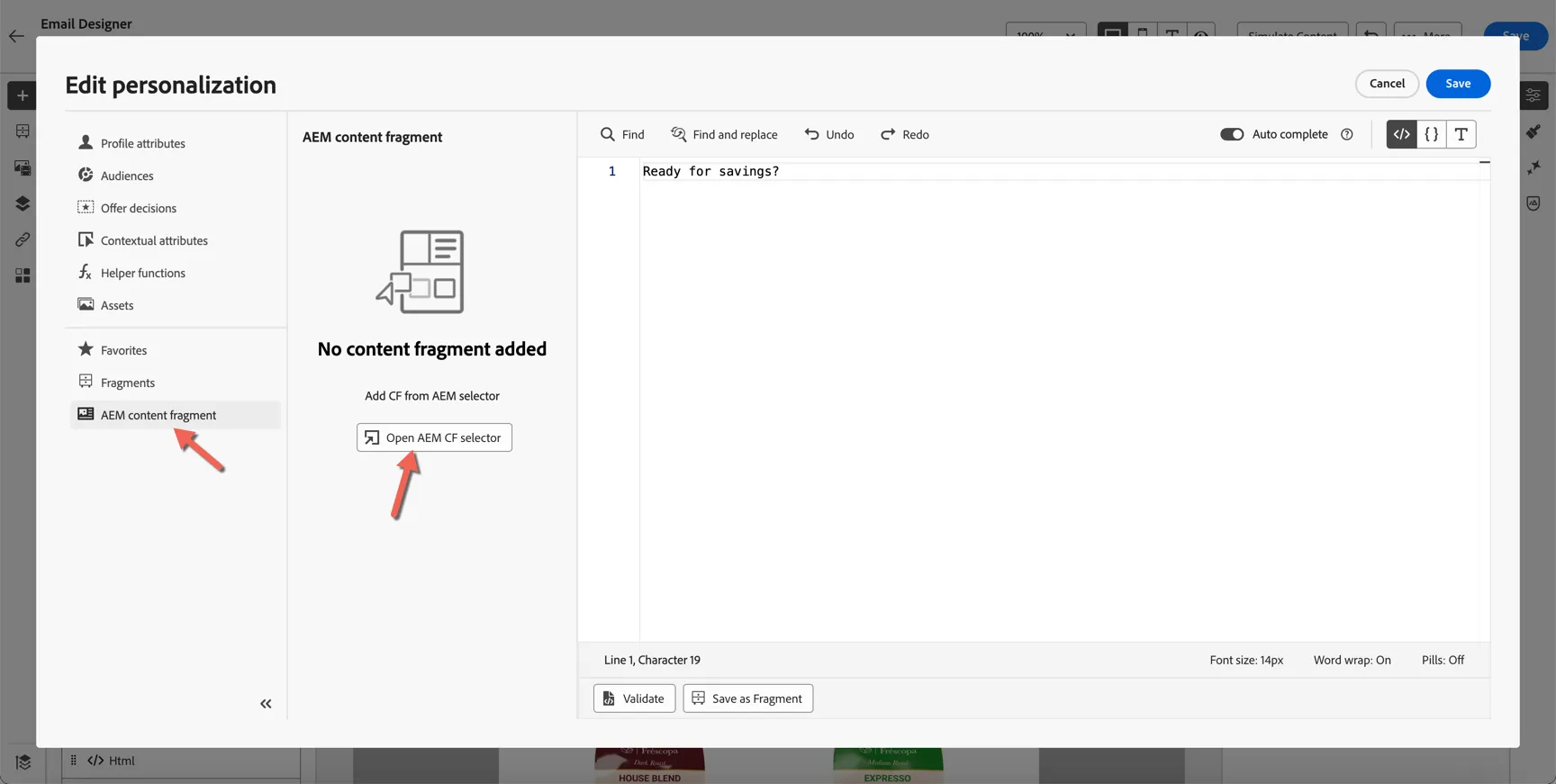
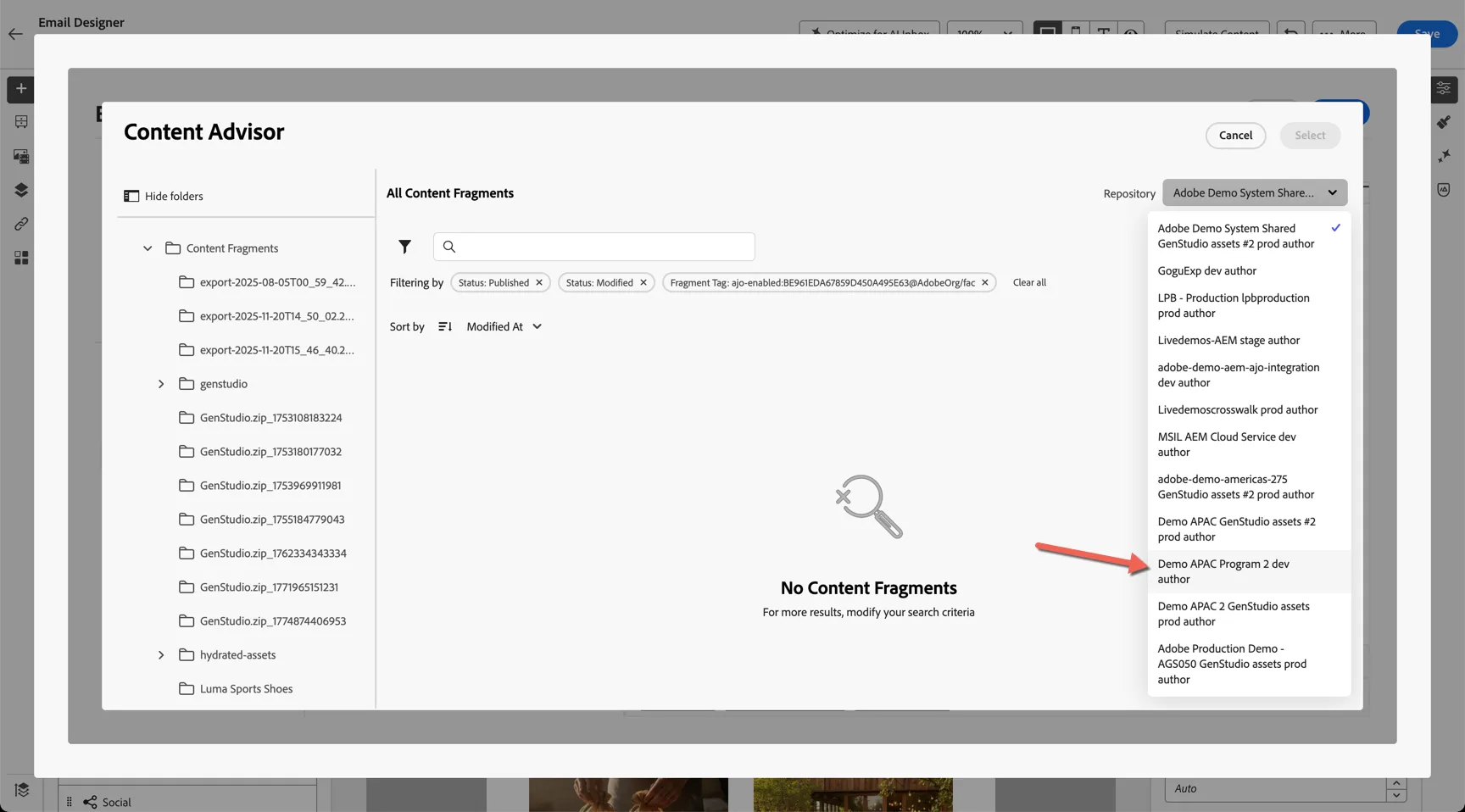
AEM Content Fragments are enabled for use in AJO via sandbox specific tags that are applied from within AEM. Make sure you have the right repository selected Demo APAC Program 2 dev author.
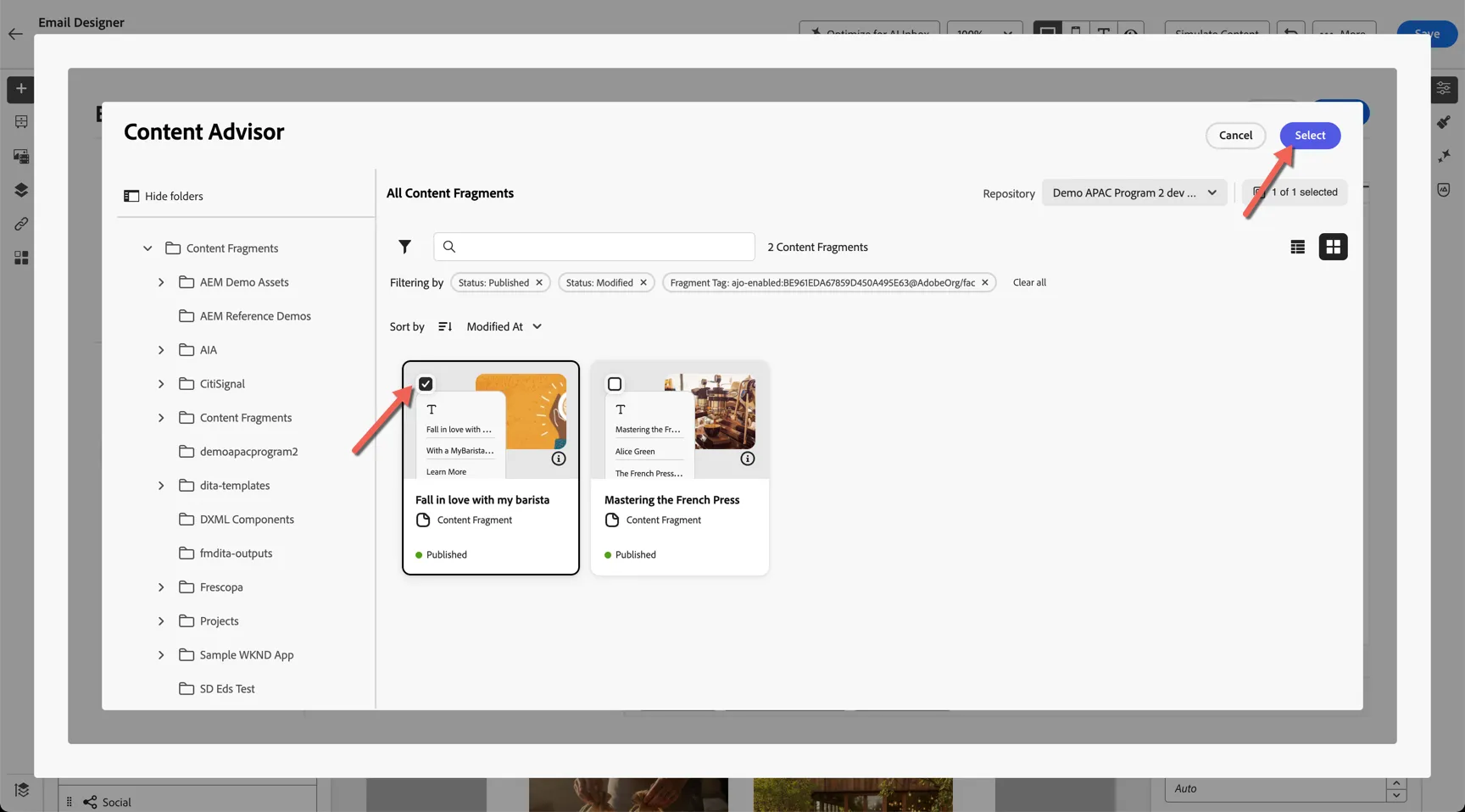
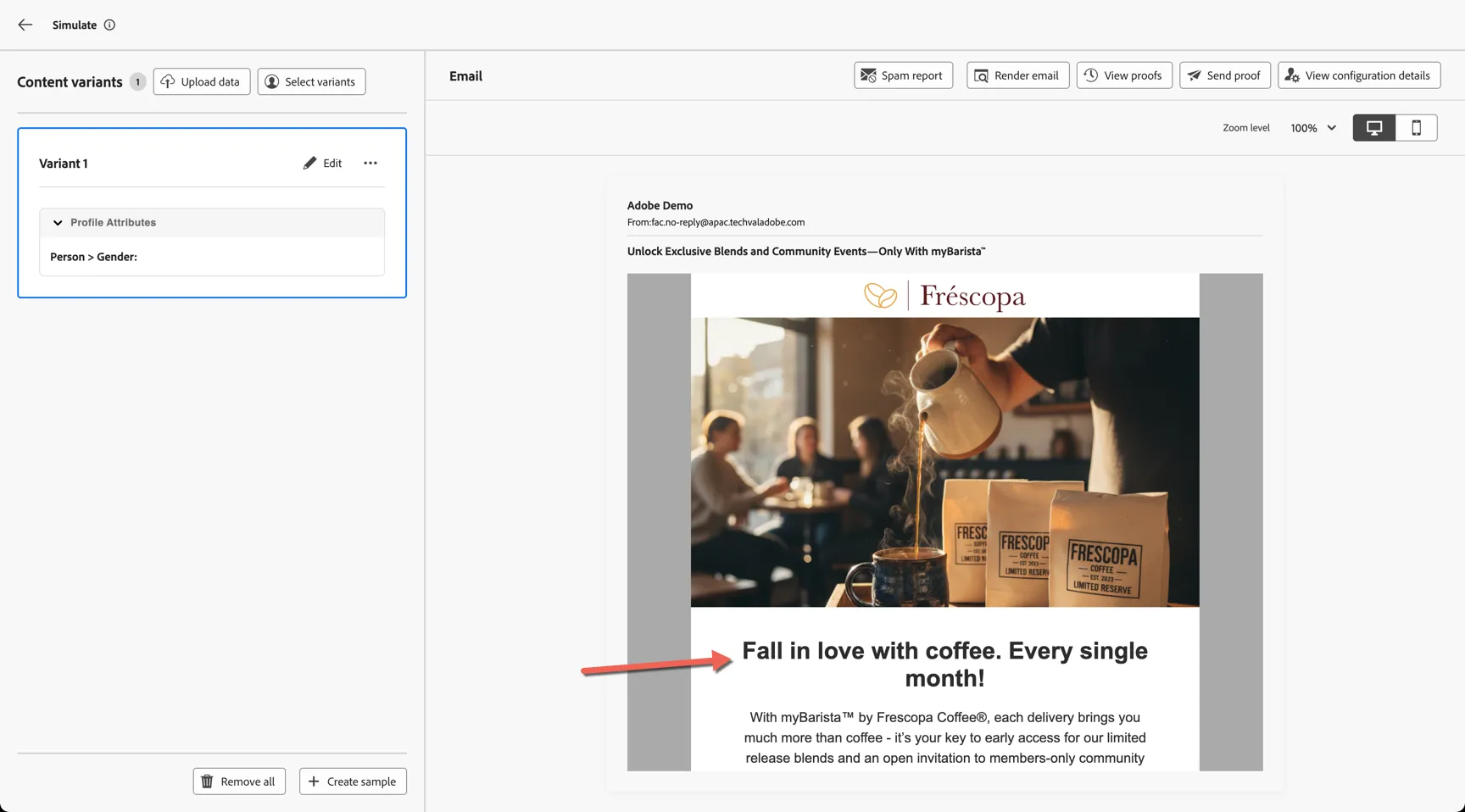
Check the Fall in love with my barista fragment and hit the Select button to add it to your email content.
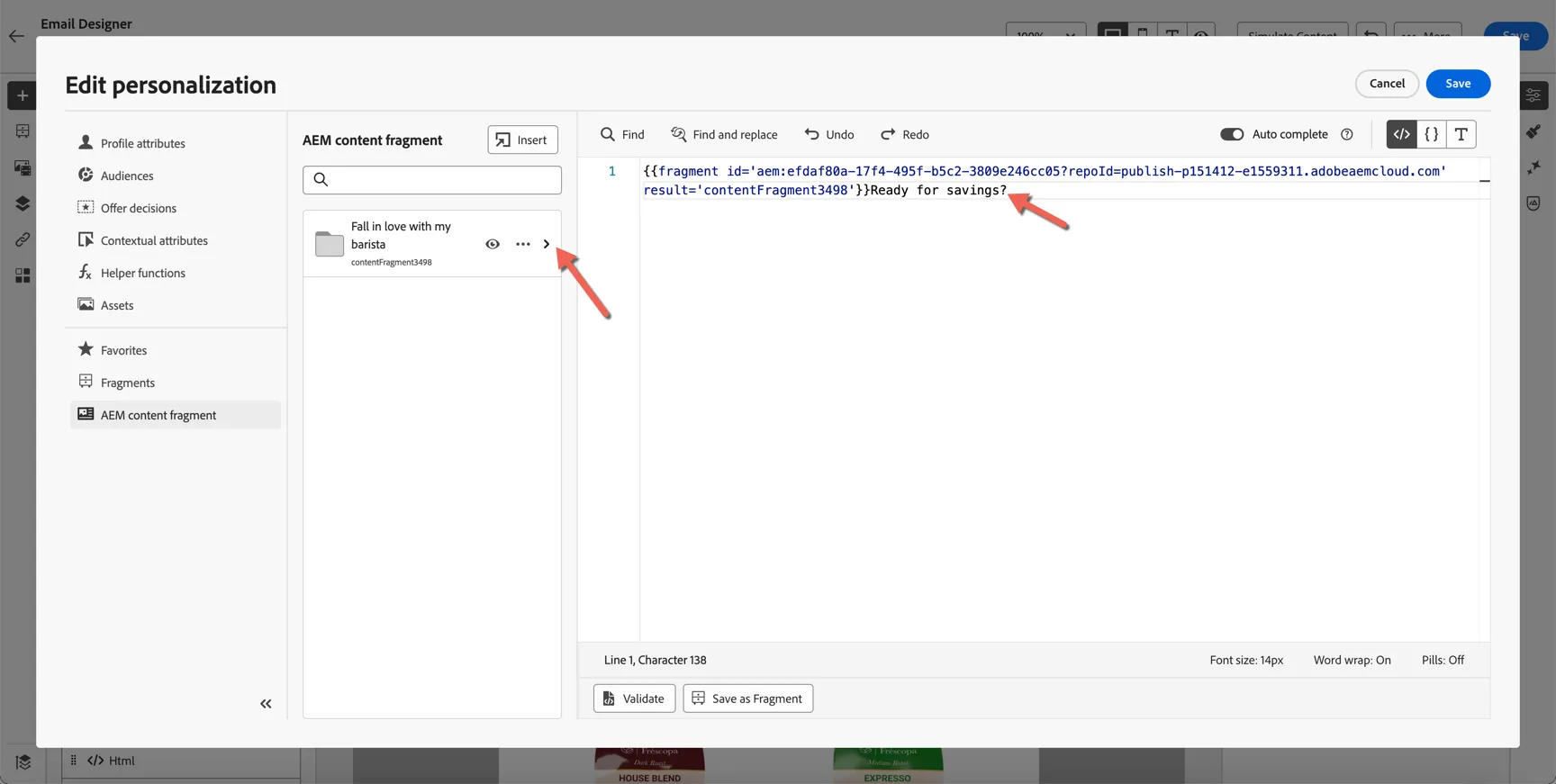
You can see the fragment reference has been added to the personlisation editor. Delete the old heading text Ready for Savings, then click the arrow to access the fragment components.
Click the plus icon to add the fragment headline field, then click Save.
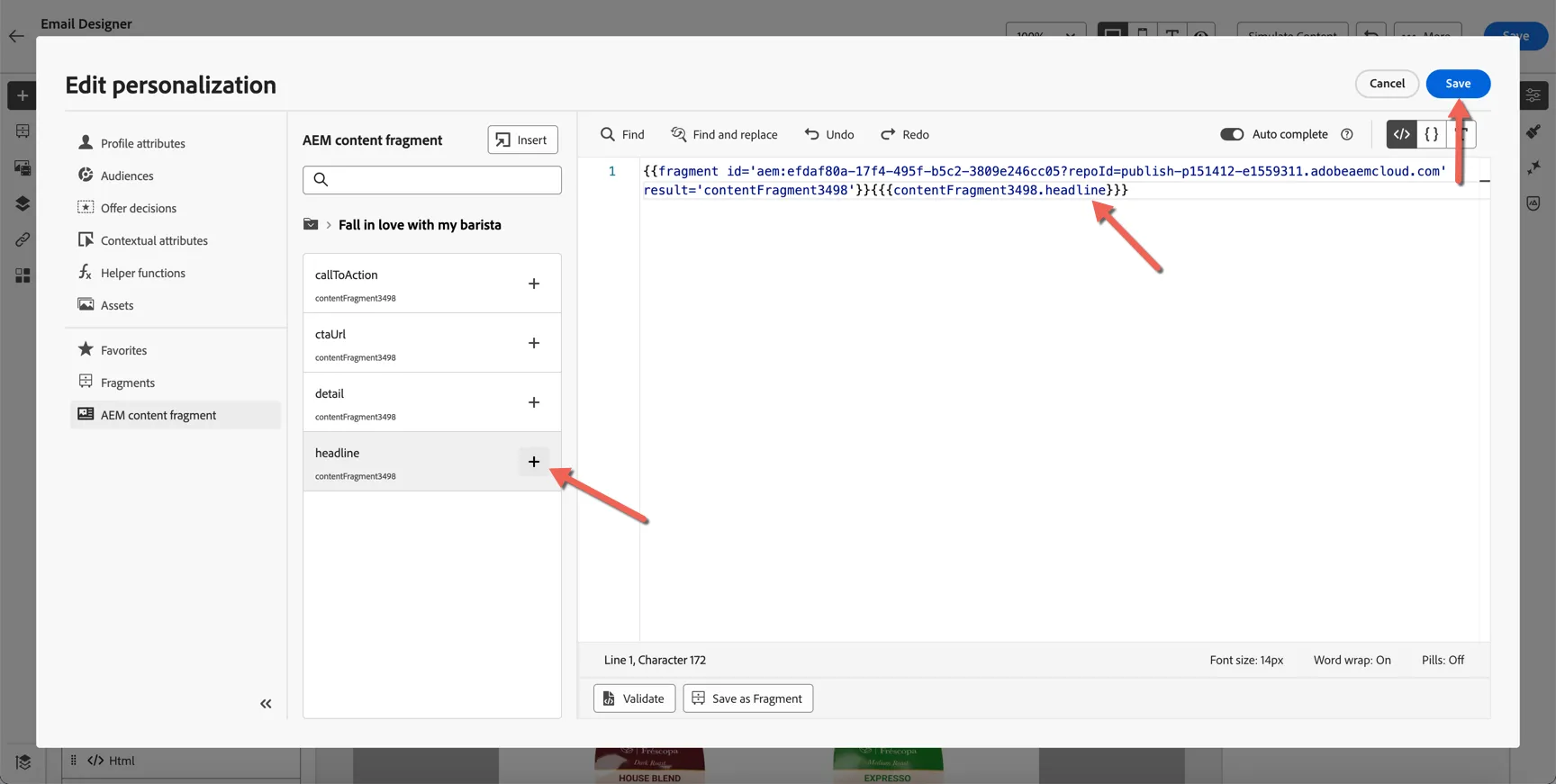
Note that this is a reference to the content fragment only, the content is not copied until the message is ready for sending. When using this approach AEM is the source of truth for content and should the fragment be updated (and published) on AEM side, the email content will automatically update as well.
You can use the simulation to view the headline retrieved from AEM.
Your email content is now complete, return to the journey by clicking the arrows in the top left.
Add Mobile Content
To complete the journey, we need to add content to the SMS and Push Notification activities.
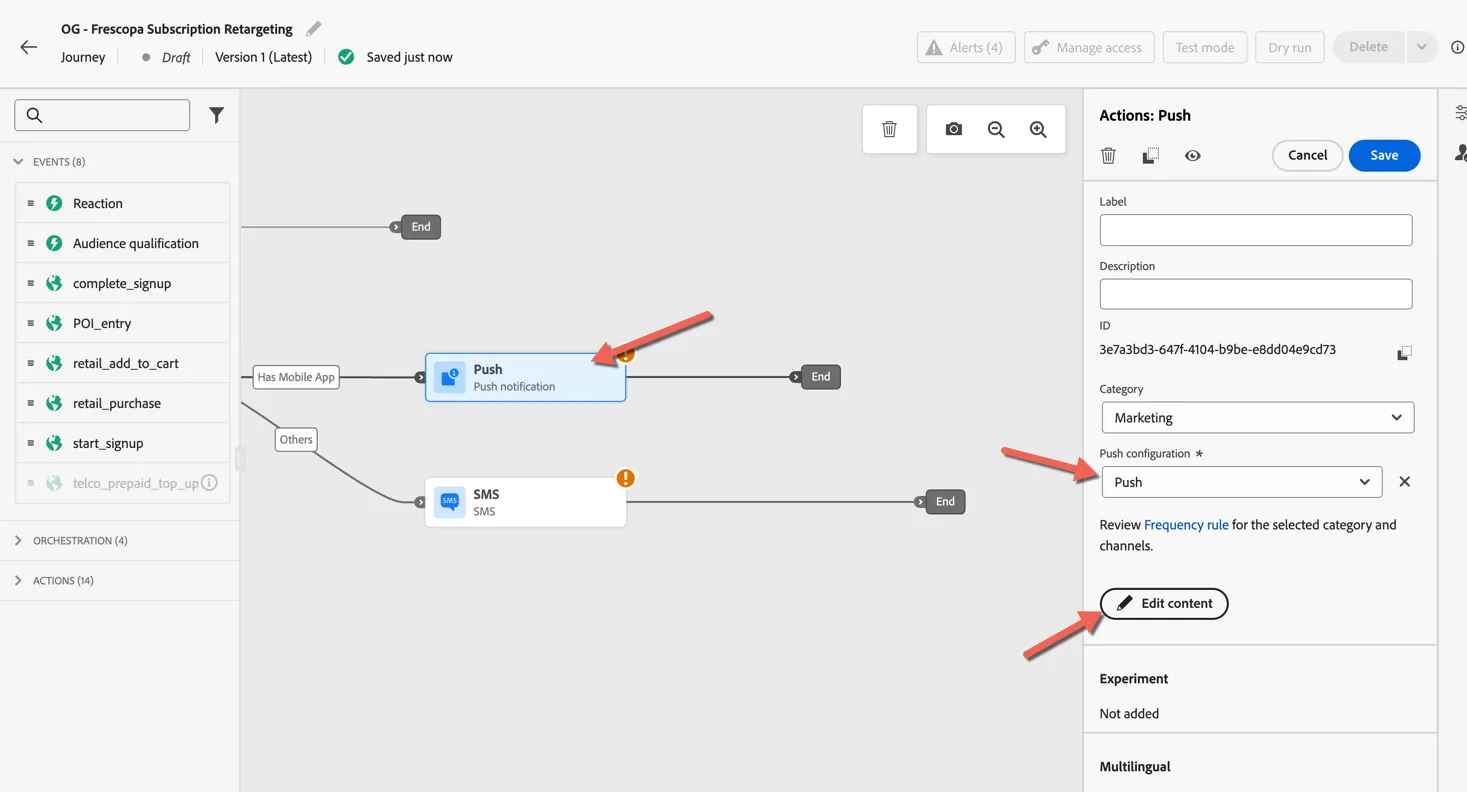
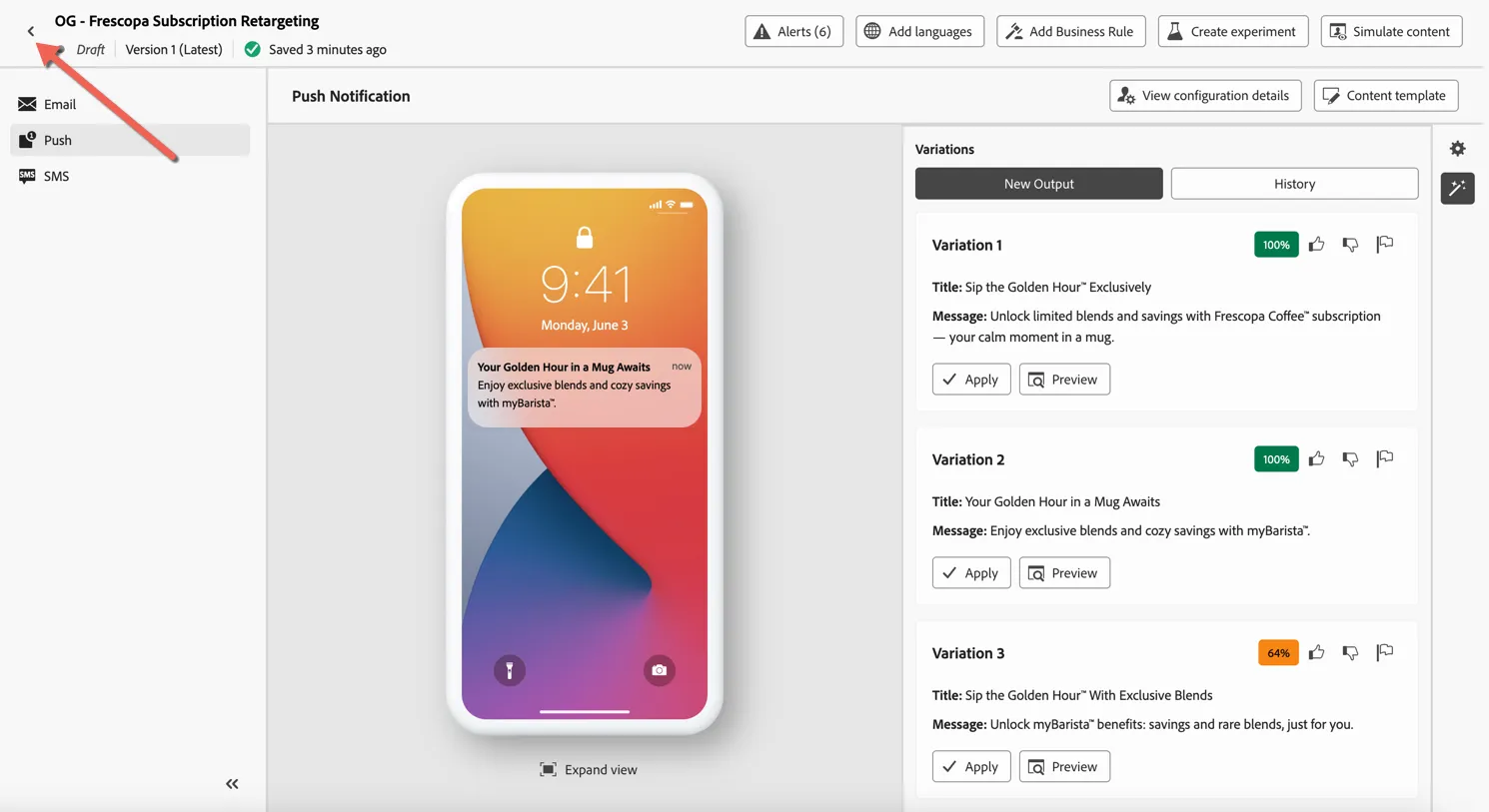
Click on the Push activity and select Push in the configuration drop down, then click Edit content.
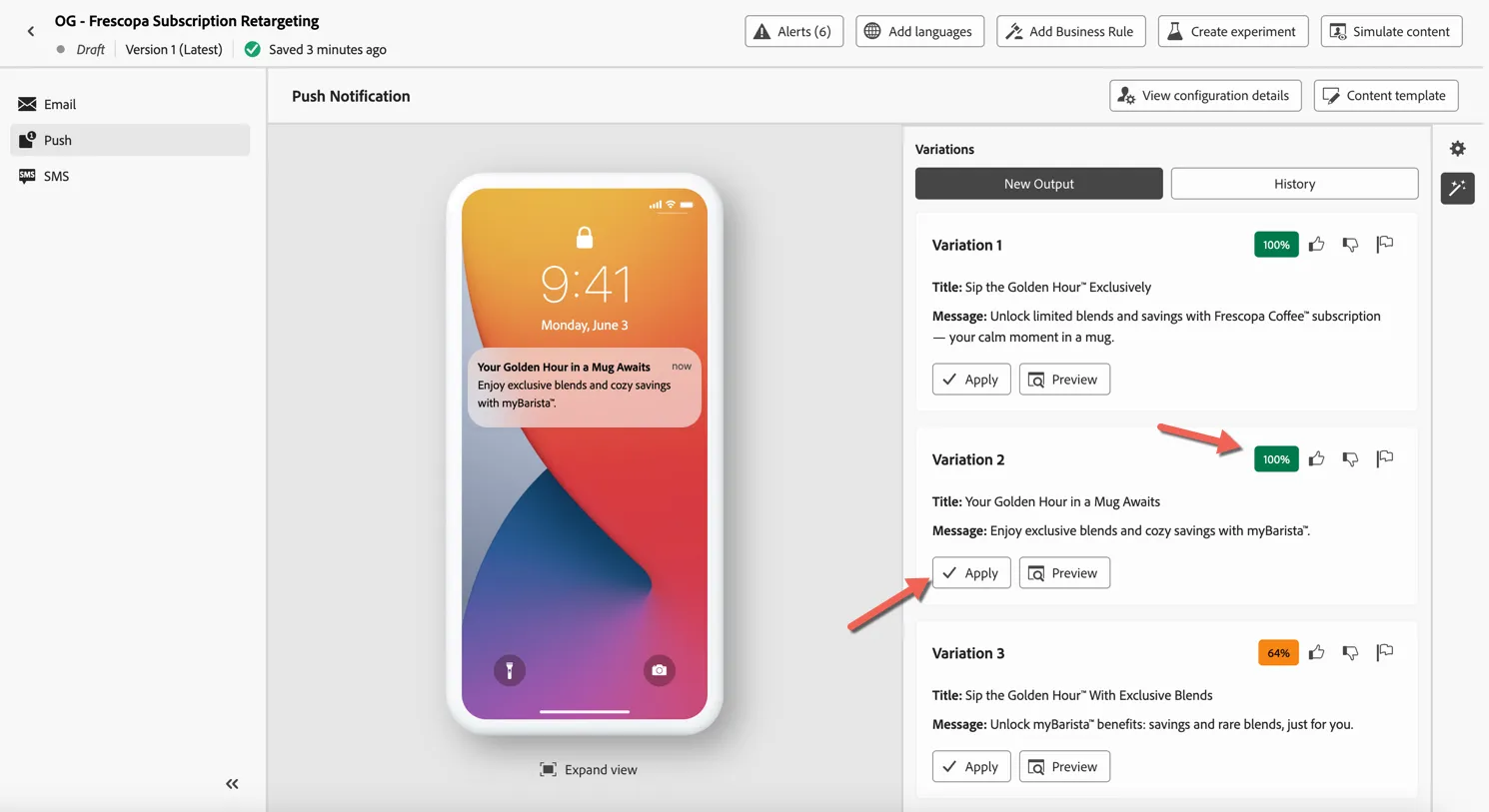
Once again you can either manually add content or use AI Assistant to generate it for you. Open the AI Assistant panel and reuse the prompt and text settings from your email to keep messaging consistent.
The generated content is again scored against the Brand Guidelines. Select the variation you prefer and click to Apply it to your message.
Click the arrow in the top left to return to your journey.
Repeat the same process for the SMS Activity.
Summary
Adobe Journey Optimizer enables brands to deliver contextual, personalised experiences at scale by combining real-time triggers, intelligent decisioning, and dynamic content generation—all within a unified orchestration canvas.
Adobe Journey Optimizer's integration with Adobe Experience Manager (AEM) and Adobe Firefly has enabled:
- Faster creative cycles: No need to manually design every variant.
- Brand integrity: All content aligns with approved guidelines.
- Higher engagement: Personalised, relevant content drives better results.
- Cross-channel consistency: AEM assets and content fragments ensure that messaging in email, push, and web banners is aligned.
Congratulations you've completed the exercise on Adobe Journey Optimizer... but before you go, don't forget to check the content template you uploaded earlier.