RTCDP Collaboration
Scenario
As part of the current campaign Frescopa want to expand their reach to connected TV platforms, using the same audiences already created in Adobe Experience Platform they can leverage RTCDP Collaboration to discover and connect with available publishers and review overlaps between their existing customer base and available target audiences from the publishers.
Access
Switch to Real-time CDP Collaboration using the solution switcher:
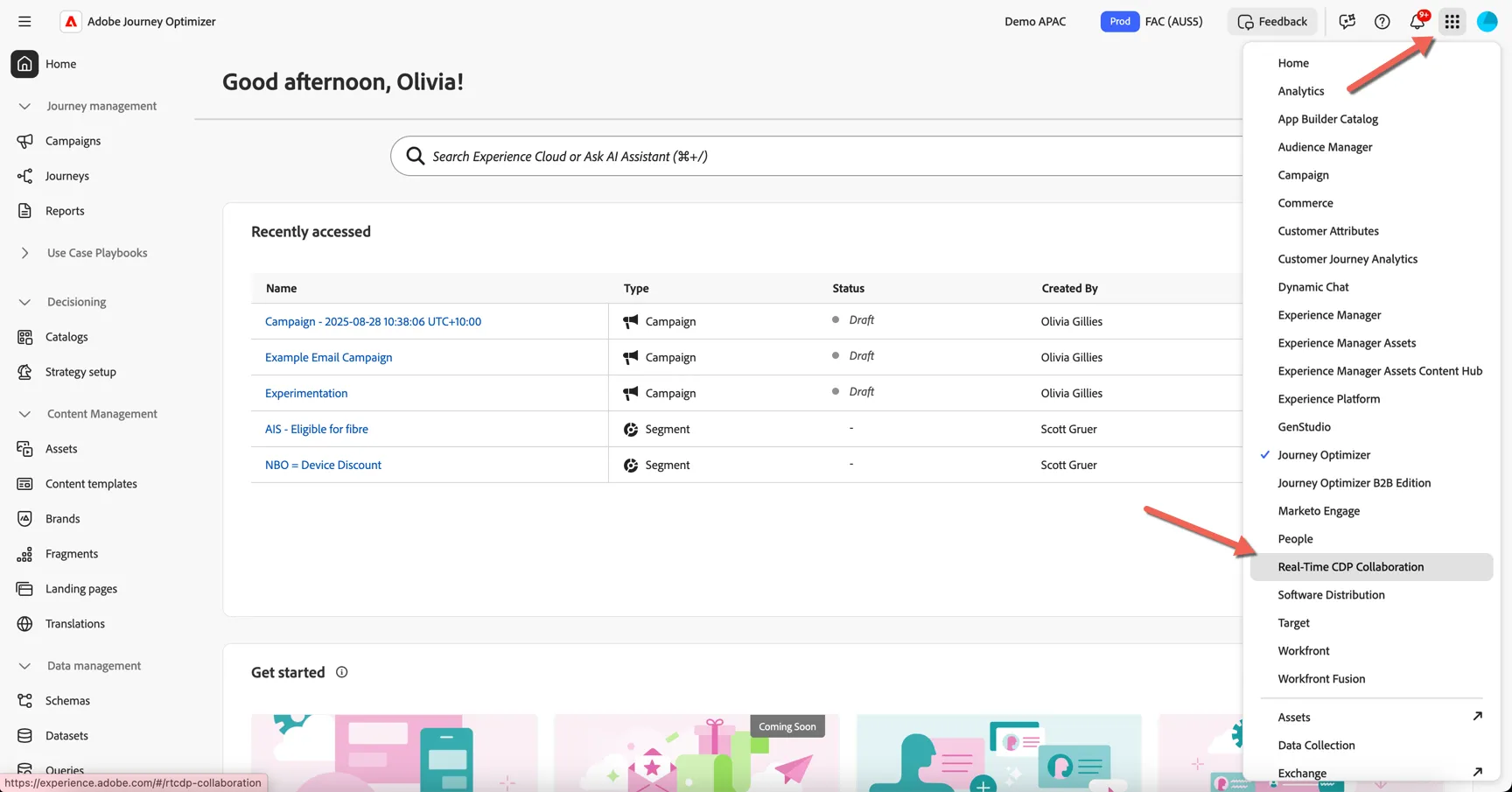
Check that you are in the Advertiser - Frescopa account. Change to this account if it not selected.
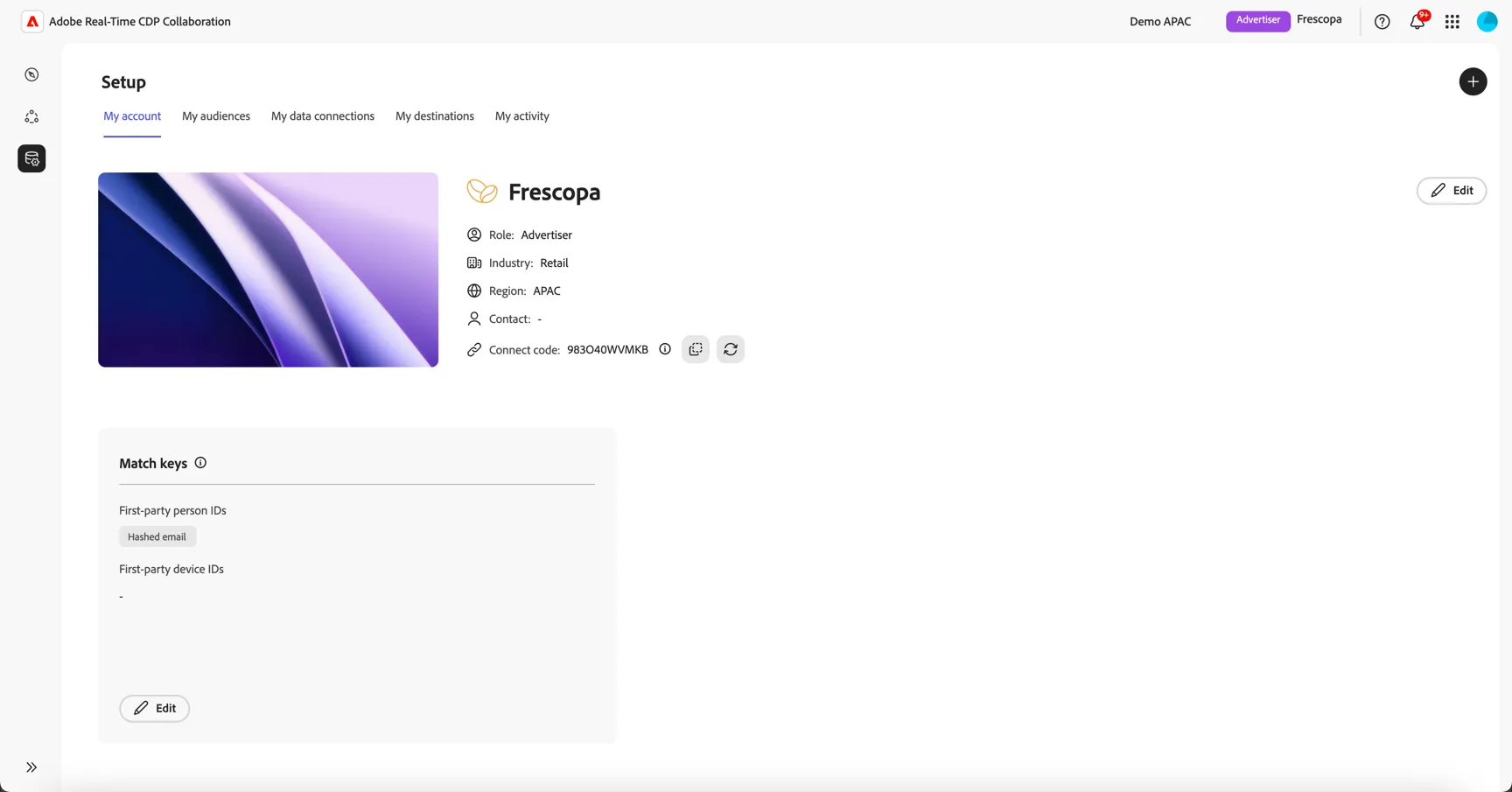
View advertiser account
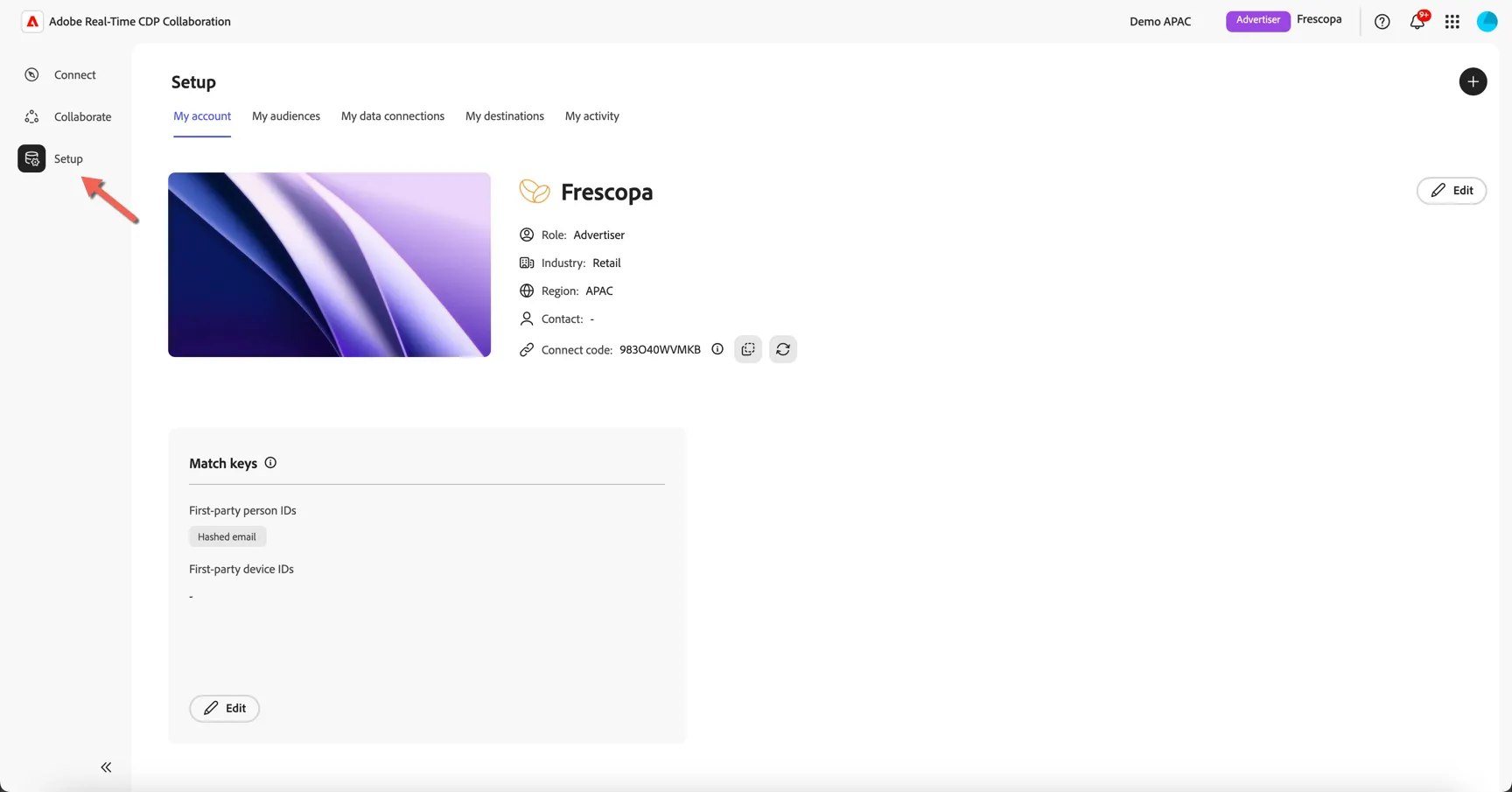
Click on Setup to view frescopa's account. The My Account tab shows information about frescopa's set up, including which ID types they use.
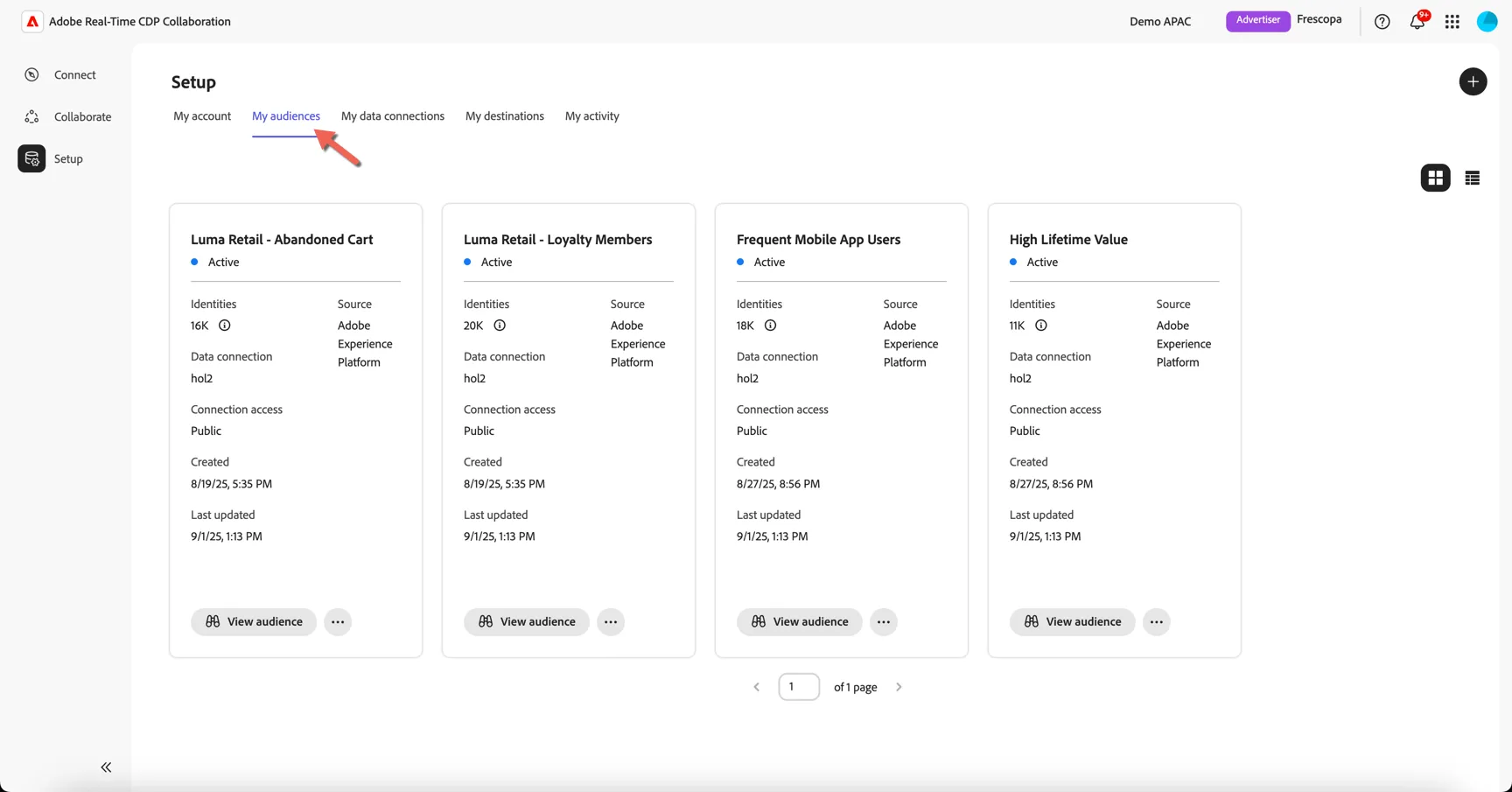
Click on the My audiences tab to view the audiences that Frescopa has loaded into the Collaboration workspace. All of these audiences have been shared directly from Adobe Experience Platform.
Explore Publishers
Click on Connect menu. The Discover Collaborators tab let's you explore the available catalog of publishers.
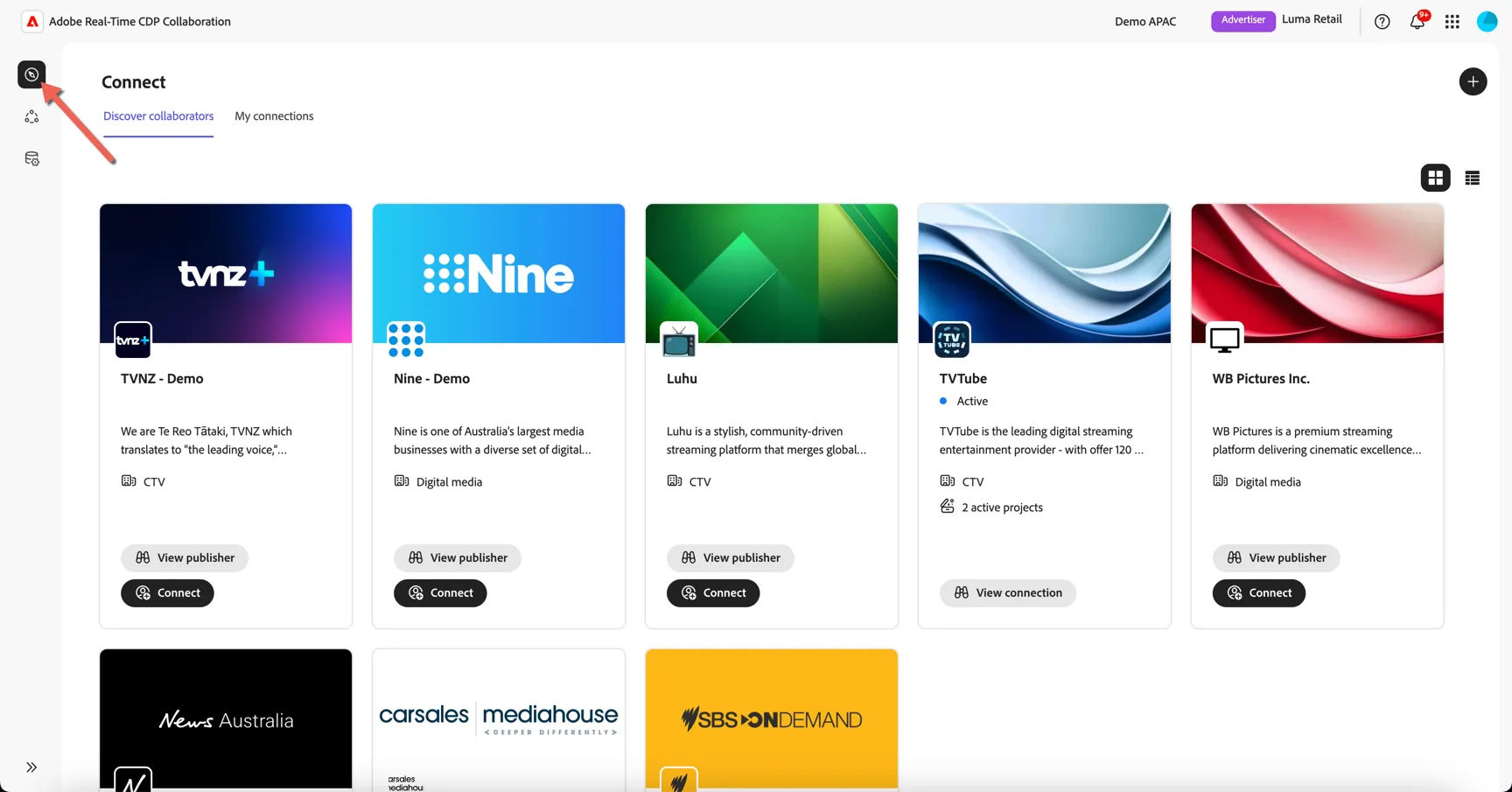
Brands can request to connect with publishers directly through this interface. The publisher needs to accept the invitation in order for a connection to be established.
Click on My Connections to view the connections that have already been established.
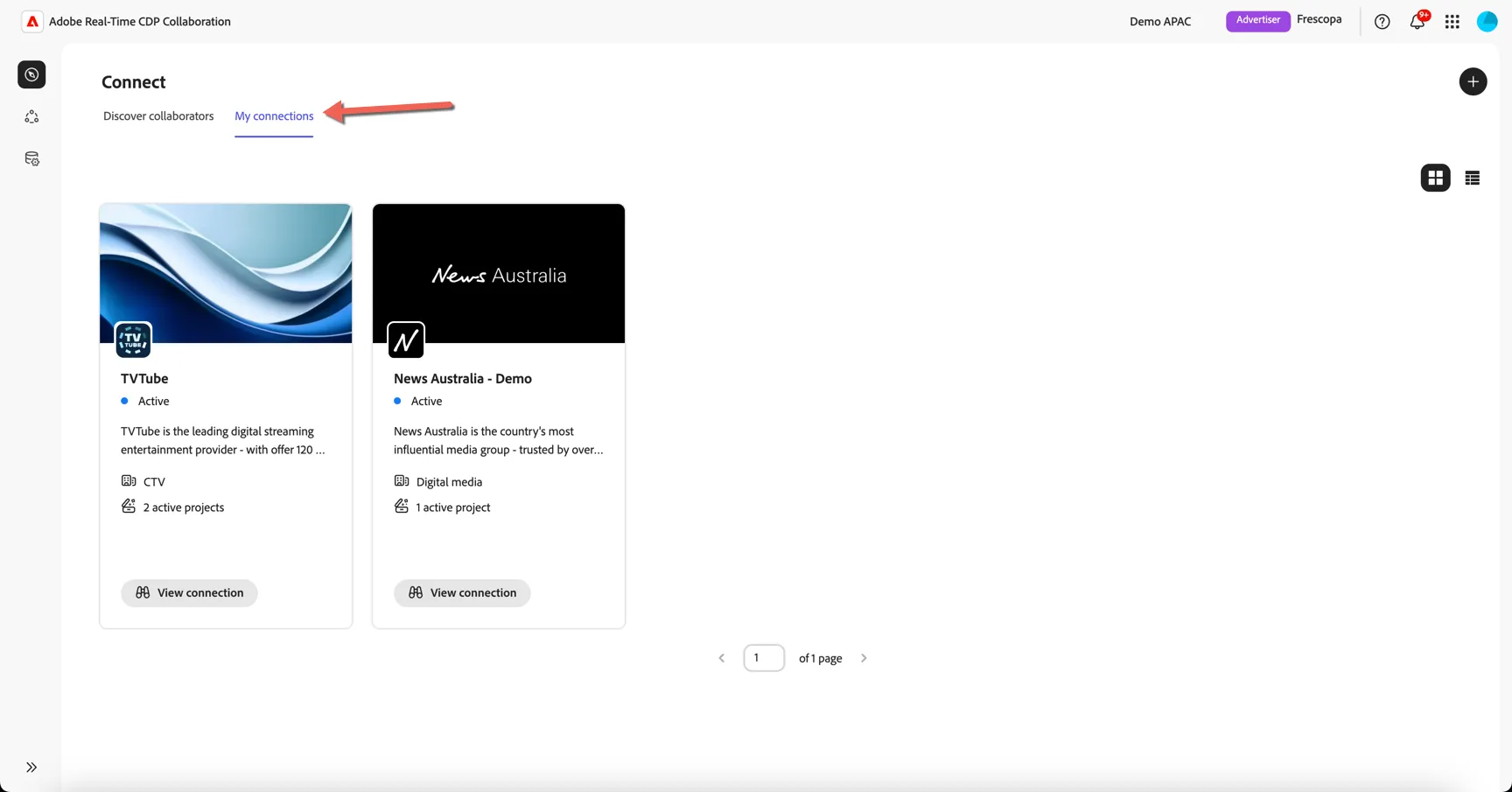
Frescopa has two active connections, one to TVTube a digital streaming service and another with News Australia. While News is an available publisher this is a demo account only.
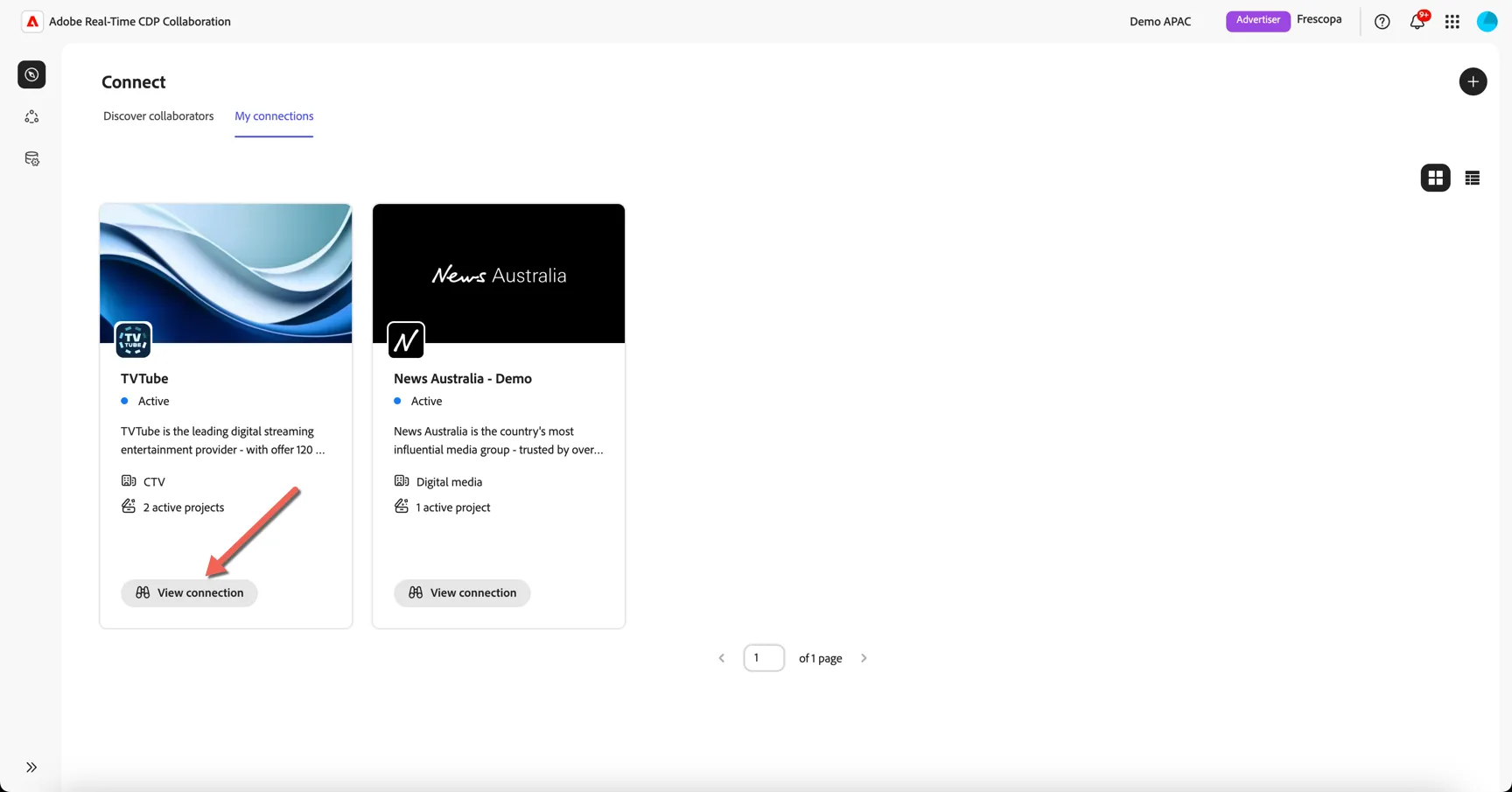
Click to View Connection
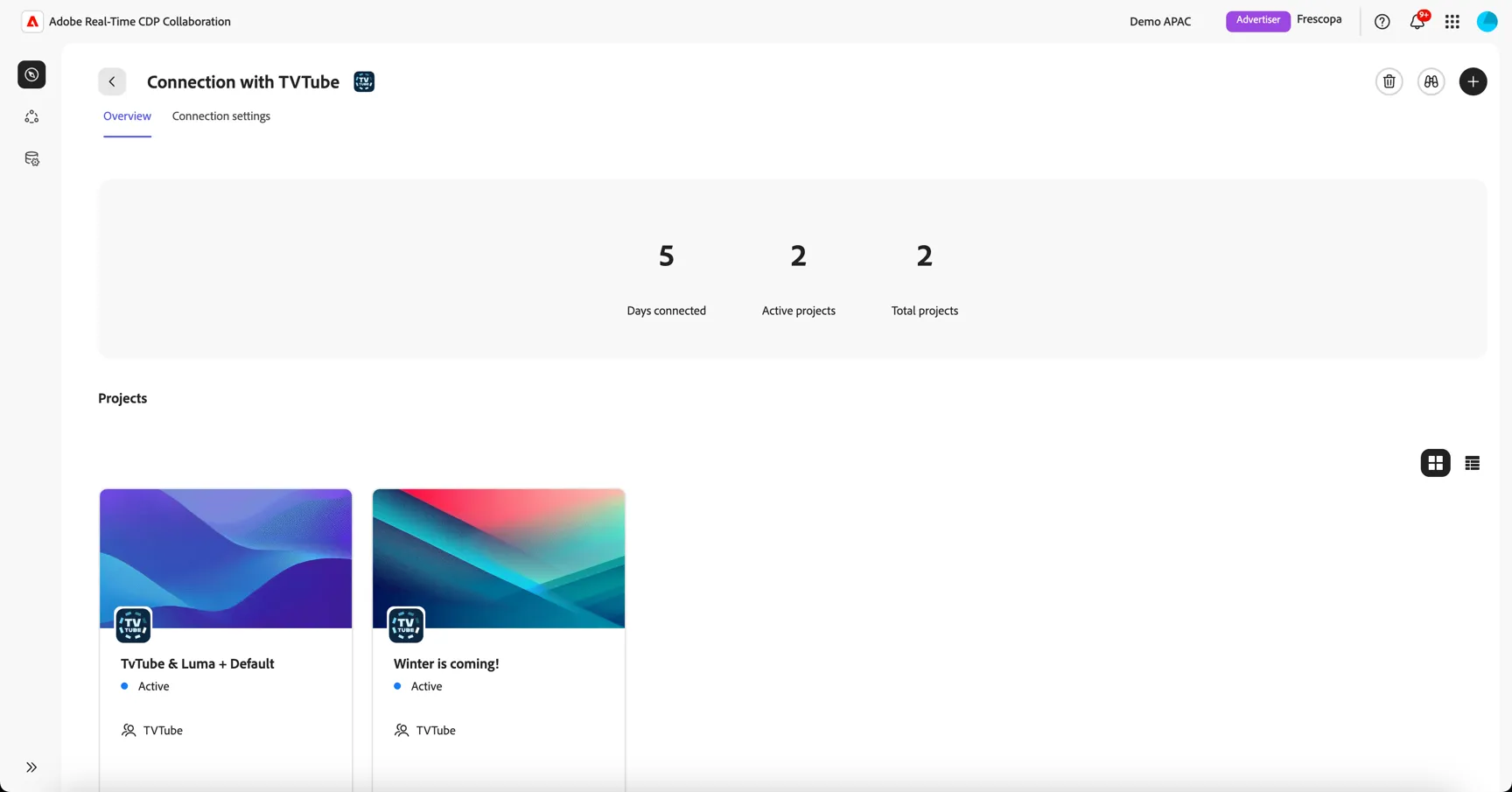
You can see an overview of Frescopa's collaboration with this publisher. How many days they've been connected and how many projects they've worked on.
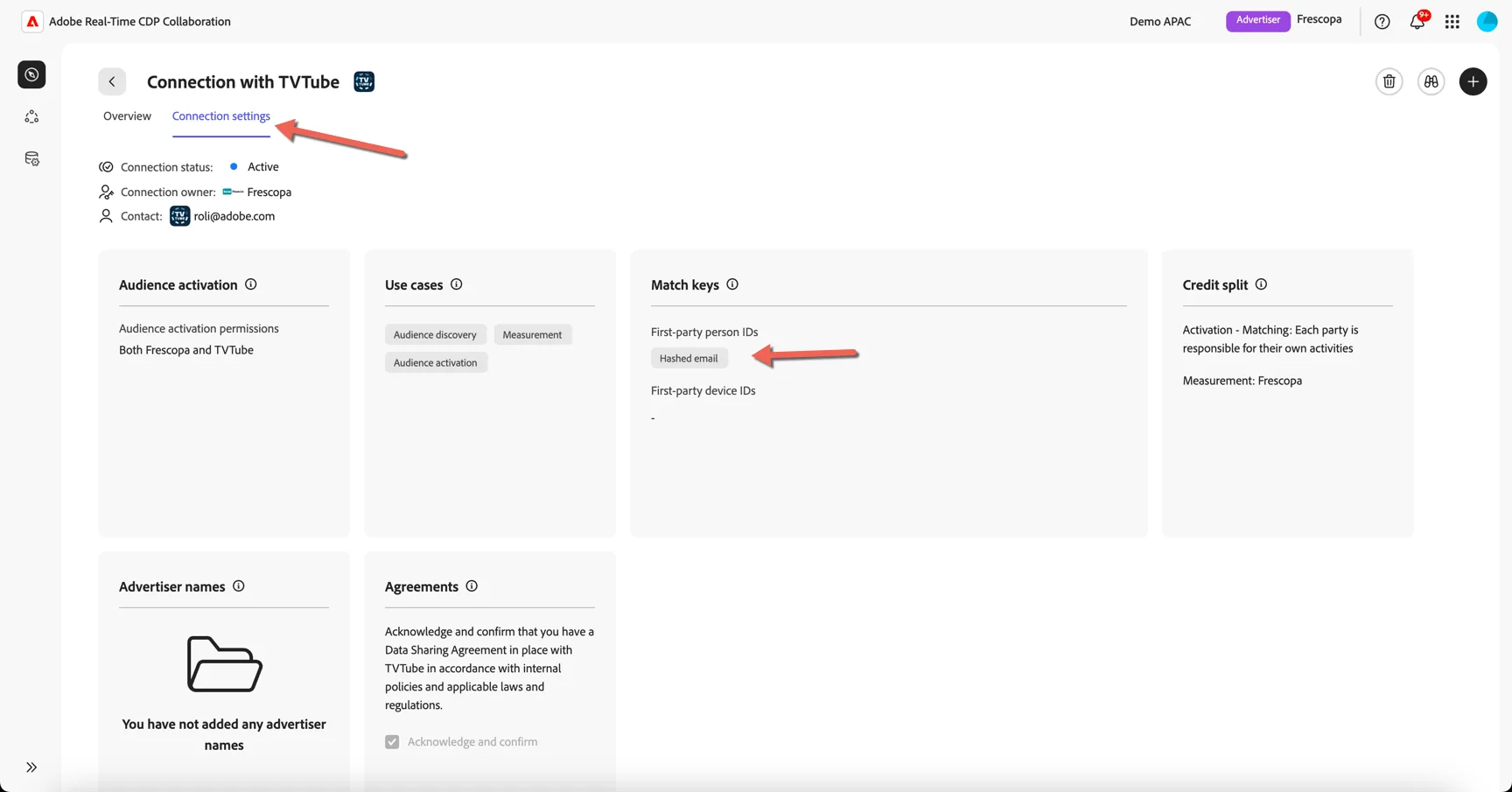
Click on the Connection settings. Here you can see the collaboration use cases that Frescopa and TVTube have agreed on, as well as the match key that will be used to determine overlaps - in this case Hashed Email.
Create a Project
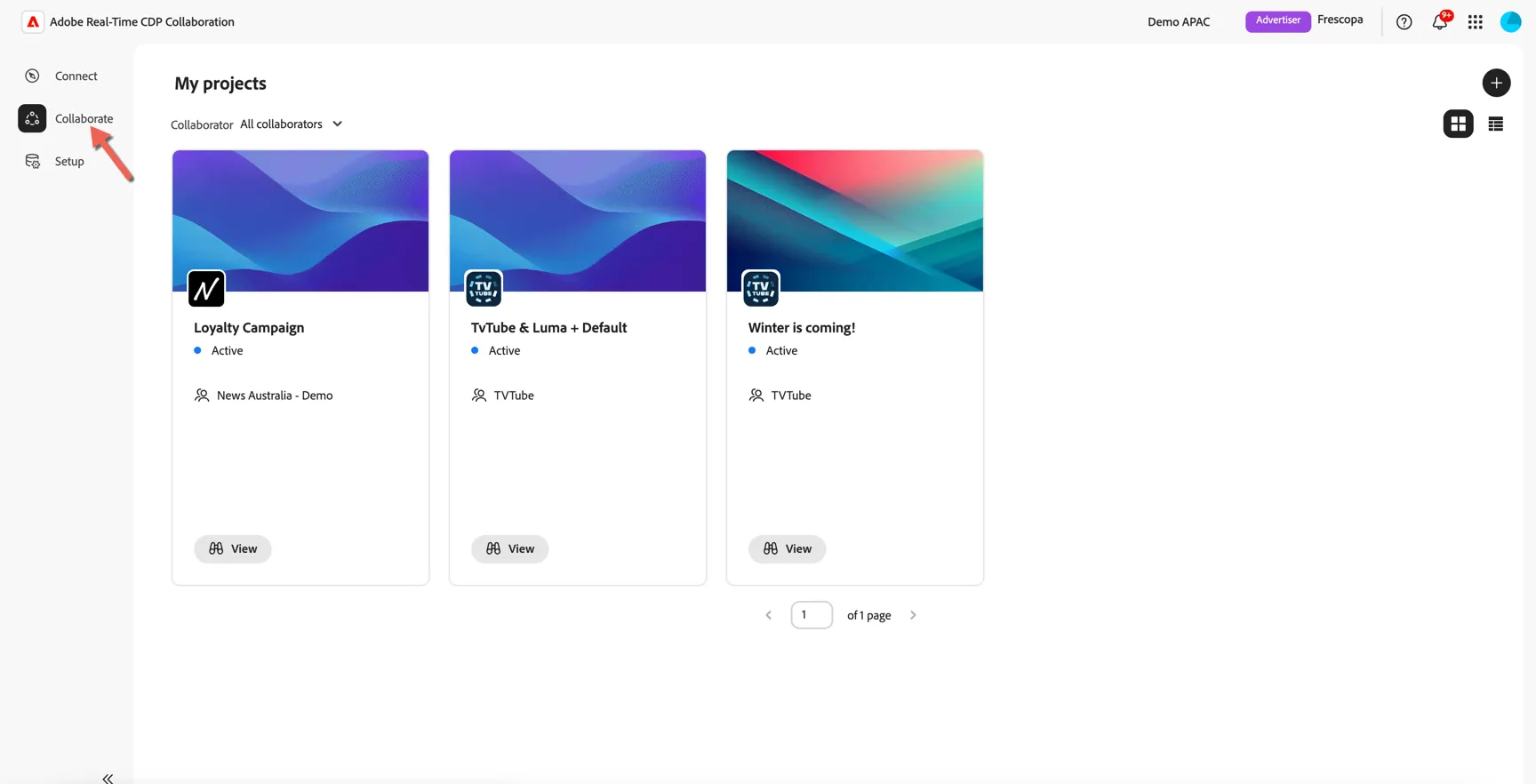
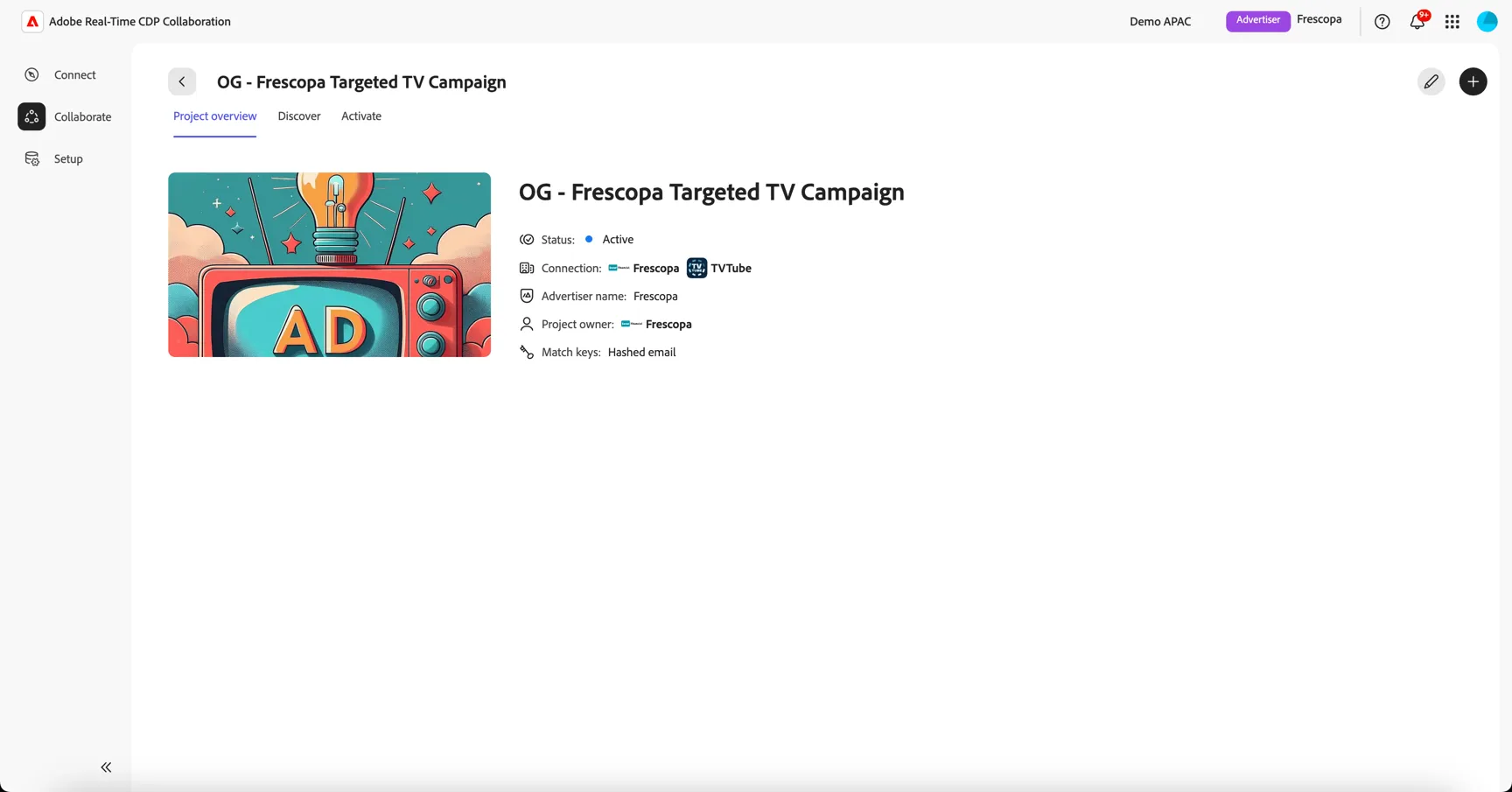
Once connected with the publisher, it’s time to collaborate! Click on the Collaborate menu to open the Project space.
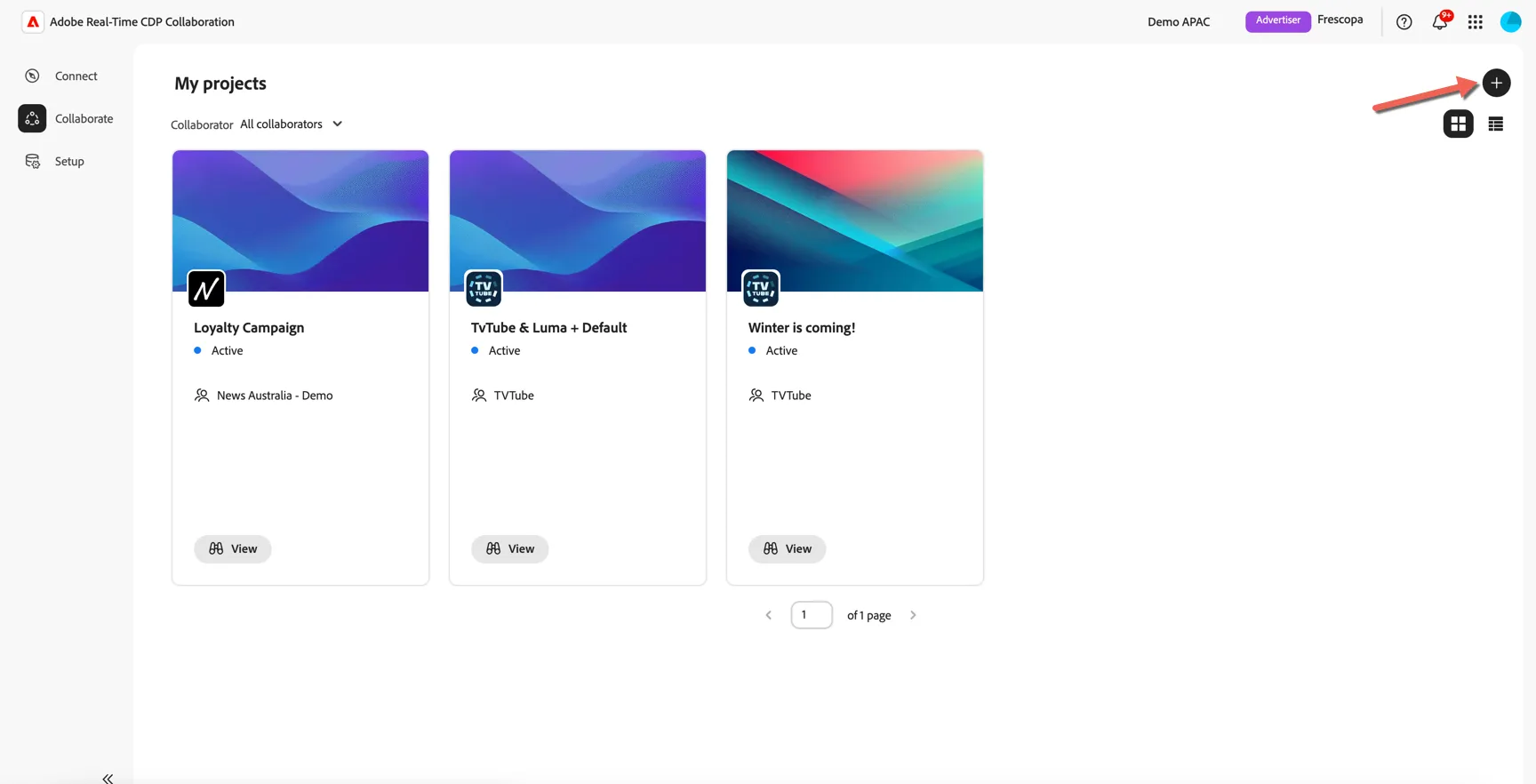
To create a project, select the Plus + symbol in the upper right corner. Or, if this is your first project, click on the ‘+ Create project’ button.
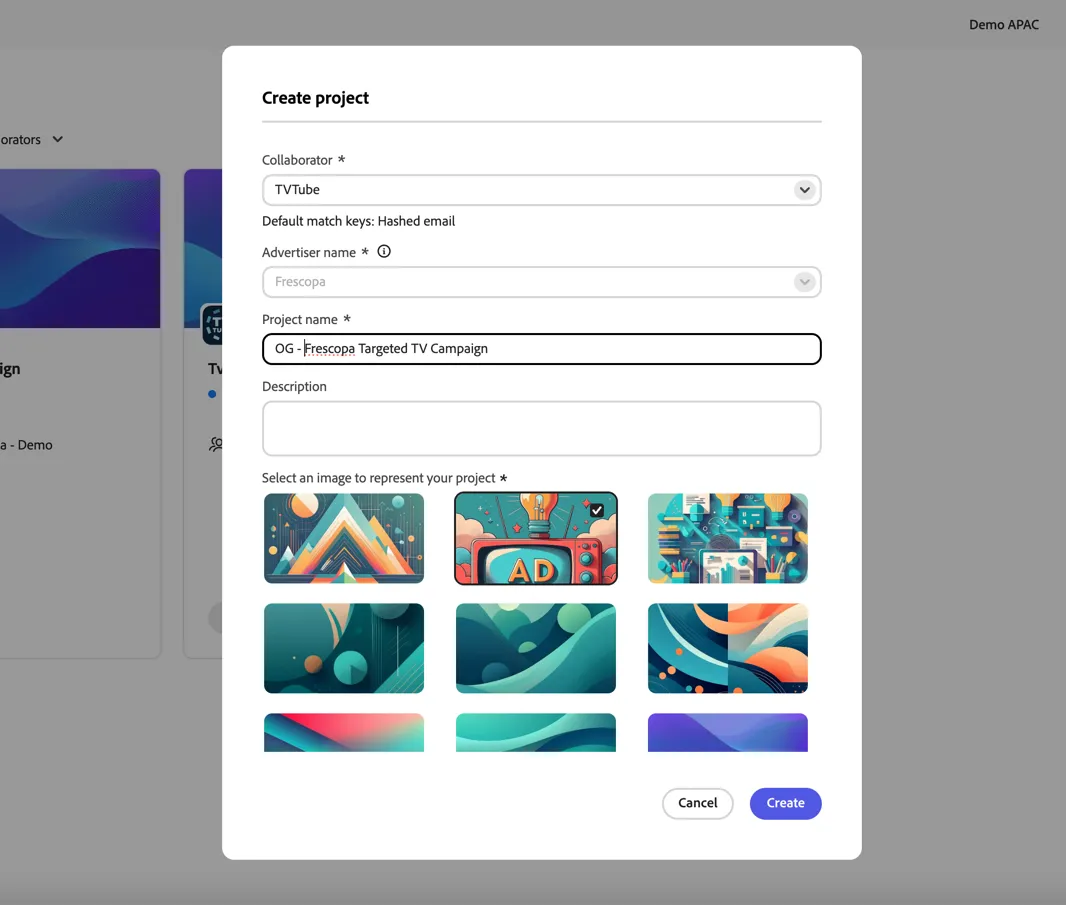
Select TV Tube as the collaborator and provide a project name and optional description for your project, select an image header to easily distinguish the project, and confirm your selection. Add your initials or something unique to the project name so you can recognise it easily.
Click to Create your project.
With our project created we can now start to compare audiences with our collaborator.
You can discover overlaps between audiences and get insights broken down by match keys or identities. This helps advertisers decide which audiences to share with publishers for activation, depending on the desired use case
Audience Insights
Click on the Discover tab in your newly created project to review the Audience Insights available between you and your collaborator.
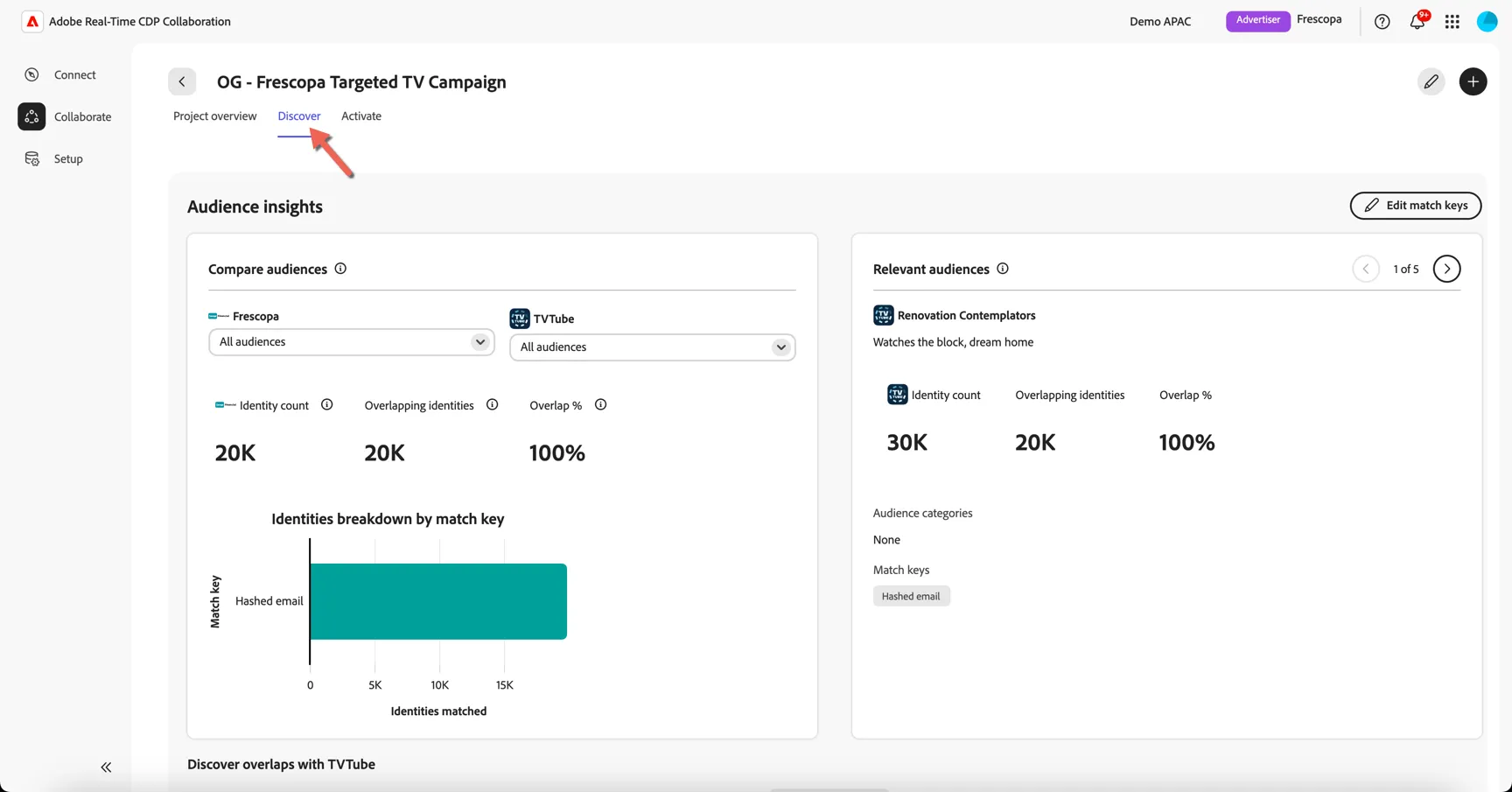
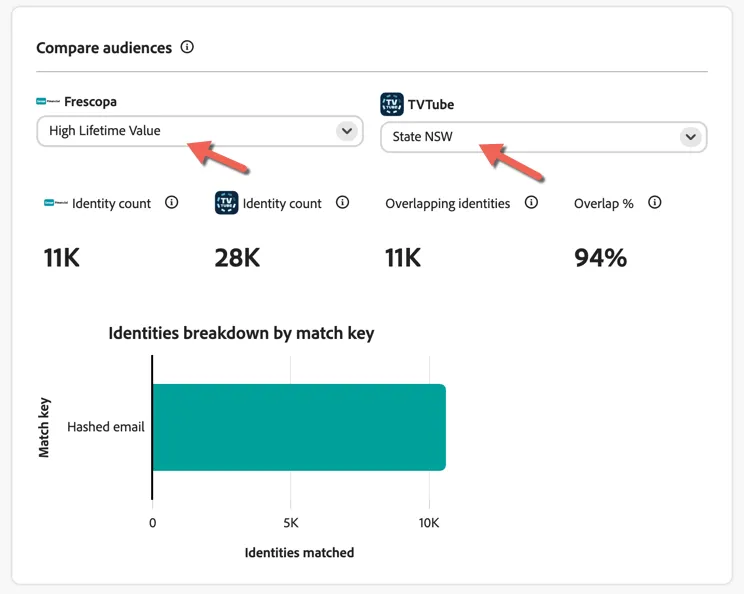
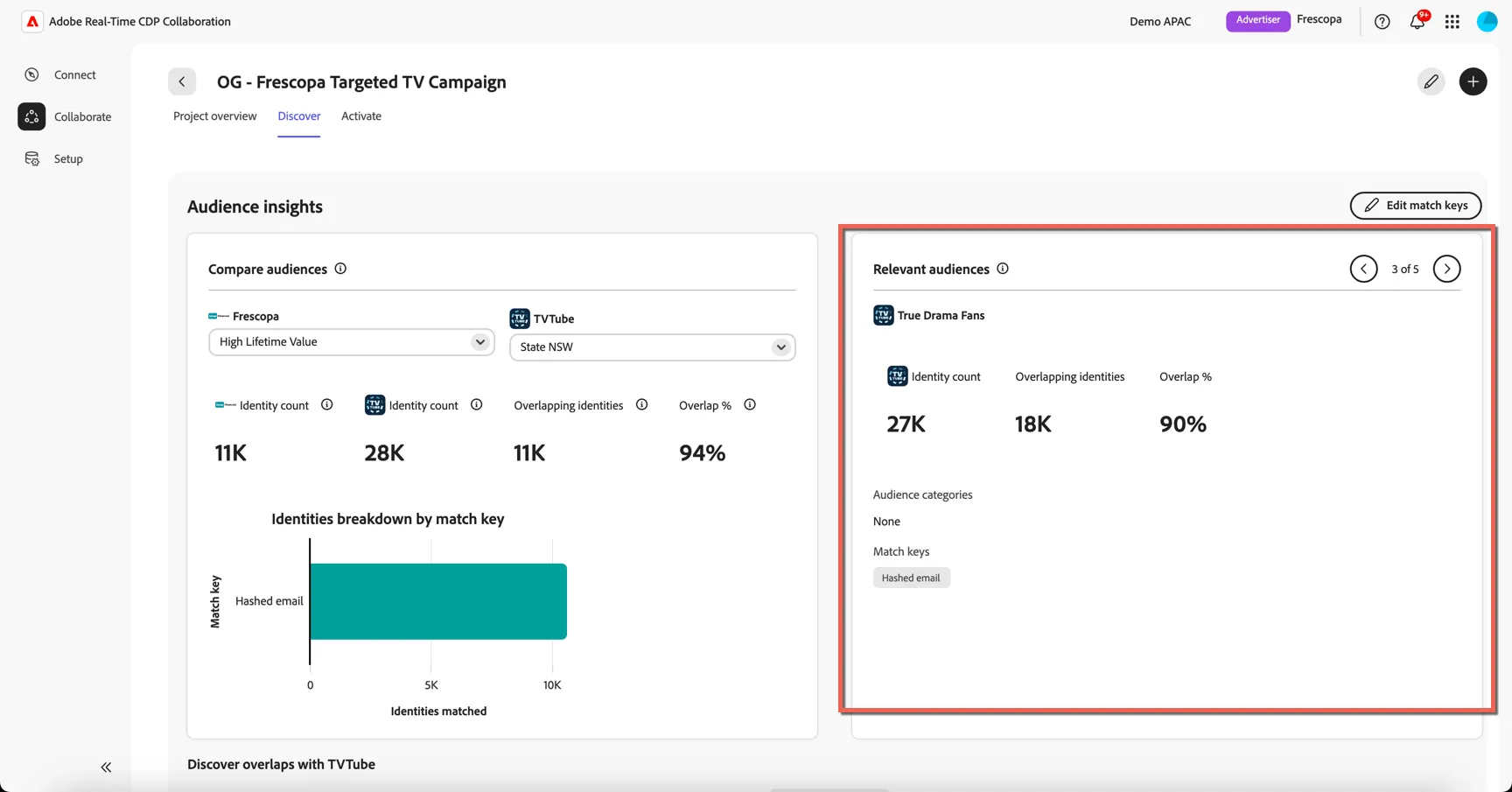
The Compare audiences panel allows to compare any of the following audience combinations:
- One of your audiences against one of your collaborator’s audiences
- One of your audiences against all of your collaborator’s audiences
- All your audiences against one of your collaborator’s audiences
- All your audiences against all of your collaborator’s audiences
Change the Frescopa Audience to High Lifetime Value and compare it with TVTube's State NSW.
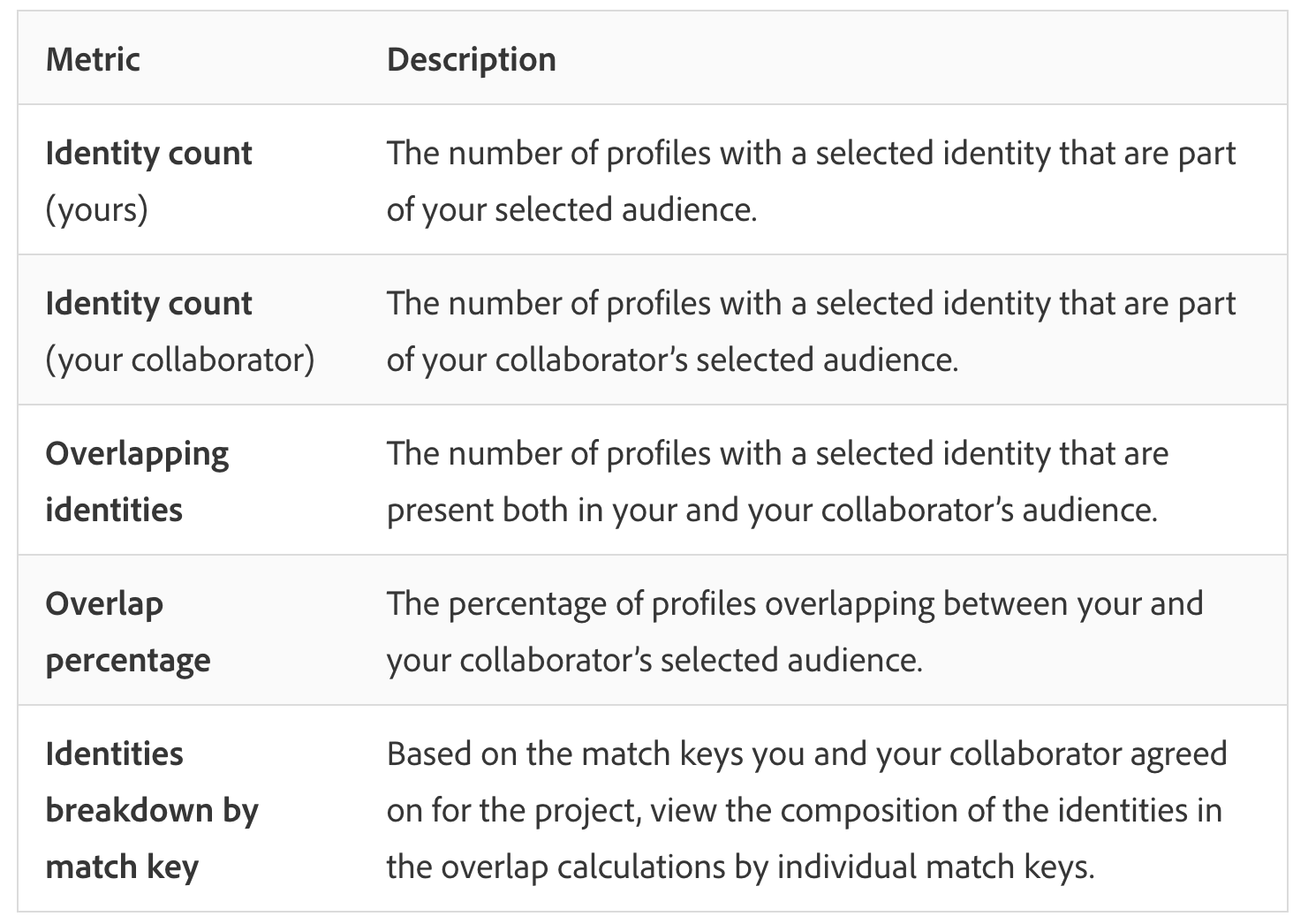
The Relevant audiences panel provides a curated list of the top five recommended audiences based on overlap percentage. This feature helps you quickly identify the audiences with the highest overlap with your current data, enabling you to target your campaigns more effectively.
- Identity count is the publisher’s audience size.
- Overlapping identities represents the overlap between the recommended publisher audience and all advertiser audiences.
- Overlap % represents the number of overlapping identities divided by the size of all advertiser audiences.
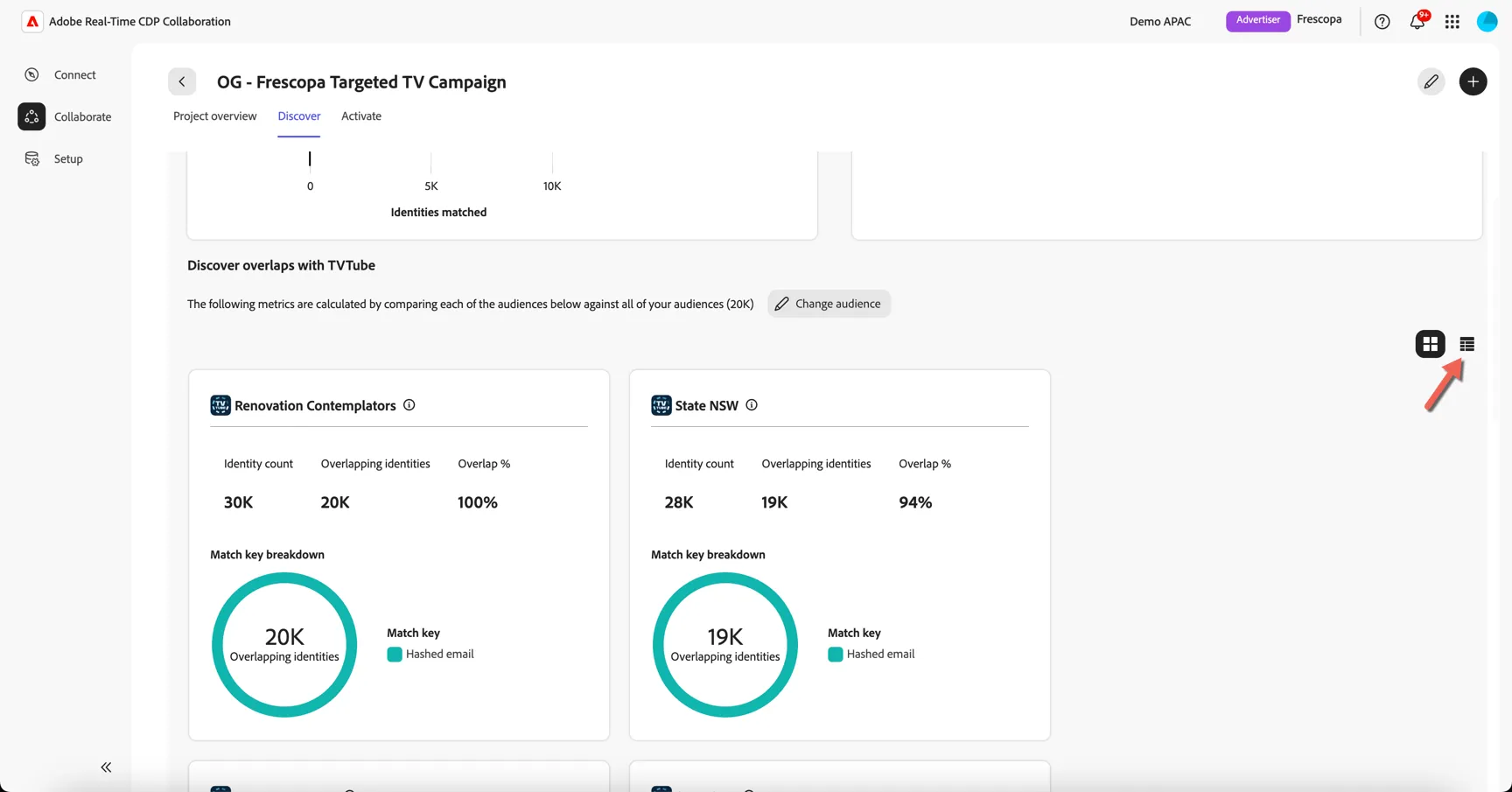
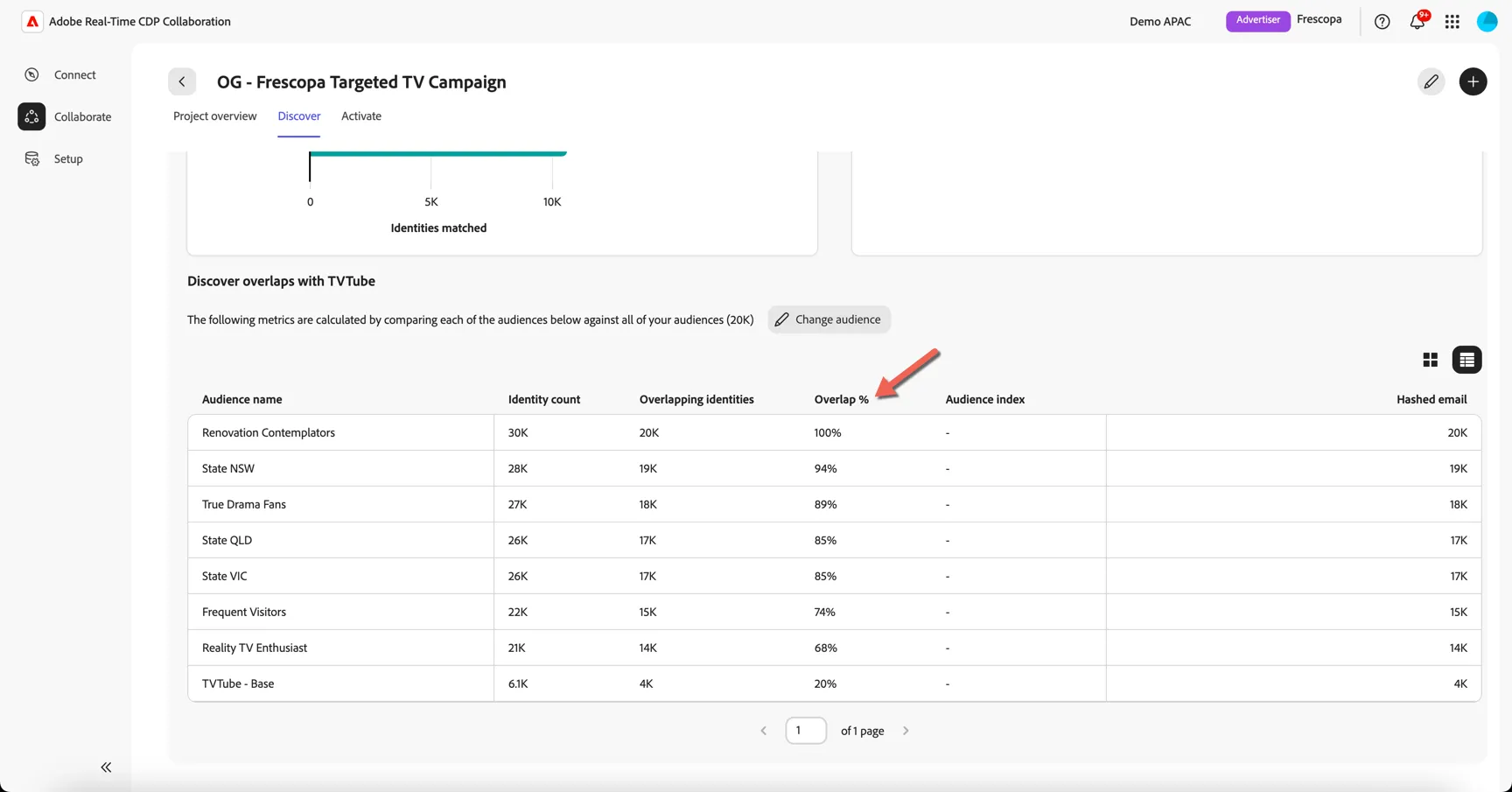
Scroll down the page to the Discover overlaps area, your collaborator's individual audiences are shown here with their overlap against all of your audiences.
Click to change from grid view to list view.
You can quickly see the overlap percentage per audience.
Share Audience
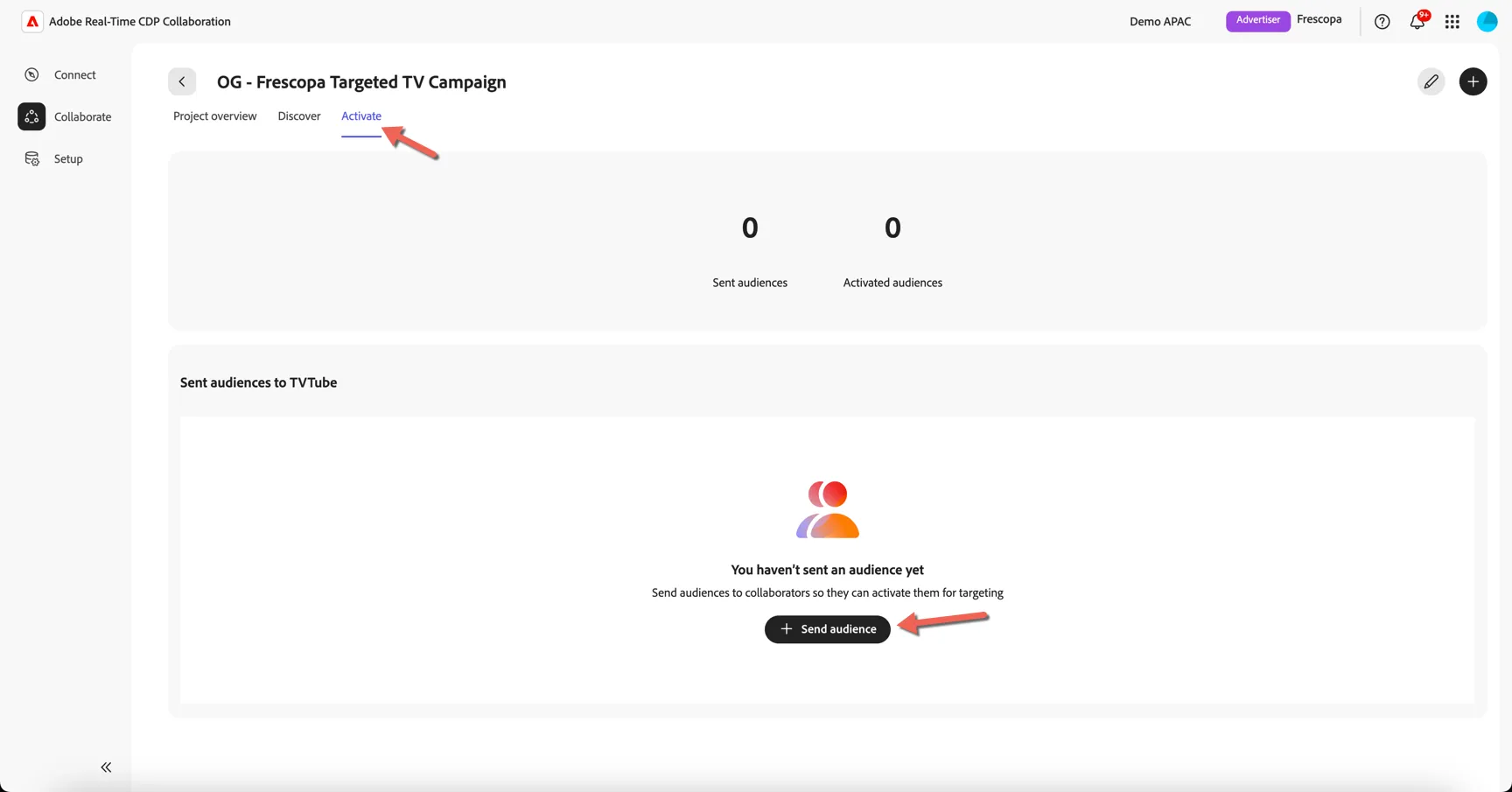
Frescopa have decided they want to share their High Lifetime Value customers with TV Tube, navigate to the Activate tab in your project workspace. In this tab, you can review and manage shared audiences. Click to Send audiences.
Use the dropdown or the browse audiences button to select the audience you want to share. The audience is now, displayed and you can see the Identity count, Overlapping identities, and Overlap %
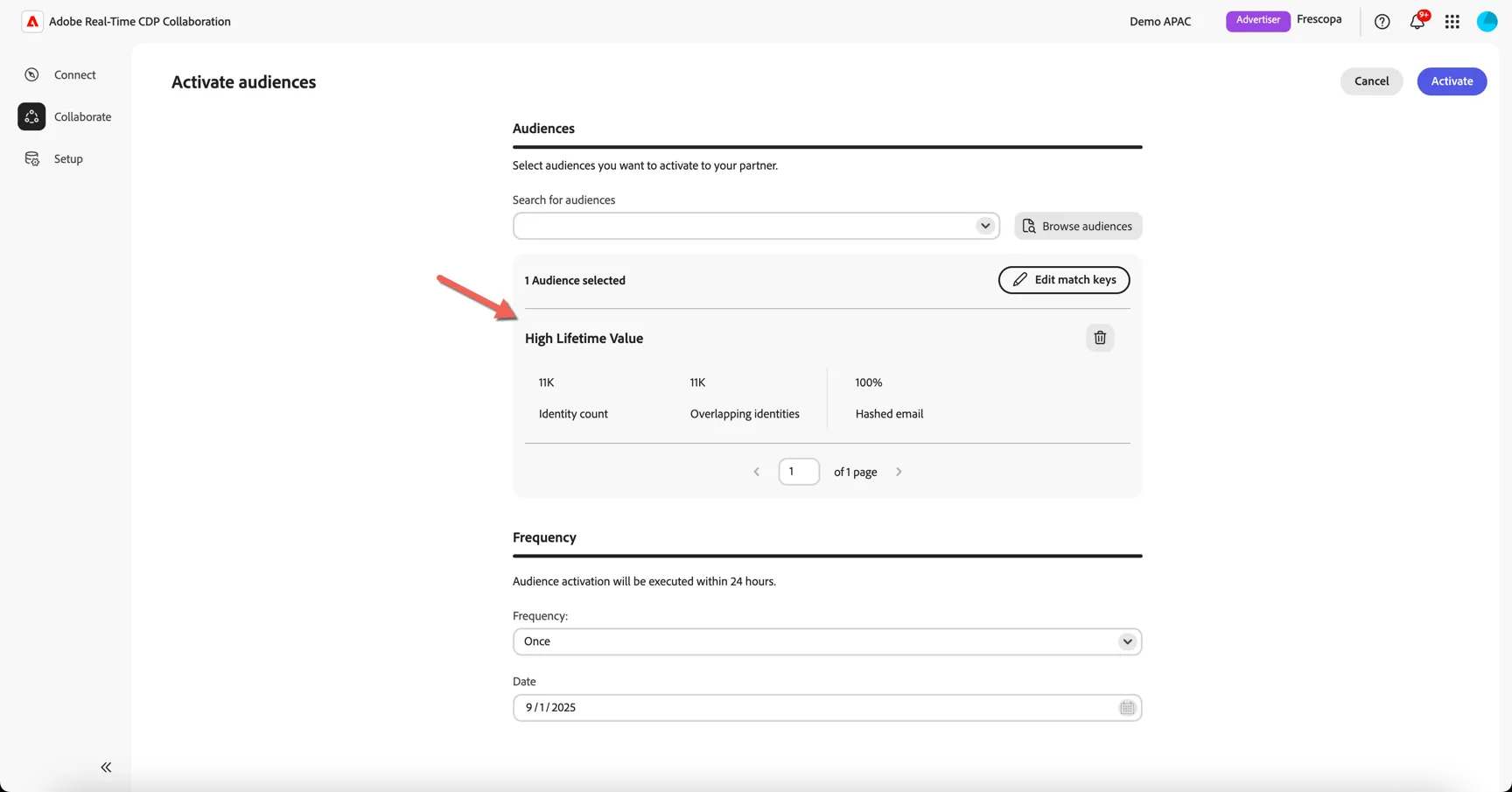
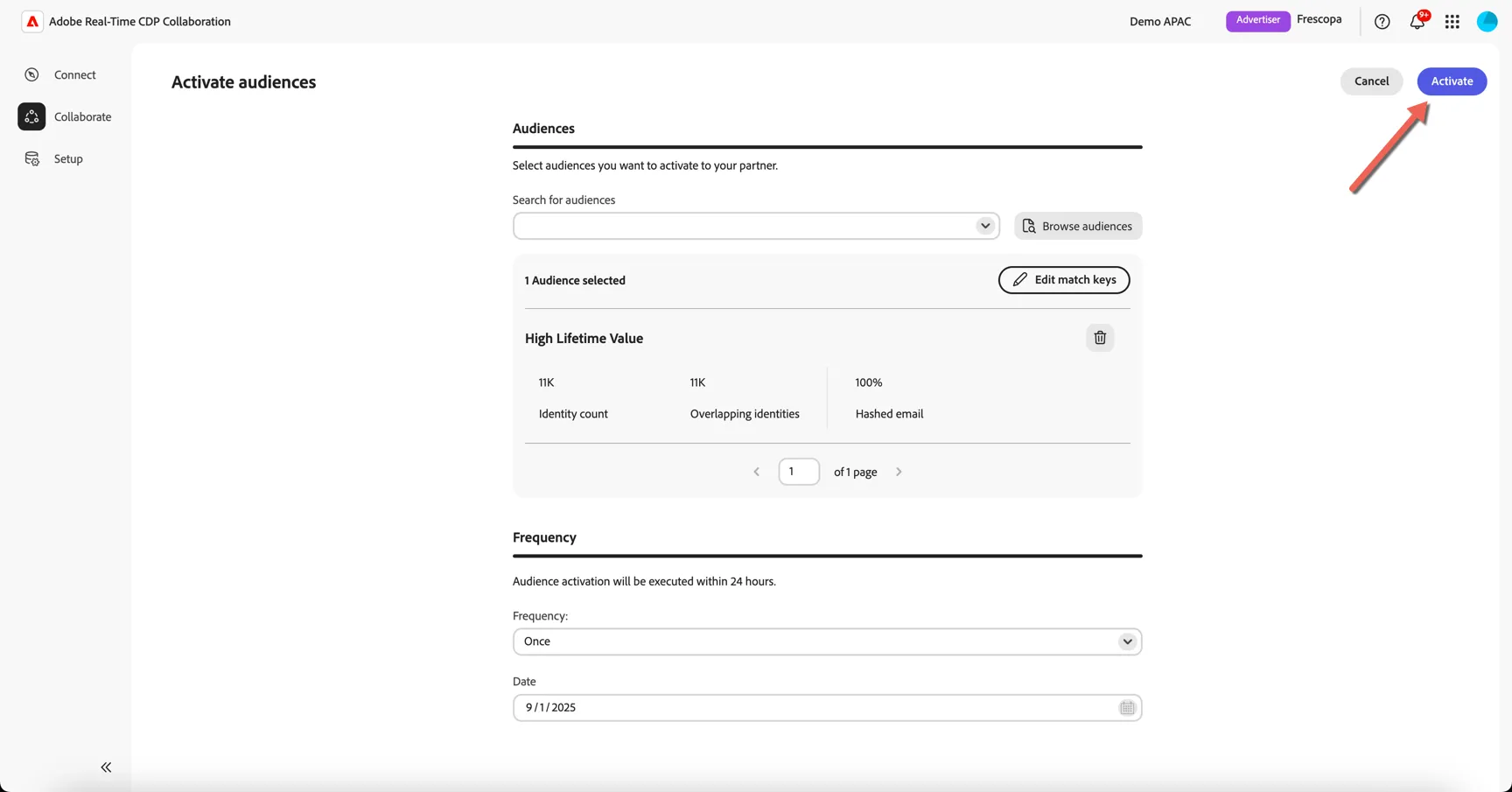
Leave the Frequency and Date as is. Click Activate to share the audience with the publisher.
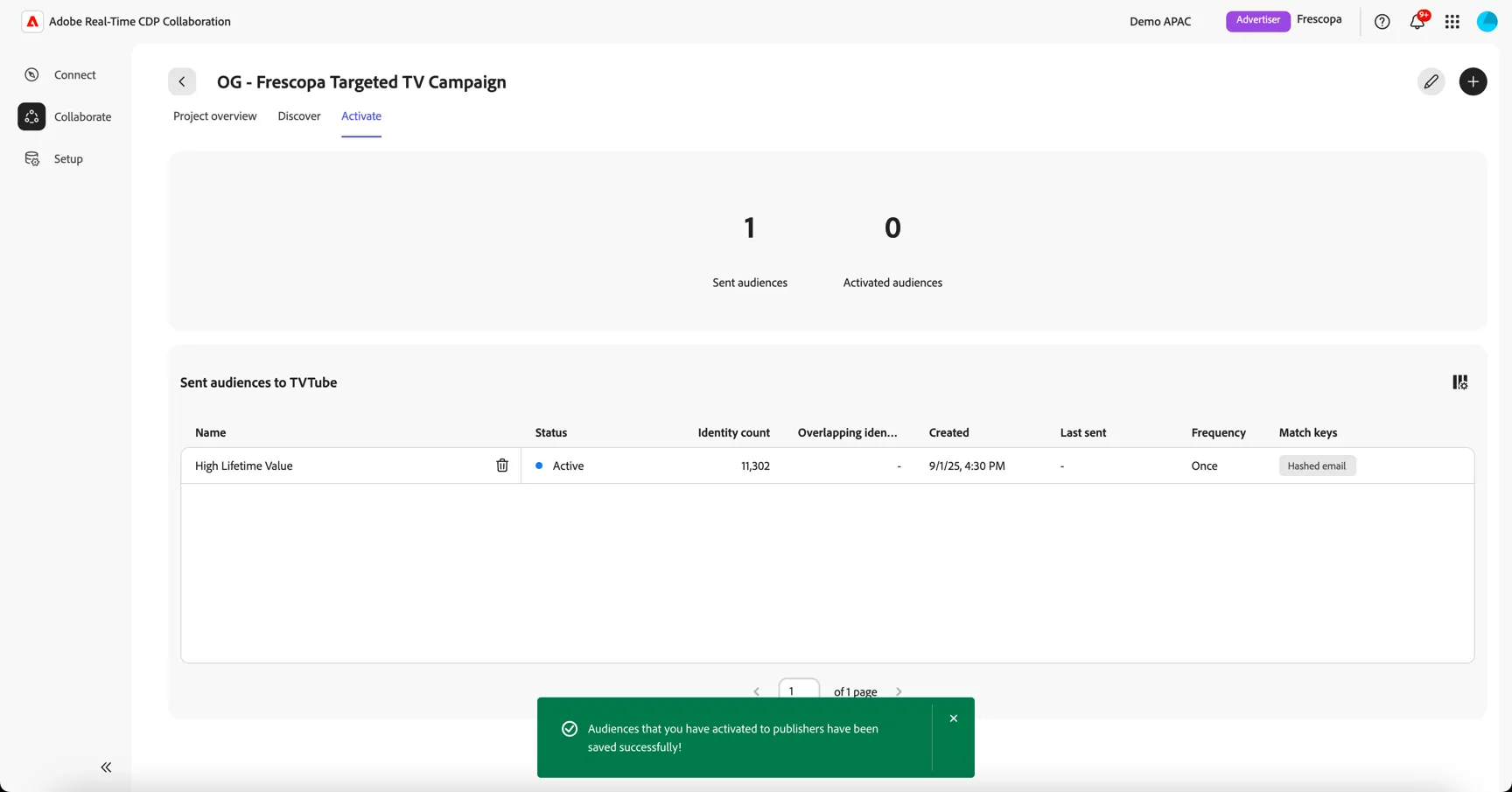
After you share an audience for activation, the audience immediately shows up in the publisher's Activate view. The audience will be exported to the publisher's indicated location at the interval set during the workflow.
Congratulations you've completed the lab for Real-time CDP Collaboration.