Introduction
In this exercise you'll become familiar with the Analysis Workspace in Customer Journey Analytics and start to understand what types of data and visualisations are available.
The left side rail contains the Panel menu (where new panels can be dragged to the project), the Visualisation menu (where visualisations can be dragged to a panel), and the Components menu (where Dimensions, Metrics and Filters are found and can be dragged to the panel visualisations).
Create a new project
Create a new project.
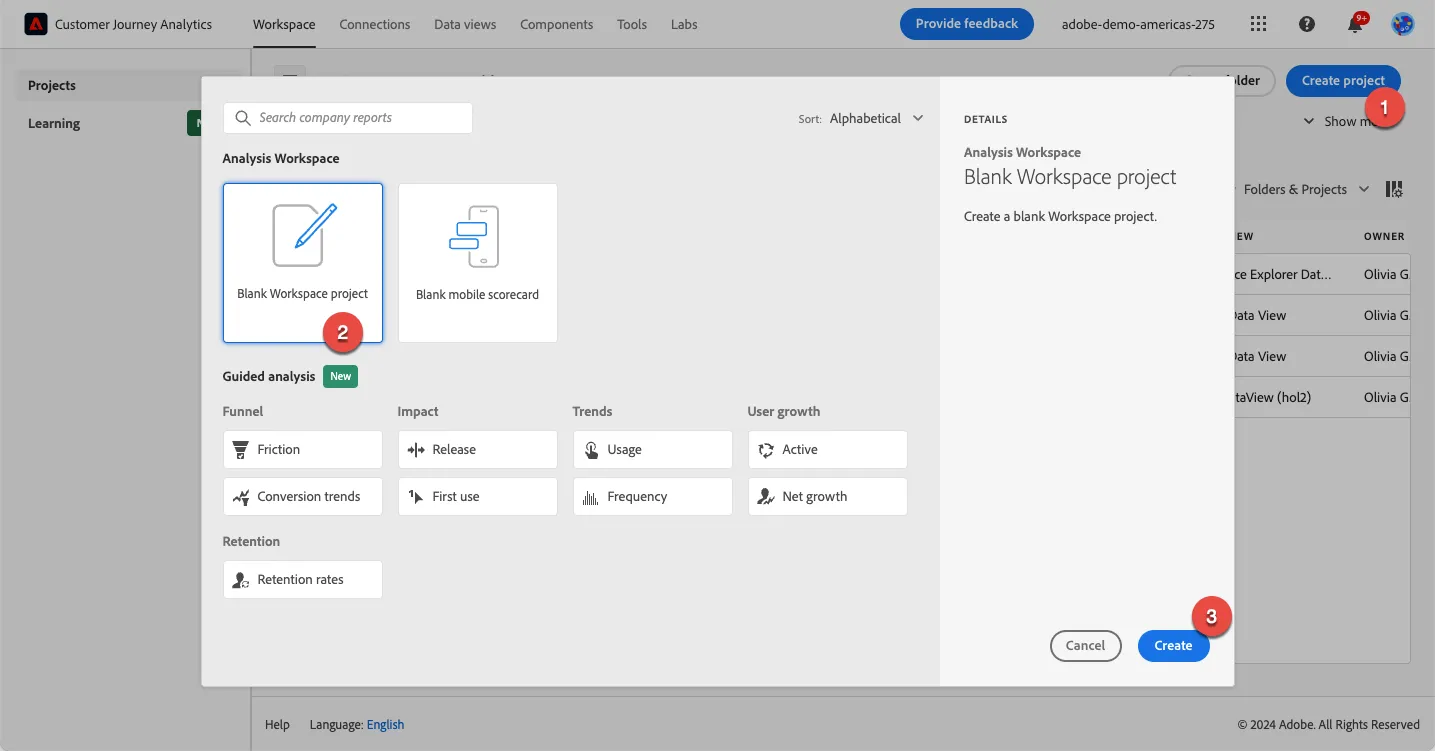
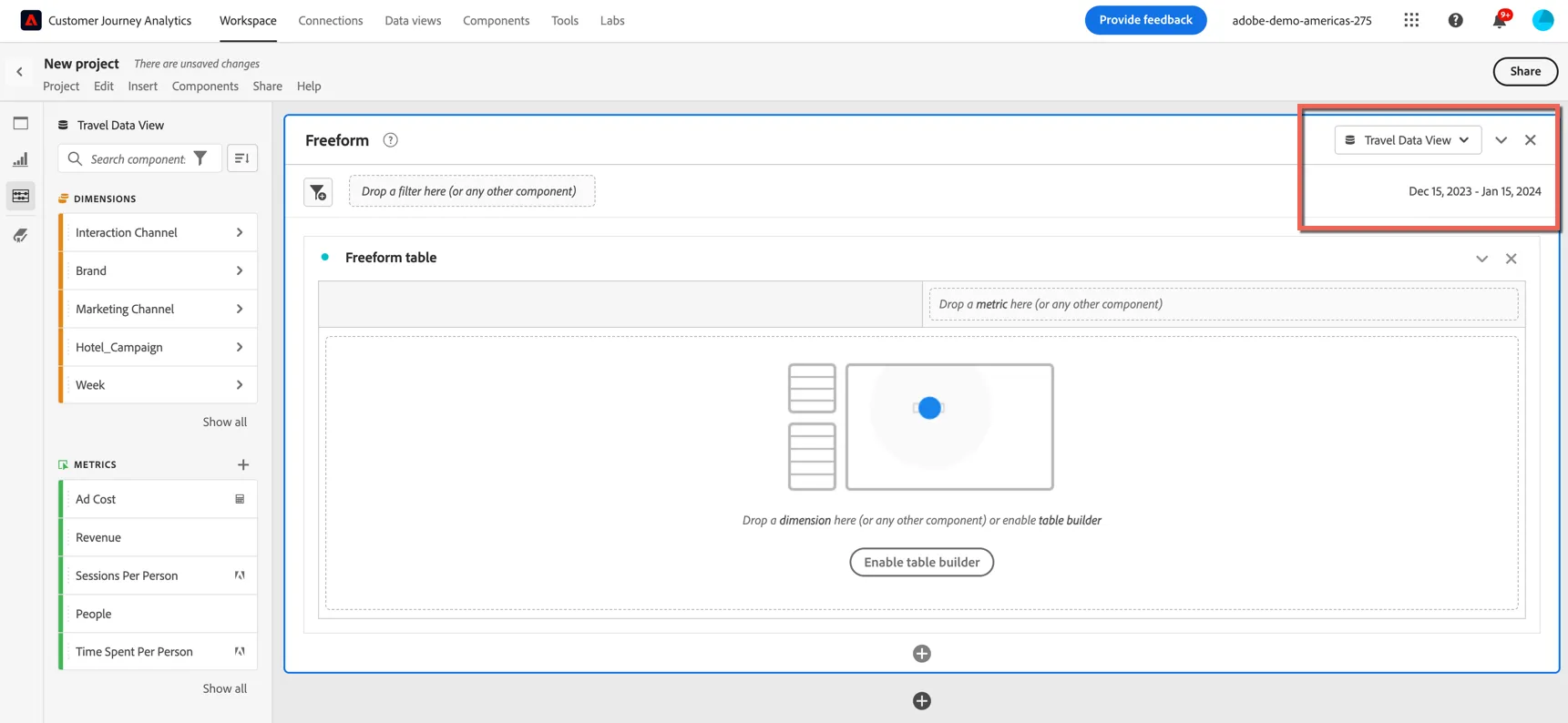
Ensure that the Tavel Data View is selected in the Data View selector
Set Reporting Date Range to Dec 15 2023 - Jan 15, 2024 from table below and click Apply.
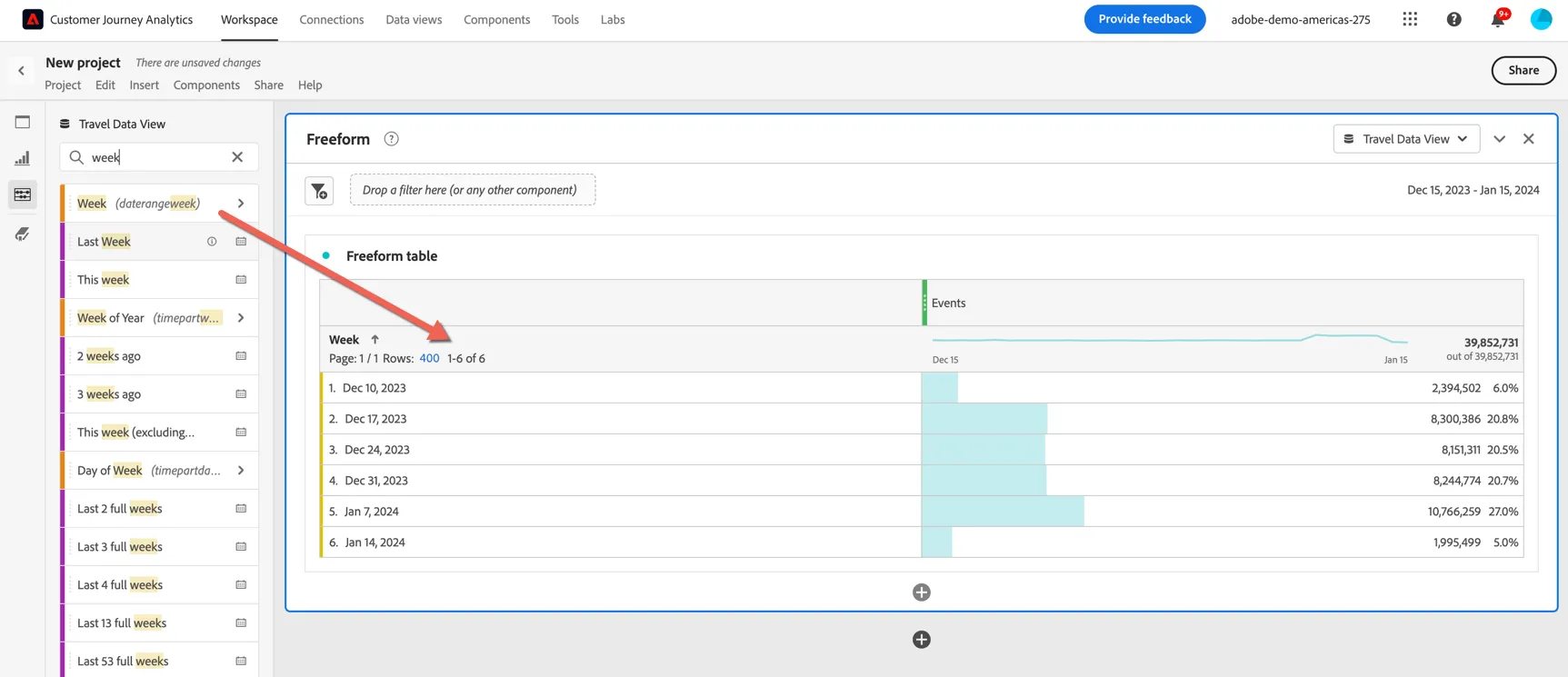
Drag the Week dimension from the Components menu and drop it into the Freeform Table visualization in the Panel.
Drag the Sessions and the People metric from the Components menu and add these to the table.
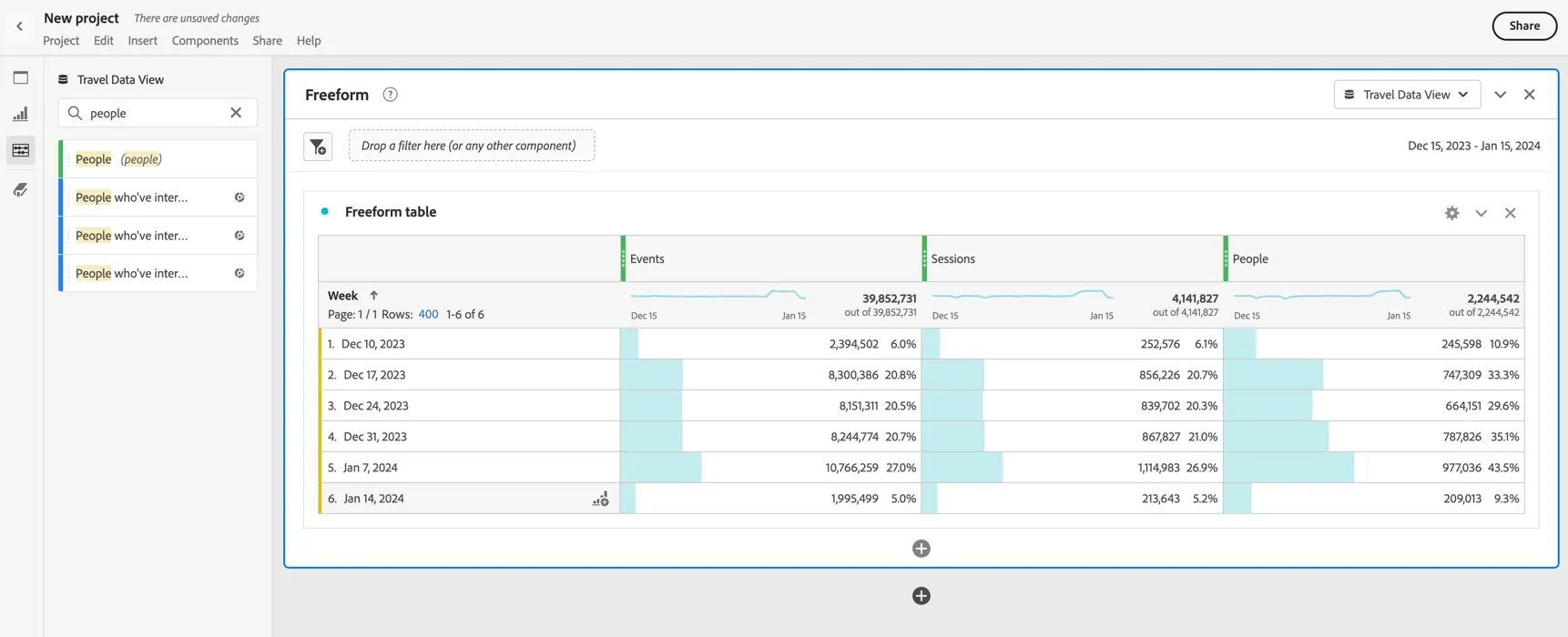
These three metrics are the standard container levels for Customer Journey Analytics, similar to hits, visits and visitors in Adobe Analytics. In CJA however, events can come from any channel, session times are defined by the data view and people are counted by customer id not cookie or device id.
Now would be a good time to save this Project so we don't lose any of our work. Click on Project and then Save, or Control/Command S to open the Save Project window. Name the project HOL Dashboard - {your initials} and select Company Folder to store it in. Then click to Save the project.
Omni-channel event data
Unlike traditional digital analytics, CJA is reporting on events from any channel and any source system. This means we can include in a single dashboard data from multiple platforms, combining web and app data both within a single brand and across brands. We can include events from your marketing automation platforms (emails, sms, push notifications) and call center logs, allowing you to report on how many calls have been received as well as offline or custom events like sales completed through partners.
Pull the following metrics and add these to your free form:
- Page Views
- Calls
- Emails Sent
- SMS Sent
- Total Bookings
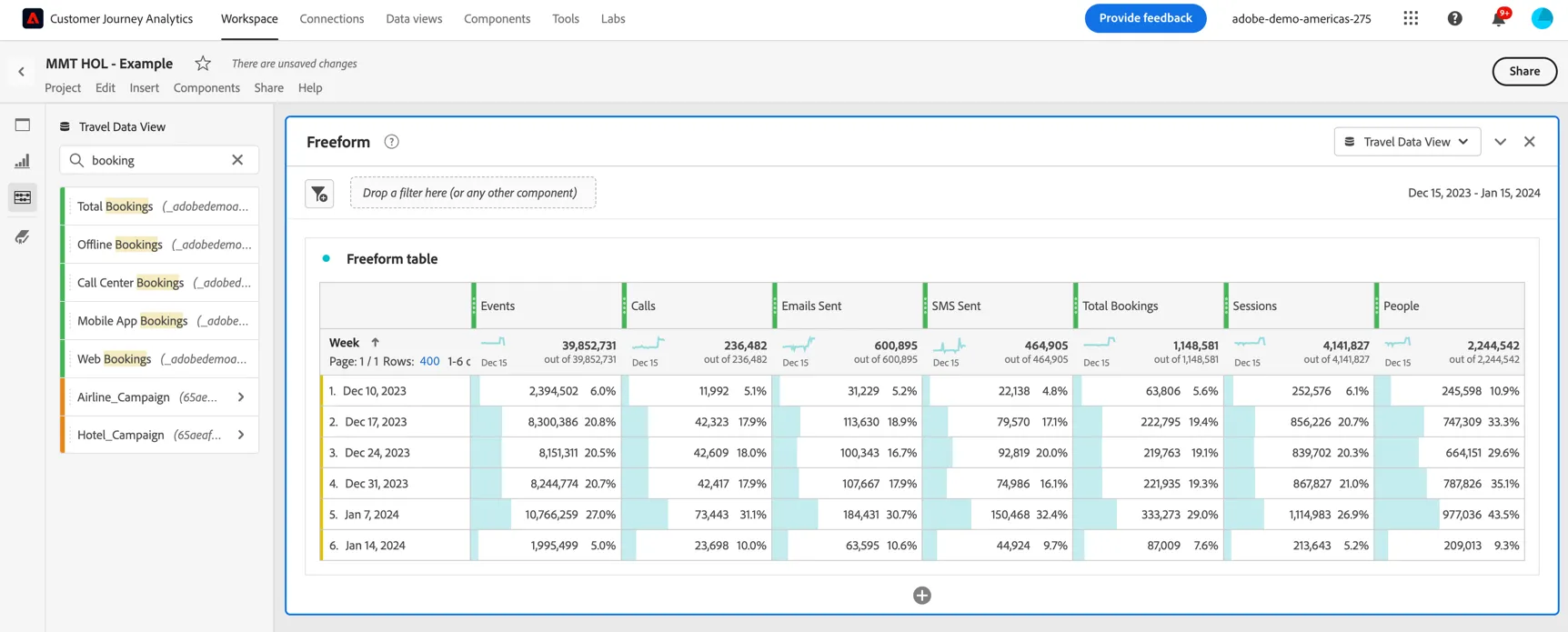
All of these events are coming from different datasets and source systems. Drag the Platform Dataset ID into your freeform and replace the week dimension.
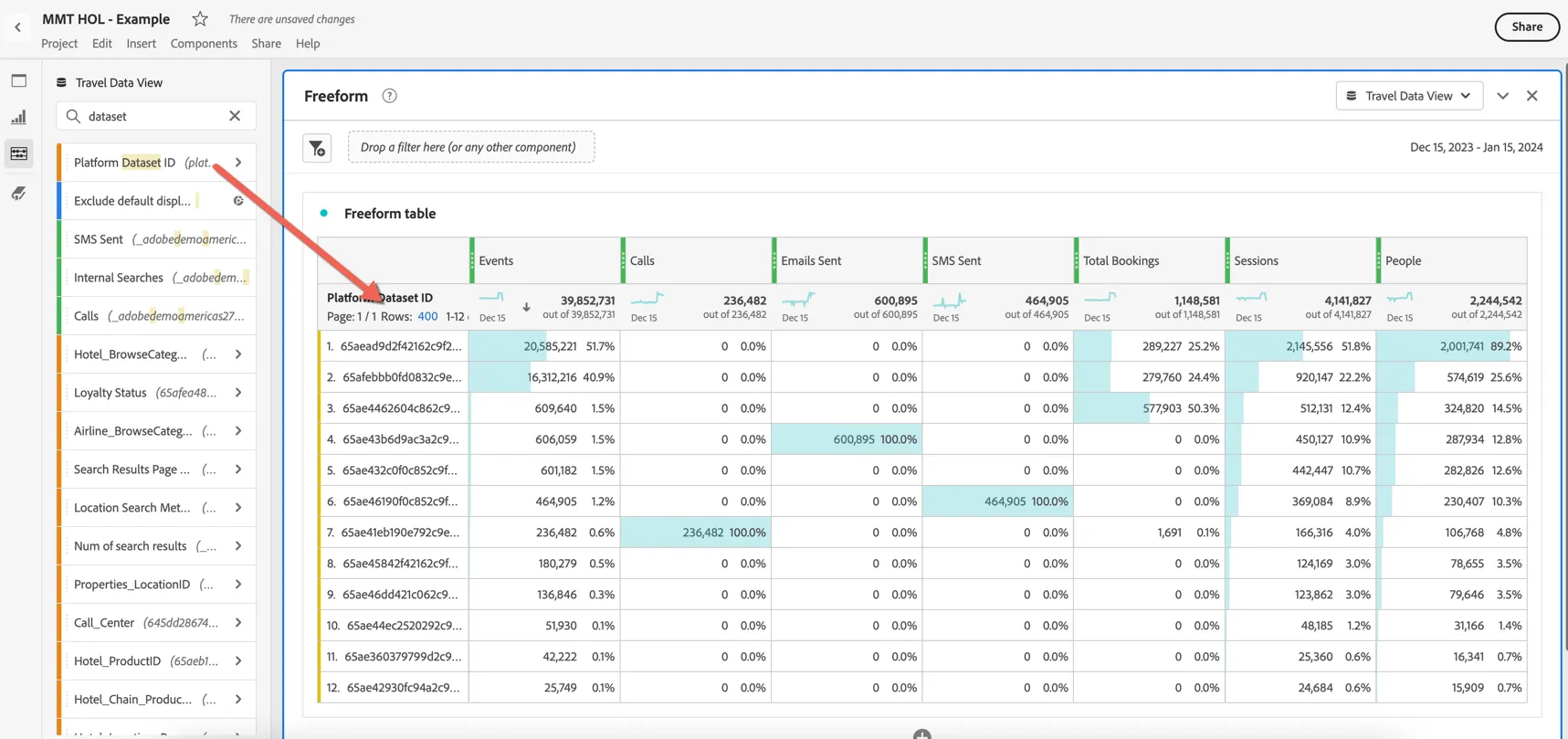
We can see how each dataset is contributing different types of events and how some event types are shared across multiple datasets - eg. bookings. This is where Adobe's Experience Data Model is so beneficial as it standardizes and aligns the data model across your channels allowing you to report wholistically on cross channel events.
The dataset id isn't very informative though, so let's swap it out for the Interaction Channel. In analytics the interaction channel is usually defined by either the report suite itself or the device type. In Customer Journey Analytics we need a dimension to understand this clearly.
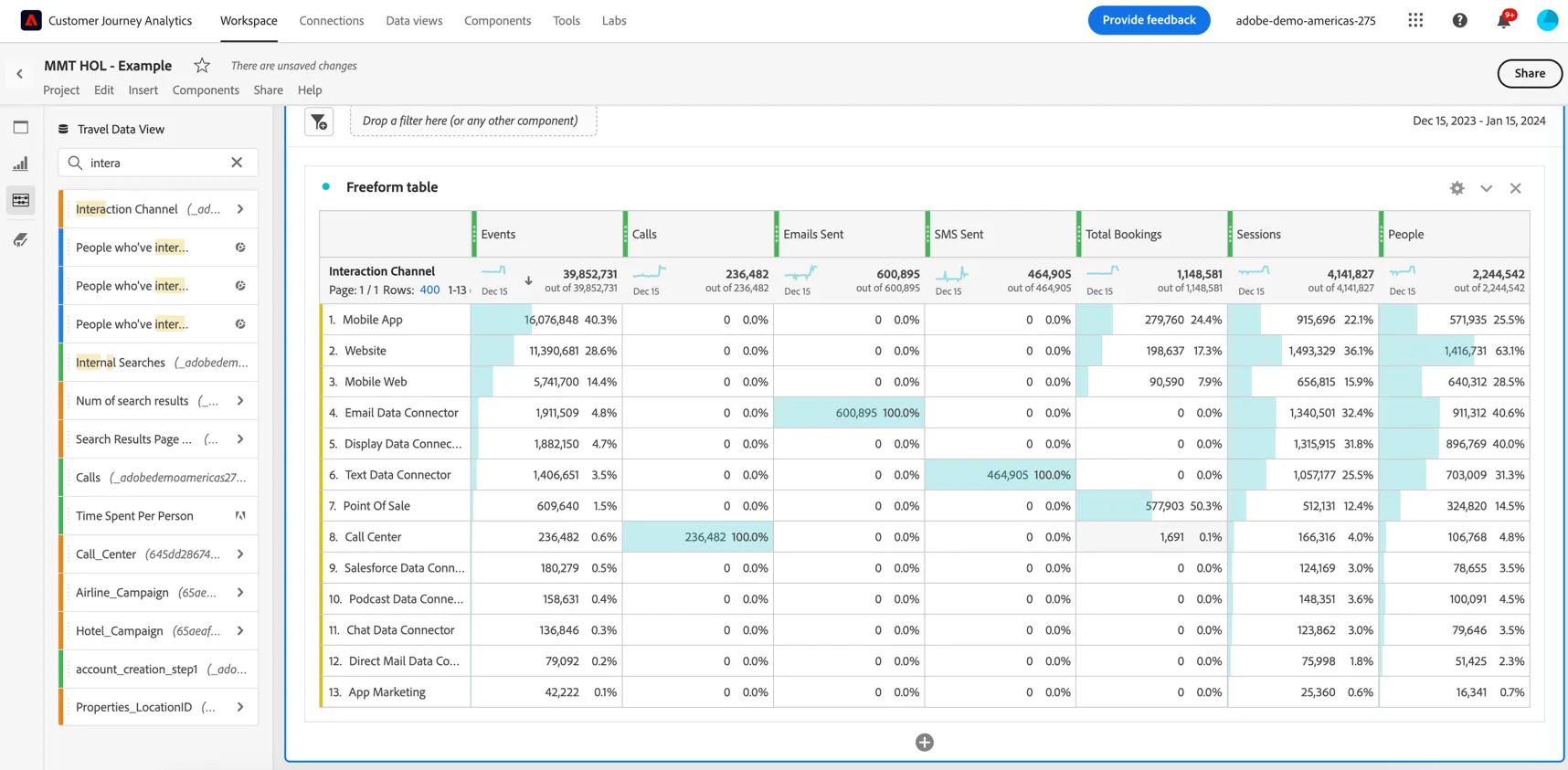
Now we can see where all of these interactions are originating from. There are five channels which are collecting booking events: web, app, mobile web, call center and point of sale. Select those values so we can create a visualisation of them.
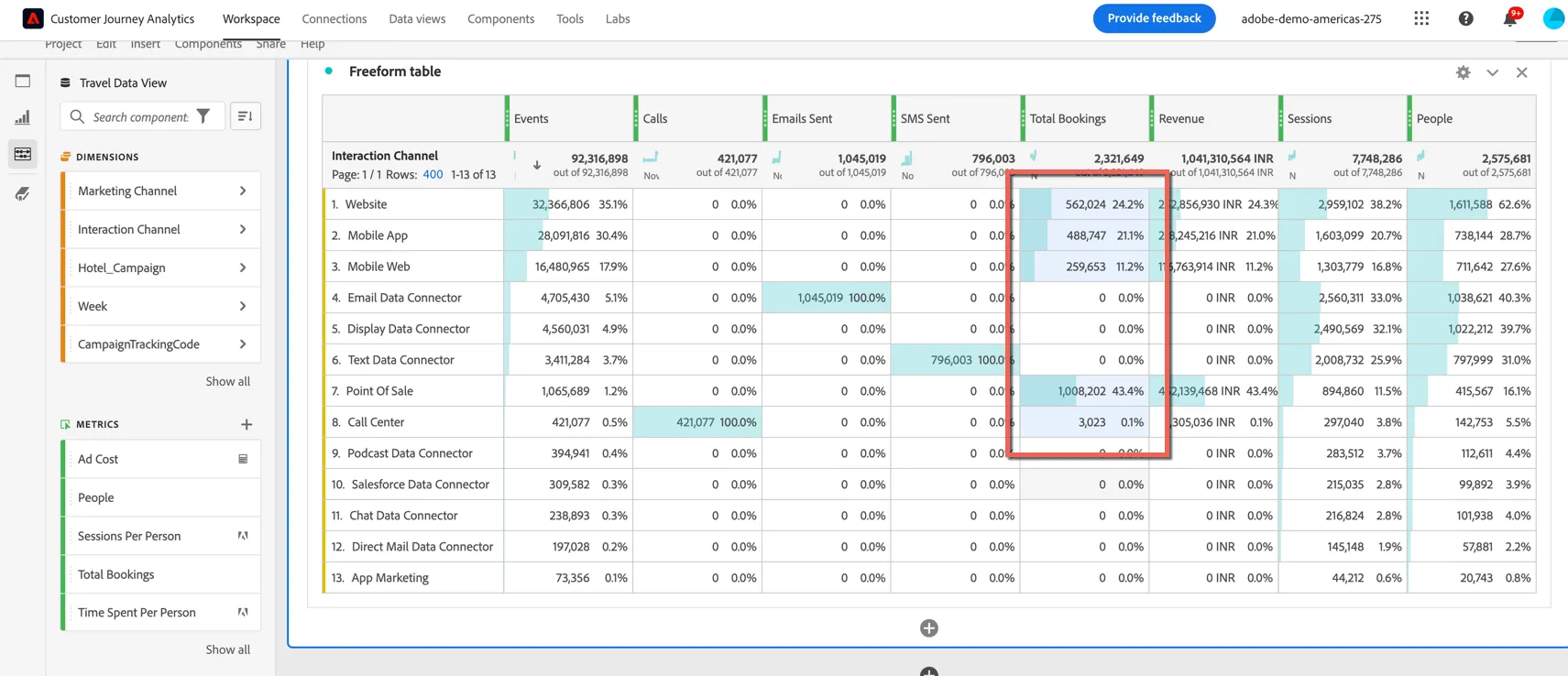
Drag a Donut visualisation into the dashboard. This will automatically display the values selected from your freeform and show a breakdown of bookings across all channels.
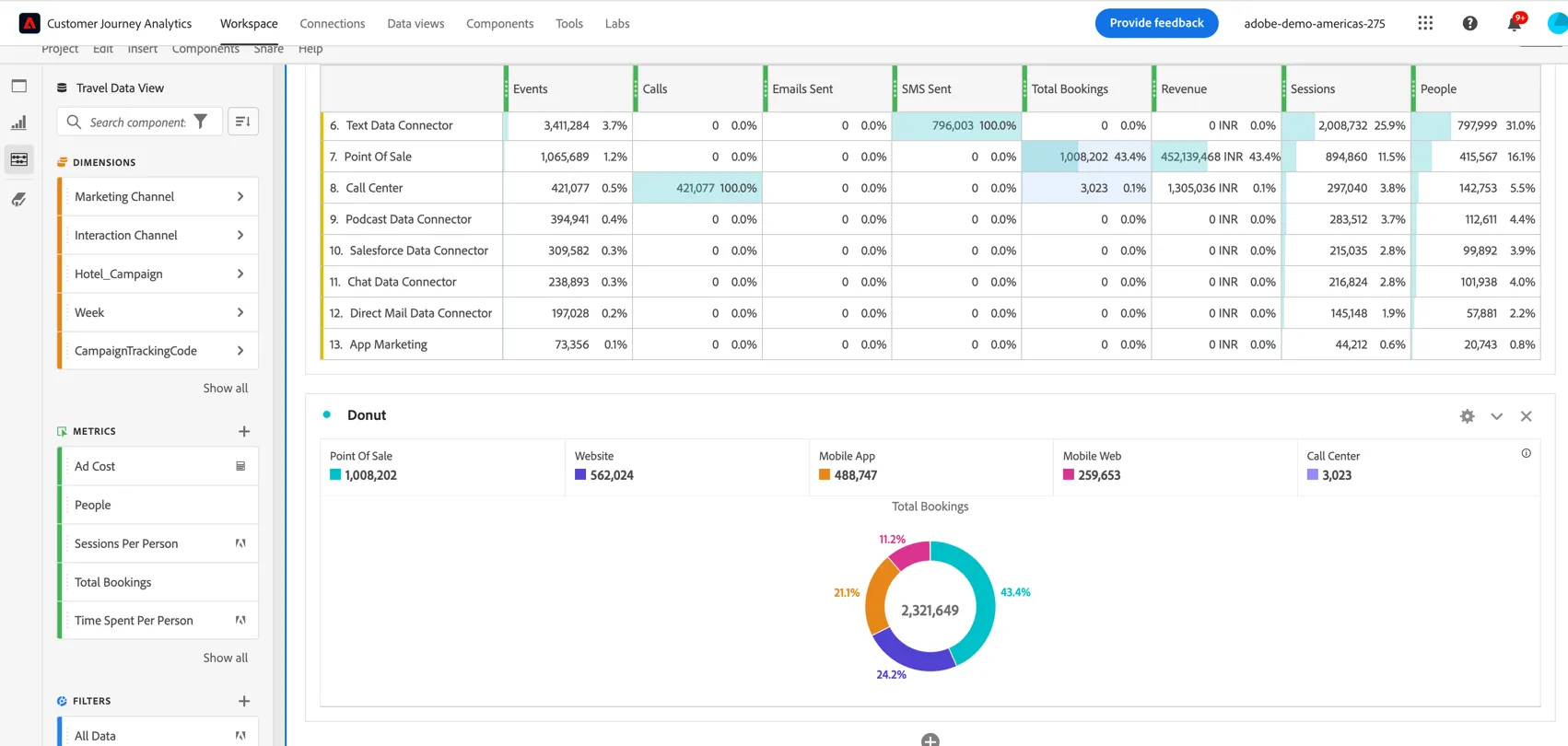
Name your visualisation Bookings by Channel and resize it to take up only half of the dashboard. Right click on the bullet point to the left of the label and tick to Lock selection so it retains just those selected channels.
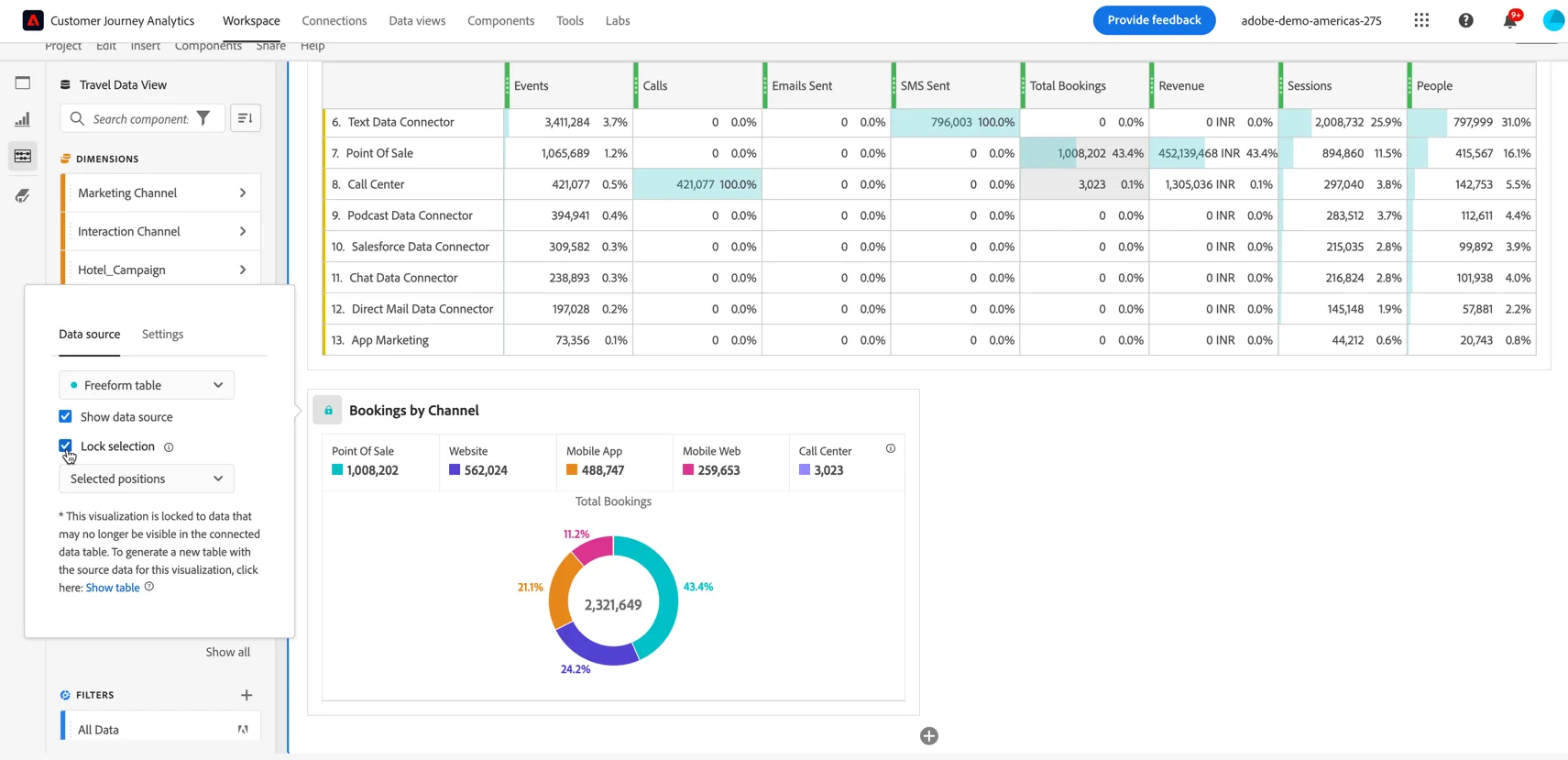
Not
Save your project
- Now would be a good time to save this Project so we don't lose any of our work.
- Click on Project and then Save, or Control/Command S to open the Save Project window.
- Name the project HOL Dashboard - {your initials} and select Company Folder to store it in. Then click to Save the project.
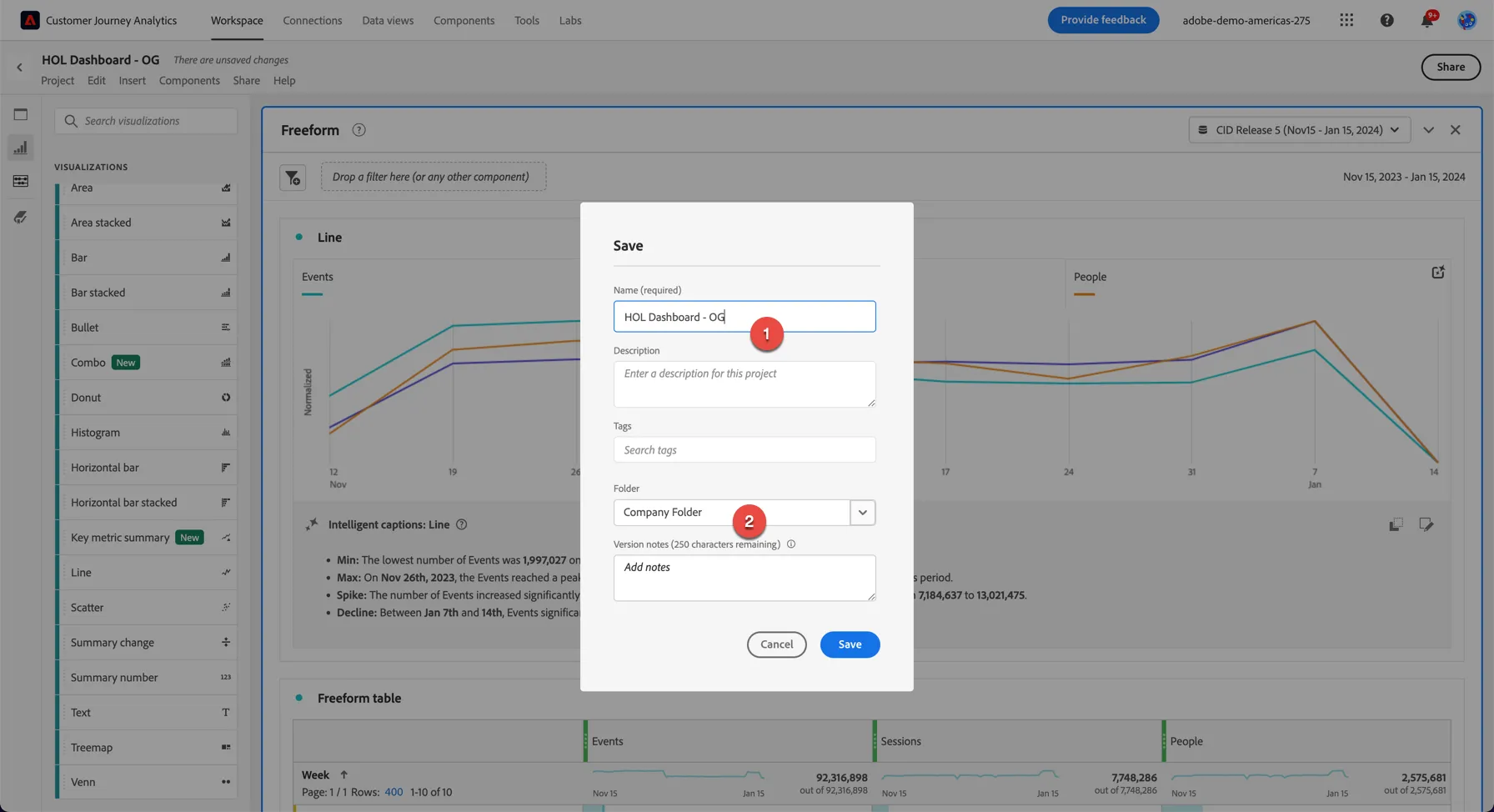
Click Save Project.
Congratulations! You have created your first CJA project!