API
8 min
It's possible to test the API by using a tool like Insomnia, which is an open source application (MIT Licence).
Installation
To install Insomnia
- Click on the icon of the operating system you use.
- Click on the link to download the correct version.
- Install the app.
Collection & Environment
There are 2 concepts: Environment and Collection. We need both for our API based exercises.
- The Environment contains all of your environmental variables which are more or less consistent. In the Environment, you’ll find things like the IMSOrg of our Platform environment, alongside security credentials like your private key and others. The environment file contains the credentials required to access the REST ressources, as a result of setting up an integration in the Adobe Developer Console.
- The Collection contains a number of API requests that you can use.
Setup
Follow these steps:
- Open Insomnia
- Create a New Project and name it AEP Hands-on Lab
- Create a New Collection and name it Set of AEP requests
- Click on the little icon next to the Base Environment menu
- Copy/paste the environment variables
{
"access_token": "eyJhbGciOiJSUzI1NiIsIng1dSI6Imltc19uYTEta2V5LWF0LTEuY2VyIiwia2lkIjoiaW1zX25hMS1rZXktYXQtMSIsIml0dCI6ImF0In0.eyJpZCI6IjE3MzMzMDAxMzU0ODJfZDYxZjA1NWUtZTczMC00ODYwLWExOWYtZjVhYjM0MGM4MTU2X3VlMSIsIm9yZyI6IjhBQjUxOTM1NjU5QzEwRTQwQTQ5NUZBMkBBZG9iZU9yZyIsInR5cGUiOiJhY2Nlc3NfdG9rZW4iLCJjbGllbnRfaWQiOiJhYmFiYTU2ODgyNWM0NTAxYTU2OGNjNGMzMTZhMWZlZSIsInVzZXJfaWQiOiJGQkRCMUU4NDY2RDk3QjdEMEE0OTVFMTBAdGVjaGFjY3QuYWRvYmUuY29tIiwiYXMiOiJpbXMtbmExIiwiYWFfaWQiOiJGQkRCMUU4NDY2RDk3QjdEMEE0OTVFMTBAdGVjaGFjY3QuYWRvYmUuY29tIiwiY3RwIjozLCJtb2kiOiJmYTE0ZjE0ZSIsImV4cGlyZXNfaW4iOiI4NjQwMDAwMCIsInNjb3BlIjoib3BlbmlkLHNlc3Npb24sQWRvYmVJRCxyZWFkX29yZ2FuaXphdGlvbnMsYWRkaXRpb25hbF9pbmZvLnByb2plY3RlZFByb2R1Y3RDb250ZXh0IiwiY3JlYXRlZF9hdCI6IjE3MzMzMDAxMzU0ODIifQ.V4tPlkS9WRK2q2jbYap9Slz2EJ-aDwqZruFojWY0ib3V8EbwMJuda-5f-C3j0Sb1ch-_rFRwWKVuJxjTTcs0_NYGBBuuioWhzAli6lnASJF7KSHzrPyVs_PqOUnj4HPyDXEiPgNNzGoZ9hy61pcplXDeWYhBXhCTa7USmKqjjyxXPVPOlGe8Bpd7taTQM6PVhPdtKEzJpEEmOzytBDdCEa60LrSmCDDMIgw38uKd4tZVnicRttItB_phw4tXYkBalpm68nZh1ffV_t_cNAYl7IgOJutL7hcRraj-7G87F86Dv9Nl8xg_WCLnCovh9fqgsMNjZnXUnhPfSuQjf--hlg",
"x-api-key": "ababa568825c4501a568cc4c316a1fee",
"x-gw-ims-org-id": "8AB51935659C10E40A495FA2@AdobeOrg",
"x-sandbox-name": "sandbox02"
}- The AEP documentation provides cURL examples; for instance, the following request retrieves a customer’s email and name using an identity:
curl -X GET \
  'https://platform.adobe.io/data/core/ups/access/entities?schema.name=_xdm.context.profile&[email protected]&entityIdNS=email&fields=identities,person.name,workEmail' \
  -H 'Authorization: Bearer {ACCESS_TOKEN}' \
  -H 'x-api-key: {API_KEY}' \
  -H 'x-gw-ims-org-id: {ORG_ID}' \
  -H 'x-sandbox-name: {SANDBOX_NAME}'
- On the right panel, click on the + icon, to add a request from Curl
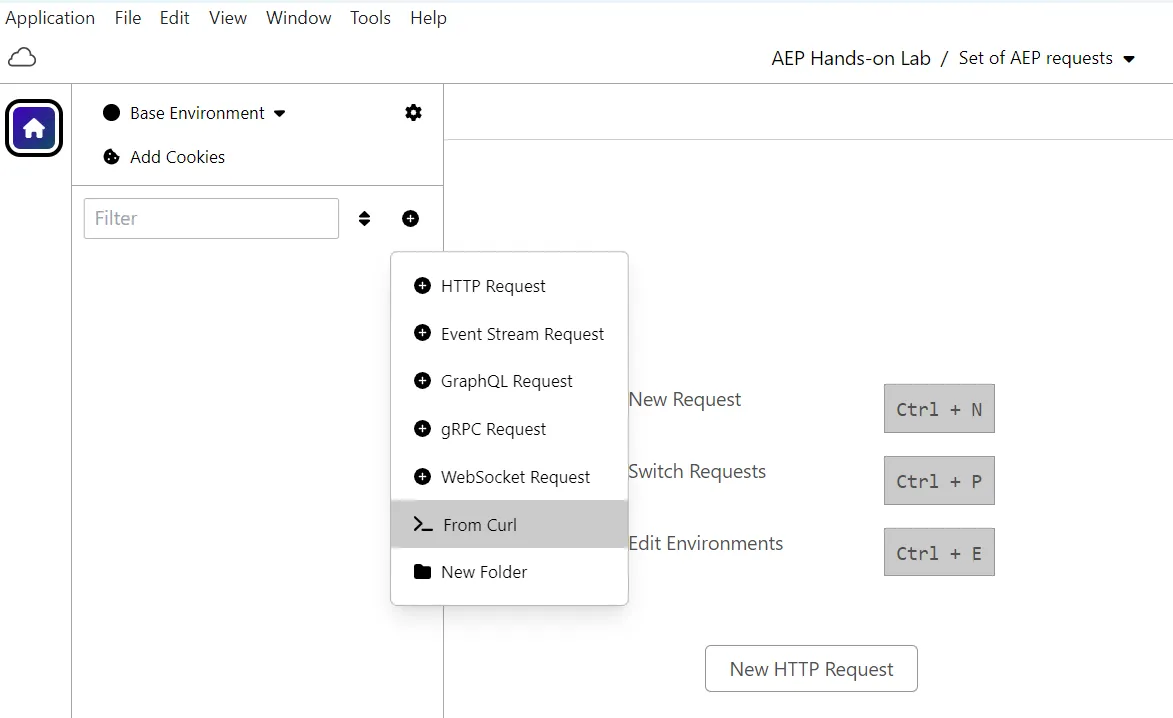
- Paste the Curl command to import the request
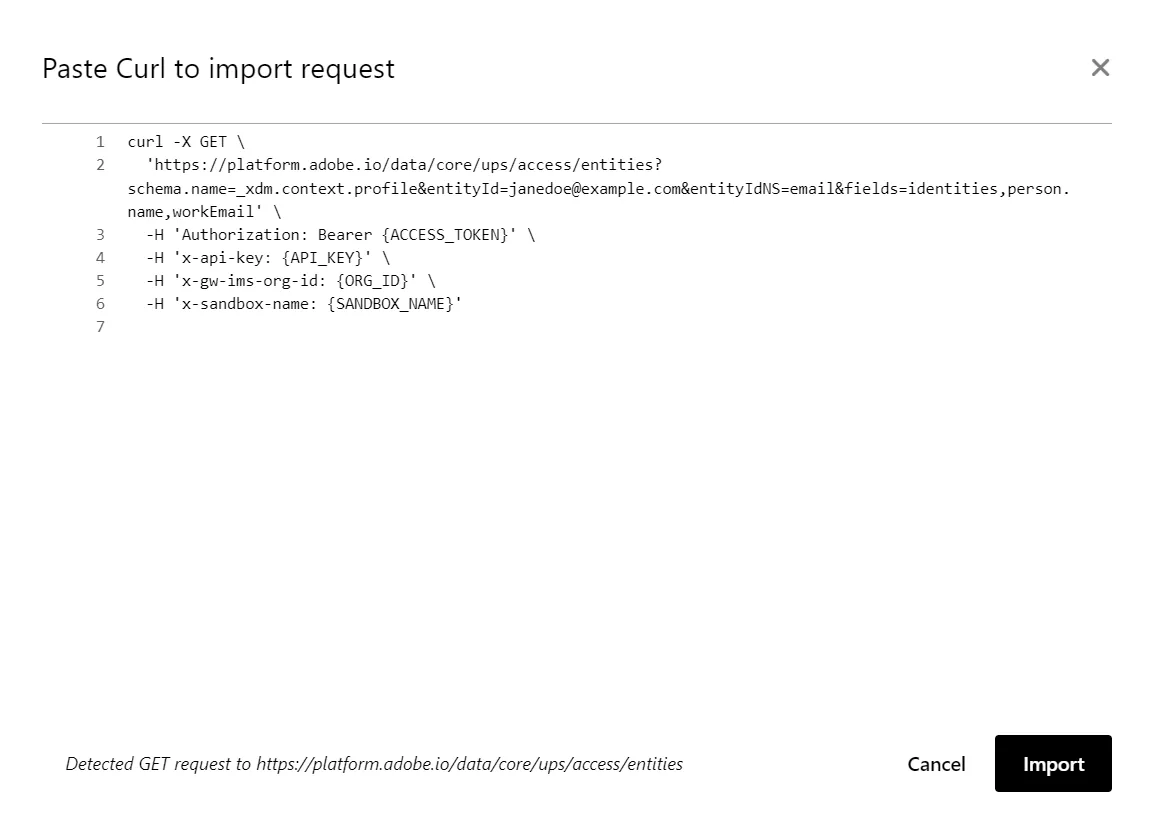
- Click on Import button
- Go to the Headers tab and set the variables that come from the Base Environment JSON file
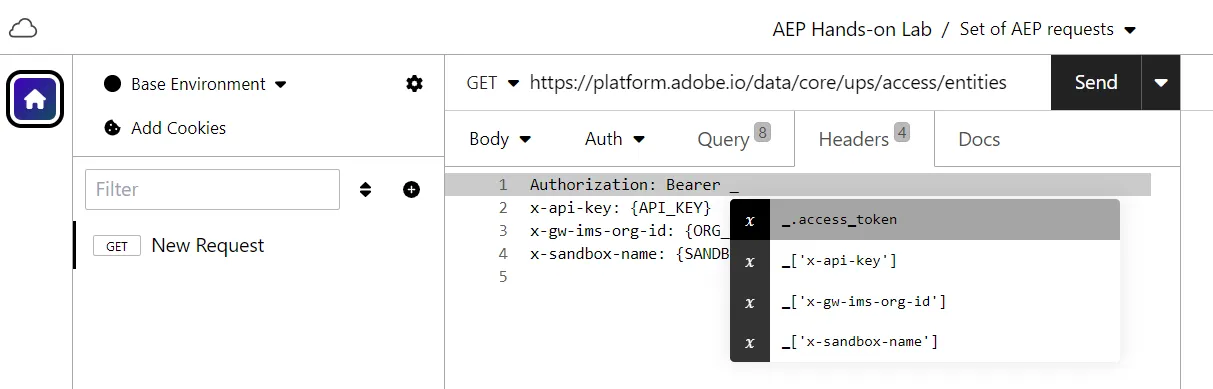
- Click on Send button to get this response:
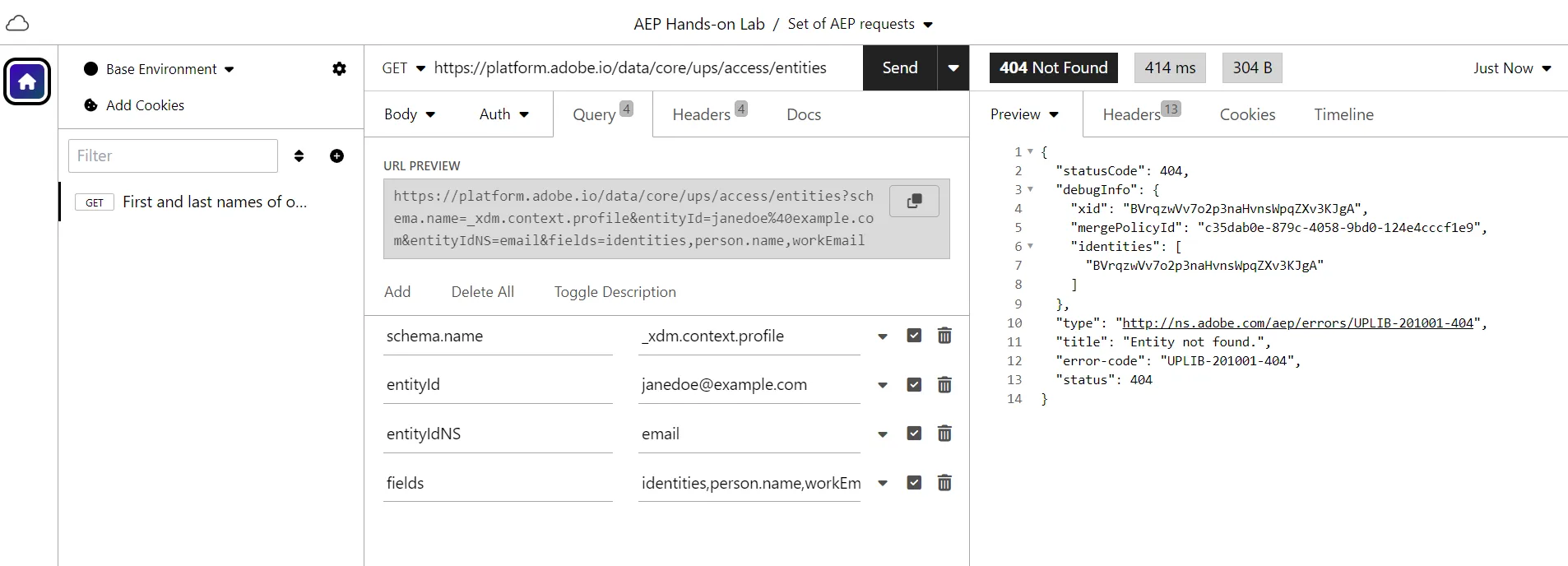
We are now ready to make tests with AEP API.