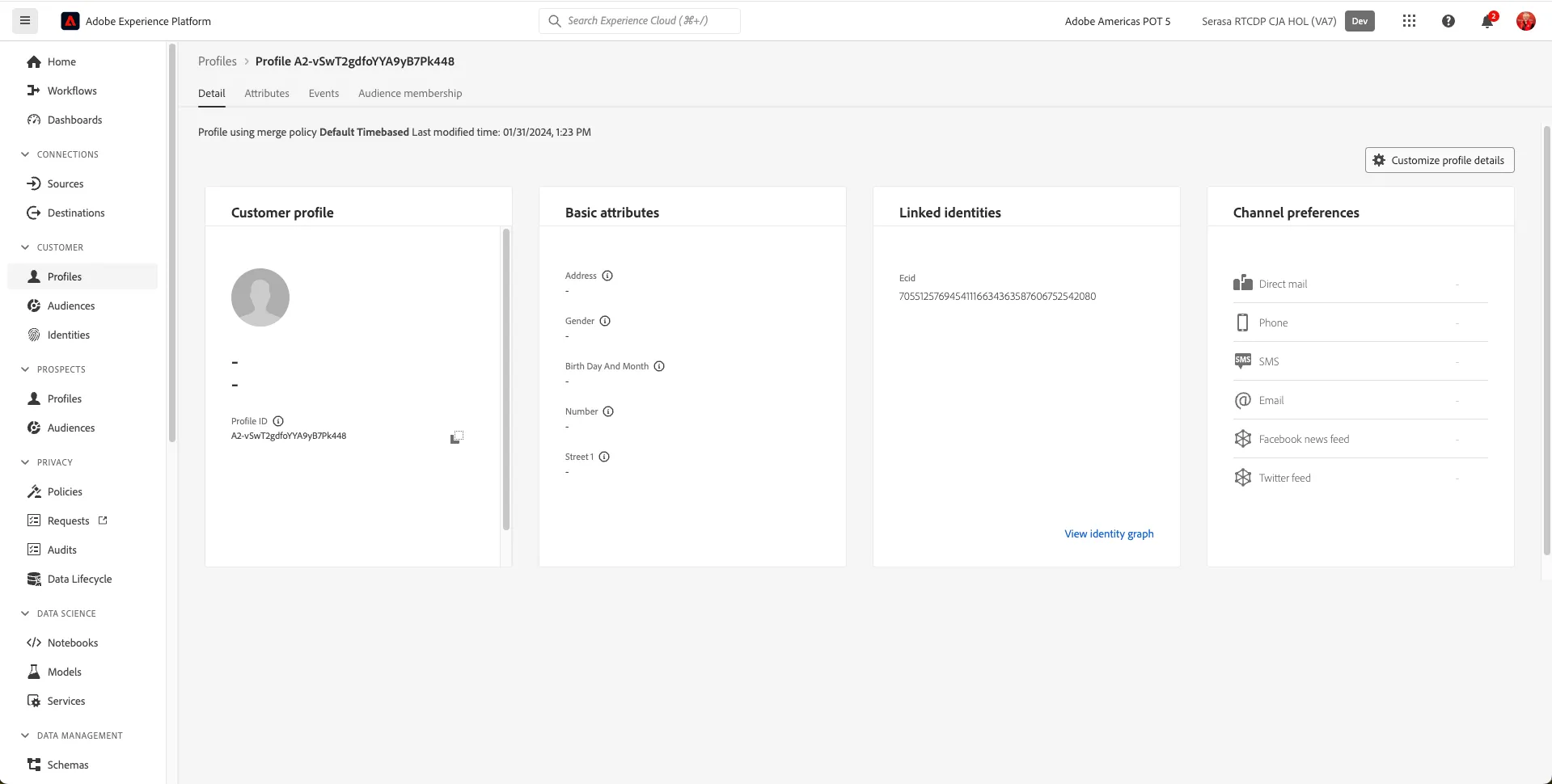
Real-time Customer Profile
5 min
Instructions:
- After logging in, you'll land on the homepage of Adobe Experience Platform.
- In the menu on the left side, go to Cutomer Profiles.
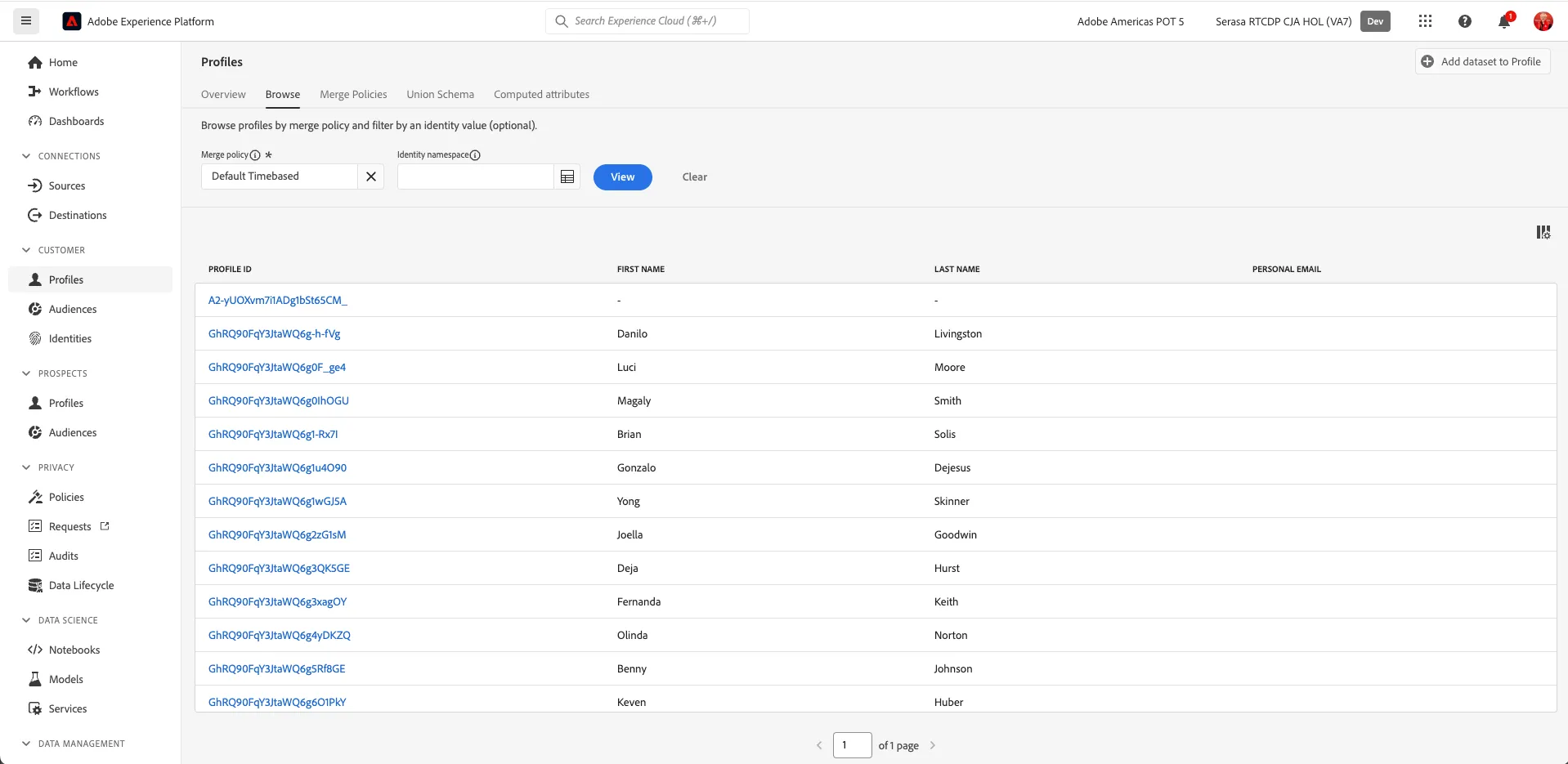
- Click on the 'Browse' tab. You will see a UI in which a namespace and an ID can be entered.
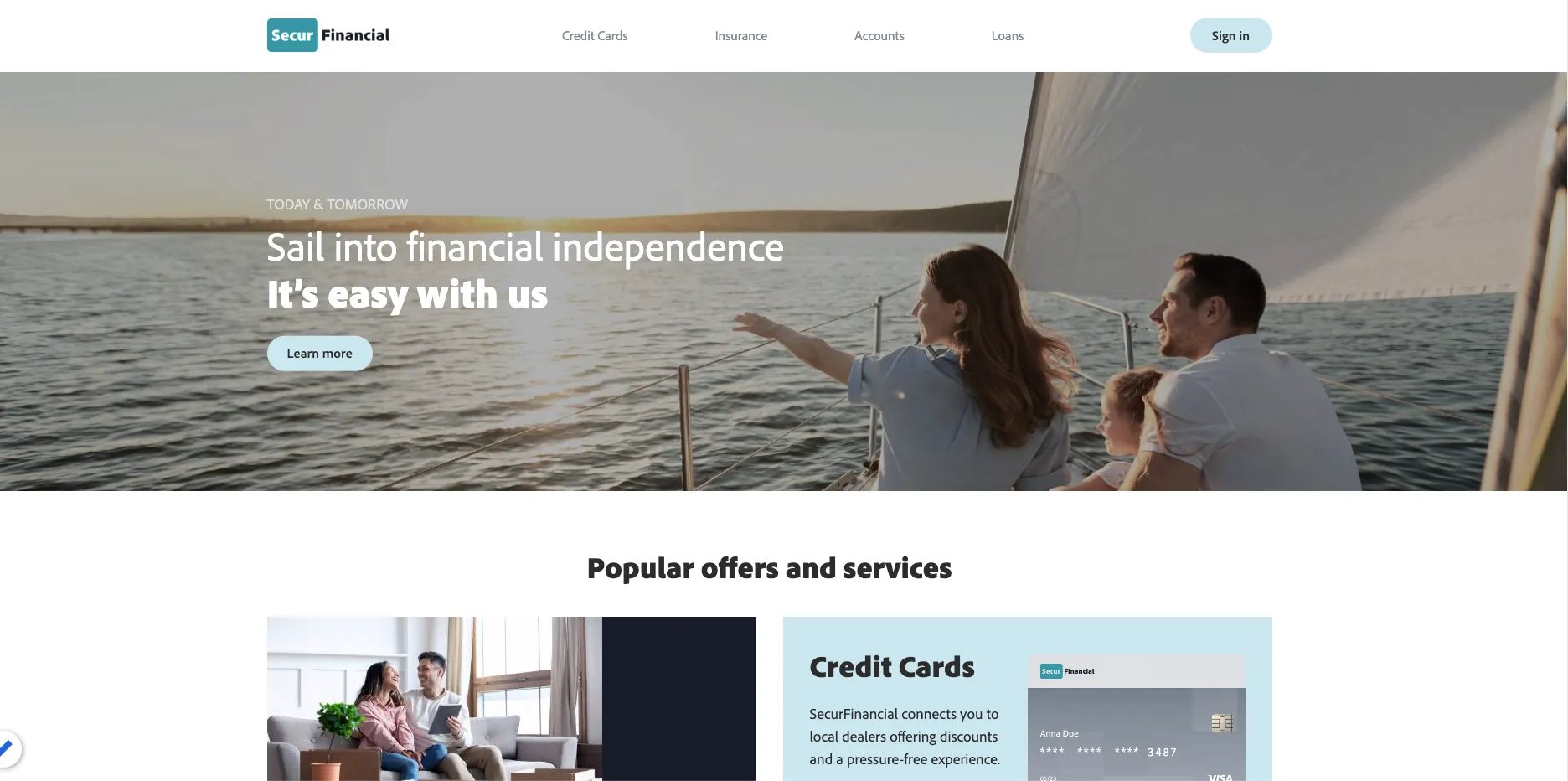
- In the left margin, click on the “person” icon. This will display the X-ray panel from this website.
- Expand the 'Real-time Customer Profile section' and observe the identities and their linkage to a namespace
- Copy the ECID value & go back to Profiles Browse view
- Select "ECID" in the "Identity namespace" dropdown and paste the ECID value copied previously into the "Identity value" field.
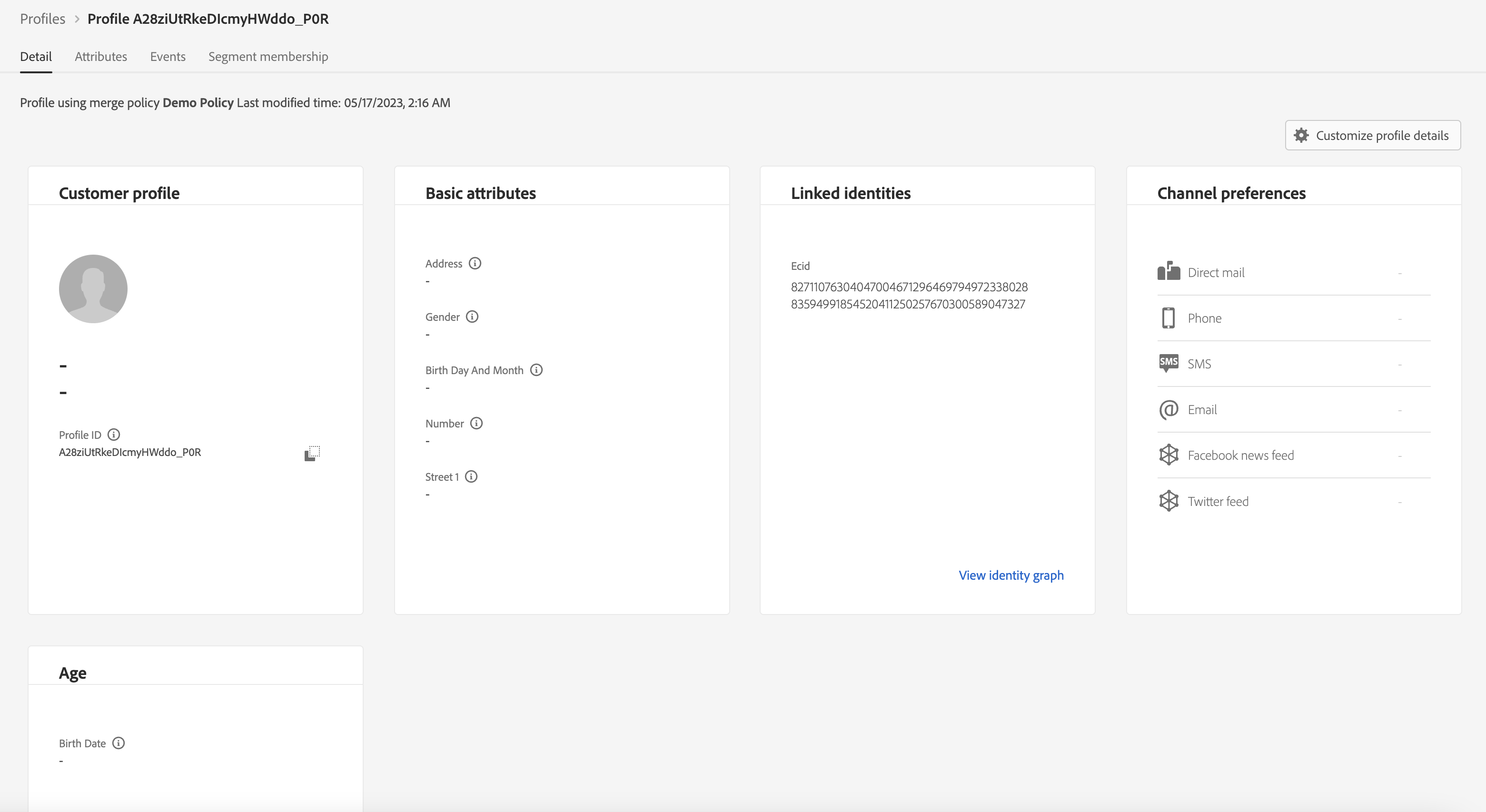
- Click into Profile ID
- Click on each of the tabs you see - Details, Attributes, Events and Segment Membership.
Click on the 'Sign In' at the bottom right of the page.
Plug in some details and hit 'Sign in'.
Go back to Experience Platform, click on 'Profiles' in the left panel, click on the 'Browse' tab and look up your ECID again.
You will see a CRM Id assigned and linked to your ECID as a result of the registration action.
- Click on Login (top right of page).
- Enter the email address you used during registration and a value in Company Name (you can leave the default for number) and hit 'Login'.
- Go back to Experience Platform, click on 'Profiles' in the left panel, click on the 'Browse' tab and look up your ECID again.