Schemas
4 min
Objective :
Our goal is to create a schema that is required to onboard select CRM attributes for existing WK customers. The exercise involves the following steps:
- Choose Individual Profile Class to define the behavior of the schema
- Add Out-of-the-Box Personal Contact Details and Demographic Details Field Groups
- Create a new field group
Prerequisites:
- Access to your AEP sandbox.
Create an Individual Profile Based Schema
Instructions:
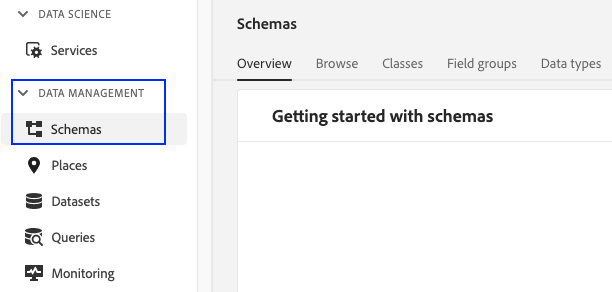
- In the left-hand menu, navigate to Schemas under Data Management in Adobe Experience Platform UI.
2. Click Create Schema on the top right. Select Individual Profile and click Next.
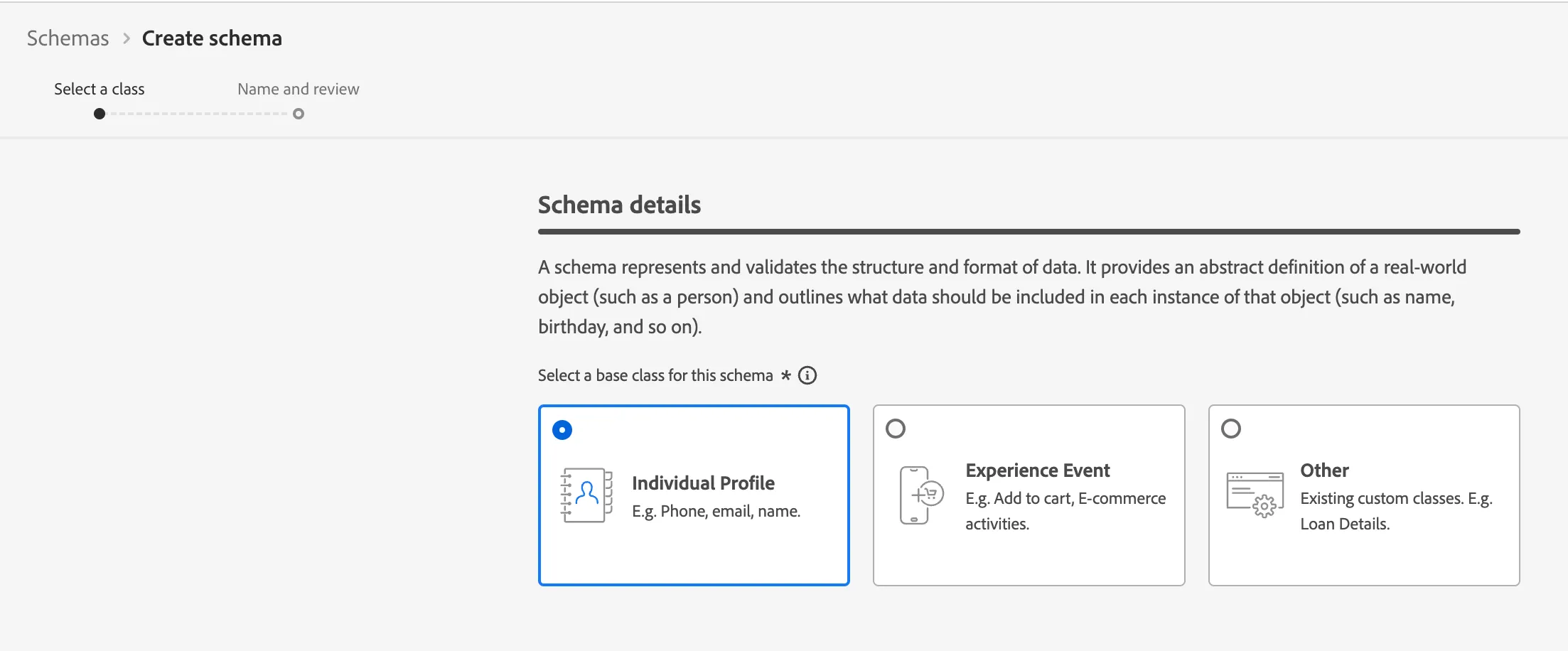
3. Note that the XDM Individual Profile class introduces some basic fields to the newly created schema. In the Schem display name, type WK Profile Schema <your-assigned-number>.
4. Click on Finish.
Adding existing field groups
- If you didn't select Individual Profile when creating your schema, please change class to XDM Individual Profile.
- Click on the + Add button to the right of Field groups in the left panel.
- Here's where you can build your own Field group or use an existing Field group.
- In this lab, we will be adding two pre-built Field groups listed below:
- Personal Contact Details
- Demographic Details
- Click "Add field groups" button
- Now, we'll create a new Field group from scratch. Go back and hit the "+ Add" button in the left panel\
- Select "Create new field group" at the top
- Display name is "Customer Details <your-assigned-number>"
- Hit 'add field groups'
- In the left-hand schema composition menu, click on your newly create Field group (it should be highlighted now
- Notice that on the Structure view a '+ Add field' appears next to the Schema name. Click it to start adding fields
- In the Field properties panel to the right, add the following:
- FieldName = customerDetails
- Description = Customer Details
- Type = Object
- Next, we will be adding fields to the 'creditScore' object. Click "+ Add Field" next to this object
- In the Field properties panel to the right, add the following:
- FieldName = score
- Description = Score
- Type = Integer
- We will be adding three more fields to the 'creditScore' object. Click "+ Add Field" next to the object
- In the Field properties panel to the right, add the following:
- FieldName = employmentStatus
- Description = Employment Status
- Type = String
- Click "+ Add Field" next to the 'creditScore' object
- In the Field properties panel to the right, add the following:
- FieldName = userType
- Description = User Type
- Type = String
- Make sure that your schema looks like the one below
- Save your schema. hit Save on the top right corner
- Congratulations!!! You have constructed your schema.