Sequential Segmentation
4 min
- Navigate to Segment Builder in the left navigation
- Click "Create segment" on the top right
- Click the gear icon to the right of Fields in the left pane
- Verify ‘Show full XDM schema’ is selected and if not, select it
- Click on the gear icon again to hide the setting
- Select ‘Attributes’ under Fields
- Click on the ‘XDM Individual Profile’ object under Browse Attributes
- Click on ‘Adobeamericapot 5'
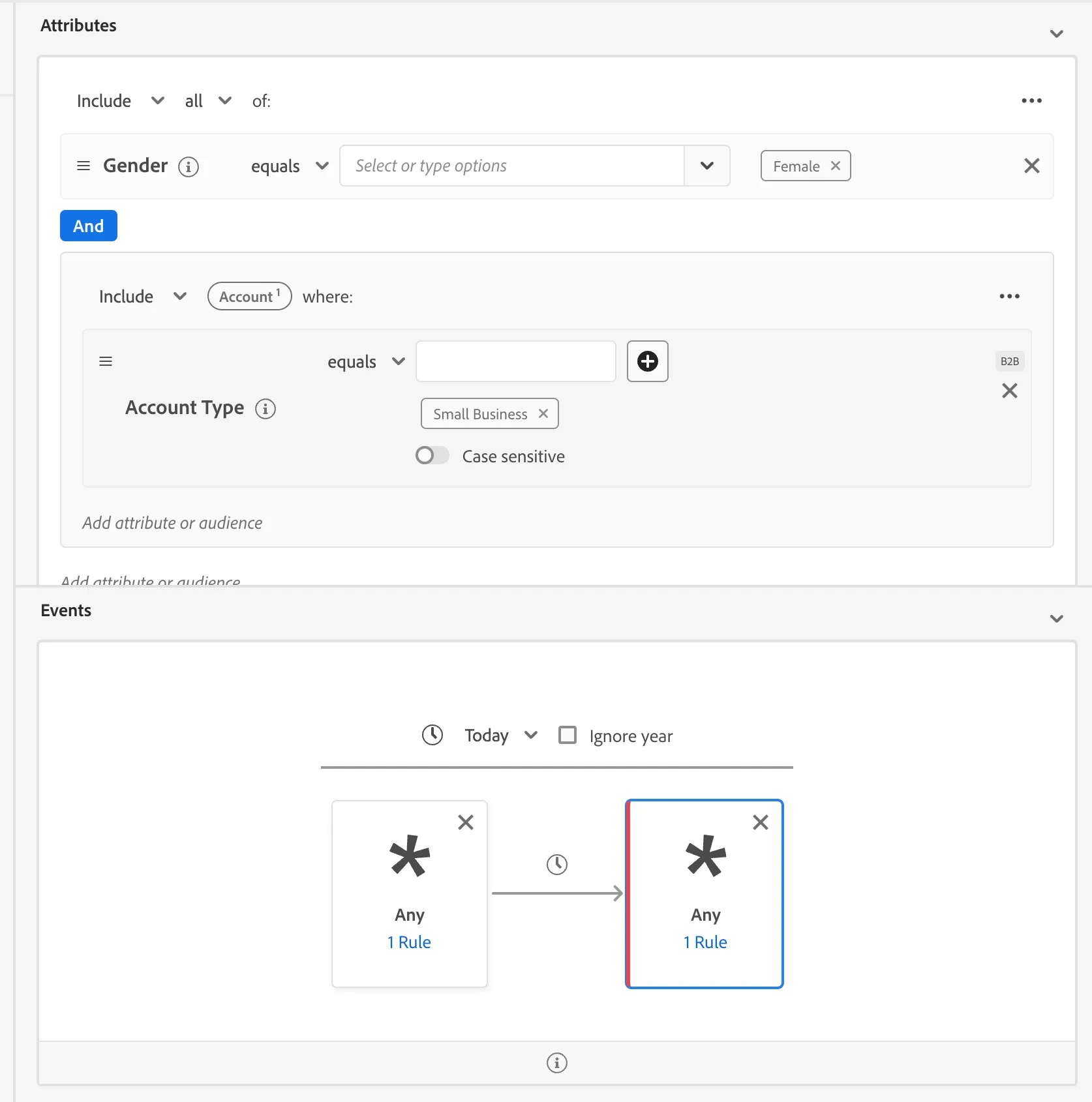
- Click on 'Gender'
- Drag 'Gender' in the canvas
- Enter ‘Female’ in the text box
- Next, select ‘Events’ under Fields in the left pane
- Clean the search box (click on x) and click in "XDM Experience Events"
- Under ‘Events in the left pane, locate ‘Web’ cilck on it
- Under "Web" locate "Web page details" and click on it
- Locate "name" and drag it to event rules container
- Type "Tax Subscription Start" in the text box located in the Event Rules Container
- Changes "equals" to " contains"
- Locate "name" and drag it to event rules container
- Type "Tax Subscription Complete" in the text box located in the Event Rules Container. Drag this to the right of the Starts Event.
- Changes "equals" to "does not contains"
- Locate Account Type and drag it ont the canvas
- Add the value 'Small Business' to the form field.
- Clikc on Any Time , just above premium and change to "Today"
- Enter the segment name “WK Tax Abandonment” followed by your Student ID (e.g. “WK Credit Scores”). Enter the same value as the description
- Save the Segment