Trigger a Campaign via API
3 min
During this lab we will be able to create our own unique API triggered campaign. We will use the email channel on a transactional channel configuration. This is to guarantee the email is sent to the email address you desire.
Duplicate a Campaign
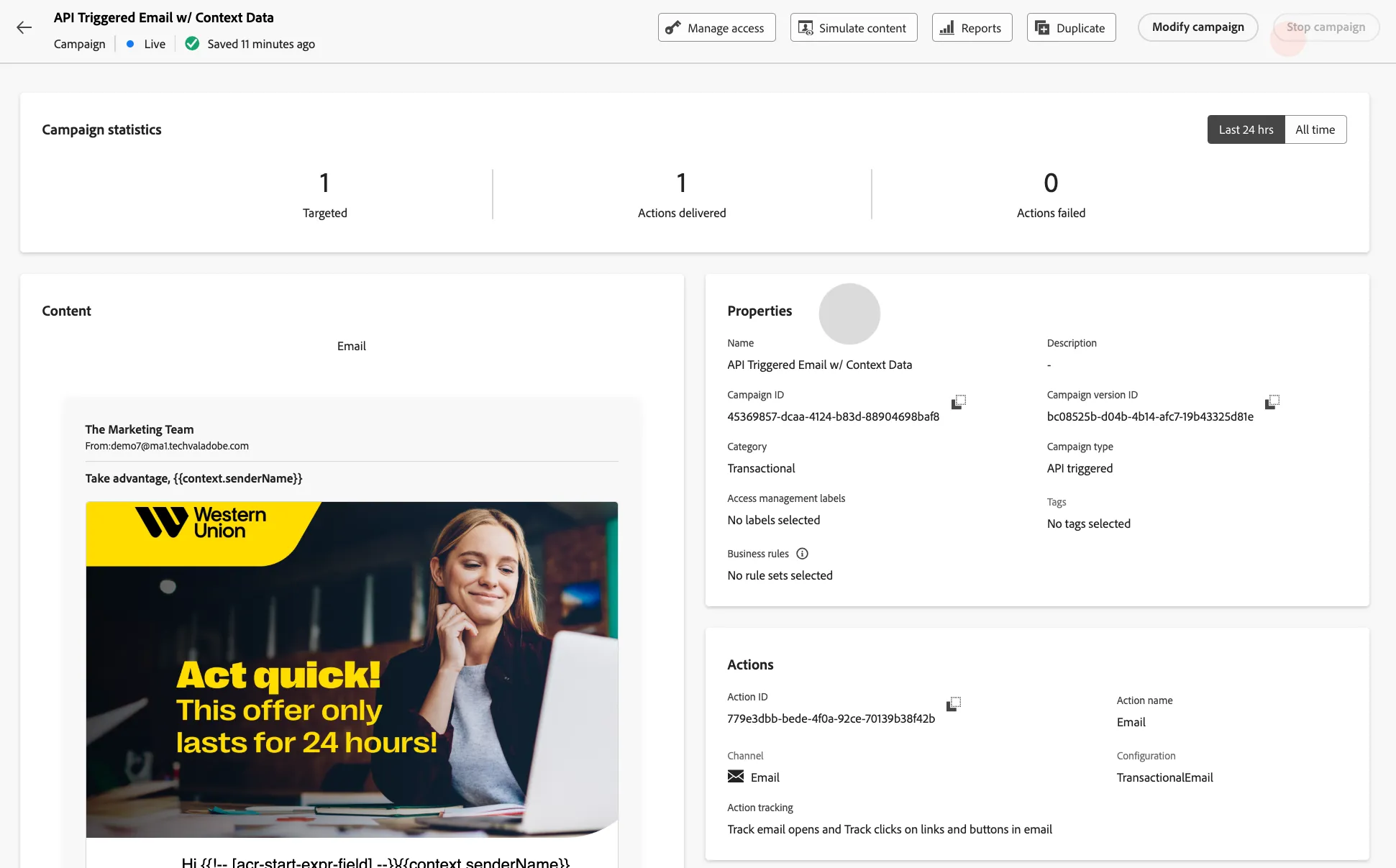
- Click on API Triggered tab.
- Click the campaign name API Triggered Email w/ Context Data
- Review the details of the campaign.
- Copy the campaignId to your clipboard.
- Notice the cURL request section. This is the information our developers will need to call the API to be triggered.
- Notice the context property. This is where we pass the sender name.
Trigger the Campaign
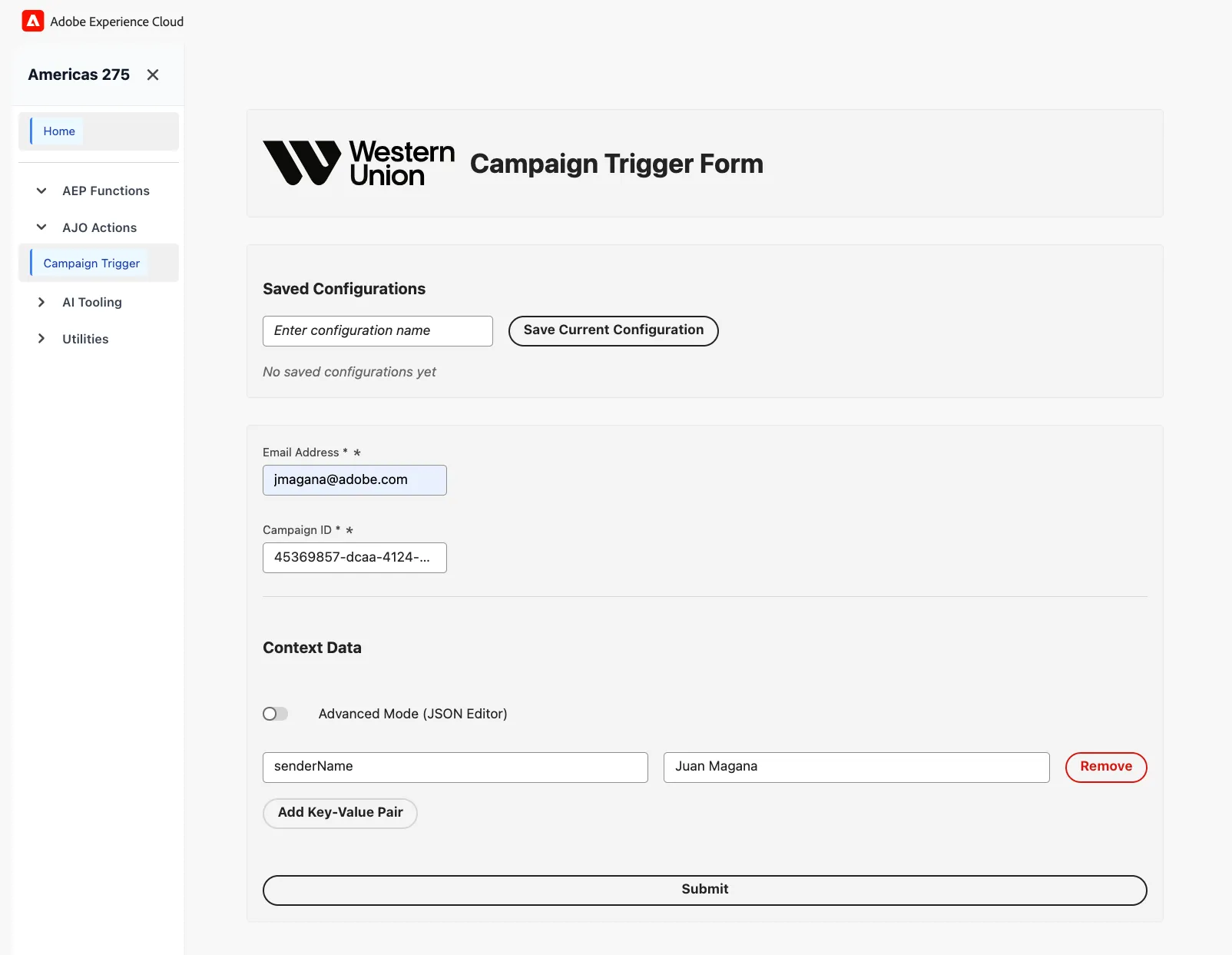
Campaigns are secured by default. You must have proper authorization to call a campaign API. However, we have facilitated a UI that was built by the Technical Validation team. The UI was built using Adobe App Builder and is an standalone app. It uses Experience Cloud APIs to communicate. It has enough access to allow the trigger of a campaign.
- From the review campaign page in AJO, click on the nine dot picker icon (top right corner).
- RIGHT click on App Builder Catalog and select open in a new tab.
- Click on the 440115-508CoralSquirrel app.
- Click AJO Actions from the menu.
- Place your email address that you would like the campaign to send the email.
- Copy the campaign ID from the campaign details on AJO and paste it in the Campaign ID field on the form. (You might still have it in your clip board)
- Click Add Key-Value Pair
- Add senderName on the "Key" field.
- Add your name on the "value" field.
- Click Submit, and wait for the email to arrive. Check your junk folder. Also remember to refresh the page of the campaign in AJO so you can see the count increment as you test it.