Trigger a Journey via API
It is recommended to go thru the following labs:
- Experience Events
- Event based Journeys
- Custom Actions
- Custom action Journey
- Test Mode
Lab Objective
During this lab we will in-personate a user that goes thru a Published journey. It will tie everything you learned so far together. We will trigger the journey using an API call mimicking our "Payment Transfer System" and a transfer completed event.
Journey Details:
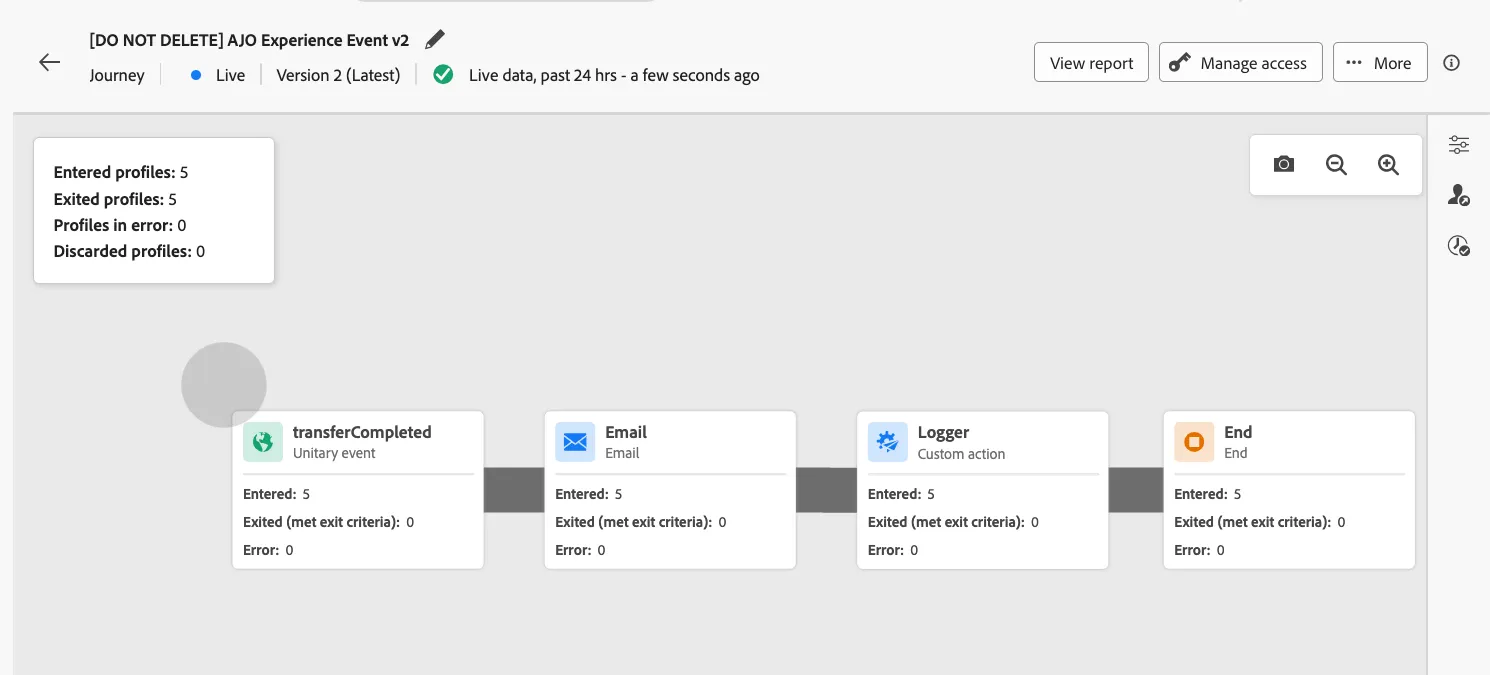
A Journey has been created and has been published. [DO NOT DELETE] AJO Experience Event v2
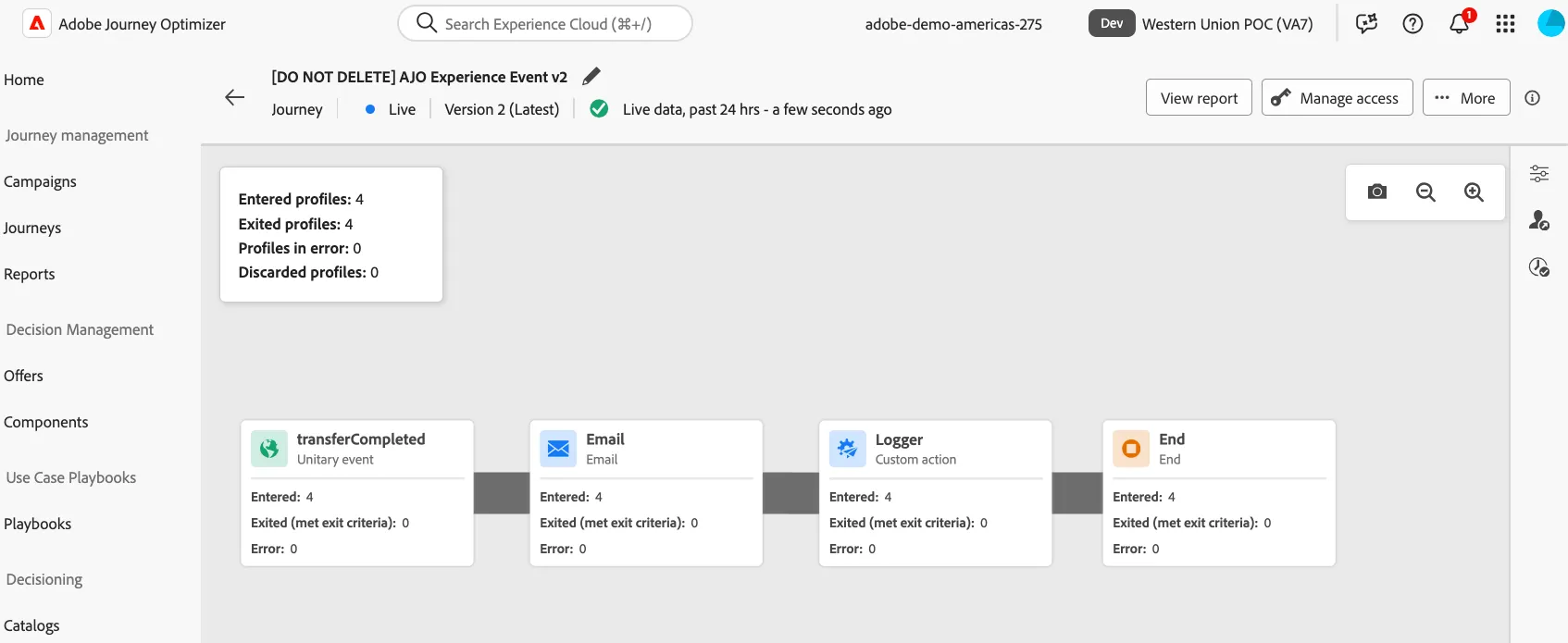
Journey Composition
Experience Event
This journey is being triggered by an Experience Event that is being streamed by our fictious "Money Transfer System". This system is in-charged of pushing specific transactions such as Transfer Started, Completed, Declined, etc... AJO is recieving these as experience events. This lab is focus on a transfer.completed event.
Email Action
The email template is going to use payload or context data that comes from the event to personalize the message. Ask your consultant if you want to see the emails you triggered.
Logger Custom Action
This custom action is a simple webhook that will log what we sent on the Experience event after the user recieves the email. Please check with your consultant if you want to see the emails you triggered as part of this excercise.
Demo Tooling
The Technical Validation team has created an Adobe App Builder project that helps us put together demos and help our customers perform validations. For example, today, we will be using a Postman like tool and a Webhook Tester feature. No worries. If you used postman before this is cake. Here is more information about Adobe App Builder .
Lab Instructions:
Tool Environment setup
Let's get prep to trigger the journey:
- Click on the nine dot picker (top right of your screen) and RIGHT Click where it says App Builder Catalog and select open in a new tab.
- On the App Builder Catalog tab, click the name 440115-508CoralSquirrel to go into the app.
- On the Nav menu, click Utilities > API Monitor
- On the session ID field copy this and paste it there dac63e33-c8ea-4021-a4b0-190a4d623d3f
- Then click the Connect button.
Trigger the Journey
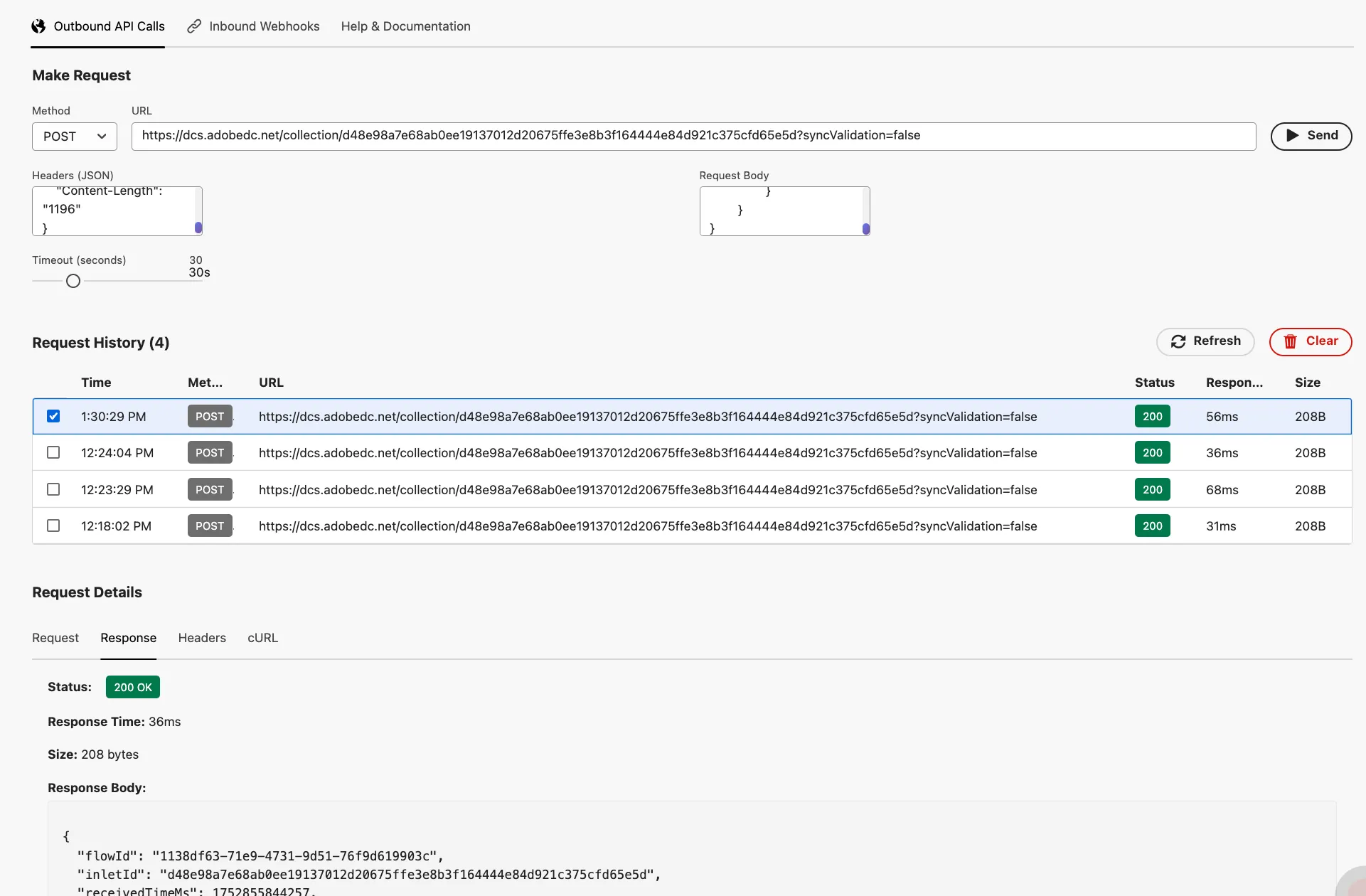
On the API Monitor tool in the Outbound API Calls tab set this configurations (We are making an HTTP request to AJO):
Method: Post
URL:https://dcs.adobedc.net/collection/d48e98a7e68ab0ee19137012d20675ffe3e8b3f164444e84d921c375cfd65e5d?syncValidation=false
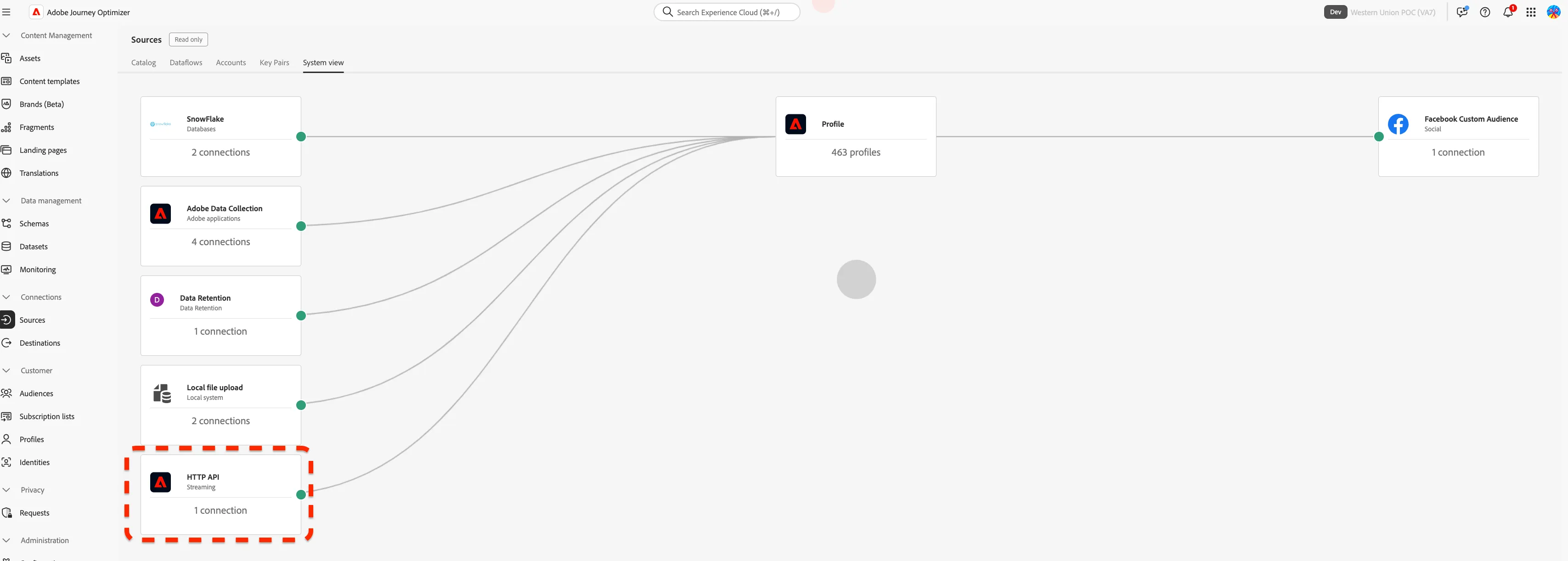
This is a Source (HTTP API) which allows us to receive Profile and Event data into AJO using an HTTP API end point created in Experience Platform: https://experience.adobe.com/#/@adobedemoamericas275/sname:hol11-0725/journey-optimizer/platform/source/accounts?initialLoad=false&limit=20&page=1&sortDescending=1&sortField=created
This source has also a dataflow which are the instructions that tell platform in which dataset to store the data in order to apply XDM: https://experience.adobe.com/#/@adobedemoamericas275/sname:hol11-0725/journey-optimizer/platform/source/dataflows/1138df63-71e9-4731-9d51-76f9d619903c/activity?initialLoad=true&limit=20&page=1&sortDescending=1&sortField=metrics.durationSummary.startedAtUTC
This is the XDM Schema or the rules our event needs to abide in terms of structure and strong typed data: https://experience.adobe.com/#/@adobedemoamericas275/sname:hol11-0725/journey-optimizer/platform/schema/browse/https%3A%2F%2Fns.adobe.com%2Fadobedemoamericas275%2Fschemas%2F5256ce9982cbcfebbaac1a51cf36166ffd4d7e6746599d94
Copy and Paste the following into the Headers (JSON) field (clean the box first).
{
    "Content-Type": "application/json",
    "sandbox-name": "hol11-0725",
    "x-adobe-flow-id": "1138df63-71e9-4731-9d51-76f9d619903c",
    "Content-Length": "1196"
}
Copy and Paste the following into the Body (JSON) field (clean the box first.) Feel free to change the transaction details values before sending. Do not change EventType.
{
	"header": {
		"schemaRef": {
			"id": "https://ns.adobe.com/adobedemoamericas275/schemas/5256ce9982cbcfebbaac1a51cf36166ffd4d7e6746599d94",
			"contentType": "application/vnd.adobe.xed-full+json;version=1.0"
		},
		"imsOrgId": "59C7440F5DE147EA0A495EB3@AdobeOrg",
		"datasetId": "687a61427564712aef6284a3",
		"source": {
			"name": "Transfer Payment System"
		}
	},
	"body": {
		"xdmMeta": {
			"schemaRef": {
				"id": "https://ns.adobe.com/adobedemoamericas275/schemas/5256ce9982cbcfebbaac1a51cf36166ffd4d7e6746599d94",
				"contentType": "application/vnd.adobe.xed-full+json;version=1.0"
			}
		},
		"xdmEntity": {
			"_adobedemoamericas275": {
				"identification": {
					"core": {
						"crmid": "00a63087-300c-452b-818a-4485faddad89"
					}
				},
				"transactionDetails": {
					"receiverCountry": "USA",
					"receiverName": "Juan",
					"senderCountry": "Mex",
					"senderName": "Phil",
					"transactionAmountDetails": {
						"amountSent": 32532.28,
						"amountToReceive": 22843.33,
						"payoutMethod": "pickup_cash"
					}
				}
			},
			"_id": "b323c0ec-ca4d-40a7-b547-642a4b692bda",
			"eventType": "transfer.completed",
			"timestamp": "2025-07-18T16:17:39.180Z"
		}
	}
}
Hit Send.
Custom Action Validation
The above steps just trigger an event to AJO, so our journey should have then trigger a call to our logger.
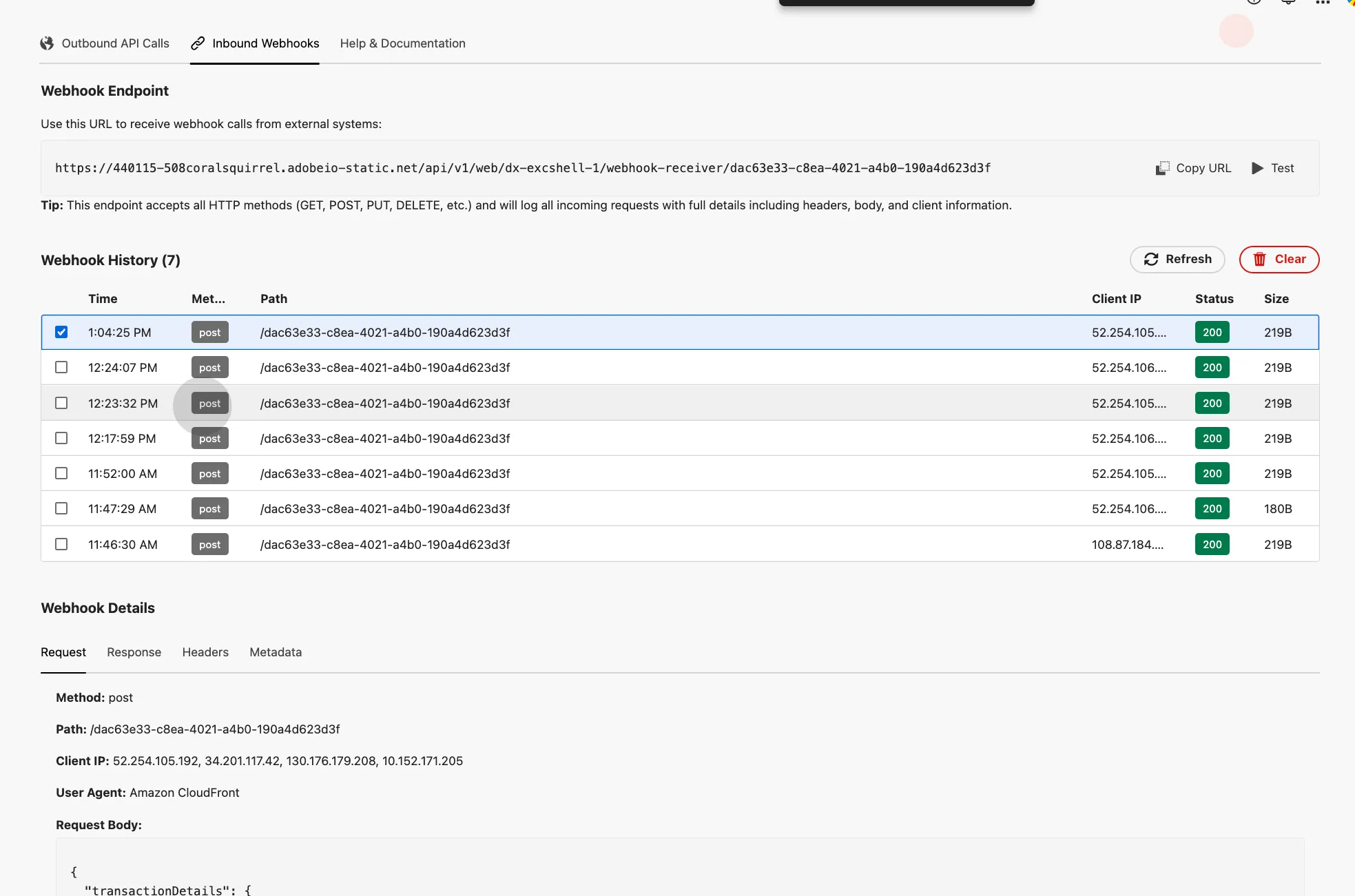
Click on Inbound Webhooks tab, and hit refresh button. These are the records our logger custom action is recieving from AJO as users traverse the journey.
Journey Validation
If you refresh your journey canvas, you will see that the count of users that passed in the journey has incremented.