Journeys
5 min
This lab will build an abandoned booking / abandoned cart journey both using the UI and Agent Orchestration with the Journey Agent.
Create and Configure a Journey
- Navigate to Journeys
- Click on “Create Journey”
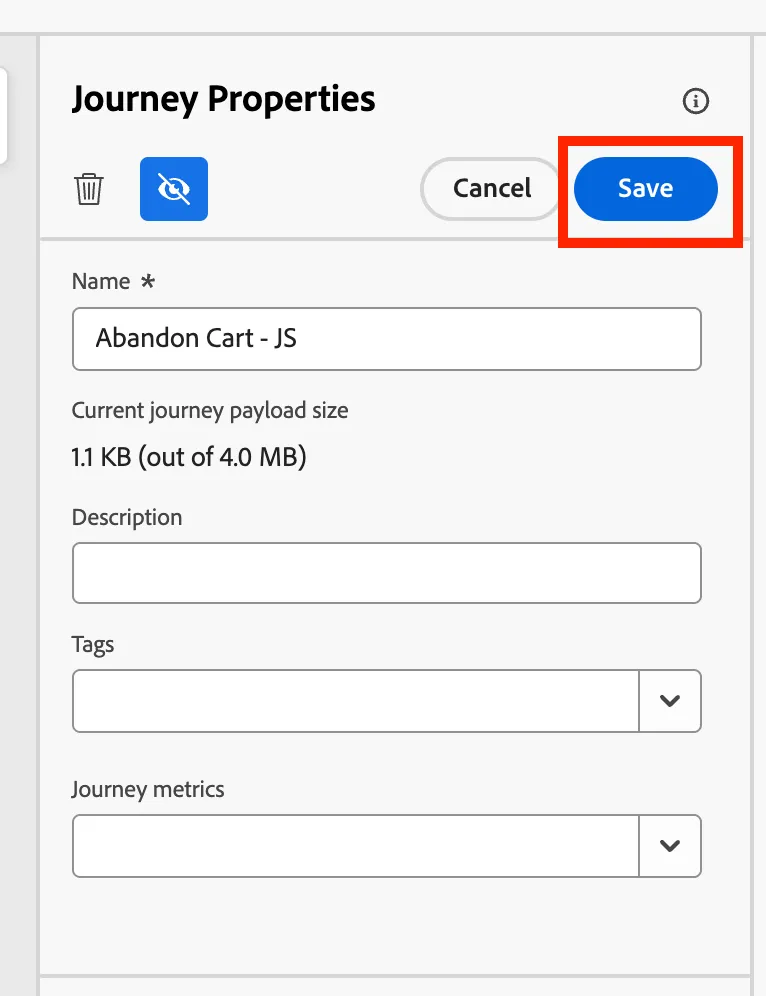
- Provide a Name and Description
- Abandon Cart - {Your Initials}
- Scroll Down to section Conflict management
- Select Rule Set: Wyndham Journey Rules
- Then click Save
Build The Journey Steps
- Under Events, find, drag and drop the CartAbandon Event node onto the Canvas.
- From the Orchestration, find, drag and drop the Wait node next to the event.
- Add 1 Day Wait to label
- Leave the duration at 1 Day
- Click Save
- Label the Path with email
- Click on the pencil
- Search for Preferred Channel
- From the Context Folder Under Experience Platform > ProfileFieldGroup > profile > Consents and Preferences > Marketing Preferences > Preferred Channel is equal to "email
- Click Ok.
- Click Save.
- Click Add a Path
- Follow the step above for the Preferred Channel for SMS and Push
- From Actions, find, drag and drop the Action onto the Email path and chose email
- Label the email node with Email
- From Actions, find, drag and drop the Action onto the SMS path and chose SMS
- Label the email node with SMS
- From Actions, find, drag and drop the Action onto the Push path and chose Push
- Label the email node with Push
Your Journey should look like (With a few warnings on the Actions):
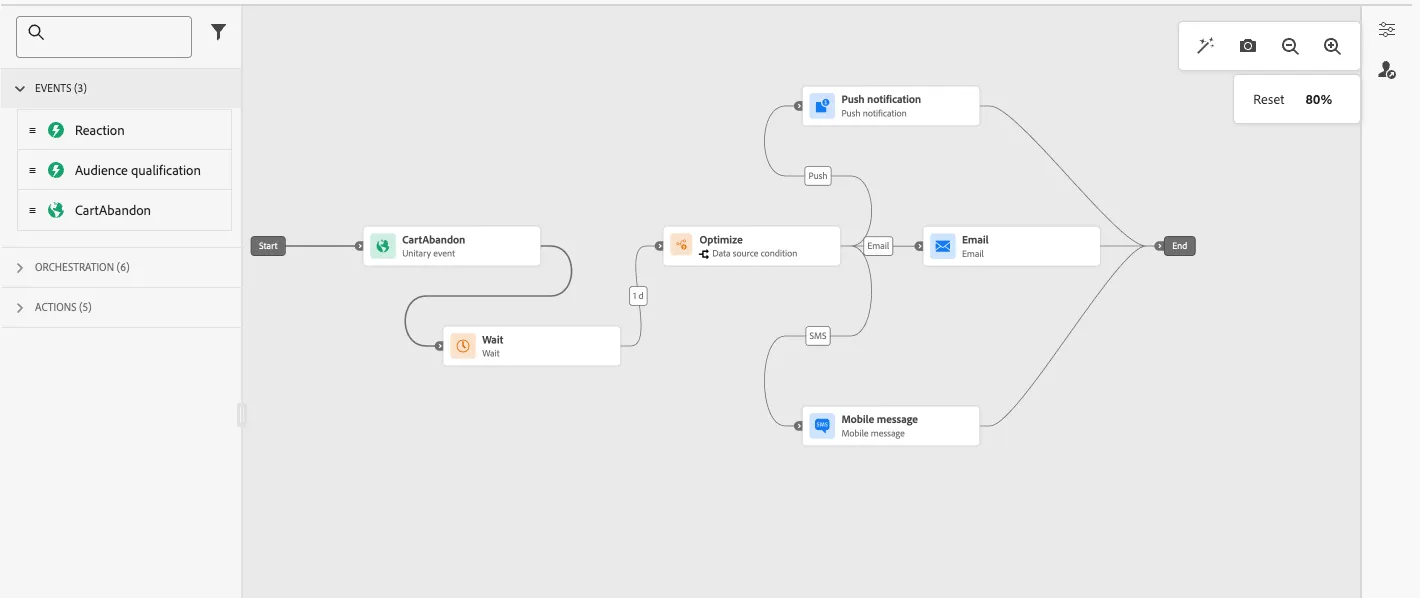
Congratulations, you have configured your journey.
Create and Configure a Journey Using Agent Orchestrator
- When you create a journey select with
- Copy the Prompt below to copy into the prompt box
Create an event-triggered journey for cart abandonment: after a customer abandons their cart, wait 1 day, then check their preferred marketing channel. If they prefer email, send an email; if they prefer push notifications, send a push; if they prefer SMS, send an SMS.
- Now save the image below to add as a reference image
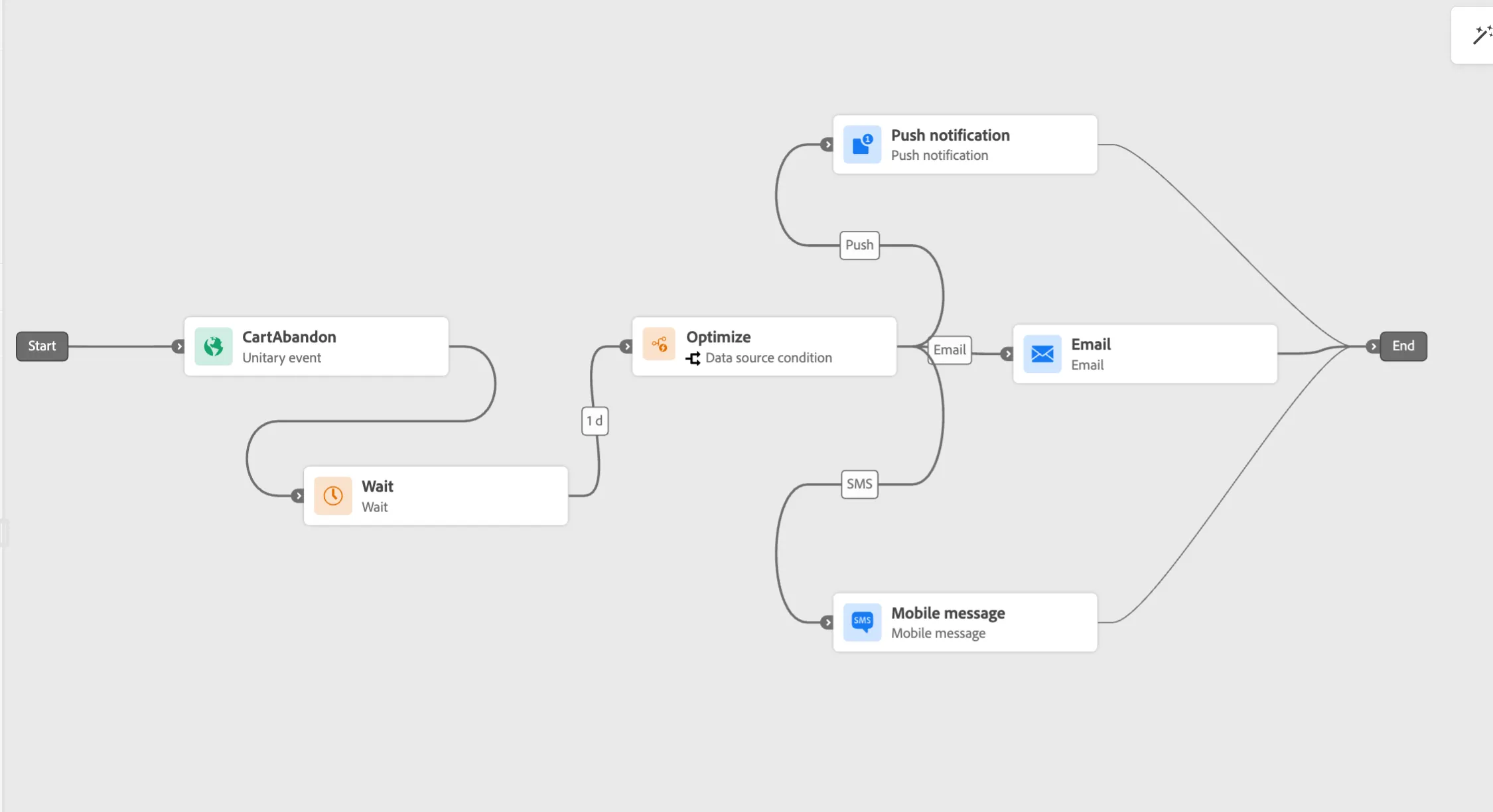
- Now we will flow through a series of questions and validations that will allow us to select the configurations that will be needed for the journey.
- At the end of the journey flow you should be asked if you want to generate the content for this journey. Type yes to continue.
- If you don't get this prompt, then add this prompt below:
Create content for the journey created.
Next, we need to configure the actions. Let's Move to the Message Designer Labs.