Adobe Journey Optimizer
Scenario
So far Frescopa have enabled campaign initiatives on the website and app along with external channels like social and paid media, but they still need to implement the campaign experiences for their direct channels like email and mobile push.
Adobe Journey Optimizer operates off the same events, profiles and audiences as Real-time CDP and CJA, no need to wait for ETL processes to share data. As part of the digital operations team you will set up a retargeting journey triggered by anyone starting but not completing the subscription sign up process.
You'll use content defined in Adobe Experience Manager to ensure consistency across channels and we'll use generative AI to quickly create variations for experimentation.
Customers who don't interact with the initial email will be retargeted on alternative channels like push or sms if available. Any customers who already have an active subscription will be removed from messaging to avoid fatigue.
Access
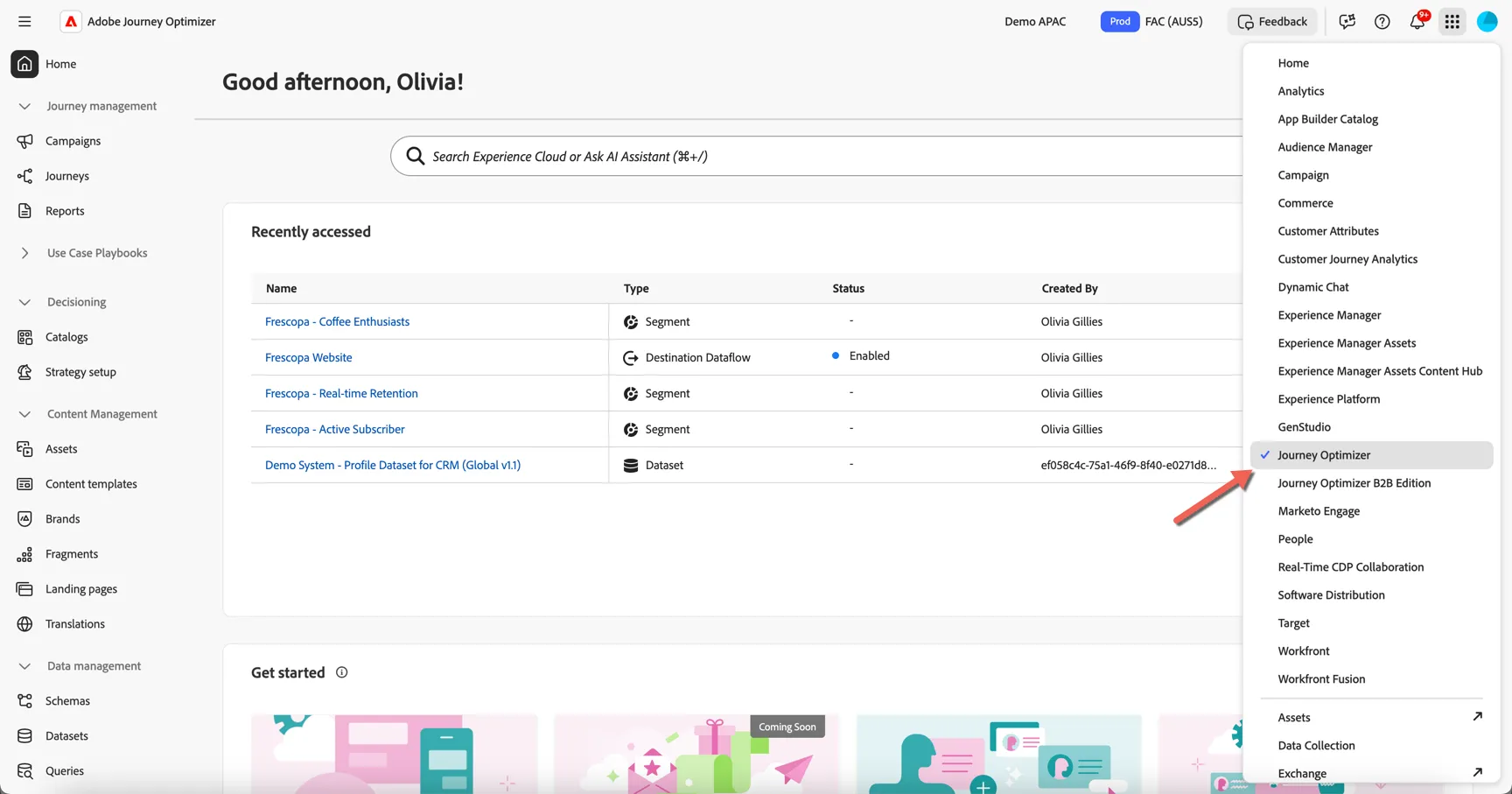
Switch to Adobe Journey Optimizer using the solution switcher:
Content Management
Before we create our retargeting journey for the campaign let's take a look at some of Adobe Journey Optimizers content management capabilities.
Assets
Adobe Journey Optimizer provides native integration with Adobe Experience Manager Cloud Service Assets. If you don't have an AEM Assets license already, a limited access repository is provided out of the box with Journey Optimizer.
If you have access to multiple AEM Asset repositories, you can access all of them from Journey Optimizer, you simply need to select which one you want to use each time.
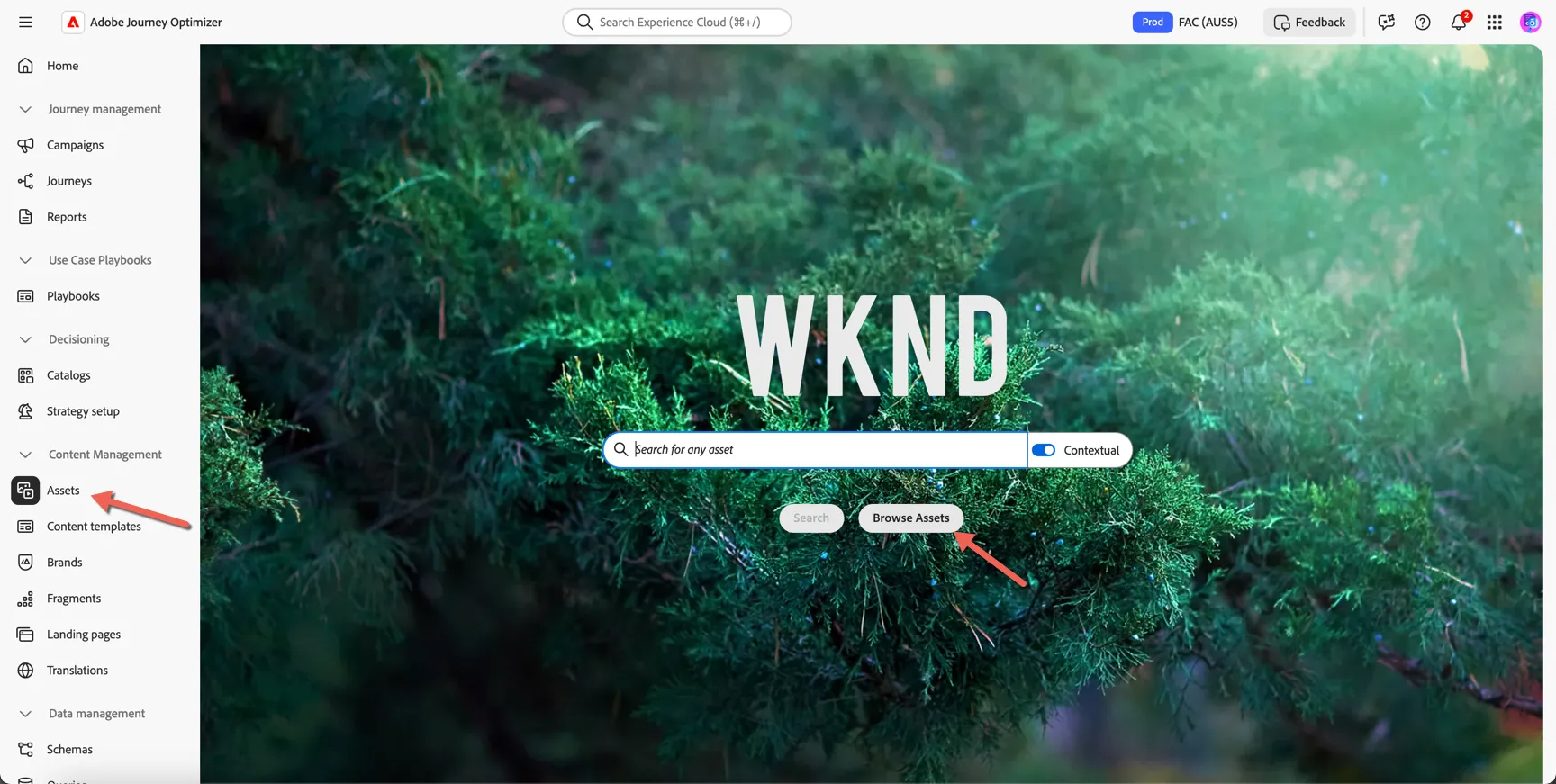
For our lab we will leverage the AEM repository from the Frescopa site running on AEM Cloud Service. Click to open Assets under Content Management in the left hand navigation. From the landing page you can search for specific assets or click to Browse Assets.
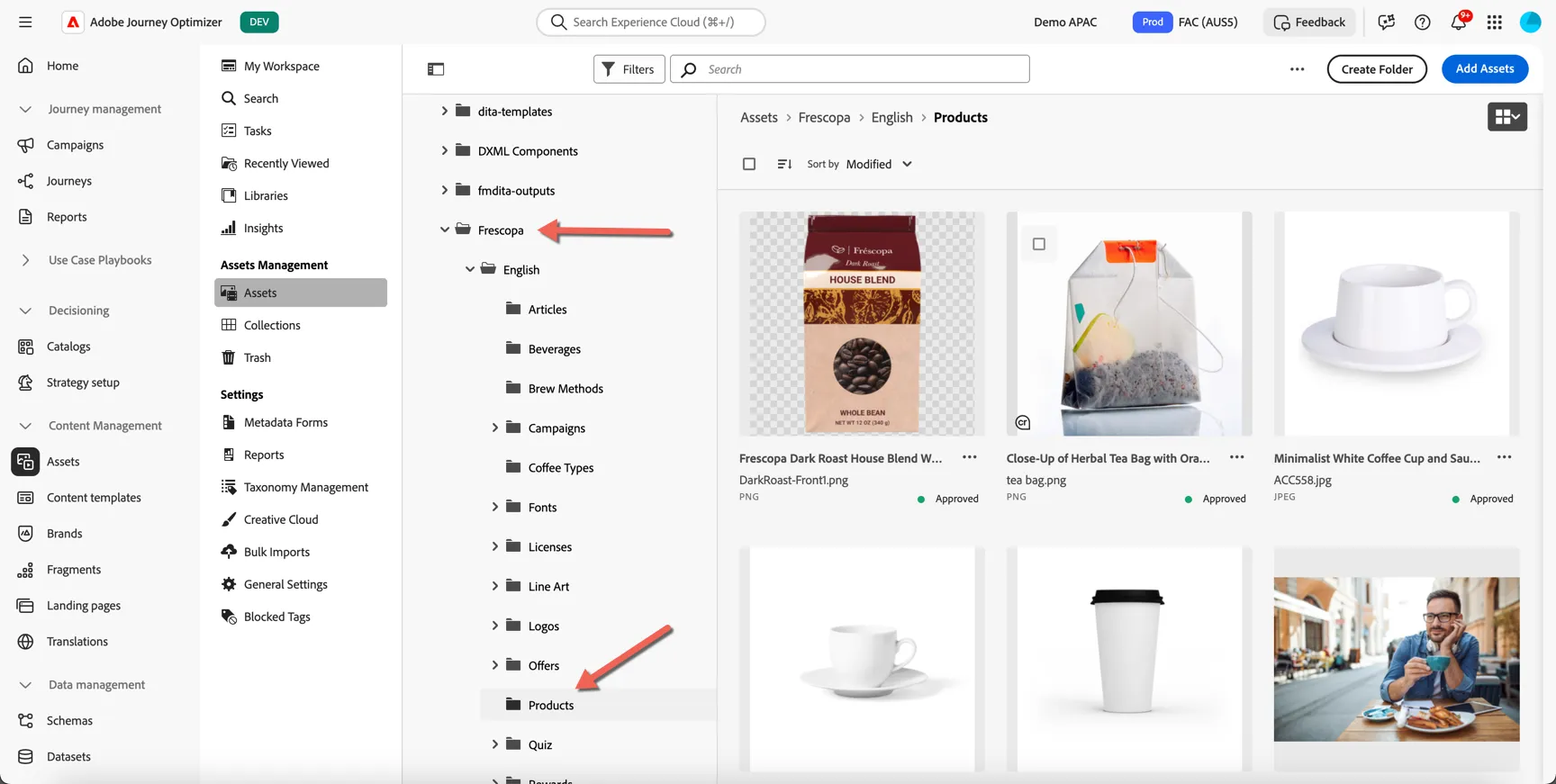
Click into the Frescopa folder and down to English / Products.
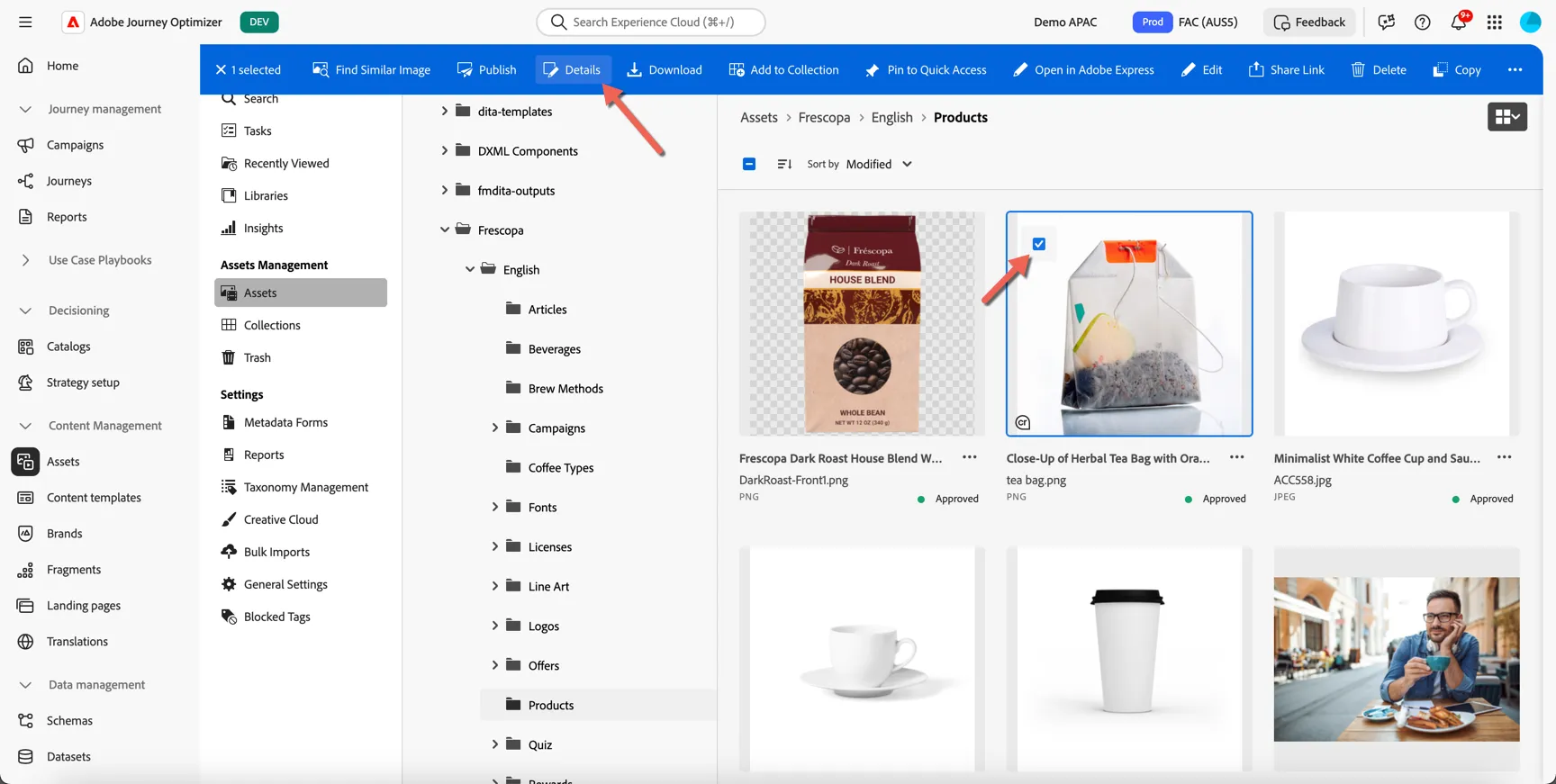
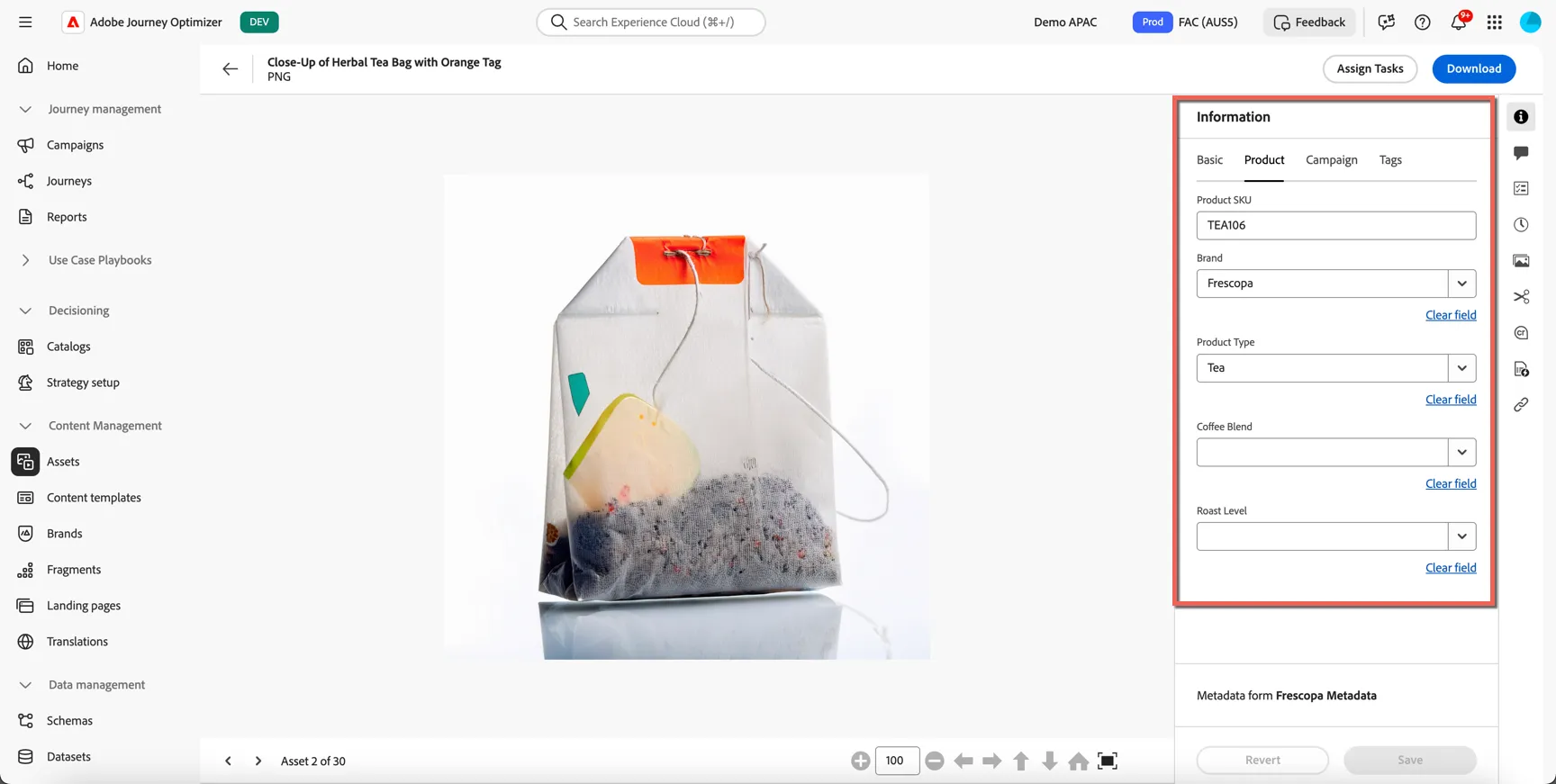
Select the image of the teabag and click on the details.
All of the custom meta data is available.
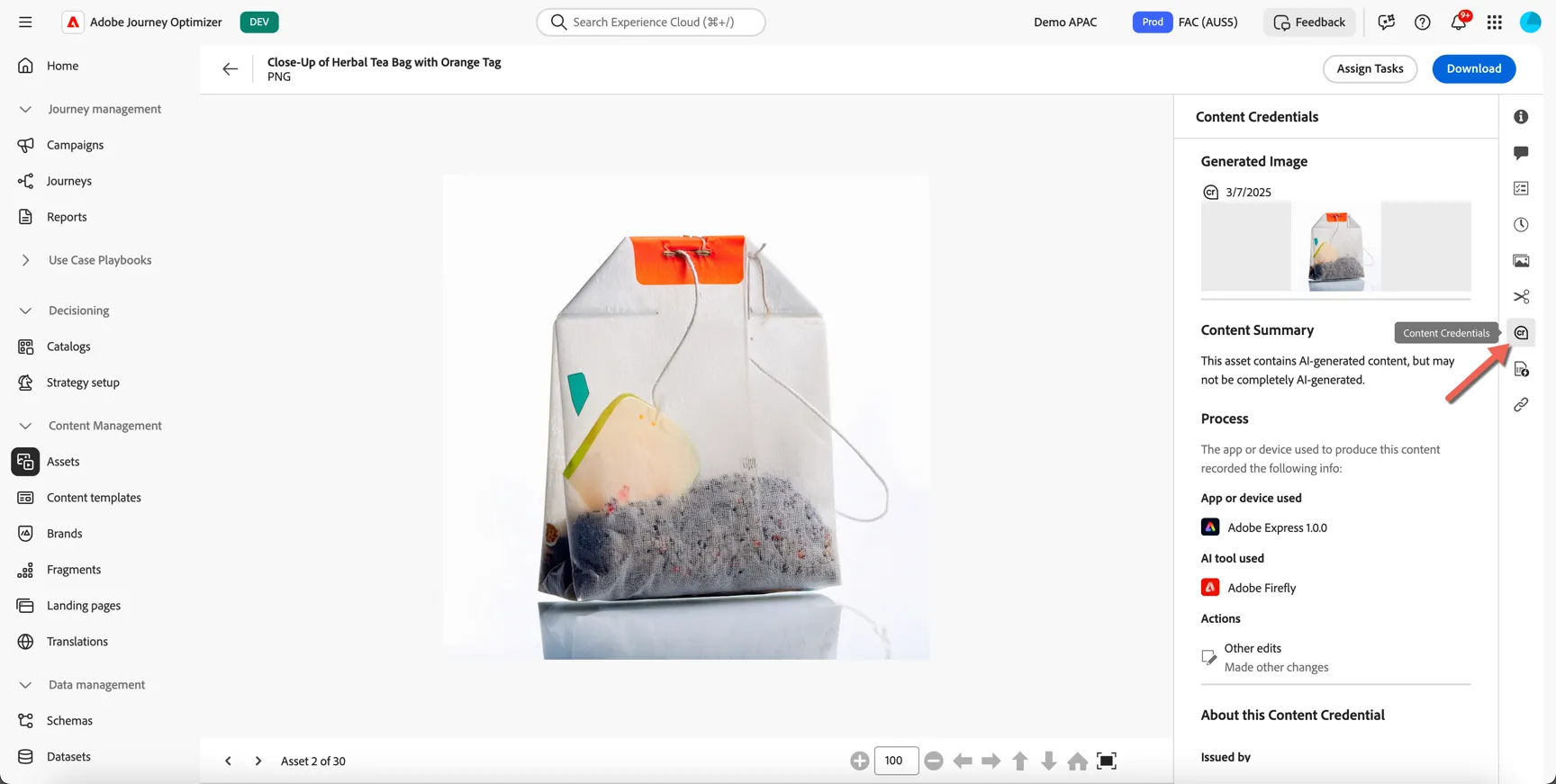
Since this is an AI Generated image, this includes Content Credentials, as part of Adobe's support for ethics and transparency in generative AI, Content Credentials are applied automatically to content generated on Adobe Firefly and APIs.
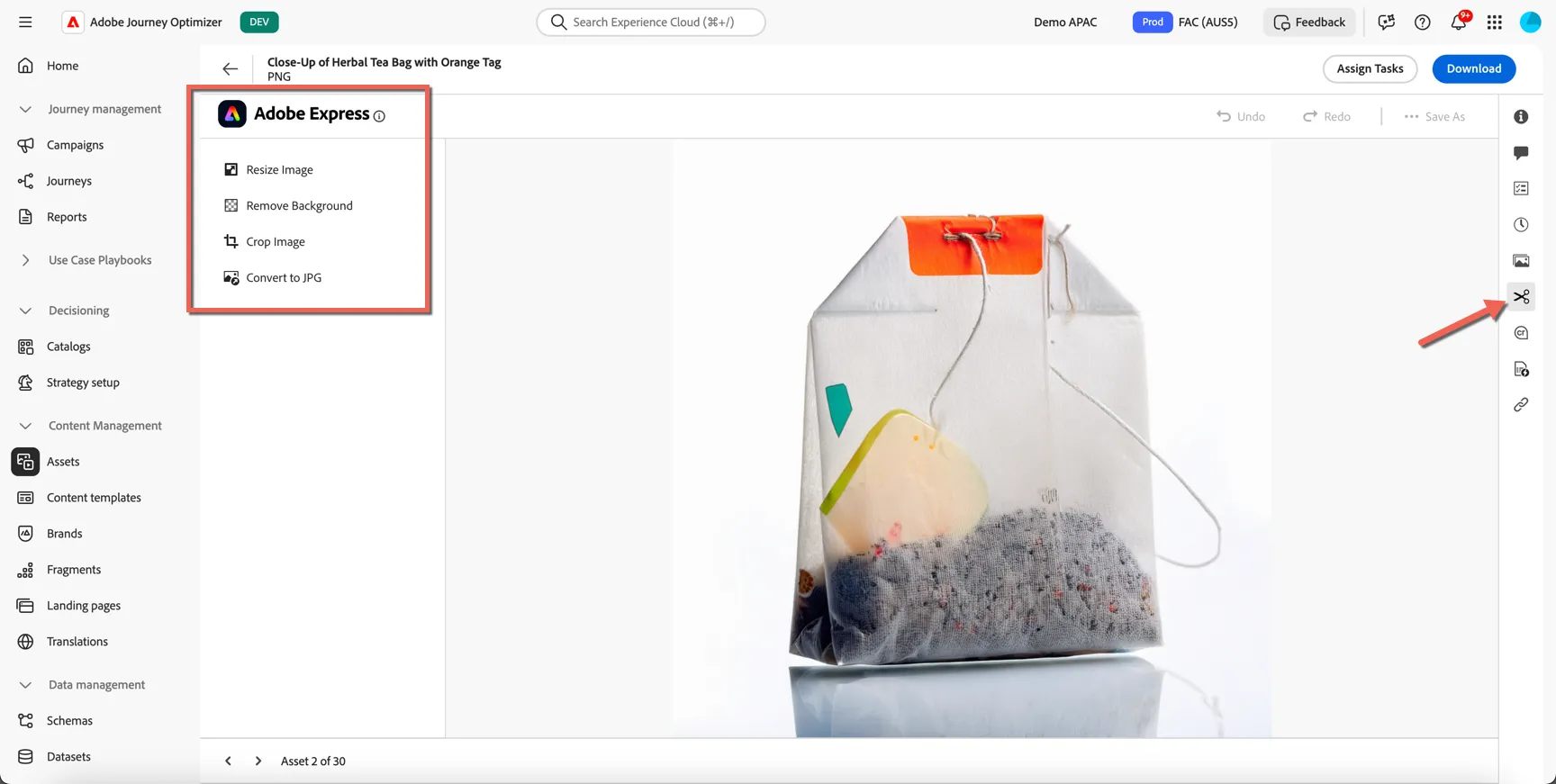
You can even make small edits to the image from here. Click on the scissor icon to open the image editor powered by Adobe Express.
Brand Guidelines
Brand guidelines are a detailed set of rules and standards that establish a brand’s visual and verbal identity. They act as a reference to maintain consistent brand representation across all marketing and communication platforms.
In Journey Optimizer, you now have the option to manually input and organize your brand details or upload brand guideline documents for automatic information extraction.
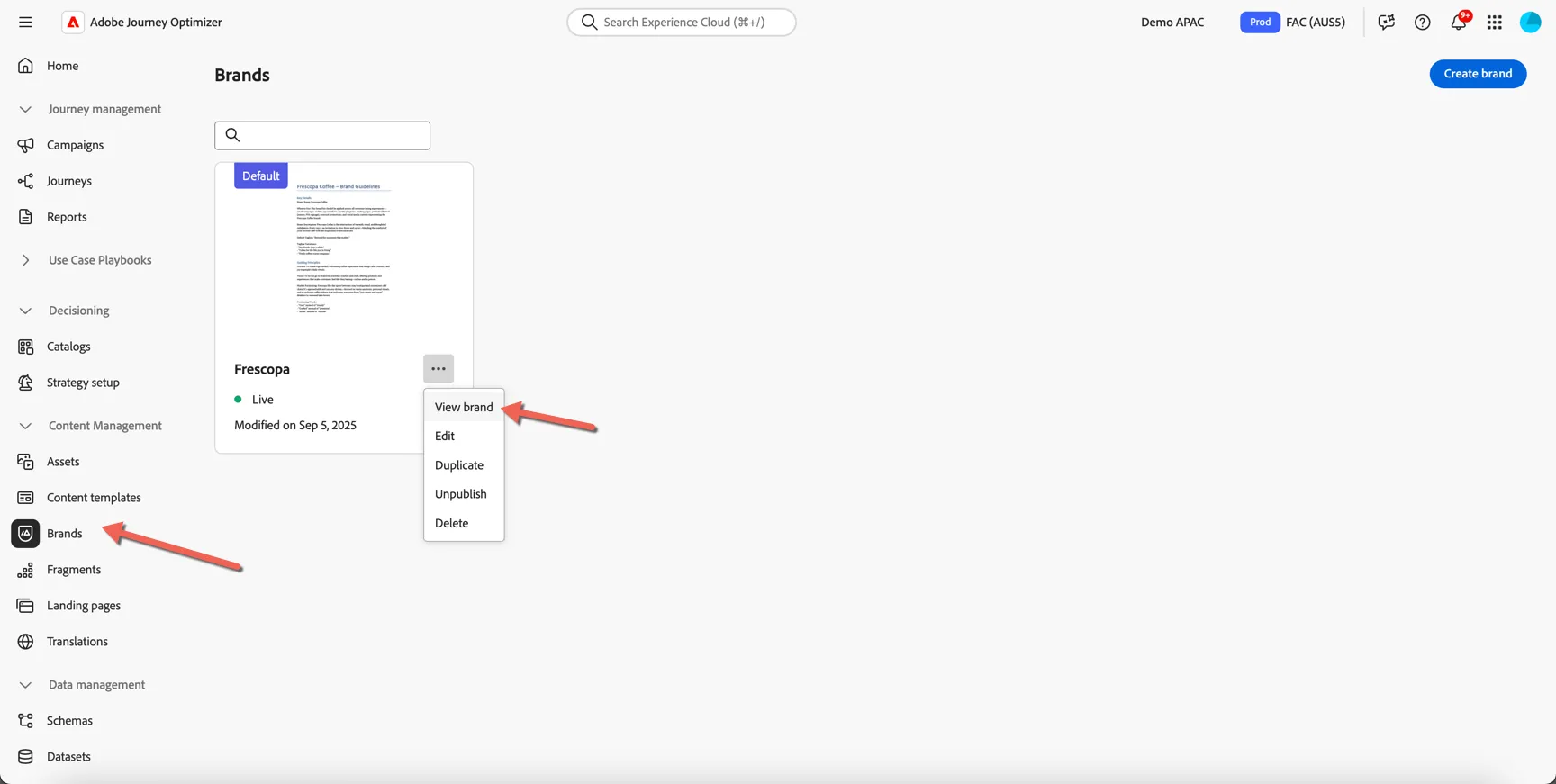
Click on Brands and click to View the Frescopa guidelines.
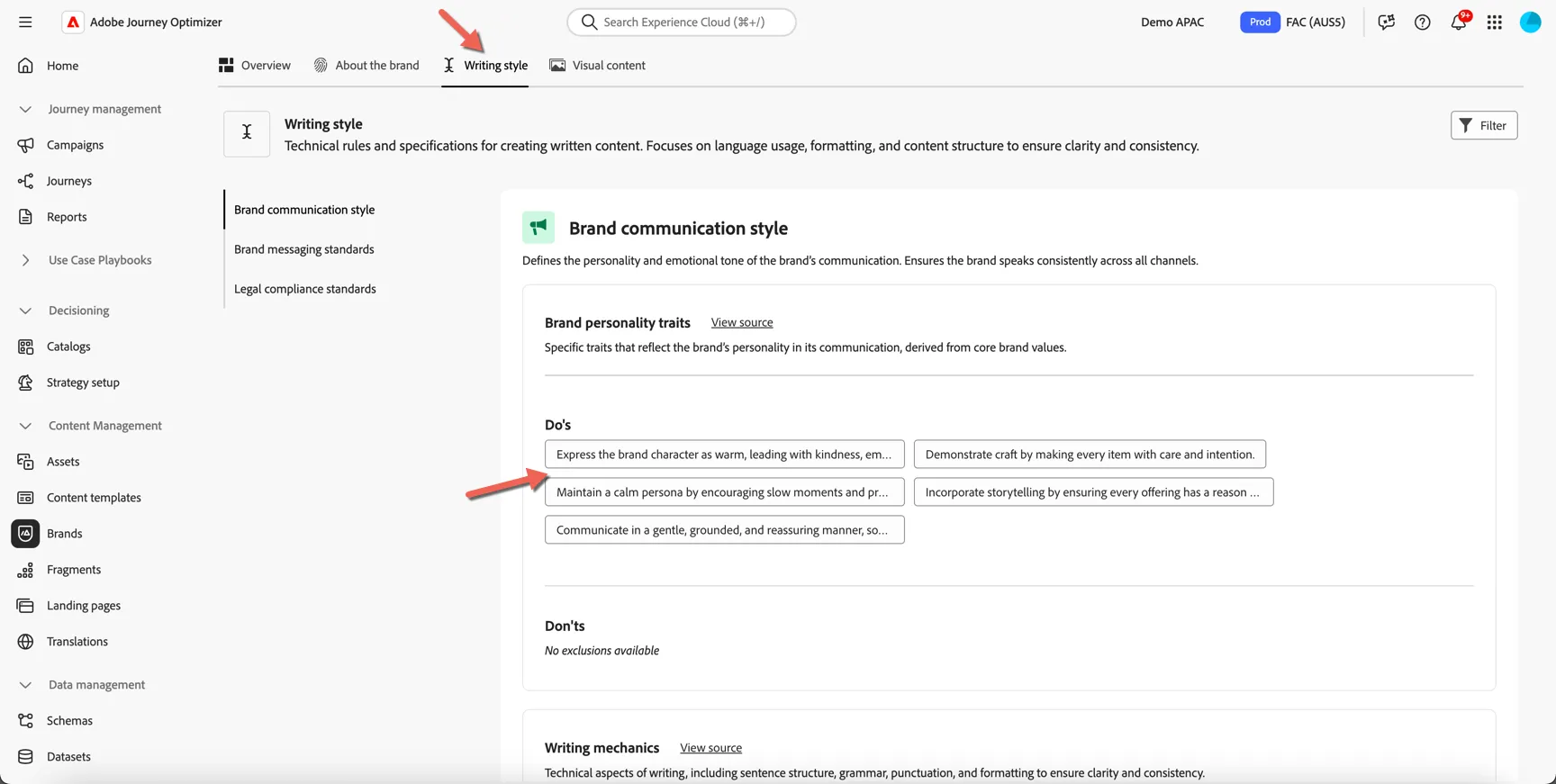
Here you can find all of the do's and dont's defined to ensure all content sent from Journey Optimizer aligns to Frescopa's brand. Click on Writing style to see the guidelines that will be applied to text content.
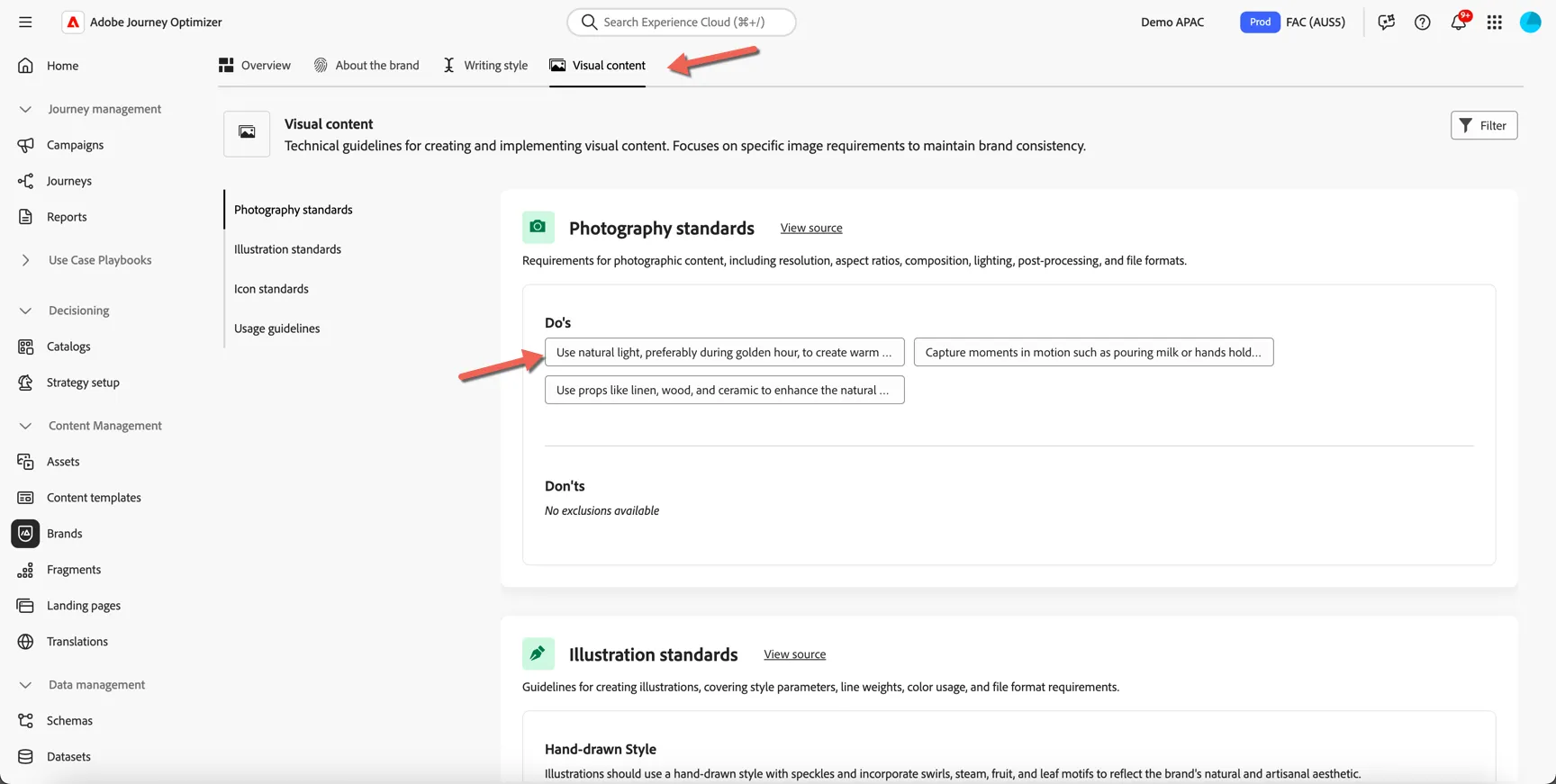
Click on the Visual Content to see the guidelines that will be applied to imagery.
Content Templates
Content templates are pre-defined pieces of content. Templates can be created for multiple channels and are used as starting points for messages in campaigns and journeys.
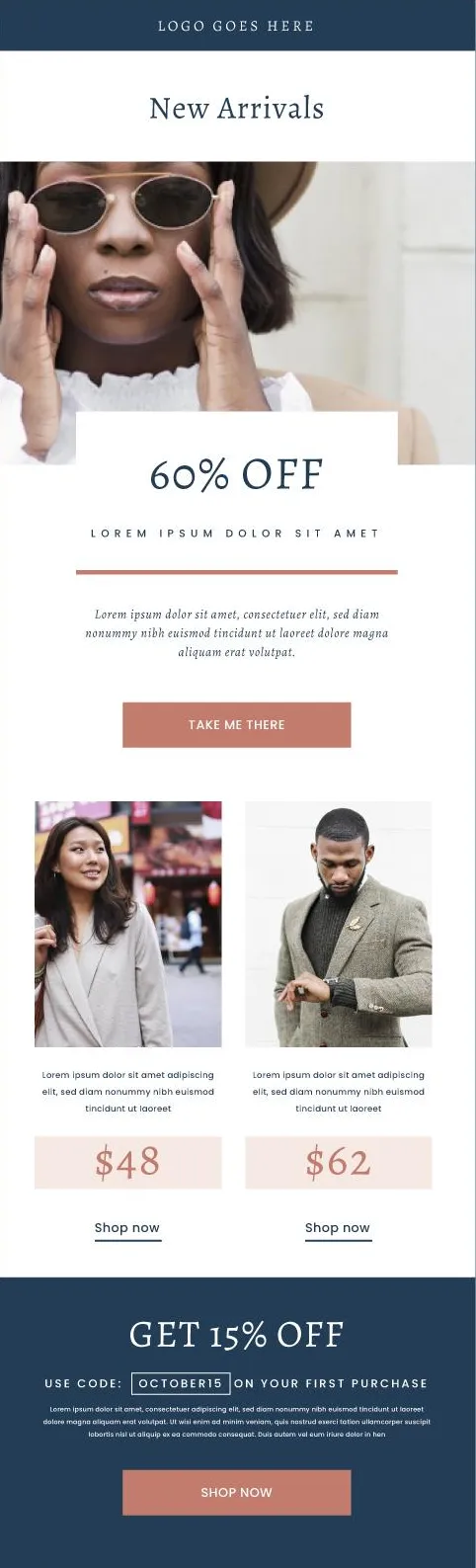
Importing your email templates into a new solution is usually a time-consuming task during implementations. With Adobe Journey Optimizer we can generate an email editor compatible template directly from an image, saving potentially days of effort.
Right click and Save As the image below onto your hard drive.
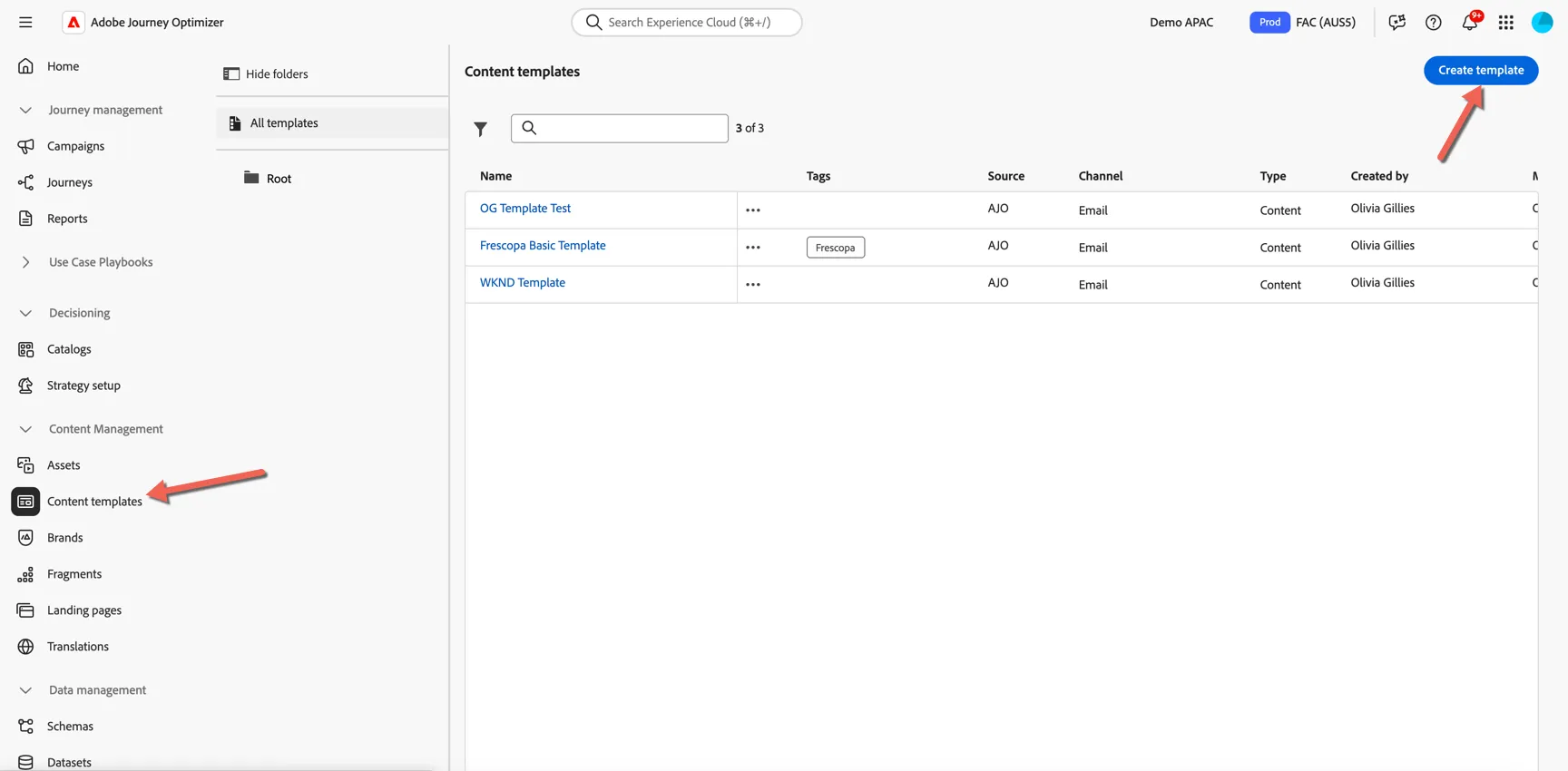
Navigate to Content Templates and click to Create template.
Give your template a name - something unique so you can recognise it.
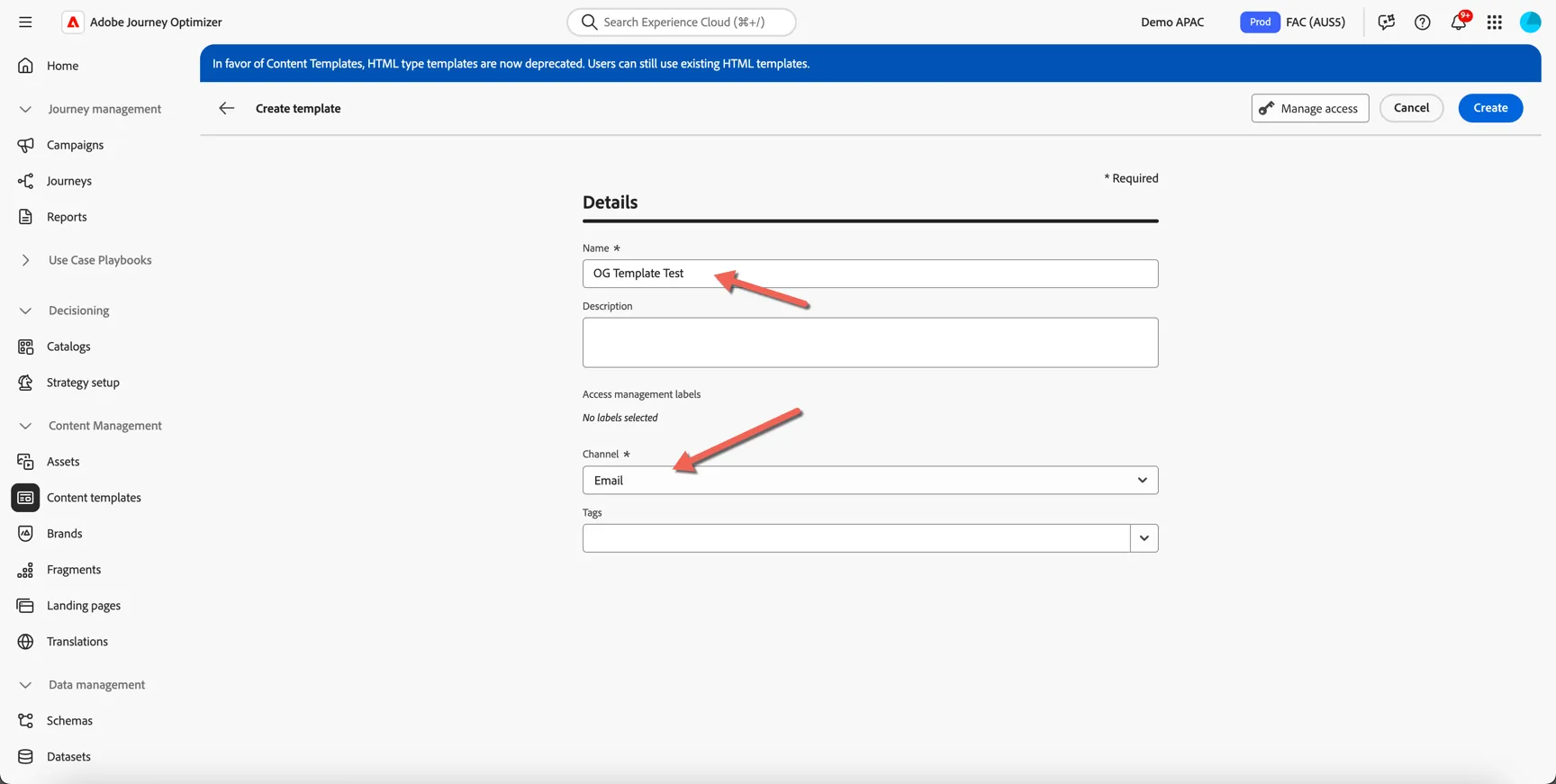
Now upload the image you downloaded from above (or one of your own email images if you have one handy!)
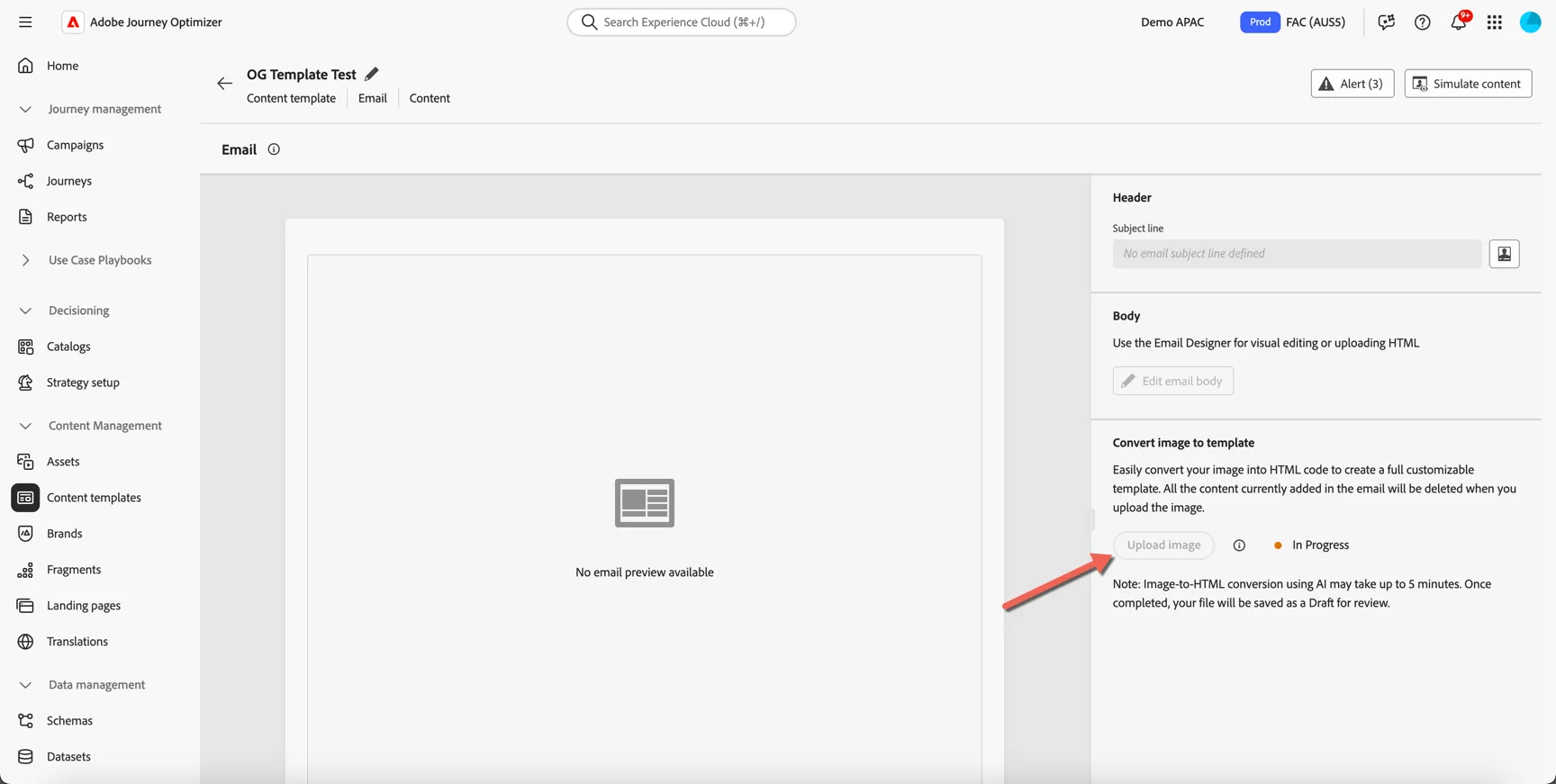
The generation will take a few minutes. Move on to the next exercise and you can come back later to see how it went.
Create a Journey
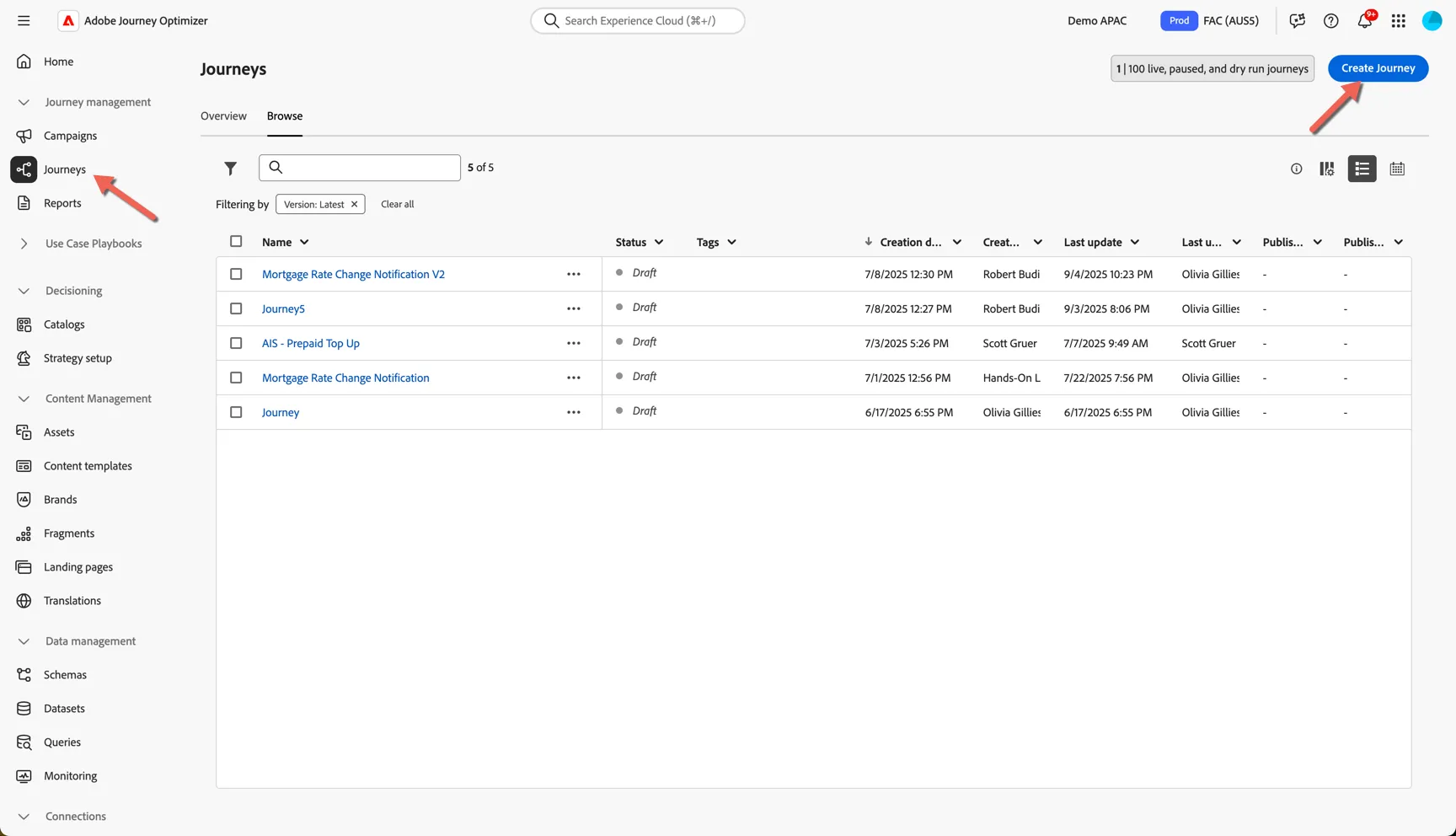
Navigate to Journey Management -> Journeys and click on Create Journey.
Give your journey a name, add your initials so you can recognise it from other lab participants.
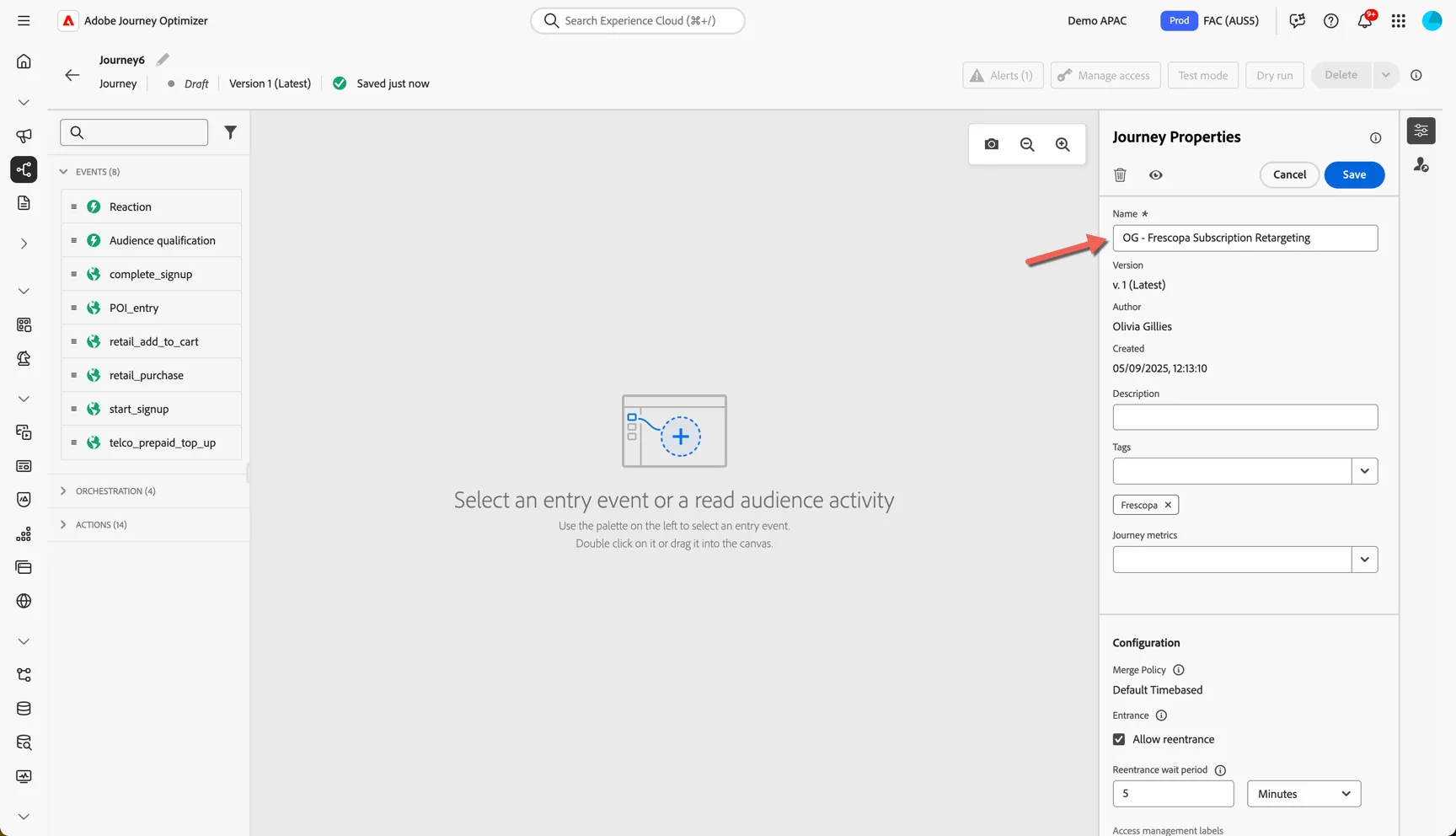
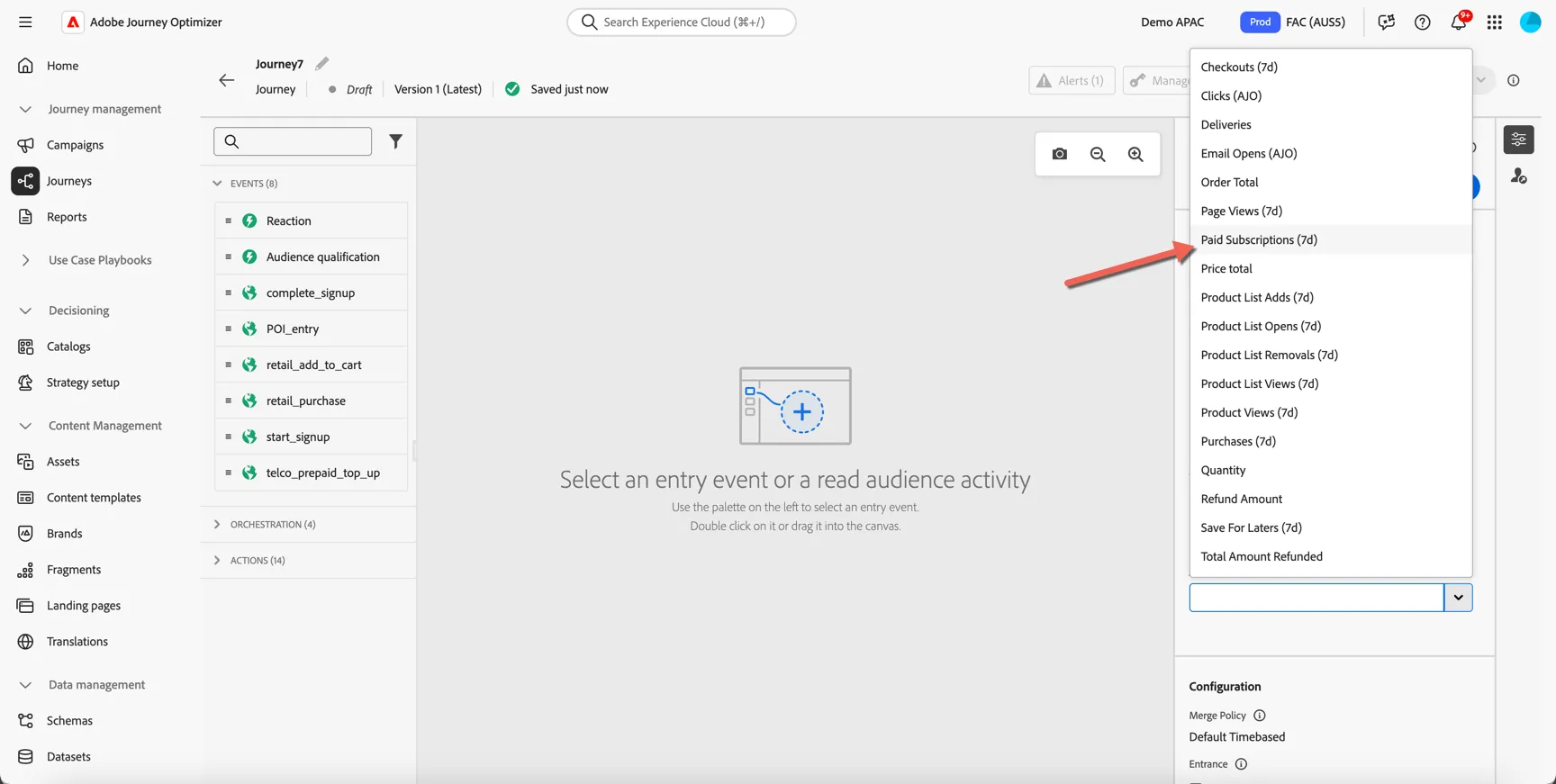
Measurement is critical to any journey, Adobe Journey Optimizer can use any of the metrics defined in Customer Journey Analytics as journey success metric. For this journey we are encouraging subscription, click on the Journey Metric drop down and select Paid Subscription (7d). The attribution in this case is pre-set to Last Touch 7 days, but you can modify this within Customer Journey Analytics or create different versions for different purposes.
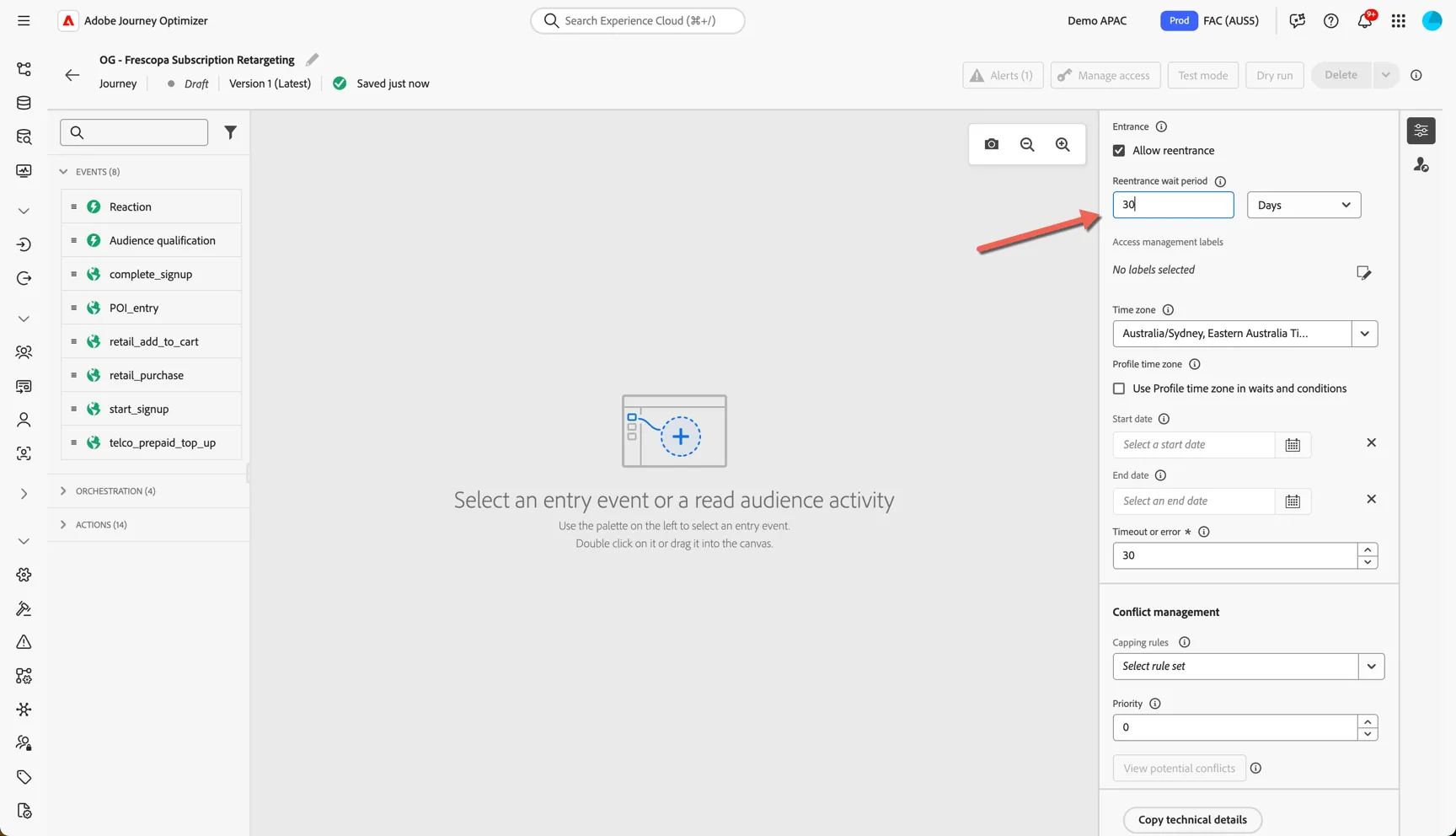
The journey properties are also where you can set up the re-entrance criteria to ensure we're not fatiguing customers multiple entries into the same journey, scroll down and set re-entry wait period to every 30 days. Click Save.
Click to save the properties.
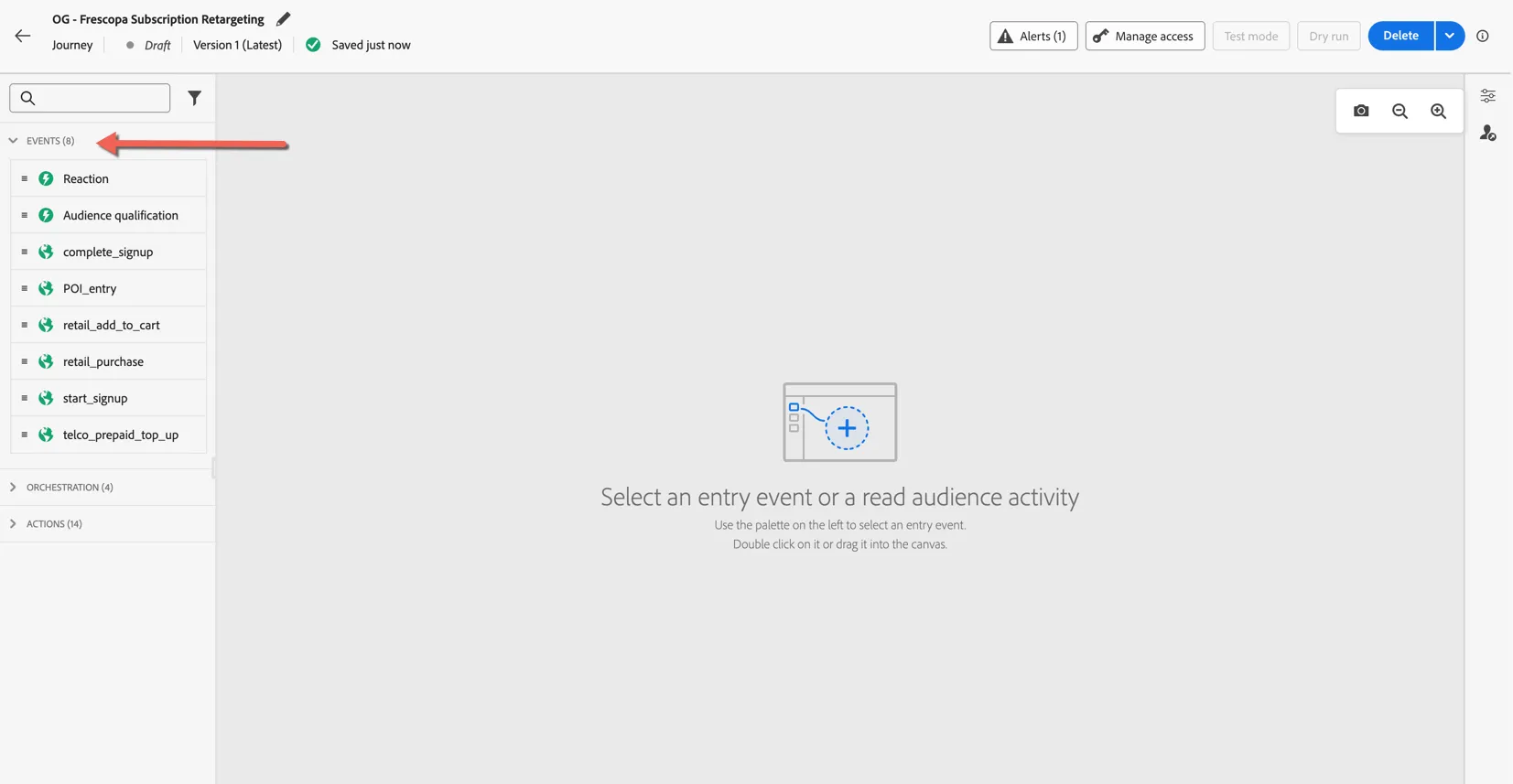
Journeys can be triggered from individual events or when a customer enters or exits a streaming audience. You can see the events that are configured as journey triggers in the left panel - this list is configurable and will depend on your implementation.
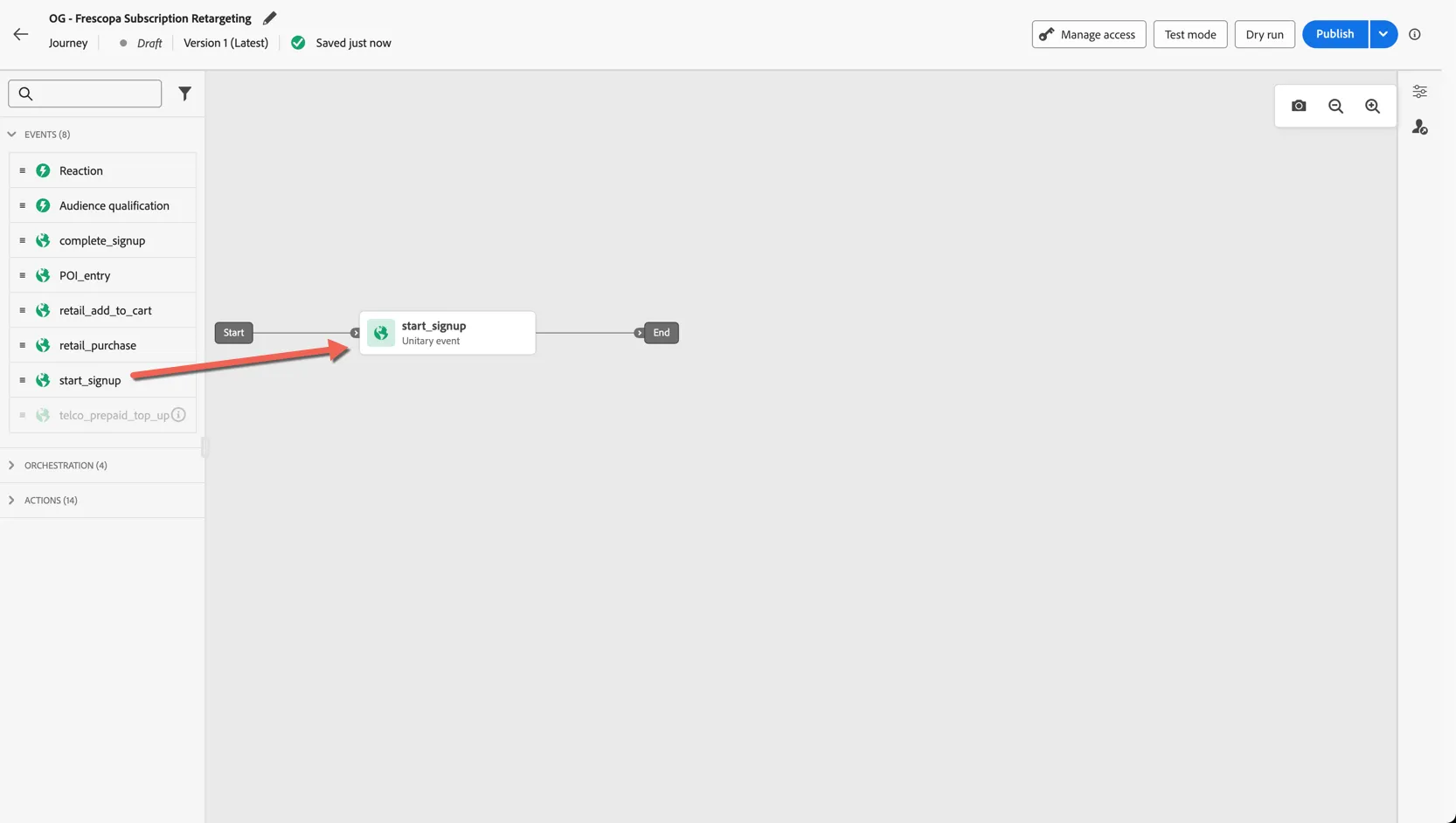
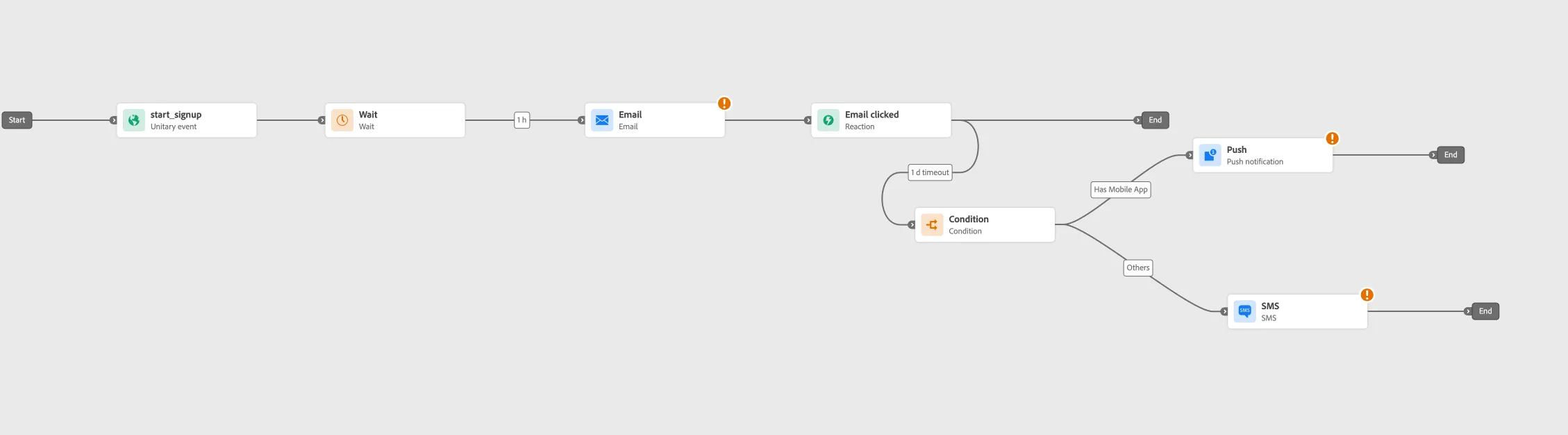
Drag the Start_Signup event into the panel as your journey trigger.
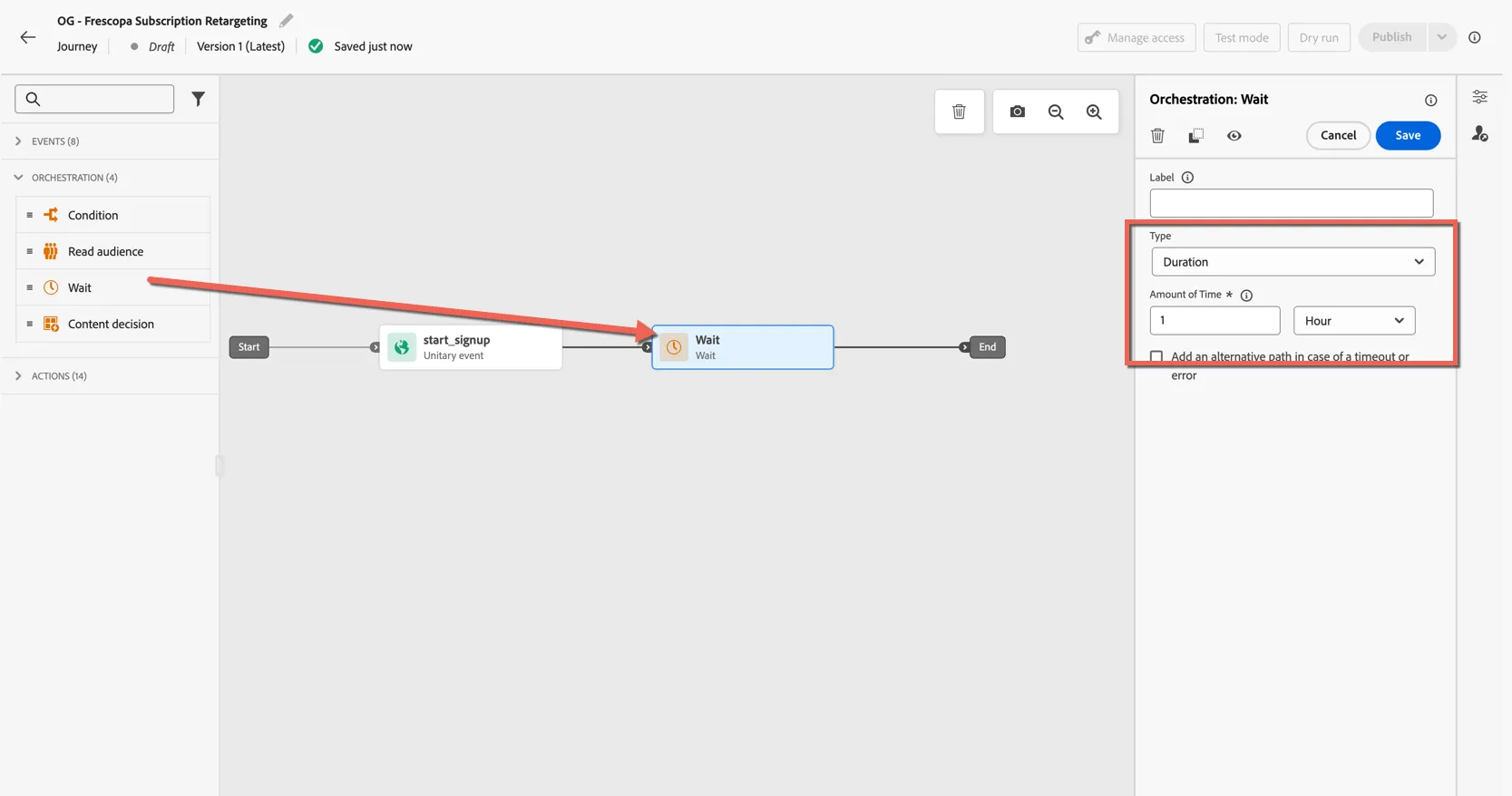
The orchestration panel is where we can find activites to control the pathing and flow of the journey. Drag a wait activity to pause the journey flow for a short duration to allow the customer time to complete the process they started before we start retargeting them. The wait period can be as long or short as you want.
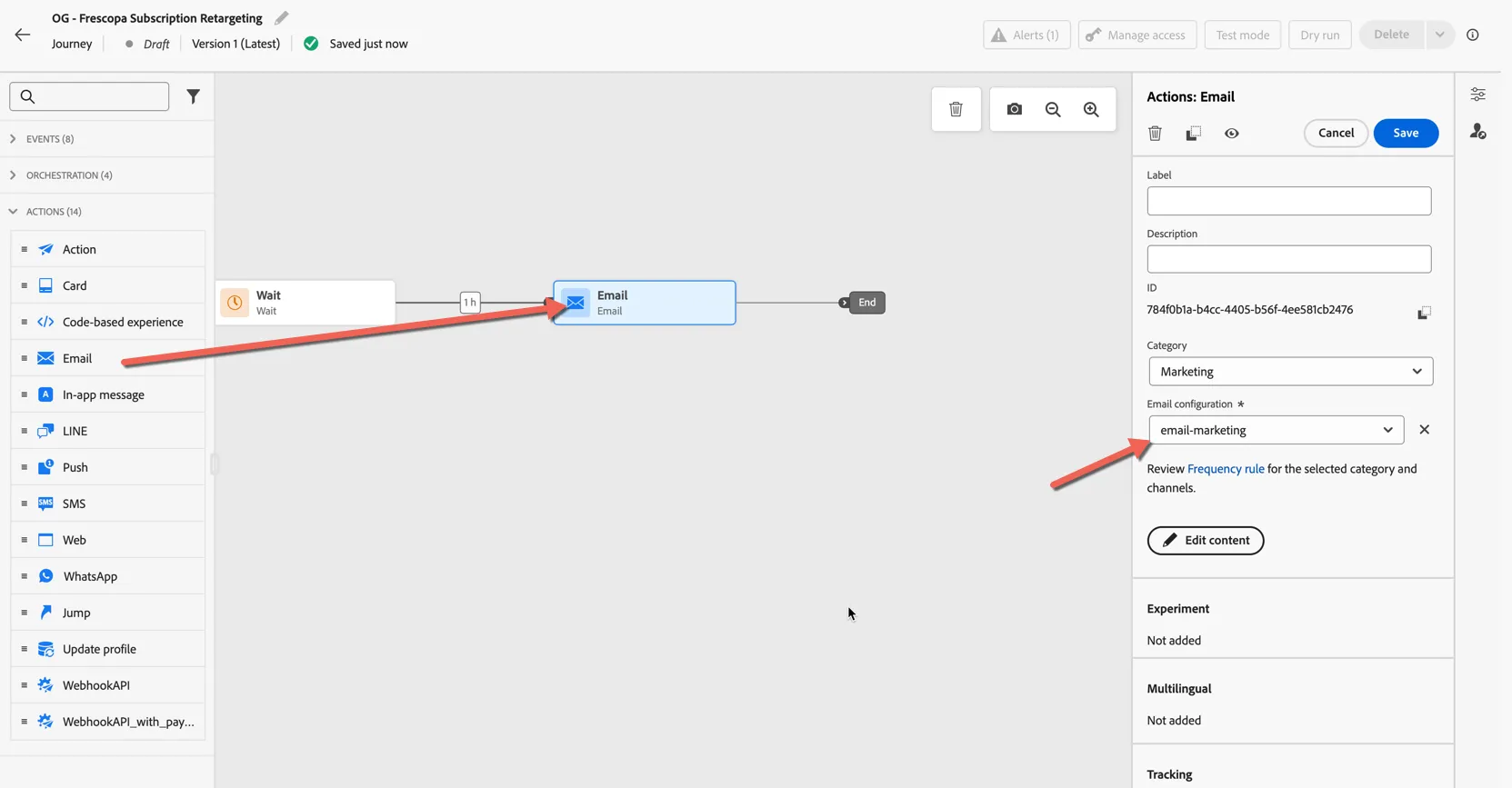
The Actions panel is where you'll find the native messaging channels as well as any custom channels or actions that have been enabled in the sandbox. Drag an Email action onto the canvas and attach it to the trigger event. Set the Email Configuration to email-marketing.
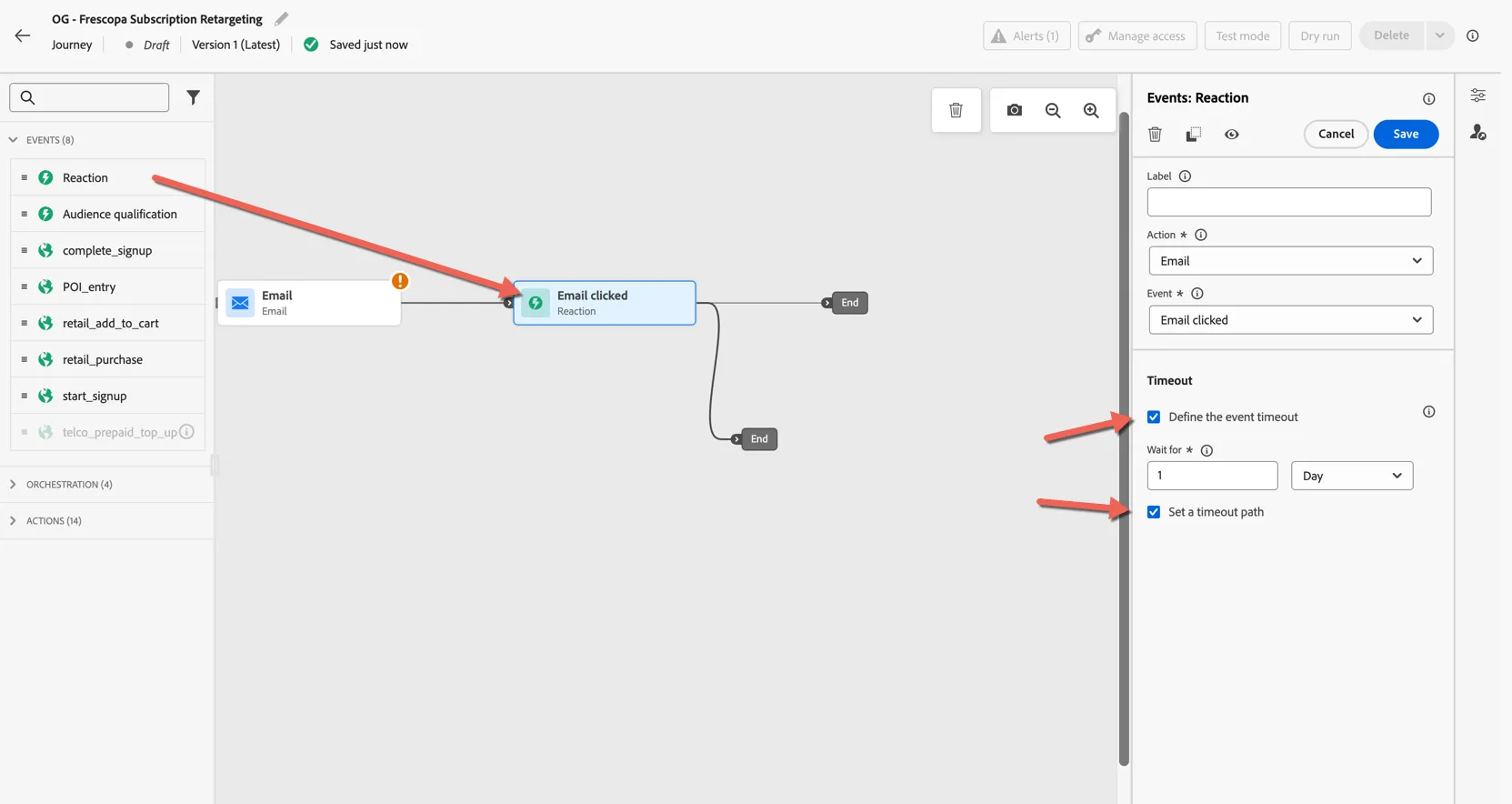
Before we configure the email content we'll finish the journey flow. Returning to the events panel, drag a Reaction activity after the email and configure a Timeout of 2 days. This triggers the journey to continue after 1 day along the timeout path if the customer does not click the link in the email.
Click to Save the reaction.
If the customer does not click the email we'll continue to engage them on other available channels. We will prioritize push notification as a less invasive channel but there's no point sending a push if the customer doesn't have the app, so let's check first and route customers to the right channel.
Drag a Condition activity, from the orchestration panel, into the canvas and connect it to the timeout branch.
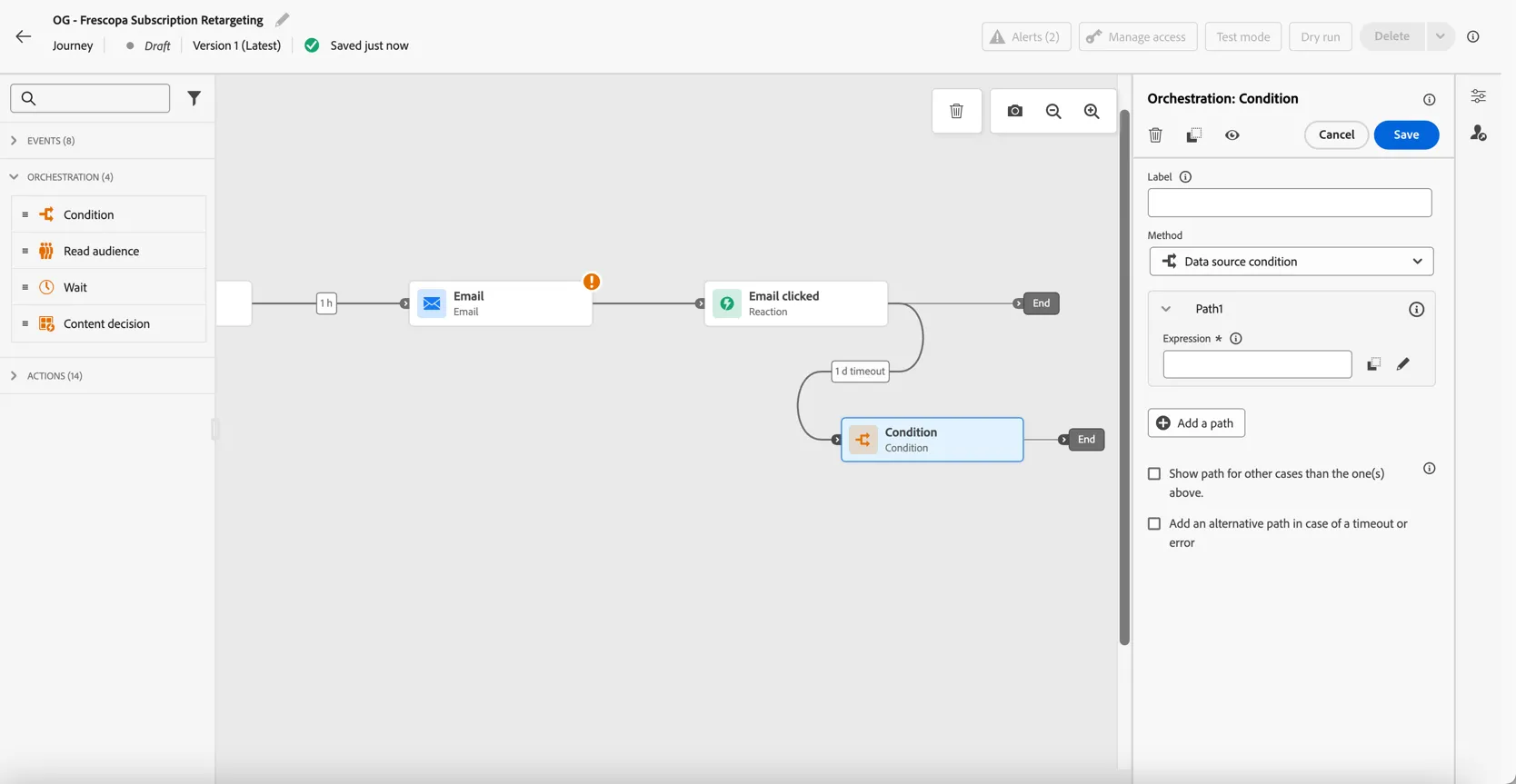
Rename the default path condition to Has Mobile App and tick the checkbox to show path for other cases. Then click into the Expression to configure the condition.
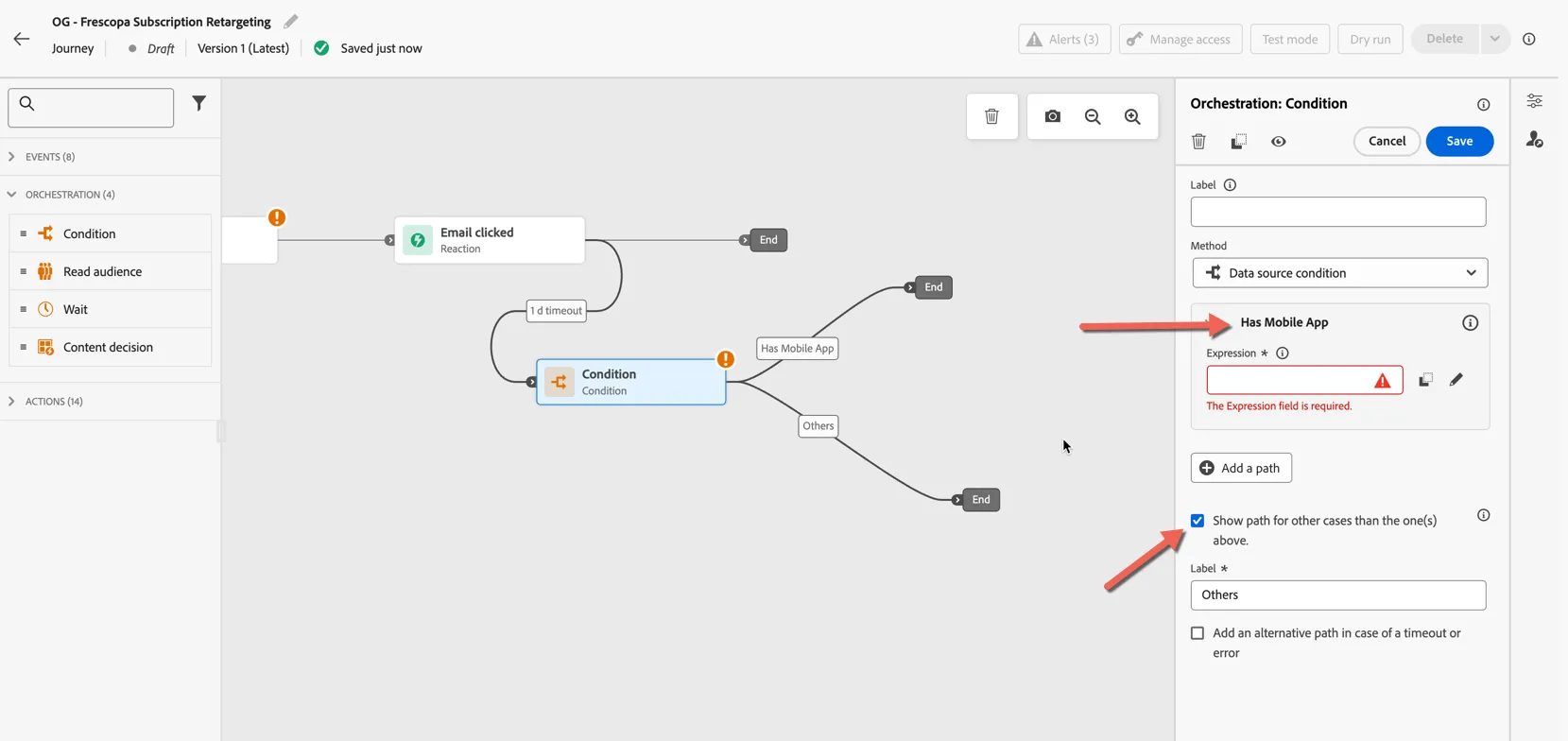
Then click into the Expression to configure the condition.
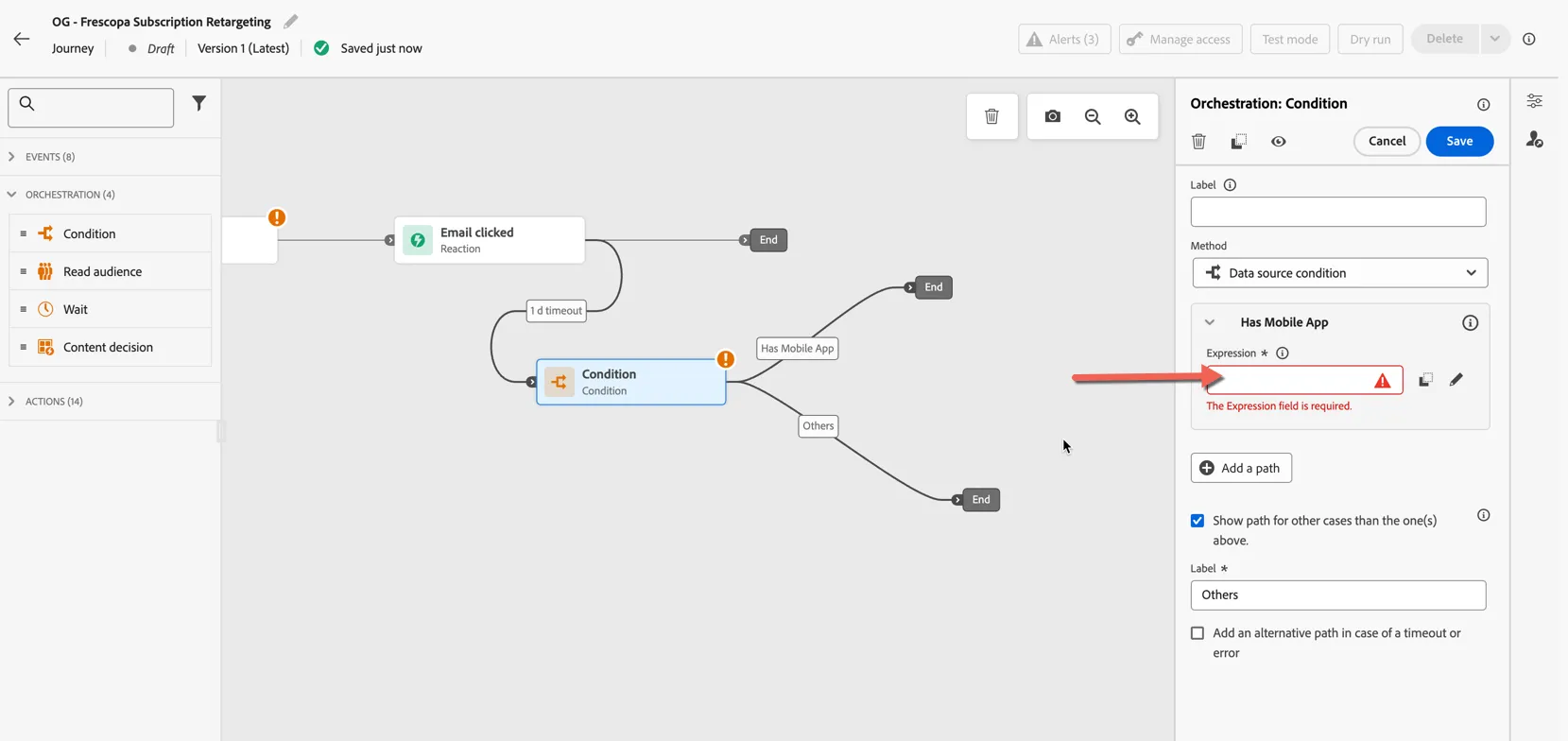
The expression editor let's you configure a boolean condition which if it evaluates to true will push the profile down the condition path. Expressions can use context from the journey triggering event, audiences or other data stored in Adobe Experience Platform.
Search for Mobile. Drag the pre-configured Has Mobile App audience into the expression then click Ok.
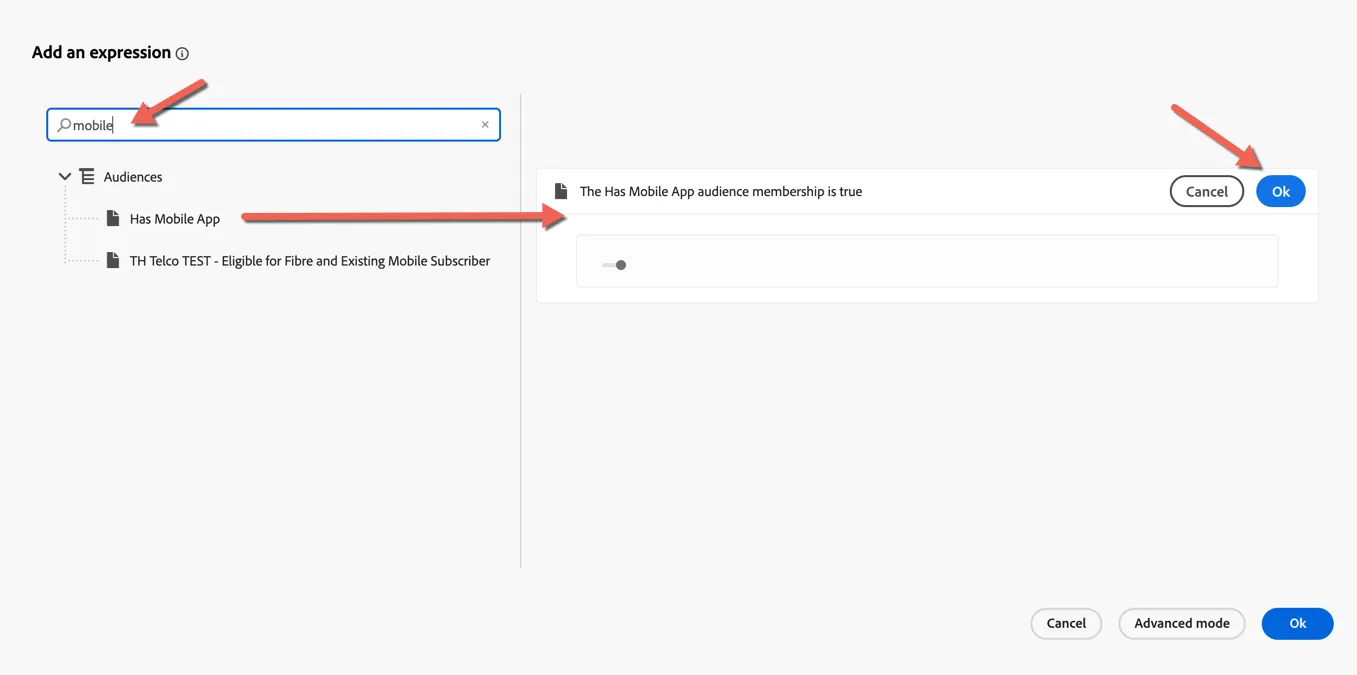
Click Ok again to store the condition.
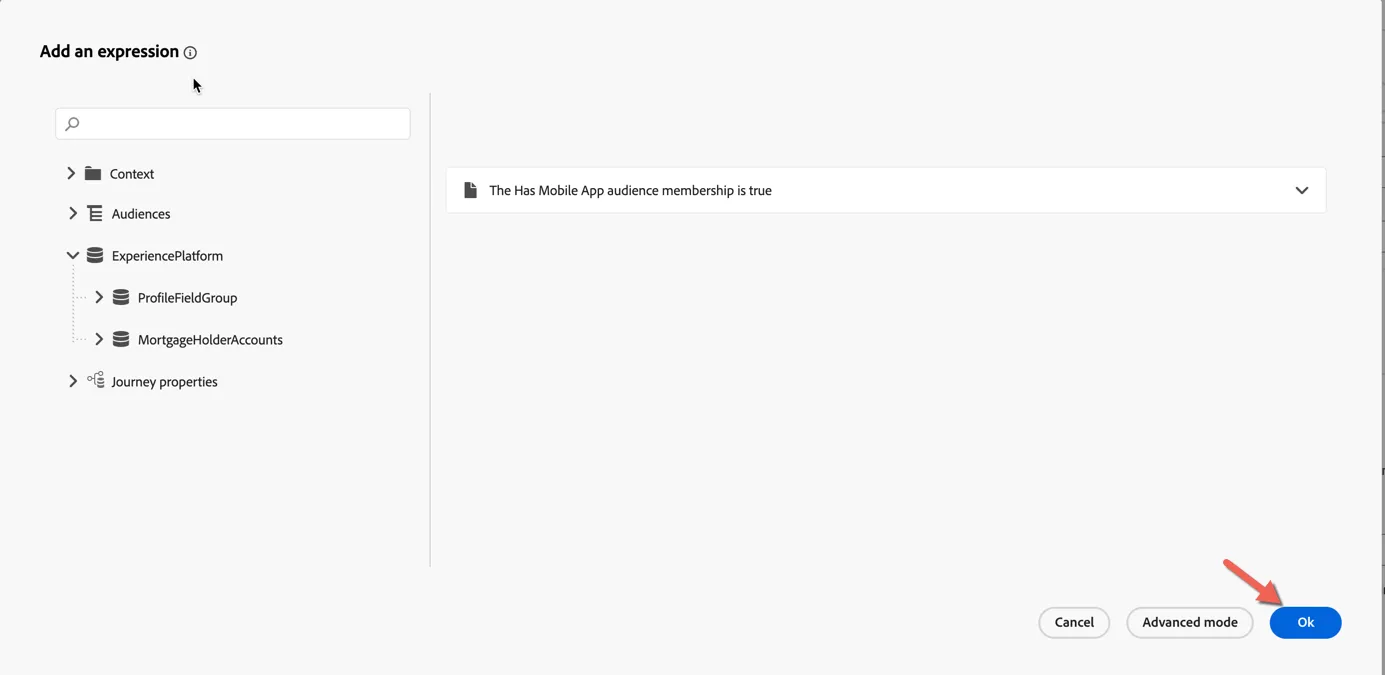
Click to Save the condition.
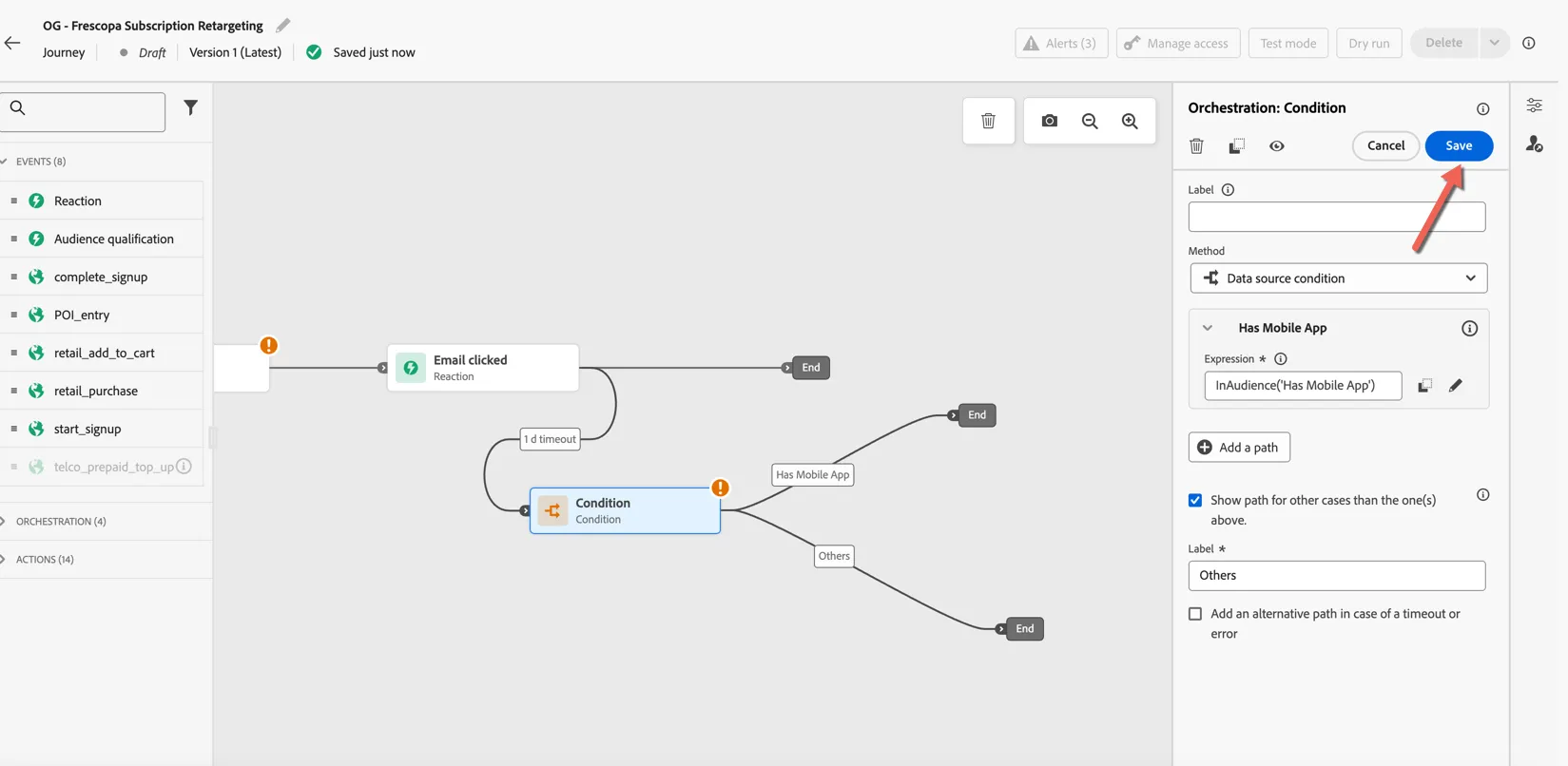
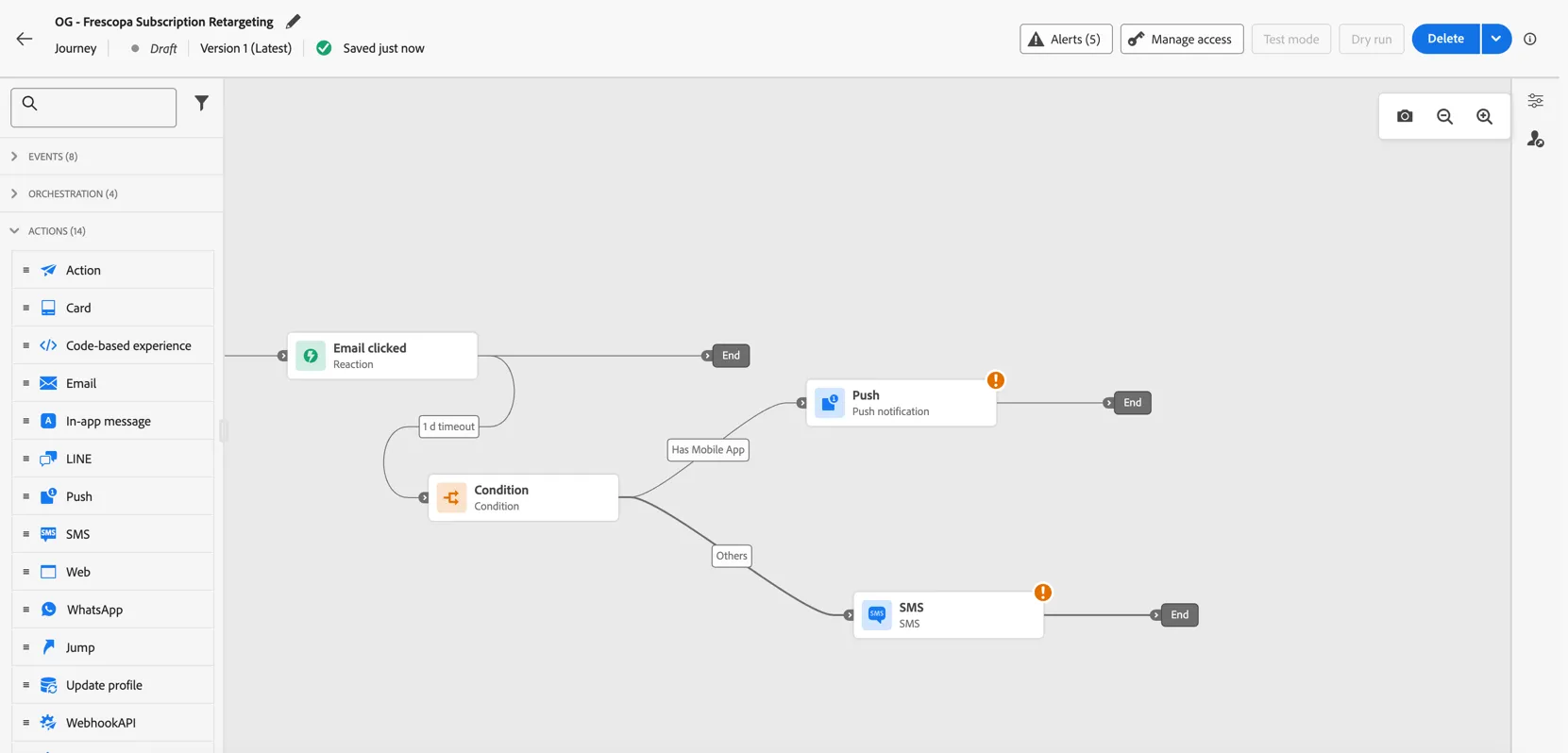
Now drag a push notification and add it to the "Has mobile app" path. Drag an SMS action as the alternative channel, depending on your business you might choose Line or WhatsApp as an alternative.
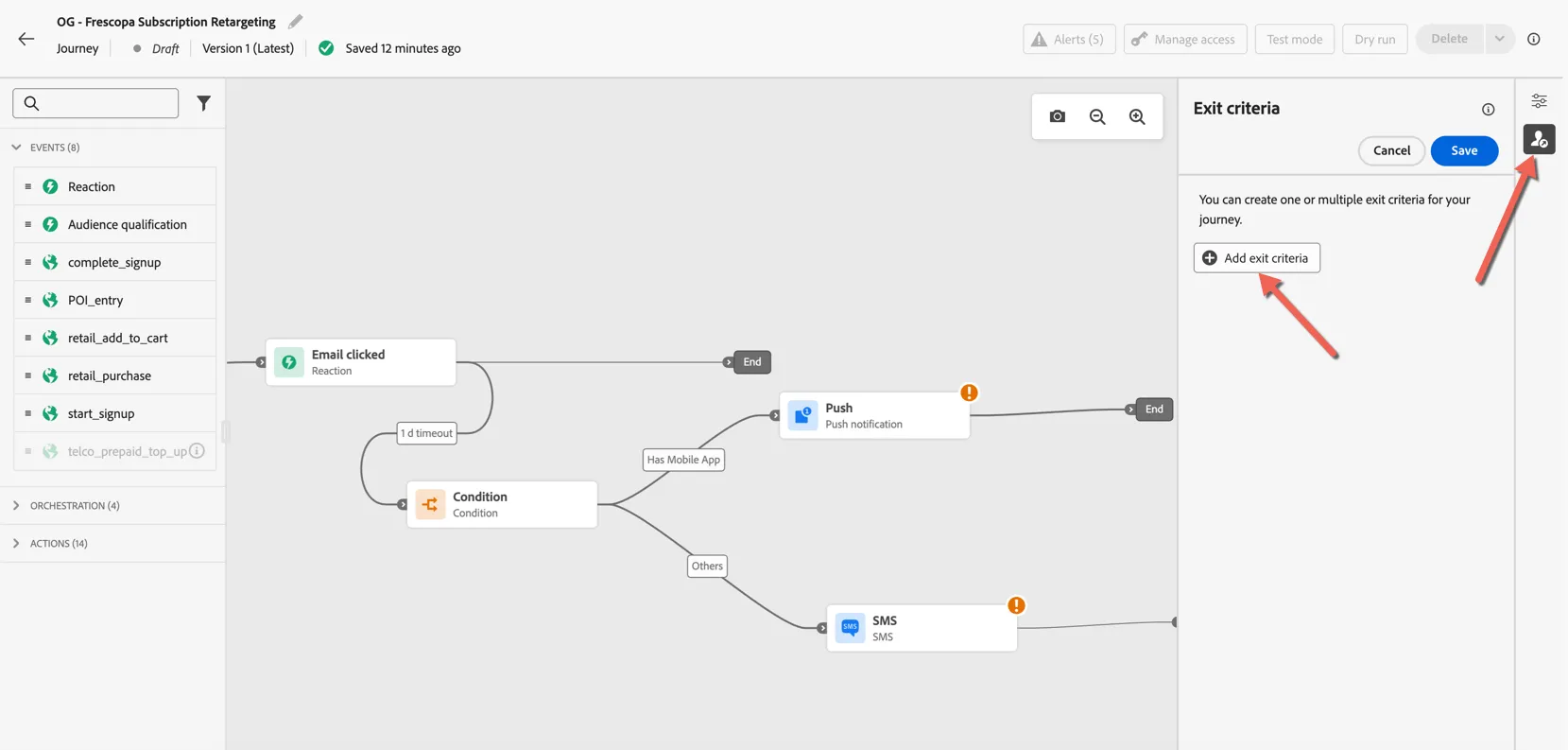
Lastly, we'll add exit criteria to remove profiles from the journey once they complete the desired action, in this case completing their subscription. Click on the profile icon to the right of the journey to open the exit criteria panel. Click the button to add the exit criteria.
You can use events and/or audiences as exit criteria, for this example we'll use the Active Subscriber audience.
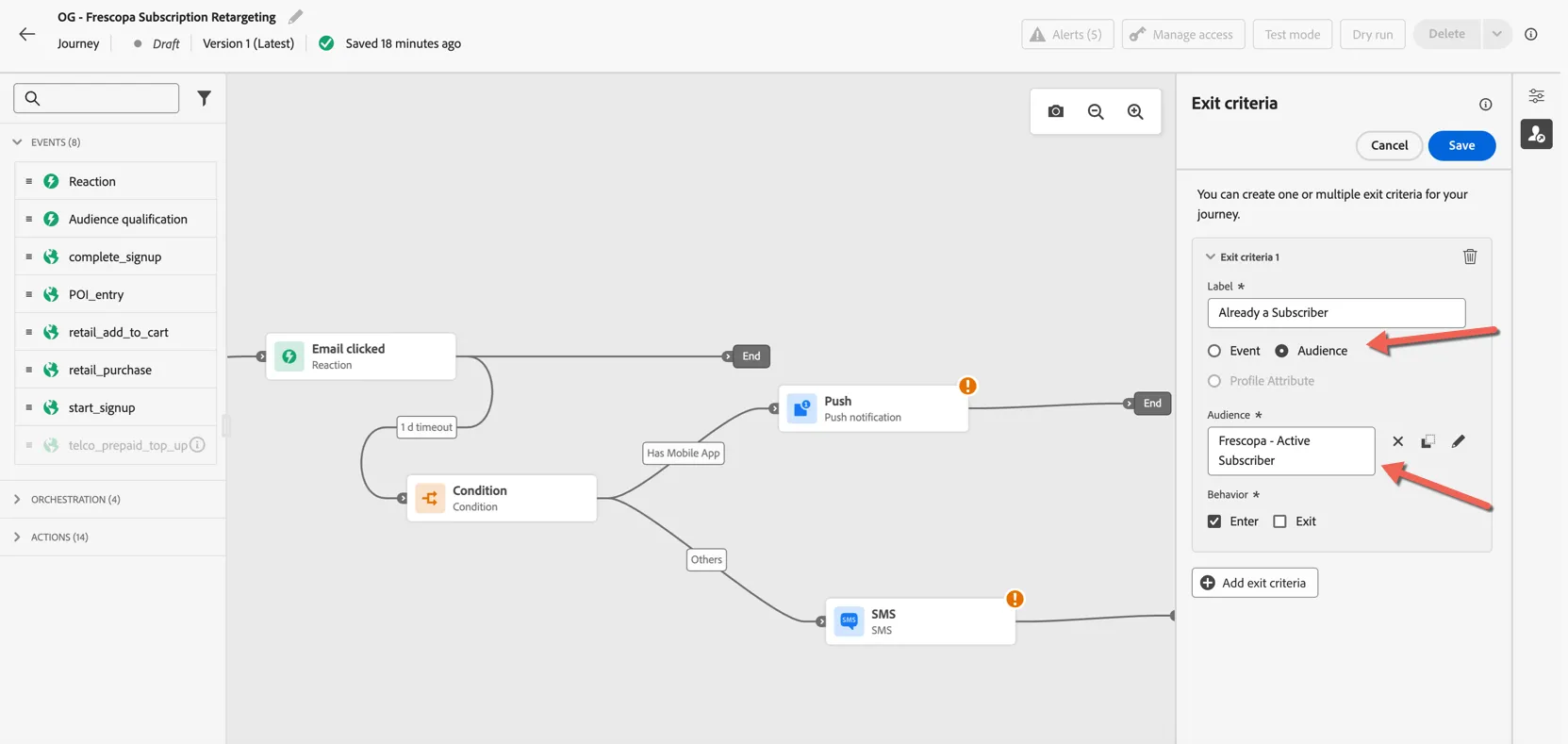
Click Save to complete your journey logic. Your journey flow should look like this:
Next we'll add content to our messages.
Add Email Content
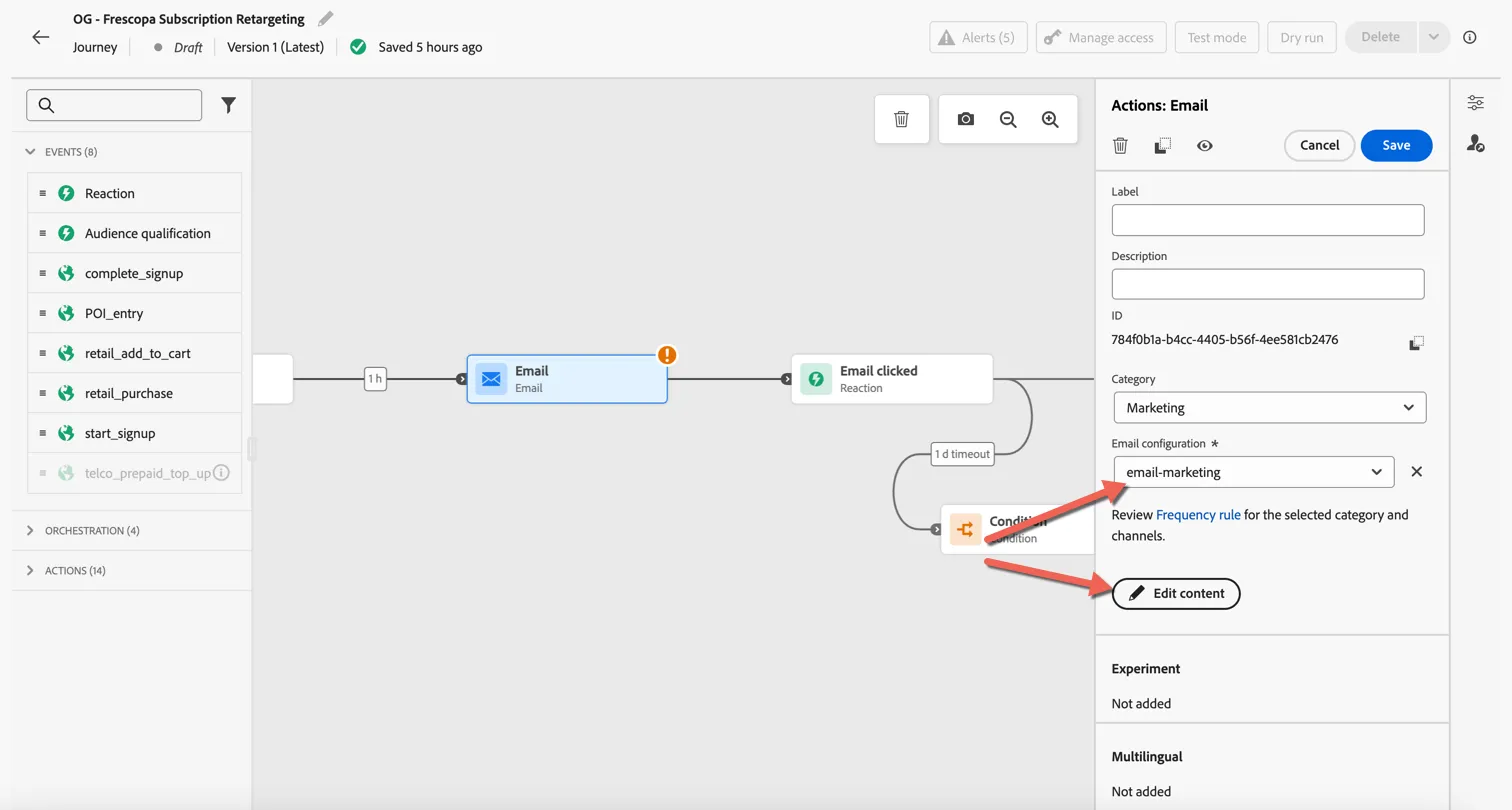
For this exercise we'll start with a pre-defined content template. Select the email activity in your journey and set the Email Configuration to email-marketing and click to Edit Content.
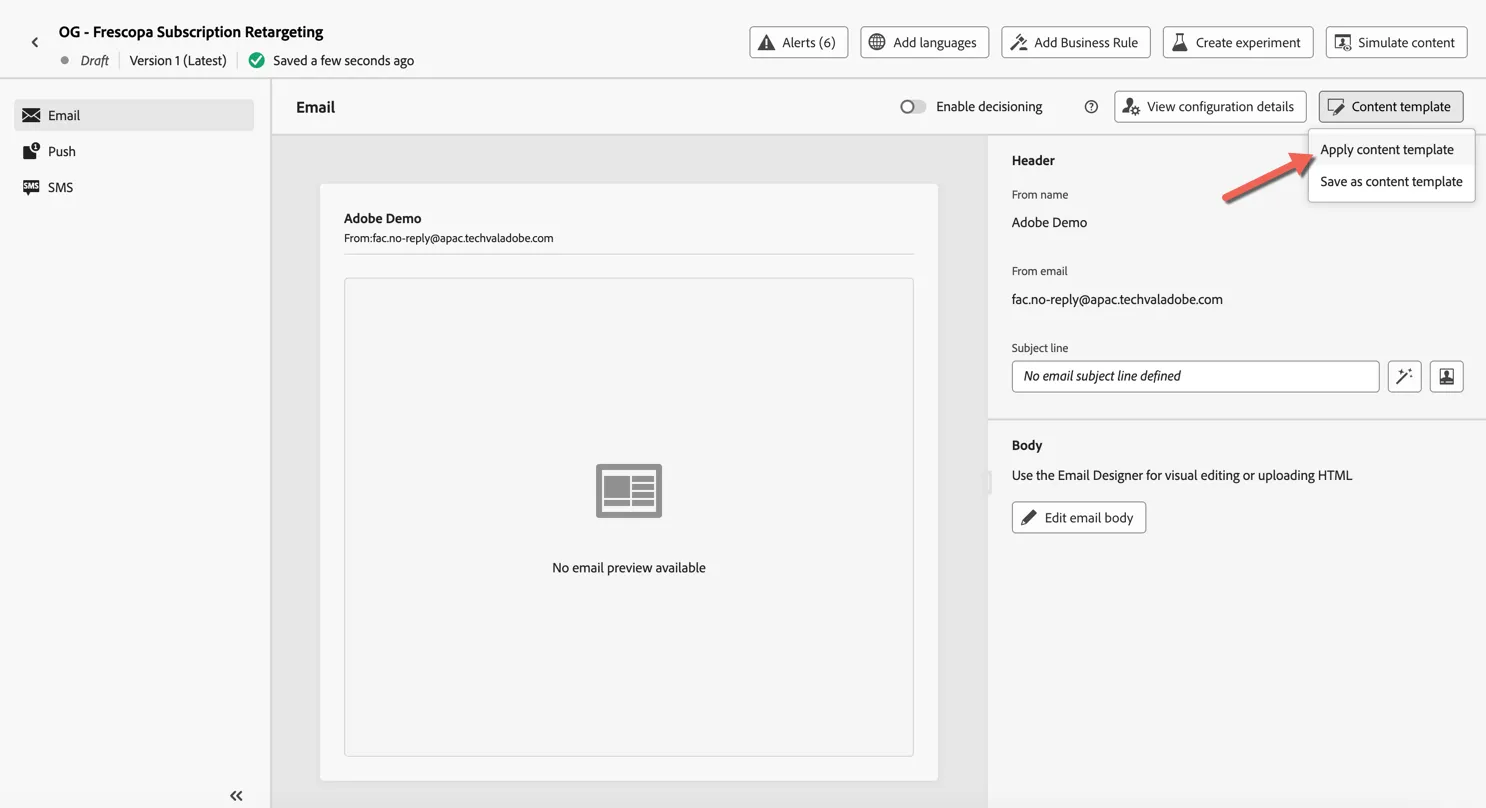
Click to Apply content template
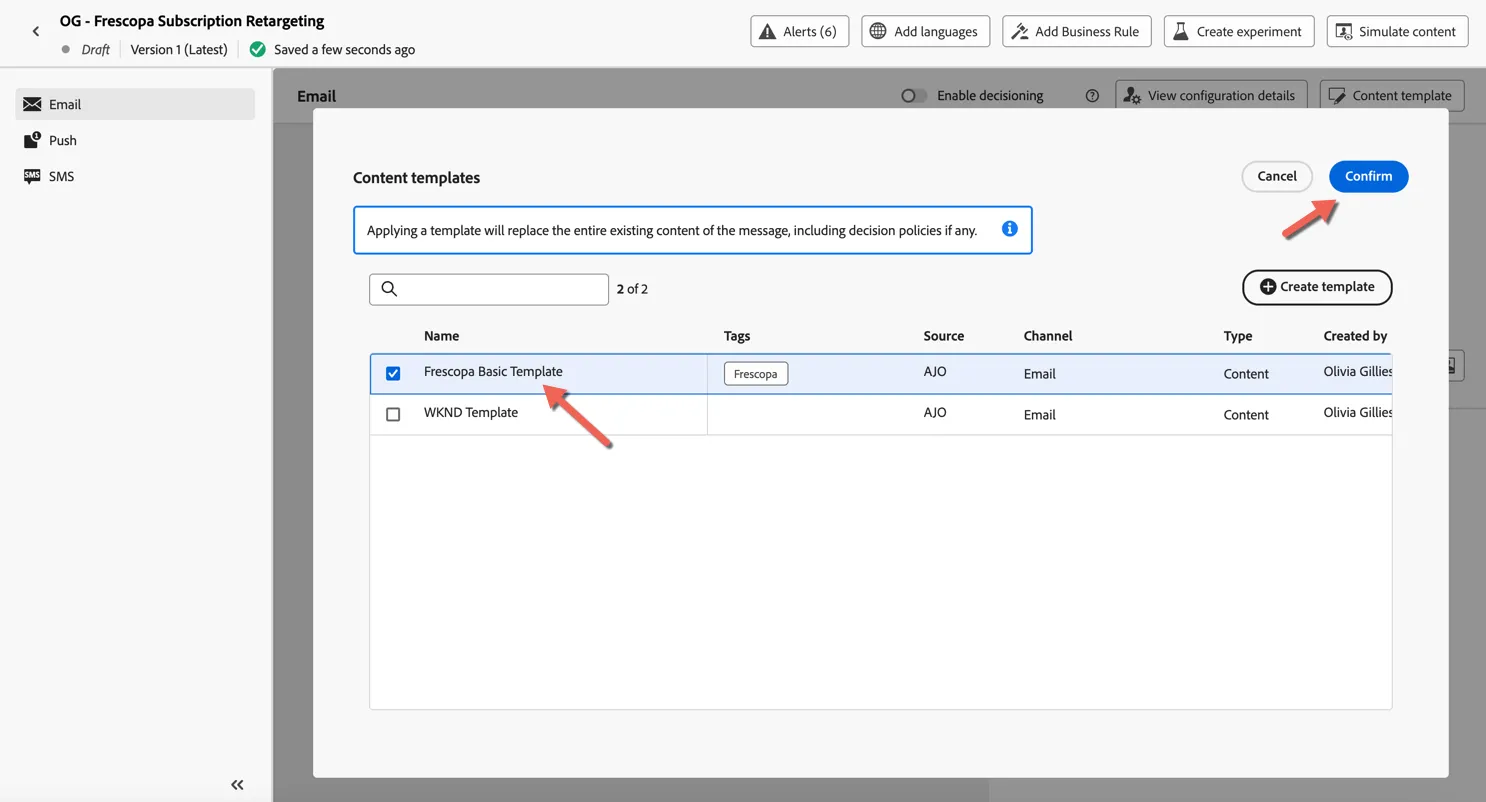
Select the Frescopa Basic Template and click Confirm.
Now that the template is loaded click to Edit the email body.
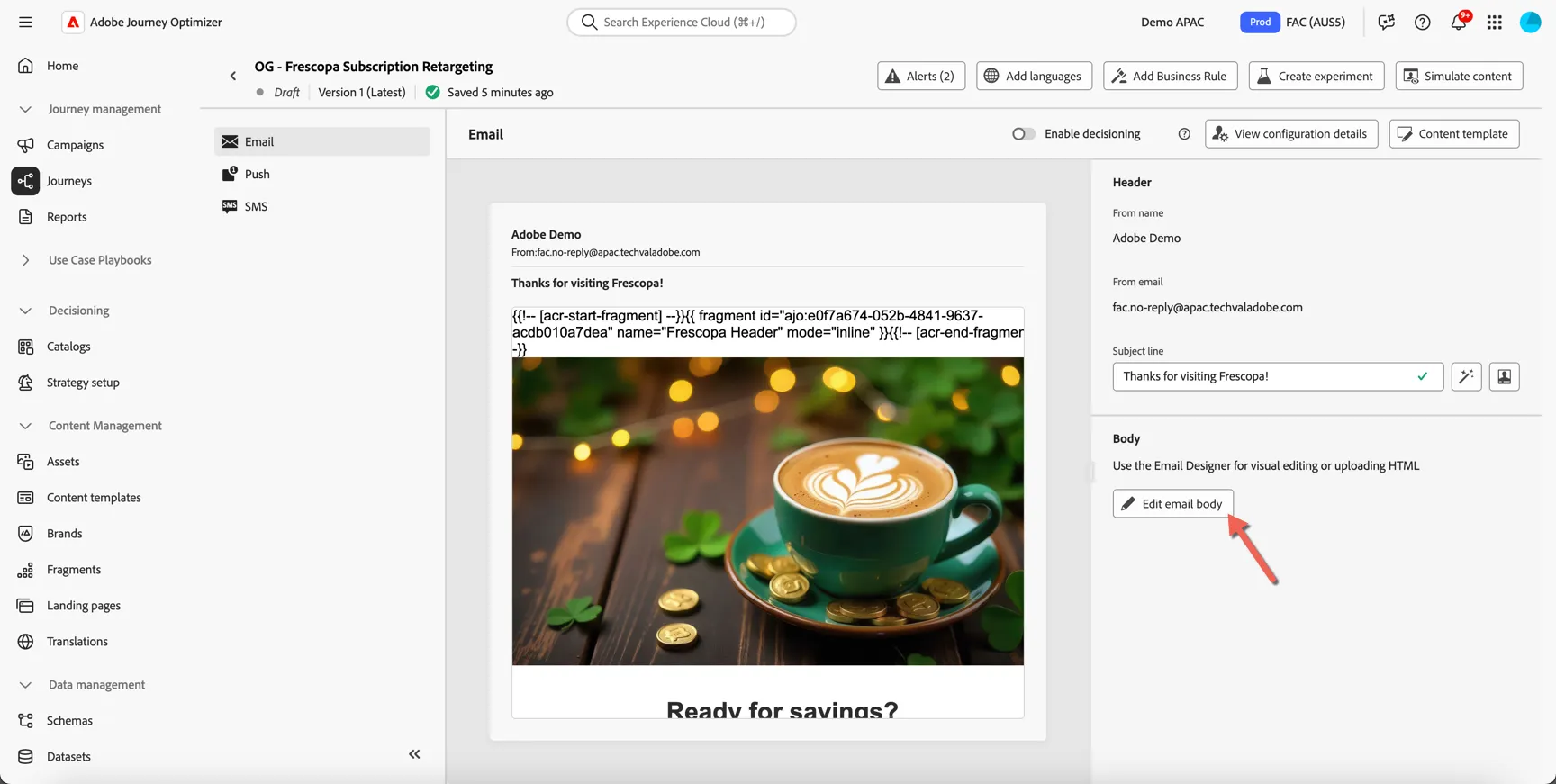
First we'll replace the template banner image with one from the asset repository. Select the banner and click to Select an asset.
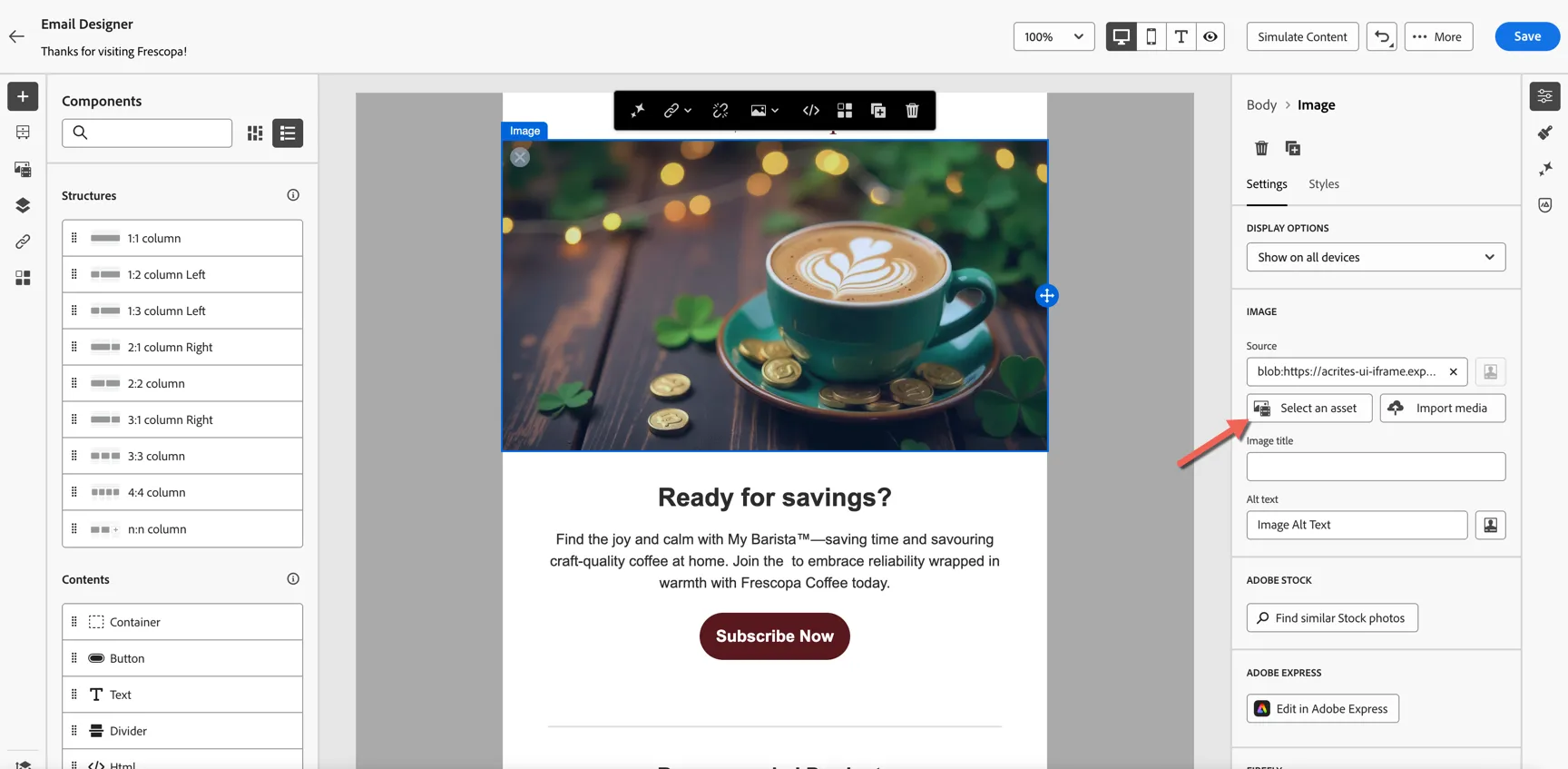
Make sure you're in the right repository, then search for coffee - this is leveraging the smart asset tags to find relevant images. An essential time saver when working with a large repository.
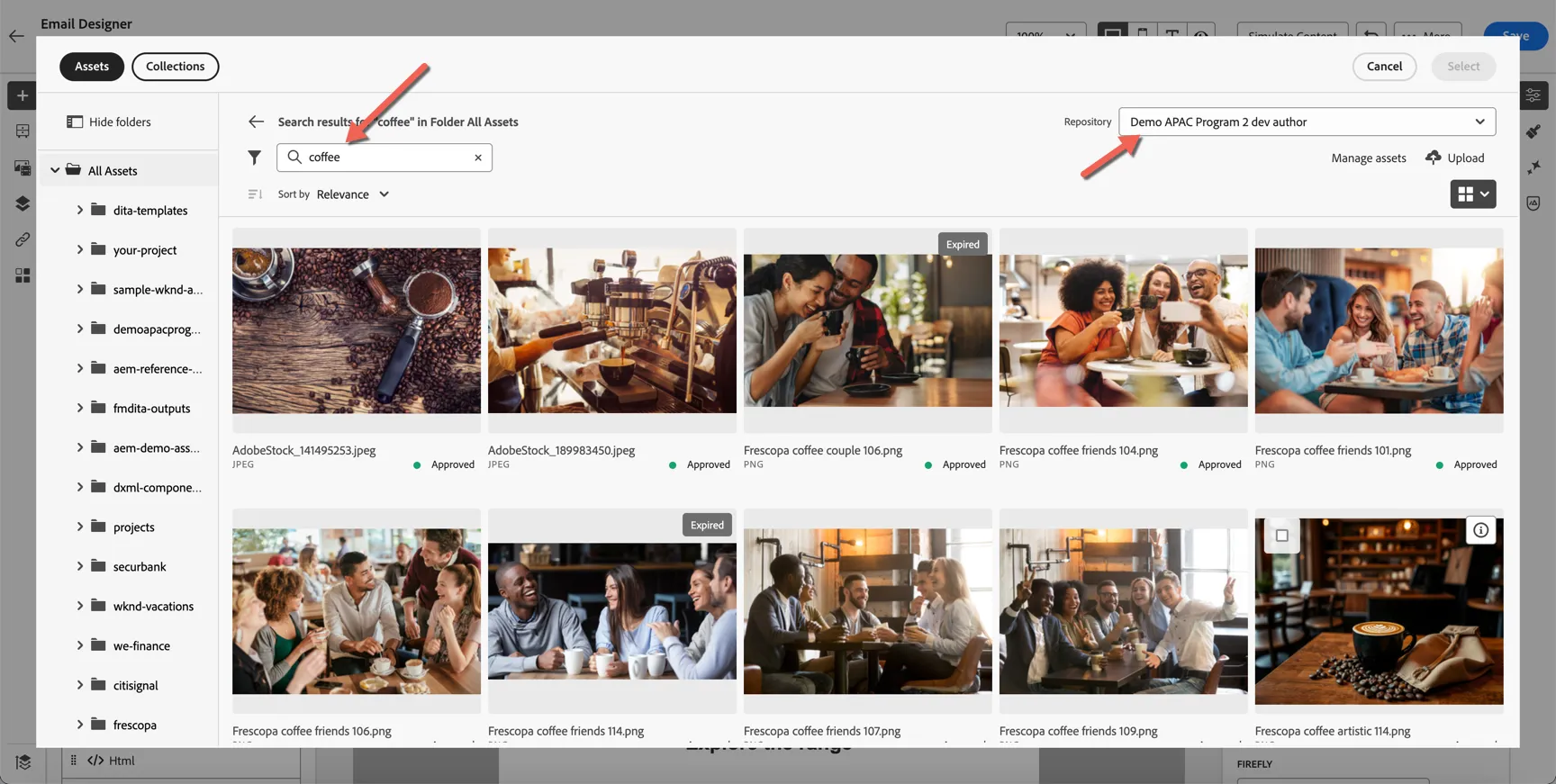
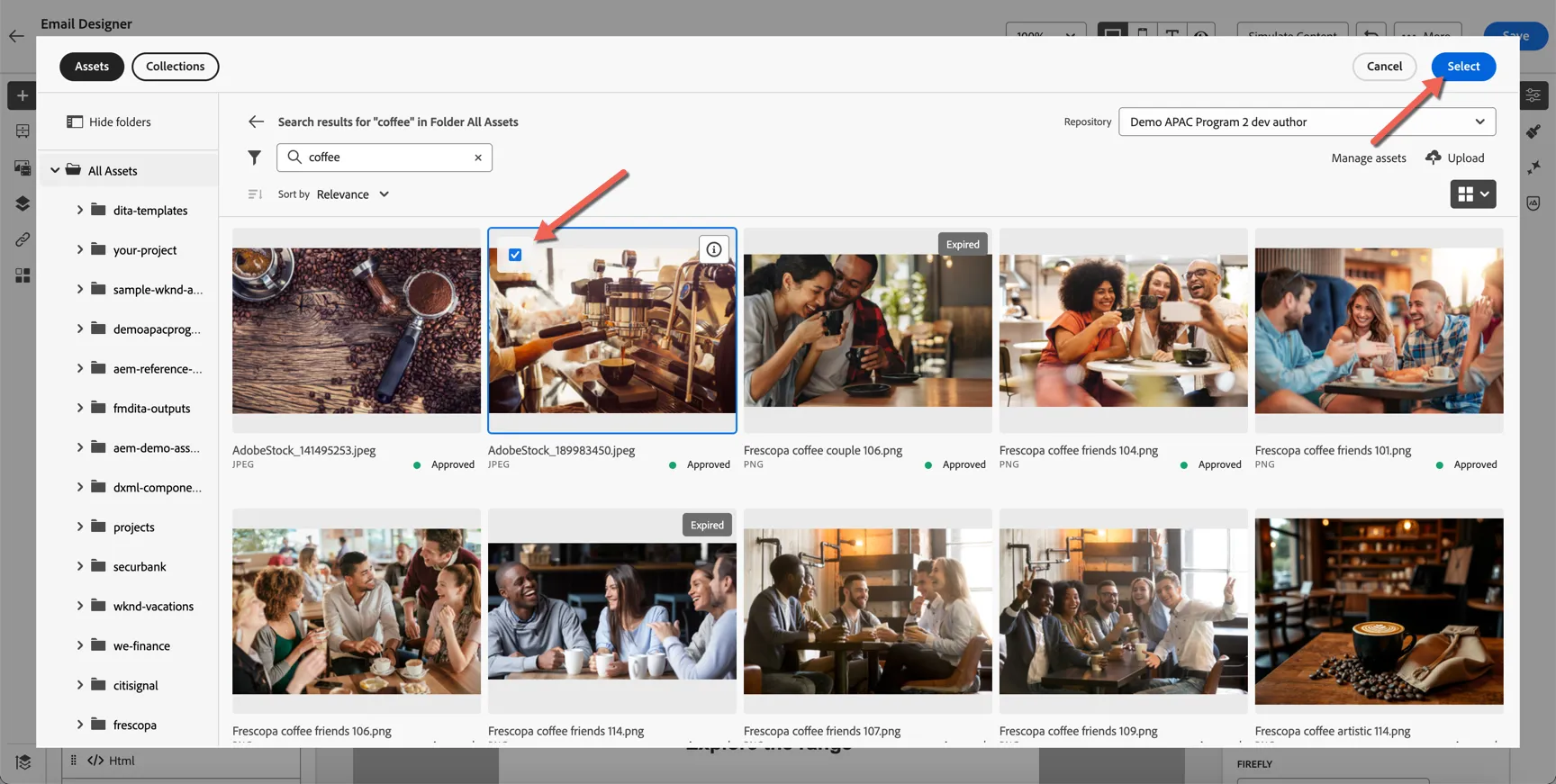
Choose an image and click select to add it to the email.
Images are the only type of content we can source from Adobe Experience Manager. With Content Fragment integration you can ensure that consistent messaging is delivered between your website and emails.
Select the main heading and click on the component toolbar to Add Personalisation.
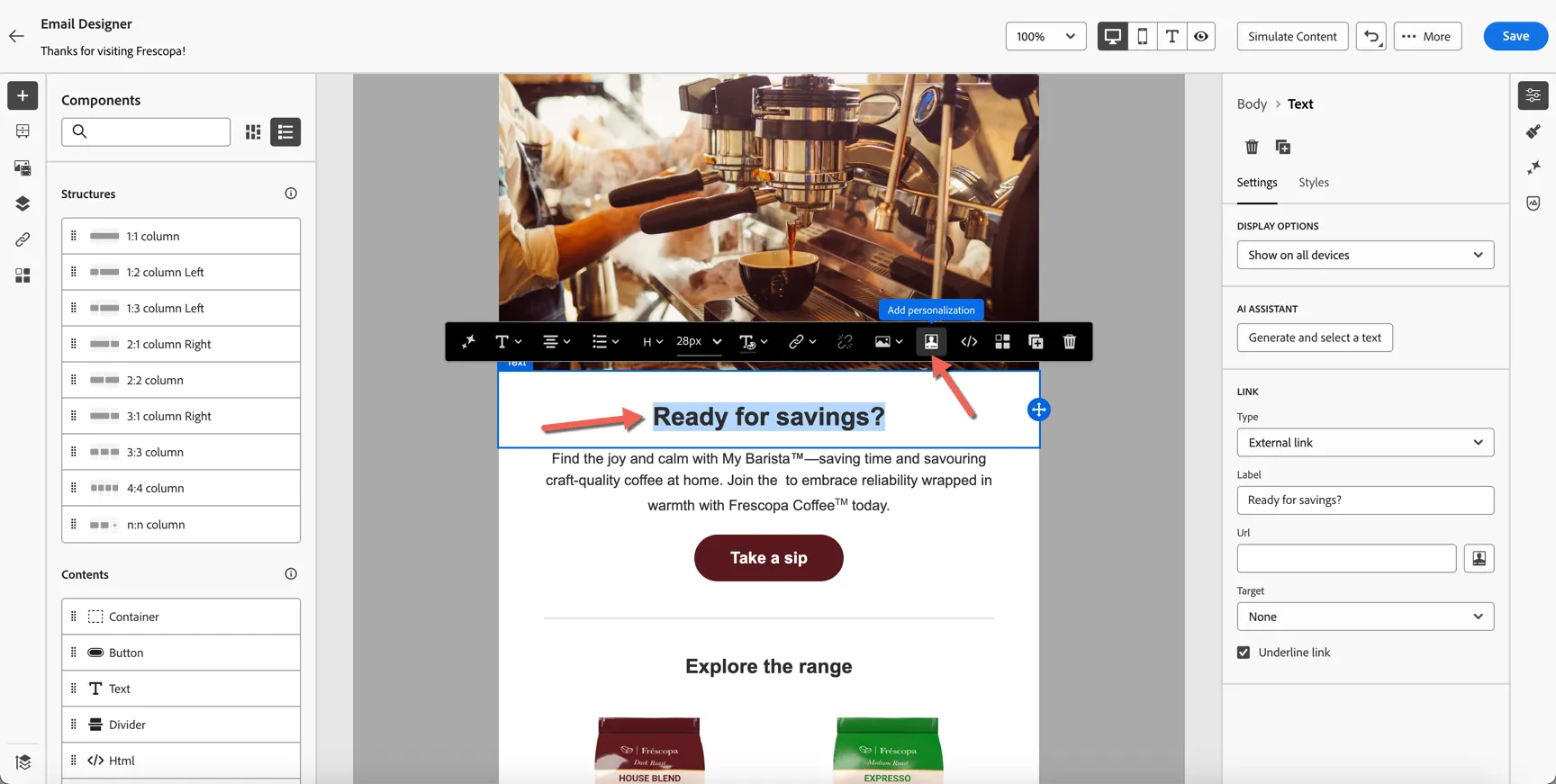
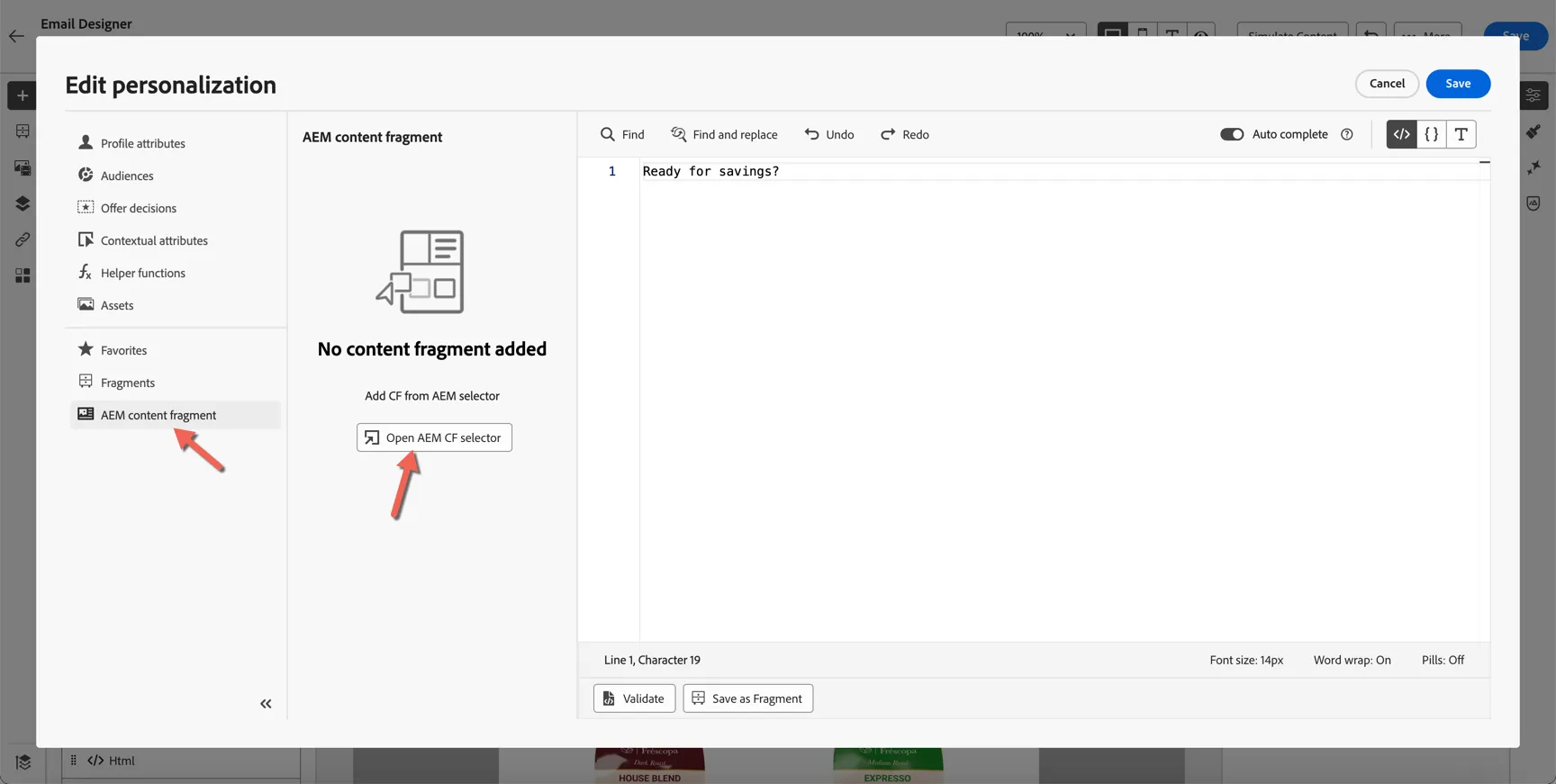
The personalisation editor allows you to insert personalisation fields from multiple sources, you could insert the customer first name via the profile attributes option or details from the event that triggered the journey using the Contextual attributes option. For this exercise though we're going to bring content in from Adobe Experience Manager. Click on the AEM content fragment option on the left. Then click to Open AEM CF selector.
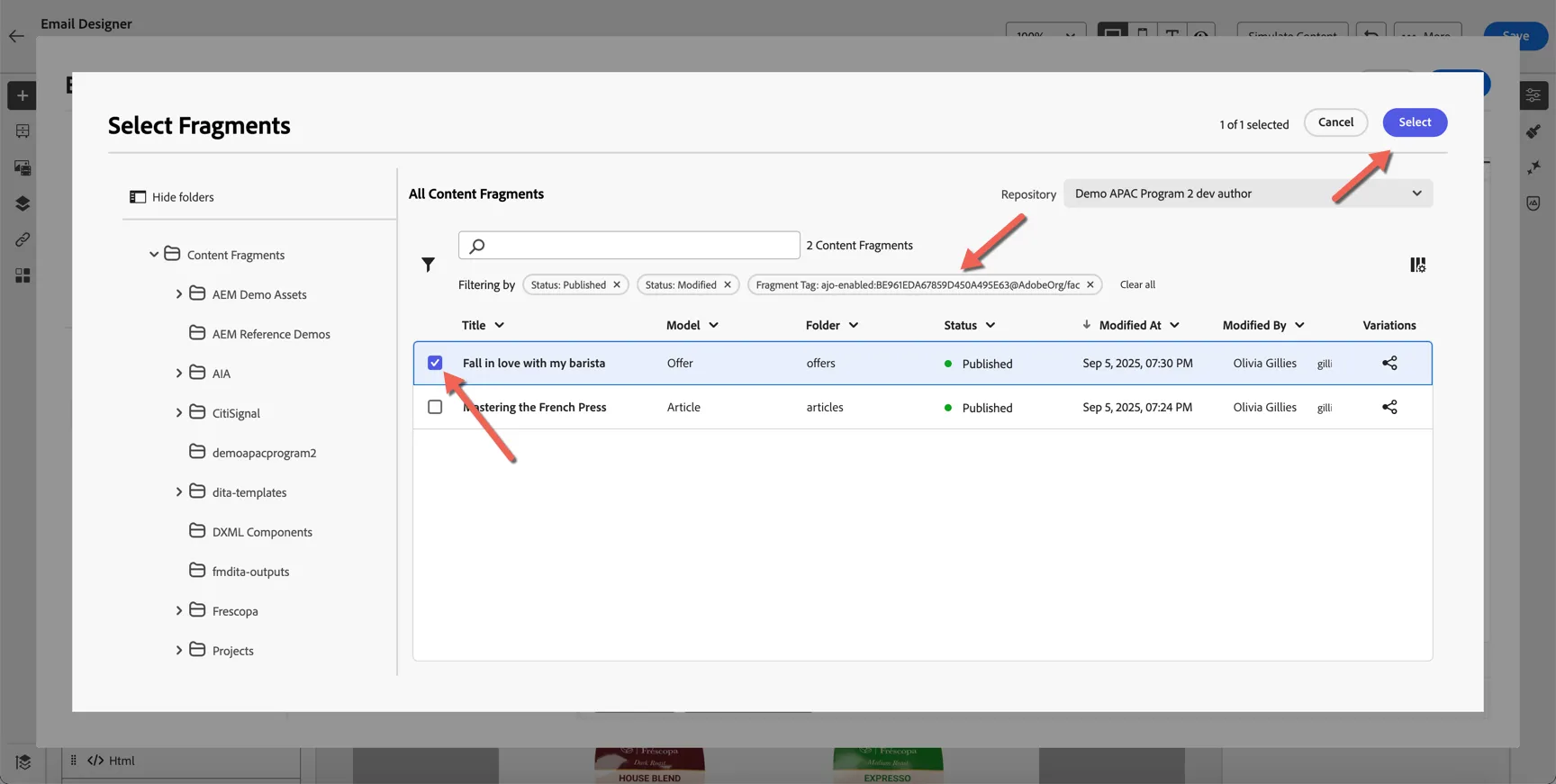
AEM Content Fragments are enabled for use in AJO via sandbox specific tags that are applied from within AEM. Check the Fall in love with my barista fragment and hit the Select button to add it to your email content.
You can see the fragment reference has been added to the personlisation editor. Delete the old heading text Ready for Savings, then click the arrow to access the fragment components.
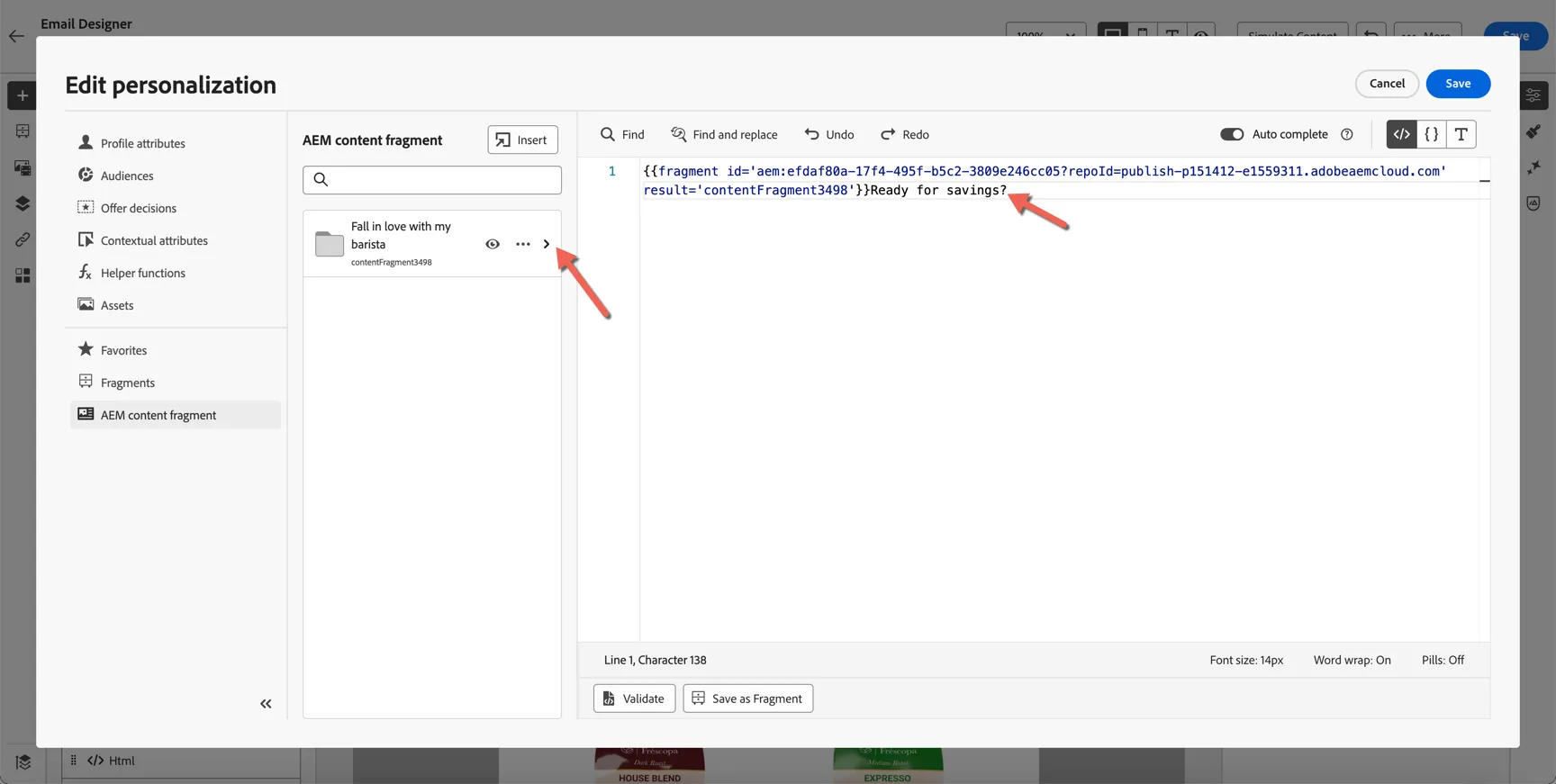
Click the plus icon to add the fragment headline field, then click Save.
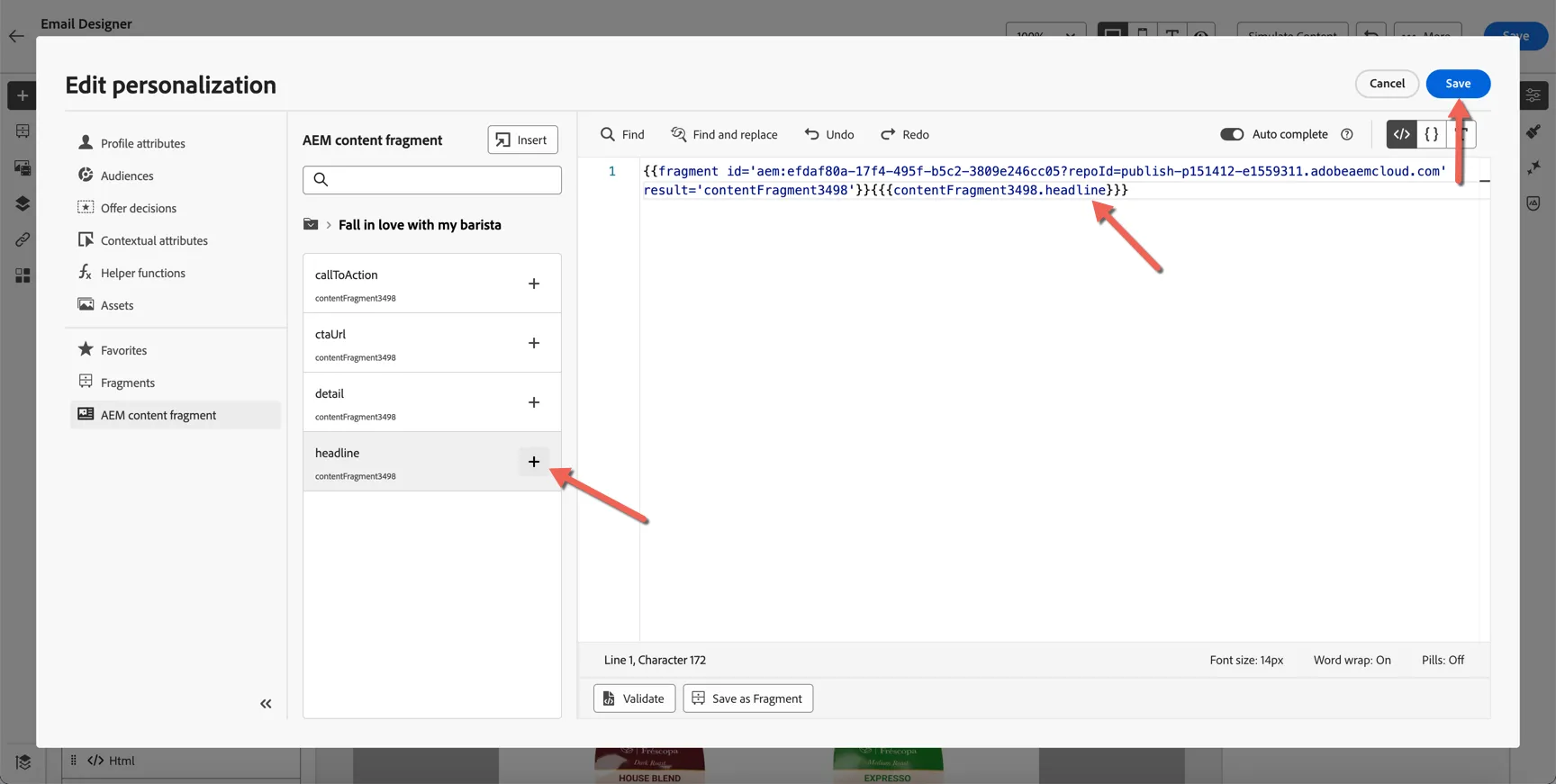
Note that this is a reference to the content fragment only, the content is not copied until the message is ready for sending. When using this approach AEM is the source of truth for content and should the fragment be updated (and published) on AEM side, the email content will automatically update as well.
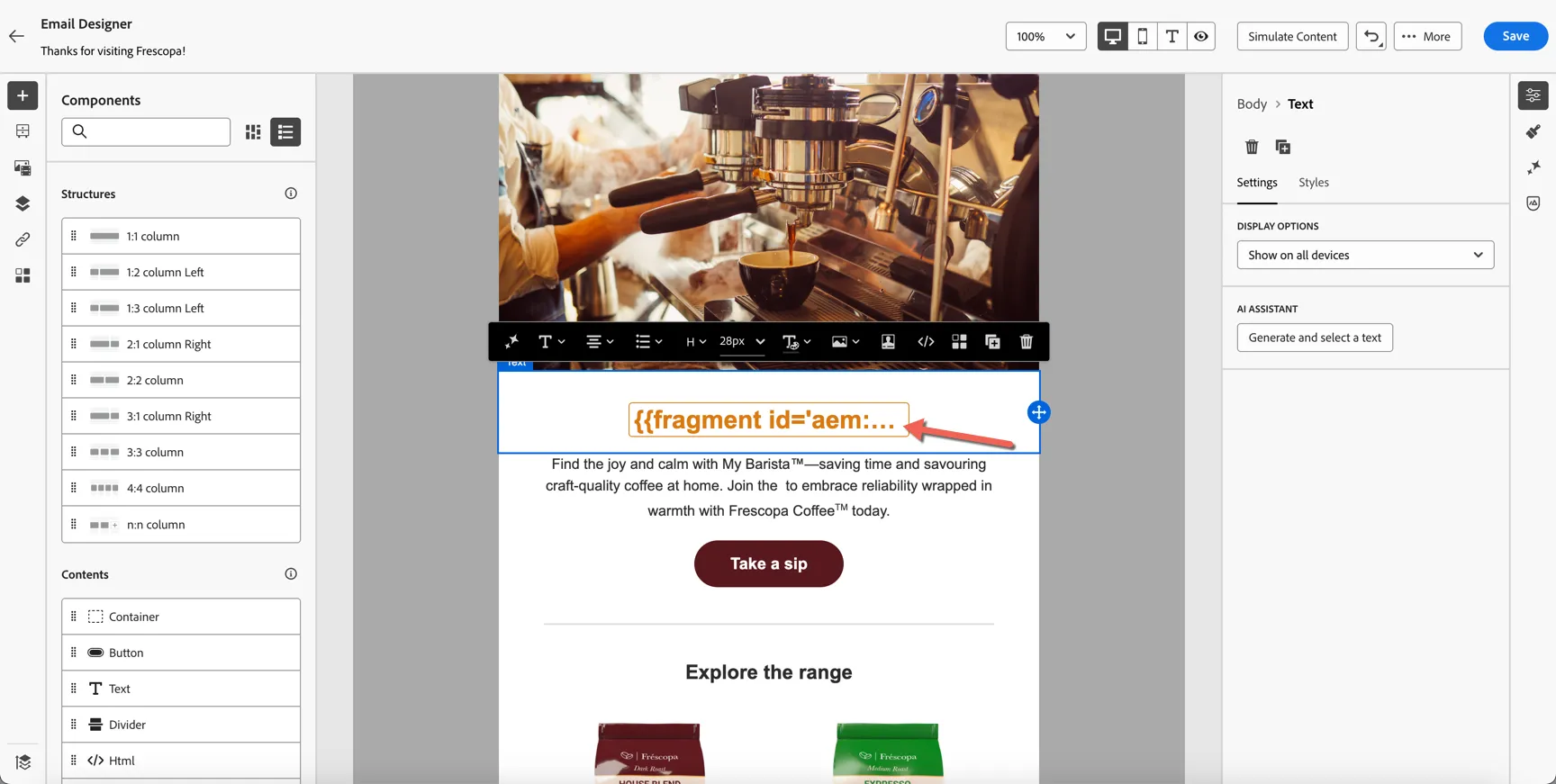
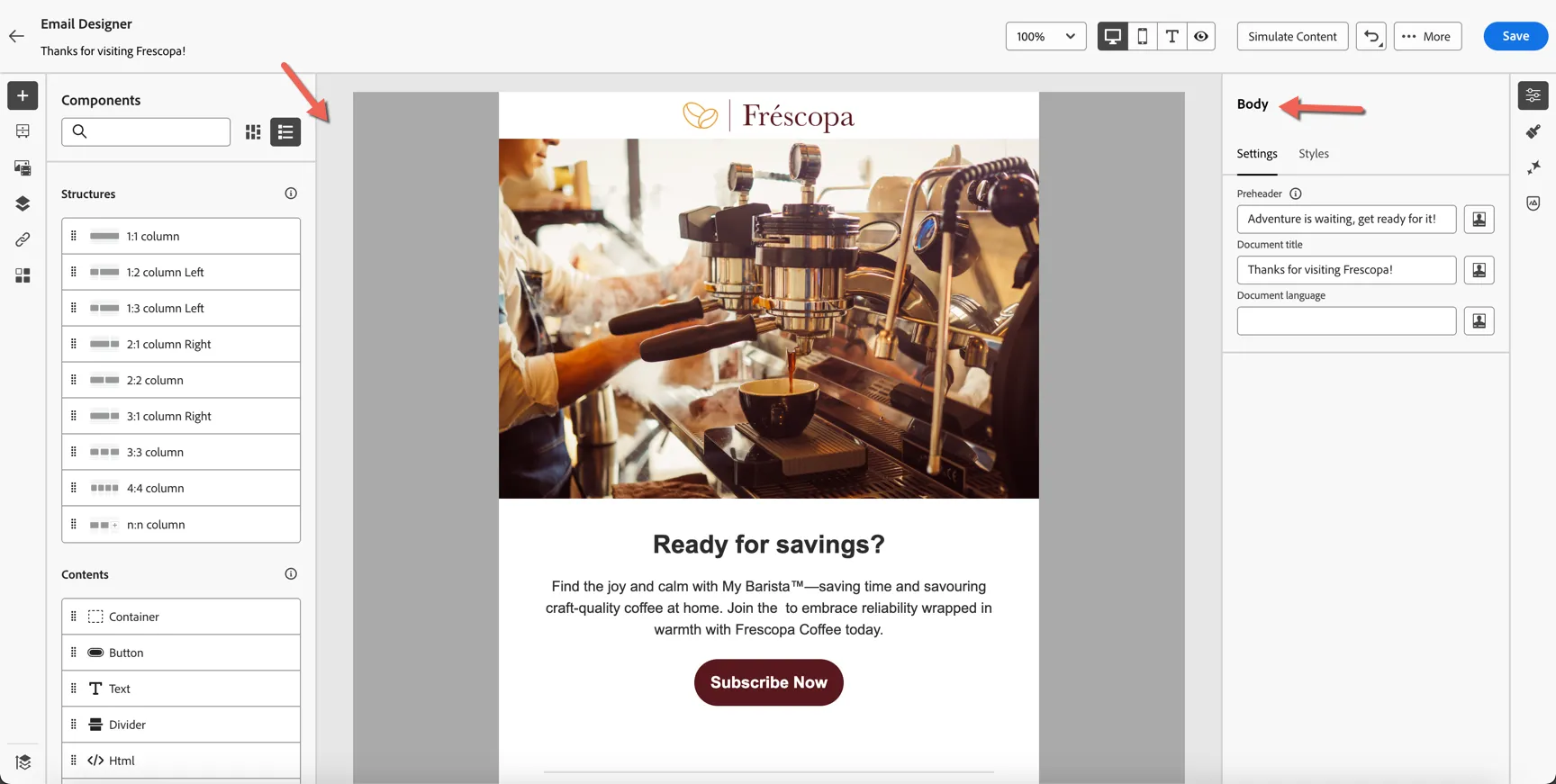
Next we'll check the Brand Alignment score. Click on the gray background around the email to select the full message body.
Click to open the Brand Alignment panel on the right, then click to Evaluate Score.
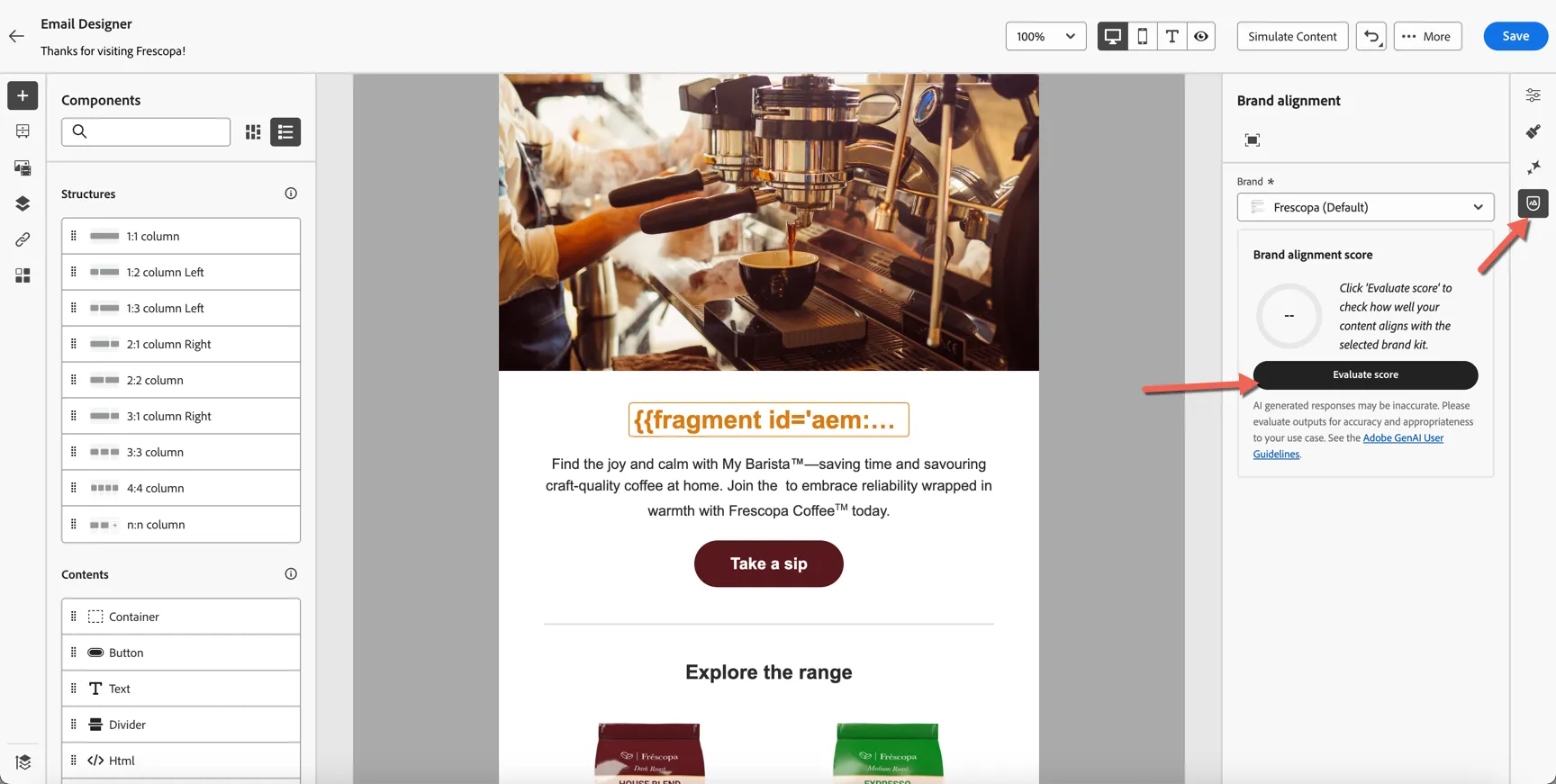
Not too shabby at 81%! Yours might be a bit different.
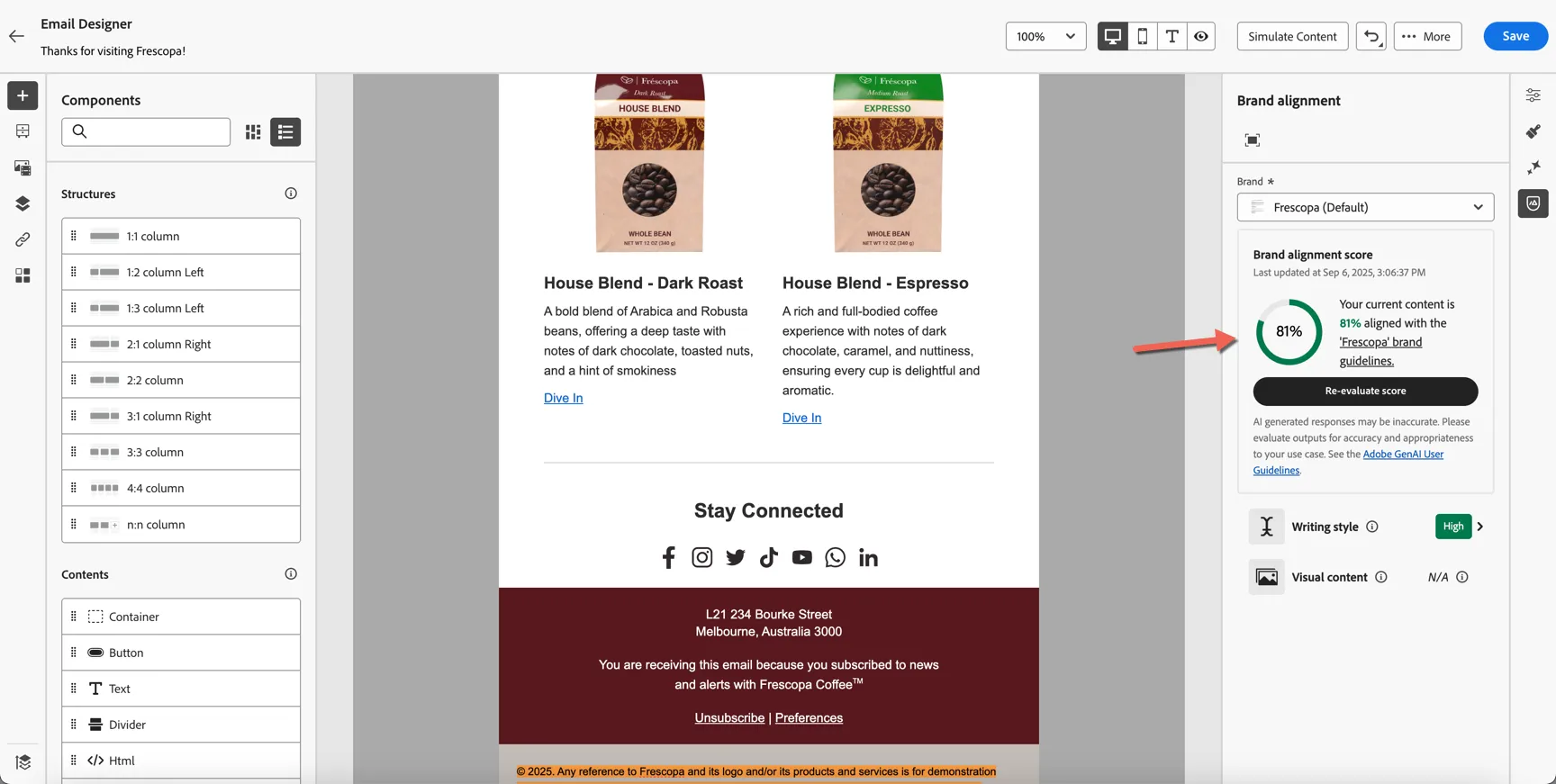
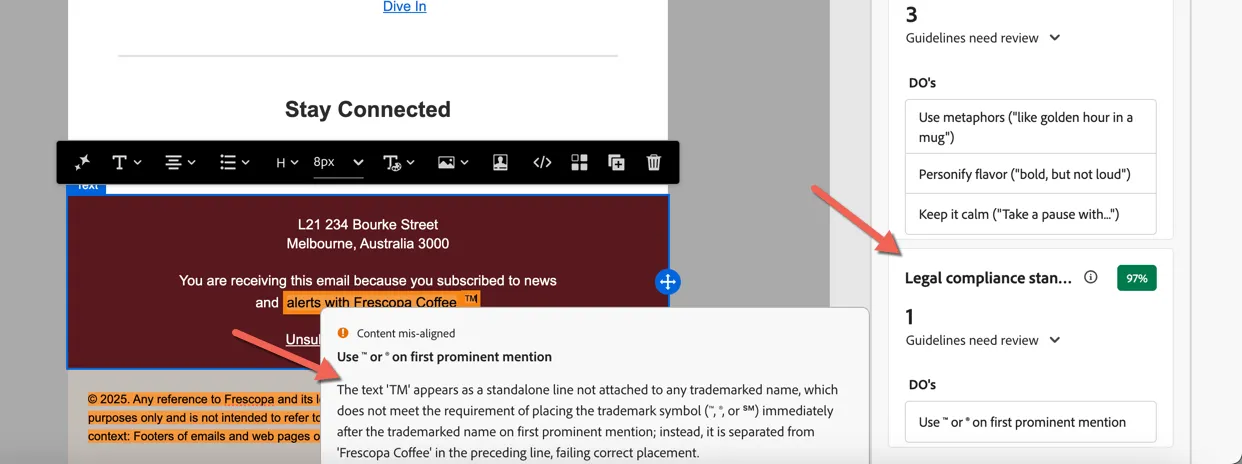
Click into the Writing Style to review individual guideline feedback, you can make adjustments and re-evaluate as needed.
Generate Variations
Now we'll use AI Assistant to help us generate variations of this content to use for experimentation. AI Assistant can be used to generate individual images or text components but in this case we're going to generate new variations for a mixed content block.
Select the two column block from the center of the email then click to open the AI Assistant on the right side.
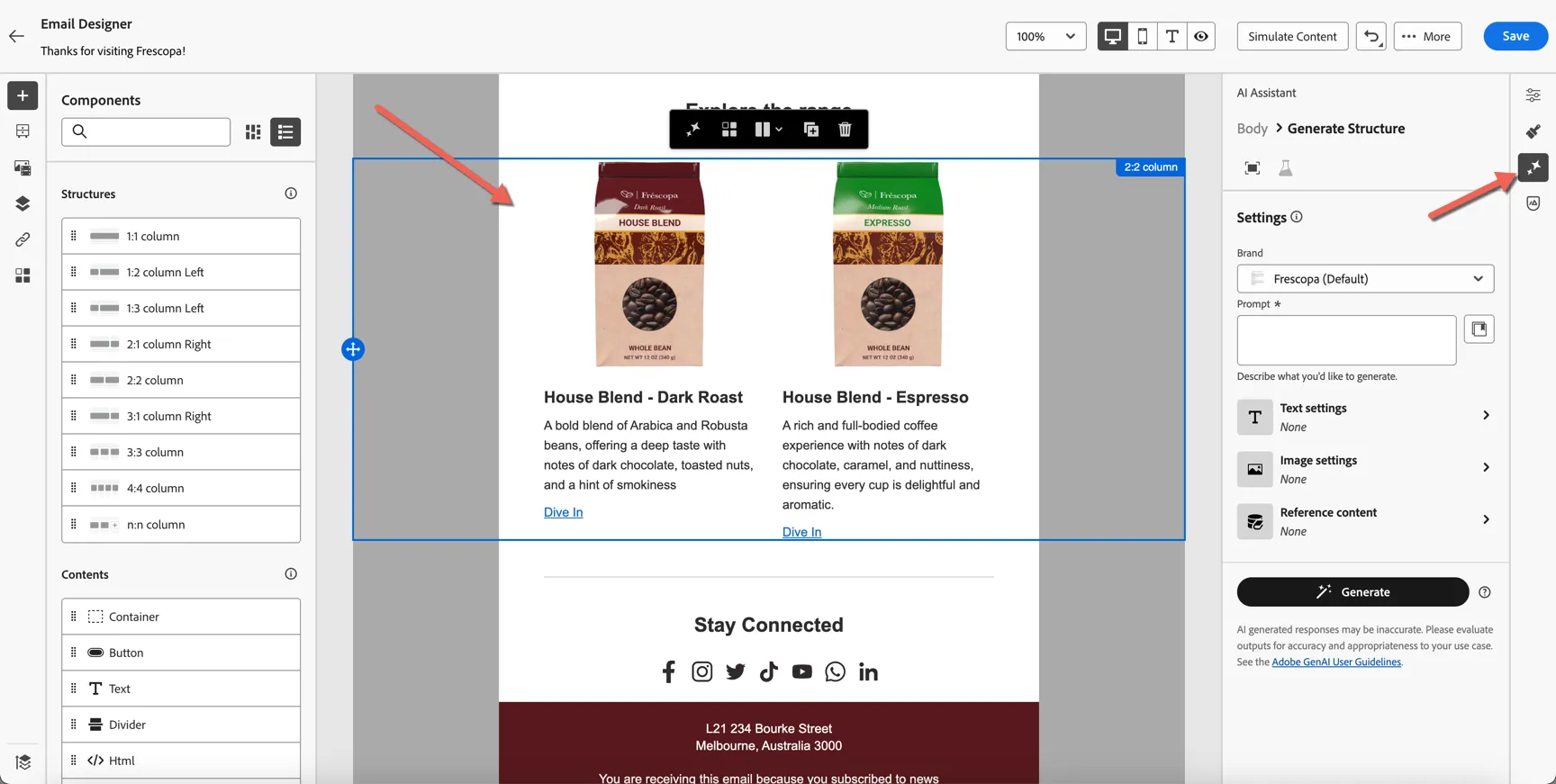
Add a text prompt for the message you want to convey - in this case, encouraging a My Barista subscription, for example:
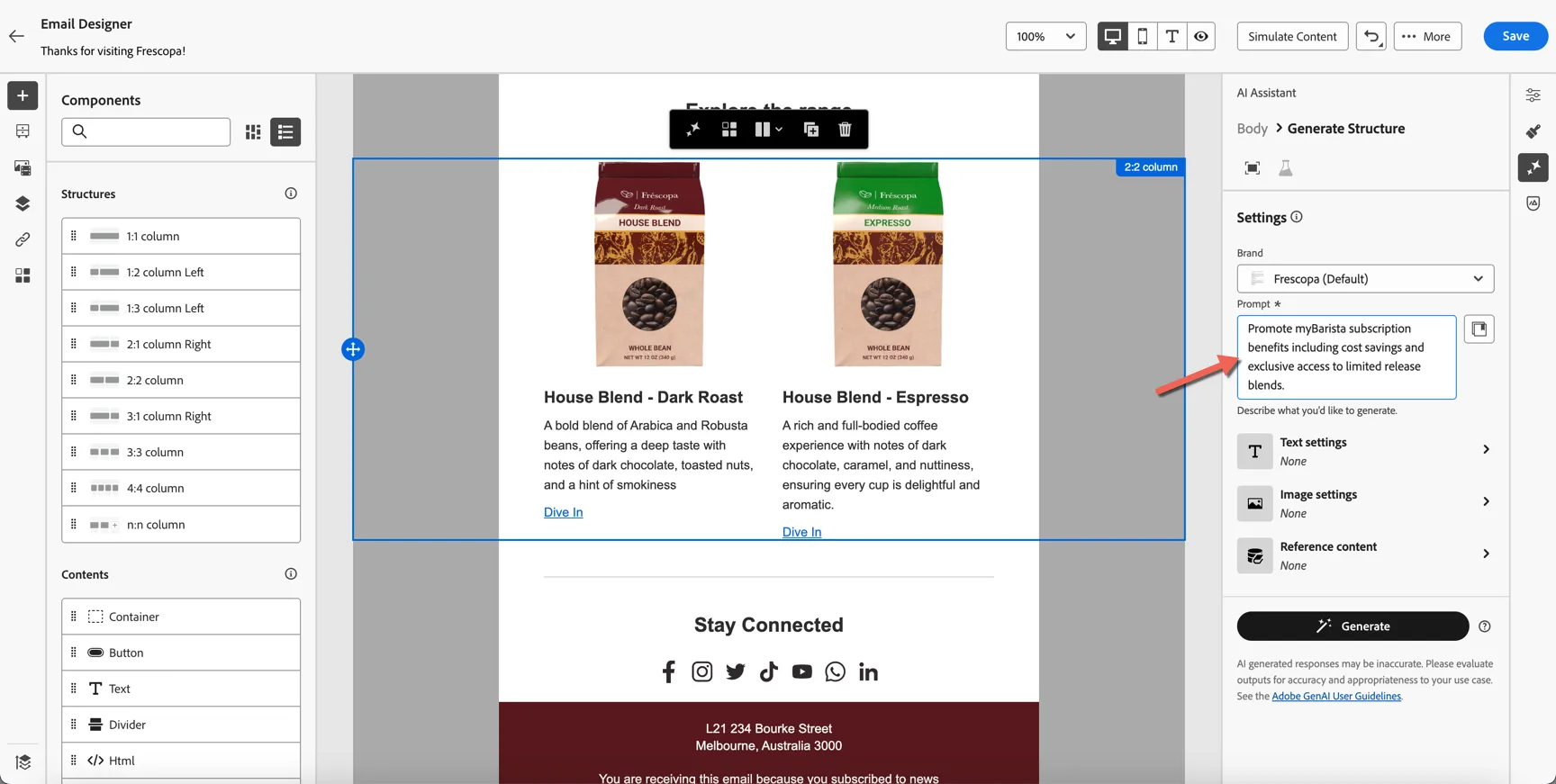
Add text and image settings to influence the tone and colouring.
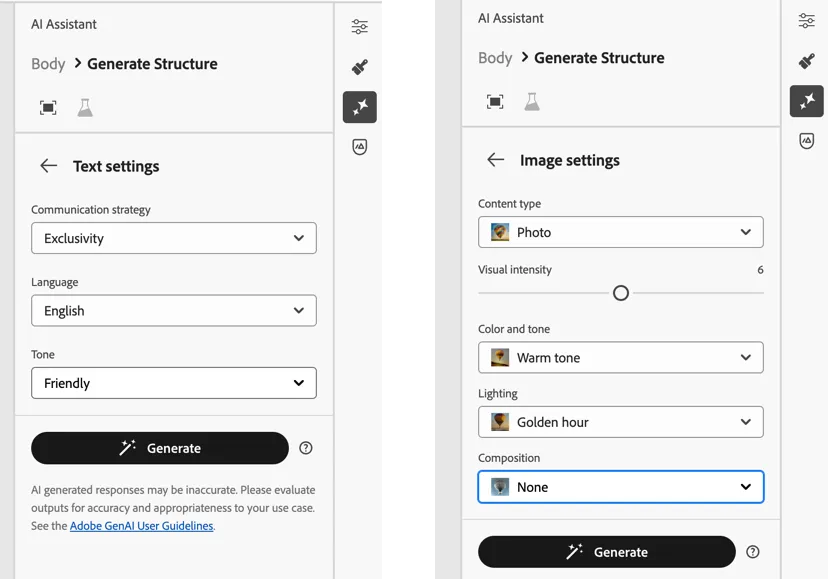
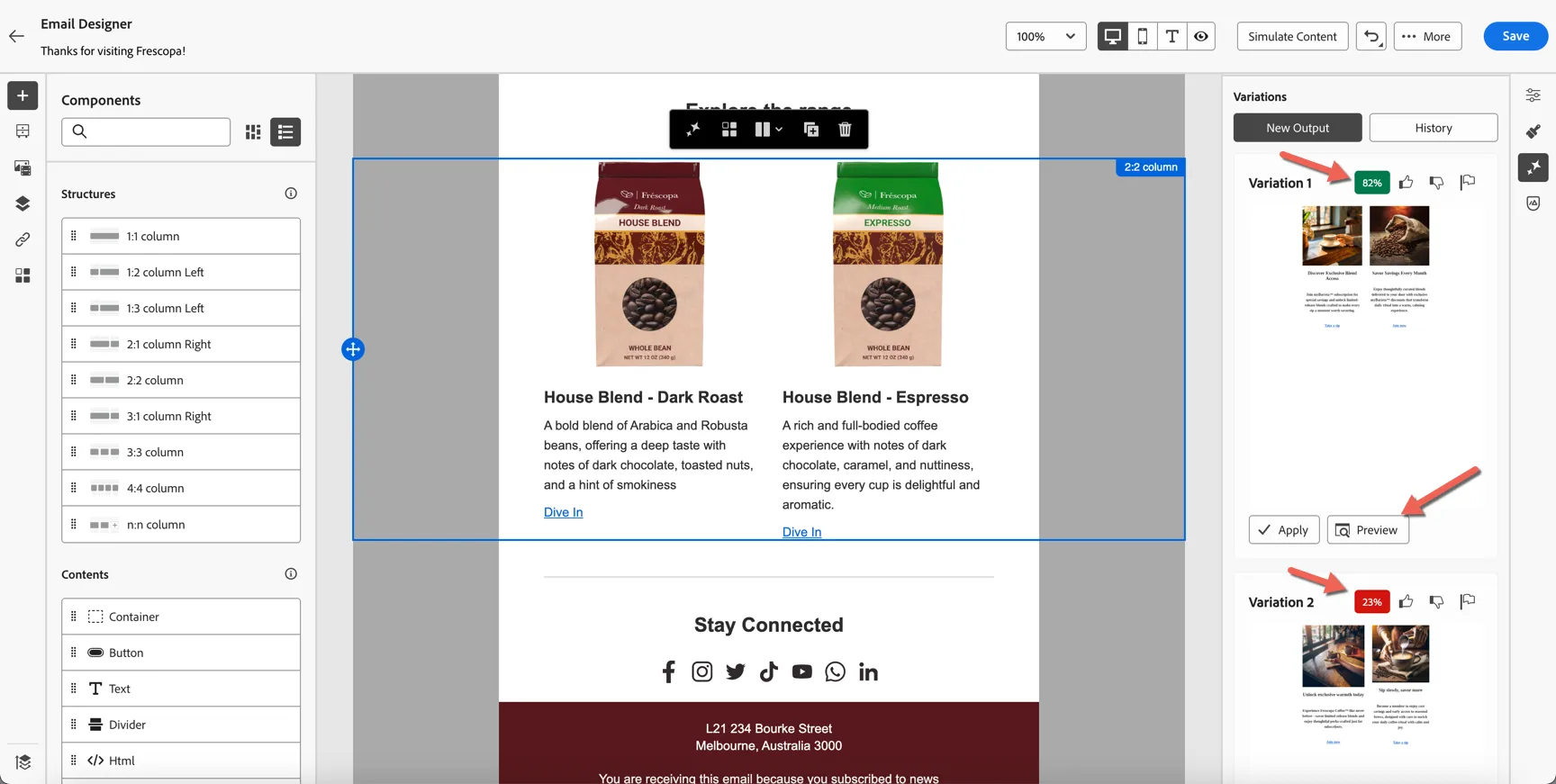
Click on Generate. After a short while, two new variations are generated. Each variation has been automatically scored against the brand guidelines.
What you see generated and the scores applied will be different from the screenshots below. You can follow the process as it applies to your generated content.
Click on the Preview button to take a closer look.
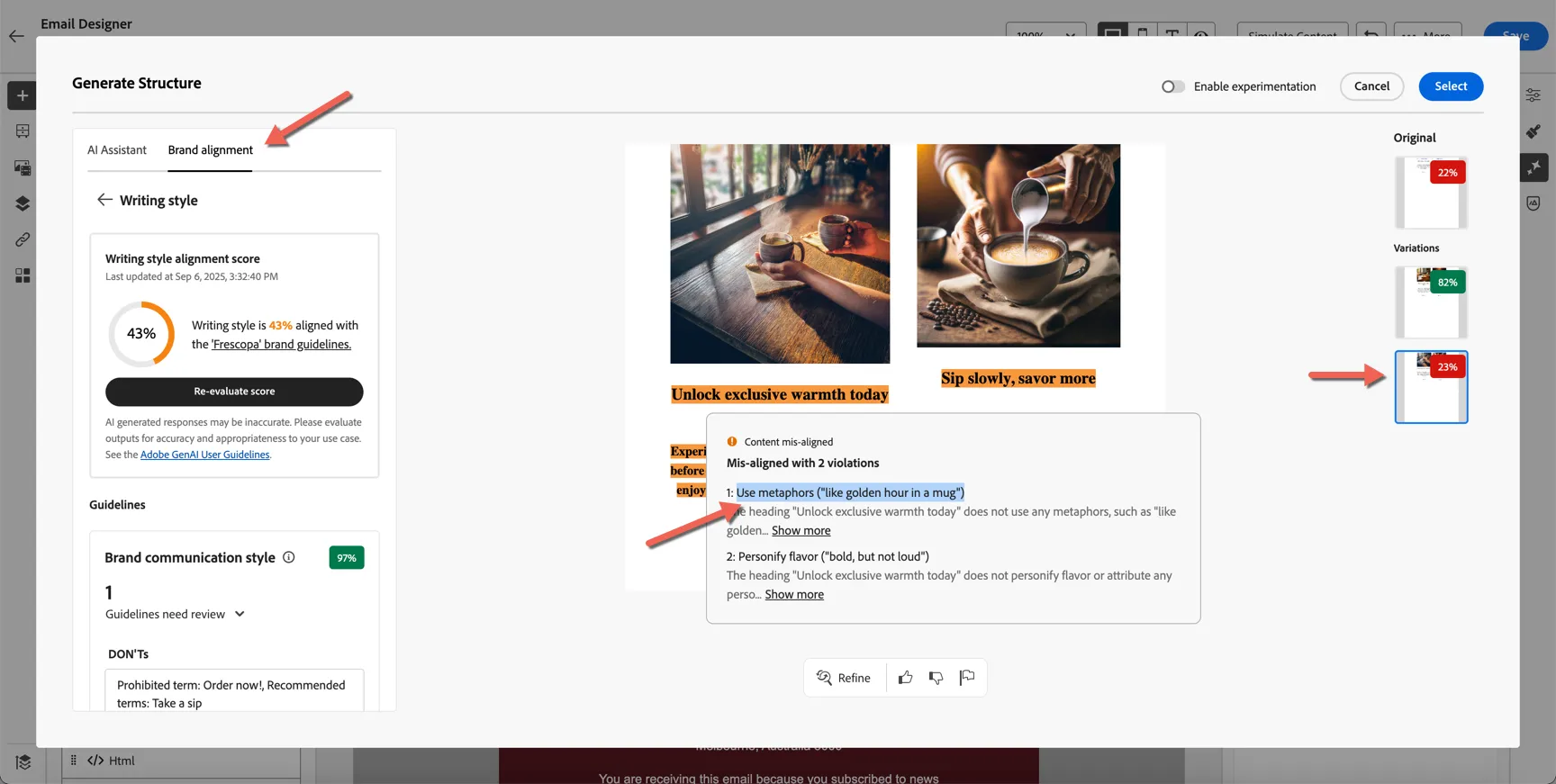
You can switch between each variation on the right, and use the brand guidelines tab on the left to review the reasons for the low scores, in this case it's suggesting the headline doesn't align with the guideline to Use metaphors ("like golden hour in a mug").
Let's add this guideline to our prompt and ask it to Generate again.
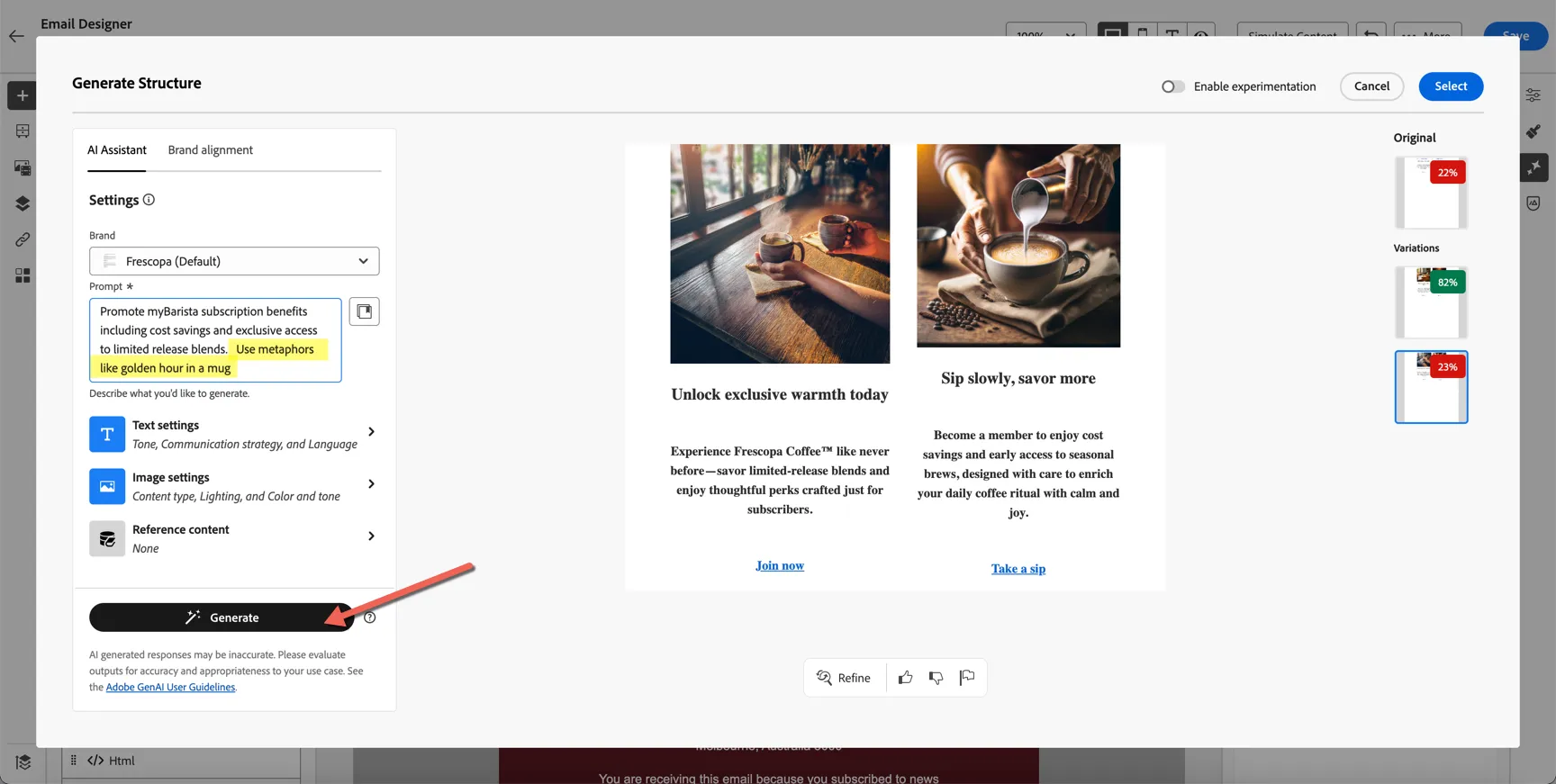
New versions are generated this time with a higher alignment score. This iterative process can be continued to quickly ensure that all generated content is safe for commercial use.
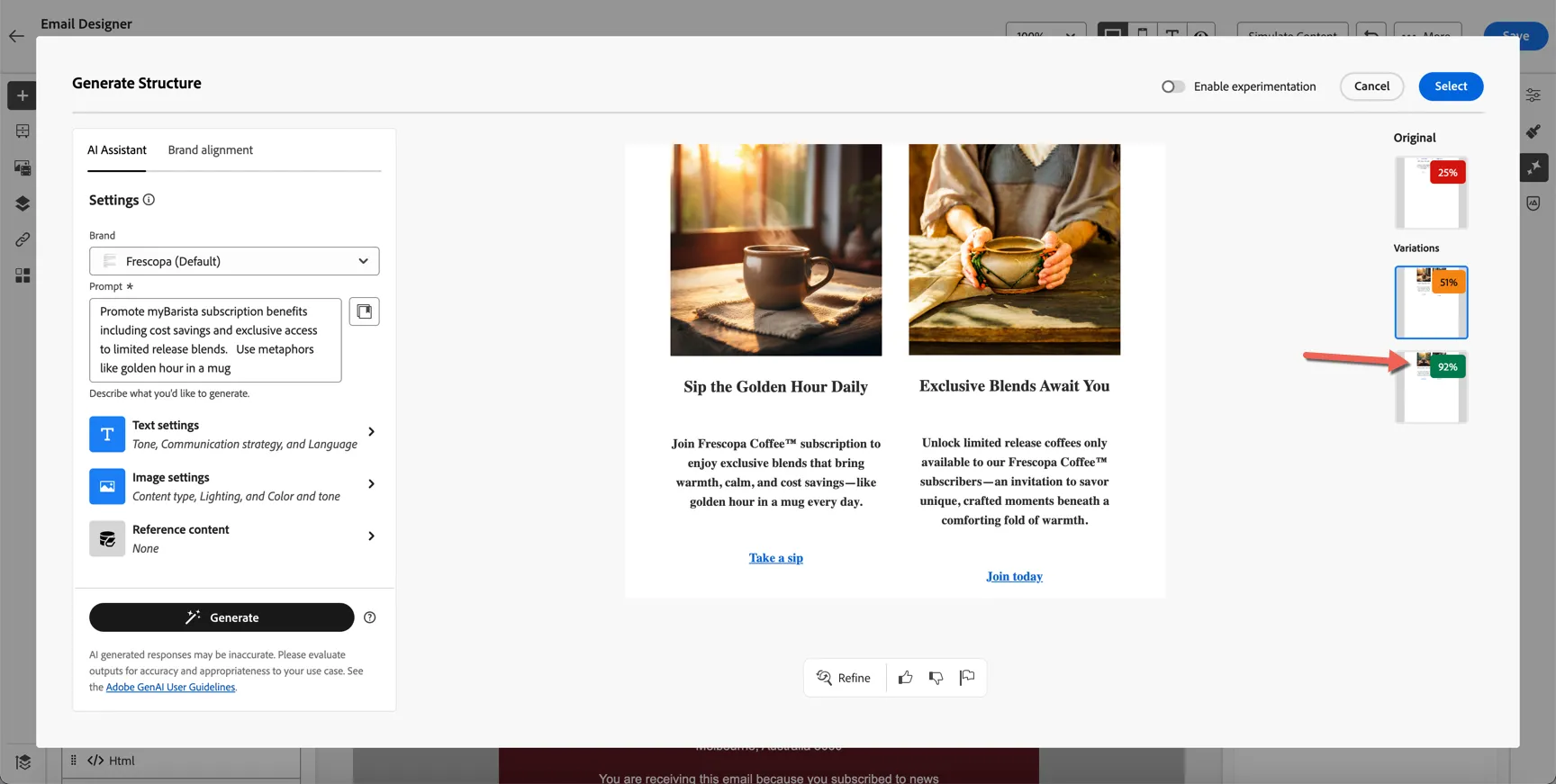
You can also ask it to refine specific pieces of the content and provide positive and negative feedback through the panel at the bottom.
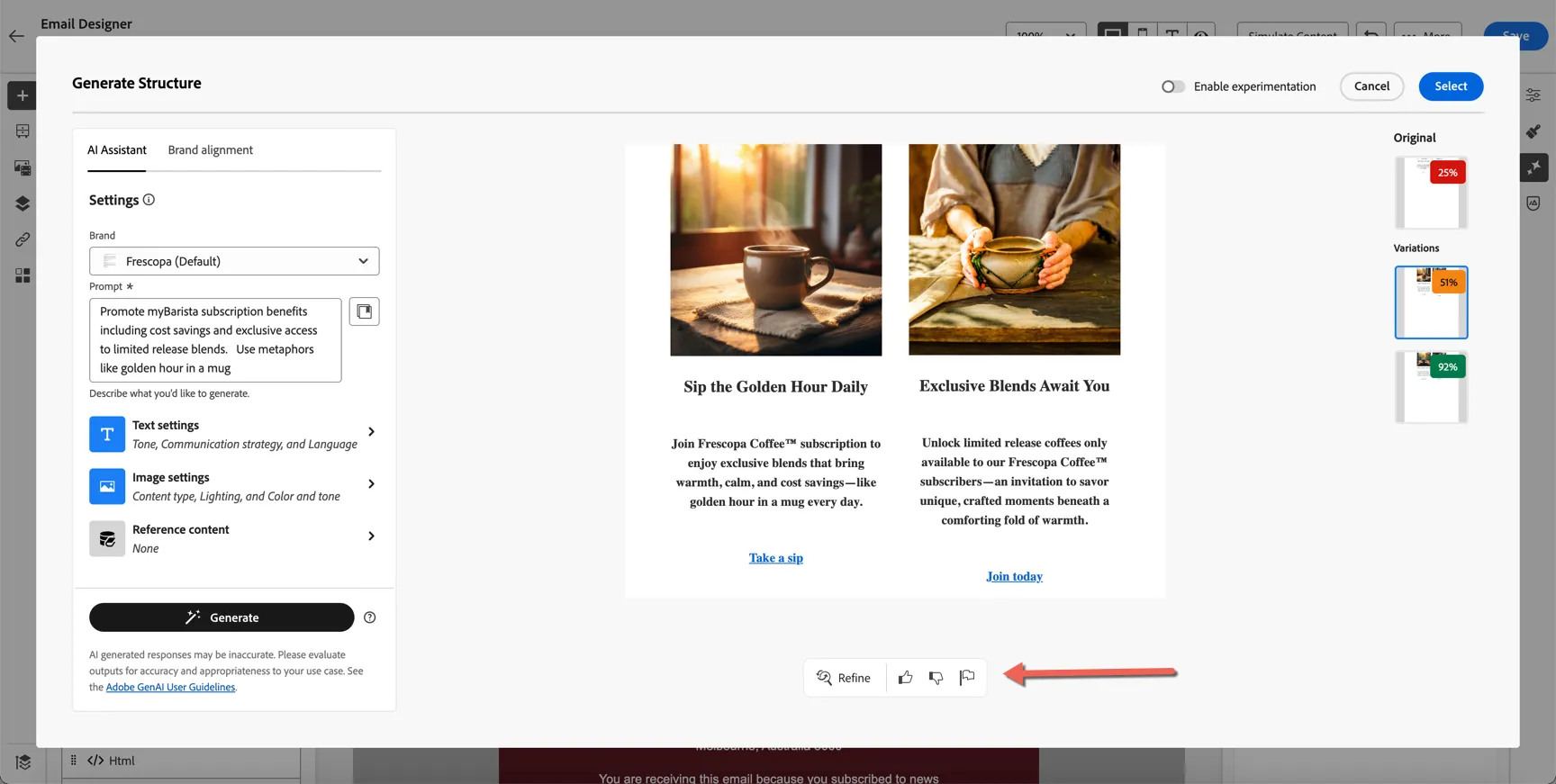
From here you can choose to use one of the generated variations, or we can choose to use ALL of the variations and configure an experiment to test which content performs the best.
Add Experimentation
Now that we have multiple content variations, let's enable experimentation to test them out. Click to Enable experimentation.
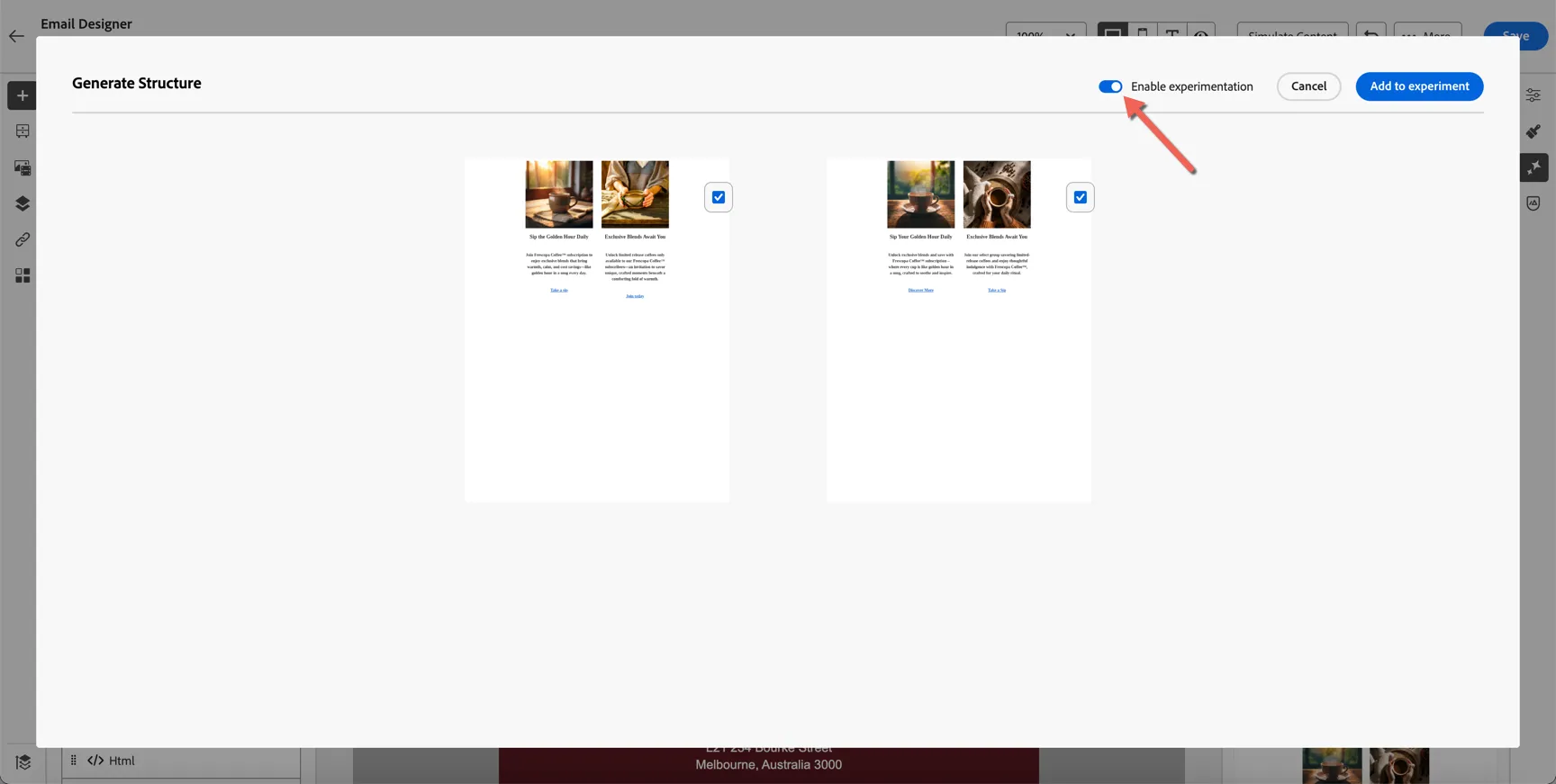
You can choose to use one or both of the new variants, then click Add to experiment.
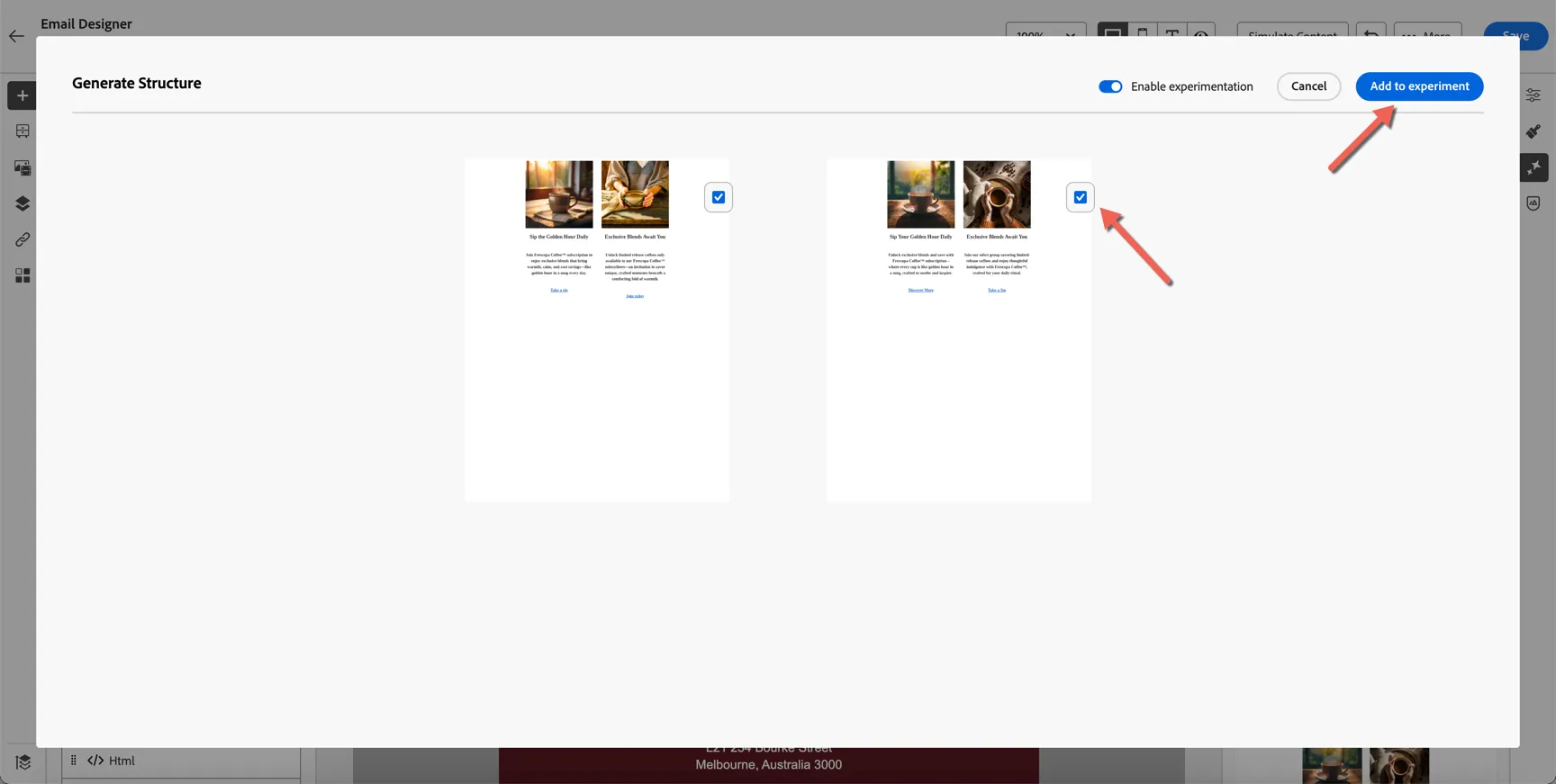
Because the generated content includes imagery we need to tell AJO where in the asset repository to put the new images. Click Next to choose the folder.
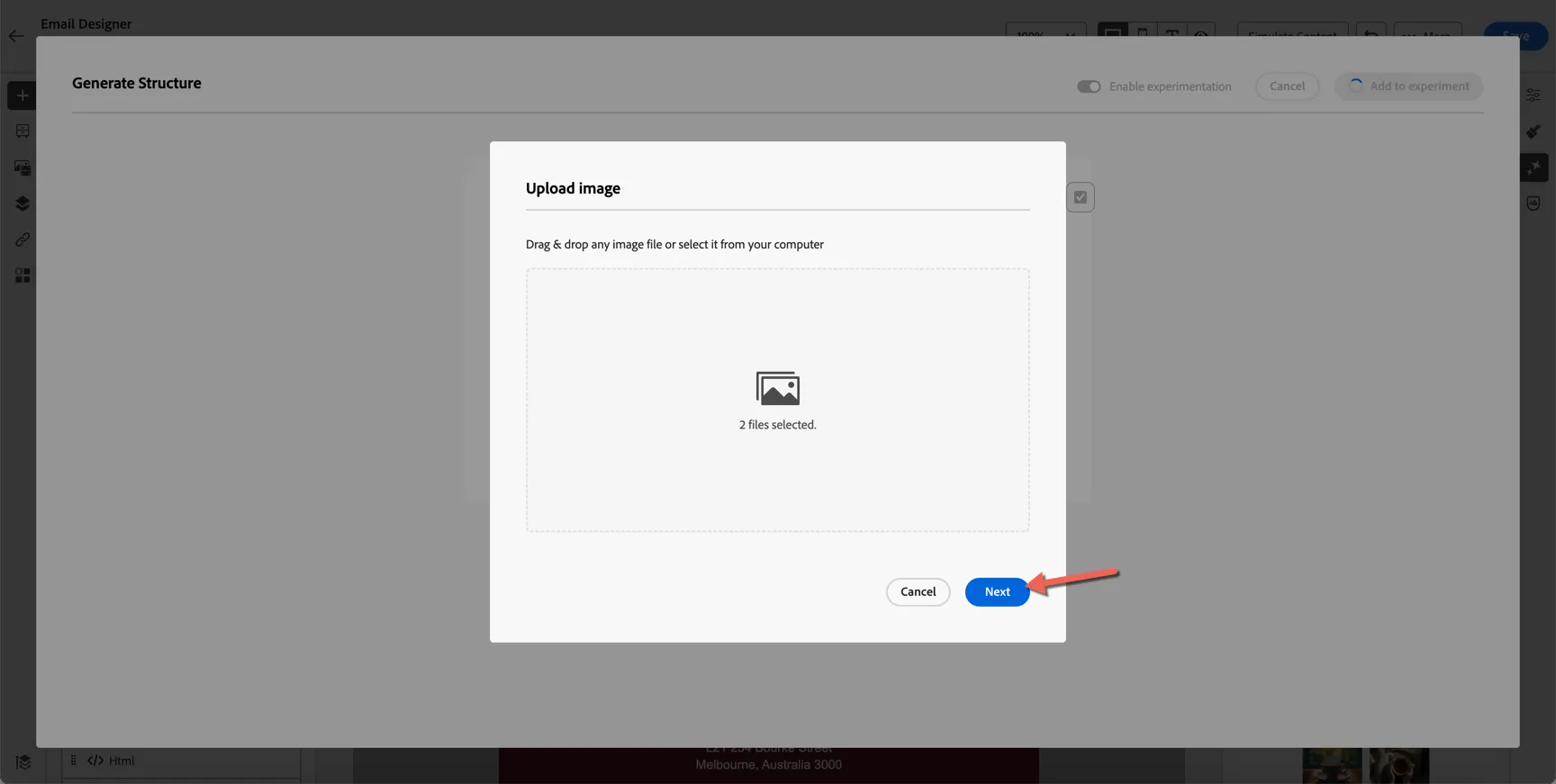
Select the Frescopa folder and click to Import.
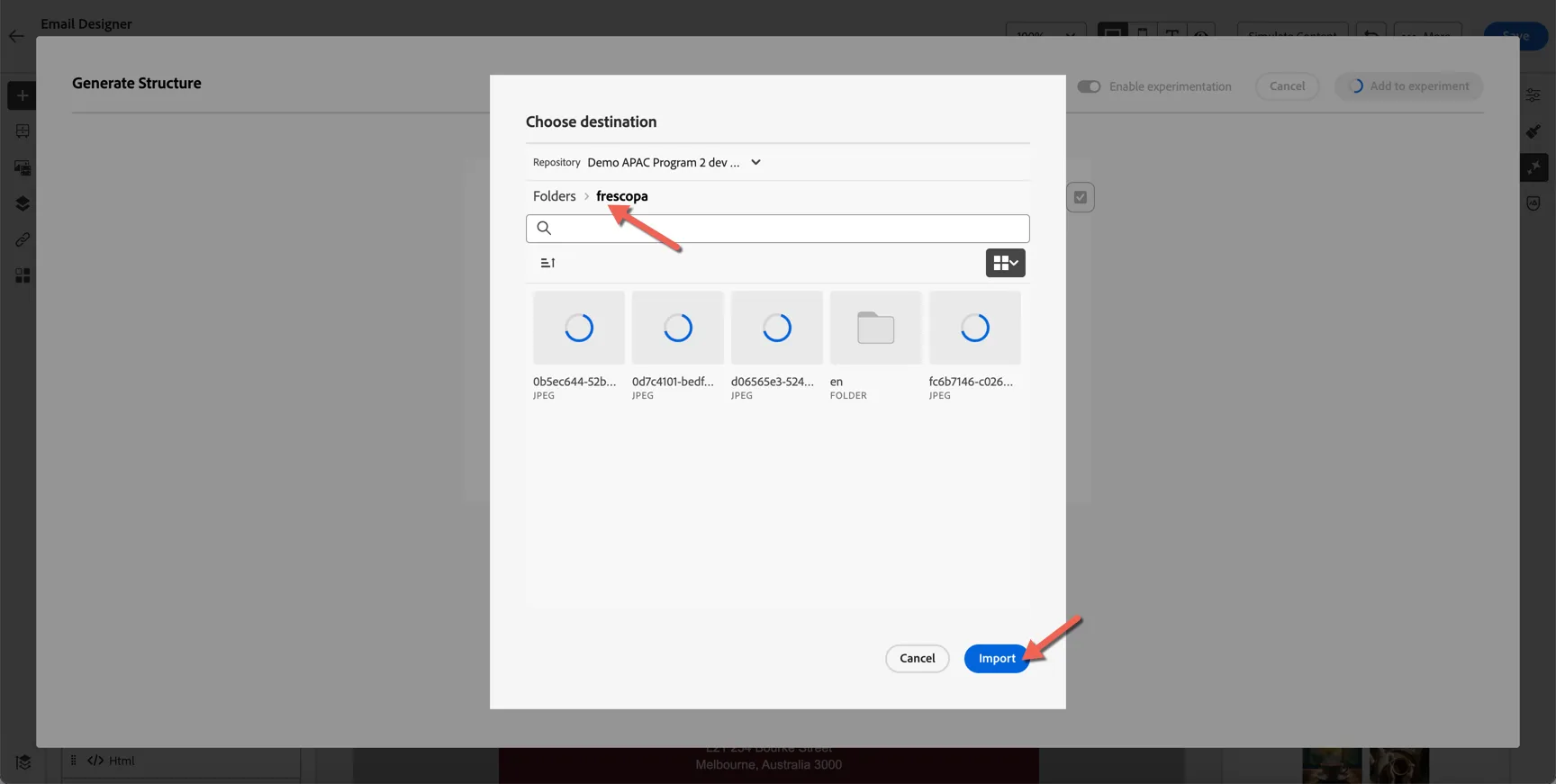
We've generated 2 images in each variant, so it will ask to import each image separately and then it will repeat the process for the second variant. If you selected to use both variant's you'll need to click import 4 times.
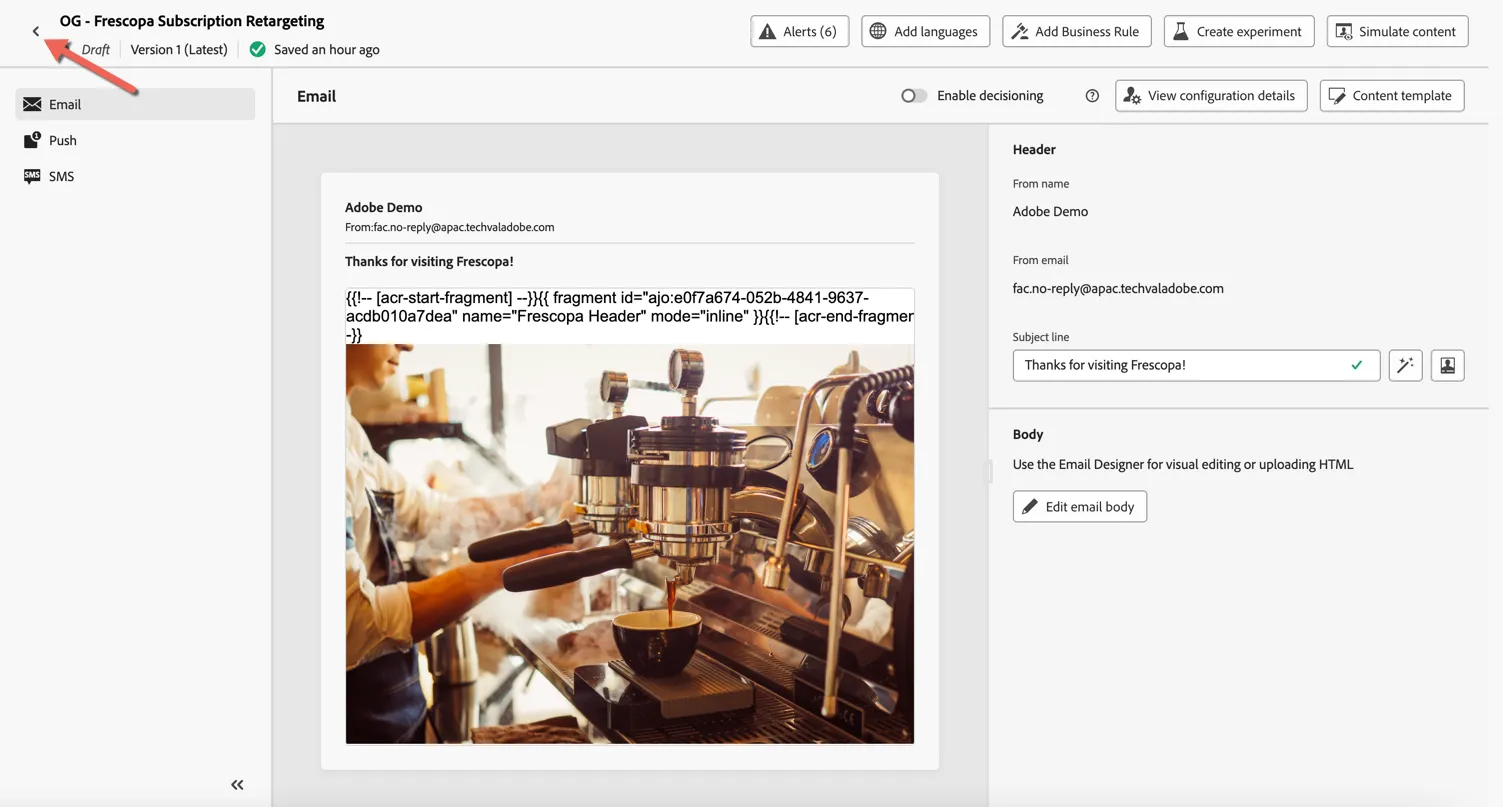
Your email with experimentation is now configured. Click on the arrow on the top left to return to your journey.
Click to Save your email activity.
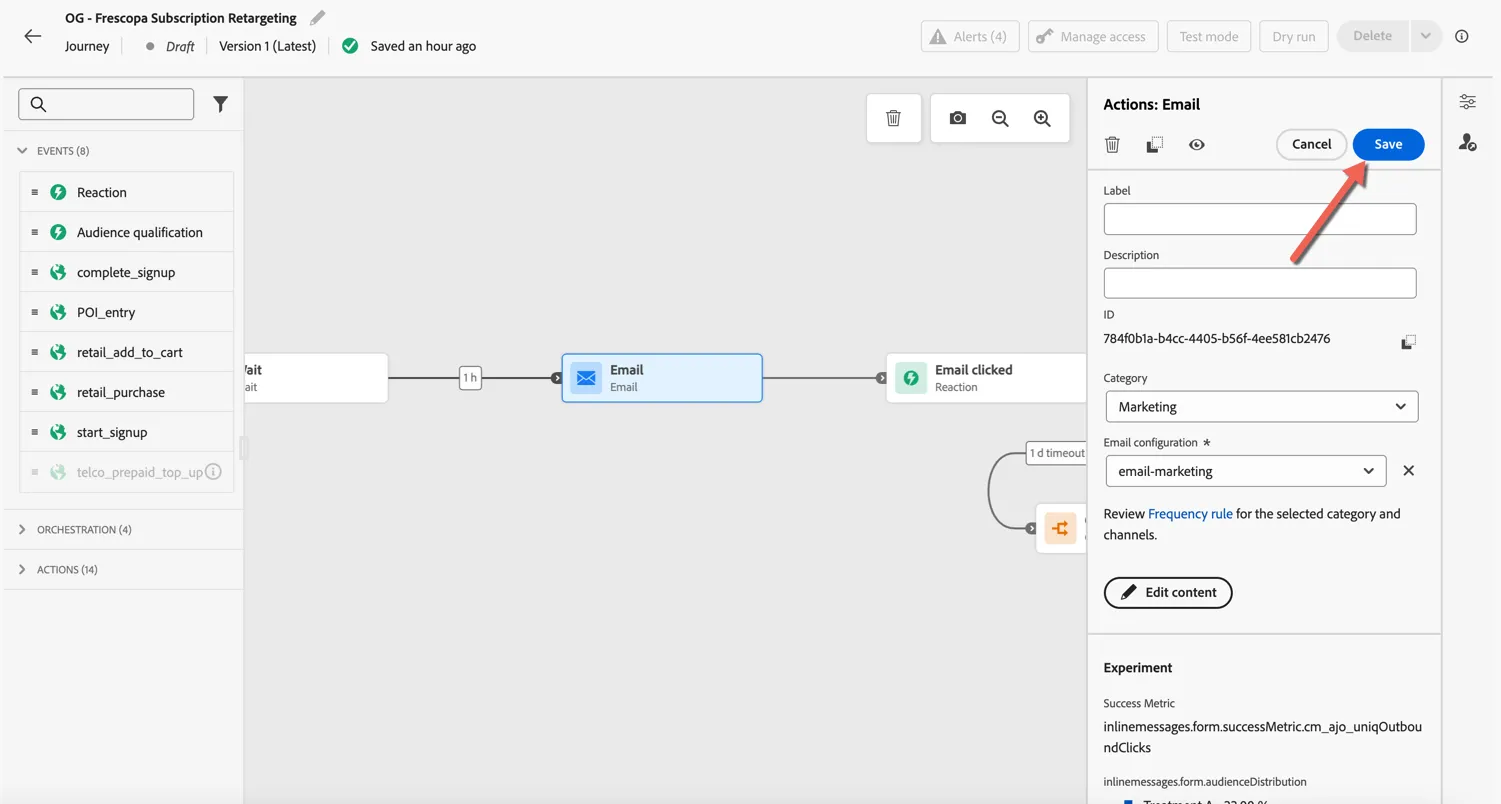
You can see the default configuration for experimentation sending even amounts of traffic to each treatment / variant.
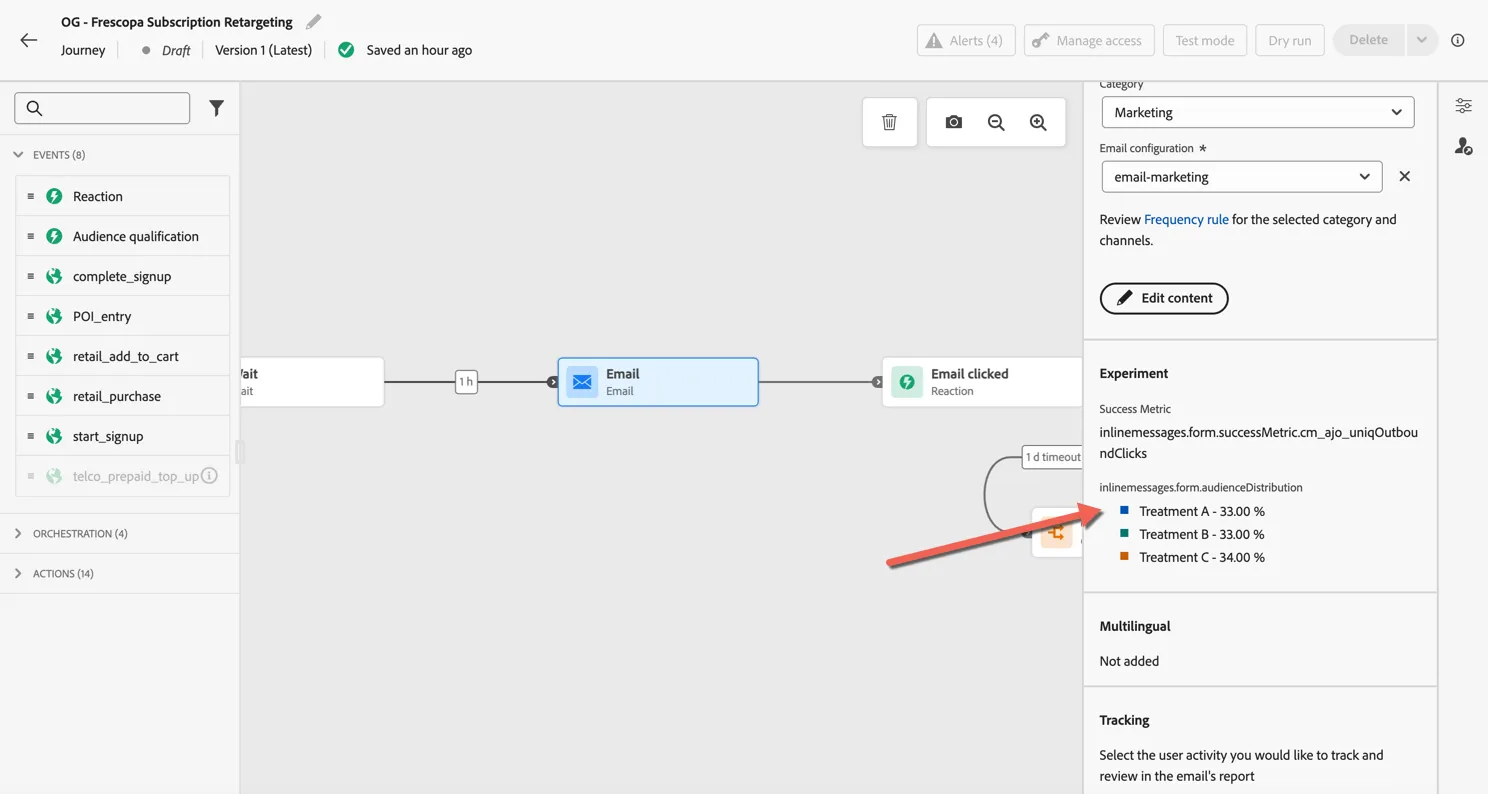
Click Edit Content to review the treatments and experimentation settings.
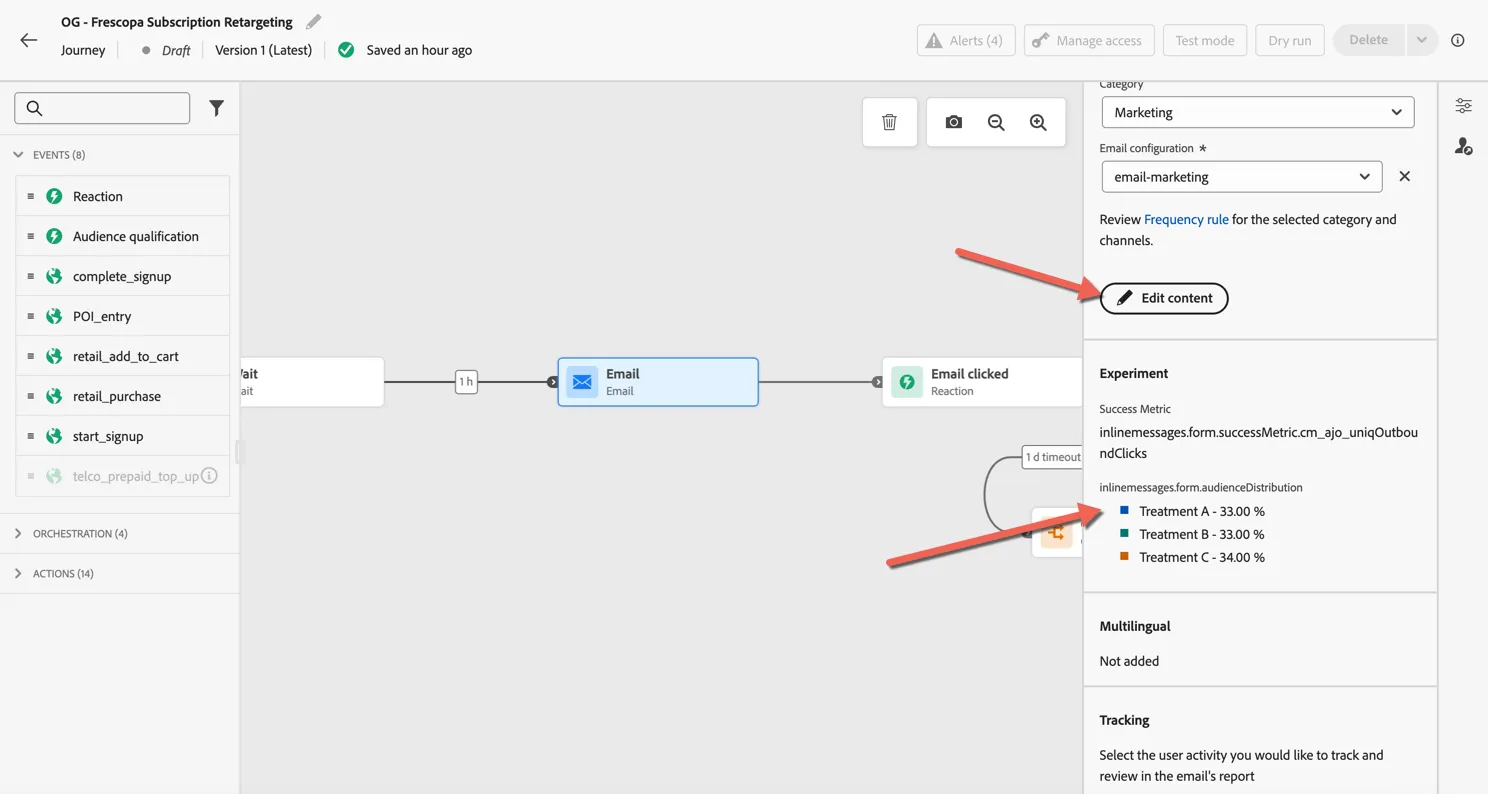
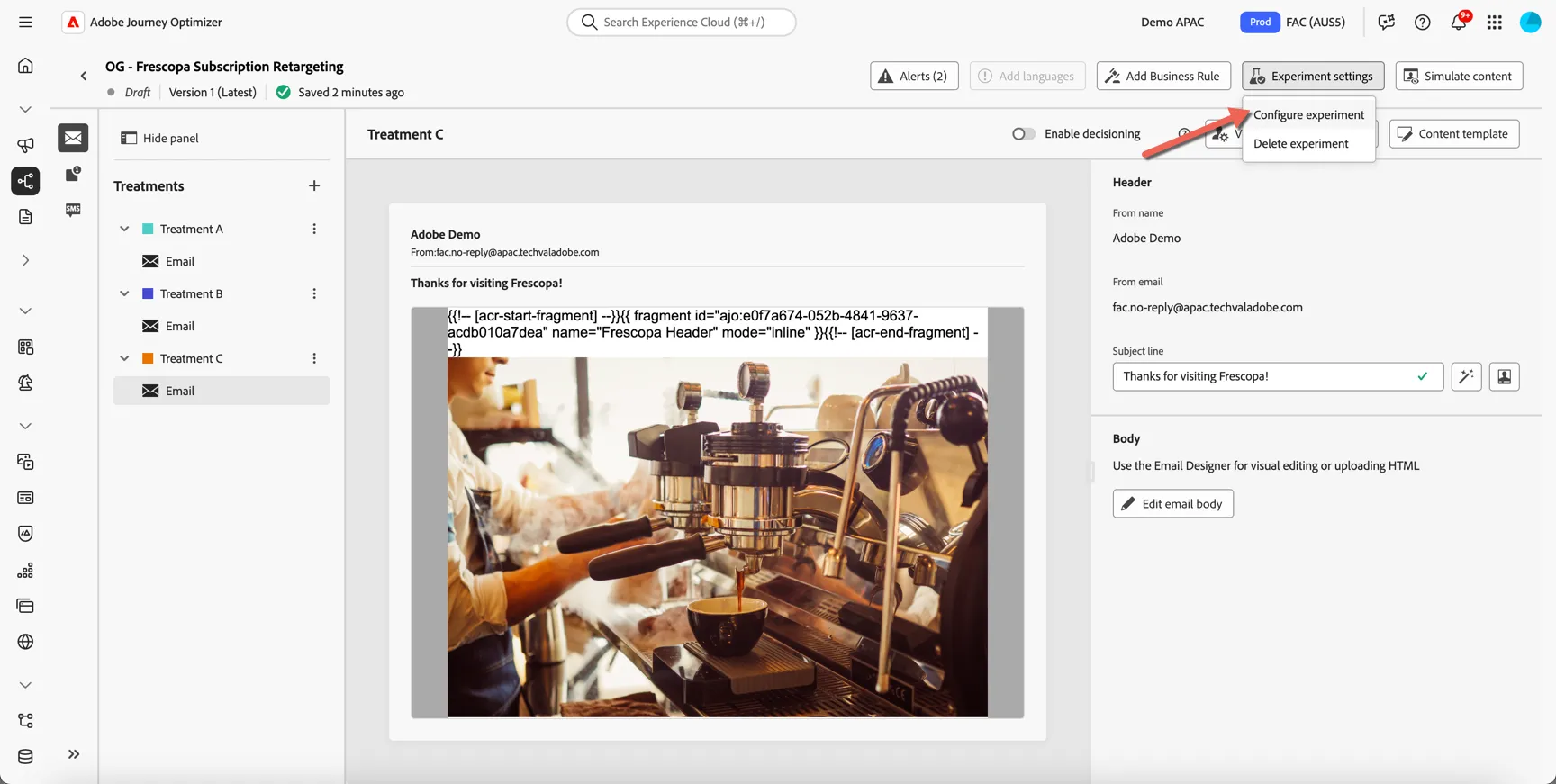
You can flick between the variations - click to Configure Experiment.
This is where you can configure the success metric for the experiment - once again you can use any of the metrics configured in your CJA Data View. You can also configure a Hold Out or Control group to assist with calculating the statistical confidence.
Read more about the advanced statistical methods used by Adobe Journey Optimizer
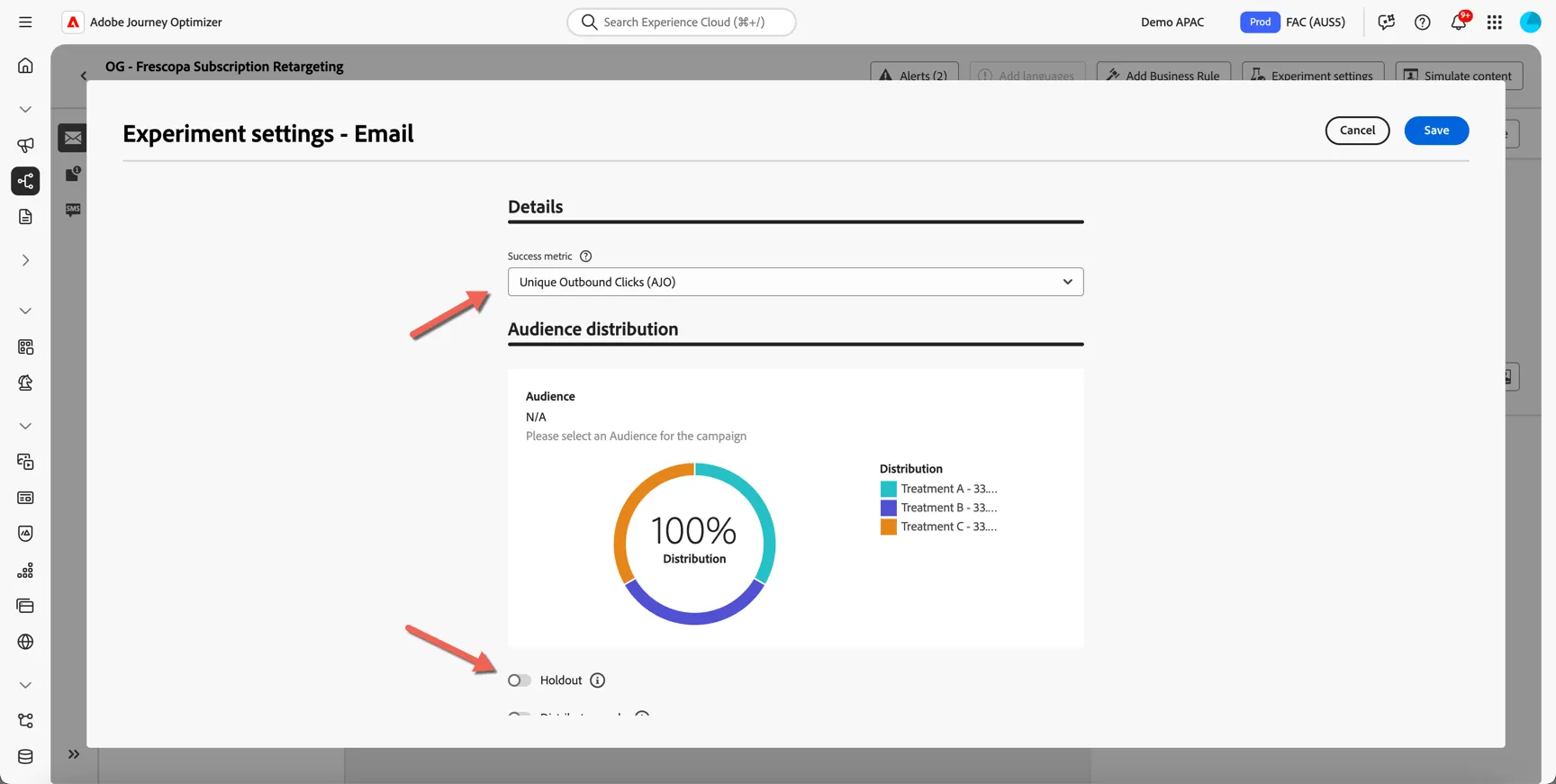
Leave the settings as is and return to your journey.
Add Mobile Content
To complete the journey, we need to add content to the SMS and Push Notification activities.
Click on the Push activity and select Push in the configuration drop down, then click Edit content.
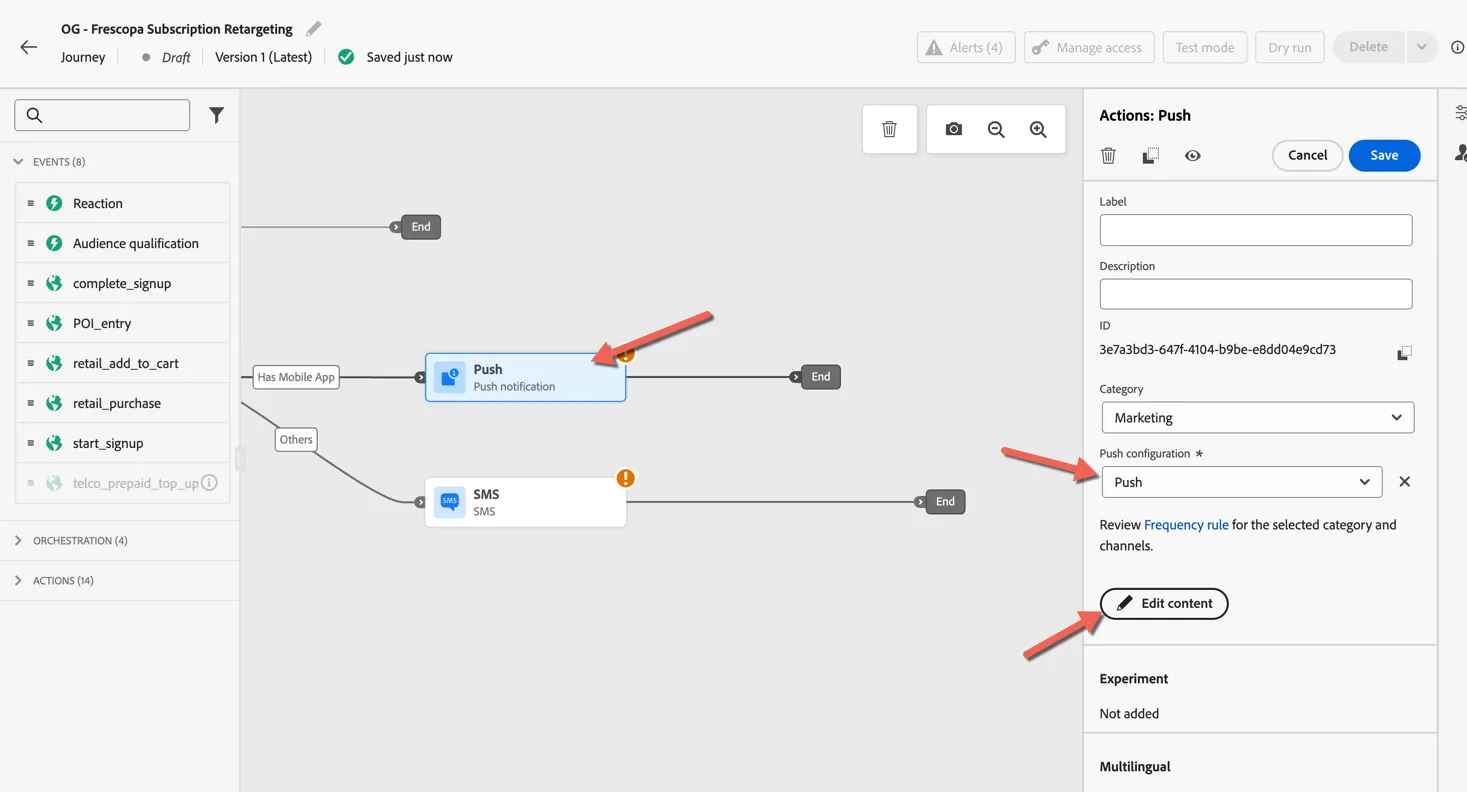
Once again you can either manually add content or use AI Assistant to generate it for you. Open the AI Assistant panel and reuse the prompt and text settings from your email to keep messaging consistent.
The generated content is again scored against the Brand Guidelines. Select the variation you prefer and click to Apply it to your message.
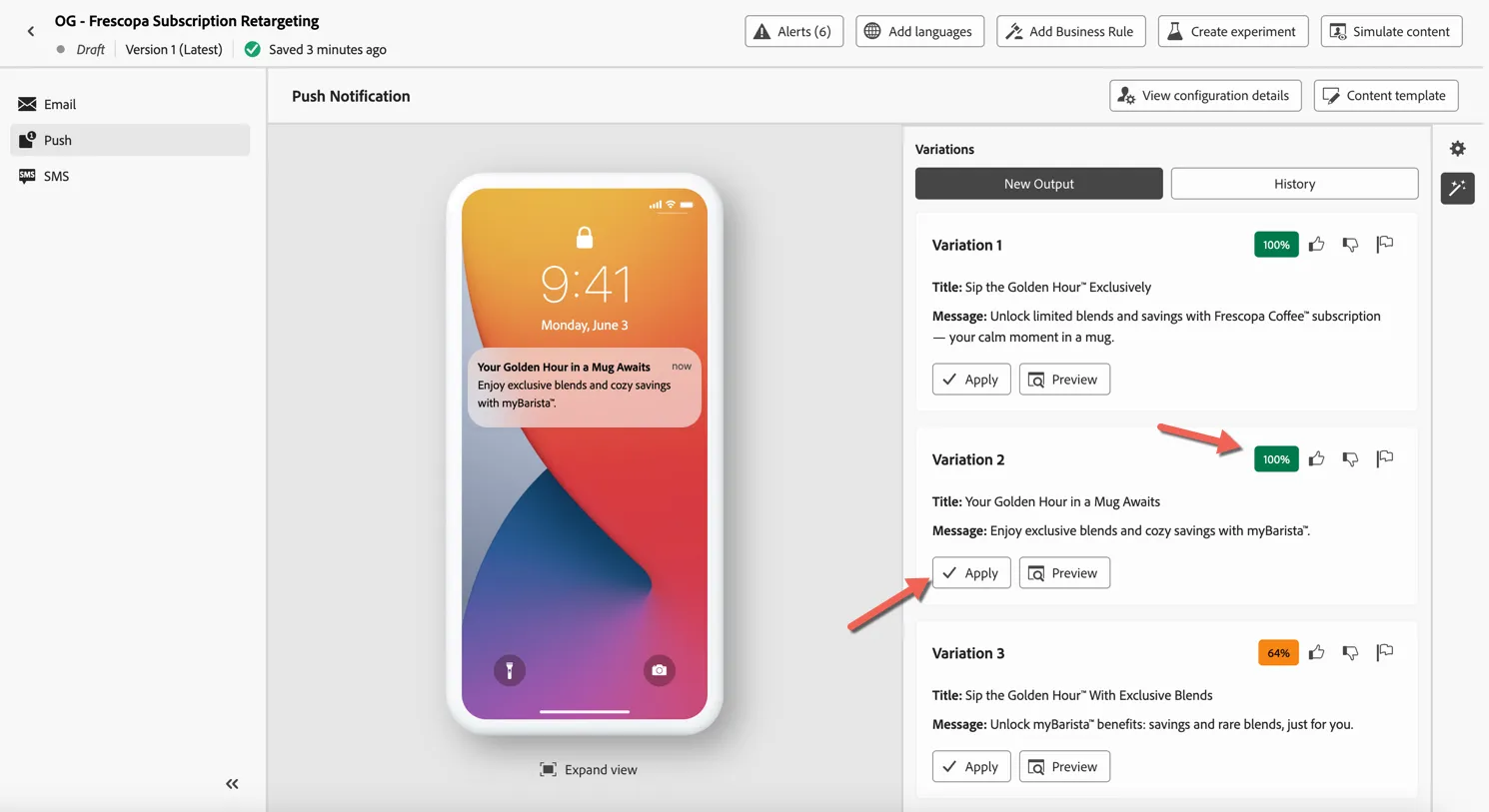
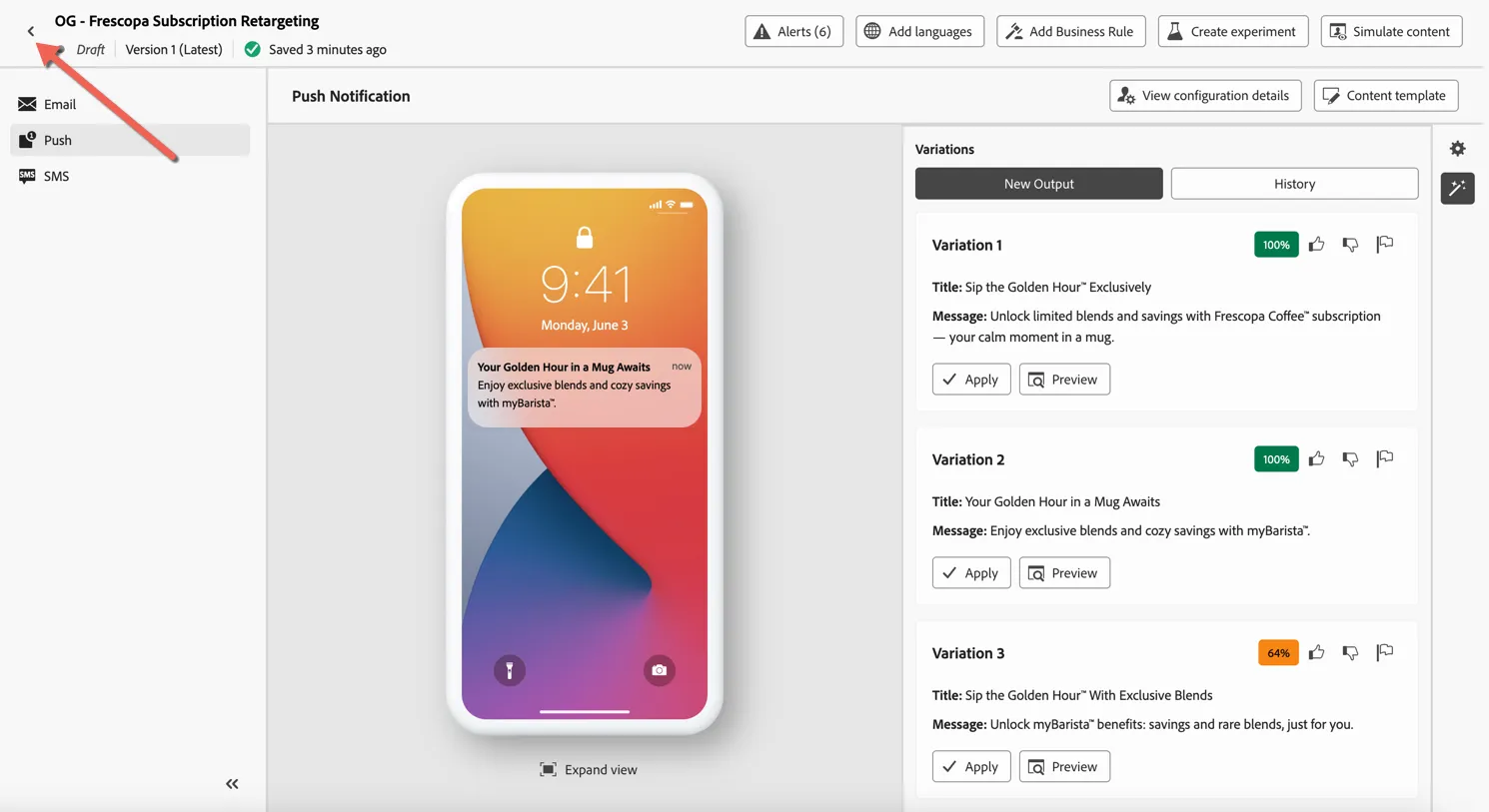
Click the arrow in the top left to return to your journey.
Repeat the same process for the SMS Activity.
Summary
Adobe Journey Optimizer enables brands to deliver contextual, personalised experiences at scale by combining real-time triggers, intelligent decisioning, and dynamic content generation—all within a unified orchestration canvas.
Adobe Journey Optimizer's integration with Adobe Experience Manager (AEM) and Adobe Firefly has enabled:
- Faster creative cycles: No need to manually design every variant.
- Brand integrity: All content aligns with approved guidelines.
- Higher engagement: Personalised, relevant content drives better results.
- Cross-channel consistency: AEM assets and content fragments ensure that messaging in email, push, and web banners is aligned.
Congratulations you've completed the exercise on Adobe Journey Optimizer... but before you go, don't forget to check the content template you uploaded earlier.