Real-time CDP
Scenario
Based on our analysis we identified that offline sales are trending down with customers in melbourne and sydney. It's agreed that we need to:
- Run a retention campaign targeting at risk subscribers with limited time offers
- At the same time we'll run a brand recognition campaign
As part of the Marketing Operations team at Frescopa you have been tasked to define the target audiences for the planned campaigns. We shared an audience created from our analysis already but this is focusing on past behaviour, in this lab we will create an real-time Audience in Adobe Experience Platform to identify at risk subscribers when they land on the website, this audience will be used for same page personalisation by Adobe Journey Optimizer and Promotion qualification by Adobe Commerce.
Of course, we also support non Adobe solutions for real-time personalisation and e-commerce use cases, these are enabled through the Custom Personalisation destination connector. If you want to know more, ask one of the solution consultants nearby and we'll be happy to run you through it.
Access
Switch to Adobe Experience Platform using the solution switcher:
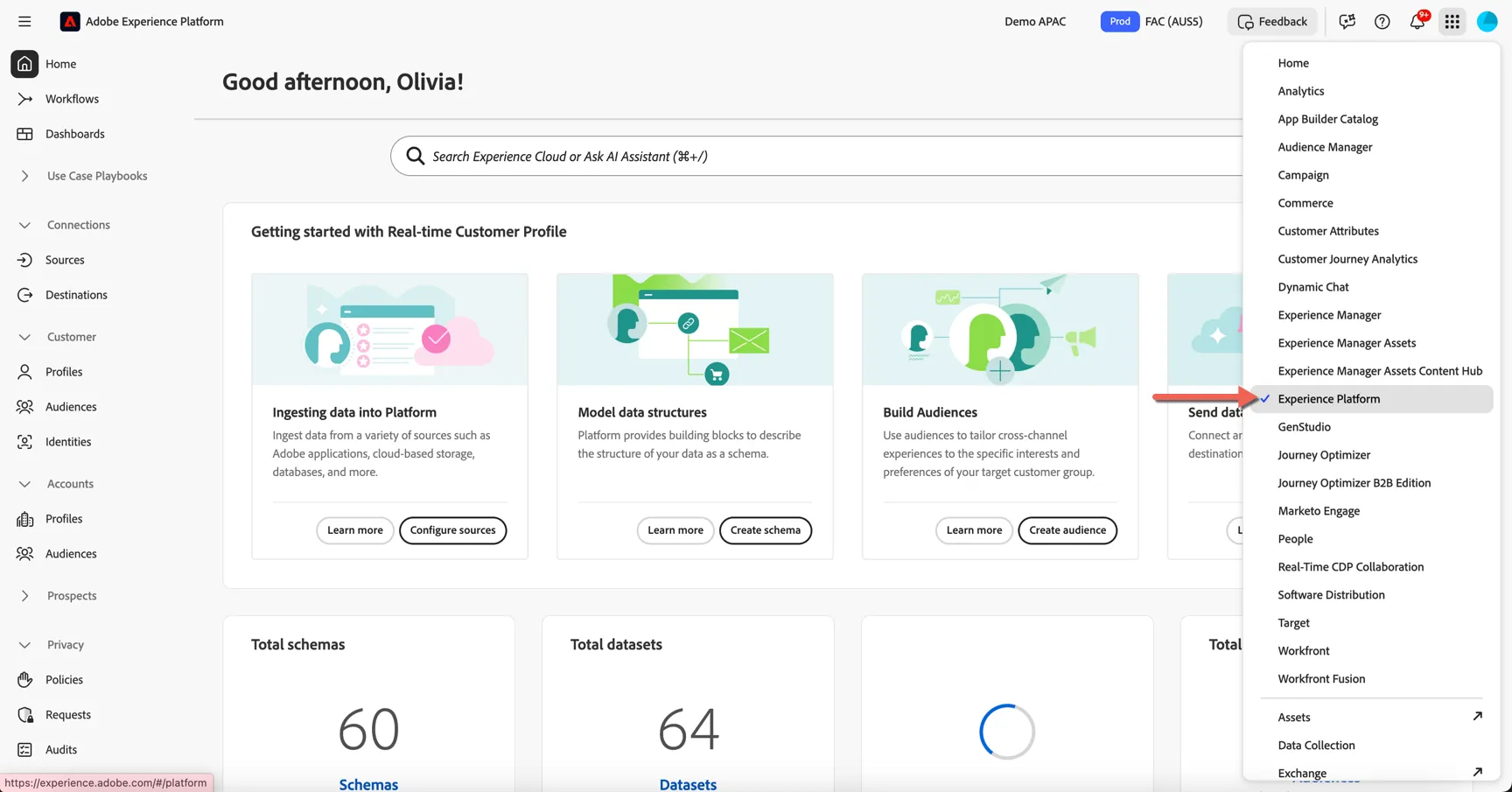
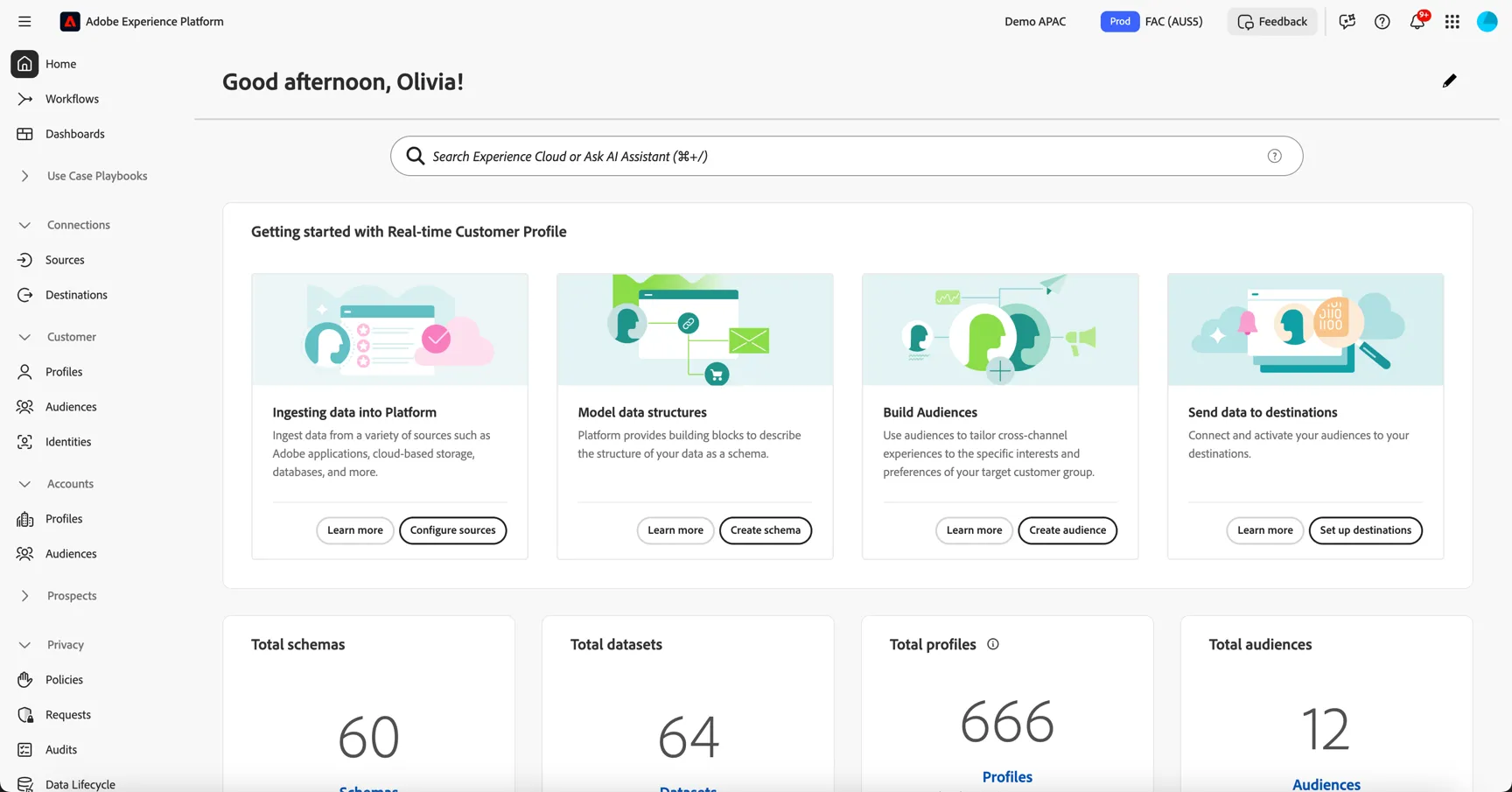
For this exercise we will use the FAC (AUS5) sandbox. Change to this sandbox if you are not already in there.
Visit the Website
Before we start creating audiences for our use case, let's take a quick look at how streaming event data is ingested in real time, and how it can be used to personalize onsite experiences.
Open the Frescopa website in an incognito browser and click around a few pages.
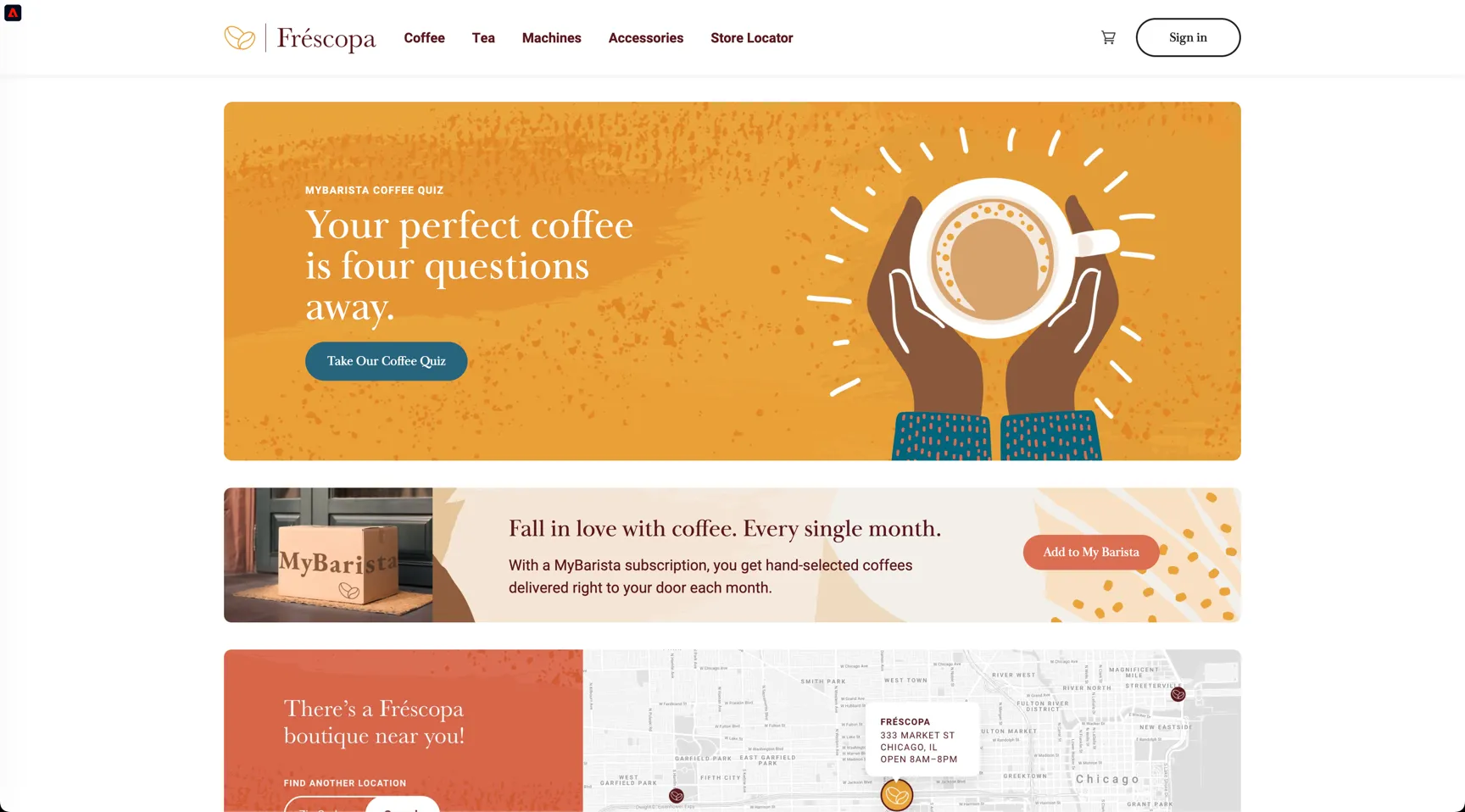
Adobe's SDK is implemented on the page and is collecting tracking events with every click.
Click on the Adobe Icon to open the profile viewer in the top left corner.
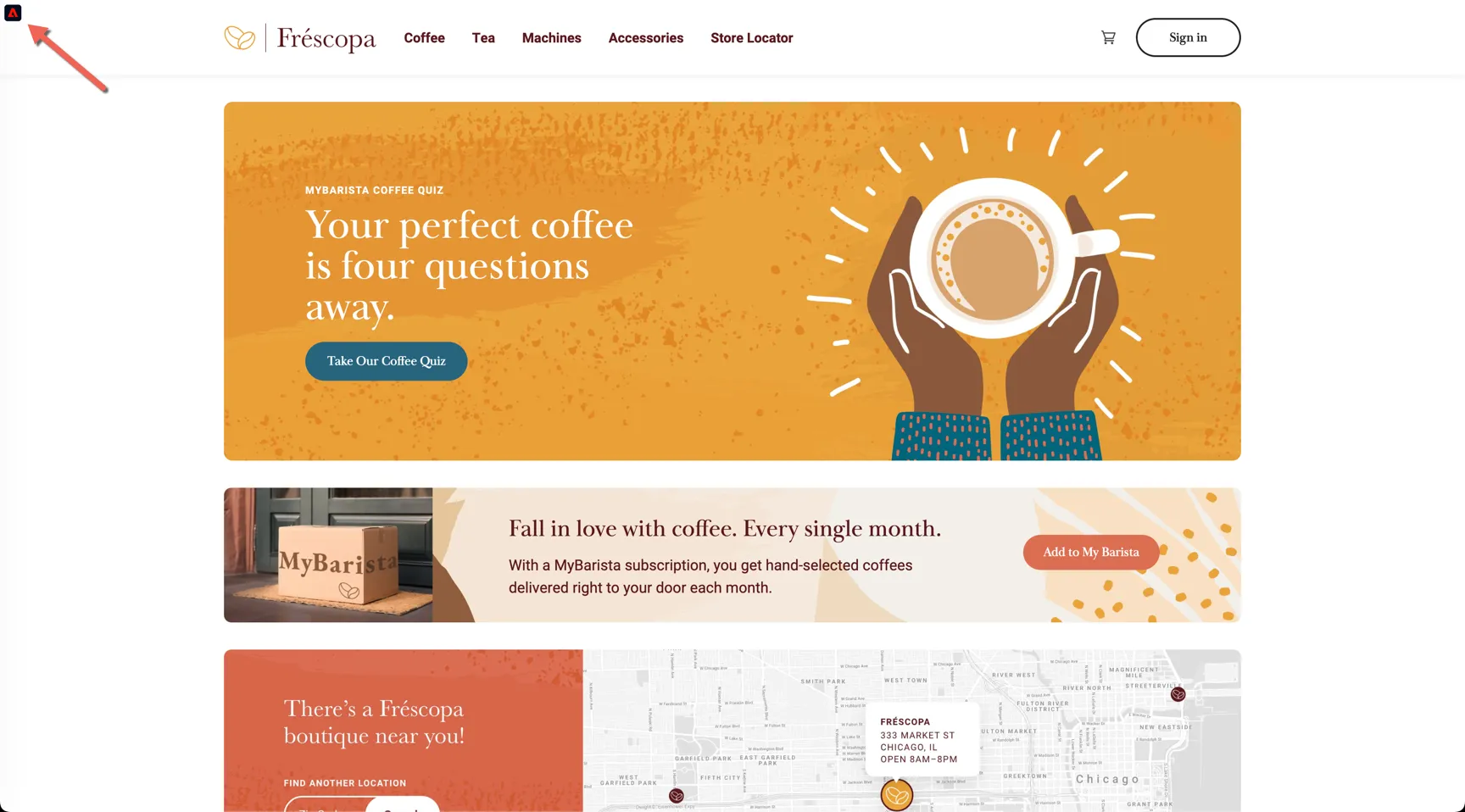
You can see that initially our profile is anonymous, we have only Adobe's Experience Cloud Id.
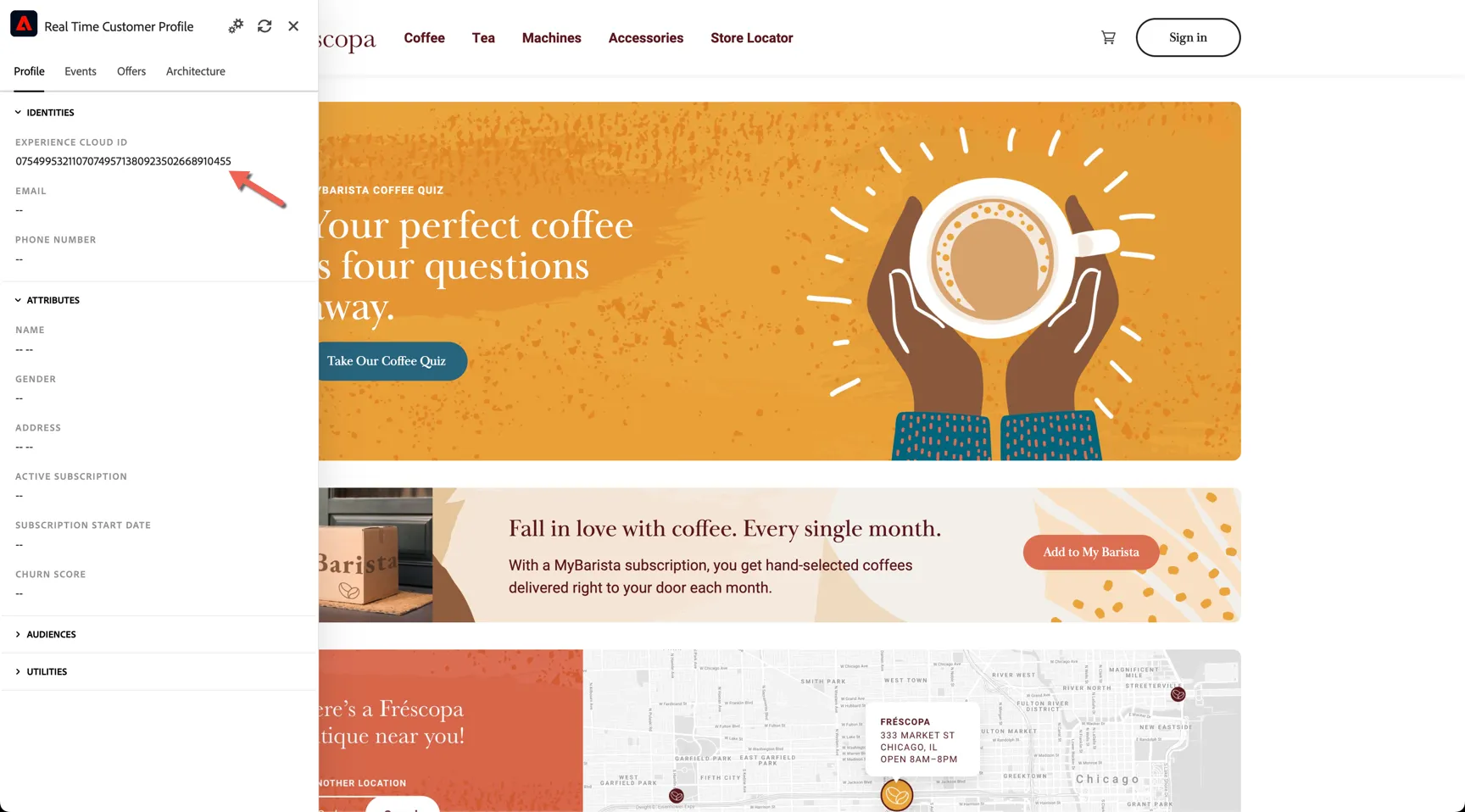
Click on the Events tab to see the events that have been recorded in real-time against the profile.
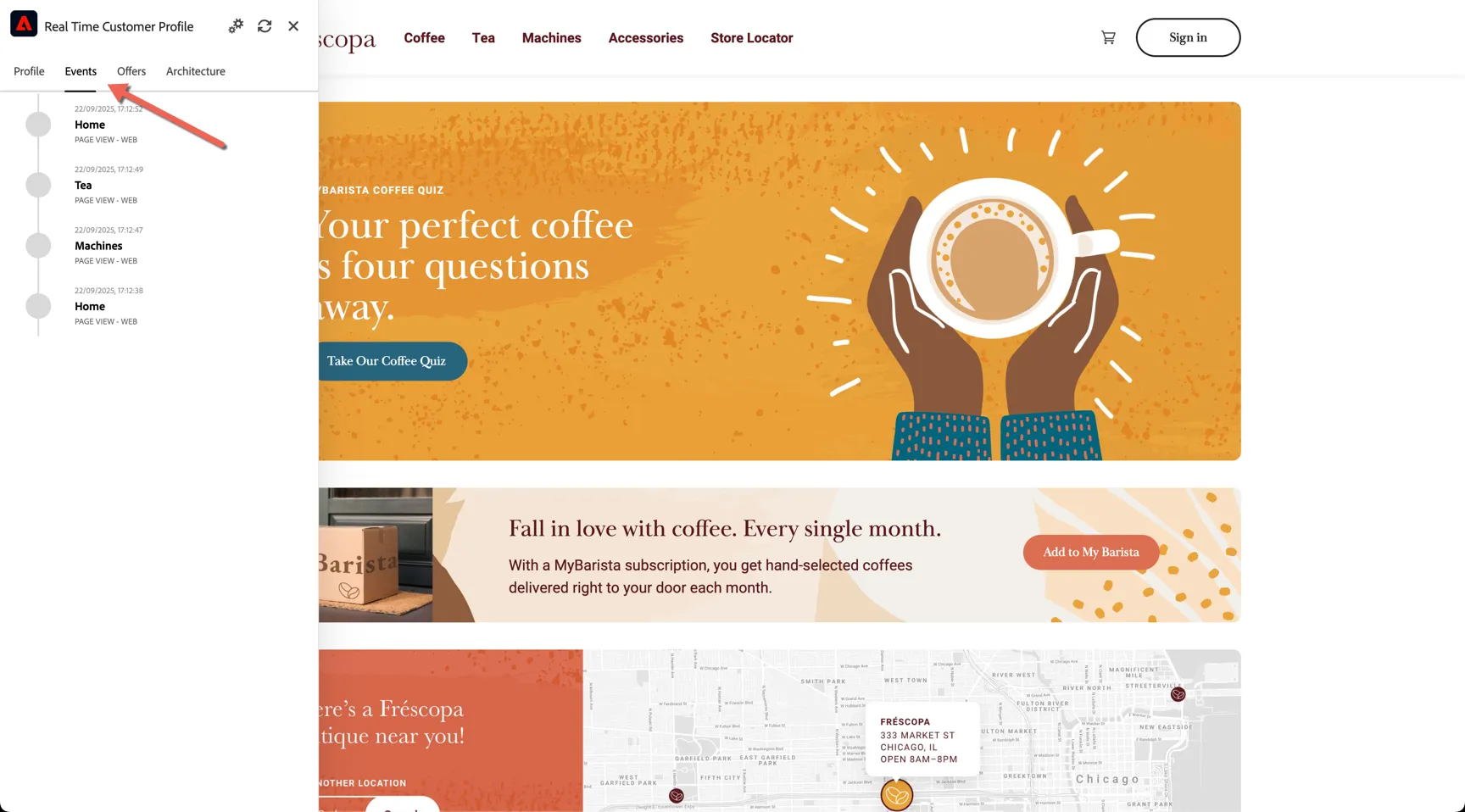
The profile will remain anonymous until a customer identifier is provided. Click on the Sign In button on the top right.
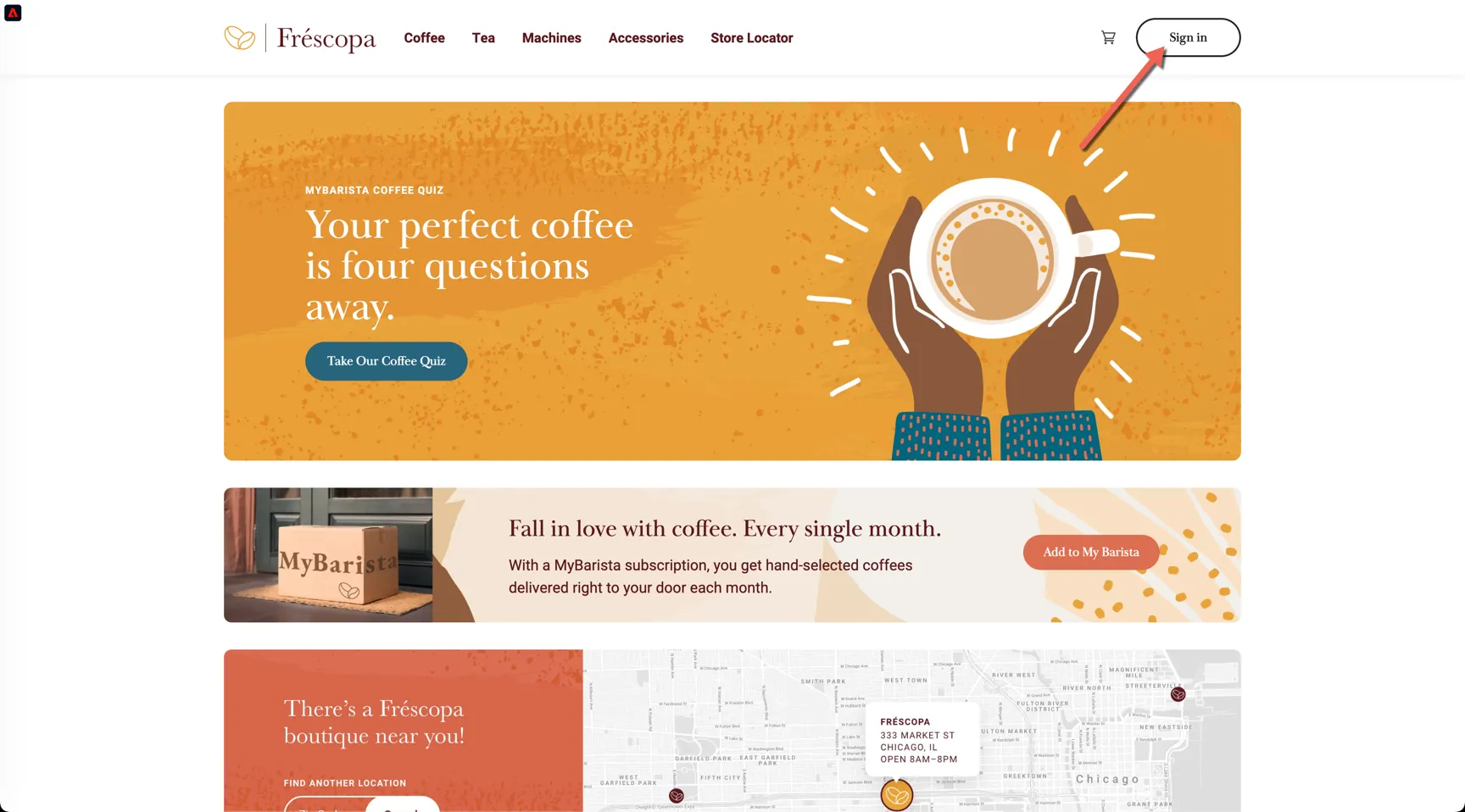
Use one of the email addresses below to authenticate on the website. No password is needed.
Firstname | |
|---|---|
Jocelyn | |
Gertruda | |
Jena | |
Mychal | |
Corilla | |
Luther | |
Boigie | |
Laurena | |
Simmonds | |
Emmanuel |
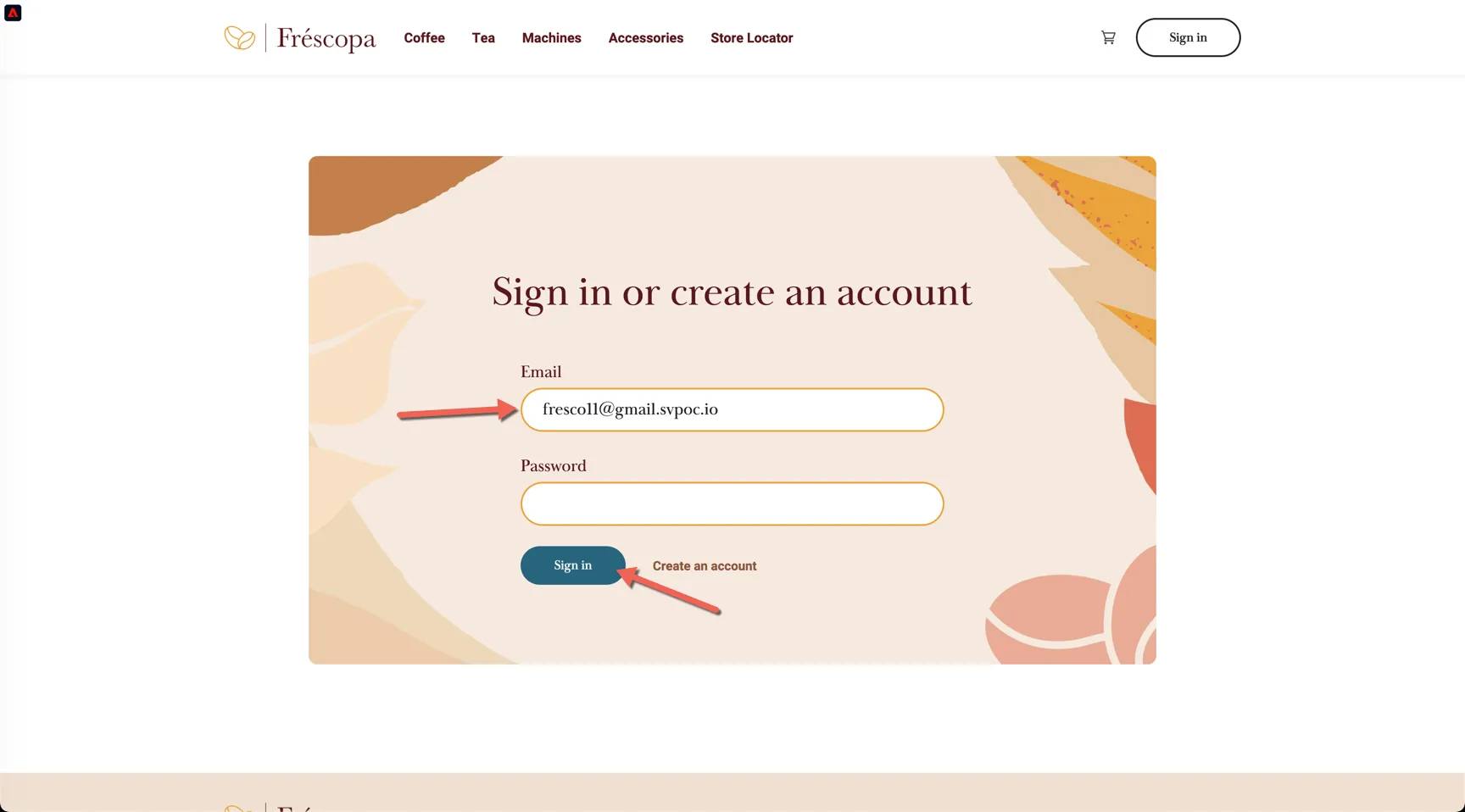
View the events tab again, the Web Signin event will trigger a new entry into the Identity Graph, stitching the ECID with the Email address.
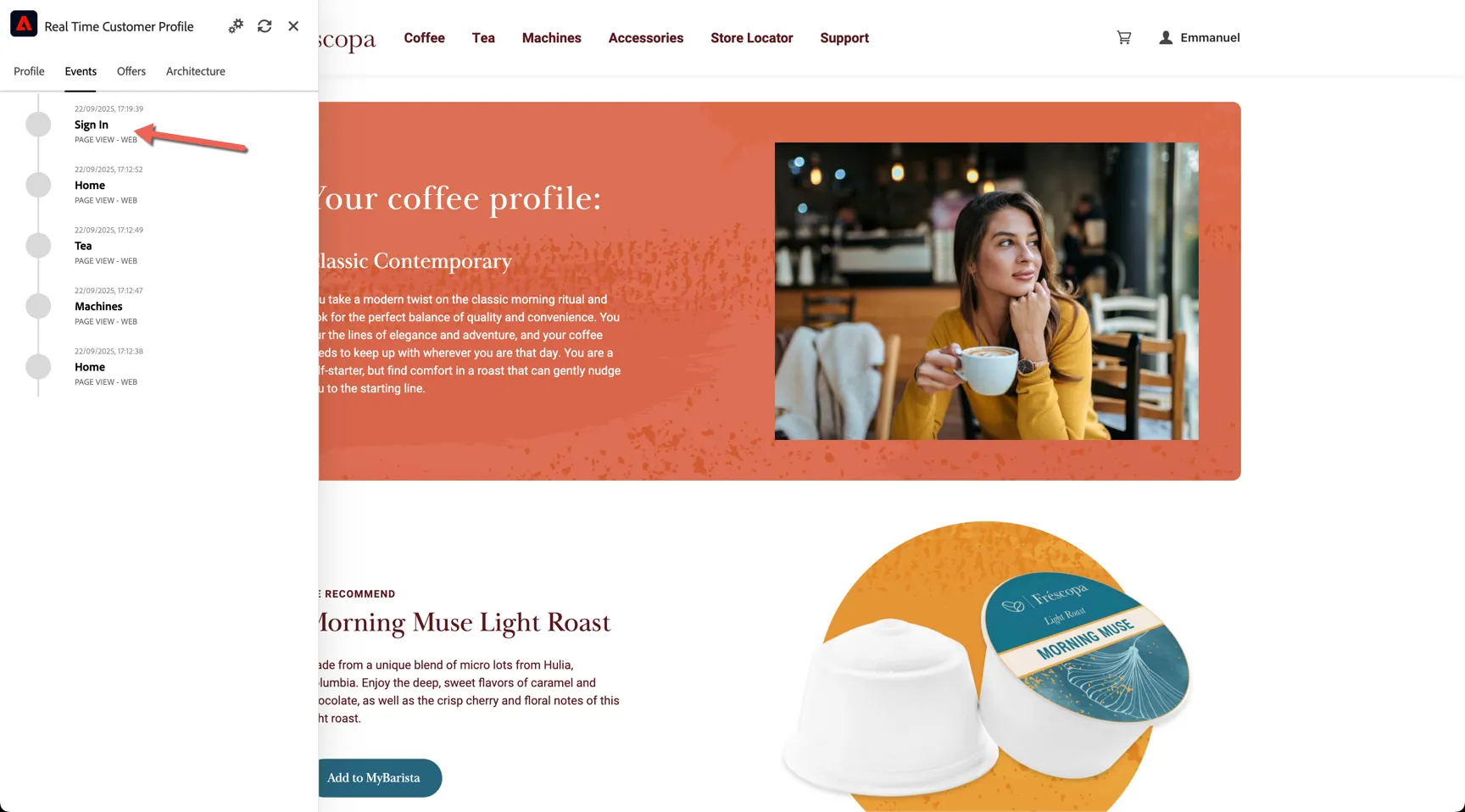
Stitching of new identities takes a few minutes, so you won't see the profile attributes update immediately here, but that doesn't mean we can't qualify for segments and personalise in real-time.
Click to view one of the Machine products.
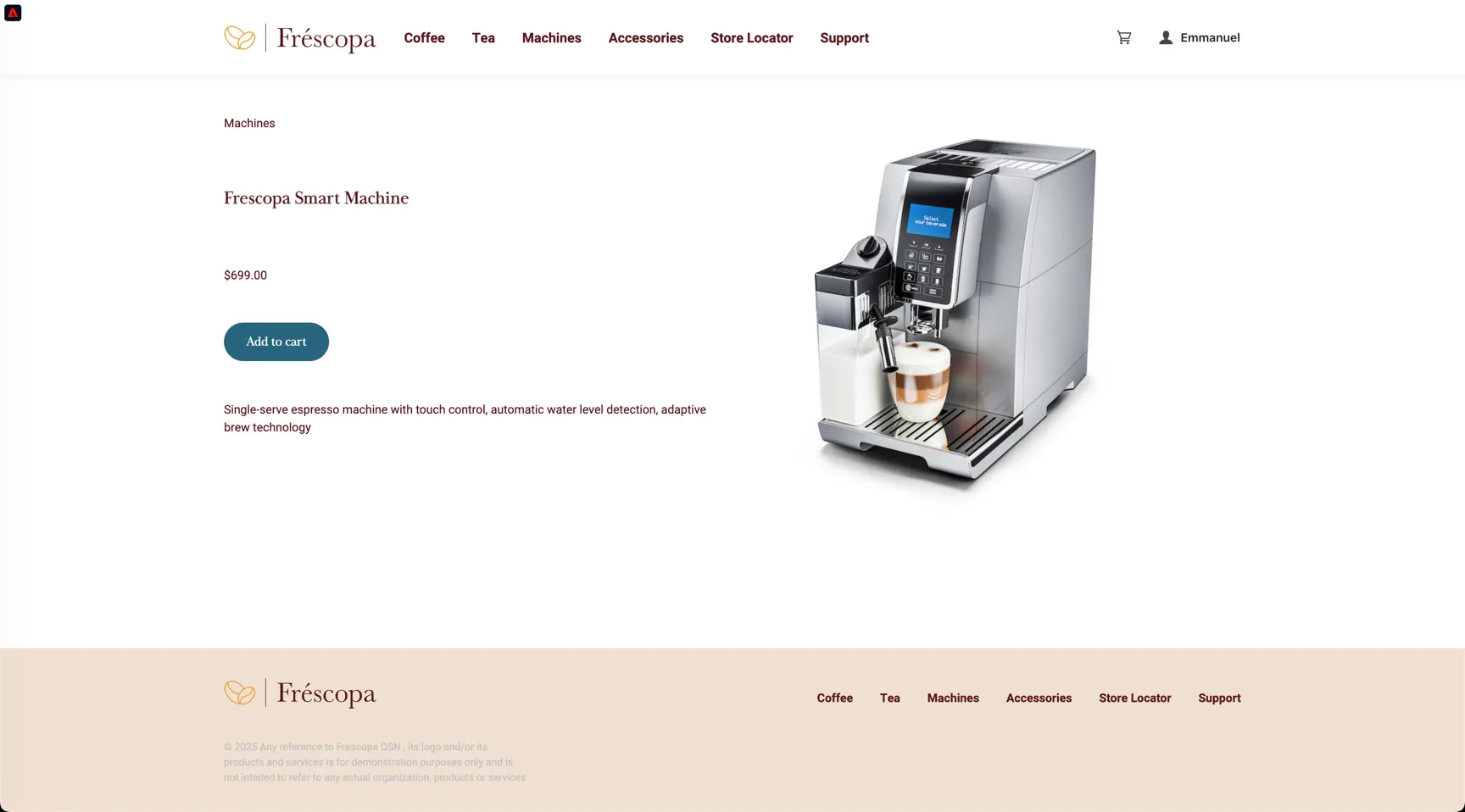
This will trigger a real-time audience qualification. Click on the Frescopa logo to return to the home page. The messaging on the banner image is updated.
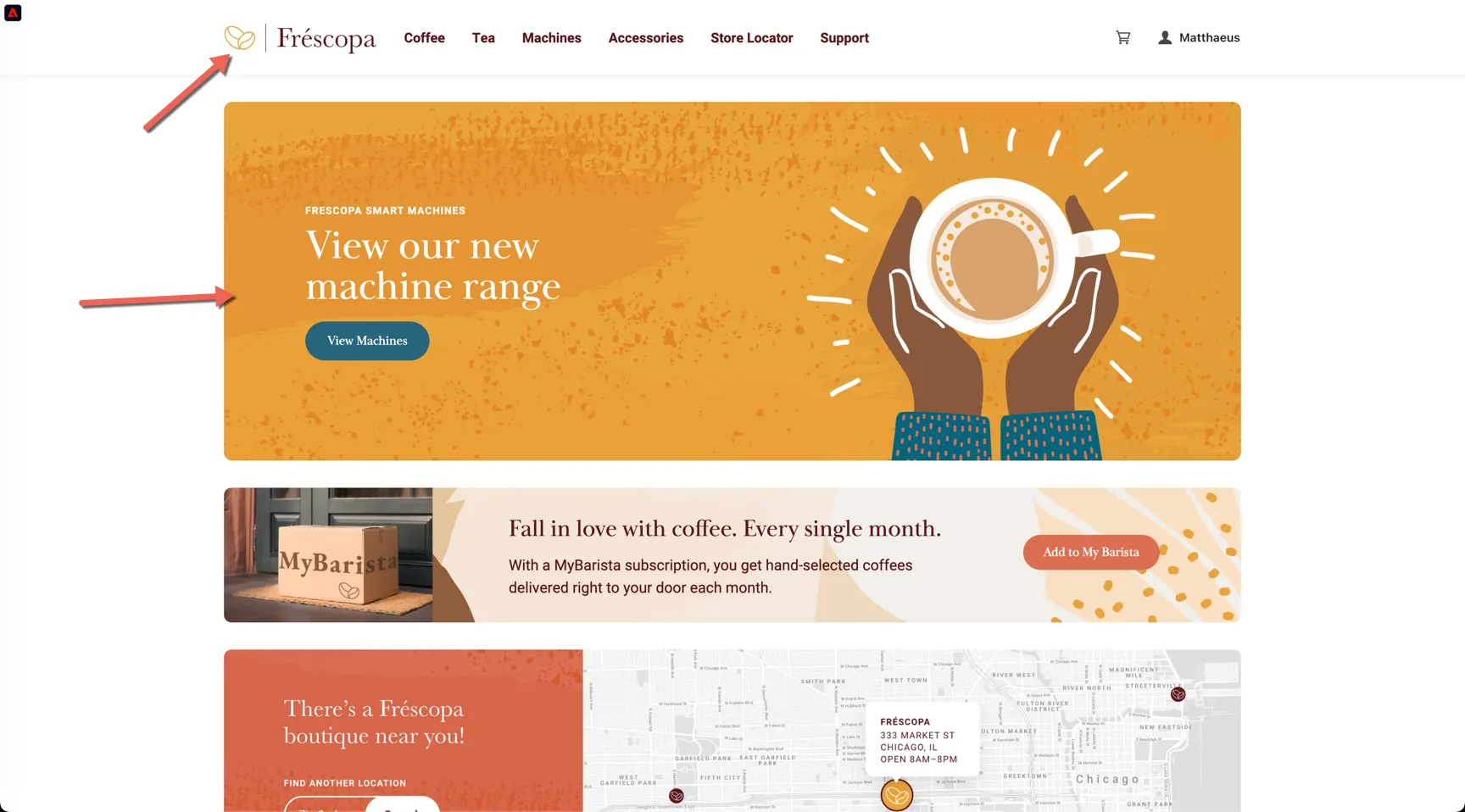
Note that some flicker is expected here on our demo website, proper implementation on a production website can avoid this side effect.
Now that you've seen the data collection and audience qualification in action, let's move on to viewing the profile in Adobe Experience Platform and creating some real-time audiences of your own.
The Unified Profile
The data collected from all of the source systems is unified into an actionable profile based on the identities collected from each source. Follow the instructions below to look up the profile you just authenticated with on the website.
Browse to Customer -> Profiles. The Overview dashboard shows insights on how many profiles exist in the sandbox along with the distribution of identities.
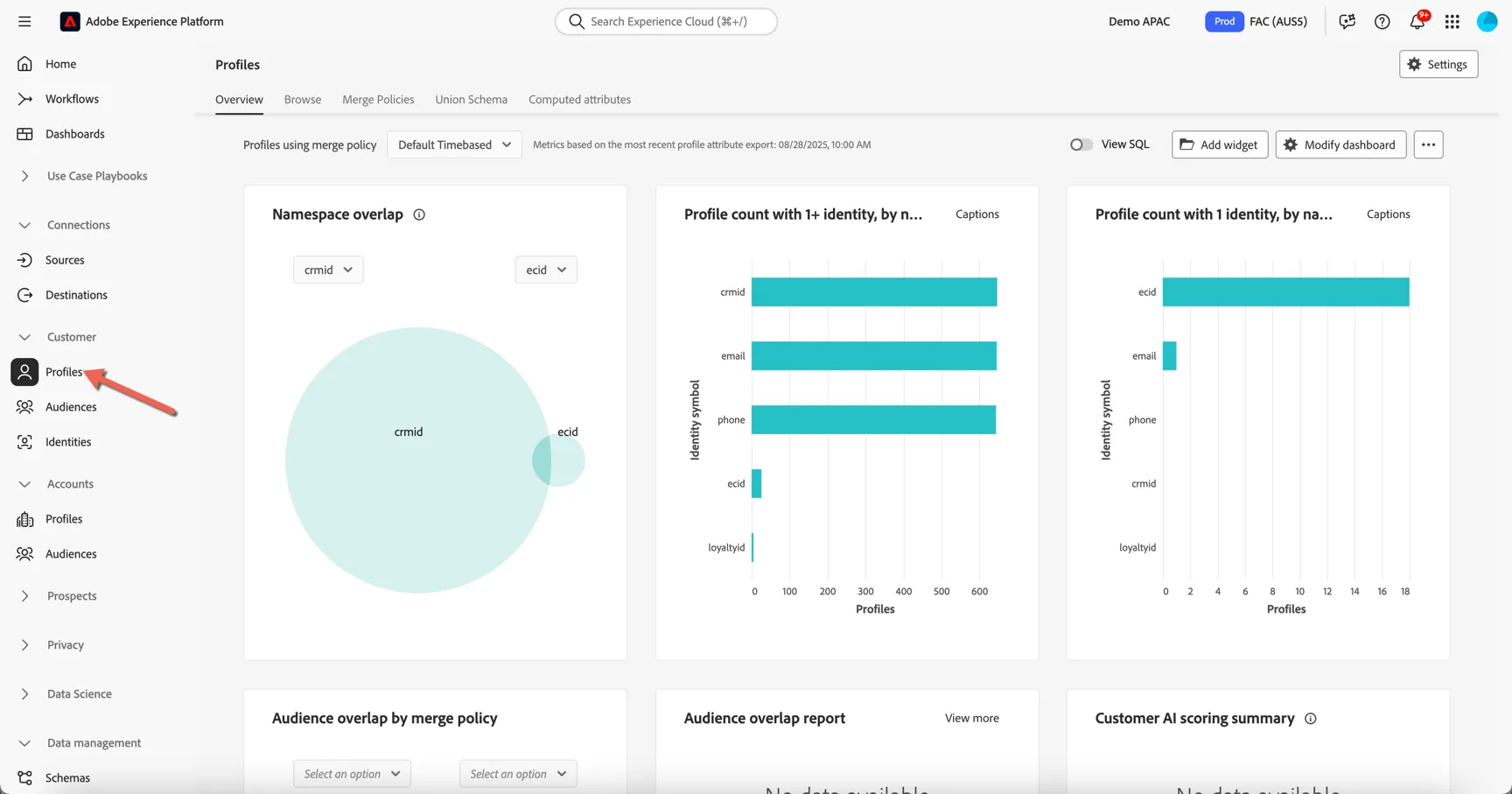
To lookup a specific profile, move to the Browse tab.
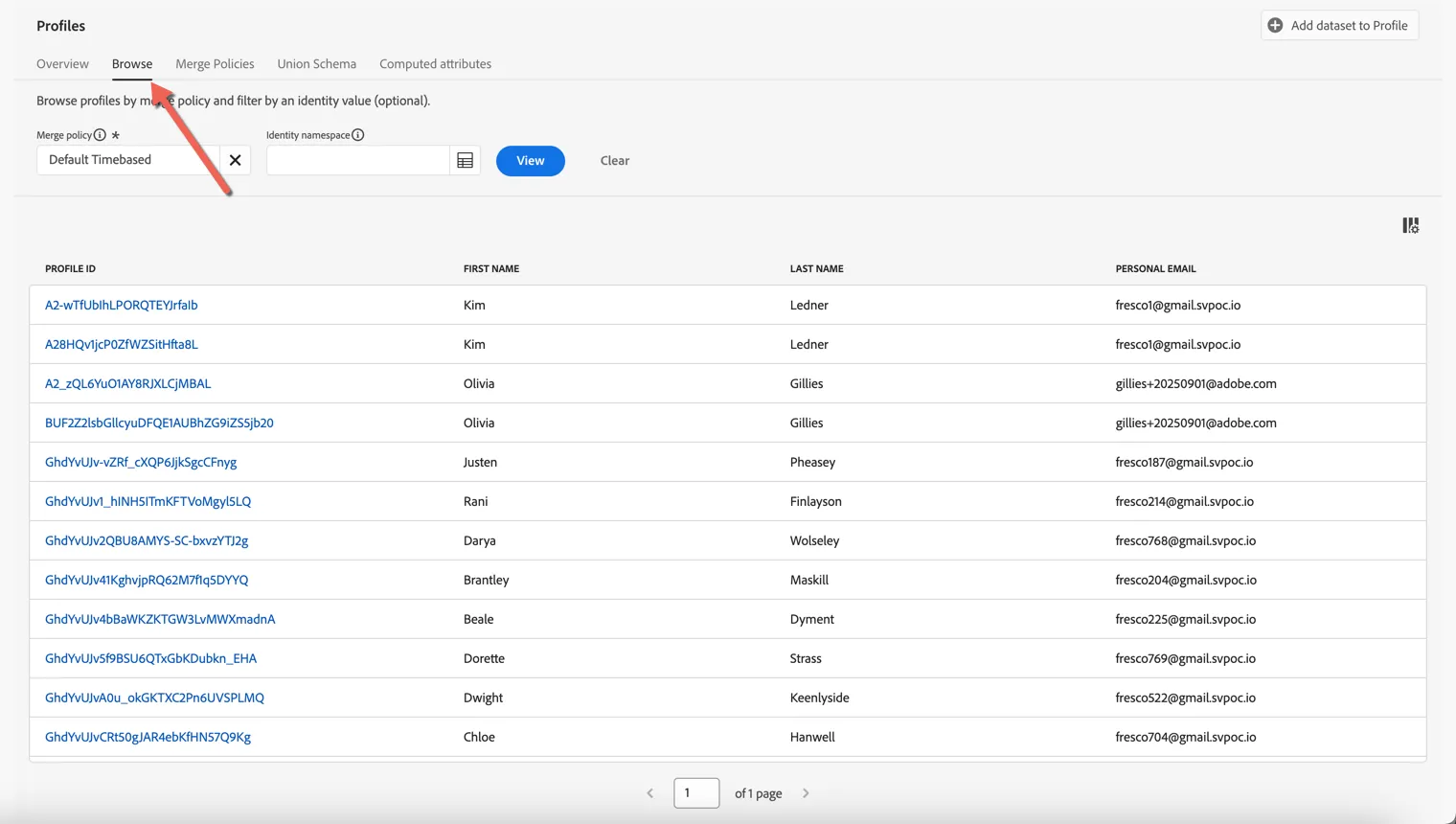
Profiles can be retrieved by any of the attributes which have been defined as "Identities". Which Identity Namespaces are leveraged depends on your organisations requirements. Frescopa are currently using a custom cross device id called Demo System - CRM ID as well as Email address to identify known users. Any user who's authenticated on the website will have one or more ECID cookies also. For this exercise we will use a known customer id to look up your profile.
First set the Identity Namespace to be Email or Demo System - CRM ID. Then use any of the customer id's below to look up their profile.
Demo System - CRM ID | |
|---|---|
1f7fea99-6480-496b-8e02-7222b7d99815 | |
47d28cfc-97fa-4854-b056-9664941d094c | |
7a6ac21e-980c-4122-bc0f-61f3a6823770 | |
b4bf11db-7207-4bce-a1d5-b9fb8d5eede9 | |
91b118eb-bfed-485d-b4dc-ecb2f80e4ed2 | |
43c197fd-f8cb-4349-ae32-de4489546d50 | |
2260b90a-d234-42a2-9a46-4587df890a02 | |
8c73783a-e44a-445a-a0f3-2a438bf880c1 | |
b9a7fbbe-2f84-40fc-aa52-ab477493f04a | |
5a8b0e88-eae1-44a0-9760-ccc90ff5f3cc |
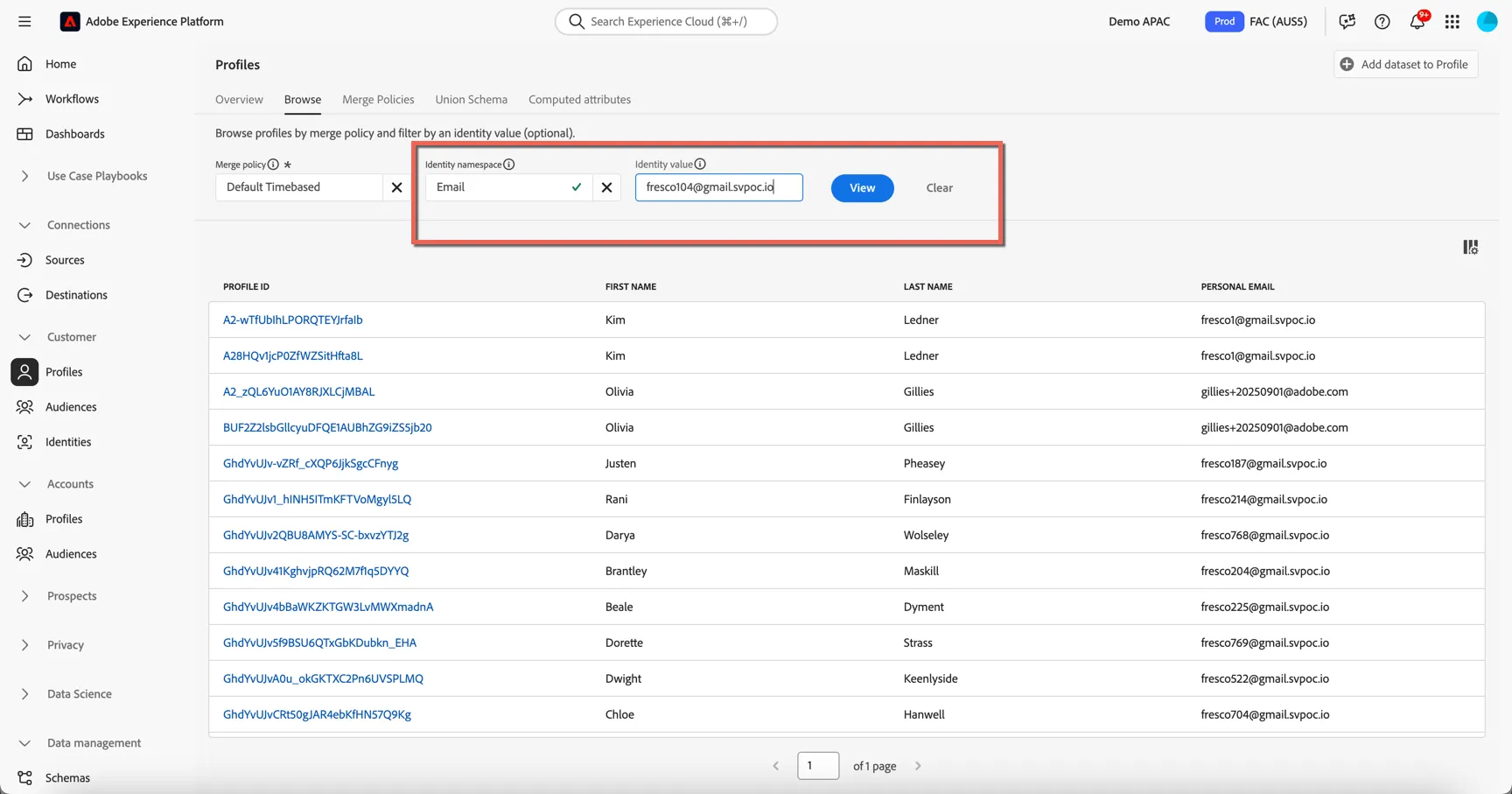
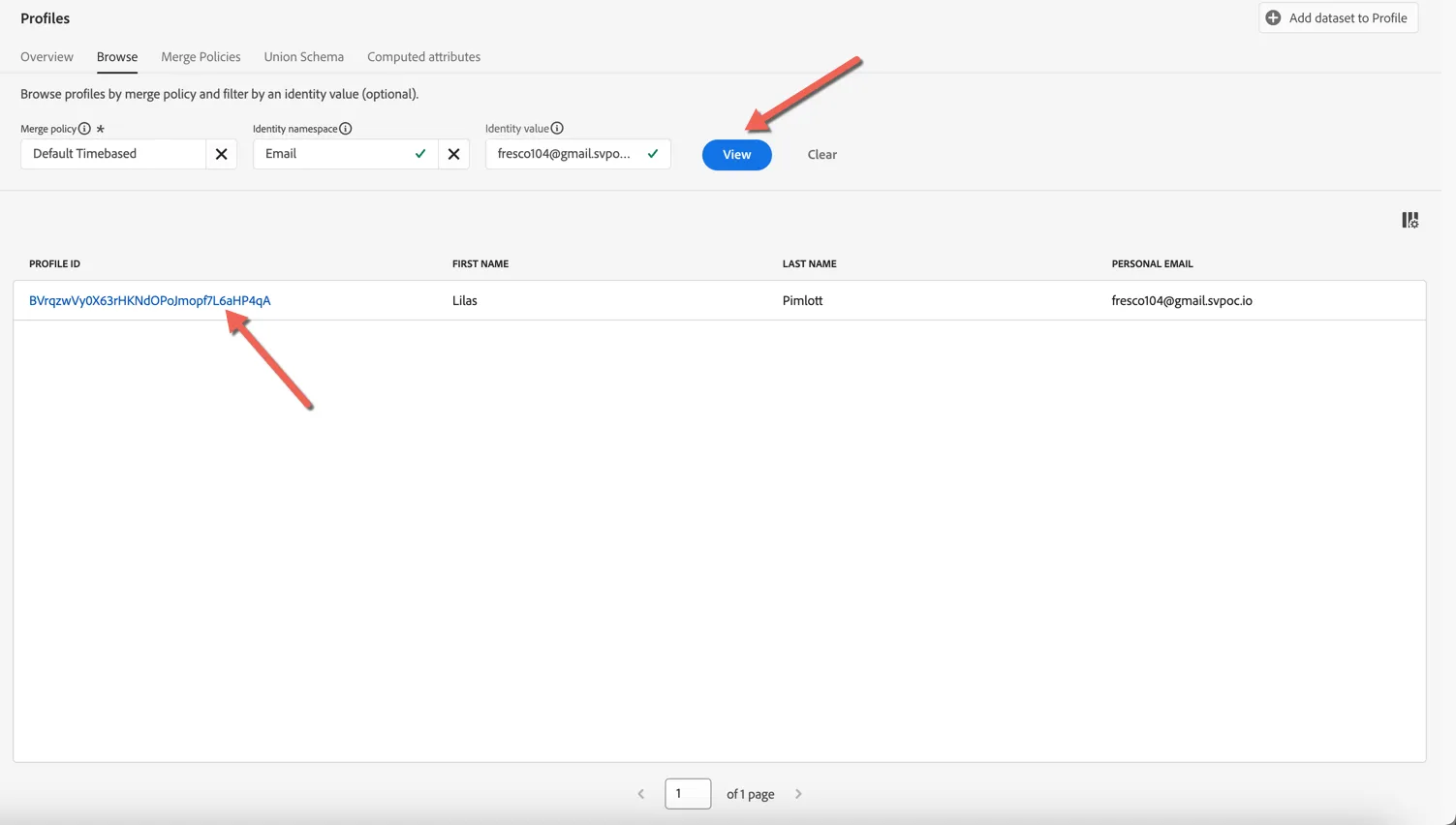
Click to View button to search for the profile, then click on the Profile Id to view the profile details.
The Detail tab shows us some basic information about the profile, which fields are displayed here can be customized according to business needs.
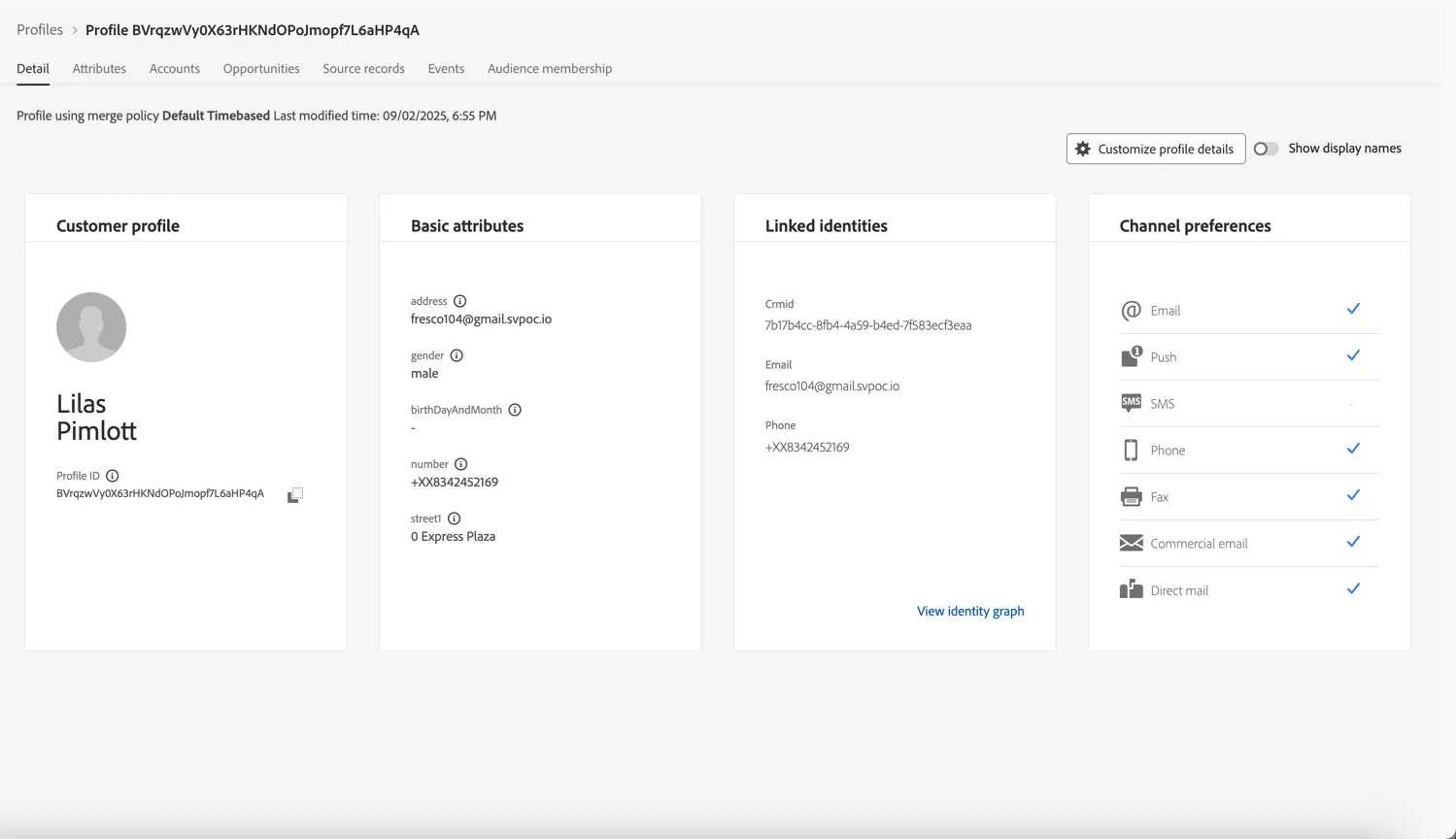
There are 2 main types of data collected against the profile, Attributes and Experience Events. Profile can change over time while Experience Events represent point in time interactions a profile has had with your brand, whether that's viewing a web page, watching a show, making a booking, calling the call center or visiting a store.
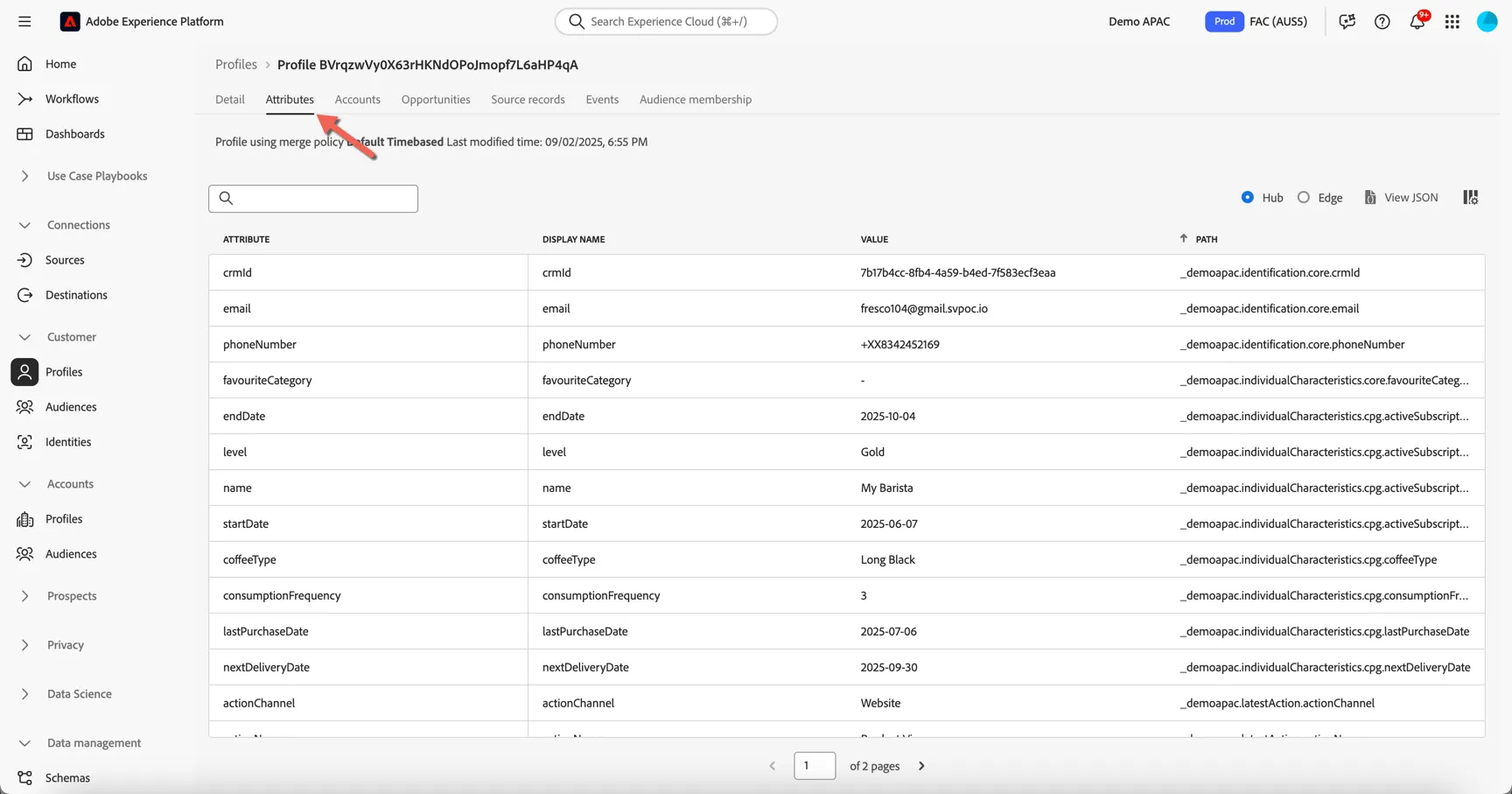
Click on the Attributes tab to view the full list of attributes ingested for this profile. These attributes can come from different source systems, Adobe Experience Platform will merge them in real-time.
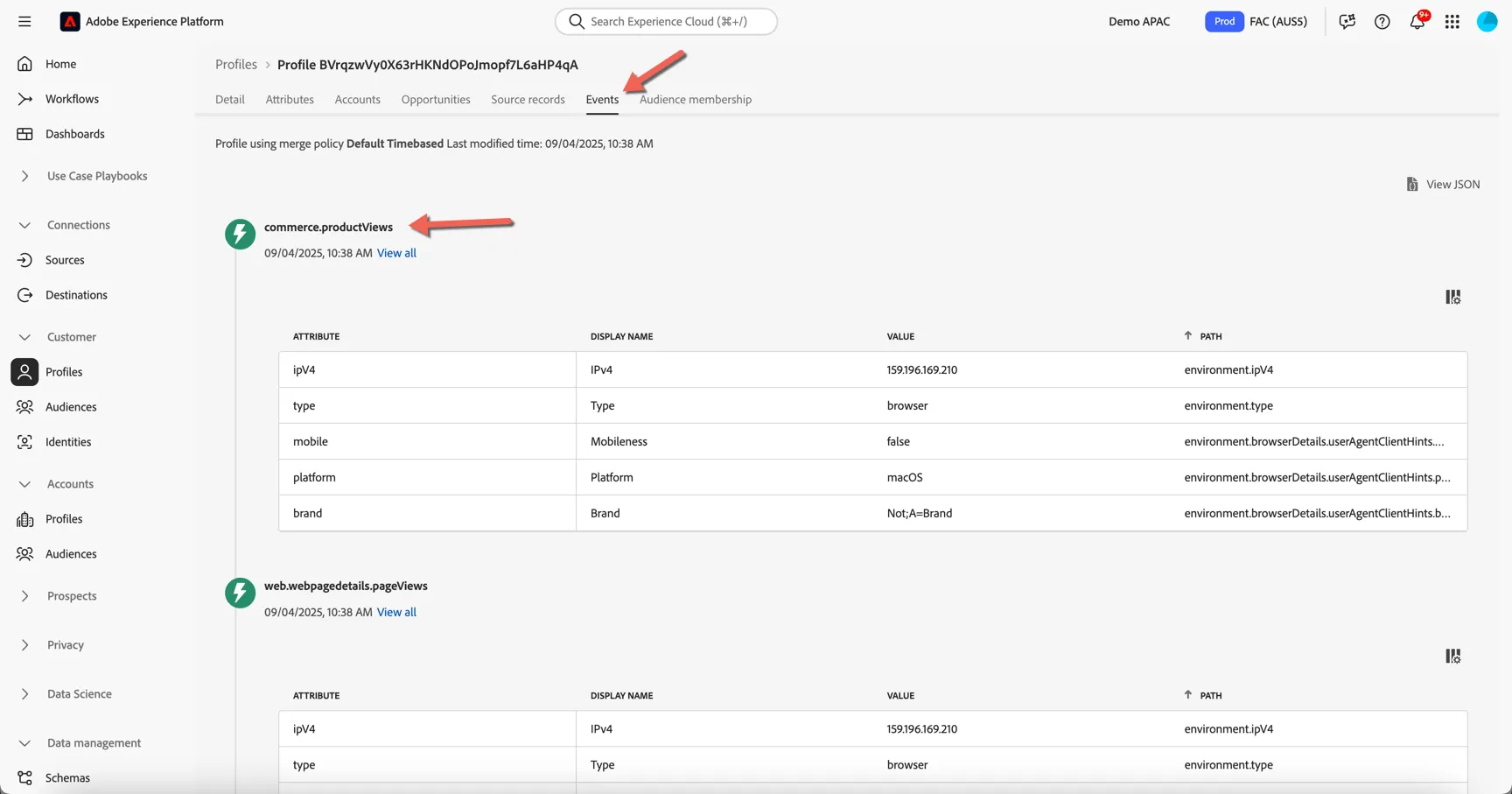
Click on the Events tab. Here you can see a chronological view of all the behavioural experience events coming from different source systems for this profile. These events are ingested in real-time from the sources like your website and mobile app.
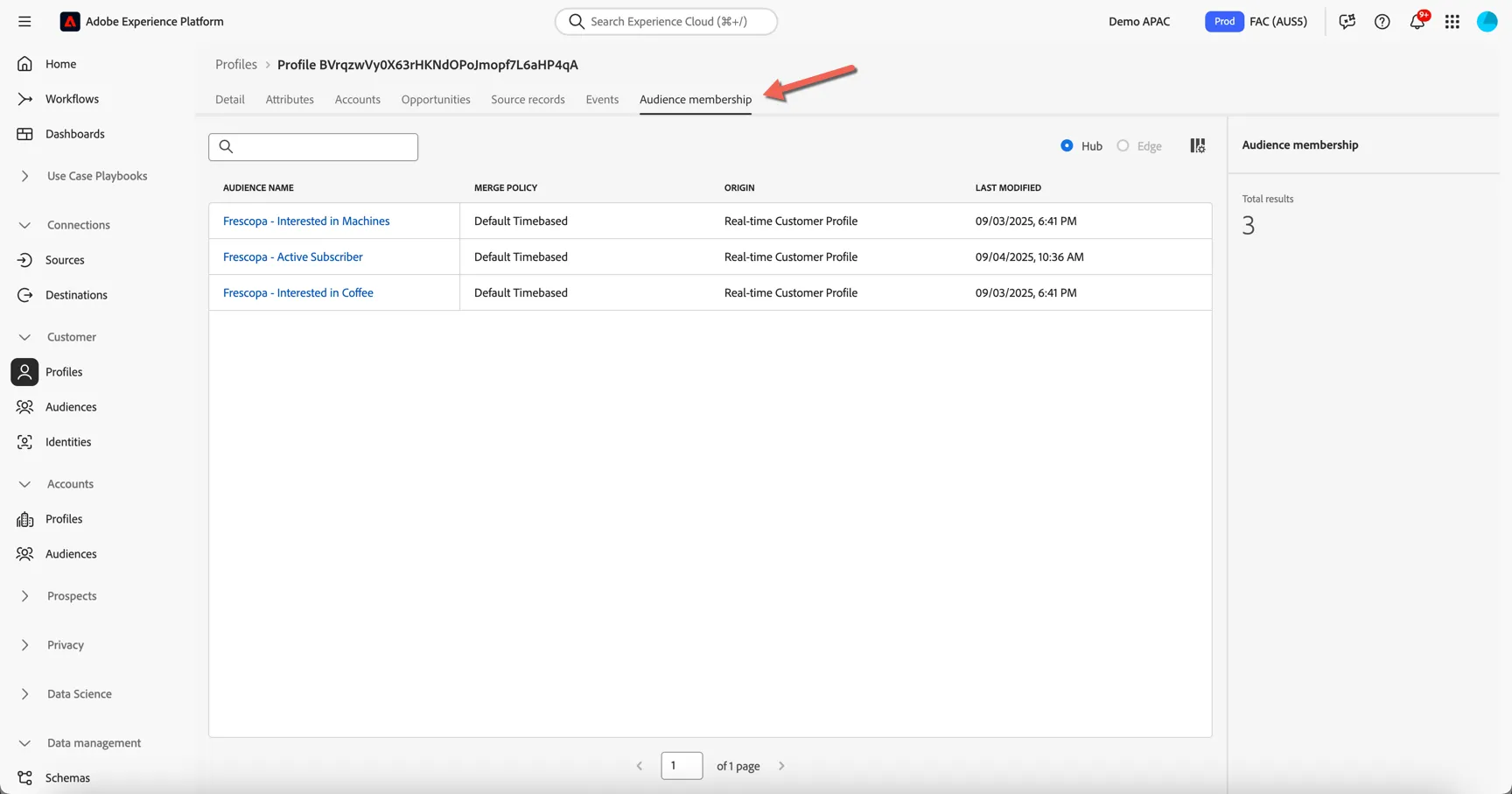
Move to the Audience membership tab. Here you can see which audiences the profile is currently a member of, this list will update as the profile moves in and out of audiences based on their attributes and behavior.
Lastly, return to the Details tab and click to view the Identity Graph.
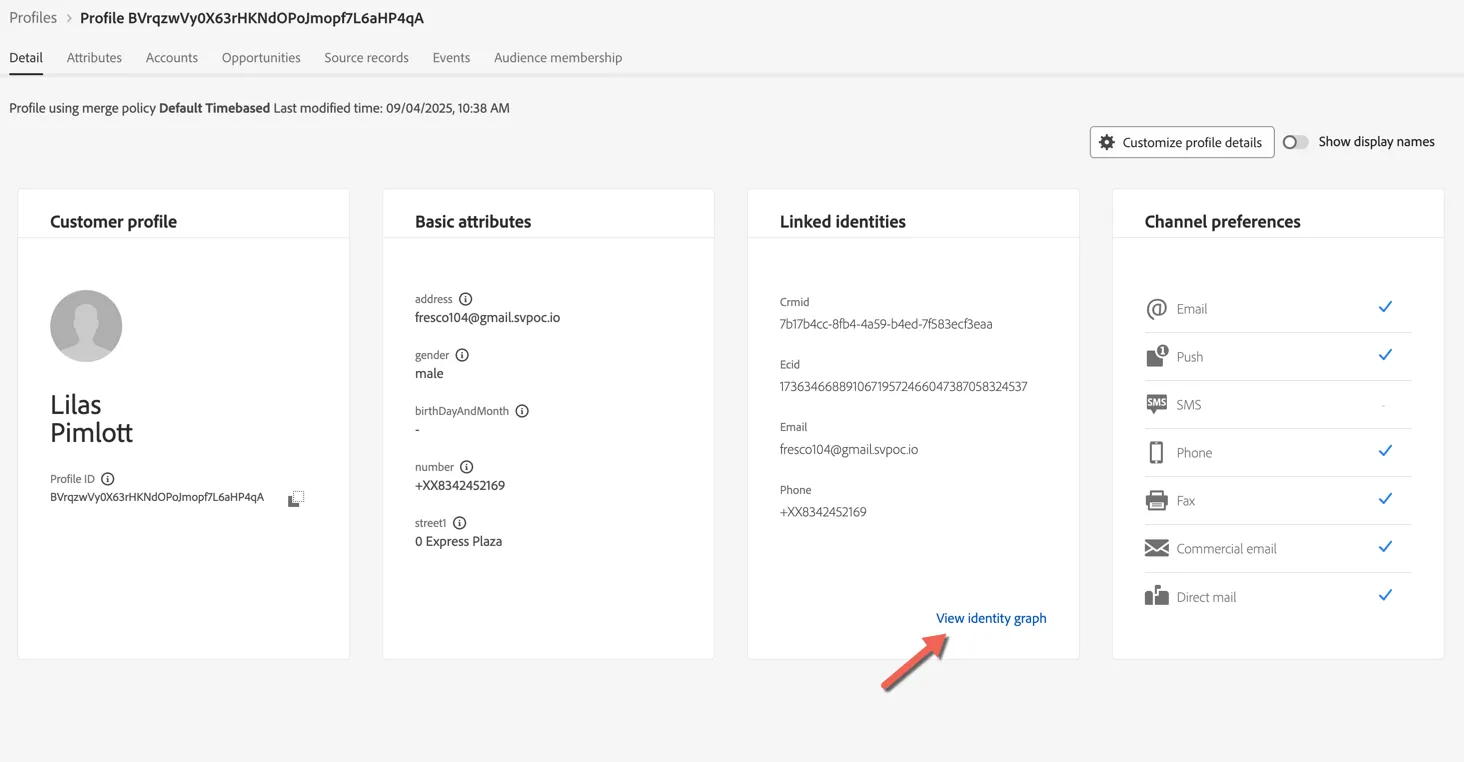
Here you can see a visualisation of the Identity Graph linking all of the different sources of information together to create our profile. You can see that there are multiple ECID's or Cookie ID's attached to the profile, this represents the different devices that the customer has identified themselves on.
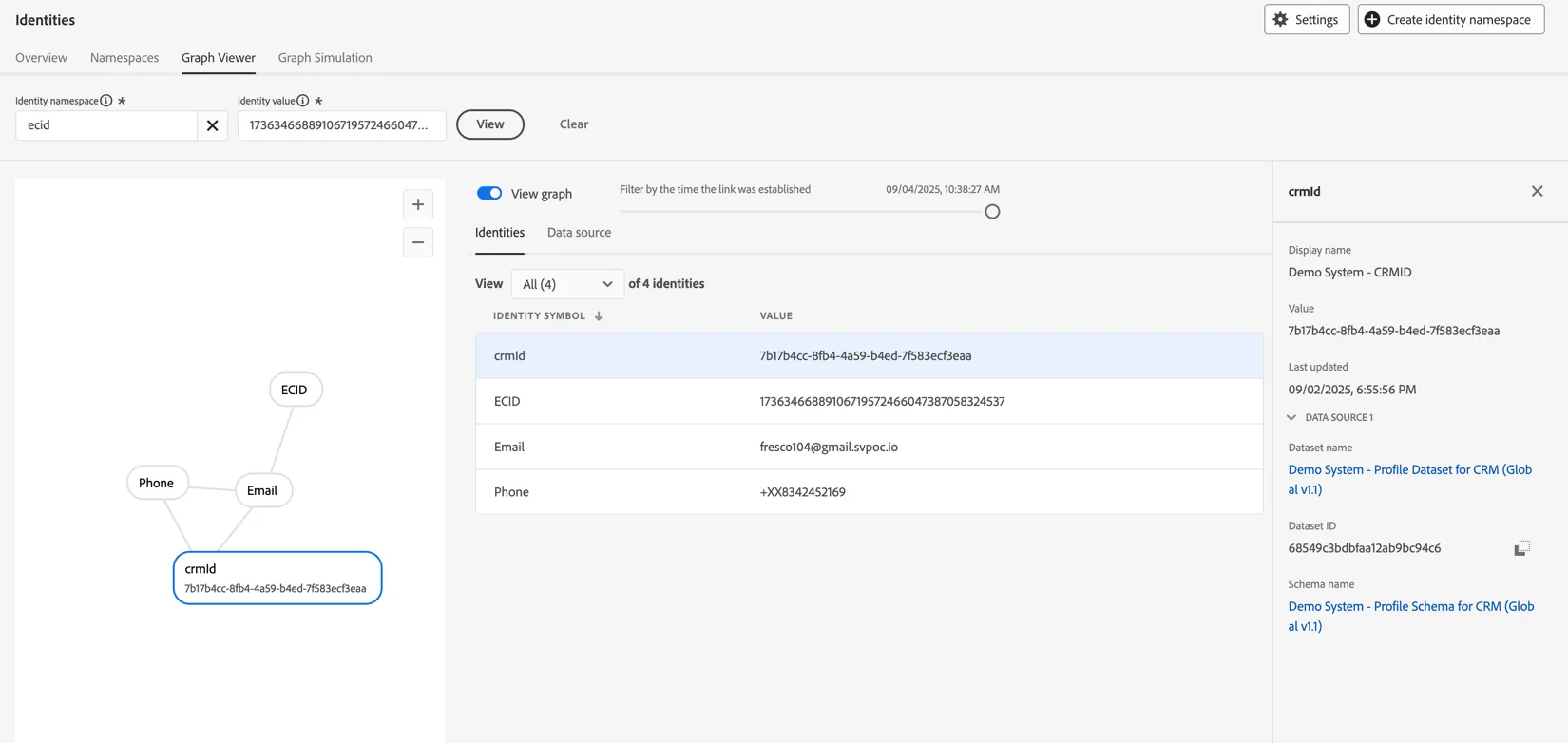
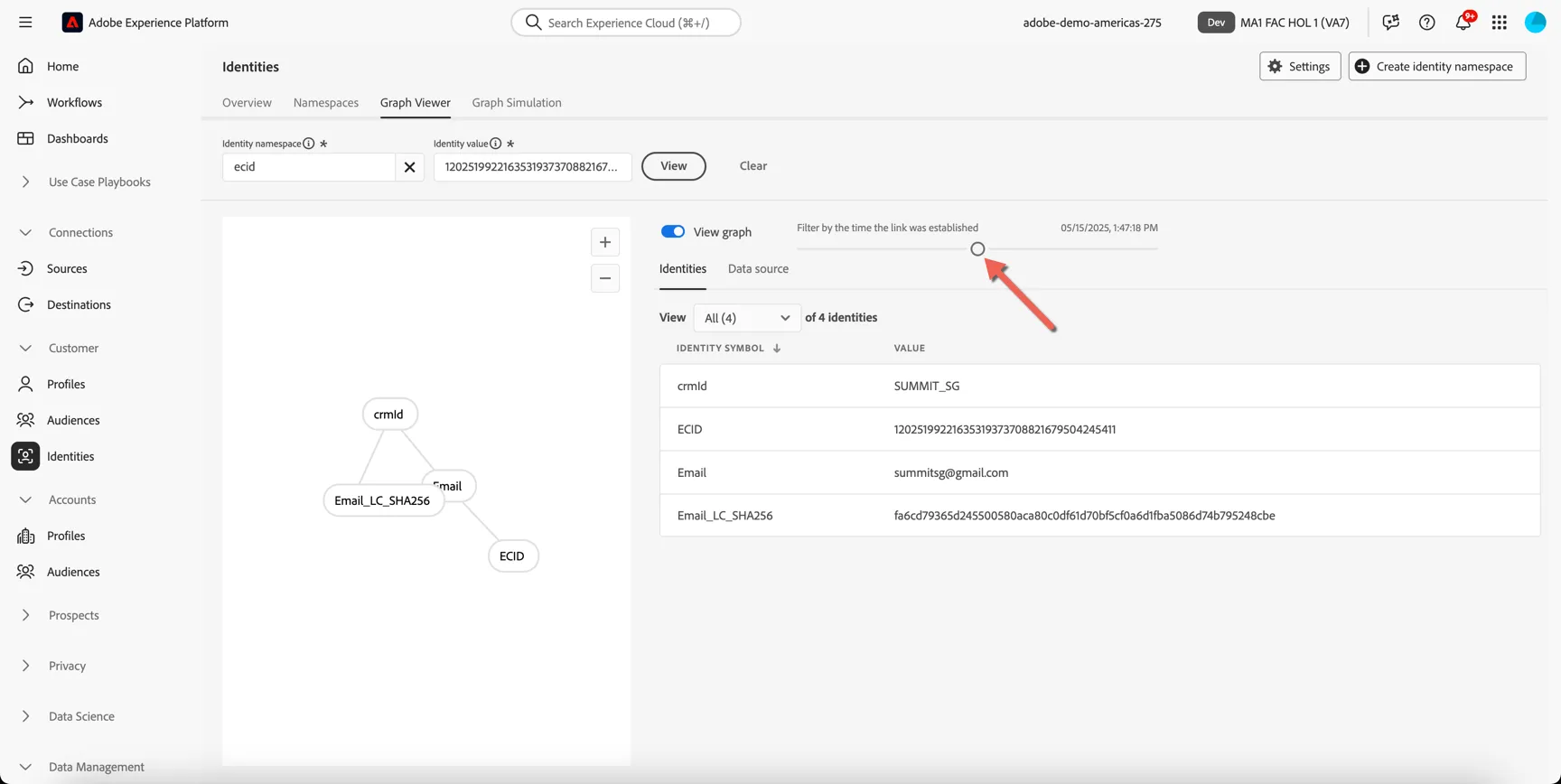
Use the slider to see how the graph grew as the profile interacted over time.
Create a real-time audience
We want to create a real-time audience for the retention campaign - we will leverage the rule based audience builder to do this. Our audience will have two rules:
- Predictive Churn Score - calculated externally or by Adobe is greater than 70
- Customer has visited the support or contact page today
Click on Customer -> Audiences, then click Browse to open the Audience Portal.
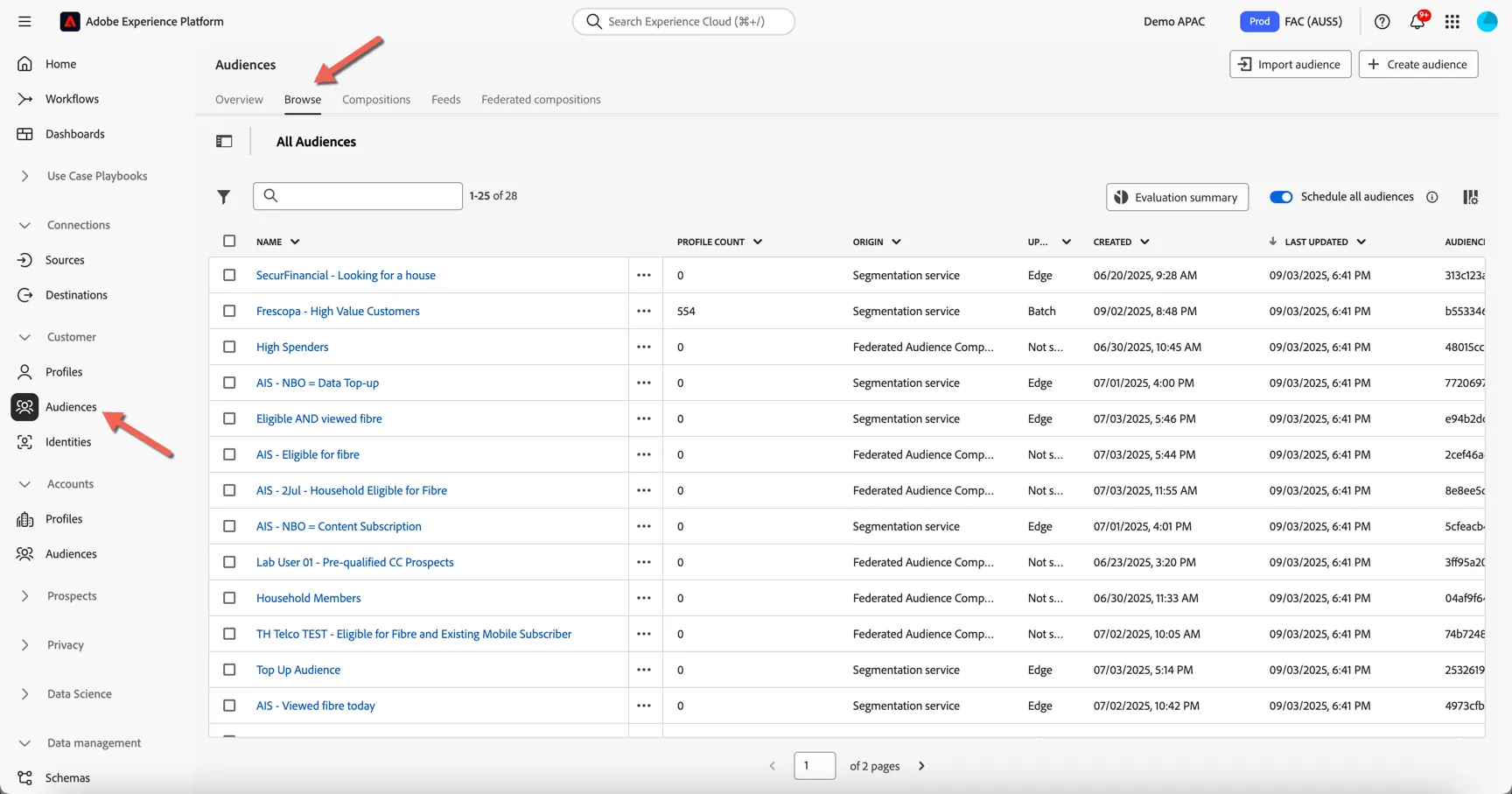
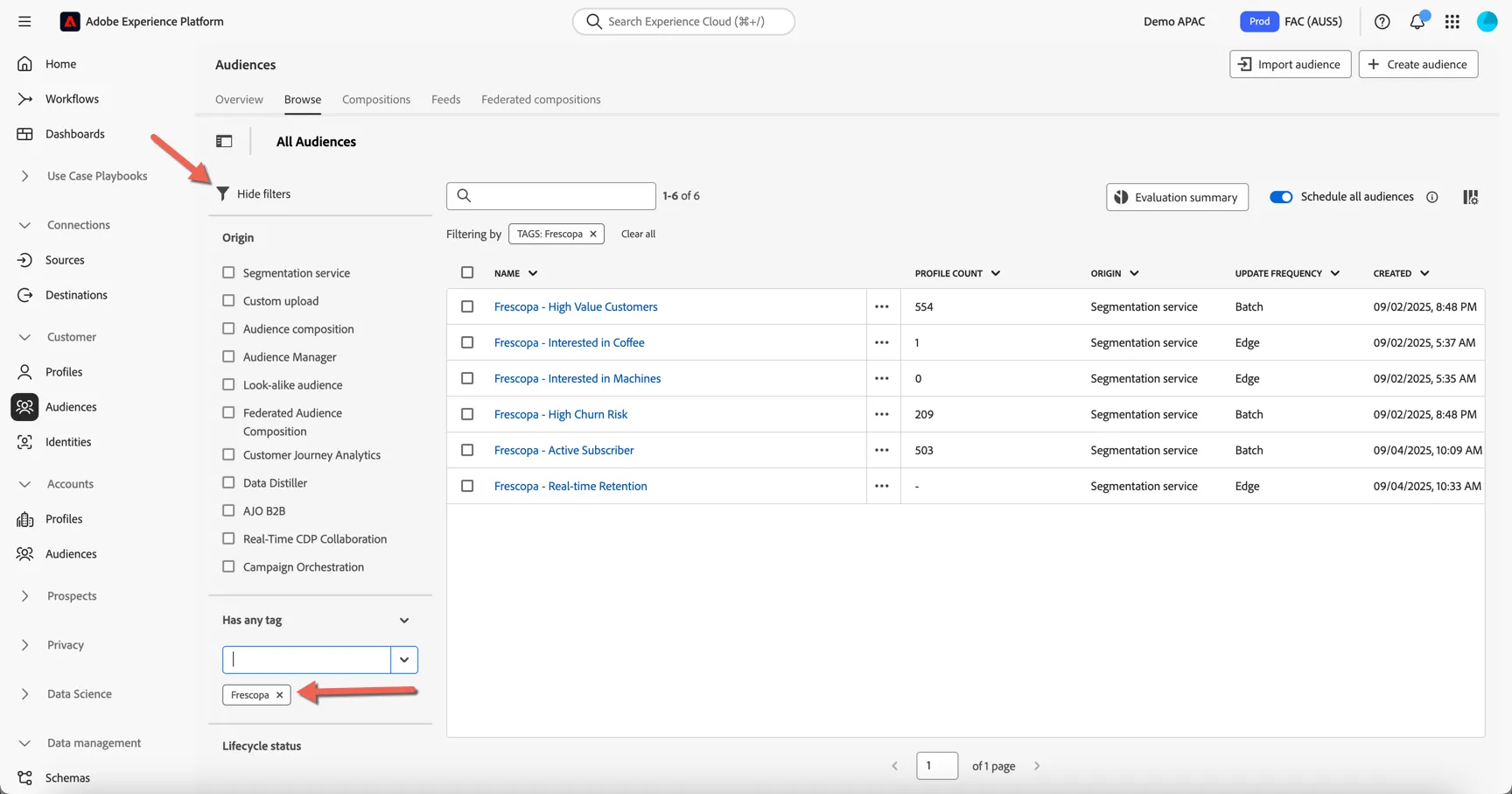
Click on the filter icon. The origin shows the many types of audiences that can be found in the portal. Each audience can be tagged for easy filtering, apply a filter for Frescopa tag, to show the audiences already available.
Let's create our new audience. Click to Create Audience in top right corner.
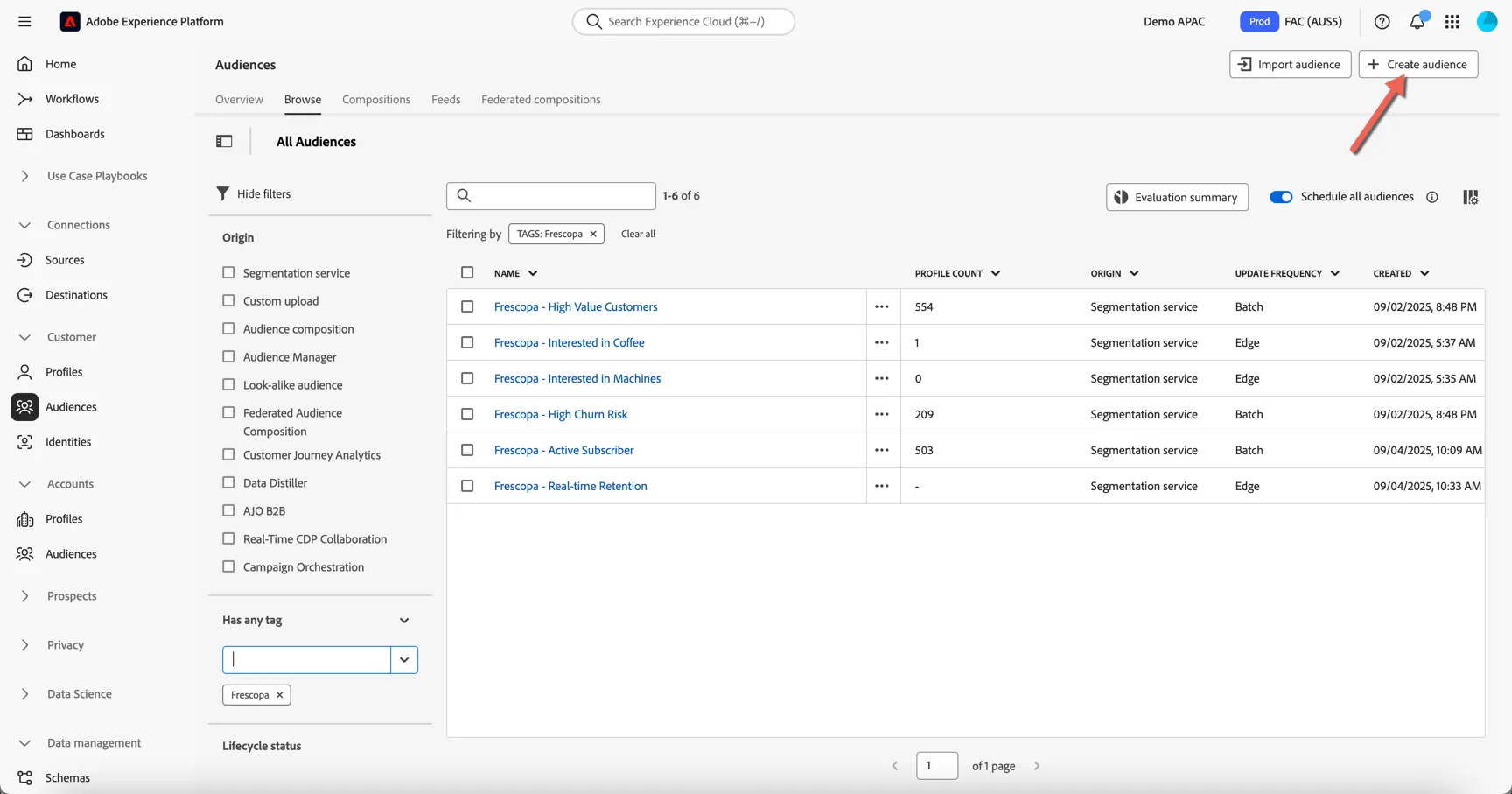
Click to Build rule and click Create.
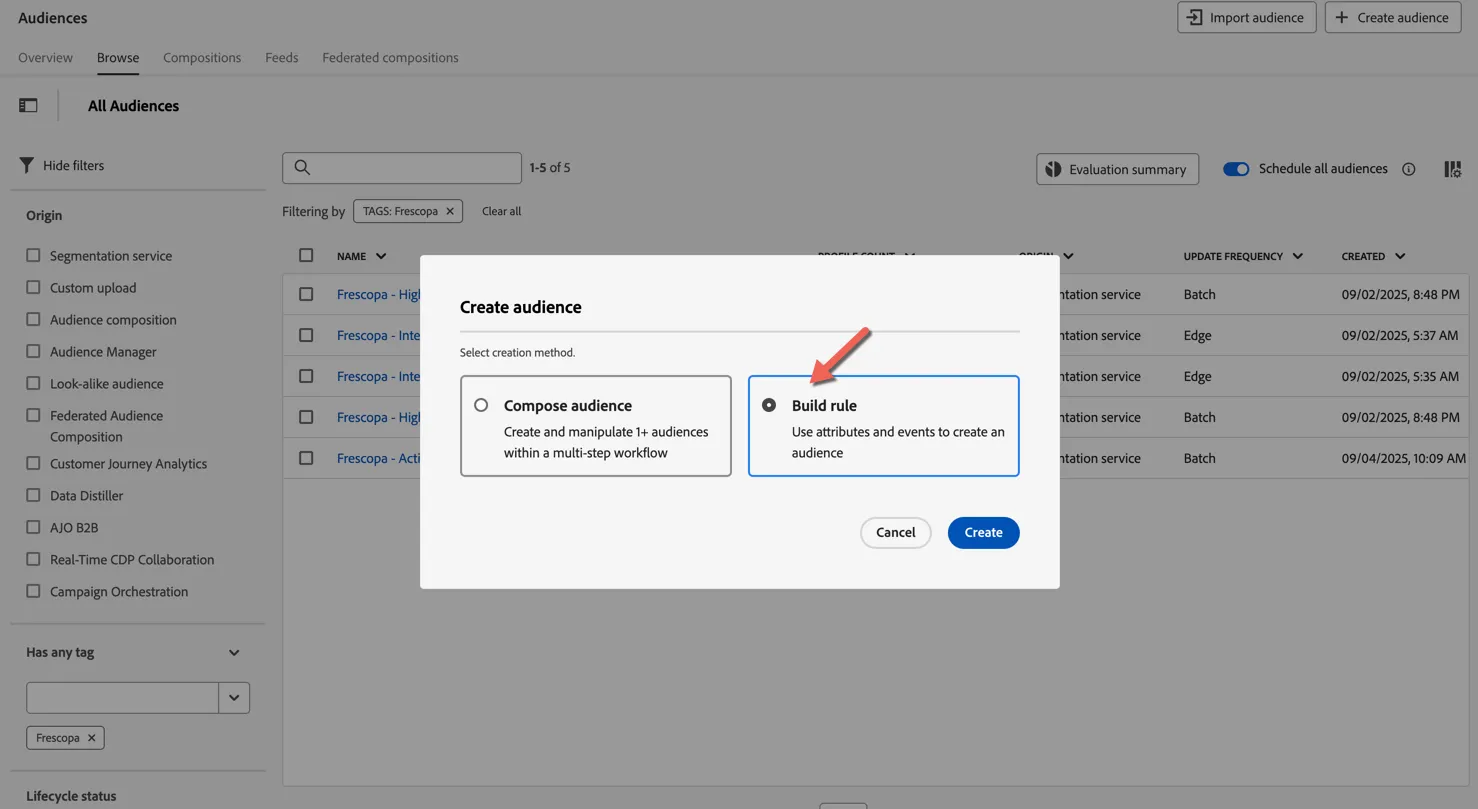
The drag and drop audience builder will open. Search for Churn in the attributes tab.
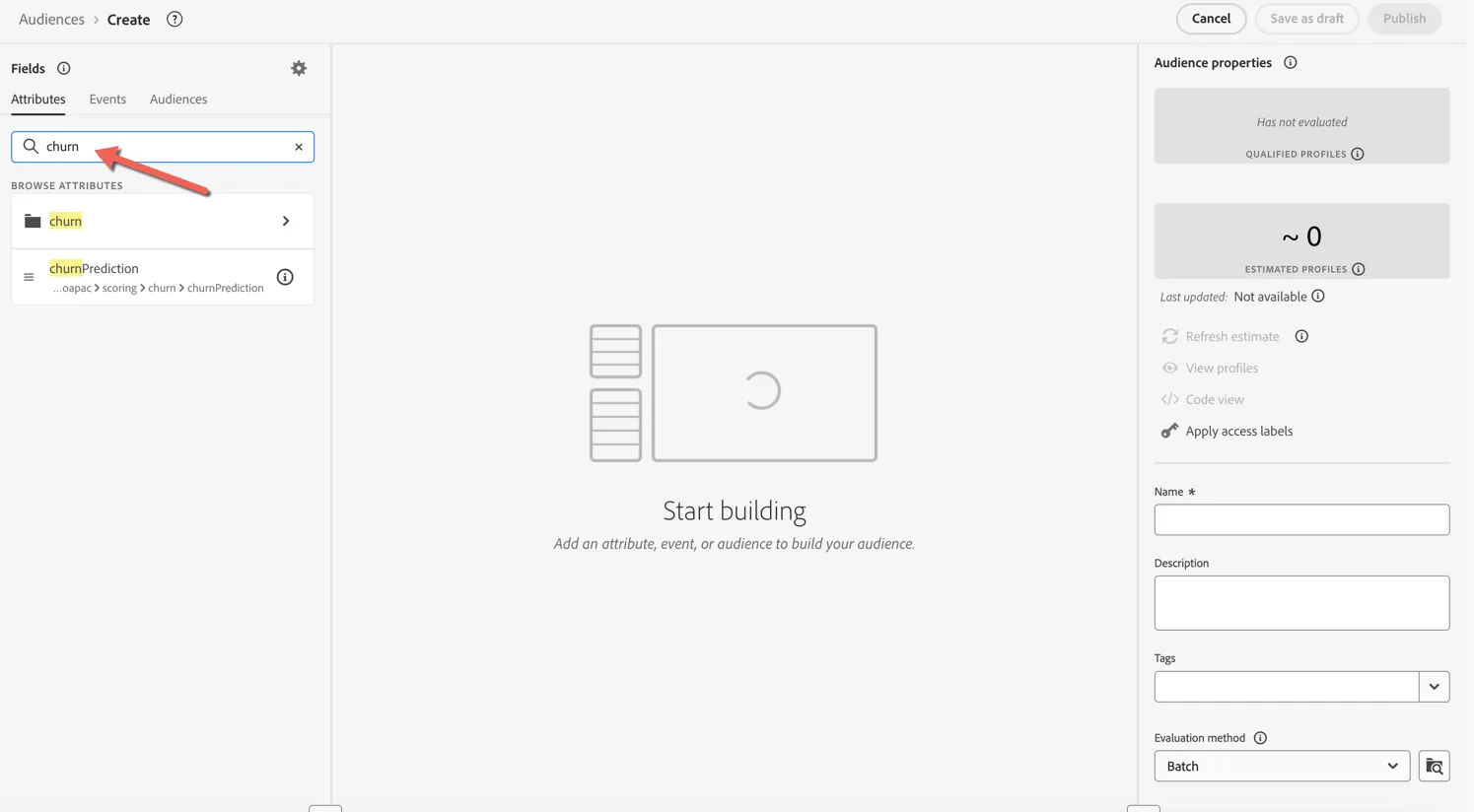
Drag the churnPrediction attribute into the canvas and set the condition to is greater than 70. You can click the Refresh estimate to get an idea of how many profiles will qualify so far.
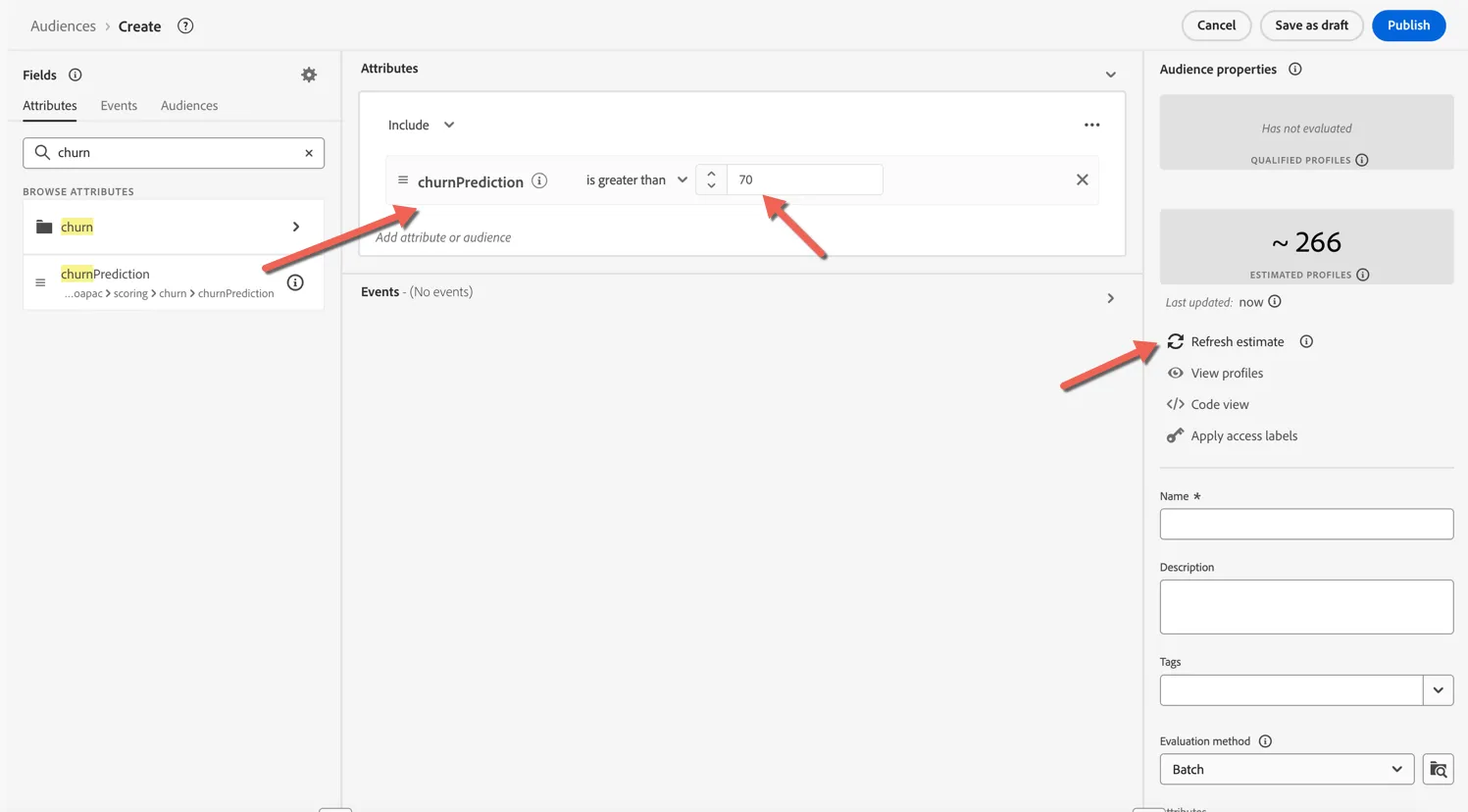
Next we'll add the event based condition. Click to move to the events tab.
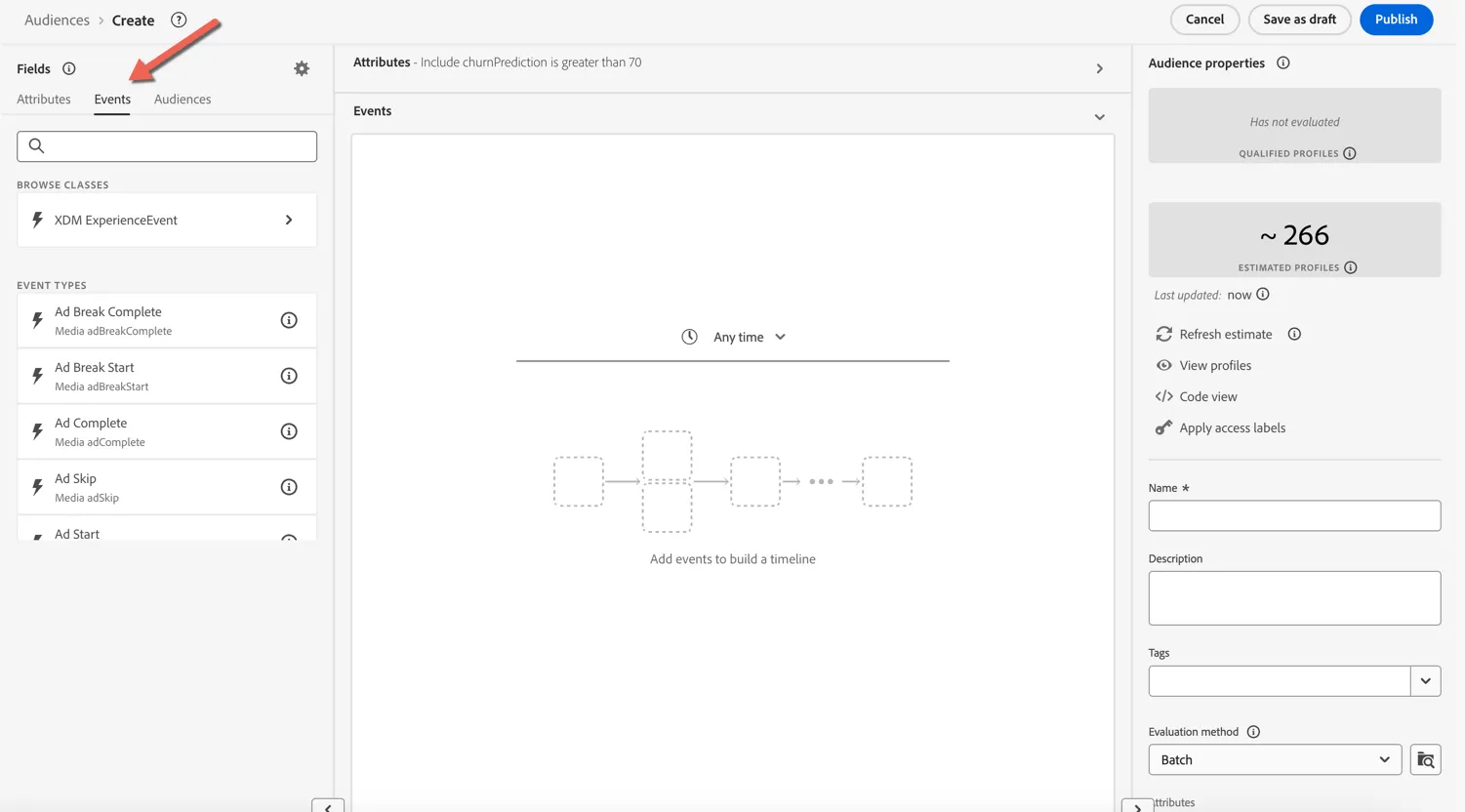
Search for page and click into the Web Page Details element.
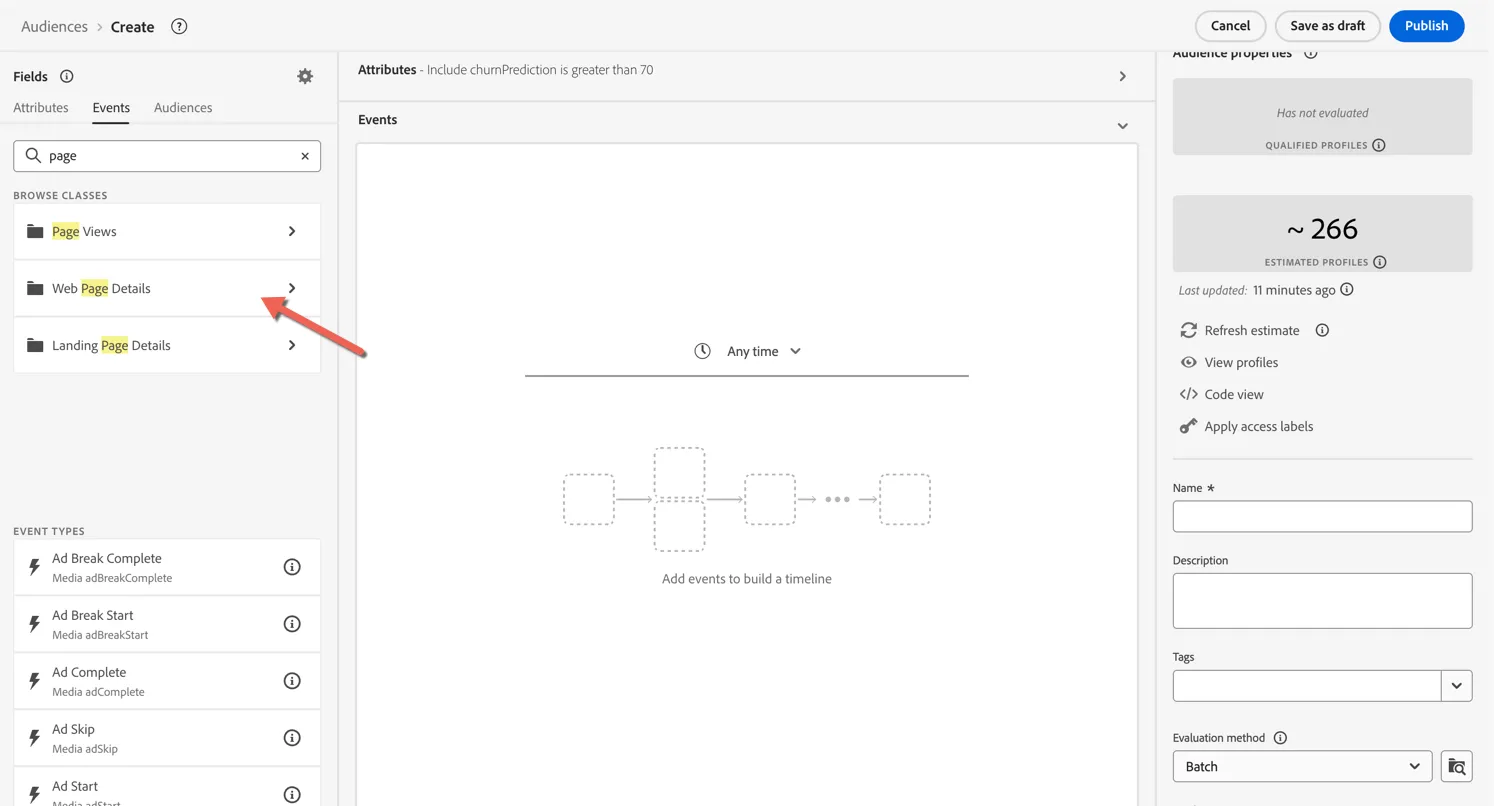
Drag the Name attribute into the canvas. This attribute contains the page name collected from the website.
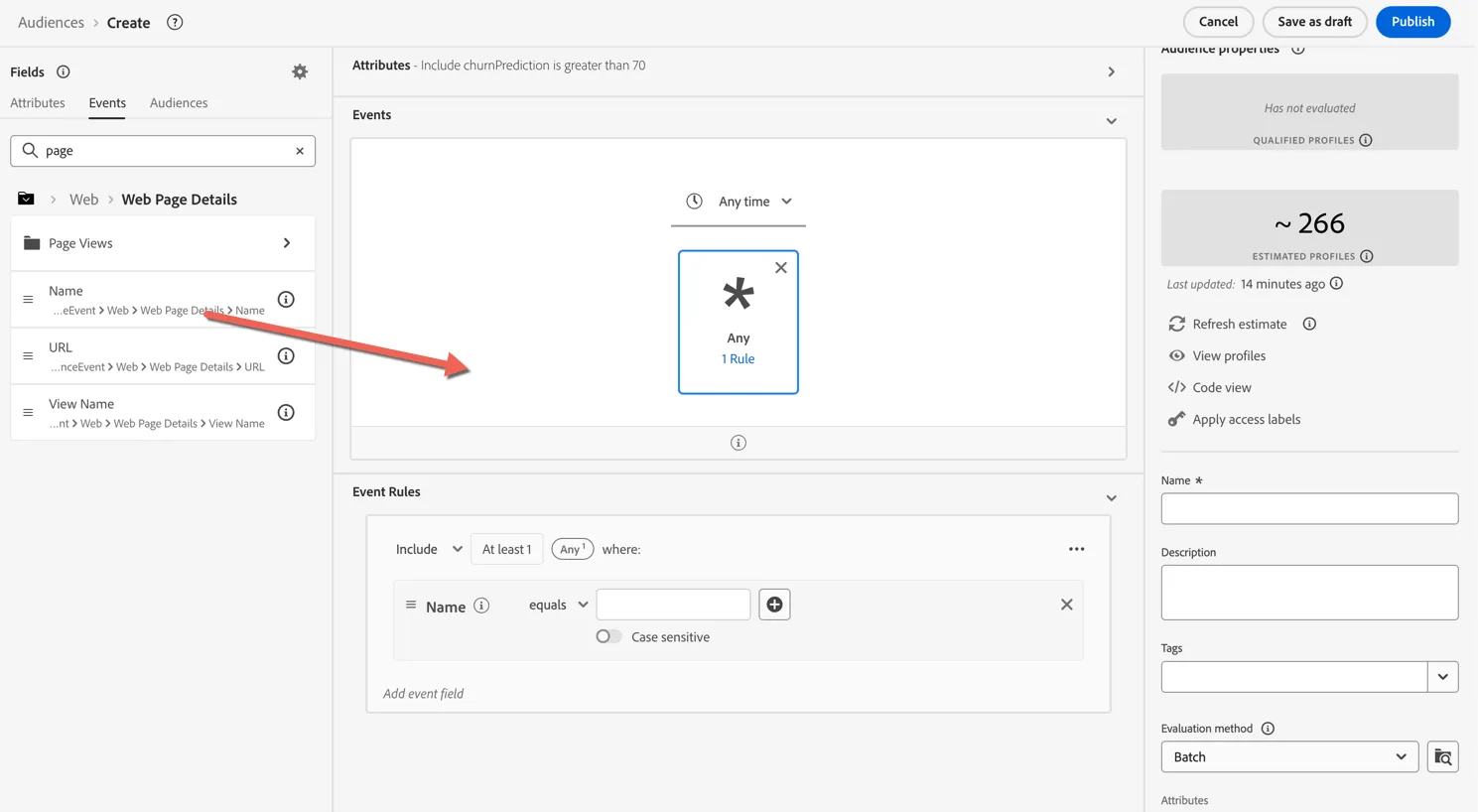
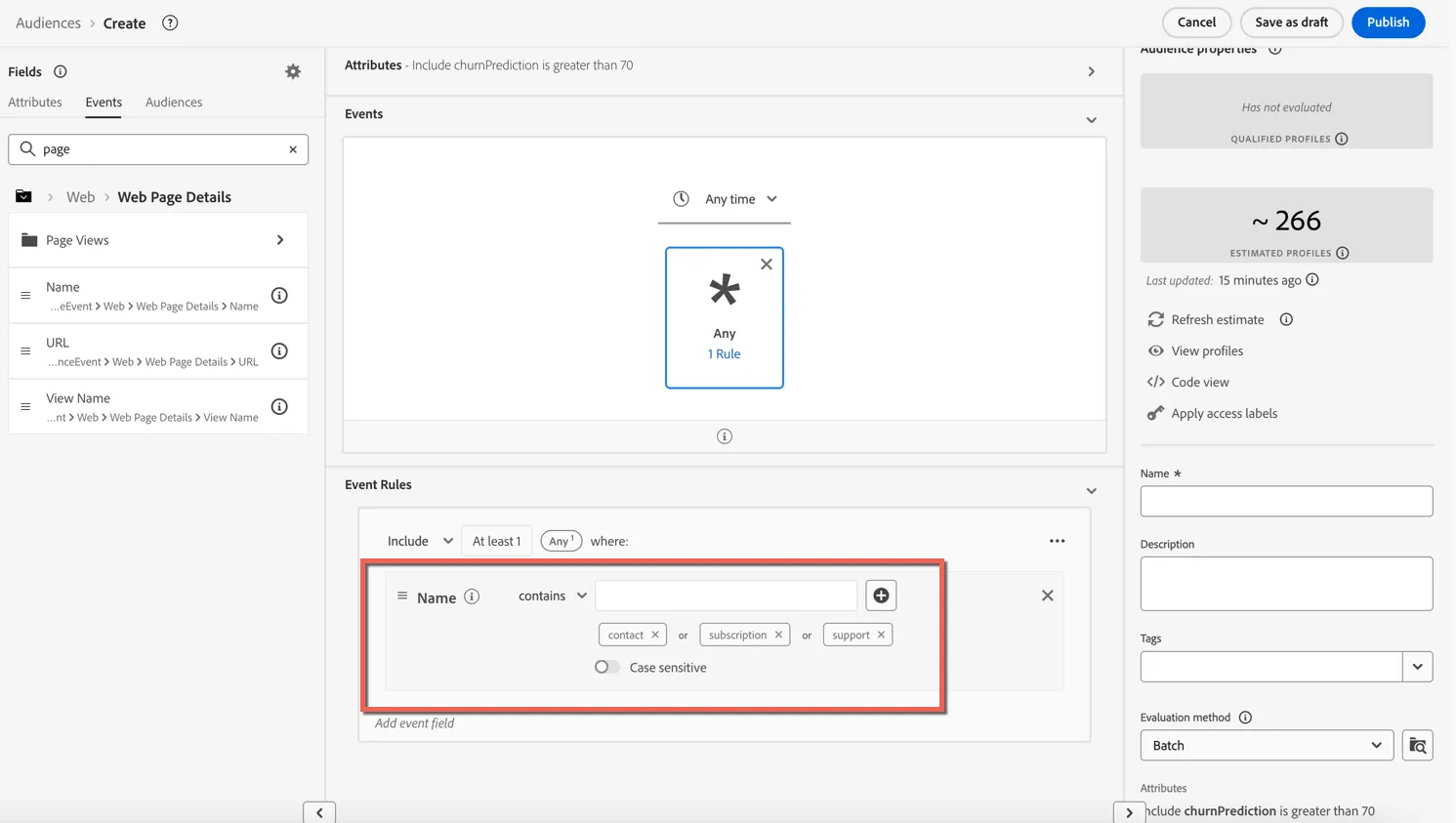
Change the event rules to specify the Name should contain support or contact. Hint: type one value into the text box and hit enter before adding the second.
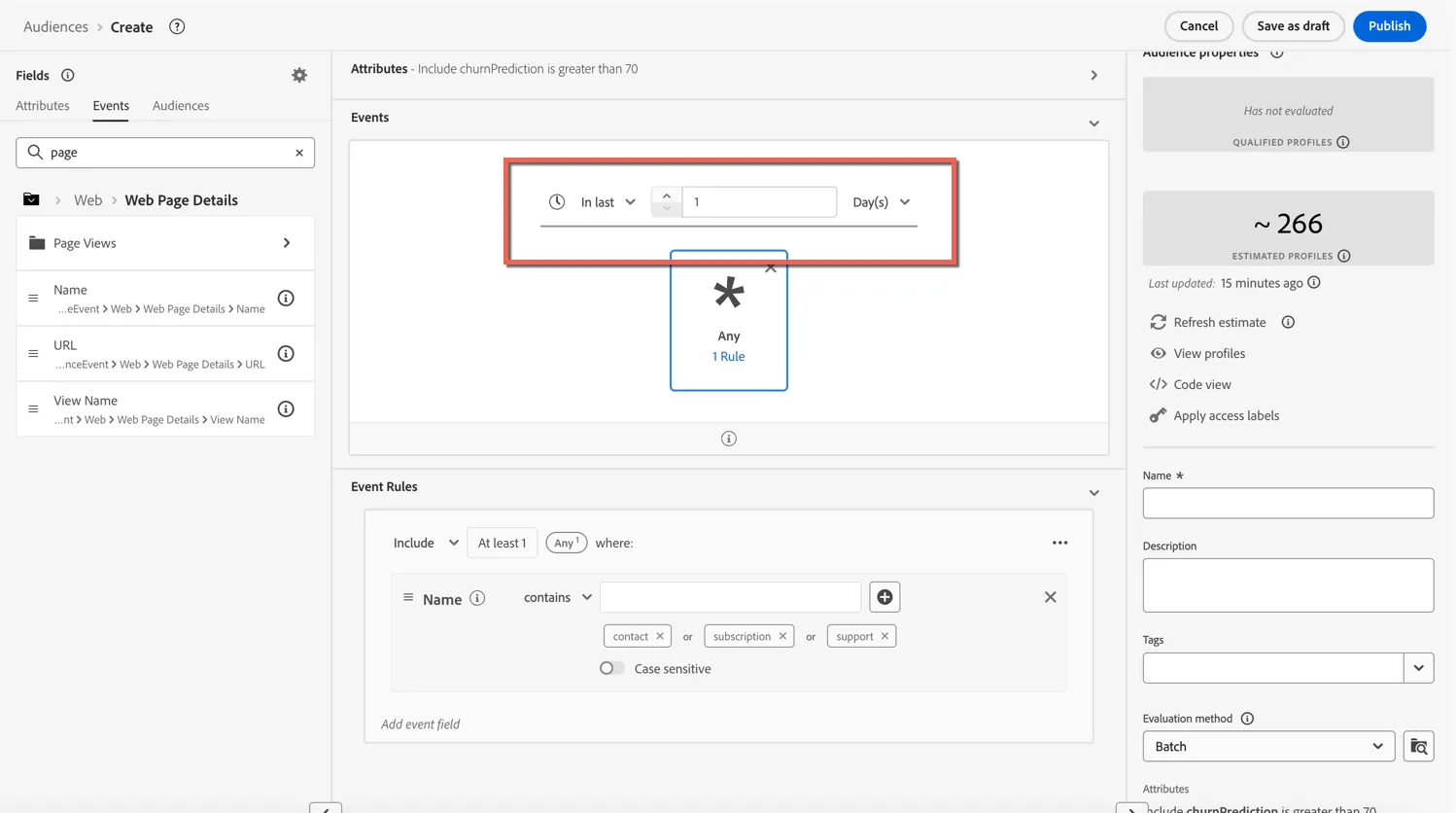
Next we'll change the timerange for our event to be within the last day.
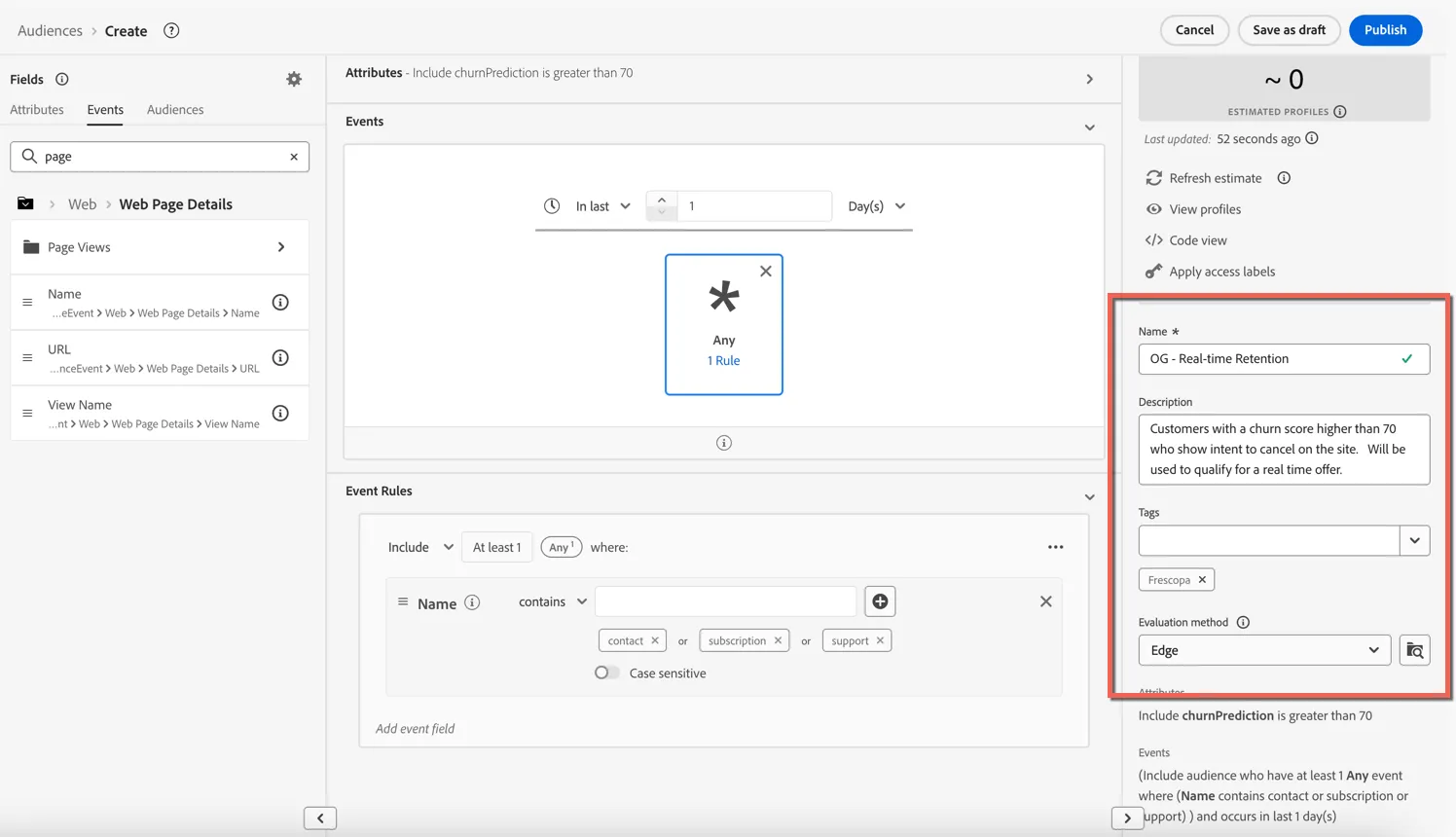
Lastly we need to configure the Audience Properties:
Name: give your audience a unique name - include your initials perhaps
Description: an optional description to help others understand the purpose of this audience - this will also be leveraged by the audience agent to understand more about the audience.
Tags: add the Frescopa tag for easy sorting and filtering
Evaluation Method: Set the evaluation method to Edge - this ensures the audience will qualify in real-time (sub 250 milliseconds) when the customer lands on the website.
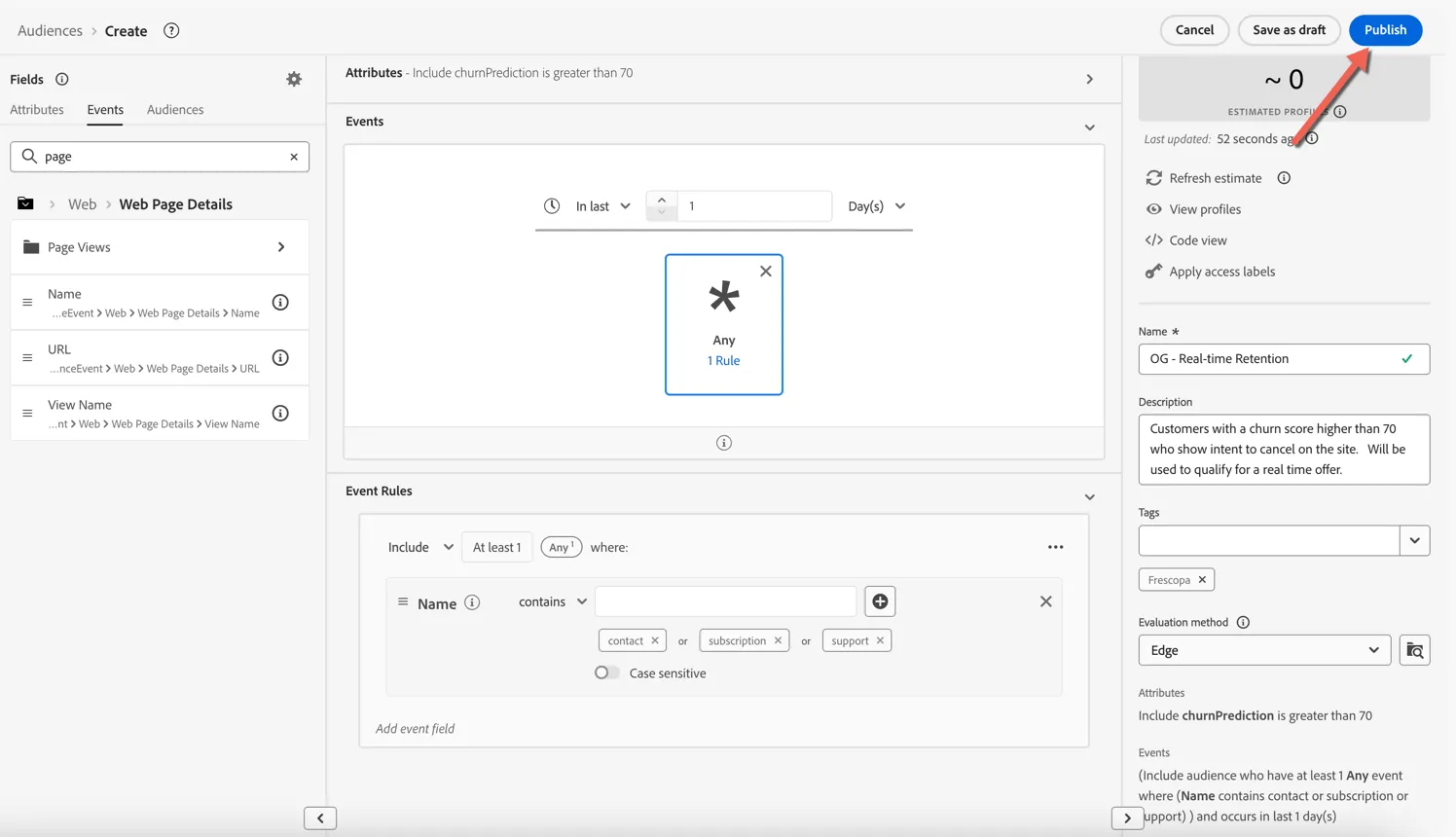
Click to Publish the audience.
Congratulations! You've created your first real-time audience in Adobe Experience Platform.
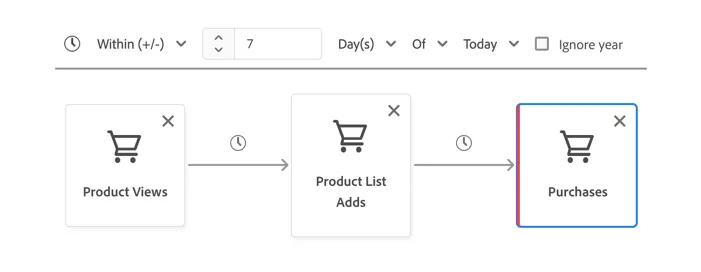
One of Adobe's differentiators is being able to create dynamic and sequential audiences within this rule builder. We can for example build audiences based on a sequence of behaviours such as - viewed a product, then added it to their cart but did not make any purchases.
AI Assistant
In this exercise you can explore how the AI Assistant can support you across your workflows. Including:
- Product knowledge to understand concepts on the fly
- Operational Insights to gain insight on objects you or your team have built
The Assistant is also how you access the Audience Agent, it can provide insights on your profiles and audiences. This can be helpful for audience maintenance and for planning new audiences.
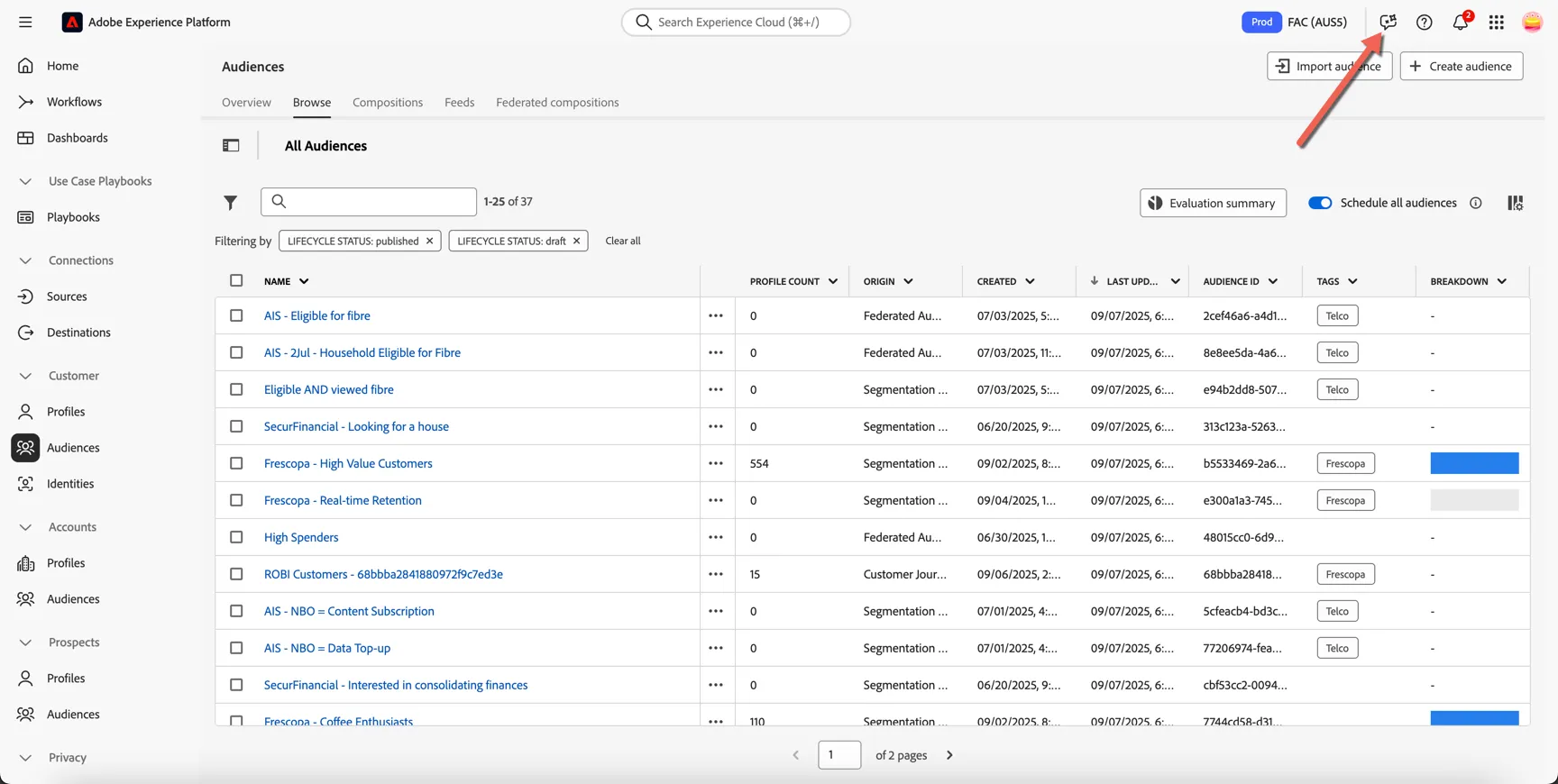
Click to open the AI Assistant in the top right corner.
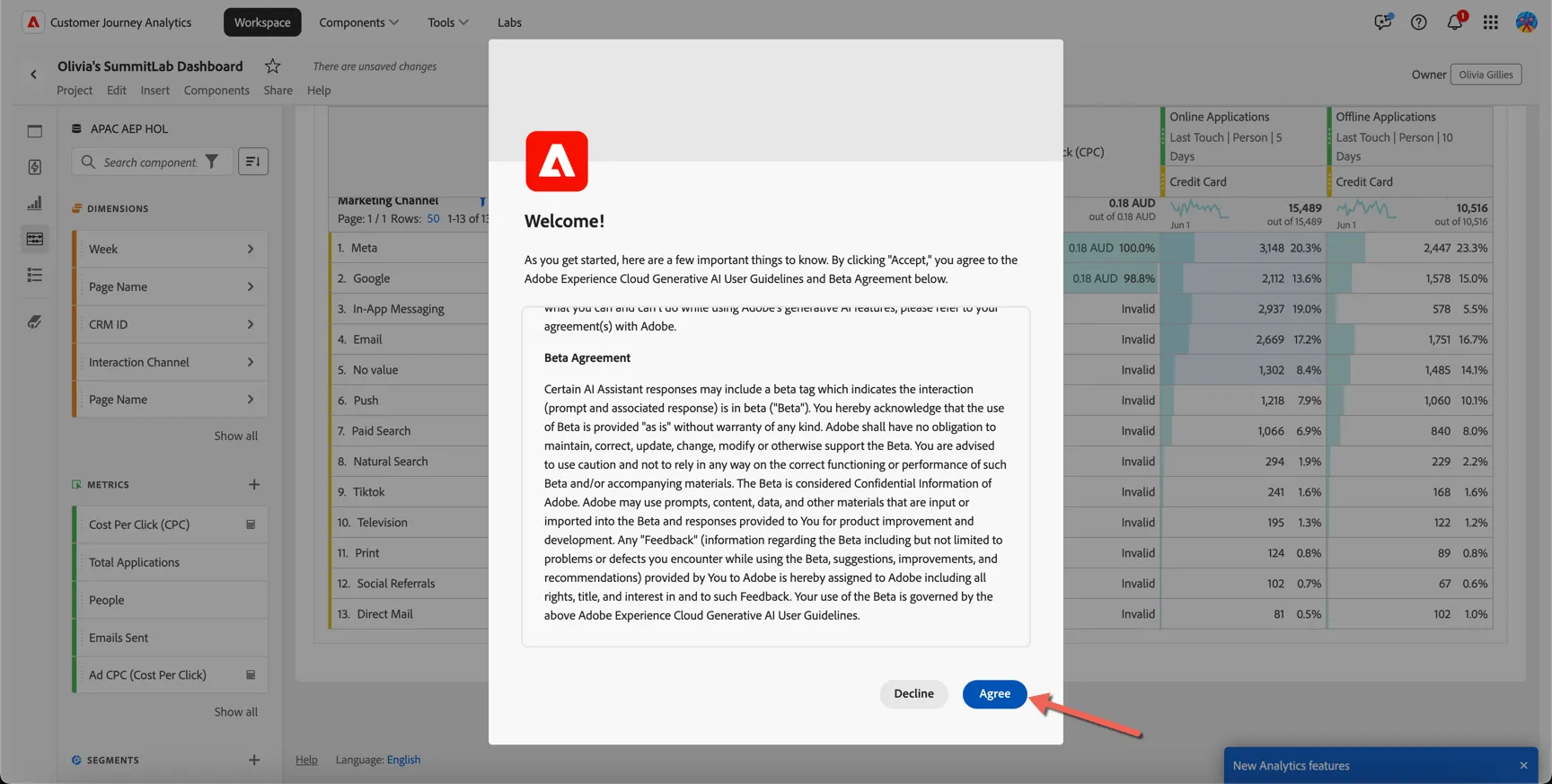
You might be asked to accept the Generative AI User Guidelines and Beta Agreement, you can safely do this in our demo environment.
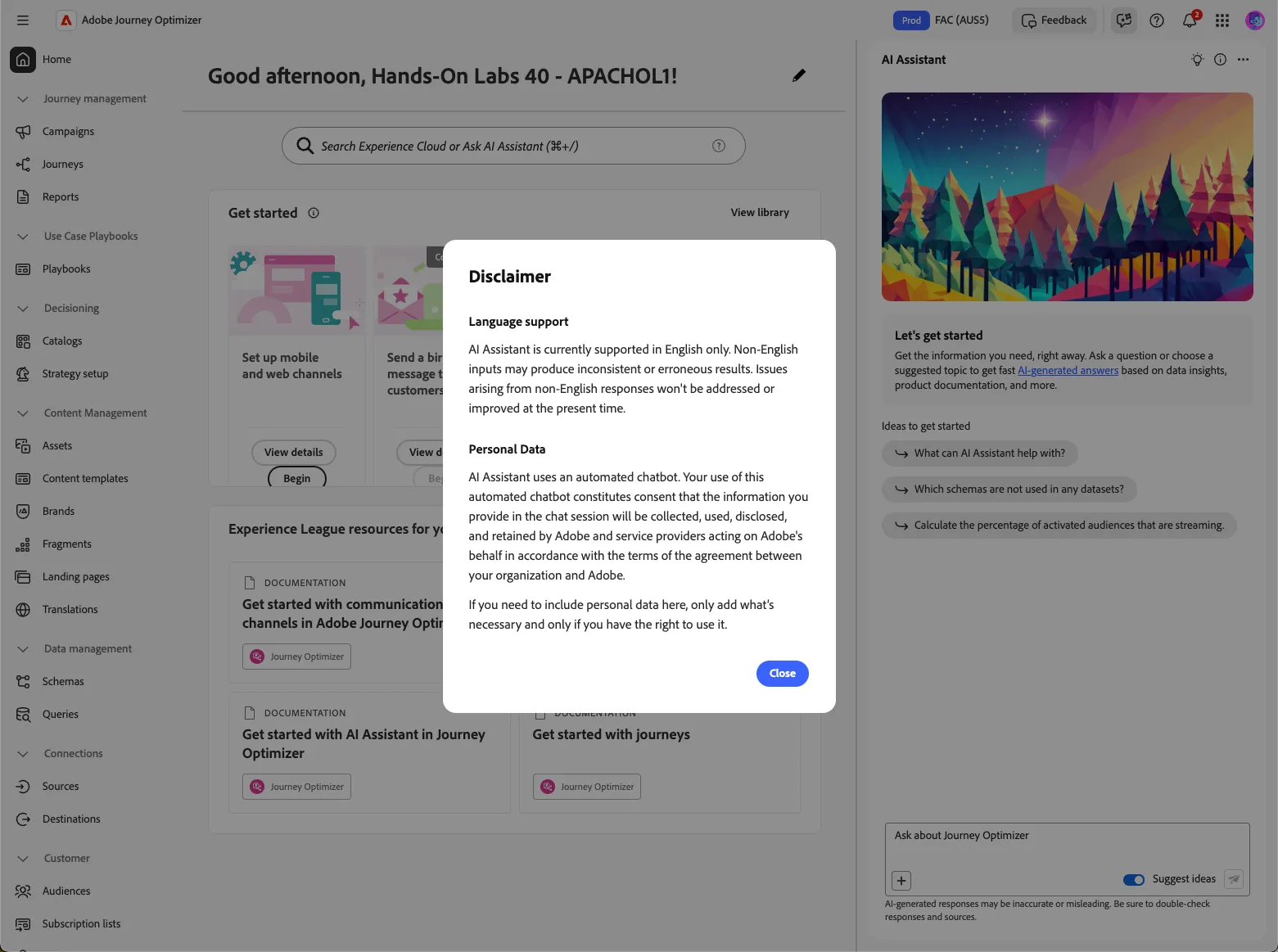
Following the license agreement there will be a disclaimer, you can safely close this also.
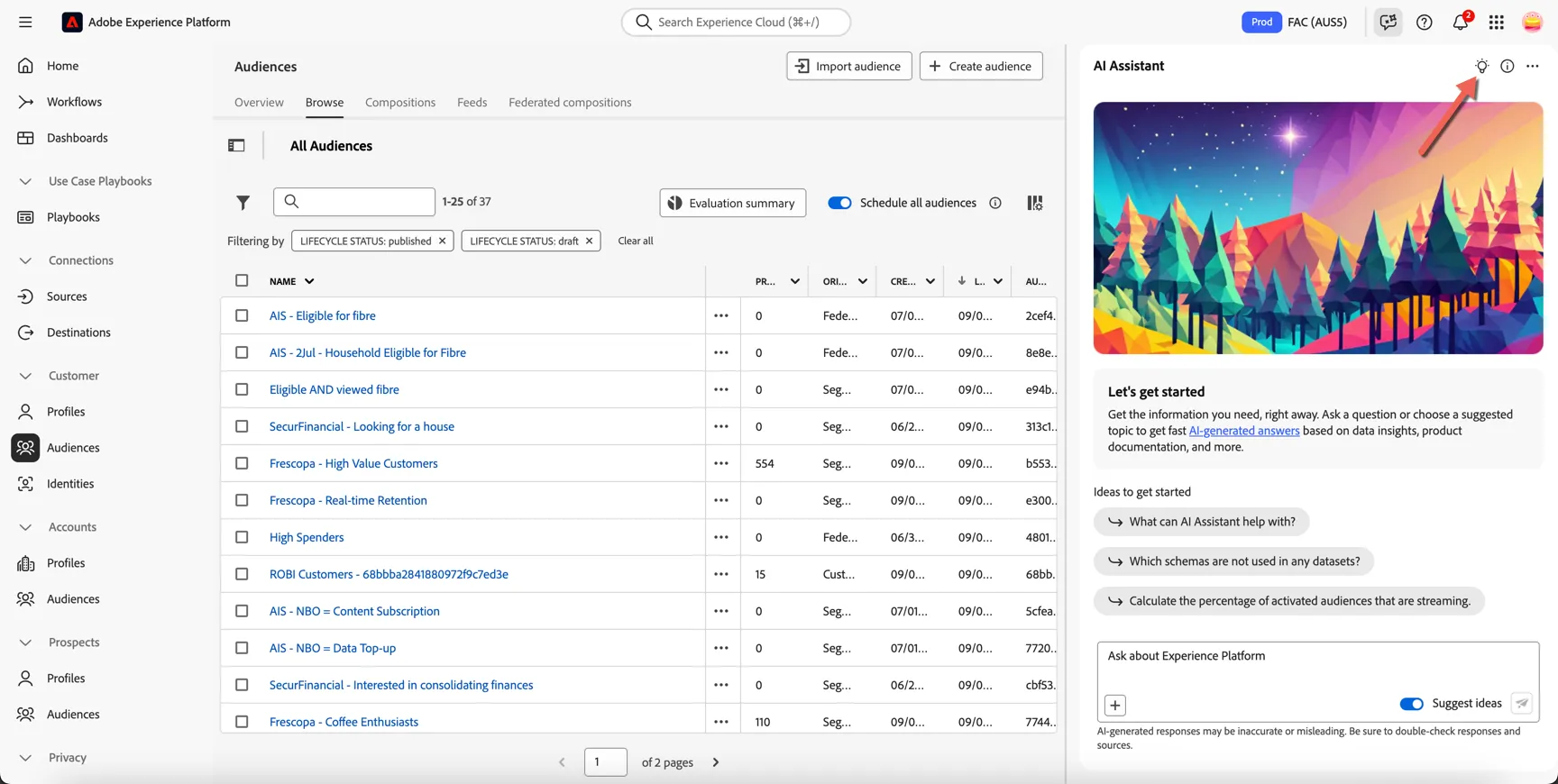
Click on the lightbulb in the top right to open the discovery panel, here you'll find some suggestions for the types of prompts by category that AI Assistant can help you with.
Navigate to Pointed Learning and click on the prompt: How is the identity graph built.
The prompt will automatically populate in the text input box of AI Assistant, press enter to execute the query and view AI Assistant's response.
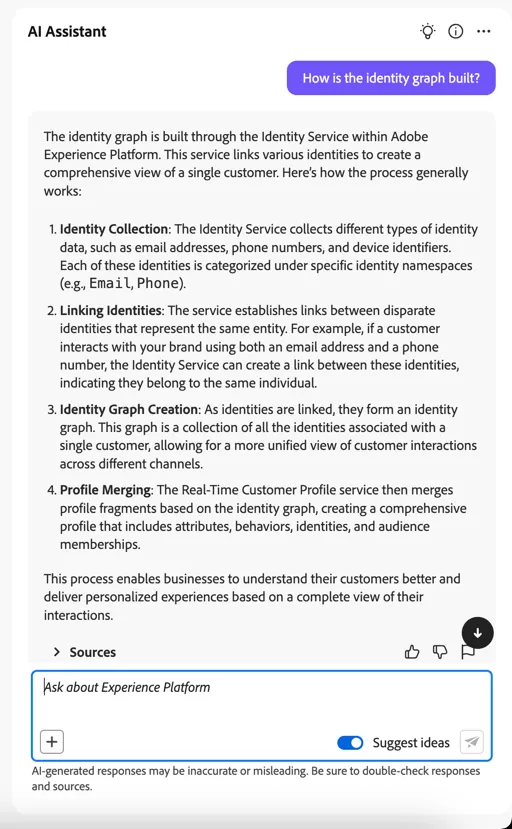
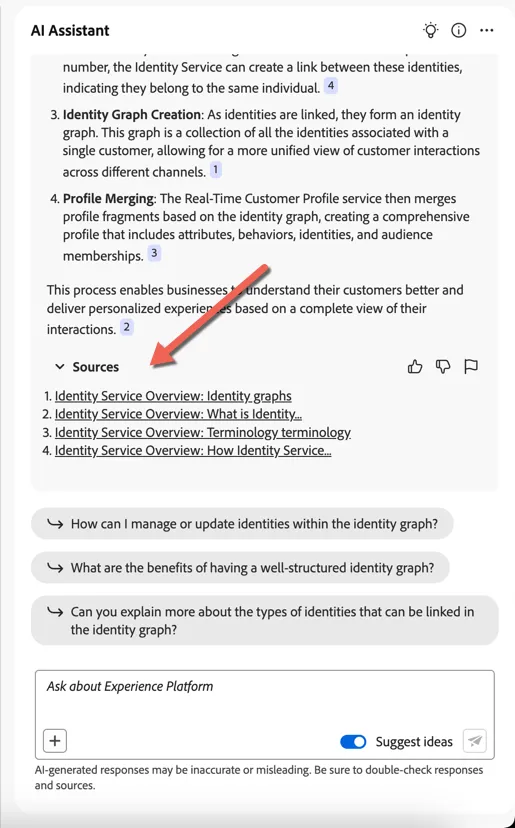
To verify the response provided you can review the Sources that are listed below the response.
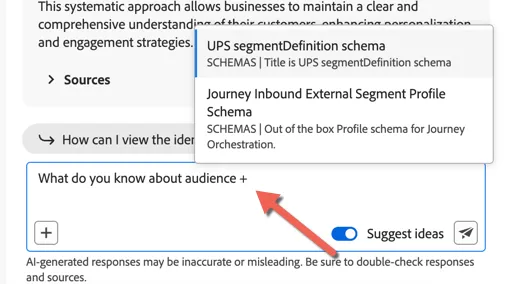
AI Assistant is also able to help with Operational Insights based on what is configured within your sandbox. In the AI Assistant input field, begin typing “What do you know about audience +”, the + will open the object selector.
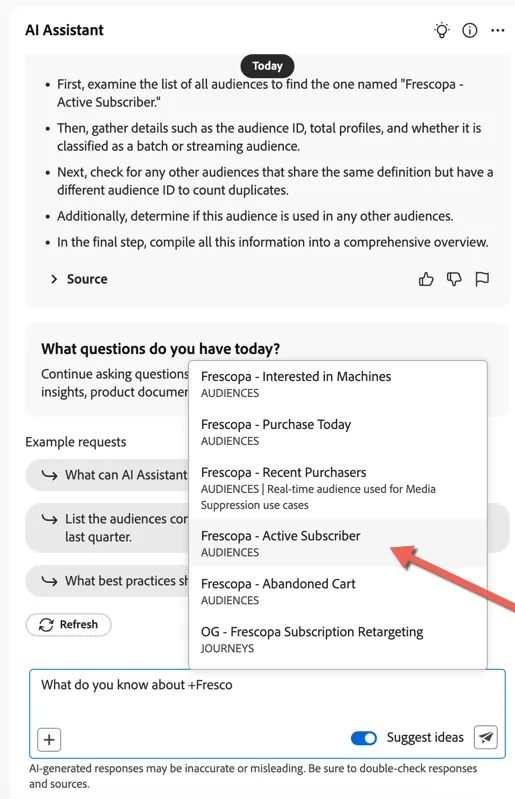
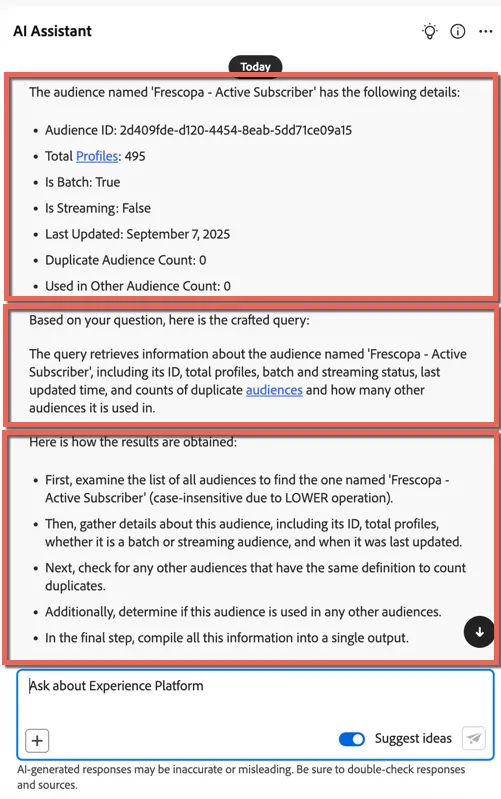
Start typing Frescopa and you'll see the objects list update as you type. Select Frescopa - Active Subscriber audience from the drop down.
Once AI Assistant provides a response, take note of the structured output, which consists of three key sections:
- Actual response and data – The primary insights retrieved from Adobe Experience Platform.
- How AI Assistant interpreted your question – Explanation of AI Assistant’s reasoning.
- How the answer was derived – The logic and steps behind the response.
We can use AI Assistant to understand the overlap between audiences.
- Ask AI Assistant: What is the profile overlap between audience +Frescopa - High Value Customers and +Frescopa - High Churn Risk?
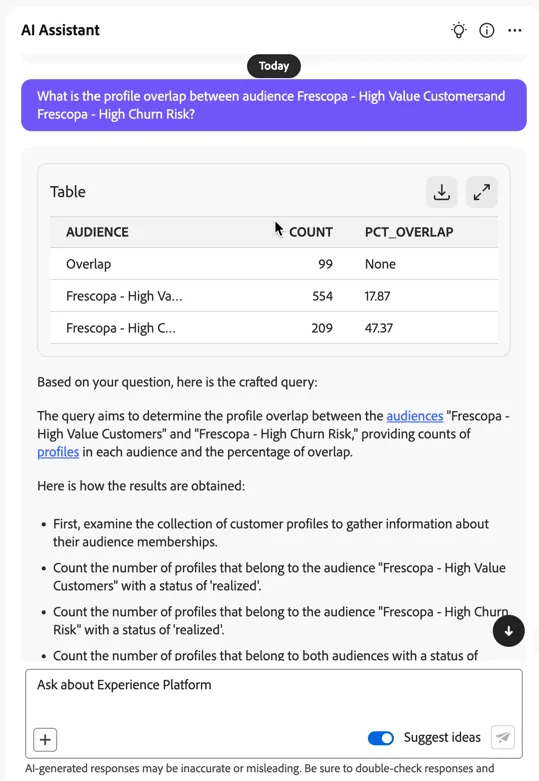
Here’s how to interpret these values. 17.87% of Frescopa - High Value Customers audience has an overlap with 47.37% of Frescopa - High Churn Risk. The total number of profiles common between both of them is 99.
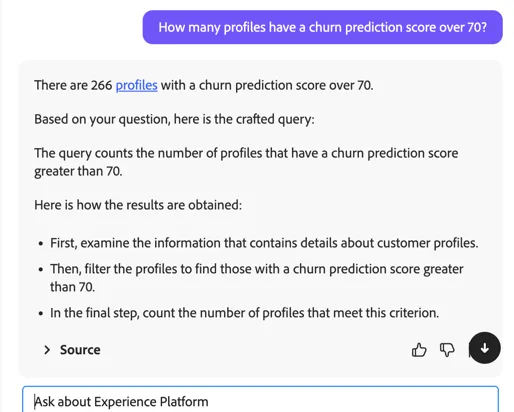
We can now start to use AI Assistant for audience discovery, for example we can check data distribution of profiles.
- Ask AI Assistant: How many profiles have a churn prediction score over 70?
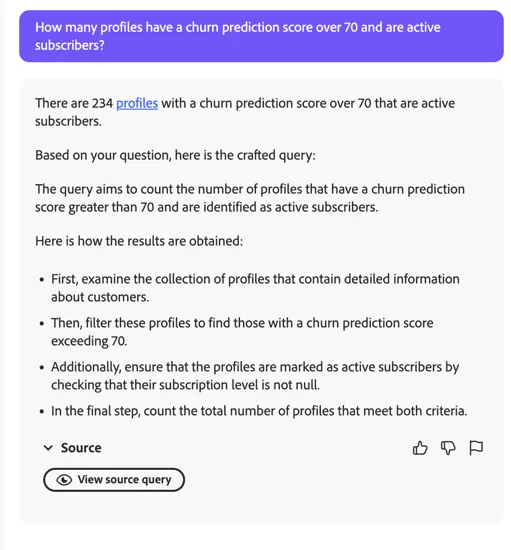
- Ask AI Assistant: How many profiles have a churn prediction score over 70 and are active subscribers?
Summary
By consolidating known and pseudonymous customer data from diverse sources—such as CRM systems, behavioural events, and device IDs—RTCDP creates a single, actionable view of your customers. AEP Provides a central repository for all of your audiences regardless of how they're created. Enrich and segment unified profiles in real time with the segmentation service and leverage AI-powered insights to fuel your workflows, ensuring your campaigns are on target and relevant.