Data Governance
In this exercise you'll learn how to configure the data governance controls within Adobe Experience Platform.
Label your data
In order to apply governance and access controls to the data within Adobe Experience Platform you need to first classify the data using labels.
Labels can be applied to individual fields in a schema or to an entire dataset. For access controls you can also apply labels to objects like Audiences and Journeys and Campaigns in Journey Optimizer. There are a number of Adobe defined labels which can be applied, or you can add your own custom labels.
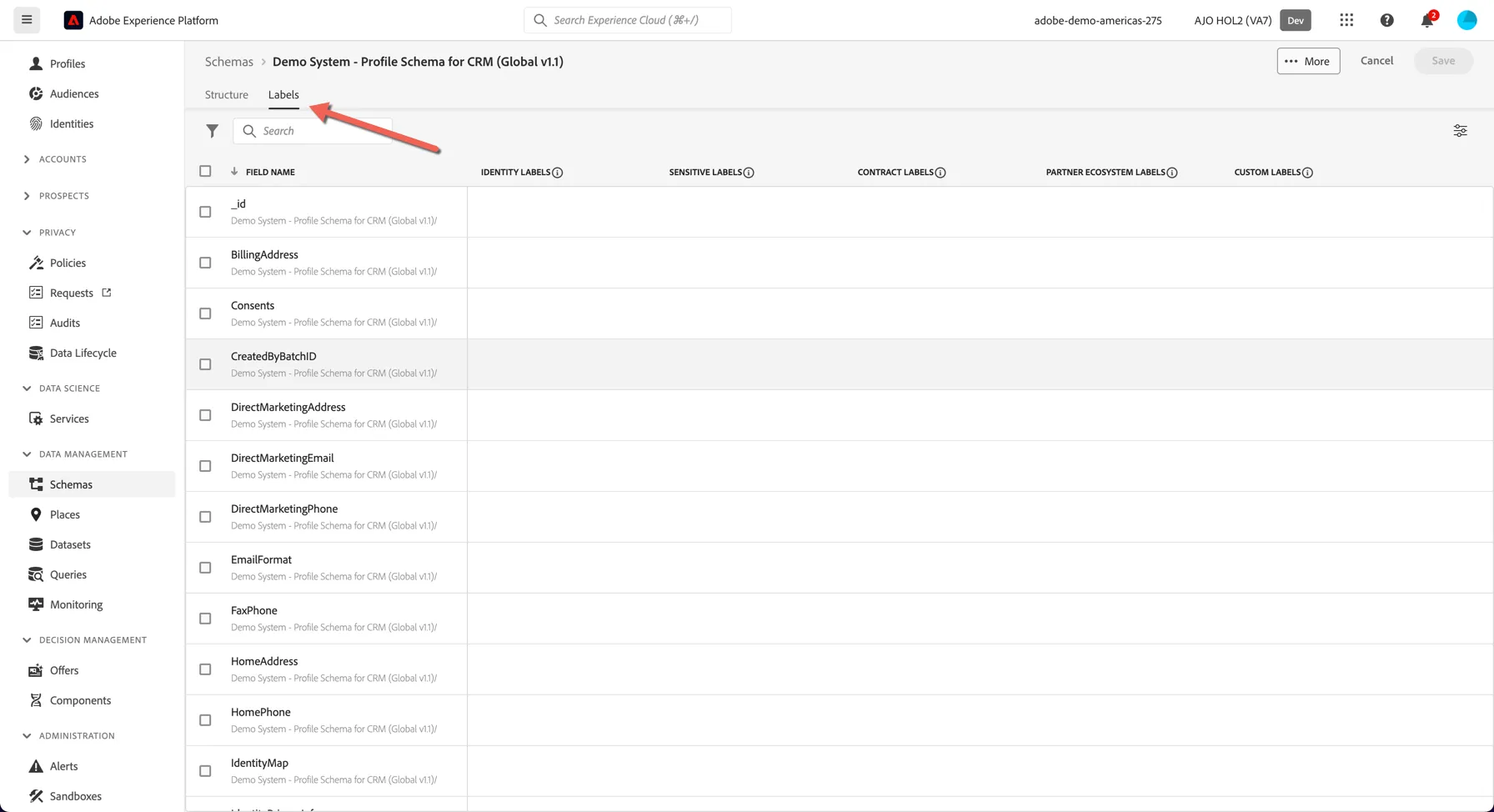
First let's add an identity label to the email field in your CRM schema. Click on Schemas in the left navigation and open the Profile schema you created during the previous Schemas Exercise. Click on the Labels tab to configure labels.
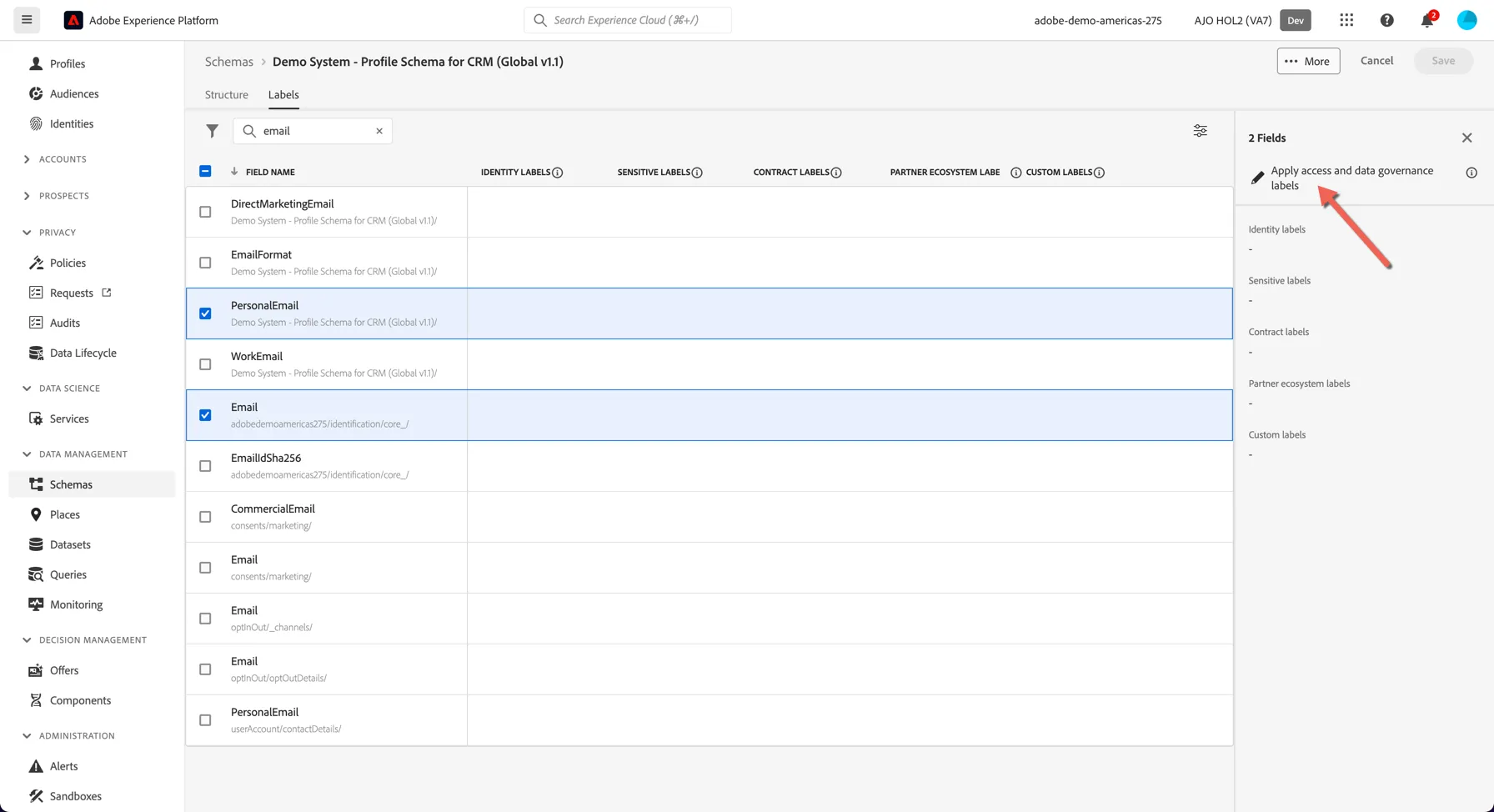
Search for email and select the PersonalEmail and the Email fields to label. Then click to Apply access and data governance labels.
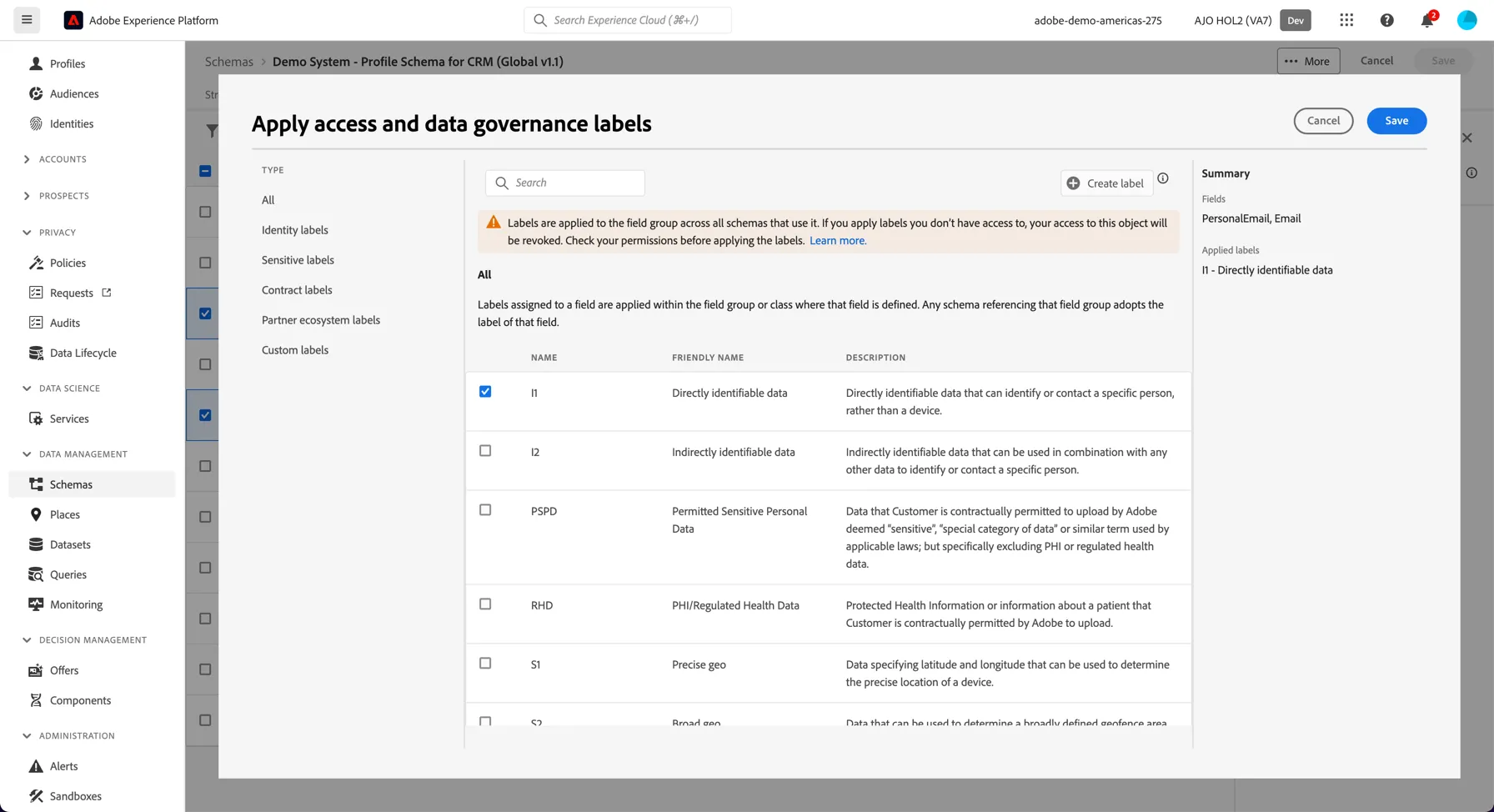
Select to apply the I1 label which classifies the fields as containing personally identifiable information. Click save.
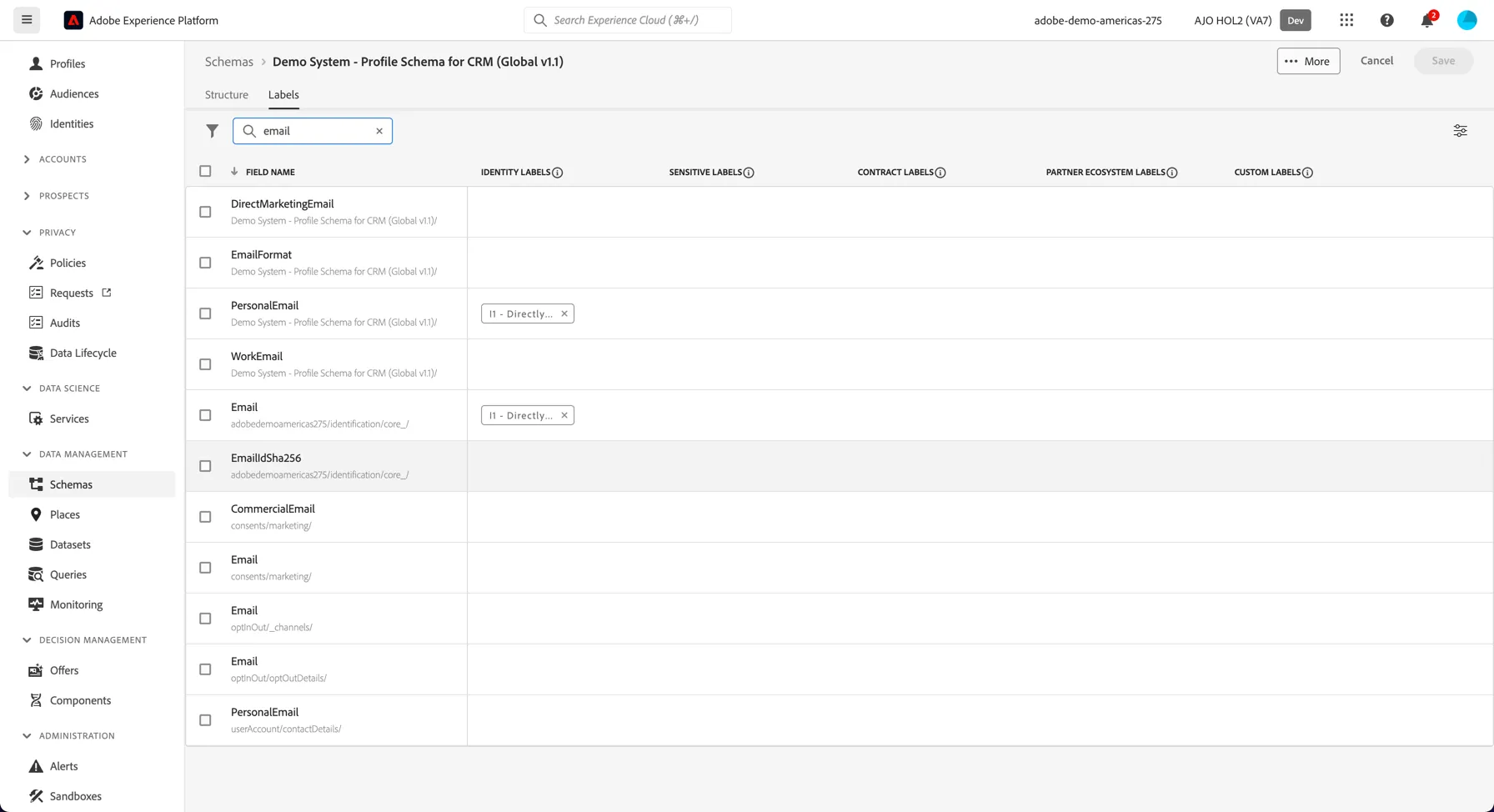
You should now be able to see the label applied to those fields:
Create a Governance Policy
In this exercise you'll create a governance policy to restrict PII data from being exported to third party destinations. Click on the Policies menu under Privacy in the left hand navigation.
Again you'll see a number of default Policies which Adobe has defined. These are all disabled by default.
Click on the create policy button and choose Data governance policy, then click Continue.
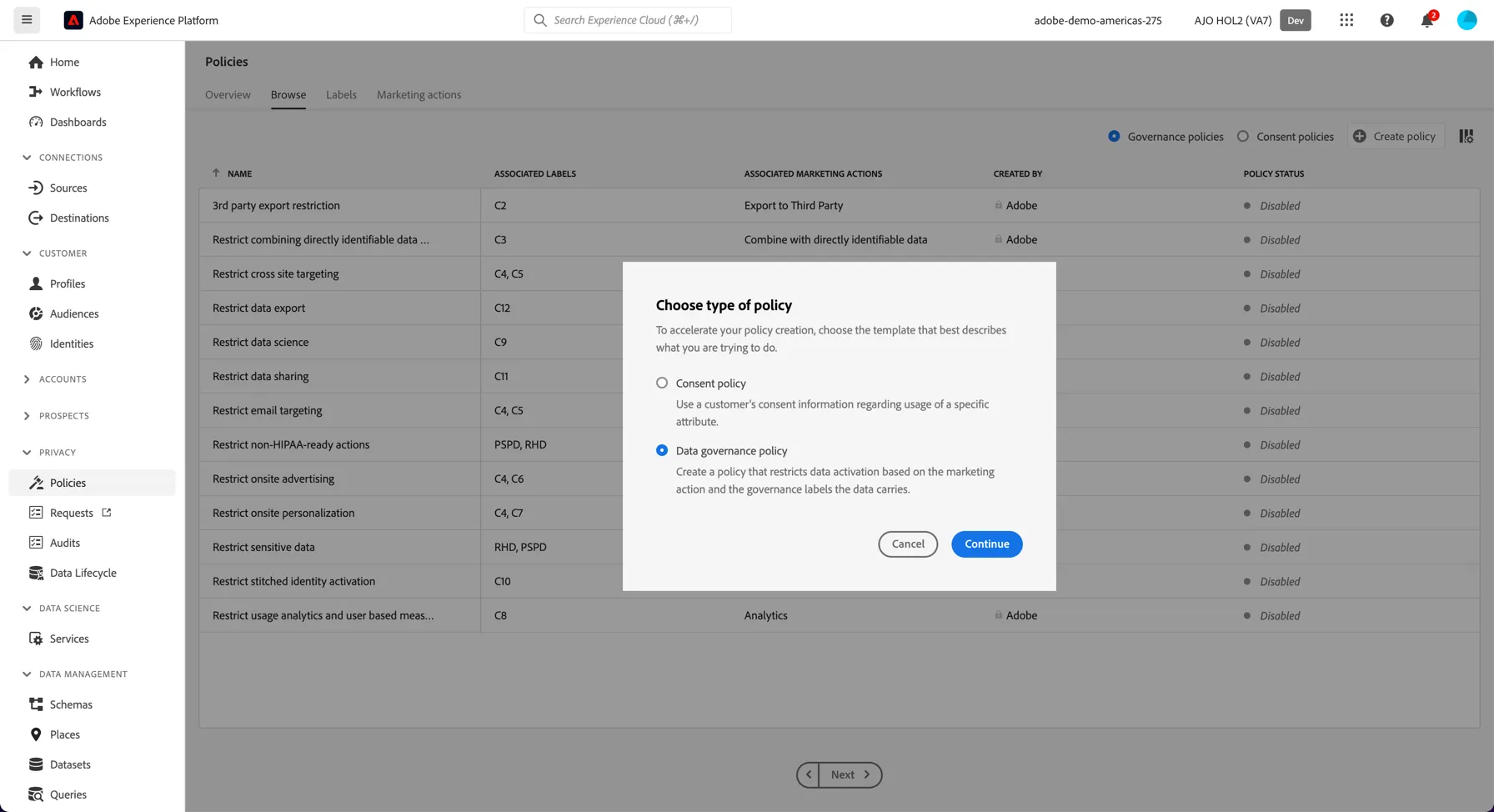
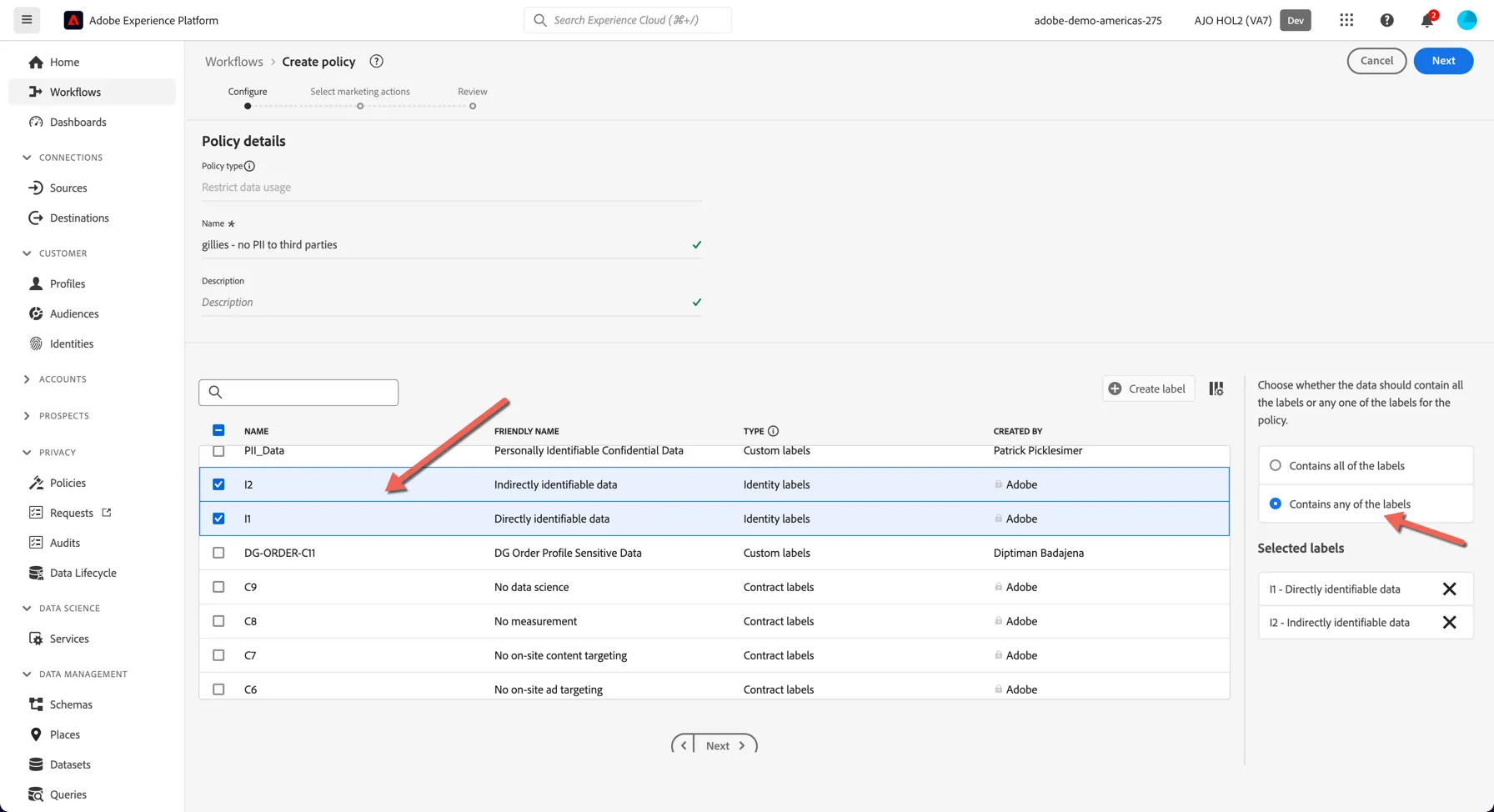
Name your policy as {your last name} - no PII to third parties, eg. gillies - no PII to third parties
This policy is going to restrict data in fields labelled I1 OR I2, so select the I1 and I2 labels from the list. Change the setting on the right to Contains any of the labels. Then click Next.
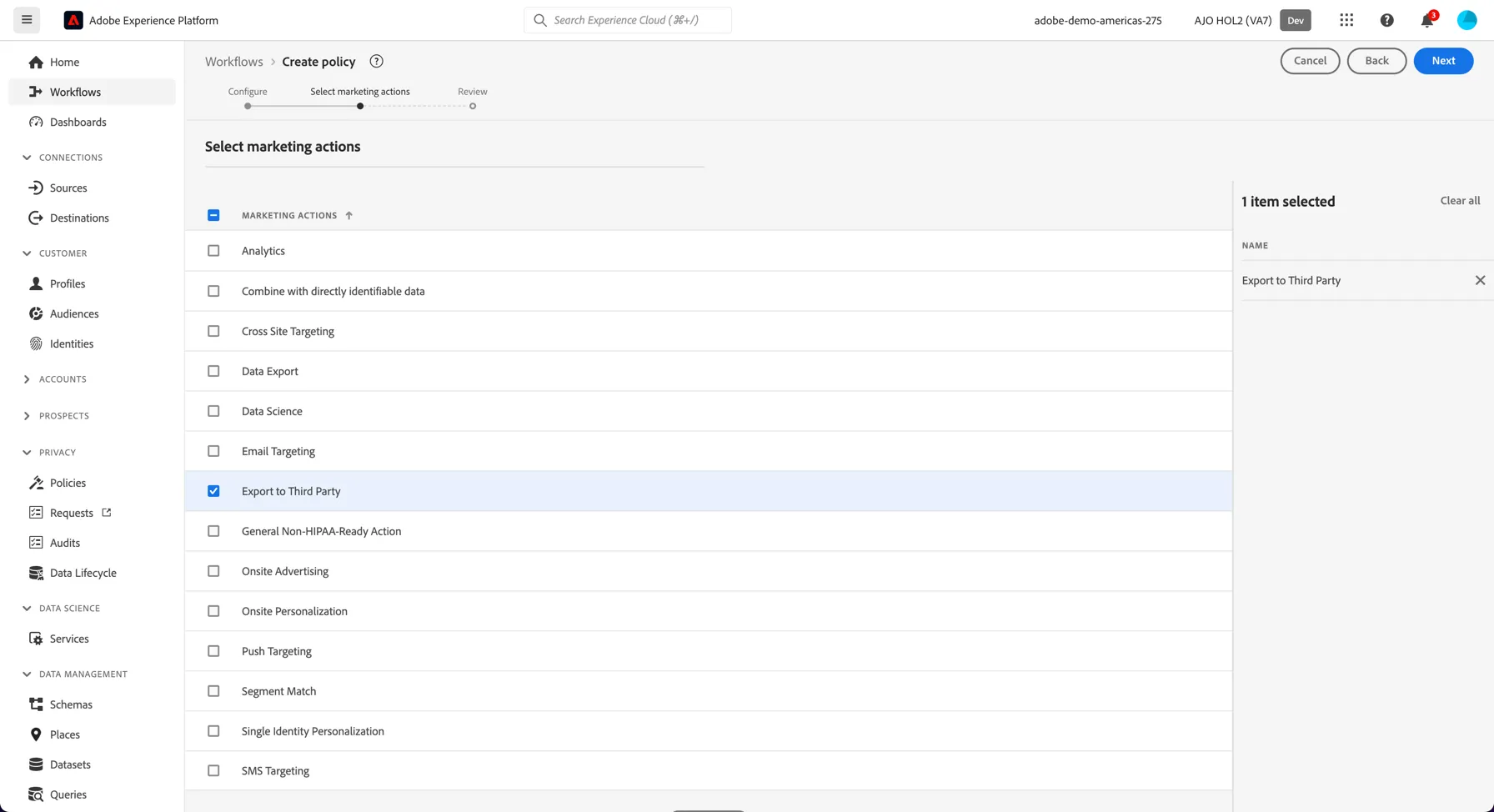
We now need to define when the policy should be applied. We do this through the Marketing Actions which are applied to our Destinations. Select the Export to Third Party marketing action from the list. Click Next.
You can now see a summary of your policy. Click Finish to create your policy.
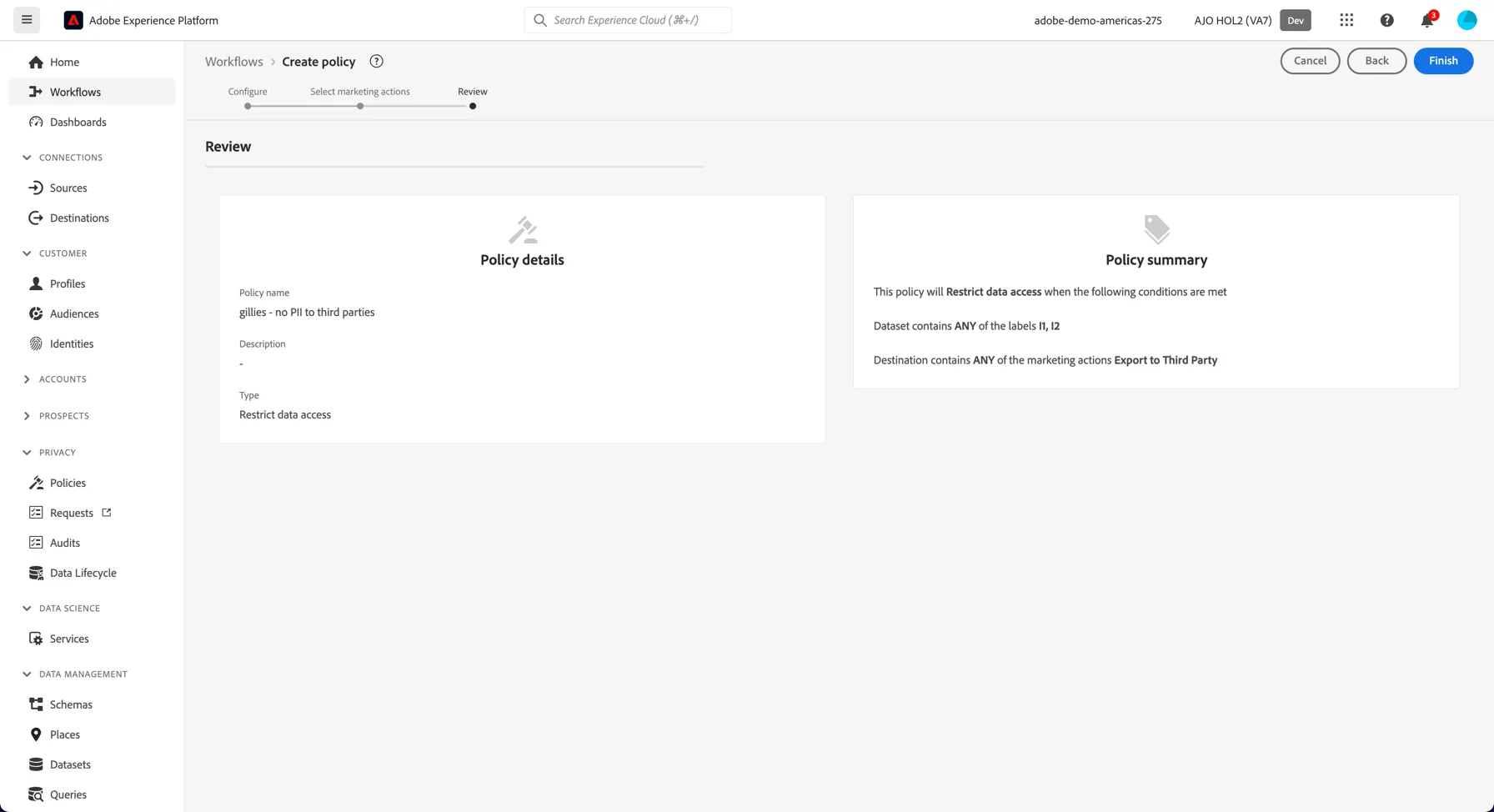
By default your policy will be disabled, you need to enable it before it will take effect. If there are any existing violations to the policy you will not be able to enable it until the violations are resolved.
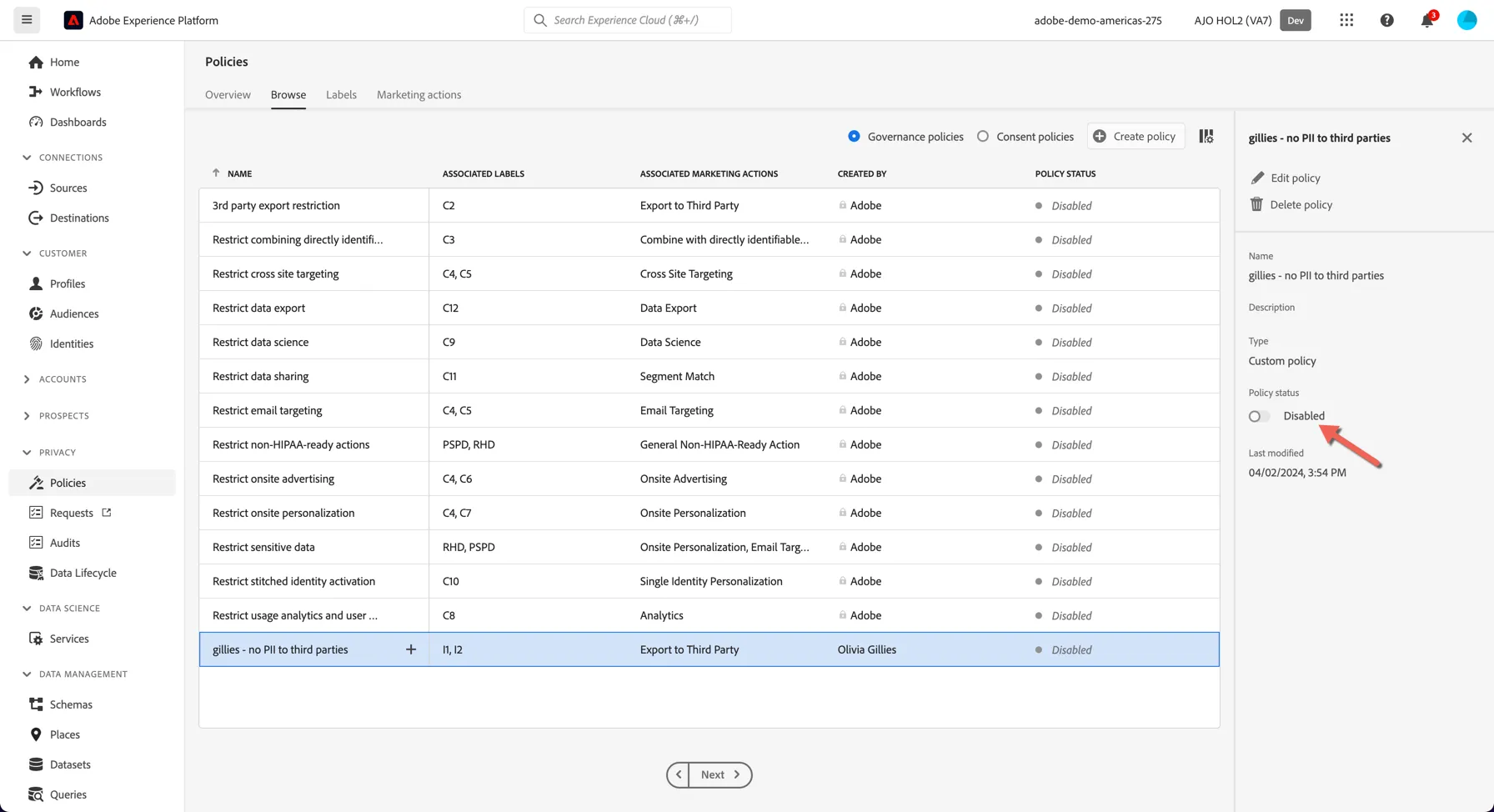
Congratulations you've created your first Governance Policy. You will see later how the policy is automatically enforced during the Activation exercise.
Activation and Governance
Adobe Experience Platform supports a number of Cloud Storage Destinations. This enables you to send audiences and their profile attributes to your internal (or external) systems, via CSV files for Amazon S3, Azure Blob, Azure Data Lake Storage Gen2, Data Landing Zone, Google Cloud Storage, and SFTP. For Amazon Kinesis and Azure Event Hubs destinations, data is streamed out of Experience Platform in JSON format.
Each destination has it's own Marketing Action attached which controls which governance policies are applied when marketers activate their segments to the destination.
In this module, you’ll attempt to activate your segment to an AWS S3 bucket which has the Export to Third Parties Marketing Action applied. If you attempt to send any field flagged as PII to this destination it will trigger a policy violation. The S3 destination has already been configured for you.
Go to the Adobe Experience Platform.
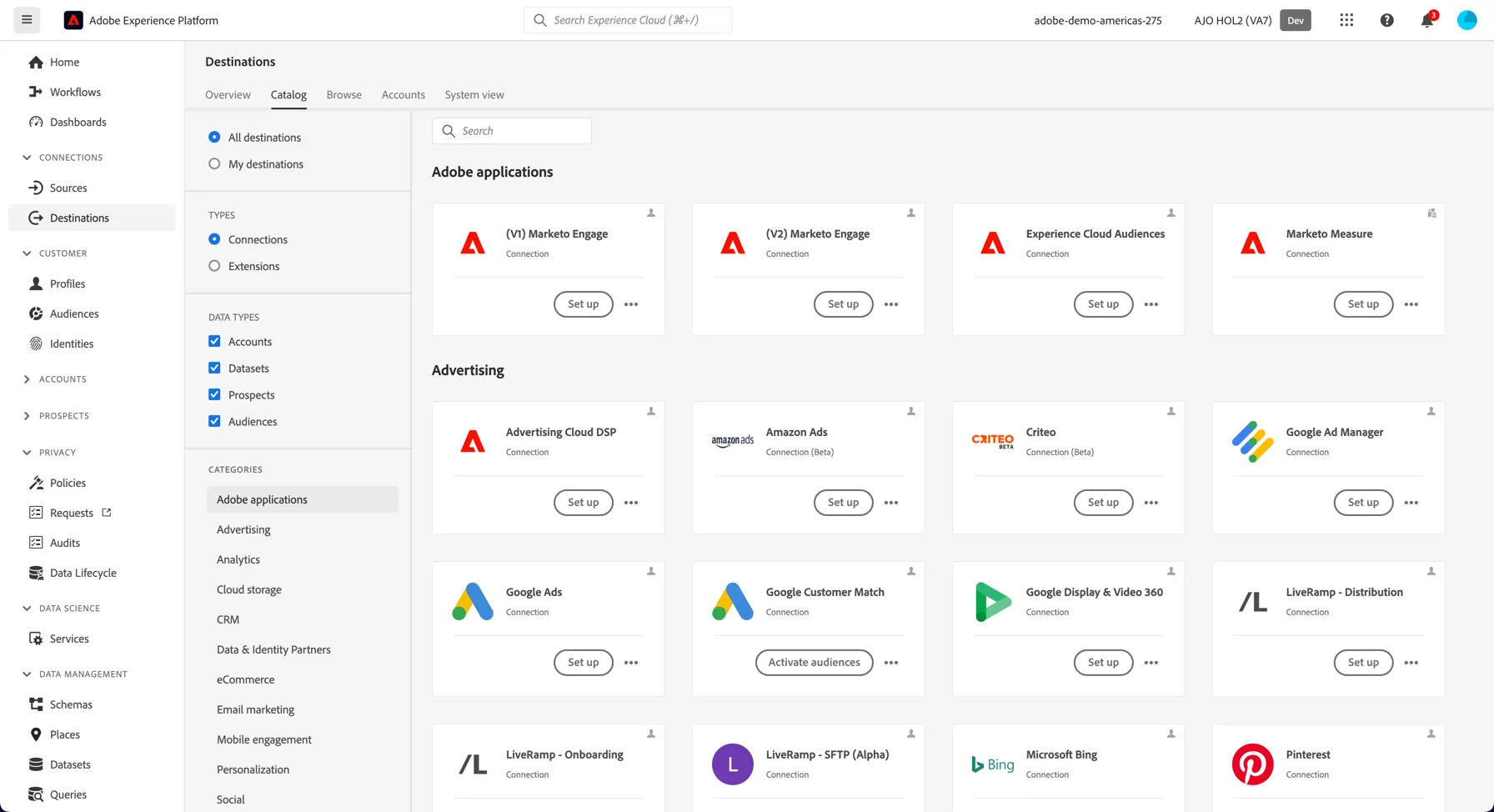
1.Go to Destinations, then go to Catalog. You’ll then see the Destinations Catalog. This is where you would go to connect new destinations.
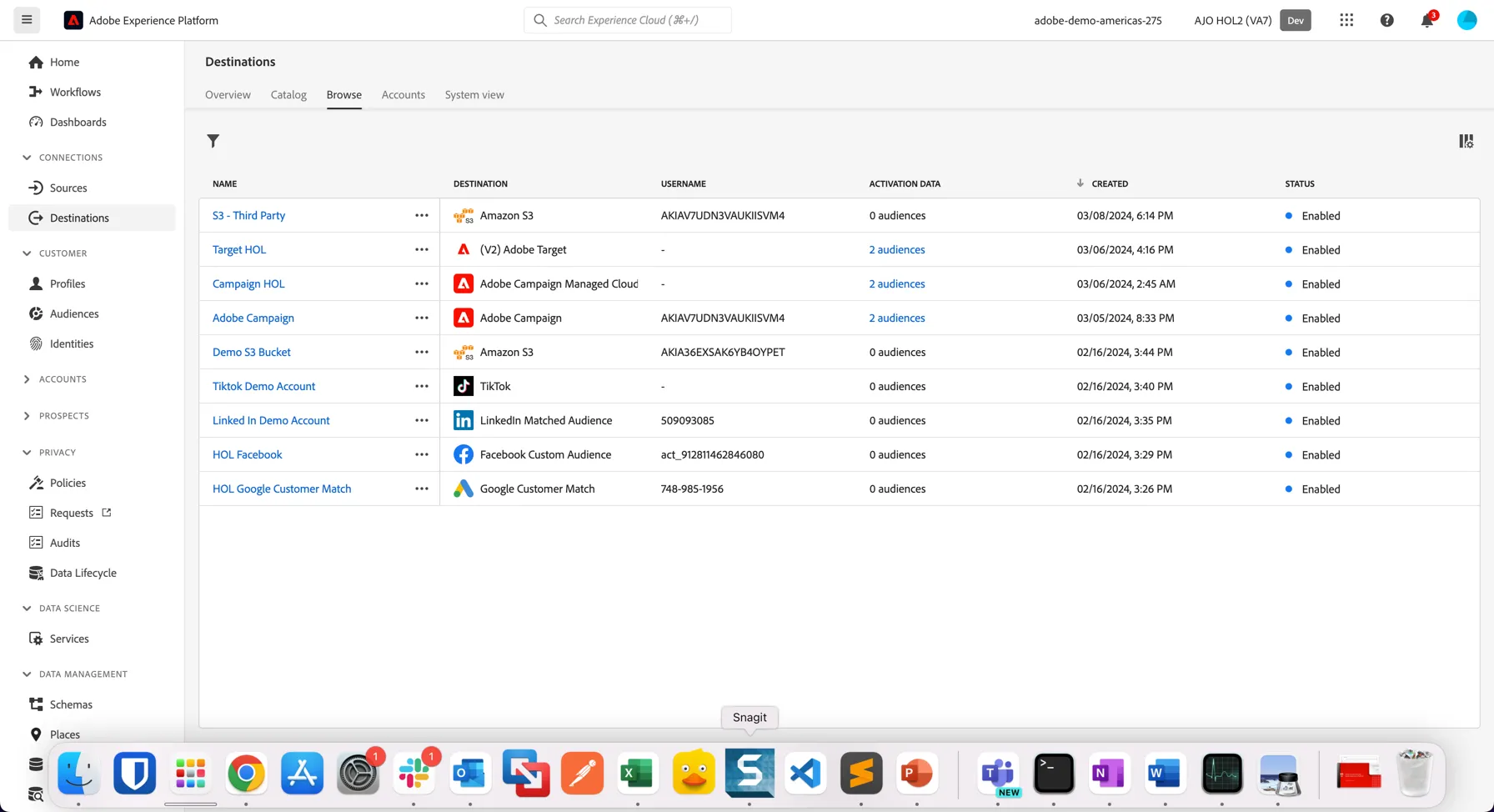
2. Click on the Browse tab to see the destinations that are already configured in the instance
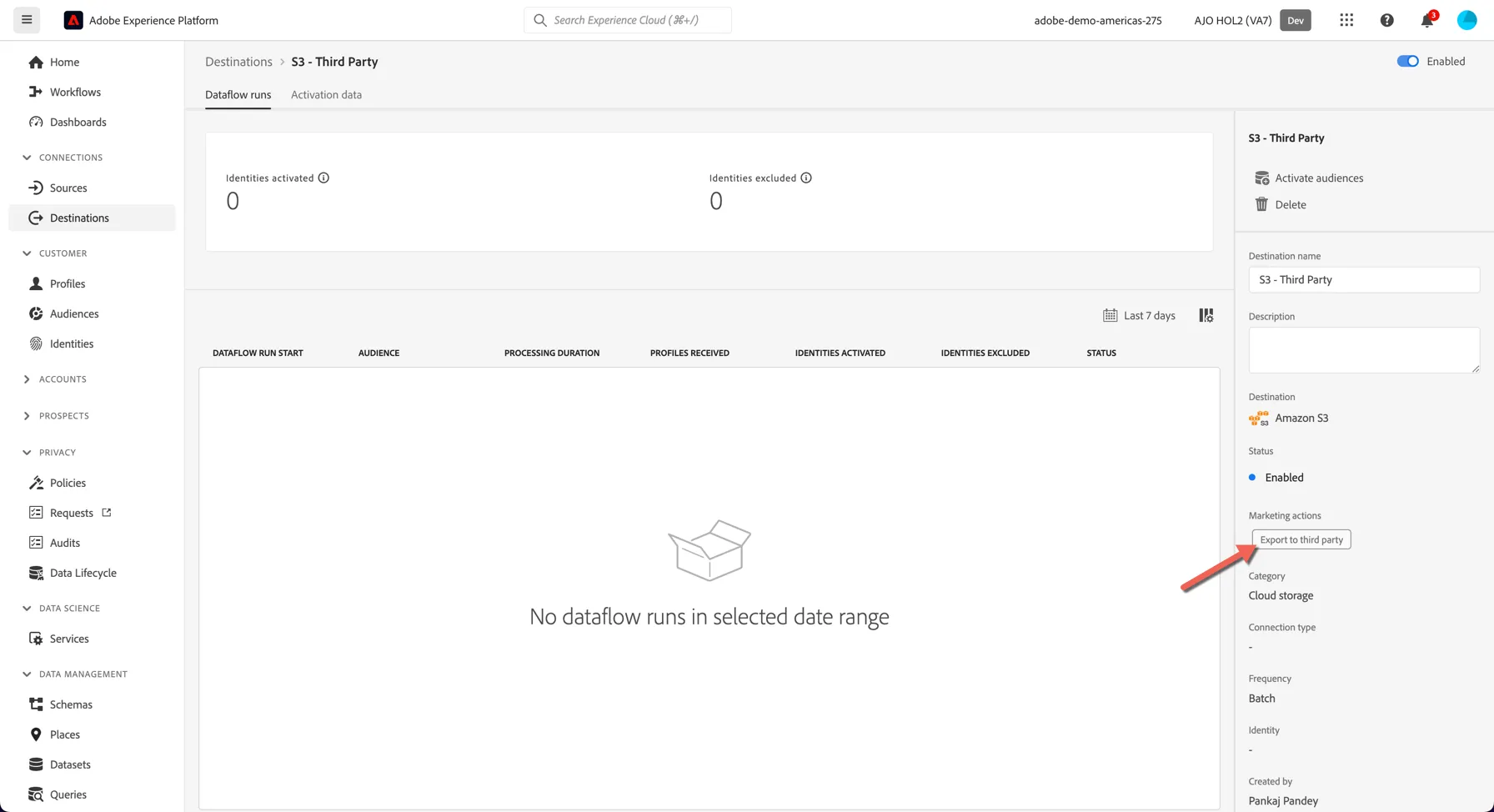
3. Select the S3 - Third Party destination that has been previously configured. You can see the Marketing Action Export to Third Party is assigned to this destination.
4. Click to Activate audiences. Select the audience you created in the previous exercise.
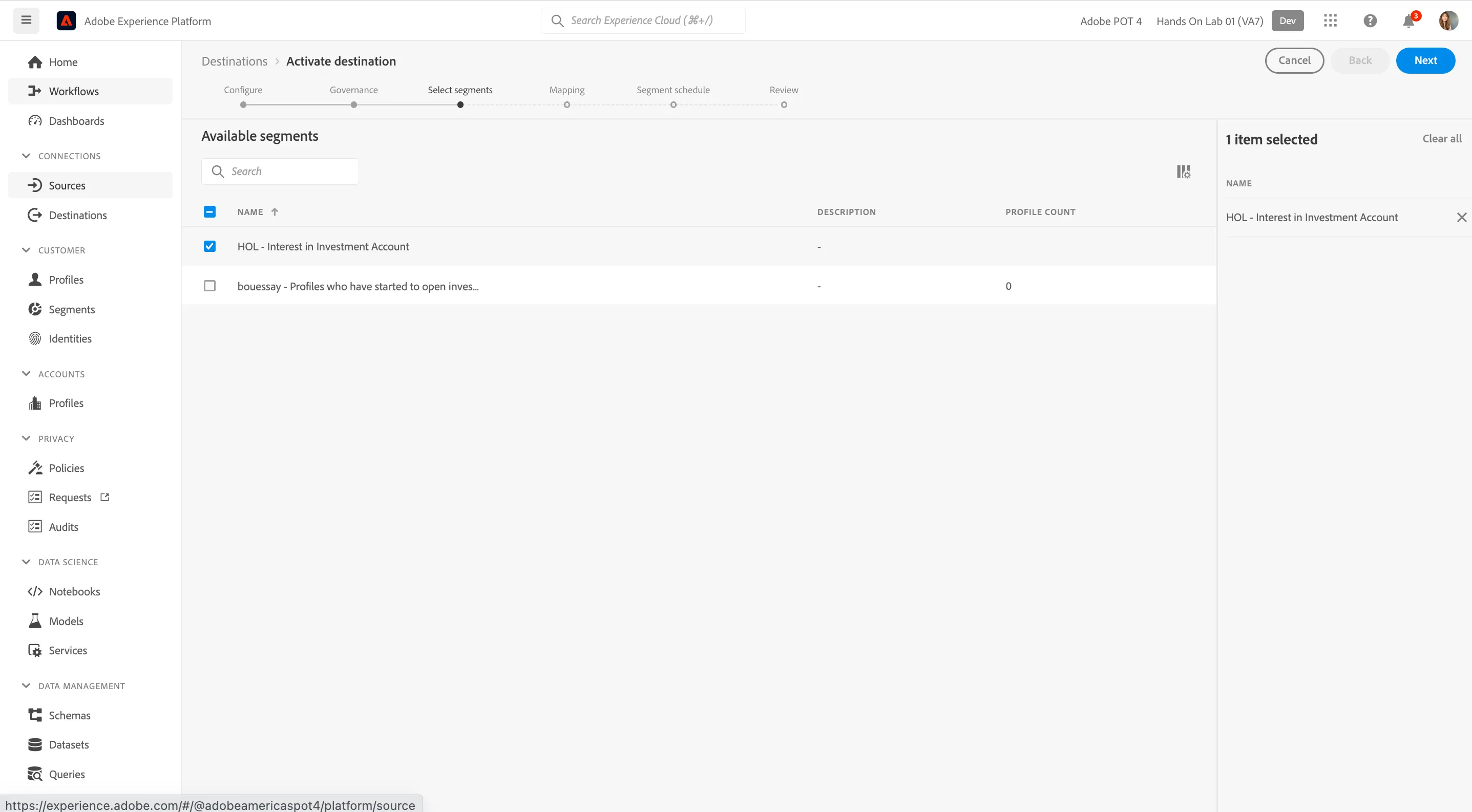
5. Click Next.
Amazon S3 is a batch based destination. As such you need to create a schedule and specify a file name for your csv file. You can choose to export the full segment on a daily basis or the incremental changes to the segment (entries and exits) with a higher frequency.
- Select Create Schedule.
- For this lab, change the Frequency to 3 hours.
- Select a Start and End Date for the activation
- Click Create
- Optionally, you can update the file name as well but fine to leave this as default.
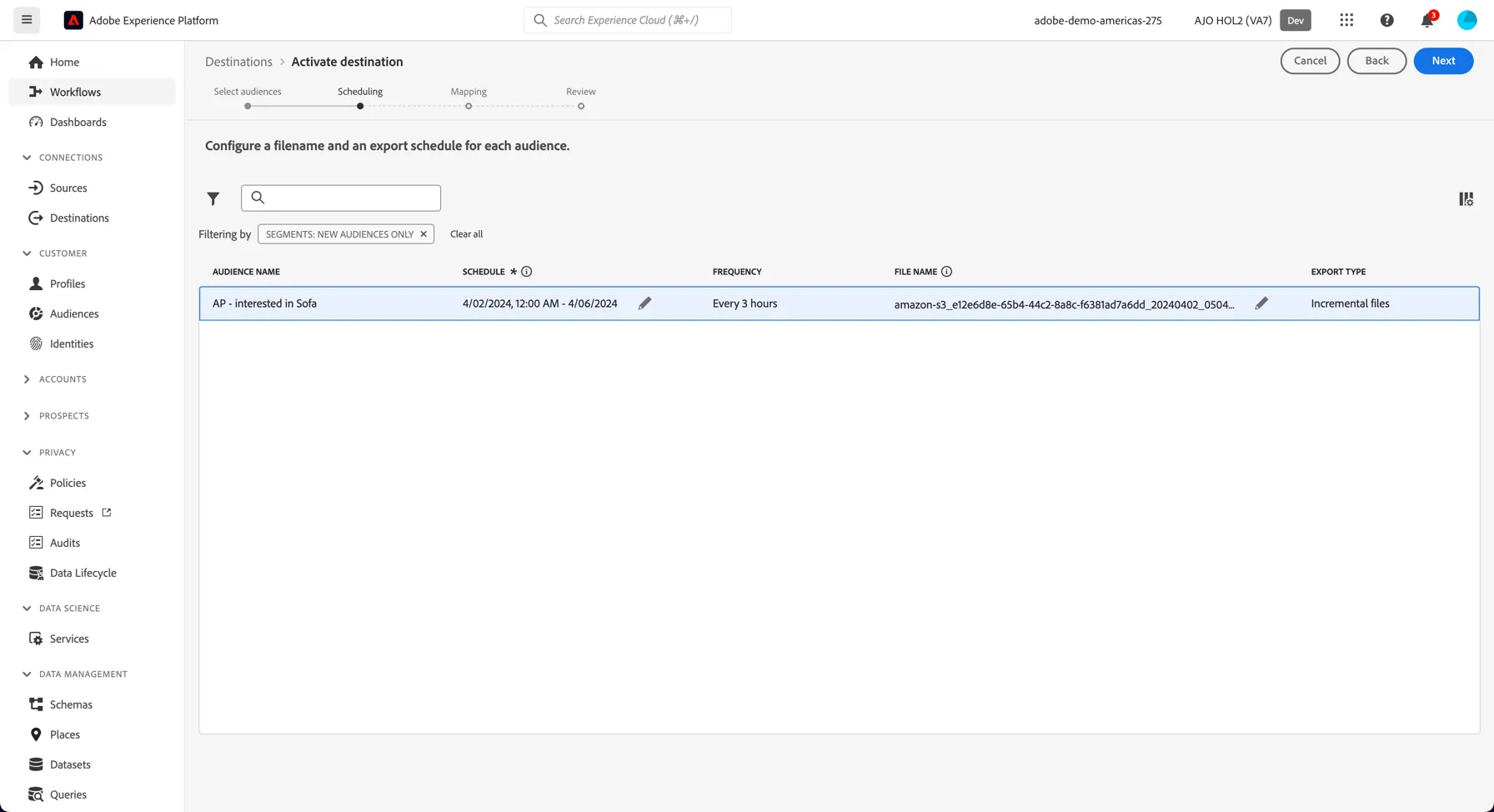
6. Click Next.
You can now select attributes for the export towards AWS S3. AWS S3 is considered a Profile Export Destination which means you can share additional information about the profile with the destination, not just the identifiers.
You'll notice a number of default fields appear. You can add additional fields by clicking on the +Add new mapping button.
One of the fields in the default list is personalEmail.address. Note that this is one of the fields we labelled as PII during the governance exercise.
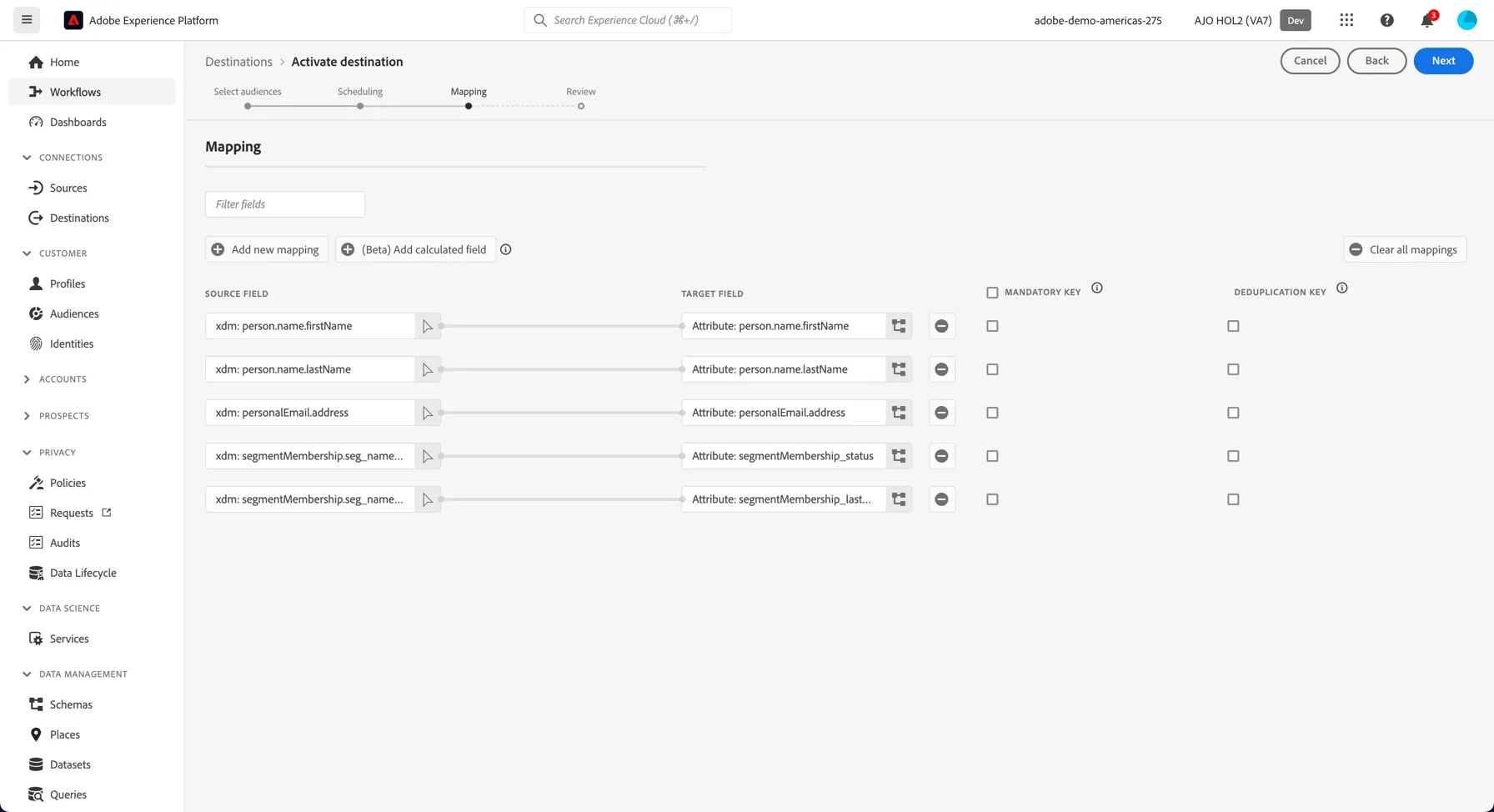
7. Click Next.
You can now review the settings before clicking the Finish button.
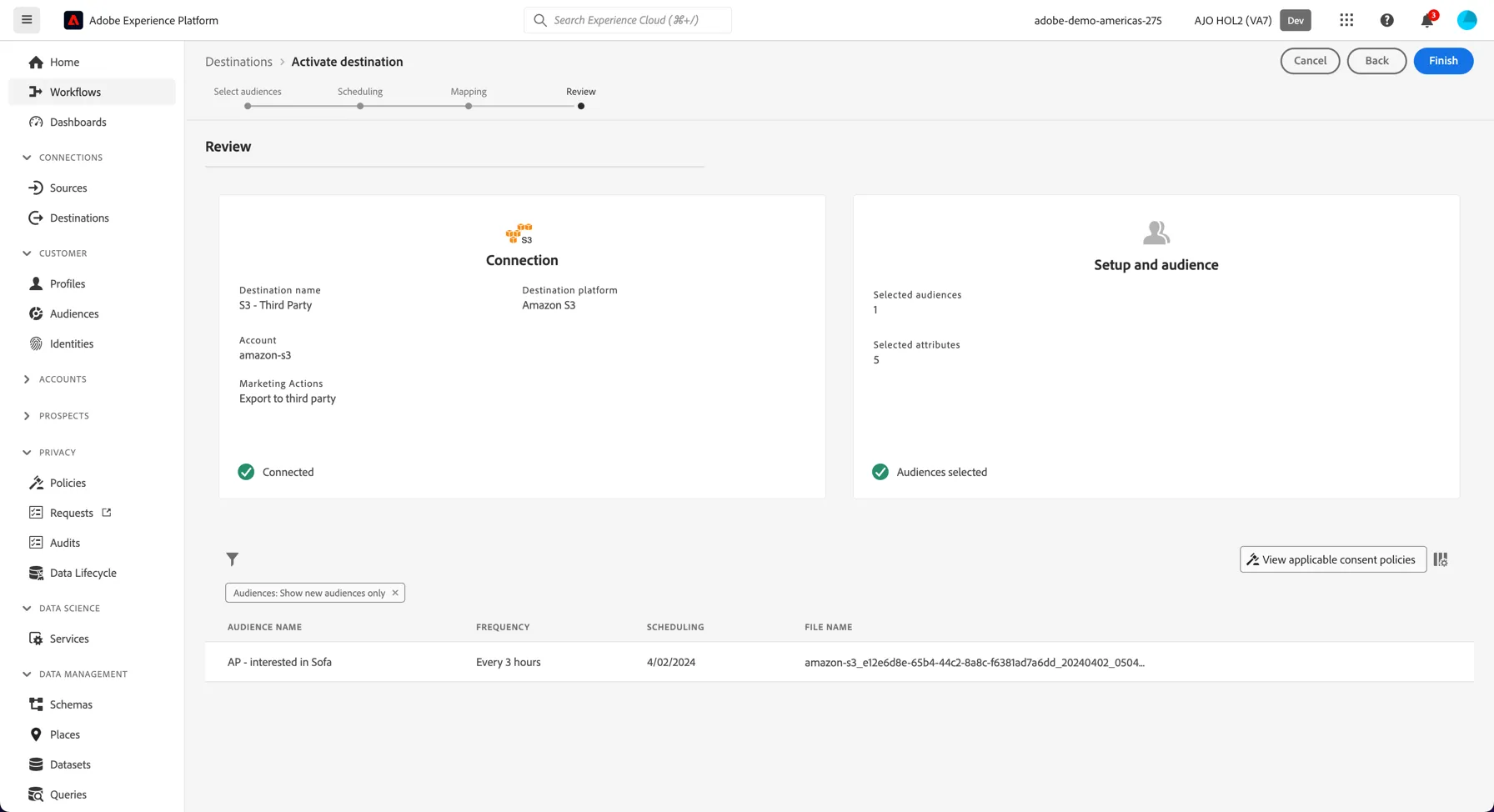
4. Click Finish to finish your configuration. You'll see a policy violation because you aren't allowed to send personalEmail.address to this destination.
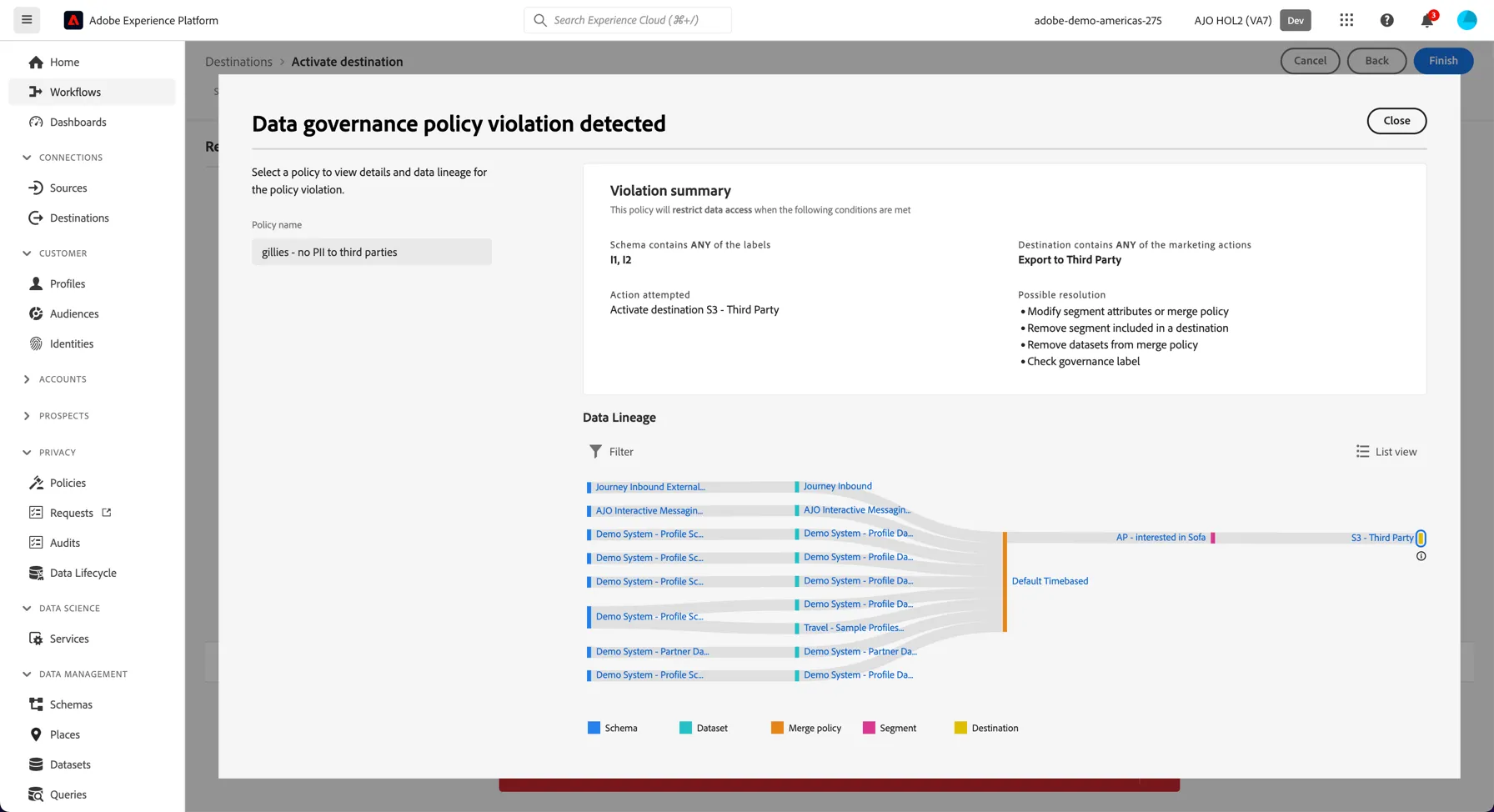
You have now seen how audiences are activated to profile export destinations and how governance policies are automatically applied during activation.