Use case 2 - Identity Stitching and Call Center integration
In this exercise you will learn how your offline profile is stitched to your online profile once a common identifier is provided. You will learn how to visualise your profile and the identity graph within the Adobe RTCDP UI and simulate call center events enriching the profile in real time through API integration.
You will experience as a customer:
- Registering for a home visit on the site
You will learn as a marketer:
- How to visualise the profile in the UI
- How to visualise the Identity graph in the UI
You will experience as a call center operator:
- How the unified profile can be exposed through APIs
- How offline events can be returned to RTCDP to enrich the profile further in real time.
Register for a Home Visit
Once the anonymous customer becomes known, we will be able to stitch the anonymous profile to any known profile information we have, and we'll be able to retarget the customer across devices.
Return to the browser window with your website open from use case 1.
- Click on the Book Consultation button in the top right of the page.
- Enter your work email address and phone number. If you don't want to use your own email address you can use one of the emails allocated in the Customer Profiles page.
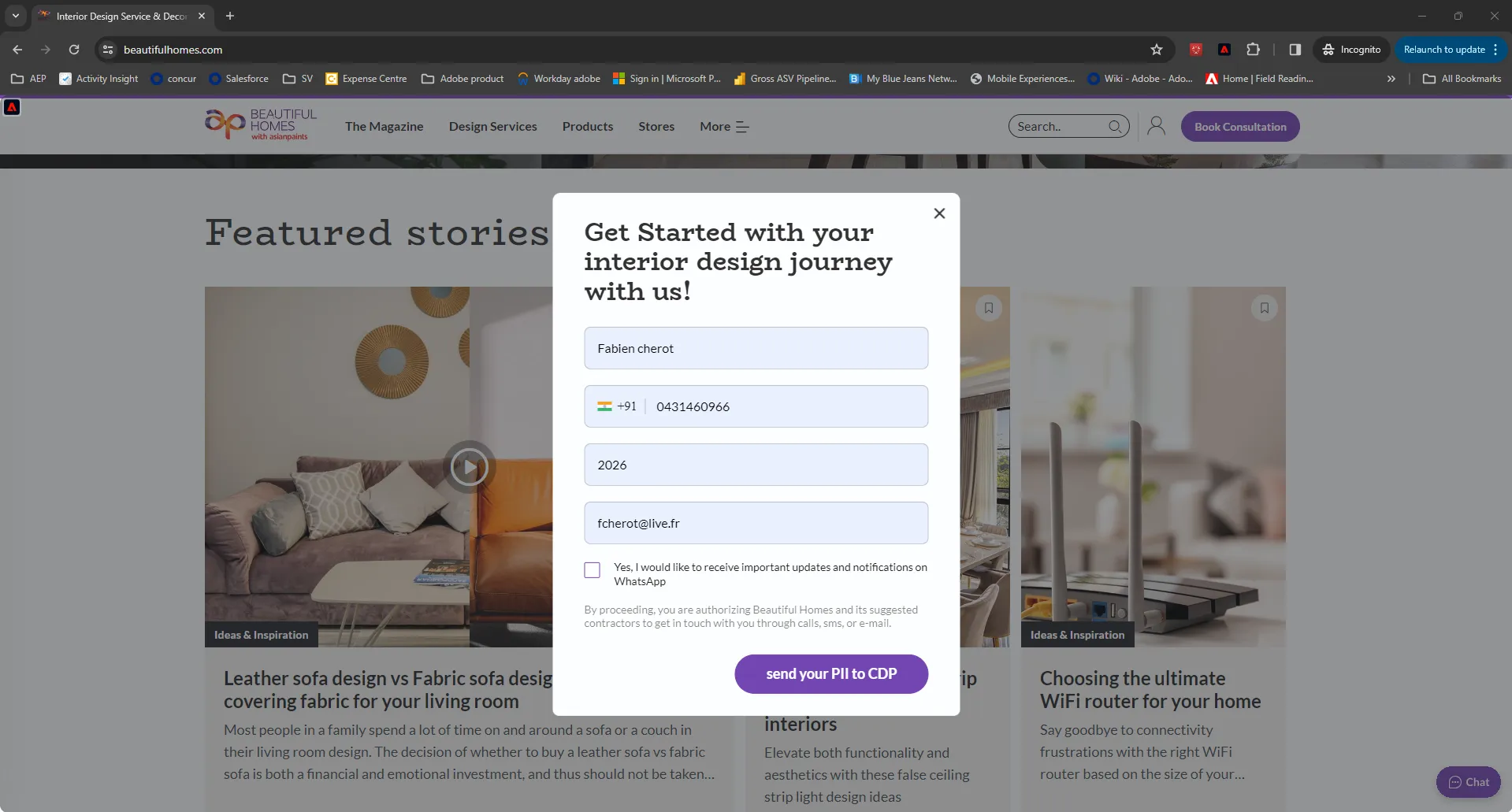
This has now sent an event to Adobe CDP containing both the ECID and the EMAIL address. The Identity Service will now stitch the two id's so we reconize this device when they return as a known customer.
Visualise your Profile
In Adobe's Real-time Customer Profile, all profile data is shown alongside event data, as well as existing segment memberships. The data shown can come from anywhere, from Adobe applications and external solutions. This is the most powerful view in Adobe Experience Platform, the true experience system of record.
Every identity that is ingested into Adobe's CDP is linked to a namespace. Here are some examples:
Namespace | Identity |
|---|---|
ADOBE ID (ECID) | 69682293281473338931553229536283705959 |
CRM ID | P8aVtE05 |
With Adobe Experience Platform, all IDs are equally important. Previously, the Adobe ID was the most important ID in the Adobe context and all other IDs were linked to the ECID in a hierarchical relation. With AEP this is no longer the case, and every ID can be considered a primary identifier.
Typically, the primary identifier depends on the context.
- If you ask your Call Center, "What is the most important ID?", they will probably answer, "the phone number!".
- But if you ask your CRM team, they will answer, "the email address!".
Adobe Experience Platform understands this complexity and manages it for you. Every application, whether an Adobe application or non-Adobe application, will speak with Adobe Experience Platform by referring to the ID they consider primary. And it simply works!
- In the left rail, click on Customer -> Profiles
- On the Profiles tab, click on Browse
- For the field Identity Namespace, select Email
- For the field Identity Value enter your CUSTOMER PROFILE email address
- Click View. You'll see your profile in the list.
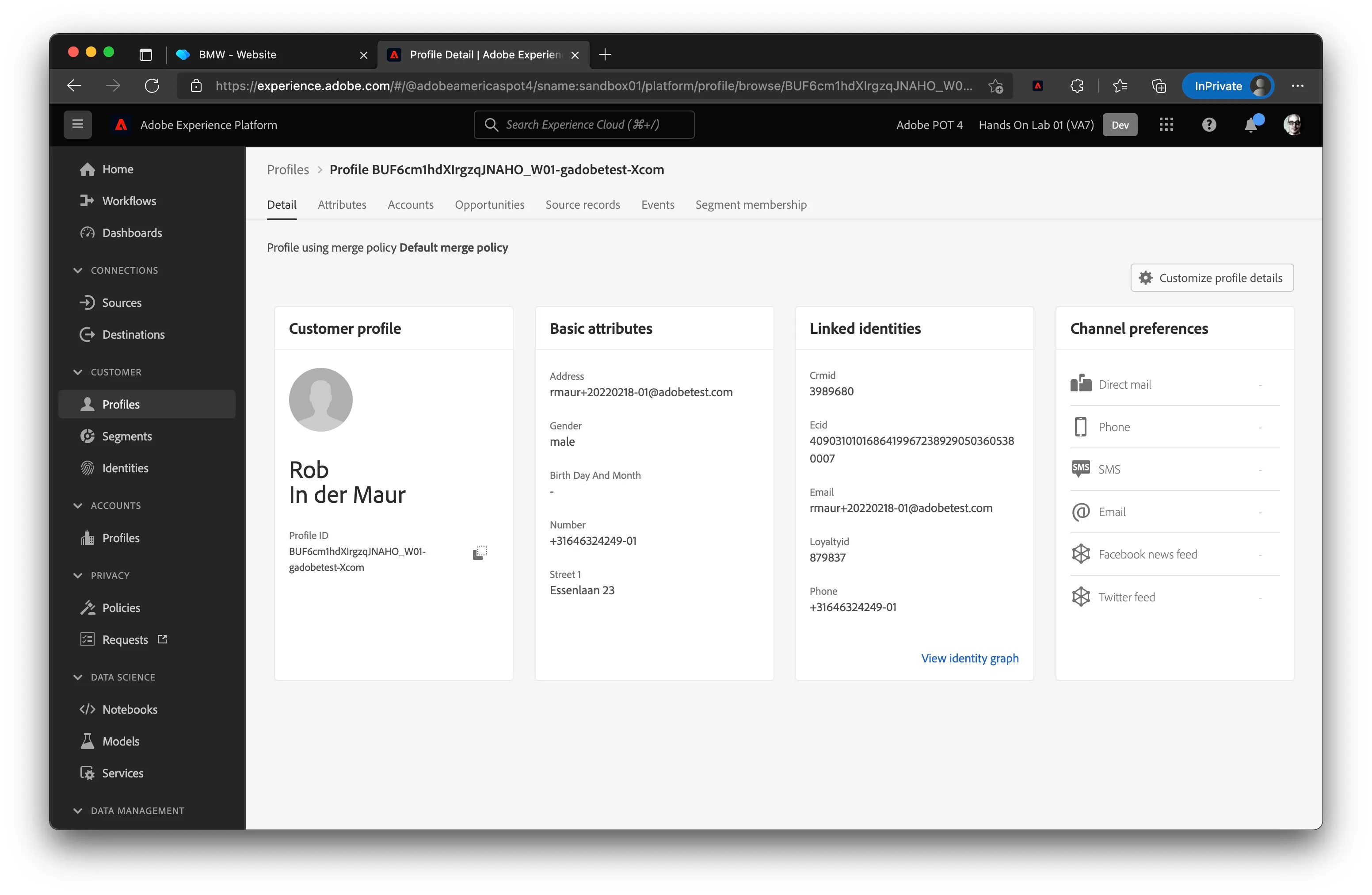
- Click the Profile ID to open your profile
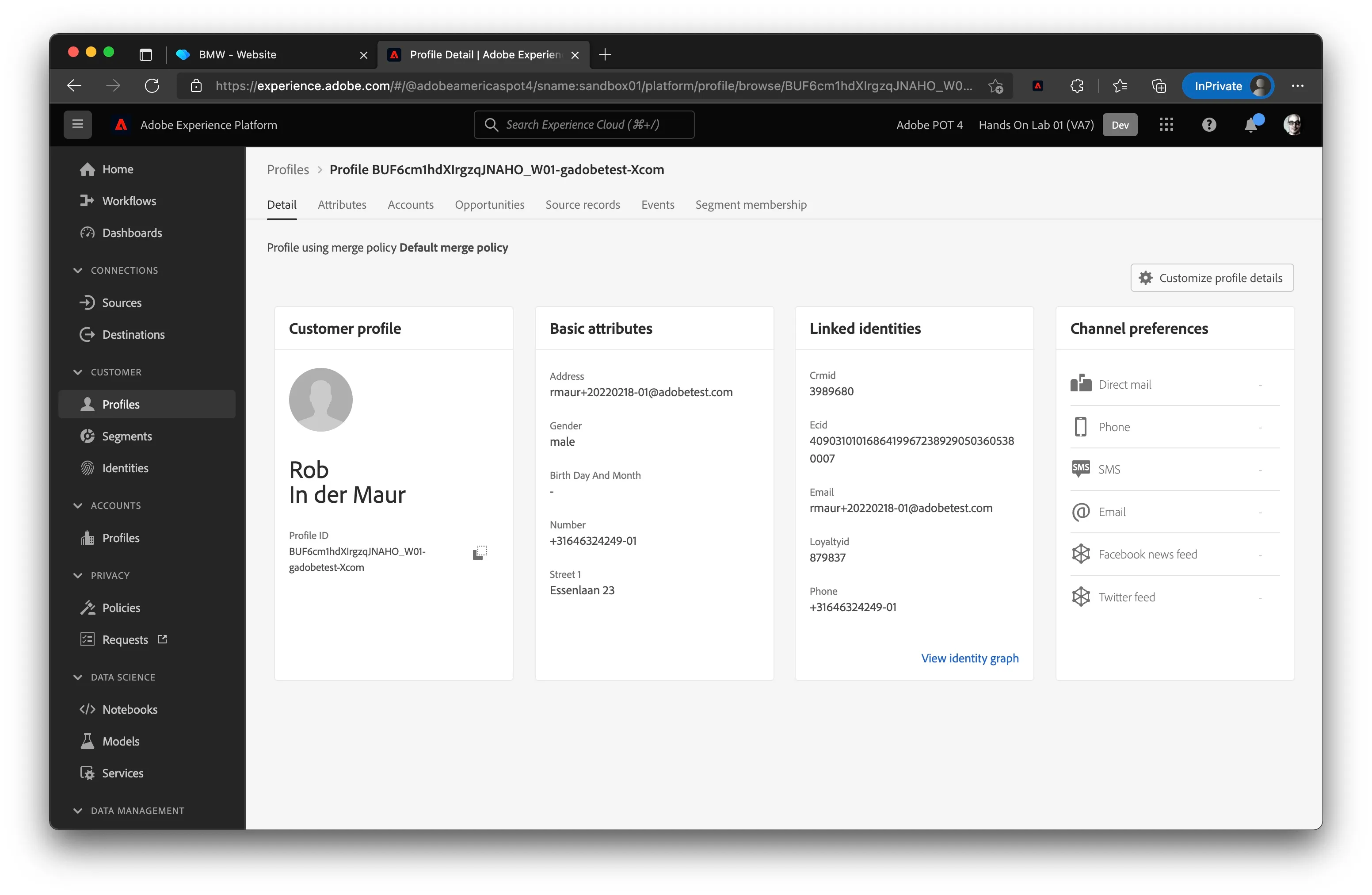
You now see an overview of a couple of important Profile Attributes of your customer profile.
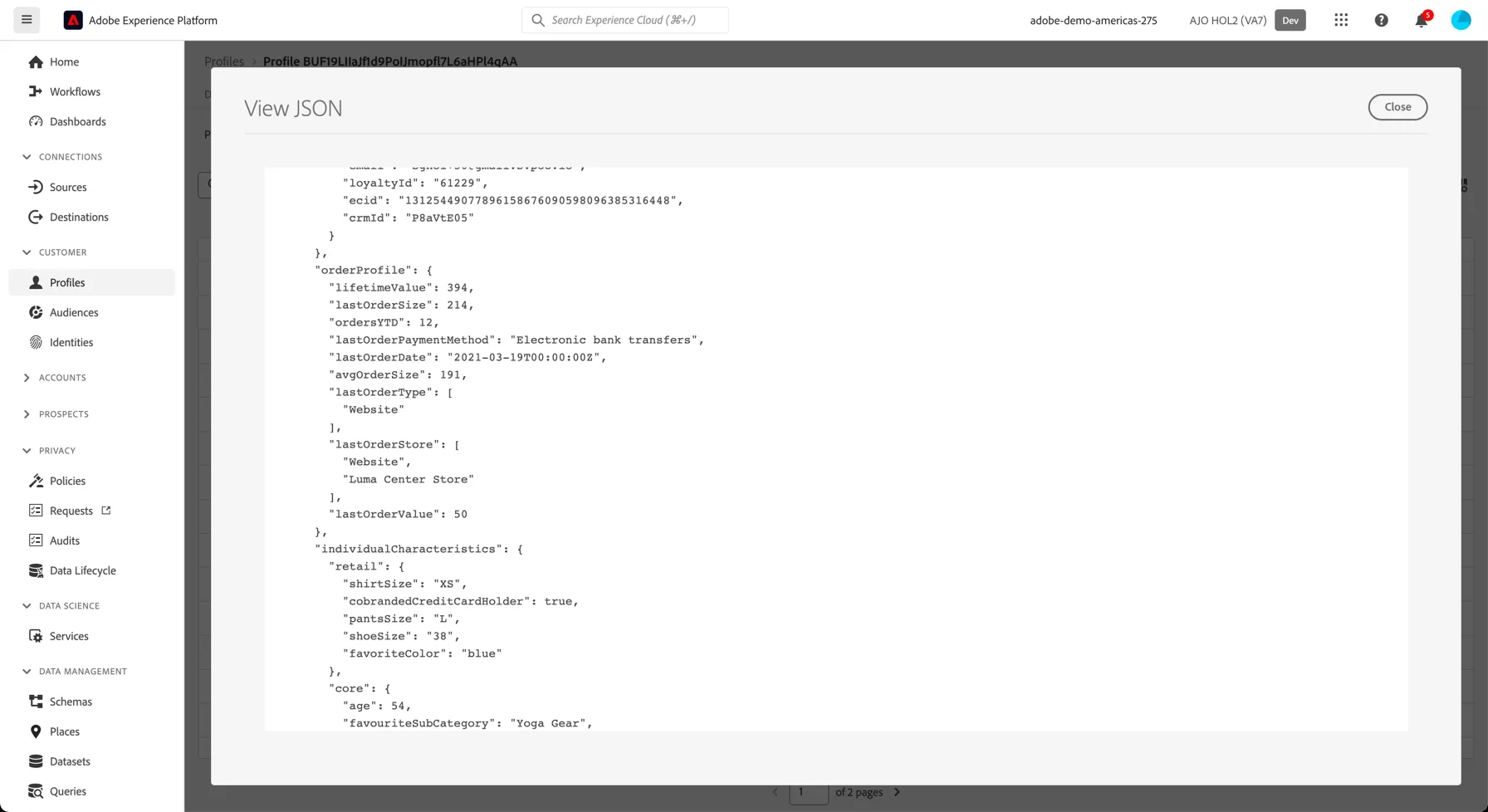
Click on the Attributes tab to see all profile attributes attached to your profile.
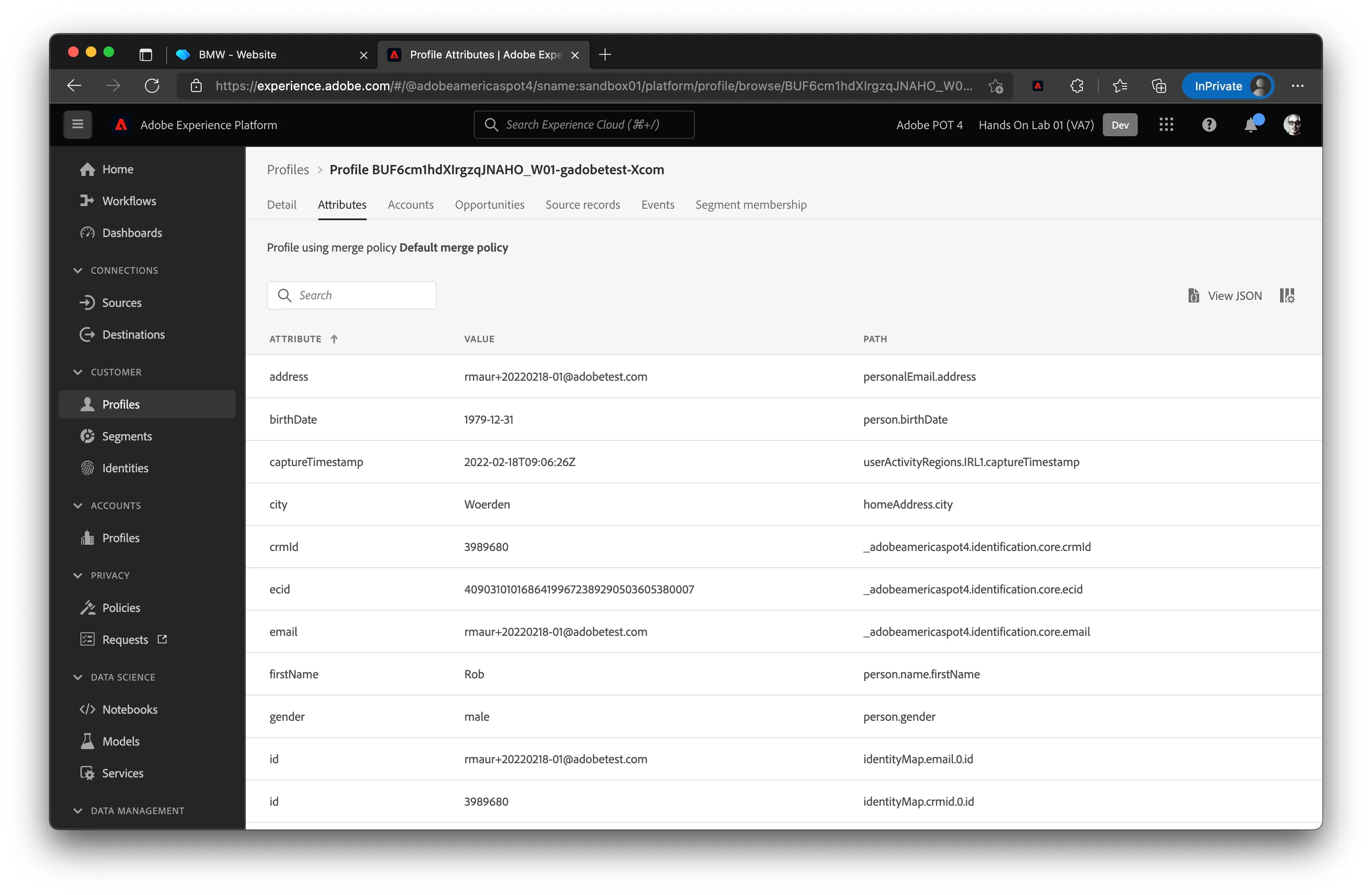
Click on the View JSON button to view these in a structured format. You'll see a number of Retail specific attributes are attached to your profile record, such as lastOrderStore, lifetimeValue etc.
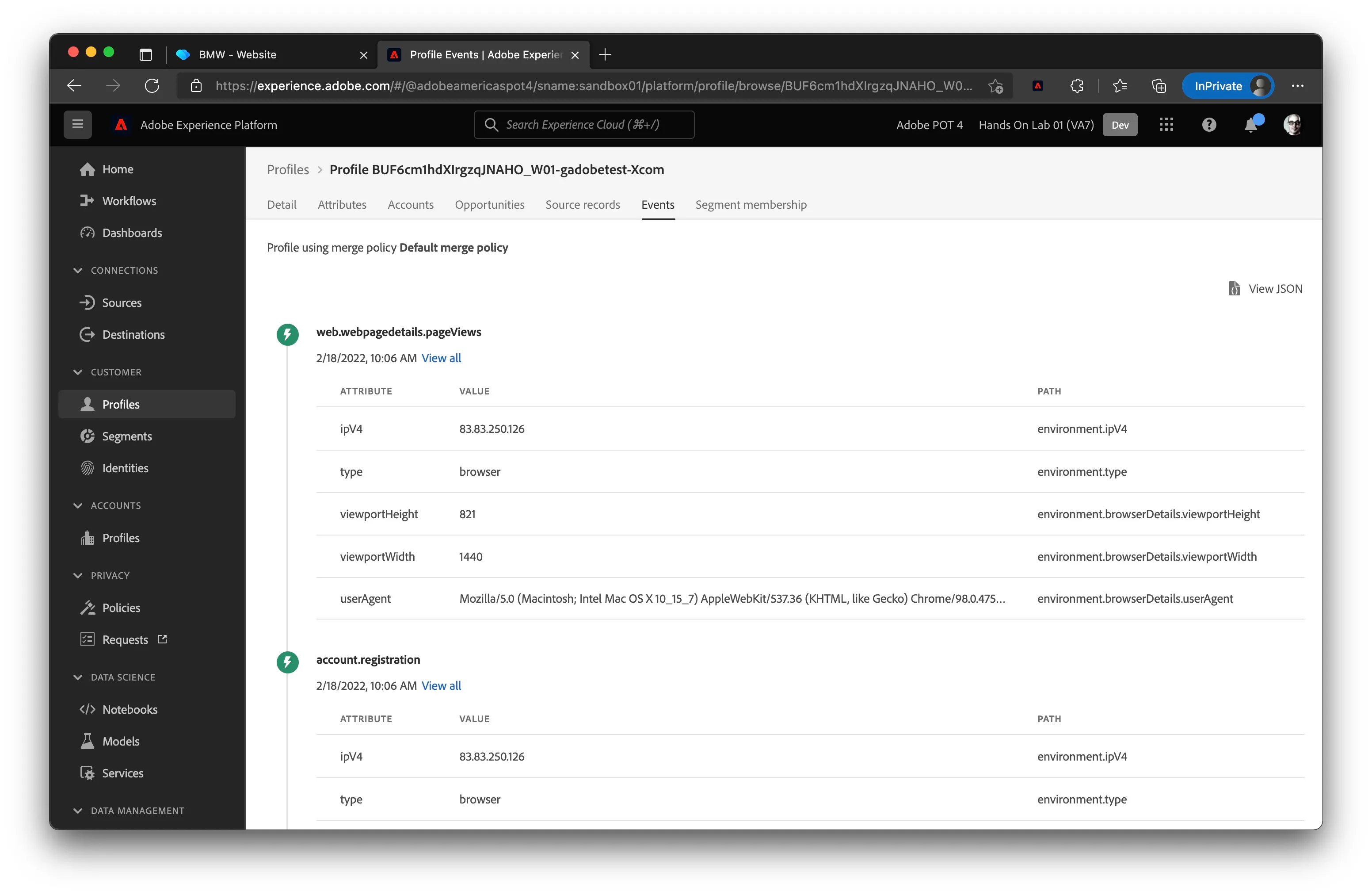
To see all entries for every experience event that is linked to your profile:
- Click on the Events tab
- You can click on View all for each event to see more details of a specific experience event.
It can take a few minutes for stitching of new devices to be reflected here, so don't panic if you don't see your website events yet, just come back in a minute and refresh.
To see all segments that this profile belongs to click on the Segment Membership tab:
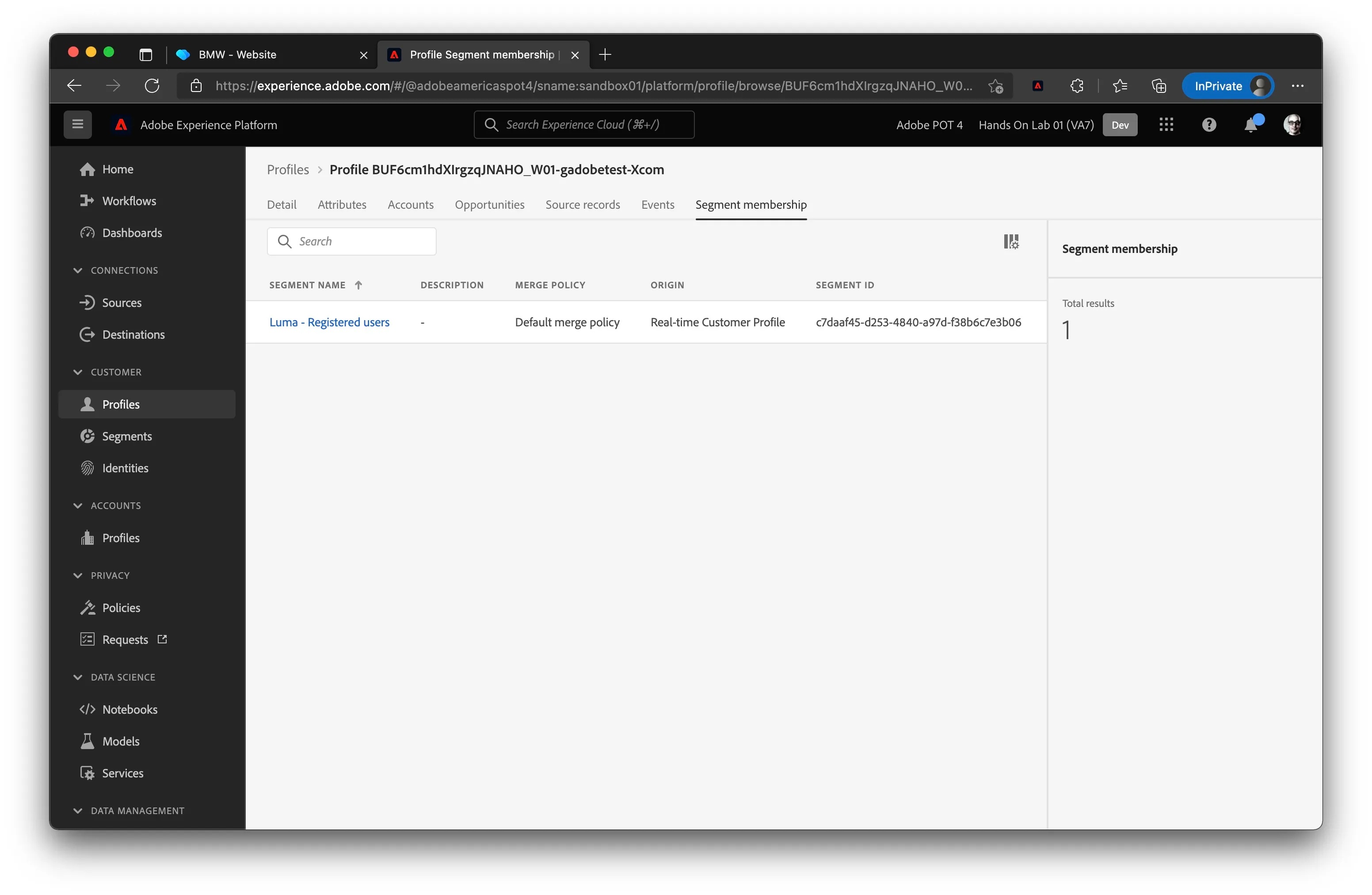
You've now learned how to view any customer’s real-time profile by making use of AEP’s User Interface.
Visualise the Identity Graph
Return to the Details tab of your profile and click on the View Identity Graph link:
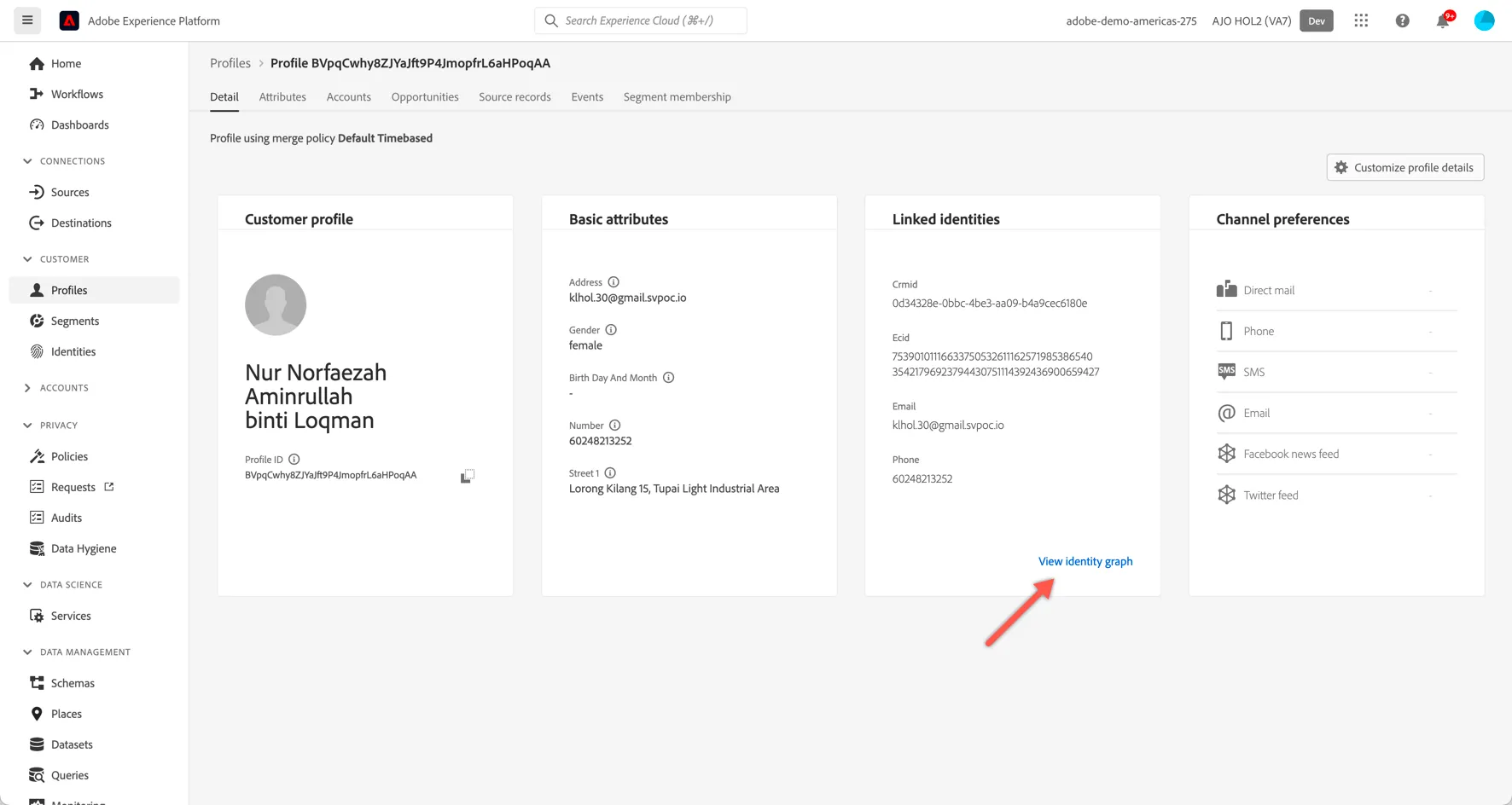
Explore how the identities have been linked (1), how the graph has grown over time (2) and which datasets each of the id's have originated from (3).
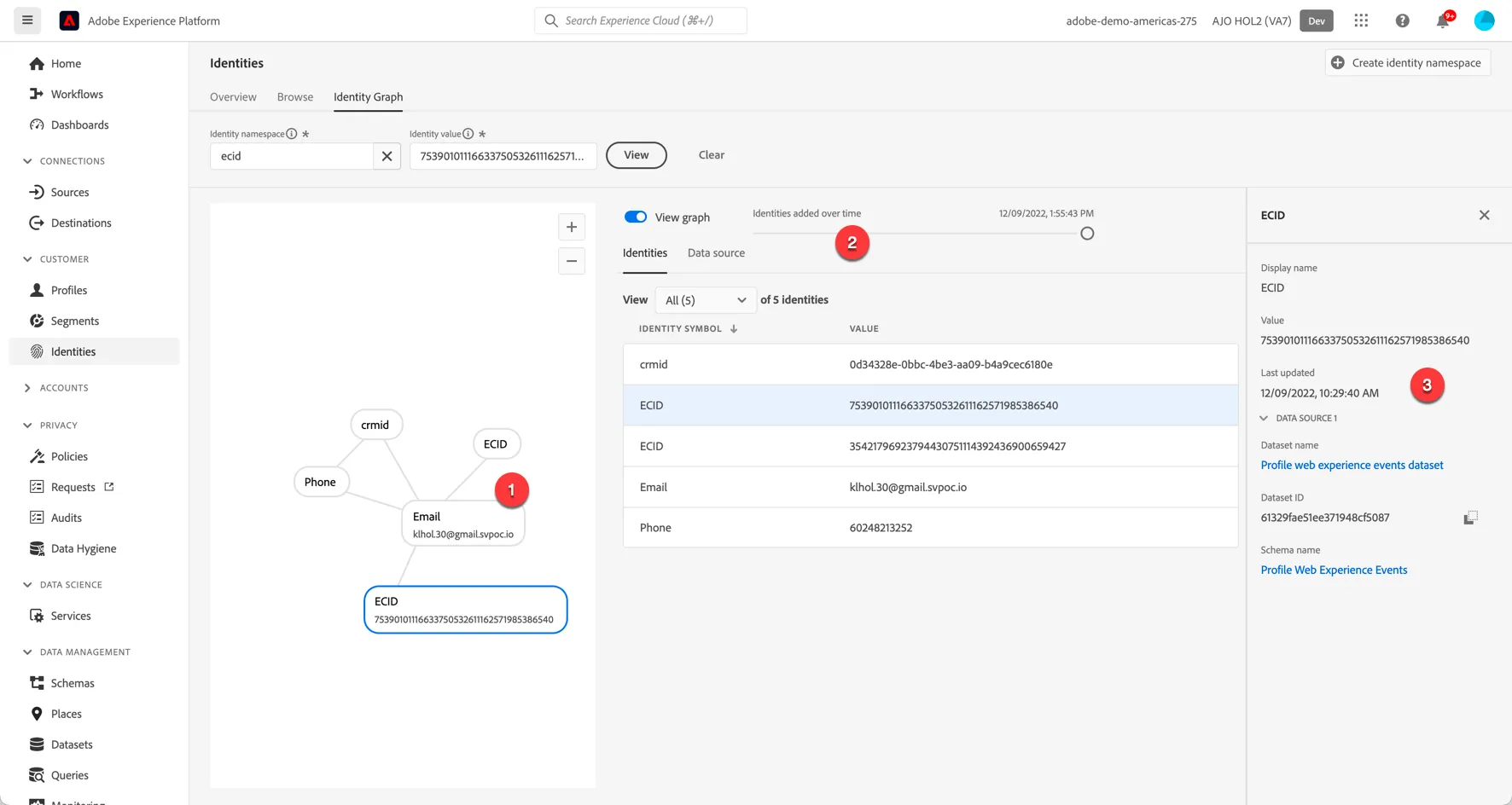
You have now successfully viewed a customer's identity graph in Adobe Experience Platform.
Simulate Call Center interactions
When customers call into a call center the first piece of information provided is their phone number. When the phone number is part of Adobe's Identity Graph, the Profile API can be leveraged to retrieve the Customer Profile and share insights from RTCDP with the call center operator or even to influence how the call is automatically routed.
In this exercise you will see how external systems can be integrated via API to enhance the customer experience in these offline channels.
Open our demo call centre app here: https://dsn.adobe.com/cx2/gillies-L5UF
The demo app is security restricted, use the credentials provided this morning to access the site.
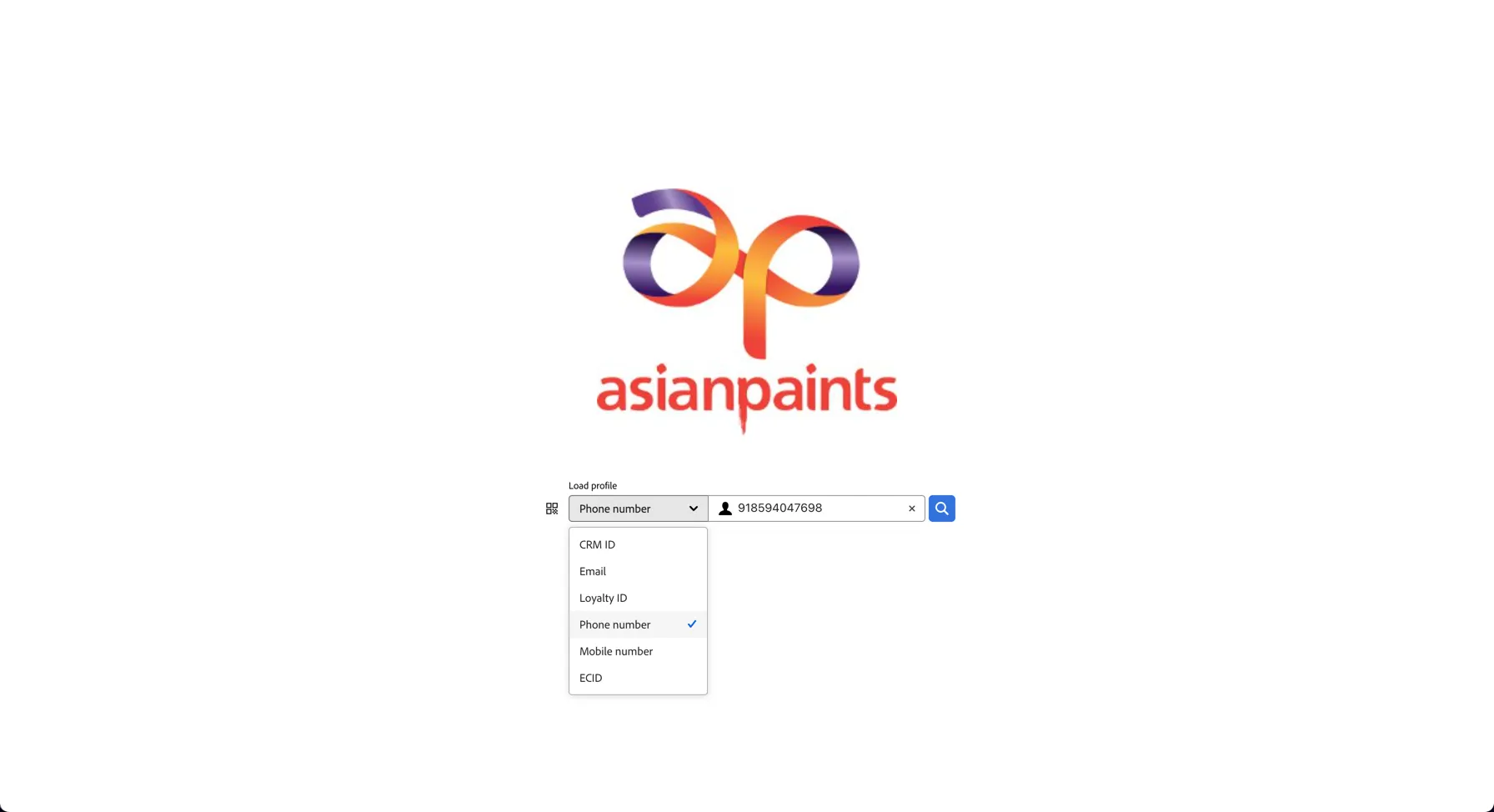
Once you have access change the identifier used to look up the profile to Phone Number and enter the phone number from your CUSTOMER PROFILE. Click to lookup the profile.
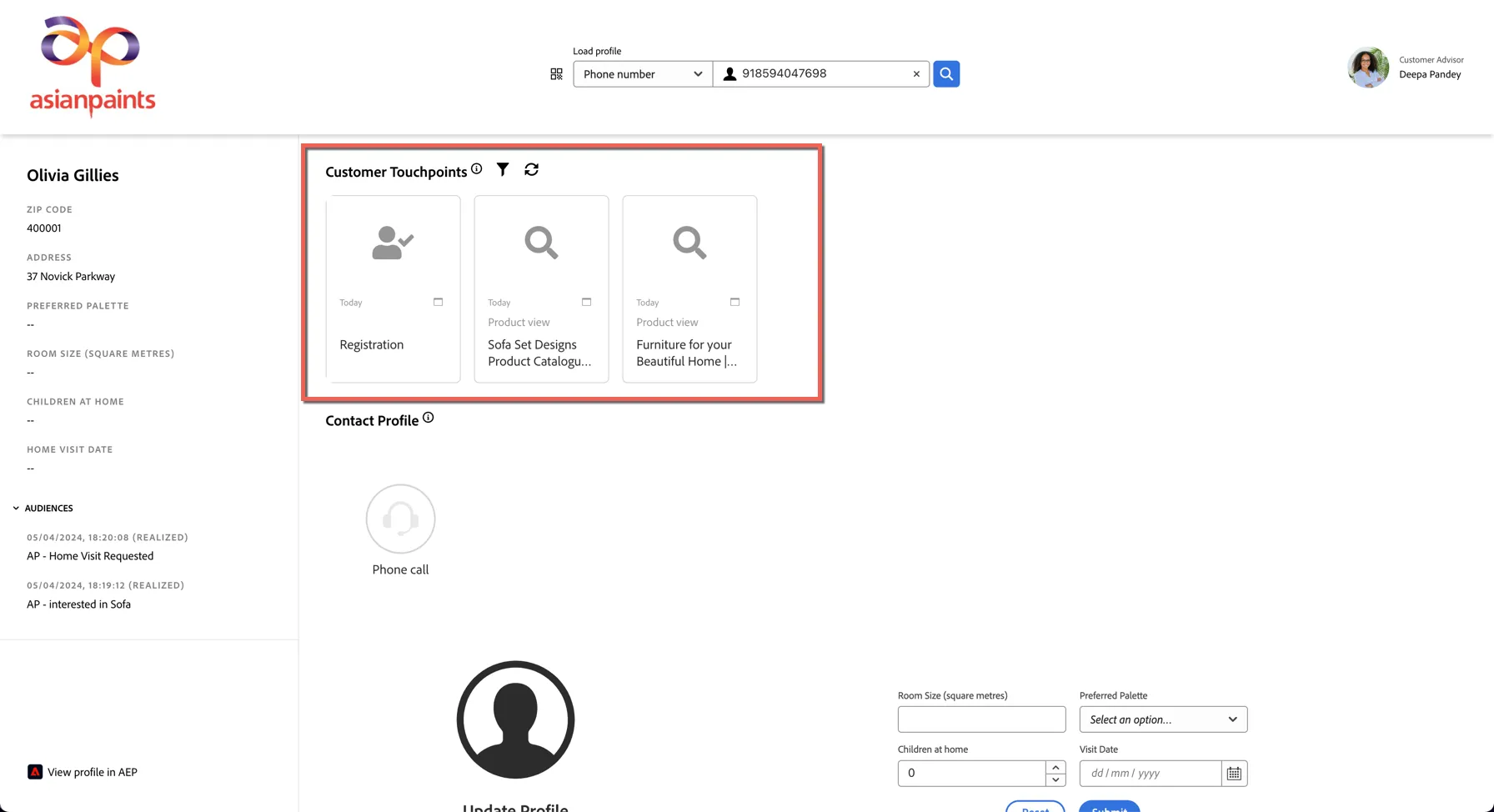
The API can share the experience events attached to the profile so the call center operator can see all of their recent touchpoints across channels
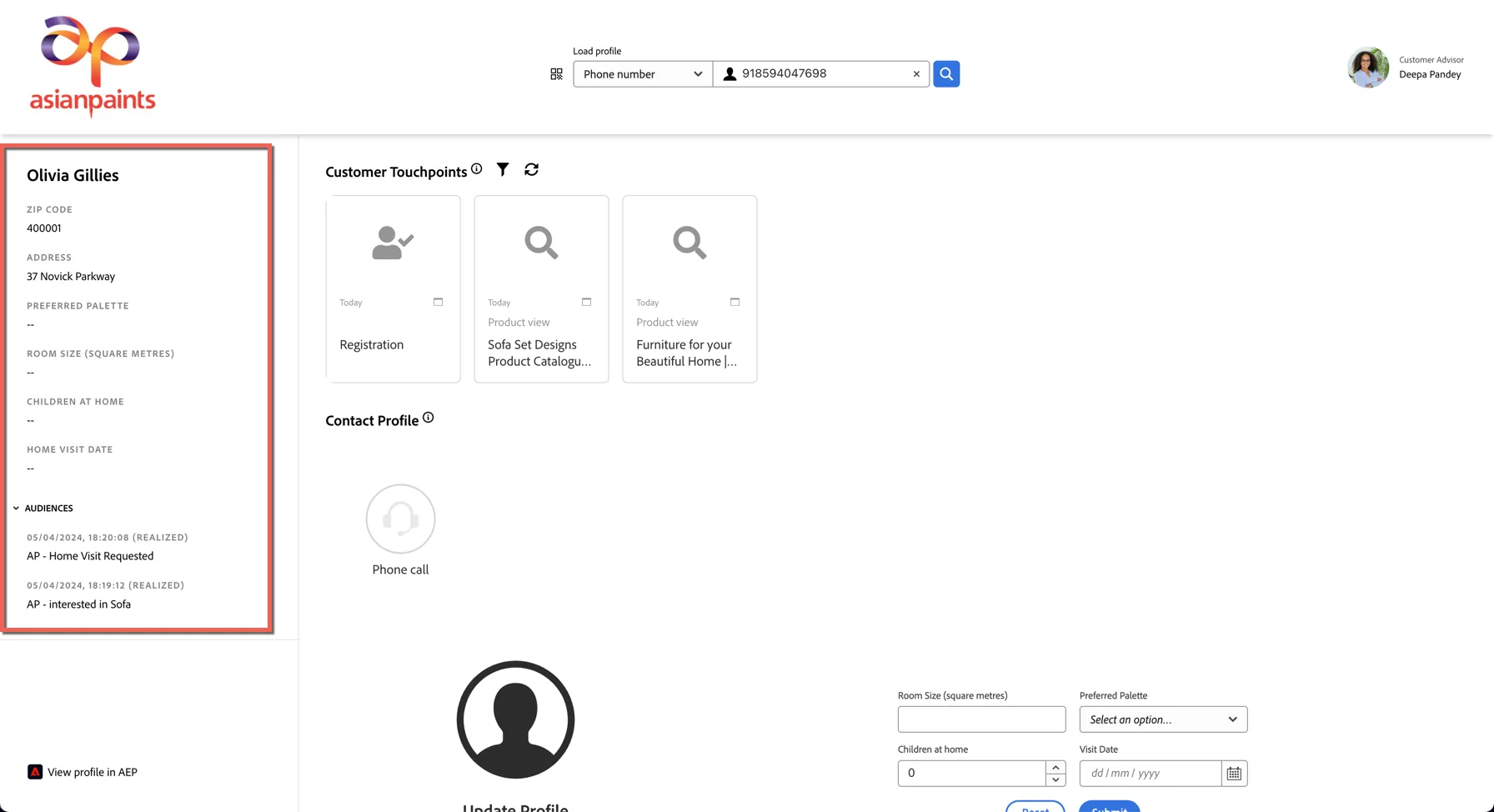
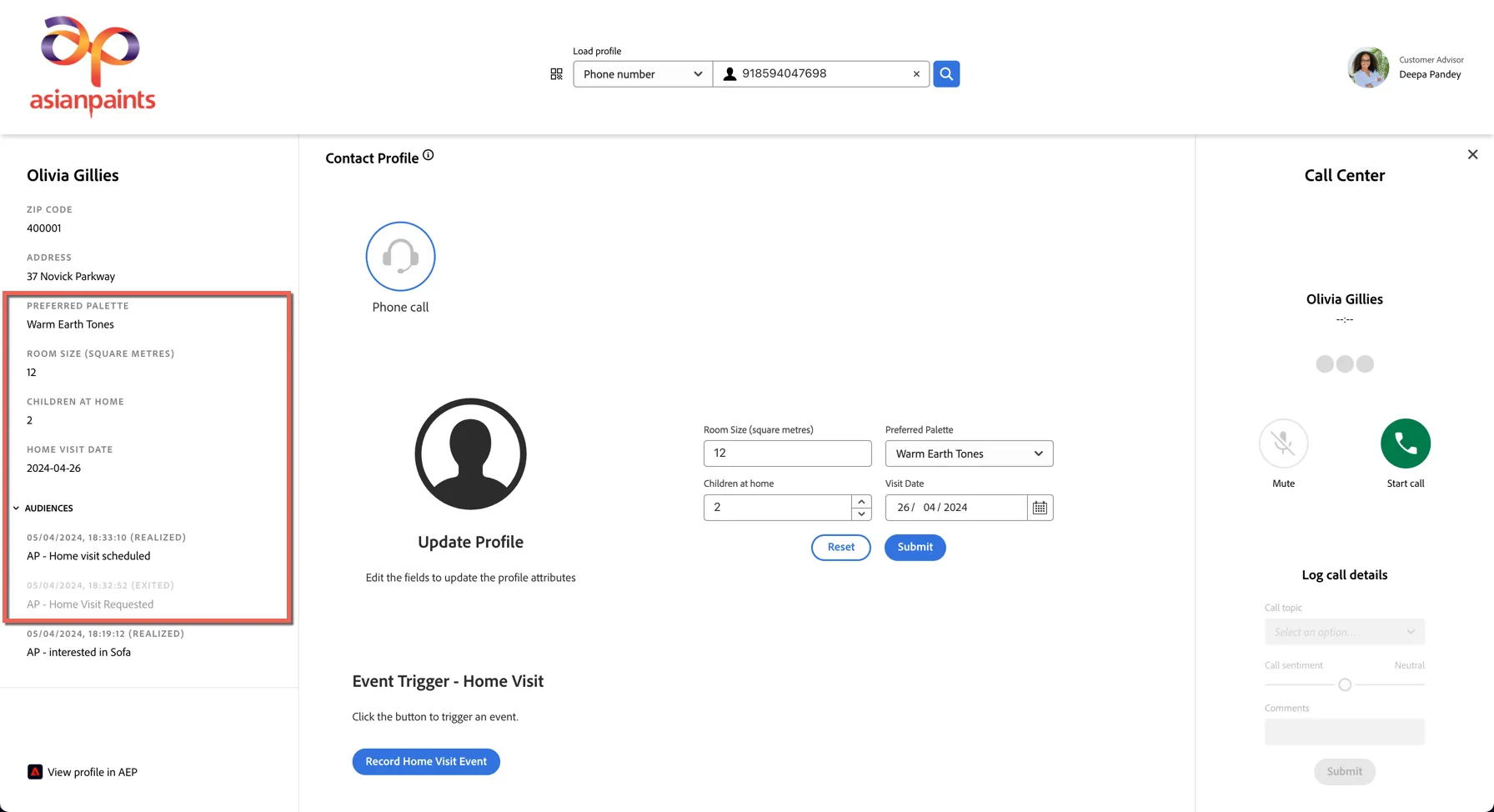
The profile attributes and audience memberships can also be retrieved via the API and shared with call center staff. The operator knows that the customer has requested a home visit but this hasn't been scheduled yet.
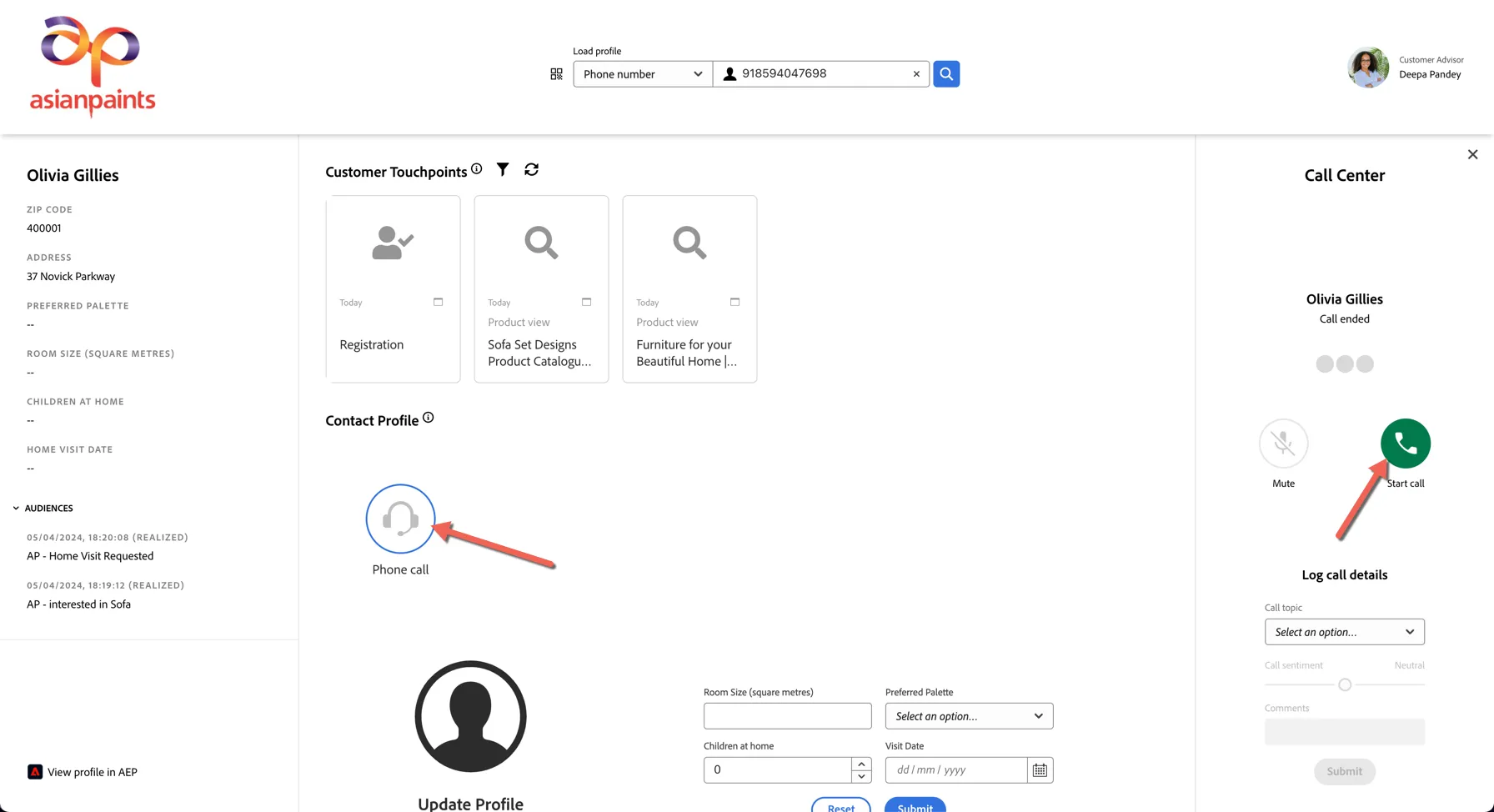
Click the Phone call icon and click Start Call to simulate a call to the customer.
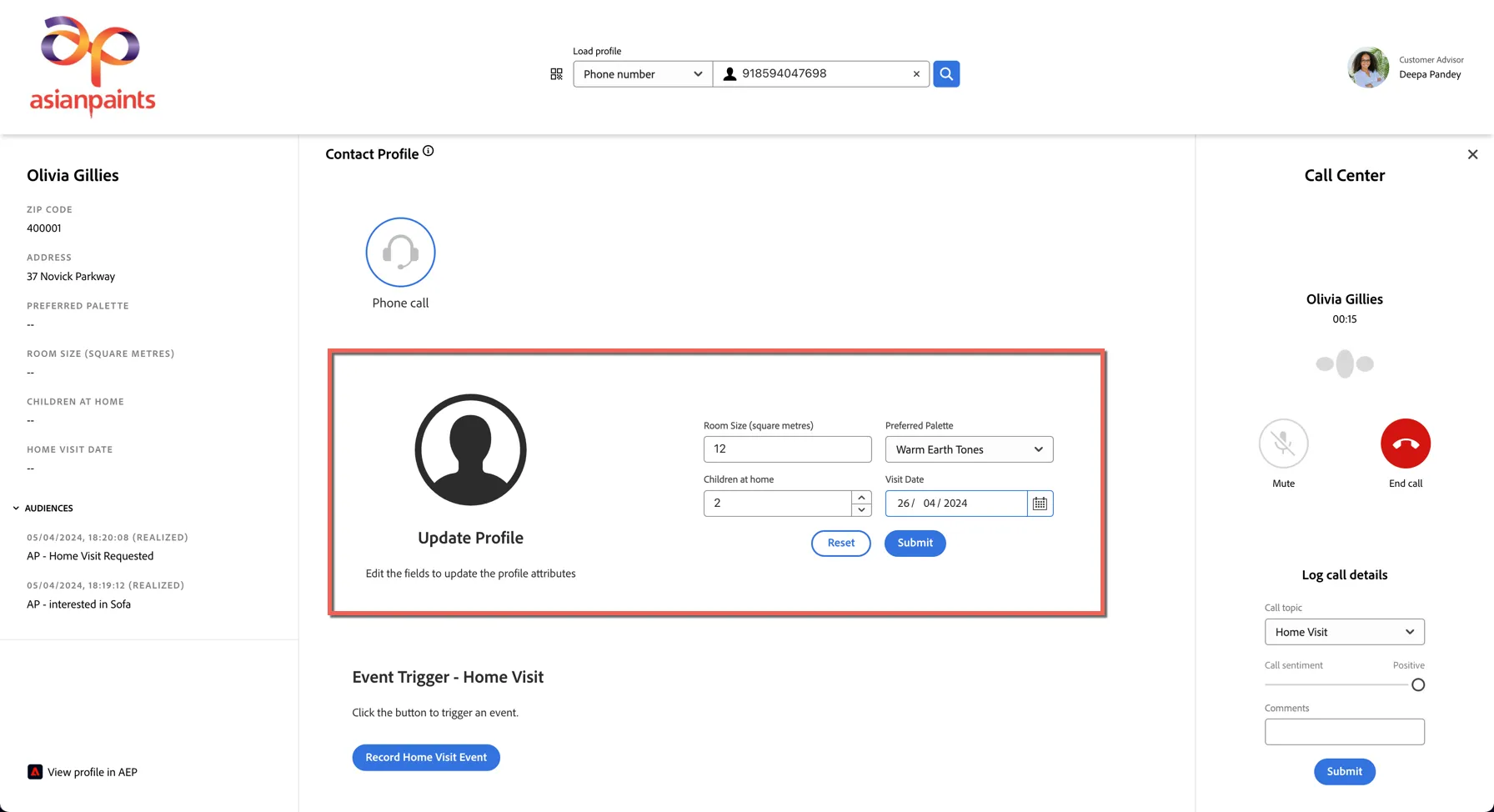
During the call, data collected can be submitted to enrich the profile further. Enter details and click Submit
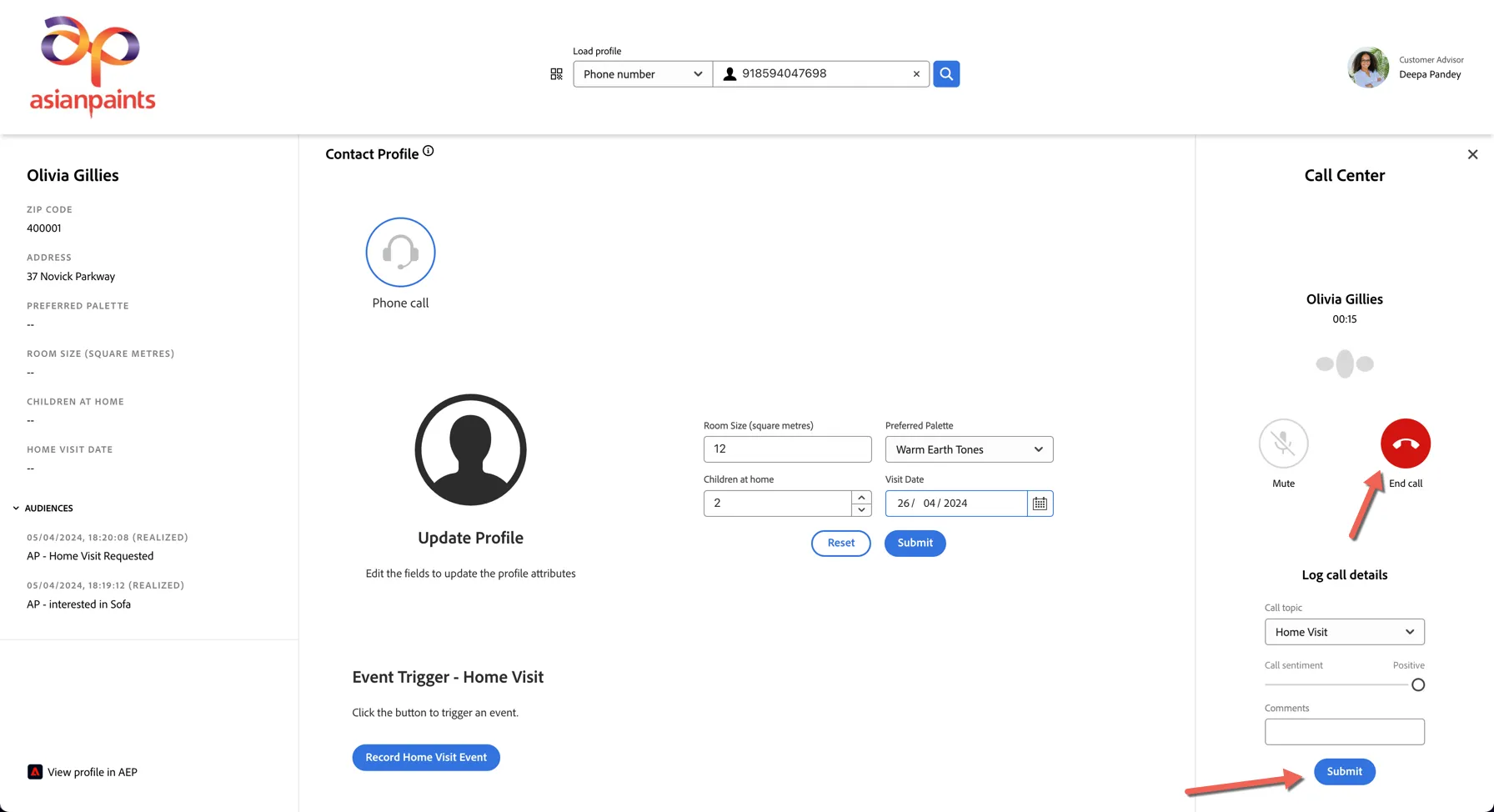
Click to end the call and log the call details.
Each action is returned to Adobe Experience Platform as an experience event, these can be seen in the Customer tourchpoints timeline. Refresh the page to see these reflected.
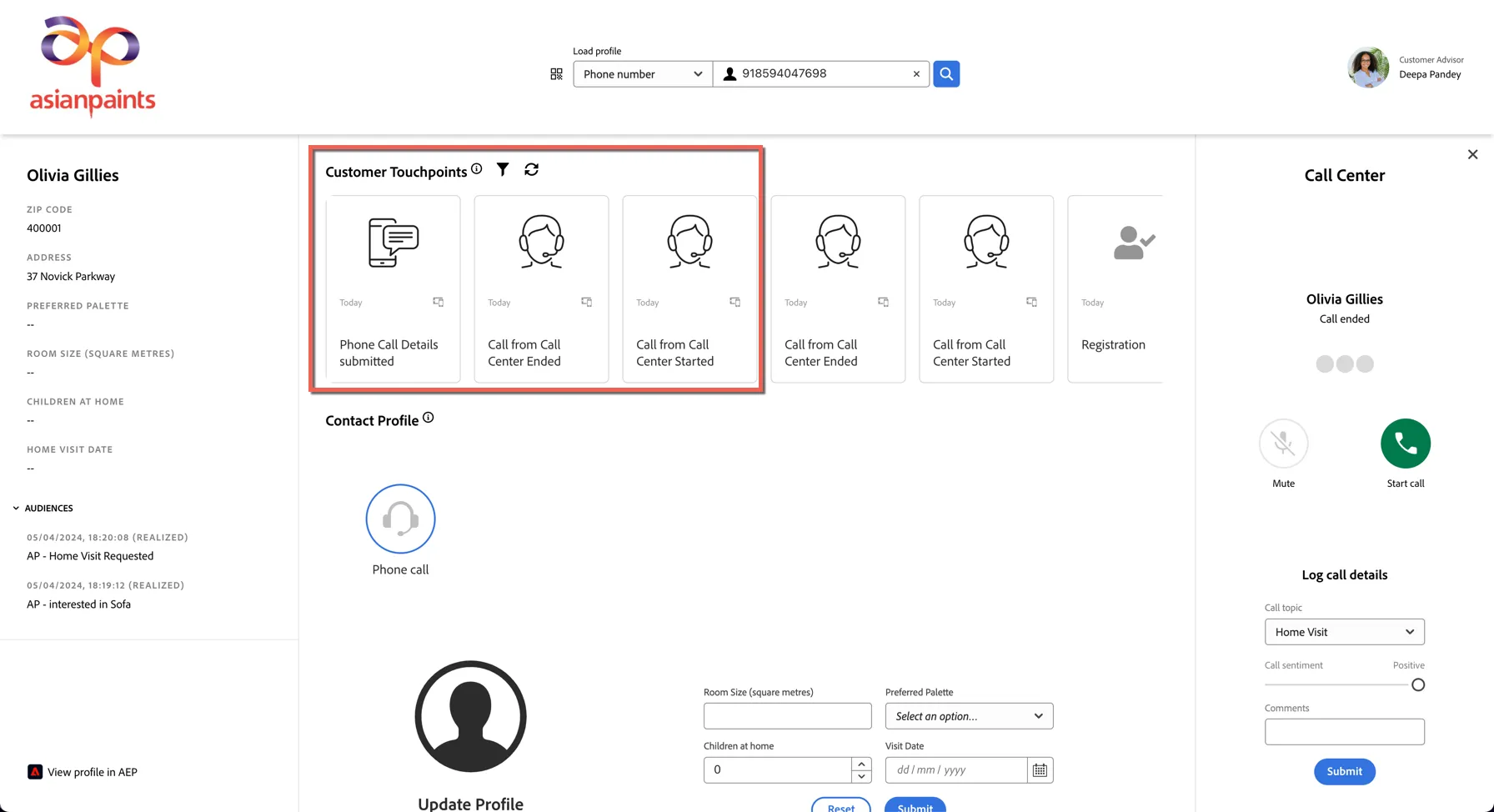
You'll notice the profile attributes have updated also and the profile has moved from the Visit requested audience into the Visit scheduled audience.
This completes the call center simulation exercise.