Use case 1 - Real time personalisation
In this exercise you will learn how Adobe Real-time CDP works with Adobe Target to personalise website experiences in real time.
You will experience as a customer:
- Visit the website and view the sofa product
- See events ingested in real time based on browsing behaviour
- Return to home page where your experience is personalised.
You will learn as a marketer:
- How to create an Edge segment in Adobe Real-time CDP
- How to activate that segment to Adobe Target for personalisation
We won't cover how to create the experience in Target since this is assumed knowledge.
Visit the Website
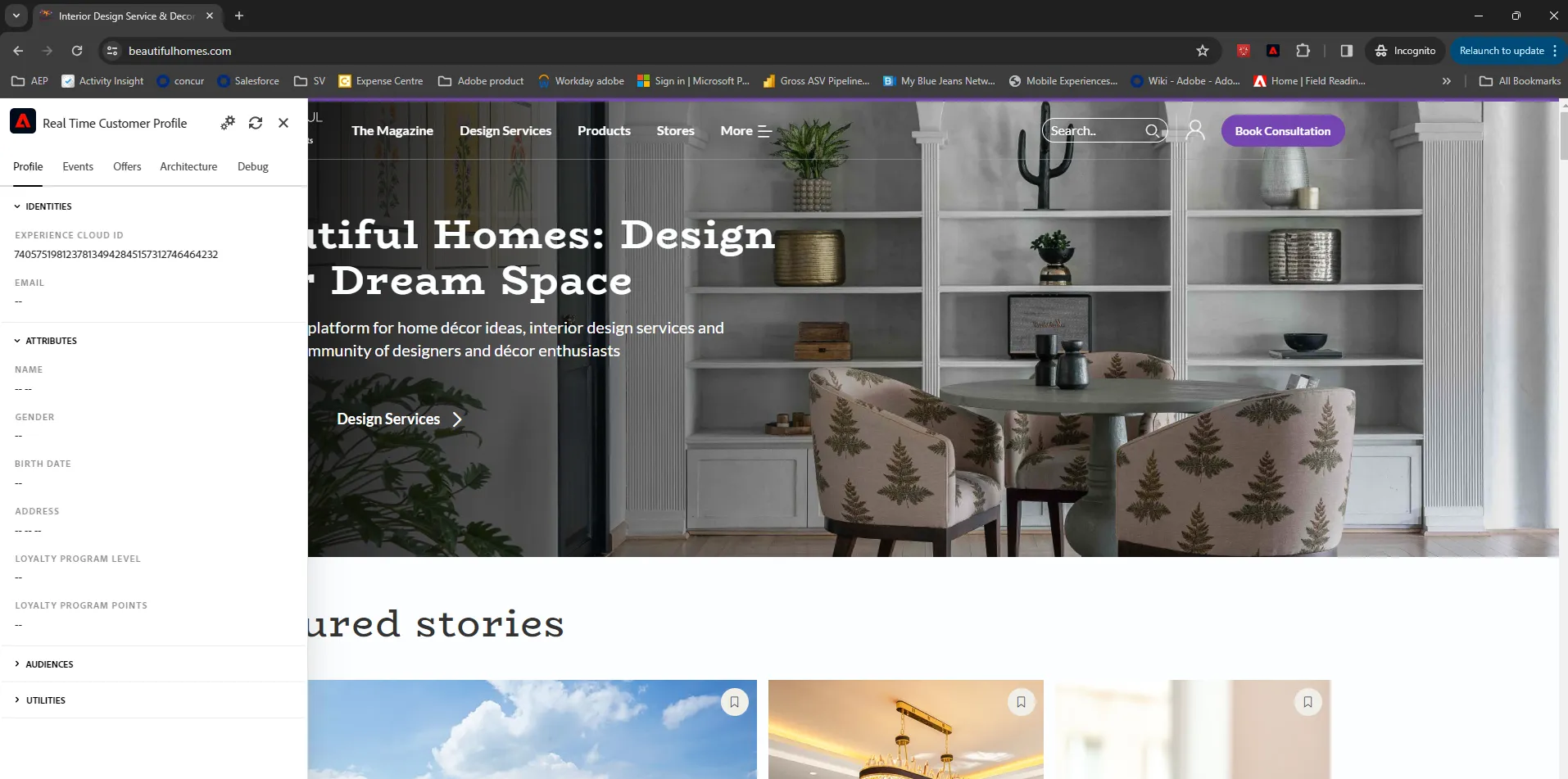
On the website homepage, and any other page, you can get access to the REAL TIME CUSTOMER PROFILE VIEWER.
- Click the Adobe logo icon in the top left corner of your screen to open the REAL TIME CUSTOMER PROFILE viewer.
- Have a look at the panel:
- Notice the Adobe Id within IDENTITIES. This is the Experience Cloud ID (aka ECID).
- Click on the EVENTS tab to see the experience events that were collected based on the customer’s behaviour. The list is currently empty (or has just the home page view event) but that will change soon.
Let's behave as a typical customer now.
- Search for Sofa
- Select "product" and browse one or two.
You’ll then see the product detail page for this product. An experience event of type Product View has now been sent to AEP using the Web SDK. To inspect this event:
- Open the REAL TIME CUSTOMER PROFILE panel.
- Take a look at the EXPERIENCE EVENTS.
You will see the interactions you have had with the demo web site.
Tap on the refresh button at the top of the panel if you don't see the events appear. Note that the panel is querying the Experience Platform hub not the Edge Network which is where the realtime actions are being processed, as such it can be slightly slower to reflect the updates.
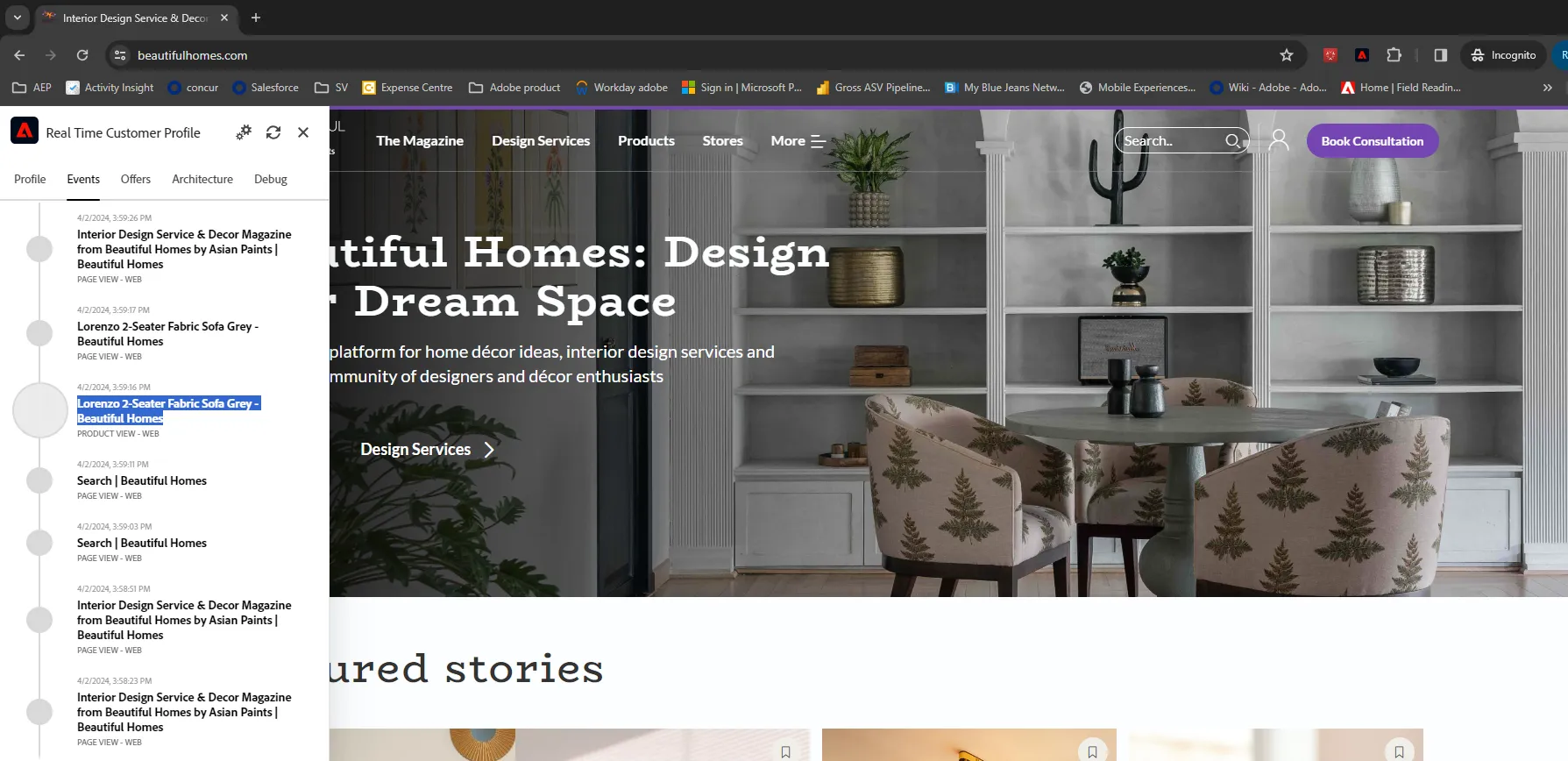
While the behaviour is anonymous, we’re able to track every click and store it in Adobe Experience Platform and we can use that information to personalise the experience.
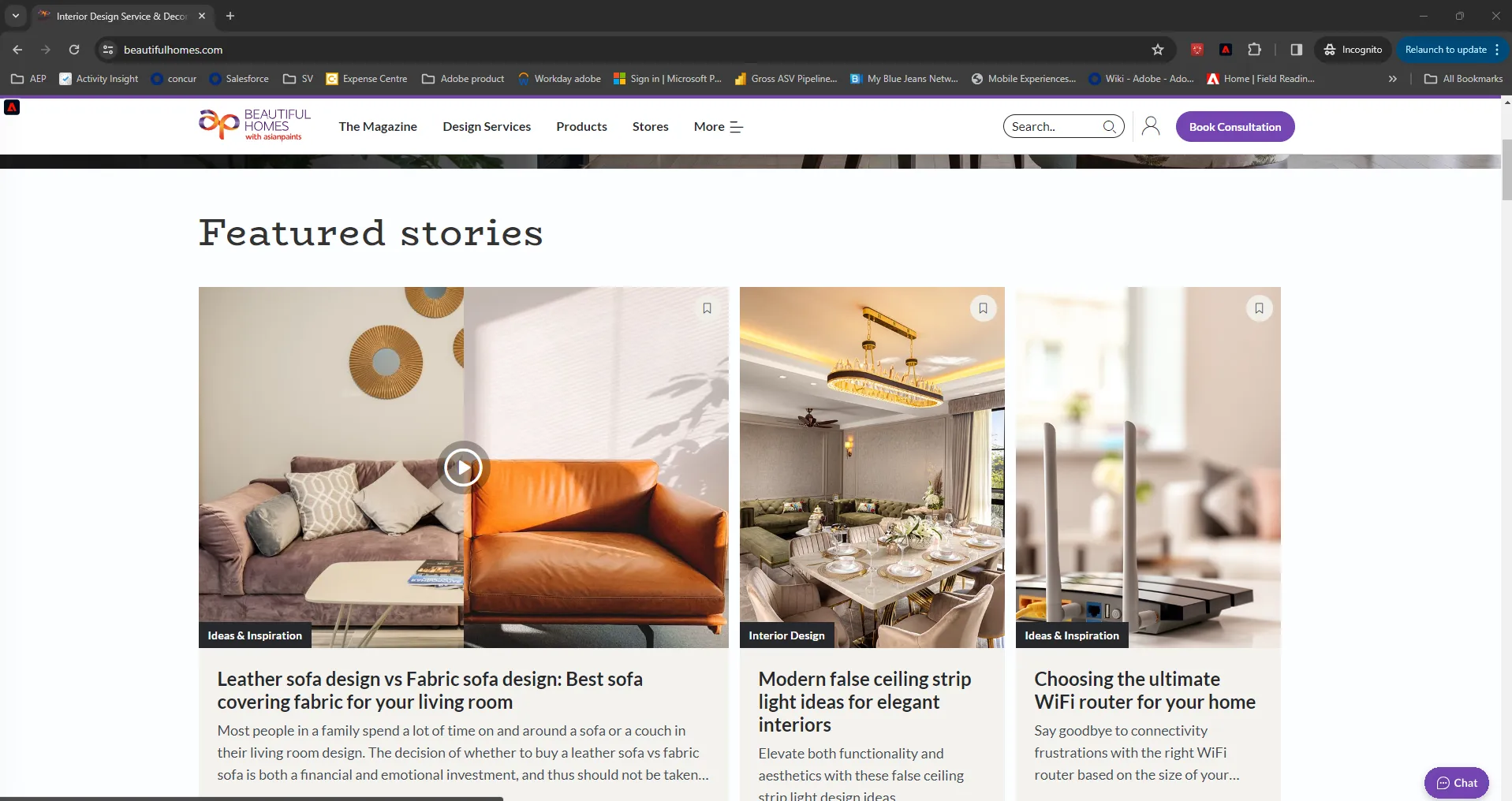
- Return to the home page
We've used Adobe Target to personalise the feature stories to align with their product interest and change the main story with Sofa related article.
Create an edge segment
Edge segments are designed for real time personalisation use cases occuring on your website or app.
To create an edge segment visit the Audiences page in the left hand navigation and click to create a new Audience.
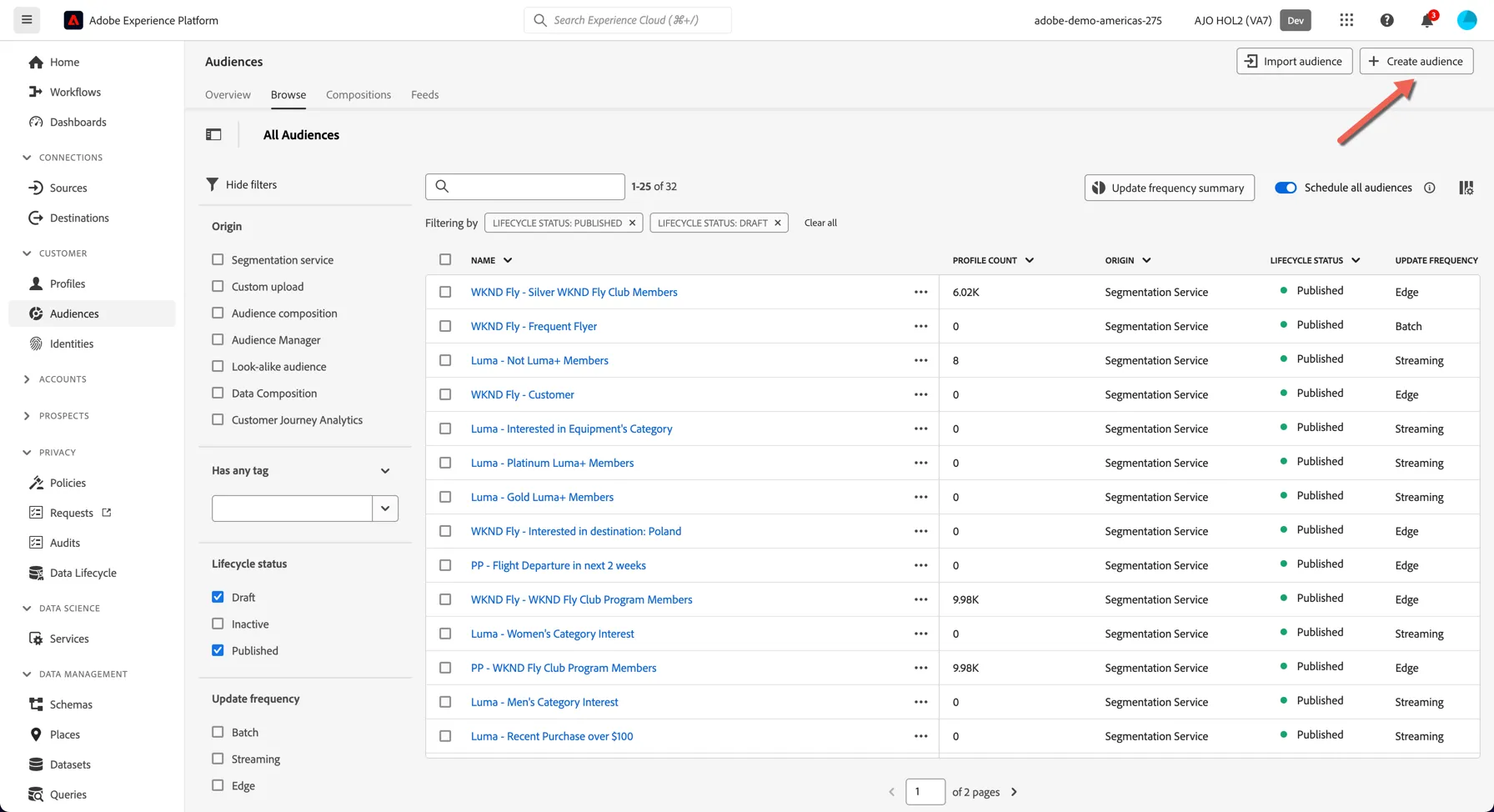
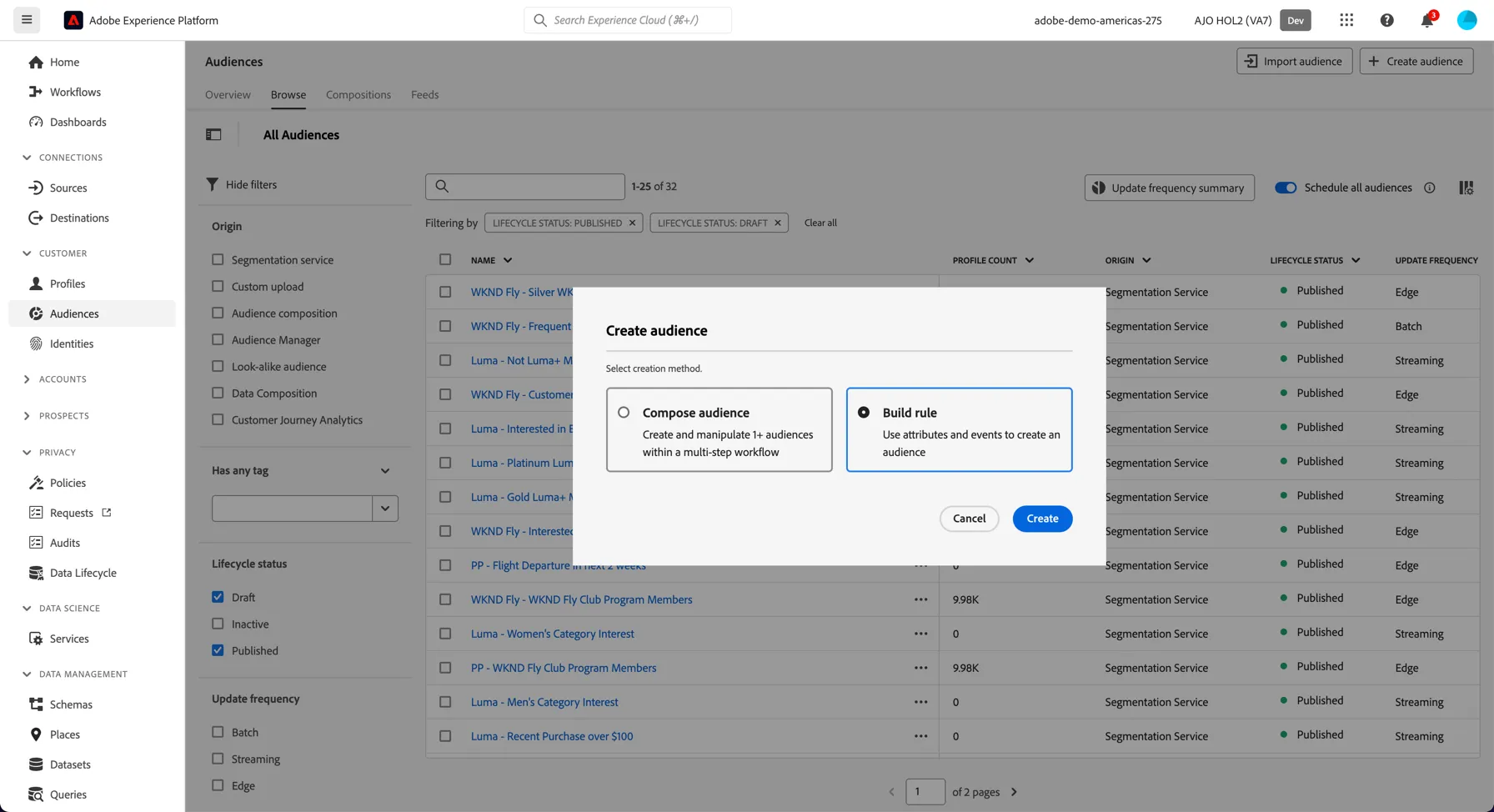
Select to build a rule based segment:
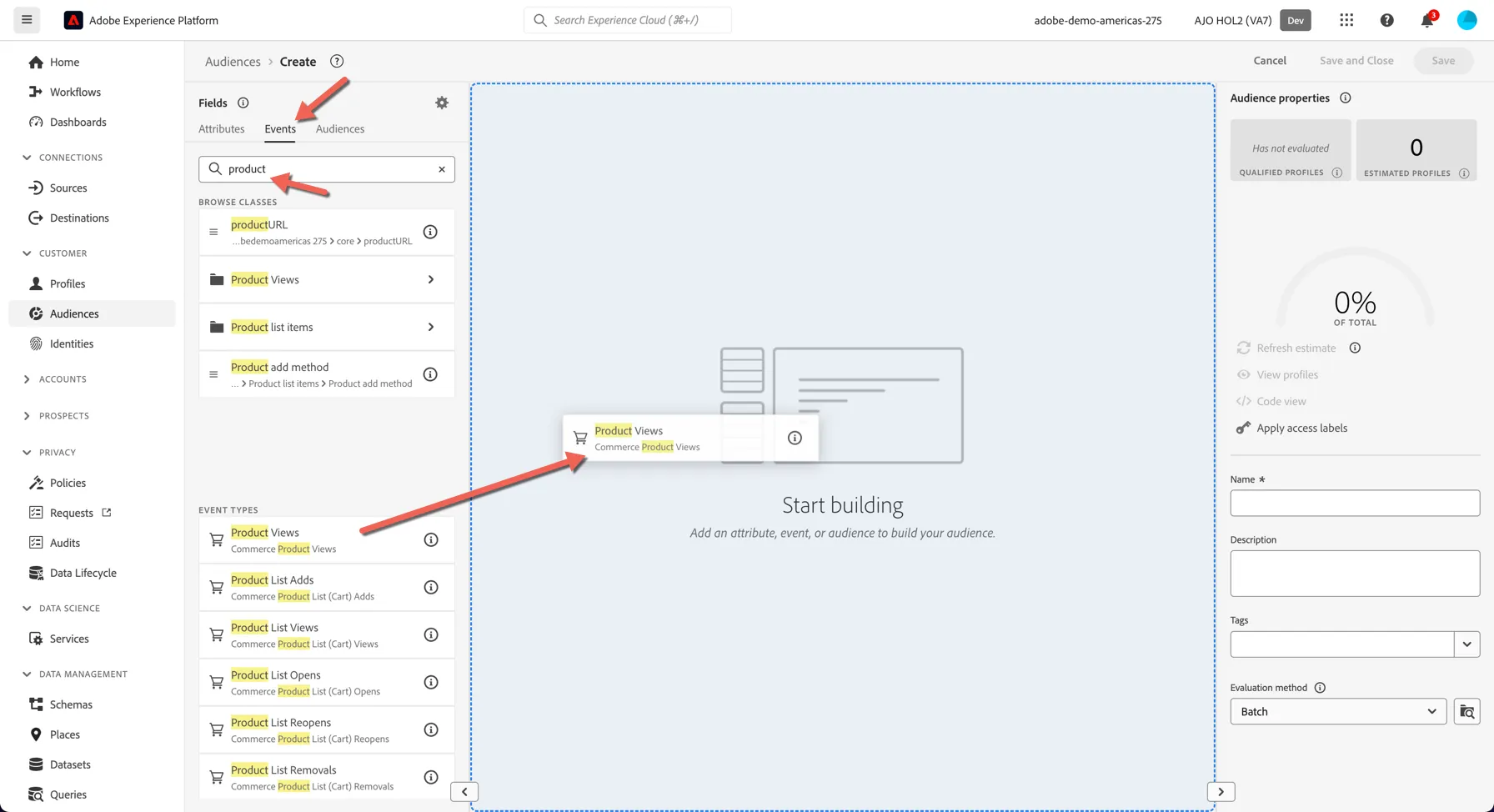
In the segmentation builder you have access to all of the csutomer profile attributes and events. Change to the events tab to create a segment based on a real time event. Search for products and drag the Product Views event type into the canvas.
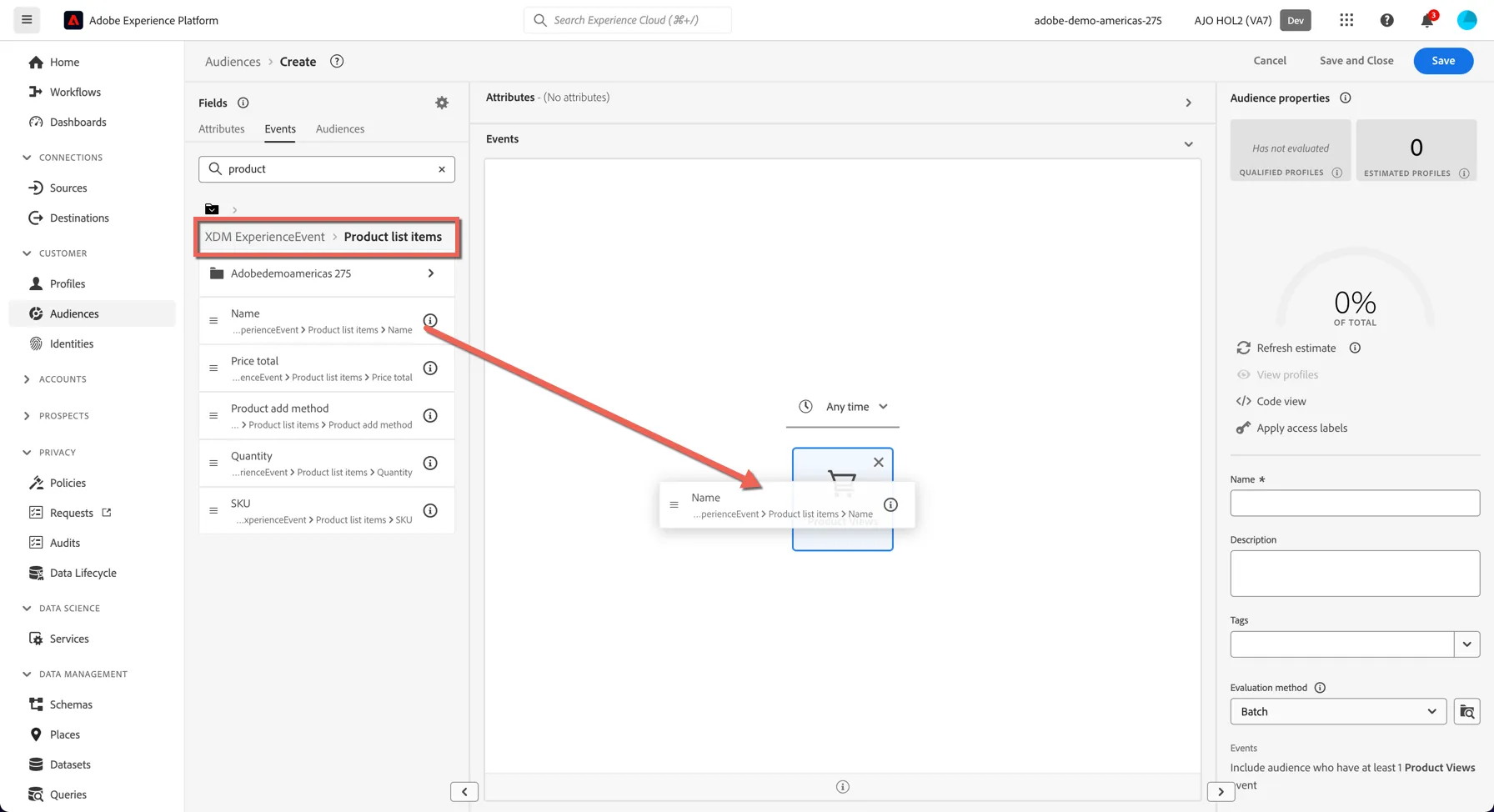
Now we want to specify the type of product that was viewed. Open the Product list items element on the left panel and drag the name attribute into our Product Views event.
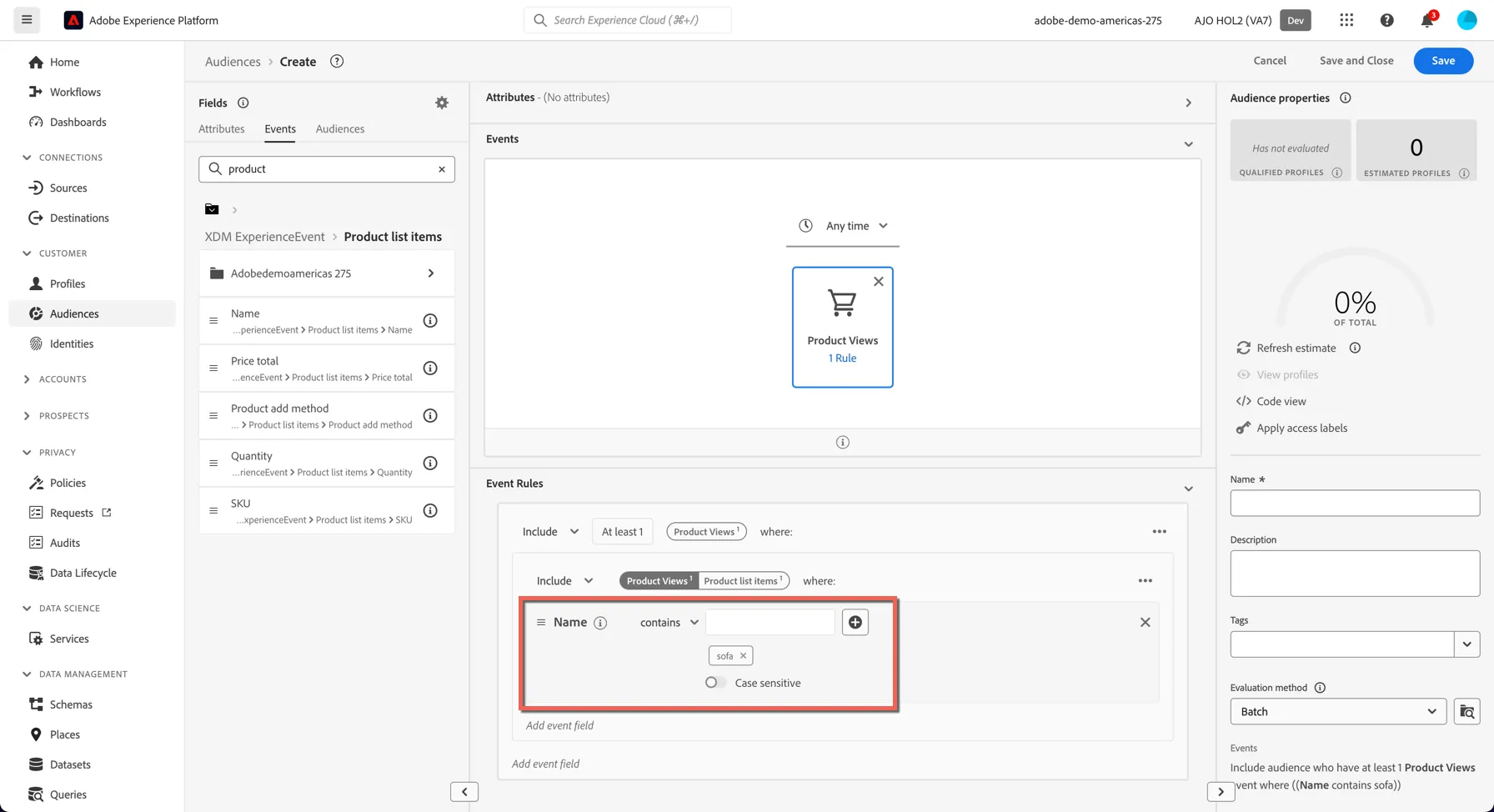
Change the operator from equals to contains and set the value to sofa.
Now let's give your segment a name - add a prefix to your segment that starts with AP but has something unique to distinguish your segment from everyone else! eg. your last name Eg. AP gillies - interested in sofas.
Now set the Evaluation method to Edge. This specifies that the audience can be calculated on the edge for qualification within milliseconds.
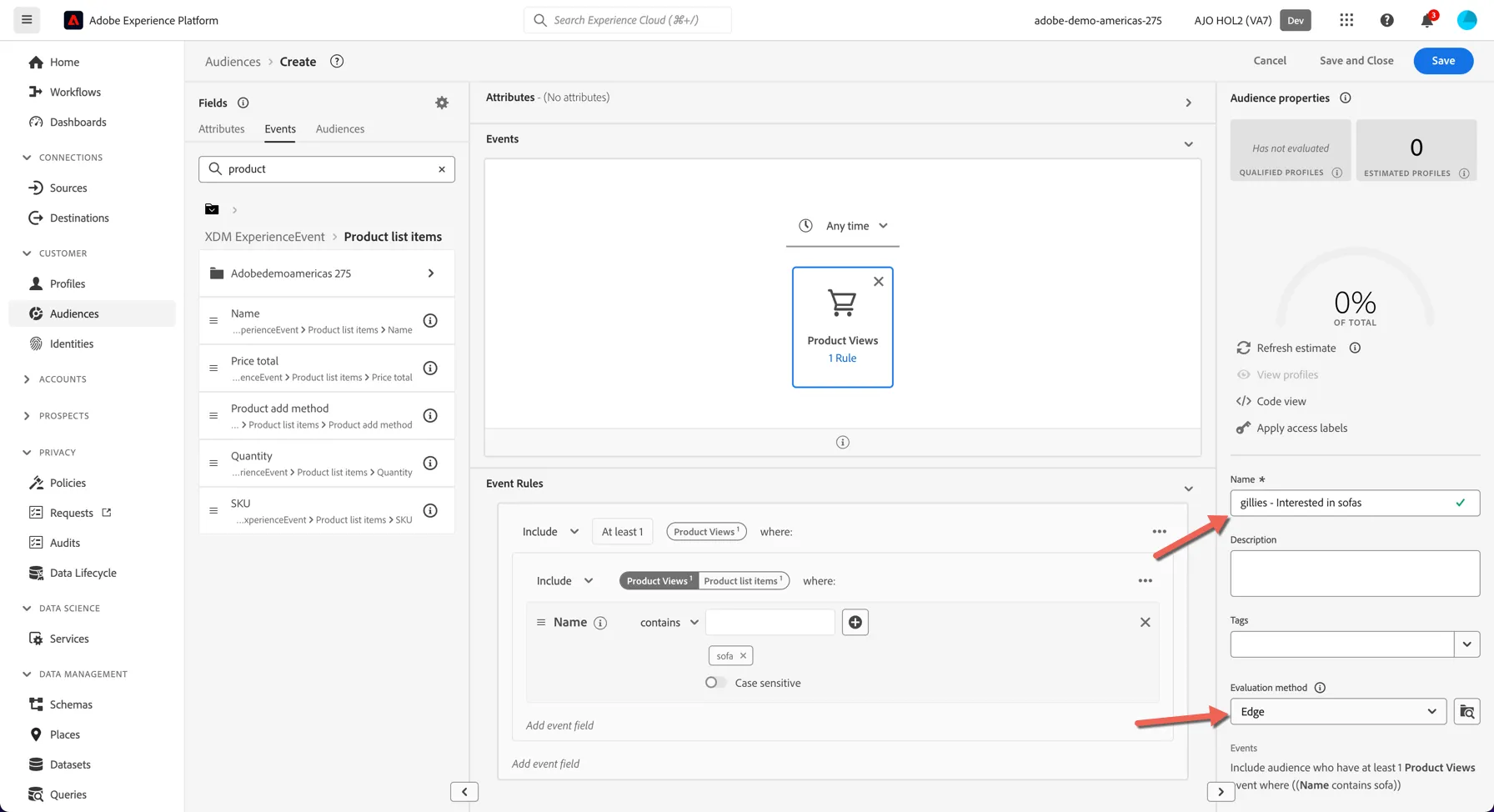
Click Save and Close.
Activate your segment to Target
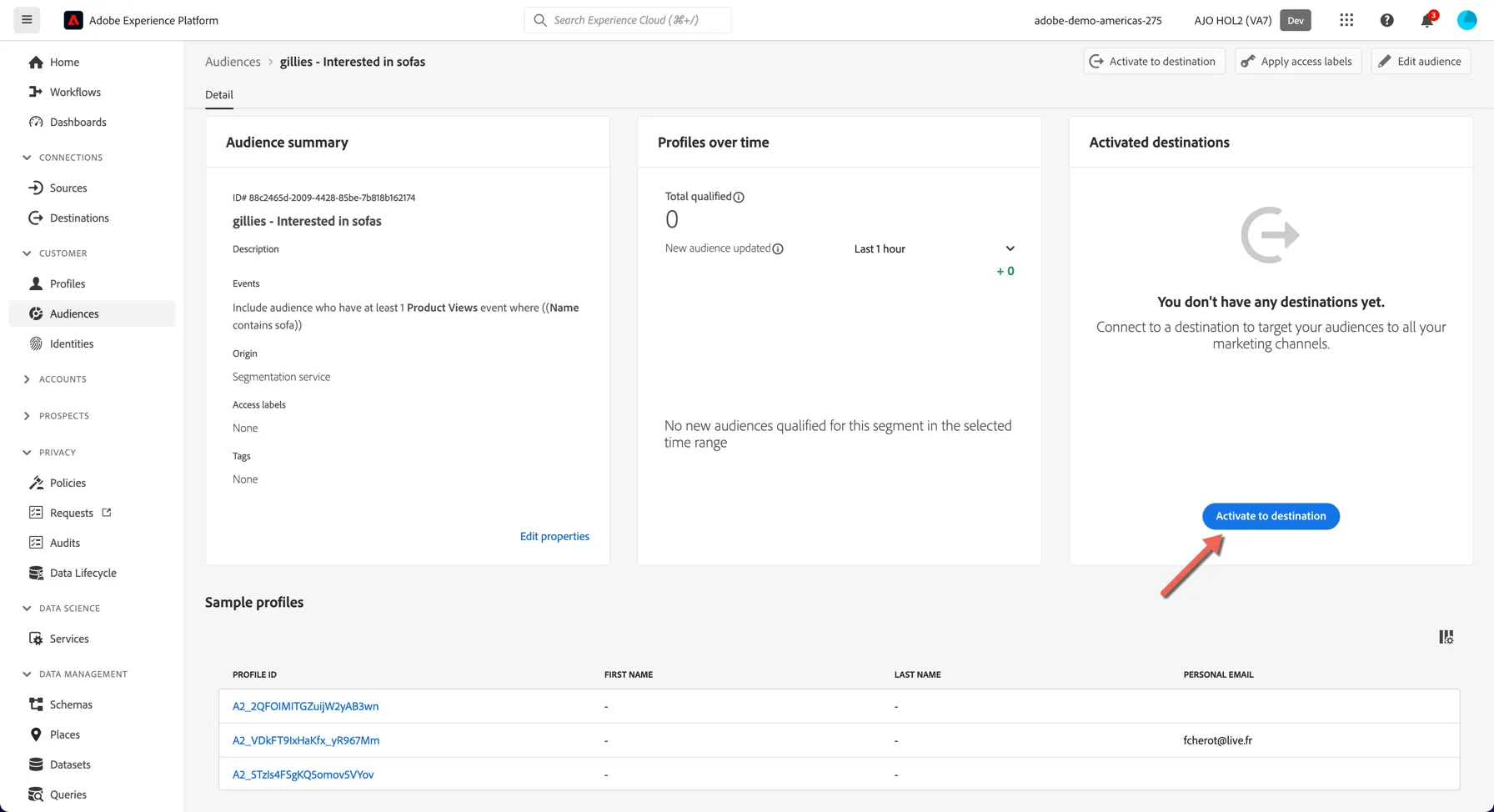
You should now see the details of your segment. Since the audience is brand new there are no qualified profiles yet.
The counts reported on this page update at intervals even though profiles will qualify for the audience in real time. Total qualified count will update nightly, the new audience updated count will update each hour.
Click on the Activate to destination button.
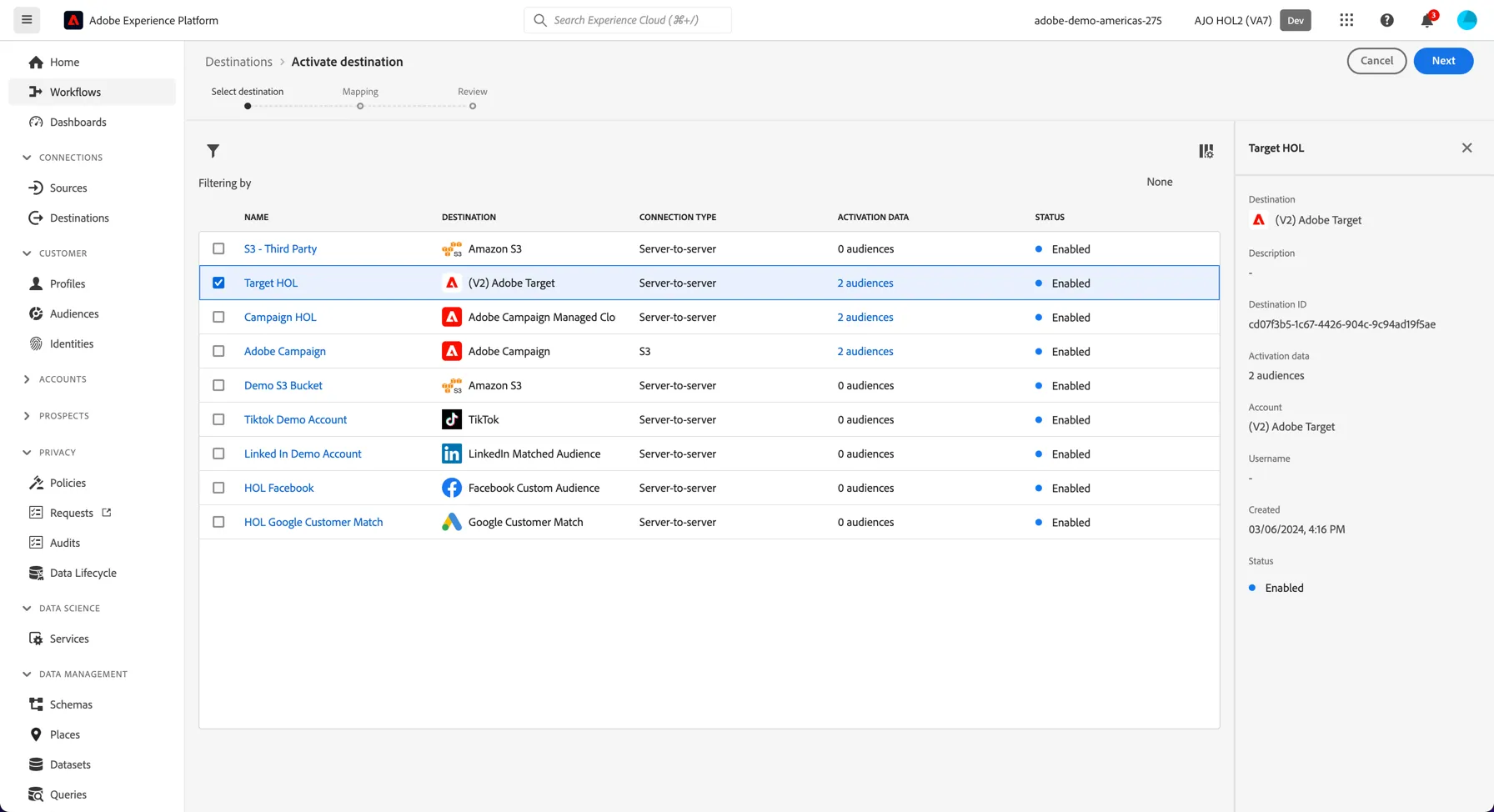
Here you can see all of the destinations that are currently connected to this instance for Activation. Select Target HOL and click Next.
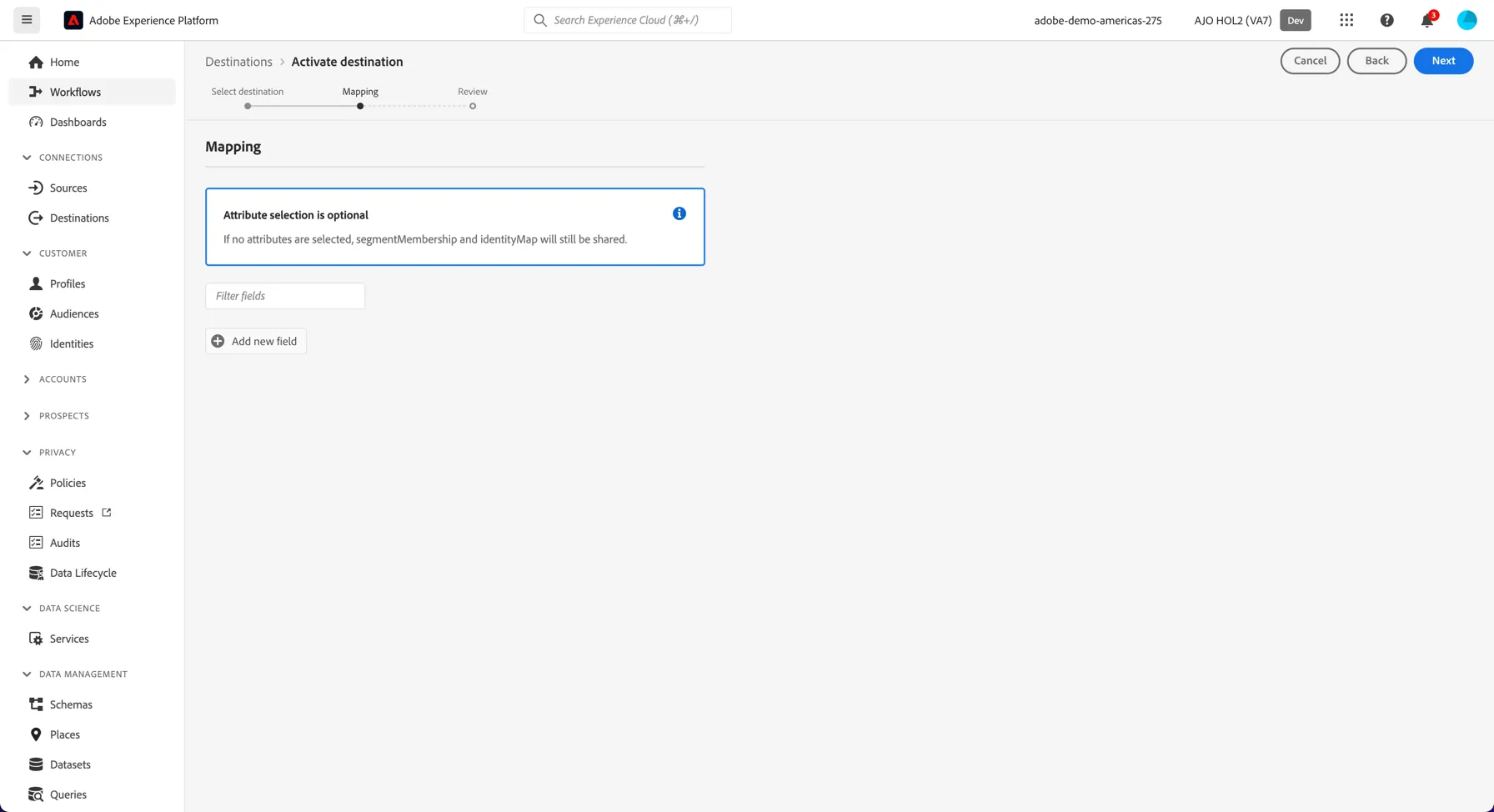
The mapping step allows you to share profile attributes from Adobe RTCDP to Adobe Target for inclusion in your Target experiences. Eg. we could share the customer's first name and show this on the site through Target. For this use case though, no attributes are required so we can simply skip this step by clicking Next.
Review the activation details and click Finish to connect your audience with Adobe Target.
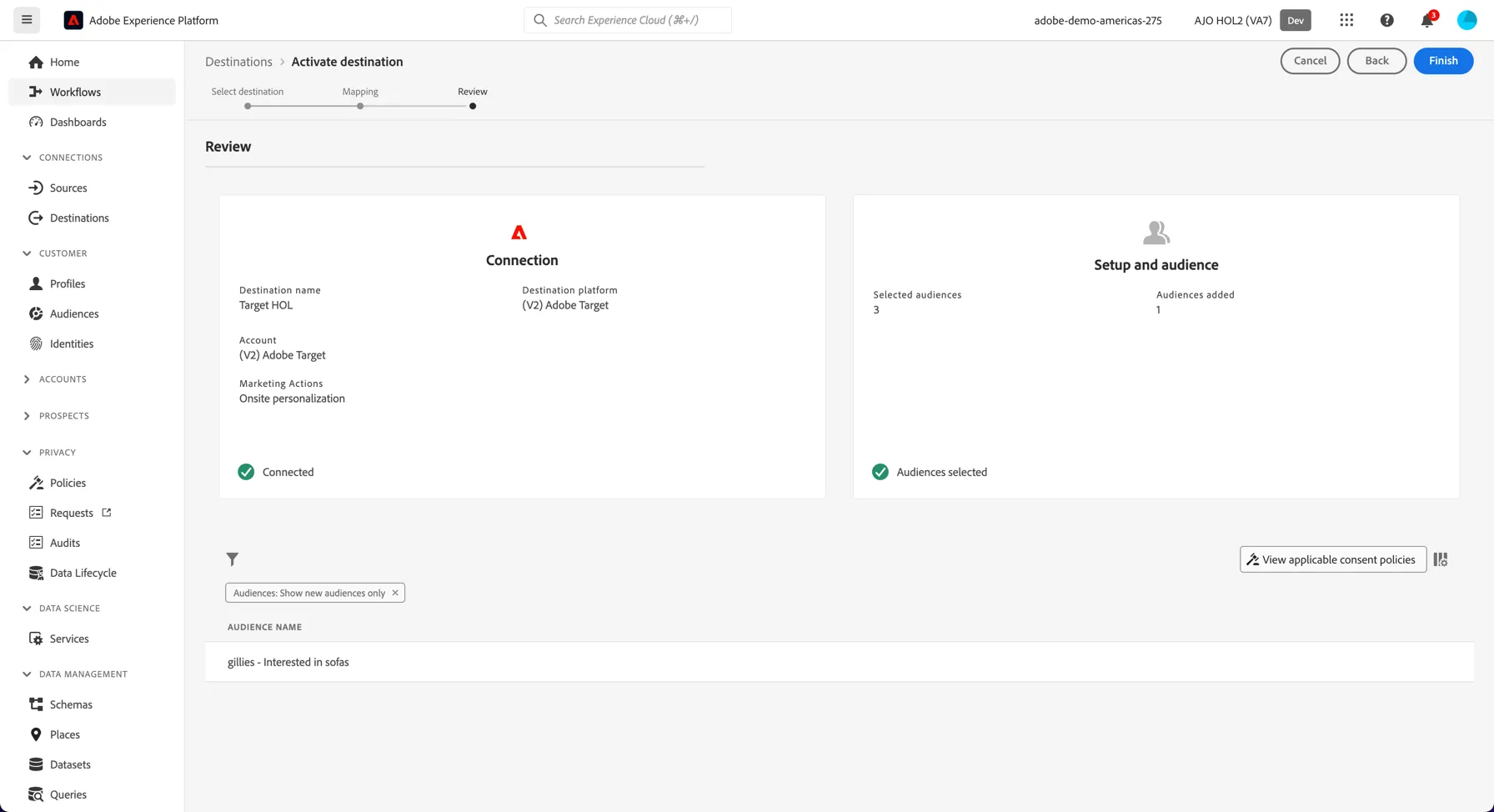
The interface does not expect multiple users to be activating audiences to the same destination at the same time. If you get an error that looks like:
Close the error window and start the activation wizard again.
Once your segment is successfully activated, click the product switcher to open Adobe Target.
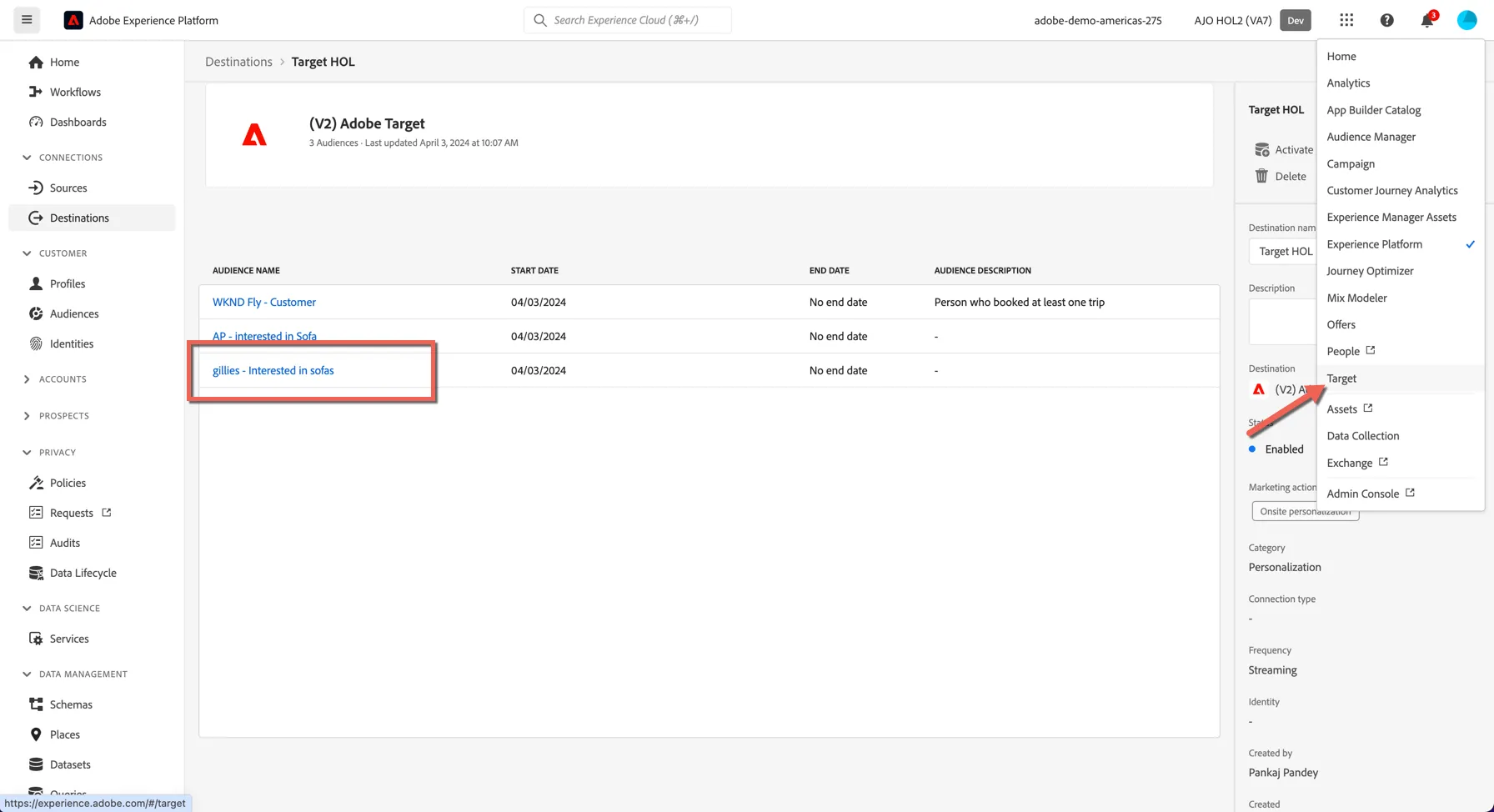
Switch to the Audiences tab in Target and filter to view Adobe Experience Platform audiences. You'll see your audience is available natively and ready to be used within a personalisation activity.
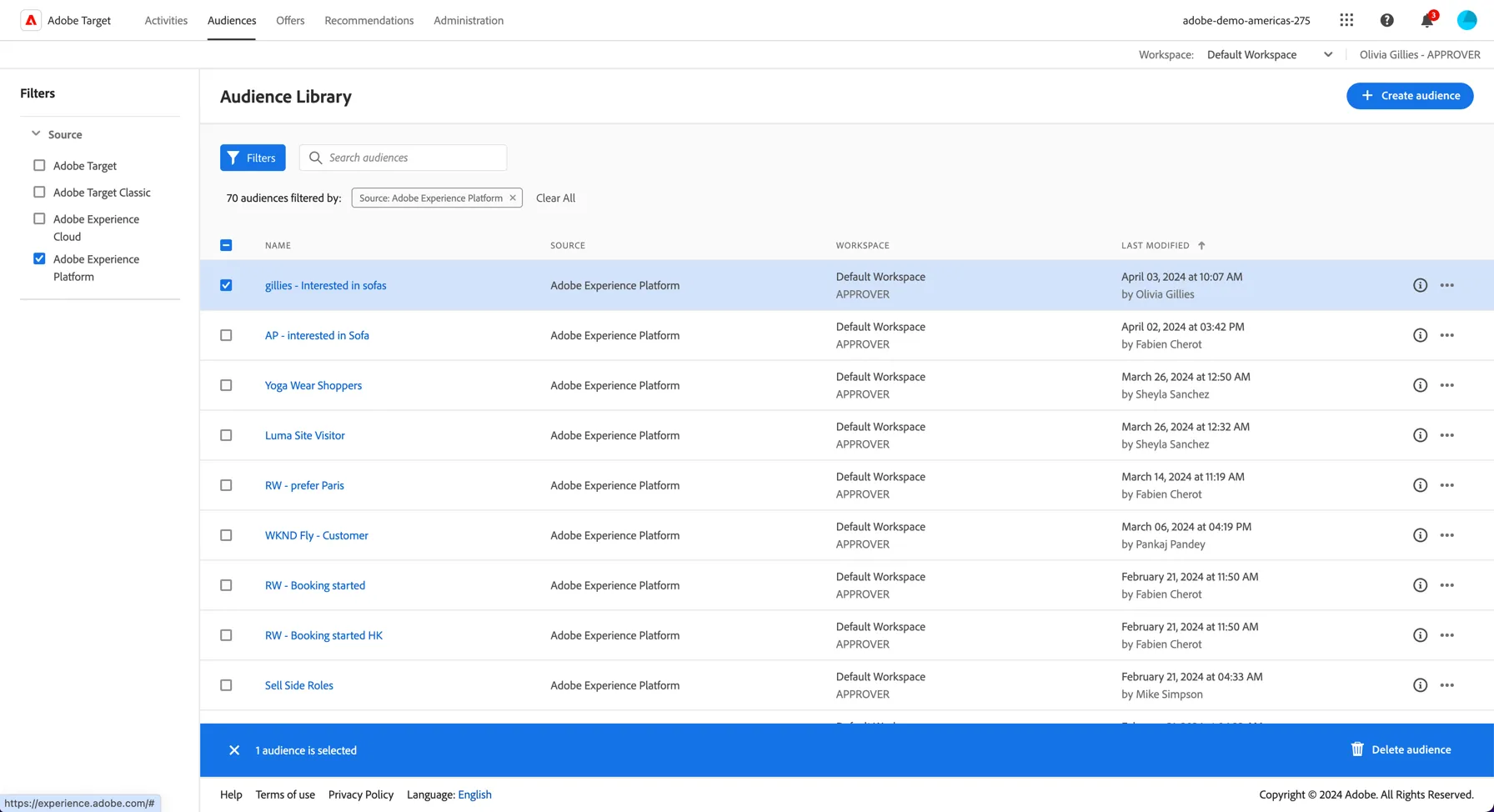
This completes the exercise on real time personalisation.