API - Data Ingestion
Experience Platform was designed with an API first mentality. This lab will take you thru the steps that will allow you to stream data into platform using HTTP requests with JSON payloads.
Setting up an HTTP API Source
- Start by going to the Source Catalog
- Search for HTTP API and click on setup
- Name your account or choose the existing Lab Account.
- Do not check: Enable authentication. Leave it as is
- Check the box for XDM compatible
- Click Connect to Source and Click Next
- For Existing Dataset, seach for: Lab Data Ingestion (API) - Profile
- Leave the Profile Dataset on
- Label if you want the dataflow name with your initials
- Click Next. Click Finish.
You should see a screen like this one:
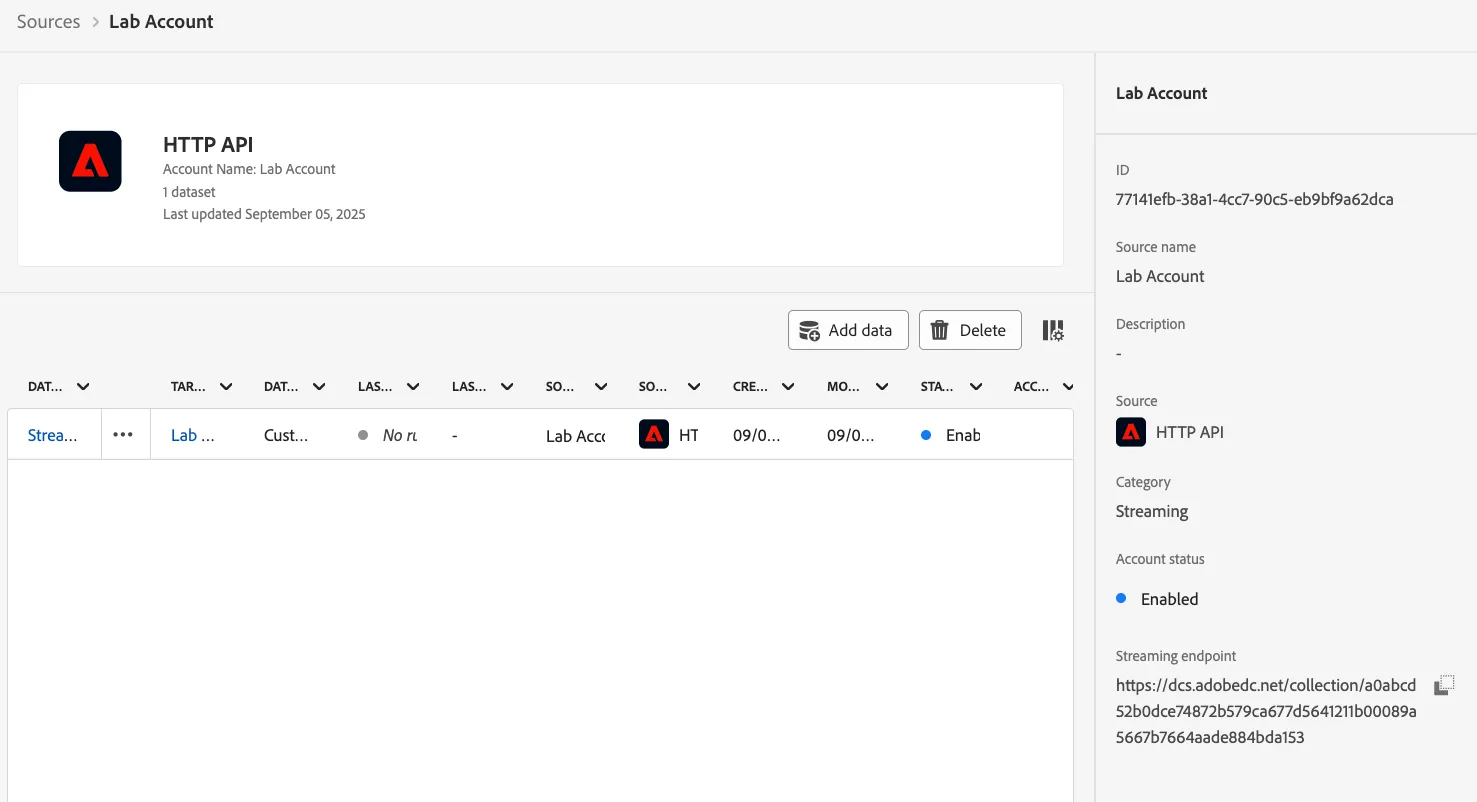
Notice the Streaming Endpoint. This is the address we will use to send our data.
- Now, click on the dataflow name shown on the page above to drilldown into it.
- Click on Copy Schema Payload and put it in a text editor.
- Notice that what you got is a curl command. You can use this comman and execute it in a terminal session or a command prompt in windows to trigger this and send it over to platform. Please do not do it, follow your instructor directions.
- Repeat the steps on this section but select an event dataset to stream events.
Sending Profile Data
For this excercise, we will use some pre-configured end-points and payload to simplify the work for the lab.
For this exercise you will need a tool like Postman or Postbuster. Otherwise, use the online tool provided by your instructor.
Endpoint URL: https://dcs.adobedc.net/collection/a0abcd52b0dce74872b579ca677d5641211b00089a5667b7664aade884bda153
Payload:
{
    "header": {
        "schemaRef": {
            "id": "https://ns.adobe.com/adobedemoamericas275/schemas/aeb7a2d48ed914815d469fcbbe9eb1709ebb0cbbabff9816",
            "contentType": "application/vnd.adobe.xed-full+json;version=1.0"
        },
        "imsOrgId": "59C7440F5DE147EA0A495EB3@AdobeOrg",
        "datasetId": "68bb410d506a862b256aa1ad",
        "source": {
            "name": "AJO LAB - INITIALS"
        }
    },
    "body": {
        "xdmMeta": {
            "schemaRef": {
                "id": "https://ns.adobe.com/adobedemoamericas275/schemas/aeb7a2d48ed914815d469fcbbe9eb1709ebb0cbbabff9816",
                "contentType": "application/vnd.adobe.xed-full+json;version=1.0"
            }
        },
        "xdmEntity": {
            "_adobedemoamericas275": {
                "identification": {
                    "core": {
                        "crmId": "Sample value"
                    }
                }
            },
            "person": {
                "name": {
                    "firstName": "Sample value",
                    "lastName": "Sample value"
                }
            },
            "_id": "Sample Value"
        }
    }
}
Important
Copy and paste the above payload in a text editor. Feel free to change the words sample value wihtout modifying the quotes. You can add your name and lastname. For the CRMID, simply comeup with an alphanumeric string of your own. You can copy that string you came up for CRMID and pasted for the sample value of the field _id
Sending Experience Event Data
For this excercise, we will use some pre-configured end-points and payload to simplify the work for the lab.
For this exercise you will need a tool like Postman or Postbuster. Otherwise, use the online tool provided by your instructor.
Endpoint URL: Same as above...
Payload:
{
    "header": {
        "schemaRef": {
            "id": "https://ns.adobe.com/adobedemoamericas275/schemas/c72600992f189384efa9040d001d0d8b14d684ad4e8539bd",
            "contentType": "application/vnd.adobe.xed-full+json;version=1.0"
        },
        "imsOrgId": "59C7440F5DE147EA0A495EB3@AdobeOrg",
        "datasetId": "68bb4309ebd2e62b936915e0",
        "source": {
            "name": "AJO LAB - INITIALS"
        }
    },
    "body": {
        "xdmMeta": {
            "schemaRef": {
                "id": "https://ns.adobe.com/adobedemoamericas275/schemas/c72600992f189384efa9040d001d0d8b14d684ad4e8539bd",
                "contentType": "application/vnd.adobe.xed-full+json;version=1.0"
            }
        },
        "xdmEntity": {
            "_adobedemoamericas275": {
                "crmid": "Sample value"
            },
            "eventType": "advertising.completes",
            "timestamp": "2025-09-05T20:20:39+00:00",
            "_id": "Sample value"
        }
    }
}
Important
For the CRMID, simply comeup with an alphanumeric string of your own use the same value for _id. Do not change the eventType (Only an enumerated set of values is accepted by XDM). The timestamp needs to be in ISO format. Leave it as is.
(Optional) Demo Tool to send your profile data
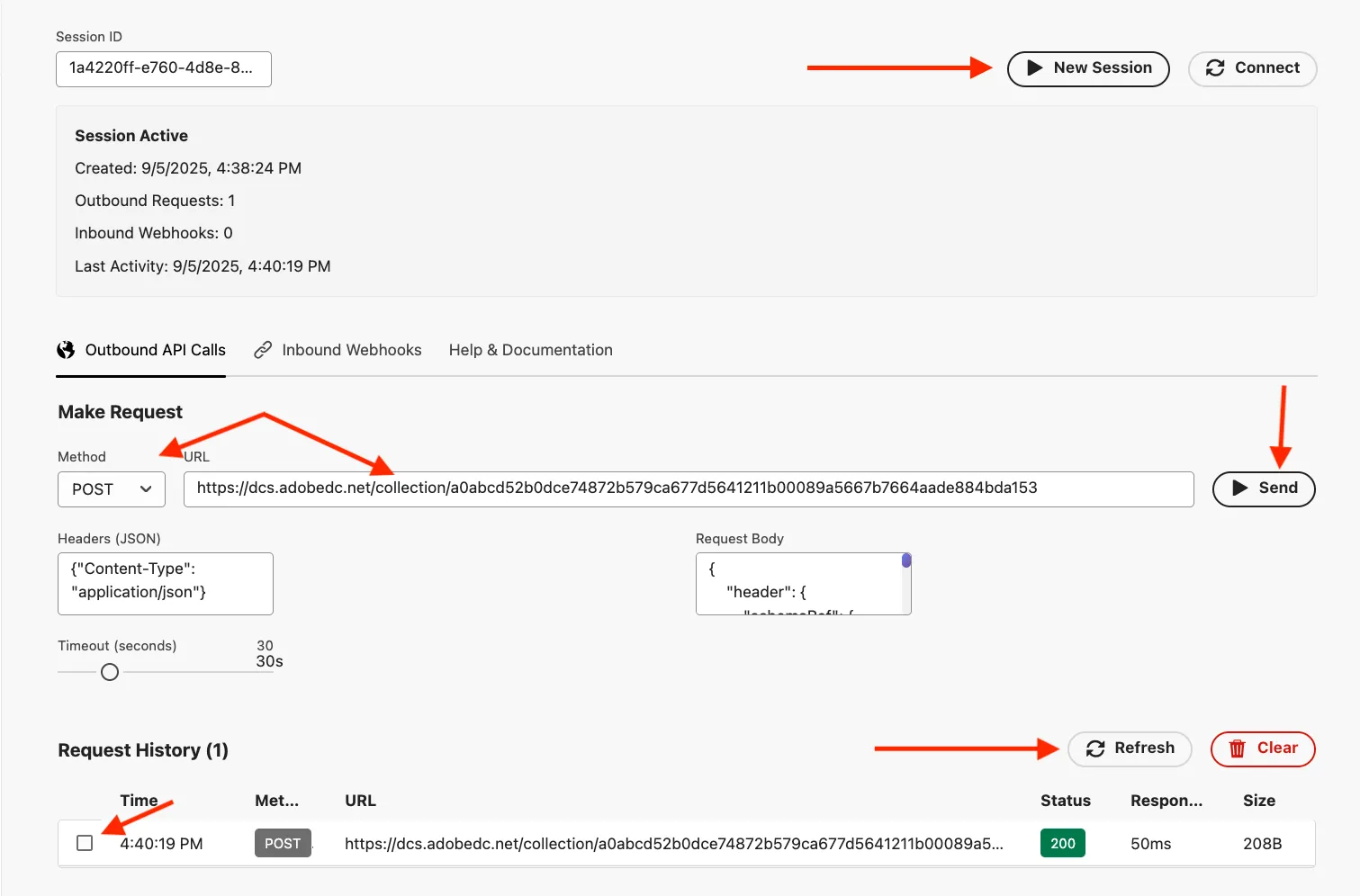
For those who do not have a postman tool. We have develop a tool using Adobe App Builder that will allow our lab users to validate sending HTTP post back to platform from a web UI. Follow this steps to access:
- Click on the Top Right Corner Nine Dot icon, right click and open in a new tab.
- Select App Builder Catalog.
- Click on the name: 440115-508CoralSquirrel
- Expand Utilities from the Nav menu.
- Click on API Monitor.
- Click New Session.
- Select POST
- Paste the Endpoint URL into the URL field.
- After you finished editing your payload body. Copy and paste it into the Request Body.
- Hit Send.
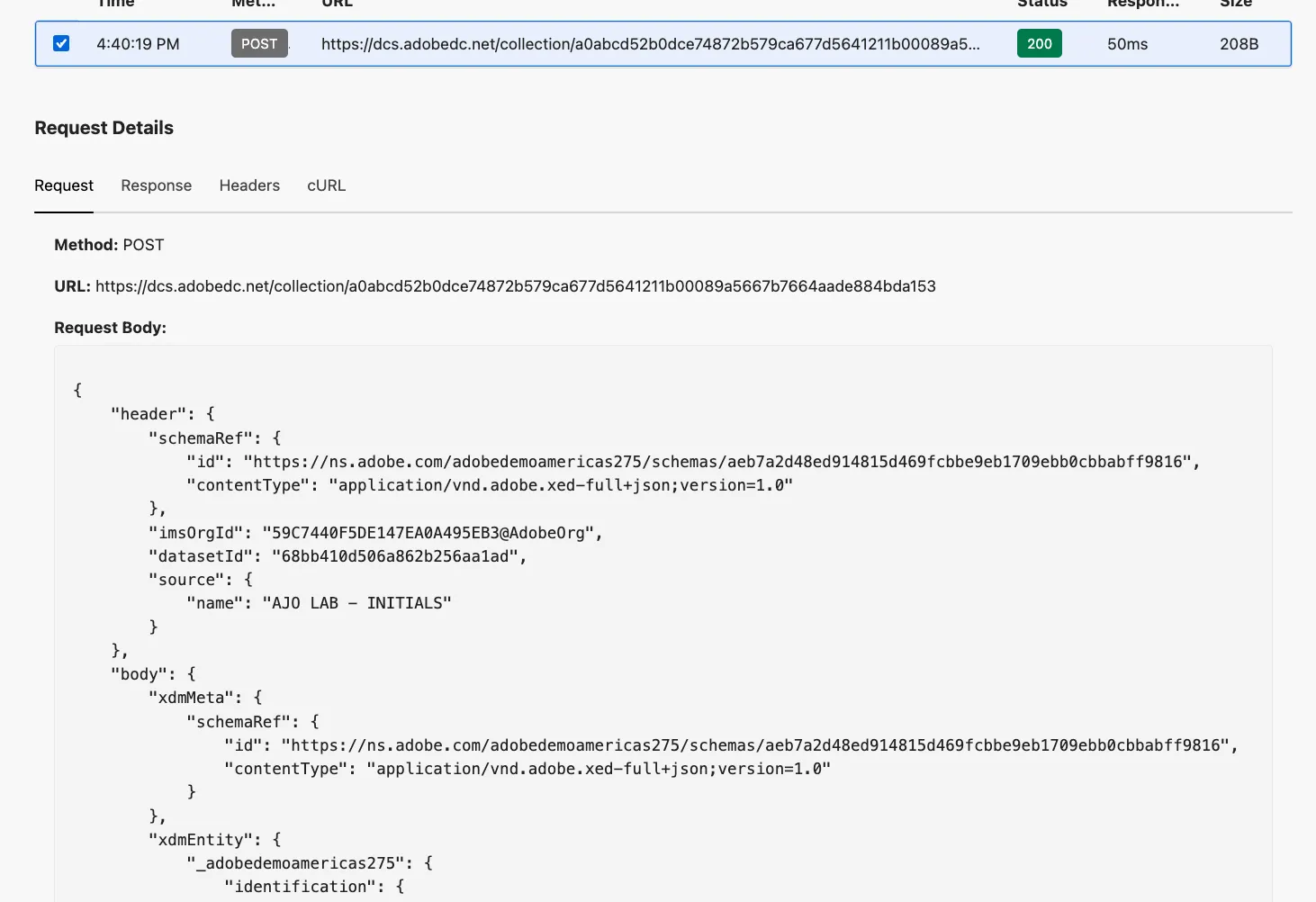
- Click on the Request History item or refresh and explore how platform responded.
Searching for your record
Back in platform, under the navigation, click on Profiles under Customer.
Click the browse tab.
Identity Namespace: search for CRMID
Value: Paste the CRMID you sent over.
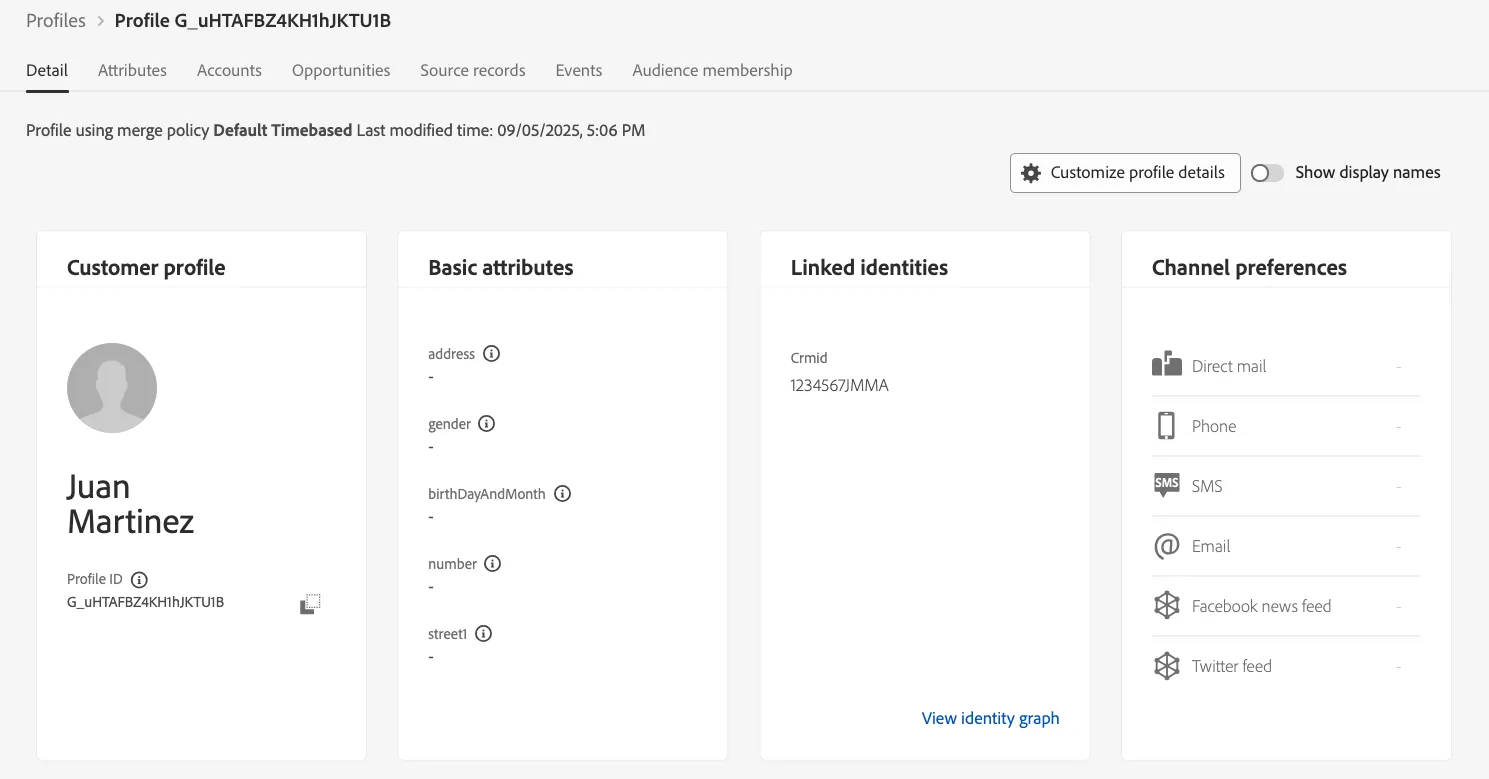
Congratulations! You have completed this lab.