Ranking Formulas
2 min
Ranking formulas allow you to define rules that will determine which offer should be presented first for a given placement, rather than taking into account the offers’ priority scores.
Example: We work with a DMP that sends audience membership of a given user. We must personalize offers based on these memberships. We will use a ranking formula to accomplish this strategy.
Creating a Ranking Formula
- Click on Strategy Setup from the Nav menu under "Decisioning"
- Click on Ranking Formulas from the nav panel
- Click Create Formula
- Provide a name: "Prioritize based on External Audience Name - INITIALS"
- Skip AI Model
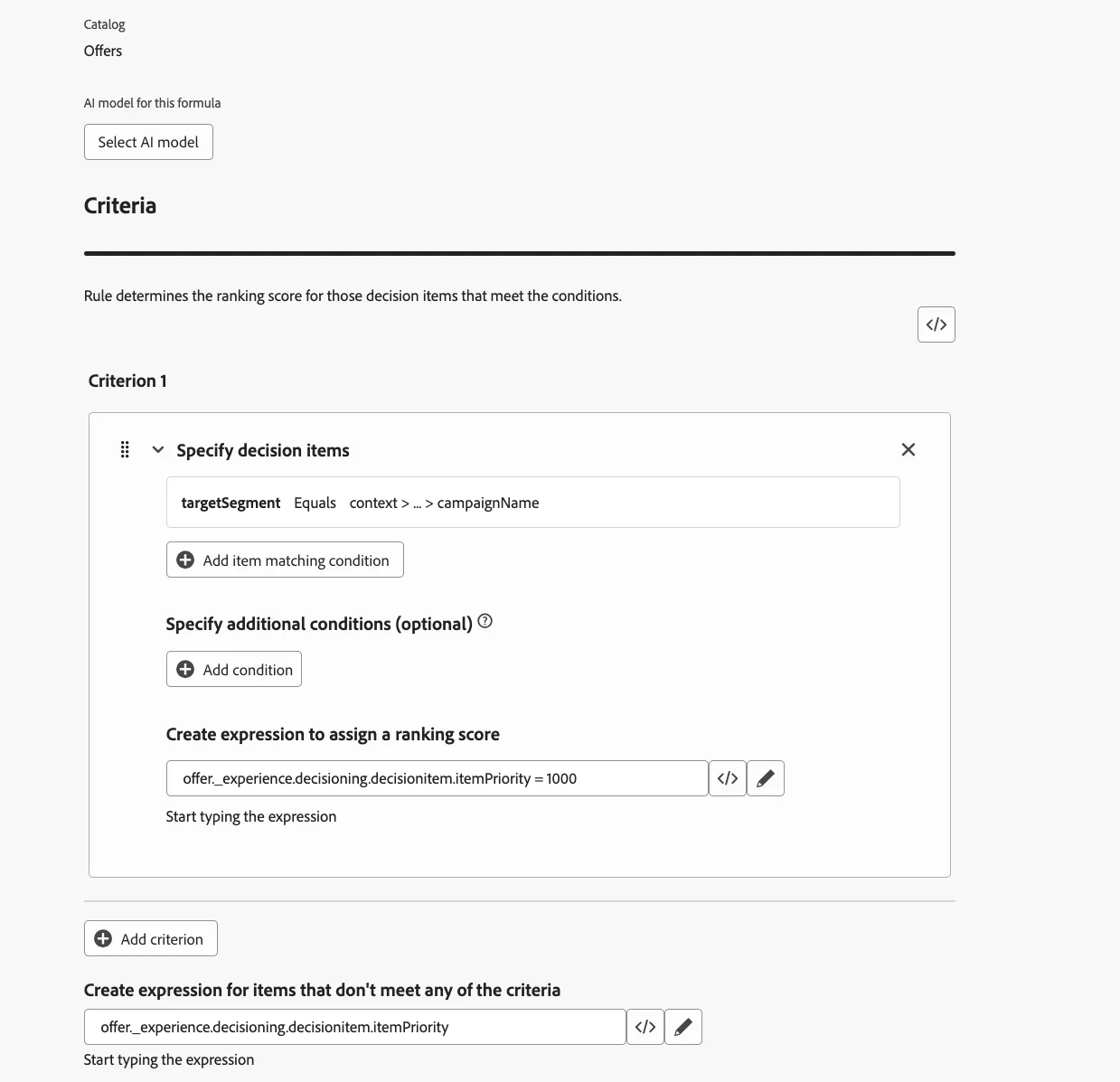
- Under Criterion 1, click "Click to create a decision item..."
- Click Select Attribute, then click on offerMetadata.
- Select targetSegment, click save.
- Click on the Magnifying glass button.
- Click on Context Data > Context > DataStream > Event > Demo System... > Scroll Down to Find the "Marketing" folder and select Campaign Name. Click Save.
- Under Create expression to assign a ranking score click on the Code Icon.
- Select Offer Priority Score, then click on the field that populated and add a equal sign then type 1000.
- The under Create expression for items that don't meet any of the criteria, click the code icon and select Offer priority Score.
- Finally, Notice that there is an icon that looks like code right under Criteria. Click on it, so you can see the PQL behind the ranking formula.
- Click Create.