Accessing Workfront
Description
To begin with, let's examine the Work Management Platform, Adobe Workfront. As the program operations manager, Claire is responsible for planning and orchestrating work across the WKND team. Workfront ensures that Claire's objectives are transparent throughout the entire organization, allowing everyone to strategically prioritize tasks, monitor progress, and evaluate outcomes. As Claire's objectives evolve, Workfront disseminates relevant information to the teams responsible for executing tasks. This results in improved alignment, enhanced focus, and accelerated progress toward achieving success.
Please log into Workfront using the Lab Login provided by the Adobe team on the Environment Access page.
First Login
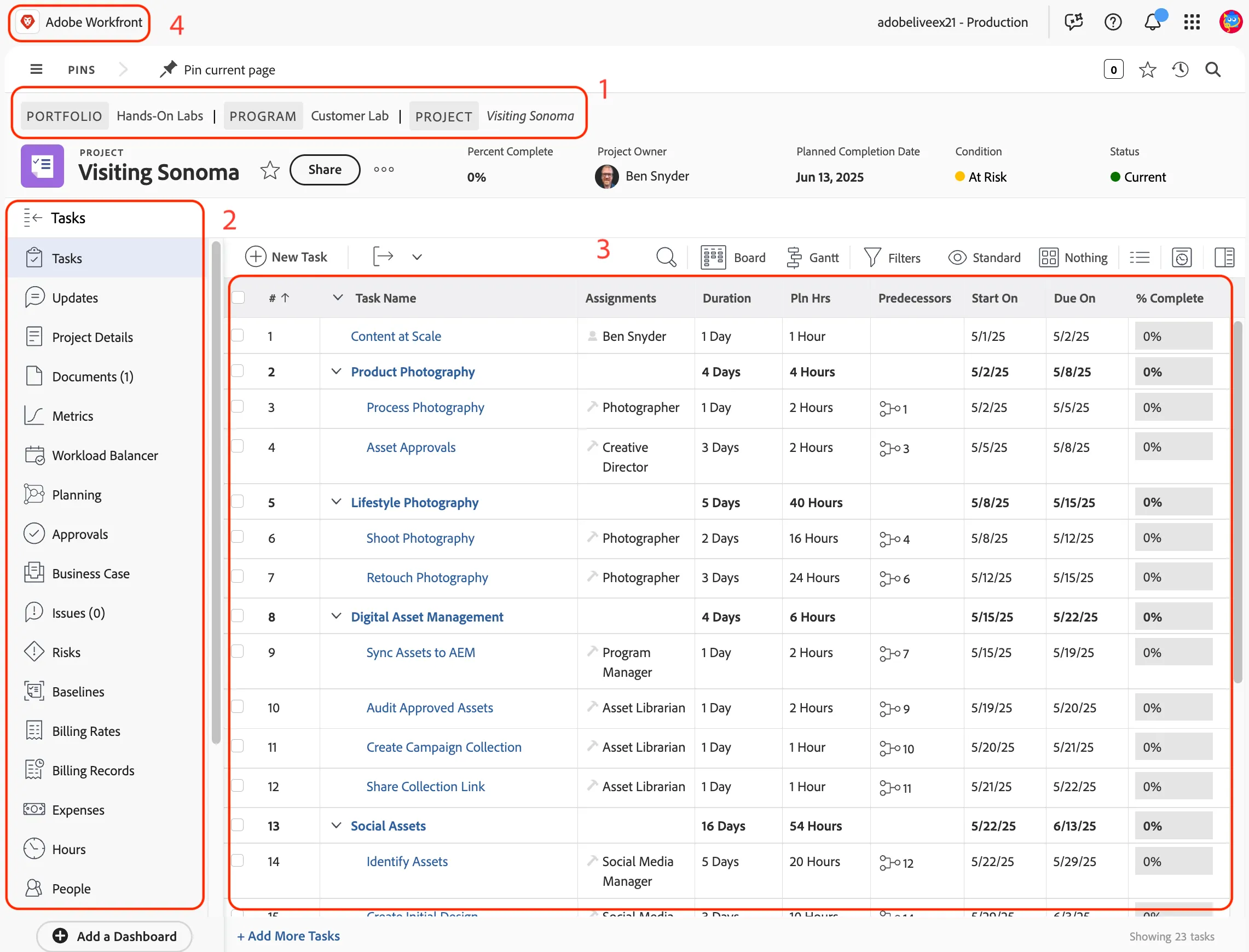
Upon your initial login, you will be presented with the personalized home screen of Workfront. As a program operations manager, Claire will find this screen particularly useful for managing and orchestrating work efficiently. This screen is designed to provide quick access to her most important tasks and projects.
- On this page, you will see two home screen widgets:
- Team Requests: View requests routed to a team that your user profile is part of.
- My Projects: View projects that you either own or are part of.
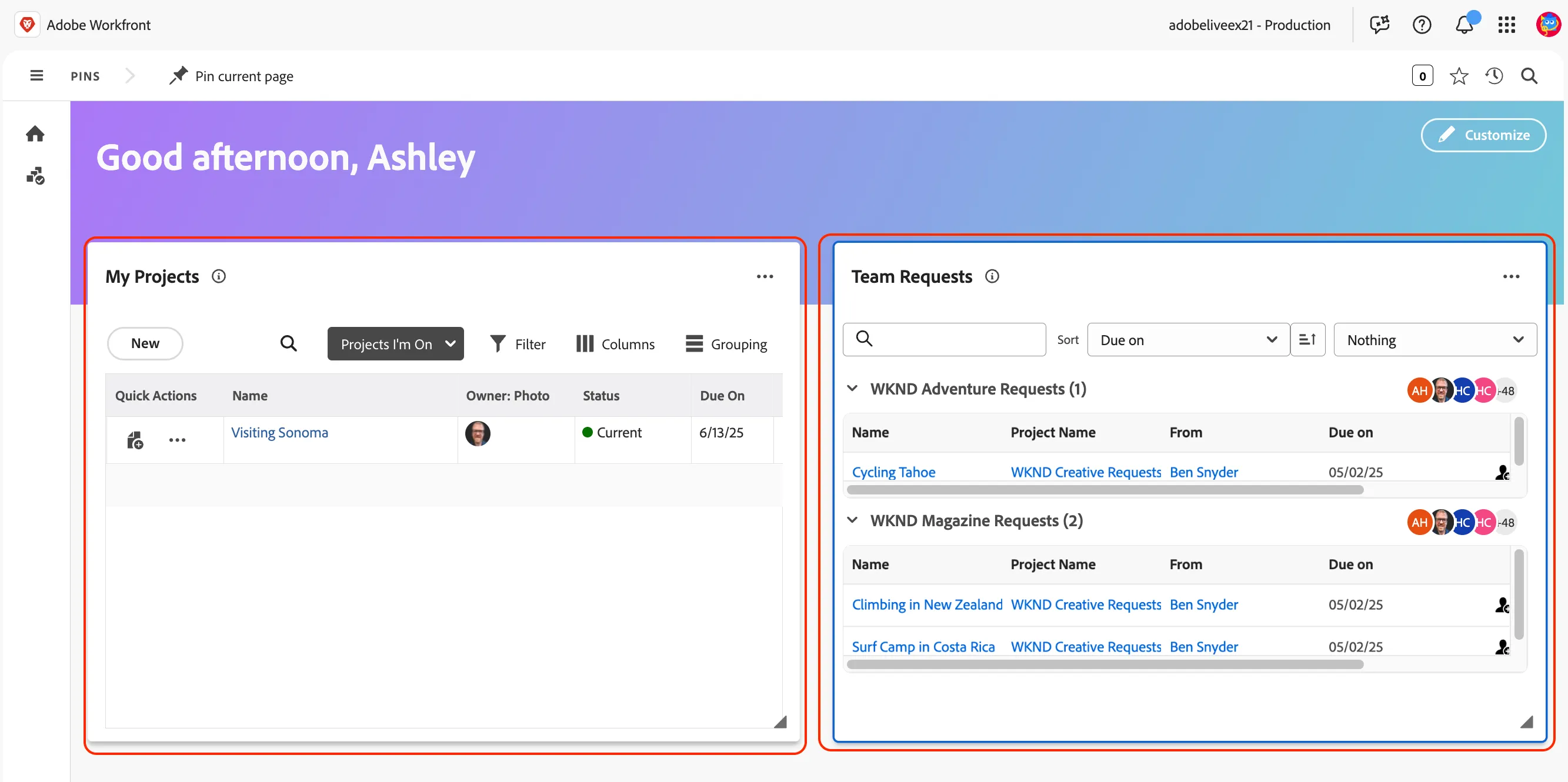
- At the top left, click on the Main Menu button to reveal the options for navigating the different areas of Workfront.
- Pins are located next to the main menu button. Pinning a page to the top is a way to bookmark that page for quick navigation.
- Click the Magnifying Glass at the top right of the screen to show the global search, which can be filtered to specific areas such as projects.
- Click on Recents and Favorites to see lists that will dynamically update as you navigate to projects, documents, reports, etc. The star option allows you to mark a page as a favorite for quickly navigating back to elements.
- Finally, click on Notifications, which is the area where notifications are displayed for actions like assigned tasks and approvals. These same notifications are also delivered via email with options for instant and daily digests.

Project View
In Adobe Workfront, a project is a large work item that can be broken down into smaller tasks. These tasks can be assigned to users or teams who are responsible for their completion. As each user completes their assigned tasks, the overall project progresses towards completion.
As the program operations manager, Claire plays a crucial role in orchestrating and managing these projects. She ensures that tasks are properly assigned, tracked, and completed on time, facilitating smooth collaboration among team members and driving the project to successful completion.
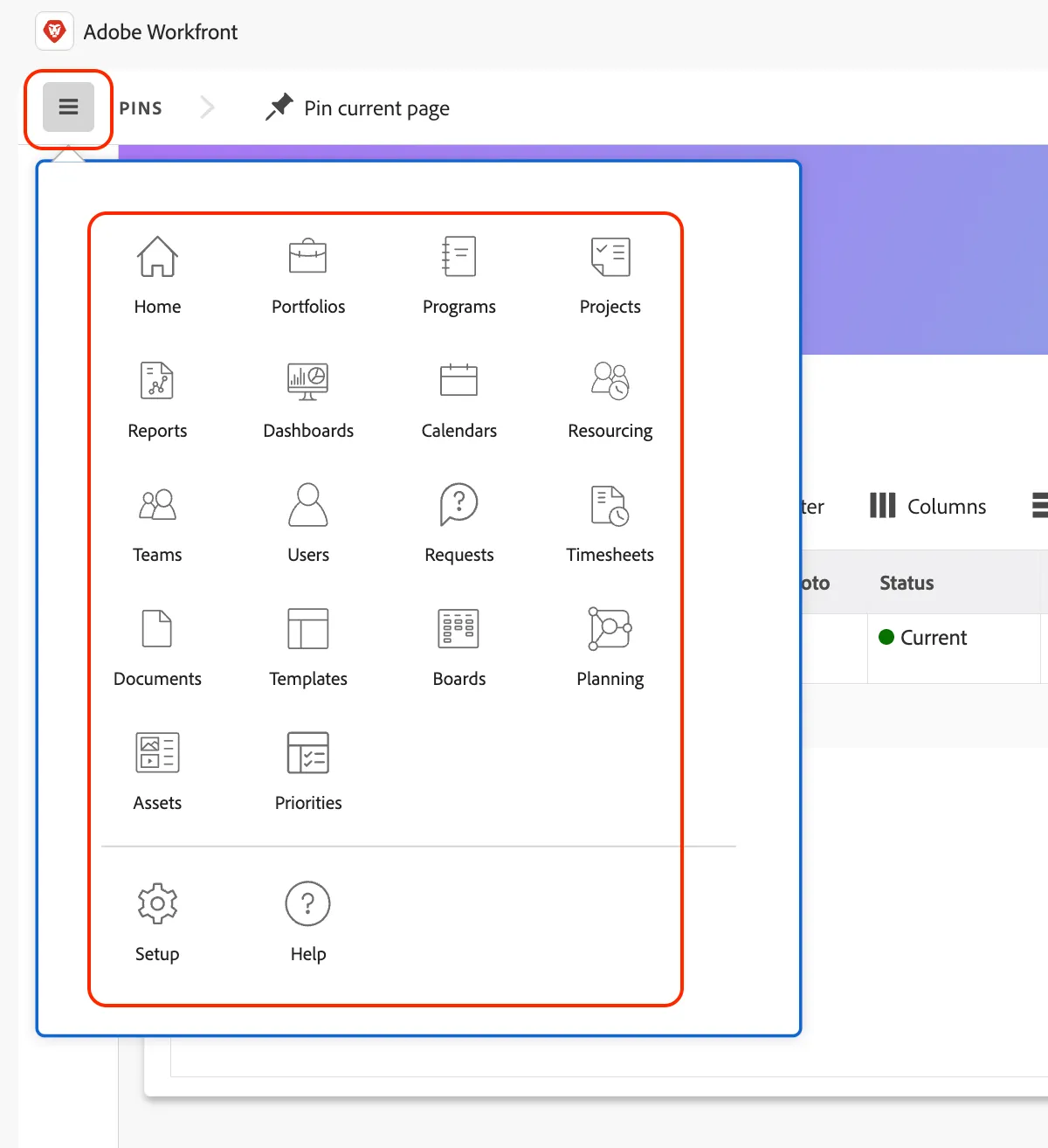
- From the Workfront home page, navigate to the My Projects widget and click on the Visiting Sonoma project.
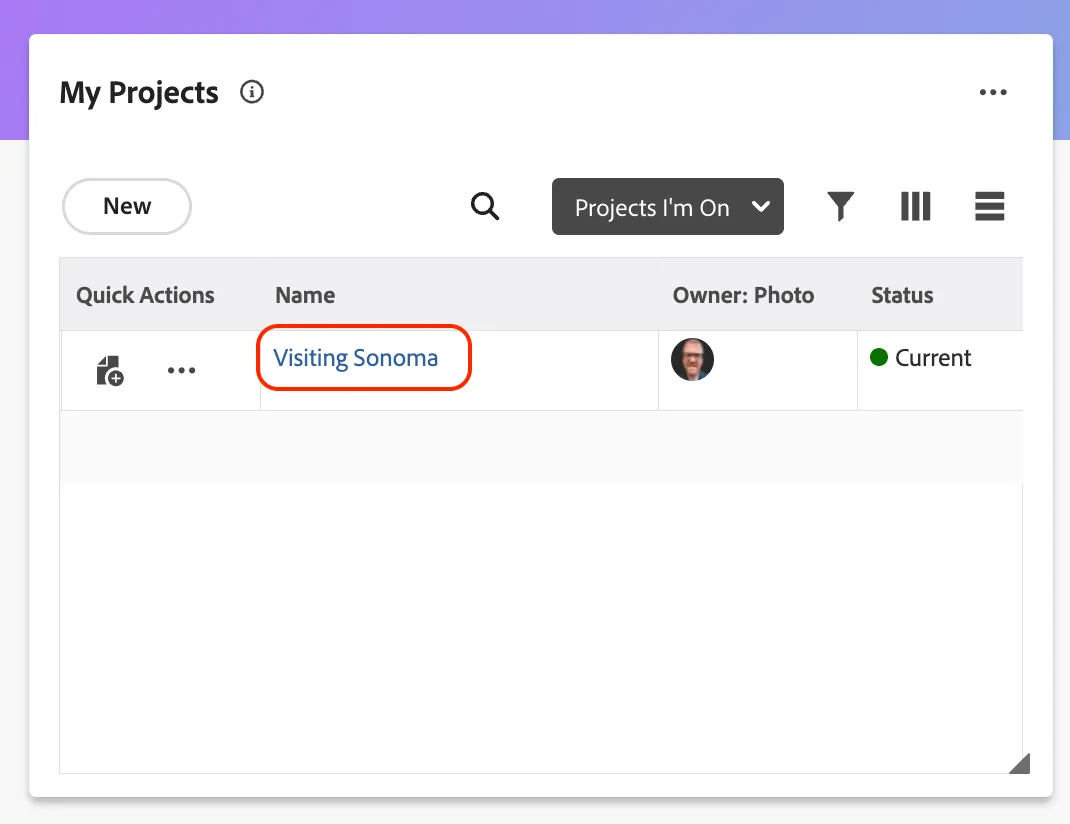
- Navigation within the project is split into three main areas:
- The top Breadcrumb navigation, where projects are organized into their respective programs and portfolios. (1)
- The Left Sidebar for navigating the views within the project. (2)
- The Task Area in the middle of the screen, where tasks are created, assigned, and planned in preparation for assigning work to the team. (3)
- Finally, click on the Workfront logo at the top left of the screen to exit back to the home page. (4)