Resource Management
Description
For Claire, the Workload Balancer is a crucial tool for managing campaign planning and tracking project delivery. It allows her to visualize resource allocation, ensuring efficient distribution of tasks based on team members' availability and skill sets. By highlighting over-allocated tasks, Claire can make adjustments to prevent burnout and maintain a sustainable pace for the team. This proactive approach helps in identifying potential bottlenecks and addressing them before they become issues, ensuring smooth workflow and successful project execution.
Single Task Assignment
- Navigate to the Tasks area of your firstname - Freedom to Roam project.
- On the task for Content at Scale, click on the Assignments box.
- Click on the X next to Photographer to remove the job role automatically assigned by the template.
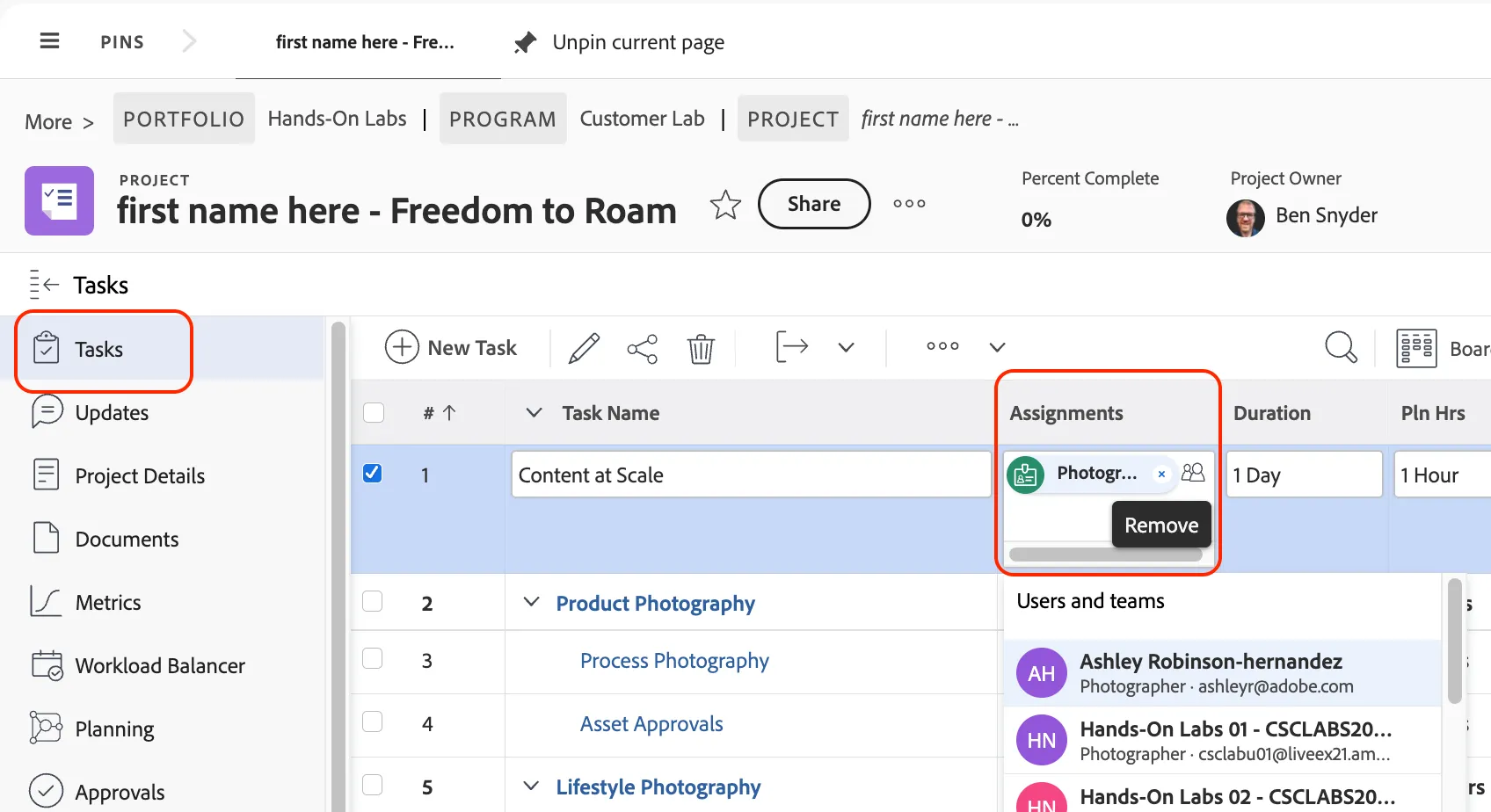
- Select your user account to assign yourself to this task, and then tap the return key on your keyboard to save the change.
- Adjust the Start On date to some point in the future to see the project timeline adjust automatically.
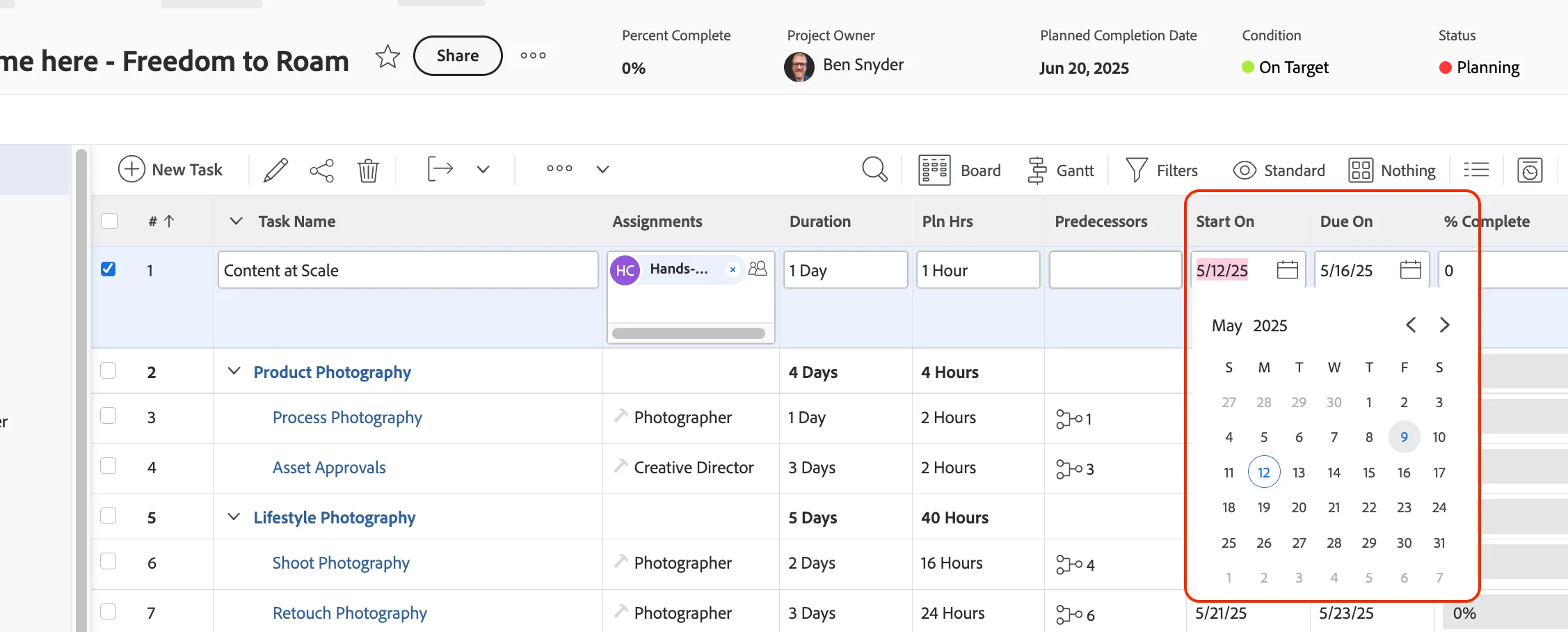
This is one way to update task assignments within each project, but in the next section you will see how this can be done with visual indicators of the resources availability to complete the task.
Bulk Assignment
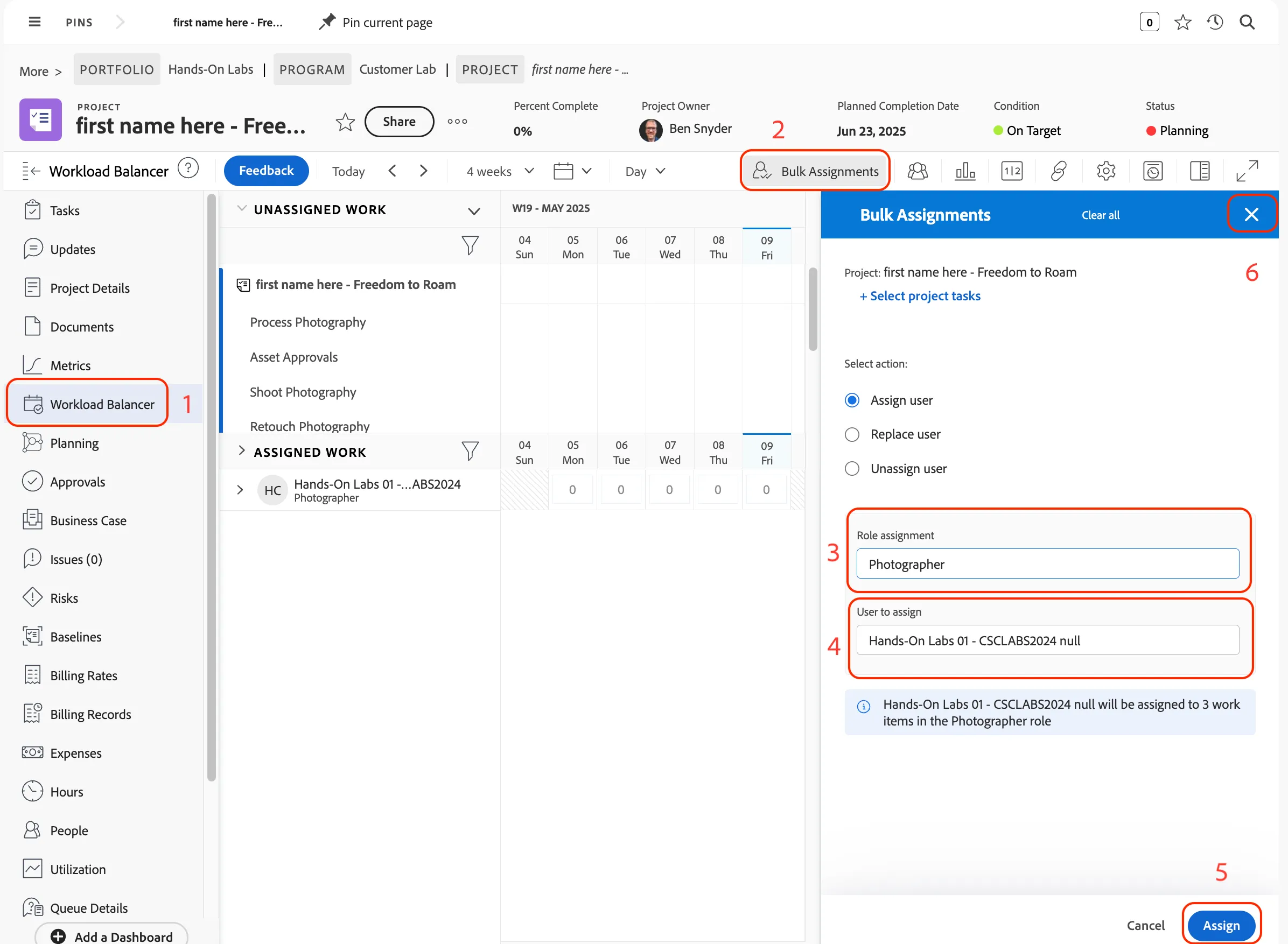
- Navigate to Workload Balancer from the project sidebar. (1)
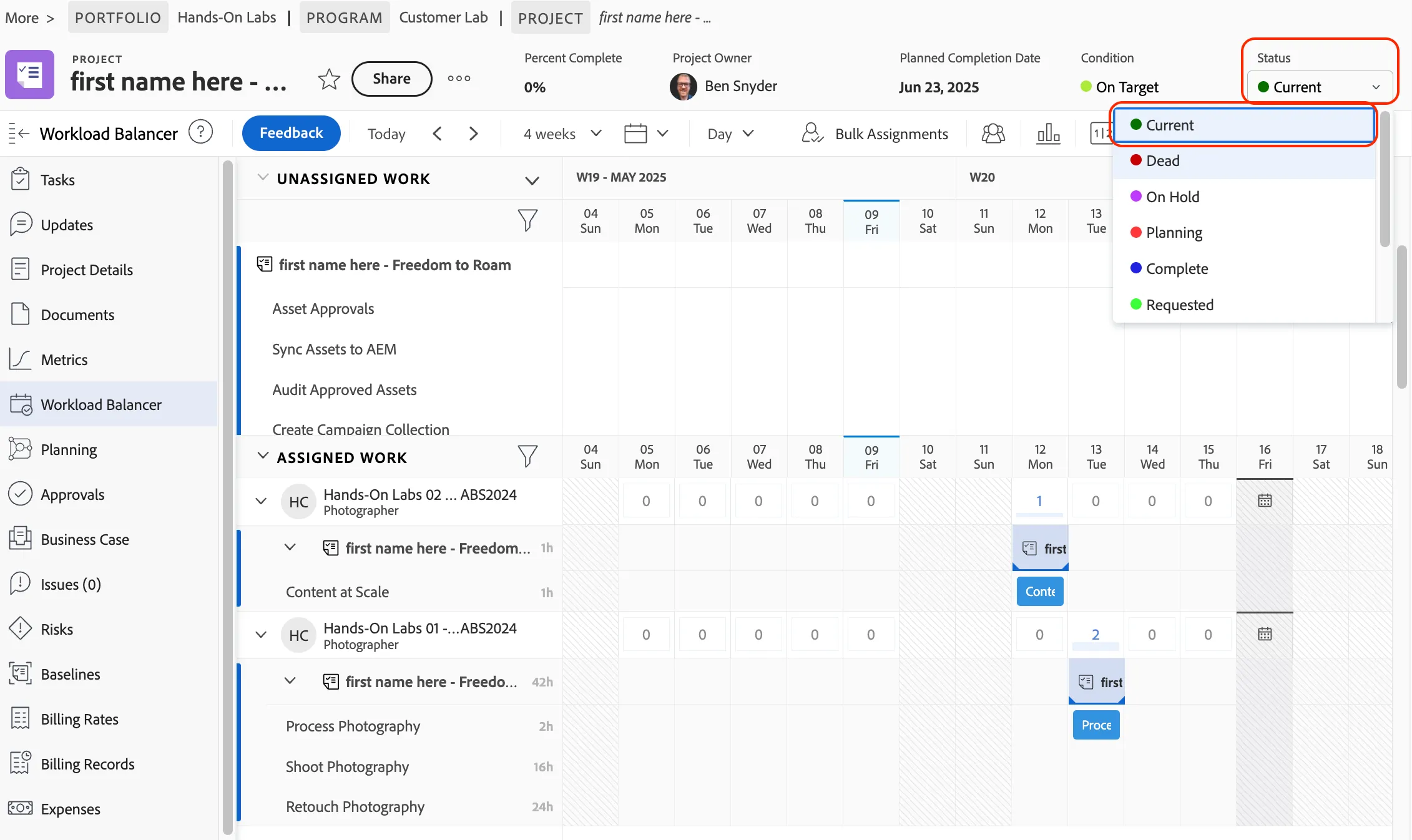
From this view, you can see unassigned work and assigned work within this project, as well as visual indicators for overallocation and availability of resources.
- Click on the Bulk Assignments button at the top of the view. (2)
- In this panel that expands choose the following info:
- Select Action - Assign User.
- Role Assignment - Photographer. (3)
- Use to Assign - Pick yourself as your account has the photographer job role.(4)
Job Roles can be created by a system administrator and be assigned to each Workfront user. Each user profile has a primary job role, as well as additional job roles that they may fulfill as well.
- Click on the Assign button to assign the three tasks to this user. (5)
- Click on the X to close this panel. (6)
- Click on the disclosure triangles to reveal the tasks that have been assigned.
Under each day you can see visual indicators for things like holidays from the user schedule, and pto that has been populated under the user profile.
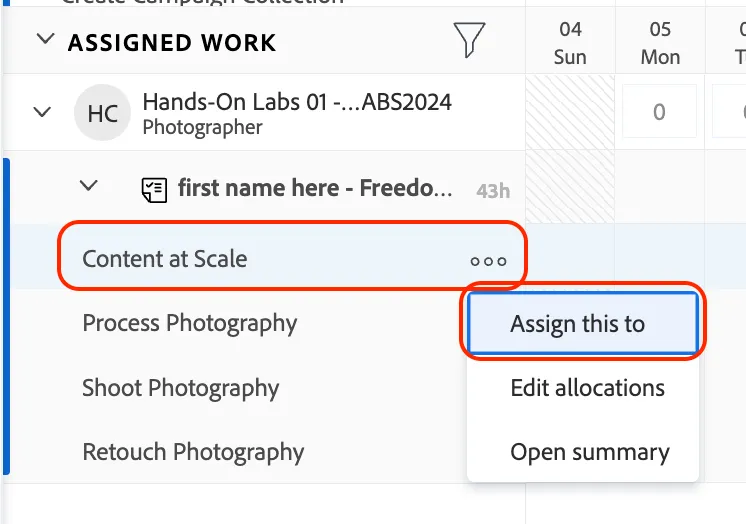
- Next to the Content at Scale task, click on the ellipses to review options that are available to a program manager to make adjustments.
- Click on Assign this to to change who this task is assigned to.
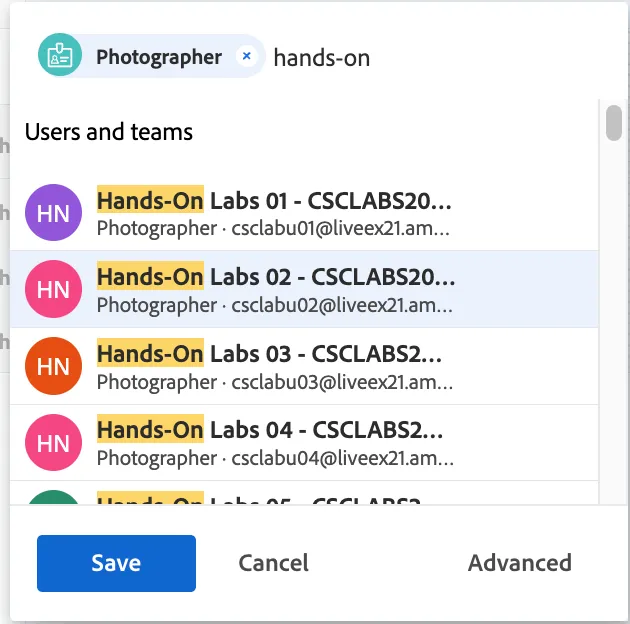
- Enter hands-on to bring up a list of users.
- Select a new user, and remove the current assignment.
- Click on the Save button.
- Click on Status for the project and change the status to Current.