Push Message Designer
4 min
This lab will walk through the steps to create a Push Message in Adobe Journey Optimizer.
NOTE: Some exercises may vary during the actual Hands on Lab versus what is listed in the Archbee Page, due to industry setup and / or Presenter preferences.
Create a New Message
- Within your Journey, click on the Push action node you added to the canvas.
- Enter a Label and Description for the message.
- Select Marketing for Category and push for Push configurations
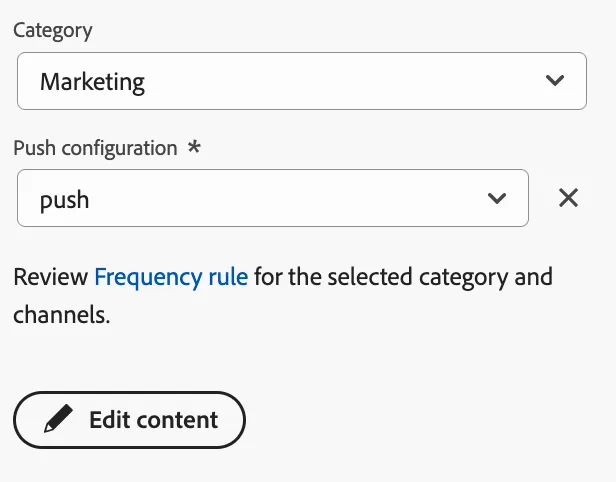
- Click on Edit Content.
Design Push Message
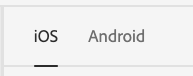
- Choose iOS to design push message for the iOS operating system.
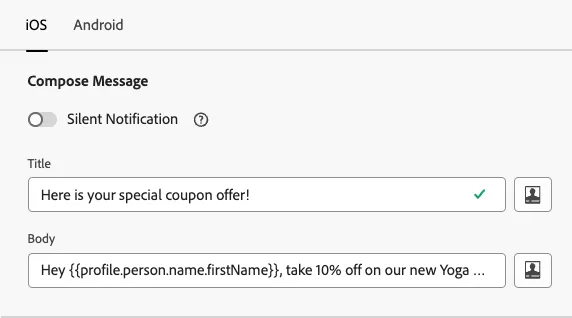
- Enter a title and body for the message. You can include a personalization field such as first name.
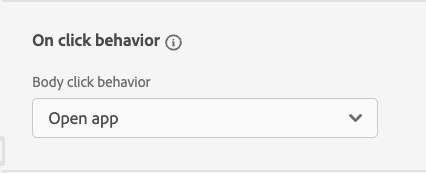
- Choose the option "Open App" for On Click behavior.
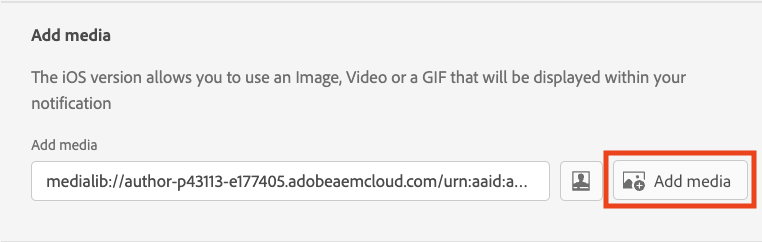
- Choose image to be displayed along with the message by clicking on the "Add Media" button which will open up Asset Essentials.
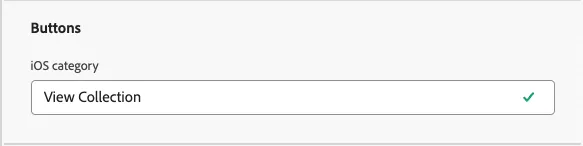
- Add a button along with a label (optional).
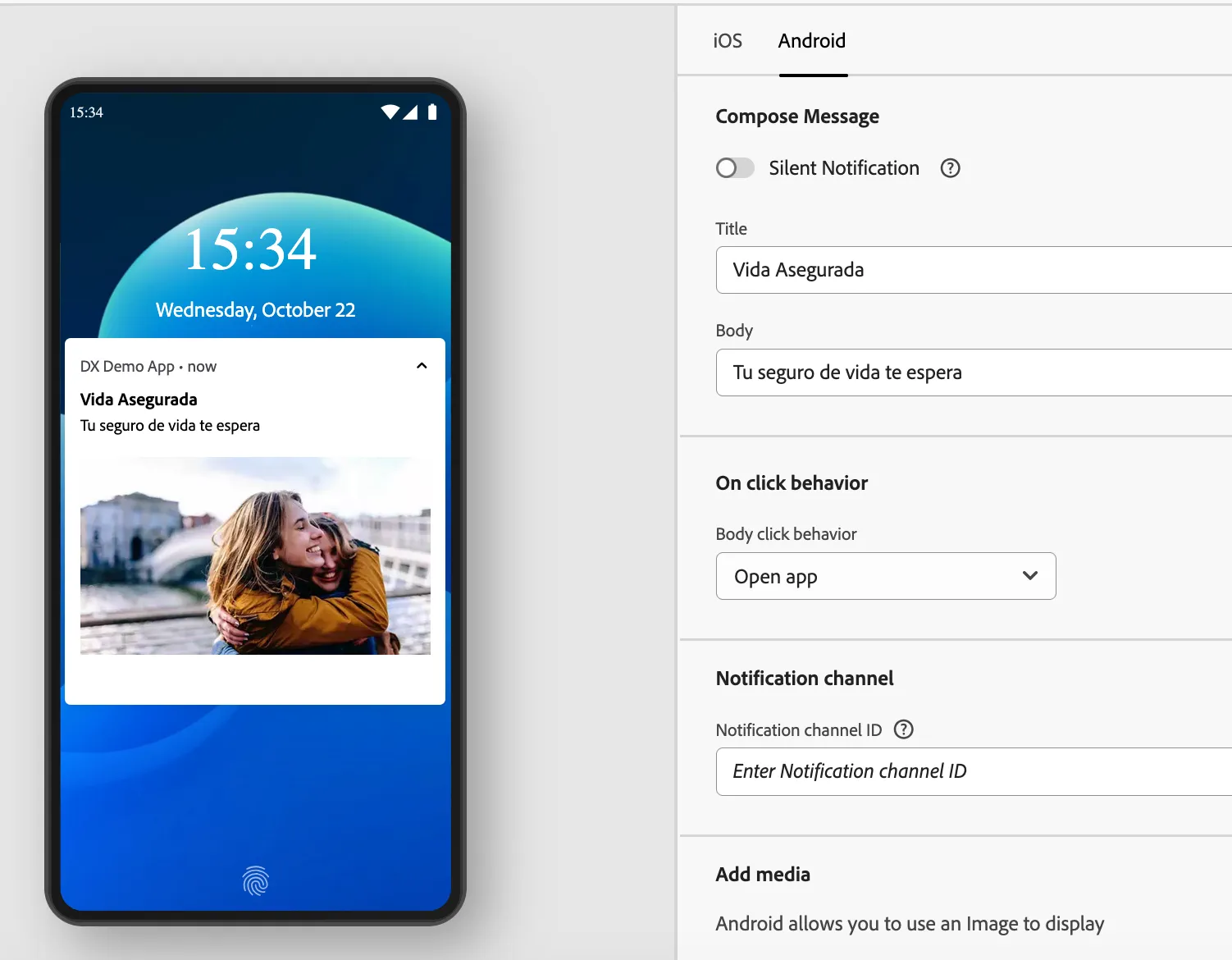
- Review and confirm the message setup in the message preview area.
-
- Exit out of the designer and Save