Connecting to Redshift - FAC Configuration
5 min
Network Config in AWS
To connect to Redshift you will need to configure VPC network rules in AWS.
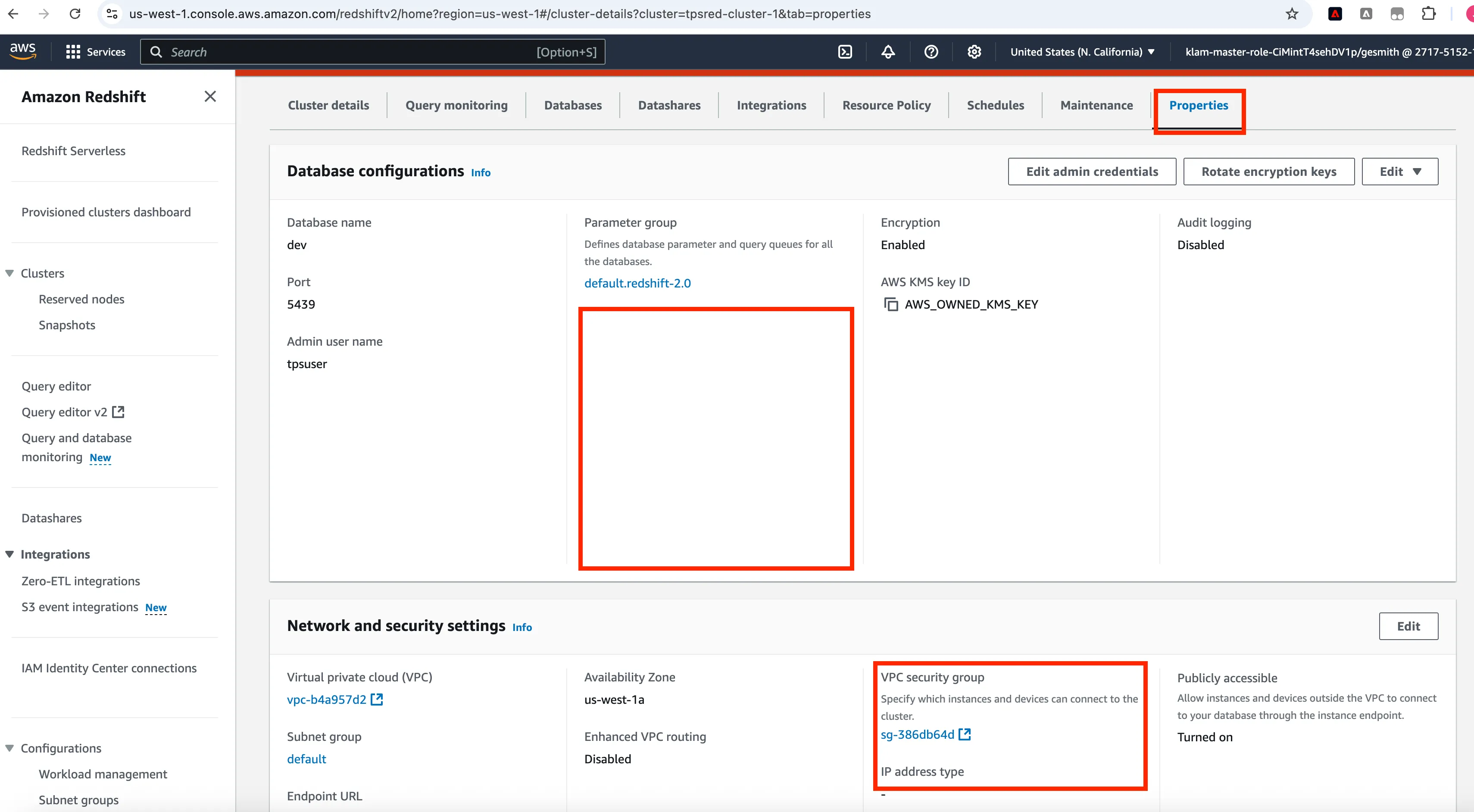
- Go to the Redshift cluster where the database you will be connecting to. Select Properties then click on VPC security group.
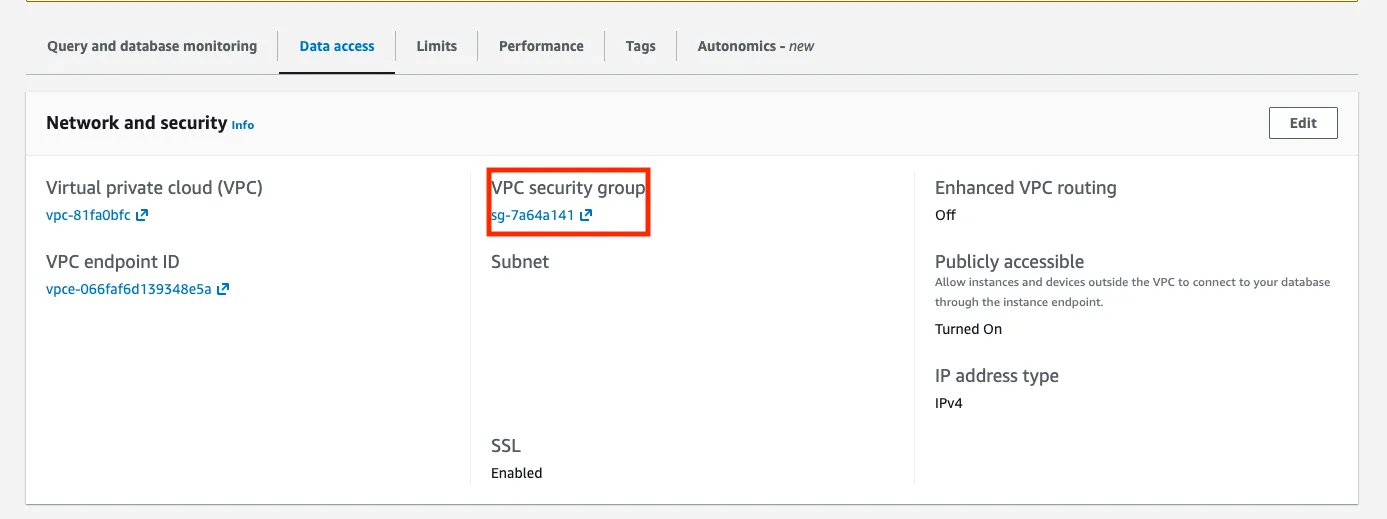
- For Redshift Serverless you can also access the VPC security by clicking on Workgroup, select Workgroup Name, then select Data Access
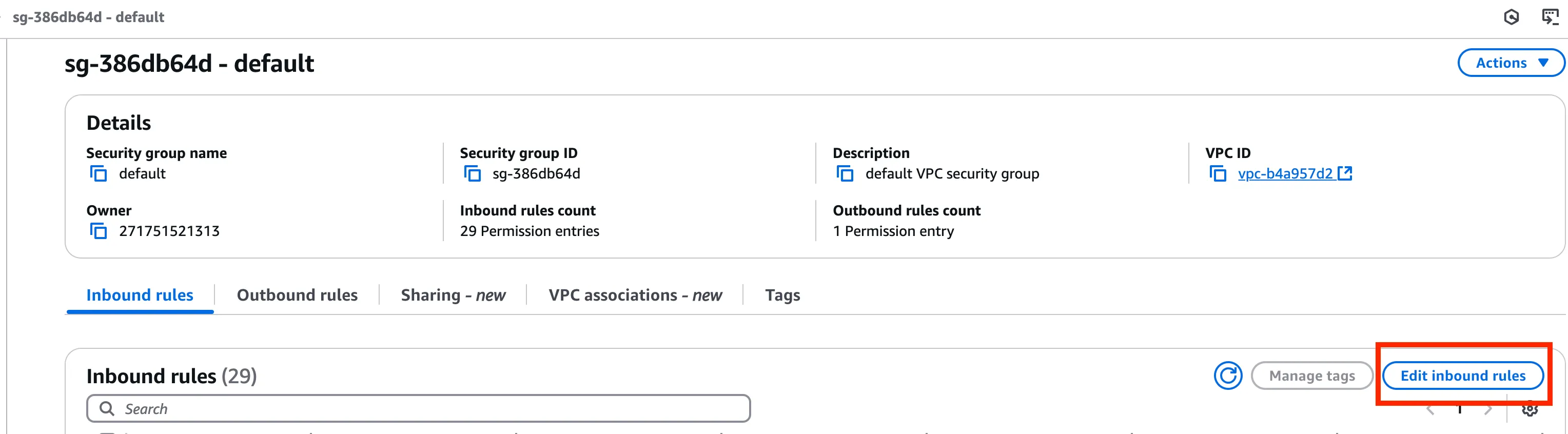
- Select the Security Group that is set for your Redshift. Once you select that then click on Edit inbound rules.
IP Addresses for FAC
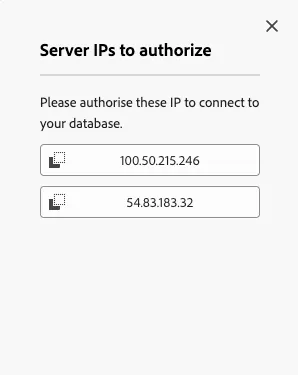
- Keep the previous screen open and in a new tab go to RTCDP and start the Federated connection for Redshift. Click on Server IP. You will then repeat the next step for each IP address. Copy the first IP Address.
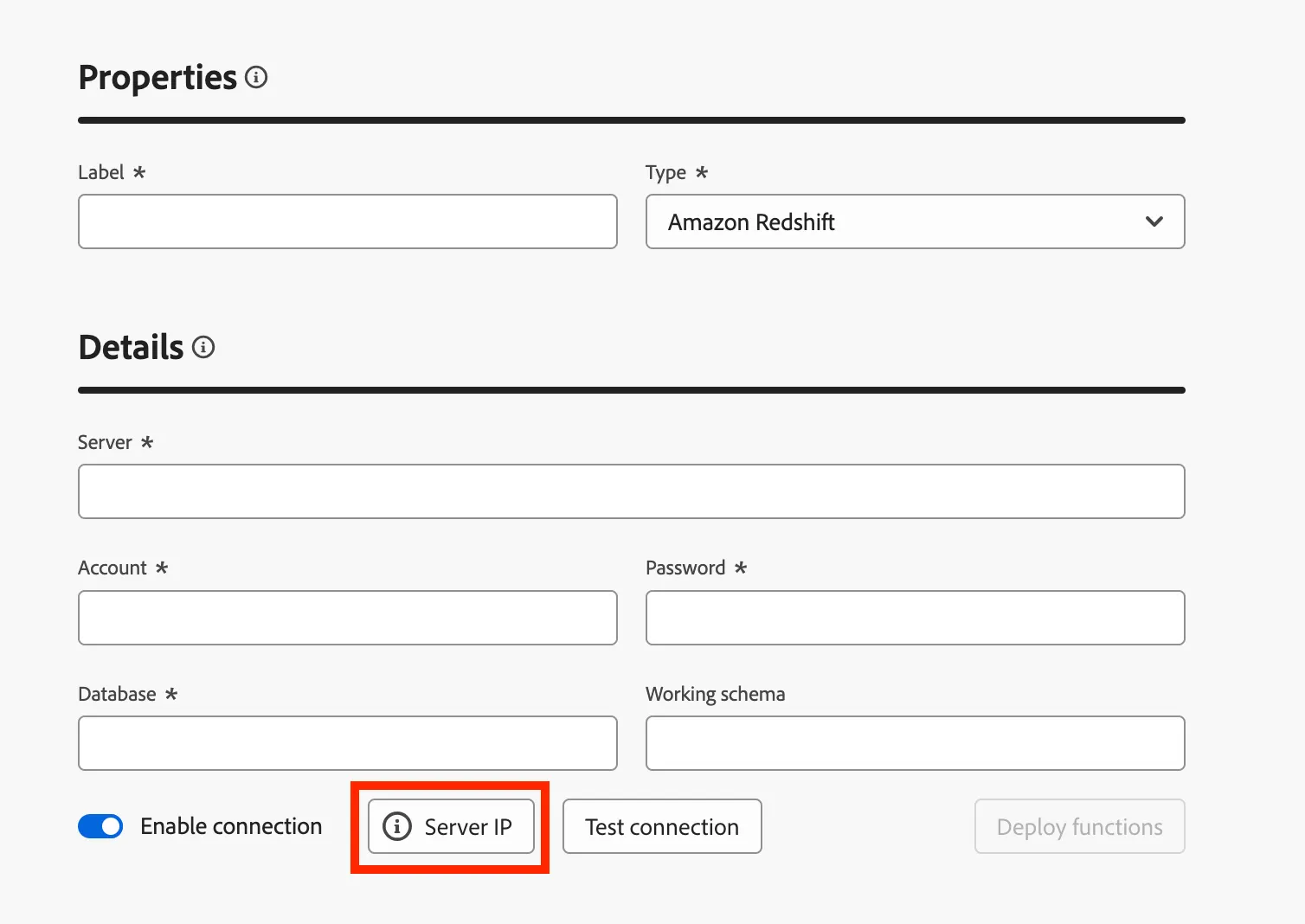
- Keep the previous screen open and in a new tab go to RTCDP and start the Federated connection for Redshift. Click on Server IP. You will then repeat the next step for each IP address. Copy the first IP Address.
- Sandbox IPs
- 100.50.215.246
- 54.83.183.32
Final AWS Setup
- Go Back to AWS to the VPC security group and scroll to the bottom and click on Add rule. Now search for Redshift then copy the IP Address from RTCDP the add /32 at the end. You can add a description of what database you are adding for that rule. Then click Save Rules.

Teradata Note
Teradata SaaS will have the same process but will require that the IPs are whitelisted in it's VPC security group.