Data warehouse Connection Demo
Luma Air is a customer-centric airline delivering seamless global travel, premium comfort, innovative technology, and reliable service at competitive prices.
Use Case
Luma Air aims to enhance the pre-travel experience by delivering personalized, proactive communications to customers based on their upcoming trip needs. This includes targeting travelers who:
- Have an upcoming international trip and hold a passport that is expired or nearing expiration
- Have indicated dietary restrictions for in-flight meals
- Require wheelchair assistance or mobility support at the airport
By anticipating these needs in advance, Luma Air can ensure a smoother, more comfortable, and stress-free travel experience.
[Hands off keyboard!]
This demo will guide you through the process of using Experience Platform Federated Audience Composition to connect to Amazon RedShift and query an audience.
Prerequisites:
- Adobe Experience Platform account with appropriate permissions.
- Data warehouse account with the necessary database and credentials.
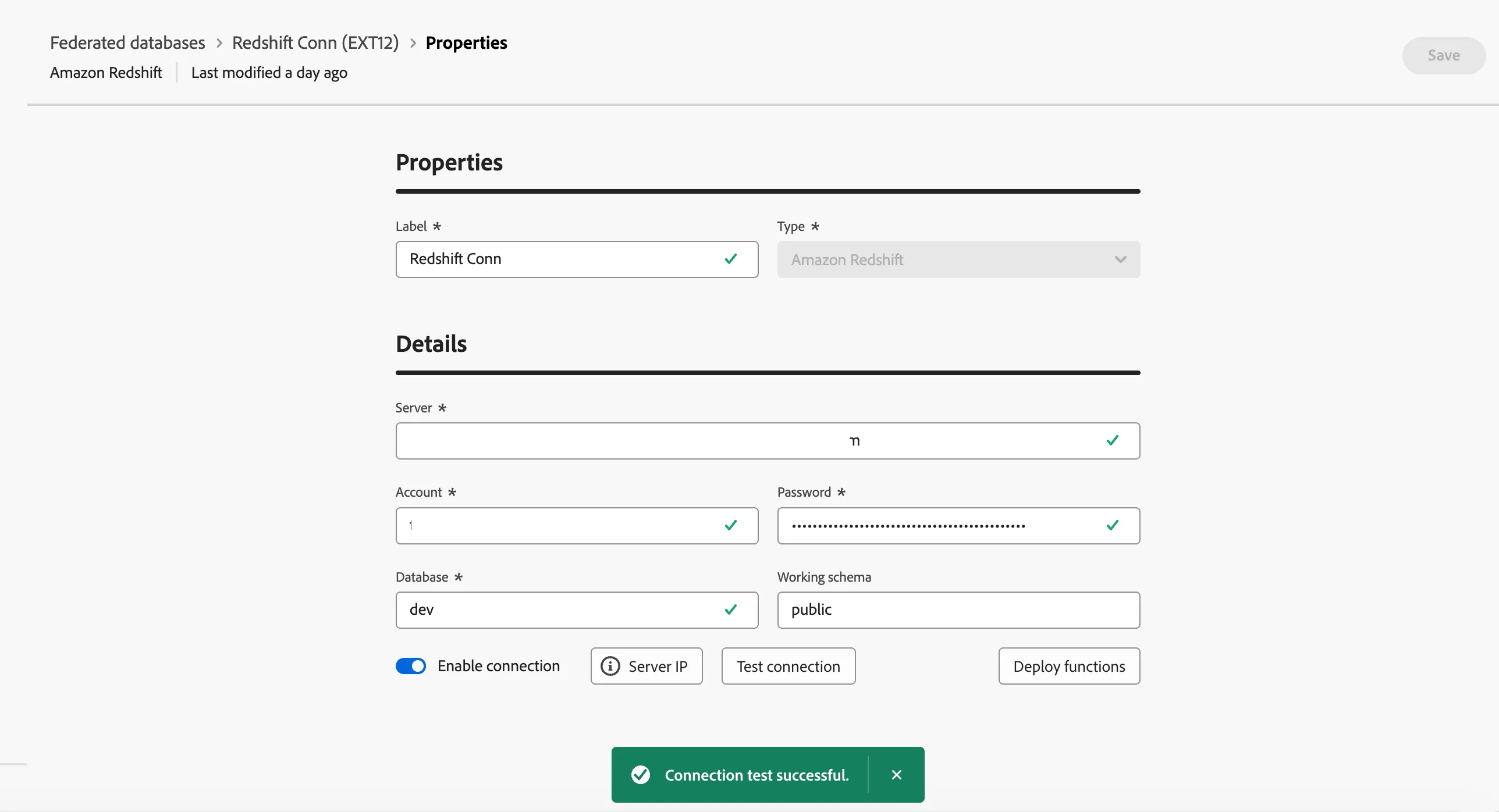
To setup a connection with your database, follow these steps:
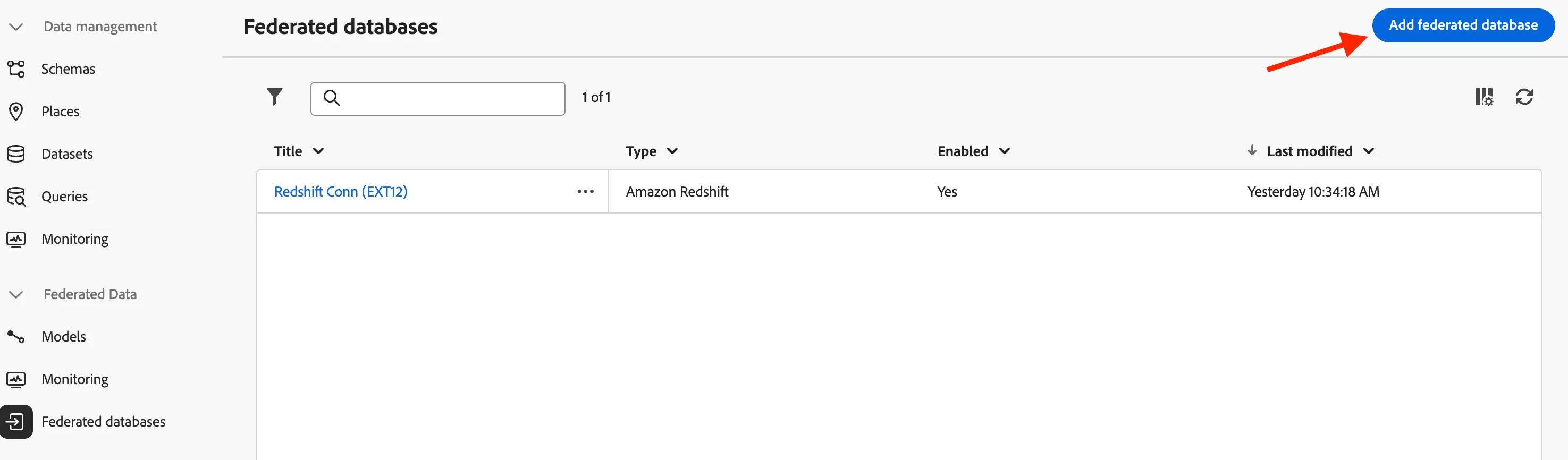
- Browse to FEDERATED DATA section on the left rail.
- In the Federated Databases link, click on Add federated database button.
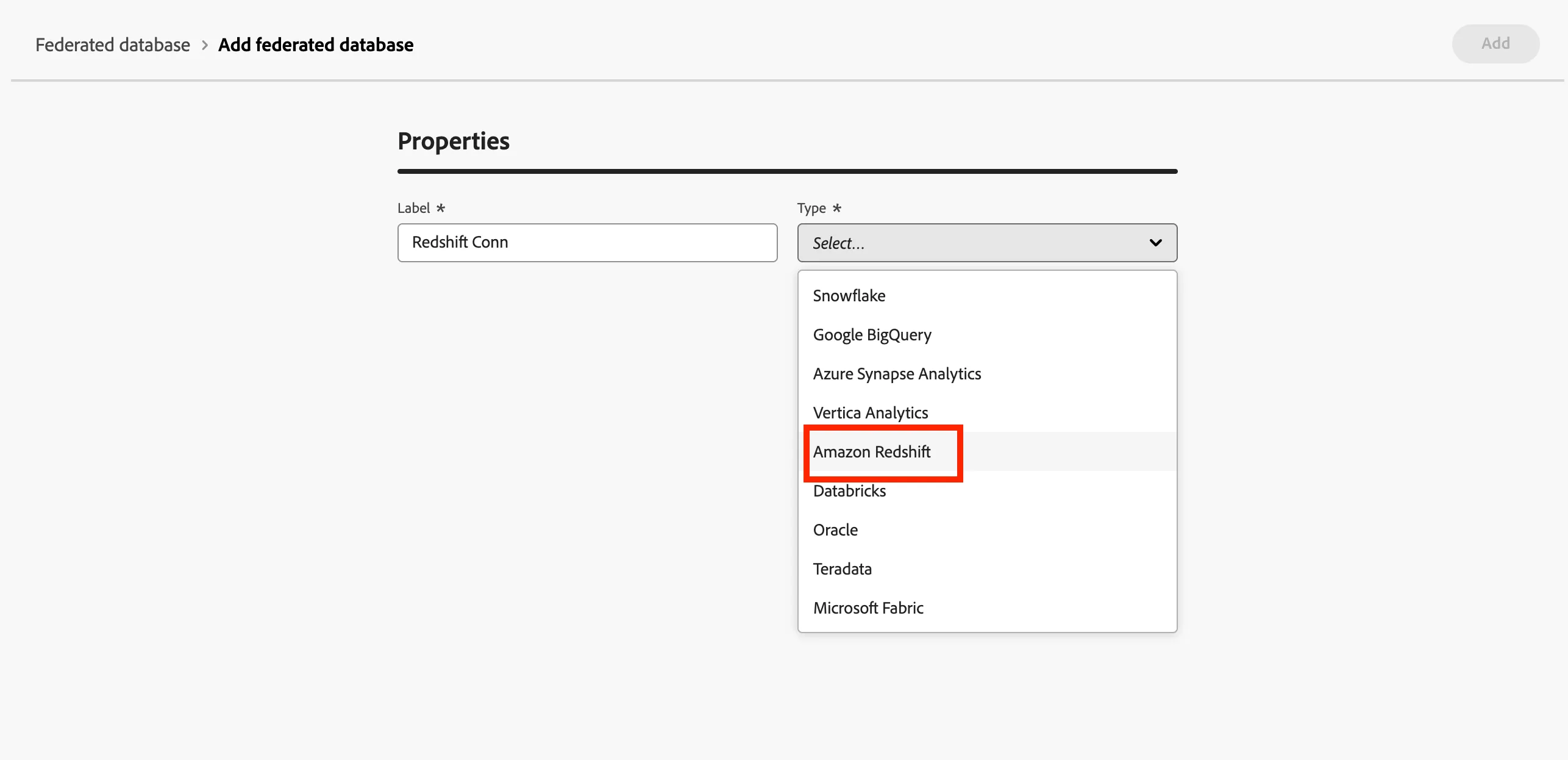
- Add a name and select Amazon Redshift
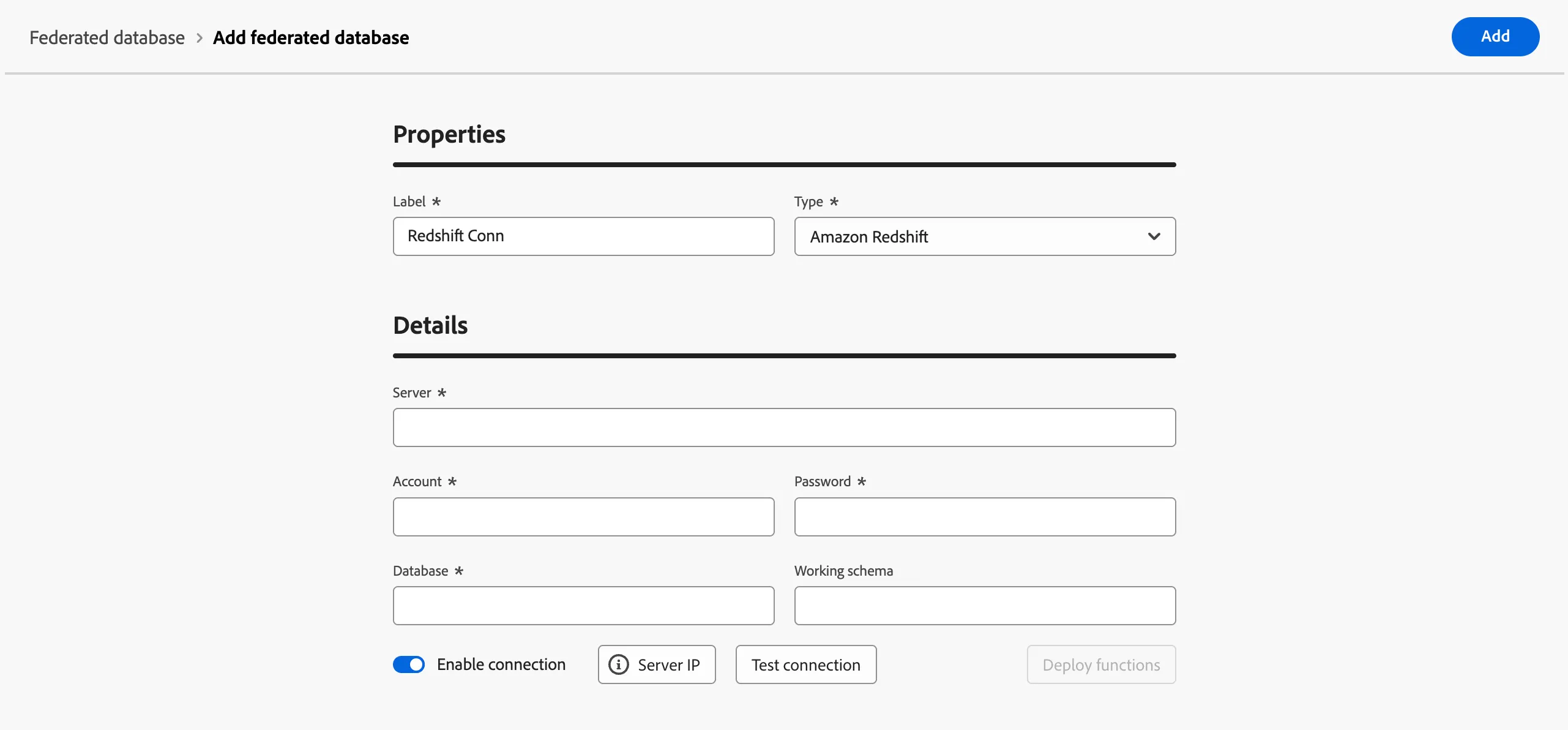
- Fill in the details, click on Test connection button, and on Deploy functions button.
For this lab, we will connect to a Amazon RedShift account. Federated Audience Composition has a growing list of cloud warehouse connections. See link below for an updated list of integrations
Create a schema
To create schemas in Federated Audience Composition, follow the steps below:
- In the FEDERATED DATA section, click Models.
- Browse the Schema tab and click on the Create schema button.
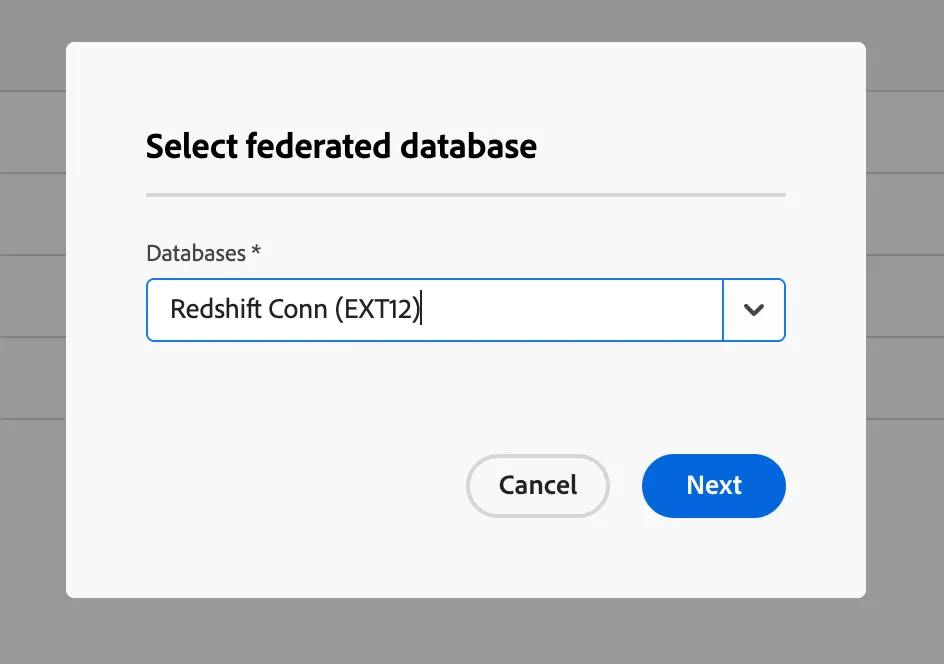
- Select your source database in the list, and click on the Add tables tab.
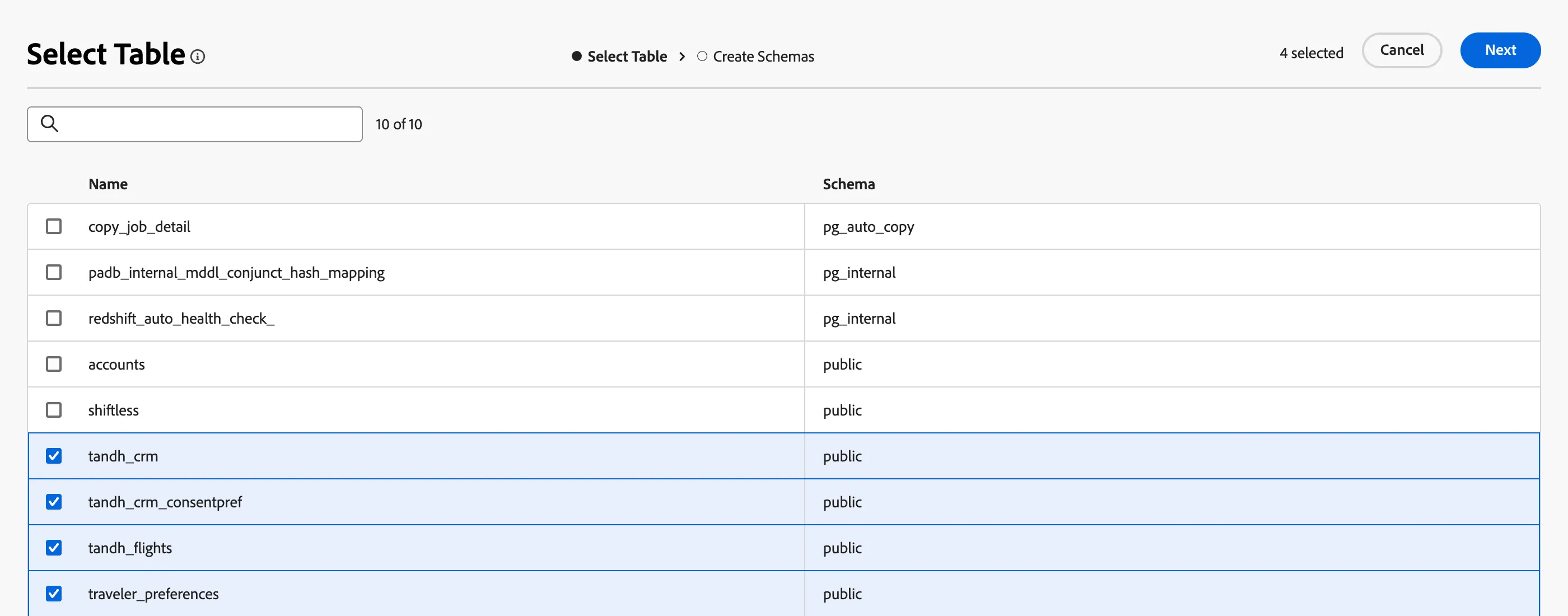
Select the following tables
- CRM
- Travel & Hospitality Consent Preference
- Traveler Preferences
- Flights
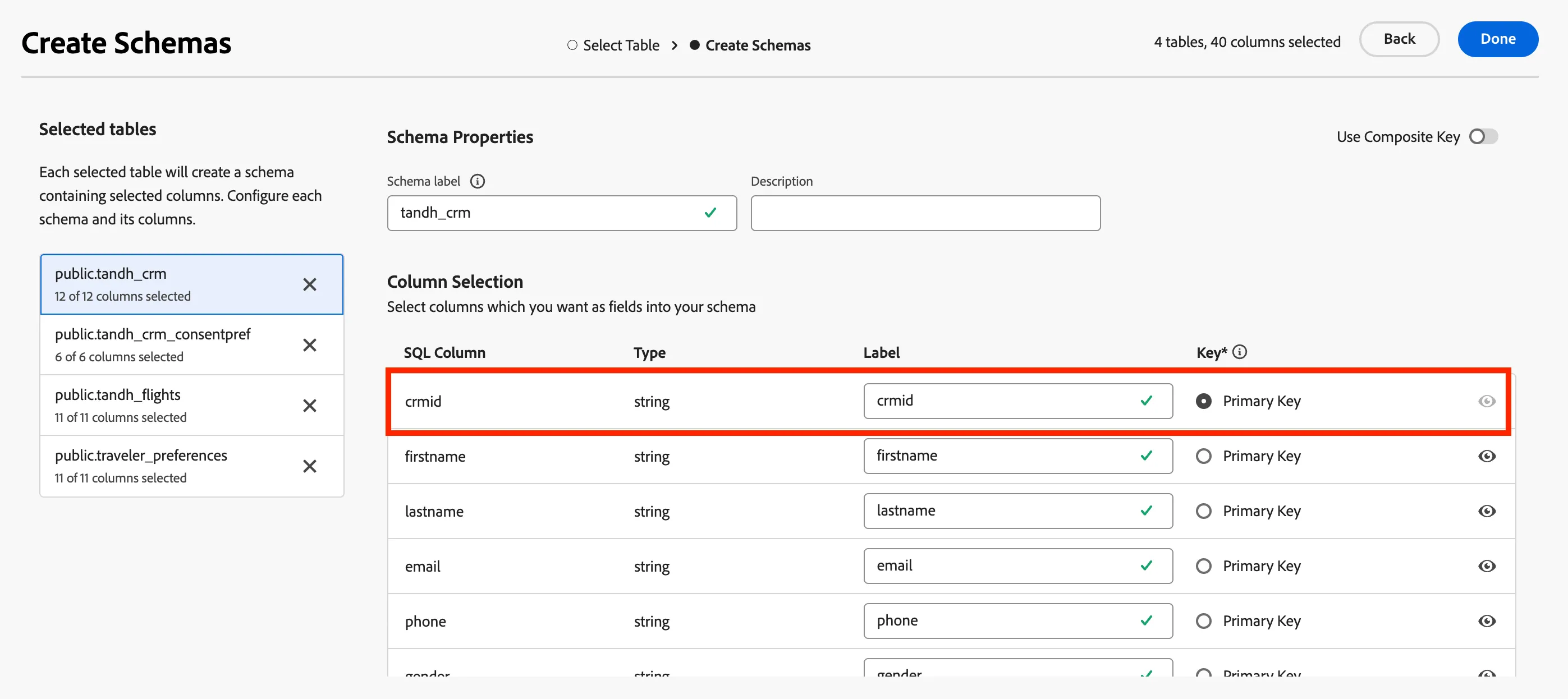
After selecting your tables, you can review the columns of each table then find and select your primary key. For this exercise, we will select CRMID as primary key in all tables
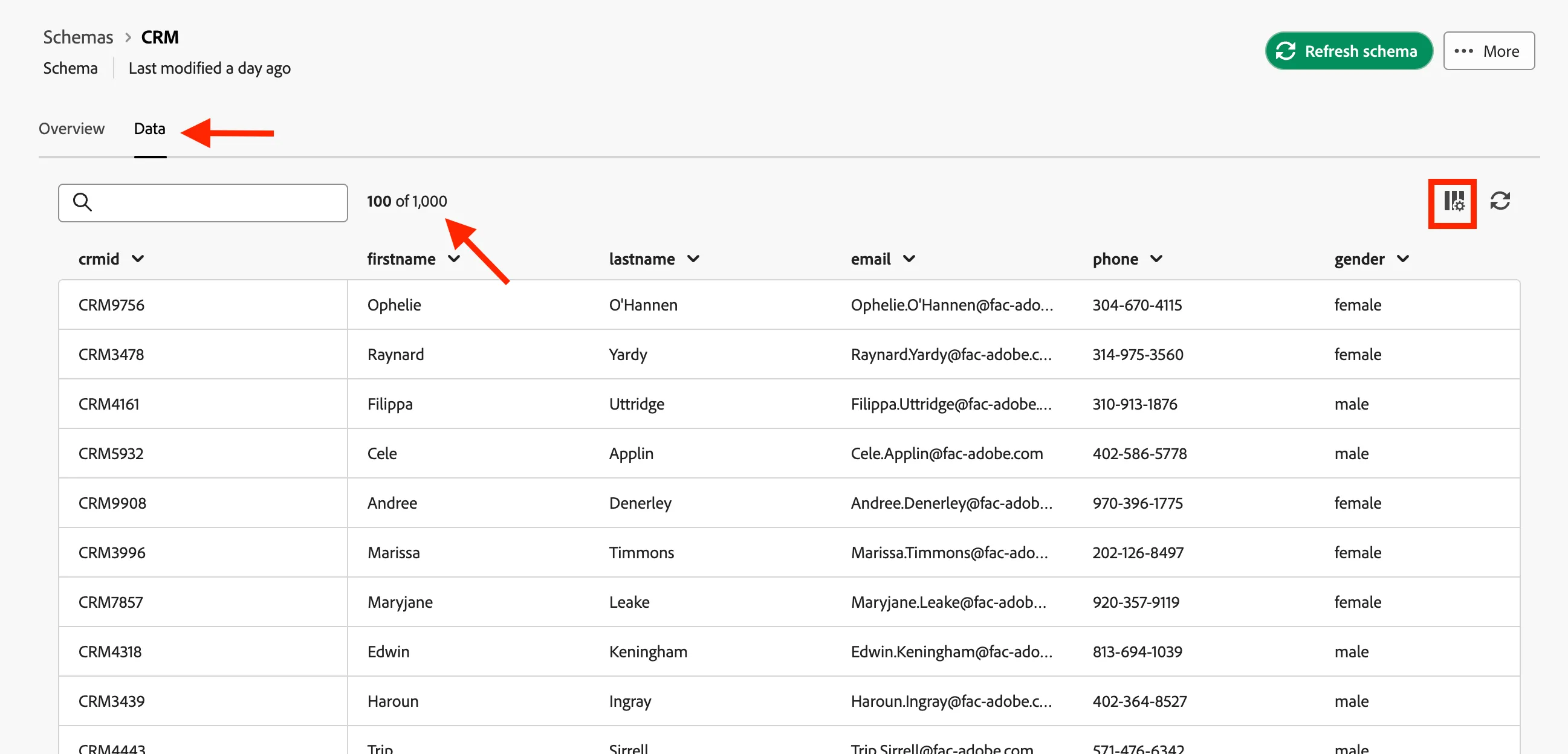
Preview data in a schema
To preview the data in the table represented by your schema, browse to the Data model tab as shown below.
Click on the Calculate link to preview the total number of records.
Create a data model
Data models allow you to create a link between tables. The link can be created between tables in the same database such as tables in Amazon Redshift. You can also create a link between tables in different databases such as a link between a table in Amazon Redshift and a table in Snowflake.
To create a data model in Federated Audience Composition, follow the steps below:
- In FEDERATED DATA section, click Models then click Data Model. Click the Create data model button.
- Provide a name for your data model, Example is Travel & Hospitality Model
- Click on Add schemas and select CRM, Travel & Hospitality Consent Preference, Traveler Preferences, and Flights schemas.
- This will now allow you to create a link between these tables, click on Create links.
- When creating a link, choose the applicable cardinality
- 1-N: one occurrence of the source table can have several corresponding occurrences of the target table, but one occurrence of the target table can have at most one corresponding occurrence of the source table.
- N-1: one occurrence of the target table can have several corresponding occurrences of the source table, but one occurrence of the source table can have at most one corresponding occurrence of the target table.
- 1-1: one occurrence of the source table can have at most one corresponding occurrence of the target table.
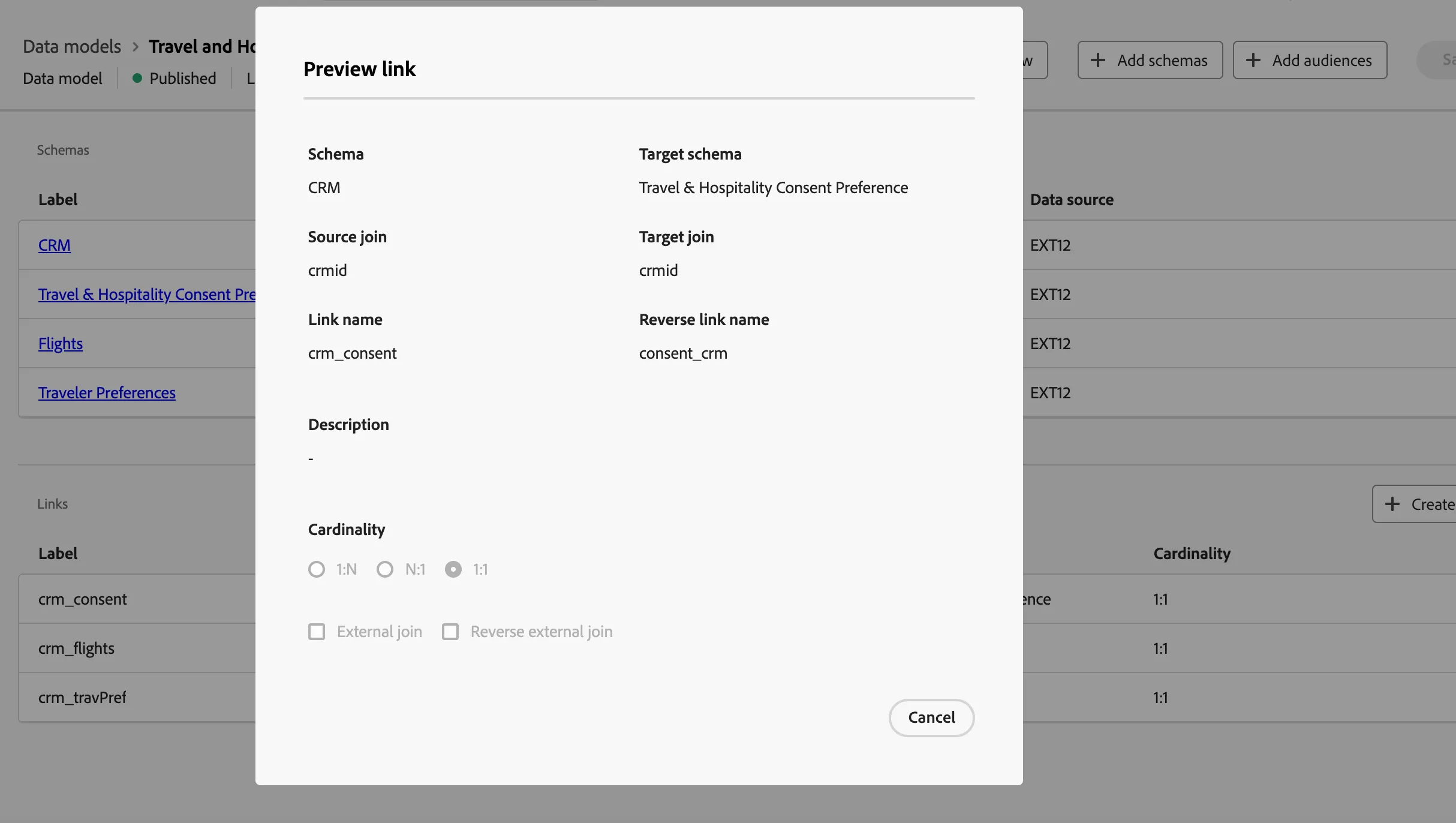
Below is a preview of the link created for the lab exercises. The link enables a join between the CRM and consent tables, using the primary key of CRMID to perform a join.