Logging into the Platform
6 min
Login Credentials
Your login credentials will be:
Password for all attendees is CollabLabNov2025!
Name | User Name |
|---|---|
Estefania Diaz | |
Dan Hagen | |
Jamie Seltzer | |
Purnima Ravi | |
Leonel Alejandro Frattesi | |
Alex Feldman | |
Shreya Saxena | |
Deanna Ho | |
Nicolas Bouchet | |
Pierre Raoul | |
Stéphanie Marie | |
Gautier Le Meau |
Login to Adobe Experience Platform
- Navigate to Adobe Experience Platform
- If you are already logged in on your own or corporate Adobe account, logout.
- Sign in using email address: rtcdpcollabu{{USER_NUMBER}}@pot5.aephandsonlabs.com and click Continue.
- You'll be redirected to Microsoft login. Enter the password CollabLabNov2025! and click Sign in.
- When asked to Stay signed in? click Yes. You'll be redirected back to Adobe Experience Platform in the Adobe Experience Cloud home dashboard.
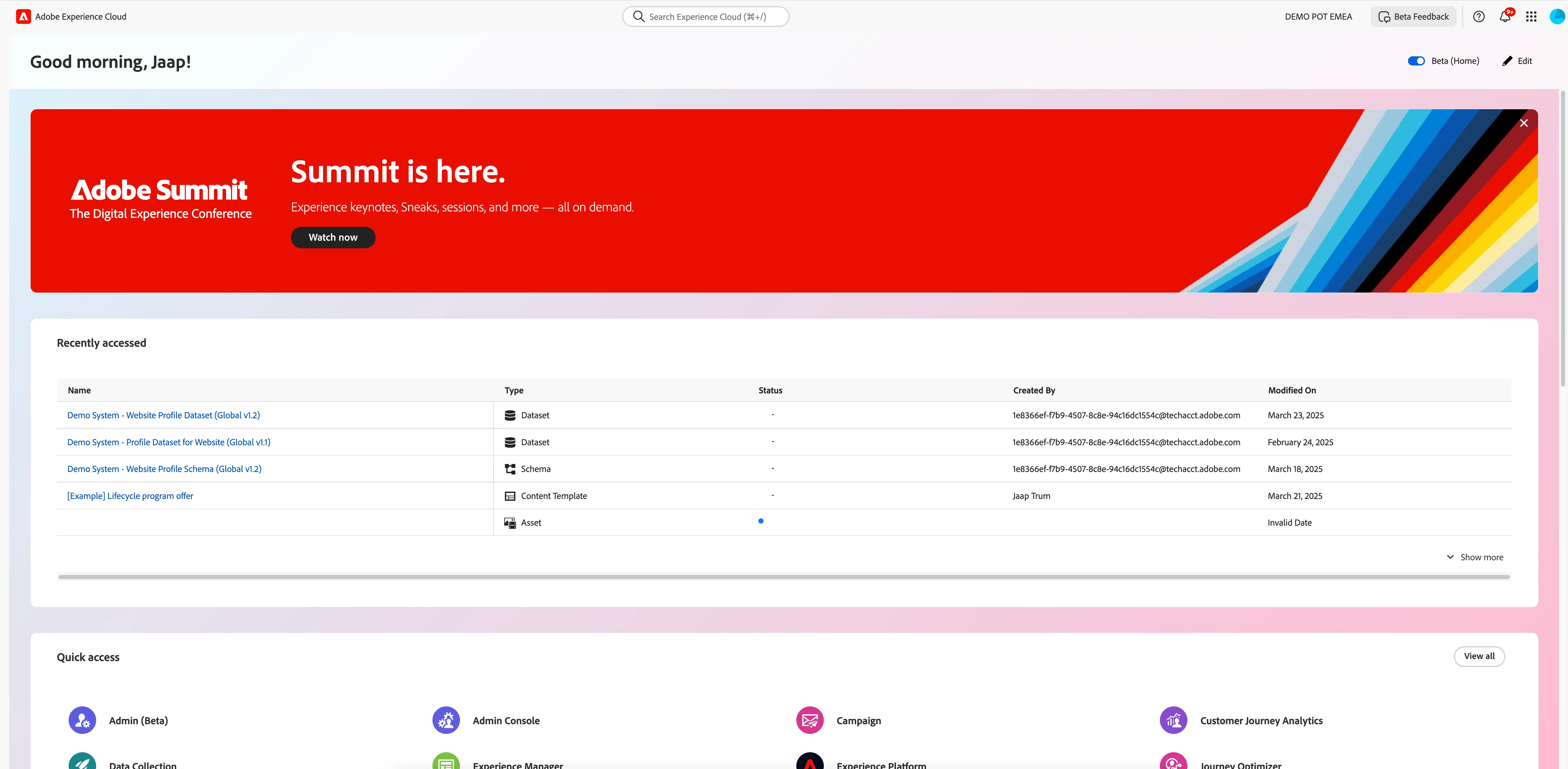
- Click on the navigation-icon (9 dots) in the top right cornet and click on Experience Platform.
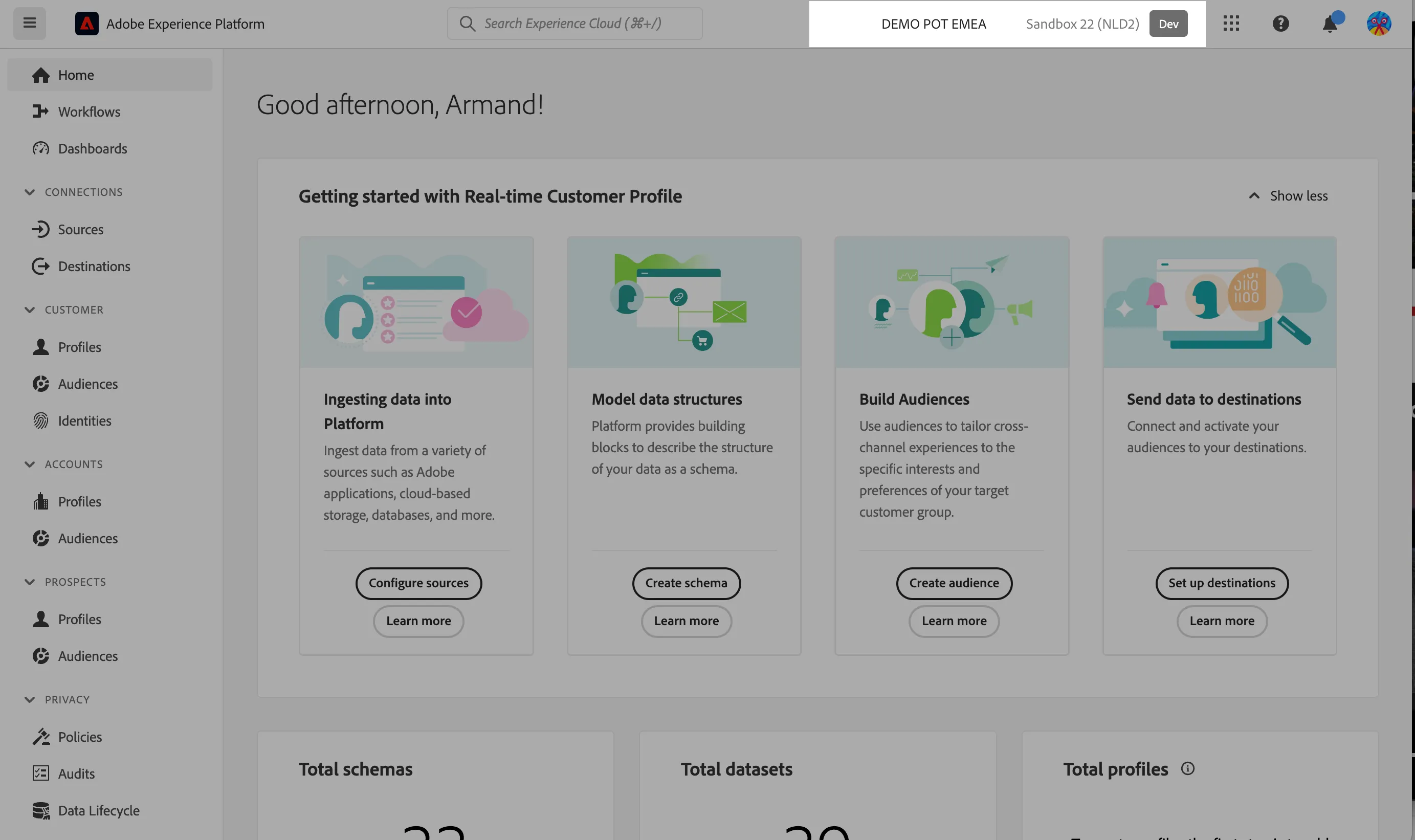
- Check if you are in the right sandbox. On the top right you should see:
- Adobe Americas POT5, indicating the organisation.
- EMEA (VA7), indicating the sandbox.
Navigating to Adobe Real-time CDP and RTCDP Collaboration
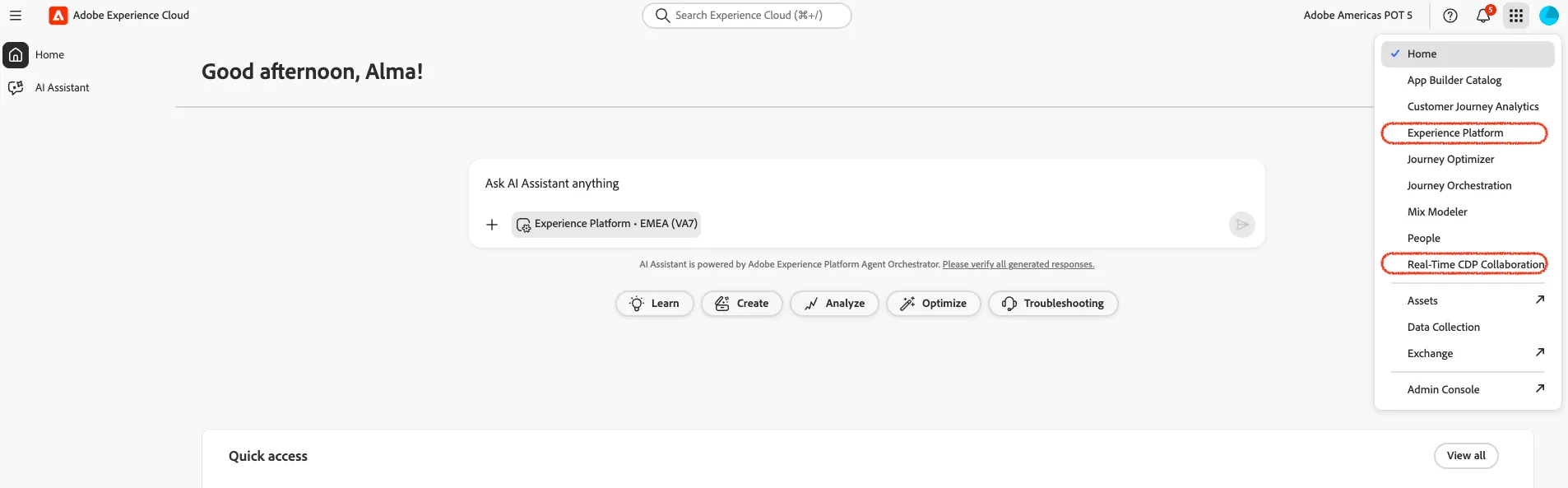
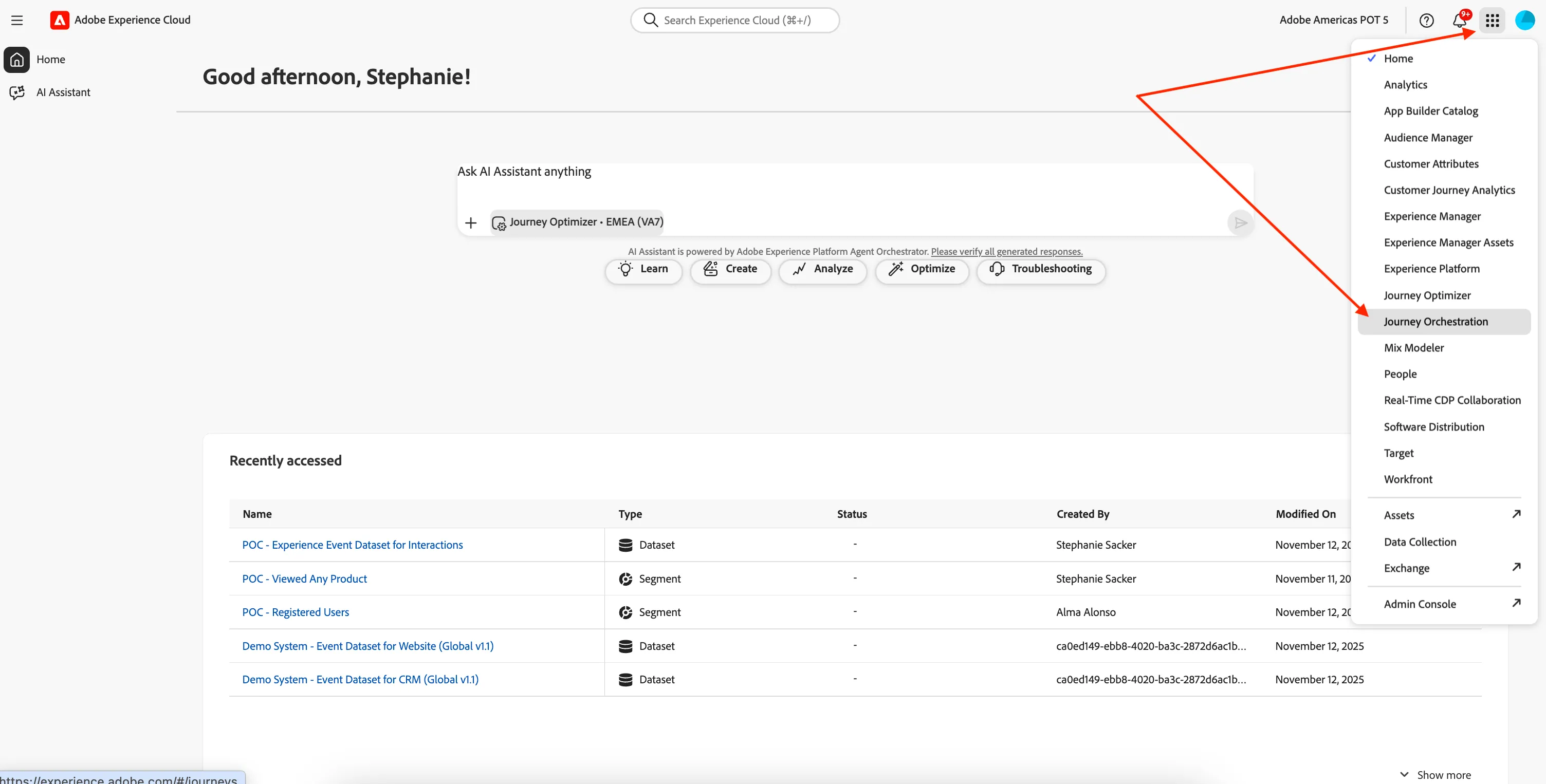
Click on the nine-dots icon in the top right and select:
- Experience Platform in the dropdown list. To access Connections, Profiles & Audiences, and Data Management.
- Real-Time CDP Collaboration in the dropdown list to access RTCDP Collaboration.
Navigating to Adobe Journey Orchastration
Click on the nine-dots icon in the top right and select Journey Orchastration in the dropdown list.
Set language preferences
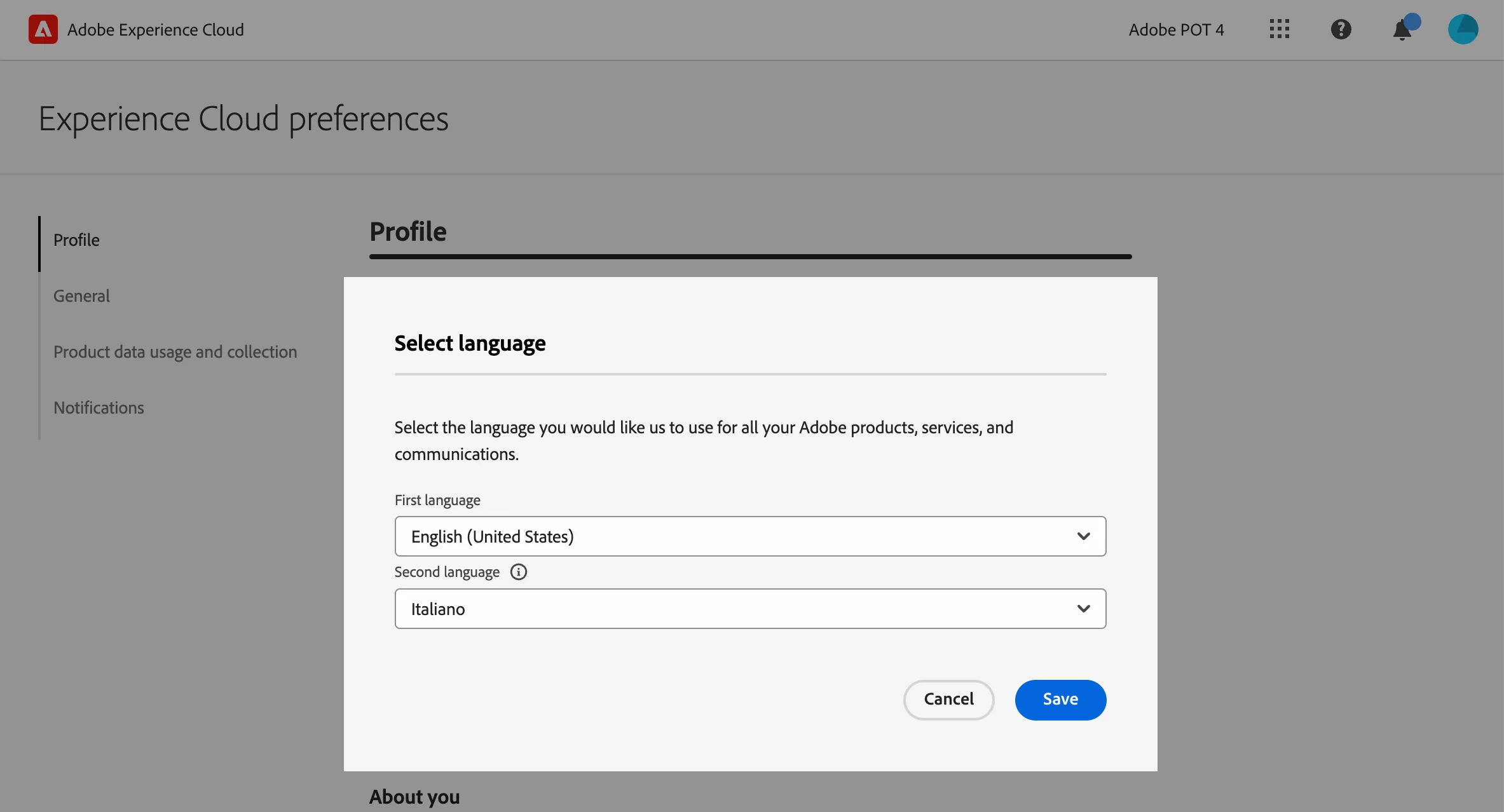
This guide is written in English and the screenshot are taken from a UI set for English language. If your UI is set to use other language, it can be difficult to recognise buttons, labels and text. We suggest you to switch your Adobe account preferred language to English.
To change the preferences:
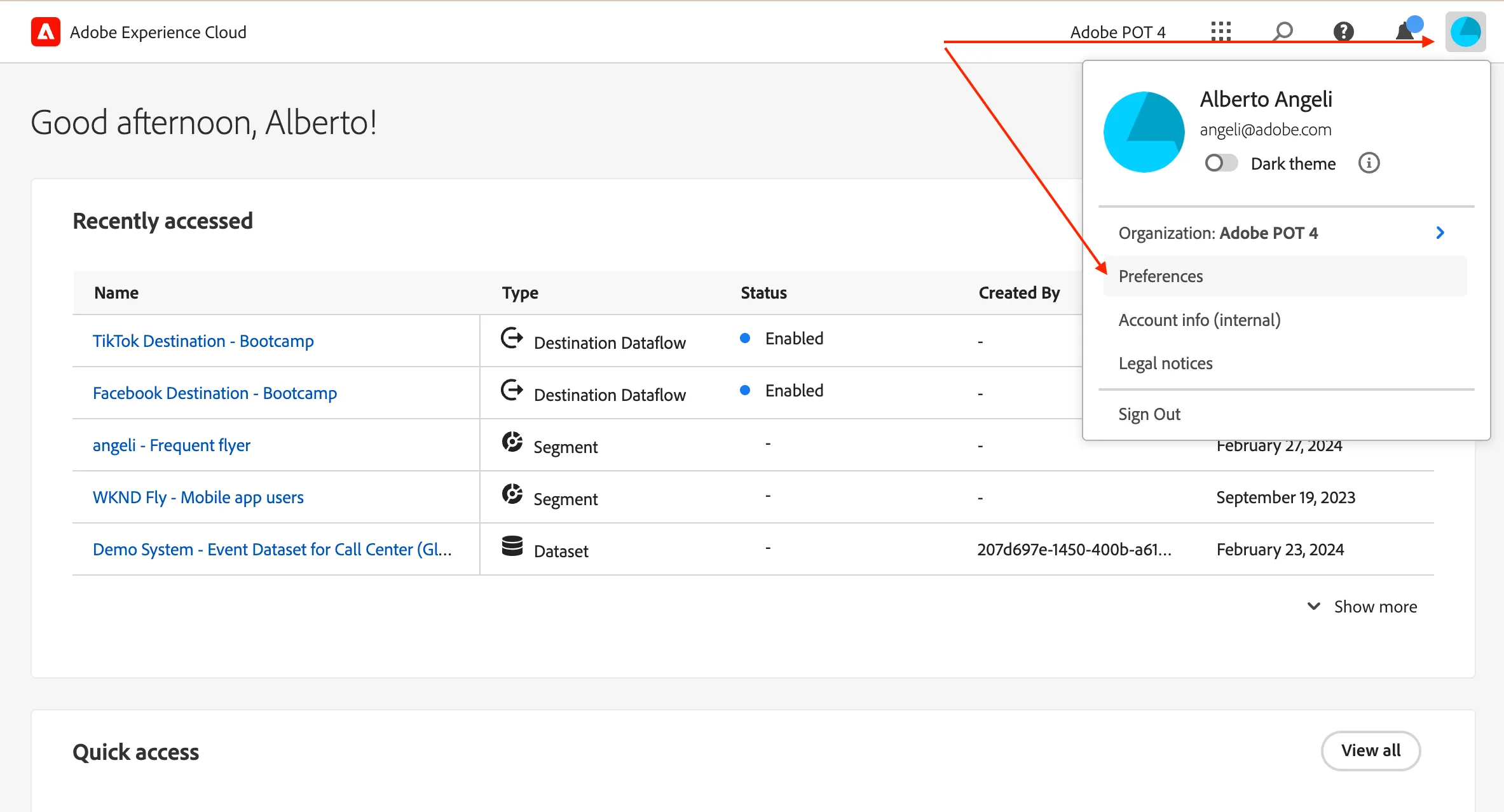
- click on the profile icon on the top right corner;
- click on Preferences.
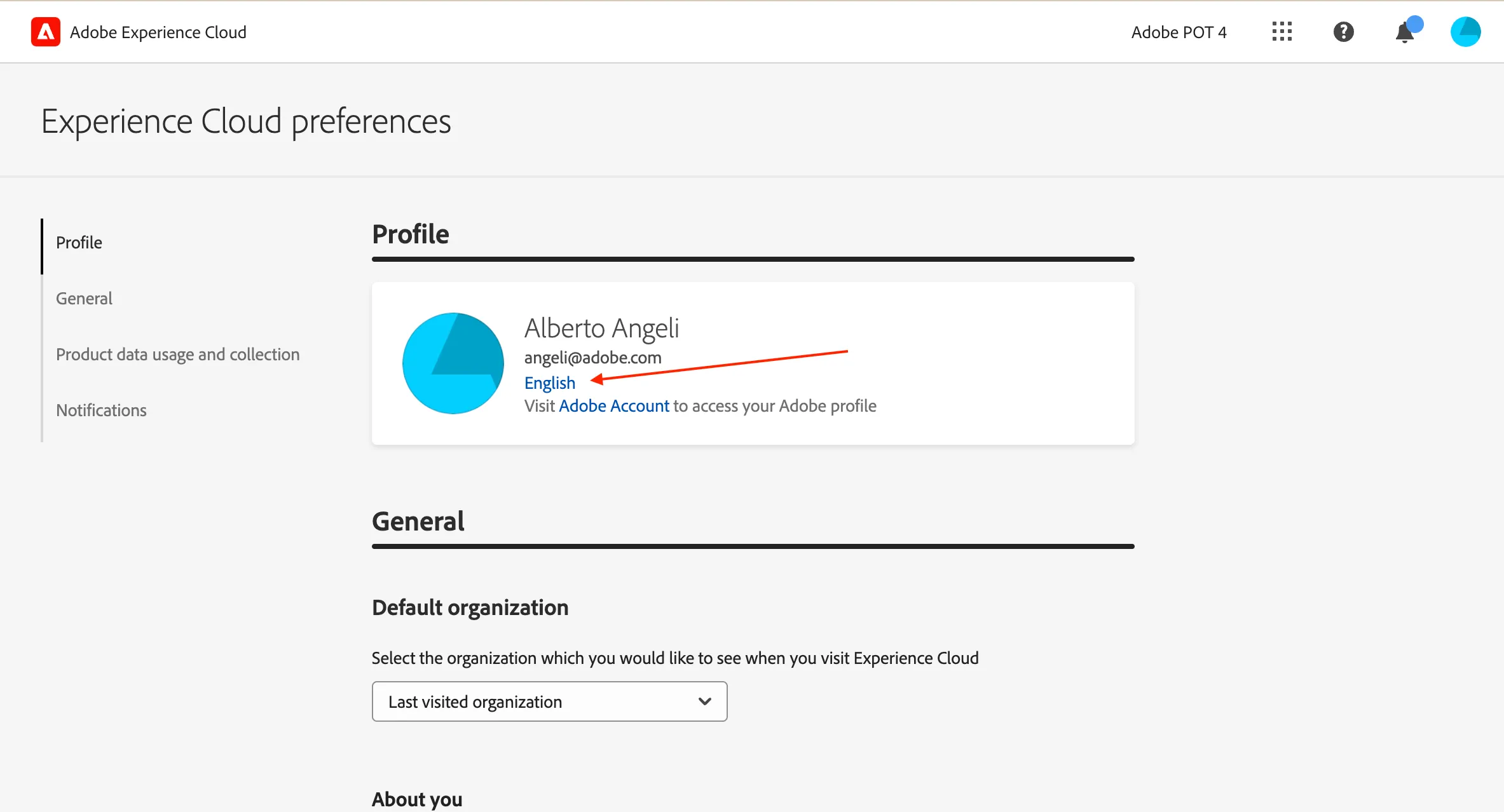
- Click on the language label just below your name.
- Select English (United States) as First language;
- select your preferred language as Second language;
- click Save.