Mobile App
We've create a mobile app for our demo brand Luma Retail. To fully enjoy the Hands-on Lab experience, we recommend downloading and setting up this app.
App Installation
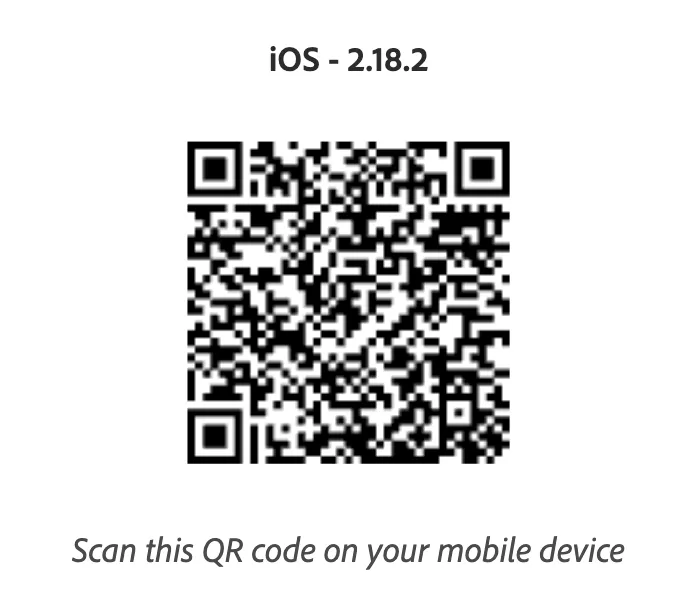
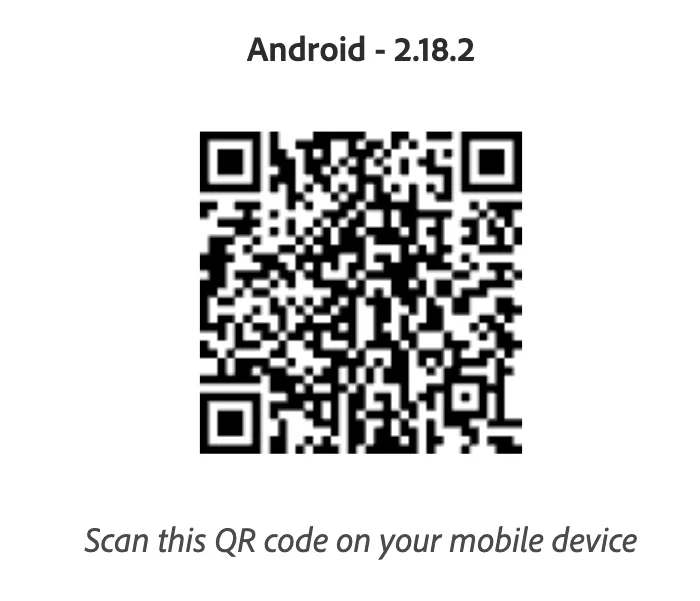
Download the Mobile app using the QR code on your phone.
First Launch
When you launch the app for the first time, you'll be prompted to log in with your Adobe ID. Use the same Adobe ID you used to log into the Adobe Experience Platform.
If you are asked to select an Organisation, select Adobe Americas POT5 from the list.
The app can prompt you several request, for example to allow push notificationsand allow the use of gps.Make sure to allow these requests.
Configuring the App
To load the Luma Retail content, you'll need to import a custom project.
- Navigate to Settings in the bottom menu.
- Check Custom Project and insert the Project ID sacker-MXP1.
- OK
- Click Save.
- Your app should now reload and show the Luma Retail demo app.
Showing the Real-time Customer Profile on the app
In the mobile app you can look at the Real-time Customer Profile, just like you've seen on the demo website. To show the panel, drag your finger from the left side to the right side of the screen.