[Tech] Exploring the Segmentation Service API
In this exercise, you’ll use Postman and Adobe I/O to create a audience and store the results of that audience as a dataset, by making use of Adobe Experience Platform’s APIs.
In the Real-time Customer Profile, all profile data is shown alongside event data and existing audience memberships. The data that is shown can come from anywhere, from Adobe applications and external solutions. This is the most powerful view in Adobe Experience Platform, the experience system of record.
Create a Segment
Creating a audience using the AEP API's require a number of steps in Postman. But first...
- Locate the AEP Bootcamp collection.
- Open the Segmentation Service API folder.
Step 1 - Create a Segment definition
We will first create a segment definition.
- Select Segment Definition > POST Create a new segment definition.
- Click on the Body tab to see the body of the request.
You see the segment expression defined in the Profile Query Language, PQL. You can find more information and documentation about PQL.
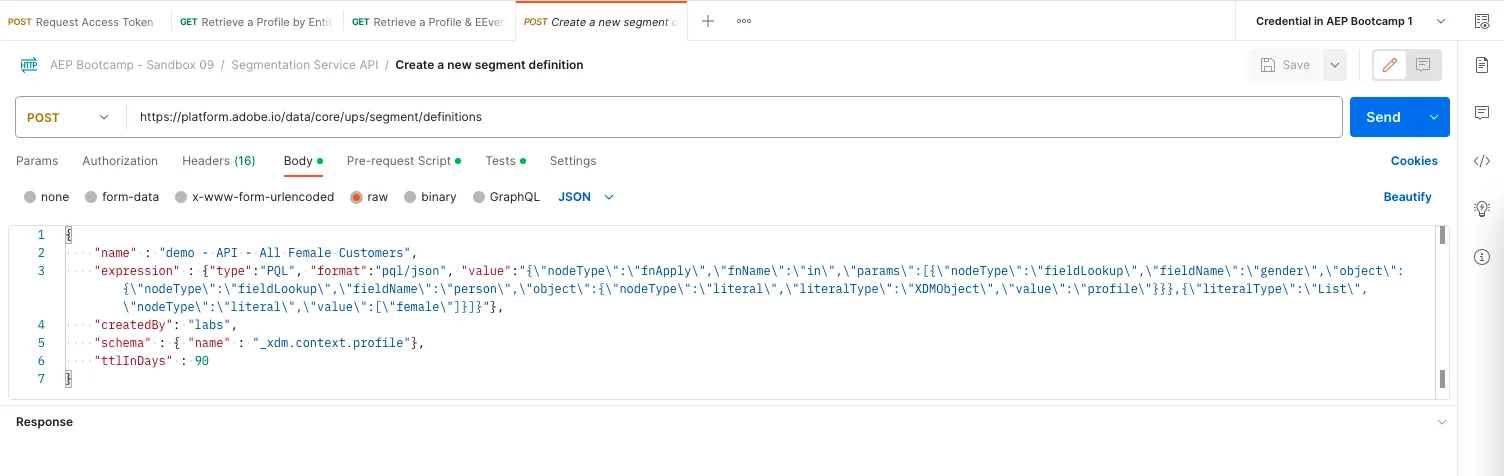
- Update the name value within the Body request. E.g. replace demo with your user identification.
- The body should look like:
{
    "name" : "sacker - API - All Female Customers",
    "expression" : {"type":"PQL", "format":"pql/json", "value":"{\"nodeType\":\"fnApply\",\"fnName\":\"in\",\"params\":[{\"nodeType\":\"fieldLookup\",\"fieldName\":\"gender\",\"object\":{\"nodeType\":\"fieldLookup\",\"fieldName\":\"person\",\"object\":{\"nodeType\":\"literal\",\"literalType\":\"XDMObject\",\"value\":\"profile\"}}},{\"literalType\":\"List\",\"nodeType\":\"literal\",\"value\":[\"female\"]}]}"},
    "createdBy": "labs",
    "schema" : { "name" : "_xdm.context.profile"},
    "ttlInDays" : 90
}
You should also verify the headers of your request.
- Select Headers tab.
- You will see same set of header key/value pairs as in the earlier Postman example requests.
To create the segment:
- Click on Send.
- View the results in the Body section at the bottom.
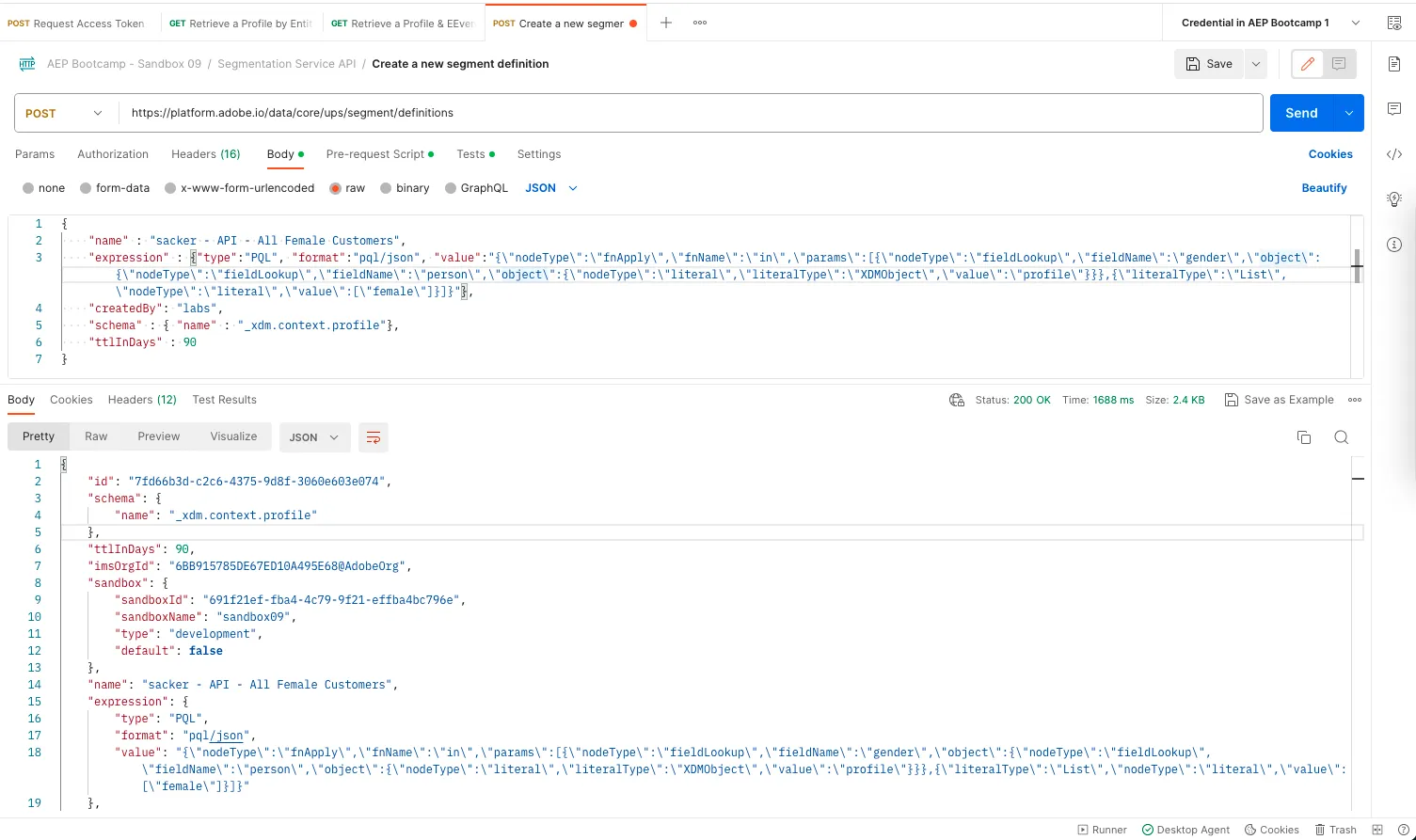
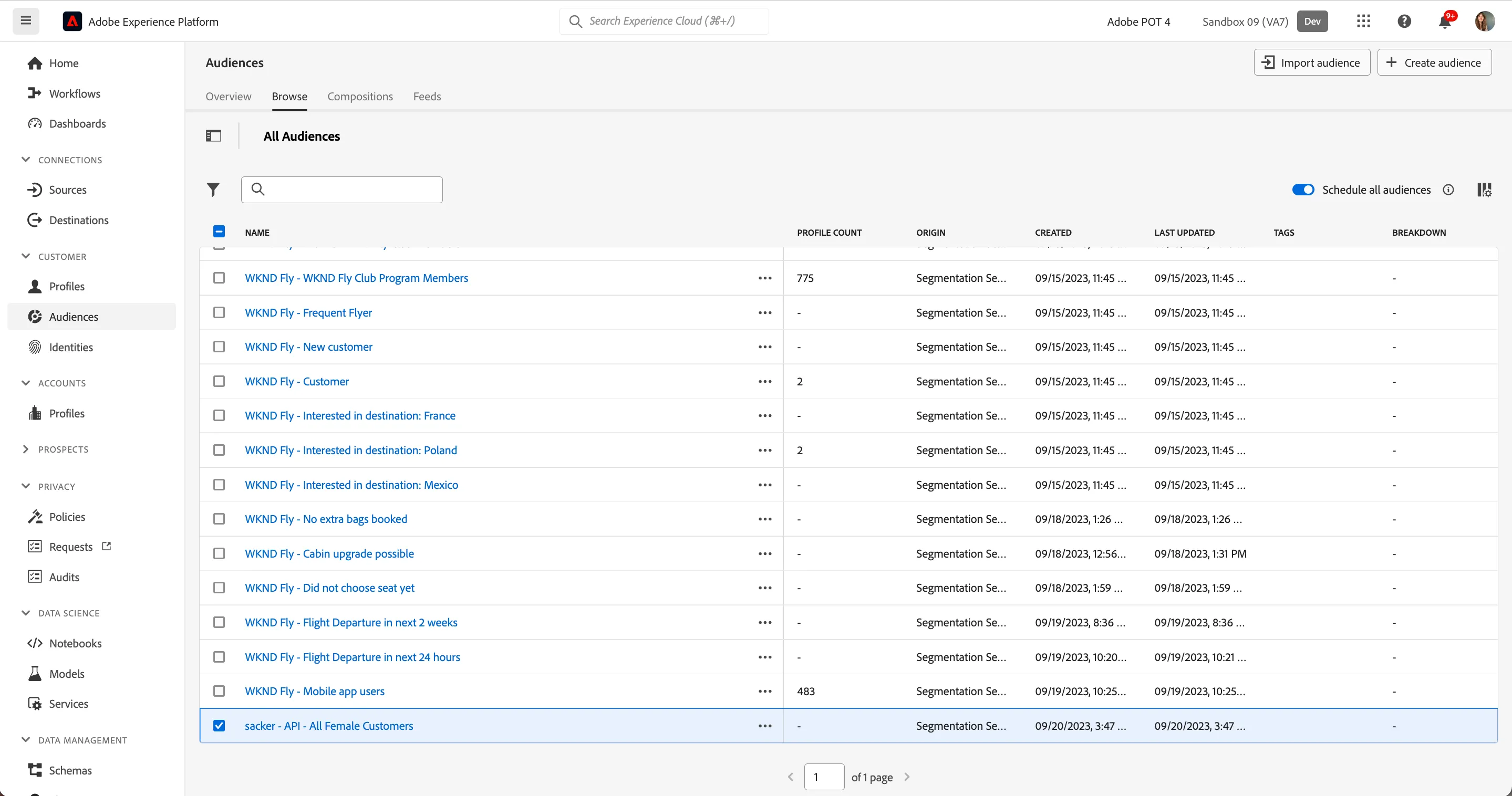
You can now also view your segment definition in the UI.
- Login to Adobe Experience Platform.
- Go to Audiences.
- Select Browse tab.
You should see your created segment in the list of Audiences:
Step 2 - Create a Preview Job
In the previous exercise, you created a streaming audience. When building a segment definition, you can calculate an estimate of the size of the resulting segment definition, allowing you to adjust your segment definition as needed.
Let’s now POST a Preview Job.
- Go to Postman.
- Open the Segmentation Service API folder (if not already open).
- Open the Segmentation Preview folder
- Select the POST Create a segment preview request.
- Click on Send.
The segment preview has been created. Copy the value of previewId.
Step 3 - GET Estimation Result
Once you have created a preview job, you can use its previewIdin the path of a GET request to the /estimateendpoint to view statistical information about the segment definition, including projected audience size, confidence interval, and error standard deviation.
- Go to Postman.
- Select the GET Retrieve estimation result.
- In Params, Path Variables replace YOUR_PREVIEW_ID_HERE with the value returned by the previous call.
- Click on Send.
This is the type of response you'll receive. It includes the estimatedSize field that tells you the estimation of number of profiles that match the audience condition.
{
    "_links": {
        "preview": "https://platform.adobe.io/data/core/ups/preview/app-89b4780c-1b70-4971-a388-e1b2a14a4cc8/execution/0?previewQueryId=98589ead-e9ce-4f40-8f95-c4204fa9fea5"
    },
    "confidenceInterval": "95%",
    "error": {
        "description": "",
        "traceback": ""
    },
    "estimatedConsentDistribution": [],
    "estimatedNamespaceDistribution": [
        {
            "estimatedSize": 1855,
            "namespaceId": "12537677"
        }
    ],
    "estimatedSize": 1855,
    "isExact": true,
    "numRowsToRead": 5294,
    "profilesMatchedSoFar": 1855,
    "profilesReadSoFar": 5294,
    "standardError": 0,
    "state": "RESULT_READY",
    "totalRows": 5294
}
You have now successfully created a streaming and a batch audience using the Adobe Experience Platform APIs.