Data Distiller
▶️ 14:00 — Quality before insight. With raw data ingested, your next task is to ensure it’s fit for analysis. Using Query Service, you run targeted SQL checks to validate key fields, isolate problematic records, and materialise a clean dataset. Only trusted data will power your customer use cases. ◀️
Introduction
Adobe Experience Platform Query Service is accessed by clicking on Queries in the left menu.
- By going to Log you’ll see the Query List page, which provides you a list of all the queries that have run in this organisation, with the latest at the top (if there is nothing in the list, clear all the filters).
- Click on any SQL query from the list and observe the details provided in the right rail.
- You can scroll the window to see the entire query, or you can click on the icon highlighted below to copy the entire query to your notepad. You do not have to copy the query at this time:
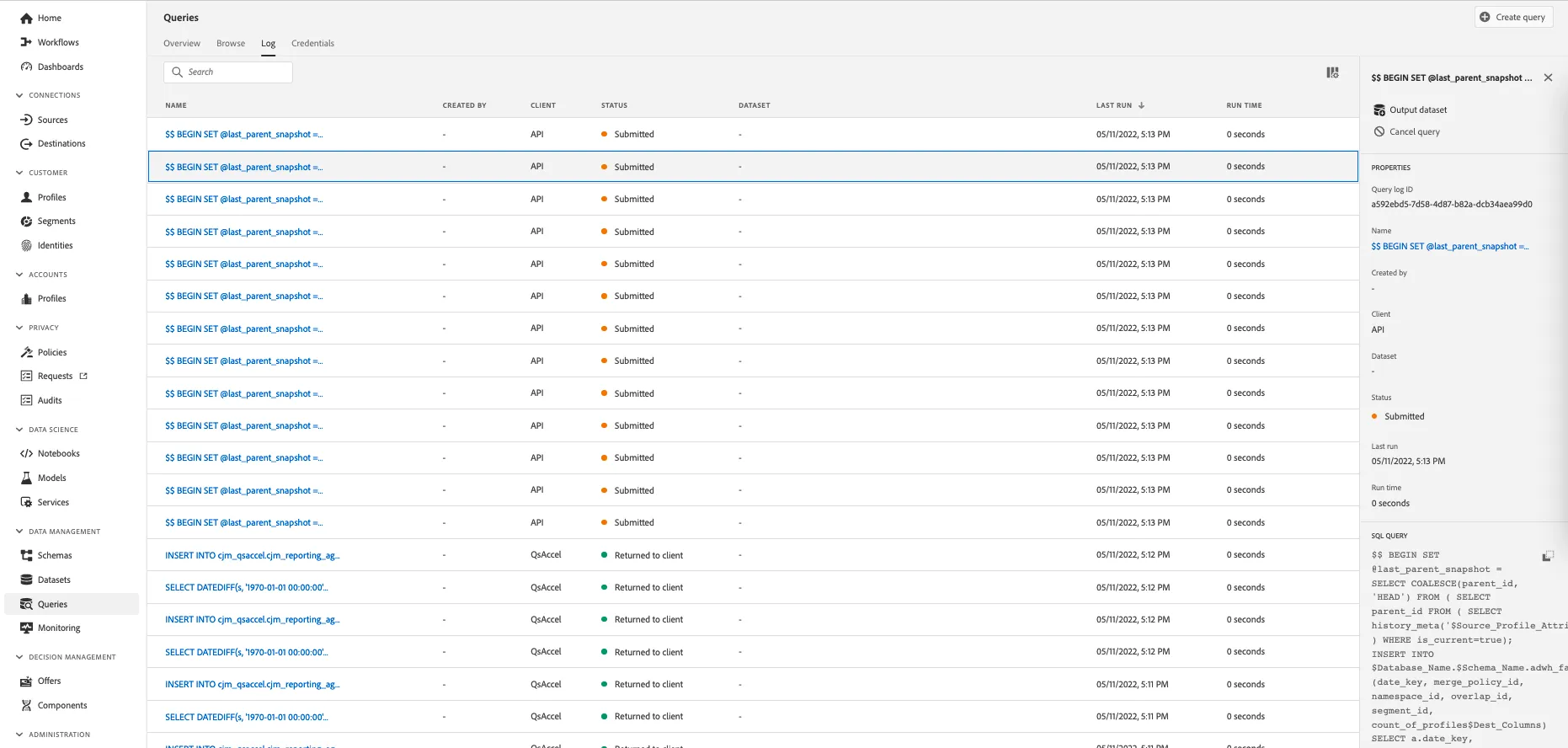
You can’t just see the queries that have been executed, this User Interface lets you create new datasets from queries. These datasets can be linked to Adobe Experience Platform’s Real-time Customer Profile or can be used as input for Adobe Experience Platform AI services, like Customer Journet Analytics.
Usage
Requirement
To complete this exercise you need a PSQL client installed on your machine.
Connect PSQL Client to Query Service
Query Service supports clients with a driver for PostgreSQL. In this we’ll be using PSQL, a command-line interface, and Power BI or Tableau. Let’s connect to PSQL.
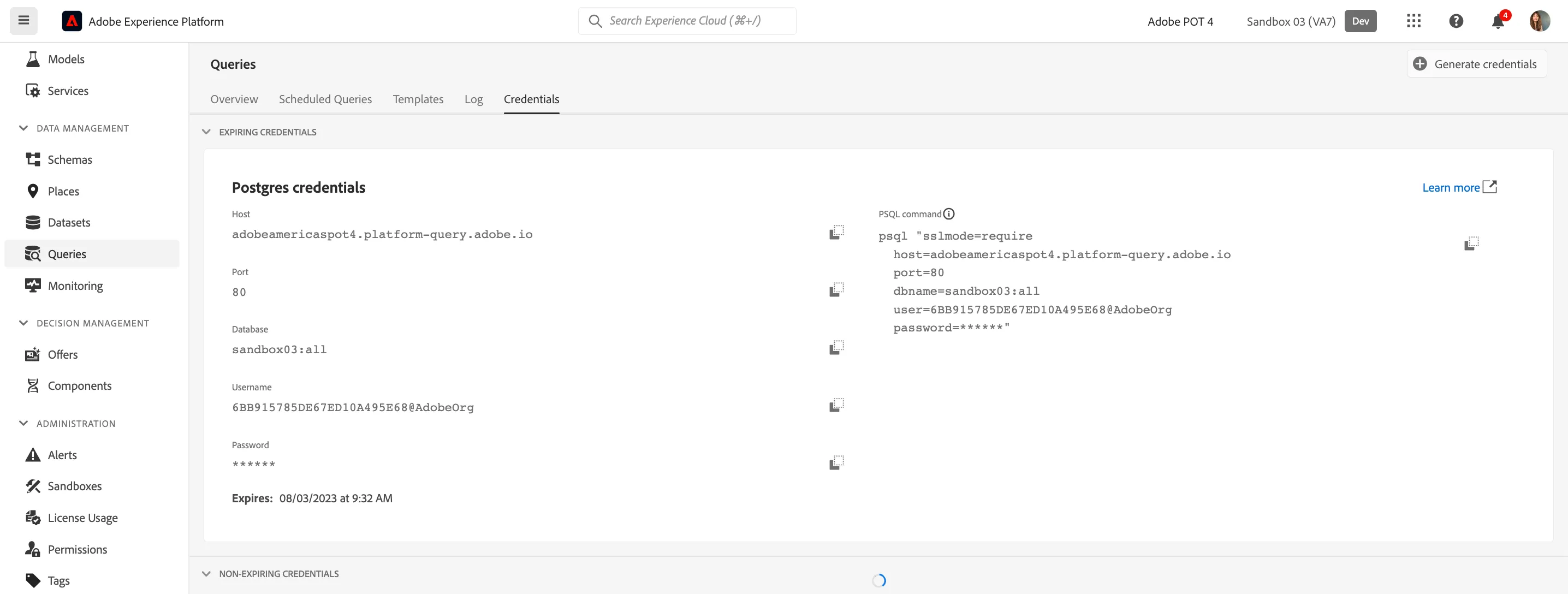
- Click on Credentials.
- You will see the screen below. The Configuration screen provides server information and credentials for authenticating to Query Service. For now, we will focus on the right side of the screen which contains a connect command for PSQL. Click on the Copy button to copy the command to your clipboard.
For Windows: Open the command line by hitting the windows key and typing cmd and then clicking on the Command Prompt result.
For macOS: Open the terminal.app via spotlight search
Paste the connect command that you have copied from the Query Service UI and hit enter in the command prompt window
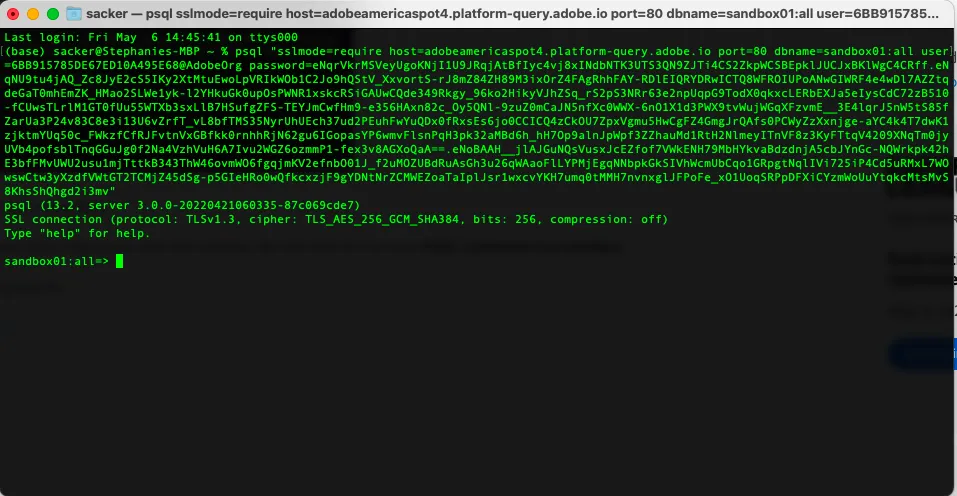
You are now connected to Query Service using PSQL.
In the next exercises, there will be quite some interaction with this window. We will refer to it as your PSQL command-line interface.
Now you are ready to start submitting queries!
How to make queries
In this you will learn about the methods to retrieve information about the available datasets and how to properly retrieve data with a query from an XDM dataset.
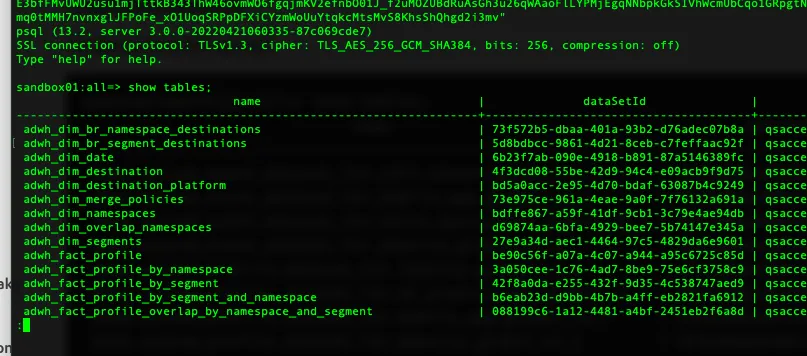
All the datasets that we have explored via Adobe Experience Platform so far are also available for access via a SQL interface as tables. To list those tables you can use the show tables; command.
- Execute show tables; in your PSQL command-line interface. (do not forget to end your command with a semicolon).
- At the colon, press space bar to see the next page of the resultset, or enter q to revert to the command prompt.
Queries
Quality check
You need to implement a “Quality Gate” on a newly ingested dataset in Adobe Experience Platform (AEP), using Query Service. The goal is to identify and isolate records that do not meet basic data quality standards, such as missing or malformed email addresses, null CRM IDs, invalid order types, or product items with missing SKUs.
You will write SQL queries to:
- Profile the dataset and count the number of problematic records for each key field.
- Materialise all non-conforming records into a dedicated “bad rows” table for further inspection or remediation.
SELECT
  COUNT(*) AS total_rows,
  SUM(CASE WHEN _adobeamericaspot5.identifiers.emailId IS NULL OR _adobeamericaspot5.identifiers.emailId NOT LIKE '%@%' THEN 1 ELSE 0 END) AS bad_email,
  SUM(CASE WHEN _adobeamericaspot5.identifiers.customerId IS NULL THEN 1 ELSE 0 END) AS null_customerId
FROM poc_profile_dataset_for_customers_data;
This exercise helps you understand how Query Service can be used to automate data validation checks, ensuring that only high-quality data progresses through your data pipeline.
Propensity scoring
You need to implement a propensity score, using Query Service. The goal of this exercise is to validate behavioural event data by grouping records by user and day of the week, counting total events, and calculating the propensity to add products to the cart.
Run this query in your PSQL client:
SELECT
  _adobeamericaspot5.identification.core.ecid AS ecid,
  EXTRACT(DOW FROM timestamp) AS day_of_week,
  COUNT(*) AS total_events,
  SUM(CASE WHEN eventType = 'commerce.productListAdds' THEN 1 ELSE 0 END) AS add_to_cart_events,
  ROUND(
    SUM(CASE WHEN eventType = 'commerce.productListAdds' THEN 1 ELSE 0 END)::numeric / COUNT(*), 4
  ) AS propensity_add_to_cart
FROM
  demo_system_event_dataset_for_website_global_v1_1
GROUP BY
  _adobeamericaspot5.identification.core.ecid,
  EXTRACT(DOW FROM timestamp)
ORDER BY
  ecid, day_of_week;
You've successfully queried the website event data in an Experience Platform dataset.
This is a an example of Query Service capabilities, to learn more visit the Experience League.