Create a Campaign
This exercise will walk through the steps to create a Campaign in the Adobe Campaign V8 Web UI.
Campaigns are a combination of workflows and deliveries. Each campaign can contain multiple workflows and each workflow can include one or more deliveries.
Create a Campaign
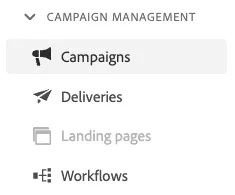
Navigate to Campaigns from the left navigation menu:
Click on Create Campaign in the top right corner of the screen:
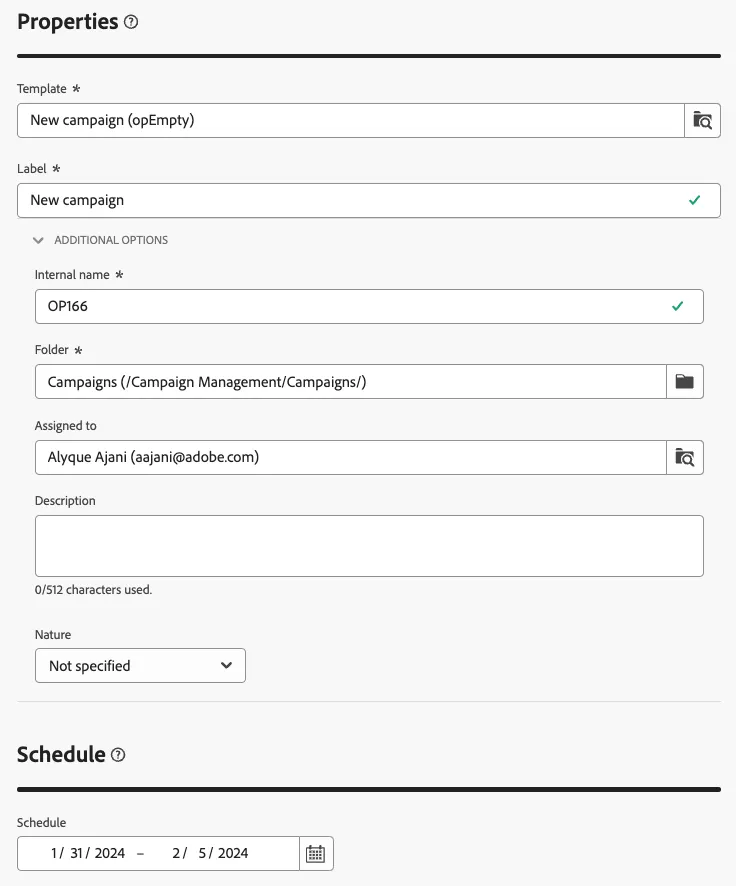
On the next screen, define the Properties and Schedule for the Campaign. Choose a template and provide a Label that you will recognise later. This is also where you can update the folder or schedule dates for the campaign.
Click Create
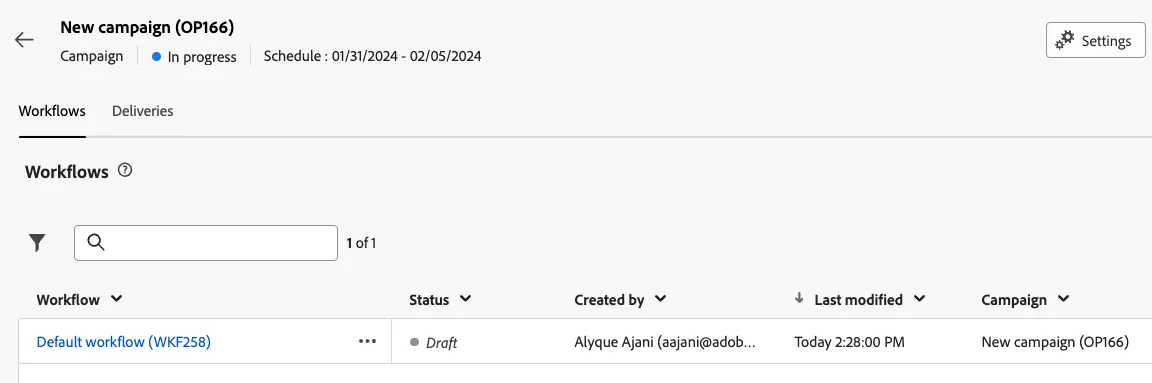
You will arrive at a screen with 2 tabs: Workflows and Deliveries. What you see configured here will depend on which campaign template has been selected when creating the campaign. In this instance a default empty workflow has been created for you.
- The Deliveries tab is where you will find all deliveries related to the campaign. Currently this will be empty.
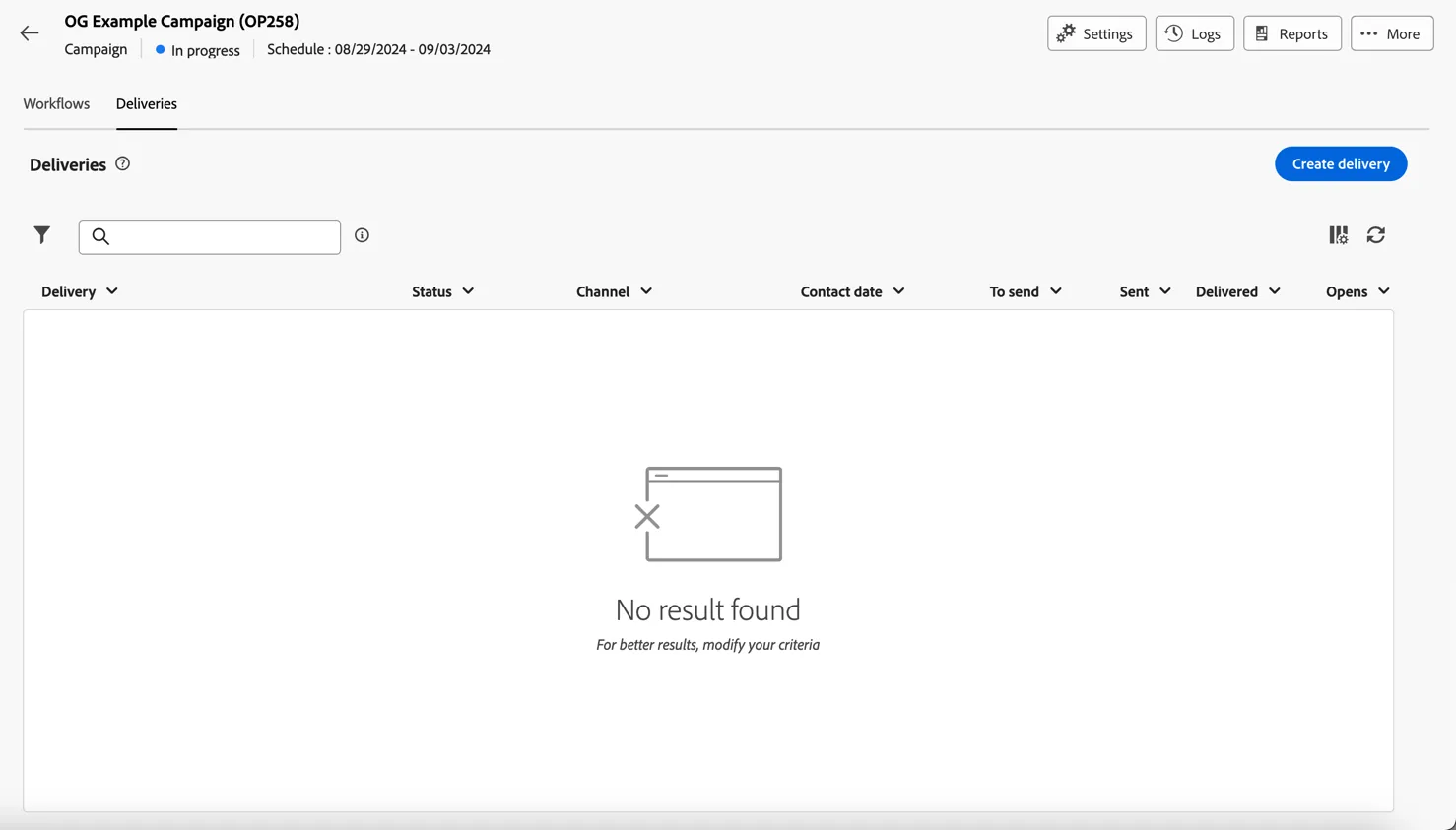
- You can add deliveries directly to this tab using the Create delivery button and configure them the same way we saw in the last exercise. Alternatively you can use a workflow to define a more complicated set of actions which might include multiple steps and multiple deliveries across channels.
This is what we will do for this exercise, let's now create a recurring campaign to send an email for birthday.
Configure the Birthday workflow
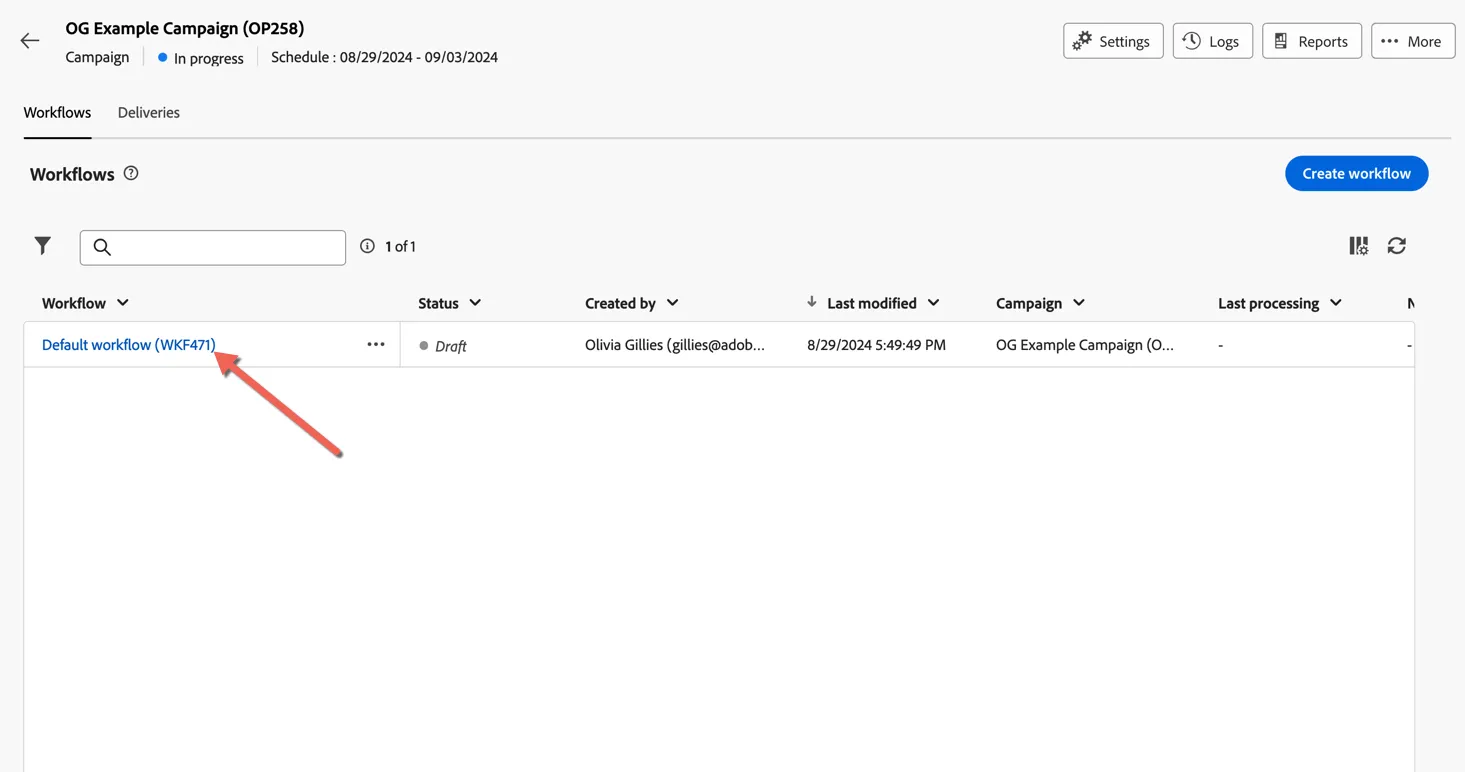
- Return to the workflows tab and click to open the default workflow.
- Click on the + and select scheduler. Configure the scheduler to run on a daily basis, every day at 9AM
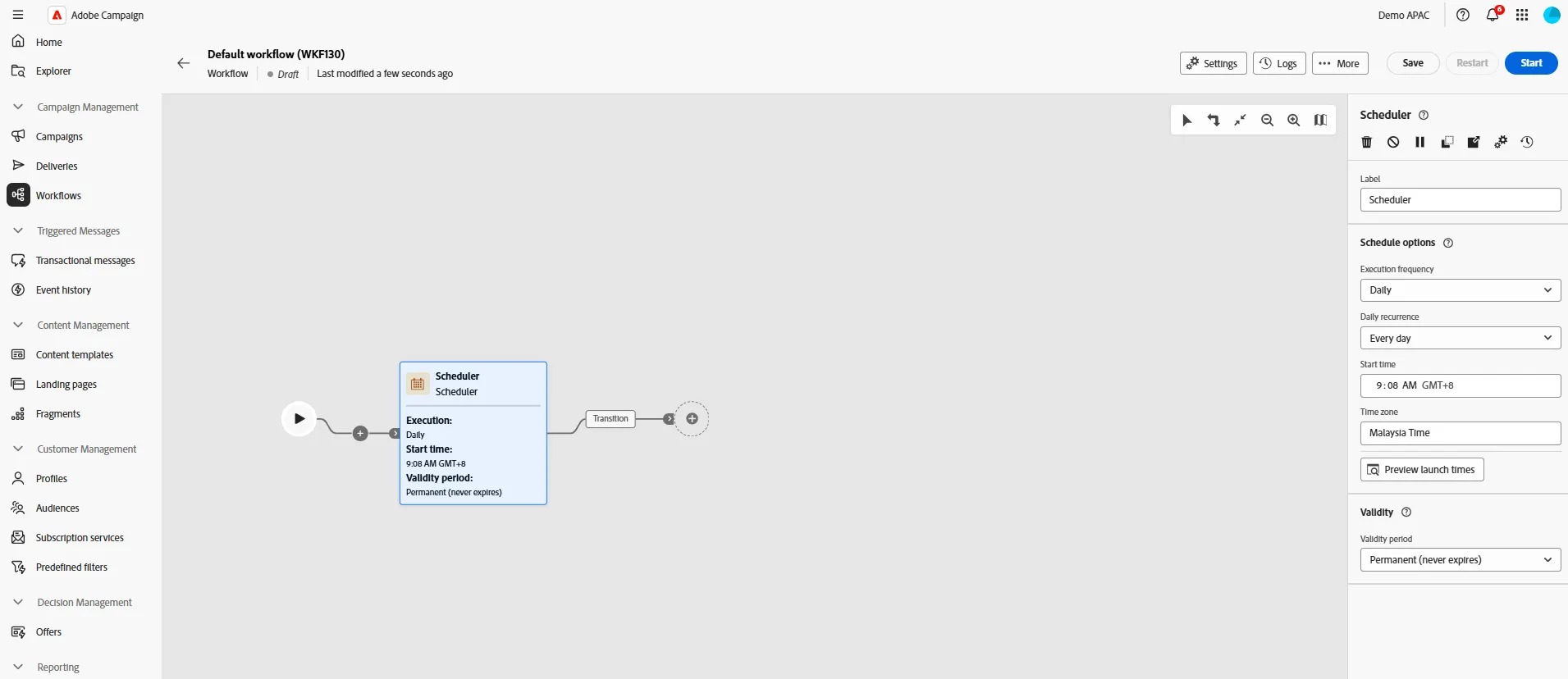
- Click on the + after your scheduler and select Build Audience
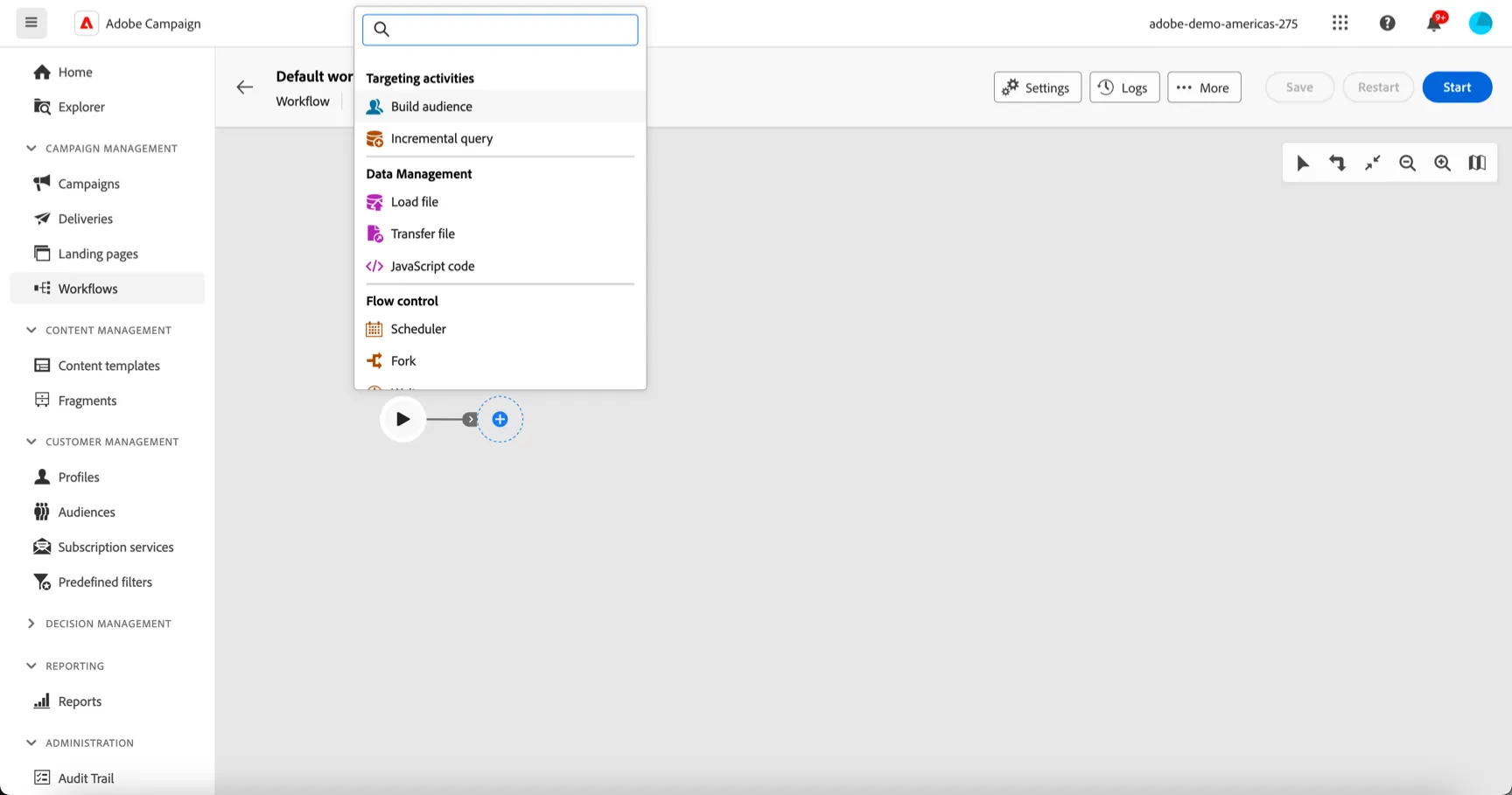
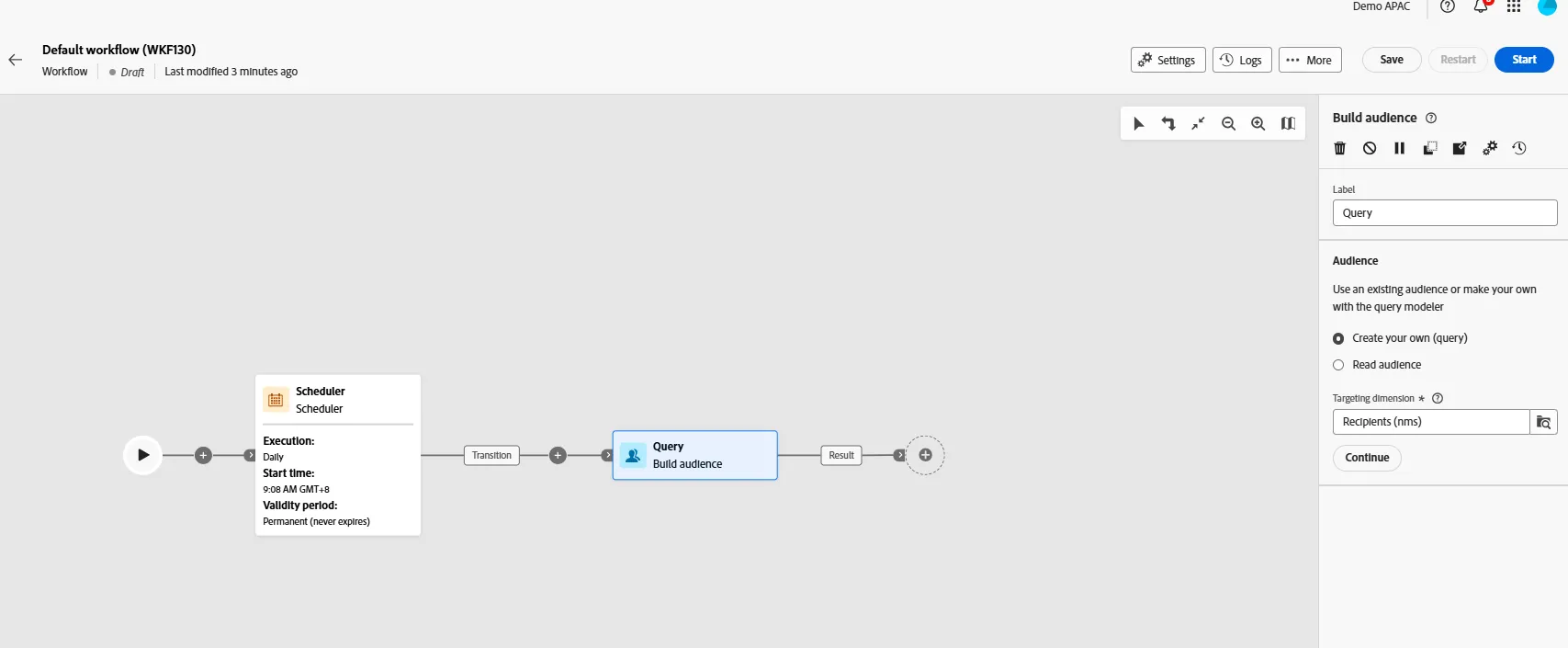
- We'll create a new audience. Let the default audience to create your own and target dimension to recipient. This target dimension is very handy when we want to communicate with customer for a specific account for example. In that case we will change dimension to account
Click on continue to configure your audience
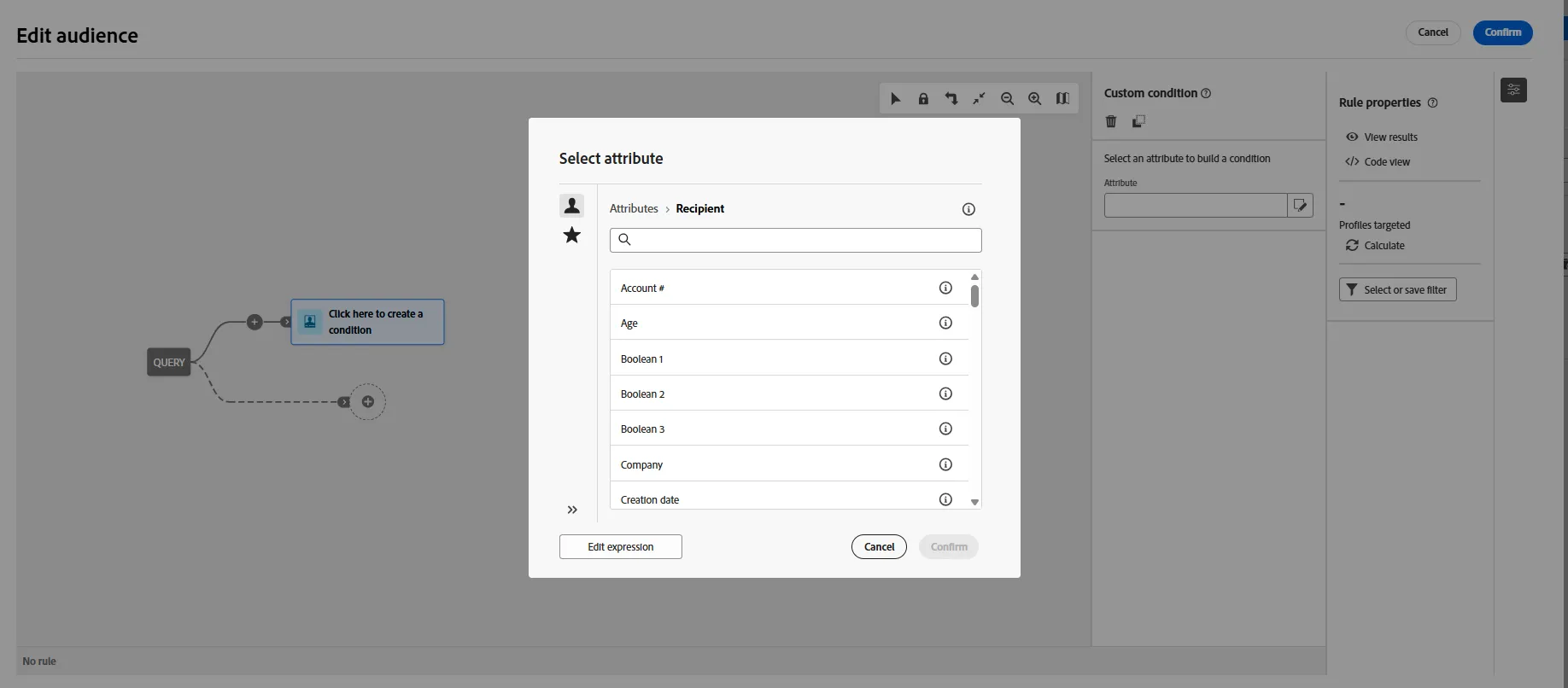
Add a custom condition. Instead of selecting an attribute, click on edit expression to go to the advanced mode
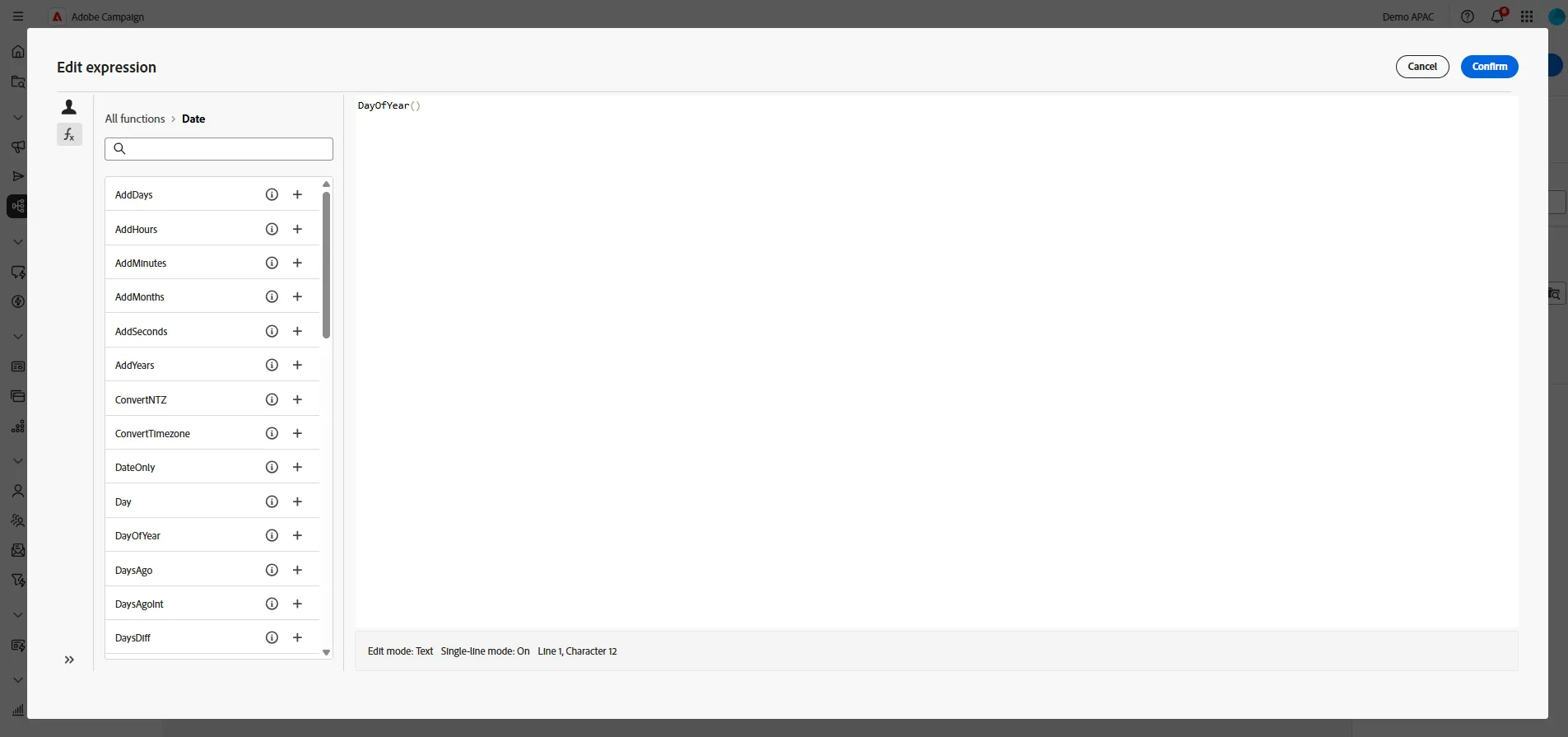
- Navigate to function (fx) on the left pannel, browse date function, and select dayofYear. This will allow us to compare the day and month of the birthday with today without comparing the year
- Now, click on the profile on the left pannel to browse the attribute, then select and add date of birth. Ensure that you add this attribute with the parenthesis of dayofYear. the result should be DayOfYear(@birthDate). Click on confirm
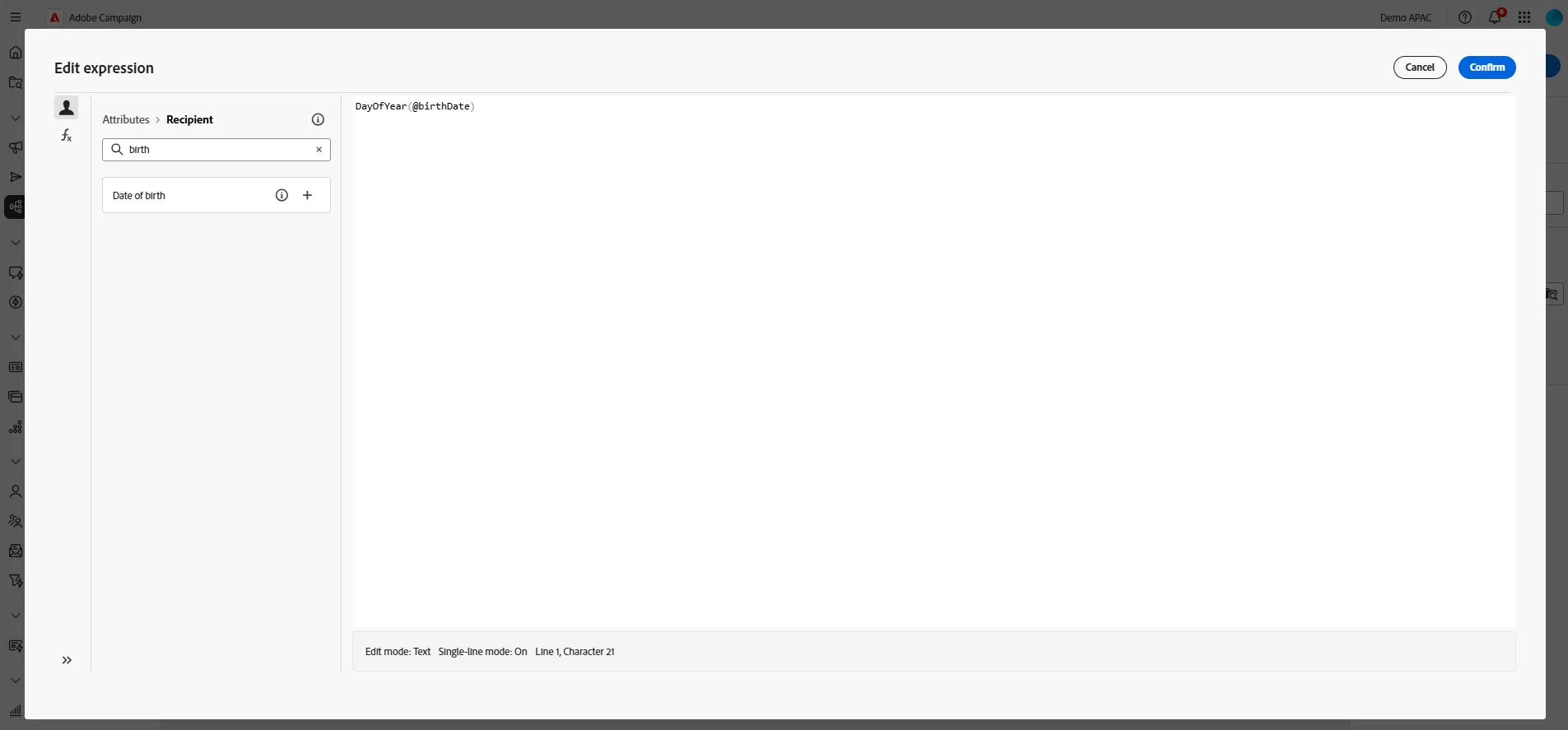
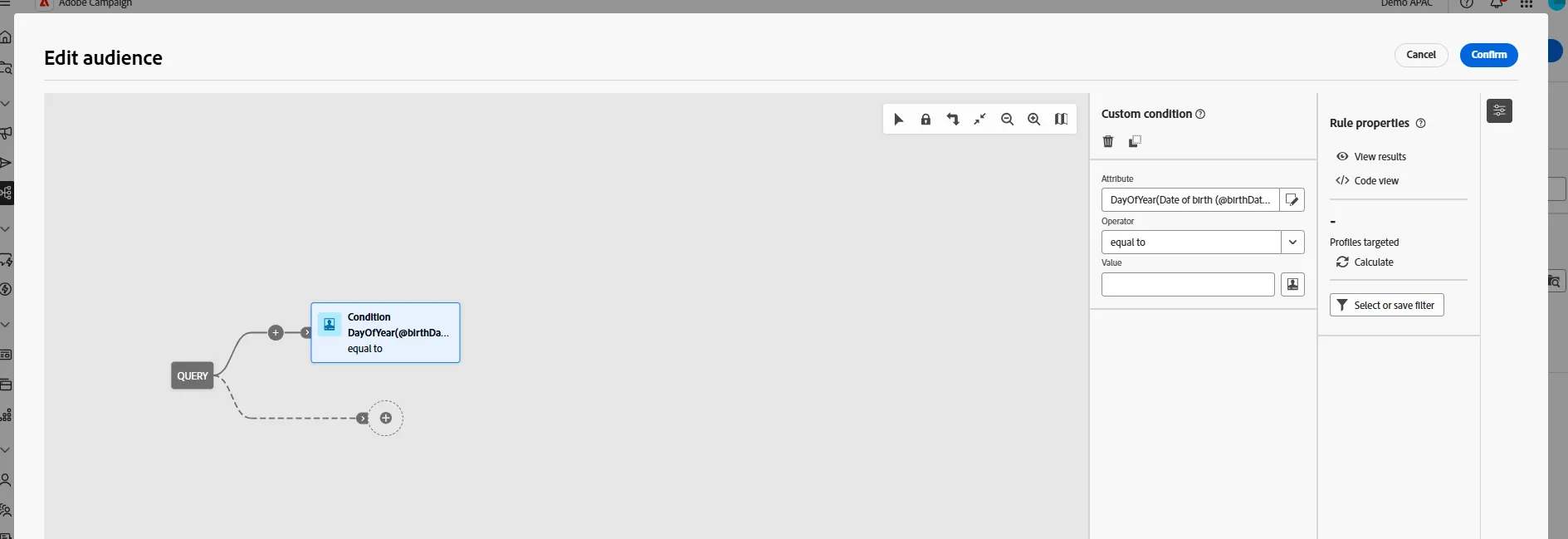
- We need to do something similar with the corrent date to compare. Let the operator to equal to, then Click on the profile button right of the value to go to the advanced editor.
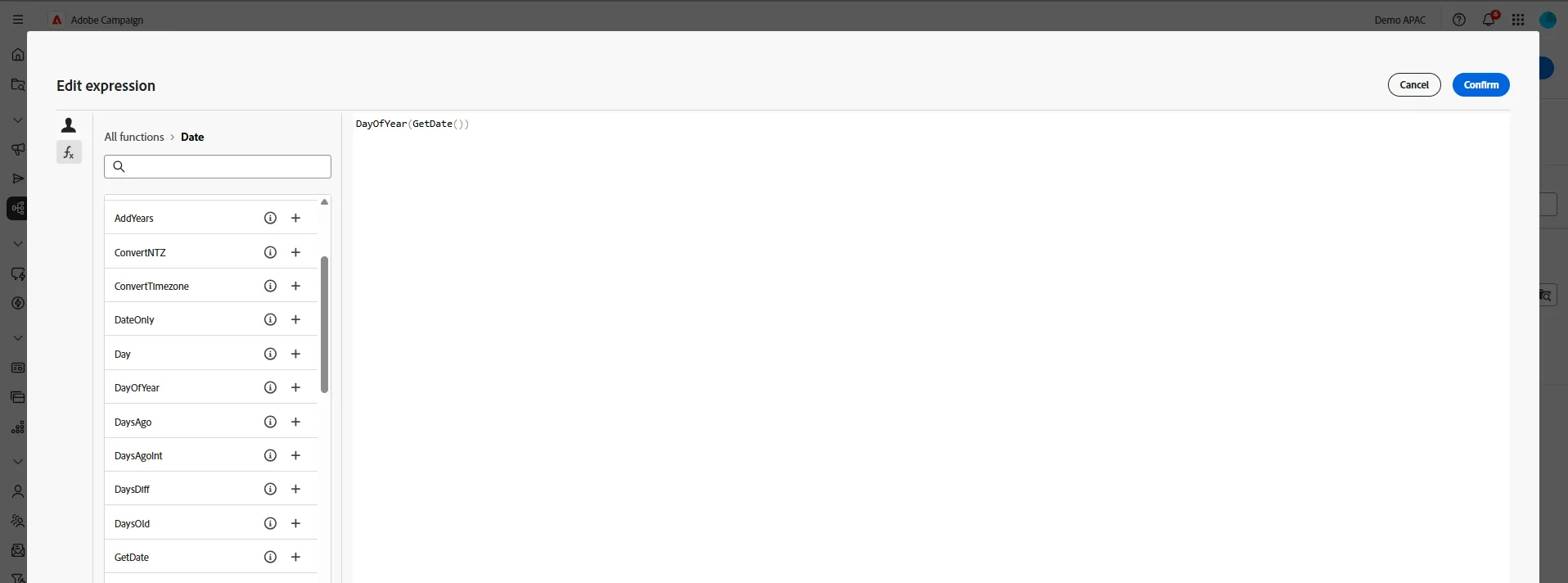
- Go to function, browse date, and select day of the year of current date. or just copy paste this formula : DayOfYear(GetDate())
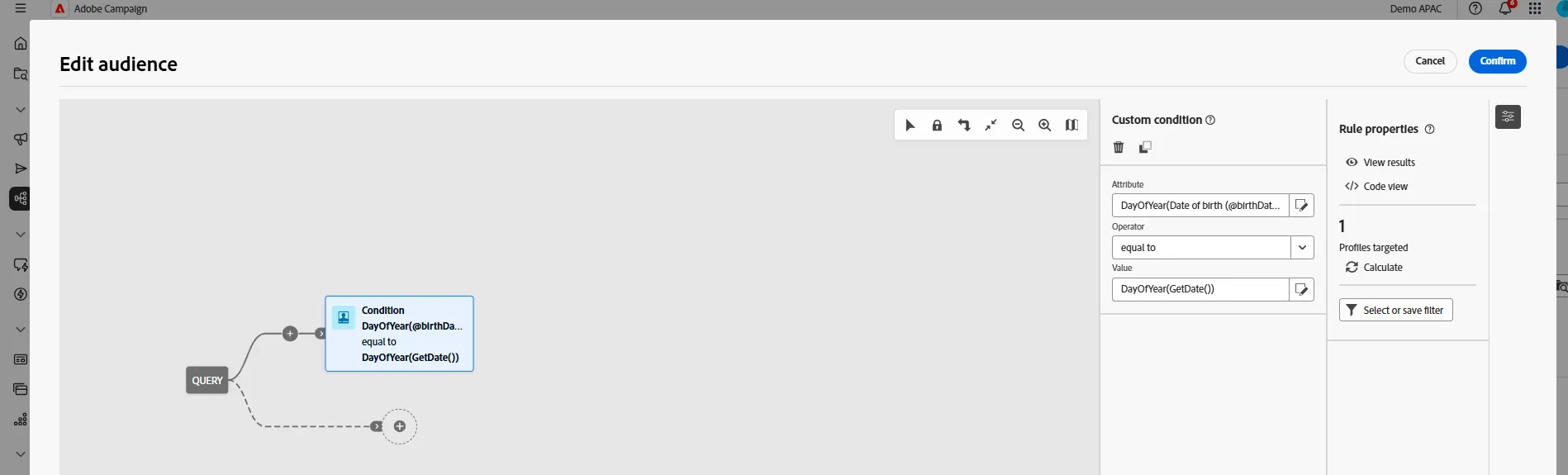
You can calculate number of profile and even show resut. If you want to be sure, go back to recipinet, change the value of your birthday for your profile and check you are included.
- Now let's add an Email activity
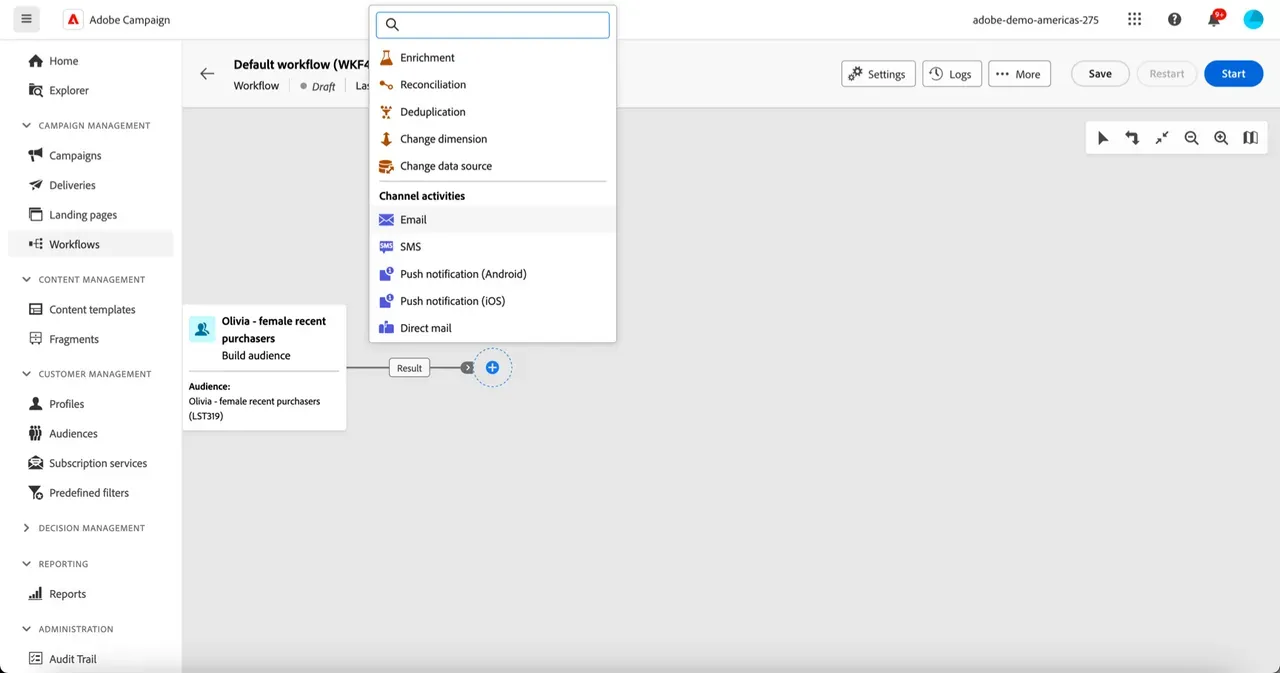
- In this campaing, we will use SFMC to send email. We don't have to define the content, just to send a file
- Select Recurrring Email, then select Template Email Delivery via SFMC (file). Click on create delivery. You can review the detail of attribute to send, but by default everything should be already set up.
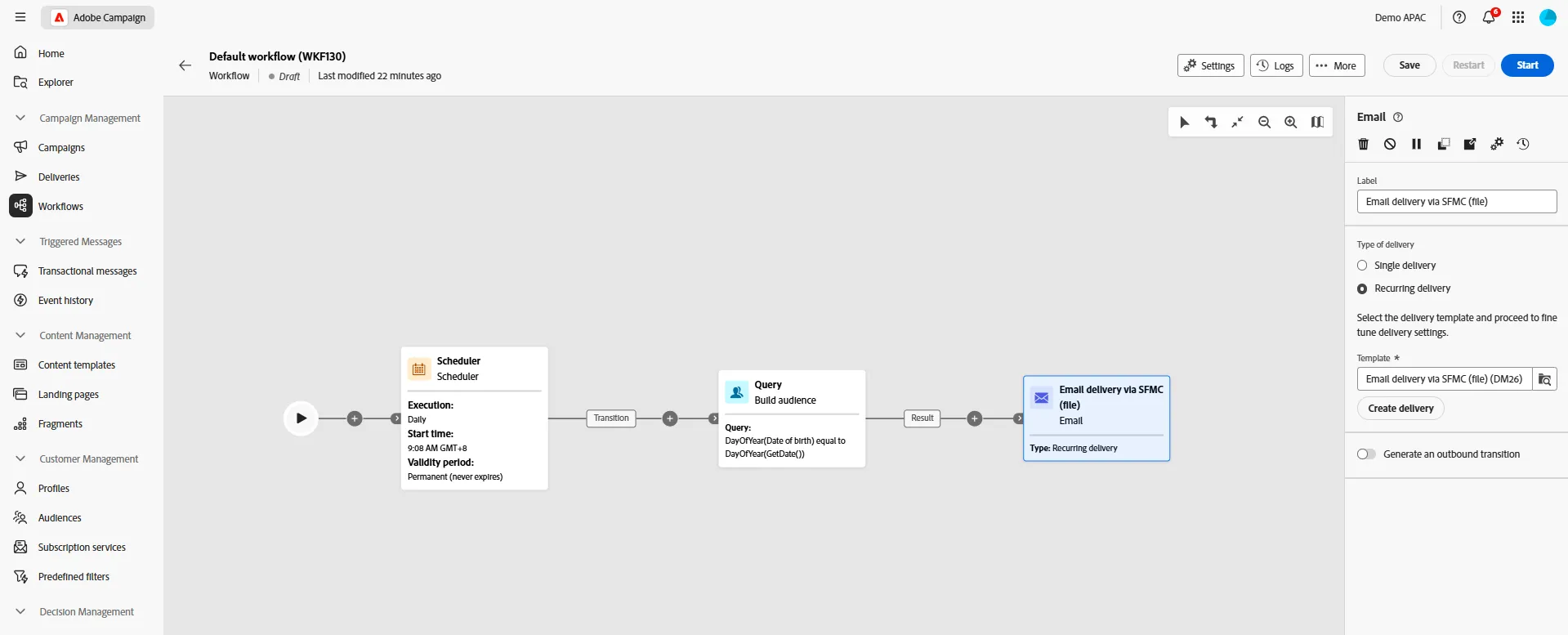
- Your reccuring Birthday campaign is now Ready!
Configure a Card reactivation campaign
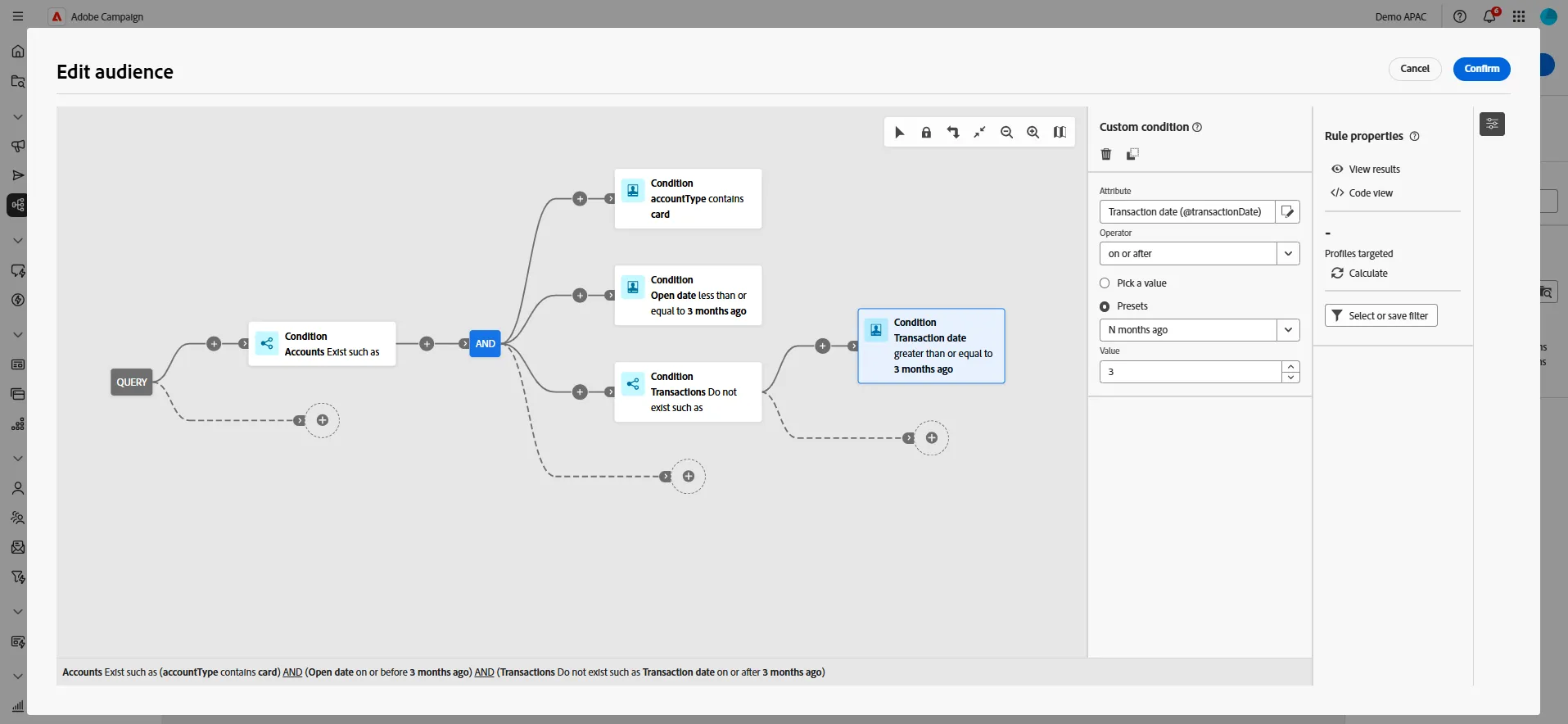
- In this exercice, we will create a new campaign, with a workflow that will select people who have an account with type containing "card" opened more than 3 months ago, and without transaction in the last 3 months. We will send an email, wait for one month, then check how many transaction they've done in the last month.
- Try to do it by yourself with limited instruction :-)
- For the first targeting, start from recipient, and select account. You will notice the icon representing the link has multiple branches. That means it's a one to many. A customer can have multiple account. When you select such a link, the condition you can define will be something like customer where account exist/doesn't not exist such as... then you can add condition on your account, like the type, the opening date, or the transaction linked to this account
End result should be somehting like that :
- Once your segment is defined, you can add a scheduler to run the query every month, add an email, ad a wait activity after the email, add a condition to check if we have new transaction, then a second email.
This completes the lab on creating a Campaign.