Create an Audience
This lab will walk through the steps to create an Audience in the Adobe Campaign V8 Web UI.
Create an Audience
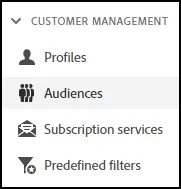
Navigate to Audiences from the left navigation menu:
Click on “Create Audience” in the top right corner of the screen:
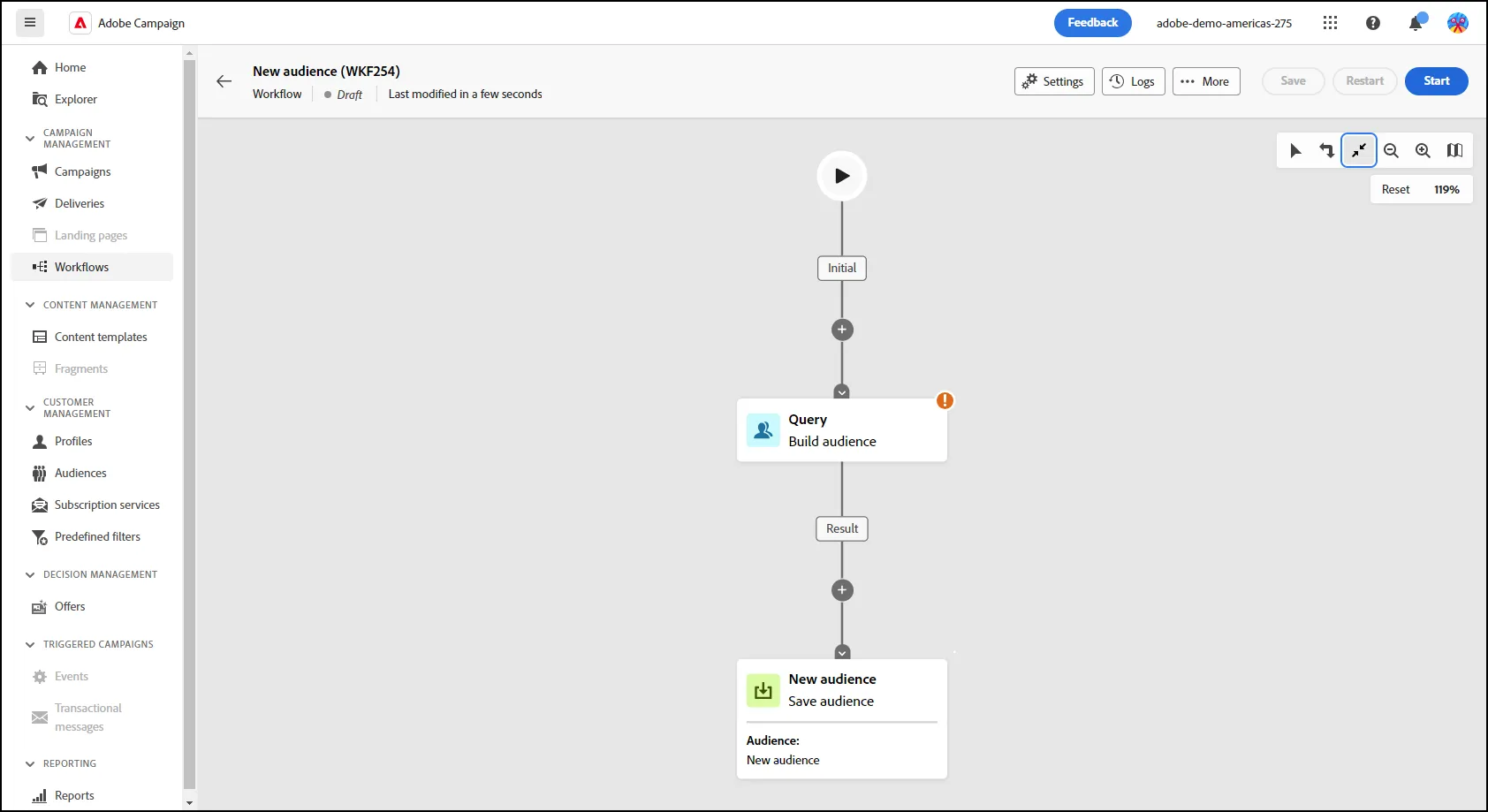
- Your "New Audience" screen should look like the following picture:
Edit the Settings for the Audience
Click on the Settings Icon/Gear at the Top of the page:
This will open the Workflow Settings for the Audience:
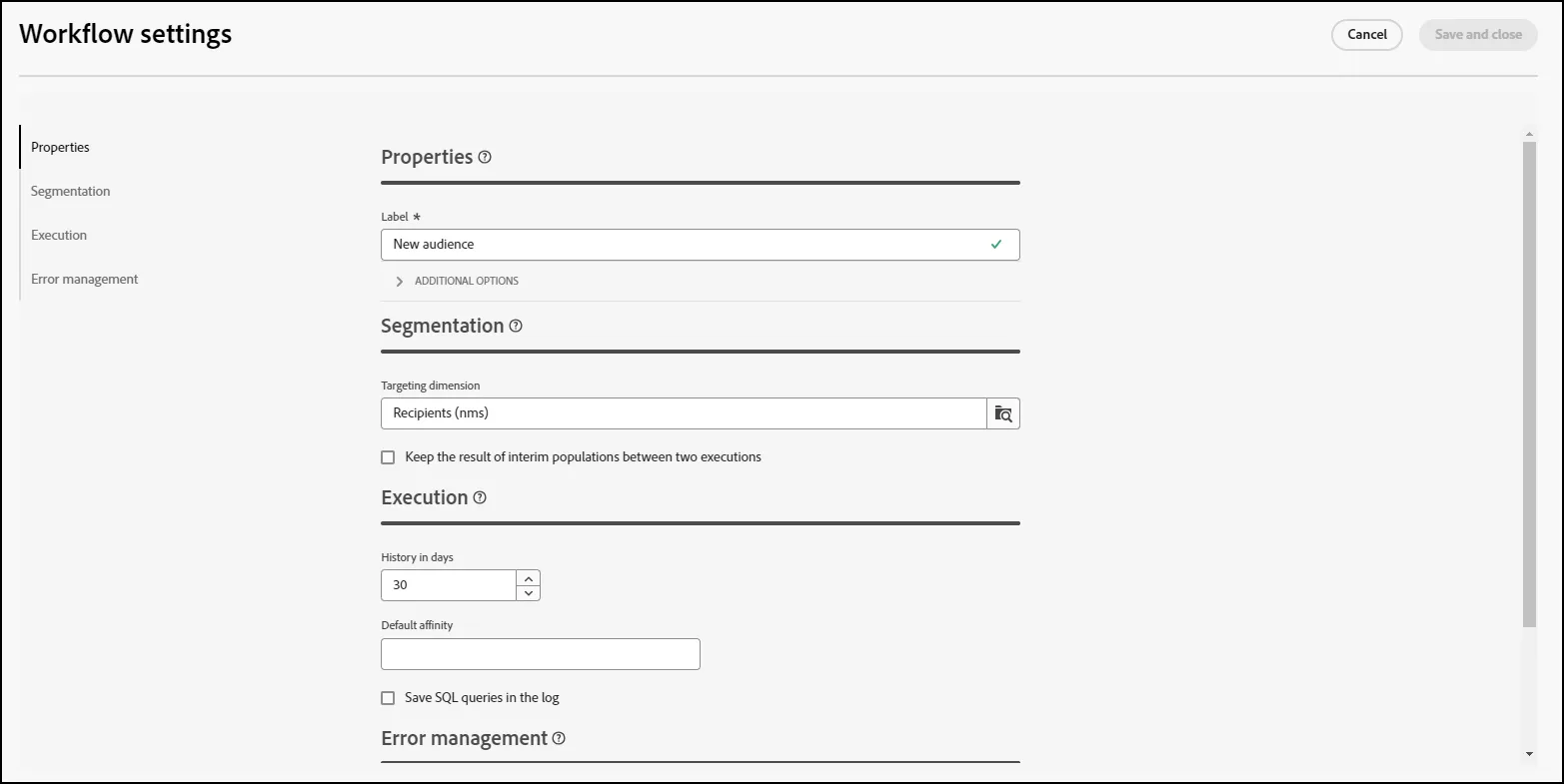
For this exercise, give your workflow a name. We will call this "Female Gold Loyalty Members" for this Workflow:
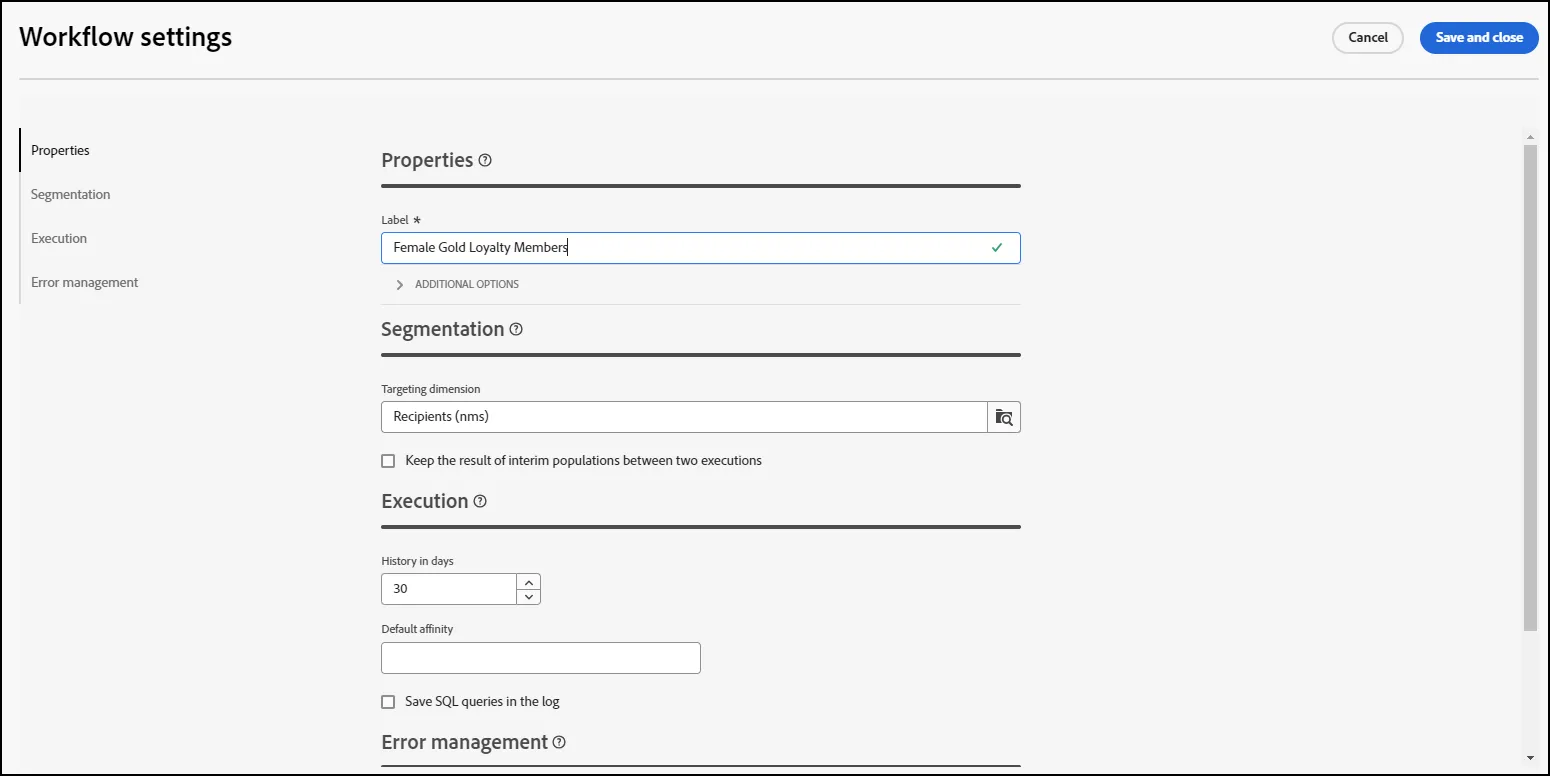
- Additionally, we will keep the "Target Dimension" for this audience as "Recipients".
- After you are done, click "Save and Close".
Define the Query
Click on the Query on the canvas to open the "Build Audience" side menu.
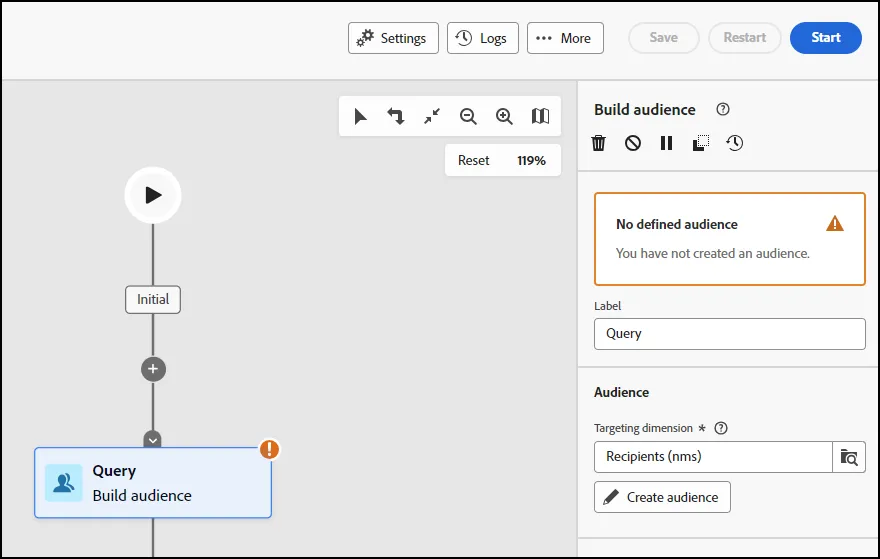
Click on the "Label" and give your Query a label name. For this exercise, we will call our query "Female and Gold Customers". Next, click on the "Create Audience" button:
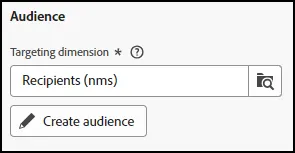
Once you have opened the "Create Audience", click on the "+" sign to expand the query menu:
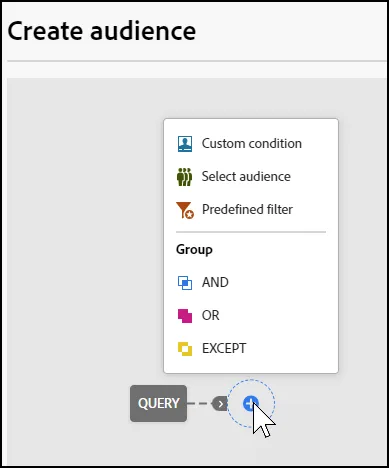
- From this list, you have a lot of options. For our exercise, click on the "Custom Condition" option to build a condition:
-
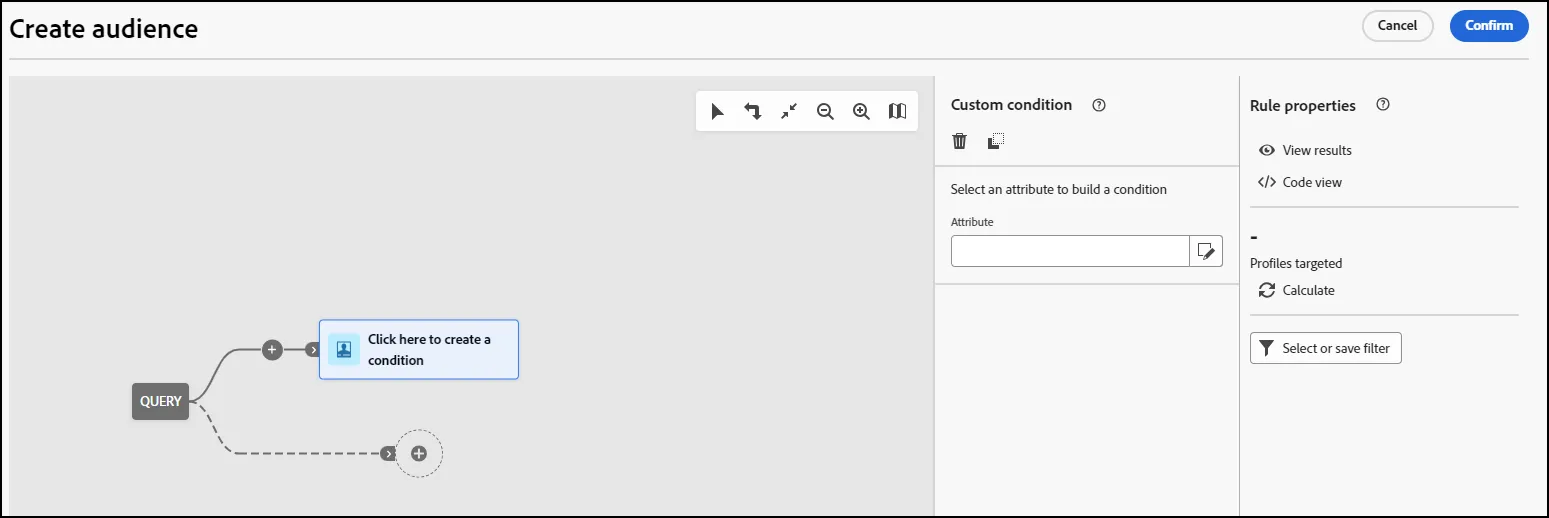
- Under Attribute, click on the Paper/Pencil icon to open up the attribute list:
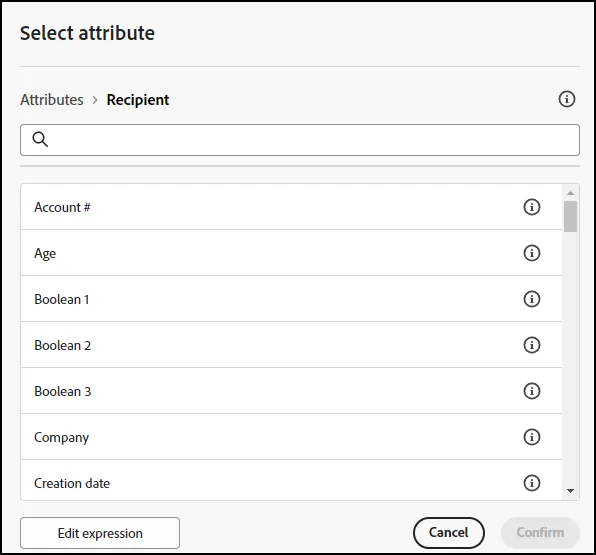
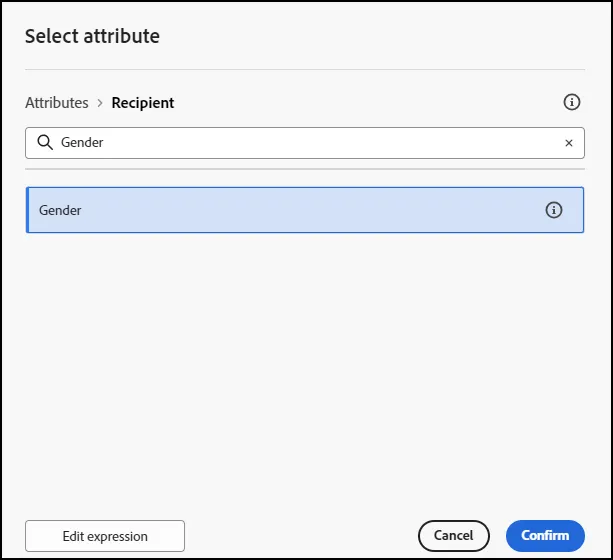
- Use the search box or scroll down to find the attribute you want to use. For this example, we will select Gender first. Once you have identified it, click "Confirm" to add it to the Query:
- Select Female for the Value of the attribute and click "Confirm" to add it to the Query:
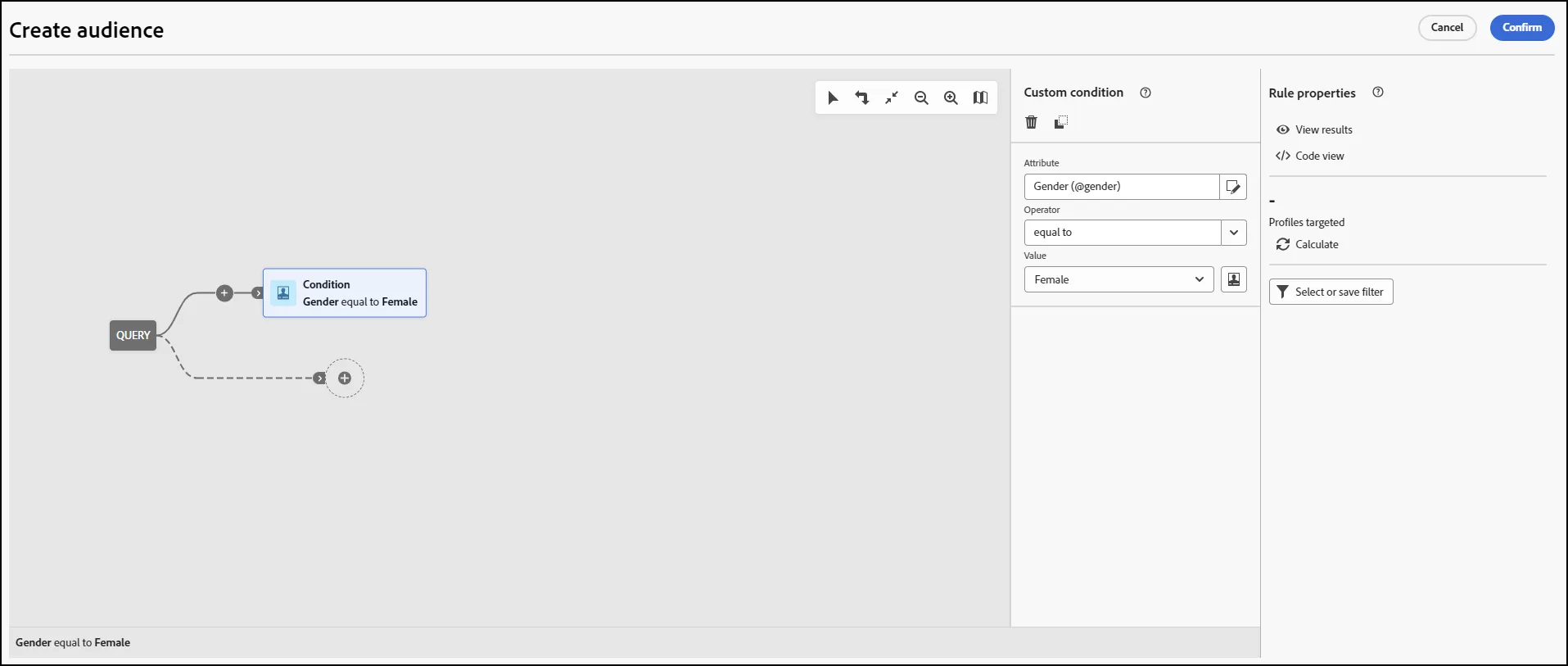
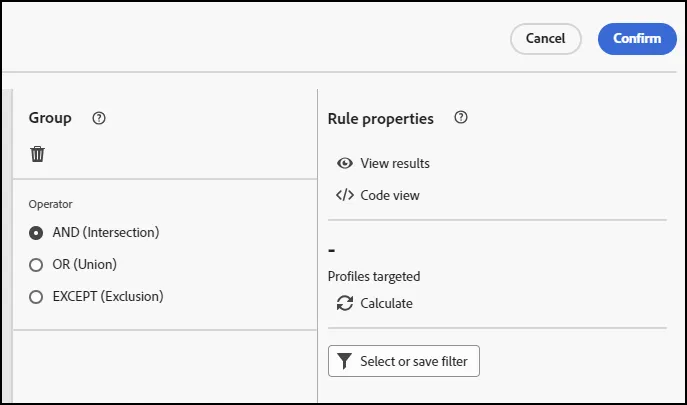
- Click on the "+" sign to add an "AND" condition to the query. Click Confirm:
- Repeat the same steps to add Loyalty Tier = Gold. Your query should now appear as follows:
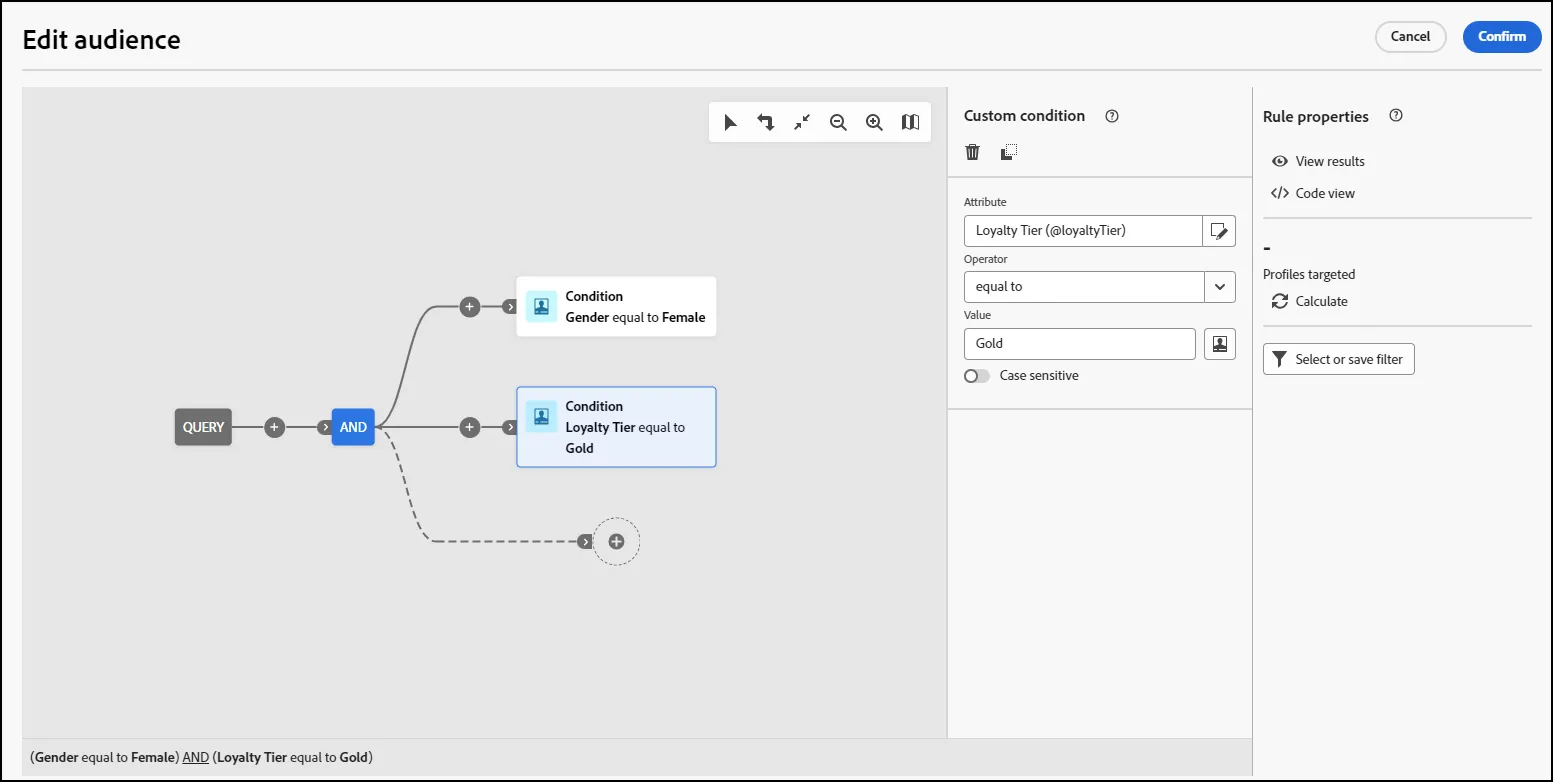
- Click on Confirm to finish your Query
Save the Audience
- Once you have completed the steps for creating the audience above, click on the "New Audience" block on your Workflow:
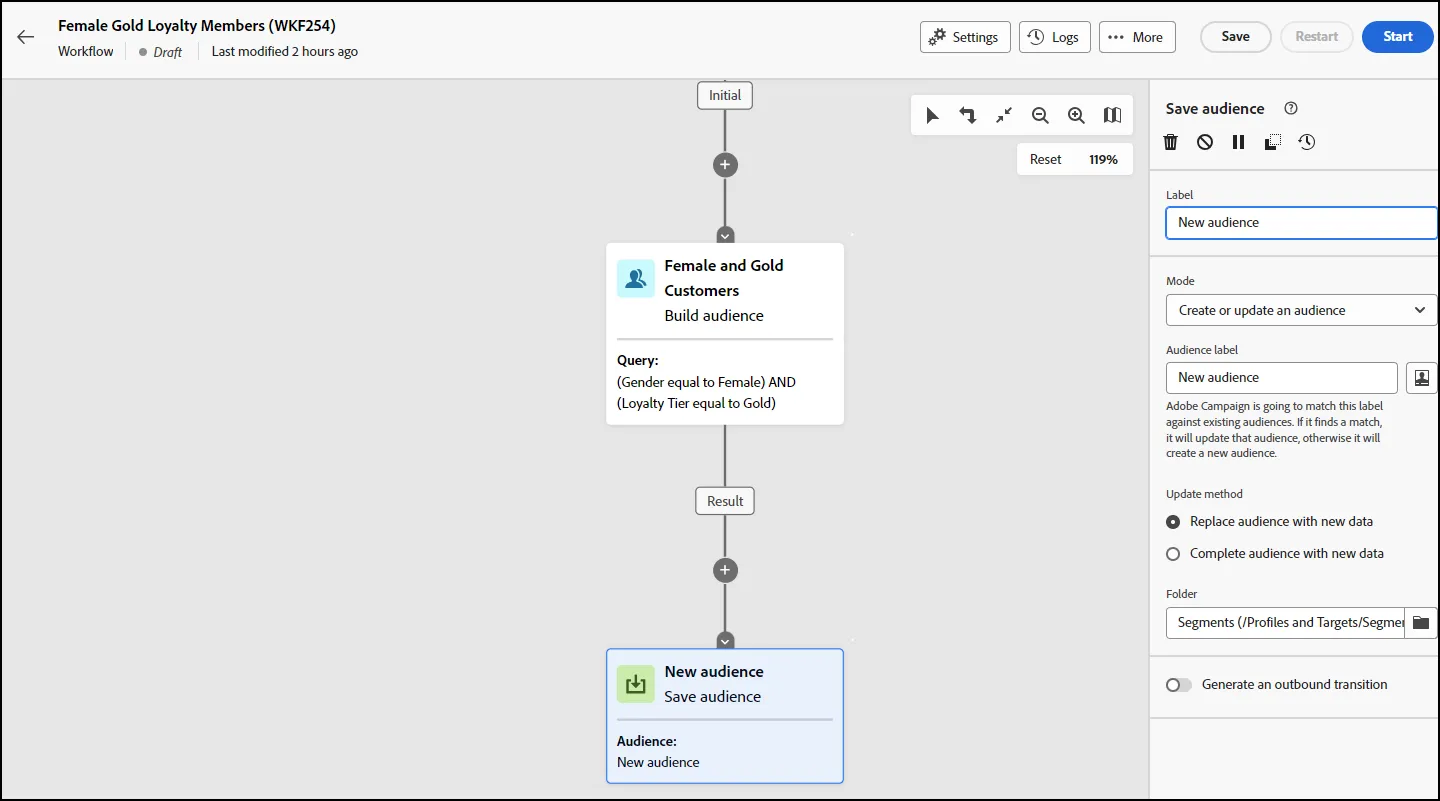
- Change the Label of the Audience to "Female and Gold Tier Customers". Also, change the Audience Label to read "Female and Gold Tier Customers", as follows:
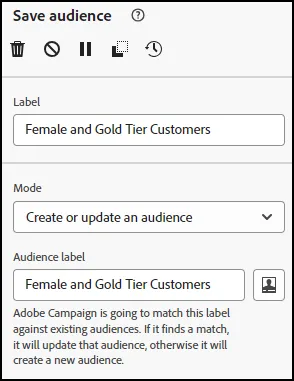
- Click the Save Button to Save your Audience. You can click "Start" to start the workflow and review the results.
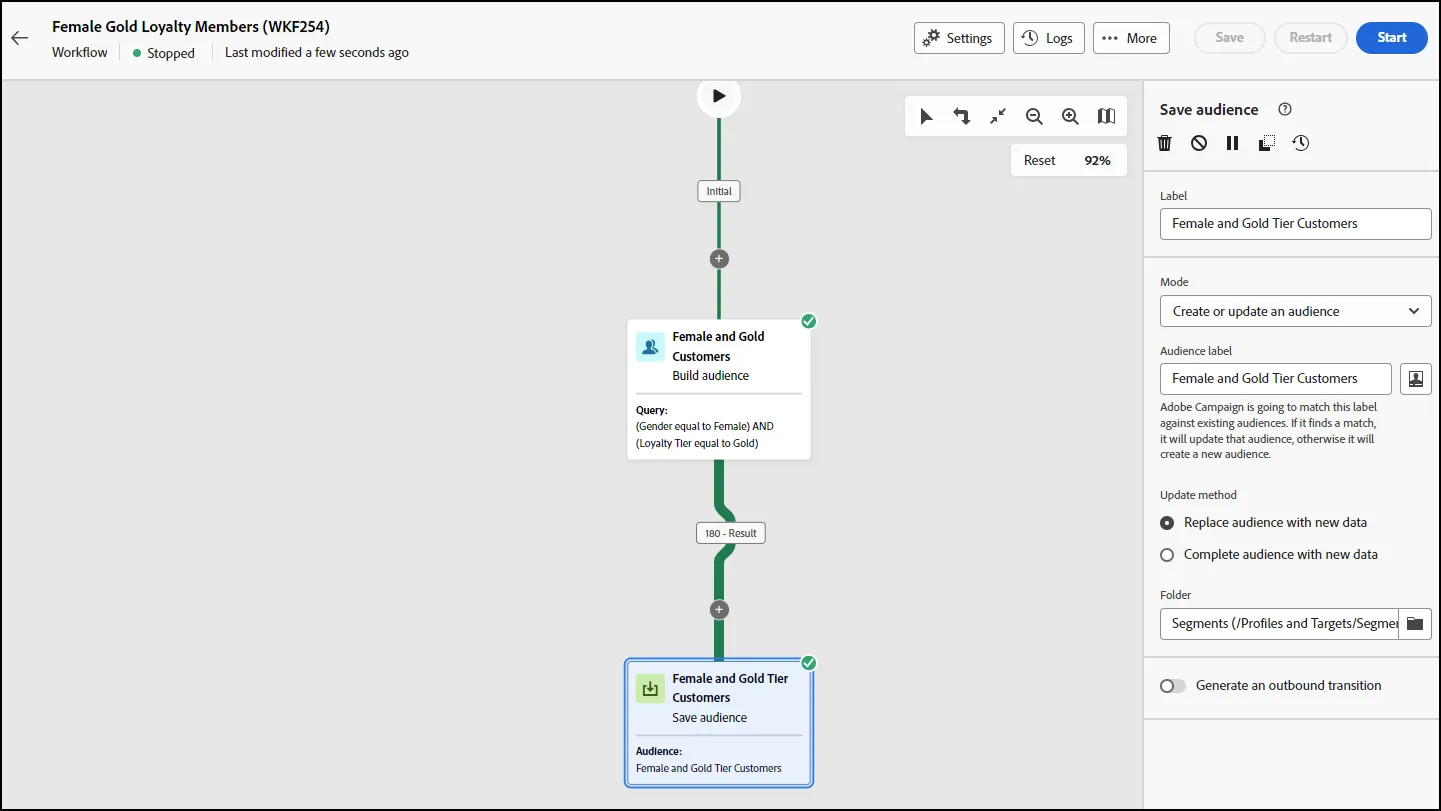
- After you click Start, you will notice that the query has executed and now returns the expected count for the Audience:
- End of Lab