Create a scheduled campaign
Time to build. You've experienced the journey as a customer—now construct the orchestration in AEP that makes that experience real for your users.
Story so far
The customer is a member of the Premium Loan audience. You now build the campaign that shows them a personalized banner — on the website and in the app — with information about this opportunity.
Campaigns - overview
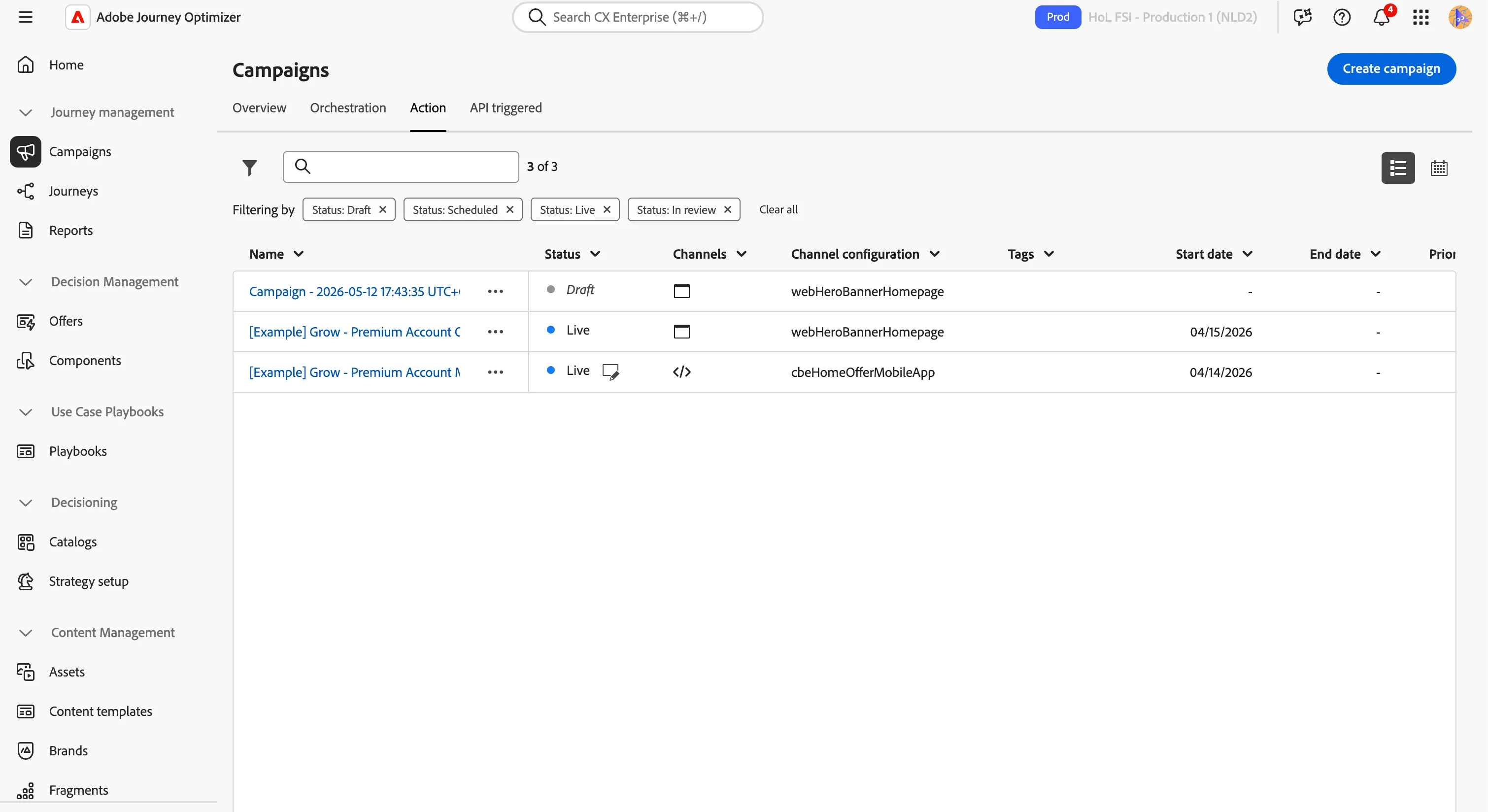
- Under Journey Management, click Campaigns.
- Click on Action tab. You'll see that list of all the campaigns.
Create a new campaign
- Click Create campaign.
- Select Scheduled - Marketing, and click Confirm.
- In the Properties tab set the name to [{{LASTNAME}}] Grow - Premium Account On Site Promotion (web)
Now define which channel you want to activate for this campaign. In this use case, you want to display a banner on the website.
🟡 Add a PRO TIP section
- Click Actions in the top menu.
- Click on the +Add action button and select Web channel in the list.
- Set the Action name toWeb.
- Select the webHeroBannerHomepage value in the Web channel configuration dropdown. This configuration has been defined by a system administrator. It contains all the technical parameters required to display content correctly on the home page.
- Click Edit content.
With the Visual Editor you can edit the page directly, without any coding experience.
- Click on Edit web page.
- Click the image with the boat; a blue/orange border appears and the menu on the right shows the image settings.
- Click
 to open assets window.
- Click
 to open the Asset Selector.
- Search for home-loan, select the image home-loan.jpeg and click Select.
- In the alert that appears click Confirm.
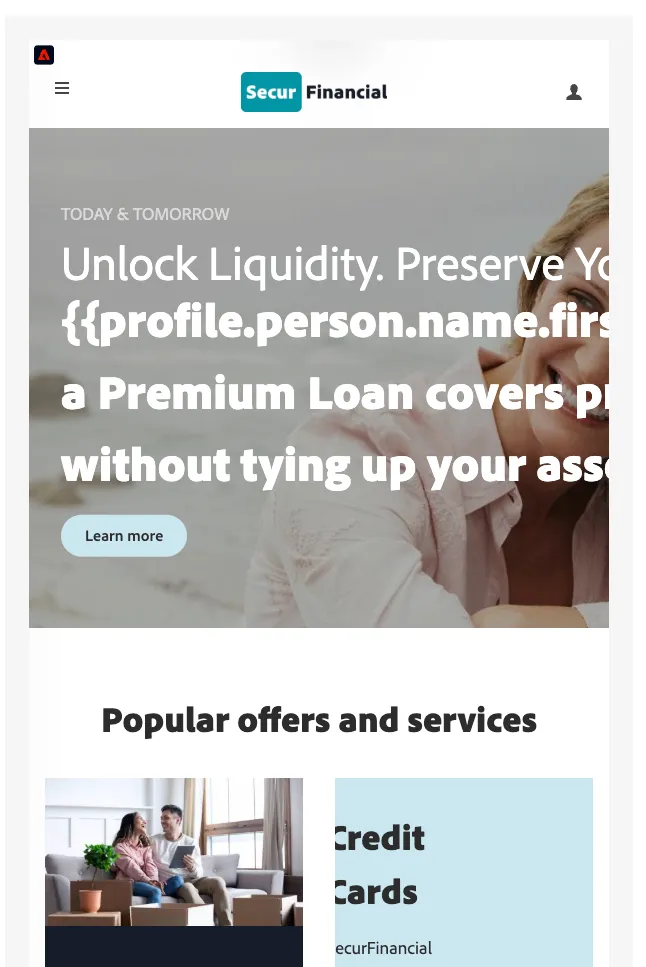
- Select the text Sail into financial independence and replace it with Unlock Liquidity. Preserve Your Capital.
- Select the text It’s easy with us... and replace it with a Premium Loan allows you to finance your life insurance premiums while keeping your assets working for you.
Your content is ready. The next step is to define the target audience for the banner.
- Click on the Audience tab.
- Click on the Select audience button and select the [Example] Premium Loan Qualifiers.
- Click Add audience.
- Click on the Schedule tab to observe the different options available. Leave the default value for this campaign.
- Click Review to activate.
Your campaign should look like this:
Recap
Well done! With the Grow section you have explored how Adobe Journey Optimizer helps retain customers and grow their lifetime value:
- Audiences that identify interesting subscriber.
- Scheduled campaigns to deliver personalised content through web and in-app channels.
- Visual editor to author on-brand experiences without coding.
In this section the customer, an interestin people for a personal Premium Loan was re-engaged with a personalised banner on the website and in the mobile app — a special information about a Premium loan was displayed. This closes the loop on the customer journey, from an anonymous visitor in Discover to a loyal, growing customer.
Congratulations! You have just completed the entire Secur Financial Hands-on Lab. You have now built an end-to-end customer journey across Adobe Experience Platform, Adobe Journey Optimizer and Customer Journey Analytics.