Creating the journey
Story so far
The customer is near a SecurFinancial branch and has consented to location sharing. You now build the journey that detects their proximity, identifies available financial advisors, and sends a push notification inviting them to book a consultation at the branch.
Creating the journey
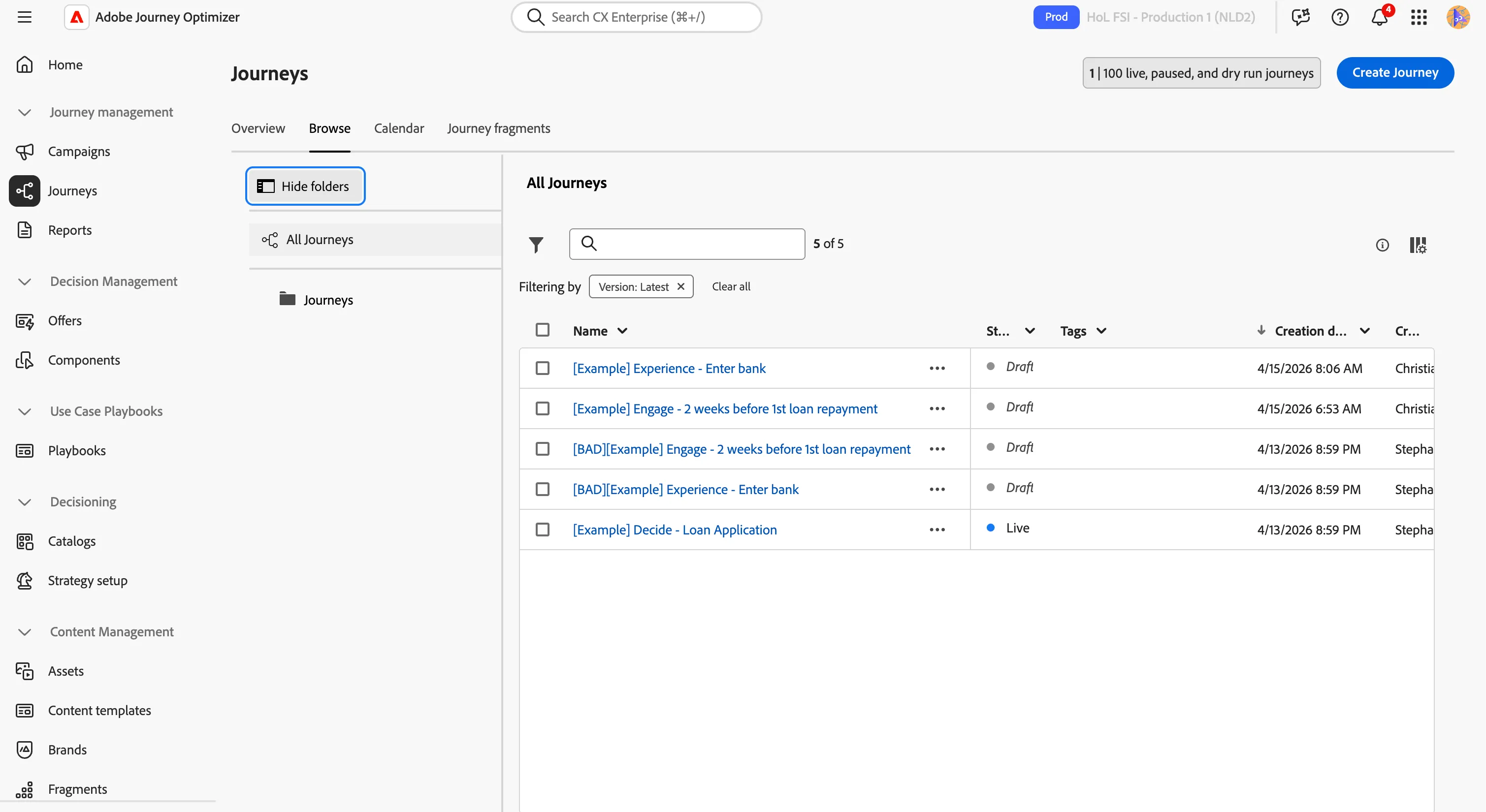
To get an overview of all journeys in Adobe Journey Optimizer:
- In the menu on the left side, under Journey management, click on Journeys. You will see an overview with all existing journeys.
Structure
The journey flow is:
- detect when the customer is near a Secur Financial bank.
- Check if the customer could be interested by an appointment with an advisor.
- If yes, make an API call to retrieve an available advisor
- If yes, send a push notification to the customer about this live proposition.
Create new journey
- Click on Create Journey.
- Select Create from scratch and click Confirm.
You'll be taken to the Journey canvas with the journey properties opened.
- Set the name to [{{LASTNAME}}] Experience - Enter bank.
- Set the re-entrance wait period to 1 Day. This prevents the journey from triggering multiple times a day for the same customer.
- Leave the other parameters with the default values.
- Click Ok to save and close the properties.
Event trigger - Location entry
The journey must be triggered when the user enters the geofence of a point of interest (POI).
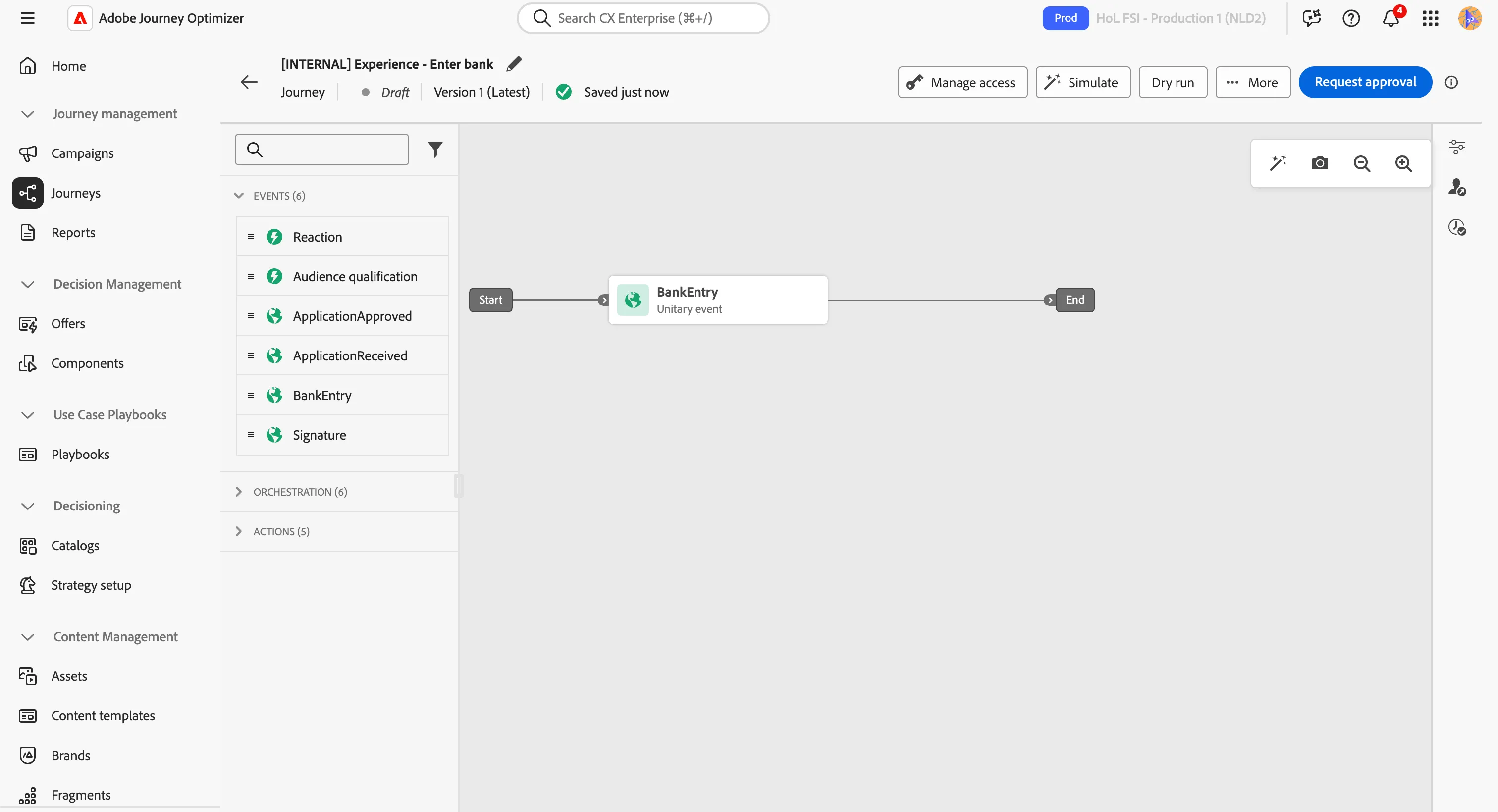
- From the Events tab, choose the event BankEntry and drag it onto the canvas.
- Set the label to Near the Bank Entry.
- There's nothing else to configure.
- Click Save to close the menu.
Condition
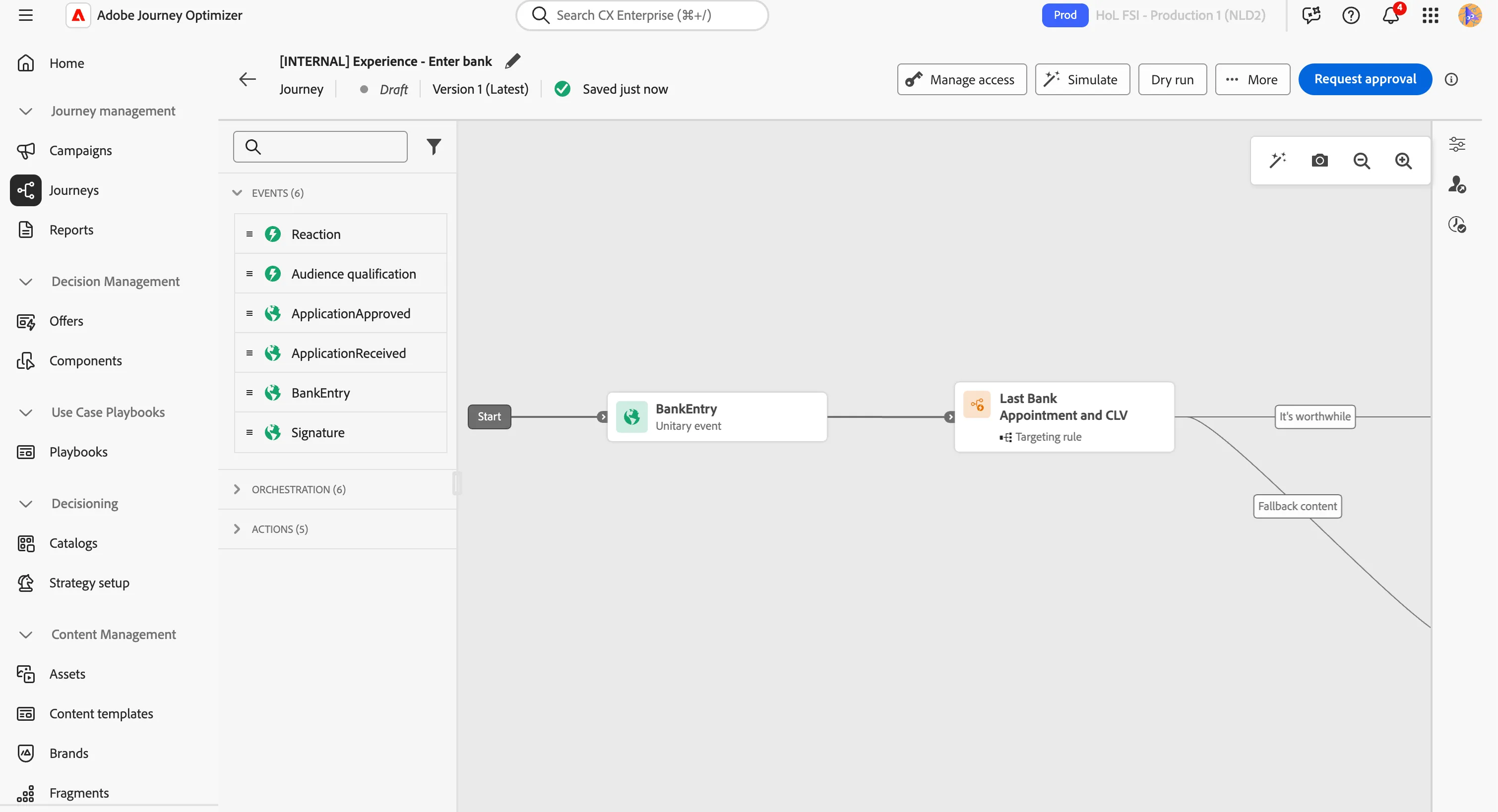
When the customer enters the Point of Interest (POI), the first thing to check is to determine if the customer could be interested by an appointment.
- From the Orchestration tab, choose Optimize and drag it onto the empty circle on the canvas.
- Click on the activity to open the detailed view.
- Set the Label toLast Bank Appointment and CLV.
- Put Method as Targeting rul.
- Click on Targeting rule settings.
- Then on Add Rule and Create Rule.
- On the left side, search for lifetimeValue, find the field and drag it to the right side.
- Set the operator to greater than.
- Set the value to 500.
- Click on the tree dot and Add container.
- On the left side, search for appointment, find the field and drag it to the container.
- Set the operator to does not exist
- On the left side, search for appointment, find the field and drag it to the container.
- Set the operator to Before
- Set the value to 6 month.
- Click Ok to save the expression.
- Click Save.
Custom action
Before sending a communication to the customer, you want to be sure an advisor is available. This prevents you from sending a message to the customer if there are no advisor available. This is done through custom action.
- From the Actions tab, choose the GetAdvisorAvailability action and drag it onto the empty circle on the canvas on the Yes branch.
- Scroll down to query parameters.
- Click on the textfield.
- Search for poiID and select the respective checkbox.
- Click Ok.
- Scroll up and click Save.
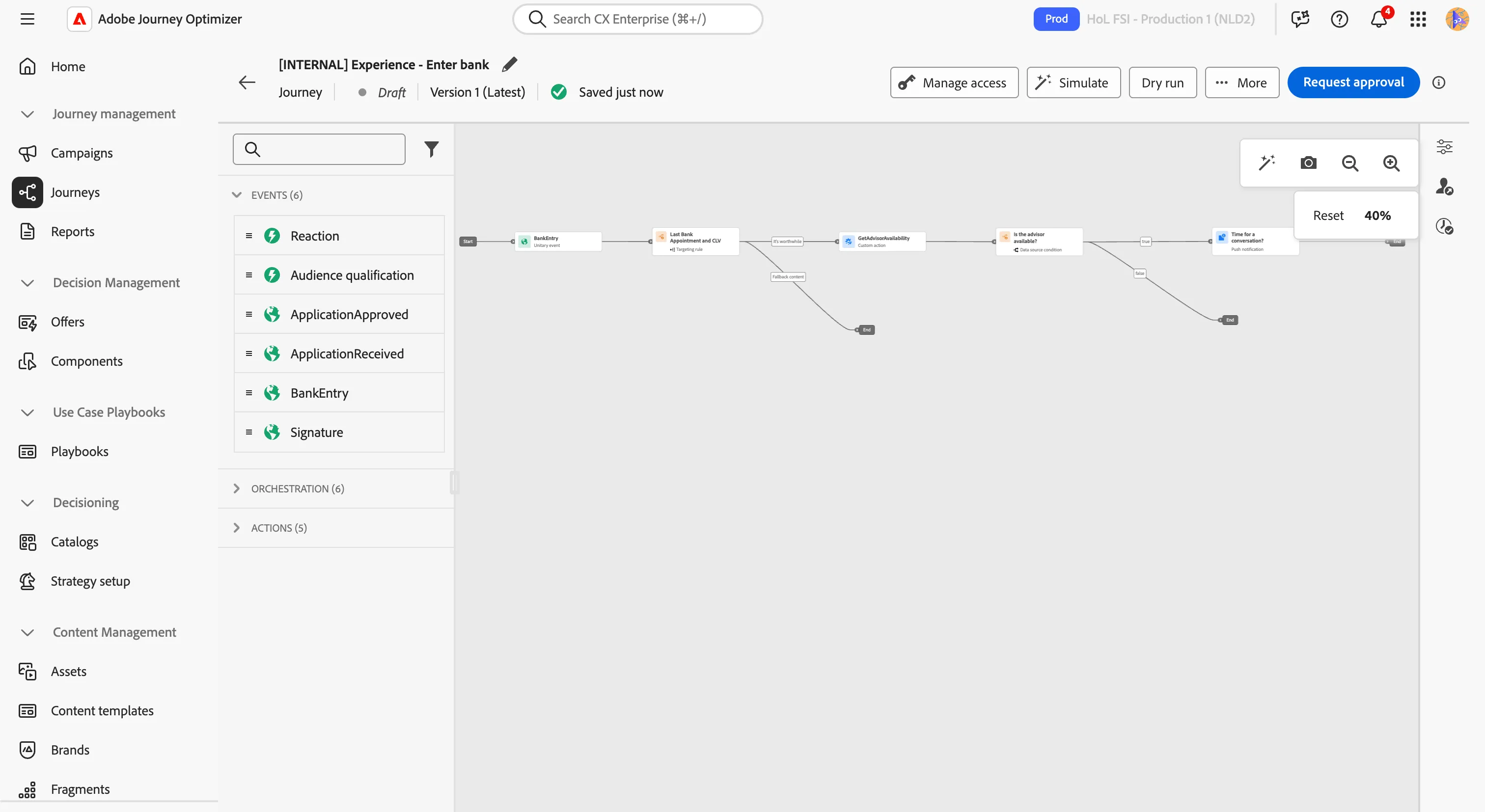
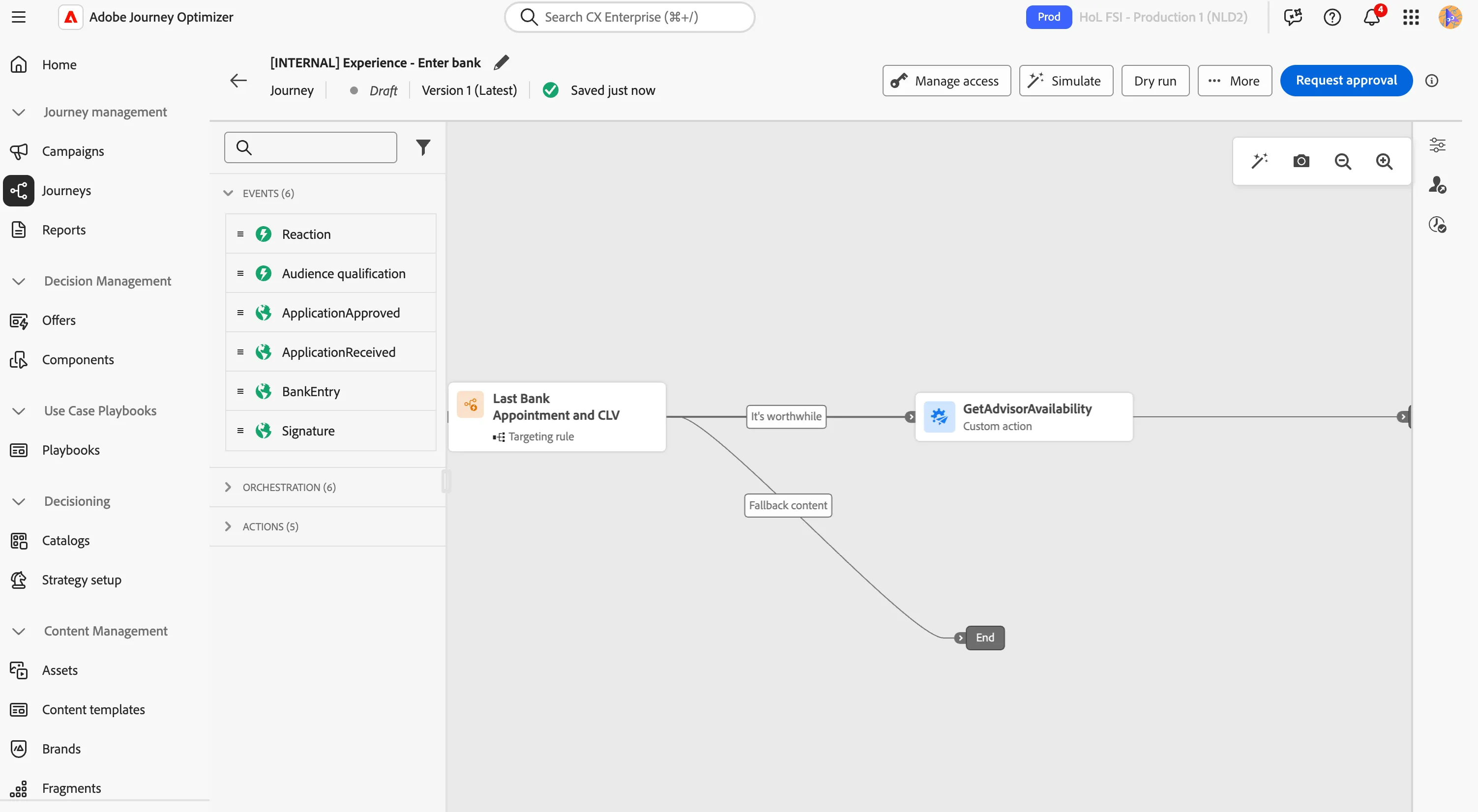
Your journey should look like this:
Push Notification
The final step is to send the push notification.
- From the actions tab, choose Action and drag it onto the empty circle on the canvas on the Yes branch.
- Choose Push Action Types
- Click Add.
- Set the label to Time for a conversation ?
- Click on Configure Action
- Select pushMessages from the push notification drop down
- Click on Edit content to start designing your push.
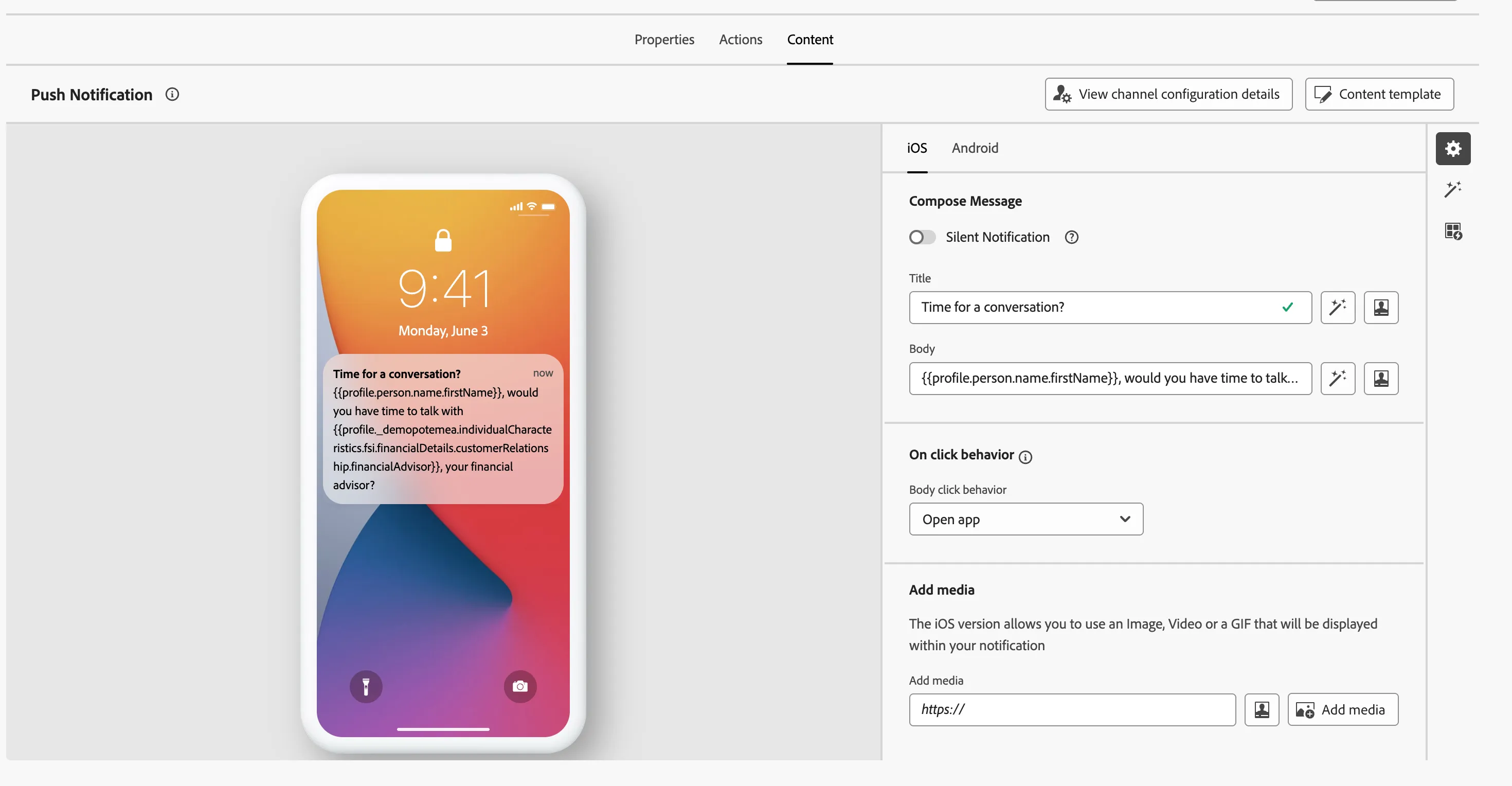
- Set the title to Time for a conversation?
- Set the body to {{profile.person.name.firstName}}, would you have time to talk with {{profile._demopotemea.individualCharacteristics.fsi.financialDetails.customerRelationship.financialAdvisor}}, your financial advisor?
Your screen should look like the image below:
- Navigate out of the designer by clicking the arrow in the top left.
- Click Save to close the Push message detail panel.
The journey is now finished.