Create an Analysis Project
Analysis Workspace in CJA
Analysis Workspace removes all of the typical limitations of a single Analytics report. It provides a robust, flexible canvas for building custom analysis projects. Drag-and-drop any number of data tables, visualisations, and components (dimensions, metrics, filters, and time granularities) to a project. Instantly create breakdowns and filters, create cohorts for analysis, create alerts, compare filters, do flow and fallout analysis, and curate and schedule reports for sharing with anyone in your business.
Customer Journey Analytics brings this solution on top of Experience Platform data.
Access
To log into the Adobe Experience Platform, check the Environment & AccessEnvironment & Access page.
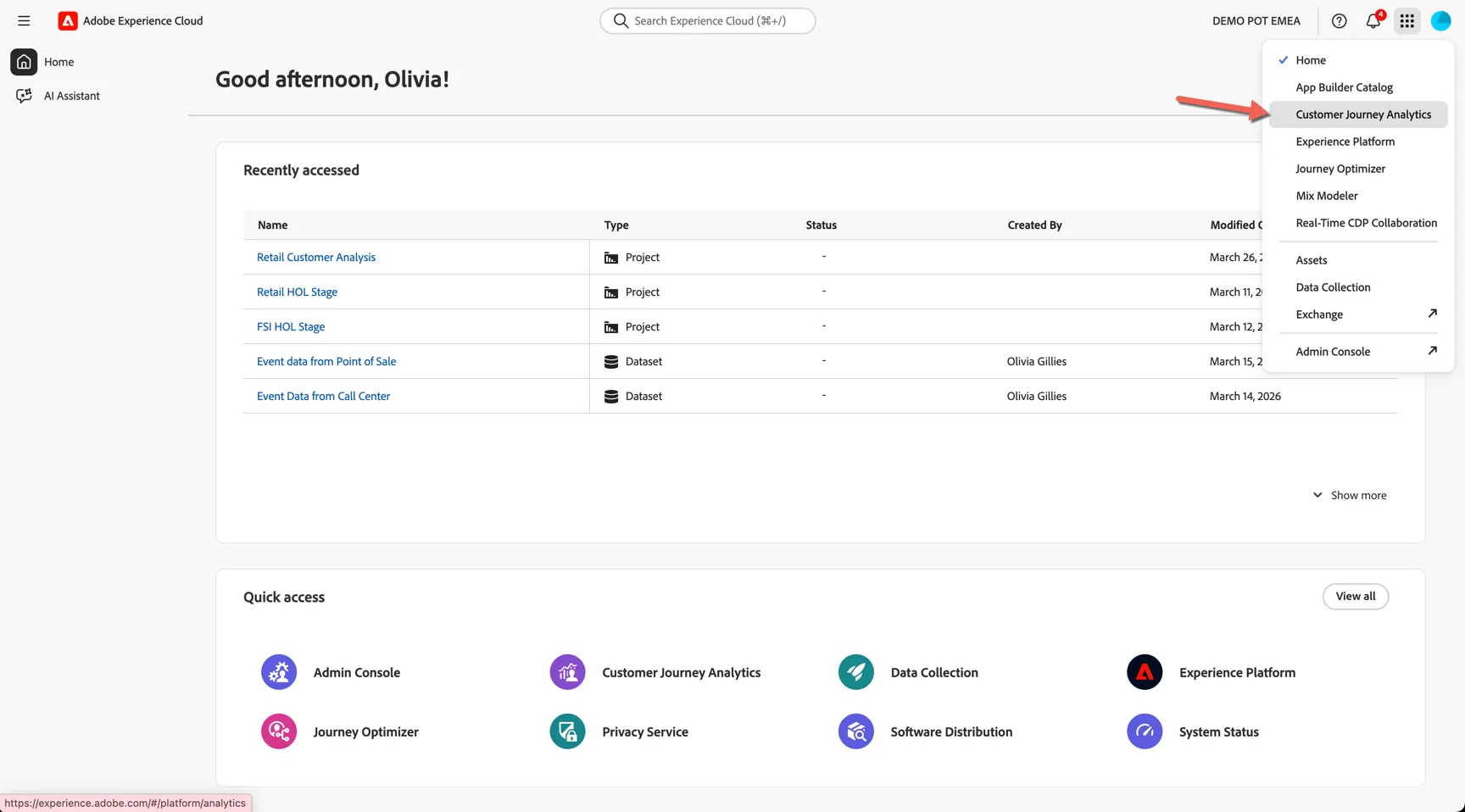
To go to Customer Journey Analytics within the sandbox environment:
- Click on the product selector (nine-dot icon) at the top right.
- Select Customer Journey Analytics.
Setting up your project
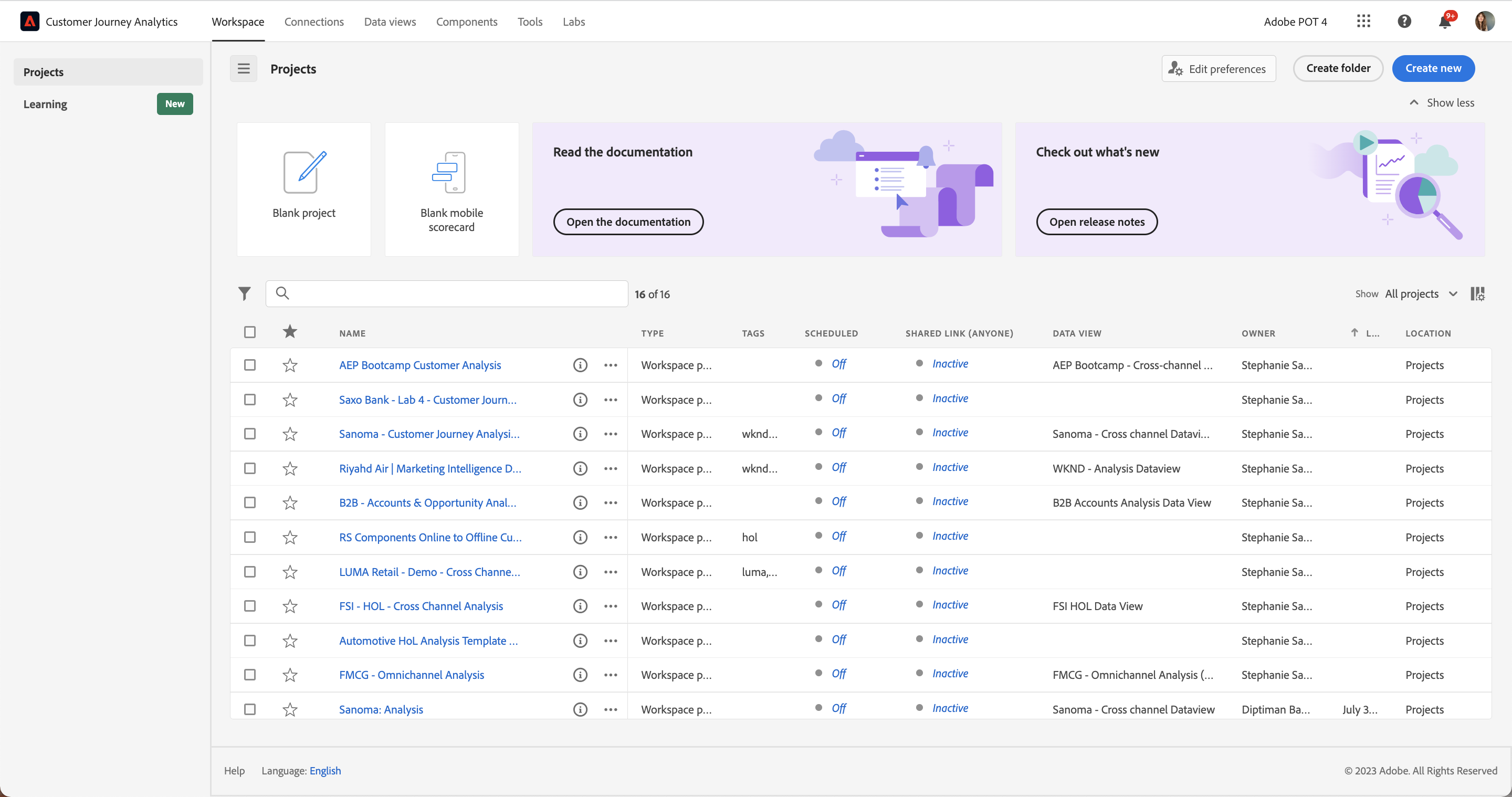
To get an overview of the available projects to you, click on Workspace -> Projects.
- Click on Create Project for a new Workspace project.
- From the pop-up, select Blank Workspace project, and click Create.
There is a pre-built project if you want to preview what will be built in these hands-on exercises. FSI Customer Analysis workspace project.
Analysis Workspace removes all of the typical limitations of a single Analytics report. It provides a robust, flexible canvas for building custom analysis projects. Drag-and-drop any number of data tables, visualisations, and components (dimensions, metrics, filters, and time granularities) to a project. Instantly create breakdowns and filters, create cohorts for analysis, create alerts, compare filters, do flow and fallout analysis, and curate and schedule reports for sharing with anyone in your business.
Customer Journey Analytics brings this solution on top of Experience Platform data.
Creating your first panel
IMPORTANT: numbers shown in this guide, including screenshots, may differ from your reports due to different underlying datasets.
- First of all, rename the project so it's in your name. Click on the title New project and rename this {{LASTNAME}} - FSI Customer Analysis.
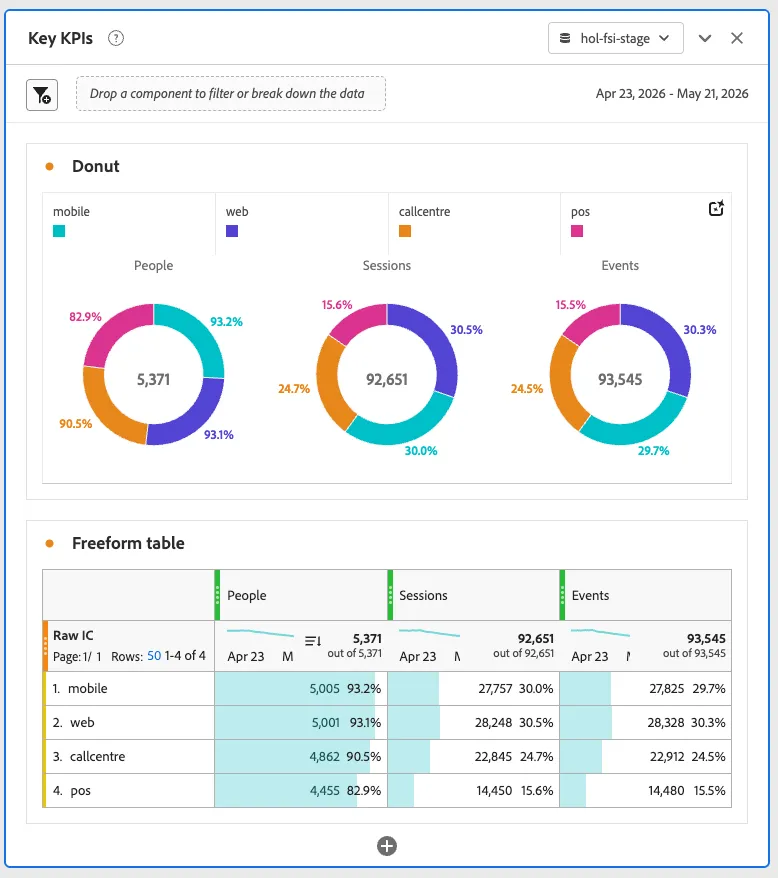
- There will be one panel in the Workspace already, click on the name to rename this as Key KPIs.
- At any point, you can save your project by going to Project > Save.
- Click on the drop down of Data Views on the top, right hand side of the panel, and select hol-fsi-prod.
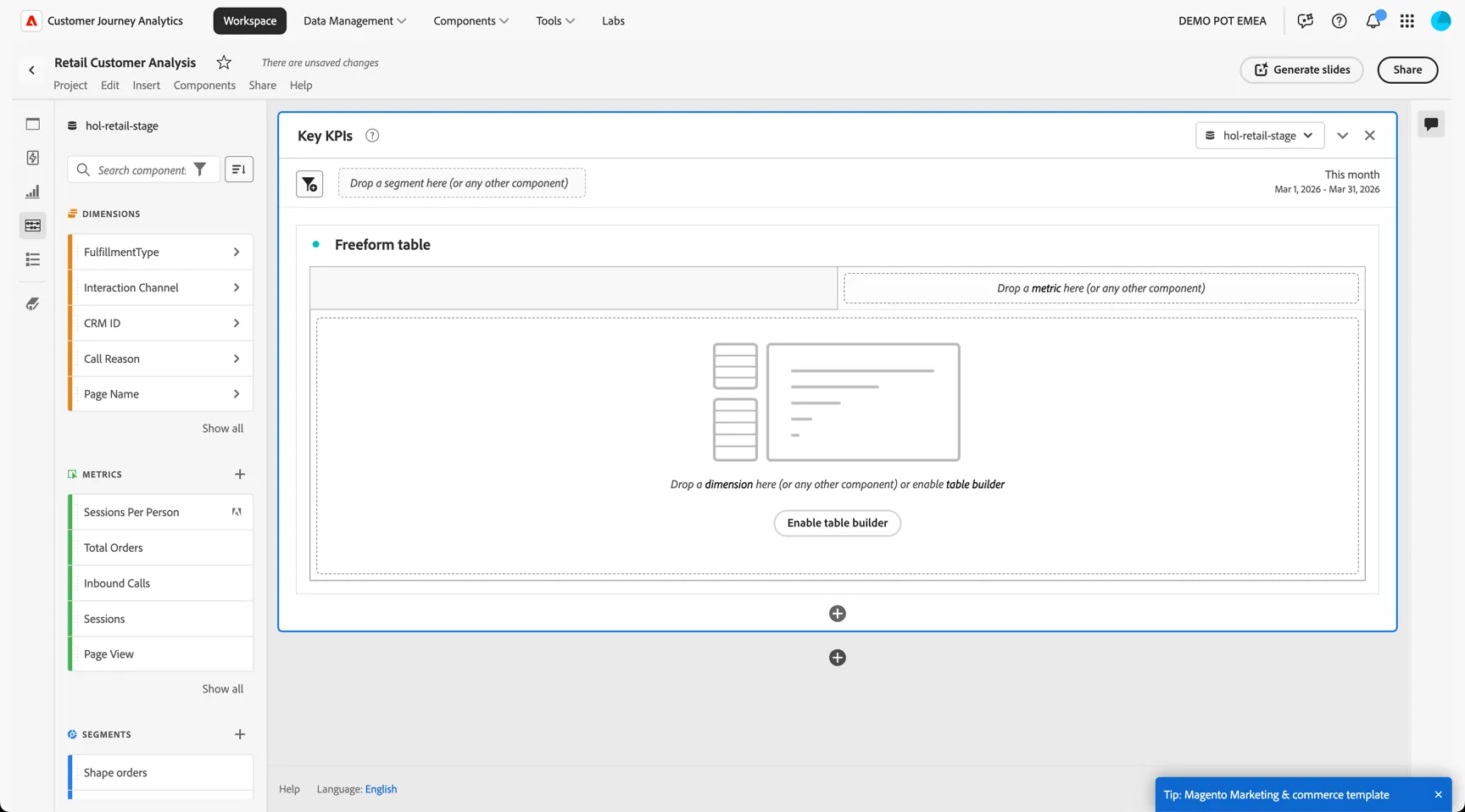
You can choose now to build your panel, either manually using the drag and drop controls or leverage the AI assistant to build it for you.
Click on the chat bubble icon with stars on the top right corner to open the AI Assistant.
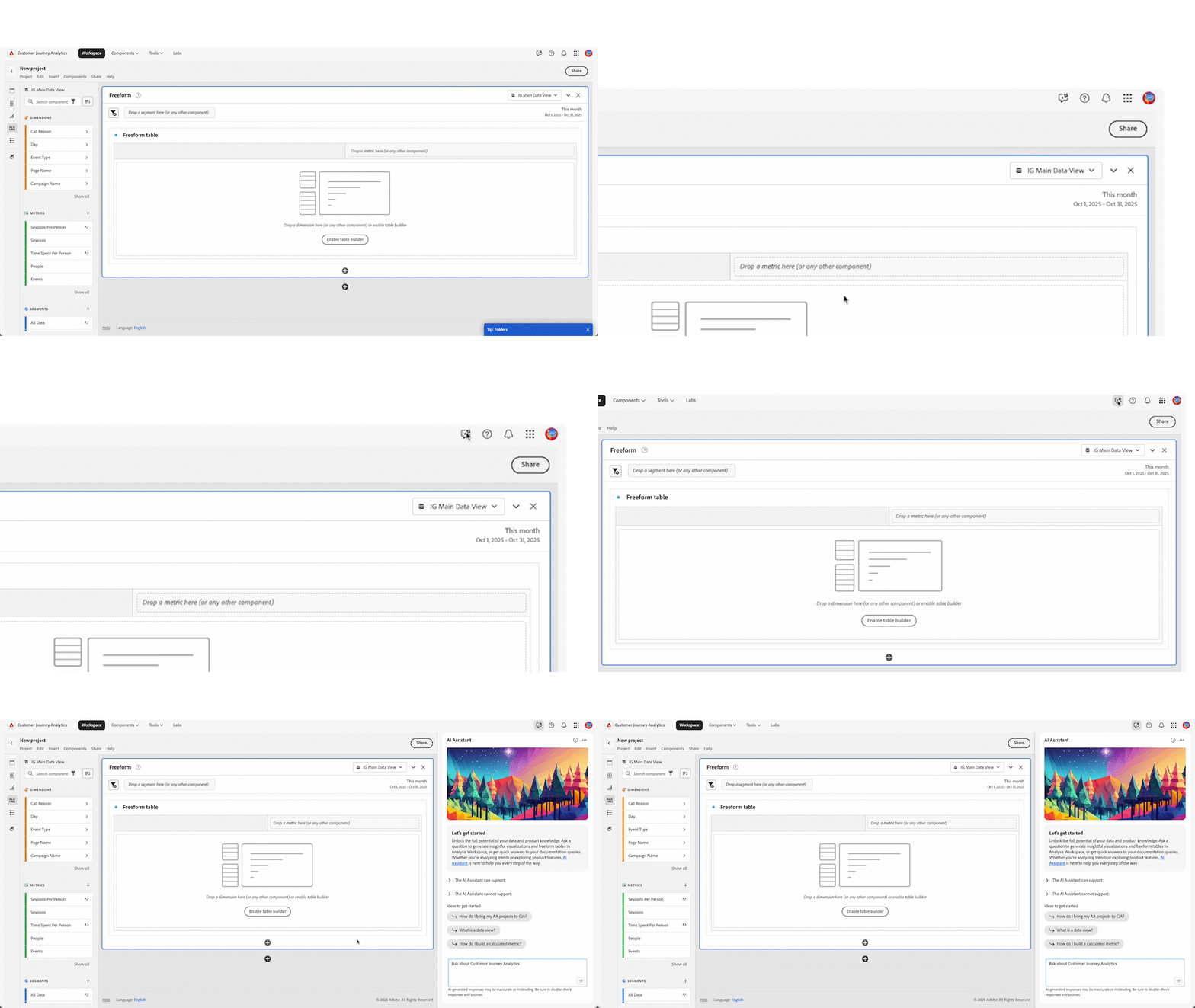
If you're prompted to accept legal disclaimer about the usage of AI Assistant, accept by clicking Close.
Ask the Assistant to generate a table with the data you need by using this prompt:
The Assistant will start working on the request, and within seconds, a result will be displayed. The only thing left for you to do is click on the button below.
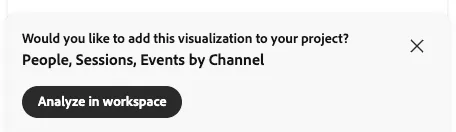
Please note that:
- the table contains the metric and dimension specified in the prompt;
- the panel is set to show the data of the last 4 weeks of data.
A new panel is added into your dashboard as shown below:
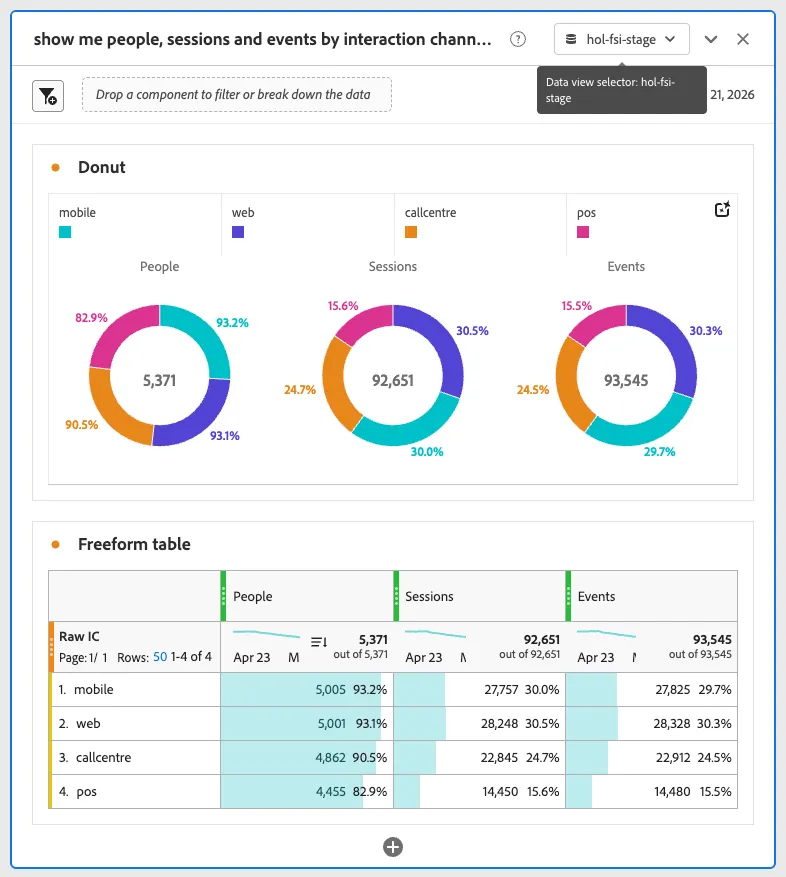
You can now update the name of your new panel toKey KPIs.
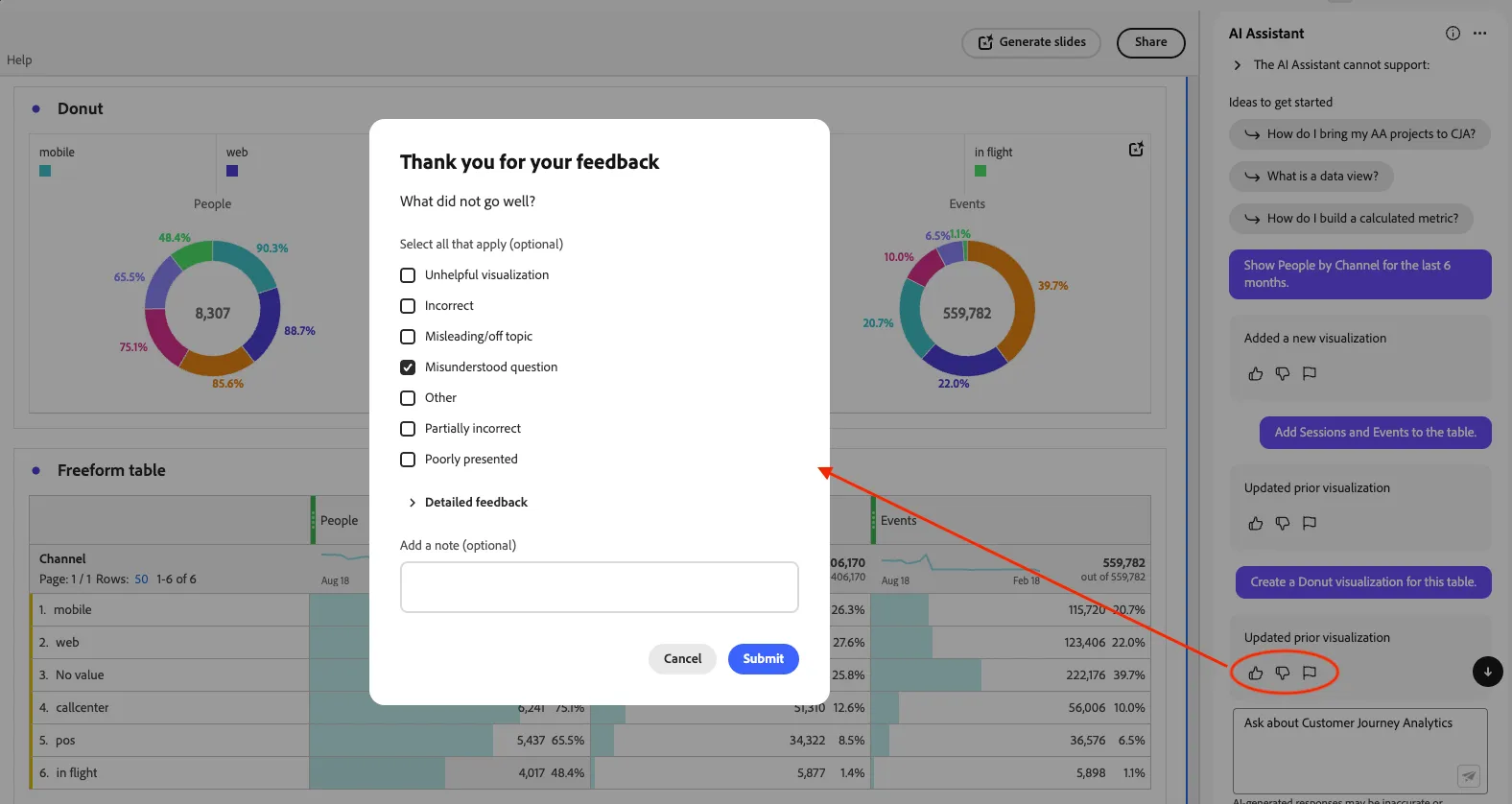
The agent is still learning and might not get the answers right every time, if you see a result that's unexpected, use the thumbs up and thumbs down feedback buttons to provide context on what went wrong and help us to improve the accuracy of the agents results.
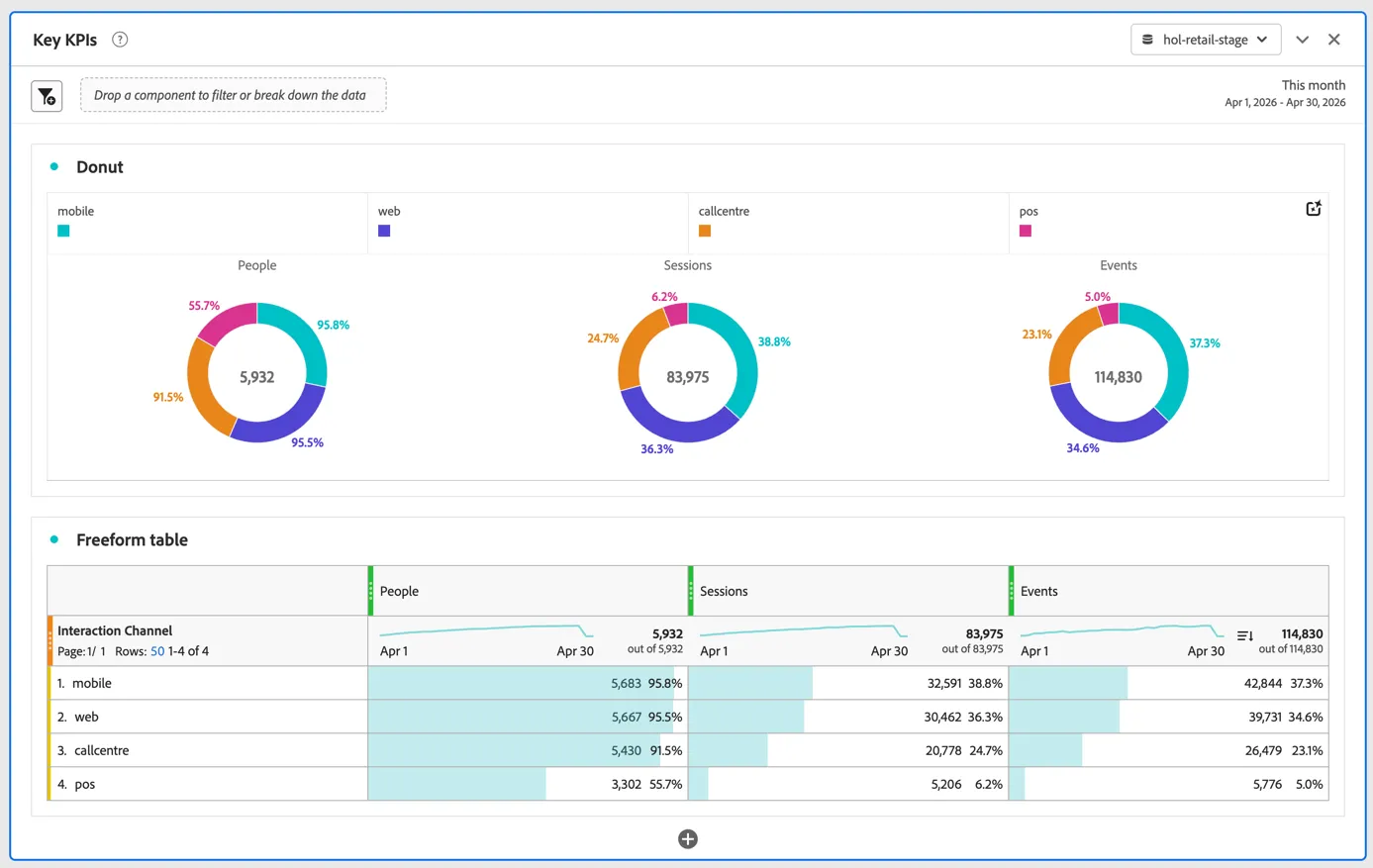
You have now completed your first panel! Create some visualisations to see how customers interact across channels...