Journey Visualisation
IMPORTANT: numbers shown in this guide, including screenshots, may differ from your reports due to different underlying datasets.
Objectives
- Understand where customers are falling out of your conversion funnels and which offers are having a meaningful impact
- Identify customers who are researching on digital channels before converting in branch
Offer Impact on Loan application funnel
Scenario: The marketing manager want to understand which offers are not having a meaningful impact on conversions
Task: Build a fallout analysis to understand where customers are dropping off after being presented with an offer
The Fallout visualisation is great for understanding customer paths when there are specific points or events you want to account for.
- Drag a Fallout visualisation into the panel, label it Loan Application Funnel
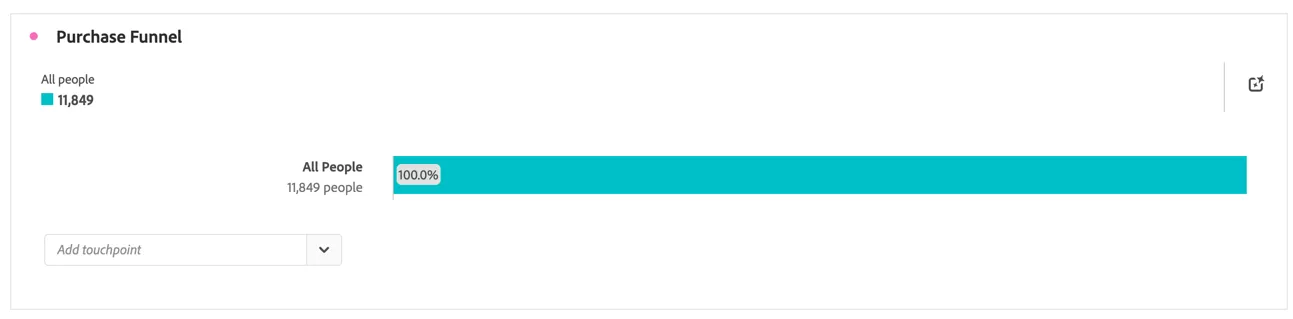
The Fallout visualisation requires touch points in the process you want to measure fall-through as well as fall-out for.
- From the Components menu, search for Event Type.
- Click on the arrow to the right of the dimension.
- Select offer.presented from the list of values and drag it onto the first step of the Fallout.
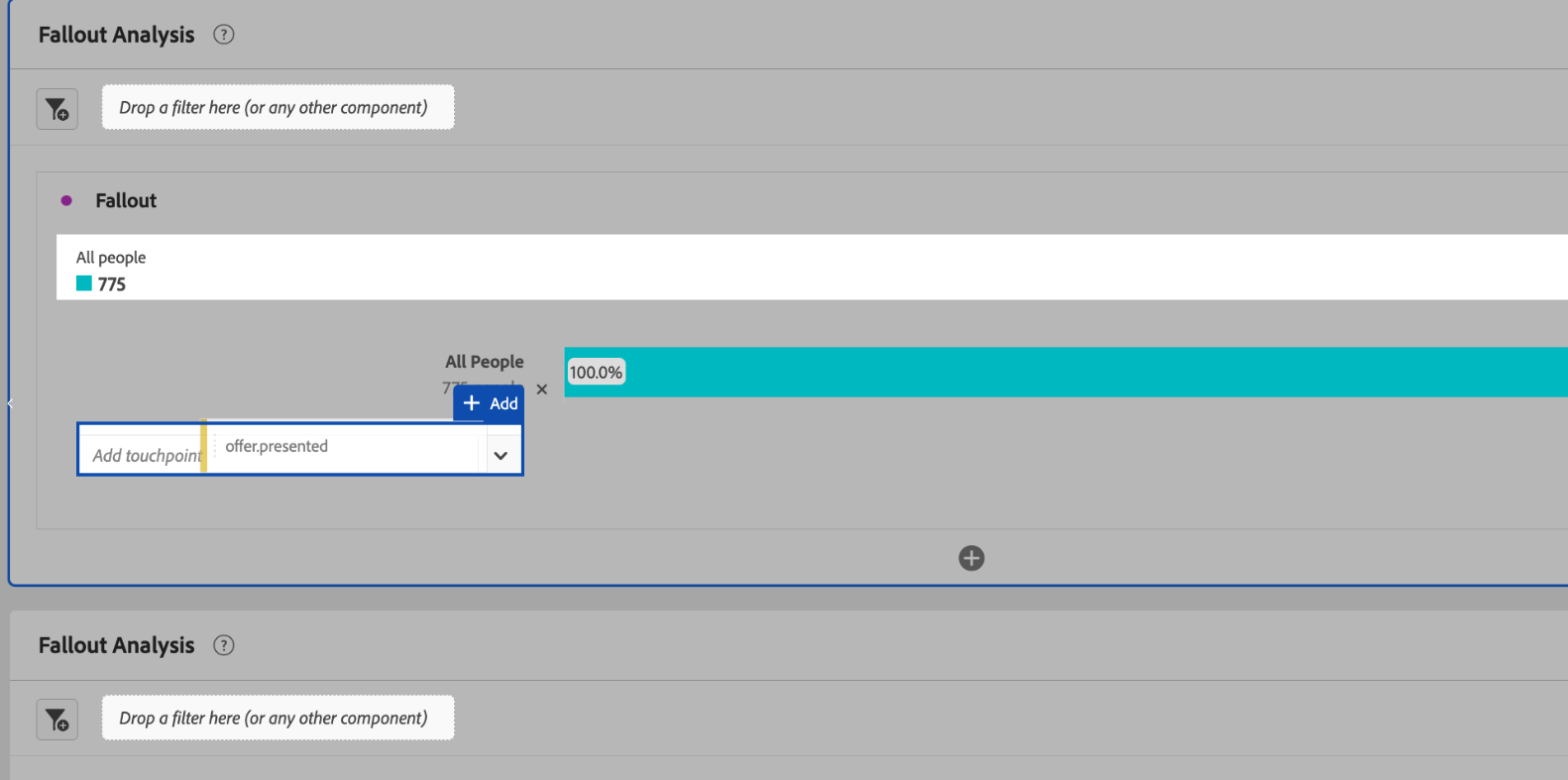
- Next, drag fsi.application.step1 onto the next step of the Fallout.
- Drag fsi.application.step2 and fsi.application.step3 below this.
- We can rename the steps of the Fallout with more descriptive names. I.e. Has been presented an offer, opened application form, application submitted etc.
Your Fallout should now look like:
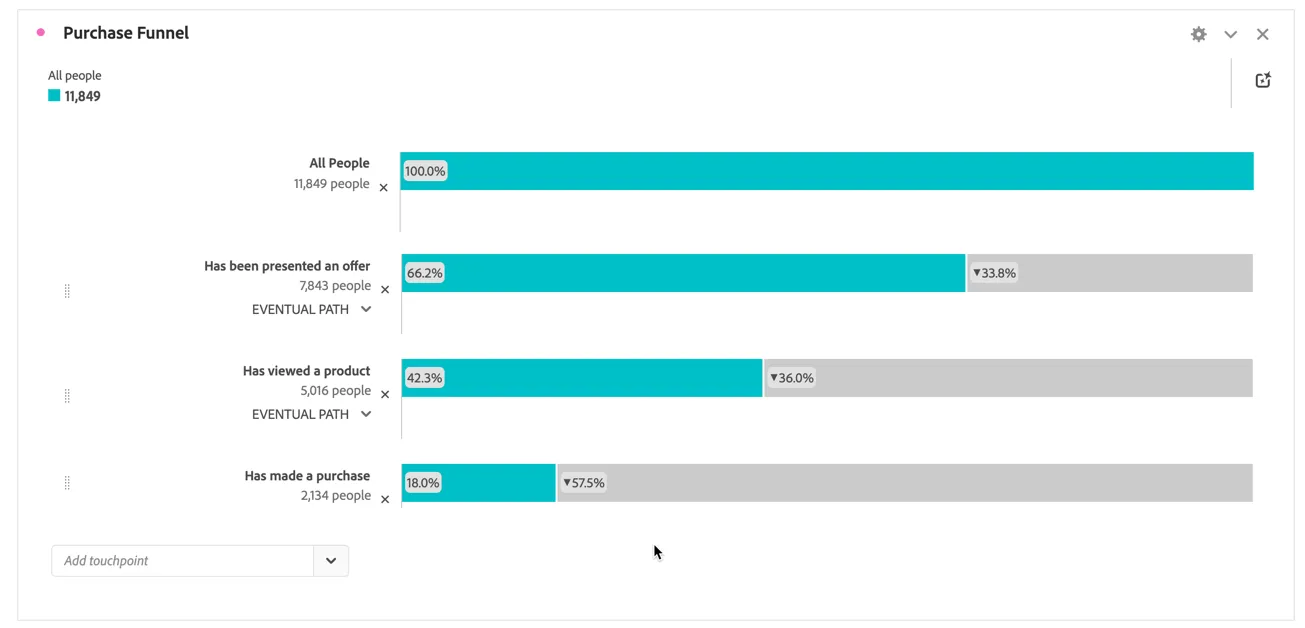
Dig into this further to help us answer the business questions - of those customers who were presented an offer, but didn't make a purchase what offer did they see?
- Breakdown the Fallout, by right-clicking on touchpoint "Has made a purchase"
- Select Breakdown by Fallout at this touchpoint from the list of options, a new freeform table will be generated with this segment.
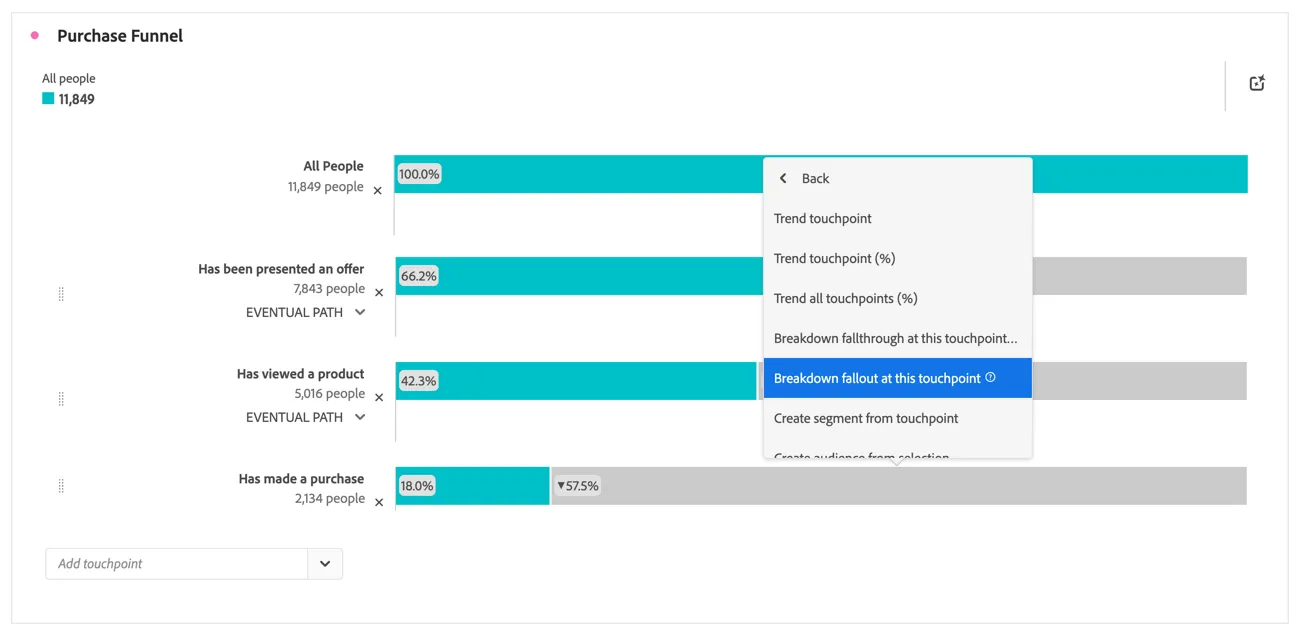
- Replace the Event Type dimension with Offer Name
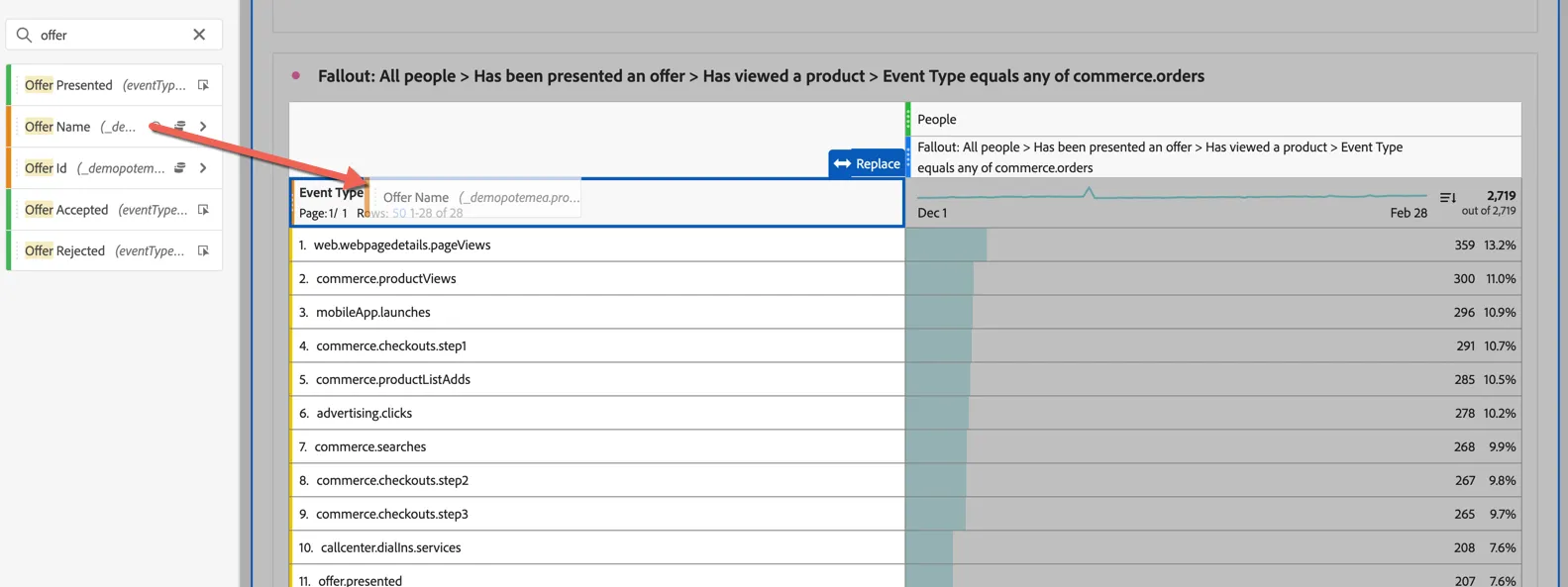
We can now see the top offers that did not result in conversions during the reporting period, perhaps Secur Financial should reconsider the priority or targeting of these offers.
Digital to Offline Journey Mapping
Scenario: Financial products often involve offline review and approval steps which need to be completed before a customer or account is onboarded, you've been asked to identify customers who have had an insurance policy request rejected and verify whether they are being reached out to already by an agent or relationship manager for follow up.
Task: Create a Journey Canvas to visualise the paths customers might follow after starting a quote online in the website or app, this can include offline actions like backend approvals or customer calls for verification.
The flow visualisation is great for exploring the different paths customers can take and the fallout is great for analysing a specific path. But the Journey Canvas is a great way to get a complete picture of the journey your customers are taking regardless of complexity.
Steps:
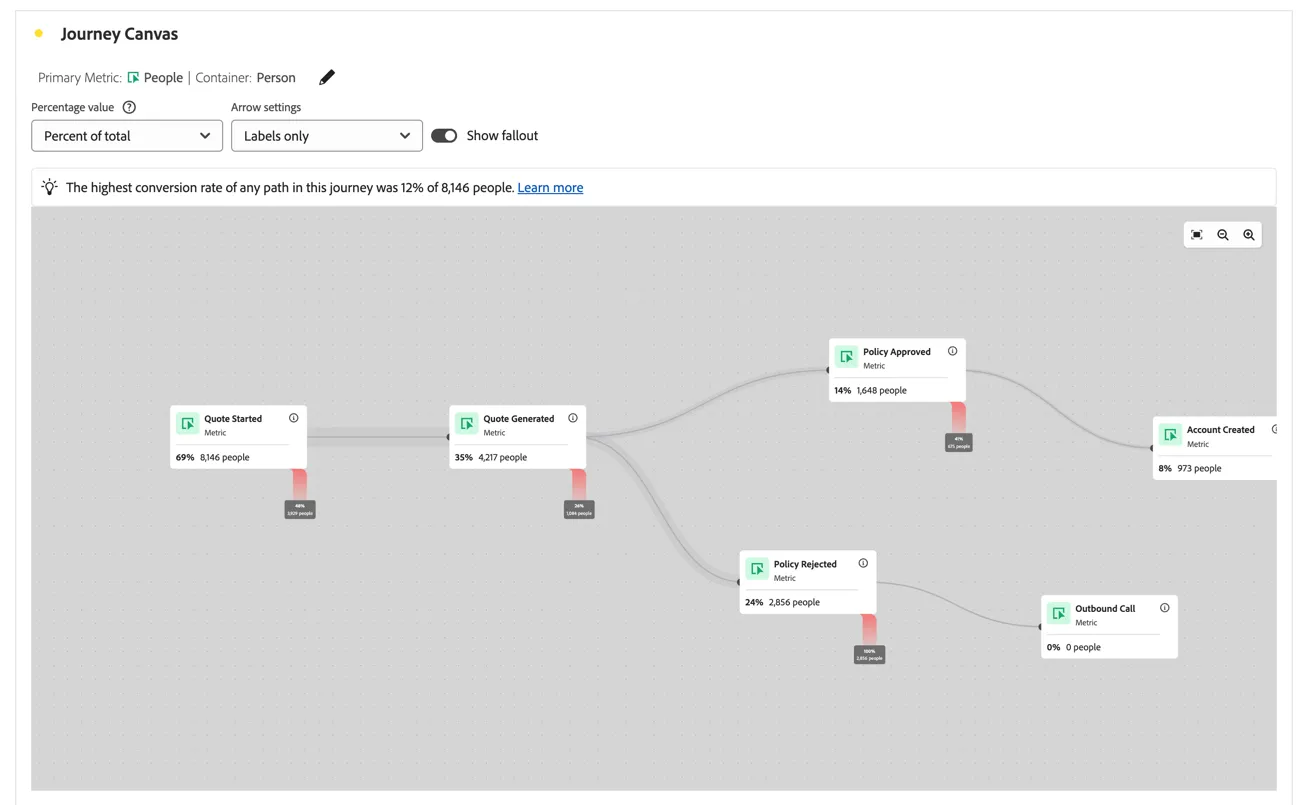
- Add a Journey Canvas visualisation
- Drag the Quote Started metric into the canvas
- Add a Quote Generated node and connect the quote started to quote generated.
- Toggle the show fallout button to see the fallout between steps.
- Add the Policy Approved and Policy Rejected metrics into the canvas. Both of these are possible paths the customer will proceed through. Connect the Quote Generated node to both of these.
- Drag the Account Created metric into the canvas and connect the policy approved node to it.
- Drag the Outbound Call metric into the canvas and connect the policy rejected node to it.
Your canvas should look like this:
Congratulations, this completes the Journey Visualisation exercise!