Consent Policy Exercise
To comply with business and consumer privacy regulations, SecurFinancial wants to set automatic consent enforcement for activation workflows.
[Hands on keyboard!]
In this Lab, we will
- Build and enable a consent policy
- Validate the policy's consent check by mapping an audience to a destination
Build and enable a consent policy
- In the left-hand navigation bar, navigate to Policies. Verify you're on the Browse tab.
- Click on the Create Policy button on the right-hand side then click Continue.
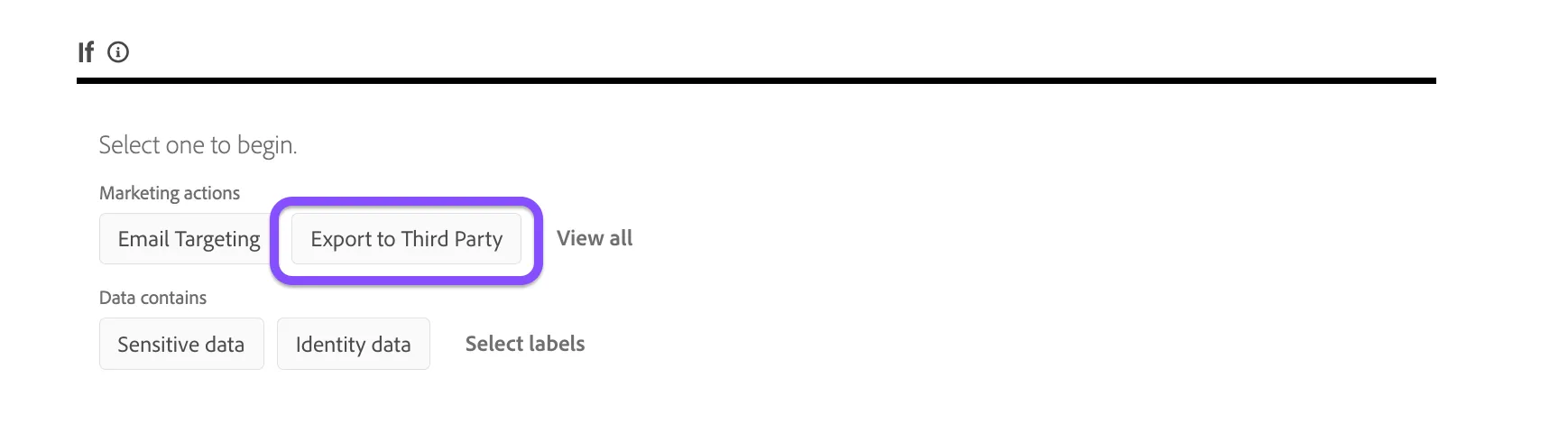
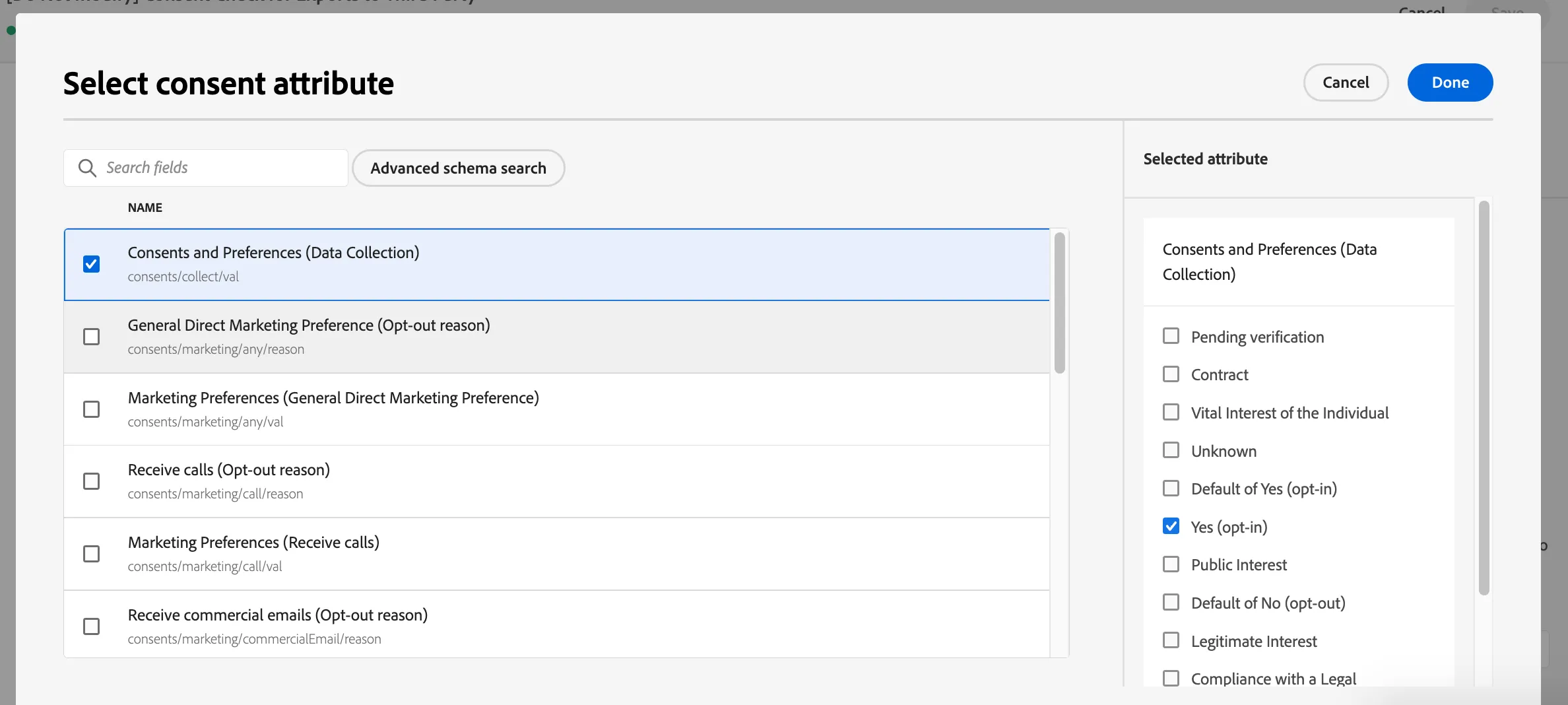
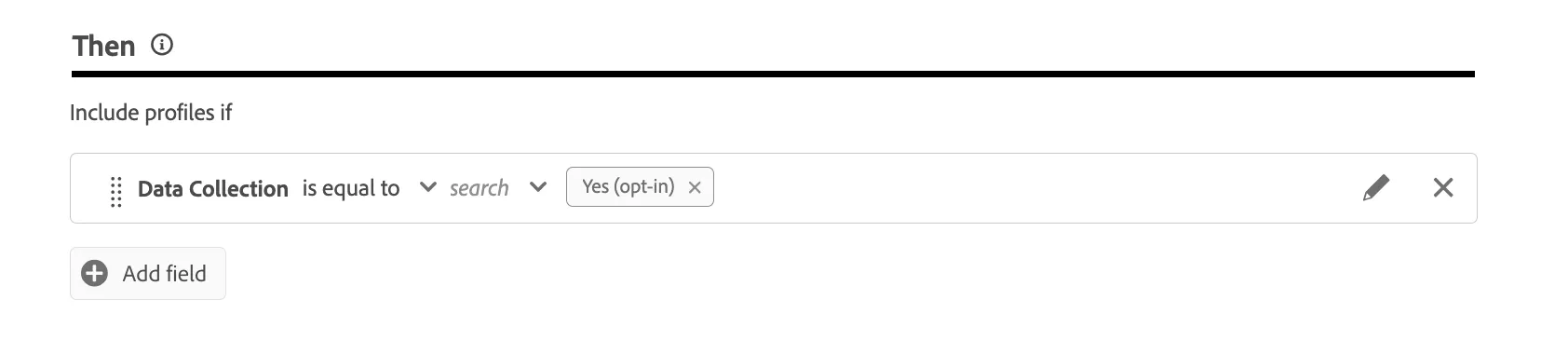
Select the following options to define an if/then statement to meet the following conditions
Marketing Action = Export to Third Party
Consents & Preferences (Data Collection) = Yes (Opt-in)
Your consent policy estimator should auto calculate
Under Policy Properties, give your newly created policy a unique name
Consent Check for Exports to Third Party [add your inititals]
Then click Save
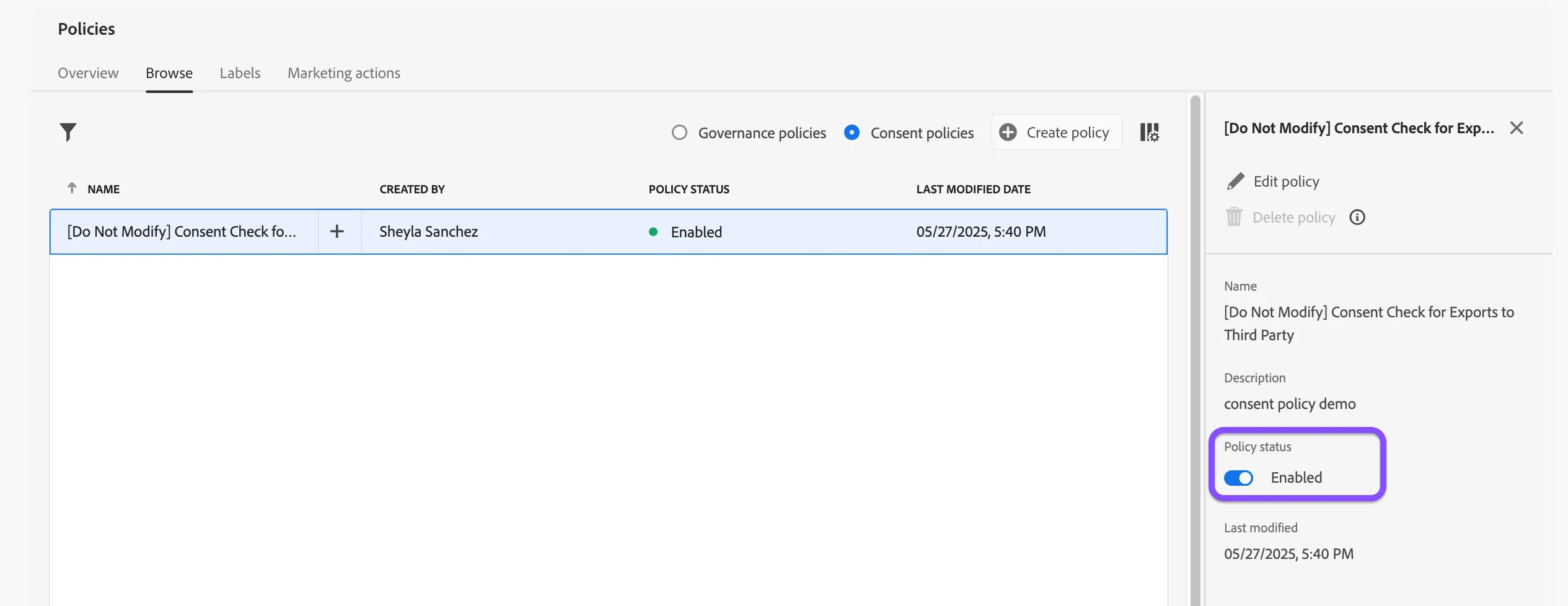
Return to the Policies library, by clicking cancel or by clicking Policies in the left-hand nav bar. You should land on the Policies browse tab with the Consent policies radio button selected.
Find and select your newly created consent policy. The right-hand pane should appear.
Enable your policy by toggling on the Policy status button. An automatic success notification should appear at the bottom of the page.
Congratulations, you just created a consent policy!
Validate the policy's consent check by mapping an audience to a destination
Navigate to the Destinations browse page
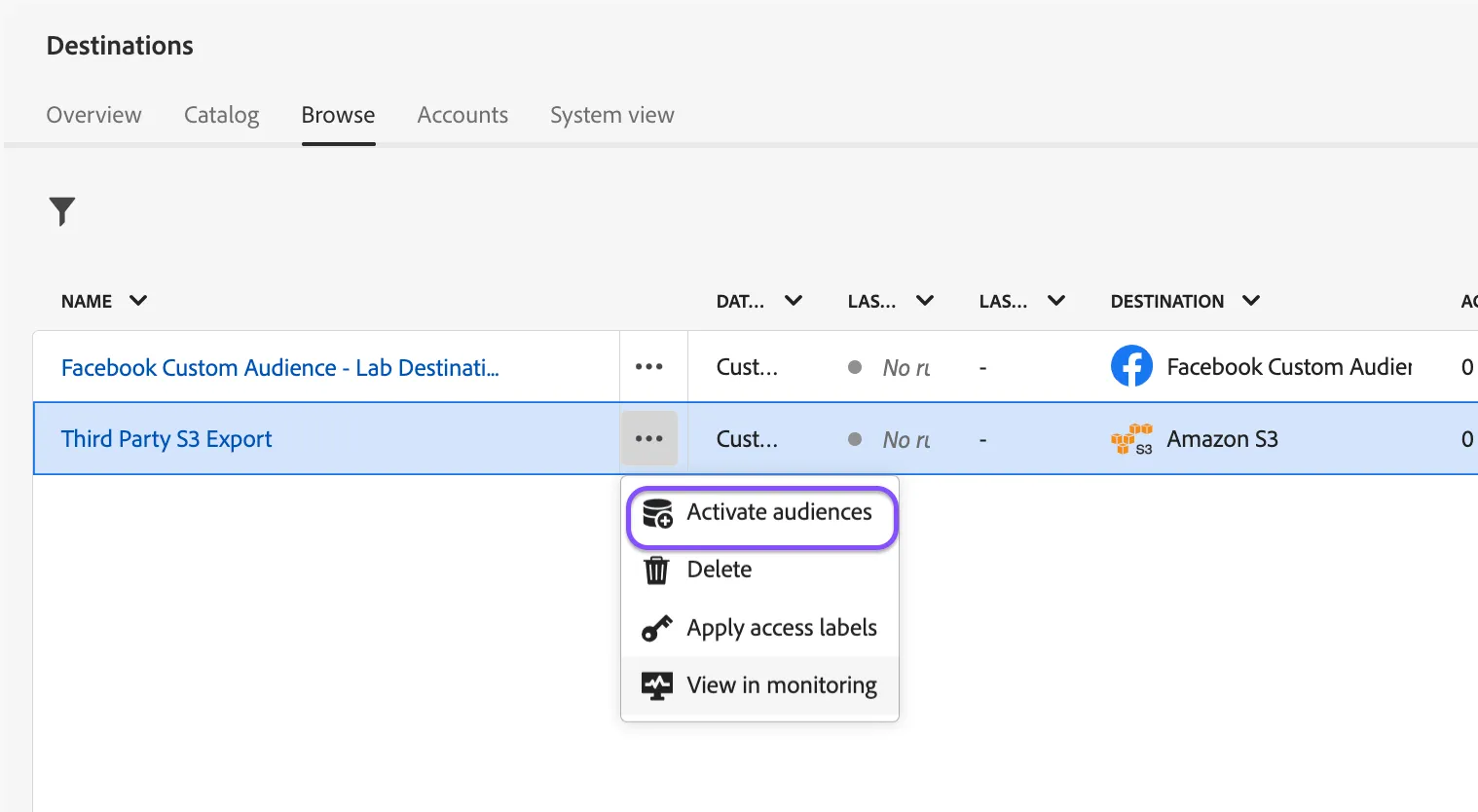
Find the Third Party S3 Export destination
Click the 3 dot menu button. Then click Activate audiences in the dropdown
Find and select the All Customers audiences and click Next
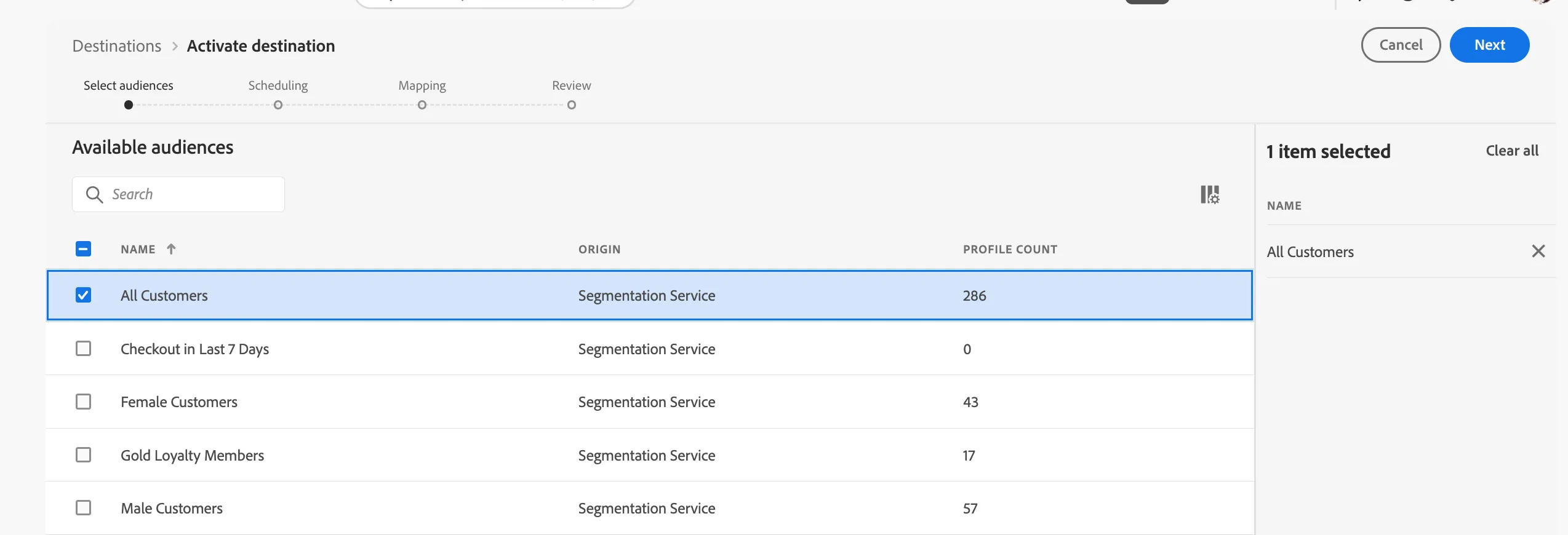
Breeze past the Scheduling and the Mapping steps in the workflow by clicking Next
You'll land on the Review page, where you can click on View application consent policies. This is an optional view, as AEP will automatically enforce consent once the policy is enabled
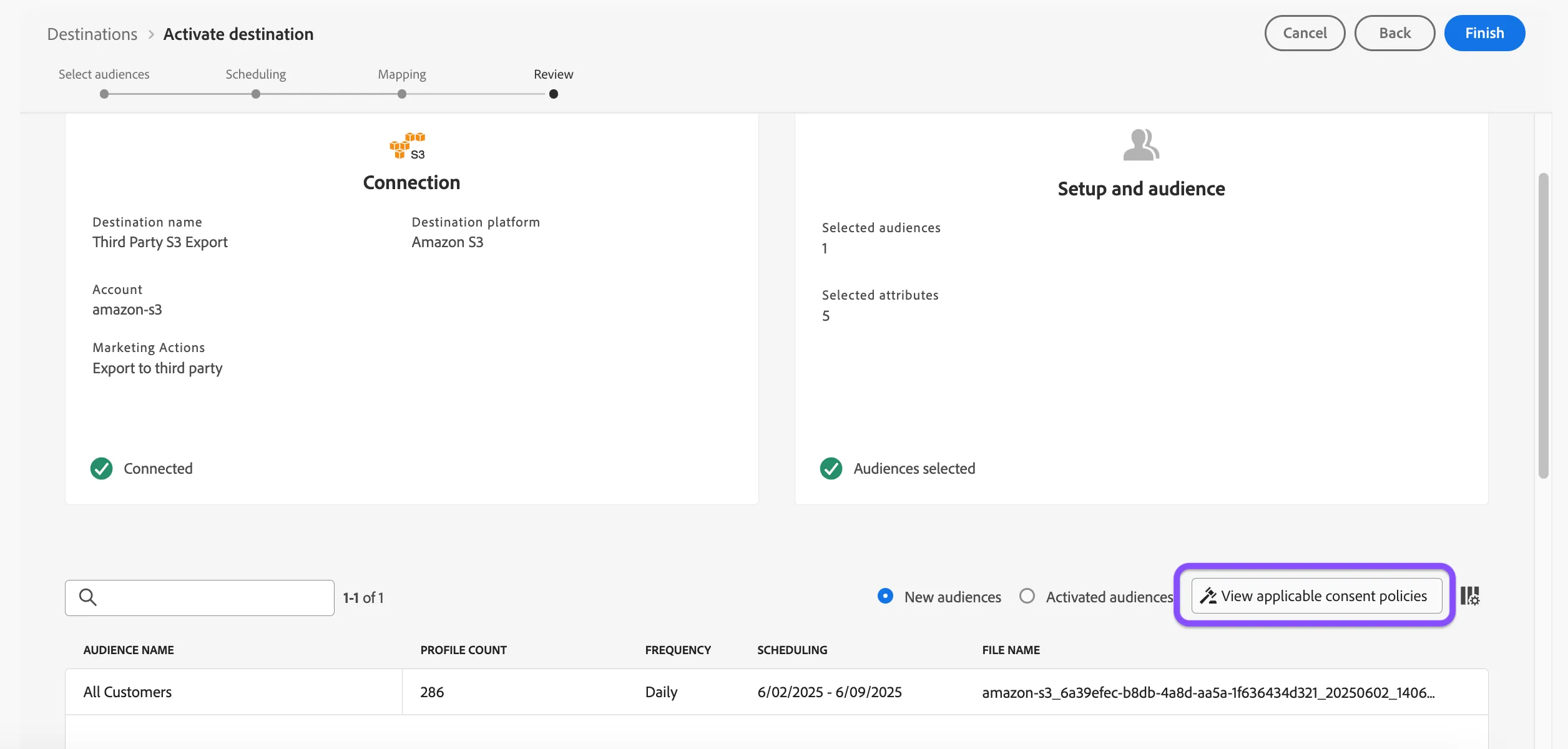
Click on the View applicable consent policies button. The policy check window should appear
Evaluate the policy enforcement
- The policy details section lists the enabled consent policies
- The diagram displays the overlap between three groups of profiles:
- Profiles that qualify for the selected audience
- Profiles that qualify for the selected consent policy
- Profiles that qualify for the other applicable consent policies for the audience (referred to as “Other policies” in the diagram)
- The profiles that qualify for all three of the above groups represent the consented audience, summarized in the right rail
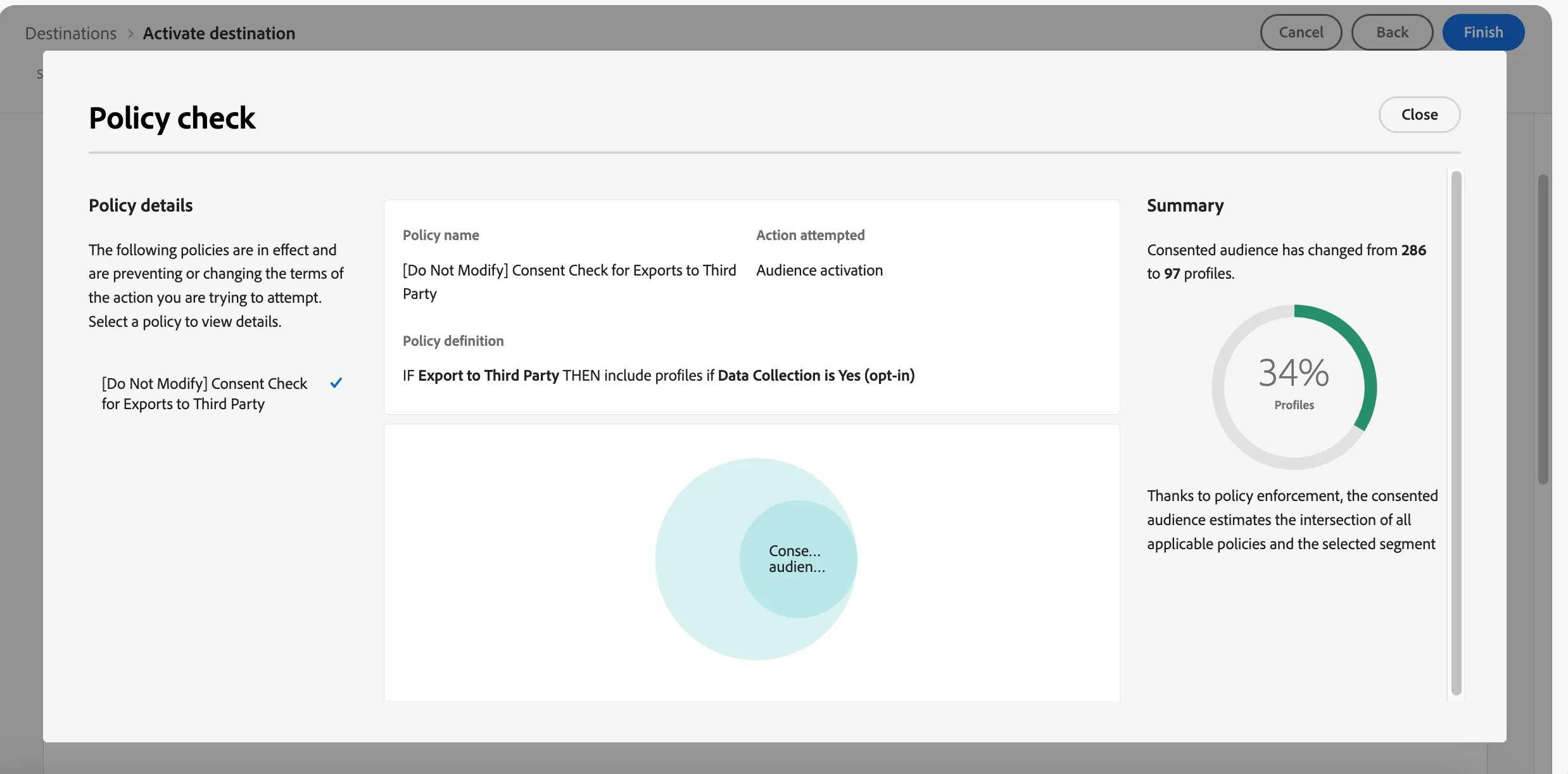
Once done. click Close
To avoid a conflict error, avoid clicking Finish. This is the end of the consent policy exercise