[Bonus] Stream data from Apache Kafka
In this module, you'll learn how to setup your own Apache Kafka cluster, define topics, producers and consumers and stream data into Adobe Experience Platform using the Adobe Experience Platform Sink.
Prerequisites
- Java JDK11 or above needs to be installed on your computer, you can download that JDK here: https://www.oracle.com/java/technologies/javase-jdk11-downloads.html
Overview
Apache Kafka allows an organization to decouple data streams and systems by providing a common, high-throughput, distributed messaging system. Source systems will send their data into Apache Kafka, and destination systems will consume data from Apache Kafka.
Kafka Terminology
Message
A message is a communication sent by a system into Kafka. A message contains a payload, and a payload contains data elements. For instance, an experience event sent by a website into Adobe Experience Platform is considered as a message.
Topic, partitions, offsets
A topic is a particular stream of data, similar to a table in a database. You can have as many topics as you want, and a topic is identified by its name. Topics are split in partitions. Each partition is ordered and each message within a partition gets an incremental id, which is called offset. Messages are stored in a topic, on a partition and is referenced using an offset. Messages are kept only for a limited time (default is 1 week). Once a message is written to a partition, it can't be changed anymore.
Brokers
A broker is similar to a server. A Kafka cluster is composed of multiple brokers (servers). Each broker is identified with an ID and contains certain topic partitions.
Replication
Kafka is a distributed system. One of the important things of a distributed system is that data is securely stored and as such, replication is needed. After all, when one broker (server) goes down, another broker (server) should still be able to provide access to messages that were initially stored on the broker that went down. Replication will create copies of messages across multiple brokers to guarantee that no data is lost.
Producers
How is data sent to Kafka? That's the role of a producer. A producer connects to a source system and takes data from the source system, and then writes that data to topics onto partitions. Based on the configuration of your Kafka cluster, producers will automatically know which broker and partition to write to. In a distributed system with multiple brokers and replication strategy, a producer will store data randomly across multiple brokers, which means that it will do load balancing automatically.
Message keys
Producers can choose to send a key with the message. A key can be any string, number, etc. If no key is provided, a message will be sent randomly to brokers. If a key is sent, then all messages for that key will always go to the same partition. A message key as such is used to order messages based on a specific field.
Consumers
Consumers read data from an Apache Kafka topic and then share that data with destination systems. Consumers know which broker to read from. Data is read by a consumer in order, within each partition. Consumers read data in consumer groups.
Zookeeper
ZooKeeper is essentially a service for distributed systems offering a hierarchical key-value store, which is used to provide a distributed configuration service, synchronization service, and naming registry for large distributed systems. Zookeeper needs to be running before you can use Apache Kafka, and Zookeeper is sort of the master of ceremony for Kafka, managing distributed services in the backend while Kafka produces and consumes events.
Install and configure your Kafka cluster
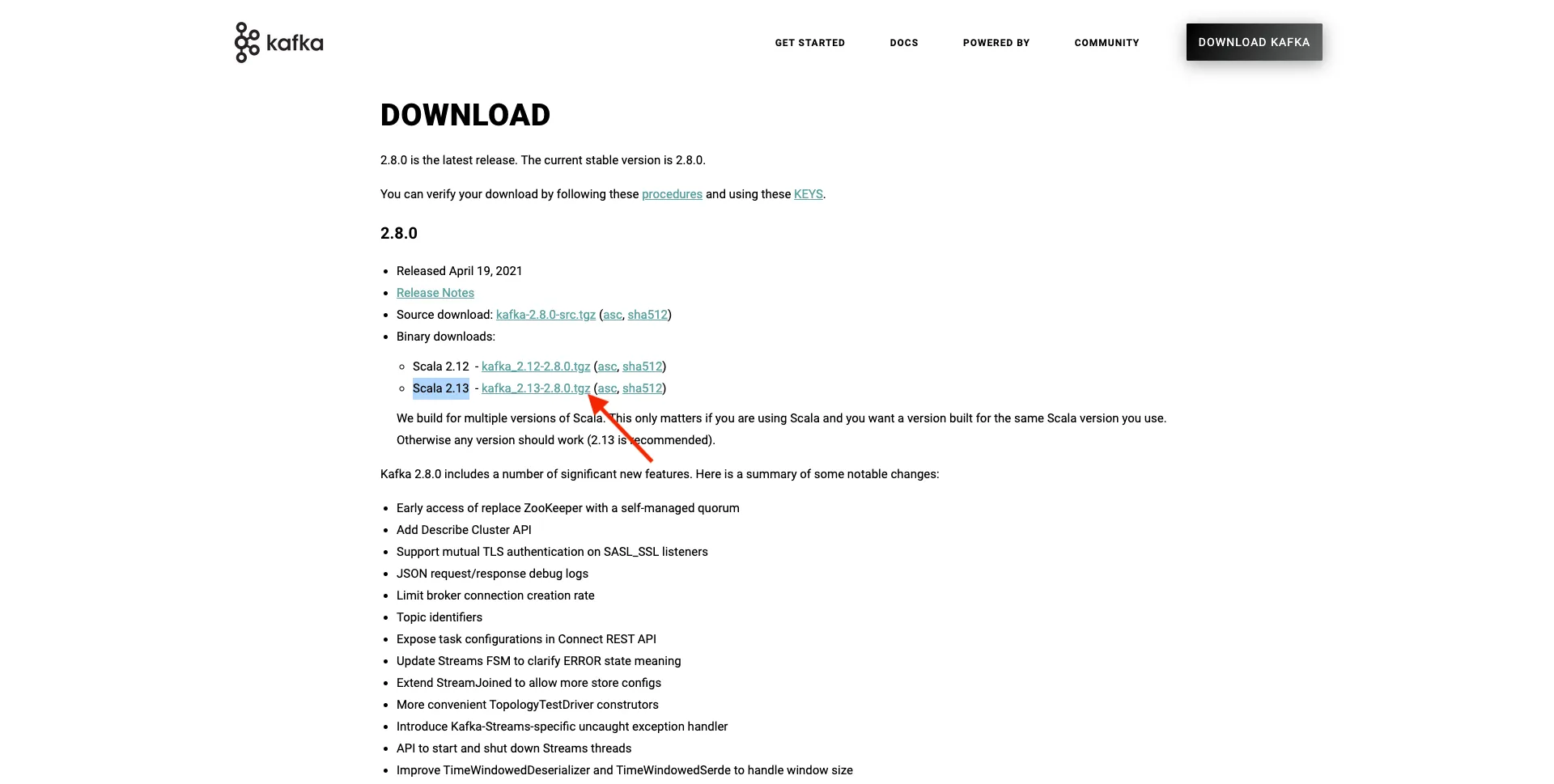
- Go to https://kafka.apache.org/downloads and download the latest released version. Select the latest binary release, in this case Scala 2.13.
- Create a folder on your desktop named Kafka_AEP and place the downloaded file in that directory.
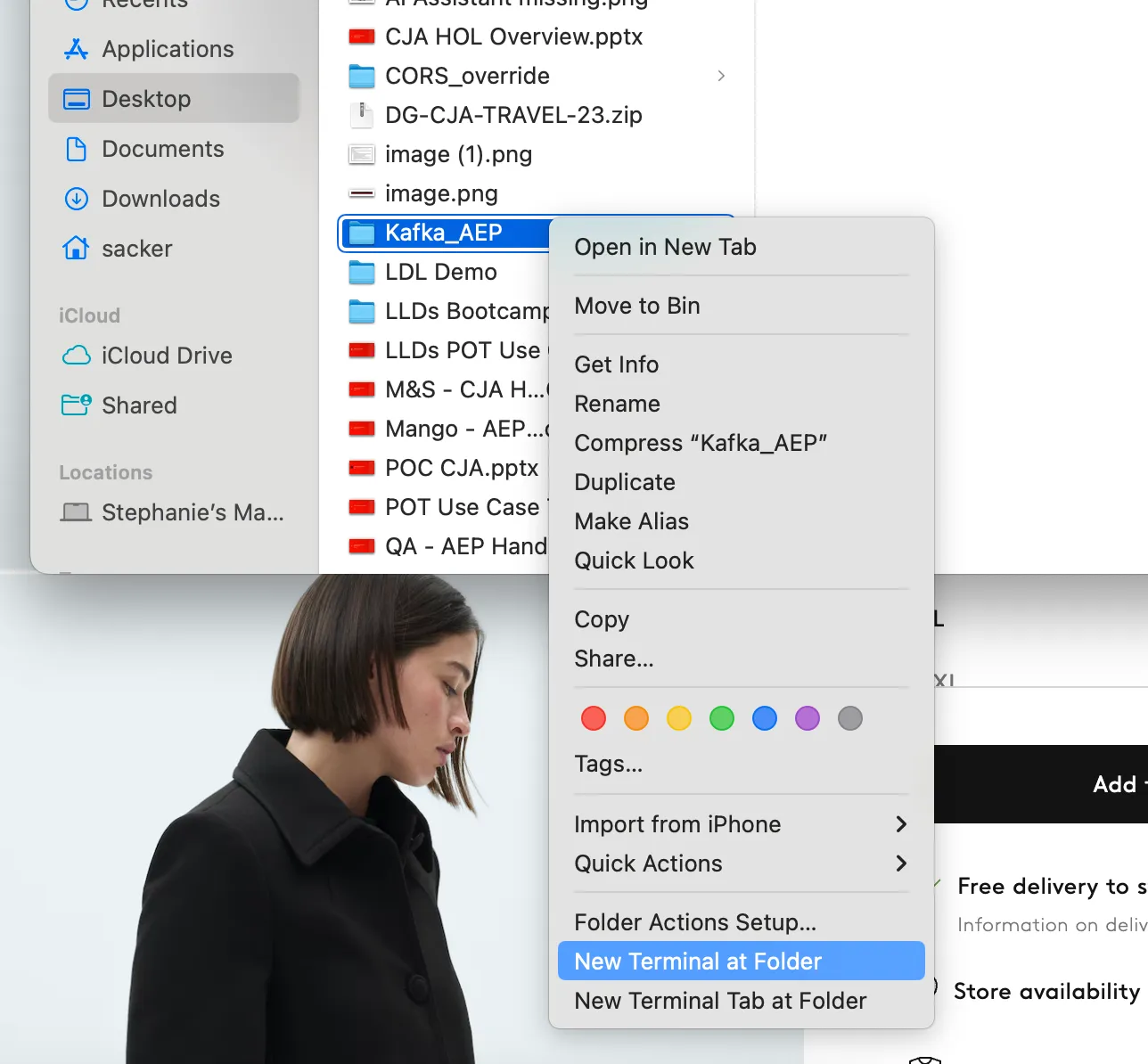
- Open a Terminal window by right-clicking your folder and clicking New Terminal at Folder
- Run the following command in your Terminal window to uncompress the downloaded file: tar -xvf kafka_2.13-3.8.1.tgz
Please verify that the above command matches the version of the file you downloaded. If your version is more recent, you'll need to update the above command to match that version.
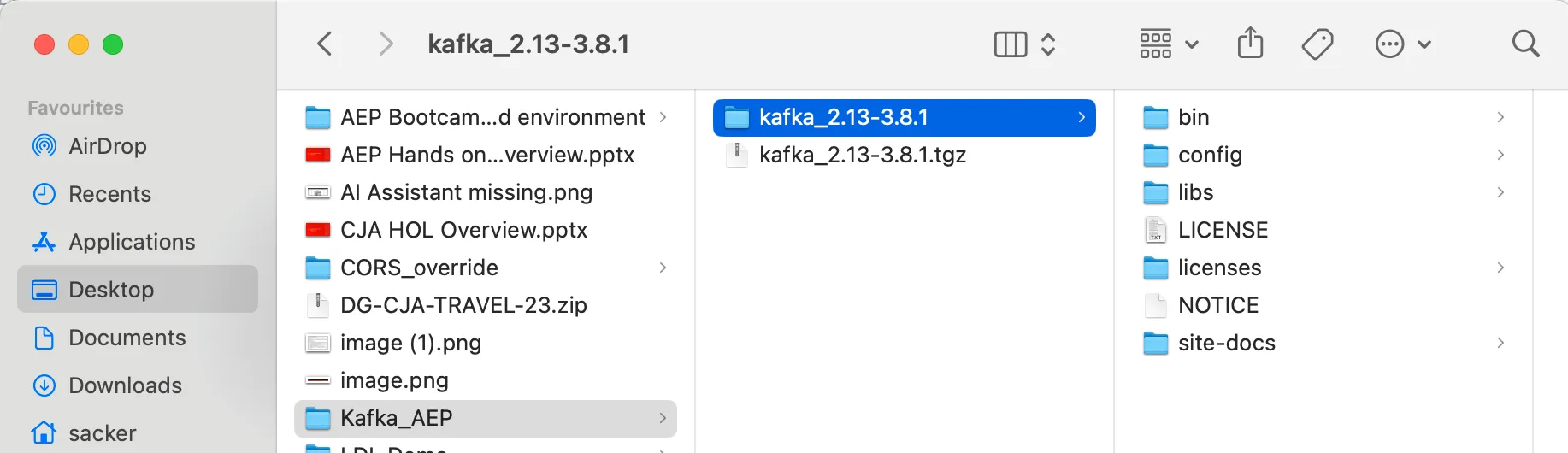
- You should now see the uncompressed file in your directory. In that directory, you'll see these subdirecteries:
- Go back to your Terminal window. Enter the following command: cd kafka_2.13-3.8.1
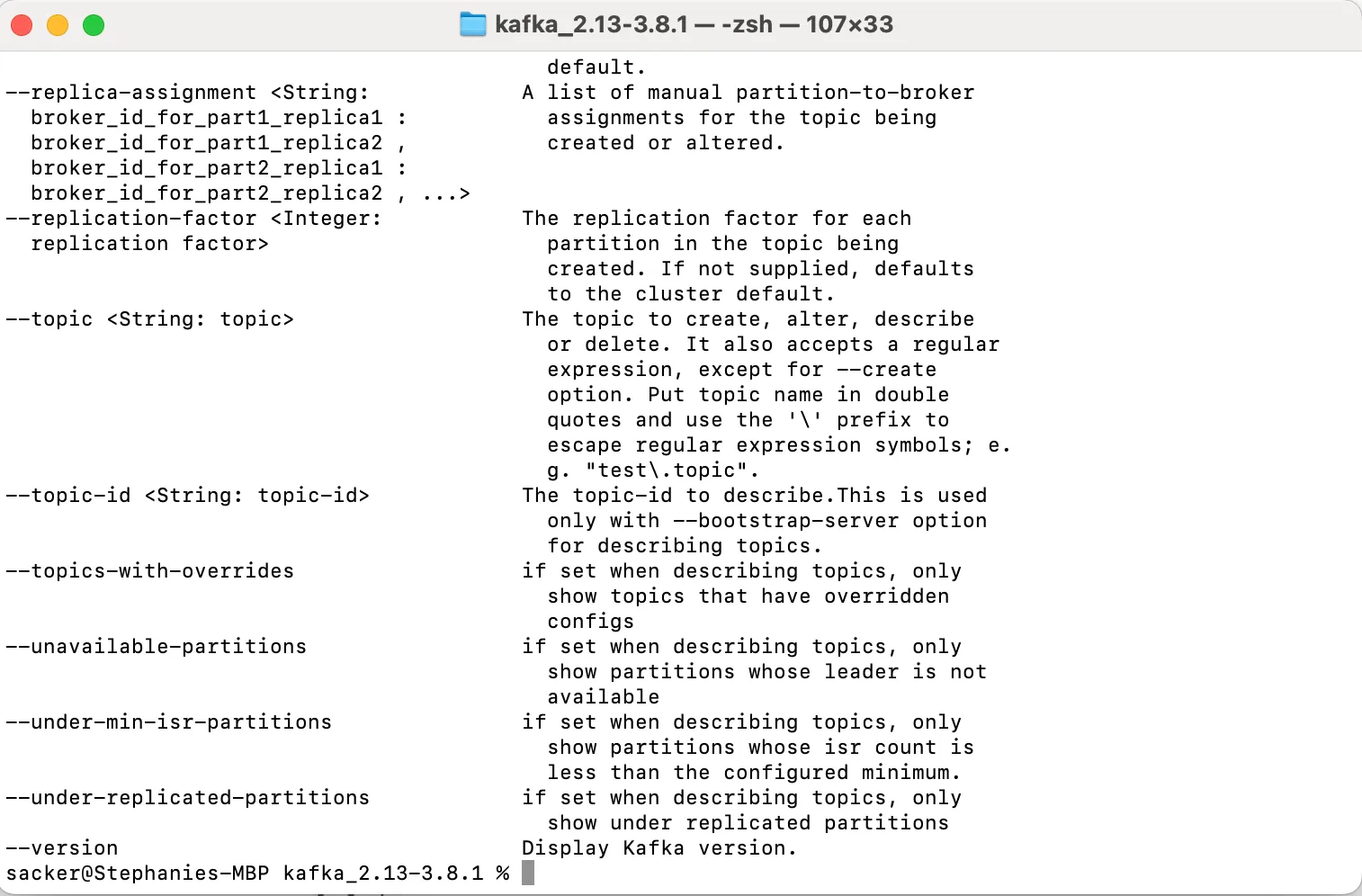
- Next, enter the command: bin/kafka-topics.sh
You should see this response if Kafka is properly installed:
Start Kafka
In order to start Kafka, you'll need to start Kafka Zookeeper and Kafka, in this order.
- Open a Terminal window by right-clicking your folder kafka_2.13-3.8.1 and clicking New Terminal at Folder.
- Enter this command: bin/zookeeper-server-start.sh config/zookeeper.properties
Keep this Terminal window open while your going through these exercises!
- Open another, new Terminal window by right-clicking your folder kafka_2.13-3.8.1 and clicking New Terminal at Folder.
- Enter this command: bin/kafka-server-start.sh config/server.properties
Keep this Terminal window open while your going through these exercises!
Create a Kafka Topic
Open a Terminal window by right-clicking your folder kafka_2.13-3.8.1 and clicking New Terminal at Folder.
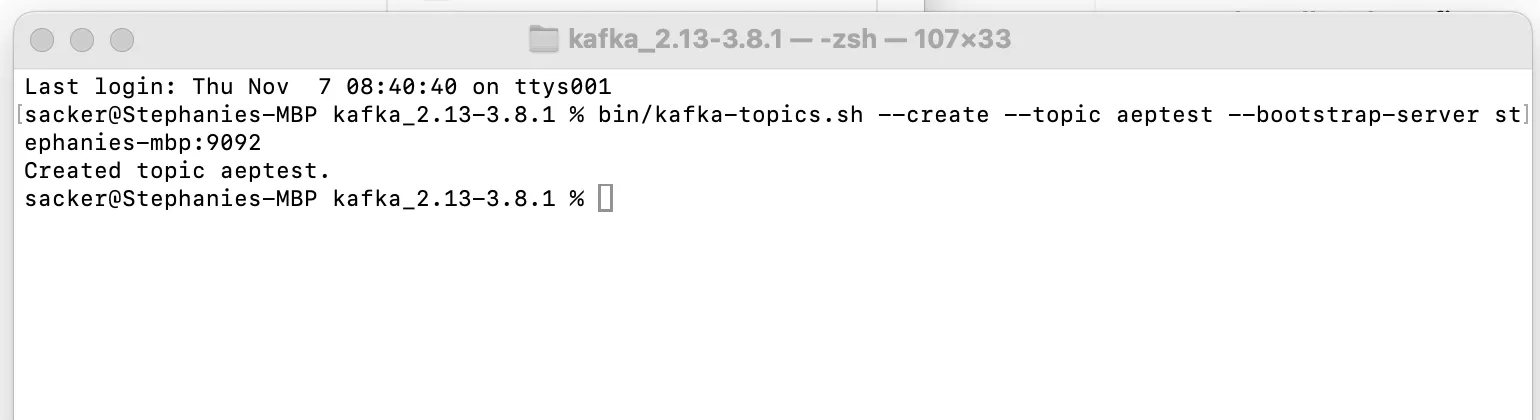
- Enter the following command to create a new Kafka topic with the name aeptest. This topic will be used for testing in this exercise: bin/kafka-topics.sh --create --topic aeptest --bootstrap-server localhost:9092
In the command above, replace localhost with your own, for example: stephanies-mbp:9092
You should see a similar confirmation:
- Enter this command to create another Kafka topic with the name aep. This topic will be used by the Adobe Experience Platform Sink Connector that you'll configure in the next exercises: bin/kafka-topics.sh --create --topic aep --bootstrap-server localhost:9092
Produce Events
- In the Terminal window in which you created your first Kafka topic, enter the following command: bin/kafka-console-producer.sh --broker-list 127.0.0.1:9092 --topic aeptest
You'll then see this:
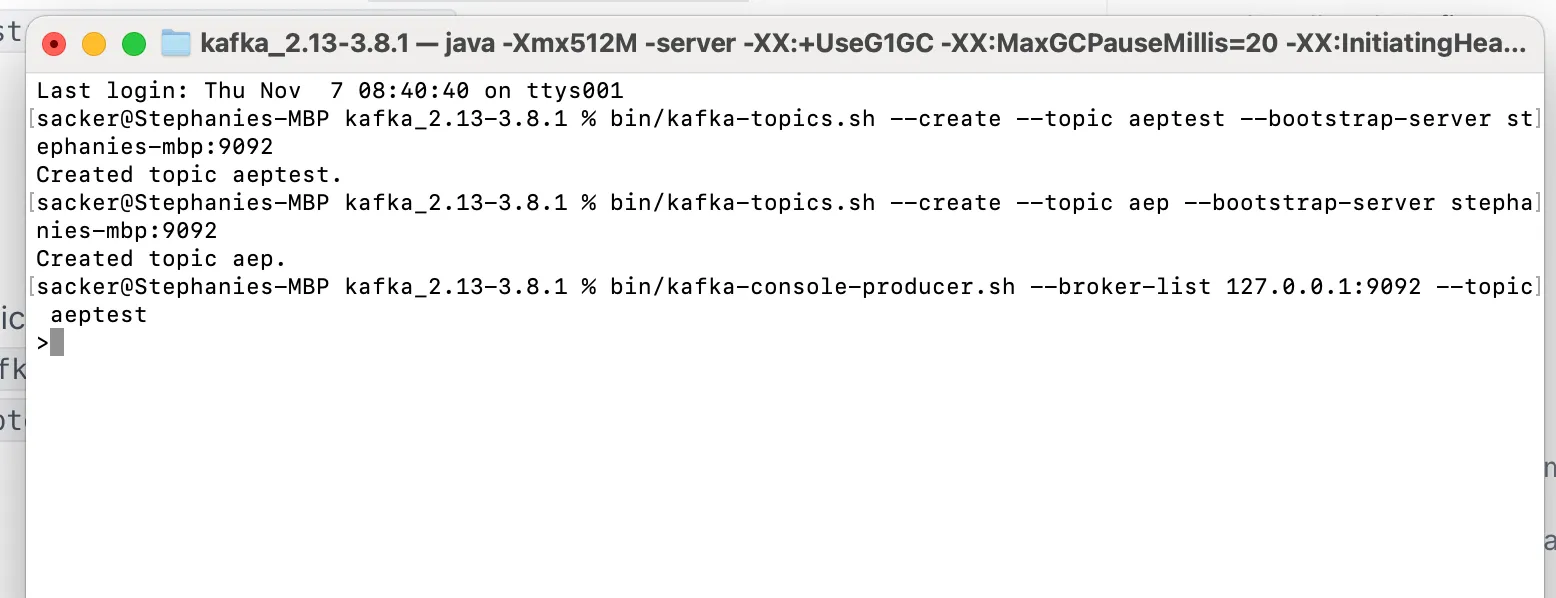
Every new line followed by pushing the Enter button will result in a new message being sent into the topic aeptest
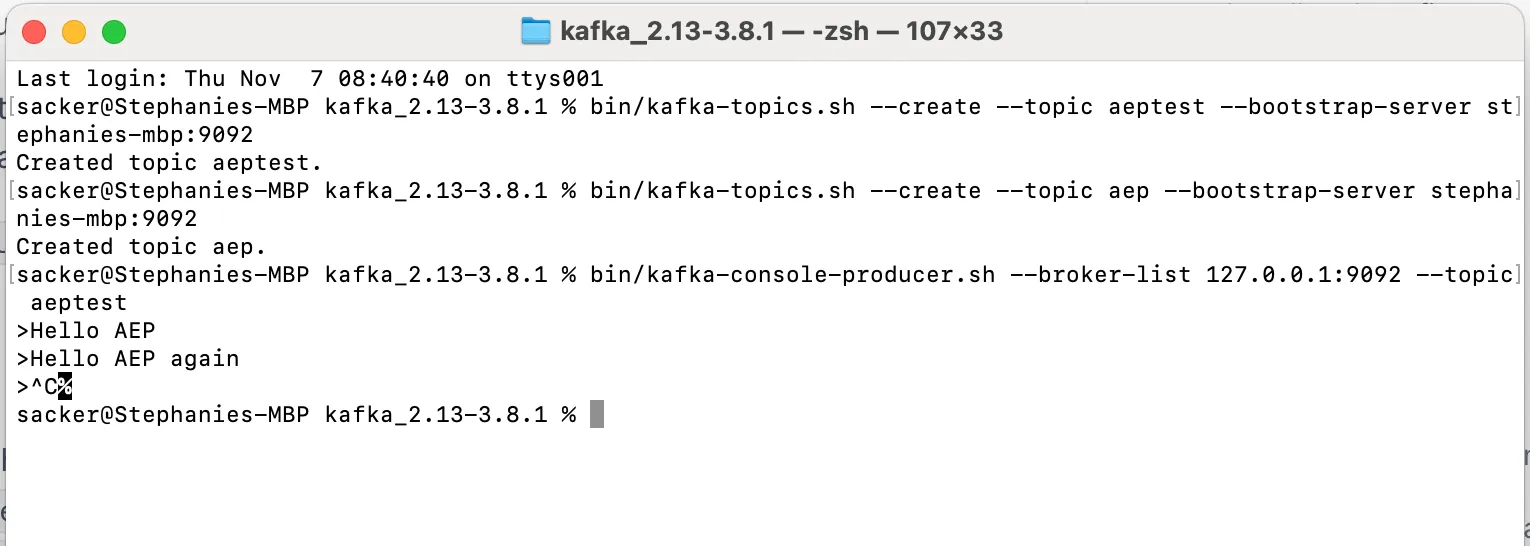
- Enter "Hello AEP" and push Enter.
- Your first event has now been sent into your local Kafka instance, into the topic aeptest
- Enter "Hello AEP again" and push Enter.
You've now produced 2 events into the topic aeptest. These events can now be consumed by an application that might need that data.
- Close your producer (Control + C on your keyboard)
Consume Events
- In the same Terminal window that you used to produce events, enter the following command: bin/kafka-console-consumer.sh --bootstrap-server 127.0.0.1:9092 --topic aeptest --from-beginning
You'll then see all messages that were produced in the previous exercise for the topic aeptest, appear in the consumer. This is how Apache Kafka works: a producer creates events into a pipeline, and a consumer consumes those events.

- Close your producer (Control + C on your keyboard)
- Close your terminal window
In this exercise, you've gone through all the basics to set up a local Kafka cluster, create a Kafka topic, produce events and consume events.
The goal of this module is to simulate what would happen if a real organization has already implemented an Apache Kafka cluster, and wants to stream data from their Kafka cluster into Adobe Experience Platform.
In the next exercises, you'll implement everything you need to use that Adobe Experience Platform Sink Connector from within your own local Kafka cluster.
Configure HTTP API Streaming endpoint in Adobe Experience Platform
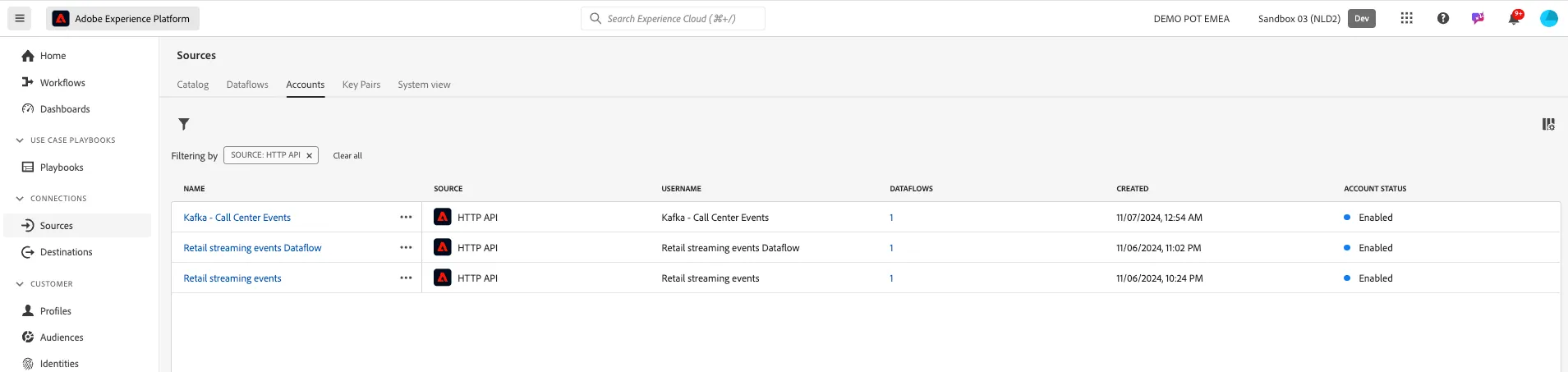
Before you can set up the Adobe Experience Platform Sink Connector in Kafka, you need to create an HTTP API Source Connector in Adobe Experience Platform. The HTTP API Streaming endpoint URL is required to set up the Adobe Experience Platform Sink Connector.
There's no need to configure your own HTTP API Source in this exercise. We will use one that already exists: Kafka - Call Center Events
You'll need to copy the Streaming endpoint URL for the following exercise:
Install and configure Kafka Connect and the Adobe Experience Platform Sink Connector
Download the Adobe Experience Platform Sink Connector:
- Go to https://github.com/adobe/experience-platform-streaming-connect/releases and download the latest official release of the Adobe Experience Platform Sink Connector.
- Place the downloaded file, streaming-connect-sink-0.0.27-java-11.jar onto your desktop
Configure Kafka Connect
- Go to the folder on your desktop named Kafka_AEP and navigate to the folder kafka_2.13-3.8.1/config
- In that folder, open the file connect-distributed.properties using any Text Editor.
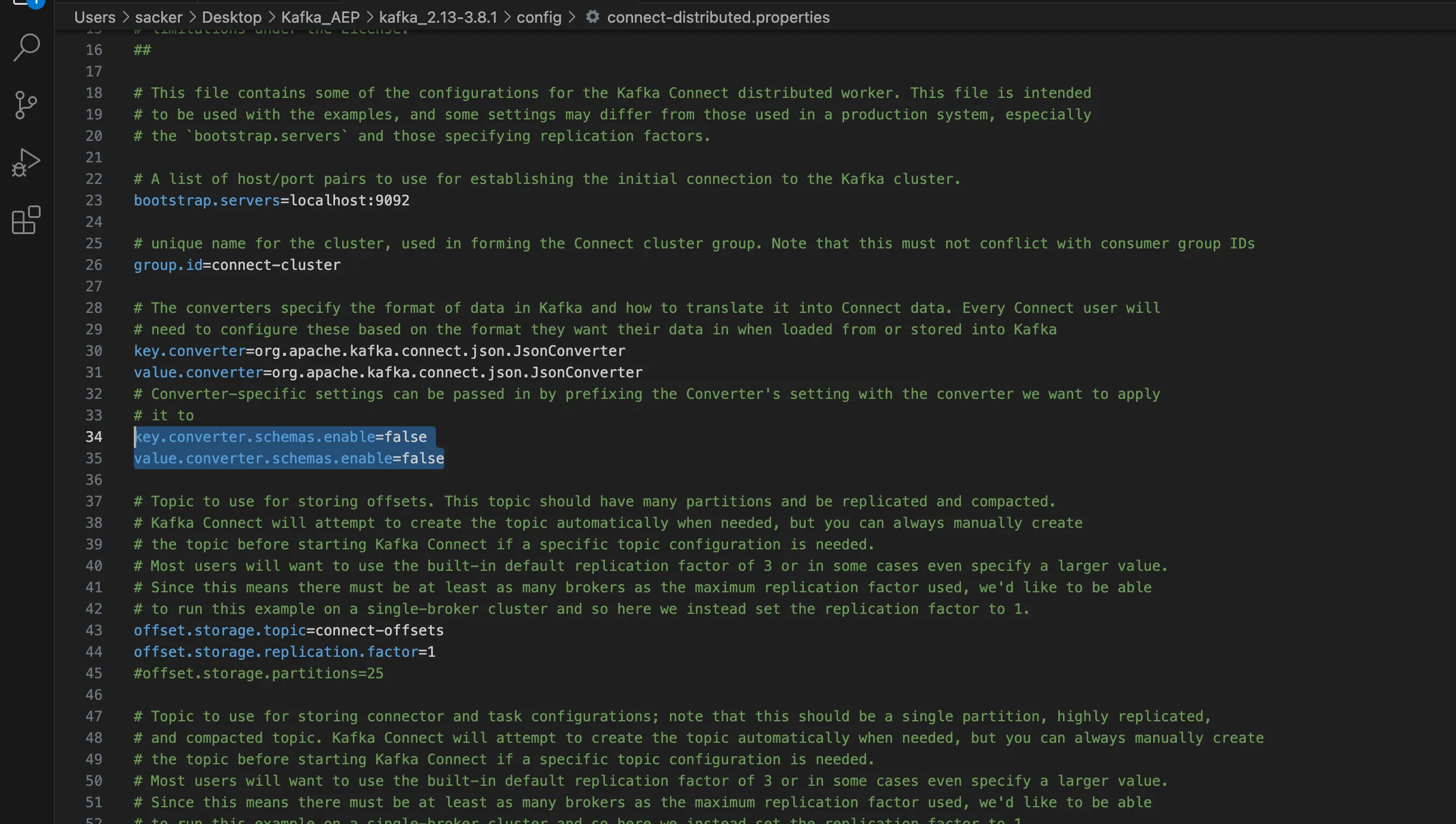
- In your Text Editor, go to line 34 and 35 and make sure to set the fields: key.converter.schemas.enableand value.converter.schemas.enableto false
- Save your changes to this file.
- Next, go back to the folder kafka_2.13-3.8.1 and manually create a new folder, and name it connectors.
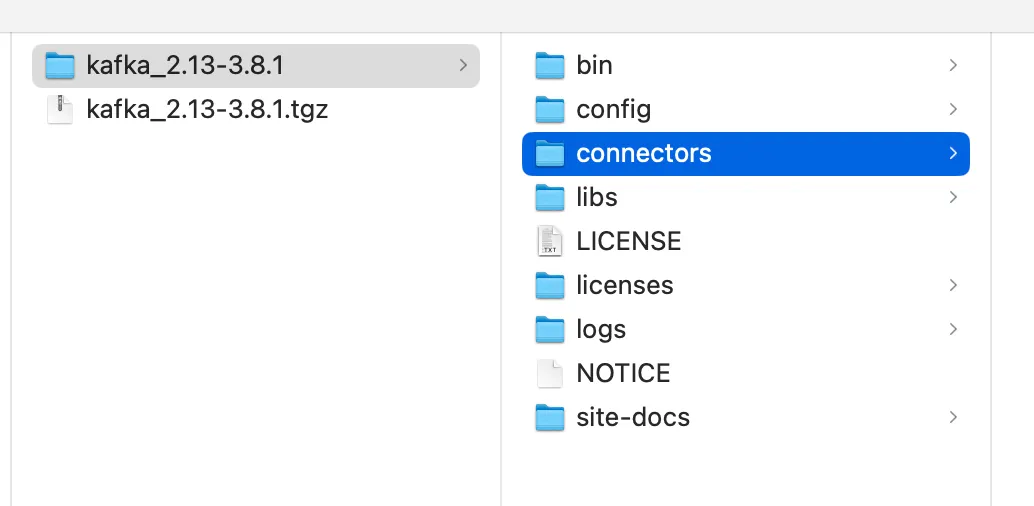
- Right-click the folder and click New terminal at Folder.
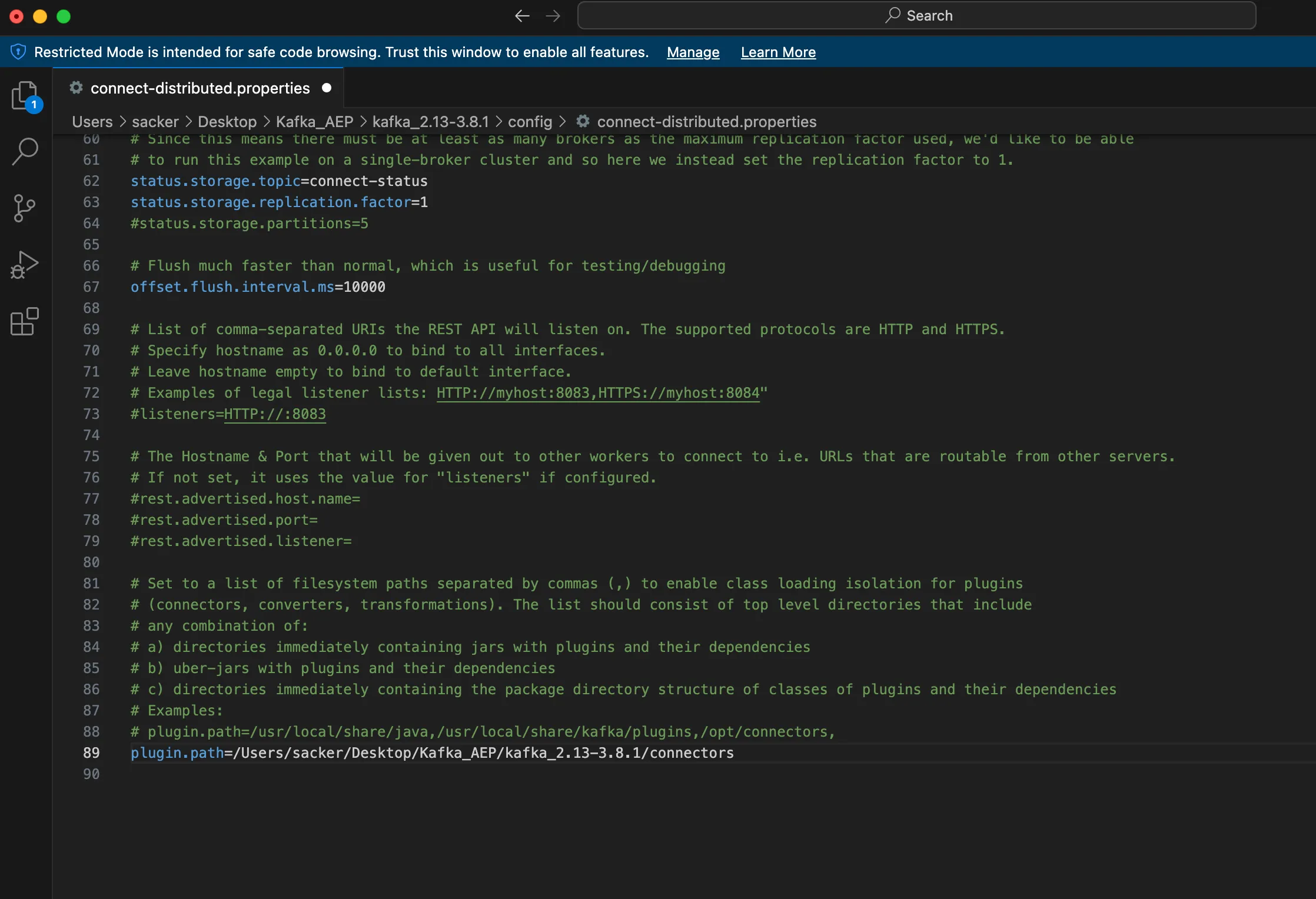
- Retreive the full path for that folder (can use command pwd in Terminal). E.g. /Users/sacker/Desktop/Kafka_AEP/kafka_2.13-3.8.1/connectors
- Go back to your Text Editor, to the file connect-distributed.properties and scroll down to the last line.
- Uncomment the line that starts with # plugin.path and paste the full path to your folder.
- Save your changes and close your Text Editor.
- Next, copy the latest official release of the Adobe Experience Platform Sink Connector that you downloaded into the folder named connectors
The file that you downloaded before is named streaming-connect-sink-0.0.27-java-11.jar, you can simply move it into the connectors folder
- Open a new Terminal window at the level of the kafka_2.13-3.8.1 folder.
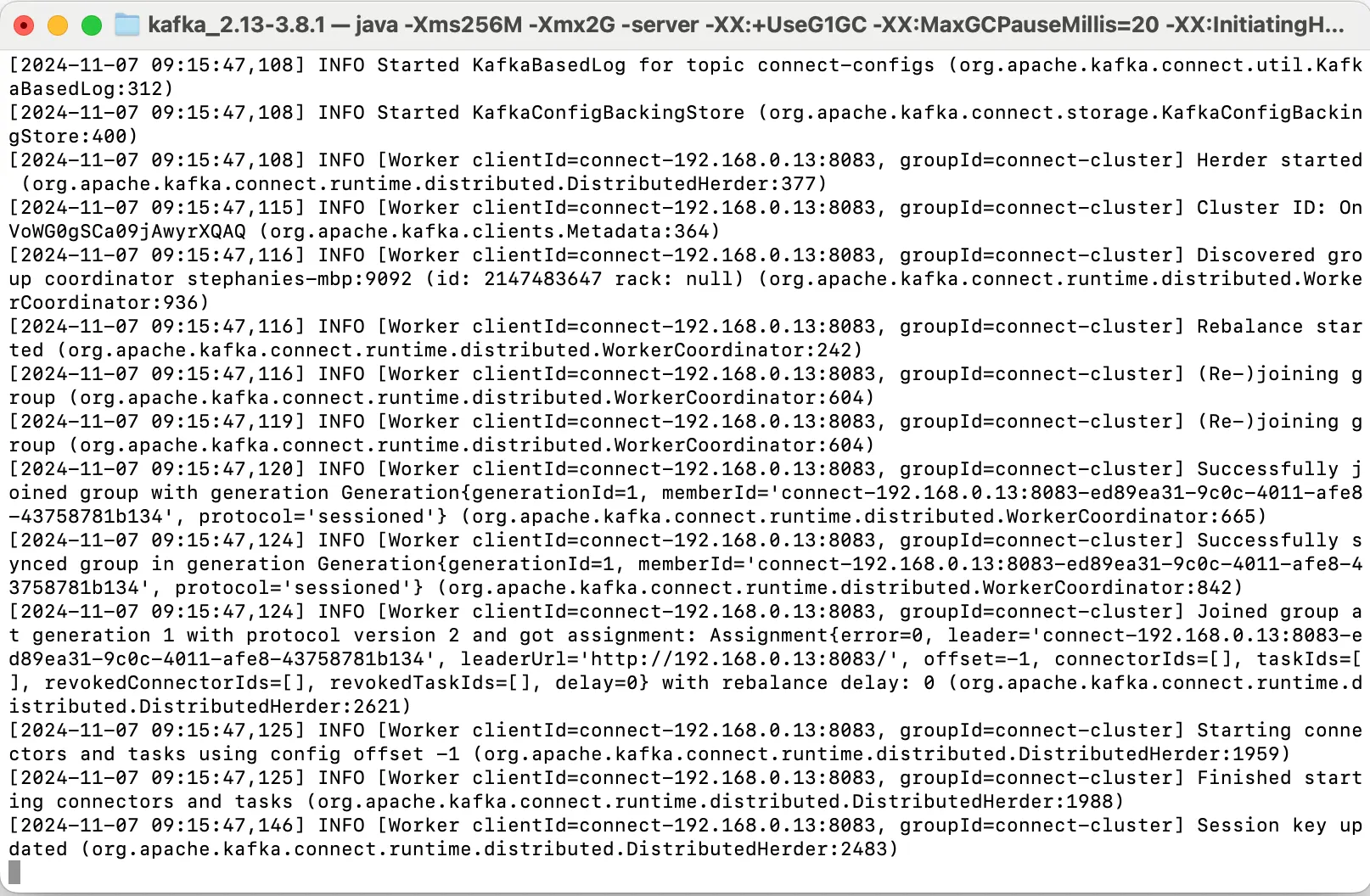
- In the Terminal window, enter this command: bin/connect-distributed.sh config/connect-distributed.properties
This command will start Kafka Connect and will load the library of the Adobe Experience Platform Sink Connector
After a couple of seconds, you'll see something like this:
Create your Adobe Experience Platform Sink Connector using Postman
For this part you will need to download the Postman Collection below and Import this into Postman:
You can now interact with Kafka Connect using Postman.
- Open Postman and expand the Collection.
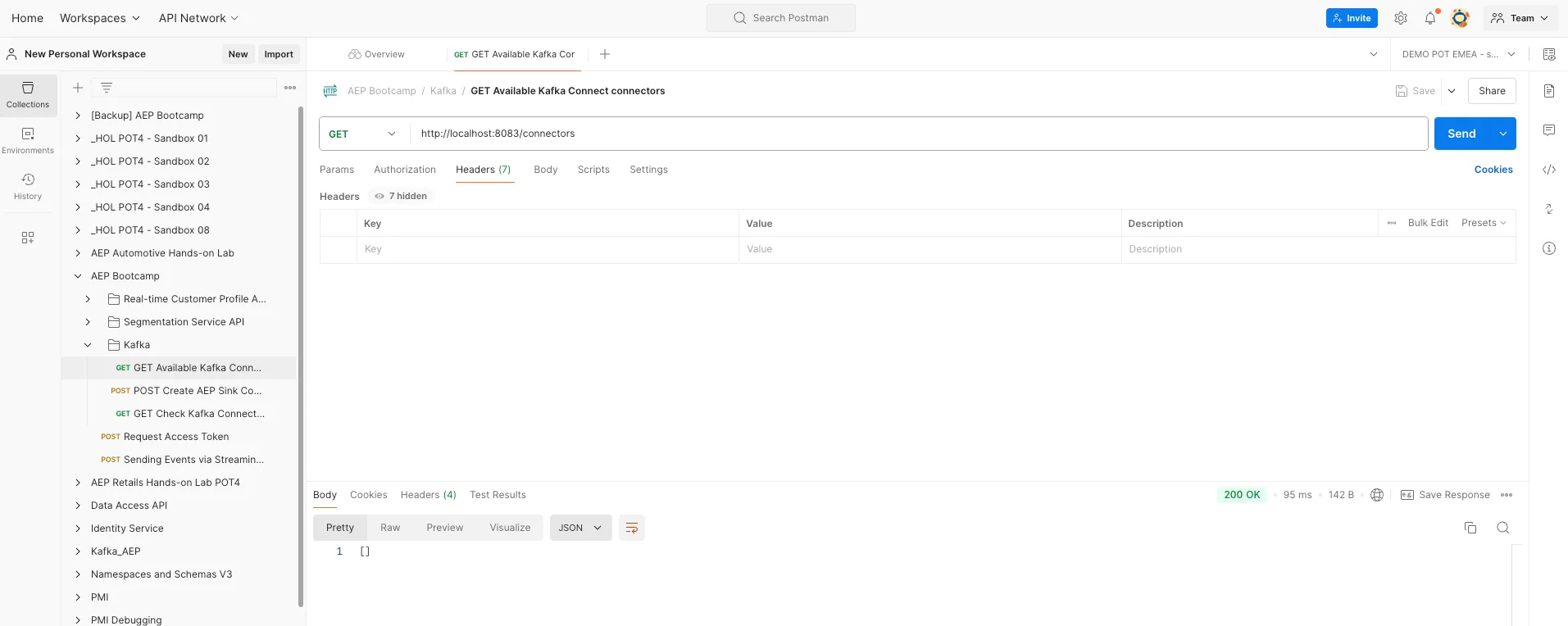
- In the Kafka folder, select the GET request Available Kafka Connect connectors
- Click Send.
You should see an empty response [] since no Kafka Connect connectors are currently defined.
To create a connector:
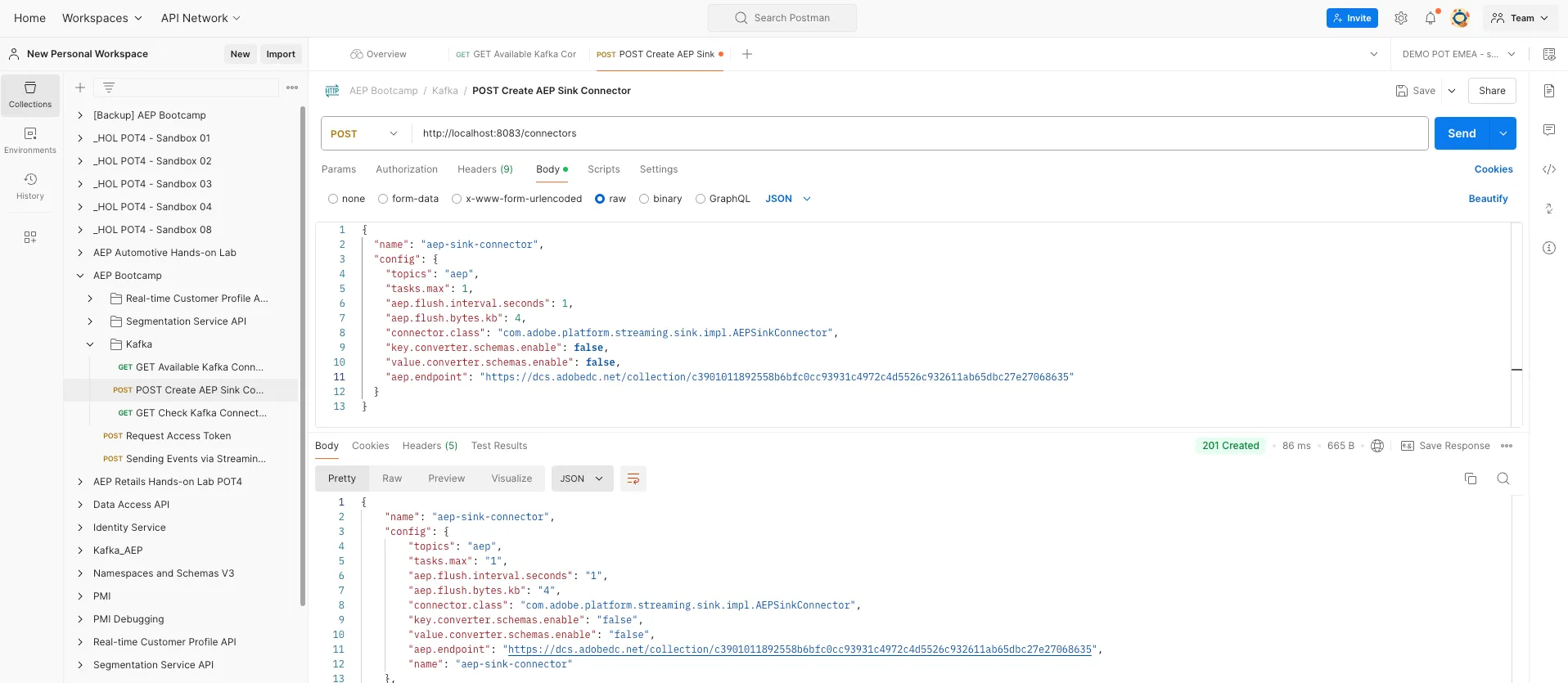
- Select the POST request Create AEP Sink Connector
- View the Body of the request
- Replace the aep.endpoint value with the AEP Streaming URL created for this lab using in the HTTP API Source Connector: https://dcs.adobedc.net/collection/8fcbaf441cfe51ddb7ee5ac4b0adfc4dc437456e52eff8ff3d5c07a39543fd0c
- Click Send to create your connector.
To check the connector is running:
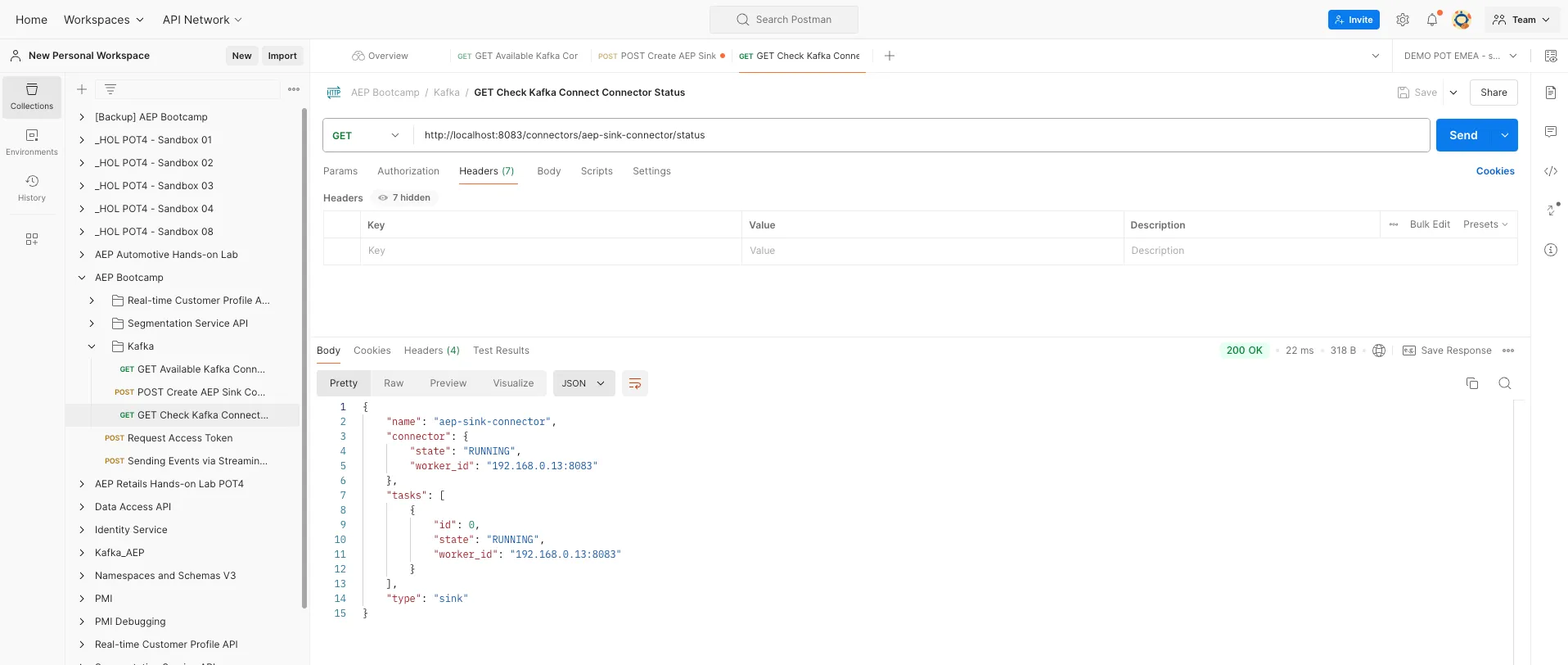
- Select the GET request Check Kafka Connect Connector Status
- Click Send.
You'll get a response like below, stating the connector is running:
Produce an Experience Event
Let's send in a Callcenter experience event from Kafka into Adobe Experience Platform.
- In a new Terminal Window opened at the folder level, enter the command: bin/kafka-console-producer.sh --broker-list 127.0.0.1:9092 --topic aep
Every new line followed by Enter will result in a new message being send into the topic aep.

- Take the below sample experience event payload and copy it into a Text Editor:
{
  "header": {
    "datasetId": "678fb44b36409c2aee065367",
    "imsOrgId": "8AB51935659C10E40A495FA2@AdobeOrg",
    "source": {
      "name": "Kafka - Call Center Events"
    },
    "schemaRef": {
      "id": "https://ns.adobe.com/demopotemea/schemas/b0190276c6e1e1e99cf56c99f4c07a6e517bf02091dcec90",
      "contentType": "application/vnd.adobe.xed-full+json;version=1"
    }
  },
  "body": {
    "xdmMeta": {
      "schemaRef": {
        "id": "https://ns.adobe.com/experienceplatform/schemas/b0190276c6e1e1e99cf56c99f4c07a6e517bf02091dcec90",
        "contentType": "application/vnd.adobe.xed-full+json;version=1"
      }
    },
    "xdmEntity": {
      "eventType": "callcenter.dialIns",
      "_id": "234y6wegcsd",
      "timestamp": "2025-01-27T09:54:12.232Z",
      "_demopotemea": {
        "identification": {
          "core": {
            "phoneNumber": "+447929141042+hol"
          }
        },
        "interactionDetails": {
          "core": {
            "callCenterAgent": {
              "callID": "Support Contact - 3767767",
              "callTopic": "returns",
              "callFeeling": "negative"
            }
          }
        }
      }
    }
  }
}
You'll need to manuall update 2 fields:
- _id: set this to a random unique id
- phoneNumber: enter the phone number of your profile that was created in any of the previous lab exercises.
We need to remove the whitespace from the JSON payload:
- Paste your JSON payload and select the Remove whitespace option.
- Copy the output text and return to your Terminal Window.
- Enter the new payload to send this Event to AEP.
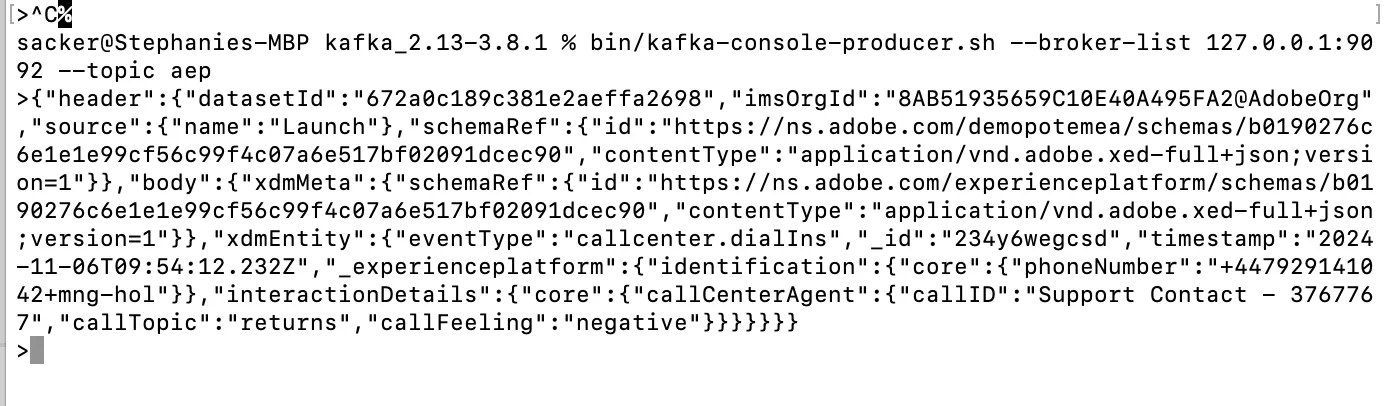
You have now successfully streamed an Experience Event into Adobe Experience Platform via Kafka Connect using the Adobe Experience Platform Sink Connector.