Testing the live journey
In this exercise we'll test the journey we've build.
In Adobe Journey Optimizer you can run journeys in test mode to test if the outcome of your journeys aligns with your requirements.
Pre-requisites for testing the journey
For testing this journey, there are some pre-requisites to mock the scenario. The customer should have an active flight booking which is been delayed. To simplify the test experience,
- please book a flight from LHR to DOH for the next day and
- complete the booking with entering your email address. If you already booked and created profile, the details will be prepopulated.
- Validate the profile is qualified for QA - Economy class customer who has an active flight audience. Check Visualise your profile for know how to see it
- Ensure you are logged in as the same user by using the same email to the mobile app. Check Mobile app page to know how to do it.
To start testing the live journey, we need to publish the journey
There is already a Live Published version of this Journey. To avoid receiving multiple communications, we ask lab participants not to publish their own journeys, but test the existing Live journey.
Starting the journey
- Open the mobile app.
- Click on Location Entry menu button
- Fill out the values for the fields
- Set POI Category as Airport
- Set Airport as LHR
- Click on Trigger Airport Entry button.
- You will get an alert saying Location entry triggered and click OK
- Now go to the journey and you can see how the trigger invoked the journey and the path it took. It will look like below
-
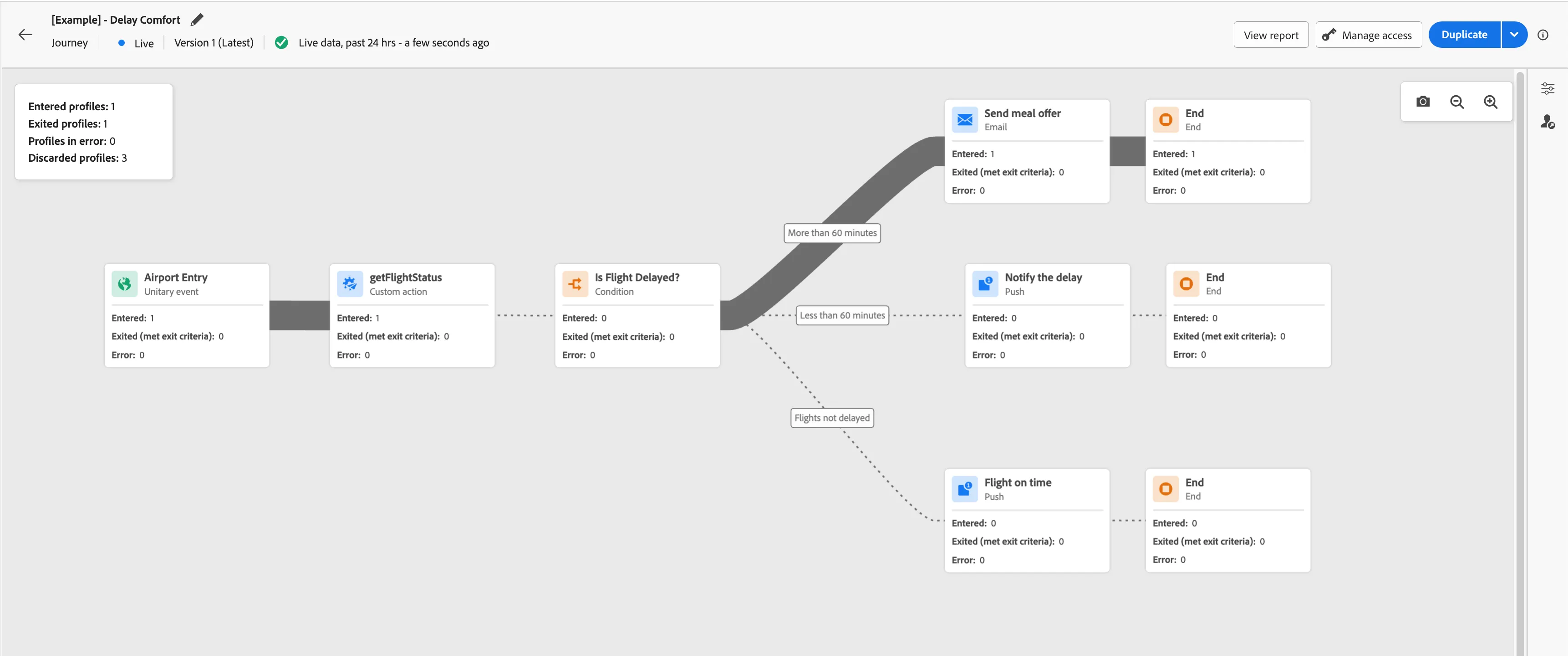
- As you can see since the flight was delayed for more than 60 minutes, it has gone to a journey to sent a meal offer via email.
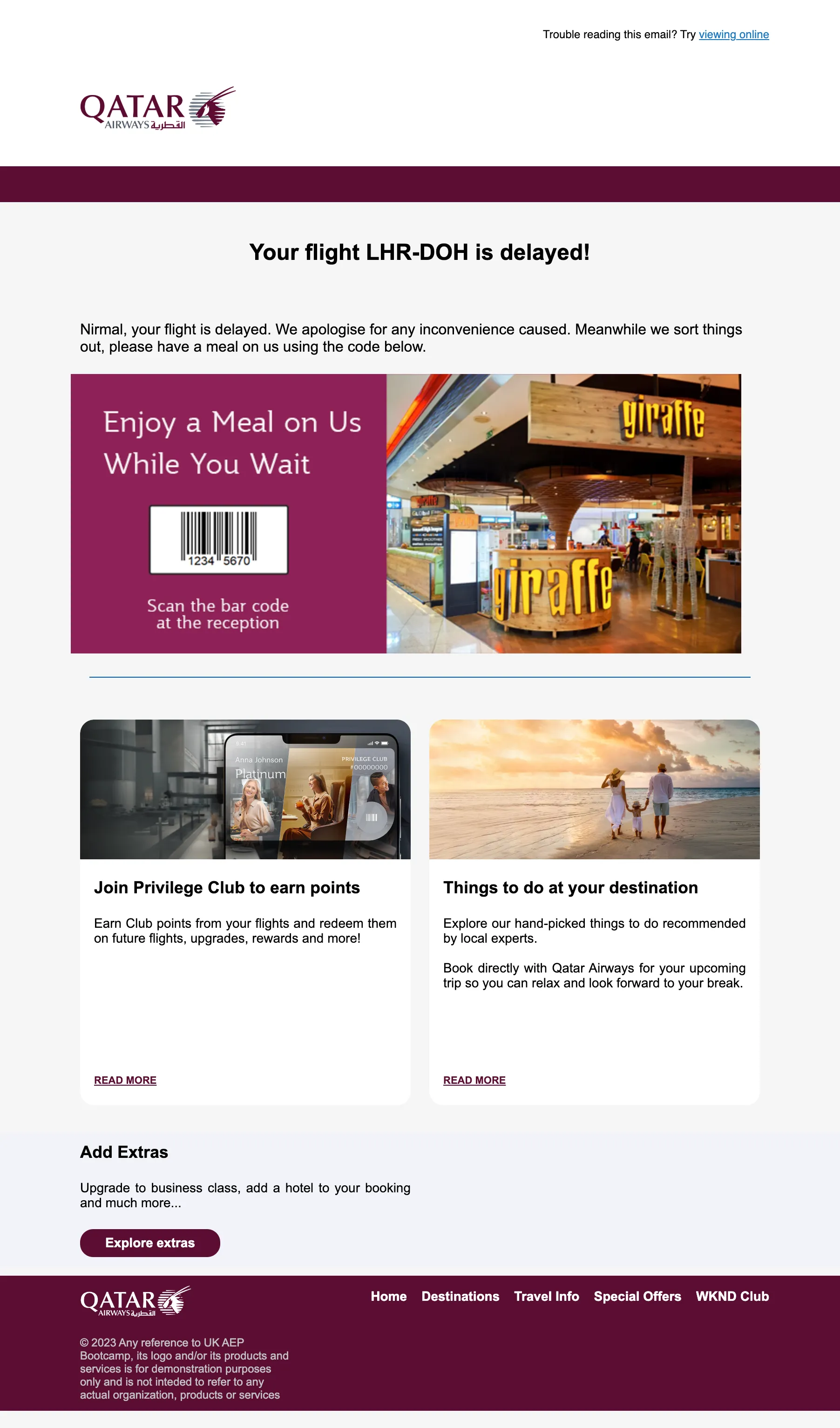
- Check the email and you should receive an email like below
You have now successfully created the delay comfort journey using the Adobe Journey Optimizer and successfully tested in live.