Create Offer
4 min
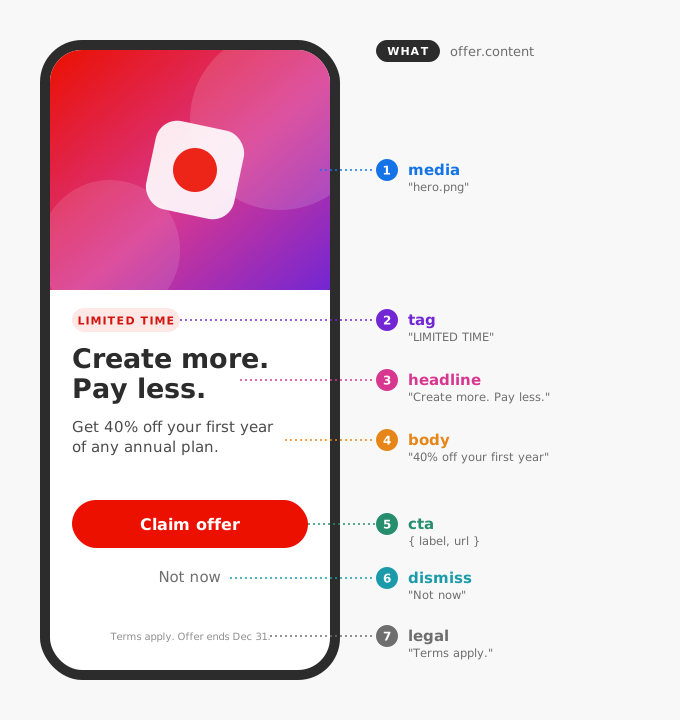
Create Your Item
- On the navigation menu, click Catalogs under Decisioning.
- Click Create Item.
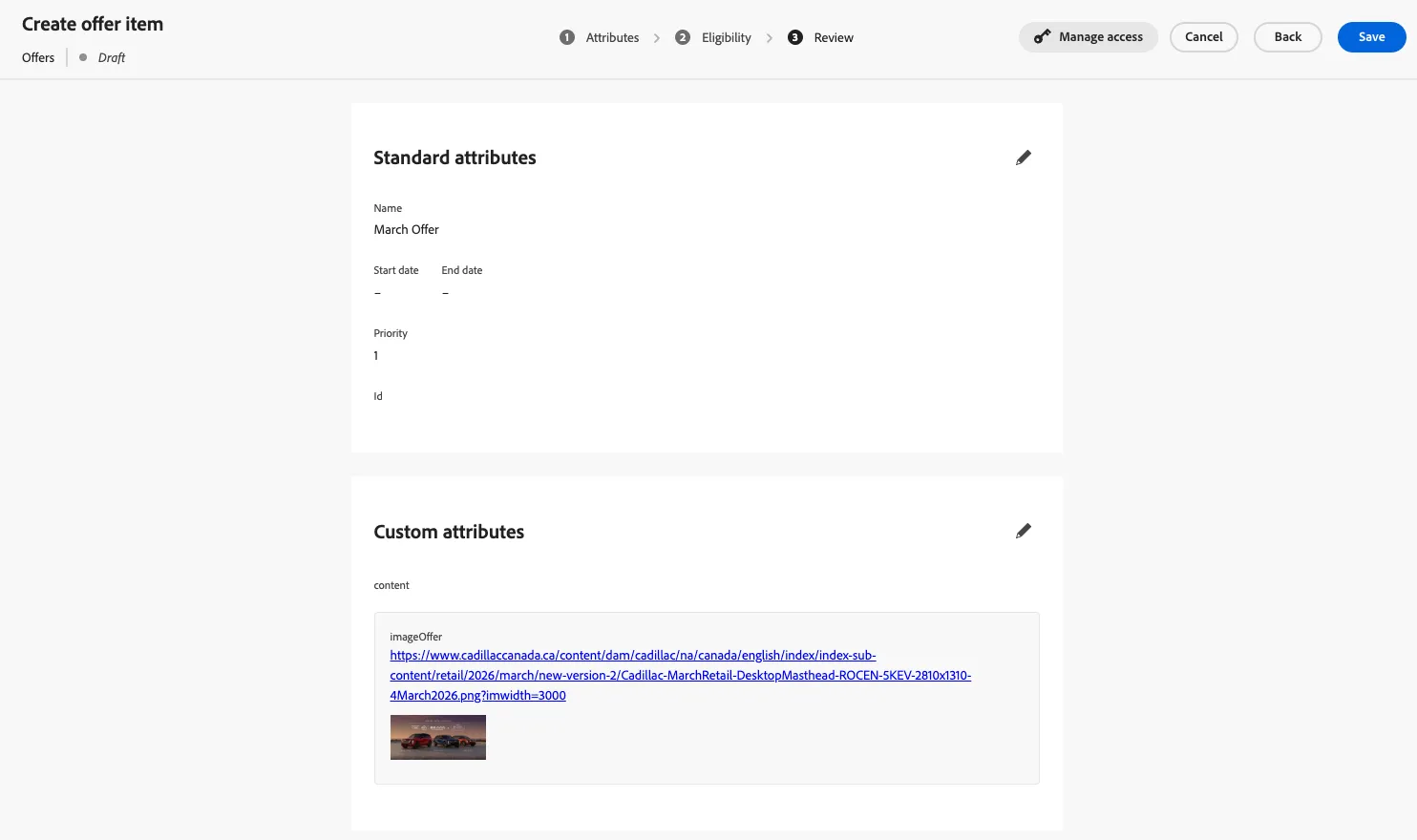
- Provide standard attributes.
- Offer Name: "RBC | INITIALS | RRSP Acquisition"
- Set a Start and End dates.
- Create a Tag with Your initials: RBC_INITIALS
- Set Priority 1.
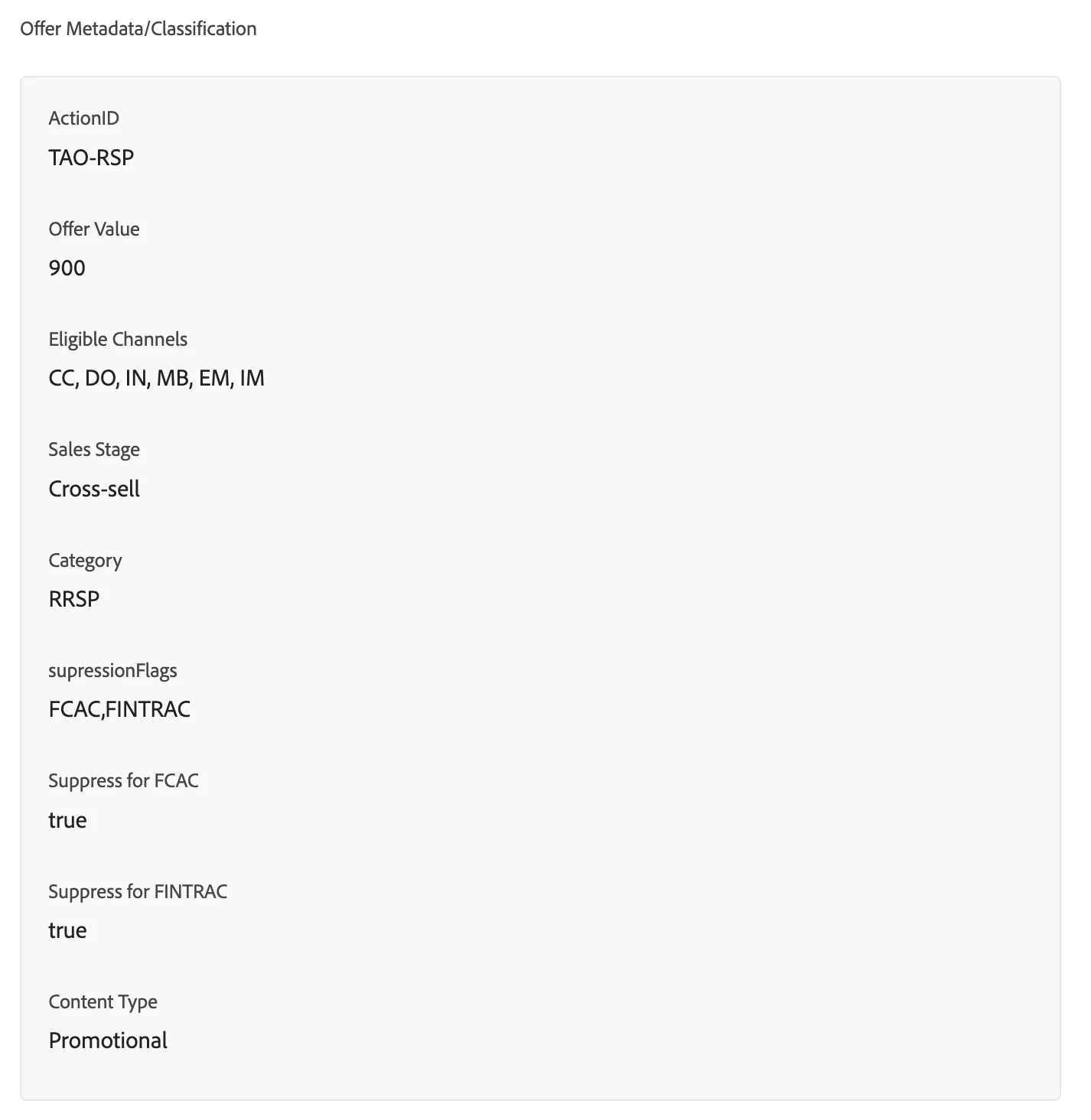
- Provide Custom Attributes:
- Offer Metadata/Classification:
- Media Assets
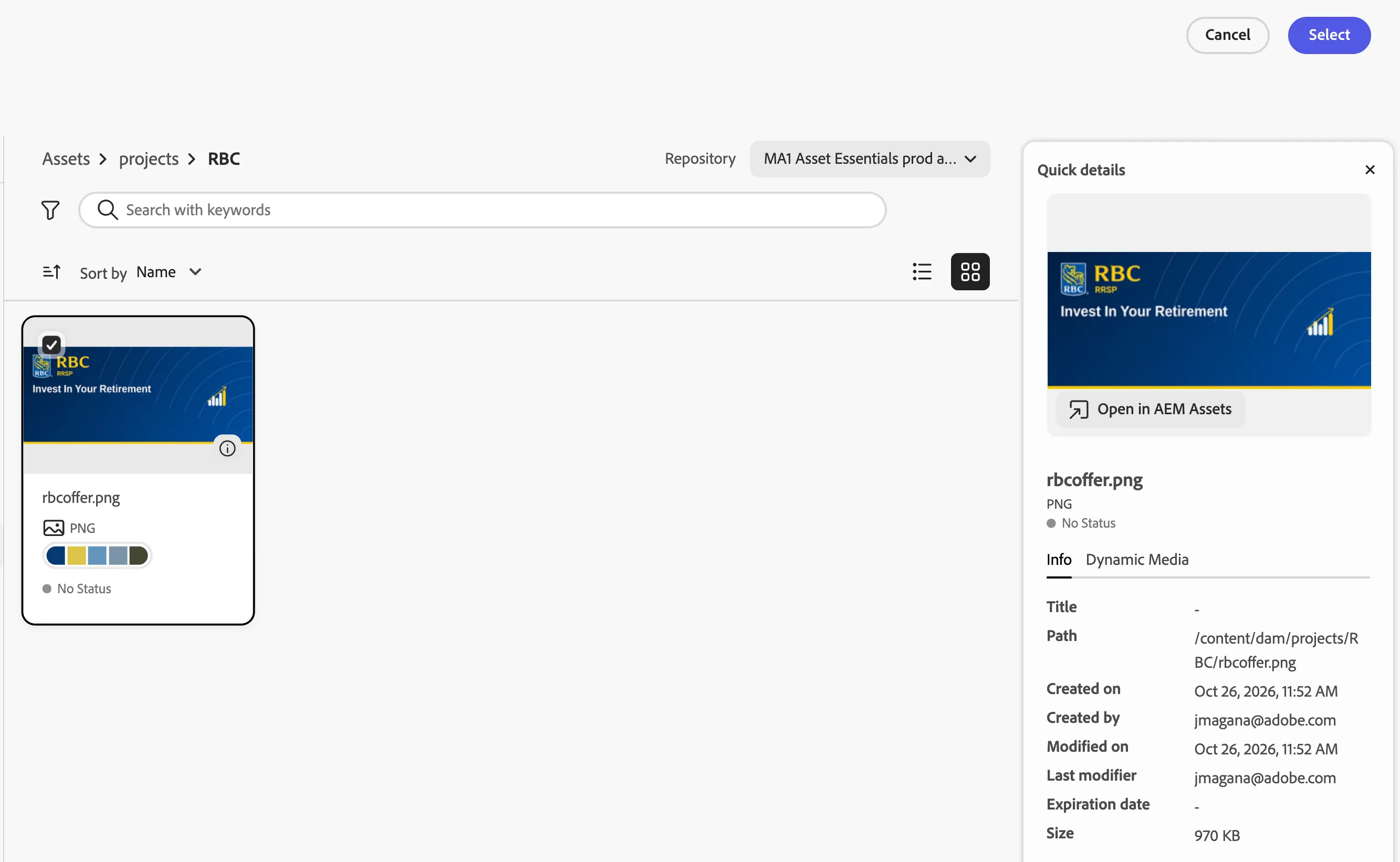
- Click Add asset from library under the Image (Medium Resolution)
- Click Add asset button
- Navigate to the "projects" folder > "RBC" folder > rbcoffer.png
- Select the image:
- Navigation
- Text Content
- Brief Message: Start My RRSP
- Full Call To Action: Start My RRSP
- Compact Description: Lower this year's taxable income while investing for the retirement Canadians picture, with an RBC RRSP
- Full Title: Retire on Your Terms: Start an RBC RRSP
Assign Eligibility
- Select By Rule option
- Add: RBC - NBA Qualification
- Click Next, Review, Save, and Approve.
Set Capping
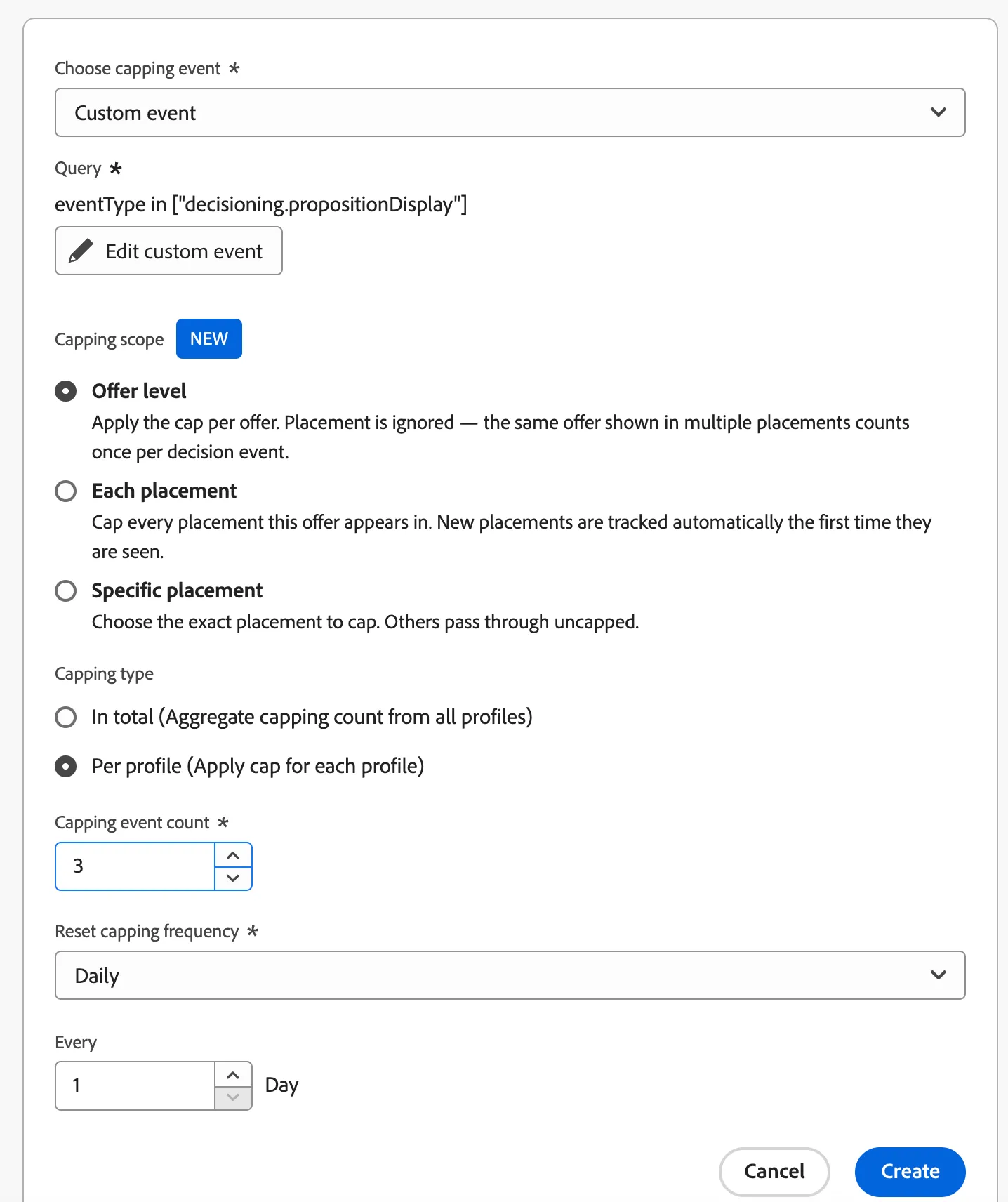
We want to create a capping rule that removes this offer from the user if the offer is shown 3 times. This will allow the next best action to be shown. This cap should be reset every day, so the offer capped is re-introduced back into the available items (if the profile still qualifies that is).
- Click Create capping button
- Capping Event: Custom Event
- Click Add Custom Event
- Search for Event Type (Second option from the list)
- Drag and drop it into the canvas.
- Select: decisioning.propositionDisplay
- Click Create
- Leave:
- the capping scope at the Offer Level.
- Capping Type Per Profile.
- Set capping event count to 3.
- Set Reset capping frequency to daily.
- Every to 1 day.
- Click Create
- Click Next
- Click Save and Publish
Congratulations, you have created your first offer item!